#❓ask-a-question
1 messages · Page 145 of 1

 real crescent
How do I subtract a figure?
real crescent
real crescent
How do I subtract a figure?
The other Boolean functions also don't work.
Wait, I realized I need another tab. 🫡
 civic portal
yess yess i got it thx
 fluid craneBOT
Gave +1 Creative Carma to @viral palm (current: #7 - 980)
real crescent
real crescent
Wait, I realized I need another tab. 🫡
Then another question: is it possible to move tabs out of the way to have quick access to them?
 weary heron
real crescent
Then another question: is it possible to move tabs out of the way to have quick ...
weary heron
real crescent
Then another question: is it possible to move tabs out of the way to have quick ...
What do you mean Tabs?
real crescent
weary heron
What do you mean Tabs?
Various tabs (Layers->Combine shapes, but as I understand it is impossible) I need to completely move the Combine shapes
Writing a plugin to have buttons is a bit of a hassle. Hotkeys aren't working either; I can't really assign them to anything. I need to reassign the buttons themselves.
weary heron
real crescent
Writing a plugin to have buttons is a bit of a hassle. Hotkeys aren't working ei...
you mean like this?
 real crescent
weary heron
you mean like this?
real crescent
weary heron
you mean like this?
yes
weary heron
real crescent
yes
Edit > Keyboard Shortcuts ( near the bottom )
Then this window pops up and you can either search or scroll to the desired action
real crescent
real crescent
Writing a plugin to have buttons is a bit of a hassle. Hotkeys aren't working ei...
@weary heron ->I wrote. I don't want to assign hotkeys
 viral palm
 mossy finch
welp, chatgpt did it
mossy finch
welp, chatgpt did it
Not sure to understand ... You wanted transparent screen area with smooth edges or white screen?
Using quick selection wasn't necessarily the best way to do what you wanted to do...
Hard to say what is the best without seeing the original image of the screen...
Anyway, now you have a solid white screen you can get a clean and smooth selection and mask the screen.
 ivory rampart
They wanted to smoothen this image @viral palm
 fallow berry
Why isn't generative fill avabile?
I used it countless times now, but suddenly it doesnt want to work
 ripe quest
fallow berry
Why isn't generative fill avabile?
ripe quest
fallow berry
Why isn't generative fill avabile?
You have to make a selection.
fallow berry
ripe quest
You have to make a selection.

when i click generative fill, it doesn't work for some reason lmaoo
ripe quest
fallow berry
when i click generative fill, it doesn't work for some reason lmaoo
Try restarting the app, I guess.
mossy finch
viral palm
Not sure to understand ... You wanted transparent screen area with smooth edges ...
this is original

i wanted to take away the screen so i can put my own video in there
so transparent
i di quick selection tool for screen which left rugged edges around it
civic portal
I was running some heavy photoshop files past few days. Now even after restarting my computer When I open a fresh new file my photoshop is lagging a lot like it wont select the eraser after pressing E or just be very unresponsive. What do I do? It is kind of urgent for me to work
fallow berry

How do I add?
nvm i found out hehee
I have a problem where I click alt click hide layer, right? But if I add new layer and remove that eye for the new layer it wont come back
viral palm
mossy finch
this is original
Ok I see... Since the screen has a lot of reflection perhaps you can work and get a good enough result with direct selection tool.
You just have to make your selection first then use the "Select and Mask" button and adjust few settings to refine your selection before create your mask.
viral palm
fallow berry
I have a problem where I click alt click hide layer, right? But if I add new lay...
Alt+click on the eye icon will "solo" the clicked layer (shows only this one and Hide all the other)
If you want to hide/show a layer just click on the eyeball icon of the layer you want to hide/show.
 spice orchid
how do I warp text so it follows the shape of a png?
I tried making a selection of the image and then a path but its not making the text go where I want
something like this

 sly hawk
Illustrator is perfect for that, but you can still do it in photoshop. - One moment....
@spice orchid
spice orchid
text is going outside this selection, but I was thinking more of adjusting a word to that shape
sly hawk
spice orchid
text is going outside this selection, but I was thinking more of adjusting a wor...
 spice orchid
sly hawk
spice orchid
sly hawk
yes thats what I want
I basically pick a png of a shape I like, I select and remove the transparent parts with - magic wand
and conevrt to path, but now I dont know what to do
sly hawk
You forget all that - and manually 'warp' it
I recorded a video, but the filesize is 10mb, so just shrinking it..
sly hawk
spice orchid
yes thats what I want
I haven't watched the clips, but I'd use illustrator, and then copy it into Photoshop later,.,,
sly hawk
In photoshop probably not.
In Illustrator, yes.
Here's someone doing a better job of it than me - in photoshop!
https://www.youtube.com/watch?v=rmJf1f8FtUw

In this Photoshop tutorial, I am going to show you how to warp text in a shape!
Social Media:
Twitter: https://twitter.com/Tempra_01
Twitch: https://www.twitch.tv/tempra01
Instagram: https://www.instagram.com/tempradesigns/?hl=en
Get started with Canva Pro today:
https://partner.canva.com/jW51JM
Get started with TubeBuddy today:
https://www...
spice orchid
sly hawk
Here's someone doing a better job of it than me - in photoshop!
https://www.yout...
mmm it still uses manual adjusting
I have to install illustrator then?
spice orchid
ok, will test there
spice orchid
when I try to merge with object on top
mossy finch
viral palm
Ok I see... Since the screen has a lot of reflection perhaps you can work and ge...
looks good !
would be cool if we could get that glass reflection over my video that i put in there
spice orchid
sly hawk
WELP I CANT RECREATE THIS IN ILLUSTRATOR IF i DO THE MERGE WITH TOP OPTION IT LOOKS BAD
sorry caps
spice orchid
how can I fix this?
 viral palm
mossy finch
would be cool if we could get that glass reflection over my video that i put in ...
viral palm
mossy finch
would be cool if we could get that glass reflection over my video that i put in ...
You can since the original screen reflections are greyscale... I used Patch tool to clean the colored spots inside the original screen, make a selection of the inside => copy it on its own layer (CTRL+J) put this copy under the masked computer. Import your image and place it at the bottom of the layers pile. Finally set the Blending mode of the " greyscale inside copy" to Overlay => You have your reflection over the picture...
Here is a short video... A video is worth a thousand words...
 slate nova
I CANT ADD TEXTUR IN THIS CLOTH WHY ?
 viral palm
slate nova
I CANT ADD TEXTUR IN THIS CLOTH WHY ?
viral palm
slate nova
I CANT ADD TEXTUR IN THIS CLOTH WHY ?
Don't think it's a Photoshop issue...Perhaps someone could help here but I can't since I'm not very familiar with 3D software.
Better chance to get an answer if you ask on Adobe Substance 3D Discord server: https://discord.com/invite/AnEwvpcgnY
 visual valley
hi sorry if this is the wrong place to ask but im looking for someone who can swap my face from one image with my face from another image
 hushed niche
civic portal
I was running some heavy photoshop files past few days. Now even after restartin...
hushed niche
civic portal
I was running some heavy photoshop files past few days. Now even after restartin...
Hi, We would restart again.
If nothing changes, reset Photoshop’s preferences manually by dragging the preferences folder to the desktop. This way you can copy them back if it does not work: https://helpx.adobe.com/photoshop/using/preferences.html#Manually
hushed niche
visual valley
hi sorry if this is the wrong place to ask but im looking for someone who can sw...
You might use #💬chat-general for that but be aware that it is NOT the goal of this forum, and that we are not responsible for what happens in DMs (see the pinned messages)
hushed niche
slate nova
I CANT ADD TEXTUR IN THIS CLOTH WHY ?
Hi, don’t shout and tell us which software it is.
hushed niche
spice orchid
how can I fix this?
Make sure you have 4 corner points and not 5, or drag the central part on the right side.
 polar veldt
How to make flip transform box reappear?
Like after ctrl+t the flip menu should appear
this menu

but for flip transform
oh found it
 rancid beacon
I have Photoshop on my pc but i also want to download it on my laptop so i can work at uni too or anywhere i am for that matter but I'm having trouble doing so and no tutorial online has what i need
Can anyone help me?🥲
spice orchid
hushed niche
Make sure you have 4 corner points and not 5, or drag the central part on the ri...
ok I think the problem is that the lower anchor points dont have the same distance as the upper ones
my shape has 4 anchor points in the corners, 2 on the top side and 2 on the lower side
but as you can see in the image the lower anchors are fine, near the corners, but the top are near the middle
is tehre any way I can change those anchors without altering the shape?
 vapid flume
rancid beacon
I have Photoshop on my pc but i also want to download it on my laptop so i can w...
vapid flume
rancid beacon
I have Photoshop on my pc but i also want to download it on my laptop so i can w...
Go here
https://www.adobe.com/apps/all/desktop
and make sure you are logged in to your account. (same email and same password as your main account)
You can also download the CC app from there, which will allow you to control which apps you want to download and various other things like seeing your cloud files...

One word of caution. Be sure you only install it on two, and no more computers, and don't use both of them at the same time. These are the limitations laid out in your contract
That means that you can't share an account that isn't yours, your app won't work (and the main account risks being terminated)
The important thing is to NOT create a new account for the new computer, but instead use the one you have already, with the PS paid subscription. Otherwise it won't work.
vapid flume
spice orchid
my shape has 4 anchor points in the corners, 2 on the top side and 2 on the lowe...
You might ask in the Illustrator server instead...
(you're in the Photoshop server here 🙂 )
https://discord.com/invite/adobeillustrator
hushed niche
polar veldt
oh found it
It’s a contextual menu, similar to the right-click contextual menu, its contents change according to the tool you use.
hushed niche
rancid beacon
I have Photoshop on my pc but i also want to download it on my laptop so i can w...
In addition to Sandrine wise words, here’s the helpx page on the topic: https://helpx.adobe.com/uk/download-install/apps/licensing-activation/activate-deactivate-apps/install-apps-number-of-computers.html
hushed niche
spice orchid
but as you can see in the image the lower anchors are fine, near the corners, bu...
See what James did, he clicks on the image to move the text distortion: #❓ask-a-question message
spice orchid
hushed niche
See what James did, he clicks on the image to move the text distortion: https://...
I saw I was just wondering if there was a more automatic way of doing it
For simple 4 sided shapes shouldn't be difficult
I was trying in illustrator but no luck
hushed niche
spice orchid
I was trying in illustrator but no luck
In illustrator look for envelope distort.
spice orchid
hushed niche
In illustrator look for envelope distort.
I tried merge with top but it didn't go well
It had 1 anchor top and 2 bottom, but even changing it so it has symmetrical anchors doesn't work
Im also trying to collapse the shape into a single line like in the pic but I'm a bit lost
 hushed niche
spice orchid
It had 1 anchor top and 2 bottom, but even changing it so it has symmetrical anc...
hushed niche
spice orchid
It had 1 anchor top and 2 bottom, but even changing it so it has symmetrical anc...
I you ou mean more than 4 anchor points?
spice orchid
hushed niche
I you ou mean more than 4 anchor points?
Im basically trying to put text through a shape autimatically
hushed niche
spice orchid
Im also trying to collapse the shape into a single line like in the pic but I'm ...
The flag warp in Photoshop is not enough? https://www.photoshopessentials.com/basics/type/warp-text/

Learn how Photoshop's built-in Text Warp options make it easy to twist and distort text into various shapes, all while keeping the type completely editable!
spice orchid
hushed niche
The flag warp in Photoshop is not enough? https://www.photoshopessentials.com/ba...
no
hushed niche
spice orchid
Im basically trying to put text through a shape autimatically
Ah hopefullyautomatically
spice orchid
hushed niche
Ah hopefullyautomatically
here is the shape transformed into vectors in illustrator
 hushed niche
In illustrator look for envelope distort.
hushed niche
hushed niche
In illustrator look for envelope distort.

Here is a way of distorting letters with easy using the Envelope Distort tool. It's not 100% accurate but it can do a lot of nice tricks.
👉Subscribe: https://www.youtube.com/channel/UCS1gMhu2KgHqW4OunIAaKrA?sub_confirmation=1
Here are some of the top selected logo design courses from the greatest designers out there on Domestica:
Sagi ...
spice orchid
envelop distort make with top gives me this
 hushed niche
spice orchid
envelop distort make with top gives me this
hushed niche
spice orchid
envelop distort make with top gives me this
Do it with 4 and not 6 anchor points
spice orchid
hushed niche
Do it with 4 and not 6 anchor points
mdym
hushed niche
No way to create a close matching shape out of 4 anchor points? Or try with extra points on topzzz
spice orchid
hushed niche
No way to create a close matching shape out of 4 anchor points? Or try with extr...
so I just add a bunch of anchors at the top and bottom?
the image has 7 anchor points in totyal
 hushed niche
Remove the top central one on top and the two off the corners But as Sandrine said, let’s go to the illustrator discord
hushed niche
… where the user was already, without telling us, and received verbatim the same suggestions… please help us stop reinventing the wheel, concentrate questions in one channel vs multiple ones, or at least have the correctness to point out where it was asked and partially answered!
 shell cipher
Hi, I wanted to ask this question because I'm a bit lost right now ^^
Does anyone know which good drawing tablet I can buy with a budget of around €250?
It's mainly for drawing, painting, and photo editing.
I saw that the Artist Pro 16 is currently €263 and the Innovator 16 is €254.
Are these good deals for a beginner using a tablet? Are there better options?
Thanks in advance for any help 🙂
ripe quest
shell cipher
Hi, I wanted to ask this question because I'm a bit lost right now ^^
Does anyon...
I don't know about any of those tablets. Sorry. You'll have to read the reviews on Amazon, maybe, if they are available there. I would just the get an inexpensive one to begin with. Figure out if you like using one first. You can find cheap Wacom for much less.
ivory rampart
Im using huion kamvas 13 on pc and i’m enjoy using it
I think it should be in your budget
ripe quest
shell cipher
Hi, I wanted to ask this question because I'm a bit lost right now ^^
Does anyon...
It also depends on whether you want a display or just a drawing surface.
I would go with just the surface for now.
vapid flume
shell cipher
Hi, I wanted to ask this question because I'm a bit lost right now ^^
Does anyon...
I don't think anybody can help regarding brands and models. That would mean we would have tested them all, which is impossible. We ain't Techradar with the budget to buy several tablets 🙂
If you paint you'll need a bigger surface than photo editing, you'll probably need more level pressure as well. That said, all of known tablets have sufficient pen pressure, tilt and other stuff for a beginner
The general advice would be to test any tablet (ie a cheap one) first before investing (of course that depends on your budget)
Because some people don't get on well with tablets - I personnally couldn't live without (I have an XPpen that does it job, it's an old one, has a screen that I barely use, and is 13.3in which I appreciate)
I would have kept it at a smaller size and without screen if all I wanted to do was photo retouching. I bought this one 3-ish years ago because I wanted to do some illustration (not vector). Turns out I'm better at vector illustration 🙂
For which I get on well with a mouse, but that's entirely personal...
So basically Wacon, Huion, XPpen, Xencelab... you can't go wrong. Now the rest is about choosing the size (bigger size also means bigger arms movements, possible strain on the elbows if you're not careful) and the extra bits like software included, the quality of the drawing surface (but you can add some textured films if you prefer paper-like feel) and extra stuff like the possibility to use it as a standalone tablet (meaning that the tablet doesn't need a computer to operate, they generally have an android OS embedded and tend to be more expensive)
shell cipher
@ripe quest
Hi, I had the chance to try out a tablet at a friend's house and I really enjoyed it!
It's quite a change from my pencils and paint pot ^^
@ivory rampart
Yes, the Kamvas 13 is quite popular ^^
@vapid flume
Thanks for all the information 🙂
Yes, I've already had the chance to try out a large tablet at a friend's house—a huge tablet where I spent hours trying to recreate what I do on paper, for example ^^
That's partly why I'm looking for one; I was really impressed by this tool.
So, between 13 and 16 inches seems like the perfect size for retouching, design, and painting.
Anyway, thanks everyone for the advice 🙂
fluid craneBOT
Gave +1 Creative Carma to @ivory rampart (current: #31 - 73)
 halcyon widget
Hello, I don't know what's happening with my brush, but now when I use it, it causes aliasing, whereas before it didn't.

 chrome heron
whats the keyframe for zooming back to normal scale on canvas?
 chrome heron
thx
sly hawk
halcyon widget
Hello, I don't know what's happening with my brush, but now when I use it, it ca...
The image is tiny and you must be zoomed in at 250%
It's pixelating - this is normal.
start with a bigger image and it won't be an issue
vs


Both versions have the exact same brush settings
halcyon widget
sly hawk
The image is tiny and you must be zoomed in at 250%
I've always worked with zooming in on the image, and it had never done this to me until today.
sly hawk
Did you work with images that were this small before?
halcyon widget
sly hawk
Did you work with images that were this small before?
I often work with images in 576p.
sly hawk
I see. - Sorry I can't help then.
 proud tusk
hi guys, I want to make a face look better like in this thumbnail but the source photo is hard trash.. does someone know a way of doing it ?

 spice orchid
how do you edit gradients?
I created one but I see no option to edit its values
You can create new ones but is tehre no option to edit an existing one?
 finite otter
so where is it suitable to do this type of effect?

 idle jacinth
How do I replicate the roughed grey so I can smoothen out the painted grey near the icon?
 viral palm
halcyon widget
Hello, I don't know what's happening with my brush, but now when I use it, it ca...
viral palm
halcyon widget
Hello, I don't know what's happening with my brush, but now when I use it, it ca...
Try to work at 100% or any other Photoshop default zoom value (CTRL+ or CTRL-).
Display quality is often affected by odd zoom value...
But the best zoom resolution for evaluating your brush behavior is 100%.
In your case, if 100% gives you an image that is too small to work with, try 200% or 300% and see if there is a difference in the rendering of the brushstrokes.
viral palm
idle jacinth
How do I replicate the roughed grey so I can smoothen out the painted grey near ...
Your icon is on the same layer than the "Roughed grey" or are they on seperate layers?
idle jacinth
viral palm
Your icon is on the same layer than the "Roughed grey" or are they on seperate l...
Same level, I kinda messed up yesterday and deleted the layered one
viral palm
idle jacinth
Same level, I kinda messed up yesterday and deleted the layered one
Ok so I would suggest you to:
1- Make a copy of your design and select the area of the coffin and its solid grey then clean it with content aware fill (or you can try generative fill if you have access to AI feature) - Video 1
2- Make a second copy of the original design, put it on top then extract the coffin of it with your favorite masking technique (I used magic selection tool for fast result) - Video 2
idle jacinth
viral palm
Ok so I would suggest you to:
1- Make a copy of your design and select the area ...
Thank you, the second one was just wonderful ❤️
fluid craneBOT
Gave +1 Creative Carma to @viral palm (current: #7 - 981)
 drowsy cloud
when im using a wacom intuos tablet with windows ink, using a tool like the ink dropper doesnt allow me to move it within a small radius (i have to move it a certain distance to "unlock" the cursor)
this is fixed by turning windows ink off, but then i have no pen pressure. i know there are certain ways to bypass that for photoshop using custom files, but to be honest i just cant help but feel like the first thing is something i can fix. anyone know what im talking about?
 rose raptor
I want to make the lines thinner in this image but still cross at the center

 languid mortar
how to i make their face less bright
 ivory rampart
rose raptor
I want to make the lines thinner in this image but still cross at the center
ivory rampart
rose raptor
I want to make the lines thinner in this image but still cross at the center
Franck made a great tutorial
ivory rampart
languid mortar
how to i make their face less bright
You can play with adjustments filters like curves and levels to hide highlights
hushed niche
See, you could have had the answer directly with a fullscreen capture. In the future, help us help you faster! Sorry, I don’t know why this old chat popped up… (ah, senior moment, I clicked on the message above and got back in time)
hushed niche
languid mortar
how to i make their face less bright
Hi this is why we recommend to capture images in raw mode , including on a phone ( https://www.croma.com/unboxed/how-to-take-and-edit-raw-photos-on-android-smartphones?srsltid=AfmBOooS_QEANgJLaIHoLhiXrD_I87EoGk2LbEmhnOpX5oQ8bYjU6QPD) , this allows to recover blown highlights.
 stiff trail
drowsy cloud
when im using a wacom intuos tablet with windows ink, using a tool like the ink ...
stiff trail
drowsy cloud
when im using a wacom intuos tablet with windows ink, using a tool like the ink ...
Windows ink has been nothing but a complete farce from day one.
There are STILL stupid issues with dragging / interactions in some applications.
Can you turn on Windows Ink, then activate this:

You may need to reboot or restart the wacom service - Let me know if that changes anything.
stiff trail
rose raptor
I want to make the lines thinner in this image but still cross at the center
It's hard to offer advice on the best way to do this without knowing what you've done already - please paste your layer stack.
languid mortar
hushed niche
Hi this is why we recommend to capture images in raw mode , including on a phone...
i use my canon for this, it was urgent so i dont have the time to changed the setting
so idk if this is still salvagable through pts
hushed niche
Did you try the previous suggestions (curves, hue sat?…) One could clone good color in darken mode at low opacity, …
 unreal spear
I'm trying to make a matte and I have this problem, does anyone know why this is happening?


 stiff trail
Without knowing what you did to create the matte, we're really just guessing.
 rancid lynx


 stiff trail
languid mortar
how to i make their face less bright
stiff trail
languid mortar
how to i make their face less bright
If you only have the JPG then I'm afraid you're toast.

There's nothing but white pixels in the centre faces you see
So you'd either have to rebuild them from another exposure, trust some kind o generative algorithm to patch them in, or go with something like the above.
viral palm
unreal spear
I'm trying to make a matte and I have this problem, does anyone know why this is...
Let me guess: some pixels were semi-transparent when you created your “Total Gold” layer, so when you clip the color layer to it, the semi-transparent areas let the background color show through.
Try to remake the Total_Gold layer making sure you didn't forget any area... Place it over a highly saturated color layer (RED or GREEN) to check it and I would suggest you to change your Total Gold layer into a smart object rather a rasterized layer...
@unreal spear : when you make a selection the marching ant contour doesn't show pixels that have less than 25% opacity but they are still selected so when you extract or do a mask with this selection they are taken in count...
 unreal spear
viral palm
<@361259144243576832> : when you make a selection the marching ant contour doesn...
unreal spear
viral palm
<@361259144243576832> : when you make a selection the marching ant contour doesn...
Ooooh okay
I created the mask using only this tool and it worked


The problem arises if I use this tool to make a quick selection before

 viral palm
unreal spear
The problem arises if I use this tool to make a quick selection before
viral palm
unreal spear
The problem arises if I use this tool to make a quick selection before
Yes object selection can gives some weird and incomplete selection (particularly with highly pixelated image like yours)...
IMO quick selection could work better in your case but it's important to use layer mask rather copying or erase selection.
With layer mask you can correct your "Selection" at any moment... When you cut/erase you are cooked
In the video, I'm working with a bright red color so I can see the forgotten pixels.
unreal spear
viral palm
Yes object selection can gives some weird and incomplete selection (particularly...
Thanks mate!
fluid craneBOT
Gave +1 Creative Carma to @viral palm (current: #7 - 982)
civic portal
hushed niche
Hi, We would restart again.
If nothing changes, reset Photoshop’s preferences m...
wdym restart again? like reinstalling the app??
hushed niche
civic portal
wdym restart again? like reinstalling the app??
No, shut down, restart.
civic portal
ohh
hushed niche
Did you try the preferences ?
civic portal
did that
civic portal
hushed niche
Did you try the preferences ?
yes i mean i purged all data , i increased ram in preferences , changed scratch disk location
hushed niche
Did you reset the preferences or not?
Also, did you restart the computer? Not a simple shutdown, but restart as some computers go to sleep instead of shutdown, for faster startup.
Did you check if the GPU is still working ? Set the status bar to « GPU status », at bottom left…
halcyon widget
viral palm
Try to work at 100% or any other Photoshop default zoom value (CTRL+ or CTRL-).
...
I have always worked with a zoom of 273%, yet before it didn't do this to me. Even in the brushes panel there is aliasing, whereas before this wasn't the case.
 civic portal
hushed niche
Did you reset the preferences or not?
civic portal
hushed niche
Did you reset the preferences or not?
oh you asked to reset the preferences no thats left will do. And yes I had restarted the computer not shutdown
yes GPU was working
hushed niche
halcyon widget
I have always worked with a zoom of 273%, yet before it didn't do this to me. Ev...
Bonjour, same thing: set the status bar to « MODE GPU »: https://helpx.adobe.com/be_fr/photoshop/kb/photoshop-cc-gpu-card-faq.html also is the scaling factor of the app in your Operating System the same?
hushed niche
civic portal
oh you asked to reset the preferences no thats left will do. And yes I had resta...
It’s really step 2 in troubleshooting, after resetting the tool.
viral palm
halcyon widget
I have always worked with a zoom of 273%, yet before it didn't do this to me. Ev...
Oh!... Weird! Can you tell more... Before what? did you update PS, GPU or anything else?
How did you get the "Before" screenshot?...I mean, you must have done something between the two states. I'm curious to know what is it?
halcyon widget
viral palm
Oh!... Weird! Can you tell more... Before what? did you update PS, GPU or anythi...
Yes, I updated Photoshop and also my graphics card. I screenshotted the brush panel from a YouTube video for the BEFORE.
halcyon widget
hushed niche
Bonjour, same thing: set the status bar to « MODE GPU »: https://helpx.adobe.com...
I activated GPU mode and it didn't change anything.
 weary heron
halcyon widget
I activated GPU mode and it didn't change anything.
weary heron
halcyon widget
I activated GPU mode and it didn't change anything.
Are you on Desktop or laptop?
Regardless, I would reinstall the graphic drivers but making sure to remove the existing ones. Normally there is a checkbox for it
hushed niche
halcyon widget
I activated GPU mode and it didn't change anything.
Try the 200% scaling or 150%
hushed niche
halcyon widget
I activated GPU mode and it didn't change anything.
Le mode GPU ne change rien, il te donne une info, cfr le lien donné après.
halcyon widget
weary heron
Are you on Desktop or laptop?
Regardless, I would reinstall the graphic driver...
I have a Samsung Galaxy Book 5 Pro as a laptop
halcyon widget
hushed niche
Try the 200% scaling or 150%
I've already tried that, it doesn't change anything
hushed niche
GPU mode gives you the information needed to see if you are running with GPU (D3D12)acceleration or not (software/processor)
hushed niche
halcyon widget
I've already tried that, it doesn't change anything
And changing the screen resolution ? What is the native one?
And what about Photoshop’s scaling in edit>preferences>interface
halcyon widget
hushed niche
And changing the screen resolution ? What is the native one?
And what about Ph...
The resolution of my screen is 2800x1880p
 hushed niche
What other setting is there than auto for “Mise à l’echelle de l’interface utilisateur”? (Edited for clarity)
viral palm
hushed niche
What other setting is there than auto for “Mise à l’echelle de l’interface utili...
This is for UI scaling ... It could has effect on the brush preview (in brush panel) not sure it affects the strokes on canvas...
Worth a try...
halcyon widget
hushed niche
What other setting is there than auto for “Mise à l’echelle de l’interface utili...
 hushed niche
Yes, it’s a strange one. We still don’t know if they run on the GPU. My hunch is windows scaling
hushed niche
halcyon widget
Sorry, I meant I n Photoshop, I replied to the preferences/interface, check below language
halcyon widget
hushed niche
Yes, it’s a strange one. We still don’t know if they run on the GPU. My hunch is...
Yet I've never touched the scaling settings on my laptop, and before I never had this issue with Photoshop.
hushed niche
Yes, but we still haven’t found what changed between now and then…
viral palm
@halcyon widget :try to change Auto to 100% in the Photoshop preferences...
 hushed niche
halcyon widget
Yet I've never touched the scaling settings on my laptop, and before I never had...
hushed niche
halcyon widget
Yet I've never touched the scaling settings on my laptop, and before I never had...
And what does GPU mode say?
viral palm
halcyon widget
Yet I've never touched the scaling settings on my laptop, and before I never had...
Understood but you've changed your graphic card so we can assume there is a settings that makes the difference...
hushed niche
viral palm
<@456023358937628672> :try to change Auto to 100% in the Photoshop preferences.....
And restart Photoshop to apply the changes
viral palm
halcyon widget
I activated GPU mode and it didn't change anything.
Make sure anti-aliasing is ON in the GPU advanced settings... (paramètre avancés)
 halcyon widget
hushed niche
And restart Photoshop to apply the changes
halcyon widget
hushed niche
And restart Photoshop to apply the changes
I just tried and it didn't change anything. I assume you're talking about this?
 halcyon widget
viral palm
Make sure anti-aliasing is ON in the GPU advanced settings... (paramètre avancés...
halcyon widget
viral palm
Make sure anti-aliasing is ON in the GPU advanced settings... (paramètre avancés...
It is already checked like you
viral palm
Did you update your graphic card driver? (sorry if someone else already asked)...
hushed niche
halcyon widget
I just tried and it didn't change anything. I assume you're talking about this?
I meant the information in the status bar, on bottom left of the interface.
Did you check if there is an updated GPU driver? So the Intel is the only GPU?
lol…
hushed niche
halcyon widget
I just tried and it didn't change anything. I assume you're talking about this?
By “it”,do you mean setting scaling to 100% in /interface then restarting?
halcyon widget
hushed niche
I meant the information in the status bar, on bottom left of the interface.
Di...
Yes! I did enable GPU mode. And even before I updated the graphics card, it was doing the same thing.
 hushed niche
Yes, very good, but you never told us what does it read; it does not enable anything it shows the current mode of the GPU acceleration... Did you read that helpx page I linked to? https://helpx.adobe.com/be_fr/photoshop/kb/photoshop-cc-gpu-card-faq.html
Does it say “software”, “processor” or “D3D12”?
hushed niche
halcyon widget
Yes! I did enable GPU mode. And even before I updated the graphics card, it was ...
You did enable the display of the current GPU mode. The only place you can enable/disable GPU acceleration is in preferences/performance
halcyon widget
hushed niche
Yes, very good, but you never told us what does it read; it does not *enable* an...
I have to admit, I didn't really understand this time. Are you talking about this?

 covert light
Sorry to interrupt, but hoping this is a simple one -- does anyone know why my tools aren't showing up in my toolbar? Notice how many are set to show in my custom toolbar, but not showing up in the actual live toolbar.
It's letting me show/hide the bottom row there (where it says "Show:" and the fore/bg colors, etc.). That section works. But the actual toolbar tools aren't changing, even when I hit "done".
 hushed niche
halcyon widget
I have to admit, I didn't really understand this time. Are you talking about thi...
hushed niche
halcyon widget
I have to admit, I didn't really understand this time. Are you talking about thi...
Yes, that’s where you can enable it. But could you please show us or tell us what the status bar or the info panel says about the GPU mode, now that you’ve set them up? I’ve given you three possible modes.
hushed niche
covert light
Sorry to interrupt, but hoping this is a simple one -- does anyone know why my t...
Hi! Go to windows>workspace and select essentials, and maybe reset it? https://helpx.adobe.com/photoshop/desktop/get-started/learn-the-basics/workspace-overview.html
If it still does not work, reset Photoshop’s preferences manually by dragging the preferences folder to the desktop. This way you can copy them back if it does not work: https://helpx.adobe.com/photoshop/using/preferences.html#Manually
halcyon widget
hushed niche
Yes, that’s where you can enable it. But could you *please* show us or tell us w...
I don't know what I should do or show 😭

 hushed niche
halcyon widget
I don't know what I should do or show 😭
hushed niche
halcyon widget
I don't know what I should do or show 😭
The info panel Windows> info or the status bar, at the bottom left of the interface…

It is what is shown at this very link: https://helpx.adobe.com/be_fr/photoshop/kb/photoshop-cc-gpu-card-faq.html#real-time-gpu-status
I really hope that you don’t know the terms, and that you are not trolling me…
viral palm
halcyon widget
I don't know what I should do or show 😭
I think @hushed niche meant that option...
 halcyon widget
hushed niche
The info panel Windows> info or the status bar, at the bottom left of the interf...
halcyon widget
hushed niche
The info panel Windows> info or the status bar, at the bottom left of the interf...
I didn't see that it was nearby, and no, I'm not making fun of you!
 hushed niche
Ok, the GPU acceleration works correctly.
Could you check what 100% scaling in windows gives?
halcyon widget
 spice orchid
I want to add drop shadow to a layer, but if I edit the values it also affects the other layers with drop
 hushed niche
spice orchid
I want to add drop shadow to a layer, but if I edit the values it also affects t...
hushed niche
spice orchid
I want to add drop shadow to a layer, but if I edit the values it also affects t...
Uncheck global angle.
spice orchid
ty
 hybrid yarrow
Hey I have a question how do you do the white effect around the unreal logo like this
 sly hawk
hybrid yarrow
Hey I have a question how do you do the white effect around the unreal logo like...
sly hawk
hybrid yarrow
Hey I have a question how do you do the white effect around the unreal logo like...
The lightning?
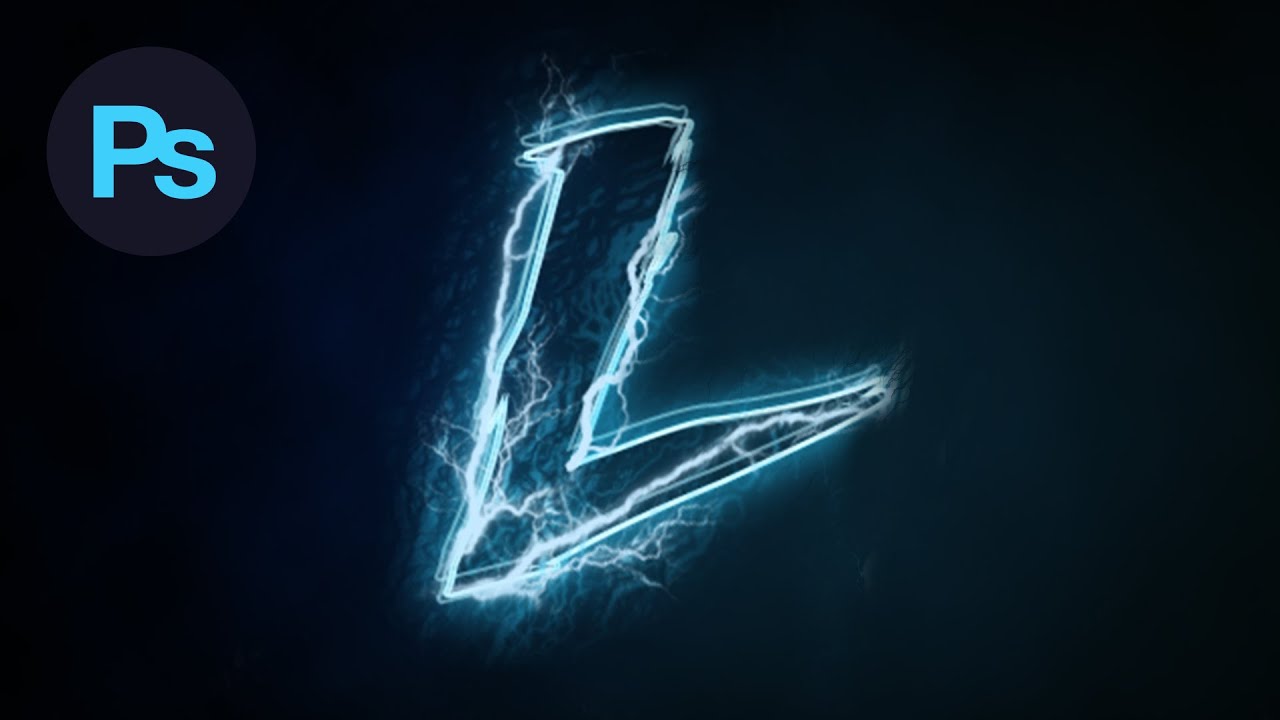
How to create a lightning text effect in Adobe Photoshop.
👉 Want to skip the struggle and design like a pro? Join the Pro Designer Mentorship https://academy.dansky.com/pro-designer-mentorship?video=lrq8ii4Cc2U
Download the 'Fighting Spirit' font
http://www.1001fonts.com/fighting-spirit-tbs-font.html
Download the Photoshop lightning brushe...
 errant fog
How did they make the hair type texture look it doesn’t show what filter they using
languid mortar
stiff trail
If you only have the JPG then I'm afraid you're toast.
only RAW file can save me right?
hushed niche
hybrid yarrow
Hey I have a question how do you do the white effect around the unreal logo like...
Hi, it’s been painted, or made from smaller images, as in Jame’s tutorial
You could try to make a circle then use the smear tool or liquify yo have a template, then you’d use it as a guide to paint over in a new layer…
stiff trail
languid mortar
only RAW file can save me right?
Here, yes. You can see the extent of possible recovery in the image i posted
languid mortar
stiff trail
thank you, appreciated ❤️
fluid craneBOT
Gave +1 Creative Carma to @stiff trail (current: #85 - 23)
 balmy stag

 languid mortar
can somebody remove this dude for me please, thank you, im just trying to change the wall color to something else, if anybody know how to do that too can you teach me? that would be great

 ivory rampart
Adjustments filter should do the job for changing color

you might have probelms with changing it to something like blue
as it's opposite side of HSL wheel
and it will give you artifacts

link is showing how to do it in PS
@languid mortar
languid mortar
ivory rampart
thanks famm ❤️
fluid craneBOT
Gave +1 Creative Carma to @ivory rampart (current: #30 - 76)
 turbid siren
I AM facing issues in apllying depth blur in Ps. please help me

 gritty gust
I saw this graphic on one website, and wanted to recreate this effect on a vinyl record, does anyone have an idea what is this style called etc? I just don't know what to look for in terms of tutorials etc?
 viral palm
turbid siren
I AM facing issues in apllying depth blur in Ps. please help me
viral palm
turbid siren
I AM facing issues in apllying depth blur in Ps. please help me
Is the image you're trying to apply this filter RGB 8bit? If it's not the case change its mode to RGB 8bit and try again.
If your image is already in RGB 8bit:
1- Make sure your PS is up to date,
2-try to close PS, sign out into your Adobe acount then sign in and retry.
Note: This feature is in beta mode, so some bugs may occur.
AI also suggest to try these tricks:
- Add a new layer: Try adding a new, blank layer above your image layer before activating the Neural Filter. This can sometimes resolve the issue.
- Simplify the image: Try the filter on a simpler image. Large image dimensions or too many subjects could cause the filter to fail
No guarantee as it comes from AI, but it may be worth it.
viral palm
gritty gust
I saw this graphic on one website, and wanted to recreate this effect on a vinyl...
If you're talking about the glow highlights around the hand, I think an underexposed hand with a gradient map From black to any color you want your effect to be could be a good starting point.
Then create a clipping Mask with a blank layer and set its blending mode to screen (or any other "Light" mode) and paint the light with a soft and low flow brush (with a bright value of the color you want the effect to be).
gritty gust
viral palm
If you're talking about the glow highlights around the hand, I think an underexp...
Damn! Thats actually very imppressive how easly You made it, thank You so much
fluid craneBOT
Gave +1 Creative Carma to @viral palm (current: #7 - 985)
viral palm
For the parts inside you'll have to paint them on their own layers, make selection to isolate the effect and erase/mask the parts you don't want.
Low flow brushes, multiple layers, blending modes, layers opacity and patience are the keys!
fallow berry
Any tips on how I should put my text on this poster :D?

It's not finished yet
I highlighted the important stuff so I could add text on the none highlight, I just wonder how I should put the text. That's all.
viral palm
fallow berry
I highlighted the important stuff so I could add text on the none highlight, I j...
The most important thing when designing infographics is to ensure that the text remains legible. So try to maintain a high contrast between your text and its background...
Here are a few examples to illustrate my point...
1- use monochromatic low contrast bacground image and Type your text with a high contrasting color (Bright on Dark or Dark on Bright),
2- use Shape container for your text when it's hard to get an uniform contrasted background,
3- Use even backround area to type your text with a contrasting color picked from the backround image (if it's possible) ...in this exemple I picked the text color from the body of the subject...
I think the design you shared as inspiration (at the beginning of your process) was a good example... If you look closely, you can see how the designer used monochrome background images and contrasting colors for the text blocks...
 fallow berry
viral palm
The most important thing when designing infographics is to ensure that the text ...
fallow berry
viral palm
The most important thing when designing infographics is to ensure that the text ...
Thank you so much! I'll keep that in mind!
fluid craneBOT
Gave +1 Creative Carma to @viral palm (current: #7 - 986)
fallow berry
I hope I'll turn out good 😭✌️
 bold galleon
viral palm
For the parts inside you'll have to paint them on their own layers, make selecti...
bold galleon
viral palm
For the parts inside you'll have to paint them on their own layers, make selecti...
Nicely done. The precision with the lasso tool was hard to not notice.
fallow berry
Also, my gradient is so boring, nay tips on that too?
rancid beacon
hushed niche
In addition to Sandrine wise words, here’s the helpx page on the topic: https://...
Nothing fricking works😭
 turbid sphinx
Wsg, Im js now learning to use photoshop n I was wondering how I cud align all of these so they are perfectly even with each other horizontally and vertically. W/the spacing in between also matching
turbid sphinx
sly hawk
<@1020901974075527259>
Can u check dms rq
 frank marlin
Question, for Photoshop- in fullscreen mode, I've seen that you're supposed to be able to hover over the edges of your screen in order to prompt the temporary re-appearance of menu's / interface windows for, for some reason, nothing at all happens. Is there a reason for this?
ripe quest
frank marlin
Question, for Photoshop- in fullscreen mode, I've seen that you're supposed to b...
Edit > Preferences > Workspace. Check: "Auto Show Hidden Panels" - You'll have to restart Photoshop for that to take effect.
frank marlin
ripe quest
Edit > Preferences > Workspace. Check: "Auto Show Hidden Panels" - You'll have t...
Incredible how I didn't spot this option, here. Thanks for the tip! 👍
fluid craneBOT
Gave +1 Creative Carma to @ripe quest (current: #2 - 3187)
ripe quest
frank marlin
Incredible how I didn't spot this option, here. Thanks for the tip! 👍
It's easy to miss that one.
 coral citrus
Hi I been trying to put this image and make it fit perfectly on my iPhone wallpaper but idk how I don’t wanna loose any quality cause it’s good

Like it just looks out of place
 hushed niche
Did you try whatthefont or other sites like them? Looks a bit like euros tile/microgramma.
 tame cape
<@&548221840750018590>
$ 100 k spam across the channels
fallow berry
Does this look good? on the bottom right corner, I wanted to show the industrial revolution is the one whomade the mass production industry how it is today

 ivory rampart
It’s probably one of those images that are showing transparency grid but are jpg
 ivory rampart
It’s preview so probably paid image that’s why it still has grid

TopPNG
Download this beautiful and high quality transparent PNG image of a image result for touhou project logo touhou project logo PNG transparent with Clear Background ID 185241 for free HD resolution . The image is available in HD 534x476 px file size is 51.2kB
fallow berry
How should I use ai to make his hand colored?

 frigid wyvern
ivory rampart
It’s preview so probably paid image that’s why it still has grid
frigid wyvern
ivory rampart
It’s preview so probably paid image that’s why it still has grid
uh undertand
ivory rampart
fallow berry
How should I use ai to make his hand colored?
You could use neural filter and just choose hand and set up color
ivory rampart
frigid wyvern
uh undertand
Sent you link with proper png
fallow berry
ivory rampart
You could use neural filter and just choose hand and set up color
I don't get it lol
ivory rampart

Create realistic foliage in Photoshop using tree brushes from our high-quality brush sets, and bring an organic look to your art.
 ivory rampart
fallow berry
I don't get it lol
ivory rampart
fallow berry
I don't get it lol
You’re interested in this filter
 fallow berry
ivory rampart
https://www.adobe.com/products/photoshop/neural-filter.html
fallow berry
ivory rampart
https://www.adobe.com/products/photoshop/neural-filter.html
I have tried it, but it dint work as well as i though
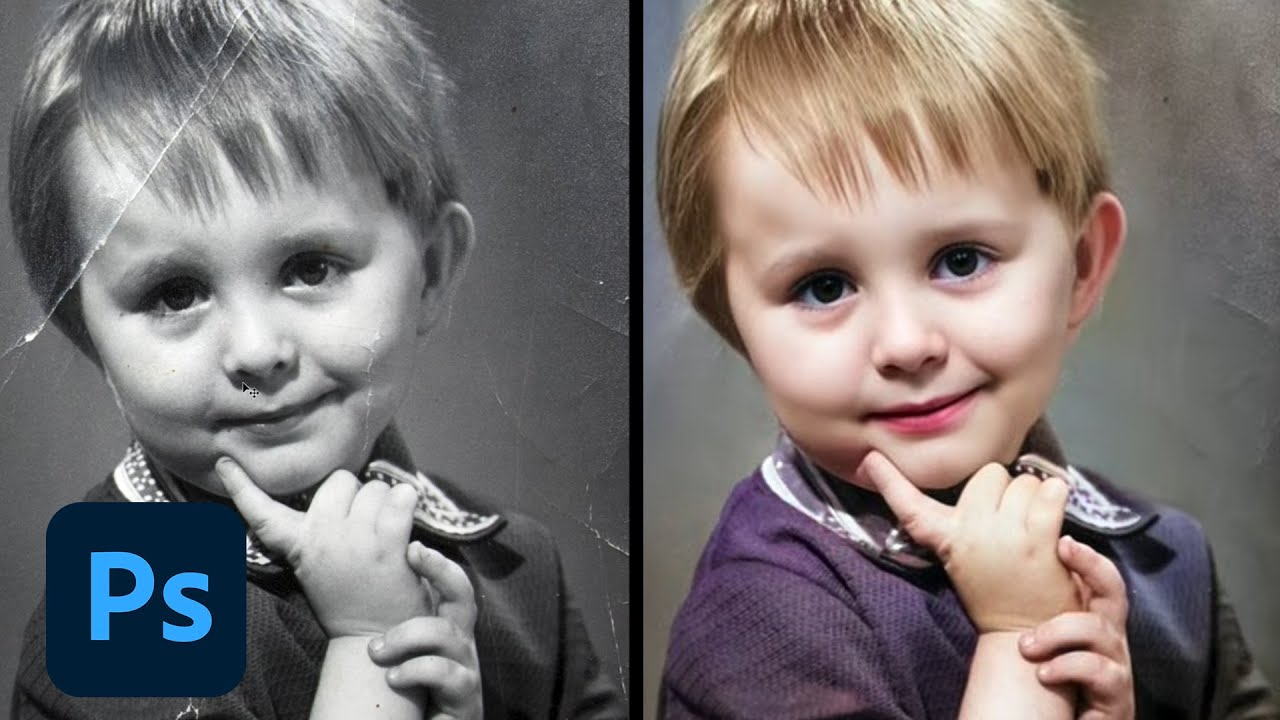
Do you love Neural Filters in Photoshop? We’ve got another one for you! Here is a look at the all-new Photo Restoration Neural Filter. Learn how to restore old photos in a single click by automatically removing scratches, reducing noise, and correcting colors to restore those precious memories.
Available today in the Photoshop beta app! Downl...
ivory rampart
You could paint over with blending mode set to color
fallow berry
ivory rampart
You could paint over with blending mode set to color

Ai shouldn't be this bad right?
ivory rampart
You can click on place that’s not working and manually change color
Choose hex color for skin
And just click on place you want to colorize
ivory rampart

Welcome back to the Visual Center, in this video, we'll be diving into Adobe's new Neural Filter, Colorize, which we introduced in a previous video. While the filter was still in beta mode at the time, it's now fully functional and we've received many questions about how to fix any issues that may arise. We'll be sharing our advice on how to use...
From around 2 min
He’s showing how to fix color
With placing pins on image
Also i would recommend finishing working with creating new color layer as it will give you non-destructive way to return and change outcome if you decide something is not working
viral palm
fallow berry
Also, my gradient is so boring, nay tips on that too?
Sorry for late answer, I was AFK...
I think the key point is to try to mimic depth with your gradients... As you can see on screenshot you may have to play with gradient scale and move the color cursors to get the effect you want...
Adding Some highlights at the sectors junctions can help (Clipping mask set to screen in the shared file). I also use Drop shadow Fx to add depth (and sometimes Inner Glow too)... I am sharing the file I made for the screenshots if you want to explore Fx and highlight.
Final touch: add a layer on top filled with 50% grey, blending mode set to Overlay => Turn it into a smart object then go to Filter/Noise/Add Noise...
It will add grain to your gradient and make them look less dull...
I hope I have been clear enough and that this will help you.


 fallow berry
viral palm
Sorry for late answer, I was AFK...
I think the key point is to try to mimic dep...
fallow berry
viral palm
Sorry for late answer, I was AFK...
I think the key point is to try to mimic dep...
Thank you so much! Also, do you know I should transofmr my text so it fits bend on like the different segments?
fluid craneBOT
Gave +1 Creative Carma to @viral palm (current: #7 - 987)
fallow berry
fallow berry
Thank you so much! Also, do you know I should transofmr my text so it fits bend ...
like warping here
 viral palm
fallow berry
like warping here
viral palm
fallow berry
like warping here
Like this?
 viral palm
fallow berry
Yeah, actually!
viral palm
fallow berry
Yeah, actually!
Trace an Elipse Path, select the type tool and place you cursor over the path you should see an Icon with doted S shape appear...Click type your text and use the path selection toll (black arrow) to adjust.
viral palm
@fallow berry : For industrial Revolution (bottom left I think) you'll have to resize the text path and switch the side of text alignement as shown in this short video.
 sweet radish
Hello, I need Adobe Photoshop and Adobe Illustrator for a 3-day course at uni. What is the cheapest way for me to obtain these products for 3 days?
tame cape
sweet radish
Hello, I need Adobe Photoshop and Adobe Illustrator for a 3-day course at uni. ...
If the university doesn't grant you access, you could use the 7-day trial. (Please note the cancellation deadline within the 7 days. I believe you have to actively cancel, otherwise the trial will automatically convert into a subscription.)
sweet radish
tame cape
If the university doesn't grant you access, you could use the 7-day trial. (**Pl...
Is cancelling free?
coral citrus
coral citrus
Could I get some help please
tame cape
sweet radish
Is cancelling free?
I think so. But take another look at the description first.
https://helpx.adobe.com/manage-account/using/cancel-subscription.html
tame cape
coral citrus
Could I get some help please
@coral citrus
Unfortunately, the image composition is a bit awkward (the girl in the foreground is tugging at her shirt, so not all shots are suitable). Generally, I would rotate the image slightly, reduce its size a bit, and move it further down. Something like this:
 coral citrus
tame cape
<@913032434092761118>
Unfortunately, the image composition is a bit awkward (th...
coral citrus
tame cape
<@913032434092761118>
Unfortunately, the image composition is a bit awkward (th...
Intresting
fallow berry
viral palm
<@1227308206716358756> : For industrial Revolution (bottom left I think) you'll ...
Ooh, is that how you do it! Thank you. Also, for some reason when I wrote the text it goes forward and the text doesn't get centered. How do I make it exactly 45 degrees?
fluid craneBOT
Gave +1 Creative Carma to @viral palm (current: #7 - 988)
 timid berry
Something weird is happening in photoshop suddenly. Im trying to put this image in photoshop, but for some reason the light grey rows has this checkerboard transparent effect on them. I also noticed that when I paint with brush, it paints with these noticeable gaps instead of one smooth stroke.. Idk if I somehow changed a setting, but suddenly things arent working as expected.
Any ideas?


Up until 10 minutes ago, everything was fine lol
tame cape
Is that what you mean? --> Brush setting
The checkerboard pattern means that you are working on a transparent layer.
@timid berry

 timid berry
tame cape
Is that what you mean? --> Brush setting
The checkerboard pattern means that you...
timid berry
tame cape
Is that what you mean? --> Brush setting
The checkerboard pattern means that you...
thanks, that fixed the brush
fluid craneBOT
Gave +1 Creative Carma to @tame cape (current: #14 - 248)
timid berry
but the other issue I was facing was apparently I hit CTRL + Y and it made it look that way.. idk what it does tho
tame cape
timid berry
but the other issue I was facing was apparently I hit CTRL + Y and it made it lo...
Ctrl+Y is normally the shortcut to turn on color proofing in menu: View (but this may vary depending on the language).
fallow berry
I planned on adding text like this, but way more text. I got suggestion before, but when I tihnk about it I have to be way more creative to add a lot of text


 flint radish
I posted this in the wrong chat, whoops. Any help would be super appreciated!
 viral palm
flint radish
I posted this in the wrong chat, whoops. Any help would be super appreciated!
viral palm
flint radish
I posted this in the wrong chat, whoops. Any help would be super appreciated!
Did you try to change blending mode (multiply for exemple)?
flint radish
viral palm
Did you try to change blending mode (multiply for exemple)?
That I remembered, so I have the white fill knocked out.
Now I just gotta get rid of the border

Here's a sample of something I did earlier this year. I want to achieve the same effect, I just don't remember how to do it lol
 viral palm
flint radish
That I remembered, so I have the white fill knocked out.
viral palm
flint radish
That I remembered, so I have the white fill knocked out.
Oh I thought you wanted to do that...
So you want your image on white only?
fallow berry
Frankkkkk
viral palm
flint radish
I essentially want to taper the edges with the border
Use the channels (video1) to select white only or another technique like color range(video 2) then use the selection to create a mask.
viral palm
fallow berry
Tell me when you're not busy
I'm ok for +/- 30mins... Any question?
fallow berry
viral palm
I'm ok for +/- 30mins... Any question?
Yeah, so like, I am planning on adding text right? But I realized it's a lot of text, and this is a A3 paper so it is big, right?
My text is also really weird
On Forntid, not as pretty as yours
Also my internet connection might disconnect
So you know
viral palm
I saw your message... Lot of text around eleipses or over the design?
fallow berry
But do you think if i make the text small you can sitll see it? Cuz A3 is double big as normal A4
flint radish
viral palm
Use the channels (video1) to select white only or another technique like color r...
Godsend. Thank you! Do you mind if I save your clip for future reference?
fallow berry
viral palm
I saw your message... Lot of text around eleipses or over the design?
around it, but I managed to free a lot of text by doing highlights
fluid craneBOT
Gave +1 Creative Carma to @viral palm (current: #7 - 989)
fallow berry
And the thing surround earth I jsut need little text not a lot
viral palm
flint radish
Godsend. Thank you! Do you mind if I save your clip for future reference?
You can save it! No problem at all!
fallow berry

Do you think text around the the white circle would look good?
All I am worried about is that the A3 paper the text won't be big enought, but i know A3 paper is really big.
Do you think I sohuld be worried?
viral palm
fallow berry
Do you think text around the the white circle would look good?
Hum... I dont think it's a good idea to put your text this way... It could be difficult to read and a good infographic design has text section easy to read... The goal of this medium is to gives info and they must easy to read...
viral palm
fallow berry
All I am worried about is that the A3 paper the text won't be big enought, but i...
Will you print it or it's for digital display only?
fallow berry
viral palm
Will you print it or it's for digital display only?
Maybe, print for educational purposes for school
I have to finish it quickly, I have a deadline lmao
So I am bit stressed rn
But anyhow
viral palm
fallow berry
Maybe, print for educational purposes for school
I'm curious to know how long the text is for each of highlighted areas ?
fallow berry
What plan do you have?
fallow berry
viral palm
I'm curious to know how long the text is for each of highlighted areas ?
Oh it's like 400 words, maybe maybe? in each rektangle
Every highlight probably just 100 maybe?
I am bit unsure, I have to tell all the enivormential factors through history
So I have ancient times, medieivel times, industrial and now
viral palm
fallow berry
Oh it's like 400 words, maybe maybe? in each rektangle
400 words? that's a lot! Words or characters?
fallow berry
Words... lmao
But it's A3 paper it's big
Maybe 50 words per highlight
or less depents, but I think on the corner left top, I think 200 is enough
And on the right top 300 is enough
viral palm
fallow berry
Maybe 50 words per highlight
Ok I thought 400words per area...
fallow berry
I know, it can be done. But I can't put my finger on it
fallow berry
viral palm
Ok I thought 400words per area...
😂
That would be a funny joke lmaoo
But could you help me first with the text you should me?

you had that white dot in the middle there, and when I changed it with A tool, it made I could only write left or right part
I am 100 sure I followed your toturial correclty
viral palm
fallow berry
And on the right top 300 is enough
You have to test... Drag a text box then paste your text choose the type size (if your document is in 300ppi don't go below 9pt for the text size)
You will have a better idea...
fallow berry
viral palm
You have to test... Drag a text box then paste your text choose the type size (i...
Got it not bellow 9pt
viral palm
fallow berry
you had that white dot in the middle there, and when I changed it with A tool, i...
I'm not sure to understand but my text was center aligned (yours seems to be left aligned)... Look on the video you can move the left and right ends of the text area (I know it's not very obvious but they are there)... You can adjust your text area width with these cursors...
viral palm
fallow berry
Got it not bellow 9pt
Is your image size window the same than this one 42 x 29,7 cm at 300 ppi?

 onyx berry
Hey, does anyone know if there's a way to set a pixel and another pixel with a distance between them to then to create a curve joining those pixels together
This is just really jaggered so I want to make it smooth. Doesn't matter about the blue area but I expanded it 10 pixel to create a black border which is jaggered.

 exotic bough
why is my scrubby zoom greyed out and unusable
ripe quest
exotic bough
why is my scrubby zoom greyed out and unusable
I'd probably save any open documents and restart Photoshop.
exotic bough
yeah that done it
ps gets weird when its been open a long time
 quartz cave
i've been using the lasso tool and the shorcut alt + backspace to fill in quick shapes for my sketches. is there a way to fill at a certain opacity? editing foreground color brings up the color picker but i don't think opacity can be changed there. it would be really helpful to overlap transparent shapes to get a sense of depth
(also is there a way to set up automatic fill? so whenever i make a lasso selection it does alt + bkspc automatically. that would be nice)
vapid flume
quartz cave
i've been using the lasso tool and the shorcut alt + backspace to fill in quick ...
For the second part, it's not possible but you could set up an action: THe problem is that you can't really automate the lasso selection, it has to be manual, so you'll be limited at automatise the choosing of the lasso tool and the filling:
The action would go like this:
1- the action automatically selects the lasso tool if not already selected
2- a prompt appears telling you to select your area
3- it will fill the selection with the colour (and opacity) you've set in the action.
All you would need is to press the run action button, or set up a shortcut like CTRL+F12 (just an example)
Let me think about something for the first part
halcyon widget
Hello,
How do you find the positioning of the eyes, mouth, and nose?
 vapid flume
@quartz cave A couple of things come to mind for the first part, but none of them will probably change your life
1- create a new fill layer each time (there is a shortcut CTRL+SHIFT+N ), select and fill at full whack 100% (standard shortcut), and then lower the layer opacity to your needs (shortcut: type a number with your layer active ie:5 will lower the opacity to 50%, 8 to 80% etc.. When you have a bunch of new layers at several opacities, you can merge them (select all, then CTRL+E)
many of those steps can be integrated into actions.
2- Fill at full whack and then "fade" the last action (SHIFT+CTRL+F or edit>fade> enter opacity)
Again, this can be made into an action, but you will still have to select manually and input numbers


My preference here, personally would be to work with separate layers with masks, in a non destructive way instead of selecting parts and filling them on layers, but it really depends of what you are trying to work on.
If you want to share a screenshot of the kind of artwork you are working on, then maybe other ideas will come to mind
vapid flume
halcyon widget
Hello,
How do you find the positioning of the eyes, mouth, and nose?
Please post in #📝project-feedback for this!
I think the eyes look a bit off-centre to me (too much on the left, our left) but I'm not an expert...
fallow berry
viral palm
<@1227308206716358756> : For industrial Revolution (bottom left I think) you'll ...
How can you rezie the elicpse if you haven't selected the eclipse? Mine doesn't work
 tiny sparrow
Hello, someone can help me, i'm searching to make this same style of outline https://discord.com/channels/547473772727238676/1432643543075127386 from the #1110544577850511401
 fallow berry
My outer gradient looks so boring, what color is complimantery?
 vapid flume
tiny sparrow
Hello, someone can help me, i'm searching to make this same style of outline htt...
vapid flume
tiny sparrow
Hello, someone can help me, i'm searching to make this same style of outline htt...
THese are just straight lines drawn into a shape with the pen tool or the polygonal lasso tool, filled with blue on a new layer, and with a texture overlay (probably with a blending mode set to "screen") clipped onto that layer. Place the layer underneath the people's layers.
Keywords to search in the Photoshop help:
Vector shapes, blending modes, clipping mask.

It should look like that in your layer panel

I didn't have any M'Bappe images available in my hard drive 😁

You need to source the texture image from elsewhere, I have a full folder of them, some I gathered on free websites, some I took photos of, some I bought...
tiny sparrow
oh okay thanks you ! I have a little texture folder too i will test that !
fallow berry
Can someome help me?
I am almost finished, I am so close. So, so, so close.
I can't figure how to make the text pretty enough and how I should structure it
 viral palm
fallow berry
My outer gradient looks so boring, what color is complimantery?
viral palm
fallow berry
My outer gradient looks so boring, what color is complimantery?
You can use the color wheel there:
https://color.adobe.com/
fallow berry
viral palm
You can use the color wheel there:
https://color.adobe.com/
Do you have any suggestion, of pretty colors together, sorry for asking you so much. Just at the moment, I am bit stressed. I have a exam coming soon, and I haven't even finished this assignment.
I tried a lot, but they look really bad together

I added noises as you suggested
viral palm
fallow berry
Do you have any suggestion, of pretty colors together, sorry for asking you so m...
If you want to stick with colors of the background images for each division I think it will be difficult to get something "pretty" and consistent...
Perhaps you should try to follow the color wheel oder (or like on first image the inverted color wheel- Could work with your design)...
I would suggest you to follow (as much as possible) the warm to cold colors order...
These are just ideas I don't want to influence your artistic choices....

 fallow berry
viral palm
If you want to stick with colors of the background images for each division I th...
fallow berry
viral palm
If you want to stick with colors of the background images for each division I th...
No no, compared to you I am probably a noob
fallow berry
viral palm
If you want to stick with colors of the background images for each division I th...
I read this like 3 times now
I sitll don't get what i should do
viral palm
fallow berry
what if I add text that does down hill
Like this?
I'm not sure if this is good for readability...
 fallow berry
viral palm
Like this?
I'm not sure if this is good for readability...
fallow berry
viral palm
Like this?
I'm not sure if this is good for readability...
I can do more contrast
wait

wait, this actually looks way better
What do you think?

Is this better?
although it doesn't give me a lot of professional vibes
Perhaps the text could solve it?
viral palm
fallow berry
What do you think?
Yes, IMO second looks better...
fallow berry
viral palm
Yes, IMO second looks better...
IMO?
what is that?
Why did you add ... are you unsure 😂
Also how do I add text here?

I can only do it when I haven't done a selection for some odd reason
I want to add text when I have added the selection
Wait i found how to
vapid flume
IMO = In my opinion
fallow berry

Should I add something to make the text more highlighted?
Also why is the spacing so far down there bottom text?
 misty patio
What is the technical behind harmonize ?
viral palm
fallow berry
Should I add something to make the text more highlighted?
Try to increase the "white elipse" opacity (under the text) to increase contrast with black text...
text over the cow is hard to read (black on Brown= poor contrast)
fallow berry
viral palm
Try to increase the "white elipse" opacity (under the text) to increase contrast...
I plan on having text on the two other segment and having two other circles there would look off? Perhaps?
viral palm
fallow berry
I plan on having text on the two other segment and having two other circles ther...
Perhaps... Hard to say without trying it... It worth a try and if they look off you will have tried.
fallow berry
viral palm
Perhaps... Hard to say without trying it... It worth a try and if they look off ...

Something like this?
I think if I just change the font and the color of the text maybe it will be better?
How do I round off the trainge TwT
so it becomes round
What's a good font
viral palm
fallow berry
How do I round off the trainge TwT
Sorry I don't understand the "trainge TwT" (and DeepL traduction doesn't too)
fallow berry
viral palm
Sorry I don't understand the "trainge TwT" (and DeepL traduction doesn't too)
TwT is a emoji
But do you thin if i round my triange it will look better?
How do I round it?
like the edge
fallow berry
hushed niche
Shouldn’t all this be put in a thread?
What method is that?

It looks so bad
Should I ave circles with information instead?
viral palm
AX infography
viral palm
hushed niche
Shouldn’t all this be put in a thread?
I created a thread even though I don't like threads... People who don't follow threads won't participate, and people who are more Infographics-oriented or more experienced might miss the opportunity to help...
ripe quest
If these are going to be prolonged conversations requiring both technical assistance as well as "design feedback" perhaps, the convo could be moved to the #1223011682012369027. Then it would be self-contained. Just an idea.
 spice kayak
so i exported my ai file as a psd with editable layers but as you see in ps when i opened it i got this , i did not get artboards
 tame cape
spice kayak
so i exported my ai file as a psd with editable layers but as you see in ps whe...
viral palm
spice kayak
so i exported my ai file as a psd with editable layers but as you see in ps whe...
tame cape
spice kayak
so i exported my ai file as a psd with editable layers but as you see in ps whe...
viral palm
spice kayak
so i exported my ai file as a psd with editable layers but as you see in ps whe...
To export Illustrator artboards as PSD files, go to File > Export > Export As, choose "Photoshop (PSD)" as the format, and make sure "Use Artboards" is checked. This will create** a separate PSD file for each artboard**, preserving layers and vector information where possible.
spice kayak
viral palm
To export Illustrator artboards as PSD files, go to File > Export > Export As, c...
That option wasn't avaliable not even grayed out it wasn't there
hybrid yarrow
How do I make this the rank up bar
 viral palm
spice kayak
That option wasn't avaliable not even grayed out it wasn't there
viral palm
spice kayak
That option wasn't avaliable not even grayed out it wasn't there
Sorry to hear that 'cause It's working working as expected on my end.
hushed niche
hybrid yarrow
How do I make this the rank up bar
By bar? Do you mean the icon? It seems to be a group of shapes combined together , with layer styles such as gradient fills and bevel/emboss.

Learn how to merge and combine shapes in Photoshop! In this short tutorial, we will explore two simple techniques to merge and modify multiple shape layers, maintaining the vector state of the same.
I hope this video helps you. Thank you so much for watching :)
► TIMESTAMPS:
00:00 What Problem Are We Solving?
01:17 Technique #1 - Combine by ...

Discover 10 of Julieanne's favorite tips and shortcuts for using the Shape Tools in Photoshop.
Additional tips, tricks, and tutorials from Julieanne Kost can be found on her blog: https://jkost.com/blog
Facebook: https://facebook.com/julieannekost
Twitter: https://twitter.com/julieannekost
Instagram: https://instagram.com/jkost/
Behance: https:...
hushed niche
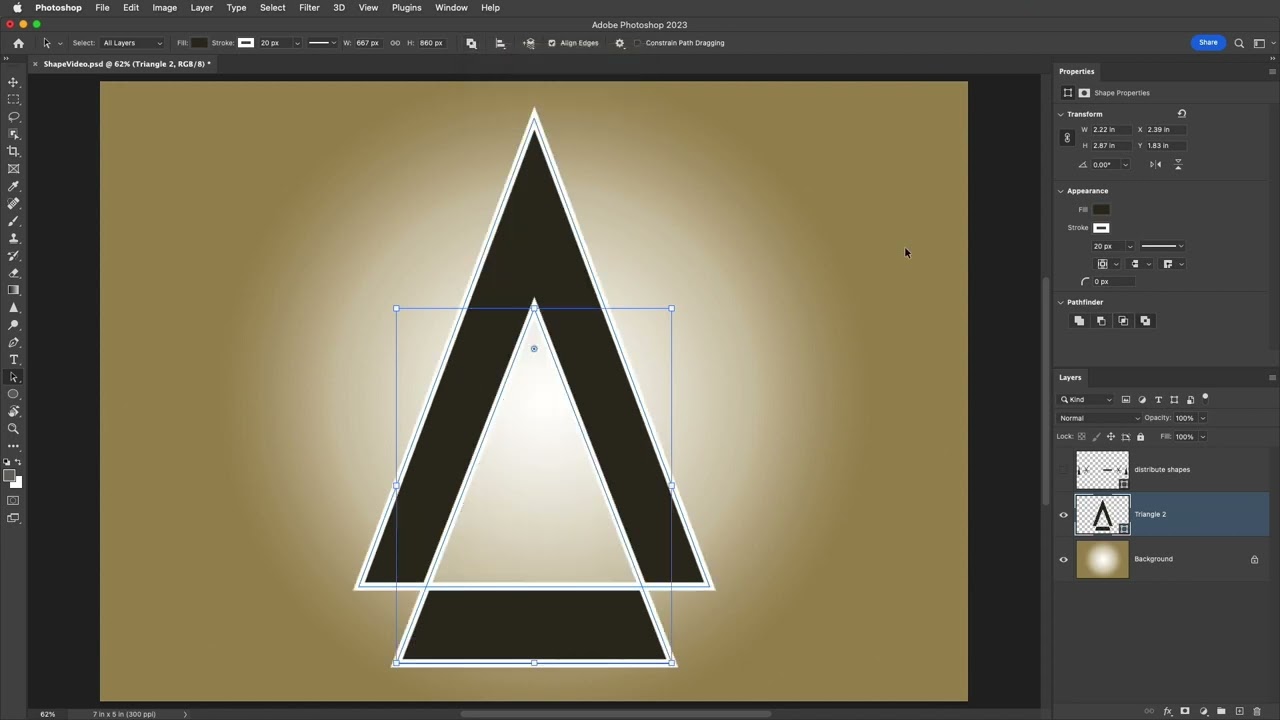
In this video, Julieanne walks through five tips for working with shapes in Photoshop including quick ways to select multiple shapes on different layers, merging shape layers, using path operations to combine shapes, adjusting the stacking order of shapes, and distribruting multiple shapes on a single layer.
Additional tips, tricks, and tutoria...
 halcyon lagoon
May I ask if anyone knows how to make Christmas parols in photoshop? Like the star one 😭 very new to photoshop right here,,,
ivory rampart
halcyon lagoon
May I ask if anyone knows how to make Christmas parols in photoshop? Like the st...
https://uk.pinterest.com/pin/paper-parol-star--36732553206330590/ here you have trmplate you can paint over

Pinterest
Dec 9, 2024 - This Pin was discovered by Megan Schutt. Discover (and save!) your own Pins on Pinterest
But i would start with something easy
Like start tutorials from Adobe
halcyon lagoon
Thank youu! I really appreciate it
 tropic bramble
Hi, so I have been having some trouble with trying to get my printer profile to be the correct setting (U.S Web Coated (SWOP) v2, I’ve tried to find it on the drop down menu but it just won’t show up at all. I’ve uninstalled the file for it and reinstalled it yet it doesn’t change anything

The document profile and printer profile has to be the same for what needs to be printed off
vapid flume
tropic bramble
Hi, so I have been having some trouble with trying to get my printer profile to ...
When you mean printer: Do you mean a company that will print your stuff, or the machine in your office?
tropic bramble
vapid flume
When you mean printer: Do you mean a company that will print your stuff, or the ...
My own printer
vapid flume
US Web coated is for big printers (the big machines - offset)
In case you are missing some profiles, you can find them here (download the one you need and load it into photoshop)
https://www.color.org/registry/index.xalter
The International Color Consortium....promoting and encouraging the standardization of an open color management system
but that will not help for your home printer, they usually work with RGB (they have their own embedded converter)
and they have a specific profile which is given you by the manufacturer: Basically an ink/paper combo
tropic bramble
My printer is a Ricoh
When I install that will it then show up under printer profile?
vapid flume
So if you need to print on a specific type of paper, on a specific Ricoh, with the set of inks that are required by Ricoh, you need to download the paper/ink combo profile from Ricoh directly
If you don't plan to use a type of paper they'd either recommend or list, you need to create your own profile, but I will not go into that 🙂
That's what SWOP means
https://en.wikipedia.org/wiki/Specifications_for_Web_Offset_Publications

Specifications for Web Offset Publications, invariably abbreviated to SWOP, is an organization and the name of a set of specifications that it produces, with the aim of improving the consistency and quality of professionally printed material in the United States, and of certain other products, programs and endorsements related to their work. Amo...
tropic bramble
Okay thank you I will try this out
vapid flume
So only for offset printers.
https://ordant.com/what-is-offset-printing/
Is it a laser printer? If so, I would let the printer manage colour, you will probably never get a proper colour accuracy with a laser printer so I would print some tests and see if the original document needs tweaking directly in Photoshop...
https://ricohconfigurator.com/configure.php?model=SP_C440DN
Use this tool to properly configure a RICOH SP C440DN color laser printer. With its fast output speeds, impressive paper handling ability and eco-friendly features, users are ready to impress and deliver important information at a moments notice.
tropic bramble
vapid flume
Is it a laser printer? If so, I would let the printer manage colour, you will pr...
Yes a color laser
It’s just that the document profile and printer profile has to be the same thing that’s all I’m missing
The ICC file is downloaded yet it’s just not showing up on the drop down menu
ivory rampart
I would restart pc as system maybe haven’t register properly those profiles
fallow berry
How do I get back the layer mask when I have made my layer smart layer
No like, when I make the layer smart layer the layer mask just disapperas and when I click on the smart layer, I can't draw back the missing information
vapid flume
fallow berry
How do I get back the layer mask when I have made my layer smart layer
You can't in a simple step
What I do is open the smart object, and duplicate the new layer (+ mask) into the original document.
Then drag and drop the mask onto the smart object and delete the duplicated layer
As a rule of thumb I tend to avoid embedding masks with the smart object. I generally move the mask elsewhere (drag and drop), turn the layer into a smart object, and put the mask back
fallow berry
vapid flume
As a rule of thumb I tend to avoid embedding masks with the smart object. I gene...
Ooh,
I didn't know that. that's nice to know
welp
tropic bramble
ivory rampart
I would restart pc as system maybe haven’t register properly those profiles
Yeah I’ve tried that too
vapid flume
If you turn something into a smart object, rasterising it will not give you the mask back...
 vapid flume
@fallow berry You can also do "convert to layers" (right click) but you will lose the smart object element. But you will keep the mask!
 fallow berry
vapid flume
<@1227308206716358756> You can also do "convert to layers" (right click) but you...
fallow berry
vapid flume
<@1227308206716358756> You can also do "convert to layers" (right click) but you...
Wait so I'll get back the mask?
vapid flume
The layer will be back to a standard layer (like it was before you converted it) but with a mask
fallow berry
THat's nice!
vapid flume
I am assuming you want to keep it as a smart layer so my first solution is the right one
vapid flume
I just tried it on my end (just to be sure) and it works. Does the mask appears when you double click to open the embbeded file in a new tab?
fallow berry
vapid flume
I just tried it on my end (just to be sure) and it works. Does the mask appears ...
I tried right click and do convert to layers
vapid flume
fallow berry
vapid flume
What
wny d
why didnd't that wpork for me
ALso what's the shortcut for smart object
vapid flume
You didn't answer to the question: Do you see the mask when you open the embeded file in a new tab?
vapid flume
fallow berry
ALso what's the shortcut for smart object
I created my own
Edit>keyboard shortcuts
fallow berry
vapid flume
You didn't answer to the question: Do you see the mask when you open the embeded...
I don't get what you mean by embeded file in a new tab
vapid flume
Double click on the layer and see what happens, it should open a new file in a new tab
fallow berry
vapid flume
Double click on the layer and see what happens, it should open a new file in a n...
Isn't that only for smart layer
vapid flume
This new file as a new tab is the content of the smart object. You should see the mask appearing. If not, that means there is no mask to retrieve
vapid flume
fallow berry
Isn't that only for smart layer
Yes, are we talking about smart layers here... No?
fallow berry
vapid flume
Yes, are we talking about smart layers here... No?
wait what
vapid flume
There is no difference between smart objects and smart layers (
fallow berry
It worked now
fallow berry
vapid flume
Yes, are we talking about smart layers here... No?
Yes
Weird
I reloaded and it worked now
😄
vapid flume
Good 🙂
fallow berry
vapid flume
Good 🙂
wait
why even care about making a layer mask layer
if you can just do that
despite loosing a lof of effect
oh, I get it now
How Do i copy layer mask in photoshop lol
vapid flume
fallow berry
How Do i copy layer mask in photoshop lol
ALT (OPT for Macs) + Drag
You know it will work when your cursor turns into a double arrow (one white, one black)
When you want to duplicate anything in Photoshop (and probably any Adobe software) you hit ALT and you drag this thing: Path, shape, object, layer, mask etc...
 craggy ingot
hello, I'm trying to work on multiple artboards like this, how can I make it so the gradient stays in one artboard and not propagate to others, you can see here that this is a radial gradient that starts dark from the top left, i want the second artboard to be a duplicate of that not an extenstion of it...how can i do that?
 vapid flume
craggy ingot
hello, I'm trying to work on multiple artboards like this, how can I make it so ...
vapid flume
craggy ingot
hello, I'm trying to work on multiple artboards like this, how can I make it so ...
You need to create the shape that holds the background as the same size as the artboard, and then you can duplicate it to the second artboard. For the moment the shape that holds the gradient occupies both artboards
Sorry, no, forget what I just said! I can't see your shape so I can't be sure
Can you show the whole of the interface?
fallow berry
vapid flume
ALT (OPT for Macs) + Drag
oohhh
vapid flume
It might be because of how you applied the gradient background, but I can't see it now, because I'm missing the rest of the info
As a general rule it's always best to share the whole window instead of just close ups
craggy ingot
vapid flume
Can you show the whole of the interface?
 fallow berry
Any idea how I should expand the rektangle?
 vapid flume
craggy ingot
vapid flume
craggy ingot
That means that your background occupies the whole canvas, not just your artboard. You need to create a mask (that could be a vector mask) to constrain the gradient to the artboard limits
The artboards in Photoshop aren't working excatly the same as they work in Illustrator, they are there just to indicate what to export, Just my opnion, but it's not entire;y logical like it is in Illustrator
When you apply a mask in a gradient layer, the gradient will follow the linits of that shape
(personnally I would simply create gradient filled shapes instead of adjustment layers with a mask, but that's just me...
craggy ingot
i guess best thing is to just create a new document
vapid flume
 vapid flume
craggy ingot
i guess best thing is to just create a new document
vapid flume
craggy ingot
i guess best thing is to just create a new document
Not necessarily, you just need to tell the gradient to limit itself to the area of the artboard, because an artboard in Photoshop doesn't automatically constrains its content, except for visibility
 abstract idol
hi i have a question I want to make the left side of this picture look like its shadow is left soft like the second picture whats the easiest way to do this AI?

 vapid flume
abstract idol
hi i have a question I want to make the left side of this picture look like its ...
vapid flume
abstract idol
hi i have a question I want to make the left side of this picture look like its ...
I can try to explain without using AI (I could also tell you to hire Robert Mapplethorpe, but I won't 🙂 )
abstract idol
vapid flume
I can try to explain without using AI (I could also tell you to hire Robert Mapp...
yes please thanks
fluid craneBOT
Gave +1 Creative Carma to @vapid flume (current: #6 - 1076)
fallow berry
vapid flume
I want to have the edge function so I can make the corner less sharp, while using the M tool, even if I connected it, I don't know how to make it even with the other edges
That's what I am wondering
craggy ingot
vapid flume
Not necessarily, you just need to tell the gradient to limit itself to the area ...
next issue I'm facing is when i click on "create artboard from layers" the whole thing gets messy
 vapid flume
abstract idol
yes please thanks
vapid flume
abstract idol
yes please thanks
Now you need to cut out the person in order to place them on their own layer (or duplicate the background layer and select and mask the person - you can use the select subject tool for that ) Use the magnifying glass icon on the top right to ask Photoshop for help - for example you can type "select subject" and it will tell you what to do.
When you got that sorted, you will need to place a white background (solid colour adjustment layer) underneath the subject and add a new blank layer where your shadow ill go
abstract idol
vapid flume
Now you need to cut out the person in order to place them on their own layer (or...
ok thanks for the instructions and i will try it. but hypotheticly how much would it cost to have someone do that for me and it would look releastic
fluid craneBOT
Gave +1 Creative Carma to @vapid flume (current: #6 - 1077)
vapid flume
Slect the content of the subject layer (CTRL + click on the layer - if you cut it out, or CTRL+Click on the mask if you masked it) and select/highlight the blank layer you just created. Fill this layer with black (your selection should still be active)
With the move tool, move the content of that layer to the left until you get the silhouette of the subject visible on the side.
Apply first a motion blur filter (Filter>blur>motion blur) angle 0 degres and a big amount of blur)
Then a gaussian blur (filter blur> guaussian blur), but not too much. It's up to you to play with the settings.
Lower the opacity of the shadow alyer until you get what you need
vapid flume
abstract idol
ok thanks for the instructions and i will try it. but hypotheticly how much woul...
No idea, honestly, the original image you got (not Patti Smith) isn't great, so I would really consider having the image redone before spending any money
Just my opinion
 dark totem
hi. i am very new to ps but familiar with other adobe softwares. i got it just as a hobby so i could make gifs and edit pictures of tv shows i watch. but i am having some issues. no matter how much i edit it, how much i change the export settings, the gifs always look very low quality, they do not even look like they are 720p. and even the pictures i think they looked better when i edited them on lightroom. a friend mentioned i need stuff called psd files so i can make it high resolution but i can barely find it online and the ones i found look like they do not have any high resolution. what am i doing wrong and what do i need to do? also the videos/pictures i use are 1080p.
vapid flume
It's blown off, grainy and blurry
abstract idol
vapid flume
No idea, honestly, the original image you got (not Patti Smith) isn't great, so ...
good point but its not that serious of a project i just wnanna fix that little part
viral palm
abstract idol
hi i have a question I want to make the left side of this picture look like its ...
Do you want to keep the original picture shadow or do you want the exact same shadow than Patti Smith's cover?
 ivory rampart
dark totem
hi. i am very new to ps but familiar with other adobe softwares. i got it just a...
ivory rampart
dark totem
hi. i am very new to ps but familiar with other adobe softwares. i got it just a...
you probably have to play a bit when export
https://www.youtube.com/watch?v=Veib-zrkkBI&t=412s

Wanna export a GIF, but don't wanna have a 20mb+ file? But also wanna keep the quality? And don't wanna make the dimensions too small? Well, to be honest, the answer isn't simple. You have to sacrifice some things over the other. YOU will be the one who decides what to sacrifice.
In this tutorial, I am sharing on some tricks to minimise the fil...
abstract idol
viral palm
Do you want to keep the original picture shadow or do you want the exact same sh...
I would like to keep the shadow of my picture I just want to make it so the left side dosent have such a harsh shadow for the body like patti smiths and if posibble big if. make the right sides background not bricks but the same papaer background as the left
but the second thing isnt as important for its important that it dosent look edited
thanks for your guys's help
 fluid craneBOT
Gave +1 Creative Carma to @viral palm (current: #7 - 990)
ivory rampart
dark totem
hi. i am very new to ps but familiar with other adobe softwares. i got it just a...
also why not use Premiere Pro as it's easier to work with videos and you can export to GIF from Premiere?
dark totem
ivory rampart
you probably have to play a bit when export
https://www.youtube.com/watch?v=Veib...
oh ok thanks i will watch that. also this is the type of quality i am trying to achieve on gifs. do you know if it is possible to get something like this with ps? https://x.com/i/status/1990130948646514714

 fluid craneBOT
Gave +1 Creative Carma to @ivory rampart (current: #29 - 77)
dark totem
ivory rampart
also why not use Premiere Pro as it's easier to work with videos and you can exp...
oh i did not know that was possible. i thought i had to use ps. so i should do the gifs on premiere pro then?
ivory rampart
i would use premiere
you can work in PS but if you have video to cut video that will have 4 mins you will have to work on at least of 5760 frames
also this sort of quality of gif are usually not supported by most of apps
as they are gonna be heavy
dark totem
will i be able to get high quality with pr? i barely use premiere because i think the quality is better on ae
ivory rampart
it will be good
dark totem
ivory rampart
as they are gonna be heavy
i thought i could use websites to compress it without reducing the quality
hushed niche
dark totem
will i be able to get high quality with pr? i barely use premiere because i thin...
The quality of what? Cinema movies have been done in pr.
ivory rampart
there will be some quality loss caused by compression
hushed niche
But if you are accustomed to Ae, use it, IIRC, on a Mac you can export as a gif, and there must be a plugin for that as well.
ivory rampart
i didn't knew AE have option to export as gif
hushed niche
Using media encoder.
ivory rampart
but on the other hand it's using media encoder like premiere
dark totem
alright thank you everyone for the help!
hushed niche

Adobe Media Encoder (AME) 2023: How To Export Animated GIFs
This tutorial will show you how to export Animated GIFs with Transparency from Adobe After Effects CC 2023 using Adobe Media Encoder CC 2023. This tutorial will also include how to create custom encoding presets in AME to make it easy to apply the proper settings when exporting animate...
If the user knows Ae, it might be fitting to edit just a gif and notice full blown movie.
There is also a video apps discord.
 mellow helm
Hey everybody! Anybody have a tutorial or know how to get a look like this? Really love the way the image looks with the gradient and texturised B&W and was hoping somebody could help me out
 dark totem
hushed niche
https://youtu.be/tfn7vwGOmxE?si=PbSYXAAbDS0ajCRk
dark totem
hushed niche
https://youtu.be/tfn7vwGOmxE?si=PbSYXAAbDS0ajCRk
this is very helpful thank you
fluid craneBOT
Gave +1 Creative Carma to @hushed niche (current: #12 - 323)
ivory rampart
mellow helm
Hey everybody! Anybody have a tutorial or know how to get a look like this? Real...
it looks like a gradient with some mask with grain/grunge effect
viral palm
abstract idol
I would like to keep the shadow of my picture I just want to make it so the left...
It should be something like this...
hushed niche
mellow helm
Hey everybody! Anybody have a tutorial or know how to get a look like this? Real...
Hi, for the background texture a mix of noise and threshold. Do control everything at 100% magnification, CTRL+1.
then you add a gradient in front in multiply mode, for instance.
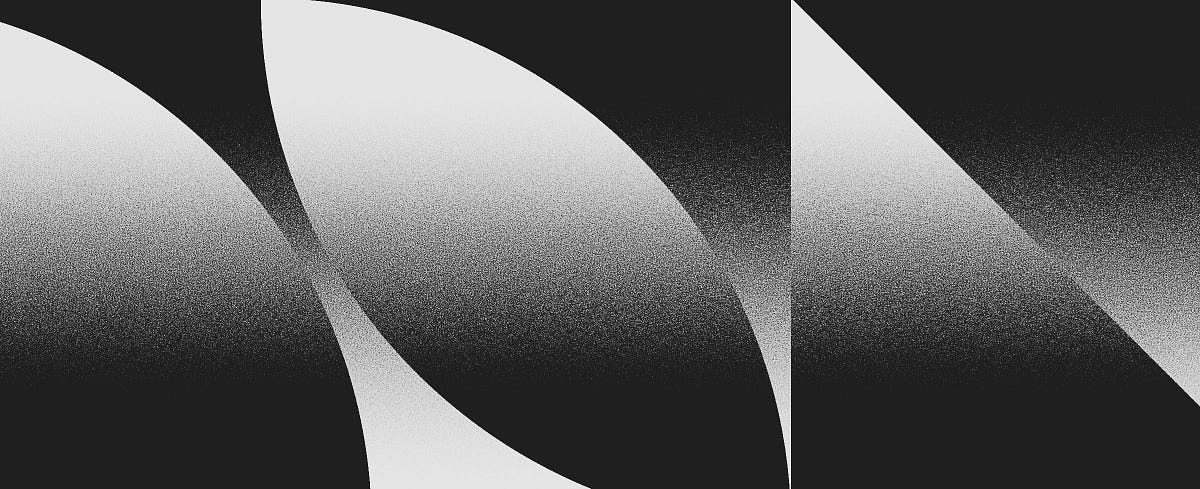
Medium
Originally published at Stefan Hürlemann — Designer.
mellow helm
hushed niche
Hi, for the background texture a mix of noise and threshold. Do control everythi...
Appreciate it chief thanks so much
fluid craneBOT
Gave +1 Creative Carma to @hushed niche (current: #12 - 324)
hushed niche
Pay attention to 100% view, or you’ll come back at export time.
mellow helm
hushed niche
Pay attention to 100% view, or you’ll come back at export time.
lmao cool I'll make sure to keep that in mind
craggy ingot
craggy ingot
next issue I'm facing is when i click on "create artboard from layers" the whole...
anyone knows a solution for this?
I click on create artboard from layers and everything gets messy
 low flume
is there a way to auto allign multiple images in the same position and size ?
so my problem is that im trying to work on a dialogue box with multiple frames
i dont wanna have to adjust the size and position for each frame image i upload
craggy ingot
it seems that my friend here is the one who is the source of the issue, how can I trim that excess that is not showing?
 tame cape
craggy ingot
it seems that my friend here is the one who is the source of the issue, how can ...
tame cape
craggy ingot
it seems that my friend here is the one who is the source of the issue, how can ...
If no SmartObject is involved, then select all -> menu: Image -> Crop
(It is usually advantageous to also show the Layers panel in the screenshot)
craggy ingot
tame cape
If no SmartObject is involved, then select all -> menu: Image -> Crop
(It is usu...
 tame cape
craggy ingot
tame cape
craggy ingot
😅
You're only showing a third of your Layers panel, but yes - try Ctrl+A and then go to Image -> Crop in the menu.
What happens?
craggy ingot
I tried stretching the layers bit but it didn't work for some reason lol
tame cape
craggy ingot
I tried stretching the layers bit but it didn't work for some reason lol
???
craggy ingot
the layers panel
you extend it by dragging there right?

the crop thing worked btw so thanks
tame cape
craggy ingot
you extend it by dragging there right?
Ah, now I understand.
You can reduce the size of the thumbnails by opening the Layers panel options and selecting "Small Icons." Alternatively, you can grab the panel at the top and drag it to the left. Then you can adjust the size as needed.
craggy ingot
got it
 lime lichen
Im using Photoshop web (both in browser and on macbook app) and cannot copy a text box layer from one project to another. I've tried drag and drop(doesnt work), copy layer and paste(will copy within the same project but nothing happens when pasting in a new project), and duplicate layer (no dialog box appears asking for destination, it just adds to the same project above the current layer). Very new to this and hoping for some help.
lime lichen
abstract idol
viral palm
It should be something like this...
Thank you man
fluid craneBOT
Gave +1 Creative Carma to @viral palm (current: #7 - 991)
abstract idol
I really apreciate it
hushed niche
low flume
is there a way to auto allign multiple images in the same position and size ?
Hi, tried Edit > Auto-Align Layers?
low flume
hushed niche
Hi, tried Edit > Auto-Align Layers?
nope i didnt know about that feature 😅
low flume
hushed niche
Hi, tried Edit > Auto-Align Layers?
thank you ❤️
hushed niche
You are welcome, see this: https://www.photoshopessentials.com/photo-editing/how-to-auto-align-and-composite-images-in-photoshop/

Need to merge two photos together to create that perfect shot? Learn how Photoshop's Auto-Align Layers command makes it easy to composite images!
low flume
thanks
abstract idol
viral palm
It should be something like this...
I just did thye changes you made to mine and it looks good but do you know or anyone how to make the shadow on the left less harsh
like the second picture

 abstract idol
ivory rampart
separate model from picture and blur background
abstract idol
ivory rampart
separate model from picture and blur background
could you please show me how to do that?
ivory rampart
i don't have PS anymore

that's how i would approach your problem
copy model to sperate layer
select background and add gaussian blur
it will soften your shadow
abstract idol
that kind of works but that makes the shadow blurry i want to make the shadow a lighter color more
that makes it blurry and unrealistic sorta
ivory rampart
hmm
abstract idol
yeah
ivory rampart
use levels filter
abstract idol
im really new to ps
ivory rampart
with clipping mask
abstract idol
oh i see
ivory rampart
you can just use adj filter to selected area
abstract idol
how do i select only that area
polygonal lasso?
manually because i could do that actually
ivory rampart
you can try to lasso
i would probably select object
model and just invert selection
quicker
ivory rampart
if you have contextual menu
 ivory rampart
yeah
abstract idol
how can i invert select?
 ivory rampart
if you have default workspace its above layers
 ivory rampart
np
 pseudo frigate
Hi folks, is there any chance of getting a good website to download CSH shapes to Photoshop ?
viral palm
abstract idol
I just did thye changes you made to mine and it looks good but do you know or an...
You can simply lower the original shadow layer then paint yourself shadows with a large soft brush on seperate layers (under the subject)...
Try to keep the original layer (even though it's with a low opacity) for a "realistic" effect.
pseudo frigate
I found a couple, but not that much
What do u think, guys?
viral palm
pseudo frigate
Hi folks, is there any chance of getting a good website to download CSH shapes t...
Don't know for CSH but I create my own CSH from vectors with illustrator...
It's much easier to find Vectors (.ai or .svg) on the internet...
In think there are few here:https://www.brusheezy.com/shapes#google_vignette
Brusheezy
pseudo frigate
viral palm
Don't know for CSH but I create my own CSH from vectors with illustrator...
It's...
Oh yeah, but I don't use Illustrator
That's why I'm asking
viral palm
pseudo frigate
Oh yeah, but I don't use Illustrator
That's why I'm asking
You can search on brusheezy with "Photoshop custom shapes" tag. I know there are some there (not only brushes)...
pseudo frigate
I still can create them on Photoshop, I guess?
pseudo frigate
viral palm
You can search on brusheezy with "Photoshop custom shapes" tag. I know there are...
Sure, I'll do ✌🏼
viral palm
pseudo frigate
Sure, I'll do ✌🏼
You also can search on Behance: https://www.behance.net/search/projects/photoshop custom shapes
Some users are kind enough to share some for free...
An other place to look at: https://designmodo.com/free-photoshop-custom-shapes/#sun-photoshop-shapes
pseudo frigate
viral palm
You also can search on Behance: https://www.behance.net/search/projects/photosho...
Ok, thank u so much for sharing 
I think I just found the legacy with More than 500+ Shapes
 fluid craneBOT
Gave +1 Creative Carma to @viral palm (current: #7 - 992)
 hushed niche
pseudo frigate
Hi folks, is there any chance of getting a good website to download CSH shapes t...
hushed niche
pseudo frigate
Hi folks, is there any chance of getting a good website to download CSH shapes t...
Edit: I see you are aware.
Please vote in this feature request if you think it is convoluted to find them:
Are you aware that all the old custom shapes are still bundled, BUT they are only available to download from the windows>shapes panel’s hamburger menu, under legacy shapes, then, they’ll be available everywhere in the UI.
https://community.adobe.com
Two+ years after the arrival of the new useful Shapes Patterns, Gradients or Swatches Panels, users still cannot find the legacy presets as they search in the Option bar local menu, or in the local menu of the Contextual (right-click) click on the image, instead of in the new panels. Case in point...


 compact nymph
Hi everyone i have an important request if anyone can help please dm me
vapid flume
compact nymph
Hi everyone i have an important request if anyone can help please dm me
Please ask in #💬chat-general (here is the channel for Photoshop questions)
Also follow the wise words spoken here:
#❓ask-a-question message
And don't forget this one! 🙂
#💬chat-general message
 dire crystal
@compact nymph hey i can help
 lunar root
compact nymph
Hi everyone i have an important request if anyone can help please dm me
lunar root
compact nymph
Hi everyone i have an important request if anyone can help please dm me
For sure
Would love to help you.....
viral palm
hybrid yarrow
How do they make the circle ⭕️ around the rank so bright like that
Could you point us which circle you're asking about?
Since no one has responded, I assume I'm not the only one who didn't understand your question...
viral palm
pseudo frigate
Ok, thank u so much for sharing <:PsLove:1299906100849545266>
I think I just fo...
Sorry, I thought you were looking for custom shapes other than legacy ones...
I think @hushed niche gave you what you were asking for...
viral palm
hybrid yarrow
How do they make the circle ⭕️ around the rank so bright like that
If you're referring to the “white” outline around certain shapes, I think a simple Stroke Fx effect on the grouped shapes whose outlines you want to highlight should work.
 hybrid yarrow
viral palm
If you're referring to the “white” outline around certain shapes, I think a simp...
hybrid yarrow
viral palm
If you're referring to the “white” outline around certain shapes, I think a simp...
The brown circle
Also the bronze rank
rancid beacon
i downloaded the creative cloud desktop so i can have photoshop on my laptop too but its asking me to pay?
 ivory rampart
I assume you already paid for plan, try to log out and log in to your account
rancid beacon
ivory rampart
I assume you already paid for plan, try to log out and log in to your account
im a student so it was supplied to me by my uni
ivory rampart
don't think that your student account has MAC verification so school knows it's only you who is usung this plan 🤔
https://community.adobe.com
This is really strange. Up until about a week ago, I never had a problem. Suddenly, when I try to login into my Adobe school account, I get the following error message: Account type not supported Continue with a different account to access the service. Here's the bizarre part. This message appea...
 north linden
Is there anyone who knows how to photoshop a suit on to a person?
viral palm
hybrid yarrow
Also the bronze rank
I made this one just with shapes,gradients and Layer Fx... If it's close enough for you, I am sharing the PSD file in case you would like to see how the design was created.

 rancid beacon
ivory rampart
https://community.adobe.com/t5/photoshop-ecosystem-discussions/adobe-will-not-le...
rancid beacon
ivory rampart
https://community.adobe.com/t5/photoshop-ecosystem-discussions/adobe-will-not-le...
the advice given doesnt really work..ill just see if i can do anything to fix it from the computer i use at uni
ivory rampart
rancid beacon
the advice given doesnt really work..ill just see if i can do anything to fix it...
you might ask your school admin
never used school plan so can't help more
 gilded osprey
pseudo frigate
Hi folks, is there any chance of getting a good website to download CSH shapes t...
gilded osprey
pseudo frigate
Hi folks, is there any chance of getting a good website to download CSH shapes t...
check also deviantart,com there are still some good ones
hybrid yarrow
viral palm
I made this one just with shapes,gradients and Layer Fx... If it's close enough ...
Thank you
fluid craneBOT
Gave +1 Creative Carma to @viral palm (current: #7 - 993)
hybrid yarrow
viral palm
I made this one just with shapes,gradients and Layer Fx... If it's close enough ...
What do I open it in?
viral palm
hybrid yarrow
What do I open it in?
Photoshop.
 trim flume
Can I not hold shift while using lasso tool to snap to 90 degree increments ?
tame cape
trim flume
Can I not **hold shift** while using **lasso tool** to **snap to 90 degree incre...
You can hold the Shift key - but it has no effect on the lasso tool. The additionally pressed Shift key is only required for this tool to add to an existing selection.
But the polygon lasso tool snaps into the angles preset in the preferences (default: every 45°) when the Shift key is held down. If you start with the Polygon Lasso Tool, you can switch to the Lasso Tool in between by pressing and holding the Alt key (and back again when the Alt key is released). This gives you more flexibility.
Personally, I prefer to draw a path with the Pen Tool and then create a selection from it. Much more flexible and, above all, editable and savable.
trim flume
tame cape
You can hold the Shift key - **but it has no effect on the lasso tool**. The add...
Thanks for the advice. I'll try out both workflows and see what works better. It's a real shame we dont have shift to lock on free lasso tool though.
fluid craneBOT
Gave +1 Creative Carma to @tame cape (current: #14 - 251)
hybrid yarrow
viral palm
Photoshop.
Thanks
fluid craneBOT
Gave +1 Creative Carma to @viral palm (current: #7 - 994)
 placid iris
I need help with something specific. I got this crooked edges on the outline of my image. I think that's probably aliasing. How do I smoothen them out ?
I tried fuzzy select and alpha selection than shrink but it doesn't look perfect
I remember having the same problem last time. But can't remember if it was that method someone recommended
hybrid yarrow
viral palm
Photoshop.
How do you get those shapes?
viral palm
hybrid yarrow
How do you get those shapes?
Most of them are simple elipses but I'm sharing 2 videos to show you how you can make the outside ring (video1) and the 4points flattened star (video 2)
hybrid yarrow
viral palm
Most of them are simple elipses but I'm sharing 2 videos to show you how you can...
Thanks 🙏
fluid craneBOT
Gave +1 Creative Carma to @viral palm (current: #7 - 995)
hybrid yarrow
hybrid yarrow
Thanks 🙏
How do I do the unreal rank one
 fervent quiver
how can i permanently disable layers moving in 30 pixel increments?
it's kind of annoying and i'd rather not hold ctrl every time i move something
okay apparently the increment is based on zoom level
whatever, i just want to turn it off
i SWEAR it didn't used to do this
 cedar tide
hey i wanna make custom shape to fill these empty things ? does someone know how to do that cuz i wanna do gradient for each one if not i would just use normal color but i need gradient for each
 fallow berry
cedar tide
hey i wanna make custom shape to fill these empty things ? does someone know how...
fallow berry
cedar tide
hey i wanna make custom shape to fill these empty things ? does someone know how...
Use the wand tool and click in the empty spaces, afterwards go to gradient tool and fill the selection:D
fallow berry
I have the m,ost annoying proble ever, so basicallywhen I save pdf
When I tried to save as pdf I can't even save and when I can save the file is 1,8 gb
I canät even open it
viral palm
cedar tide
hey i wanna make custom shape to fill these empty things ? does someone know how...
As alternative to what AX said you can Trace one shape under the "black wheel" with pentool set to "shape" mode.
Doing so you'll have a total control of your gradients in the future...
Note: I made two you can just reproduce the same steps (copy+rotation of the copy) for the others sections...
cedar tide
viral palm
As alternative to what AX said you can Trace one shape under the "black wheel" w...
what i did is put rectangles and fit them inside and erased edges
i could try this too
 viral palm
cedar tide
what i did is put rectangles and fit them inside and erased edges
viral palm
cedar tide
what i did is put rectangles and fit them inside and erased edges
There always are multiple ways to do things in Photoshop... Some are more efficient than others depending the case...
fallow berry
Why is my PDF 1,84 gb????
It's even larger then my hole psd file
It makes no sense
viral palm
fallow berry
Why is my PDF 1,84 gb????
Did you save as Pdf or Print as Pdf?
fallow berry
I do save copy as
Just pdf
BEcause I want to print it
Wait so you can save as print as pdf?
Or I am ocnfused I want pdf
I go save a copy
fallow berry
viral palm
Did you save as Pdf or Print as Pdf?
then I choose


I don't get how it could be tthat large, like I have never seen a picture this large before
It's just A3 paper I just want the picutre and don't need to edit it
cedar tide
viral palm
There always are multiple ways to do things in Photoshop... Some are more effici...
yh preciate this fr, i cant see this line in my photoshop tho

 viral palm
fallow berry
It's just A3 paper I just want the picutre and don't need to edit it
viral palm
fallow berry
It's just A3 paper I just want the picutre and don't need to edit it
Did you unchecked " preserve editing capabilities" option?
 fallow berry
viral palm
Did you unchecked " preserve editing capabilities" option?
fallow berry
viral palm
Did you unchecked " preserve editing capabilities" option?
Yes it is unchecked
fallow berry
viral palm
Did you unchecked " preserve editing capabilities" option?
So why is it so large?
 cedar tide
viral palm
This?
cedar tide
viral palm
This?
yea
 fallow berry
Frank do you have any idea what it could be?
viral palm
I also suggest you to turn on snap options if you want to use this technique...
cedar tide
🙏
viral palm
fallow berry
Frank do you have any idea what it could be?
Why are you saing as pdf?
fallow berry
viral palm
Why are you saing as pdf?
My teacher told me too
And it is a requirment
So if I save it anything else she doesn't approve
So I am stressing right now findign a solution, because there's no way a pdf is that huge
and i have 2 hours
before it needed to be handed in
viral palm
fallow berry
So if I save it anything else she doesn't approve
Could you try to make a copy of your psd file, flatten it and save it as pdf to see if the file size is smaller?
fallow berry
viral palm
Could you try to make a copy of your psd file, flatten it and save it as pdf to ...
Should I just merge everything and export as pdf?
What's even the point of a pdf anyways?
viral palm
fallow berry
Should I just merge everything and export as pdf?
I would do it on a copy... Except if you want to loose all your layers...
fallow berry
viral palm
I would do it on a copy... Except if you want to loose all your layers...
Of course of course
That I know haha
viral palm
I would not take the risk
viral palm
fallow berry
Neither would I
If you're running out of space you also can make a copy merge in your original design then Duplicate the merged layer in a new file then save as pdf...
But to be honnest I don't know if you'll get a smaller pdf... Let me know.
fallow berry
viral palm
If you're running out of space you also can make a copy merge in your original d...
uhm the video doesnt work
OMG YES
i merghed everything
and it is now 50 mg
mb
and i did a copy
 quasi coyote
Deos that mean, the default running is locally? on my GPU?
When using FireFly fill & Expand.
If its local...
Does it cost me any credits?
 ripe quest
quasi coyote
Deos that mean, the default running is locally? on my GPU?
When using FireFly fi...
ripe quest
quasi coyote
Deos that mean, the default running is locally? on my GPU?
When using FireFly fi...
Fill & Expand goes out to the web. Anything that generates pixels is cloud-based.
quasi coyote
ripe quest
Fill & Expand goes out to the web. Anything that generates pixels is cloud-based...
but why it say if you have older machine?
I thought it run locally.
- there is no credits icon when i run it, unlike nano banana
quasi coyote
ripe quest
Fill & Expand goes out to the web. Anything that generates pixels is cloud-based...
How many credtis per run?
ripe quest
quasi coyote
but why it say if you have older machine?
I thought it run locally.
+ there is ...
They're referring to Object/Subject Selection which is generally better in the cloud.
quasi coyote
Oh!
Thx man.
ripe quest
quasi coyote
How many credtis per run?
viral palm
Correct me if I'm wrong @ripe quest but I think cloud processing subject selection doesn't use credit... Right?
Just pixel generation (generative fill, expand, remove...etc) isn't it.
ripe quest
Only things that actually generate pixels use credits.
Object/Subject Selections do not use credits.
Just a reminder... Until Dec 1, if you generate images on the Firefly surface, all those generations are FREE!
ivory rampart
I think remove tool also wasn’t taking credits, and is creating pixels
ripe quest
ivory rampart
I think remove tool also wasn’t taking credits, and is creating pixels
This is correct. I'm just not sure if that will always be true. It is true right now.
ivory rampart
I mean results are not great for bigger areas, but on small scale it’s much better than inpaint tool imo
ripe quest
If you're just trying to get rid something, it's almost always the best method. As opposed to Healing Brush, Clone Stamp, etc.
But, yes, used on small spots, Not painting over giant areas.
quasi coyote
where is that plan?
 ripe quest
quasi coyote
where is that plan?
ripe quest
quasi coyote
where is that plan?
There is no "Unlimited Access" - That is probably some old screen shot when the first image gen model was released.
hybrid yarrow
hybrid yarrow
How do I do the unreal rank one
?
ivory rampart
I have no idea what unreal rank is to start with
ripe quest
hybrid yarrow
?
You're asking how to make that thing, from scratch?
Can't you just download the art from somewhere?
ripe quest
Not likely that someone is going to make a tutorial that shows how to create that thing from scratch. If that is the ask.
ivory rampart
Shapes, gradients, layer styles yeah… pass
hybrid yarrow
ripe quest
Can't you just download the art from somewhere?
Ik
quasi coyote
ripe quest
They're referring to Object/Subject Selection which is generally better in the c...
How to set that to be automatically in the cloud ?
ripe quest
hybrid yarrow
Ik
If you want help here, I'd advise writing in complete sentences.
ripe quest
quasi coyote
How to set that to be automatically in the cloud ?
Edit > Preferences > Image Processing.... Select Subject and Remove Background: set it to "Cloud"
ripe quest
Nano Banana Pro released. It's defo gonna be a busy day.
ivory rampart
RIP PS nano banana will replace it 😏
 onyx bluff
I wanna put a grey filter on this pic but not on the red part, can someone do that?

I want this but with the red part

Chatgpt gave me this but its off
 viral palm
onyx bluff
I wanna put a grey filter on this pic but not on the red part, can someone do th...
viral palm
onyx bluff
I wanna put a grey filter on this pic but not on the red part, can someone do th...
Grey filter... You mean B&W image except Red parts?
onyx bluff
viral palm
Grey filter... You mean B&W image except Red parts?
Yea exactly
My bad
Black and white image
The filter is called Noir
On ios
hushed niche
onyx bluff
Chatgpt gave me this but its off
I would select the red air intakes of the first image and paste them in. The best is to add a black and white adjustment layer, and mask out the intakes.
Or to use this technique: https://www.youtube.com/watch?v=k2y5GC3bHqI

In this video, you will learn an easy trick to make an image black and white and keep one color.
With the Hue and Saturation adjustment layer, you can flip a selected range of colors to desaturate them. But if you "flip" the selected colors, you will instead be able to leave only one color and make the rest black and white.
I hope you enjoy t...
tame cape
onyx bluff
I wanna put a grey filter on this pic but not on the red part, can someone do th...
The picture has very strong artefacts. Has it been accidentally edited, reduced in size or saved in poor quality?
viral palm
onyx bluff
My bad
You also can add a black and White adjustment layer then paint the layer mask black where you want to reveal colors...
viral palm
hushed niche
I would select the red air intakes of the first image and paste them in. The bes...
Great tip but in this case there is red in skin tones and an object near the car I think a layer mask technique will be mandatory...
onyx bluff
viral palm
You also can add a black and White adjustment layer then paint the layer mask bl...
Thats just what i want! Could you post the image here? I dont have photoshop so i cant really do it myself..
Thats actually really cool, that u can just do that
onyx bluff
onyx bluff
I want this but with the red part
But can u make so that the black&white filter is closer to this ”Noir” coloring?
viral palm
onyx bluff
Black and white image
Don't know what the filter "Noir" means for you... I can't see any of these in photoshop.
Here few variations hope you'll find one that suits your needs.


 onyx bluff
viral palm
Don't know what the filter "Noir" means for you... I can't see any of these in p...
onyx bluff
viral palm
Don't know what the filter "Noir" means for you... I can't see any of these in p...
Omg theyre so good🙏🏻 holyyy thank you bro, by Noir i mean like this
 fluid craneBOT
Gave +1 Creative Carma to @viral palm (current: #7 - 997)
onyx bluff
Thats the B&W filter id really like
 indigo garden
hello, i've been using photoshop for years now and only this time i got this issue, my photoshop keep crashing in less than 5 minutes after i open and use it, i've tried to turn off graphic etc, change settings and none of it works. Anyone have encounter this issue? it's almost 10 times in a row like this and i'm losing it. Any help will be appreciated! thanks!
ivory rampart
onyx bluff
Omg theyre so good🙏🏻 holyyy thank you bro, by Noir i mean like this
my approach to subject
 onyx bluff
ivory rampart
my approach to subject
onyx bluff
ivory rampart
my approach to subject
Dude… thats perfect, thank you so much man, thank you @alpine garnet
fluid craneBOT
Gave +1 Creative Carma to @ivory rampart (current: #28 - 79)
Gave +1 Creative Carma to @alpine garnet (current: #1023 - 1)
 sweet quail
where can I get materials, e.g. lightning bolts, etc. to make graphics?
ivory rampart
adobe stock, shutterstock, pinterest etc
viral palm
sweet quail
where can I get materials, e.g. lightning bolts, etc. to make graphics?
You can start by looking at Adobe Stock (free section) https://stock.adobe.com/free
and make a search with keyword "lightning bolts".
 zealous atlas
does anyone know how to download all photoshop files at once from the adobe cloud. It says I can only download one at a time
 winter edge
 Hey, I've been using photoshop for years and can't figure out this issue I'm having.
I've individually color locked every one of my layers for different parts of my project, but when I use the** smudge tool** to paint in any one of layers, colors from other layers bleed into the layer I'm working on despite literally every layer being color locked and "Sample All Layers" also turned off.
All the different parts of my project have their own either locked layer, or color locked. There is no reason I can't find for this being possible with how I've set everything up. It also keeps pulling purple from out of thin air.
I am at a frustrating loss and can't finish this project I'm making for my friend's upcoming birthday.
I can take more screen shots of my workspace, brush settings, literally anything to help getting this figure out 


 dire crystal
okay layer structure looks fine, can you confirm if this "finger painting" option is checked or not in your options bar @winter edge
 winter edge
It is not checked 
 dire crystal
hmm, let me check my smudge tools to try and replicate your issue
can you also share a screenshot of your smudge settings?
winter edge
Yezzir! 
Is this what you're wanting? (If not please let me know how I can find the specific settings) 
 dire crystal
okay one last thing, can you create a new empty layer and try the smudge brush to see if it effects/considers the layers below
@winter edge
winter edge
Yezzir!  Will do
Alrighty so I made a new empty colorless layer above all my colored layers and nothing got smeared or dragged in- Also put a singular color on that new layer and smudged it and nothing got pulled into it from outside layers 
dire crystal
okay i tried to recreate the issue and even tried color locking layers and smudge tool isnt considering the layers below, can you please check the layer you're working on if it was merged/ turned into an stamped visible layer? just isolate the layer and see if you see anything that should not be there?
winter edge
I will!
dire crystal
okay one more question, the layer you're working on, is it in any of the folders I see in the layer structure?
@winter edge
winter edge
Alrighty so the layer has not been merged with anything and is not a stamped visual layer- I turned off all the other layers and pulled the bangs aside so you can see just the colors (if that helps).
Your third question, yes all the hair layers are grouped together in that teel blue folder on the right that says "ALL HAIR BITS copy" 

( I will literally hop in a vc in here if that would make this easier I am so sorry  )
)
dire crystal
okay can you try one thing for me, set the blending mode of the folder to "normal" instead of "pass through" and try the smudge tool again to see if the issue still persists
@winter edge
winter edge
It still smudge unfortunately 
 dire crystal
damn, you have encountered a real strange issue there. I am trying a few options on my PS to recreate the issue, will come back if I find something
winter edge
 Thank you, you are a blessing
dire crystal
hey can you come VC and share your screen? come in "community voice chat" channel
winter edge
Yep yep!
hushed niche
winter edge
<:Facepalm:1413689250993668208> Hey, I've been using photoshop for years and can...
Hi, all you screenshots are not fullscreen.A wild guess: Is your background color purple?
winter edge
No it's all a gray background- With the help the group effort of kRAZEy and some friends I'm currently in a vc with, we finally figured it out so I'm all good now!  I appreciate all the hands on help, thank you so much
  (I couldn't zoom out of the project any further or it'd be against tos bc it's a chick in a bikini)
hushed niche
And what was the issue, exactly?
Ah, I can see that the bg color well was black in another image. Did you reset the tool by right-clicking on the leftmost icon of the Option Bar, and selecting “reset tool”, maybe?
dire crystal
yes, I actually asked them to try the reset tool option, that was not the issue
 opaque skiff
I have a technical question with uploading a raw photo into ps and it looking fine with full detail then I okay and it losses complete detail so I can't retouch it if I can't see the skin clear
dire crystal
what type of raw file you're opening?
also, is the image opening in a lower resolution or is it just loosing the colors
opaque skiff
dire crystal
also, is the image opening in a lower resolution or is it just loosing the color...
Lower in resolution raw photo
hushed niche
opaque skiff
I have a technical question with uploading a raw photo into ps and it looking fi...
Hi! What are the export settings at the bottom of the camera raw interface? Also, are you opening it as a smart object? How large is your canvas? I’m puzzled by the term “uploading”
dire crystal
can you share these two screenshots? one from cameraraw and one inside PS

 opaque skiff
hushed niche
Hi! What are the export settings at the bottom of the camera raw interface? Also...
opaque skiff
hushed niche
Hi! What are the export settings at the bottom of the camera raw interface? Also...
At the bottom of camera Raw is
5464x8192 no I'm opening by file in ps then selecting it then camera raw opens then I press open
My canvas is 1080-1350


 thorn hollow
any substance nerds here? idk if theres a discord for that
dire crystal
okay, dont drag and drop the raw file on the canvas of PS, instead drop the raw file on the tabs(contaning different project file names) as shown in this screenshot

drop the file next to any other open project, in the empty area
@opaque skiff
opaque skiff
dire crystal
drop the file next to any other open project, in the empty area
Okay so the open black background tab I have open instead of opening and it placing right on top instead place it in other tab just to clearfly
dire crystal
okay, you can try the alternative way of hitting ctrl+O then select the raw file you want to open, then click the dropdown button next to the "open" button and choose "open as object"
opaque skiff
dire crystal
okay, you can try the alternative way of hitting ctrl+O then select the raw file...
May I ask were where exactly the drop down is I'm sorry all I see is format
 dire crystal
hit open here, then use this little arrow next to the open button on the next screen

sorry for making it confusing for you
opaque skiff
dire crystal
sorry for making it confusing for you
It's okay Ty it fixed it thanks so much enjoy the rest of your night
fluid craneBOT
Gave +1 Creative Carma to @dire crystal (current: #159 - 11)
dire crystal
the problem was that you were opening the raw file inside an already opened project, instead of opening as a new project. next time, hit the home button on the top left corner, and then drag/drop your raw file @opaque skiff
opaque skiff
dire crystal
the problem was that you were opening the raw file inside an already opened proj...
Ohhh okay I got ya ill right that down for next time
hushed niche
thorn hollow
any substance nerds here? idk if theres a discord for that
Hi, you’ll find the link on this page: https://helpx.adobe.com/creative-cloud/apps/manage-apps/creative-cloud-apps/adobe-discord-servers.html
ivory rampart
They changed server invite on substance? 🤔
ivory rampart
I know otherwise it’s bot is blocking
As it thinks i want to send invite to random server
dire crystal
oh, then its fine, link points to the substance server
dire crystal
oh that i have no idea of
ivory rampart
Anyway link is safe not crypto den 🤣
vapid flume
@ivory rampart This server specifically (the Photoshop server) only accepts what we call "vanity" links, even from other Adobe Servers.
This is annoying, even for us Mods, because some Adobe Servers that would be legitimate to point to aren't available to share (when they don't have that "vanity" link set up)