#capture-cards
1 messages · Page 72 of 1
 rough parcel
No TV. It's just input, then open in OBS
The out port is empty
as I'm just using it to capture
 warped ledge
Powering on my Xbox to see my swttings
rough parcel
Thank you!
warped ledge
ok it's on now, let me check.
rough parcel
seems like fiddling with the EDID internal settings changes it a little, but I can't seem to land on one that supports 4k
warped ledge
I had to go to display, and select 4k in the console
 warped ledge
another thing, I have mine on display, or internal depending on console or PC.

Internal is what I usually use for Console
 rough parcel
yea.. still 1080 or 720 only
warped ledge
also might want to change the refresh rate to
 rough parcel
 warped ledge
rough parcel
warped ledge
rough parcel
turn off 120HZ
 warped ledge
rough parcel
warped ledge
rough parcel
under setup via 4K what does it show?
rough parcel
 warped ledge
rough parcel
warped ledge
rough parcel
so your tv only does 4k 24hz that's why
warped ledge
rough parcel
Again, no TV
right, but it's detecting that...
rough parcel
this is captured via the software that came with the card
warped ledge
so something with the EDID...
rough parcel
Yea, the elgato card is saying it's not 4k capable to the xbox
somehow
unclear why lol
warped ledge
checking something...
warped ledge
rough parcel
unclear why lol
try using Studio instead. https://www.elgato.com/us/en/s/downloads

close out the 4k Utility App
 warped ledge
rough parcel
ok - we in here
warped ledge
rough parcel
ok - we in here
see the blue dot at the top, check that menu out
rough parcel
Was a firmware update. Done successfully but no change.

I'll restart the PC to be sure
warped ledge
rough parcel
I'll restart the PC to be sure
you could try merged
 warped ledge
@past basin got any ideas?
 past basin
4K24Hz? Check the HDMI cable being used - make sure it's HDMI 2.0 or better, and isn't too long. HDMI 1.4 cables would drop support down to 4K24 in some cases.
warped ledge
past basin
4K24Hz? Check the HDMI cable being used - make sure it's HDMI 2.0 or better, an...
thanks, I was unaware of that part.
past basin
Same if it passes through any splitters or the like instead of directly into the card, if they don't support 2.0
rough parcel
OK, easy enough to check. Give me a minute.
warped ledge
th only reason I have an Xbox... lol
rough parcel
❤️ ❤️
OK, well. Looks like I had a splitter back there that I had forgotten about 😅
I removed that and directly ran it
@past basin psychic lol
warped ledge
rough parcel
<@269997944671830017> psychic lol
yeah, he has more info on the other stuff to check on when the math ain't mathing.
rough parcel
aaand that seems to have done it
now I just have to update OBS
thank you so much ❤️
past basin
Glad to hear it's sorted!
Note that if you're not already on OBS 32 and have a Stream Deck, update the app for that too when you update OBS - anything prior to 7.0.1 won't work with OBS 32 and up.
 past basin
haha. CTRL-F while the video is selected will snap that down to fit the canvas.
Though if you want to play or record in 4K update the canvas size in OBS settings under video to 4K instead
rough parcel
I think I did that

I usually just use the fullscreen projector with the monitor in question (also set to 4K)
to play with a sort of passthrough situation
past basin
Yeah I tend to do that too, from source projector. Not quite as low latency as true passthrough, but generally good enough
If you scaled it up to fit 4K in the past, then you just need to snap it back with ctrl-f as it likely kept the scaling
 abstract idol
Hello, I just got the Elgato 4k S to stream my Switch 2 gameplay to my friends on discord. The issue is that as soon as I hit "Go live" on discord my audio switches to my computer speakers instead of my A50s. Tried with OBS Studio and Elgato studio and with both I have the same issue. Any pointers would be great. Thanks
abstract idol
It literally disables all my other USB peripherals as soon as I go live on Discord
past basin
Make sure you're not running things though a USB hub, especially an unpowered one.
If you are then the power draw from the card when it turns on could lock out other devices from getting enough power
abstract idol
past basin
Make sure you're not running things though a USB hub, especially an unpowered on...
Not running through a USB hub just straight to the MOBO. Now it just freezes my computer when I go full screen on elgato studio. Probably just gonna give up on it honestly
past basin
Are you using the original cable that it came with? No adapters, just straight into the motherboard?
If you run USB Tree Viewer https://www.uwe-sieber.de/usbtreeview_e.html what happens when you start the capture and things start disconnecting, do you see devices turning red and going offline? Have you already tried the card in different ports (preferably front vs back to increase the odds of getting things on different USB Controllers)
 deep dune
how do i set up the obs cam?
 lone crypt
deep dune
how do i set up the obs cam?
lone crypt
deep dune
how do i set up the obs cam?
Nothing to set up; there is just a button along side the start recording and start streaming buttons.
Start virtual cam.
deep dune
thank you!!
 gritty mason
Yo anyone able to help. capture card delay hd60x? im getting annoyin delay help would be appreaciated
lone crypt
gritty mason
Yo anyone able to help. capture card delay hd60x? im getting annoyin delay help ...
Without more info I Assume you’re watching the preview of the capture.
Some delay is expected; a factor of the card converting and the rest of the computer and software before the image appears in preview.
Connect a display to the passthrough port (hdmi out)
That will be essentially real-time.
gritty mason
lone crypt
Without more info I Assume you’re watching the preview of the capture.
Some del...
Basically I've connected it all up and. I'm using my audio via OBS because I have a usb headset and cannot use the 3.5mm jack and it's like a 5 second delay and it's quite annoying
lone crypt
gritty mason
Basically I've connected it all up and. I'm using my audio via OBS because I hav...
So it’s audio delay that’s bothering you, not video?
5 seconds is a lot. (Exaggeration?)
Listening through OBS is not the best way to do it from a latency perspective. (Again, playing on the preview at all is not really intended)
You’ll probably need some different audio equipment —more suited for this task— if you want to improve this.
Something with a mixer so you’re not waiting for windows to pass the audio all around to different devices and through the driver and to OBS and then to your headset and if wireless is involved that adds even more latency.
An analog headset connected to the console with a chat link pro cable so the capture card gets a split of the audio. Or wireless headset that has a mixer. Some have basestations which can receive analog input and those are usually fast. And would let you use the chat link to split audio to you and the capture card at the same time.
Anyway. Is this getting to the point?
gritty mason
lone crypt
So it’s audio delay that’s bothering you, not video?
5 seconds is a lot. (Exagg...
Would you say its possible for me to buy a mixer for my current headset since its the logitech g pro 2x?
lone crypt
I don’t know about your specific headset. But you said it was usb so it’s not going to work with an analog mixer.
There is mixing software like wave link from Elgato which does the mixing in software. Not the smallest latency since the audio would still be going through the capture card before it gets to the mixer, but at least you can route it to your headset and to OBS at the same time, instead of through OBS first and then preview to your headset.
But the ideal setup when capturing anything is to be listening and patching in real time, and then the capture audio and video can be however many ms late and it doesn’t matter to your gameplay.
So either watching and listening on the tv connected to the hdmi out port on the card, or listening on a headset connected to the device, with the chat link pro cable splitting that audio to the capture card at the same time.
But I’m not knowledgeable about specific headset models and features. I don’t personally use them.
 nimble sphinx
Hello everyone I am new and setting up my streaming platform so I can stream on one pc, and game on my higher end pc. I own a samsung 57" g9 odyssey neo and I use it at 7680x2160 for a 32:9 aspect ratio. I am looking at options to be able to use the screen in native resolution at at the 240hz, I plan on capturing the aspect ratio but only at 60hz. What do I use the elgato 4kx or something else?
gritty mason
lone crypt
I don’t know about your specific headset. But you said it was usb so it’s not go...
Ok thanks appreaciate the help
lone crypt
nimble sphinx
Hello everyone I am new and setting up my streaming platform so I can stream on ...
I don’t think any capture cards can use this resolution.
(And streaming at that res would be weird, too. Every viewer will have massive letterboxing and a very small image)
But I guess the heart wants what it wants!
Vic messes with ultrawide stuff so she might have a better answer. But I think probably your best bet will be running an instance of OBS on the game pc, capturing and scaling/cropping your image to something the capture card can use… and then starting a full screen preview to the capture card.
nimble sphinx
so is there a way to natively play with 7680x2160 but dynamically scale it down to another resolution for screen capture?
lone crypt
Yes… the method I described.
nimble sphinx
Yeah thats gonna suck for system resources being utilized on the gaming pc
I was hoping to offload the streaming resources to another pc, and use the main pc resources for gaming
lone crypt
That’s what many people think. But OBS uses basically zero resources with just a display capture and full screen preview.
That’s how I run my capture card (even though I don’t have to) because it’s more convenient and reliable for scaling to a different resolution. And I play vr so I want every single % of system resources.
Believe me when I say OBS uses less than 1% cpu and no GPU in this config. (because it’s not encoding or compositing anything)
All the streaming, encoding, compositing… is still happening on the other end of the capture card, on the stream pc.
There is no load on game pc.
nimble sphinx
Ok so in this method the capture card is using the encoding capabilities on the native gaming pc, allowing the user to play on the 7680x2160 than obs dynamically scales some magic way I need to figure out, but the resources are handled for the straming by the capture card attached to the gaming pc. Do I have that right?
lone crypt
No.
The game pc isn’t doing any encoding. OBS runs with one source, a display capture (or app capture if you wanted. I use a display capture)
And then it starts a full screen preview on the capture card. (Instead of duplicating the display)
nimble sphinx
So there is no need for a capture card?
lone crypt
Capture card doesn’t have any encoding capability either…. But you didn’t really think that did you?
The stream/record pc —the second one— does the encoding. That’s how capture cards always work
Capture card adds an hdmi input to a computer.
Then with the video feed from that input, an app like OBS composites the video with whichever other audio and video sources you want, like cameras and mics.
And then it encodes that for recording and streaming. Usually using the GPU in the stream pc. Because they are more efficient than cpu encoding.
But you could do cpu encoding on the second pc if you prefer.
nimble sphinx
sorry I'm totally dumb to this idea with what I'm trying to do and a total n00b to this
lone crypt
Ok, gotcha.
I was taking some offense to the way you were talking. Seemed like you thought I was making stuff up or something. So, I apologize. Let’s reset here.
The capture card is basically an hdmi input that you attach to a computer.
With 2pc setups the most basic way to do it is usually duplicating the main display to the capture card.
But this doesn’t work for you because of the extreme resolution you want to play on.
So in your case you set the capture card to extend desktop instead of duplicate display. So it’s acting as a second monitor. Then you can run an instance of OBS on the game pc, set the canvas size to the resolution you want to capture at. (The one your card can use) , add a display capture source, and then start a full screen preview sent to that second monitor; the capture card.
Now the second pc which has the capture card attached by usb… that runs OBS and gets the picture and sound and you add anything else you want in there.
On the game pc OBS you are scaling the resolution to what the capture card can use. And OBS is great at this. And will use effectively zero resources. There is no encoding here, just the full screen preview.
nimble sphinx
ok, so hmmm I have a laptop with a i7-4700hq, 16 gigs of ram, gtx765m video card - it only has usb a so not sure if that would be suitable. I have htpc which is about 20 ft away which I can bring fiberoptic 8k hdmi cables to and from, problem is the usb cables for the mk2 facecam and the wave xlr interface
that htpc has a 7950x , 64gb ram and a 3080 in it. but again its used for the ht so its not really easily accessible for usb
I can put the usb capture card on the htpc and run the 8k hdmi cables to it, , usb c no problem to the capture card over there, but if I need to bring the second pc near me it would have to be the laptop
lone crypt
Gt765m has only a first gen nvenc encoder chip. It will not be great for this. Might be able to work but it would be shaky as a stream/record pc. And your quality will not be able to go very high.
nimble sphinx
I am looking at the elgato 4k x , and the AVerMedia Live Gamer 4K Capture Card (GC575) which is what I can get locally. With what I'm trying to do, which card would you think is the best option, I can go usb c or pcie no issues
hd 60x is available too
lone crypt
I don’t know the specs for other brands, but the Elgato are great capture cards.
The pcie version advantage is being able to run the feed into multiple apps at the same time. Not that needed.

Elgato
This is a comparison chart of features between Elgato game capture devices.
Elgato Game Capture HD60 S
Elgato Game Capture HD60 S+
Elgato Game Capture HD60 X
Elgato Game Capture 4K60 S+
Elgato Ga...
nimble sphinx
seems like to 4kx is the best choice
abstract idol
past basin
Are you using the original cable that it came with? No adapters, just straight ...
Yes, all the original cables. Will troubleshoot a bit more today and hopefully get it working
abstract idol
abstract idol
Hello, I just got the Elgato 4k S to stream my Switch 2 gameplay to my friends o...
Can anyone help me with this issue?
past basin
Check with USB Tree Viewer. See if there are any errors or any errors that come up when you run the card.
It'll also show you what USB controllers you have so you can make sure you're not running too many things on one USB Controller (eg you don't want multiple USB 3.x devices on the same 3.0 controller or you can overload it - so if it's an older 3.0 controller you don't want uncompressed video from a card and a camera on the same controlller/root hub, for example). See https://help.elgato.com/hc/en-us/articles/360042824631-Two-Elgato-USB-3-0-Devices-on-one-Computer-Two-USB-3-0-Root-Hubs-Needed for more info.
But USB tree viewer will also give you a summary for 4K S which will give you three speeds to confrim if it's all connecting at SuperSpeed or not, plus when you're losing access to other devices you'll be able to see if they're actually disconnecting or any other errors come up.
Elgato
If you want to use two Elgato USB 3.0 Devices on one computer at the same time, your computer will need to have two separate USB 3.0 Root Hubs or Host Controllers.
Elgato USB 3.0 Devices include:
E...
abstract idol
past basin
Check with USB Tree Viewer. See if there are any errors or any errors that come...
Hi, thanks. I PM'd you with a video of my USB treeviewer showing what it does as soon as I press go live.
past basin
Ah, I'll take a look when I"m free then. I generally have all my DM's ignored unless I'm expecting something because I am on enough tech support servers that I get so very much spam.
abstract idol
past basin
Ah, I'll take a look when I"m free then. I generally have all my DM's ignored u...
Great thanks
 vast osprey
hyy i need some help
past basin
Volunteers are in and out thorugh the day - best to desribe the problem here and when someone is available who can help they'll get back to you
 tender burrow
vast osprey
hyy i need some help
tender burrow
vast osprey
hyy i need some help
And you just slowed the process. Instead of "I need help" state your question/problem, then someone able to help, will most likely chip in with a possible solution.
past basin
Eh, they might not know the specifics to ask, it happens. I think there's a bot command for a template though, let's see if I rememebr it
?cth
 smoky mantleBOT
We've created specific channels in order to keep everything organized and for you all to have an easier time receiving help from the community.
CTH = Community Tech Help
Please make sure to post your questions in the correct channels:
For any Elgato Marketplace questions
For any Elgato Stream Deck questions
For any Elgato Capture Card questions
For any Elgato Mics and Wave Link questions
For any Elgato Camera (Facecam/EpocCam/Etc) Camera Hub and Prompter questions
For any Elgato Lighting and Control Center questions
For any Elgato Green Screen questions
Friendly reminder: Elgato Support DOES NOT monitor this server. For official support, please file a ticket at https://e.lga.to/help. More info in #official-tech-support . Kind reminder to please treat everyone that's helping you troubleshoot kindly and respectfully. Just remember they're taking their time out of their day to help you. Any disrespect will result in a warning/ban.
 Created by calucifer#0 (218276721516871693)
vast osprey
Created by calucifer#0 (218276721516871693)
vast osprey
/problem
Hey everyone, I’m having an issue with my Elgato HD60 S and hope someone can help me. 😅
PC: MSI Desktop i5 8th gen, GTX 1070 Ti, 16 GB RAM, 2 TB HDD
USB ports: USB 3.0 at the back, USB‑C at the front
Problem: When I connect my PS5, I get no video on my monitor through the Elgato HDMI OUT.
Monitor: AOC C27G2ZE Full HD VA Curved 240Hz Gaming Monitor 27" (link)
Setup: PS5 → HDMI IN Elgato, HDMI OUT → monitor, USB‑C → PC
HDCP: PS5 has HDCP enabled by default, but I can’t turn it off because there’s no video.
What I’ve tried / solution so far:
Connect the Elgato directly to a USB 3.0 port at the back (no hub).
Use the official Elgato USB‑C ↔ USB‑A cable.
HDMI IN from the PS5 to HDMI IN on the Elgato, HDMI OUT from the Elgato to the monitor.
Thanks in advance for your help and tips! 🙏
past basin
vast osprey
/problem
Hey everyone, I’m having an issue with my Elgato HD60 S and hope someo...
Either hook the PS5 up to a TV or Monitor temporarily to turn off HDCP or boot it into Safe Mode and disable it there (it'll boot up with HDCP off in safe mode so you can change settings)
Learn how and when to access Safe Mode, a troubleshooting tool designed to help resolve data and display issues on PlayStation®5 consoles and PlayStation®4 consoles.
vast osprey
Hey, thanks! Turns out it was me accidentally plugged the PS4 HDMI in the wrong place. I ended up wasting four hours on that mistake
Now I just need to get my Elgato screen into OBS, and I’ll be all set!
past basin
Ah glad that's sorted at least.
For the OBS you'll probably have to install the divers first from https://help.elgato.com/hc/en-us/articles/360027961152-Elgato-Hardware-Drivers - though they also install with some of the apps like 4K Capture Utility. Once the drivers are there, restart OBS and it should show up as a Video Capture Device so you can add it to your sources
Elgato
Elgato Hardware Drivers - Windows 10/11A UVC (USB Video Class) device is plug-and-play hardware that uses built-in Windows drivers, eliminating the need for proprietary installations. Devices like ...
vast osprey
It wokeddd
past basin
Nice, glad you've got it sorted out!
vast osprey
Now its a sound problem i dont get audio 😅
past basin
No? Any chance there's a headset connected to the PS5? That would disable the HDMI audio (which is why things like Chat Link exist). That's the usual culprit.
Though I've also seen Windows apply noise cancellation to the capture card at times
past basin
That said does the OBS volume indicator move at all? OBS also adds new audio sources with audio monitoring off so they only go to stream and recording, not local playback
Ah
Yeah, consoles aren't fun for audio if you need to involve a headset
vast osprey
 past basin
Chat Link would let you split the audio out to an analog cable (if it's a wired headset), so you can feed the capture card and headset from the headset jack (note that it only splits the audio out, not the mic). From there in your Video Capture Source in OBS, you'd go to "Configure Video" which loads up the driver options and set the card to analog audio and plug Chat Link into the Line In jack
Alternatively move the headset to the PC and listen through that - though you may notice a slight delay that way, depending on the setup
vast osprey
The cabel is on its way
So wiht the cabel i cqn use a headset
Can
Sorry for all the questions—this is my first time streaming. It’s something I’ve wanted to do since I was 16 but never had the money, and now I do, so I’m just going for it.
past basin
Yeah, as long as it's a wired headset. It only splits audio from the console though, no the mic (the mic will go to the console only, not the PC)
vast osprey
Thank you ♡
past basin
No problem. Good luck with it!
 viscid obsidian
I can't install the HD60X driver for the settings. I'm using two desktop PCs, one for gaming and the other for streaming, but nothing is working. My connections are all correct, but the rest is too complicated; the website doesn't give me the driver link for HD60X.
lone crypt
viscid obsidian
I can't install the HD60X driver for the settings. I'm using two desktop PCs, on...
HD60X is a uvc device. It doesn’t need a driver.
 fickle dragon
Or a custom one anyways
viscid obsidian
Thanks guys 👊
abstract idol
Alright. I guess my X570 motherboard is incompatible with the 4k S… every time I press “Go live” on Discord it just crashes all my USB ports and freezes my computer. Got a new cable and still does the same thing so I guess there goes my first experience with Elgato😭🤣
lone crypt
abstract idol
Alright. I guess my X570 motherboard is incompatible with the 4k S… every time I...
That’s pretty weird. Have you contacted support?
Would be good to see what they make of your logs.
 indigo wigeon
where do i go if i need help with the audio in Elgato studio?
I just joined bc i cannot figure ts out. I have a 4K x connected to a Nintendo Switch 2 -> my computer
I need help where do I go please
past basin
indigo wigeon
I just joined bc i cannot figure ts out. I have a 4K x connected to a Nintendo S...
What specific audio issue are you hitting? No audio? Distorted?
indigo wigeon
no audio in the recording. I can hear the audio WHEN im recording (when i plug my headset into the chat link pro) but then when i switch my headset back to my computer to look at the recording, it doesnt have any audio
ive tried reconnecting, I switched from elgato capture utility to elgato studio, I changed my Switch's settings to Stereo output
 lucid igloo
I have some really bad sound coming from my capture card I was wondering if anyone could help? (Headphones will be the best to hear this)
indigo wigeon
warped ledge
<#1080643455799279697>
okay im here
warped ledge
indigo wigeon
okay im here
I know, I'm reading on everything real quick.
warped ledge
indigo wigeon
ive tried reconnecting, I switched from elgato capture utility to elgato studio,...
did you switch the audio to analog?
indigo wigeon
im sorry if im rude im just so done with this I literally havent played on my new switch AT ALL bc i cant figure this out. its not personal im so sorry
I switched it to Analog on the capture utility
the weirdest part is i used to do this with my OLED switch and that worked perfectlky fine on the capture utility
warped ledge
indigo wigeon
I switched it to Analog on the capture utility
ok, so the chat link pro, is connected, and now can you hear audio? any reason for the chat link?
indigo wigeon
people said if I didn't have the chat link the recordings wouldn't have audio
warped ledge
indigo wigeon
people said if I didn't have the chat link the recordings wouldn't have audio
they lied...
indigo wigeon
gang what.
warped ledge
I use mine without it
indigo wigeon
how do I getr audio in my recordings
warped ledge
indigo wigeon
how do I getr audio in my recordings
are you only using studio or OBS?
only one app at a time can work with the capture card
indigo wigeon
I was only using studio. But i dont care what I use as long as it works
well wait
i was only using the capture utility
but then when i decided to try again tonight i downloaded the studio bc thats what they were using in the official video
warped ledge
indigo wigeon
I was only using studio. But i dont care what I use as long as it works
remove chat link pro, make sur IN is connected to the Dock, and are you using a TV/2nd Monitor for Gaming?
warped ledge
indigo wigeon
but then when i decided to try again tonight i downloaded the studio bc thats wh...
yeah, i'm using studio as well.
indigo wigeon
warped ledge
remove chat link pro, make sur IN is connected to the Dock, and are you using a ...
uh I have my PC tower and my moniter
whats IN
warped ledge
indigo wigeon
whats IN
on the capture card, it connects to IN and the Nintendo Switch Dock
indigo wigeon
its connected to the IN on the block thging
wait why do I need to disconnect chat link pro? is that the problem?
warped ledge
indigo wigeon
its connected to the IN on the block thging
change in studio from Analog to HDMI
warped ledge
indigo wigeon
wait why do I need to disconnect chat link pro? is that the problem?
you don't need it.
is your headset connect to your pc?
indigo wigeon
Ill connect it to my mic. thats how I usually listen to my pc audio
yeah its connected
warped ledge
ok
indigo wigeon
where do I change it to HDMI on studio
warped ledge
booting my ps5 one sec
indigo wigeon
my audio input is already HDMI audio
warped ledge
indigo wigeon
my audio input is already HDMI audio

now on your pc, via your headset you should hear audio in this app
indigo wigeon
im not hearing anything
i hear it when i connect it to the chat link pro
but I can hear in the app just fine its the recording i dont hear anything in
warped ledge
indigo wigeon
i hear it when i connect it to the chat link pro
and you see the levels moving in the app?
warped ledge
 warped ledge
indigo wigeon
they're dead
warped ledge
indigo wigeon
they're dead
try a different USB 3.2 port
indigo wigeon
on my computer?
warped ledge
yeah
indigo wigeon
so just another USB-C port?
indigo wigeon
i dont know the difference
it doesnt say the difference
so the cord thats connecting the capture card to my pc, im changing thatr
warped ledge
 warped ledge
indigo wigeon
still nothing
warped ledge
indigo wigeon
still nothing
keep trying
warped ledge
indigo wigeon
how
other ports
also this might help you find the speed https://www.uwe-sieber.de/usbtreeview_e.html
indigo wigeon
those are the only two i have
warped ledge
indigo wigeon
those are the only two i have
@past basin any ideas?
indigo wigeon
bro i wanna cry
warped ledge
indigo wigeon
bro i wanna cry
I'm sure will figure it out
 paper idol
quick question, is it normal for the Elgato 4K S to have fringed or blurry text at 1440p 120hz? I took a comparison shot and the left is 60hz while the right is 120hz. Both at 1440p btw


 lucid igloo
Anyone know how do fix this audio? Turn up your headphones to hear it
indigo wigeon
@past basin can i have help
please
@warped ledge the recording has audio now i set it to analog audio in the studio
but now i hear this very quiet static
warped ledge
indigo wigeon
<@476160810457235466> the recording has audio now i set it to analog audio in th...
so you're using the chatlink pro then?
make sure the isolator is on.
past basin
Glad to hear you got it sorted. Sorry I wasn't around earlier, I'd dozed off early tonight.
 valid belfry
@past basin replacement cable from Elgato arrived, seems to have solved the issue although it said it failed a firmware update but when I plugged it back in it didn't ask me to update it again. Thank you for your help the other day
past basin
valid belfry
<@269997944671830017> replacement cable from Elgato arrived, seems to have solve...
Glad to hear it's working. For the firmware thing , if it didn't update check in the settings (Properties in Studio, settings > device tab in 4K Capture Utility) and it should show you the current firmware version. If it has an update available there should be a relevant button there. If it fails again sometimes moving it to a different port can help
lucid igloo
@past basin hey there I was wondering if you could help me, I’m having some static audio issues on my capture card and I was wondering if you could help
Turn your volume up abit to hear it
past basin
I'll take a look when I've got a moment. On a call right now so I can't listen in.
That said do you happen to know what motherboard you have, and what specific model of capture card you're using?
lucid igloo
past basin
I'll take a look when I've got a moment. On a call right now so I can't listen ...
all good
sorry im not great with pcs lol but does this help lol

also im using the elgato 4kx
so i was using the capture card around 2 weeks ago and it was fine, stopped using it for about 2 weeks then started using it last night and it started doing the sound
 rustic sentinel
Hey, I just got a elgato 4k pro and the passthrough works but on the studio and capture utility it only picks up audio but not the video. Can anyone help?


Actually I just listened to the audio for the first time and it is just random clicking sounds.
fickle dragon
rustic sentinel
Hey, I just got a elgato 4k pro and the passthrough works but on the studio and ...
What console? If PS4/PS5, did you make sure to disable HDCP in the console settings?
rustic sentinel
fickle dragon
What console? If PS4/PS5, did you make sure to disable HDCP in the console setti...
ps5 and yes i disabled hdcp
 past basin
 whole kestrel
Having issues here
whole kestrel
Having issues here
That usually indicates you're either not plugged into a USB 3.0 speed port (5 Gbps / SuperSpeed or faster), or you're using a USB 2.0 cable, or going through some sort of 2.0 speed hub or adapter
In other cases it could be cable degrading over time/bends, or drity ports or cable connectors
 hoary halo
hey everyone. im trying so see if someone could help me out. I have a elgato 4k pro installed in my pc. im trying to use it to stream from a ps5. i believe all the settings are right but my audio is not. only way my audio works through the stream is if i have it set to monitor. i needit in my headphones tho. i have the chatlink cable but still nothing.
past basin
hoary halo
hey everyone. im trying so see if someone could help me out. I have a elgato 4k ...
Is the Chat Link hooked to the line in on your PC sound card? 4K Pro doesn't have it's own Line In jack and relies on the PC's
Plugging it into a mic jack could result in distortion and dropping the sound to mono (possibly dropping all of left or right), since mic jacks are usally mono and only run at mic voltage, not line level voltage
Wave Cast questions should go to #wave-audio , I think you clicked one too many down on the list
nimble sphinx
sorry
past basin
lucid igloo
<@269997944671830017> hey there I was wondering if you could help me, I’m having...
Can you check in your PS5 settings that your audio format is set to Linear PCM for the preferred format? Also is this direct over HDMI or is a Chat Link or something invovled here?
You may also want to check in Windows Sound settings (mmsys.cpl), under recording, in the properties for the card to make sure that the volume it turned on and not muted on the levels tab (while you're in there disable the option on advanced that lets apps take exclusive control of the device, and anything you see about enhancements or spatial audio - those last to may not be there at all on some systems)
You likely also want to check that Windows Audio Enhancements are turned off - that's in the new windows settings, under system > Sound > and the capture card. If it's there it'll be towards the bottom. Those being on can sometimes do things like apply noise cancellation to the capture card audio
(if by chance this is a mac, instead check the mic modes on the top menu bar and make sure voice isolation is off)
lucid igloo
past basin
Can you check in your PS5 settings that your audio format is set to Linear PCM f...
Ok I’ll do this thank you
lucid igloo
past basin
(if by chance this is a mac, instead check the mic modes on the top menu bar and...
Yeah it’s a windows laptop
hoary halo
sorry i appreciate the help im on the phone with elgato support now. thamk you tho for the help
 blissful island
Device: Elgato 4K S
PC: Lenovo Thinkpad X1 Mobile, i7 Processor, 9th gen, 32.0 GB RAM, 4 GB Graphics
Windows/Mac Version: Windows 11 23H2
Console: Recording PS5 gameplay
Monitor/TV Model: happens on multiple monitors
Are you using the cable included in the box? (Yes/No): Yes
Question/Issue:
Hello, I am struggling to figure out how I can fix a problem I'm having whenever I attempt to record PS5 gameplay on my 4k S. As far as I can tell my laptop should be viable based on the advertised minimum device specs for the 4K S unless I'm missing something, which is always possible.
My recordings sometimes look super choppy using both OBS and elgato studio recording as low as 720p@60fps. I've even had problems with 30fps when OBS is not minimized. Here's a video I took showing the problem: https://youtu.be/ESnKWX9jJ98?si=1Z0R1VHJsZ1ka5hM&t=303 (problems start to get worse @5:03). I have more videos I can share should it help. As a speedrunner I can't really use the card if it is going to skip frames like this, since that tends to make videos not verifiable for the speedrun.com boards.
In Addition the contrast of the video in the recording does not match the contrast of the gameplay being forwarded to my monitor through the HDMI chord, which is a further oddity.
Is there any way to edit recording settings on the 4k S? everywhere I look all the suggestions are to use an the 4k capture utility that apparently isn't compatible with 4k S—which means elgato studio seems to be the only option—but the only setting I can change in there is the max resolution which is not too helpful in this situation where its already basically at the minimum setting. If I have to lower the recording settings somehow to get it to the point where it records smoothly without cuts that would be at least some amount of progress.
 past basin
blissful island
**Device**: Elgato 4K S
**PC**: Lenovo Thinkpad X1 Mobile, i7 Processor, 9th gen...
past basin
blissful island
**Device**: Elgato 4K S
**PC**: Lenovo Thinkpad X1 Mobile, i7 Processor, 9th gen...
Your recording settings would be set by your recording software, not by the card. You'd use Elgato Studio to adjust a few things like Audio Mode (HDMI vs Analog), EDID or do firmware updates, but for almost all the other settings, if you're using OBS, you'd adjust them in OBS. OBS is what actually does your recording in this case, the card just gives you a HDMI video input so you can route the video to OBS.
What are your OBS output/encoder settings actually set to? And you've mentioned a 4 GB GPU - but what GPU is it? Do you know if it has bulit in hardware encoding?
I haven't had a chance to cehck the video yet, but the usual causes for contrast issues are HDR is on, and you're not setup to record in HDR (so the card tonemaps back to SDR, which isn't perfwxr), or the RGB colour range is not matching up (limited/full sometimes called shrink/expand - you can try changing OBS's properties for the card from auto to either full or limited and see if either of those works better)
 past basin
When you have a laptop with more than one GPU like that, sometimes you also have to tell the program which to use (usually by linking it to a high performance mode with NVidia control panel so it uses the Nvidia one which should have a hardware encoder)
blissful island
are these the OBS output settings you meant?

this area of tech is not my specialty
past basin
Is it giving you any NVENC options in the Video Encoder dropdown?
 past basin
x264 is a software encoder and runs entirely on your CPU. NVENC is the NVida ENCoder and runs on the GPU's dedicated encoding chip so it takes the load of your main system. Usually it's preferable to use the NVENC encoder. If you're recording locally use HEVC. For streaming depends on the platform, Youtube I'd go with HEVC unless you get performance issues, NVENC H.264 for Twitch
blissful island
oh thats really good to know, thank you
I do intend on streaming with the card occasionally, but recording was my main motive behind purchasing it
I shall give that a try
past basin
Good luck, with any luck using the GPU encoder hardware will improve things significantly there
rustic sentinel
rustic sentinel
Hey, I just got a elgato 4k pro and the passthrough works but on the studio and ...
If anyone can give me some advice that would be appreciated
past basin
rustic sentinel
Hey, I just got a elgato 4k pro and the passthrough works but on the studio and ...
Black screen like that across multiple apps usually comes down to one of two things - EDID problems, resulting in the console sending incompatible video, or WIndows blocking "camera" access, resulting in no signal. That said there's a new issue that sometimes comes up if you're on the latest feature version of Windows 11.
Given that it's a 4K Pro it should usually be able to take anything the PS5 can throw out, but it's still often good to try turning off HDR, VRR and 120 Hz mode while troubleshooting to be safe. You can try that later though if nothing else helps.
First thing I'd do here is check the Input EDID mode. In Studio this is on the pull out side pane, and in 4K Capture Utility it's in settings under the device tab. EDIDs are basically a list of what display modes, features and timings a monitor, tv (or in this case capture card) support. There's three main modes, merged, Display and Intenral. Display tries to pass on the EDID from the monitor without modification, Interal uses the card's own EDID (with option to override and load a custom one, and merged tries to combine the two. Since you're having issues getting signal in the app, I suggest setting it to "Internal" and then restarting the PS5 (or disconnecting and reconnecting it to force a resync at least), to see if that clears it up.
If it does not help, check Windows settings, under Privacy and Security, you want to check the camera section and make sure the two options that allow apps, and Desktop apps to use cameras are enabled (this actually includes other video sources like the capture card as well),
If you're on Win 11 24H2 or 25H2, you should also check in Windows Settings, search in the top left for Manage Camera options. From there select 4K Pro and see if you have the advanced setting options. If you do, disable the multiapp option - it will conflict with the card, and the card has it's own built in multi app in the driver anywa.
rustic sentinel
past basin
Black screen like that across multiple apps usually comes down to one of two thi...
I turned off HDR VRR and 120hz, I changed EDID mode to internal, and I am on 25H2 and the multiapp was already off, and it still does not work.
 past basin
Any chance you've got OBS installed? If so we can use it to check that the card is getting the correct PCIe bandwidth here. Otherwise we'd need to know what model the motherboard is and what slot that card is installed in
rustic sentinel
past basin
Any chance you've got OBS installed? If so we can use it to check that the card...
Yes, I have obs how do I check
past basin
Add the card as a video capture source, if it's not there already. Then in the properties for it, go to the configure video option near the top. It should pop up the driver settings and there should be mention of the PCI generation there. Ideally it shoujjld be Gen 2 x4
 past basin
Okay, that tells us the issue is the card isn't getting full bandwidth. Odd that Elgato Studio didn't throw a warning for that.
That usually means there's something up with the configuraiton of the motherboard. Either the lanes are split to an m.2 slot or something, or the actual slot you're using is only wired up for x1.
Do you know what your motherboard is? If not you can press Windows Key + R, and type in msinfo32 and press OK, and check the Baseboard product and baseboard manufacturer
blissful island
past basin
Good luck, with any luck using the GPU encoder hardware will improve things sign...
Thanks again! In obs the Cpu tracker went from 40-60% usage to sub 1%, massive difference. Recorded a long video to test and Is SIGNIFICANTLY better
rustic sentinel
past basin
Okay, that tells us the issue is the card isn't getting full bandwidth. Odd tha...
a B650-E WiFI
past basin
blissful island
Thanks again! In obs the Cpu tracker went from 40-60% usage to sub 1%, massive d...
Ah, good to hear. Yeah, laptop CPUs aren't always the best to try software encoding on. Glad to hear the hardware encoder seems to be sorting it out!
past basin
rustic sentinel
a B650-E WiFI
Asus Tuf brand?
rustic sentinel
past basin
Asus Tuf brand?
Yes
past basin
rustic sentinel
Yes
That board's slot is only wired for x1, even though the physical slot is x16. It's not going to work with 4K Pro - that needs an x4 slot. (since the actual x16 slot is where your GPU would be installed).
You MIGHT sometimes get it to work at 1080p if you reduce settings on the console, but even that's not guaranteed. You'd generally want to swap that motherboard or switch to a USB card like 4K X instead.
 rustic sentinel
past basin
That board's slot is only wired for x1, even though the physical slot is x16. I...
rustic sentinel
past basin
That board's slot is only wired for x1, even though the physical slot is x16. I...
I thought that it can support x1 mode, not only run x1 mode
past basin
rustic sentinel
I thought that it can support x1 mode, not only run x1 mode
The old HD60 Pro would support x1, but every PCIe Elgato card since has needed an x4 slot. Sometimes they'll work at 1080p 60 and lower, but not always. Officially they require x4. Because the card itself has a PCIe 2.0 interface an x1 slot isn't enough bandwidth for any of the higher video modes
rustic sentinel
past basin
The old HD60 Pro would support x1, but every PCIe Elgato card since has needed a...
Im talking about the motherboard I know the card needs to have x4
past basin
Manual itself for the board says it only supports x1 in that x16 slot. It's not uncommon, especially for the mid range chipsets like B650 series - while some will have x4 support, a lot use the extra PCIe lanes for thigns like more m.2 slots for NVMe instead
You could in theory try moving your GPU to the x1 slot and put the card in the x16 slot - that may work on some boards. But then you're likely to hobble the GPU performance
rustic sentinel
Do you think i could move an m.2 to get it to free the lanes or
past basin
Not in this case - of they were moving lanes when a slot was in use specifically there'd be a note like "PCIe 2_4 will only run at x1 while m2_3 is in use" or something similar
rustic sentinel
past basin
Not in this case - of they were moving lanes when a slot was in use specifically...
what motherboard would you suggest
past basin
I honestly haven't been shopping for motherboards in a bit so I don't have a recommendation on hand. I do know that that x670 and x870 boards are more likely to have more PCIe lanes, but even then you have to check the spec sheet to be safe. Likewise there's a handful of B650's out there with an x4 slot
rustic sentinel
so your saying that I just got unlucky
past basin
More you didn't know you needed to check for that
I'd more likely consider having one of the boards that does x4 on a B650 lucky - most don't
rustic sentinel
well i built the pc 2 years ago and I didnt need it then
past basin
That'd also do it
I think the MSI MSI PRO B650M-A WIFI will do it. Just double checking
Yeah that one does. That' s just the first one I found offhand that does with the same chipset you're already on - but just look for one that actually lists any slot other than the first that runs in x4 or higher (ideally slot 3 or up since some GPUs may block slot 2 on some boards) . So that should give you some idea what to check

 rustic sentinel
past basin
Yeah that one does. That' s just the first one I found offhand that does with t...
rustic sentinel
past basin
Yeah that one does. That' s just the first one I found offhand that does with t...
thx
past basin
Good luck with it, sorry to have been the bearer of bad news on it.
rustic sentinel
past basin
Good luck with it, sorry to have been the bearer of bad news on it.
would a B650-P work, I dont want a microatx board
past basin
rustic sentinel
would a B650-P work, I dont want a microatx board
Looks like it should

 coarse heron
Hey everyone o/
I guess HD60 and HD60 S on Linux is kinda dead from what i heard? No UVC Support and anything?
past basin
UVC support requires the card to have a chipset that supports it, HD60 and HD60 S do not, and require proprietary drivers. You'd want something like HD60 S+ or newer for UVC support (excluding 4K60S+, the standalone one as that also needed drivers).
I don't know if there are any community driver attempts out there for either of them, I know there used to be one for 4K60 Pro. But nothing official
coarse heron
Yeah. I saw Original Game Capture HD has Community Drivers where as for everything else people rely on UVC. Well, for the cards that support it I guess
So I guess HD60 and HD60 S are a deadend, unfortunate.
nimble sphinx
hello everyone, I just purchased a 4kx, I am trying to setup so my gaming pc is coming into hdmi at on the 4kx @ 4k 120hz, and it than goes from the hdmi on the 4kx to my 120hz monitor. I've confirmed all the cables work at 120hz, however the hdmi in into the 4kx seems to be causing my gaming pc monitor to blip on and off constantly. Solution?
coarse heron
coarse heron
So I guess HD60 and HD60 S are a deadend, unfortunate.
I guess I will have to see to sell my HD60 S; I moved to Linux lately so thats how I ran into that issue.
nimble sphinx
in 1920x1080 @ 120hz there is absolutely no blinking its perfect. But I am looking to do 3840x2160 @ 120hz and I get blinking ( screen turning on and off ), obs machine is fine @ 120hz
3840x2160 @ 60hz there is no blinking, but there is @ 120hz... hmmm
past basin
nimble sphinx
3840x2160 @ 60hz there is no blinking, but there is @ 120hz... hmmm
Trying using 4K Capture Utility or Elgato Studio to change your input EDID mode to "Display" and see if that helps. It's in the pull out side panel in Studio, and in settings under device, in 4K Capture Utility
nimble sphinx
It was on Display - I changed to Merge and its working now
Thats good - I'm happy so far. Now I need to fool around with a bunch of streaming tests to check and see if everything is working.
strange there is no edid settings in studio....
past basin
You have to pull out the settings panel in Studio (menu icon next to the gear at the top)
It's not in the other device properties where you might go looking
 edgy finch
Hello, I bought a elgato 4K S recently. I've been trying to set up my dual pc set up. I've got pretty much everything done except one big issue. My audio desktop audio shows up on my stream pc. However, voice or my audio itself does not play for me on my gaming pc.
I have a minifuse 2, I plugged 1/4 cables into it and used a 3.5mm adapter plugged into the elgato
past basin
edgy finch
Hello, I bought a elgato 4K S recently. I've been trying to set up my dual pc se...
How are you splitting the audio on the gaming PC? By default Windows can only send audio one place at a time. If your audio interface has two outputs you can split it there usually, otherwise you need an app like Wave Link or Voicemeeter to split the audio to go two places at once (eg, whatever you're listening with on the Gaming PC, and the audio feed going to the streaming PC)
edgy finch
How would I figure this out with my interface?
past basin
Does it have two outputs? They'd generally be labeled on the device itself, and might just have independent volume control you'll need to sort out when you plug both things into it
edgy finch
The red and white cable has a line in into the elgato 4K S

 edgy finch
past basin
Does it have two outputs? They'd generally be labeled on the device itself, and...
edgy finch
past basin
Does it have two outputs? They'd generally be labeled on the device itself, and...
Does the headphone jack and the outputs on the back count?
past basin
edgy finch
Does the headphone jack and the outputs on the back count?
Usually - most interfaces will run both those at the same time
edgy finch
past basin
Usually - most interfaces will run both those at the same time
The outputs on the back aren't used in my day to day. It plugs directly into my gaming pc with USB
past basin
Not the MIDI outputs, I meant the Line Out you're using with your capture card already
In most cases they should be outputting the same audio as the headphone hack
jack
you might have to disable direct monitor though, that might be doing mic monitor only
edgy finch
past basin
you might have to disable direct monitor though, that might be doing mic monitor...
Oh thats for direct MONO, when its off monitoring audio only goes to one side of the headphones
past basin
Ah, yeah, that does make sense. I know my 2i2 has 3 modes on that button, since direct monitor usually bypasses computer audio on the monitor jack iirc. (So I've got normal mode, then direct mono and direct stereo on the same button)
I usually have to have direct monitor off or I only get the XLR/Line In jacks
I'm not familiar with your interface and if it works the same though
edgy finch
shouldnt it get plugged into the 4K S? the red and white jacks
That's how i currently have it
It says on the box its analog audio input
Is the 4K S not as well known? I was shocked seeing that there arent that many tutorials on it
past basin
The 4K S is a recent model, essentially replacing HD60 X (or a HDMI 2.0 version of 4K X if you'd rather look at it that way)
But yes, you've got audio to the streaming computer you said though, you just can't hear it on the gamign computer?
edgy finch
yes
past basin
I'm assuming you're trying to listen via the headphone jack on the interface, so you need to check if it is direct monitor only or not
nimble sphinx
past basin
You have to pull out the settings panel in Studio (menu icon next to the gear at...
Thanks for this - I didn't see it right in front of my face
past basin
nimble sphinx
Thanks for this - I didn't see it right in front of my face
It throws a lot of people, myself included the first time tbh.
nimble sphinx
Doubt I will use elgato studio much, probably going to be used for settings - obs mostly....
past basin
edgy finch
yes
Your other option is to split it with an app on the PC like Wave Link or Voicemeeter and listen to a different port on the computer.
past basin
nimble sphinx
Doubt I will use elgato studio much, probably going to be used for settings - ob...
Fair enough - it doesn't do direct streaming so lots of folks only keep it on hand for settings and firmware updates if they primarily stream
nimble sphinx
might be good for a youtube video
past basin
Yeah, or clipping when it gets the Flashback recording from 4K Capture Utility later down the road (right now it doesn't have everything 4KCU does, though it does have some other things like 120fps recording that 4KCU can't do)
edgy finch
past basin
I'm assuming you're trying to listen via the headphone jack on the interface, so...
Im trying to listen to the interface as well as have my mic work be picked up on the stream pc
past basin
Where is the mic connected in?
past basin
If it's on the interface and the interface is on the gaming PC you probably need a software mixer, or you can feed 4K S with your monitor feed instead of the speaker out - but you'd have to take it off direct monitor to get the PC audio (again assuming your interface supports that, you'd have to check the tech specs or manual)
edgy finch
past basin
Your other option is to split it with an app on the PC like Wave Link or Voiceme...
i went through a whole thing last night trying to set up vban on voice meeter banana. It was a little rough
past basin
Yeah, it's rough to get up and running, esepcially if you're not used to physical mixer layouts since it's laid out like one
edgy finch
my stream pc isnt picking up my mic due to it being plugged into my gaming pc. which is also plugged into my Elgato
past basin
The Wave Link 3.0 beta might work for you, but you'd likely send tha audio over the HDMI cable then instead of through the interface to prevent doubling things up
edgy finch
i dont think wave link is compatible with the 4K S
the only compatible software it said was the elgato studio
past basin
Wave Link 3.0 removed the hardware requirement for a Wave Mic or interface
That's for recording (and only in terms of the Elgato Apps - it won't work with 4K Capture Utility for example, but it will work with third party apps like OBS or Meld)
edgy finch
past basin
Wave Link 3.0 removed the hardware requirement for a Wave Mic or interface
Do you have a recommendation for resources on setting this up specifically for dual pc
past basin
Not offhand, it's still in beta, so I 'm not sure there's many videos on it (and 3.0 looks and works much differently than 2.0).
Main idea if you get multiple mixes for output - edit one of those to go to the HDMI port the capture card is on. Then add anything you want to send over on the left
(so your mic interace and such)
 stable night
Hey I need to put all like color in 4k60 in full in pc streaming i need to change in nvidia setting in pc gaming ?
past basin
Something there isn't translating right
stable night
Sorry
In the OBS color options for 4K60, it says "full," but I'd like to know if I also need to set the Nvidia control panel to "full" on my gaming PC?
past basin
In most cases yes. If OS isn't set to automatic colour range, you want them to match
The NVidia GPU may or may not default to full, it depends on the setup. So to be safe set it to full too.
stable night
Can you help me put this in the Nvidia control panel?
stable night
Look the colors in stream
 past basin
Haven't got access to Nvidia control panel at the moment, my main PC is waiting on replacement memory.
It should be in resolution settings under output color https://www.nvidia.com/content/Control-Panel-Help/vLatest/en-us/mergedProjects/nvdsp/To_change_the_RGB_range.htm
The other thing that can throw your colour of is if you have HDR on. The card will normally try to convert to SDR which isn't a perfect conversion, as most apps and streaming platforms don't do HDR
 gloomy oak


 spark panther
stable night
past basin
Haven't got access to Nvidia control panel at the moment, my main PC is waiting ...
spark panther
stable night
past basin
Haven't got access to Nvidia control panel at the moment, my main PC is waiting ...
I go try
 shut cypress
can somebody help me with fixing HDR on my Switch 2? Idk why but the image trough the capture card has a greenish tint and no matter what i try i cant fix it. i also cant find anything online.
this is trough my capture card

this is passtrough on my monitor

i cant take a direct screenshot i have to use my phone there but i can comfirm, the image looks beatiful on my monitor
past basin
Turn on HDR recording in the options under the recording options in settings and check if the recordings have the correct colour.
Odds are you're dealing with the tonemapping - not everyone has a HDR monitor and not all apps or platforms support HDR, so by default it tries to map HDR back to SDR
(this can cause colour casts since you're mapping 10 bit colour back to 8, using a different gamma curve)
 frigid vapor
shut cypress
this is passtrough on my monitor
frigid vapor
shut cypress
this is passtrough on my monitor
is this a problem with HDR? Because im having that same problem rn too
shut cypress
i have a hdr monitor i beleve. i have this monitor. https://www.amazon.de/dp/B09YS4KP6W?ref_=ppx_hzsearch_conn_dt_b_fed_asin_title_7&th=1
windows says my monitor supports HDR.
frigid vapor
 shut cypress
and when i record directly trough 4k capture it looks just the same
frigid vapor
tv looks like this
 shut cypress
here are my settings. everything else is on default

 past basin
frigid vapor
is this a problem with HDR? Because im having that same problem rn too
past basin
frigid vapor
is this a problem with HDR? Because im having that same problem rn too
Kind of - it's a compatibility thing. Card will by default pass HDR through to your tv or monitor in the HDMI out, but tries to capture in SDR for compatibility with everything else (eg Twitch doesn't support HDR. OBS didn't support HDR til version 28, many apps still don't). The colour conversion isn't perfect though.
If you're playing in HDR, and recording or streaming to a platform and computer that supports HDR you can set up the card to record in HDR. Otherwise you can either turn off HDR or look into colour corrections like LUTs
https://www.elgato.com/ca/en/explorer/products/capture/What-is-hdr-tonemapping/ explains the tonemapping a bit more
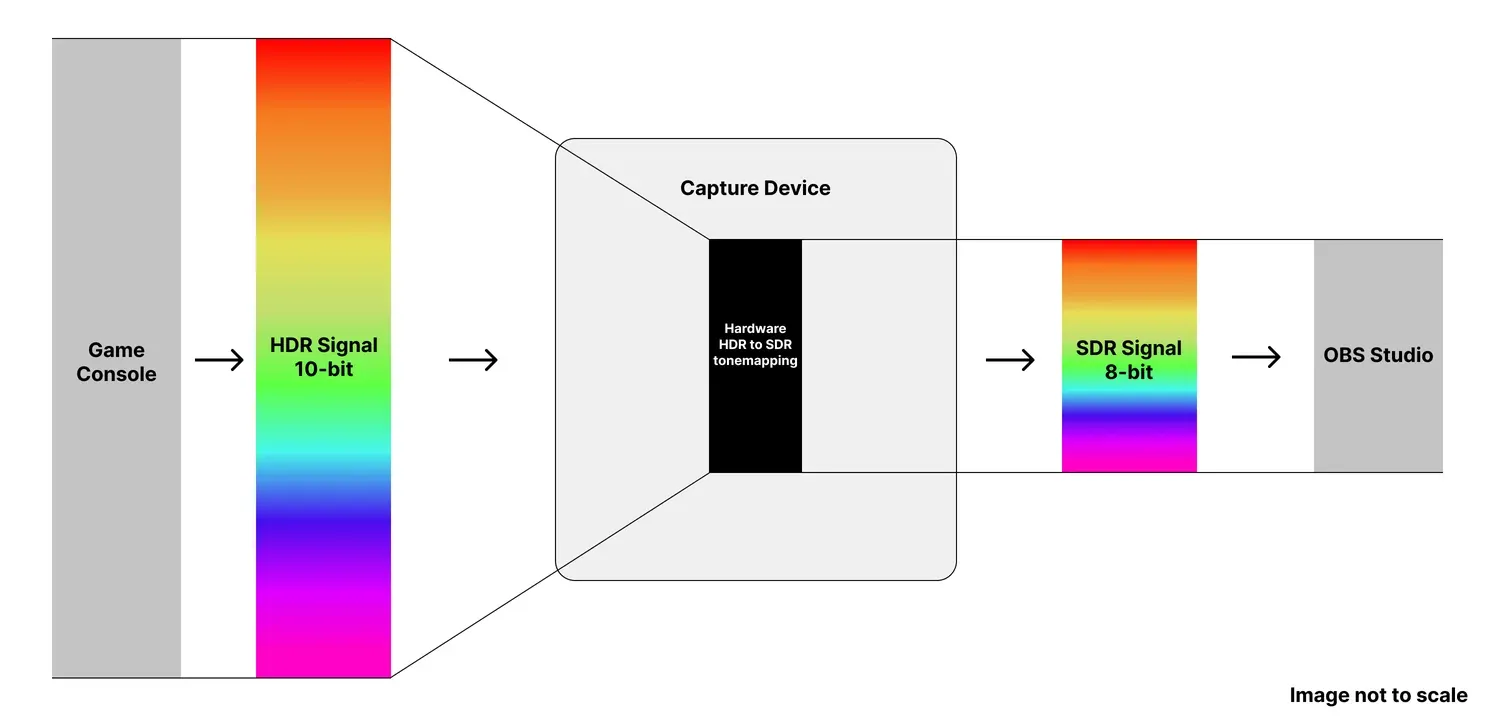
Why does HDR gameplay look different when captured? Learn how tonemapping works and which Elgato devices convert HDR to SDR automatically.
past basin
shut cypress
here are my settings. everything else is on default
HDR recordig is on - check the colour in your recordings. iirc 4K Capture Utility can't preview in HDR, so open it in something like VLC
frigid vapor
past basin
Kind of - it's a compatibility thing. Card will by default pass HDR through to ...
well im on OBS versoin 31, so i dont think obs has hdr support at all
 sharp brook
hey i just brought the hd60x and its sayin input not found what do i do?
the light isnt even on if thats a problem
frigid vapor
well i messed around with color correction on obs

got this
might be the closest thing to a fix as im gonna get too
past basin
frigid vapor
well im on OBS versoin 31, so i dont think obs has hdr support at all
It does, just requires extra steps to setup - you have to turn off HDR tonemapping on the card using 4K Capture Utility or Elgato Studio, then set OBS for 1200 PQ colour space using P010 format. (on newer cards OBS can disable the tonemapping automatically). More info on that here https://www.elgato.com/ca/en/explorer/products/capture/record-hdr-gameplay-with-obs-studio-and-elgato/. (Except if you're on mac - they don't support P010 over UVC yet)
Step‑by‑step guide to capturing 10‑bit HDR footage from PlayStation 5, Xbox Series X, or Switch 2 with OBS Studio and an Elgato capture card
past basin
sharp brook
hey i just brought the hd60x and its sayin input not found what do i do?
Input not found? What app are you trying to use it with? Light should also be on if the card is correctly getting power. White for power, no video. Blue for good signal, red for bad (or HDCP on).
frigid vapor
past basin
It does, just requires extra steps to setup - you have to turn off HDR tonemappi...
i hit a roadblock my elgato 4ks doesnt have rgw p010 FORMAT
past basin
sharp brook
no light and i have studio and 4k the light was on earlier now its not
Disconnect the card and reconnect it and see if that changes
frigid vapor
or its at least not listed in the video format settings
past basin
frigid vapor
i hit a roadblock my elgato 4ks doesnt have rgw p010 FORMAT
I meant to check - are you mac or PC? If on mac the UVC driver for the capture card won't support P010. P010 also isn't available in all formats because it takes extra bandwidth and processing.
sharp brook
nope still nothing
frigid vapor
past basin
I meant to check - are you mac or PC? If on mac the UVC driver for the capture ...
im on pc
windows 11
sharp brook
but it says its on in studio
past basin
frigid vapor
im on pc
Try at 1080p. 4K S apparently only does capture in HDR up to 1080. https://www.elgato.com/ca/en/explorer/products/capture/4k-s-supported-resolutions-and-frame-rates/
For everything else it tonemaps HDR from the passthrough to SDR for capture/preview

Check which resolutions and frame rates are supported with 4K S. Includes 4K, ultrawide formats, HDR capture, and high-frame-rate recording.
shut cypress
past basin
It does, just requires extra steps to setup - you have to turn off HDR tonemappi...
i tried this and the image quality seems to be fixed in OBS now! thats really good.

oh cant be seen in the screenshot
past basin
Fair - I don't know if discord screenshots do HDR. I know usual Windows screenshots tend to blow out the contrast on HDR.
At least it's good that it sounds like it's working!
past basin
sharp brook
but it says its on in studio
That's quite unusual. If you check the properties for the device in Studio, what firmware is it on? And the light is still off right?
Also you can try the tool USB Tree Viewer https://www.uwe-sieber.de/usbtreeview_e.html to see if it shows you any errors or problems with the USB. When you select the card in there it'll also give you a summary with three speeds on the right side - port, device and connection. Are they all SuperSpeed?
shut cypress
i think its actually not quite fixed but it looks way better in OBS with these settings.
past basin
Might still be a touch off with difference between the panels in the dispaly - but it should hopefully fix any casting like the green tint
shut cypress
if i try to record now tho i get this error.

i had NVEC H.264 before but that gave me an error message too.

 frigid vapor
past basin
Try at 1080p. 4K S apparently only does capture in HDR up to 1080. https://ww...
frigid vapor
past basin
Try at 1080p. 4K S apparently only does capture in HDR up to 1080. https://ww...
i followed this, what do you suggest i do now
shut cypress
NVENC
 past basin
shut cypress
NVENC
past basin
shut cypress
NVENC
oh - yeah, you might have to encode in HEVC for that
or AV1 if your GPU hardware encoder supports it
past basin
frigid vapor
i followed this, what do you suggest i do now
Can you run Studio and check if there's a firmware update for your 4K S? There was a bug in the last firmware where the card wouldn't auto stop tonemapping like it should when OBS or other apps requested HDR. If there's an update install it, then restart OBS (close OBS before opening studio to make sure it doesn't trip up any attempt to push firmware)
frigid vapor
past basin
Can you run Studio and check if there's a firmware update for your 4K S? There ...
how i do check for updates
nvm
found it
past basin
ah, kk
frigid vapor
ok idk if i messed this up or not
it said firmware update failed after it told me to un plug the usb cable and plug it back in
which i did
and now the firmware update wont appear again
still looks like this and looks even worse in OBS


looks terrible
past basin
frigid vapor
Is the monitor you're watching OBS on HDR capable and enabled?
frigid vapor
past basin
Is the monitor you're watching OBS on HDR capable and enabled?
its HDR capable but not being used
past basin
Make sure HDR is ON for it, if you're trying to set OBS to use HDR
And make sure you set both the OBS main video settings to the HDR colour modes, and the Video capture device soruce properties. OBS will tonemap itself if only one of the two is set
frigid vapor
its more of an HDR picture mode
idk if thats the same or not
ok i turned hdr on, on my montior and that changed pretty much nothing
past basin
Both the main OBS settings and the Video Capture source are set to P010 and 2100PQ?
frigid vapor
yup
past basin
you may actually need to restart OBS too if that screen wasn't in HDR when it launched
past basin
Try turning closing OBS, then turn off HDR tonemapping in Studio, close it out an relaunch OBS
 frigid vapor
ok now i see this

just feels like the image is dim now
only problem is
i cant adjust it with the color correction filter
starting to lose my patience with this
nothing i do fixes this
 pale rover
my hd60x is flashing blue then going white after an update, I’m not getting any signal
any suggestions?
frigid vapor
@past basin do you happen to know what the latest firmware for 4KS is
this is what mine says
 past basin
Yeah, that's the one I'm on at the moment too. (don't mind the 0, I'm on a mac there at the moment while I'm waiting on replacement RAM for the PC so it looks a little different)
 past basin
pale rover
my hd60x is flashing blue then going white after an update, I’m not getting any ...
past basin
pale rover
my hd60x is flashing blue then going white after an update, I’m not getting any ...
Do 4K Capture Utilty or Elgato Studio indicate any source signal? Has whatever was connected to HD60 X to capture been restarted?
past basin
HDR is a honestly a pain to work with
That said, have you confirmed your picture looks correct when you're not running HDR on the console?
I think there's a HDR orverride filter in OBS for times when it's being a pain too, but I can't say I've ever used it
frigid vapor
past basin
That said, have you confirmed your picture looks correct when you're not running...
yea
past basin
Have an OBS log file? (preferably with a quick test recording made so it actually fills out all the settings - it makes a new log file every time you open it)
frigid vapor
already did a test recording
no difference
this is the best ive gotten it looking

but its still to dim
pale rover
past basin
Do 4K Capture Utilty or Elgato Studio indicate any source signal? Has whatever ...
studio has signal but 4k dosent, i think studio only has signal when i enable hdr i think
something like that
and i dont have them both running at the same time either
i dont even see my ps on my monitor at all anymore just in studio
this only started after the update
past basin
frigid vapor
already did a test recording
Okay, but where's the log file? I was hoping to check the settings showing up in the log to see if there's any issues. You can upload it form the help menu in OBS (generally check it quickly after that to make sure there's no personal info in there - there's usually not but sometimes it might have something like a folder or something you've put your name on).
past basin
pale rover
i dont even see my ps on my monitor at all anymore just in studio
What's input edid mode set to if you pull out the side panel in Studio (next to the gear icon at the top). If you're not getting anything on the monitor, try setting that to display and reboot the consoel
frigid vapor
past basin
Okay, but where's the log file? I was hoping to check the settings showing up i...
wait wtf
these settings also affect my face cam too
oh hell nah
past basin
The main OBS video settings would - you're got to set HDR to all or nothing.
It's one of the reasons it's a pain to work with, withouth letting it map back to SDR
 agile cypress
@past basin can I dm you? I have a lot of questions but don’t wanna spam
past basin
You can but I'm trying to finish some stuff for work before end of day here, so there's likely going to be some delays
pale rover
past basin
What's input edid mode set to if you pull out the side panel in Studio (next to ...
Merged
Let’s see if that works
Wait I think it works now
past basin
Firmware update might have tripped up the EDID on it - so hopefully that's all it was
frigid vapor
yeah idk bruh
i think imma just use hdr when im not streaming or recording
i dont wanna mess with my entire obs settings
past basin
Fair enough
fickle dragon
past basin
HDR is a honestly a pain to work with
And Switch 2 has a very... not good version of it. You basically have to calibrate it wrong for it to look correct in-game and in-menu
frigid vapor
said screw it and captured it normally and used the color correction filter in obs to fix it

very close to what's on my tv
also the bottom image in the shot is what the capture looks like with HDR off
and top is on with the filter on
good enough
paper idol
paper idol
quick question, is it normal for the Elgato 4K S to have fringed or blurry text ...
bumping this again cause im still not sure what the issue could be
past basin
I've only seen reports for that issue in 120Hz on the latest firmware so far. Check in with #official-tech-support
 stuck thicket
Hi, im new here and I am wondering what is the output data for the elgato 4K X.
Is it just raw video data that requires a PC connected to it so it can translate it to an actual video format or can I just plug in a external SSD to the USB C port so it will record everything I need
I know the 4K S allows a use of an SD card but that only supports up to 60 fps and I need 120
past basin
4K S does NOT allow the use of an SD card. That was the older 4K60 S+
4K60 S+ is the only Elgato card with a bulid in recorder - all the others need to be connected to a computer or iPad
(unofficially some other devices may work as they're USB Video Class devices, but Windows 11, macOS and iPad are the officially supported platforms)
stuck thicket
Ahhh I see
I am trying to get footage without being able to access the elgato once I install it in thats why
Do you have any suggestions?
Im stumped on whether it is possible or not
past basin
What do you mean by not being able to access it agian? They have passthrough (like a built in splitter) so while they're connected to the computer for power you can still use them to connect ot your TV or monitor at the same time
stuck thicket
I am trying to see if its possible to screen record an arcade machine without needing to go through the back panel everytime I want to start a recording or needing to extract the videos
past basin
There's no built in storage on the cards, they output live video (generally in NV12 format, though depending on the card there are others), to the host machine. So if. the computer you're connected to (via USB or PCIe) isn't insside the arcade chassis you wouldn't need to open it up
If the recording PC is in there I'd suggest probably putting it on Wifi so you can remote into it and pull the footage to your editing machine
(or Ethernet cable if the cabinet has open space to run a cable out
stuck thicket
Sadly cant do the wifi option unless i get more information about the inner workings of how this arcade machine works which is not possible
So I guess just having an exposed USB C / A port is the best way to do this then...
With the ipad u mentioned above, is there a dedicated app I will need to install to get it functioning?
past basin
Elgato Capture, or something like Camo Studio
Needs to be a USB-C iPad with USB 3.0 or faster though
So any usb-c one except 10th and 11th gen iPad (A14 and A16)
You're sure the arcade machine will have HDMI output to capture from? I'm not sure if you're working with a PC based one or not
stuck thicket
Sorry im pretty dumb when it comes to ports but from what i remembered seeing inside of the machine, I remember seeing the 2 right side ports but instead of blue, its black for the second one

I dont remember seeing any HDMI ports actually....
I will have to go back early tomorrow to double check
past basin
May need an adapter to convert. Pretty sure DVI (the white one) can be converted to HDMI
Might need an active adapter depending on the source
stuck thicket
I see, thank you for the help!
I gotten permission so I will check to see if i missed any HDMI ports tomorrow
 errant star
hey guys idk why my card is not producing any sound in windows but shows sound activity in 4k elgato capture utility

nvm reinstalling it fixd it
 fading latch
not sure why Sound capture does this but it won't show up anymore like it normally does and i can't change any of the settings for it once it does this.
 fading latch
video to better show what is going on
also anyway to uninstall sound capture without having to uninstall Elgato Game Capture as well?
 sage walrus
I just got the 4K X and I have the USB C to USB A to a blue port but still isn’t working

 past basin
sage walrus
I just got the 4K X and I have the USB C to USB A to a blue port but still isn’t...
past basin
sage walrus
I just got the 4K X and I have the USB C to USB A to a blue port but still isn’t...
Those USB-C to A adapters are usually USB 2.0 (aside from being outside the actual USB spec).. If you need to conver from C to A, you're better off replacing the entire cable with one that's at least 5 Gbps USB 3.0 (preferably 10 Gbps USB 3.2 Gen 2 for 4K X to get all modes).
sage walrus
 sage walrus
past basin
Those USB-C to A adapters are usually USB 2.0 (aside from being outside the actu...
sage walrus
past basin
Those USB-C to A adapters are usually USB 2.0 (aside from being outside the actu...
wait so this is false?
past basin
I might be 3.0, but we generally suggest using a full cable replacement, not adapters when possible
You can try running USB Tree Viewer to get more info https://www.uwe-sieber.de/usbtreeview_e.html
sage walrus
ahhhh of course haha I wish I got a USB C and the other cord with the capture card rip
guess can’t use my card lol
past basin
Select the card on the left side and you'll get three speed listings on the right. Port, device and connection. That'll help narrow down where the issue is for sure
sage walrus
sounds good thank you
sage walrus
past basin
Select the card on the left side and you'll get three speed listings on the righ...
Wait I have the elgato 4K 60S can I just used that USB C to usb a cord?
past basin
Yes, that cord should work. It'll limit the 4K X to 5 Gbps mode, but that still does most of the options
sage walrus
hmmmm I guess I’ll use that till I get a new pc with usb c haha
past basin
(https://help.elgato.com/hc/en-us/articles/23479175821069-Elgato-Game-Capture-4K-X-Supported-Resolutions-and-Frame-Rates second chart here shows you what works on 5 Gbps and what needs 10)
Elgato
This is a list of supported passthrough and capture resolutions. For each input resolution, the supported capture resolution is shown as supported by 4K X.
These resolutions and frame rates do no...
Honestly given the PC has a DVI port, that might be a good plan too - I doubt that board does 10 Gbps USB so you wouldn't be getting full performance from the card
 past basin
I honestly looked at that exact same one last week when my laptop broke dwon
Seemed like a solid setup, especially with 64 GB RAM
past basin
That'll depend on what game and resolution you game at but yeah, it seems like a solid setup, and has a 10 Gbps USB port
Only the one 10 Gbps port, but that's probably all you'll need
 past basin
You need to wait on the "one moment please" screen to clear on the 4K Capture Utility before loading settings
otherwise you don't get most of the settings options and it'll list no signal anyway
 past basin
Fantastic. 😐
Either the card is being used by another app as the default camera option or it needs a reset.
Have you tried it with the newer Elgato Studio app instead of 4K Capture Utility?
sage walrus
uh I haven’t?
past basin
Also now that that screen is up does the setting page show what firmware you have?
 past basin
On the device tap - that's the app version there
sage walrus
No signal lol
past basin
Also Studio is new. Doesn't have all the features of 4K Capture Utility yet, but newer, does high refresh rate recording and such which 4KCU can't
If it only says no signal, hit reset defaults in the bottom left and restart the computer after doing it
sage walrus
hmmmm this one is old looks boring
I’ll get the new one
I think my pc just needs to be upgraded just too many issues it randomly black screens and have to restart them my graphics card be all messed up 😭
past basin
huh. You using the game ready drivers or the studio drivers? Some folks get better results on GPU issues if they're using the Studio drivers (if it's an NVidia card)
sage walrus
idek at this point I’m pretty sure my ports are legit 2.0 not 3.0
so in theory I can’t even use this card lmao
past basin
They've got the blue plastic insert - they shoudl be 3.0. You might need to double check for motherboard driver updates or BIOS/UEFI updates though if the port isn't showing the right speed
The USB Tree Viewer I linked earlier would confirm what the port runs at
sage walrus
I have an idea I have a new pc case that has usc can I just transfer my stuff from this pc to my new case?
or is that even possible 😅
past basin
Depends on the USB headers on your motherboard - they might not pair up with that new case
past basin
Depends - We still don't know for certain why it's not working on that setup
Did you get a chance to run USB Tree viewer?
 wanton iris
Having trouble with my capture card. obs is detecting my elgato but its not displaying my console output

was working fine lastnight btw
any advice?
wanton iris
Its gamecapture HD60 pro if that helps
wanton iris
fixed
stuck thicket
Finally got the pictures I needed
Are any-one of these ports able to just connect directly to the elgato with an adaptor or do i need something else?

 worn karma
Anyone around for some pc to pc help?
worn karma
stuck thicket
Finally got the pictures I needed
Are any-one of these ports able to just connec...
Sorry if no one got to you, but most capture cards are HDMI so you would have to get adapters from your options to HDMI
stuck thicket
past basin
Might need an active adapter depending on the source
I was talked to arcsane yesterday and yeah.
I am just wondering which port is the best to get video data from since I dont know anything about this stuff
worn karma
I would say the one with lots of squares and a - at the end. Should be a white head adapter
stuck thicket
worn karma
I would say the one with lots of squares and a - at the end. Should be a white h...
These?
worn karma
should work yea
stuck thicket
Alrighty, tysm
frigid vapor
just looked at the 4k s elgato page
and it literally says can capture HDR10
well that's a lie
because it looks like utter trash with switch 2 hdr
past basin
stuck thicket
Finally got the pictures I needed
Are any-one of these ports able to just connec...
That big one looks like a DVI-D Dual Link. In theory you can conver that to HDMI for the capture card to use. I don't think it carries audio though (been a whlie since I've used DVI, I'll need to go double check that). So you may need an alternative thing like a aux cable frmo the line out jack to the line in on the recording PC to set that up (which may require additional apps or if you're lucky just a 3.5mm splitter, on the arcade unit to get the audio from that while still letting it actually play audio at the unit)
(so you might want to check how that thing puts out audio - if it's 3.5mm audio cables you can split those easy enough, but if it's something else you could run into trouble)
past basin
worn karma
Anyone around for some pc to pc help?
Volunteers are in and out through the day - usually if no one's around it's best to just drop the description of the issue you're hitting and if someone is avaiable after they'll get back to you
worn karma
Having all sorts of issues. I can get images from one pc to the other but with my wide monitors it's not great image to see. Ofc with issues like that sound comes into play for issues
stuck thicket
past basin
That big one looks like a DVI-D Dual Link. In theory you can conver that to HDM...
according to google and a youtube video, DVI-D to DVI-D is pure video only but DVI-D to HDMI will do both video and audio
 past basin
worn karma
Having all sorts of issues. I can get images from one pc to the other but with m...
past basin
worn karma
Having all sorts of issues. I can get images from one pc to the other but with m...
Are you trying ot use some sort of ultrawide, or superultrawide screen? None of the card currently have official superultrawide support though 4K Pro might pull it off at reduced refresh rate. 4K X has official ultrawide for 3440x1440 and 2560x1080 - anything beyond that could hit issues.
For sound make sure you're working with Stereo audio, with no spatial options for best results. You might also need to disable windows audio enchancements on the streaming PC as it can apply things like noise cancellation against your capture card audio, treating it like a mic
past basin
stuck thicket
according to google and a youtube video, DVI-D to DVI-D is pure video only but D...
Does the arcade unit run Windows or something underneath? If you set the audio to go to the video port, if you don't have an additional app running under it to split the audio it might still disable the main audio feed when it swtiches over., (3.5mm is easier to split off outside the PC at leasT)
stuck thicket
past basin
Does the arcade unit run Windows or something underneath? If you set the audio ...
I dont understand what u are saying sorry.
But the machine is running on a w10 embedded system and with my knowledge on how audios work, its best to not touch any of those if possible.
I am currently trying to get more info on how other people sets up their machines but almost all of them use a older generation machine so idk what has changed between the 2 versions
 tender pasture
Hello, I am live right now and I didn't think to test this in advance
I wanted to play kirby (switch 2 only) on tonights stream but otherwise am just streaming the switch 1 ... But the switch 2 is not showing up through the capture card (but can if I only attach it to my monitor)
I went through the troubleshooting page, all the fancy features are off, and I even tried setting resolution to 1080 and 720 on my monitor and switching back to capture card (when it's not docked it locks to automatic)
I am using a HD 60 S
past basin
tender pasture
Hello, I am live right now and I didn't think to test this in advance
I wanted t...
If you have HD60 S make sure your Switch 2 has HDR turned off, and is set to 1080p. HD60 S is and older card and won't go above 1080p60, or do HDR which is a difference between Switch 1 and 2.
Then restart the Switch 2 to resync everything
(also make sure you turned off the options for docked mode, not just the internal HDR options and such - that trips folks up)
tender pasture
past basin
If you have HD60 S make sure your Switch 2 has HDR turned off, and is set to 108...
When I connect dock to monitor, all settings are already this. I've cold booted in the dock too
past basin
If you have anything in the HDMI OUT of HD60 S disconnect it and restart both switch and capture card (by unplugging from USB for a moment), and check again. It's possible there may be an EDID conflict with an external display
tender pasture
past basin
If you have anything in the HDMI OUT of HD60 S disconnect it and restart both sw...
Still nothing
And now it's not detecting switch 1.
I had to raid out
I wonder if it just happened to go bad
past basin
I've seen some folks hit issues with HD60 S and Switch 2 early after release. If you load up 4K Capture Utility and go to settings > device do you see any firmware updates available for the card? (Don't check this with the older Game Capture HD app if you still have that - it's been known to overwrite newer firmware that came out after it was released which can brick the card, if you need firmware updates for that specific card always use 4K Capture Utliity).
tender pasture
Oh so that's why the older software wasn't on the site I guess
I did load up the new software
 past basin
The older software is still there, you just have to go find the release notes. But yeah, it was discontinued ages ago, so 4K Capture Utility has all the newer updates
tender pasture
No device found
past basin
Don't use Elgato Studio - the card is too old for that
tender pasture
oh
past basin
Need 4K Capture Utility specifically
tender pasture
I didn't find anything else
past basin
On the download site it's under the legacy filter
tender pasture
just stream deck and something for the mic
oh now there's 9 softwares, I only seen 3 before

 worn karma
past basin
Are you trying ot use some sort of ultrawide, or superultrawide screen? None of...
worn karma
past basin
Are you trying ot use some sort of ultrawide, or superultrawide screen? None of...
yes its an ultrawide, i can downscale with OBS if i multi run it on both comps but its just a lot.
 past basin
Check in settings, the gear in the top right then, and under the device tab see if it shows the update firmware button. If it does disconnect any HDMI cables going to the card before running it
tender pasture
 past basin
Hm. Guess it's current then
 past basin
Ah. 4K Capture Utility may have updated the drivers for hte card when it installed
unlike the newer cards that use UVC, HD60 S had specific drivers
tender pasture
Thank you, @past basin
past basin
Glad to hear you got it working!
past basin
worn karma
yes its an ultrawide, i can downscale with OBS if i multi run it on both comps b...
Yeah, Ultrawide is going to be a pain to deal with for capture - most capture cards won't handle it at all without doing something like trying to capture in 4K to get something like 3440x1440 and then cropping. Some will, but it's very very few, and usually you've have better luck with the PCIe cards. What specific capture card are you using, and what specific resolution is your ultrawide? Also are you setting up with passthrough or display cloning?
worn karma
past basin
Yeah, Ultrawide is going to be a pain to deal with for capture - most capture ca...
4k 60Pro MK.2 in gaming pc.
and im fine with dropping the video output down in another capture source because i cant find a way to do it in 4k utility. just means running more programs and such behind the scenes.
monitor is runnin like 5120 x 1440
past basin
worn karma
and im fine with dropping the video output down in another capture source becaus...
You've got two things working against you there- you're on a HDMI 2.0 card which further reduces the video bandwidth, and you're using a Super Ultrawide standard, that needs even more bandwidth.
Are you cloning the setup or trying to set it up as passthrough?
worn karma
honestly at this point which ever way is smoothest. but i think i was cloning the deskstop, only issue with that is if im ALT tabbing thru apps they see everything
past basin
That'd happen with both cloning and passthorugh - only workaround for that would be projection where you use an app like OBS to setup a scene and broadcast that to the capture card while the card is in extended mode so it shows up as a seocnd screen
worn karma
might have to try that out instead of the other way around
past basin
For setting this up you might have to setup a custom EDID. YOu can try using something like CRU (Custom Resolution Utility) to clone the EDID of your ultrawide then copy that file to the streaming PC from the gaming PC, and use 4K Capture Utliity or Elgato STudio to set the Input EDID mode to Internal and load that into the config. (this assumes the monitor is connected via HDMI so you get the HDMI modes out of it - otherwise connect it as HDMI first to clone THAT EDID, not the display port one). From there when you set the card up as an extended "monitor" on the gaming PC, you'll probably have to drop the refresh rate to something like 30 hz to get it to fit over HDMI 2.0 bandwidth limits. You should be able to drop the card's virtual monitor refresh rate without affecting the main monitors
Even then I'm not sure if this works - you might actually have to drop the refresh even lower. If I get a moment after I'll try to load those numbers into a calculator
worn karma
for sure. i should have known better about wide screens and streaming.
might offload the wide screens and go back to triple monitor setup or down size the screen its self
past basin
If it's one of the screen that has picture in picutre or whatever it is that lets you set it up so it shows as two 16:9 screens that might be easier to work with.
Generally for ultrawide screen setups like that, I'd usually suggest single PC streaming if your system can handle it. I know some folks have managed to get ultrawide working but it's a bit more complex to setup and mileage can vary on how well it works.
 fresh hamlet
I’m using an Elgato 4K X with my Nintendo Switch 2 (HDMI → 4K X → monitor with no speakers). The video passthrough works fine, but the audio meter in Elgato Capture Studio doesn’t move at all — there’s no sound being captured. I’ve already tried stereo output on the Switch, different HDMI cables, hard resets, and even using 4K Capture Utility and firmware updates. Still no audio input detected.
fresh hamlet
This worked
Keep EDID Mode = Merged
past basin
Glad to hear you sorted it out - looks like I missed a ping while I was away. EDID shouldn't normally affect the audio usually but it is possible. Usually manually setting the Switch to Stereo works around that. If merged is working for now, Internal will likely also work if you need to change anything in the future - sounds like it was getting conflicting sound config from the display.
 broken river
Hello, I have owned and been using an Elgato Game Capture HD to stream for about 6 years now and haven't had really any problems with it or any that i couldn't figure out/find solutions. All my streaming I've done from OBS to Twitch but have recently wanted to try streaming to TikTok, I can't use OBS as you need I believe 1k followers on the platform to get a stream key to use on OBS so I'm forced to use the TikTok Live Studio. I cannot figure out why it won't detect my capture card, is anyone familiar with both the Game Capture HD and TikTok Live Studio that can help?
lone crypt
broken river
Hello, I have owned and been using an Elgato Game Capture HD to stream for about...
Might be because that’s not a uvc device. Not sure.
Try the OBS virtual camera, so it’s just sending your OBS feed directly to the other app.
broken river
lone crypt
Might be because that’s not a uvc device. Not sure.
Try the OBS virtual camera...
I did get virtual camera to work but I can’t get sound to go there as well. Would another solution be to change my capture card? Like I said I’ve had this one for a while now, the main reason I got it was because I wanted to stream a lot of systems that didn’t have HDMI so I needed a way to connect component and composite cables.
I also don’t see this capture card shown much on the website so is this one just out dated and I should upgrade. But if I do my next problem would be still connecting component and composite cables but I’m sure that’s an easier fix/extra converter cable to connect.
lone crypt
One virtual camera doesn’t include sound?
I wasn’t aware of that. Oh well.
I mean, I can’t say for sure and maybe you should talk to TikTok support first.
But anything modern will work for everything and they are all uvc so they don’t require a specific driver install.
Yeah that’s an ancient capture device.
Just keep this one for your component capture.
Unless you want to get one of those retrotink upscalers or something.
If somebody was setting up to capture retro devices today from scratch, you’d go with a retrotink upscaler and a modern hdmi capture card. X series or something. Then you have all the options.
But you already have this other one so it would just be use what you need for each device
broken river
I could look into the upscalers as I have though about eliminating extra cables by just getting the 4K pro to eliminate the capture card being outside my PC and just have a permanent one installed but I’ve delayed that because I never ran into an issue where my current card wasn’t usable. The funny thing is it’s just to try and stream to TikTok but once I got a stream key I wouldn’t use their Live Studio and just use OBS as I’m more comfortable with that program
Thanks @lone crypt for the quick responses and help
lone crypt
Yeah I don’t like replacing what isn’t broken either
Maybe there’s a workaround with OBS and whatever they need for audio. Maybe wave link 3 beta can help
broken river
I’ll try that and yea also the 4k pro is a little pricy when I have a device that has been good and reliable to me for 6 years
lone crypt
The advantage of pcie is mostly being able to address the video feed in multiple apps at the same time. With modern usb there’s not really a downside to external capture cards.
Other than that one feature.
The versions have slightly different features, in a few places. Anyway, I’m just saying, the idea of external isn’t a lesser product. Just different form factor.
 wicked bolt
hello all i hoe you can help me with this this question for me i use nvida surround and im trying to add a capture card i have it hooked up to the hdmi on the graphics card but use d/p cables for the three monotors every one says it should just clone the main displya but it doesnt it sets it upas a4 th disply that i cant configuire to do any thing not clone not extend all my driver are upo to date
warped ledge
wicked bolt
hello all i hoe you can help me with this this question for me i use nvida surro...
Are you doing this from windows display settings or the nvidia control panel?
wicked bolt
ive tried both and cant get it to work as a seprate screen should as easy as clicking clone display but its not i evan treid int he nivida app with no luck
The option to clone display in control panel is grey not high lighted and won’t actually clone the main display and the main display won’t clone the single display
lone crypt
Duplicate display is Not going to work at the same time as surround display, because the nvidia driver is creating a virtual display of the super wide (combined) resolution and presenting that to the system for display. And then negotiating which pixels go to which monitor.
You could try using the center display through the capture card as passthrough like console would.
Maybe the EDID settings can be made for this to work. Not sure if it will, but I think this is the only it’ll be possible, if is it.
wicked bolt
Ok I’ll give it a try
 keen cloud
Hi elgato I’m JameelPerkins asking can Elgato HD60X work with Kinhank K9 Android tv box yes or no because of usb 3.0 https://a.co/d/23tCyFt?


Kinhank K9 8K HDD Hard Drive Player
lone crypt
keen cloud
Hi elgato I’m JameelPerkins asking can Elgato HD60X work with Kinhank K9 Android...
Not sure I understand you.
This K9 tv box is being captured by the HD60x, or are you trying to use this box as the computer doing the capturing?
past basin
There's no official support for Android devices, if you're trying to record to it
 topaz hedge
Is this okay?
 zenith gulch
is ther ea way to get the 4k internal cap card to work in linuc
or allow passthough a vm
lone crypt
zenith gulch
or allow passthough a vm
There is no official Linux support , but passthrough only requires power to work.
 halcyon frigate
is there a way to have more settings on the elgato studio app with the 4k S, i cannot change things like fps etc
 supple island
Does everyone like their capture card ? Trying to decide
lone crypt
halcyon frigate
is there a way to have more settings on the elgato studio app with the 4k S, i c...
Resolution and fps are not settings of the capture card, but set by the recording app.
In Elgato studio it’s at the top left where you tell it what to record at.
If you’re recording in OBS, then OBS video source will set what resolution and fps it’s set to.
halcyon frigate
Yeah there’s only resolution I can change in the settings not fps…
 honest patio
Hey guys i have a 4kx which ive been running as a passthrough for a while but recently i upgraded to a 240hz monitor which is not supported via passthrough. I went back to duplicating but it honestly irritates me with the way it breaks alt tabbing and other issues with certain games. Extending has tearing and the obs projector trick results in frame loss after time so yeah....Just after some advice. Anything i can do so that i can enjoy the 240hz without these annoyances?
lone crypt
halcyon frigate
Yeah there’s only resolution I can change in the settings not fps…
Again, It’s not in the settings. Right on the main page.
In settings you can configure a minimum allowed resolution.
But what res and fps you record at is set on the main screen where you would push record.
lone crypt
honest patio
Hey guys i have a 4kx which ive been running as a passthrough for a while but re...
Games set to borderless window should work better in most cases with tabbing out.
I don’t experience any tearing or frame lost with OBS projector (which is my preferred method for OBS being amazing and smoothing over basically every hang up…)
Your experience might be different with different GPU, driver, maybe other factors.
But if you prefer passthrough for simplicity then the answer is you need to upgrade your capture card along with your display upgrade!
halcyon frigate
lone crypt
Again, It’s not in the settings. Right on the main page.
In settings you can c...
Hmm sorry If It's an error on my side, it's just that in every single toggle I can only select resolution and not FPS...
 lone crypt
Ah yeah, that’s where I was trying to point you.
I don’t use this app so I was going off the help page from Elgato.
So maybe studio only does 60? Or maybe it’s reading the incoming video feed and that’s what’s controlling the refresh rate.
What fps is the source device? Change that?
Or use OBS, where you can specify a refresh rate on video sources
(But it will still be limited to whatever refresh rate the source device is producing.
It’s not going to capture 120fps if the source device is delivering 60fps.
You can capture 30 if the source is 60, though.
honest patio
@lone crypt What card supports 4k240 passthrough? Obs projector doesnt have tearing but it does have periods of delay and fps loss that you just may not have noticed it is something that has been discussed in obs discord which is why i moved to passthrough.
halcyon frigate
lone crypt
(But it will still be limited to whatever refresh rate the source device is prod...
Yeah that's what I was wondering too, the source was outputting 4k60, but I should be able to do 4k30. But I'll try with OBS. thanks!
lone crypt
honest patio
<@628587626479484928> What card supports 4k240 passthrough? Obs projector doesnt...
4k pro is the only card that can accept 4kp240
To handle that and pass it through, the capture video drops to 1080p(up to 240)
I’ve not seen OBS projector lose any frames. I run it for hours and the logs show nothing.
I don’t scrutinize every second of video but scrubbing through capture for editing I’ve never seen anything that caught my notice, and with not dropped frames in OBS I had no signal to look carefully for anything.
But I’m also capturing 1080p60
And playing in VR, so I’m not even watching my monitor at the time; headset refresh rate is 90…. Again, OBS is amazing being able to capture smooth 60 from 90hz gameplay while using less than 1% cpu on a computer that’s maxing out while playing vr games. I’m quite happy with it.
But that’s the best I can say for you!
I know duplicating displays used to work well with nvidia GPUs until this latest gen of drivers, since the changes they made to try to reduce latency for sake of mult frame gen…. And doesn’t allow for scaling on AMD GPU, so that’s what got me into OBS projector in the first place. But anyway. Works great for me.
 patent fulcrum
Please someone help me my El Gato S doesn't display in one of my monitor I switched to an old one and it works how can I fix it
lone crypt
patent fulcrum
Please someone help me my El Gato S doesn't display in one of my monitor I switc...
Not understanding you.
What is the product and what are you trying to do that isn’t working?
 copper axle
Not sure what’s wrong I’ve look everywhere for a solution can’t get my capture card to work

 lone crypt
copper axle
Not sure what’s wrong I’ve look everywhere for a solution can’t get my capture c...
lone crypt
copper axle
Not sure what’s wrong I’ve look everywhere for a solution can’t get my capture c...
Open settings in Elgato studio to adjust the EDID settings
copper axle
 warped ledge
honest patio
Hey guys i have a 4kx which ive been running as a passthrough for a while but re...
warped ledge
honest patio
Hey guys i have a 4kx which ive been running as a passthrough for a while but re...
Are you using borderless, or full screen?
copper axle
My capture card is showing up on my pc but it has no light on it I’m also using ps5 pro I turned off all the settings I needed too think I need to just get a newer card?
Usb c is plugged into 3.0 in hdmi is connected to pc out hdmi is connected to monitor hdcp is off not really understand what i could be doing wrong
 past basin
copper axle
Not sure what’s wrong I’ve look everywhere for a solution can’t get my capture c...
past basin
copper axle
Not sure what’s wrong I’ve look everywhere for a solution can’t get my capture c...
If you're seeing this and changing the EDID didn't help, you may have a firmware issue. Was this card updated at all recently?
copper axle
past basin
If you're seeing this and changing the EDID didn't help, you may have a firmware...
Yeah I checked the updates and did w.e it told me too also went into my device manager and disabled it and enabled it no luck
past basin
If so I'd suggest flashing it back to the version that comes with 4K Capture Utility instead of the one with Studio. Hold down CTRL and open settings in 4K Capture Utility, and the update button should show up on the devices tab, without checking if the firmware is newer or not. Then you should be able to let it go through the update. 4K Capture Utility has the version previous to what's included with Studio at the moment
(if it doesn't run when you click update, you can also hold CTRL then and then when you press update it'll ask for a file.
If your card has a 24 or 25 firmware, use the HD60 X rev2 firmware file in the 4K Capture Utility instlalation directory - with any luck you can skip this though).
lone crypt
Just making sure, did they say hdmi is connected to the pc?
Should go console to capture card input; output to monitor.
I mean, just checking because that’s how I read part of the description.
Ignore me if it’s not this!
copper axle
Should I just buy a newer card?
 past basin
Did you hold down CTRL when you opened that window?
copper axle
It’s connected to console only thing plugged into pc is usb c cable
past basin
The update button should show up if you hold down CTRL while opening settings
copper axle
I’m trying lol
past basin
The last few times I've seen this specific issue with HD60 X, support had to sort it out, but they did get it sorted
In theory rolling the fimrware back should work
You can also do the same CTRL trick in Studio, and just load in the fimrware files from the 4K Capture Utililty install directory to get Studio to load on the previous version
zenith gulch
lone crypt
There is no official Linux support , but passthrough only requires power to work...
how do i get passthouh to work
past basin
Apply power to the card - that should be all that's needed for passthrough. As long as it's connected to the PC and getting power, the passthrough circuit in the card should pass signal from HDMI IN to HDMI OUT
Exceptions if HDCP is on, on whatever you're capturing. or DSC
zenith gulch
ya but its a 4k60 pro it gets its power via pcie
past basin
As long as the PC is powered on it should get power, even if there's no driver running
(That actually trips some folks up because they try to use a PCIe port that's disabled to feed an M.2 slot and are confused why they're getting passthorugh but can't see the card from the PC)
zenith gulch
cool now if that solve my problem how can i get it to show if elgato software is non linux ive tried wine and emulating windows but nothing
past basin
To get it to show in preview/capture, you may be out of luck. I think there were some community projects to get a driver for 4K60 Pro Mk2, that kinda worked, but not for the older 4K60 Pro that I'm ware of, or newer 4K Pro. Those cards are driver based, not UVC like the externals, so you need a driver specific for the card for the OS
For externals like 4K X you might get it working since they're USB Video Class devices. The PCIe ones don't have that option
oooh
looking back at your original post you're looking for VM passthrough, from host OS to client OS.
Not HDMI passthrough
zenith gulch
well no its something i tried
is i can get it to work either way thats fine but id prefer it on my linux
i do have a driver made by Steven Toth stoth68000 on git that suppose to support the 4k60 pro but i know nothing else of how to get it to work
past basin
Sadly I couldn't say, I've not used it myself. The only times I've ever hooked up one of the cards to one of my linux machines I've used the UVC ones
As for passing through the PCIe connection, that depends on the VM setup. Off top of my head I'm not sure how easily that could be setup (or even if it could? Haven't tried before - I vaugely recall some folks being able to pass thorugh GPU connections so maybe)
 zenith gulch
buh ho do i build from sorce on github with linux
https://github.com/stoth68000/sc0710# how do iget this to work
GitHub
Linux driver for the Elgato 4k60 Pro Mk.2. Contribute to stoth68000/sc0710 development by creating an account on GitHub.
past basin
copper axle
<@269997944671830017>
Did it not work when you didn't hold CTRL to select a file? You should try the automatic one first where you just hold the ctrl to get into settings, not also for the button. Holding it for the button is only if that fails
If ti does fail, you need to flash both firmwares, base and MCU, they're located in 4K Capture Utility's install directory - you need the HD60 X Rev 2 one for yours since it reports as Elgato HD60 X, not the older Game Capture HD60 X. I cannot recall which should flashed first, which is why I'd try the automatic method first
past basin
zenith gulch
https://github.com/stoth68000/sc0710# how do iget this to work
It has a make file, and looks like it's in C (which is pretty standard for drivers). I'd hazard a guess you just download the source and run make in the directory
zenith gulch
past basin
It has a make file, and looks like it's in C (which is pretty standard for drive...
ya it does and this is the first time im having to do it this way so i have no idea what im doing and the guy that made it wont help and thers no instruction on what to do
copper axle
past basin
Did it not work when you didn't hold CTRL to select a file? You should try the ...
So as soon as I click setting in studio I’m holding ctrl?
Can I dm you so I can send a video of what I’m doing
past basin
copper axle
So as soon as I click setting in studio I’m holding ctrl?
I'd do it in 4K Capture Utility for now since that already has the older firmware. But yes just hold CTRL while opening settings, then let it go.
Then click the Update Firmware button on the device tab
zenith gulch
oh good ive been unmuted
past basin
muted? Trip the profanity filter I take it? Doesn't usally outright mute, just kills the specific message
zenith gulch
ya i accidently sent a the make files txt when i meant to send the output of my terminal after runing the make command
i dmed what i accidentaly sent
and to make sure i dont have that problom again i dmed you
past basin
Ah, noted. I'll have a look after. I don't check my DMs often because I'm on a few servers where they're open and so many junk ones, so unless I've got a heads up they usually sit there til I clean them out
warped ledge
past basin
Ah, noted. I'll have a look after. I don't check my DMs often because I'm on a...
thanks for reminding me to turn mine off. lol
copper axle
I almost gave up 😂🙏 appreciate the help @past basin
 honest patio
when running passthrough on the 4kx im having issues when gsync is enabled. Seems to be in situations when framerates change such as menus or when alt tab the monitor will go black as though it is losing signal. Ive narrowed it down to disabling gsync so i am just curious is this expected behaviour or can i remedy it?
lone crypt
Black screen (resync) is interesting. Are the games full screen instead of borderless?
Could be a buggy interaction with your monitor. Gsync has a range that monitors will be able to use; same with the capture card, I assume.
Maybe needs to be restricted to just the ranges they overlap?
 chrome crystal
Hello everyone,
Sorry in advance — this is my first time posting here, so I’m not sure if there’s a specific way to ask for help.
I’ll get straight to the point:
I’m having an issue with my Elgato HD60 X. When I stream my gameplay on Discord, there’s no game sound at all — my viewers can see the video, but they can’t hear any audio from the game.
On top of that, it seems like my Elgato is picking up my microphone audio, so people hear my voice twice: once from my mic directly, and again through the Elgato feed.
Basically:
• The game audio doesn’t come through on Discord.
• The Elgato somehow outputs my mic sound, causing an echo or double voice.
Everything used to work perfectly before, so I’d really like to fix this and get my audio working properly again when I stream on Discord.
Thanks a lot for your help!
past basin
honest patio
when running passthrough on the 4kx im having issues when gsync is enabled. Seem...
That's not entirely unexpected. If the game runs in a different display mode (eg VRR off) when you hop to a menu, it results in the card having to resync to the new signal format. Happens when games change other options like HDR, colour space, resolution or refresh rate too.
As Jn suggested though see if it happens in Borderless Windowed mode
That's less likely to switch video options when hopping through things
past basin
chrome crystal
Hello everyone,
Sorry in advance — this is my first time posting here, so I’m n...
When you setup your stream in Discord are you setting the audio device for the stream to the card? Discord puts that in two different places, depending on if you have Nitro or not. If you don't have nitro it'll be under the gear icon in the bottom right of the page you select the capture device. If you have nitro it should be in a pulldown menu on the page after you select the capture device. It sounds like Discord is defaulting it to your mic, instead of the capture card for audio.
 dry swan
hi all im having issues with my elgato neo capture card, its all connected properly but it keeps showing no signal on OBS and TikTok Live studio, any advice will be appriciated thank u
past basin
What are you trying to capture with the card?
Xbox, ps5, etc?
And if you have a display in the HDMI OUT, does that still get a signal?
 leaden radish
Hello, I recently upgraded to an Elgato HD60 X capture card from a Elgato HD60 S+. I'm trying to record gameplay footage @ 1080p60 from a PS5 Pro on a MacBook Pro, but I'm having issues with video stuttering/frame drops in both Elgato Studio and OBS, even in the preview window while not recording. The recorded video stutters as well, while the passthrough monitor shows smooth 2160p@60fps gameplay. My previous Elgato HD60 S+ capture card had no issues with this exact same setup, but unfortunately I don't have the HD60 S+ anymore.
PS5 Pro @ 2160p, HDCP is Off, VRR is Off, HDR is Off, 120 Hz Output is Off
My machine:
MacBook Pro (14-inch, 2021)
Chip: Apple M1 Pro
Memory: 16GB
macOS: Tahoe 26.1
OBS 32.0.2
I have installed the latest Elgato HD60 X Firmware: Base: 25.07.16, MCU: 25.06.27
The Elgato HD60 X is connected to my Mac using the provided USB3 USB-C to USB-A cable and a USB-C to USB 3.1 M/F Cable Adapter. System Information shows that the Elgato HD60 X is connected to the USB 3.1 Bus with 5 Gb/s Link Speed.
I have tried changing all settings in the Elgato Capture Device Utility to no avail: Input EDID Modes, HDR Tonemapping, HDMI Audio.
I've also tried adding the HD60X as a Video Capture Device and as a Capture Card Device in OBS, but I get the same stuttering in both.
I've also tried connecting the HD60 X to my PC using the original USB3 cable without any adapters, but I get the same video stuttering there as well.
past basin
What firmware does Studio show for HD60 X? Also if you enable buffering in OBS in the video capture device properties does it smooth out?
leaden radish
past basin
What firmware does Studio show for HD60 X? Also if you enable buffering in OBS ...
Hi Arcsane, both Elgato Capture Device Utility and Studio show the latest firmware versions: Base: 25.07.16, MCU: 25.06.27. Enabling Buffering in OBS Video Capture Device Source does not smooth it out.
past basin
leaden radish
Hi Arcsane, both Elgato Capture Device Utility and Studio show the latest firmwa...
Any other high bandwidth USB devices connected to the mac that might be eating the available bandwidth? I do know I've see issues in the past were folks were recording to an external SSD with a high enough bitrate that it was congesting the USB bus and affecting video performance.
Similarly if there's other USB cameras and the like setup (though I'm assuming a M1 MBP likely has at least thunderbolt levels of bandwidth so I wouldn't expect just a couple USB 3 devices to trip things up
leaden radish
past basin
Any other high bandwidth USB devices connected to the mac that might be eating t...
I tried disconnecting all other devices from the Thunderbolt/USB4 ports, but the video stuttering still persists. I wonder if my Elgato HD60 X or the USB3 cable it came with is faulty, although I've read of other folks having the same issue. I have submitted a ticket with Elgato Tech Support. Thanks for your help!
past basin
leaden radish
I tried disconnecting all other devices from the Thunderbolt/USB4 ports, but the...
I'd more likely blame the C to A adapter. We usually suggest replacing the whole cable rather than using an adapter when possible. But it could be - and swapping both for a single USB C to USB C, 5 Gbps or faster cable would get around both. Thunderbolt cables with USB -C cables work too if you happen to have one on hand to test with
leaden radish
past basin
I'd more likely blame the C to A adapter. We usually suggest replacing the whol...
I ordered a USB4 USB-C to USB-C cable, so I'll try that on my Mac when it gets here. I've tried connecting the HD60 X to my PC using the original USB3 cable without any adapters, but I get the same video stuttering there too. So, I doubt it's the adapter, but who knows...
 steel tinsel
Hello! How is everyone doing?
I need some help please:). Im trying to capture my nintendo switch and stream it on OBS but how can i do it?
I have it like this but my OBS is capturing like another input instead of the one where the switch is
 lone crypt
steel tinsel
I have it like this but my OBS is capturing like another input instead of the on...
lone crypt
steel tinsel
I have it like this but my OBS is capturing like another input instead of the on...
Looks like you have a computer connected to the capture card instead of the console? Or maybe that’s a different capture source.. I see a few things in your OBS scene like game capture and window capture, grabbing images from the computer.
Have you added the capture card as a video capture device source to OBS?
Zooming in to the screen it’s not very clear.
steel tinsel
Oh yes i just did it and now i can see the game!
Justr one more problem
it looks on obs like much darker to what i see on the main screen of the nintendo, Is there a way to fix that?
lone crypt
That’s the hdr tone mapping. The switch2 seems to have a lot of trouble with this when using capture cards. Comes up a lot. Probably the card and OBS are both tone mapping down the hdr video feed because something isn’t being reported right.
I suggest opening up Elgato studio where you can change this setting on the card.
Sometimes toggling hdr tone mapping off and then back on again wakes it up, but even if not you can adjust the settings there and if there is something in the properties of the OBS capture source, too. And find the right combo of settings.
steel tinsel
All of that is in the capture utility app?
oh i kinda did it but whites still looks dark but well its okay. Also what is better Capture it like that with obs or that the app of el gato captures my nintendo?
past basin
steel tinsel
All of that is in the capture utility app?
Elgato Studio has it too, not just the Capture Utility App. I don't think CUA has been updated since Studio came out since it does most of the same stuff (plus actual recording)
But yeah, HDR tonemapping can be toggled on and off - though on mac it should be always on. Mac doesn't do P010 over UVC, meaning you can't capture in HDR from a UVC capture card
 honest patio
After trying different cables/ monitors and reinstalling drivers im at wits end with my gsync issue. I cannot seem to resolve the issue of black screens with gsync seemingly when the fps changes via menus alt tab etc. However the obs capture is fine and has no issues at all like the monitor on the passthrough. Is gsync even compatible with passthrough on the 4kx the NCP states it is not gsync validated. Kinda stumped tbh
 bold jungle
Hello everyone. I currently have a dual PC setup and I am trying to capture at 1080p 144hz. I currently have the HDs60+ and in OBS it really lags behind. In my streaming PC, it's a H310-A PRO motherboard and I have a gpu already in there. From my research, I won't be able to get an internal capture card but if I am wrong, please guide me!
lone crypt
bold jungle
Hello everyone. I currently have a dual PC setup and I am trying to capture at 1...
HD60s+ is not capable of capturing more than 60hz
4K x is probably the one you want to capture 144hz
bold jungle
lone crypt
HD60s+ is not capable of capturing more than 60hz
Yeah I didn't understand that before lol thank you!
lone crypt
bold jungle
Yeah I didn't understand that before lol thank you!
Now, are you really capturing 144hz, or just playing at 144 but capturing 60?
There are many options and most capture cards can passthrough higher res and fps than they can capture.
bold jungle
lone crypt
Now, are you really capturing 144hz, or just playing at 144 but capturing 60?
I really want to capture at 144 because it looks like OBS isn't mirroring and it's most likely the 60hz issue I would think
lone crypt
Isn’t “mirroring”?
Not sure what that means
bold jungle
Pretty sure OBS is only getting the 60fps so what I see on my gaming screen compared to OBS is very different
lone crypt
Well, it will be of course. Your capture card isn’t capable of going over 60.
bold jungle
Yeah so I'll be looking into the 4K X now 🙂
lone crypt
I would clarify… you don’t need to capture at 144 to play at 144.
You should capture at whatever frame rate you want the resulting video to be.
If you’re streaming or something, do you really need your source to be higher than 60hz? Can the service even use that?
bold jungle
Yes. The issue that I am having, is it looks like OBS is only capture 60hz when I am trying to get a high quality, smooth stream. The way I can tell is by moving my mouse in a circle, OBS is moving more in straight lines than a circle
past basin
Did you already adjust your OBS settings so the video isn't set to default to 60 fps? (not just the capture card settings, but the actual OBS video settings where you set your canvas and the like)
Also keep in mind that most streaming platforms perfer 60 or 30 fps. 120fps eats a lot of bandwidth out of your limited bitrate.
bold jungle
I do have it set to 60fps but it seemed to still be lagging behind
If I have time, I will try and get a clip
lone crypt
bold jungle
I do have it set to 60fps but it seemed to still be lagging behind
is it the preview in OBS that appears to be lagging, or the recorded video looks laggy when you play it back?
bold jungle
The preview for sure but I also think my live stream clips were looking laggy like OBS was. Been a while since I have gone live because I noticed this issue
lone crypt
You should make a recording so you can play back that file. Removing possible factors to narrow down the source of the issue.
Preview doesn't necessarily look like your final video feed because OBS will priorities quality of the output before preview.
And playback what made it to a streaming platform means your upload bandwidth and the platorm itself are factors.
Record a video (with the same encoder settings) to test what OBS output actually looks like.
And again, I think we're talking about HD60S+.... So I have to stress again that this card does not want input over 60hz at 1080p. It can use 2160p30 which is what it will go to if you try to send it higher than 1080p, but obviously the frame rate has to drop to 30fps, which will look like a rhythmic stutter in the recorded video.
If you are playing in 144hz, you need to scale down the output to the capture card to 1080p60 in order to capture it smoothly. The card can't scale it for you. So I still think that's your particular issue.
 pliant dew
any ideas why elgato studio is flickering for me?
lone crypt
pliant dew
any ideas why elgato studio is flickering for me?
You can see at the top there, it's changing resolutions. The dynamic range also appears to be changing as it keeps trying one that looks deeper blacks for a moment and then switching back to a grayer look.
So yeah, it's trying to go to 4k but then dropping back down to 1080
First guess: not enough PCI bandwidth, since this is a PCIe card.
pliant dew
lone crypt
You can see at the top there, it's changing resolutions. The dynamic range also...
bandwidth looks fine here

asus rog strix x870e-e
lone crypt
2.0 x4. yup
past basin
If the PCIe is fine, looking at the way the issue is coming and going, my first thoughts are VRR is going out of range (if VRR is on both the card and monitor have a range they can work in, it's possible the monitor supports more than the card and is throwing things off). My next thought is dodgy cable or connection somehow.
warped ledge
lone crypt
You can see at the top there, it's changing resolutions. The dynamic range also...
it could be the cable, or the game itself too via the lobby screen. I have a game do this from time to time, but once I'm on the game it behaves.
pliant dew
Both cables are elgato 2.1 hdmi
i noticed it doers not do that when on the dashboard
only when in games
does not matter what game, it is all of them
lone crypt
Really sounding like refresh fluctuations going out of range.
 ionic fable
Hello, I'm having a problem with my 4k60pro capture card. Everything worked fine until one day I started getting the message: "No capture device detected." Sometimes I had to restart my PC for it to work again. How do I know this? I have a background image and an application that adds animated backgrounds. When the animated background appeared on my PC, I knew the capture card was working without problems, but when the regular image appeared, I knew this message would show up. It's tedious having to restart or even shut down my PC. Everything is in order: drivers, cables, console, etc. Everything is up to date on my PC, but this problem persists, and I can't find any help. I've attached images of how the aforementioned issue is occurring.

 past basin
Honestly if it' s been coming and going I'd start by reseating the carpture card in the PCIe slot
lone crypt
 stark nebula
what is the message on the display saying? Is the display passthrough working but capture isn't working?
stark nebula
On the Elgato software it says my USB cable isn’t 3.0 I’m driving too my local staples now I’ll be home in like 10-15 minutes too send more video @lone crypt
Just hoping a new cable will do
It shows up in devices however on Elgato software it’s not being read
 lone crypt
yeah so there's power so it's turning on, and a data connection but it's too slow. That was the primary guess.
You can use USB tree viewer to visualize the USB system on your comuter and see what's its registering as. Could be the cable isn't good enough, or it's broken or has dirty pins so it's falling back to slower speed
Connector in your computer could also be the issue.
past basin
stark nebula
Just hoping a new cable will do
Make sure you get a 5 Gbps or faster cable. Most of the ones you're going to find at Staples are 2.0 with fastcharge. Avoid charging cables generally, unless they specifically state 5 Gbps or faster.
Look for Data Transfer cables, or anything labeled SuperSpeed, USB 3.x, (10 Gbps, 3.2 Gen 2 if that card is a 4K X for best results, though it'll work on 5 Gbps just locks out some options.). Thunderbolt 3/4/5 cables will work in a pinch too, though they're more expensive and overkill.
stark nebula
@past basin here now totally would’ve gotten the wrong one Ty I’m gonna keep looking

@past basin what do you make of this^
past basin
Yeah, USB4 cable should work.
stark nebula
LETS GOOO
lone crypt
stark nebula
LETS GOOO
You have a usb 3 or better usbc connector port on your computer?
Making sure you won’t need to adapt it.
past basin
They've got a MacBook Pro of some variant, with USB 3.1 (they've got reddit post on it too I realized I'd already been through a little bit ago). They were already connecting with a type c cable, just the wrong speed, so hopefully should be good
lone crypt
Oh ok’ yeah I see now I could have noticed that in the pic
stark nebula
Well tbh my desktop doesn’t even have USB C
Or USB 3.0 my gaming pc is outdated af
And the Mac was just for testing purposes it’s my personal laptop, however I’m using a hp laptop running windows too stream
Hopefully I’ll be able too do a play of bo7 campaign tonight
past basin
Really? Even my old backup tower from 2013 had USB 3.
But yeah, as long as you've got USB-C with the correct spec it should be fine - I'm using a MSI laptop for most of my setup, with an M3 Pro Macbook Pro for primary backup.
 worn sleet
I need help with Elgato HD60 X audio is super static and I plug it to desktop pc with Xbox series x to my tv monitor
 vast plank
does anyone here know about monitors and vrr? if its worth to have monitor vrr if the pc is getting 50 to 100 more fps than the monitor refresh rate
 opal ledge
Elgato 4k x, PS5, wired headset, chat link pro. Audio from other people in game isn't coming through. My audio is coming through fine with an external mic.
lone crypt
opal ledge
Elgato 4k x, PS5, wired headset, chat link pro. Audio from other people in game ...
is your capture card audio mode set to analog?
opal ledge
How do I do that?
opal ledge
lone crypt
is your capture card audio mode set to analog?
Yes
lone crypt
Then the chat link makes a copy of what you hear. So if you hear the voices but the capture card does not, it must be connected wrong, or… OBS listening to the wrong source?
opal ledge
lone crypt
Then the chat link makes a copy of what you hear. So if you hear the voices but ...
I swapped the ends of the cable twice, no fix, OBS is connected to the 4k x
stark nebula
Hey guys I know it’s late but I’m also wondering if I needed the chat link pro too connect my Bluetooth headset, I have the Turtle Beach Stealth Pro and I was wondering if I could still use those?
When I tinker with my ps5 settings either I get audio too my headset or I get audio too my stream labs stream my goal is to be able too steam game audio chat audio and my audio
Also I want too mention I have a Blue yeti mic as well that is plugged into my laptop
past basin
stark nebula
Hey guys I know it’s late but I’m also wondering if I needed the chat link pro t...
Chat Link Pro will only work with wired headsets (3.5 mm style).
You cannot generally capture audio from a PS5 using a wireless or USB headset because they transmit in data. The exception being if the headset or headset base has some sort of sharing port.
There's also a workaround of signing in a second controller and capturing audio from that, though it may not work for everything.
Otherwise your best bet would be to listen through the PC (at a slight audio latency)
stark nebula
Ok so theoretically what if the headset connects by Bluetooth to a transmitter
Otherwise use the chat link pro with some earbuds?
past basin
Like a 3.5mm transmitter adapter? That could probably work if you plug it into the Chat Link Pro.
Earbuds, headphones, headsets, all should be good with Chat Link Pro if they use a 3.5mm audio jack.
(you'd have to mix your voice back into any voice chats with the Yeti though - Chat Link Pro only splits audio out from the console)
stark nebula
I’m kind of lost on part two there
Would you think it would be more
Optimal to use a headset with 3.5 jack?
lone crypt
It only works with analog audio on 3.5mm, so that’s how your audio needs to be for the chat link
Then if you attach the end that your headset would connect to… to a transmitter after that.. it could work.
 wicked mauve
I’m using the “Game Capture HD”
and having this issue:
"Connect your capture device to get started"
playing some PS3 to record some old titles but it just doesn’t work whatsoever I’ve tried everything 🙁
 vernal fjord
using passthrough on a 4K S with elgato studio, there's a 1x1 white border across the top, left, and right, how can i get rid of this?
 lone crypt
wicked mauve
I’m using the “Game Capture HD”
and having this issue:
"Connect your capture d...
lone crypt
wicked mauve
I’m using the “Game Capture HD”
and having this issue:
"Connect your capture d...
Tried what?
 feral oar
yo can someone help me with my capture card 4k pro (pcie)
whenever i set elgato to 240hz (1080p) and my main monitor to 240hz on 4k capture utility it says no signal, but when i have it on 120hz 1080p it works fine
i want the source to be 1080p240hz but it goes no signal, works fine with 1080p120hz
lone crypt
feral oar
yo can someone help me with my capture card 4k pro (pcie)
whenever i set elgato ...
4k pro can passthrough 240hz up to 1080p
If your source/passthrough are 4k it will only go up to 144hz
Also I think hdr has to be off, if I’m reading the spec sheet right. I think HDR only goes up to 60hz
wicked mauve
lone crypt
Tried what?
it’s all good now, I literally just fixed it
feral oar
lone crypt
4k pro can passthrough 240hz up to 1080p
If your source/passthrough are 4k it wi...

my monitor and elgato is set to 240hz but i get no signal
and im using the hdmi 8k pro cable that came with it
i forgot to mention im on dual pc setup
lone crypt
feral oar
i forgot to mention im on dual pc setup
Are you using hdr?
Gotta start playing with settings for your duplicated display.
Nvidia drivers used to let you scale the duplicate to whatever you wanted, but their drivers have gotten really shaky this past year so… could be driver bug, or could be just needing to fiddle with the settings and the EDID to get it all talking right.
You could try setting it up as a passthrough (like a console) instead of duplicate display. See if you can get a picture in any settings that way.
And the next step I would try is switching the capture card to extend desktop, set the resolution you want to capture at, and then run an instance of OBS on the game computer to capture your display and and set a full screen preview to the capture card. OBS is amazing and can scale anything smoothly with basically zero resource usage. (That’s how I run my dual pc setup so I can play vr at 90hz and still get smooth 60hz capture)
feral oar
lone crypt
Are you using hdr?
Gotta start playing with settings for your duplicated display...
nope, my monitor doesnt have hdr
feral oar
@lone crypt do you know how to fix the audio issue, if i set the output to elgato1080HDR the i cant hear anything on my main pc but obs can hear it on my streaming pc, but if i have my headset as output then my streaming pc cant hear the gaming pcs audio
lone crypt
feral oar
<@628587626479484928> do you know how to fix the audio issue, if i set the outpu...
You need some kind of mixer system to send the audio to both locations. Generally they won’t go to all outputs by default.
Streaming system audio products are made to handle this of course. But it’s not the only way.
Very simply, if you open mmsys.cpl you can click the properties of the capture card and set the “listen to this device on” set to your speakers.
There is some latency involved here, and no balancing capabilities.
So generally you’ll want a mixer like wavelink
feral oar
btw i dont have anything plugged in here
 lone crypt
feral oar
btw i dont have anything plugged in here
lone crypt
feral oar
btw i dont have anything plugged in here
That’s the passthrough port. Connect to a display for a near-real time video feed of your capture source.
This is how consoles play, since they can’t duplicate the display or run OBS preview full screen
feral oar
lone crypt
This is how consoles play, since they can’t duplicate the display or run OBS pre...
oh alright
feral oar
lone crypt
You need some kind of mixer system to send the audio to both locations. Generall...
so do i set elgato as output and then go in properties > recording > my headset > listen to this device and choose elgato?
lone crypt
feral oar
so do i set elgato as output and then go in properties > recording > my headset ...
The listen to feature works like this.
Open properties of the audio source you want to create a copy off. In there, set the “listen to this device on…” to be where you want a copy of the audio sent to.
Assuming your headphones are connected to your game computer and the game is sending its audio there, you want to open properties of your headphone device and set “listen to this device on…” pick the capture card hdmi output from that list.
Now a copy of whatever goes to your headphones is being sent to the capture card, so the stream pc will hear it via that video capture source
Likely the latency will be enough to be visually off on the video capture, so you’ll want to set an audio sync offset in OBS
 lone crypt
Yup
feral oar
on my main pc, do i need to set output as elgato or my headset
lone crypt
feral oar
on my main pc, do i need to set output as elgato or my headset
Game pc, set output device to what you’re listening on.
Then in properties of that device, set listen to this device on… to the capture card.
Then use a video like this, record a bit of this through your capture setup and then open the video in any editor, zoom in frame by frame and measure the ms offset of the audio.

Reupload of the Twitch Sync Test sequence in all its 60 fps glory. Props to @coral for the original upload on YouTube.
Downloads links:
- H.264 : https://link.twitch.tv/synctest-h264
- ProRes 422 : https://link.twitch.tv/synctest-prores
Enter that offset into OBS audio sync offset, and then record another clip of this to confirm you got it
feral oar
lone crypt
Game pc, set output device to what you’re listening on.
Then in properties of t...
its hearing my mic on streaming pc but not the desktop audio
 lone crypt
You’re on the recording tab. You’re duplicating your mic, not your playback device
feral oar
lone crypt
You’re on the recording tab. You’re duplicating your mic, not your playback devi...
there is no "listen to this device" option in playback section
or atleast i cant find it
lone crypt
feral oar
here right?
In this picture.
Properties of this device
Is it not there on playback devices?
I’m not at my windows computers now. (And I have mixers so I don’t need to use this)
feral oar
lone crypt
In this picture.
Properties of this device


i dont think there is a playback option
its only for recording/mic
should i install wavelink like u mentioned
lone crypt
Ok, well this is why a mixer is important…
So I guess you have to do it backwards. Set your computer main output to the capture card.
Then use listen to this device in the capture card to repeat the audio to your headset.
It will have more latency because of the windows audio driver.
feral oar
lone crypt
Ok, well this is why a mixer is important…
So I guess you have to do it backwar...
tried it, dosent work
lone crypt
It’s not ideal anyway. Your audio would feel like a half second (or maybe more) behind
feral oar
lone crypt
It’s not ideal anyway. Your audio would feel like a half second (or maybe more) ...
i cant use the wavelink software, is there any other solution for it?
my main problem is not being able to run 240hz while im on 1080p, just says no signal for some reason
could it be my gpu or the hdmi cable (8k pro)
i have a rtx 2060 on my gaming pc
lone crypt
feral oar
i cant use the wavelink software, is there any other solution for it?
I gave you suggestions for that several messages ago.
OBS full screen preview is probably the best answer since it’s likely a driver bug or quirk.
(Also, what game is running 4kp240 on a rtx2060?!)
Audio mixers: None from Elgato. Voicemeter could work but has a learning curve.
Wave link 3 is not locked to hardware and currently in beta. Might work for you but no promises.
feral oar
lone crypt
I gave you suggestions for that several messages ago.
OBS full screen preview is...
i play valorant/cs2 (cpu heavy games) and i clip at 1080p 60fps
i need the source to be 1080p 240hz but its only working at 1080p 120hz
ill try wavelink 3 thx
lone crypt
If you clip at 60, why do you need it to be 240hz?
But anyway, the card should be capable of receiving 1080p240 so I think there’s either something going wrong with your display duplication, or a driver bug. (Or the latter causing the former)
So running an OBS full screen preview to the capture card instead of duplicating the display would probably solve it.
And OBS can scale and convert to any res and frequency you want.
OBS can also monitor your desktop audio to the capture card at the same time…
feral oar
lone crypt
If you clip at 60, why do you need it to be 240hz?
But anyway, the card should b...
im testing something out at 240hz thats why, could it be my motherboard? my streaming pc has a gigabyte b650 gaming x ax v2 and it has 3 pcie slots,
my gpu is plugged in the first slot and my capture card is plugged into the second slot
 lone crypt
feral oar
im testing something out at 240hz thats why, could it be my motherboard? my stre...
lone crypt
feral oar
im testing something out at 240hz thats why, could it be my motherboard? my stre...
You’d need to check the pcie lanes structure in the manual.
The card needs 4 lanes of pcie 2.0 or better
Do those say x1? Are they just a single lane?
feral oar
lone crypt
Do those say x1? Are they just a single lane?
yeah its like that in the picture
lone crypt
If those slots are just one lane I’m surprised the capture card works at any resolution
It needs 4 lanes of 2.0 or faster
feral oar
lone crypt
It needs 4 lanes of 2.0 or faster
should i switch my gpu from the first slot to second slot and then plug the cc into the first slot
lone crypt
Not unless you want your gpu to be crippled
feral oar
its a 4060 but i dont game on it
lone crypt
Why is the more powerful GPU in the stream computer?
feral oar
doesnt fit in my case
lone crypt
Yeah, I confirm in this motherboard, those other two slots are only 1 lane. Not good enough for a pcie capture card.
1x will also be not good enough for the GPU.
feral oar
lone crypt
Yeah, I confirm in this motherboard, those other two slots are only 1 lane. Not ...
damn
lone crypt
This motherboard basically has two slots that are only good for WiFi expansion cards or something.
I’ve never seen a board as restricted as this
feral oar
so thats why its not running 240hz
lone crypt
I was going to suggest a different capture card.
4kx can capture 1080p240 since you’re not using hdr and you don’t need 4kp240 passthrough.
It needs a usb 3.2 gen 2 port (10gbps)
feral oar
i cant buy another capture card because i cant return the 4k pro (its been more than 30 days)
so i need a new am5 mobo for my streaming pc
lone crypt
Then anything.
You need a motherboard with additional pcie slots which are at least 4 lanes of 2.0
Usually it’s just a matter of being careful to not put a m.2 drive in a slot that shares lanes with the pci slot in question.
opal ledge
Elgato 4k x, PS5, wired headset, chat link pro. Audio from other people in game isn't coming through. My audio is coming through fine with an external mic.
past basin
Are you getting main game audio? And is this a 3.5mm wired headset - do you get the other players in your headset?
Chat Link Pro is basically a specialty passive splitter, so shouldn't be capable of just filtering out other voices - that implies something may be set wrong so we'd have to narrow down what
Also when you say your audio is coming through fine, is that on your stream/recording? or are you using an external mic with the PS5?
leaden radish
past basin
I'd more likely blame the C to A adapter. We usually suggest replacing the whol...
I connected the Elgato HD60 X to my Mac using a USB4 cable, with no adapters. The stuttering still persists. I also purchased another HD60 X, just to see if the first one was faulty. The stuttering happens with both of them in OBS and Elgato Studio. I tried connecting them to my PC and experienced the same stuttering there as well. This leads me to believe that the stuttering is a widespread problem with the HD60 X capture cards. I never had any stuttering issues with the Elgato HD60 S+.
past basin
leaden radish
I connected the Elgato HD60 X to my Mac using a USB4 cable, with no adapters. Th...
I've never seen it with my HD60 X on my M3 Pro MBP. Admittedly it's not my primary setup, but I do hook it up every so often for testing (and honestly it's usually been a smoother setup than my PC).
What version of macOS are you on? I know 14.5 had some quirky USB stuff going on, though I think it was fixed by 14.6. I know some folks still running their production rigs on older releases for stability's sake.
That said it could be related to the specific firmware you're on too - 25.xx.xx only works on the newest hardware revision for HD60 X so I haven't had a chance to test that since mine is older.
That said, are you only getting the stutter when the source resolution is 4K60, or does it happen at lower resolutions on the soruce as well?
leaden radish
past basin
I've never seen it with my HD60 X on my M3 Pro MBP. Admittedly it's not my prim...
I'm on macOS Tahoe 26.1. The stutter happens at 1080p60 source resolution as well. I tried 1080p60 on my PS5 Pro and Nintendo Switch.

