#❓ask-a-question
1 messages · Page 151 of 1
 vapid flume
 fluid craneBOT
Gave +1 Creative Carma to @pseudo frigate (current: #114 - 16)
vapid flume
I gave you the link to the adobe forum. I don't try to deflect, just that your concerns are valid, but there is a specific section (usually) in the forums for features requests (and also bug reports). Because the Adobe forums are monitored by Adobe employees, this is the best - and official - way to report issues.
The naming baffled me a bit and I said as such when we were invited to an official presentation.. I guess it's not easy to follow for the average user as well

 lime patio
vapid flume
I gave you the link to the adobe forum. I don't try to deflect, just that your c...
lime patio
vapid flume
I gave you the link to the adobe forum. I don't try to deflect, just that your c...
no problem at all. im also thinking since this is quite new problems are everywhere
vapid flume
lime patio
no problem at all. im also thinking since this is quite new problems are everywh...
Yes, I think it's a sort of hybrid app, and maybe they try to do everything all at once with it. As I said, I'm not really into that kind of things (The idea of designing/retouching anything on my phone is a bit alien to me: Some people call it Presbyopia 😂)
I could suggest you try Photoshop on the web? I think it's a better candidate for desktop use...

You can find it in the CC App as well as using this link
https://photoshop.adobe.com

Best-in-class editing and design tools to create, modify, refine, and remix images into content you'll love. Straight from your browser.
 stiff trail
vapid flume
I gave you the link to the adobe forum. I don't try to deflect, just that your c...
stiff trail
vapid flume
I gave you the link to the adobe forum. I don't try to deflect, just that your c...
Oh gods have they hired the branding guy from Microsoft ?
Adobe Express Photos Classic!
Adobe Express Photos Enterprise Edition!
😂
 woeful python
i really want to pull this off but im doubting my ability currently
am i about to learn blender just for 1 design?
😞
 ripe quest
woeful python
am i about to learn blender just for 1 design?
ripe quest
woeful python
am i about to learn blender just for 1 design?
Do it with Generative Fill + Gemini
ripe quest
woeful python
am i about to learn blender just for 1 design?
I'll give you the prompt if you want it
woeful python
ripe quest
I'll give you the prompt if you want it
yes
ripe quest
X-ray Prompt for Gemini 3 Pro:
Use the attached image as a strict reference for pose, angle, and perspective. Recreate the same screaming human head in the exact same three-quarter angled view, but rendered as a realistic medical X-ray style image. This is not a flat side profile: the head must retain its 3D volume, perspective, and depth, with the skull rotated slightly toward the camera just like the source photo. The jaw is fully open in a scream, showing the skull structure, teeth, jaw hinge, and cervical vertebrae. The soft tissue is mostly transparent, revealing the skull, teeth, and upper spine inside, with subtle ghosted hints of remaining flesh. The X-ray look should be cinematic and high-resolution, with realistic radiographic lighting, and clear internal bone detail. The background should be clean and dark neutral to emphasize the glowing X-ray subject. The result should look like a dramatic, hyper-real medical scan of a screaming head frozen in motion, preserving the exact camera angle, perspective, and expression from the original image, but transformed into a three-dimensional X-ray visualization.
ripe quest
woeful python
yes
Set up your reference image like I did in the video. Then Gen Fill, paste the prompt and run it. Might want to do it a few times. It will change slightly in style.
Then tweak with Adjustment Layers or convert to Smart Object and add an Adobe Camera Raw filter to push the dynamic range.
Good luck! 💀
 drowsy pier
can we use the pen tool to draw to get some fine line work?
ripe quest
drowsy pier
can we use the pen tool to draw to get some fine line work?
The Pen Tool is for drawing vector shapes. It's not really for "freeform" drawing.
It's more for when you want to draw vector objects that remain editable. As opposed to pixel-based layers that are only editable by other pixel operations. Repainting, erasing, smudging, etc.
If you just want fine line work, make the Brush smaller in diameter. If you want specific look and feel, you can design the brush in Brush Settings.
woeful python
ripe quest
Set up your reference image like I did in the video. Then Gen Fill, paste the pr...
truth be told the human screaming asset is ai generated too. i just wanted to feel like i was creating art instead of cheating hence why i didnt go for the whole thing
ripe quest
woeful python
truth be told the human screaming asset is ai generated too. i just wanted to fe...
Whatever floats your boat. Its a solution. Use it if you want. Disregard it if you don't.
woeful python
ripe quest
Whatever floats your boat. Its a solution. Use it if you want. Disregard it if y...
thank you tho. i am using your advice
fluid craneBOT
Gave +1 Creative Carma to @ripe quest (current: #2 - 3222)
 ivory rampart
<@&548221840750018590> image spam
ripe quest
I was faster than Valdair this time. Wow. :D
 carmine sedge
I need someone to edit a document for me
 fast compass
Hello I am extremely bad at photo shop and I would like to know if it was possible for someone to make me a very simple photo montage
vapid flume
fast compass
Hello I am extremely bad at photo shop and I would like to know if it was possib...
Please avoid posting the same questions in multiple channels. If someone is interested in the post you made in #💬chat-general , they will DM you
The proper channel for that kind of request is in #💬chat-general
vapid flume
carmine sedge
I need someone to edit a document for me
Same as above, please post in #💬chat-general
 coarse pilot
any good way to give a photo a early 2000's cam corder look?
this is the photo in question
 vapid flume
coarse pilot
any good way to give a photo a early 2000's cam corder look?
vapid flume
coarse pilot
any good way to give a photo a early 2000's cam corder look?
Do you have a reference of that kind of look?
ivory rampart
carmine sedge
I need someone to edit a document for me
Sounds like a forgery
ivory rampart
ripe quest
I was faster than Valdair this time. Wow. :D
 coarse pilot
vapid flume
Do you have a reference of that kind of look?
coarse pilot
vapid flume
Do you have a reference of that kind of look?

The world in a 13year old camcorder.
Bought this baby on IG. Analog era is lit 🔥
this is pretty much exactly
vapid flume
So I would say: More blur, colours washed out but increased highlights.
This is something I would do in Adobe Camera Raw (either as a stand alone through Bridge, or as a Photoshop filter: Filter-> Camera Raw Filter)
That's the kind of thing you can save as a preset (there may even already available presets you can load) so you can use it on a series of images in one go.
coarse pilot
hmm ok
im on ps any adjustment layers or filters that could help you think?
i normally have a routine for my other renders so this is a little different going out of routine
vapid flume
Otherwise in photoshop: Filter: Blur > Gaussian (you can also try a bit of pixelisation)
Then a curves adjustment layer where you will boost the highlights (The white bits), lower the contrast elsewhere, and a hue saturation adjustment layer to lower the saturation of selected colours (I'd lower sat on reds, keep it as is on greens,)
You can access the Camera Raw filter directly in Photoshop: It's a grading tool.
coarse pilot
can i mask the blur i looks a little weird with it all blured
vapid flume
One good thing to do is source an image that looks like the effect you want and position colour samples at strategic points of the references (highlights, shadows, "neutral greys" that will help identify if there's a colour shift etc)
Once you got the numbers (They'll be displayed in the info panel), it will be easier to reproduce.
 coarse pilot
what i really want mostly on the effect is the really big glairs from the lights
vapid flume
coarse pilot
can i mask the blur i looks a little weird with it all blured
Yes, you can either create a duplicate of the layer with the blur on and mask this new blurred layer, or use a smart layer, where you will apply the blur filter (it will become a "parametric" layer as a result) and mask that filter only
vapid flume
coarse pilot
what i really want mostly on the effect is the really big glairs from the lights
So, you need to push the highlights with a curves layer
coarse pilot
i see
vapid flume

I highly recommend the smart filter method, as you can tweak both filter and mask after the fact.
You can stack filters on the same smart layers (the same way you can stack nodes ), but remember in that case, the mask will apply to all filters
coarse pilot
how would i do osmething like this?

this is another good example of what i want to try
coarse pilot
vapid flume
I highly recommend the smart filter method, as you can tweak both filter and mas...
ah ok
because i want it to only tweak someparts of the scene on the exposure so its like that glowing
vapid flume
coarse pilot
how would i do osmething like this?
Increasing the shadows contrast might help in that latter case. You are seeing a lack of details in the shadows there, that's your clue
vapid flume
coarse pilot
because i want it to only tweak someparts of the scene on the exposure so its li...
You can create selections - that can become masks - based on the luminosity: You can search online for "luminosity masks" or do that with colour range in the "select menu": You have access to selections by colours, but also based on the luminosity
Once you get a selection of all the light/white bits (the higglights), you can push the contrast, or the luminosity there
ACR does that selection bit automatically
 vapid flume
Photo courtesy of Eliott Erwiit By the way!
coarse pilot
well thank you eliott
vapid flume
You can't beat the almost Napoleonic confidence of that tiny kitten!
It's our new master!
coarse pilot
the kitty is getting more sleep than me lmao

any way i can change the WHITE part of this?
vapid flume
It applies to us all! 😉
vapid flume
coarse pilot
The selection tools I gave you above (colour range)
coarse pilot
ive tried changing the highlights and the lights inthe curvbes
it changes the rest of the sky
and i love the sky how it is now
could i do a curve that makes it darker then mask it and use a brush to invert the mask and paint it?
vapid flume
Then you can paint over the mask to mask the ares you don't want the effect to apply. the automated selections can be a starting point to eventually a complete custom mask
vapid flume
Paint in black with the brush to block the effect from showing: On the mask
 vapid flume
coarse pilot
could i do a curve that makes it darker then mask it and use a brush to invert t...
vapid flume
coarse pilot
could i do a curve that makes it darker then mask it and use a brush to invert t...
Absolutely. That's the correct way of operating
vapid flume
coarse pilot
ihat with this
Yes, a typical grading session - if done only within Photoshop, might contains lots of adjustment layers with different maks on
coarse pilot
oh it does lmao
i do this all from blender stright to photoshop so ive had to learn a lot to do tiny little things i wouldnt even belive were possible on photoshop
vapid flume
See an example from client work (this one is not particularly complex thoough)
 coarse pilot
lordy lmao
vapid flume
Here you can see an example with smart layers and the Camera raw filter as a smart filter
 vapid flume
Different instances of the camera raw filter are applied on separate smart layers, each masked
vapid flume
coarse pilot
how do you get such good masks of objects like people
The automatic selection have become very good, like select> subject. Of course you will probably still have to tweak them a bit with the brush tool
A graphic tablet helps to get accurate brush work as well
coarse pilot
is it a little better?
 vapid flume
There are still instances where you have to create selections by hand (I like a mixture of the pen tool, if the edges are hard, or pen+brush when the edges are softer)
coarse pilot
vapid flume
The automatic selection have become very good, like select> subject. Of course y...
fair point
vapid flume
coarse pilot
is it a little better?
Seems in line with what you wanted. Maybe a touch too red/magenta, your references were slightly more neutral. But you are also allowed to deviate from references 🙂
But the shadow/highlight combo works well here
coarse pilot
i did some wacky think in the raw filters
vapid flume
I will leave you to it; Test and fail, then test and succeed That's the only way
coarse pilot
i turned down the contrast pretty much near 0 and shadows all the way up and it made the sky a much deeper color and the foreground a more vibrant shade
vapid flume
Work awaits me, I need to leave!
coarse pilot
have fun thank you so much!
vapid flume
coarse pilot
have fun thank you so much!
No problem" YOU have fun! Glad I managed to lure you into the darkest realm of the Camera Raw filter.
It's the bit like "THE BOX" in Dune. It can be painful, but when you are able to overcome the pain, you unlock great powers
Now that's a bit dramatic!
 rancid beacon
how do i make it look normal

 viral palm
rancid beacon
how do i make it look normal
viral palm
rancid beacon
how do i make it look normal
Hit F key
rancid beacon
===========================================================111111111
viral palm
rancid beacon
===========================================================111111111
?
Is it ok now?
rancid beacon
sorry my cat stepped onto my keyboard and then proceeded to shut down my laptop
but yes its normal
 tame cape
rancid beacon
sorry my cat stepped onto my keyboard and then proceeded to shut down my laptop
tame cape
rancid beacon
sorry my cat stepped onto my keyboard and then proceeded to shut down my laptop
Hopefully your cat 🐱 hasn't emptied your bank account as well...
😅
 worldly spoke
How can I export a PS file saved as PDF in the paid Adobe Acrobat to have around 2MBS? original file size is around 9MB, I select "highest compression - estimated 2.5mb" and the TOOL MAKES IT 200KB ? So im just asking for help out here.
ripe quest
worldly spoke
How can I export a PS file saved as PDF in the paid Adobe Acrobat to have around...
Export a Ps file saved as a PDF... If its a PDF, its not a Photoshop file so feel free to clarify what it is that your goals are.
viral palm
worldly spoke
How can I export a PS file saved as PDF in the paid Adobe Acrobat to have around...
TBH I don't think you can aim a particular file size....Is your goal to get the highest quality with a relativly light file size? Are you still working on your CV things?
worldly spoke
viral palm
TBH I don't think you can aim a particular file size....Is your goal to get the ...
To clarify: My goal is to get a high-quality PDF around 2MB with selectable text (not flattened).
My original Photoshop file is 9MB. When I export it as a PDF from PS, it stays around 7MB even with compression. When I try using the paid Adobe Acrobat 'Compress PDF' tool, I select the 'Highest Compression' which estimates a 2.5MB output, but the tool actually crushes it down to 200KB, which ruins the quality. I can't seem to hit that 'sweet spot' around 2MB without losing all the detail or having a file that's too large to email.
viral palm
Ok... I don't know the "Adobe Acrobat Compress pdf tool" but on my end I used one of my PSD files and added Text to it saved it as PSD file => 17.3Mb
If I simply use Save As.../ Photoshop PDF / uncheck "Layers" and keep the Image Quality option to "Maximum" I get a 1.9 Mb PDF file with " selectable "text...
Your 9Mb file should give you a lower file size for a maximum quality (And the text should still selectable)...

PS if I let the "layers" option checked => the pdf file is 15Mb...
worldly spoke
viral palm
Ok... I don't know the "Adobe Acrobat Compress pdf tool" but on my end I used on...
Thanks, will try!
fluid craneBOT
Gave +1 Creative Carma to @viral palm (current: #7 - 1050)
 worldly spoke
coarse pilot
how can i get this look?
worldly spoke
coarse pilot
how can i get this look?
U can do this - the "Glow" (The Orton Effect) to create that hazy, glowing glare on the flowers, Just duplicate your layer, so you aren’t messing with the original
Go to Filter > Blur > Gaussian Blur, then give it a radius of about 15–30 pixels. It should look like a total mess, then change that layer’s Blending Mode to Screen, also lower the Opacity of this layer to somewhere between lets say 15% and 30%.
To Make the Yellows Pop
target the colors directly so the whole pic doesn't look weird. Just add a Selective Color adjustment layer and pick Yellows from the list. Slide the Cyan all the way left (so its more of a golden hour look) and bump the Yellow slider up. If its still not enough, throw on a Vibrance layer and crank it to like +40, it wont turn ur skin orange like Saturation does yk.
Then That "Light Bleed" Edge
Make a new blank layer and grab a Soft Round Brush with a low Flow (maybe 5-10%). Alt+Click to grab a yellow from the flowers then paint over the edges where light hits. Change the mode to Linear Dodge (Add) and lower the opacity so it looks like a natural glre.
Final steps would be the Filter (Camera Raw)
Press Ctrl+Alt+Shift+E to merge everything into one top layer. Go to Filter > Camera Raw Filter, boost exposure a tiny bit and kick the Whites up. Also, hit the Texture slider so the flowers dont look like a yellow blob, u want them to have some crunch while still lookin dreamy yk, and that would be it!
coarse pilot
worldly spoke
U can do this - the "Glow" (The Orton Effect) to create that hazy, glowing glare...
Thank you so
Much
fluid craneBOT
Gave +1 Creative Carma to @worldly spoke (current: #660 - 2)
 trim mesa
hey guys 😄 when using artboards, is there a way to apply art across all 3 boards in a continuous way without having to copy and paste the same image? in this case im designing 3 banners to have a continuous graphic, but theyre all gunna share the same gradient image but have different info on each banner. this is what my file and layers look like, but im wondering if theres a way i can achieve this effect without pasting over and over. alternatively, if theres an easier way to do this without art boards, let me know 👍 ty always

 rancid beacon
tame cape
Hopefully your cat 🐱 hasn't emptied your bank account as well...
😅
rancid beacon
tame cape
Hopefully your cat 🐱 hasn't emptied your bank account as well...
😅
The only thing that's draining my bank account is adobe✌️
viral palm
trim mesa
hey guys 😄 when using artboards, is there a way to apply art across all 3 board...
What is each banner dimension?
Since I'm old school I would go with 1 large canvas without artboards (3x banners width) make each banner design then use slice tool and the good old Export/Save for web...
There are lot of work around that come to my mind since I hate working with artboards...
trim mesa
viral palm
What is each banner dimension?
theyre pretty huge honestly lol, 33 x 81"
trim mesa
viral palm
Since I'm old school I would go with 1 large canvas without artboards (3x banner...
i was thinking this as well though, but im also kinda learning the pain of working with artboards haha
viral palm
trim mesa
i was thinking this as well though, but im also kinda learning the pain of worki...
Particularly with this huge size...
what's the size in pixel?
trim mesa
viral palm
Particularly with this huge size...
what's the size in pixel?
150 ppi
viral palm
trim mesa
150 ppi
You can create a New document 66"x81" at 150ppi.
Create a 3 columns guide layout, select each column and CTRL+J to create a copy of each.
Align the 3 copies, Hide the original gradient background and go to Image/Trim to trim transparent areas => You have one layer for each Banner...Make each designs and export them
You can use layer comps to export each banner quickly...
trim mesa
viral palm
You can use layer comps to export each banner quickly...
this is awesome franck thanks so much for recording this!! i gotta get used to using layer comps more lol, always forget they exist
fluid craneBOT
Gave +1 Creative Carma to @viral palm (current: #7 - 1051)
viral palm
trim mesa
this is awesome franck thanks so much for recording this!! i gotta get used to u...
No problem... If you want to be sure banner designs match you can bring back the exported files in the big original file align them and make a final check. Good luck!
 hushed niche
Hi, the filer might start on that setting, but you do need to apply it on the image to make a change. Or do you mean that you had already applied the filter with that setting?
Your original image has an octogenarian rather than a circle, is that what you meant? Notice the guides to hop with the placement of the text layers.
There is a used old GPU mode setting in prefs/tech preview, or performance, also a multithreaded one. Only change one, restart. Also you can change your status bar to GPU mode, on the lower left side of the UI.
Hence why I avoid artboards as much as possible
There’s a plugin for that: https://exchange.adobe.com/apps/cc/8509f755/arranger-for-ps
 finite jacinth
Got the latest update and now when I try to open photoshop, it closes
 fierce hornet
finite jacinth
Got the latest update and now when I try to open photoshop, it closes
fierce hornet
finite jacinth
Got the latest update and now when I try to open photoshop, it closes
The first thing I will try is to restart the pc.
but is it showing any kind of error or warning?
 modest jasper
hello, i want to emulate the effect magazines have where the pages content is kinda clipped together in the middle just because of how its stapled together, i tried a gradient and displacement map but it didnt produce the effect i wanted, any ideas?
 midnight onyx
modest jasper
hello, i want to emulate the effect magazines have where the pages content is ki...
midnight onyx
modest jasper
hello, i want to emulate the effect magazines have where the pages content is ki...
The first thing that came to my mind was to just copy/paste the layer and offset it by a few pixels. Do you have any examples of what you want it to look like? I can give you better advice if I can see how it’s supposed to look.
modest jasper
midnight onyx
The first thing that came to my mind was to just copy/paste the layer and offset...
its wierdly hard to find a perfect example but do you see how the image is displaced and cut off in the middle?

i tried what you suggested but im a real bad perfectionist and i wanna emulate the curved displacement of the page
midnight onyx
Ooooh yeah ok I think what you’re looking for is the liquify filter, but what’s really going to make it look realistic is the dark line in the middle that fades as it goes outward. You can do a gradient, or you can do a line with “external shadow” blending option.
modest jasper
awesome, thank you 👍 👍
finite jacinth
fierce hornet
The first thing I will try is to restart the pc.
but is it showing any kind of ...
Nope, it's just closes as soon as it opens
ripe quest
finite jacinth
Nope, it's just closes as soon as it opens
Hold down Shift Ctrl Alt and start Photoshop. Hold it down until you see a message box. Delete the Settings file when asked. Then see if it starts up.
finite jacinth
ripe quest
Hold down Shift Ctrl Alt and start Photoshop. Hold it down until you see a messa...
Nothing is happening when I do shift ctrl alt
and photoshop still closes
woeful python
a friend said the veins look like they were imposed onto the original image rather than natural forming
fierce hornet
finite jacinth
and photoshop still closes
Did you recently installed other software that may conflict with photoshop?
Your gpu driver upto date?
What's your pc config?
hushed niche
finite jacinth
Nothing is happening when I do shift ctrl alt
Hi! Are you on Mac? Then substitute CMD for Ctrl
finite jacinth
fierce hornet
Did you recently installed other software that may conflict with photoshop?
You...

Im still able to open PSD files I've worked but they close upon opening them
fierce hornet
Check if Photoshop still running in background by going - task manager. If yes stop it.
it could be a gpu driver issue too. Try to update or clean install. Then restart. Make sure other app or plugins not conflicting with photoshop. If nothing works I would just downgrade to a stable version.
finite jacinth
fierce hornet
Check if Photoshop still running in background by going - task manager. If yes ...
How do I downgrade?
fierce hornet
go to creative cloud > apps. Find Photoshop. Click to 3 dot. There you'll find the option.

A quick tutorial on how to run both current and old versions of Adobe apps side-by-side.
finite jacinth
fierce hornet
go to creative cloud > apps. Find Photoshop. Click to 3 dot. There you'll find t...
yea it's working now
thank you very much
 real crescent
How can I quickly change the deformation so it's rectangular? Just not manually.

 keen sandal
hushed niche
There is a used old GPU mode setting in prefs/tech preview, or performance, also...
keen sandal
hushed niche
There is a used old GPU mode setting in prefs/tech preview, or performance, also...
Thanks for the tips! I'll try and watch out for those. Can you please explain what you mean yb the GPU mode status bar though? I can't seem to find it. A screenshot would be great!
fluid craneBOT
Gave +1 Creative Carma to @hushed niche (current: #12 - 362)
hushed niche
finite jacinth
yea it's working now
Could you state which version you had, and which one works now?
hushed niche
keen sandal
Thanks for the tips! I'll try and watch out for those. Can you please explain wh...
Am traveling without laptop.
Look at the bottom left, there is a zoom percentage and on its right, a field with image sizes, IIRC. Click on the triangle, there will be a GPU entry.
It’s visible on this page: https://www.photoshopessentials.com/basics/getting-know-photoshop-interface/

Learn all about the Photoshop interface and its features. Topics include the Document window, the Toolbar, the Options Bar, Menu Bar, panels and workspaces.
vapid flume
real crescent
How can I quickly change the deformation so it's rectangular? Just not manually.
I'm afraid it will have to be manual, with the free transform menu (Or CTRL+T)
You'll have to align all 4 corners of your artwork, to the corners of your target shape. It may look ugly, as you have a big discrepency between the original shape and the intended one
After CTRL+T - on the highlighted - red thing layer, release CTRL+T first and then hold CTRL while you drag the angles to be able to place the corners accurately. You can also toggle the smart snapping on, so the positioning will be even easier...
hushed niche
real crescent
How can I quickly change the deformation so it's rectangular? Just not manually.
That might be a job for edit>perspective warp?
Edit: Sandrine’s method might be more accurate
vapid flume
Could absolutely be one good candidate as well!
vapid flume
keen sandal
Thanks for the tips! I'll try and watch out for those. Can you please explain wh...
That's what @hushed niche meant!

The layer count entry only serves as a bragging proof to your mates! (and sometimes as an explanation when things starts to get slow on a particular document)
hushed niche
vapid flume
That's what <@710455018364600320> meant!
Thanks! And the first link I gave you will explain what you should see: D3D12, IIRC. If you see software or cpu it means that the GPU driver failed.
fluid craneBOT
Gave +1 Creative Carma to @vapid flume (current: #6 - 1125)
 hybrid sedge
Why does this other image i add come out blurry. I found out I can scale it to normal but when you apply it it still is blurry
vapid flume
hybrid sedge
Why does this other image i add come out blurry. I found out I can scale it to n...
It's probably a question of the new image you are importing being significantly different in size than the one you're working on. I can see that your magnifying ratio is in the 3000% (which is crazy big)
I also noticed that you don't have the import set up as smart object, or maybe it will appear after you validate the import... The video is cut before
It could also be that the interpolation method you are using is not appropriate.
The problem is that we don't see how it looks after the import as the video doesn't show it
If you want to check your interpolation method is: go to edit>preferences and check it there
since you're doing pixel art, you don't want any sort of antialiasing, unlike me, who works with photography. Hence why I chose "bicubic automatic"

You will want to choose "nearest neighbour"
 hybrid sedge
Ok thank you so much
vapid flume
You're welcome!
 stoic fjord
can anyone help me with really easy thing for pro users
viral palm
stoic fjord
can anyone help me with really easy thing for pro users
You want help or you want someone to do the work for you?
stoic fjord
viral palm
You want help or you want someone to do the work for you?
i need help
stoic fjord
viral palm
You want help or you want someone to do the work for you?
about lasso i dont understand sometihing
stoic fjord
viral palm
You want help or you want someone to do the work for you?
could you maybe help?
viral palm
stoic fjord
about lasso i dont understand sometihing
Just describe what is your problem...
stoic fjord
viral palm
Just describe what is your problem...
i only want to select this flame and copy EVERY detail but idk how to do it

the colors too
viral palm
stoic fjord
i only want to select this flame and copy EVERY detail but idk how to do it
Is it a transparent png or the checkerd board is a part of the image?
stoic fjord
transparent
viral palm
stoic fjord
transparent
Just CTRL+Click on the layer thumbnail should give your a selection.
stoic fjord
viral palm
Just CTRL+Click on the layer thumbnail should give your a selection.
im using photopea btw and no its not working
 ivory trellis
this is photoshop server
stoic fjord
omg youre taking so long to reply
viral palm
stoic fjord
omg youre taking so long to reply
We don't support other apps here but CTRL+Click on the layer thumbnail works too in your app...
But your image must be transparent... Can you share your flame png image here just to be sure?
stoic fjord
 viral palm
stoic fjord
viral palm
stoic fjord
I'm pretty sure it's the same in your copy cat app...
ivory trellis
<@&548221840750018590>
 tacit bramble
Hello everyone
I hope you are doing well I want to ask if someone knows about brushes to use in photoshop to draw anime
vapid flume
tacit bramble
I hope you are doing well I want to ask if someone knows about brushes to use in...
Do you want to get brushes that looks like the analog tools used by Manga/anime artists? (I'm guessing these are the same tools, but I'm not sure. I am more aquainted to those used by Manga artists)
Map pen, G-pen (maru), Sakura technical pens. Texture brushes to mimic screentones, calligraphy brushes etc...
You can find some for free on Adobe's own brushes downloading website, or some can be bought at reputable merchants (TrueGrit, Retro Supply, envato), and all over the web, even on Behnace!
https://www.adobe.com/uk/products/photoshop/photoshop-brushes.html
There is a Manga section if you don't want to download everything


Find the exact brush you need to elevate your digital art with customised drawing brushes or preset Photoshop brushes. Let your creativity flow today.

Behance is the world's largest creative network for showcasing and discovering creative free photoshop brushes work
tacit bramble
vapid flume
Do you want to get brushes that looks like the analog tools used by Manga/anime ...
Hello Sandrine thank you very much for your time the brush I want specifically are for digital art style manga
fluid craneBOT
Gave +1 Creative Carma to @vapid flume (current: #6 - 1126)
tacit bramble
those that you recommended to me can I use them for digital art style manga
vapid flume
tacit bramble
those that you recommended to me can I use them for digital art style manga
Yes, of course!
As I said, it's up to you to choose the ones that suit the style you want to: Some manga artists only use maru pens and map pens like below (we call Maru Gpen in the west)

some use brushes, and you'll find those brushes in the links I shared. You just have to filter
Furetake are a firm favourite and you will be able to find digital equivalents. But don't forget screentones, and various stuff like explosions, speed lines etc, that exist as ready made brushes


 rancid ivy
This artist uses actual paper for this but does anyone know of a Photoshop style effect to get the same effect?
 ripe quest
rancid ivy
This artist uses actual paper for this but does anyone know of a Photoshop style...
ripe quest
rancid ivy
This artist uses actual paper for this but does anyone know of a Photoshop style...
You could make the shapes and then texture them using Blend Modes and Clipping Masks.
rancid ivy
Yeah I'm just asking if anyone knows of a style pack that archives this effect
Similar to the felt style pack in this video https://youtu.be/zjKF1d8-uWc?si=C4iCWMAI0tcgRbGN
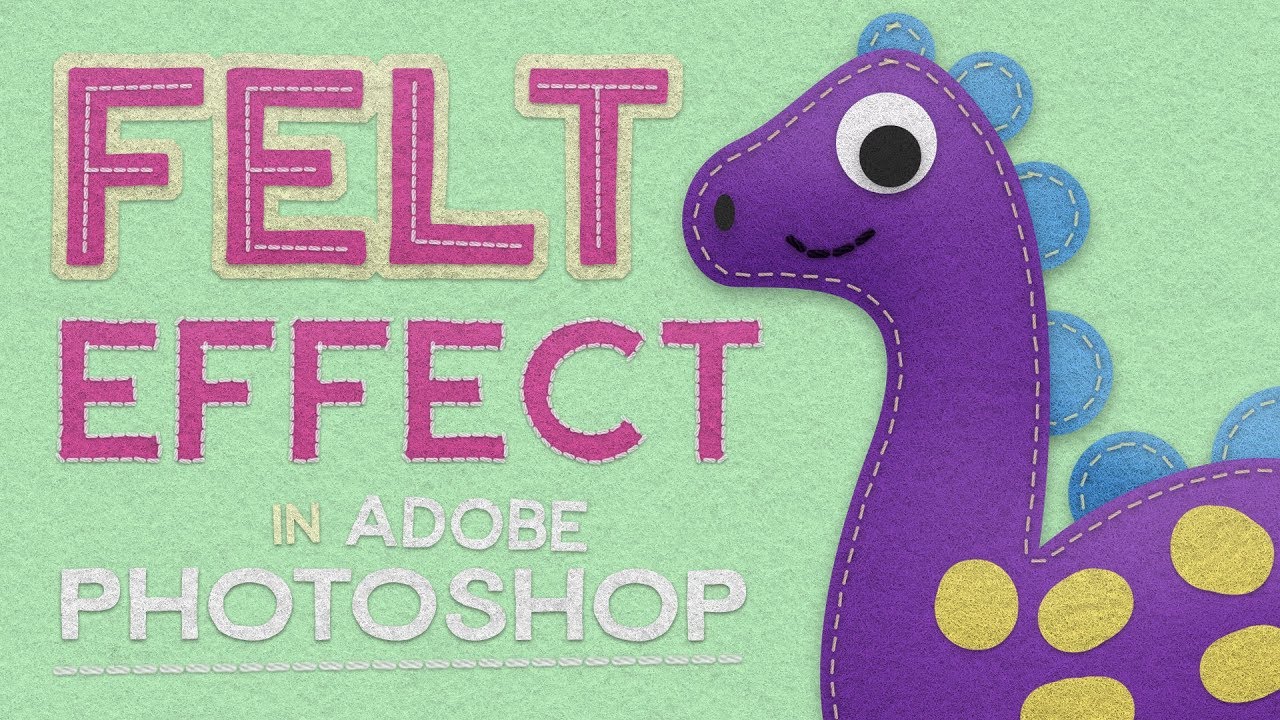
🧰 My Full Shop. One Bundle. 90% Off - https://shop.spoongraphics.co.uk/products/whole-shop-bundle
Over on my Spoon Graphics website I recently shared a free resources kit for creating felt effects within your designs, so I thought I'd use that subject for today's video and show you how to use the tools to create cute craft inspired artwork. W...
ripe quest
rancid ivy
Yeah I'm just asking if anyone knows of a style pack that archives this effect
I assume you mean, premade Layer Styles that you can download. If so, I don't know of any "style packs" for this specifically. But they should be easy enough to create (and save for re-use).
rancid ivy
Hmm I see ok thx
 dusty swan
Hey I am doing a project for school with typography in timeline and I can't figure out something
I have the text "when you are falling" and I want the text to go crash into the side of the canvas and the dot on the "i" to fall down into another letter but I can't figure out how to separate them and how to make the affect of crashing can anyone please help?
I usually use screw but it doesn't give me the affect I look for
ripe quest
dusty swan
Hey I am doing a project for school with typography in timeline and I can't figu...
To manipulate individual parts of letters, you'll have to convert the text object to a Shape. Main manu: Type > Convert to Shape... Then you can get at the shapes using the Direct Selection Tools.

After, as far as making it "crash" into something, I don't know. Maybe show some motion lines and then squash it down a bit.
dusty swan
ripe quest
To manipulate individual parts of letters, you'll have to convert the text objec...
Thank u so so much u are a life savior
fluid craneBOT
Gave +1 Creative Carma to @ripe quest (current: #2 - 3223)
vapid flume
rancid ivy
This artist uses actual paper for this but does anyone know of a Photoshop style...
I found that, if that helps
https://elements.envato.com/papercraft-photoshop-styles-NNQNETZ
This one too
https://helpx.adobe.com/photoshop/discover/free-papercut-effect-for-photoshop.html
It's from Adobe themselves, but I'm not sure how it installs, I haven't tried
The keyword here is "paper cut"
The problem with layer styles in Photoshop, is that since they are raster effects, you will need to tweak them according to the size of your document/layer content. But honestly, it's quite easy to do it yourself....
This is also something you could do in Illustrator (taking advantage of the appearance panel and its stackable effects) and save it as a graphic style (similar to layer styles, but vector, hence scalable)
rancid ivy
vapid flume
This one too
https://helpx.adobe.com/photoshop/discover/free-papercut-effect-for...
Ah that's awesome thanks so much
fluid craneBOT
Gave +1 Creative Carma to @vapid flume (current: #6 - 1127)
woeful python
is doing this art style possible in ps
 ivory trellis
woeful python
is doing this art style possible in ps
ivory trellis
woeful python
is doing this art style possible in ps
yes
vapid flume
woeful python
is doing this art style possible in ps
It's possible, it looks like graffiti art which is about mastering the airbrush and of course, knowing how to draw.
You have a lot of airbrushes already in Photoshop, but you can download more ... Just scroll up a couple of posts, and you'll see links I shared yesterday, particularly the one from Adobe, where you can download 100s of brushes, some of them specifically for mimicking spray paint.
tacit bramble
vapid flume
Yes, of course!
Thank you very much I will try them and get back to you
fluid craneBOT
Gave +1 Creative Carma to @vapid flume (current: #6 - 1128)
woeful python
vapid flume
It's possible, it looks like graffiti art which is about mastering the airbrush ...
bet
 lavish vector
Is there a way to make a rounded square, but the rounded corners do NOT have anti-aliasing?
I need the shape to be made of pixels with either 100% or 0% opacity because the opacity being an arbitrary number on certain pixels is causing my corners to look funky in the UI I'm designing.
viral palm
lavish vector
Is there a way to make a rounded square, but the rounded corners do NOT have ant...
Since Photoshop is a pixel based app anti-aliasing is necessary to get round shapes that look smooth...
Pixels are square and we can not change this fact...Without anti-aliasing you'll get round shapes with "stair-shaped" contours...
What image format your UI app is using? png?
lavish vector
viral palm
What image format your UI app is using? png?
Yeah, PNG
If I use a different app like adobe illustrator, can I get sharper edges? Or is it a file format issue when I export it as a PNG?
Still very very new to this ui stuff
 lusty otter
RTX5050 Low profile ki keo use koren?
etar somporke karo darona ace ki?
 flint radish
I don't know exactly how to describe what I'm trying to do, so bear with me (I'm still pretty intermediate with PS): is there a way to sample part of an image to use as a fill? For example, say I want to take the texture of image A and use it to fill in a portion of image B (I'm making a fantasy world map and I'd like to recycle some of the textures). I dunno if that would be a Healing Brush Tool type of solution, or if I would be better off with a mask? Again, apologies if my explanation is confusing, but any help in pointing me in the right direction would be appreciated!


The yellow landmasses are vector smart objects I pasted in from Illustrator, if that matters.
lusty otter
any one use RTX5050 LOW PROFILE GPU? Any Heat Issue?
i'm thinking to buy... i do gaming and rendering works...... any others issue in this gpu?
flint radish
Ok I think I got it. Clone Stamp Tool is achieving what I want.
 ivory trellis
flint radish
I don't know exactly how to describe what I'm trying to do, so bear with me (I'm...
ivory trellis
flint radish
I don't know exactly how to describe what I'm trying to do, so bear with me (I'm...
you can define anythings as a pattern or a brush preset, then you can use it multiple times
vapid flume
flint radish
Ok I think I got it. Clone Stamp Tool is achieving what I want.
Yes, you can use the clone stamp from one image to another (it helps greatly to have them side by side! 😉)
otherwise you can create a pattern (select what you need, edit-> deine pattern) and then apply that pattern to a totally different image through a new pattern adjustment layer or even a new layer style. They can be re-sed again and again.
There are some technicalities into creating repeats,s o it's best to watch a tutorial if you can: There can be some trial and error until you find the right workflow for you.
viral palm
flint radish
Ok I think I got it. Clone Stamp Tool is achieving what I want.
Don't know how your file is made (one layer or each color shape on its own layer) but Pattern technique sounds the fastest one for me...
Here is a short video to show you how to create and use a pattern + The pattern used during this video and another short video to show you how to load it in Photoshop.

 haughty lintel
Are more people experiencing issues with remove background in the contextual bar? It hardly works on any images anymore for me, for example it does this, when it would have easily removed the background before
 ivory trellis
haughty lintel
Are more people experiencing issues with remove background in the contextual bar...
ivory trellis
haughty lintel
Are more people experiencing issues with remove background in the contextual bar...
are you using photoshop?
haughty lintel
I am, using the latest version
Also tried checking here and changing the select subject and remove background to process trough cloud, still having the same issue afterwards

My guess something is wrong, but can't seem to pinpoiunt the issue 😛

 ashen hatch
Hey, pretty specific question, I want to add a deep looking scratch on a body, using Photoshop, what is the best way to do it.
 pseudo frigate
Hi guys 👋🏼 , is there a way I can add patterns to the mask layer - Procedural?
ivory rampart
ashen hatch
Hey, pretty specific question, I want to add a deep looking scratch on a body, u...
Easiest way would be to just use dlgen fill
rancid beacon
where are my layers😭
 ivory trellis
rancid beacon
where are my layers😭
ivory trellis
rancid beacon
where are my layers😭
press F7
ivory trellis
go to window
u will find it there
or press F6
@rancid beaconhttps://youtube.com/shorts/p5F0Xrg4eps?si=eq_B8QSQrFd4ot1q
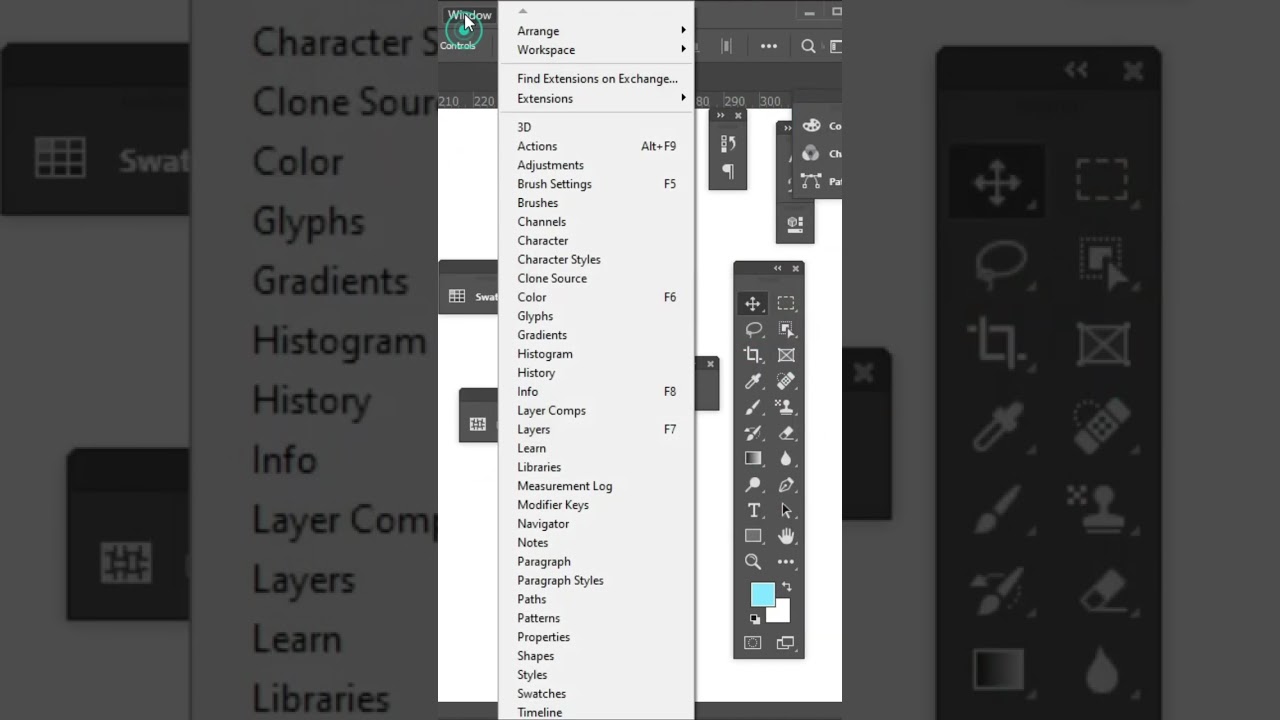
Hi, Learn the Photoshop Toolbar Missing Adobe Photoshop Tutorial.
Welcome to my Youtube Channel. Today We learn How to Reset Tools and Workspace in Photoshop. Enjoy the video and let me know what you think of the video in the comments. Thanks
"If you like the Video, Don't forget to share and leave your comments"
#photoshop #adobephotoshop #adob...
watch this
ripe quest
pseudo frigate
Hi guys 👋🏼 , is there a way I can add patterns to the mask layer - Procedural?
I don't believe so. Not procedurally. Only by direct editing Layer Mask. Manipulate the pattern in its own layer and then paste it into the mask.
pseudo frigate
ripe quest
I don't believe so. Not procedurally. Only by direct editing Layer Mask. Manipul...
Ok thanks 🙏, I was thinking about procedural masking for a long time 
fluid craneBOT
Gave +1 Creative Carma to @ripe quest (current: #2 - 3226)
ripe quest
pseudo frigate
Ok thanks 🙏, I was thinking about procedural masking for a long time <:lightnin...
It would be cool if that was a feature. For now, its just pixel editing.
 nova gust
Can anyone remove black pencil writing /smudges and dark patch to see text underneath
viral palm
nova gust
Can anyone remove black pencil writing /smudges and dark patch to see text under...
Do you mean something like that?

If so the answer is "No"
ivory rampart
Someone wants to uncover those island files 😏
 edgy zephyr
How do I replicate this effect on the 13
 viral palm
edgy zephyr
How do I replicate this effect on the 13
viral palm
edgy zephyr
How do I replicate this effect on the 13
Looks close to any glass effect like in the video below
https://www.youtube.com/watch?v=jkWiiF9YlE8
https://www.youtube.com/watch?v=SyWRtmZrmfk
but I doubt the sample image number has been made with photoshop... I would guess the 13 comes from a 3D software with glass material then bring into photoshop to create the composition with volley-ball players...
hushed niche
rancid beacon
where are my layers😭
The “window” entry of the top menu bar is where you will find all the panels.
https://www.photoshopessentials.com/basics/learning-the-photoshop-interface/

Everything you need to know about the interface in Photoshop CC! From tools and panels to document windows, workspaces, screen modes, and more!
rancid beacon
hushed niche
The “window” entry of the top menu bar is where you will find all the panels.
h...
THANK YOU!
fluid craneBOT
Gave +1 Creative Carma to @hushed niche (current: #12 - 363)
 mortal valve
modest jasper
its wierdly hard to find a perfect example but do you see how the image is displ...
mortal valve
modest jasper
its wierdly hard to find a perfect example but do you see how the image is displ...
I'd say if you want part of the image cut then cut the actual image in half, use vanishing point or transform each half on separate plane/page, mask out the edges that would be missing in the centre then use a line with a shadow or a gradiant to get the shading.
viral palm
edgy zephyr
How do I replicate this effect on the 13
That's how it could look with LayerFx from the videos I shared sooner...

 wary roost
how can I make a gradient travel smoothly along this sharp line? not like a horizontal gradient, a gradient that follows the direction
 viral palm
wary roost
how can I make a gradient travel smoothly along this sharp line? not like a hori...
viral palm
wary roost
how can I make a gradient travel smoothly along this sharp line? not like a hori...
If I understand well, I don't think what you're trying to achieve is possible with regular gradient tools in Photoshop.
You can create clipping mask and paint your gradient with soft brushes but I don't think that's what you were asking for...
Unfortunately there's no free form gradient tool or any other than the five modes (linear, radial, angle, reflected and Diamond)...
Sorry.
 hot girder
where can i get these kinds of brushes
 ripe quest
hot girder
where can i get these kinds of brushes
ripe quest
hot girder
where can i get these kinds of brushes

Find the exact brush you need to elevate your digital art with custom drawing brushes or preset Photoshop brushes. Let your creativity flow today.
hot girder
ripe quest
https://www.adobe.com/products/photoshop/photoshop-brushes.html
Any free brushes?
Oh wait
ripe quest
Those are all free. Just sign in with your Adobe Account.
hot girder
ripe quest
Those are all free. Just sign in with your Adobe Account.
Yup, got it.
hot girder
ripe quest
https://www.adobe.com/products/photoshop/photoshop-brushes.html
Thanks!
fluid craneBOT
Gave +1 Creative Carma to @ripe quest (current: #2 - 3227)
 pastel kite
Hey people, nice to meet you all!. I just wanted to ask for some help. I am trying to distort this IMAGE of this writing it is NOT a text element; it's an image of a font that I couldn't find, so I'm trying to get a nice, perfect semi-circle curve, but I'm getting this double back curve thing. I am doing a 3d model for a texture map/net and I'm really struggling! thanks for any advice!. THe red is what I'm getting when I try warp and you can see the warp net


Here you can see it closer and I've exaggerated the curves in the warp map! Thanks again, sorry for the double text
 woeful python
anyone got a clue
pastel kite
pastel kite
Hey people, nice to meet you all!. I just wanted to ask for some help. I am tryi...
I just spent like 6 hrs trying to curve this..... there's a preset.... I'm so mad.... but how would I do it manualy?
wary roost
viral palm
If I understand well, I don't think what you're trying to achieve is possible wi...
that's fine, thanks anyway. I've found that illustrator has something similar
fluid craneBOT
Gave +1 Creative Carma to @viral palm (current: #7 - 1053)
 lofty topaz
is there any way in photoshop to blur the textures, so i can create a blend in color effect?
right now the textures are pixel art style so i was wondering if there is any way that can blend in these colors, without ruining the uv islands transitions. Because this is a 3d model, using blur ruins the uv mapping transitions, so i was wondering if there is a way to do it and keeping the smooth transitions between the uv islands


here are the textures to understand why normal blurring wont work
 lofty topaz
is there any way in photoshop to blur the textures, so i can create a blend in c...
lofty topaz
lofty topaz
is there any way in photoshop to blur the textures, so i can create a blend in c...
i basically want to blend in the colors next to each other and make them look smooth
i dont want to do manual painting though
camera raw noise reduction worked

but the sharp edge transition is still a problem
 uneven yarrow
Hey, I have those three forms that form a cocktail glass, but I'd like to convert them into a .svg file and a clean one.
How do I remove those overlaps and center it correctly and create a nice .svg file with it? :)
 viral palm
uneven yarrow
Hey, I have those three forms that form a cocktail glass, but I'd like to conver...
viral palm
uneven yarrow
Hey, I have those three forms that form a cocktail glass, but I'd like to conver...
Do you have Adobe illustrator? TBH it would be a 30sec job with it.
uneven yarrow
I only got Photoshop 😭
viral palm
uneven yarrow
I only got Photoshop 😭
Ok...
Can you share a creenshot of your layers panel to see how your glass build-up looks?
uneven yarrow
 viral palm
uneven yarrow
viral palm
uneven yarrow
First you must make sure the "Legacy Export as" is ON in your preferences.
Go to: Edit/Preferences/Export... and make sure the "Legacy Export as" box is checked.
If not, check it, save your file then close photoshop and re open it.

@uneven yarrow : Then Open your file, merge your shapes as shown in the video and the SVG option should be available in the "Export as..." menu
uneven yarrow
Wow, you are amazing! Thanks a lot!! <3
viral palm
uneven yarrow
Wow, you are amazing! Thanks a lot!! <3
You're welcome!
viral palm
lofty topaz
but the sharp edge transition is still a problem
What if you use Surface blur filter on a layer copy placed above, then mask it where you want to keep details?
 lofty topaz
viral palm
What if you use Surface blur filter on a layer copy placed above, then mask it w...
lofty topaz
viral palm
What if you use Surface blur filter on a layer copy placed above, then mask it w...
what does surface blur do?
lofty topaz
lofty topaz
here are the textures to understand why normal blurring wont work
used it but again, because of the seperated texturing, the smooth transition breaks

 nova quail
how do I create this effect where the text "eats" into everything around it
 vapid flume
nova quail
how do I create this effect where the text "eats" into everything around it
vapid flume
nova quail
how do I create this effect where the text "eats" into everything around it
If you want to do it in Photoshop (Illustrator would be a strong contender as well), The easiest way would be to create an outline/stroke the same colour as the background so the edge is invisible
and the word "club" will be in front of everything else
nova quail
Thank you
vapid flume
 rancid ivy
vapid flume
This one too
https://helpx.adobe.com/photoshop/discover/free-papercut-effect-for...
rancid ivy
vapid flume
This one too
https://helpx.adobe.com/photoshop/discover/free-papercut-effect-for...
hi sorry i might be being dense here
but how do i download this pack?
it says free and all but i cant find the download link it mentions
vapid flume
rancid ivy
it says free and all but i cant find the download link it mentions
You need to click on the blue button that says "open in app" or something like that... Let me double check.
It could be that it opens in a library
That should be here.

If not, let me know and I'll report a bad link
(My photoshop is updating at the moment, I can't test it)
viral palm
lofty topaz
used it but again, because of the seperated texturing, the smooth transition bre...
Are you using it this way?
If the result we get with the technique shown in the video doesn't meet what you expect, I'm not sure to understand what you're looking for...
Also, Image of the full head comes from Photoshop or is it the result of the map in your 3D app?
Does this texture map work better?
 lofty topaz
viral palm
Are you using it this way?
If the result we get with the technique shown in the ...
lofty topaz
viral palm
Are you using it this way?
If the result we get with the technique shown in the ...
i used the texture you sent, still same issue which is natural. I talked with people in substance painter and they told me the effect i need is called 3d blur. The software must understand the uv maping transitions and smoothen them up automatically


but yeah, thats the effect i wanted, its looking good, but the transitioning is the main problem here
because due to the uv mapping, the smooth transition is not possible

hand painting it will be the fix but i want to avoid manual fix
 shut roost
does anyone know where can i find the brush used for this text?
 ripe quest
shut roost
does anyone know where can i find the brush used for this text?
ripe quest
shut roost
does anyone know where can i find the brush used for this text?
I don't know the exact brush that was used. That would be difficult to pinpoint. However, you should be able to find one that comes close: https://www.adobe.com/products/photoshop/photoshop-brushes.html
Find the exact brush you need to elevate your digital art with custom drawing brushes or preset Photoshop brushes. Let your creativity flow today.
ripe quest
shut roost
does anyone know where can i find the brush used for this text?
Check The Dry Media set. Maybe there.
ripe quest
 swift yacht
Like make the grid around it
swift yacht
Like make the grid around it
Scale? Main menu: Edit > Free Transform (Ctrl T)
swift yacht
ripe quest
Scale? Main menu: Edit > Free Transform (Ctrl T)
Thank you
vapid flume
shut roost
does anyone know where can i find the brush used for this text?
Good contenders could be found in Kyle's brushes > Megapack > inkbox (for example Cartoonist, Guelf, animator)
 shut roost
thank you for the help!!!, much apreciated, i was scrambling my mind with this particular brush
vapid flume
shut roost
thank you for the help!!!, much apreciated, i was scrambling my mind with this p...
There are plenty that look very similar. That's the ones I use in Fresco, so that why the feel rang a bell. My go to are Guelf, animator and Belgian comics)
 toxic kelp
Hi, I’m dealing with a file that now opens as a flattened, corrupted image. It has a dark background with red pixel artifacts, and while the file size remains the same as it was originally, it’s now essentially reduced to just one layer. This makes me believe it might still be recoverable, but I’m not able to do it myself. I’d greatly appreciate any expert advice or assistance on this.

 ivory rampart
toxic kelp
Hi, I’m dealing with a file that now opens as a flattened, corrupted image. It h...
ivory rampart
toxic kelp
Hi, I’m dealing with a file that now opens as a flattened, corrupted image. It h...
Use "Previous Versions" (Windows Only) Windows' built-in File History can be a lifesaver. Right-click on your original .psd file and select Properties. Go to the Previous Versions tab. Select an earlier version from before the issue occurred and click Restore.
 stiff zenith
Anyone know why I dont have the option to switch my in-app language? the dropdown only gives me my native Danish ("Dansk")... kinda annoying when I know the names of all the tools in english...

 stiff zenith
ivory rampart
stiff zenith
ivory rampart
Did that now... will I have to reinstall?????? - I read on the internet that you have to ....... but taht sounds f****ING ridicolous to me lol
ivory rampart
yeah that's bit unfortunate
but that's how it works
probably if we would have to install all language packs PS would grow from 5GB to 50 😅
 lavish cliff
does adobe illustrator have real-time rasterization?
ripe quest
lavish cliff
does adobe illustrator have real-time rasterization?
Not sure what you mean.
All graphics shown on the screen are rasterized in real-time.
lavish cliff
So I’ve been using photoshop’s vector features to make pixel art for a video game, and I have been doing that because I was under the impression that it is not possible to se the final pixelated result in adobe illustrator, as it will automatically scale up the image. Example of what I am currently doing:

This what I need to see while working because I need to see how the vectors result in each individual pixel
ripe quest
lavish cliff
So I’ve been using photoshop’s vector features to make pixel art for a video gam...
Adobe Illustrator is for creating vector-based graphics. It does "rasterize" certain things, like what it would consider special effects, like blurs and things. There it would have to define a resolution and predict the falloff of a gradient, etc.
But no... the canvas is not the same as Photoshop. There is no "resolution" per se.
lavish cliff
I see, thank you
ripe quest
lavish cliff
I see, thank you
You could definitely create graphics in Illustrator and it would keep all of the shapes editable. You would have to convert them afterwards but that would be a crap-shoot. I suppose you could always use the Export > Save for Web feature to preview what it might look like in a certain size and resolution. But you wouldn't really be able to paint a specific pixel like you can in Photoshop.
You could do the same with vector shapes to a point in Photoshop. The difference would be that Illustrator has more tools and ways to control the vector objects than Photoshop does.
lavish cliff
ripe quest
You could definitely create graphics in Illustrator and it would keep all of the...
I keep all my shapes editable currently, it's just that I'm at a small enough scale where I can see each pixel because photoshop rasterizes in real time
ripe quest
lavish cliff
I keep all my shapes editable currently, it's just that I'm at a small enough sc...
It's already rasterized in Photoshop... because even though you're building with vector shapes, the Photoshop canvas is a grid with pixels. Everything is bound to that resolution. There is no grid in Illustrator. Thus, you'd have to use Save for Web Preview to view the entire thing as raster graphics.
So, not "real-time" as you were asking.
Maybe someone else will chime in and tell me I'm wrong. But I don't think there is currently a feature in Illustrator that says: "render as 72 DPI" or whatever.
lavish cliff
ripe quest
It's already rasterized in Photoshop... because even though you're building with...
that's what I meant, it automatically converts everything to pixels because it's a software for a grid of pixels
which is good, I need that
ripe quest
If you want to double-check what I'm saying, you could ask in the Adobe Illustrator Discord - https://www.discord.gg/adobeillustrator
 hushed vine
can someone help me with replacing these letters for something else? any video you can link me?
 ripe quest
hushed vine
can someone help me with replacing these letters for something else? any video y...
ripe quest
hushed vine
can someone help me with replacing these letters for something else? any video y...
Try Gen Fill. Select All. Edit > Generative Fill. Choose Gemini and say "Change the words on the marquee to '[INSERT TEXT HERE]'; keep everything else the same"
ivory rampart
i think YT photoshop channel had a short about replacing similar text

FLUX (partner AI model) in Photoshop Generative Fill makes changing text in an image easy and precise. Update signs, labels, menus or rewrite words in any image with a quick prompt that keeps the text style consistent and blends right into your original scene. Remember this simple prompt: Change text from ""original text"" to ""new text"".
0:00...
ripe quest
hushed vine
can someone help me with replacing these letters for something else? any video y...

 hushed vine
ripe quest
hushed vine
ripe quest
i tried doing that but i couldn't get it to work
hushed vine
ripe quest
Try Gen Fill. Select All. Edit > Generative Fill. Choose Gemini and say "Change ...
ok i'll try
ripe quest
Change MARTY SUPREME to "PULP FICTION"; keep everything else the same.
 hushed vine
Idk what i did ):
 ripe quest
hushed vine
i tried doing that but i couldn't get it to work
ripe quest
hushed vine
i tried doing that but i couldn't get it to work
Make sure you're using Gemini 3 (Nano Banana Pro) and not one of the other models.
hushed vine
idk how to do that?
ripe quest
hushed vine
Idk what i did ):
See the "G" there? Click on the icon there and change the model to Gemini. 3 (Nano Banana Pro)
 hushed vine
ok i see it.
got it, excellect. thanks guys 🙂
i don't have any knowledge of ps so im getting used to it
ivory rampart
I would recommend checking tutorials from Adobe
hushed vine
anyway i can export this raw back into lightroom?
hushed vine
ivory rampart
I would recommend checking tutorials from Adobe
i use lightroom more and i am planning on watching a video already 🙂
ivory rampart
ripe quest
hushed vine
i use lightroom more and i am planning on watching a video already 🙂
You can export it back out to a format that Lightroom accepts. JPG or whatever.
hushed vine

🎨 NEW Lightroom Presets: https://bit.ly/4dEpsVC
🎵 2 months of FREE music: https://bit.ly/3GshKNA
📷 Best Entry Level Cameras: https://geni.us/Beginnercameras
🎨 DIV 1 Lightroom Presets: https://bit.ly/3TDLKMx
📷 My Favorite Camera: https://geni.us/t93yc
✨ Limited Edition LUTs: https://bit.ly/4buszOy
✨ Make Money with Your Phot...
hushed vine
ripe quest
You can export it back out to a format that Lightroom accepts. JPG or whatever.
got it
ripe quest
hushed vine
got it
Good luck with the tutorials!
 chrome ginkgo
this isnt related to photoshop but does anyone know why i cant see my baseline grid on indesign i had this issue before but forgot how i fixed and im loosing my mind rn
ripe quest
chrome ginkgo
this isnt related to photoshop but does anyone know why i cant see my baseline g...
I don't use InDesign that much. Sorry. You could ask in the Adobe Illustrator Discord. There might be more Id users there. https://www.discord.gg/adobeillustrator
chrome ginkgo
thank youu smm
hushed vine
am i asking too much if i want to remove the hand dryer and door?
 ripe quest
hushed vine
am i asking too much if i want to remove the hand dryer and door?
ripe quest
hushed vine
am i asking too much if i want to remove the hand dryer and door?
Try it. Tell Gemini exactly what you want. "remove the hand dryer and door from the mirror reflection" or some such request. Might work.
hushed vine
it did it, i love it awesome 🙂
stiff trail
That's 98% of image reqs now isn't it.
I wish I could be happy with 4k 8-bit output, then I could basically outsource my dayjob to Gemini.
 dusk lagoon
does anyone know how to prevent that horribly annoying thing where photoshop switches all of your shortcuts if you dare to switch from using your stylus to the mouse? 💀
 vestal lily
if anyone knows how to like help me with this specific situtation I need to edit an engagement picture but the ring on the finger is off center and idk how to center it without it looking horrible so please DM if you konw what to do.
 willow zephyr
hello i have a favor to ask and i was wondering if anyone could photoshop a screenshot of mine from the “MyFitnessPal” app to change the numbers displayed? i have a report for it due tomorrow but i dont use the app because the screenshot is my friends and we weigh differently. if you are willing to save my grade please dm me 🙏
ivory trellis
willow zephyr
hello i have a favor to ask and i was wondering if anyone could photoshop a scre...
no we cant do it buddy
willow zephyr
This is kind of sad but like ai did it for me PERFECTLY..
hushed niche
willow zephyr
hello i have a favor to ask and i was wondering if anyone could photoshop a scre...
Hi, this channel is made to help users use Photoshop. Also, editing grades is not very moral.
hushed niche
vestal lily
if anyone knows how to like help me with this specific situtation I need to edit...
Hi, post a screenshot of the hand, and explain which tools you used so far, show examples of the problems encountered.
hushed niche
dusk lagoon
does anyone know how to prevent that horribly annoying thing where photoshop swi...
Hi, which brand of tablet? Did you try updating its drivers? Did you message its manufacturer? Is switching from tablet to mouse the only case it disables KBSCs?
dusk lagoon
hushed niche
Hi, which brand of tablet? Did you try updating its drivers? Did you message its...
27 inch Cintiq- it did this on my wacom intuos pro M too + I heard Jacob Drawfee talk about this glitch too so at least one other person has experienced this  I have up to date drivers- it does this on both my work and home cintiqs
It only happens if I switch over to mouse and then back to stylus *sometimes. Like once every couple hours. Like, instead of V being move, itll open the "view" panel and play the error sound with every button you press 💀 the only way it goes away is to just ignore it until its done throwing a fuss lol
hushed niche
The view menu? On a pc, you must do alt+v. Is one of your buttons set to alt? It seems that it is left active. Switching to a third party mouse or a Wacom that works on the screen/tablet? (If they still exist, I had one like that ages ago)
Might you be touching the alt button set on the stylus as you lay it down?
dusk lagoon
Yes, but all I do is press V, but when i click with the mouse even 1 time, theres a possiblity of this glitch happening. Maybe it acts as if alt is always pressed? For some reson?? That'd make sense as I jsut tried pressing alt+b and thats the annoying error noise that plays when i try to press B or the brackets for brush size during this error
I dont use nor click any buttons, so itd be odd if it does that
And nah I cant be accidentally pressing alt, my keyboard is always a good distance away from me
hushed niche
A button on the stylus, set to alt
dusk lagoon
Ive never pressed a button on my stylus nor tablet until this very moment, and its not something I could really do accidentally, nor for an extended period of time
- itd be odd if i only happened to somehow hold down a button when switching between stylus and mouse (the effect lasts for 2-3 minutes each time, so i wouldnt be holding down a button that entire time)
hushed niche
Is the stylus placed away from the tablet as you do not use it, or right next to it?
dusk lagoon
it varies, but even if its right next to it, my tablet is too high up to detect anything from the stylus
hushed niche
Is the stylus placed in its vertical Holder?
hushed niche
I’m trying to remove all possible physical reasons it might throw that error. What are the side buttons set to? Lesson one of troubleshooting in the OSI model: the physical layer 🙂
dusk lagoon
I've never used nor pressed any of the side buttons tbh 😭 I had this problem on my old Intuos Pro too so im not sure if its a physical reason
 hushed niche
Could you just check what they are set to, and if it is alt, to disable it in the Wacom control panel?
 silent lintel
Hi, does anyone know if there is a plugin that will autosave your open file every time you make a visible change? Also with the option to save the PSD as PNG/JPG?
dusk lagoon
hushed niche
Could you just check what they are set to, and if it is alt, to disable it in th...
i think this is all thats enabled rn
To press one of the buttons on the tablet I'd need to stand up and reach around it 🤔


 hushed niche
silent lintel
Hi, does anyone know if there is a plugin that will autosave your open file ever...
hushed niche
silent lintel
Hi, does anyone know if there is a plugin that will autosave your open file ever...
It would slow down your work… is Photoshop crashing often?
silent lintel
Im using blender/3ds max, so it would help to see live changes while Im editing textures or creating color masks in photoshop. It could have a short save delay, so it wouldn’t be noticable
hushed niche
If you use the cloud format, PSDC it would auto save regularly and you have version control. Saving on itself might save an error that you made. I’d consider an iterate and save: https://www.artstation.com/marketplace/p/XOdlp/save-as-today-s-date-auto-version-up-photoshop-script

ArtStation
Resources - Save As Today's Date & Auto-Version Up (Photoshop Script), USD $0.00. This is a remix of Mark David Teo's Auto Name Saver ScriptWhat this script does:
For a new document, the script will automatically...
hushed niche
dusk lagoon
i think this is all thats enabled rn
To press one of the buttons on the tablet ...
Ok, this removes that possibility as pan is Ctrl, eraser is E or tilde…
But still, that behavior is linked to alt. Does your mouse have function buttons?
hushed niche
silent lintel
Im using blender/3ds max, so it would help to see live changes while Im editing ...
Then PSDC might not be what you want. You could setup an action that exports as png. There’s quick export, can it maybe get a KBSC?
dusk lagoon
hushed niche
But still, that behavior is linked to alt. Does your mouse have function buttons...
nope, $9 mouse from amazon
hushed niche
When it does the view menu thing, can you try hitting ESC or Enter?
 marsh prairie
Hey there! I have a question, is there any way that I can mass export all this files giving them a 2 pixel margin on each side of the canvas? The only way I know would be to manually add 4 to canvas height and width to each one of them but that's not really something I want to do now as they are 113. Any way to apply that to all at the same time?
 vapid flume
marsh prairie
Hey there! I have a question, is there any way that I can mass export all this f...
vapid flume
marsh prairie
Hey there! I have a question, is there any way that I can mass export all this f...
You could do that with an action (add x pixels on each side Image>canvas size) and then export with a batch command (you set up the export batch to apply an action before exporting)
What is the file format you want to save in?
You could use the image processor (In file -> scripts)

You can save in jpeg, tiff, and .psd, and include an action (add pixels) before exporting
the "run action" at the bottom
If you need to export as .png, then you will only have the solution to use Bridge... But you should be using bridge anyway if you are doing that kind of batch operations.
Bridge is free with any Adobe subscription

In Bridge you can set up what is called workflows, that automate a set of unrelated tasks, for example 1/ add pixels 2/ resize 3/rename 4/export as png (you can even add your copyright as an extra step)
If you're not using Bridge, I'm not even talking to you 😂 BOO!
And yes, I know I need to update! 😱
marsh prairie
Okay thank you so much!!
vapid flume
marsh prairie
Okay thank you so much!!
No worries, if you need help with Bridge, just ask!
 whole hemlock
Hey!
I've recently been having a problem with cloud syncing between PS and LR. I will edit partially in LR, then open in PS through LR and make changes in PS. After I am done with whatever it may be, when I hit control + S to save and close the file out (or PS entirely), it tries to say it is synced but the changes are not applied back to LR. It'll stack like it usually would but neither of the stacked photos have the PS changes applied.
It may work for 1-2 times I open PS this way and then completely break again for often days at a time. (I turn my PC off everyday). Whenever it does not sync, it also will not show as a "recent" file when opening PS normally on the homepage.
Any help would be appreciated as I never used to have this problem and worked in this way forever 😅
vapid flume
whole hemlock
Hey!
I've recently been having a problem with cloud syncing between PS and LR. I...
Strange, it's not a behaviour I experienced personnally. Sometimes it can be slow to update: say 40 seconds for larger files...
Have you tried restarting it, in preferences
 whole hemlock
i'm not using classic 
vapid flume
Ah damn, sorry, I don't use the cloud version... I wouldn't know
Let's see if someone else has an idea...
otherwise you can still post on the dedicated Adobe forum for Lightroom cloud based...
https://community.adobe.com/lightroom-ecosystem-cloud-based-677

Get the most out of Lightroom with our community.
This server here on Discord is a bit of a "one-for-all", not really specific for Lightroom.
whole hemlock
Figured! I just chalked it up to a PS issue. I have noticed the asterisk that indicates it hasn't saved was present too. It's within the colour profile brackets though. Not really sure how it all works tbh but assumed since it wasn't saving it couldn't sync the change.
whole hemlock
 vapid flume
Is the file huge?
whole hemlock
Very often will just appear like this
shouldn't be huge no, definately worked with larger :x
it doesnt really matter which ive worked on lately though
big or small, same issues
vapid flume
I can confirm it just haven't saved yet. It only updates when the PSD file is saved (It's asynchronous)
whole hemlock
Yeah thats what I thought and why I pointed it to a PS issue :/
after closing it'll create another though and stack it, just without any actual changes
 vapid flume
Have you tried resetting the preferences in PS? Also, bear with me I can share a couple of links pertaining to performance optimisation. Maybe there is something going on... Scratch disks, GPU compatibility etc
whole hemlock
and if I don't export it from PS with whatever changes, all the edits are completely gone lol
vapid flume
I would check that first
https://helpx.adobe.com/uk/photoshop/kb/optimize-photoshop-cc-performance.html
Then resetting the preferences if the above doesn't help
Edit>preferences >general > reset preferences on quit

More often than not, if something unexpected happens in Photoshop (and assuming it's not a bug... it happens), it's a GPU issue
Be sure you have your GPU driver up to date (looking at you NVidia 👀)
whole hemlock
I've just reset prefs on launch since I haven't tried that yet
enabled the on quit too 😄
whole hemlock
Appreciate it! Will let you know haha
rancid ivy
vapid flume
That should be here.
I don't have that I have download the app but not open in app
But I do have it downloaded so it's odd
 next surge
rancid ivy
But I do have it downloaded so it's odd
next surge
rancid ivy
But I do have it downloaded so it's odd
You downloaded the software from Creative Cloud ?
toxic kelp
ivory rampart
`Use "Previous Versions" (Windows Only)
Windows' built-in File History can be a ...
i tried but there is no file history, is theer any other way ?
 ivory rampart
I dont think there is another way
dusty swan
Hey I have an issue of anyone can help me, im working with timeline and I have the word crashed which I sliced in half with two masks and I want it to slowly (with the mask) go up and disappear off the page as the last letter is falling down, my issue is that when I move the word upwards for some reason the mask is not really following and I lose the transform of it and it appears at the last second how can I fix it?
That's the sentence (the t in out will fall down) and I want the rest to move upwards all together and get off the page while I zoom in the "t" but i can't understand how to do it with the mask
 hushed niche
whole hemlock
Figured! I just chalked it up to a PS issue. I have noticed the asterisk that in...
hushed niche
whole hemlock
Figured! I just chalked it up to a PS issue. I have noticed the asterisk that in...
If it is inside parentheses it means it does not match the working profile. Outside is not saved
hushed niche
dusty swan
Hey I have an issue of anyone can help me, im working with timeline and I have t...
Difficult to answer without a fullscreen. Is the mask linked?
dusty swan
hushed niche
Difficult to answer without a fullscreen. Is the mask linked?
It is linked, I tried it unlinked as well but nothing worked i watched some tutorials on how to use masks wigh timeline but it wasn't very helpful 🫠
hushed niche
Show your layers panel? And the timeline?
hushed niche
stiff zenith
Did that now... will I have to reinstall?????? - I read on the internet that you...
The reinstall is very fast: only the language package
hushed niche
toxic kelp
i tried but there is no file history, is theer any other way ?
You’ll have file history only if you’ve set it up with a separate disk. In the future, try an increment and save: https://www.artstation.com/marketplace/p/XOdlp/save-as-today-s-date-auto-version-up-photoshop-script
ArtStation
Resources - Save As Today's Date & Auto-Version Up (Photoshop Script), USD $0.00. This is a remix of Mark David Teo's Auto Name Saver ScriptWhat this script does:
For a new document, the script will automatically...
It’s quite busy, reduce the size of some elements. But this belongs in #📝project-feedback
 merry phoenix
hi, im trying to replicate this glass shatter effect around the moon from this cutscene from genshin impact. So far i just have a cutout of the space sky, can i anyone help me how i replicate that best?


i mean i kinda needa distort the edges and create some floating pieces (best way to distort looking at the reference?) but how do i do like those wiggly lines
 stone karma

hi prolly a dumb q but is there anyway to turn a png like this into a psd file where photoshop auto recognises the text
ripe quest
@sweet plank - Please make project requests in #💬chat-general.
 vale spire
bro am i that stupid bc i can't get red dots
 viral palm
stone karma
viral palm
stone karma
Nope
vale spire
it's only showing red but it is making up the background as dots i want it the other way around
ripe quest
stone karma
hi prolly a dumb q but is there anyway to turn a png like this into a psd file w...
No. There isn't. But it's just plain text on a blue background. Should be fairly easy to replicate this.
ripe quest
vale spire
it's only showing red but it is making up the background as dots i want it the o...
Depends on how you're doing it. If its a mask, then you could just invert it.
vale spire
ripe quest
Depends on how you're doing it. If its a mask, then you could just invert it.
nah, it's the color halftone
viral palm
vale spire
nah, it's the color halftone
can you share the whole Photoshop UI (with layers panel) it could help us understand how your design is made...
ripe quest
vale spire
nah, it's the color halftone
I would do it like this...

 ripe quest
vale spire
this is what i have
ripe quest
vale spire
this is what i have
This is one way...
 drowsy shell
how can i make this into a solid png of just the tag
 ripe quest
drowsy shell
how can i make this into a solid png of just the tag
ripe quest
drowsy shell
how can i make this into a solid png of just the tag
Depends on how much of the "paint splatter" around the letters you want left behind.
 ripe quest
drowsy shell
how can i make this into a solid png of just the tag
ripe quest
drowsy shell
how can i make this into a solid png of just the tag
If you want sharp, clean letters, then you'll probably want to convert to vector graphics, which will require you to trace the letters.
drowsy shell
ripe quest
If you want sharp, clean letters, then you'll probably want to convert to vector...
iizizz okk i already got it thanku sm!!
drowsy shell
wwait how can i get the smear/blur effect from the left side of this image (green) on mine (yellow)

 merry phoenix
hi, im trying to replicate this glass shatter effect around the moon from this c...
merry phoenix
merry phoenix
hi, im trying to replicate this glass shatter effect around the moon from this c...
anyone?
 vast carbon
when using elipse selcetor tool or making a circle with the shape tool why is it a 50/50 on wether or not one Axis will ALWAYS have 1 pixel of difference no matter what you do?
viral palm
vast carbon
when using elipse selcetor tool or making a circle with the shape tool why is it...
Not sure to understand your question... A screenshot or image of your problem might help.
vapid flume
stone karma
There isn't in Photoshop, but there is one in iIllustrator, it's called the retype feature. Once you got it, you can copy and paste the text, in its editable form, into Photoshop.
Or use Illustrator to create the whole stuff, where Illustrator is better at.
viral palm
vast carbon
when using elipse selcetor tool or making a circle with the shape tool why is it...
I don't know if it's the problem you're talking about but since photoshop is a pixel based application and cannot display half pixels, your ellipse must have even dimensions (divisible by two). If one of the dimensions is odd, there will automatically be a one-pixel offset on one of the two sides....
Note: This This rule applies to both selections marquee and shapes.
vast carbon
viral palm
I don't know if it's the problem you're talking about but since photoshop is a p...
how do i make it so i don't accdentally do that so i can have even dimensions?
hushed niche
Same thing I told you yesterday: this belongs in #📝project-feedback
hushed niche
vast carbon
how do i make it so i don't accdentally do that so i can have even dimensions?
You get numbers that show you the pixel dimensions. If you hold shift as you draw, it makes a perfect circle.
hushed niche
merry phoenix
hi, im trying to replicate this glass shatter effect around the moon from this c...
I would select parts with the polygonal lasso, jump them to their own layer and move them: Ctrl+J add alt to cut IIRC.
You can use filters>distort>displace to move some elements: https://www.thegoldenmean.com/technique/displace1.html
This tutorial is an in depth examination of the Photoshop Displace distortion filter.
hushed niche
drowsy shell
wwait how can i get the smear/blur effect from the left side of this image (gree...
Hi, did you try the smudge tool, the blur gallery filters, or liquify on a low opacity copy of the image?
drowsy shell
hushed niche
Hi, did you try the smudge tool, the blur gallery filters, or liquify on a low o...
i tried alot of the blur filters but nothings worked so far , imnot sure the smudge tool would be consistent enough 😓
vast carbon
hushed niche
You get numbers that show you the pixel dimensions. If you hold shift as you dra...
ty
<@&548221840750018590>
 keen dagger
Thanks! They're all over
hushed niche
vast carbon
ty
lol, for a second, I thought that you had me flagged 😂
hushed niche
drowsy shell
i tried alot of the blur filters but nothings worked so far , imnot sure the smu...
A very big brush for the smudge? Tried the path blur in the blur gallery? Remember that you can change the blending mode via edit>fade, or if you use a smart filter…
drowsy shell
hushed niche
A very big brush for the smudge? Tried the path blur in the blur gallery? Rememb...
okk thank u ill try wen im home
fluid craneBOT
Gave +1 Creative Carma to @hushed niche (current: #12 - 364)
 crimson saddle
I keep trying to edit as a smart object on the web version. Anyone know how to fix this? I opened a new tab.
 viral palm
crimson saddle
I keep trying to edit as a smart object on the web version. Anyone know how to f...
viral palm
crimson saddle
I keep trying to edit as a smart object on the web version. Anyone know how to f...
When you double click on the smart object thumbnail you should open a new tab where you can edit it.
 viral palm
crimson saddle
viral palm
crimson saddle
I think the blue popup window says your smart object is editable in a seperate tab ...
Usually this message shows up when the tab with the SmartObject alone is already open...
Do you have any other open tab in your browser? (I can't see your browser tabs on the video)
Sorry I,m not familiar with mac...
crimson saddle
No worries but no I’m not
 willow plover
Guys anyone can help me to find this font name pls

 dry locust
Ddoes anyone know how to make a an emoji in Photoshop and then animate it in photoshop?
tame cape
willow plover
Guys anyone can help me to find this font name pls
Hi @willow plover
Is it similar enough?
 willow plover
tame cape
Hi <@708421963487510540>
Is it similar enough?
willow plover
tame cape
Hi <@708421963487510540>
Is it similar enough?
Yes yes too much
tame cape
willow plover
Yes yes too much
Try Arial italic
is very similar, but differs slightly in terms of microtypography. However, it is installed on almost all Windows computer systems.
willow plover
tame cape
Try Arial italic
is very similar, but differs slightly in terms of microtypograp...
Thank you so much omg really thanks so much idk what i can say im trying to find it for 2 days
fluid craneBOT
Gave +1 Creative Carma to @tame cape (current: #14 - 274)
tame cape
willow plover
Thank you so much omg really thanks so much idk what i can say im trying to find...
You're welcome.
 light maple
how can I make these stripes
 fierce hornet
light maple
how can I make these stripes
fierce hornet
light maple
how can I make these stripes
do you mean the white lines? You can just draw using pen tool. then add black stroke.
light maple
fierce hornet
do you mean the white lines? You can just draw using pen tool. then add black st...
yes, how I do get it neat tho
fierce hornet
it's already neat. if you draw with pen tool. just choose shape from the top left.

you can do something like this.
crimson saddle
One more question. Why are almost all of my pictures blurry when I insert them into photoshop?
 supple cobalt
i dont have photoshop but i need someone who knows how to edit's help
i have no clue where else to ask someone, which is why i asked here
if you are good at telling if something is edited, please dm
 halcyon flume
supple cobalt
i dont have photoshop but i need someone who knows how to edit's help
i have no ...
halcyon flume
supple cobalt
i dont have photoshop but i need someone who knows how to edit's help
i have no ...
Hey,dms
ivory trellis
<@&548221840750018590>
 wind narwhal
ivory trellis
<@&548221840750018590>
wind narwhal
ivory trellis
<@&548221840750018590>
Thank you
fluid craneBOT
Gave +1 Creative Carma to @ivory trellis (current: #240 - 7)
 dull prawn
how do i make this image hd in ps? its kinda blurry tho. i remember i saw one on youtube but idk whats the tutorial name
 pseudo frigate
dull prawn
how do i make this image hd in ps? its kinda blurry tho. i remember i saw one on...
pseudo frigate
dull prawn
how do i make this image hd in ps? its kinda blurry tho. i remember i saw one on...
First u need to change resolution to 1080px depending on ur aspect ratio like ur image looks 4x4 so press ctrl+alt+I then 1080x1080
After that watch this video

An Easy Trick to Turn Low-Resolution Graphics into High-Resolution in Photoshop! Learn how to use the concept of Blur and Contrast to get smooth edges out of jagged and pixelated graphics.
dull prawn
pseudo frigate
First u need to change resolution to 1080px depending on ur aspect ratio like ur...
thanks
fluid craneBOT
Gave +1 Creative Carma to @pseudo frigate (current: #105 - 18)
 fierce hornet
 pallid onyx
i want to change the text here
pallid onyx
i want to change the text here
You don't have the text layer so in that case you have to find the font first. If you want the same font.
Go to type > match font.
pallid onyx
fierce hornet
You don't have the text layer so in that case you have to find the font first. I...
this is a picture with no layer
fierce hornet
Yes, that's what I'm saying. You have to find the font first. If you want same font
fierce hornet

In the latest episode of #PHOMO, Adobe evangelist Paul Trani shares some cool ways to find fonts using the Match Font feature in Photoshop. Check out this tutorial for helpful tips and tricks to end those feelings of #PHOMO when it comes to design.
Subscribe to Adobe Photoshop: https://adobe.ly/3vWtAiy
Learn More About Adobe Photoshop: https:...
I think you will find most of the font from there but if you still don't find some of them you can use this website: https://www.whatfontis.com/
Font finder that helps you to identify fonts from any image. 🔎 Upload the image and choose what the font you need. 1,100,000 fonts indexed free or commercial.
pallid onyx
I want to add another font
my only preocupation is to change the text first...i'll see for the font later
fierce hornet
Add a new layer and paint with black color (since your background is black) on top of the existing text using brush tool. Then replace with your new text.
vapid flume
Im assuming this will go as a decal into a bottle/ in 3D or that kind of things?
pallid onyx
vapid flume
Im assuming this will go as a decal into a bottle/ in 3D or that kind of things?
yup
vapid flume
OK, you can still create separate layers with your text and export your texts as .svg and import as curves
Or you can do the whole image as plane+shrinkwrap, but sometimes the quality leaves to be desired.
Because with that 100% black as a BG, I'm not sure you'll get something pleasing for the label (My take on it, I'm not an expert)
In any case, you will still need those text elements as separate layers
So as @fierce hornet said!
pallid onyx
i did something here
 vapid flume
Yes, you didn't do as you were told 🙂
CTRL+Z...
You've just cut an area and turned into its own layer
That doesn't make the text editable. What makes an editable text is to type a text with the text tool
Imagine you got MS word. Imagine you place an image in a word document. Can you replace the text in that image in MSWord? no.. Photoshop is the same
So in order to clean the background from the original text, you need to erase that text. Since your background is black, placing a black area on top of your text in a separate layer is the simplest way.
Then you take the text tool, and you type some text on top to replace the text you've lost by placing the black area
If you had a complex background instead of black, then the method would be much more complicated
 vapid flume
That's it. but, since of course you have filled the area in black without creating a new layer, you'd better not made a mistake
Ram and drives are cheap: Use the layers, make your life simple
And there's also a typo
"Undeniable" instead of "underniable"
as in UN-deniable (that cannot be denied)
willow plover
Hello, I have a question. How can I transfer text animation from another project to my own project?
vapid flume
willow plover
Hello, I have a question. How can I transfer text animation from another project...
Are both animations PSD files?
pallid onyx
vapid flume
That's it. but, since of course you have filled the area in black without creati...
tysm
willow plover
So this file
willow plover
vapid flume
Are both animations PSD files?
 pallid onyx
vapid flume
And there's also a typo
"Undeniable" instead of "underniable"
pallid onyx
vapid flume
And there's also a typo
"Undeniable" instead of "underniable"
yeah i saw that XD
vapid flume
This is an After effect files, so not in Photoshop (But I assume that's OK if both files are After effects files, and you work in After effect)
willow plover
Oh right my bad sory
vapid flume
Photoshop will accept either .mp4 and other rendered video files, but not Ae native files
Some things can be replicated in Photoshop's own animations features (which are rather limited) but if you have the opportunity to work with After Effects, then go for it. It's an immensely better software for that kind of things
real crescent
hushed niche
That might be a job for edit>perspective warp?
Edit: Sandrine’s method might be ...
Not what I wanted at all. )=
Okay, I need to replace certain colors, how can I do that?? The white color doesn't change at all with hue and saturation.
 vapid flume
real crescent
Okay, I need to replace certain colors, how can I do that?? The white color does...
vapid flume
real crescent
Okay, I need to replace certain colors, how can I do that?? The white color does...
That's normal, since white has no hue by essence
It only shifts colours from one to another. If there's no colour, there's no effect
You can try the "colourise" option which toggles off the hue function

But sorry, My bad, It won't work because of the white... Silly me!
You need to use another function, one that actually applies the colour, like a gradient map
Like where, here the darker areas become orange, and the lighter areas (white) become yellow

There are other methods, but this one is easier
real crescent
vapid flume
Like where, here the darker areas become orange, and the lighter areas (white) b...
I don't really understand. Let's say I want to make the background color red and the white border black.
vapid flume
You click on the colour selector (the little yellow triangle in my screenhot) and you make it black. You do the same for the other triancle and you make it red
If you only need the background without the cloud, you will have to use a mask to only apply the black to the background, and not the cloud
If your file is layered, there some possibility that the only thing you need is to create a new black background. But I'm assuming this is a flat image, without separate layers for the different elements
You could also select the different elements (the cloud, the purple background, and the white area in the background) and apply some colours to those elements, using a solid colour adjustement layer. However, the resolution of your image is really poor, and there's risk that your selection will be a bit wonky.
 real crescent
I just want to selectively change colors (specific ones), without creating layers. Here's what I did using Selective Color Correction.

 real crescent
I just want to selectively change colors (specific ones), without creating layer...
real crescent
real crescent
I just want to selectively change colors (specific ones), without creating layer...
I can't get the colors I need there
ivory trellis
real crescent
I can't get the colors I need there
real crescent
ivory trellis
It is not always possible to select a mask perfectly, this is only for this image and there are defects at the edges
ivory trellis
real crescent
It is not always possible to select a mask perfectly, this is only for this imag...
send me the original file if u dont mind
ivory trellis
real crescent
It is not always possible to select a mask perfectly, this is only for this imag...
you should use illustrator if you mostly work with vector files
real crescent
ivory trellis
you should use illustrator if you mostly work with vector files
No, I just need to change the colors =(( I guess I think I found a way
vapid flume
real crescent
I just want to selectively change colors (specific ones), without creating layer...
The problem is that Photoshop is a software that uses layers, so if you don't want to use layers (The reason is unclear) then you cut yourself from accurate workflows.
Scroll up and see the "gradient map" solution I gave to another user
viral palm
real crescent
I can't get the colors I need there
What are the colors you need? You want to change Black and aqgua to which colors?
Refusing using layers sounds like a complicate way... Like screw in a screw without a screwdriver....
viral palm
real crescent
I can't get the colors I need there
If you really don't want to use layers, CTRL+U => desaturate your image then CTRL+L => modifiy Black and White cursors position of the levels to get a good contrast image then go to Image/Adjustments/Gradient Map and set colors you want to "Map" to image.
Left cursor => maps the black of your image/ Right one => maps the white.

 tall pulsar
does someone know what should i do this progress line is loading for like 20 and more minutes i just wanted to save a color of text
 viral palm
tall pulsar
does someone know what should i do this progress line is loading for like 20 and...
viral palm
tall pulsar
does someone know what should i do this progress line is loading for like 20 and...
You must be logged in your CC account to use Libraries...
 tall pulsar
viral palm
You must be logged in your CC account to use Libraries...
tall pulsar
viral palm
You must be logged in your CC account to use Libraries...
ohh😭 thank youu
fluid craneBOT
Gave +1 Creative Carma to @viral palm (current: #7 - 1054)
 hidden cypress
When clients have their photos edited, do they expect the final version to be the same resolution? I’ve noticed that my images get compressed when I use AI tools. Does this loss of quality matter if I want to start a side hustle as a digital retoucher?
ripe quest
hidden cypress
When clients have their photos edited, do they expect the final version to be th...
That really depends on what the agreement is between you and the client. There are generally requirements for the job.
hidden cypress
ripe quest
That really depends on what the agreement is between you and the client. There a...
do you think i should get a ai upscaler?
ripe quest
hidden cypress
do you think i should get a ai upscaler?
I suppose so. If you want to upscale images.
hidden cypress
ripe quest
I suppose so. If you want to upscale images.
would the res matter If i were to edit for a social media creator
the image is gonna get compressed anyways once they post it
ripe quest
hidden cypress
would the res matter If i were to edit for a social media creator
Again... that is between you and whomever you're doing the work for. They would likely have specific requirements for the project. That determines what you produce. Not what I say in this chat. That said, you should want to produce the highest quality possible.
ripe quest
hidden cypress
the image is gonna get compressed anyways once they post it
If you're generating imagery with AI, the lowest size/rez you'd probably want is standard HD (1920x1080). So 2K is the lowest you'd want to go. If you can produce 4K great. Higher than 4K, exceptional. The problem with most "upscalers" though is that as you produce these larger sizes, it becomes apparent in the close-up details that the image is generated (and not a photo).
Hope this helps. Good luck.
hidden cypress
ripe quest
If you're generating imagery with AI, the lowest size/rez you'd probably want is...
do you recommend any good ai that is capable of producing 4k images?
ivory rampart
firefly 😏
hidden cypress
i want to edit proffesional photographs with ai not a pony with rainbows and stuff
hidden cypress
ivory rampart
firefly 😏
ive heard it produces compressed images
so realism is my top priority
hushed niche
hidden cypress
i want to edit proffesional photographs with ai not a pony with rainbows and stu...
One has edited images without AI for many years…
hidden cypress
hushed niche
One has edited images without AI for many years…
ai fixes images in one button tho
ivory rampart
well there's tons of peoples doing professional editing with ai nowadays, heck i'm on few groups and helping peeps for free
hidden cypress
ivory rampart
well there's tons of peoples doing professional editing with ai nowadays, heck i...
Do you use firefly?
ivory rampart
depends
hidden cypress
ive heard a lot of critiques about it
hidden cypress
Do you need like a crazy expensive subscription?
ivory rampart
compared to gemini or flux it's still bit behind in my opinion, but it's good enough to edit photos for free
ivory rampart
i'm using creative cloud pro
viral palm
Since you're not asking/talking about purely Potoshop things I think this discussion belongs #💬chat-general
ivory rampart
that's how it's called now 
hidden cypress
it says Your country doesn't support this purchase
 hardy nebula
i have problem with Photoshop it starts lagging (it works in 1 fps max, there is no way to use it, even freezes ps for while) when resizing or moving shapes
specs :
rtx 4060
r7 5800x
32gb ram ddr4
and 300gb empty space
i tried almost everything in performance settings and it doesnt help
ripe quest
hidden cypress
do you recommend any good ai that is capable of producing 4k images?
Google Gemini 3 (Nano Banana Pro)
Which you can generate in Photoshop but not in 4K (currently)
viral palm
hardy nebula
i have problem with Photoshop it starts lagging (it works in 1 fps max, there is...
What is the pixel dimension of your canvas?
tame cape
hardy nebula
i have problem with Photoshop it starts lagging (it works in 1 fps max, there is...
And your doc specs are?
viral palm
@hardy nebula: I asked to check the size of your document, because a common mistake is to set the units to inches rather than pixels in the “Create/New” window => incredibly large file that Photoshop has trouble processing.
 ripe quest
hardy nebula
i have problem with Photoshop it starts lagging (it works in 1 fps max, there is...
ripe quest
hardy nebula
i have problem with Photoshop it starts lagging (it works in 1 fps max, there is...
ripe quest
hardy nebula
i have problem with Photoshop it starts lagging (it works in 1 fps max, there is...
ripe quest
hardy nebula
i have problem with Photoshop it starts lagging (it works in 1 fps max, there is...
A Canvas that is 2000 pixels = OK. A Canvas that is 2000 inches, nah. That's like 67' feet wide. If you have enough RAM, your system might be able to create that canvas and even work with it to a certain extent. But performance will suffer.
That's the most common reason for laggy performance. If its not that, you'll have to say more about the document, the resolution, the amount of layers, etc.
 ripe quest
hardy nebula
i have 1000x1000 centimeters
ripe quest
hardy nebula
i have 1000x1000 centimeters
That's huge. Like 32 feet in U.S. Imperial. About as long as a tractor trailer truck.
ivory rampart
hardy nebula
I have other language
to juz trzeba komputra z NASA
Wymiary 1000 x 1000 cm przy zagęszczeniu 118,11 pikseli na centymetr (PPCM) przekładają się na obraz o następujących parametrach: Rozmiar w pikselach: 118 110 x 118 110 px. Wynik ten otrzymujemy, mnożąc długość boku (1000 cm) przez rozdzielczość (118,11 px/cm). Całkowita liczba megapikseli: Około 13 950 MP (megapikseli). Rozdzielczość w DPI: 300 DPI. Wartość 118,11 px/cm jest standardowym przelicznikiem dla profesjonalnego druku o rozdzielczości 300 punktów na cal. Zastosowanie: Tak ogromne wymiary przy tak wysokiej gęstości pikseli są rzadko spotykane w praktyce cyfrowej ze względu na gigantyczny rozmiar pliku.
real crescent
viral palm
If you really don't want to use layers, CTRL+U => desaturate your image then CTR...
this is roughly what I wanted 👍🏻
real crescent
real crescent
How can I quickly change the deformation so it's rectangular? Just not manually.

 oblique junco
i really need help editing a particular image like super quickly ill also pay for the help
vapid flume
real crescent
When you select your image and you go to warp transform : Edit > transform> warp, you'll see some presets at the top. One of those is cylinder warp. Play with the settings but it will probably help

Or you can go to illustrator if you have access to it, and there's a feature called "mock-up", it places images on 3D dimensional objects more or less automatically (don't ask me why this isn't in Photoshop instead 🤷♀️)
vapid flume
oblique junco
i really need help editing a particular image like super quickly ill also pay fo...
This kind of request should be made in #💬chat-general
There's no guarantee someone will be willing to help, but if they want to, they'll contact through DM
Just be sure you are aware of scammers. Anything happening in private messages are the responsability of people engaged. You're on your own.
real crescent
vapid flume
When you select your image and you go to warp transform : Edit > transform> warp...
You probably misunderstood, I want to straighten the rectangle. I don't need it through deformation and so on. I just need it to be aligned without manually cracking the corners using alt. I just select the sides, and it should be aligned
vapid flume
real crescent
You probably misunderstood, I want to straighten the rectangle. I don't need it ...
I don't know any other method than manually unfortunately. You can help with pulling guides etc
vapid flume
real crescent
You probably misunderstood, I want to straighten the rectangle. I don't need it ...
It could be done, but only for straight edges, not wavy
real crescent
A question about JSX: what function should I use to change the selected layers (because I always change one, even though I select several)
vapid flume
real crescent
A question about JSX: what function should I use to change the selected layers (...
I can't answer to this one, but let's see if someone else has an idea... Just wanted to point out there is a specific forum for Photoshop scripting where you can ask questions, and see resources.
Learn how to customize the way you work with Adobe apps.
You can also check in the Photoshop forum proper as scripting is also covered here
https://community.adobe.com/p/photoshop

 tame cape
 rancid mauve
this is what i get after export
rancid mauve
this is what i get after export
Normally, when you export, you get exactly what you see in Photoshop in the 100% view. Provided you export at a 1:1 size.
viral palm
rancid mauve
how to export in this quality
Previews at any other zoom ratio than 100% are interpretations...as @tame cape said you must compare both image at 100% ratio...
rancid mauve
@viral palm @tame cape there no other way to export in high quality?
tame cape
rancid mauve
<@698155393649475695> <@1260686485842296977> there no other way to export in hi...
Please define “high quality.”
Depending on how large you have created your image and export it 1:1, you will export exactly “the quality” you have in Photoshop.
real crescent
I draw at a low resolution; how can I remove the small bits between pixels (they distract me)

aseprite
 tame cape
real crescent
I draw at a low resolution; how can I remove the small bits between pixels (they...
tame cape
real crescent
I draw at a low resolution; how can I remove the small bits between pixels (they...
Zoom less than 500% or hide the grid, e.g., Ctrl+H
viral palm
rancid mauve
<@698155393649475695> <@1260686485842296977> there no other way to export in hi...
I don't know if it will work with your file but if you want to get a png or jpg file that gives you the same effect at a 100% ratio than what you see at 500% zoom in Photoshop, you can try to set the Scale at "500%" and set resample mode to "Nearest Neighbor" in the "Export as" window...
Worth a try

 sudden torrent
photoshop just release new tool "existential philosophy brush". it work only if you convert image in Lab color first, then you name layer "heidegger_1927" and apply mask with opacity 42% of cosmic anguish. result is perfect but nobody understand why. you use it or not??? 🤯
let me know
viral palm
??
ivory rampart
sudden torrent
photoshop just release new tool "existential philosophy brush". it work only if ...
yeah i always use it
 fierce lodge
heya, i have the red bordered area selected - a characters arm on a blank png. Photoshop after pressing ctrl J gives me a layer cropped to the size in the blue borders. I'm looking to export the whole red box size layer. How can i do that?

PS doesn't want me to have that empty png area
vapid flume
fierce lodge
heya, i have the red bordered area selected - a characters arm on a blank png. P...
How do you export? Have you tried "export" > "layers as files", there is tick box to crop it to transparency, you could use it without that tick box on


Be sure you choose "PNG" in the dropdown list
fierce lodge
vapid flume
How do you export? Have you tried "export" > "layers as files", there is tick bo...
the problem before it is trying to make a layer that respects my selected area, I'm using the marquee tool
here's my selection on the right side

here's what i get pressing ctrl J
 vapid flume
fierce lodge
the problem before it is trying to make a layer that respects my selected area, ...
vapid flume
fierce lodge
the problem before it is trying to make a layer that respects my selected area, ...
The problem is that selection tool only selects content, not transparency
fierce lodge
yeah
vapid flume
But if you export without trimming it should be OK
It would also help if you could share the image with the layers panel included, maybe there's something I'm missing there
fierce lodge
that's all
 vapid flume
fierce lodge
here's what i get pressing ctrl J
vapid flume
fierce lodge
here's what i get pressing ctrl J
Which PS version do you have?
fierce lodge
i just need to split the image so i have a 200 pixel wide area on the right
fierce lodge
vapid flume
Which PS version do you have?
27.3.0
vapid flume
OK. I just tested just in case so mine works correctly. Might be something to check in the prefs. Bear with me
fierce lodge
cheers
but yea in short i have a 1212x1856 image that i need to split so i have a 1012x1856 and 200x1856 images - while keeping it PNG
vapid flume
Is there a polssibility that you have a feather in your selection?
fierce lodge
the character was originally edge feathered out of a backgrounded image but i dragged the result into a new blank file
vapid flume
I'm asking because sometimes when selections are small (in pixel) the feather makes them virtually non existent, hence cropping
I can't find anything in the preferences but it's a behaviour I've seen in older versions (That's why I asked about the version)
Would you be up to rest your preferences, just in case?
It's not normal behaviour as far as I know
fierce lodge
yea i dont mind
vapid flume
Edit>preferences>general>reset on quit


If it persists and in case this is a bug, there can be a workaround while you file it as a bug report (unless someone else has a better idea!)
fierce lodge
Now the CTRL+J layer shows different but exporting it still cuts out all the extra png part


i press export as on the layer directly
vapid flume
fierce lodge
Now the CTRL+J layer shows different but exporting it still cuts out all the ext...
Even with the export method I've sshowed you?
Quick export only export content
You need to go into "normal" export. What you export through clicking on the layer is a "quick" export
Check your settings but as far as I know, it will always crop)

But export as, and export layers allow you to choose to crop or not
If you don't want export layers as files, hide the body layer, and use "export as"

Remember, quick export will always trim
Even the export as from the layer. Both are in effect quick exports
fierce lodge
it didnt remove the extra png areas this time but now i need the ctrol +J to generate me only the area i've chosen with marquee that is only 200 pixels wide which it didn't do this time

i have it as such
 vapid flume
Because it takes only the layer into account, not the whole canvas, if you want the whole canvas, you need to export through the File menu
Have you tried through the file menu?
vapid flume
fierce lodge
i have it as such
That's how it should be
fierce lodge
that's what i do now and it removes all the top and left png area

i just need the left area gone
fierce lodge
yes ik but when i leave it untrimmed it includes the left empty area that i don't need
vapid flume
fierce lodge
yes ik but when i leave it untrimmed it includes the left empty area that i don'...
In that case you need to remove it from the canvas itself
 vapid flume
Then you need to crop manually after export
You can't have one without the other. Photoshop doesn't predict what you want
vapid flume
No, Lightroom doesn't use layers, so that point is moot
You can crop with the crop tool after the export
or select, and crop, export, and ctrl+Z to go back one step


 vapid flume
If you select first, the crop tool will take your selection into account
vapid flume
fierce lodge
got it, a 200 wide png with the top intact
Excellent!
fierce lodge
vapid flume
Excellent!
Thank you
fluid craneBOT
Gave +1 Creative Carma to @vapid flume (current: #6 - 1130)
fierce lodge
My Steam profile shall look epic soon 
 proven saddle
is there a way to properly js mask this guy?
 viral palm
proven saddle
is there a way to properly js mask this guy?
viral palm
proven saddle
is there a way to properly js mask this guy?
It depends the quality of your original image...
Can you share it here?
"Select subject" should make the job...
 proven saddle
viral palm
"Select subject" should make the job...
proven saddle
viral palm
"Select subject" should make the job...
oh wait
would it be good like this?

also kinda takes off a bit from the guitar
viral palm
proven saddle
also kinda takes off a bit from the guitar
Make sure your select subject mode is set to "Cloud" for a better result...
proven saddle
viral palm
Make sure your select subject mode is set to "Cloud" for a better result...
this part kinda feels unnatural tho is it fine?
 viral palm
proven saddle
this part kinda feels unnatural tho is it fine?
viral palm
proven saddle
this part kinda feels unnatural tho is it fine?
Yes but with such a bad resolution and lack of contrast between hair and background it's impossible to get better result...
If you want something that looks natural you'll have to make a composite work to create well defined hair contour...
 proven saddle
viral palm
Yes but with such a bad resolution and lack of contrast between hair and backgro...
proven saddle
viral palm
Yes but with such a bad resolution and lack of contrast between hair and backgro...
alrightyy ill see how that looks, thank u so much!
fluid craneBOT
Gave +1 Creative Carma to @viral palm (current: #7 - 1055)
proven saddle
viral palm
Yes but with such a bad resolution and lack of contrast between hair and backgro...
is there anything i could do for this to be better? or do i js leave it
 viral palm
proven saddle
is there anything i could do for this to be better? or do i js leave it
viral palm
proven saddle
is there anything i could do for this to be better? or do i js leave it
That's the best I can do with this poor quality image...


If you want something better you'll need paint hair yourself or use compositing technique or AI generative solution...
Hair selection is already difficult with a high-resolution image, so with this low quality, it's even more complicated... Impossible.
proven saddle
viral palm
That's the best I can do with this poor quality image...
ah thank u
fluid craneBOT
Gave +1 Creative Carma to @viral palm (current: #7 - 1056)
real crescent
how to change colors with hotkeys??🤔

 raw bison
real crescent
how to change colors with hotkeys??🤔
raw bison
real crescent
how to change colors with hotkeys??🤔
right click on it and choose another color on the list
vapid flume
real crescent
how to change colors with hotkeys??🤔
I can't see it in the list of keyboard shortcuts you can change (Edit>keyboard shortcuts)

But double check, just in case I missed it
Be sure you choose "panel menus", in the drop down list

All that's in there should be customisable. If it's not there, that means your only way to assign a hot key is either via an action (record an action of changing the colours, you will need one action for each colour) or use a keyboard, mouse or any other device where you can program buttons that can trigger menus
when you record an action, you can assign a KBSC to that action
See mine here.
 hushed niche
vapid flume
I can't see it in the list of keyboard shortcuts you can change (Edit>keyboard s...
hushed niche
vapid flume
I can't see it in the list of keyboard shortcuts you can change (Edit>keyboard s...
It might be worth putting a feature request.
vapid flume
hushed niche
It might be worth putting a feature request.
Yes!
https://community.adobe.com/feature-requests-713
I think a good feature request would be "make everything customisable with a hotkey" 🙂
Feature Requests
real crescent
vapid flume
All that's in there should be customisable. If it's not there, that means your o...
Why are there so few hotkeys )= . I would like Ctrl + 1, but it's not there
It's strange that there are no ways to reassign the hotkeys? -> Ctrl + 1 Not the ones on the list
 tame cape
<@&548221840750018590>
Image spam
hushed niche
<@&548221840750018590>
hushed niche
real crescent
Why are there so few hotkeys )= . I would like Ctrl + 1, but it's not there
It is attributed to something else, it is zoom to 100% a VERY useful shortcut
wind narwhal
Wow spammers are going wild for a Monday
hushed niche
wind narwhal
Wow spammers are going wild for a Monday
Thanks for your prompt action!
fluid craneBOT
Gave +1 Creative Carma to @wind narwhal (current: #3 - 2677)
viral palm
wind narwhal
Wow spammers are going wild for a Monday
Yesterday too! I banned three of them on the fly.🥸 ⚒️
vast carbon
this character isn't on a SINGLE layer and i cant move him
???

when i click on him it says "could not use move tool because no layers are selected"
also the tiny icon to the right of the sword has the exact same issues
ripe quest
vast carbon
when i click on him it says "could not use move tool because no layers are selec...
You have to select/activate the layer in the Layers Panel by clicking on it.
viral palm
vast carbon
this character isn't on a SINGLE layer and i cant move him
???
A short video to show you what @ripe quest said.
If no layer is selected in the layer panel this mesage will pop up....
click on layer you want to move in layers panel before trying to move it,
 random wind
hi can anyone help me with a thumbnail for YouTube it is driving me bonkers. I have resized the image and canvas to be 1280x720 like previous ones but for some reason the thumbnail keeps having black side borders when i try use it

any help would be greatly appreciated ❤️
viral palm
Do you mean this border?
 random wind
no if i upload it on to youtube it has 2 big black borders on the side
this is what shows. my previous ones were all fine I have no idea what I done wrong
 random wind
I have no clue how I have tried a few times but it just wont work.
ivory rampart
Oh
random wind
it seems to not let me stretch it its like picking it up as a background or something
I am just crap at it 😄
ivory rampart
In my case usually stretching image bit above canvas worked
random wind
its weird if i try stretch it it wont do it
viral palm
random wind
this is what shows. my previous ones were all fine I have no idea what I done wr...
Ok I understand...
First the image you shared is not 1280x720 / 72ppi
I would try to resize your image at the right pixel resolution first...

Can you share your hi-res image?
random wind

this is I got thats the PNG I made
and ye I seen that but if I scale the image it says it is right
but then seems to just not be
viral palm
Try with this one... Made during the short video below...

the png is 1080x720 at 72ppi => should work properly as YT thumbnail
random wind
really appreciate the help but no luck still 🙁

so strange
the image was originally just a screen grab from in game
I can just use it as is I have spent hours on this and my channel is just a very new and amateur one so it doesnt matter that much I guess 🤣
random wind
viral palm
Try with this one... Made during the short video below...
just realised that image is 1080 not 1280 so that is probably why it didnt work 🙁 same issue I am having
vast carbon
ripe quest
You have to select/activate the layer in the Layers Panel by clicking on it.
it isn't in there is the thing
ripe quest
vast carbon
it isn't in there is the thing
What isn't? The Layer Panel? Main manu: Window > Layers... (or F7 on the keyboard)
vast carbon
wait that is WEIRD
so the character, icon and white cubes weren't there initiaally it was just the backgrounds, gradiant and the sword
but after closing and reopening it's there
sorry to bother
viral palm
random wind
just realised that image is 1080 not 1280 so that is probably why it didnt work ...
100% right... YT thumbnail size is 1280x720 (not 1080x720)...
Bottom part will be trimed if you want to keep the title at its place...
 random wind
viral palm
100% right... YT thumbnail size is 1280x720 (not 1080x720)...
Bottom part will b...
random wind
viral palm
100% right... YT thumbnail size is 1280x720 (not 1080x720)...
Bottom part will b...
omg you legend thank you ❤️
fluid craneBOT
Gave +1 Creative Carma to @viral palm (current: #7 - 1057)
 orchid agate
how do i go from this

to logos like these

i used a premade font for the first image
but im probably gonna have to draw it all from scratch to get the right feel id imagine
random wind
anyone able to give me some advice on a logo I am making please?
 bold galleon
orchid agate
how do i go from this
bold galleon
orchid agate
how do i go from this
You have a good start already. You could use puppet warp and liquify. Just a reminder, if you convert it to a smart object you can continuously adjust both of those things. I would puppet warp it into the general position I wanted it, then use liquify to stretch etc. Also starting out with using the tracking setting in the font properties panel to get the letters closer together if that's your goal.
For example I took your image and only used liquify to swiftly change it.
 vapid flume
orchid agate
to logos like these
vapid flume
orchid agate
to logos like these
You've probably noticed that all your logos are symmetrical, so in oreder to do that I would suggest you cut yours in half, mirror it and use this as a guide to either draw or distort your existing text so it looks more symmetrical.
vapid flume
random wind
anyone able to give me some advice on a logo I am making please?
you can ask in #📝project-feedback (post your logo for comments)
 wispy nexus
Hey everyone I’m working in Photoshop → Camera Raw Filter, using Adaptive presets (Portrait / Blur Background) The problem I’m facing is that the AI doesn’t isolate the subject correctly, parts of the background are being treated as the subject, so they stay sharp while other background areas blur.
i tried to do the mask thing and it doesn't apply
random wind
is there a way for me to match the "5" to the logo text ? I have tried match font etc.
 vapid flume
wispy nexus
Hey everyone I’m working in Photoshop → Camera Raw Filter, using Adaptive preset...
vapid flume
wispy nexus
Hey everyone I’m working in Photoshop → Camera Raw Filter, using Adaptive preset...
is your background very close to your subject in tone and colour?
sometimes it's difficult to make a difference (and the human eye is always better at this, it's the human hand that sometimes fails)
vapid flume
random wind
is there a way for me to match the "5" to the logo text ? I have tried match fon...
It is likely not a font, but hand-drawn text, so in that case, all you can do is redraw it. I can see how you could modify the R and the T to make a 5 from
Did you try some font identifier platforms? (what's the font, whatfontis, Font squirrrel matcherator etc)
random wind
vapid flume
It is likely not a font, but hand-drawn text, so in that case, all you can do is...
thank you for your help I managed it in the end. I am so bad at the photo stuff. I can record and edit a video in no time but the thumbnails are taking me hours because I want to just change a number :D. Currently working on trying to remove the background on the logo. not sure it itll work.
fluid craneBOT
Gave +1 Creative Carma to @vapid flume (current: #6 - 1131)
wispy nexus
vapid flume
sometimes it's difficult to make a difference (and the human eye is always bette...
in the masking when i select the person it fits perfectly
in adaptive blur background
it selects another subjects
even the ground
vapid flume
Did you try just with the subject selection, or did you try with the people recognition as well?
OK, hold on, I'm seeing error messages as well.
I'll ask around if if noone know about a workaround, I'll file a bug report
 sly musk
i want to make a smaller inner version of this outline but it just doesnt match the curves on the 1st one, any sugestions?
 stiff trail
@vapid flume is there a chance I could get you to take a look at something ? I'm getting a very very odd PS bug and I can't unseat it. Wanted someone to verify on a different machine.
Object selection tool is making a really odd geometric selection around a person's face and I cannot fathom why
Go home selection tool, you're drunk.
 viral palm
sly musk
i want to make a smaller inner version of this outline but it just doesnt match ...
viral palm
sly musk
i want to make a smaller inner version of this outline but it just doesnt match ...
Do you mean something like this?
If so could you share a screenshot of your layers panel?

It's more an Adobe Illustrator thing but we can try to find a workaround in Photoshop...
stiff trail
Offset Curve isn't it
viral palm
stiff trail
Offset Curve isn't it
Offset path
stiff trail
So if you select the outer and do Select->modify->Border 16px it appears to match pretty damn well.
(Well, one edge)
If you just want a starting point for an offset path
How'd you do yours @viral palm
Select-contract?
vapid flume
stiff trail
Go home selection tool, you're drunk.
Let me check
Do you want me to check with your image?
At first glance it gives me normal selection

But maybe there's an issue with AI selections (as per the previous post)
Select people works well, so that's not it

and select subject proper as well
 viral palm
sly musk
i want to make a smaller inner version of this outline but it just doesnt match ...
viral palm
sly musk
i want to make a smaller inner version of this outline but it just doesnt match ...
Here is a short video to show you what I would do as workaround in Photoshop but the more accurate way would be to work with vector shapes in Adobe Illustrator...
sly musk
viral palm
Do you mean something like this?
If so could you share a screenshot of your laye...
yes
sly musk
viral palm
Here is a short video to show you what I would do as workaround in Photoshop but...
ohh thank you
fluid craneBOT
Gave +1 Creative Carma to @viral palm (current: #7 - 1058)
viral palm
sly musk
ohh thank you
if you want to keep the gap betwwen the 2 borders you also can explore parabolic contour...
You'll have less control on the width but the gap between both shape will be transparent...

you also can customize the contour curve if you want.
viral palm
stiff trail
Go home selection tool, you're drunk.
I used your screenshot and "select subject" works well on my end (except for the interferences of your screenshot marching ants 😉 )
The active layer is the one that contains yoursubject, isn't it?
 stiff trail
So if I duplicate the layer I get the same weird behaviour if I create an empty layer I merge it with the problematic layer I also get the strange selection, but if I merge the layer with the original image layer from below, the problem goes away
I can provide a link to the original PSD if you'd be willing to check it
stiff trail
vapid flume
Do you want me to check with your image?
please
orchid agate
I generated this logo with AI, and I'd like to recreate it in photoshop without having to draw it all. Does anyone know a fontface that looks like this?

here it is without the lines, font identifiers can't find anything like it so it may not exist

 tulip geyser
yo so can someone please make this so i can use it for a single wallpaper for my 2 screenes or can help me make it, i just want the guy on thei mage to be on my left monitor and i want to make a good looking vigneette effect so it can flow to my 2nd monitor fine

 bright needle
orchid agate
I generated this logo with AI, and I'd like to recreate it in photoshop without ...
bright needle
orchid agate
I generated this logo with AI, and I'd like to recreate it in photoshop without ...
for something like this you are better off using Illustrator and then you can use image trace
bright needle
tulip geyser
yo so can someone please make this so i can use it for a single wallpaper for my...
you can do something like this, object selection the guy out and then copy and paste him into a new layer,
make a gradient and put it under the guy layer
then copy the guy layer again and put him under, put a Outer glow effect on that layer and then layer mask it to adjust the outer glow if needed
vapid flume
wispy nexus
in the masking when i select the person it fits perfectly
I created a bug report here:
https://community.adobe.com/bug-reports-711/error-with-ai-based-selection-in-camera-raw-within-photoshop-1548398
Feel free to add your own take. Adobe employees are actively monitoring the threads so they might answer directly to you with possible fixes.
Running PS 27.3.1 on Win11I get error messages in the camera raw filter, in Photoshop when I try to run the AI based selection/masks on a portraitSee this for the person recognition:Then a different error message but still an error for the “select subject”And same again in the “remove” sectionOther...
 daring imp
hi guys, do you know how to create this star shape in photoshop, like how to add half blur effect like on figma? im beginner btw pls helpp🙏

 ripe quest
daring imp
hi guys, do you know how to create this star shape in photoshop, like how to add...
ripe quest
daring imp
hi guys, do you know how to create this star shape in photoshop, like how to add...
One way is to Convert it to a Smart Object, apply the Blur Filter to the SO and then paint on the mask with black where you want to hide the Blur effect.
daring imp
ripe quest
One way is to Convert it to a Smart Object, apply the Blur Filter to the SO and ...
thankyouuu so much, very helpfull for me 🔥
btw, sorry i ask again. how to custom the color of the shape with gradient color like this ini photoshop? like you can pull the line of gradient
 ripe quest
daring imp
btw, sorry i ask again. how to custom the color of the shape with gradient colo...
ripe quest
daring imp
btw, sorry i ask again. how to custom the color of the shape with gradient colo...
Hopefully, this makes sense and you can follow along with that.
daring imp
ripe quest
Thankyou so muchh
 young fable
Is anyone having issues with Generate Fill? It says "This feature is currently not available." I have full credits.
 still warren
Does someone know how to make this line around the outside? I forgot how I did it and cant find it on internet
 viral palm
still warren
Does someone know how to make this line around the outside? I forgot how I did i...
viral palm
still warren
Does someone know how to make this line around the outside? I forgot how I did i...
Around the outside of what?
A text, a vector shape, a rasterized shape...?
still warren
viral palm
A text, a vector shape, a rasterized shape...?
rasterized shape ment this thank you man for the video!
fluid craneBOT
Gave +1 Creative Carma to @viral palm (current: #7 - 1059)
viral palm
still warren
rasterized shape ment this thank you man for the video!
Just in case you want to hide a part of the line as shown in your sample image...
still warren
viral palm
Just in case you want to hide a part of the line as shown in your sample image.....
even better thanks
fluid craneBOT
Gave +1 Creative Carma to @viral palm (current: #7 - 1060)
still warren
viral palm
Just in case you want to hide a part of the line as shown in your sample image.....
I tried it with a new layer then ctrl A and then contract 20 pixel and then stroke but can’t click stroke.
viral palm
still warren
I tried it with a new layer then ctrl A and then contract 20 pixel and then stro...
Do you mean something like that?
I'll be AFK for minutes but don't hesitate to shoot your questions anyway... Some people can help here... or me later😉
still warren
viral palm
Do you mean something like that?
Yes but if I do this I can’t click in stroke. It doesn’t allow me
ripe quest
young fable
Is anyone having issues with Generate Fill? It says "This feature is currently n...
I see you posted 2 hours ago. Still having issues with this? I just tried Gen Fill and it worked for me.
viral palm
still warren
Yes but if I do this I can’t click in stroke. It doesn’t allow me
You can't apply stroke (from Fx button at the bottom of layers panel) directly to an empty selection... The stroke Fx is applied to the layer itself (when empty) or elements/pixels on it. If you want to use the Stroke of Layer Fx panel you must: fill your selection, set the layer fill to 0% as shown in this video.
If you want to apply the stroke directly to your selection: make your selection then go to Edit/Stroke...
Which "stroke" you cannot click?
ripe quest
 river otter
Why do I get this when I open Photoshop?
river otter
Why do I get this when I open Photoshop?
Difficult to understand what's happening. Photoshop just closes before launching? Is that it? Trying Holding down SHIFT CTRL ALT at the same time and start Photoshop. Keep holding the keys until you see the message box asking to delete the settings file. Say Yes. See if it opens after that.
river otter
When I start it, it crashes.
ripe quest
Try what I said. Delete Prefs
river otter
ripe quest
Difficult to understand what's happening. Photoshop just closes before launching...
I did as you wrote and marked that I want to delete it, but it still crashes.
 quartz gyro
https://youtu.be/LzSc3AuwR-8
hi the tutorial of this video isnt working for me does it not work for some of yall too? is there another way to fix that?

In today’s tutorial, I’ll be showing you how turn any photo into an oil painting, sketch, crayon drawing, comic art and more in just a few clicks + stay tuned as I’ll be revealing a list of my favourite prompts for you to use.
Link to the image I've used so you can follow along:
https://www.pexels.com/photo/blue-box-type-sedan-845405/
To...
ripe quest
river otter
I did as you wrote and marked that I want to delete it, but it still crashes.
I don't know. You can try uninstalling and reinstalling the app.
rancid ivy
How to download this
The open in Photoshop thing for me just opens Photoshop
Doesn't open the effect
viral palm
rancid ivy
The open in Photoshop thing for me just opens Photoshop
Last update on Nov 14, 2023, I think the "Open in App" link doesn't exist anymore...😔
...So this article loses much of its interest😢
lofty topaz
any way to add anti aliasing in photoshop, for pixel art uses?
like in this video
i used gimp anti alias filter but i was thinking if photoshop has a similar filter too
im looking for more intense blending than this
river otter
ripe quest
I don't know. You can try uninstalling and reinstalling the app.
I uninstalled and reinstalled it, but it doesn't help.
ripe quest
quartz gyro
https://youtu.be/LzSc3AuwR-8
hi the tutorial of this video isnt working for me d...
You don't even really need this anymore if you choose the Gemini 3 (Nano Banana Pro) model. Just Select All (Ctrl A) to select all. Go to Edit > Generative Fill. Choose the Gemini 3 model. Enter your prompt and Generate.
Do you have an image and a style that you want to use/try?
ripe quest
lofty topaz
any way to add anti aliasing in photoshop, for pixel art uses?
Not sure what you mean by 'anti-alias' in this instance. You want to try a Surface Blur?
 ripe quest
river otter
I uninstalled and reinstalled it, but it doesn't help.
ripe quest
river otter
I uninstalled and reinstalled it, but it doesn't help.
What about trying to install the Photoshop Beta and see if that runs?
river otter
anyone know how to decypher what color the car should be in this photo? how do i fix the colors in the background? Colorize Neural Filter?

 ripe quest
river otter
anyone know how to decypher what color the car should be in this photo? how do i...
ripe quest
river otter
anyone know how to decypher what color the car should be in this photo? how do i...
Did you try a quick Nano Banana Pro restore?

Simple prompt:
Restore this photo with realistic details and perfect color grading; recreate the photo as if it were captured by a professional photographer using a modern DSLR camera.
You could get more detailed if need be.
 amber zephyr
How could I create a roughness map of a white monster can?
if the monster can is already in black and white?
river otter
ripe quest
Did you try a quick Nano Banana Pro restore?
thank you so much man. you're a lifesaver. been working on this all day pulling out my hair.