#❓ask-a-question
1 messages · Page 112 of 1
 vapid flume
Alternatively there is a mock up function in Illustrator where you can place artwork on soda cans automatically
That said, if they do it and it never leaves the agency, nobody is going to bother you (but it's still illegal) if they try to make it look like a finished product, they are in trouble
if it's labeled as scamp (sketch) then I guess it's OK. But also why going into the trouble of erasing the brand (complicated, rarely satisfactory) while you can either use a mock up or a 3D model
You can create a very convincing 3D model with your own brand on it with, for example, Dimension, which is included in your Adobe subscription
 wise heart
thank you :)
 fluid craneBOT
Gave +1 Creative Carma to @vapid flume (current: #7 - 911)
wise heart
i appreciate it
vapid flume
I was once asked to "modify" a stripe beer (cheap beer) into a branded one for a UK DJ, I told the client about the issues, made my own one in a 3D software, and composited it into the photo. No legal issues, realistic work... win win.
This is the link for the Adobe stock templates
https://stock.adobe.com/uk/search/free?filters[content_type%3Atemplate]=1&filters[content_type%3Aaudio]=0&filters[include_stock_enterprise]=0&filters[is_editorial]=0&filters[free_collection]=1&filters[gentech]=exclude&k=soda+can&order=relevance&limit=100&search_type=filter-select&search_page=1&native_visual_search=&similar_content_id=&model_id=&serie_id=&find_similar_by=&get_facets=1
 hushed niche
Right click the name and use convert to layer
 hushed hawk
I’ve just started using discord and I can’t find server for graphic designer
 median current
Is the embroidery filter in normal Photoshop or do you have to get the beta one to use it?
 ripe quest
median current
Is the embroidery filter in normal Photoshop or do you have to get the beta one ...
ripe quest
median current
Is the embroidery filter in normal Photoshop or do you have to get the beta one ...
 Ps Beta
median current
ripe quest
<:PsBeta:1105131647717883934> Ps Beta
When will it come to the normal Photoshop app?
Because when I had my subscription I couldn't download the beta one
ripe quest
median current
When will it come to the normal Photoshop app?
I have no info to provide you on that. Whenever they test it and determine its cleared for general release, I suppose.
median current
ripe quest
I have no info to provide you on that. Whenever they test it and determine its c...
Do you have a guess how long?
ripe quest
median current
Do you have a guess how long?
Nope.
median current
ripe quest
Nope.
Well thanks anyways for your help
fluid craneBOT
Gave +1 Creative Carma to @ripe quest (current: #2 - 2728)
 royal birch
Hello
I wanna ask can i make booklet on photoshop? Like i wanna do abt 100-200 pages i have to make each page and put them together in the end or there is way be more easier? And thanks
ripe quest
royal birch
Hello
I wanna ask can i make booklet on photoshop? Like i wanna do abt 100-200 ...
It would be better to use Adobe InDesign for this project. Photoshop wasn't made to create multi-page layouts like that. InDesign was.
 sly hawk
royal birch
Hello
I wanna ask can i make booklet on photoshop? Like i wanna do abt 100-200 ...
sly hawk
royal birch
Hello
I wanna ask can i make booklet on photoshop? Like i wanna do abt 100-200 ...
Yeah. 1 million percent. You'd have to be an insane sadist to try and use photoshop for a 100+ page book. This is absolutely 100% what Adobe indesign is for.
ripe quest
You could make each page in Photoshop. Export each one to PDF. Then use Acrobat to assemble the booklet. However, that seems like a lot of work. :)
Any way you slice it, 100 pages of anything is a lot of work. heh
royal birch
Are the settings on indesign the same photoshopor tools like Photoshop or do I have to learn the tools again?
ripe quest
You're going to have to learn how to use InDesign.
royal birch
ripe quest
You're going to have to learn how to use InDesign.
Okay thank yall so much ❤️
fluid craneBOT
Gave +1 Creative Carma to @ripe quest (current: #2 - 2729)
 old locust
It is that simple?! I thought there was something wrong with my Photoshop or laptop but thank you so much for your help!! 🙏🏻
fluid craneBOT
Gave +1 Creative Carma to @stiff trail (current: #117 - 15)
old locust
I'm sorry, I should've made my sentence more clear! I meant that even with any picture, I had the same issue. I took a random picture out of my gallery which was a screenshot from a YouTube video so I could show my issue. But also thank you very much for your help! ☺️
 stiff trail
Chalk that one up to photoshops continual UI disintegration. But at least we can do basic things on a mobile phone now, or something.
_<
I can't be the only one that finds doing absolutely anything on a phone a tediously painful experience can I?
 crisp herald
Can some help me add puntos to the dice? (5 Left) and (4 Right)

 latent goblet
hi, could someone guide me through the process of removing these black lines on the render?

i'm not sure how to do it
 drowsy cypress
Is there a way to bypass Photoshop's frame animation export limit of 5000x5000 px?
Or at the very least, automate a way to export each individual frame at full res rather than manually export each frame by hand?
 silent basin
anyone know a way to achieve a "candy coat" finish in photoshop like i would get during painting a car?
 raven swallow
hey gang whats the best way to blend that well into the surfaces texture
 hushed niche
drowsy cypress
Is there a way to bypass Photoshop's frame animation export limit of 5000x5000 p...
hushed niche
drowsy cypress
Is there a way to bypass Photoshop's frame animation export limit of 5000x5000 p...
Hi! Do you mean other than File > Scripts > Export Layers to Files?
hushed niche
crisp herald
Can some help me add puntos to the dice? (5 Left) and (4 Right)
Hi, do you want to learn how to do it? I would make a rectangular selection of the 1 dot, jump it to its own layer, transform>rotate by 90 degrees, place and duplicate. Then another copy, flip it place and duplicate.
hushed niche
drowsy cypress
Is there a way to bypass Photoshop's frame animation export limit of 5000x5000 p...
Or via quick export as: https://helpx.adobe.com/photoshop/using/export-artboards-layers.html
Learn how to export your documents, artboards, and layers in different formats and sizes.
 slim moon
Anybody know what font could this be?
 vapid flume
slim moon
Anybody know what font could this be?
vapid flume
slim moon
Anybody know what font could this be?
Did you try a font identifier?
 viral palm
slim moon
Anybody know what font could this be?
viral palm
slim moon
Anybody know what font could this be?
Looks like "Ailerons"... Google it you'll find it...

 viral palm
vapid flume
Did you try a font identifier?
viral palm
vapid flume
Did you try a font identifier?
Tried some with no result... But I remember I've used it for a Sam Peterson creative challenge...
vapid flume
I knew "aileron" - without the S and it did ring a bell (that's an Adobe font) but this one is different
What font is did find it though. It is often the best identifier for difficult to read text (of course there is a bit of leg work (increase contrast and invert it)
sly hawk
viral palm
Looks like "Ailerons"... Google it you'll find it...
I like it 🙂
 vapid flume
 stone karma
Is it possible to change black hair girl to same colour as the other ones
stone karma
Is it possible to change black hair girl to same colour as the other ones
You will have to carefully select her hair (I would suggest with the pen tool to be extra accurate) and use a gradient map to replicate the colours
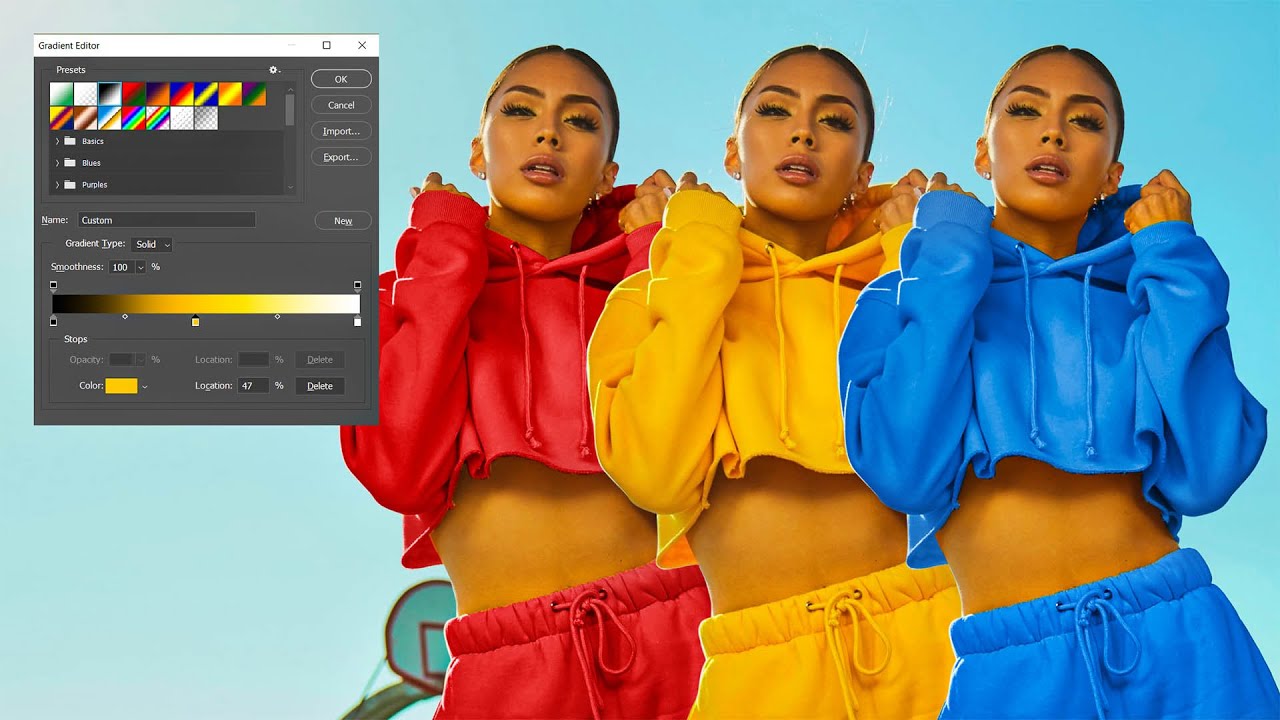
In this fun tutorial I will show you how you can change any color to any other precisely in Photoshop using gradient map adjustment layer.
Enjoy!
➤PATREON: https://www.patreon.com/nemanjasekulic
➤My Photoshop brushes: https://nemanjasekulic.com/product/cloud-dust-smoke-bru...
sly hawk
stone karma
You could probably clone and flip the one on the right?
sly hawk
stone karma
sly hawk
If you're planning to use this AI generated image for something, I'd suggest you remove and 're-type' the text, so it's less wonky...
 stone karma
Is there any way I can keep same text style
sly hawk
 sly hawk
stone karma
Is there any way I can keep same text style
sly hawk
stone karma
Is there any way I can keep same text style
Yeah, but you need to find a matching font first
Note that in the image above, I 'rounded off' the top.
and gave it a 'base' so it's not bleeding off the page
stone karma
U a wizard bro
sly hawk
AI helped...
 twin valley
Hi sorry to bother anyone but I wanted to know if someone can help me just change the color on the dragon to dark red and gold on the body. Really hoping the night setting make the color contrast work (:
 sly hawk
stone karma
Is there any way I can keep same text style
sly hawk
stone karma
Is there any way I can keep same text style
Here are some font suggestions
 stone karma
sly hawk
stone karma
sly hawk
Any feedback on the logo in general from anyone?
Also @sly hawk what ram do I need to run photoshop
My laptop struggles with it
viral palm
vapid flume
**What font is** did find it though. It is often the best identifier for difficu...
Weird... I used What font is too with an increased contrast and inverted screen shot with no result... So my memory was more efficient on this one... L'exception qui confirme la regle 😉
sly hawk
stone karma
Any feedback on the logo in general from anyone?
This is pretty close
 sly hawk
stone karma
Any feedback on the logo in general from anyone?
sly hawk
stone karma
Any feedback on the logo in general from anyone?
As a 'Logo' I think it's absolutely terrible.
stone karma
Wdym, r u talking about font
viral palm
stone karma
My laptop struggles with it
Minimum 8GB but 16GB or more recommended https://helpx.adobe.com/ca/photoshop/system-requirements/2024.html
Photoshop 25.x system requirements
stone karma
sly hawk
As a 'Logo' I think it's absolutely terrible.
I'm thinking of selling perfumes, and this would be the branding on the box
sly hawk
stone karma
Is there any way I can keep same text style
You asked 'How do I keep the same text Style'
Ok, well it's ok for Box art, but not a logo.
Way too complicated for a logo
stone karma
Any way I could improve it?
stone karma
sly hawk
Way too complicated for a logo
Yh definitely
Wanna make something that stands out on the box tho
sly hawk
 stone karma
And looks masculine
sly hawk
Look at these. You'd literally recognise any of them, even without colour. - They're simple, vector style, not overly complicated
This one has a similar vibe, but less busy...
 stone karma
Thank you for the advice and help brother 🙏
stone karma
sly hawk
Just a quick q aswell, how come the bottom right wave and bottom left wave changed after u edited it
sly hawk
I used a bit of Generative fill at the bottom, just so it looked less 'cropped off'
but it looks like it messed it up a bit to be honest
stone karma
Any way I can fix that
sly hawk
sorry, going into a call
stone karma
No worries brother
viral palm
 round jolt
Question
round jolt
Question
???
round jolt
Are you good at photoshop
I am wondering how to fix lighting of specific sections and what to make my photo better
round jolt
Ok
 stiff valve
You can use curves


 round jolt
Can I dm you my picture
stiff valve
yes
viral palm
round jolt
Ok
Ask here rather DM... If someone else have a better solution than me he could reply too...
But first we need a better descritpion of what you want to fix...
Ideally, share the image with a clear description of what you want to do.
viral palm
round jolt
Can I dm you my picture
If you want but it"s better here to let other people help you too...
viral palm
round jolt
Apon
Are the three images on the same layer, or are they each on a separate layer?
The picture on the right looks over exposed and the left one under exposed.
If they are on their own layer try Filter/Camera Raw and hit the button Auto... That's a good way to start.
Change your pictures into a smart Object first and you'll can go back into Camera Raw filter and change settings without loosing the original quality of your images.
 proper dune
hello
round jolt
viral palm
Are the three images on the same layer, or are they each on a separate layer?
Th...
They are separate

Do you feel like it would look better for the photos to be separated or put next to each other
 stiff valve
naughty boyy
proper dune
like this but idk how they did it

 stiff valve
Just select the shirt and use like the image and hold ctrl (control) to position it like in 3d
 stiff valve
wait a moment
proper dune
stiff valve
wait a moment
thanks brother
fluid craneBOT
Gave +1 Creative Carma to @stiff valve (current: #970 - 1)
proper dune
i need to learn kit swaps but when i try warp ect i just get lost
stiff valve
you can use the selection tool to select the shirt and change its color with overlay
i ussualy do it using the layer style menu

 proper dune
stiff valve
you can use the selection tool to select the shirt and change its color with ov...
proper dune
stiff valve
you can use the selection tool to select the shirt and change its color with ov...
dont you need to use pen tool to outline the shirt?
stiff valve
not always
I dont like the pentool in photoshop i am used with the one in Adobe Illustrator and it gets pretty anoying
anyway i dont know how good this looks but if you hold control and you move the points you could do something like the thing you like

 proper dune
stiff valve
not always
proper dune
stiff valve
not always
ohh
wouldnt i need to cut out the white shirt ect and then warp it into the image?
stiff valve
wdym?
proper dune
like i have a red kit here
 stiff valve
you want to place the shirt on the lady or use it to place it on its shirt?
proper dune
wait how did you change the colour of the shirt?
proper dune
stiff valve
you want to place the shirt on the lady or use it to place it on its shirt?
like place it on the lady like shes wearing it ect
stiff valve
i selected the shirt and then in layer style color overlay i chose the color green and set the mode to overlay

 stiff valve
proper dune
like place it on the lady like shes wearing it ect
stiff valve
proper dune
like place it on the lady like shes wearing it ect
I dont really know how you can do that sorry dude
 proper dune
https://www.youtube.com/watch?v=ywrkAjIiwWY ill watch tutorial soon

First of the three part series how to jersey swap. This is one of the most important parts of sports graphic design. Being able to swap a jersey out is really fun and makes for great posts!!! If you have any questions please ask below.
thank you tho
i really appriciate you
stone karma
sly hawk
sorry, going into a call
Managed to fix it after a bit of struggle

How did u select the text?
stone karma
@sly hawk
 dry magnet
How would i be able to re-create this game retro game shelf in 1:1 format

I was able to do one for this toys r us shelf


Not the best but best I could do
I positioned everything so that I can just place any game, like this
 sly hawk
stone karma
How did u select the text?
sly hawk
stone karma
How did u select the text?
I didn't. - Just paint over it in black and type it back out again if you want it 'done properly'
 tacit hatch
Can anyone just remove the fish on the top, keep everything else?
 proper dune
sly hawk
I didn't. - Just paint over it in black and type it back out again if you want i...
proper dune
sly hawk
I didn't. - Just paint over it in black and type it back out again if you want i...
hey do you know how to kit swap?
tacit hatch
proper dune
hey do you know how to kit swap?
Hello could you help me with my image? I am completely new to PS
proper dune
tacit hatch
Hello could you help me with my image? I am completely new to PS
i am new too
 viscid fern
How do i merge these blue selections together
 twin valley
Hi sorry to bother anyone but I wanted to know if someone can help me just change the color on the dragon to dark red and gold on the body. Really hoping the night setting make the color contrast work (:

 tacit hatch
Can anyone just quickly remove the fish
 viscid fern
Here u go sir
 tacit hatch
viscid fern
Here u go sir
tacit hatch
viscid fern
Here u go sir
Oh nah hahaahaha
viscid fern
💀
tacit hatch
Please 😭 i tried AI, i tried doing it myself but im just too bad
tacit hatch
viscid fern
Here u go sir
This guy really put more effort into trolling me, than just doing my fish 😭 🤣
ripe quest
tacit hatch
This guy really put more effort into trolling me, than just doing my fish 😭 🤣
Really?
 ripe quest
round jolt
Can anyone help
ripe quest
round jolt
Can anyone help
What seems to be the problem?
tacit hatch
ripe quest
Really?
Please someone do it right 😭
ripe quest
tacit hatch
Please someone do it right 😭
Here ya go, pal. :)
 tacit hatch
Tysm👍
round jolt
ripe quest
What seems to be the problem?
I need to fix the saturation and color of my photos
proper dune
ripe quest
Here ya go, pal. :)
hi huamn i forgot how to kit swap again do you remember?
ripe quest
proper dune
hi huamn i forgot how to kit swap again do you remember?
I don't know what "kit swap" is. Sorry.
twin valley
round jolt
Can anyone help
Aw man no one came to help me neither ):
ripe quest
twin valley
Aw man no one came to help me neither ):
If people have project requests, they should post in the #💬chat-general channel. This channel is for helping people who are trying to learn Photoshop.
twin valley
ripe quest
If people have project requests, they should post in the <#548276405151203338> c...
I did and they said not to post there and go here
ripe quest
You post in the other channel and wait to see if anyone is interested in working on your project.
There is no guarantee anyone will do it.
This server isn't here to fulfill project requests.
ripe quest
round jolt
I need to fix the saturation and color of my photos
And what have you tried? Are you using Photoshop or Lightroom? You'll have to provide more information and/or examples of what you're referring to.
proper dune
ripe quest
I don't know what "kit swap" is. Sorry.
i want a shirt on this

like how do i put this red shirt and change the white shirt
 proper dune
ripe quest
I don't know what "kit swap" is. Sorry.
proper dune
ripe quest
I don't know what "kit swap" is. Sorry.
you helped me with it last time
how do i get an image inside a shirt so it looks like she is wearing it
viral palm
twin valley
Aw man no one came to help me neither ):
Honnestly what you're asking for is a bit tedious and need a huge amount of time to be done properly.
We're all volunteers, so I hope you'll understand that patience is sometimes required...
Try to play with a hue and saturation adjustment layer to change Yellow fur to red.
For the body a gradient map could be a way to get something looking as gold.
Not sure it's the best solution but it would be mine. But you must know that you will have to spend lot of time on masking.
I made rough masks for the video but I don't have time to make all the dragon...
twin valley
viral palm
Honnestly what you're asking for is a bit tedious and need a huge amount of time...
Apologies I don’t mean to approach it as hustling or wanted it to make it harsh I really did tried but I didn’t have the proper tools to making it and I’m new to this myself what I wanted, that’s why I wanted to come join and hoping to see some nice people give a helping hand. When I saw people posting about their projects I proceeded with my post, but thank you for your time on this tho! The vid gave me helpful tutorial on masking I appreciate it!
fluid craneBOT
Gave +1 Creative Carma to @viral palm (current: #9 - 712)
hushed niche
proper dune
how do i get an image inside a shirt so it looks like she is wearing it
Hi, what did you do so far with the techniques you learned the first time?
In this case the pose is totally different to the flat shirt. The easiest would be to color her shirt in red.
https://www.youtube.com/watch?v=syUYNIgram0
Then place the logos and warp them to fit.
https://m.youtube.com/watch?v=gPK2YxWYE6Q&pp=ygUKI3dyYXBpbWFnZQ%3D%3D

How to instantly change the color of anything in Photoshop, no selections required. Even change color to black or to white. Colin Smith shows you in this Photoshop tutorial.
► Free Photoshop add ons: https://photoshopcafe.com/vault
► THE GEAR I USE: https://www.amazon.com/shop/photoshopcafe
► THE MUSIC I USE: http://share.epidemicsound.com/p...

Colin Smith shows you how to wrap anything around an object in Photoshop 2021 with the new photoshop 22.5 features for split warp. Faster than displacement maps, add a logo to clothing.
► Link to photo used: https://photoshopcafe.com/easily-wrap-art-clothing-new-feature-photoshop-split-warp/
► Advanced Split warp tutorial:https://www.youtube....
Kit swap photoshop tutorial gives lots of results such as https://www.youtube.com/watch?v=FZGx3CK_OwI watch a few of them to learn the different techniques.

What's up guys!
Hope you enjoy this kit-swap design run-through on Anthony Gordon to Liverpool (Concept design obviously). Let me know your thoughts on the design below and if you have any video requests drop them in the comments below as well!
Thanks for watching and have a good week! Until next time.
Boss Designs
Music - https://artlist.io
proper dune
Like I forgot how to put a image on a shirt
Where it’s still showing like the creases ect
I have watched so many tutorials and Iam so confused
hushed niche
Most of the techniques in Photoshop will revolve about masking. Those are some of the best 3 videos everyone should watch, beginner or expert to master masking and progress super fast!
1: https://www.youtube.com/watch?v=2LO4FMCk-V4
2: https://www.youtube.com/live/kiJaxqQMij0?si=wLLeC65aw2pBPITT
You're new to Photoshop and don't know where to begin? Tim will guide you through the most important features in Photoshop to get you up and running with your first edits in no time! Join the live chat to ask questions.
The Adobe Live team is streaming on Monday, Tuesday, Wednesday and Friday from 12 pm onwards and supplies you with the b...

Take the guesswork out of masking out objects and people. Here are some cool ways to use Layer Masks and more in Photoshop.-----The Adobe Live team is stream...
Tune in to this advanced Photoshop crash course to find out why you (sometimes) shouldn't be using layer masks - hosted by Tim Möbest.
The Adobe Live team is streaming on Monday, Tuesday, Wednesday and Friday from 12 pm onwards and supplies you with the best tips, secret tricks and infinite inspiration revolving around your favourite Adob...
proper dune
hushed niche
Most of the techniques in Photoshop will revolve about masking. Those are some o...
Is what I am trying to do easy?
hushed niche
What you think you want to do (place the red shirt on a posed body) is way more difficult than what I suggest (color the shirt, and place and warp the logos)
BTW, is the image with the white shirt an image you took, and have the rights to modify?
 plain pond
Is it possible to make ongoing serial numbers in Photoshop or do I have to change the number and save it Everytime ?
hushed niche
plain pond
Is it possible to make ongoing serial numbers in Photoshop or do I have to chang...
Hello, I would not use Photoshop for that, but if it is all you have, Variables might come to help: https://youtu.be/Acjn7HoqrJ8?si=KVzaXPWdDC03gQeu

Generate 1000s of customized graphics with custom text, images, and properties automatically using the unbelievable power of the "Variables" feature in photoshop! Learn how to create multiple business cards, certificates, book pages, or any graphic template completely automatic with any data or custom content of your choice.
In this tutorial, w...
slim moon
viral palm
Looks like "Ailerons"... Google it you'll find it...
thank you
fluid craneBOT
Gave +1 Creative Carma to @viral palm (current: #9 - 713)
slim moon
is it always like that with photoshop? When it loads in its very slow and there is a delay on when you click on something. After couple of minutes its fine.
vapid flume
slim moon
is it always like that with photoshop? When it loads in its very slow and there ...
No, but some things might affect it
Starting screen/ loading: Having lots of fonts, patterns, brushes really slows down things. Think about all the elements and presets PS has to load versus the general performance of your computer.
This is the go-to link to increase performance
https://helpx.adobe.com/uk/photoshop/kb/optimize-photoshop-cc-performance.html
Tweak your operating system, hardware, and application settings to help your computer run Photoshop stably at the optimum speed. If Photoshop is running slower than expected on your computer, or if you're experiencing system freezes, lags, or delays while using Photoshop, try the tips and techniques outlined in this document.
it has a lot to do with your GPU and its compatibility, PS access to the RAM as well as scratch disks, and of course the kind of effects, filters, the number of layers etc you use
For example, things like the liquify filter are hungry, if you find that you get slowed down by using certain filters like this one, you may have to check if everything is well adjusted, or beef up the computer.
plain pond
hushed niche
Hello, I would not use Photoshop for that, but if it is all you have, Variables ...
That worked wonderful. Thank you.
fluid craneBOT
Gave +1 Creative Carma to @hushed niche (current: #14 - 168)
 high hollow
Anyone have a clue whats going on with my photosp shortcuts. ctrl, alt, space keys are working none of the letter chars are working. I did already do normal stuff. reinstall photoshop, reset preferences. closed most of the other programs. updated wacom drivers. etc. I am not sure when it started... I use this thing professionally, but I have had now a period. I've not touched it. using win10
All of the other software is working perfectly. So it is very unlikely that this is a hardware problem. However I do have new keyboard Keychronic q6, which I got during the time period I wasn't working with photoshop. My previous logitech mx keys does not work either atm. I have changed language settings in windows and that does not have any effect.
vapid flume
high hollow
All of the other software is working perfectly. So it is very unlikely that this...
I am not familiar with that keyboard or have had any issues with Photoshop keyboard shorts misbehaving in the past, but typing your keyboard returned some posts about people having similar issues
I can share links about restoring keyboard shortcuts, but I cannot vouch for them as I didn't experienced this issue

https://community.adobe.com
2018 intel mac mini macOS 13 ventura (occurred with macOS 12.xx too) Ever since the released of ps2022 and beyond, keyboard shortcuts do not behave consistently. In one good bit of news, ps2023 has this occur far less often but it still remains roughly 20% of the time. What is happening is when I ...
https://community.adobe.com
Hi instead of resetting prefs, let's try to manually reset which can solve many issues... Let's make sure we're in a default state and there are no stale settings somewhere: Restore your preferences using this manual method: https://helpx.adobe.com/photoshop/using/preferences.html#Manually D...

This tutorial teaches you a few ways to troubleshoot when your keyboard shortcuts are not working in Adobe Photoshop.
Here is a quick summary:
- Make sure you are actually in Photoshop
- Confirm you have the correct layer or thing selected
- Ask yourself if the layer or thing you have selected can actually do the shortcut you are hitting?
4....
I would check in your keyboard manufacturer forum/help files if they mention it. Like a problem with the KB driver remapping PS shortcuts etc.
high hollow
Ok I actually now fixed it after writing all of this. So I had to change my windows language to english (United States) As display language. and it started working. I am not sure if there has been a update which did break things. But currently with my setup photoshop doesn't work with my native language.
vapid flume
Oh I see! It happens sometimes with shortcuts that are US keyboard exclusive, but I never heard it happening with all the keys. The culprit are generally ¬ or ~, on certain KB mapping (like French) there are just not available, with no alternative.
high hollow
I have been using photoshop from pre cs times.
I have a feeling that things are not improving
vapid flume
I started with Photoshop 2.5 and things have improved a lot 🙂 (but so have computers)
high hollow
ok
vapid flume
If you use Bridge, you will see that they enabled a new style of KB shortcut management, inherited from Premiere pro (and possibly After Effects, I am not sure) and that reallly, really simplifies this. Now I wish it could be made available for Photoshop as well. I know it's been requested, and that the team is aware of that request.
The issue is that most wanted features are never raised in the feature requests on the Community forums (I am guilty as hell)
Meaning that there is no strengh in numbers if only one person raises an issue.
And it's particularly blatant in Photoshop because historically, it has a user base extremely resistant to change (on par with InDesign with this)
So there is no incentive to update features that aren't heavily requested (and I would argue that some changes feel like they are coming from nowhere, without any real consultation from the users....)
hushed niche
I try to visit the ideas section regularly, and sometimes promote some of them on social media. Lately, I liked this one: (an annoyance but still many could do without the Ctrl+0 each time they crop) https://community.adobe.com/t5/photoshop-ecosystem-ideas/fit-image-to-screen-after-cropping/idc-p/15162001#M24757
https://community.adobe.com
Thanks! Indeed, that said for the usefulness of the SEM, having a longer built-in list would be a plus!
 young trout
Anyone know how to fix it that selected gradient is diffrent

 void sage
How to do a stylized text in photoshop?
 torn condor
is this manually streched Helvetica font, or it is some other font?

 rotund grail
so found another video from this person having this banding even in color hub, how does one get this affect?
 hushed niche
young trout
Anyone know how to fix it that selected gradient is diffrent
hushed niche
young trout
Anyone know how to fix it that selected gradient is diffrent
Hi, the pink area? Does it transfer on the image? Might be a preview bug if not
hushed niche
torn condor
is this manually streched Helvetica font, or it is some other font?
Hi, I’d Use whatfontis or what the font to find out.the proportions seem correct, if stretched, it’s only very mild.
You could try to posterize or reduce the numbers of colors in a gif export?
hushed niche
void sage
How to do a stylized text in photoshop?
Hi! It all depends the style you are after… any examples?
void sage
hushed niche
Hi! It all depends the style you are after… any examples?
Something like this
 rotund grail
hushed niche
You could try to posterize or reduce the numbers of colors in a gif export?
rotund grail
hushed niche
You could try to posterize or reduce the numbers of colors in a gif export?
did make a posterize layer and painted underneath which did make the idea i had ring true, only one problem, when it comes down to colors it will read the wrong colors when i posterize.
the way this guy has it setup, whenever he using an airbrush it already comes porsterize making blending so much easy, let me send a video
hushed niche
void sage
Something like this
Hi, it looks 3D something Photoshop does not have (anymore) I’d look at illustrator for that: https://helpx.adobe.com/illustrator/using/create-3D-text.html
Learn easy and quick ways to create 3D text effect in Illustrator.
hushed niche
rotund grail
did make a posterize layer and painted underneath which did make the idea i had ...
They might be working in greyscale?
hushed niche
rotund grail
did make a posterize layer and painted underneath which did make the idea i had ...
And it might be an artifact of the video compression!
rotund grail
the banding allows for control, easier to see the values when using airbrush
young trout
hushed niche
Hi, the pink area? Does it transfer on the image? Might be a preview bug if not
Any solution
hushed niche
young trout
Any solution
We can’t help you if you do not answer to those questions.
You could try to reset the gradient tool in the option bar, right click on its icon. Or reset Photoshop’s preferences manually by dragging the preferences folder to the desktop. This way you can copy them back if it does not work: https://helpx.adobe.com/photoshop/using/preferences.html#Manually
Learn how to access and modify Photoshop preferences and customize per your frequent workflows
 mellow rampart
Hey guys, really really new to Photoshop and have to recolor a couple images for work. Image quality isn't perfect and have to go pixel by pixel with the brush for some which I feel like is making the image look inaccurate. Would love any assistance if anyone is willing to help
hushed niche
Can you post some?
 flat seal
Hello, can someone help me on how to use auto blend because when i try to do it myself, the result will always be like this
 hushed niche
flat seal
Hello, can someone help me on how to use auto blend because when i try to do it ...
hushed niche
flat seal
Hello, can someone help me on how to use auto blend because when i try to do it ...
Auto blend was made to mix images that were closely related, but many users expect it to automagically blend anything together. Hence the many masking methods. Scroll higher in the thread, I’ve shared several masking tuts. #❓ask-a-question message
flat seal
Alright, thanks
 ionic spoke
mellow rampart
Hey guys, really really new to Photoshop and have to recolor a couple images for...
ionic spoke
mellow rampart
Hey guys, really really new to Photoshop and have to recolor a couple images for...
@mellow rampart ^ not sure if you got notified but it looks like @hushed niche is willing to assist
hushed niche
flat seal
Alright, thanks
Think panoramas, etc.
hushed niche
ionic spoke
<@950154328264564737> ^ not sure if you got notified but it looks like <@7104550...
If I still have a connection, am in the train, heading to my hometown for carnival!
hushed niche
flat seal
Alright, thanks
Look also for compositing tutorials: https://www.youtube.com/watch?v=KmWMQtkYkEE
Begin your compositing journey in this introductory follow-along lab. Every day, we are exposed to a proliferation of images of people or objects placed on different backgrounds. This is what compositing is — the art of combining photos to create realistic images or surrealistic works of art. Learn how you can use Photoshop to create those seemi...
ionic spoke
hushed niche
If I still have a connection, am in the train, heading to my hometown for carniv...
Have fun! I can try to help, looks like you provided one of the tutorials i was going to send already though haha
hushed niche
young trout
Anyone know how to fix it that selected gradient is diffrent
It also depends of the settings of the other effects.
hushed niche
ionic spoke
Have fun! I can try to help, looks like you provided one of the tutorials i was...
Which one? To another user, I guess. Please stick around, helping others is one of the best ways to learn!
ionic spoke
hushed niche
Which one? To another user, I guess. Please stick around, helping others is one ...
Oh, nevermind I forgot which user I was talking about. I see. Yes, I agree, teaching/helping others always ends up with teaching myself a better way to complete/explain a task
 vital barn
how to enable 3d in photoshop 26.3?
 tame cape
vital barn
how to enable 3d in photoshop 26.3?
tame cape
vital barn
how to enable 3d in photoshop 26.3?
The functionality was removed from Photoshop and partially integrated into Illustrator.
You could install PS 22.2
This is the last PS version with 3D functionality.
 vital barn
tame cape
The functionality was removed from Photoshop and partially integrated into Illus...
vital barn
tame cape
The functionality was removed from Photoshop and partially integrated into Illus...
Okay, thank you very much!
fluid craneBOT
Gave +1 Creative Carma to @tame cape (current: #17 - 141)
 amber geyser
Hello guys, does anyone have like a really good photoshop app that is free, because my subscription is over and I'm kind of broke to get another one so like, if you can answer I would love that, if its against the rules mods can remove this message. Thank You In Advance! 
 polar swallow
can someone help me to make this text style in photoshop? (ping me if you can)
 stone karma
Managed to fix it after a bit of struggle
stone karma
stone karma
Managed to fix it after a bit of struggle
Is there any way I can turn into text and keep same colours @sly hawk I want it to look exact same as the ai but just sharper by using real letters
proper dune
Hello anyone help me
im trying to get an image in the white shirt so it still has the lines and stuff in it but idk how to

its something to do with pen tool but idk
 plucky lantern
I've been enjoying using Photoshop as a graphic designer, but I feel the program could benefit from more functionality, a better GUI, and improved quality-of-life features. I've been researching plugins or extensions that could enhance Photoshop, but I haven't found anything useful so far.
I’m not looking for anything specific—I just want to see if anyone knows of quality-of-life mods or tools that improve Photoshop and make it more efficient.
 wraith gulch
Hey, any recs for standalone apps or methods for Color libraries? (not just the very basic ios ones)
 zenith hatch
anyone know how i can do this effect on an image? I used dropshadow but idk how to get it like this
 wraith gulch
@zenith hatch which image?
zenith hatch
wraith gulch
<@412904674467774465> which image?
the image i put here is the image with the example, i want to copy that effect on a different logo but how do i do that?
wraith gulch
I mean the one you want it on, sorry!
zenith hatch
its just a different letter lmao
wraith gulch
but the effect you'll need depends on what it looks like now lol
zenith hatch
wait let me make it easier
i have this right now

how could i copy that effect on it
wraith gulch
perfect, that's what I meant haha
I would do a combo of both dropshadow and outer glow
zenith hatch
i tried this for drop shadow, but i want the long lines
 wraith gulch
duplicate it
zenith hatch
 wraith gulch
can we see with the dark bg?
zenith hatch
 wraith gulch
try doing a gradient on top
zenith hatch
wdym?
wraith gulch
also the shadow needs to be larger
zenith hatch
wraith gulch
also the shadow needs to be larger
larger on both layers?
wraith gulch
definitely on the back layer
zenith hatch
smt like this
 wraith gulch
I like that a lot
I think you just need it to look like a spotlight is highlighting parts of it
zenith hatch
im ngl, seeing it on a darker background make it 10 times better already
zenith hatch
wraith gulch
I think you just need it to look like a spotlight is highlighting parts of it
ye, that was the reason i came here because i have no clue how to start it
do i just take a new layer and brush it down or smt?
 zenith hatch
got the gradient ye, but was asking more about how to put it
wraith gulch
depends what your gradient library is like
zenith hatch
just the basics and some i needed for other projects
wraith gulch
do you want the lighter background like in the goal image?
zenith hatch
no, background doesnt matter
specifically the effect of how it looks like there's a light outside of the image
 wraith gulch
That's what the gradient is for
but for that you can also try Outer Glow
duplicate another but without the previous dropshadow
not stark white but ivory or cream
and very diffused and small size
sly hawk
zenith hatch
i am tempted to just hand draw it because its not really working out
Yeah, I don't think any single, (or multiple sets of) layer effects will give you you this natural looking shadow
hushed niche
proper dune
im trying to get an image in the white shirt so it still has the lines and stuff...
The pen tool has no bearing to the shadows coming through. A blending mode might. What have you done so far? Did you check my previous message ? #❓ask-a-question message
Last Time did you follow other’s guidances, or did you have someone do it for you, and you expect the same this time ? Then, be clear and post on general chat, as this Channel is dedicated to learning.
sly hawk
zenith hatch
i have this right now
I'd probably do it like this....
Maybe then lock the layers, then make a NEW shadow layer and focus on doing the same thing for the F letter too...
 sour wedge
Ive switched over from canva to photoshop, im trying to replicate the border outline
anyone have any ideas? i had a look online, and seen that most people just use rectangles to create things like this, but i would have to use two of them and probably it would look funky

thats what ive got now

I tried using Layer Stroke but that only outlines the text by its shape
 astral lion
So I've had an issue for a few days with my images (after exporting) seem to have a very thin white outline around them and its been really bugging me as I cant seem to fix it or find a fix on youtube, I have however narrowed it down to know for a fact it seems to happen during the exporting stage but again, cant figure out why, im essentially taking png images into photoshop then ill remove the bg and crop the image, then when exporting i make the image size smaller and change format to a GIF (which in the preview looks fine with no white outline) but then of course after the export is when I see it, hopefully someone might know a trick or tip I haven't tried seen online yet?
sly hawk
sour wedge
Ive switched over from canva to photoshop, im trying to replicate the border out...
So you want the box to appear 'automatically' based on whatever word you type?
I used something like this when doing artwork for the OU:

I think it was in INDESIGN though
sour wedge
thats exactly what im after yes
sly hawk
If I recall, it was done as an 'Underline' with some obviously over exgerated stroke widths, margins and padding.
zenith hatch
sly hawk
I'd probably do it like this....
im following ur steps but i have an issue with the outer glow
I did everything you did (p sure) and i get this result

its in dutch btw, sorry for that
sly hawk
zenith hatch
im following ur steps but i have an issue with the outer glow
lol, it's ok
I was going to guess....
your MAX size, is still not big enough?
sly hawk
oh it's not that
I think you just need to make the colour more grey, and less black
and make the the OUTER GLOW bigger
zenith hatch
do i just do the spread?
sly hawk
(Groottee = 100
 sly hawk
Remember my version was done on your screengrab

so your, presumably higher res logo, will need different numbers
sly hawk
yeah, so pretty much DOUBLE mine
sly hawk
so make sure the pixel glow/size is double mine too
sly hawk
sour wedge
thats what ive got now
I did manage to add padding to the left and righr sides too, but can't remember how...
 wanton geyser
but i want the layer NOT to be effected by hue/sat
 vital sigil
hey whats the best way I can drag a png and put it on top of a mountain of powder?
i want to add more background or have it floating on top of powder like the second photo but i cant seem to figure out how, all the generations dont look good

 sly hawk
sour wedge
where did you fin that drop box?
sly hawk
sour wedge
where did you fin that drop box?
That's in INDESIGN, not photoshop
sour wedge
oh
tame cape
sour wedge
Ive switched over from canva to photoshop, im trying to replicate the border out...
Hi @sour wedge
In older InDesign versions, I would also fall back on @sly hawk very good suggestion.
In addition: Since a few versions there is an even better possibility -> the Paragraph Shading in the paragraph style. Very flexible and quite intuitive. Just try it out.
🆔

 stuck crane
oop- sorry I just saw this was a thing. Im trying to figure out how to edit this image out of the background as I want to use it as part of a phone case. Is there amore precise effective way to do rather than mass Eraseing the background with Eraser tool?

because it took me a very long time to do even this and its not smooth
 sly hawk
tame cape
Hi <@857501589844262913>
In older InDesign versions, I would also fall back on ...
sly hawk
tame cape
Hi <@857501589844262913>
In older InDesign versions, I would also fall back on ...
WOAH WOAH! - What's this?
sour wedge
i will try this, thanks pixxel and james
i wanted to ask you as well

im trying to get rid of the outline on the object
as u can see the 1px border pixel
these properties are seen when inputting a new image into ps

but when its already there this is all ive got:
 sly hawk
tame cape
Hi <@857501589844262913>
In older InDesign versions, I would also fall back on ...
sly hawk
tame cape
Hi <@857501589844262913>
In older InDesign versions, I would also fall back on ...
Um, I can't 'wrap' it around the letters?

What am I missing?
 sly hawk
stuck crane
oop- sorry I just saw this was a thing. Im trying to figure out how to edit this...
sly hawk
stuck crane
oop- sorry I just saw this was a thing. Im trying to figure out how to edit this...
You may not need to clip it at all
Do you need to PRINT it with a transparent background? or are you planning to place it over another layer?
A multiply effect could do it?
stuck crane
I wanna place it with some other images
on my phone case
to sorta get a matching phone case to a friend of mine hang on let me get her phone case

so this is her phone case
and I wanna do the same sort athing
So i guess teh answer to your question is place over another layer?
 stuck crane
how da heck did you do that
sly hawk

Here we have the WHITE being transparent, but the dirt remains
This is known as a MULTIPLY Blend Mode
stuck crane
ngl i kinda like the dirt and shadows coming off
stuck crane
How do you add the new layer for a different color?
(sorry this is my first day using PS every)
oh wait i foun dit
tame cape
sly hawk
What am I missing?
Hi James
A shot in the dark: Shift+Enter ≠ Enter
sly hawk
tame cape
Hi James
A shot in the dark: Shift+Enter ≠ Enter
A forced linebreak? doesn't do anything differently?
 sonic leaf
anybody know how to make a patch work brush or a way just to make patch text like this in photoshop ?
 tame cape
sly hawk
A forced linebreak? doesn't do anything differently?
tame cape
sly hawk
A forced linebreak? doesn't do anything differently?
A forced line break? Do it differently!
An end of paragraph? Makes it correct.
Background:
It is the shading of an entire paragraph. A forced hard line break does not end the paragraph. This keeps the shading over the lines as long as the longest line.
sly hawk
tame cape
A forced line break? Do it differently!
An end of paragraph? Makes it correct.
B...

 tame cape
sly hawk
tame cape
sly hawk
Replace the spaces at the end of each line with the end of the paragraph [Enter].
sour wedge
is it possible to constrain a text to a shape
sly hawk
ooohh...
sour wedge
e.g
 sonic leaf
stuck crane
how would I go about added a curved text to the bottom of it?
sonic leaf
stuck crane
how would I go about added a curved text to the bottom of it?
add a text , warp it
sly hawk
tame cape
Replace the spaces at the end of each line with the end of the paragraph [Enter]...
You mean make every line it's own para
 sly hawk
tame cape
Replace the spaces at the end of each line with the end of the paragraph [Enter]...
sly hawk
tame cape
Replace the spaces at the end of each line with the end of the paragraph [Enter]...
mmm..

those are now individual paras
tame cape
sly hawk
mmm..
ID 20.1 file
(see "Absatzformat 2")
sonic leaf
anybody know how to make a patch work brush or a way just to make patch text like this in photoshop ?
 sly hawk
tame cape
ID 20.1 file
(see "Absatzformat 2")
sly hawk
tame cape
ID 20.1 file
(see "Absatzformat 2")
AH!

It was a combination @tame cape
I needed to make each line it's own para, AND set this here too
Wow, my colleagues used to waste HOURS AND HOURS of time dicking about with those boxes behind headlines for press, and ourdoor ads.
Checking the X height, spacing etc...
Thanks @tame cape
fluid craneBOT
Gave +1 Creative Carma to @tame cape (current: #17 - 142)
tame cape
sly hawk
I needed to make each line it's own para, AND set this here too
Exactly.
You have already set this setting.
#❓ask-a-question message
sly hawk
Yeah, I guess it switched it at some point, when I was playing 🙂
tame cape
sly hawk
Yeah, I guess it switched it at some point, when I was playing 🙂
😅
That's why I was a bit confused.
tame cape
sly hawk
---
Wow, my colleagues used to waste HOURS AND HOURS of time dicking about with ...
I am just as happy to answer questions about InDesign as I am about Photoshop.
And the only golden rule is: always work with formats in ID and know someone who is familiar with Grep/Regex
stuck crane
and one final question. How do i save it without the squares in the background?
tame cape
sour wedge
is it possible to constrain a text to a shape
@sour wedge
Unfortunately, I do not understand your question. The two pictures below do not contribute to a better understanding without further explanation.
 ivory sentinel
I'm editing a raw file in black and white in Adobe camera raw. How do I ensure that the image doesn't get converted to grayscale when I open it in photoshop so I can apply a color gradient map to it later?
sour wedge
tame cape
<@857501589844262913>
Unfortunately, I do not understand your question. The two...
If this makes it easier
have a look at this photo

see how the

see how the letter c is wrapped in the triangular wedge shape
it looks like its constrained to the shape if that makes sense
tame cape
sour wedge
it looks like its constrained to the shape if that makes sense
🆔
Like that?

 sour wedge
yep
exactly like that
how did you manage that? I tried with the Pen tool
Maybe I am selecting wrong
tame cape
sour wedge
how did you manage that? I tried with the Pen tool
🆔
yep.
- Draw your shape.
- Select your text field (e.g. ‘ASC’) with the selection tool and press Ctrl+X (cut)
- Select your drawn shape and press Alt+Ctrl+V (means: paste into selection - or similar)
astral lion
So I've had an issue for a few days with my images (after exporting) seem to have a very thin white outline around them and its been really bugging me as I cant seem to fix it or find a fix on youtube, I have however narrowed it down to know for a fact it seems to happen during the exporting stage but again, cant figure out why, im essentially taking png images into photoshop then ill remove the bg and crop the image, then when exporting i make the image size smaller and change format to a GIF (which in the preview looks fine with no white outline) but then of course after the export is when I see it, hopefully someone might know a trick or tip I haven't tried seen online yet..
viral palm
astral lion
So I've had an issue for a few days with my images (after exporting) seem to hav...
THe line is around the image or around the subject?
tame cape
sour wedge
Maybe I am selecting wrong
🆔
Please delete the shape(s) and then create it again. (It seems that the form exists at least twice).
astral lion
viral palm
THe line is around the image or around the subject?
Sorry, the subject
sour wedge
tame cape
🆔
yep.
- Draw your shape.
- Select your text field (e.g. ‘ASC’) with the **sel...
by selection tool you mean the object selection tool right?
and which layer does the pen tool have to be used on
the text i presume
got it
finally thank you
viral palm
astral lion
Sorry, the subject
I'm searching a way to make it work... It does the same on my end...
I'm curious to know why you<re trying to change a png to a small gif...
png gives you a better outline definition and you can keep the transparency around your subject.
astral lion
viral palm
I'm searching a way to make it work... It does the same on my end...
I'm curious...
Well without boring you with all the fine details I'm using the images on a video game I play and unfortunately they must be gif format, please let me know if you manage to find a fix, I'd be forever grateful!!
viral palm
astral lion
Well without boring you with all the fine details I'm using the images on a vide...
OK! I understand why GIF now...
viral palm
astral lion
Well without boring you with all the fine details I'm using the images on a vide...
OK @Sam. I found a way to fix this issue.
In "Save for web" window set the "Matte" to "None"
 ivory sentinel
I'm editing a raw file in black and white in Adobe camera raw. How do I ensure that the image doesn't get converted to grayscale when I open it in photoshop so I can apply a color gradient map to it later?
astral lion
viral palm
OK @Sam. I found a way to fix this issue.
In "Save for web" window set the "Matt...
Hmm I already tried that and it didn't seem to work, it helped but didn't remove it annoyingly, I wonder if it's maybe something to do with my 150x150 image size? I looked at your export settings in the video and it looks like a straight up match to what I was also using
viral palm
astral lion
Hmm I already tried that and it didn't seem to work, it helped but didn't remove...
Are you trying to downscale on the export? Perhaps try to scale down the outlined character/object before the export... Possible for you to share the picture you're trying to export? (Before downscale)
twin valley
viral palm
Are you trying to downscale on the export? Perhaps try to scale down the outline...
Hi sorry to bother you again but Do you still have the picture of the red and gray/gold pic from the other day
viral palm
twin valley
Hi sorry to bother you again but Do you still have the picture of the red and gr...
No...Sorry I didn't save it...😩
But I didn't delete the video capture so you can recover the settings used on this video.
twin valley
viral palm
No...Sorry I didn't save it...😩
But I didn't delete the video capture so you c...
Oh cause I really tried to sc to try and work on it and it just doesn’t come up properly. No worries ty for your patience.
fluid craneBOT
Gave +1 Creative Carma to @viral palm (current: #9 - 714)
viral palm
twin valley
Oh cause I really tried to sc to try and work on it and it just doesn’t come up ...
You can find here 2 versions. One with settings used in the original video, one with a Color lookup adjustment layer set on "Drop Blue"... I share the psd file if you want to check deeper and a quick video to show you how to preview the different Color lookup settings... Check all of them there are few interresting results. Hope it will help🤞


 twin valley
viral palm
You can find here 2 versions. One with settings used in the original video, one ...
twin valley
viral palm
You can find here 2 versions. One with settings used in the original video, one ...
YOURE LITERALLY A GOAT WTF
@viral palm ty you made my day (:
fluid craneBOT
Gave +1 Creative Carma to @viral palm (current: #9 - 715)
viral palm
twin valley
<@698155393649475695> ty you made my day (:
Happy to hear that 😉
 river otter
how can i make like a watermark like this where its formed into a object like a heart
 viral palm
river otter
how can i make like a watermark like this where its formed into a object like a ...
viral palm
river otter
how can i make like a watermark like this where its formed into a object like a ...
You can try to use liquify like in this short video.
I would suggest you to place your letters individually (rather the whole text as shown in the video) to get a better control.
So change your letters or text in Smart Object then go to Filter/Liquify and use "Forward warp tool" (video) to shape letters like you want. Pucker Tool or Bloat Tool can be useful too in your case.

 misty grotto
Anyone know if the effect on the left is possible to do on photoshop, and if so what’s the process
 hushed niche
wanton geyser
but i want the layer NOT to be effected by hue/sat
hushed niche
wanton geyser
but i want the layer NOT to be effected by hue/sat
Then place that one outside of the clipping mask. Please post another capture showing the one you do not want affected.
Or select its opacity (Ctrl+click on thumbnail) then create a mask on the hue/sat.
hushed niche
tame cape
Hi <@857501589844262913>
In older InDesign versions, I would also fall back on ...
Remember that Canva is a competitor to PowerPoint vs than Photoshop not all features can be replicated. That said it might be good to post a feature request for text highlighting/blocking at: https://community.adobe.com/t5/photoshop-ecosystem/ct-p/ct-photoshop?page=1&sort=latest_replies&filter=all&lang=all&tabid=ideas especially as similar features even exists for premiere pro titles.
https://community.adobe.com
Master Photoshop with the help of our global community.
hushed niche
stuck crane
and one final question. How do i save it without the squares in the background?
Hi, the squares indicate transparency. So there will be nothing if you save as a format that supports it (not JPG) like PNG. Do also save the image as PSD to be able to re-edit if needed. Some reading: https://www.photoshopessentials.com/basics/
Photoshop Essentials
New to Adobe Photoshop? These Photoshop Basics tutorials for beginners from Photoshop Essentials will get you started with Photoshop quickly and easily.
hushed niche
ivory sentinel
I'm editing a raw file in black and white in Adobe camera raw. How do I ensure t...
Hi, you can convert greyscale to RGB via the edit>mode menu, then, you’ll be able to apply the color gradient map.
hushed niche
astral lion
So I've had an issue for a few days with my images (after exporting) seem to hav...
Sorry did you have earlier posts on the same topic, or was it someone else. If it was you, please link to it, so that we do not repeat previous suggestions.
hushed niche
misty grotto
Anyone know if the effect on the left is possible to do on photoshop, and if so ...
Hi, convert to bitmap and use a halftone screen to dither: https://skillforge.com/use-bitmap-mode-photoshop/ or https://youtu.be/q2bRIH1x6J4?si=JVn3zvUnP7gSU3AY


📥 Download over $5,000 worth of premium design resources: https://spoon.graphics/membership
In today’s tutorial I'm going to show you how to create detailed pixel effects just using Photoshop’s Bitmap conversion tool. By configuring a few simple settings, you can easily create retro-style artwork just like old 8-Bit game screens. I’ll first show...
 twilit nest
Hi there! How could I merge my fruit in 1 layer (separated from the background) and still keep the yellow layer with multiply mode? Thanks!
 vapid flume
twilit nest
Hi there! How could I merge my fruit in 1 layer (separated from the background) ...
vapid flume
twilit nest
Hi there! How could I merge my fruit in 1 layer (separated from the background) ...
Merging will annilhiate the blending mode, so that's a tricky one. Why exactly do you need to merge it? Can you turn it into a smart layer instead? (Usually merging is kind of last resort, we generally avoid merging)
twilit nest
hello Sandrine, on se retrouve 🙂
I need to deliver separately my (flat) illustrations, and the background may be edited directly by my publisher
vapid flume
OK... Let me think
Can you remove the background entirely, create your illustration and then craete a new layer from merged?
Bear with me.:
1- remove the background or hide it if it's already on its own layer. You will need to get 3 layers there, one for each orange and one for the background. The last one hidden
2- place your oranges as they should, including the blending mode
3- hit those 3 keys at the same time CTRL+SHIFT+ALT+E (yes you need big hands)
You will get a copy of the other two layers, as a comp, the blending mode should be embedded there
Delete your two other layers, reinstate your background and save it as a copy, don't overwrite this one as you will lose it
Let me know if that works
If you're on a Mac it's OPT+MAJ (in French) + CMD+ E
twilit nest
Thank you! Let's try this witchcraft!!!
 twilit nest
Sadly I tried many times but I think it doesn't work
 vapid flume
twilit nest
Sadly I tried many times but I think it doesn't work
vapid flume
twilit nest
Sadly I tried many times but I think it doesn't work
Does the blending mode acts on the background as well?
Because if that's the case, then it won't work (since we remove the background)
If you need the background to interact then it won't work bacse the effect will be different everytiome they decide to change the background
Where is that multiply blending mode?
Also what did you obtain?
vapid flume
 plain sparrow
It could be a different file format, renamed as a PNG. The name id irrelevant. Does it open with Adobe Bridge?
vapid flume
twilit nest
Sadly I tried many times but I think it doesn't work
A screenshot would help as well
If nothing works, save it as is, as a copy, merge it, remove the background. Create a new background the same colour something the publisher can easily reproduce and give it to them like that. However, as always if the blending mode needs to intercat with the BG, then no luck, you cannot merge it and expect the same results
You can send me the PSD if you prefer
twilit nest
vapid flume
Does the blending mode acts on the background as well?
Because if that's the cas...
When i merge my oranges with OPT + MAJ + CMD + E, it's the same result as a "simple" merging. The yellow (multiply mode) layer become solid
vapid flume
twilit nest
When i merge my oranges with OPT + MAJ + CMD + E, it's the same result as a "sim...
That's odd I just tested and this is what I got

The top layer is a comp of layer 1 and layer 1 copy, the layer 1 copy has a multiply mode applied
You can clearly see that the top layer has the multiply effect built in
Proof 🙂
 astral lion
viral palm
Are you trying to downscale on the export? Perhaps try to scale down the outline...
astral lion
viral palm
Are you trying to downscale on the export? Perhaps try to scale down the outline...
Sorry for the late reply, this is the image I'm having issues with, I've attached it under this message at the stage right before I export it and resize it to 150x150
 twilit nest
vapid flume
Proof 🙂
twilit nest
vapid flume
Proof 🙂
here are my screenshots with description


 vapid flume
twilit nest
here are my screenshots with description
vapid flume
twilit nest
here are my screenshots with description
You should merge the groups first (or change the blending mode of the groups from "transfer" to multiply" If that works)
The problem is that your multiply operation interacts with the background
It's not possible to embed the blending mode when there is nothing for it to interact with
a blending mode will only work as intended when all the layers that intercat with it are included with the file
I thought orange A interacted with orange B but not with the background
twilit nest
no! it could be 1 orange (they don't interact with eachother). My issue is the interaction with 1 orange and the background
vapid flume
If you merge it and delete the background afterwards, it will only work for that colour. ie: if they change the BG to range, you will only have the teal highlight instead of an orange highlight
The only thing you could do is create the oranges (without BG, with the highlight as transparent, so that way the BG will be see-through
You can do that with a mask (and you'll need to apply the mask after that)
twilit nest
yes, i think i will deliver this layer separatley with multiply mode ! Thank you very much for your help 🙂
vapid flume
twilit nest
yes, i think i will deliver this layer separatley with multiply mode ! Thank you...
Ideally (but we don't live in an ideal world) the publisher would request files with the actual background, not botch your work in house
Like they would give you the BG they intend to work with, then you deliver the merged files with the backgrounds they gave you
twilit nest
hahaha that's ideal world! Most of the time I manage to keep my choices but you know... 😉
vapid flume
twilit nest
hahaha that's ideal world! Most of the time I manage to keep my choices but you ...
Yes, if only people would trust us for our creative choices! 🤪
torn condor
Same Camera Raw settings will react different on different photo?
ivory sentinel
hushed niche
Hi, you can convert greyscale to RGB via the edit>mode menu, then, you’ll be abl...
You lose details when you do that. I want to prevent any data loss and make sure the image doesn't automatically convert to grayscale in the first place before opening. Would opening the file as a smart object preserve the rgb mode? It was a color photo that I changed to black and white
 turbid spire
Will the Photoshop Express App for iOS now be sunsetted because the Photoshop App released? I can't find Photoshop Express in the App Store anymore.
hushed niche
ivory sentinel
You lose details when you do that. I want to prevent any data loss and make sure...
I think you could leave a hint of color, then desaturate in Photoshop the image that would not open as greyscale.
hushed niche
torn condor
Same Camera Raw settings will react different on different photo?
Of course as the tone distribution might not be the same.
hushed niche
astral lion
Sorry for the late reply, this is the image I'm having issues with, I've attache...
So it was already you, please refer to earlier posts, so that we do not start from scratch.
astral lion
hushed niche
So it was already you, please refer to earlier posts, so that we do not start fr...
Yeah sorry, i took several hours replying to the person assisting me unfortunately!
hushed niche
I don’t know if a mod could move all the posts to a thread.
ripe quest
turbid spire
Will the Photoshop Express App for iOS now be sunsetted because the Photoshop Ap...
Checking into this but you're correct; it does appear that Ps Express is no longer available on the App Store.
 devout bear
hello, i'm new to photoshop and when i open it it tell me that it doesn't have enough space to work with, but when i check my task manager it showing me that i'm only using 50 to 60% of me memory. How much is needed to be able to run photoshop ?
 wooden minnow
Hi, how do I change the colors in an image to match a specific color? Tried a few tutorials but still struggling. Here’s the reference image, I’d like to change the colors to match the dark blue umbrella (except the rainbow umbrella)
 devout bear
hello, i'm new to photoshop and when i open it it tell me that it doesn't have e...
devout bear
devout bear
hello, i'm new to photoshop and when i open it it tell me that it doesn't have e...
plut it tells me that my graphic meets the required VRAM by 4 time the needed one
wooden minnow
devout bear
hello, i'm new to photoshop and when i open it it tell me that it doesn't have e...
If you have any other browsers or anything open, try closing them because it will help photoshop run better
devout bear
i had already shut my browsers off and only had discord spotify and my files open
i have 16Go while only unsig 8
wooden minnow
That's strange
 hollow bison
when using the brush for masking i get this visual glitch, when i restart my video drivers the glitch goes away but comes bakc when i use the brush again, does anyone know how to fix it?
 wanton geyser
hushed niche
Then place that one outside of the clipping mask. Please post another capture sh...
wanton geyser
hushed niche
Then place that one outside of the clipping mask. Please post another capture sh...
the golden one

the thing is there are way too many
 ashen ridge
how can i select all of the watches with no backround (with no problems) instead of lining them up with a pen
 hushed niche
wanton geyser
the golden one
hushed niche
wanton geyser
the golden one
Color lookup parts? If you do what I said, group all the adjustments and then Ctrl+click the CLP thumbnail and then add a mask to the group, it will also not affect layer8 (and 7 if you show it)
hushed niche
ashen ridge
how can i select all of the watches with no backround (with no problems) instead...
Hi, what did you try so far? Object selection tool? Remove background in properties (after promoting to layer) or click on bg with the magic wand and tolerance of 1?
hushed niche
hollow bison
when using the brush for masking i get this visual glitch, when i restart my vid...
What is the status of your GPU in the help menu?
ashen ridge
hushed niche
Hi, what did you try so far? Object selection tool? Remove background in propert...
im new so all i did was object selection tool but wouldn't work well and leave empty spots, remove backround does the same error but i don't know much of PS, (i need the watches with no backround)
hushed niche
devout bear
hello, i'm new to photoshop and when i open it it tell me that it doesn't have e...
How much free space on your startup disk? https://helpx.adobe.com/photoshop/kb/optimize-photoshop-cc-performance.html#scratch_disks
Tweak your operating system, hardware, and application settings to help your computer run Photoshop stably at the optimum speed. If Photoshop is running slower than expected on your computer, or if you're experiencing system freezes, lags, or delays while using Photoshop, try the tips and techniques outlined in this document.
wanton geyser
hushed niche
Color lookup parts? If you do what I said, group all the adjustments and then Ct...
tbh i dont get it, is there any tutorial online?
hushed niche
Group layers: https://helpx.adobe.com/photoshop/using/selecting-grouping-linking-layers.html
add a mask:
1)create a selection with the opacity of the layer: Ctrl+click its thumbnail in the layers panel.
2) add a mask to the group: go to layers>layers mask> hide selection.
Select, group, and link layers
Learn how to mask layers to hide and reveal parts of your composite
river otter
i need help with a small project i am doing in school, im not very creative so its a bit hard for me
hollow bison
hushed niche
What is the status of your GPU in the help menu?

is this what you were looking for?
wanton geyser
hushed niche
Group layers: https://helpx.adobe.com/photoshop/using/selecting-grouping-linking...
oh i had to rearrange the order and thats it
very apperciate the help!
ok so now why i cant change the hue saturaion on the middle grey line?

for some reason the colors doesnt change
tame cape
wanton geyser
ok so now why i cant change the hue saturaion on the middle grey line?
The answer is in the question. Your line is grey. Try ticking the ‘Colorize’ box. Then it should work.
hushed niche
wanton geyser
oh i had to rearrange the order and thats it
Ah, yes, I thought that you needed this order. Indeed, Adjustment layers affect those placed under them.
hushed niche
hollow bison
is this what you were looking for?
Yes. You could try to update the driver. In some rare cases, a downgrade to a previous version can cure the issue. Does the problem occur when only Photoshop is running and no other software?
hollow bison
hushed niche
Yes. You could try to update the driver. In some rare cases, a downgrade to a pr...
ive updated to 25.2.1, but the same problem occurs, would you still suggest downgrading to an older driver?
 pallid perch
Hello! I am trying to change the color of text from an image. I do not know the original font name. Is there a way to do this?
plucky lantern
plucky lantern
I've been enjoying using Photoshop as a graphic designer, but I feel the program...
Anyone know of any?
viral palm
astral lion
Sorry for the late reply, this is the image I'm having issues with, I've attache...
No problem I went to bed... I'm in NorthAmerican East Time zone...
Think you have to make clean and hard outline before Export to png.
If your contour has a "blury" anti-aliasing halo> GIF can't handle semi-transparency... Just full opaque or full transparent (If I remember well).
so the export will return the nearest color (white or light grey in your case).
I tried to contract the outline of your character to erase the soft rim light effect on the hood and the result is far better than our first tries... I would suggest you to refine your character outline and retry (By the way I saw there are missing part on the hood... Remake the outline worth it)
astral lion
viral palm
No problem I went to bed... I'm in NorthAmerican East Time zone...
Think you hav...
Okay great I shall mess around with it some more and follow your video! I did do alot of trial and error today and by chance started editing another image and had very little to no issues with the "white outline" so not sure if the image itself was maybe causing the problems? anyway I really appreciate the help 😄
viral palm
pallid perch
Hello! I am trying to change the color of text from an image. I do not know the ...
THere are more than solution... Try to find the font used, or change colors with different techniques but if you want a more detailed answer you should share the image your talking about...
pallid perch
viral palm
THere are more than solution... Try to find the font used, or change colors with...
I ended up just finding the font of it!
pallid perch
viral palm
THere are more than solution... Try to find the font used, or change colors with...

The text color was originally black.
 pastel steeple
Could i get some feeback on this please. i feel like its lacking something but it could just be me overthinking it
 wanton geyser
how do i make the back ground transparent
 wanton geyser
also can i make the planksin the middle cover the middle part, by making them longer?
without changing the planks details like the cut in the middle
 untold creek
Hey can anyone send a easy quick tutorial on how to design my own copy ad in Photoshop using photo off the internet it's for work
 onyx hound
How come when i load a saved selection it alwys goes to artboard #1, even if i have sellected a different artboard.
I am very very new to artboards.
Cheers in advance team.
 hushed niche
wanton geyser
how do i make the back ground transparent
hushed niche
wanton geyser
how do i make the back ground transparent
Hi, what did you try so far? Object selection tool? Remove background in properties (after promoting to layer) or click on bg with the magic wand and tolerance of 1?
hushed niche
untold creek
Hey can anyone send a easy quick tutorial on how to design my own copy ad in Pho...
Hello, Could you describe what you mean by copy ad, do you have an example? Which search terms did you use so far?
hushed niche
wanton geyser
also can i make the planksin the middle cover the middle part, by making them lo...
I would select the bottom part of the object, then either use the content aware move tool, https://helpx.adobe.com/photoshop/using/content-aware-patch-move.html or move it, then select between the two parts and use generative fill with no prompt.
But I am not sure if you still have the layers on top, that can change things.
 slate cairn
does photoshop cc work when offline?
slate cairn
slate cairn
does photoshop cc work when offline?
it does, time for a photoshop-on-the-plane marathon
onyx hound
haha, thats awesome
torn condor
wooden minnow
Are you wanting to change ambiance to purple color?
 sly hawk
slate cairn
does photoshop cc work when offline?
sly hawk
slate cairn
does photoshop cc work when offline?
Yes.
 atomic gale
I am sure the question has already been asked but is anyone having issue(s) with v26.5 beta boot up?
hushed niche
slate cairn
does photoshop cc work when offline?
I know you’ve been answered, but here is the helpx doc on the topic:
https://helpx.adobe.com/creative-cloud/kb/internet-connection-creative-cloud-apps.html
Make sure to connect before being online, it might not be bad to log off and log back in.
hushed niche
atomic gale
I am sure the question has already been asked but is anyone having issue(s) with...
On a Mac, pc? Did you check on the official forums: https://community.adobe.com/t5/photoshop-beta/ct-p/ct-photoshop-beta?page=1&sort=latest_replies&filter=all&lang=all&tabid=discussions
https://community.adobe.com
atomic gale
hushed niche
On a Mac, pc? Did you check on the official forums: https://community.adobe.com/...
PC and I shall check it now. Thank you
fluid craneBOT
Gave +1 Creative Carma to @hushed niche (current: #14 - 169)
hushed niche
atomic gale
PC and I shall check it now. Thank you
And what is the issue, doesn’t it start? Any error message, if you are descriptive in your posts, you’ll get faster answers, less back and forth questions.
atomic gale
hushed niche
And what is the issue, doesn’t it start? Any error message, if you are descripti...
I updated the BETA application, I clicked both via Creative Cloud and on the taskbar to see if either works, the application bootup loads momentarily but then stops before Adobe Photoshop loads up, the crash error pops up, whether I click Don't send report or send a report, it closes the program down.
wooden minnow
torn condor
Are you wanting to change ambiance to purple color?
No worries, I got it
hushed niche
atomic gale
I updated the BETA application, I clicked both via Creative Cloud and on the tas...
Have you tried reset Photoshop’s preferences manually by dragging the preferences folder to the desktop? This way you can copy them back if it does not work: https://helpx.adobe.com/photoshop/using/preferences.html#Manually (check that you have the correct app)
Learn how to access and modify Photoshop preferences and customize per your frequent workflows
atomic gale
hushed niche
Have you tried reset Photoshop’s preferences manually by dragging the preference...
Thank you, that seemed to fix the issue. Be that as it may, the next time I save a file, will any of the preferences which I have dragged out, reapply themselves?
fluid craneBOT
Gave +1 Creative Carma to @hushed niche (current: #14 - 170)
 lone veldt
Also imo it looks better here than the second one
hushed niche
atomic gale
Thank you, that seemed to fix the issue. Be that as it may, the next time I save...
No a new set of prefs got recreated, it is a good way, once you have good preferences to back them up . Some even create an action to set the main Preferences, but the folder you dragged also contains the location of the loaded brushes, presets etc.
Remember there is a feedback area.
 shrewd oak
Hey sorry if this isnt the right place to ask
I have no experience in photoshop or photo editing in general and i wanted to know if it was possible/easy enough for a beginner to change the color of this cat for example from orange to gray
 vapid flume
shrewd oak
Hey sorry if this isnt the right place to ask
I have no experience in photosho...
vapid flume
shrewd oak
Hey sorry if this isnt the right place to ask
I have no experience in photosho...
It can be done relatively easily but you will have to learn a few things: First of all, how to select the cat only, because you want to restrict your colour change to that area.
Secondly, an easy way to change the colour of something would be to apply a Hue/Saturation adjustment layer.
You can quicly learn about this by going to HELP> Hands on tutorials and choose either beginner if you want to start with the inteface tour etc, or type selection in the search bar, and then** colour change** when you're done with it.
I can also share some quick tutorials, bear with me
If you know you will need to do that on a regular basis, it's really worth learning the basics first


https://www.youtube.com/watch?v=jBCDKCpsmso
and
https://www.youtube.com/watch?v=uFat6ftzR_0
They should put you on the right track (the help inside Photoshop is still the easiest way to learn)

► Take back creative control with Storyblocks' unlimited royalty-free stock library and tools today: https://storyblocks.com/PiXimperfect
Master the art of Selections in Photoshop and get a solid grasp of what selections are, and learn the fundamental methods to create them. In this tutorial, we will use real-world examples to learn the right w...
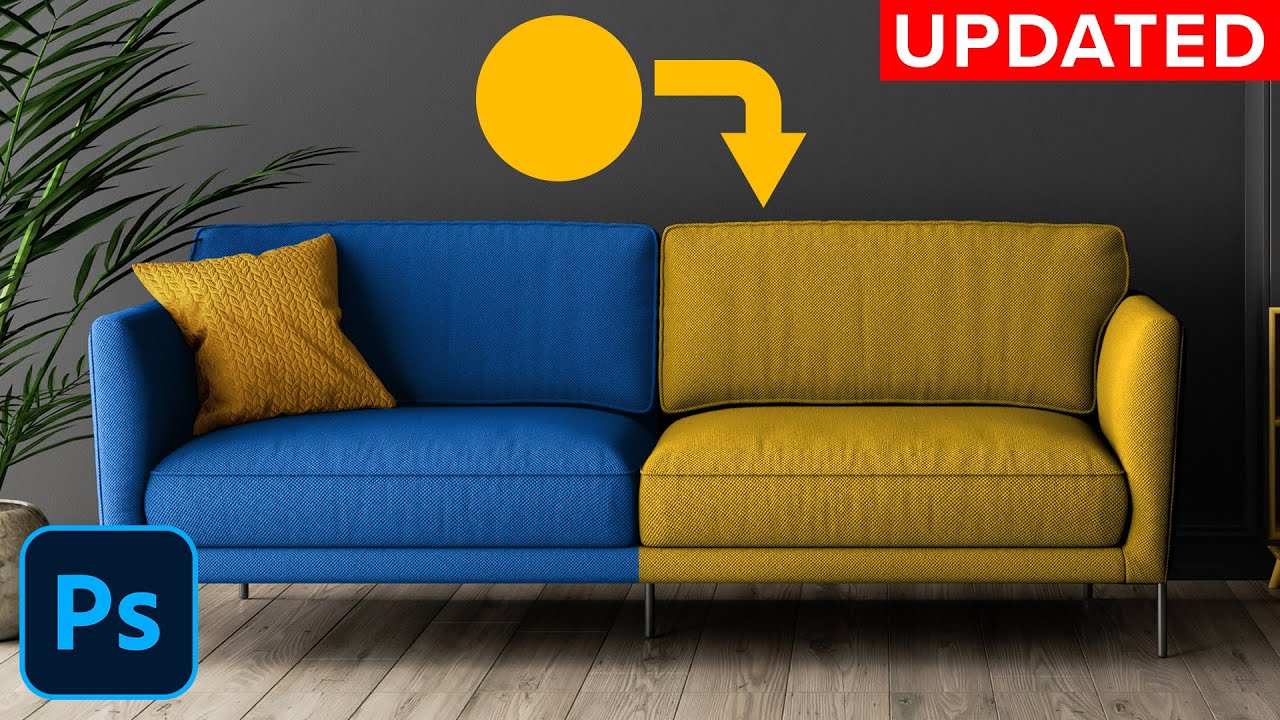
Easy to follow, step-by-step tutorial showing how to change the color of anything in Photoshop!
This tutorial will show you 5 examples of how to properly select an object and change its color.
I hope that you enjoy the tutorial and learn a lot!
🎯 SUBSCRIBE to get more amazing Photoshop tutorials!
► https://bit.ly/Subscribe-To-PTC
📘 INDEX - H...
shrewd oak
vapid flume
It can be done relatively easily but you will have to learn a few things: First ...
Thank you so much for the response and videos
fluid craneBOT
Gave +1 Creative Carma to @vapid flume (current: #7 - 914)
vapid flume
shrewd oak
Thank you so much for the response and videos
You're very welcome!
shrewd oak
I'll try that later today, the reason i ask is because id like to change the cat into my cat for a pfp hahaha

Also, i assume if i wanted to change his eye color the process is the same correct?
 vapid flume
 fossil torrent
See if this free tool can help!
https://www.adobe.com/express/feature/image/resize
Resize your photos easily with the Adobe Express free image resizer. Simply upload your pictures, change the photo size, and download your new images.
upload your image, select the size and download
fossil torrent
vapid flume
See if this free tool can help!
https://www.adobe.com/express/feature/image/resi...
Thank you so much! now can i finish my program
fluid craneBOT
Gave +1 Creative Carma to @vapid flume (current: #7 - 915)
 sly hawk
shrewd oak
Hey sorry if this isnt the right place to ask
I have no experience in photosho...
sly hawk
shrewd oak
Hey sorry if this isnt the right place to ask
I have no experience in photosho...
 sly hawk
shrewd oak
Hey sorry if this isnt the right place to ask
I have no experience in photosho...
sly hawk
sly hawk
sly hawk
shrewd oak
Hey sorry if this isnt the right place to ask
I have no experience in photosho...
sly hawk
sly hawk
Oh, I just saw the photo, if you want it a bit darker, a quick win would be to....
shrewd oak
sly hawk
Holy crap thank you, this gives me an idea on the process and you make it look so easy! 😭😭😭
I'm gonna try following your video and then try changing the eye color/adding a few details
fluid craneBOT
Gave +1 Creative Carma to @sly hawk (current: #5 - 1124)
 tame swallow
i have no idea i made this red but how do i reverse it

 novel island
@tame swallow Here is the solution
ripe quest
tame swallow
i have no idea i made this red but how do i reverse it
You're in "Quick Mask" mode. Tap the Q key.
ripe quest
novel island
<@531213823500091422> Here is the solution
That's not correct. You're changing the Layer Color. The issue is that they are in Quick Mask mode.
novel island
You are right @ripe quest 🫡
 gilded rune
Hello, what this effect called (bottom right corner)?
 ripe quest
Light reflection, light interaction, iridescence... You can probably refer to it many different ways.
I suppose some people might say "light bounce"
novel island
It's a transparent image how to Remove Banding while transition, it's a transparent image I want smooth transition from image to transparent bottom

Here is the Photoshop file

 past rain
Someone answer pls https://discord.com/channels/547473772727238676/1344890054941872139
gilded rune
ripe quest
Light reflection, light interaction, iridescence... You can probably refer to it...
Great, thanks for help!
fluid craneBOT
Gave +1 Creative Carma to @ripe quest (current: #2 - 2731)
novel island
@ripe quest please can you help me with this ?
sly hawk
novel island
It's a transparent image how to Remove Banding while transition, it's a trans...
I tried adding a blur to the mask and it still bands a bit...
what's the end goal?
whatever you generate the asset out at in the end,will render differently anyway
novel island
It will be used for website front page and bottom there will be gradually fade
 tired river
is it possible to promote yourself in share your work channel?
hushed niche
gilded rune
Hello, what this effect called (bottom right corner)?
Search also for “light leak” it is a photo term, when the camera was not properly sealed
hushed niche
novel island
It's a transparent image how to Remove Banding while transition, it's a trans...
Hi Add noise in your gradients, or work in 16 bits.
hushed niche
novel island
It will be used for website front page and bottom there will be gradually fade
Since it is for a website, could this be done with css? https://stackoverflow.com/questions/35684344/how-to-fade-an-image-with-css-without-opacity

Stack Overflow
Thanks for all the help, solution below.
I am new to web development, and I am trying to rebuild a website to practice my CSS.
The website in questions is http://www.divecarib.com. If you scroll...
shrewd oak
sly hawk
Im on mobile photoshop so it might be vastly different but im trying to change the hue of the staff and it turns red any idea why?
 ripe quest
shrewd oak
I'll try that later today, the reason i ask is because id like to change the cat...
ripe quest
shrewd oak
I'll try that later today, the reason i ask is because id like to change the cat...
How about something like this? :D
 shrewd oak
ripe quest
How about something like this? :D
shrewd oak
ripe quest
How about something like this? :D
that is insane omg LOL my girlfriend is going to love this one
Also i wanted the mage/witch hat pfp specifically because its from the wizard cat meme, and my cats name is blizzard but this is awesome regardless, reminds me of a kahjit
ripe quest
shrewd oak
that is insane omg LOL my girlfriend is going to love this one
Also i wanted th...
Just playing around. Unfortunately, that's all the time I have right now. You're free to play with it.
shrewd oak
ripe quest
Just playing around. Unfortunately, that's all the time I have right now. You're...
no worries, i appreciate it and thank you!
fluid craneBOT
Gave +1 Creative Carma to @ripe quest (current: #2 - 2732)
novel island
novel island
It's a transparent image how to Remove Banding while transition, it's a trans...
@ripe quest can you help me this
ripe quest
Others have replied to you. Also, I'm currently in a meeting. Sorry.
hushed niche
shrewd oak
Im on mobile photoshop so it might be vastly different but im trying to change t...
If you click on the sliders looking icon on the right of the word “brush” you’ll be able to check the blending mode check that it is well set to normal: https://helpx.adobe.com/be_fr/photoshop/mobile/edit-images/transform-and-crop/adjust-a-specific-part-of-an-image.html
Learn more on how to adjust a specific part of an image in Adobe Photoshop on iPhone.
hushed niche
novel island
<@712015771596750931> can you help me this
Please do not ping users, whomever can answer will.
novel island
🙇
hushed niche
novel island
<@712015771596750931> can you help me this
You did not answer, have you tried my suggestions? Noise does reduce banding…
novel island
yes but it create some noise in image
hushed niche
novel island
yes but it create some noise in image
You are supposed to add noise on the layer mask, not on the image…
novel island
how to do that
ripe quest
novel island
<@712015771596750931> can you help me this
I like @hushed niche 's suggestion - if you're creating this for a web page, why not use HTML/CSS to create it? Not an image.
river otter
ripe quest
I like <@710455018364600320> 's suggestion - if you're creating this for a web p...
How can I recreate something like this? Like the shadows and gradients that darken the teams logos and all of that
 hushed niche
novel island
It's a transparent image how to Remove Banding while transition, it's a trans...
hushed niche
novel island
It's a transparent image how to Remove Banding while transition, it's a trans...
To create a transition to transparent, didn’t you add a layer mask? https://www.photoshopessentials.com/basics/understanding-photoshop-layer-masks/

In this Photoshop Basics tutorial, you'll learn all about layer masks in Photoshop, including what a layer mask is, how layer masks work and how to use them
hushed niche
novel island
how to do that
If you did use one, Click the on the layer mask icon, go to filters>noise>add noise. (IMHO, it should be a parametric setting on the layer mask properties.)
ripe quest
river otter
How can I recreate something like this? Like the shadows and gradients that dark...
Layer Mask.
hushed niche
river otter
How can I recreate something like this? Like the shadows and gradients that dark...
Which part are you struggling with? Add a black to white gradient on top, then use a blending mode like multiply.
river otter
hushed niche
Which part are you struggling with? Add a black to white gradient on top, then u...
Where it says Gameday it’s like that green gradient
hushed niche
Both @river otter and @novel island (and most users) should watch these videos: #❓ask-a-question message
hushed niche
river otter
Where it says Gameday it’s like that green gradient
In this case, it does not change the colors of a logo, just create a gradient in the background, set the type on top.
The background seems to be an angular gradient. https://helpx.adobe.com/photoshop/using/gradients.html#gradient-editor
Gradients in Photoshop
novel island
Thanks
shrewd oak
Dumb question but where do i get adobe photoshop for windows 10 ☠️
Like is there a free trial version or do you have to pay upfront
 wary roost
right now there is just a white outline on the arrow. how can i make it so the white outline is like a mask that cuts through the hand?

 kindred sparrow
can someone help me with something really important i have a project to do
like im gonan be annoying a bit but i really need help with giving the idea and askiing if it fits etc etc :)
 frigid pumice
Hello! I know this isn't Adobe related, but does anyone know any site/program that crops image to 1:1 and the preview shows a square AND circle?

Like this
sly hawk
Token Maker 2.
oh wait...
https://rolladvantage.com/tokenstamp/
RollAdvantage
A RPG tool site with a table top token app and dice roller for table top role playing games.. RollAdvantage aims to provide tools and resources for table top role playing games. All the tools aim to be easy to use, fast and accessible on the fly, and optionally in-depth if possible in order to make a GM’s life easier.
@frigid pumice
 sly hawk
wary roost
right now there is just a white outline on the arrow. how can i make it so the w...
sly hawk
wary roost
right now there is just a white outline on the arrow. how can i make it so the w...
What's the end goal/purpose? - I ask since there are 10 ways to do it...
wary roost
sly hawk
What's the end goal/purpose? - I ask since there are 10 ways to do it...
i want a symbol that works well in transaprent settings. right now its white
 sly hawk
shrewd oak
Dumb question but where do i get adobe photoshop for windows 10 ☠️
sly hawk
shrewd oak
Dumb question but where do i get adobe photoshop for windows 10 ☠️
There's a 1 free week trial, if you're asking about a pirate copy...... DON'T - This is the official Adobe Photoshop Discord.
sly hawk
wary roost
i want a symbol that works well in transaprent settings. right now its white
one moment
shrewd oak
sly hawk
There's a 1 free week trial, if you're asking about a pirate copy...... DON'T - ...
can you drop a link to the app? trying to install it on my computer but i downloaded the one from microsoft store 😭
hushed niche
shrewd oak
can you drop a link to the app? trying to install it on my computer but i downlo...
kindred sparrow
does the one week give free generative fill
sly hawk
Literally google 'Download Adobe Photoshop'.... - it's the first result.
frigid pumice
sly hawk
What's the end goal/purpose? - I ask since there are 10 ways to do it...
That's exactly what I wanted! Unfortunately, the quality is limited to 256x256
hushed niche
I’m surprised you got not link when searching for “download Photoshop”
sly hawk
wary roost
i want a symbol that works well in transaprent settings. right now its white
Here's a faffy way...
kindred sparrow
because i have a project and i dont know anything about photoshop and i need it or else will fail and dont have enough to purchase the full version
sly hawk
frigid pumice
That's exactly what I wanted! Unfortunately, the quality is limited to 256x256
umm... I assume you don't have photoshop?
frigid pumice
I have GIMP
 shrewd oak
hushed niche
https://www.adobe.com/products/photoshop/free-trial-download.html#modal-hash
shrewd oak
hushed niche
https://www.adobe.com/products/photoshop/free-trial-download.html#modal-hash

frigid pumice
I'll stick with it if there's no other way.
But there must be a quicker way. There's no way this is the only way.
wary roost
sly hawk
Here's a faffy way...
smart, thank you!
fluid craneBOT
Gave +1 Creative Carma to @sly hawk (current: #5 - 1125)
sly hawk
frigid pumice
But there must be a quicker way. There's no way this is the only way.
How many are you hoping to make?
sly hawk
frigid pumice
A LOT
Do you have photoshop?
frigid pumice
Does GIMP count?
sly hawk
No, but don't panic...
frigid pumice
I'm all ears
frigid pumice
frigid pumice
I also know another way. But that one is probably as slow as the GIMP one
Tell me if you have anything in mind and I'll see which is the fastest.
sly hawk
frigid pumice
Tell me if you have anything in mind and I'll see which is the fastest.
I was going to suggest this... but got stuck at the end
frigid pumice
That's pretty much what I'm doing
Also, I don't want to export it as a circle
I want to export it as a square. I just want to see how it will look as a circle before exporting it.
That's why the circle is there.

I hide the circle right before exporting.
sly hawk
oh, well that's easy enough... Just drag them all in, place the circle clipping mask, position them accordingly, and then just 'EXPORT AS LAYERS' to export them all in one go.
 hard reef
How would I go about making the eagles head look forward? my only 2 thoughts are puppet warp tool or getting another image and replacing it with this eagle head. which way seems easier? or how would i go about doing this
 ripe quest
hard reef
How would I go about making the eagles head look forward? my only 2 thoughts are...
ripe quest
hard reef
How would I go about making the eagles head look forward? my only 2 thoughts are...
Puppet Warp won't work. That feature doesn't rotate anything three-dimensionally. You'll have to replace it with a different head that is facing forward.
 lunar tapir
what do i search on youtube to learn how to replace the art with my own art on the vinyl

like detailed replacements but to keep the form of the circle.
ripe quest
lunar tapir
like detailed replacements but to keep the form of the circle.
You would just use a Mask. Probably a Layer Mask for this. If you show me the blank, I can probably show you how to do it.
hard reef
ripe quest
You would just use a Mask. Probably a Layer Mask for this. If you show me the bl...
does the head and body look weird?
 ripe quest
hard reef
does the head and body look weird?
ripe quest
hard reef
does the head and body look weird?
It doesn't match. The head appears to be too large.
ripe quest
hard reef
does the head and body look weird?
You'd like something like this?
 hard reef
ripe quest
You'd like something like this?
hard reef
ripe quest
You'd like something like this?
that looks great
ripe quest
hard reef
that looks great
Feel free to use it.
hard reef
ripe quest
You'd like something like this?
is that a image u found or edited?
thank you sir
ripe quest
hard reef
is that a image u found or edited?
Generated.
hard reef
ripe quest
Generated.
sick thanks man
fluid craneBOT
Gave +1 Creative Carma to @ripe quest (current: #2 - 2733)
ripe quest
hard reef
sick thanks man
Custom generation... similar to match your example.
hard reef
ripe quest
Custom generation... similar to match your example.
What software did you use to generate this?
ripe quest
hard reef
What software did you use to generate this?
Imagen 2
ripe quest
hard reef
What software did you use to generate this?
It's safe for commercial use if that is your concern.
hard reef
ripe quest
It's safe for commercial use if that is your concern.
perfect thank you
fluid craneBOT
Gave +1 Creative Carma to @ripe quest (current: #2 - 2734)
ripe quest
hard reef
perfect thank you
It's Google
ripe quest
hard reef
perfect thank you
Also, it is not only Imagen 2, it was also edited and upscaled by me so its been changed from the original generation.
That said, if you have some concerns about it, like you're licensing that image to a client or whatever, perhaps you'll want to consider doing something else. I can't give you legal advice. @hard reef
hard reef
ripe quest
That said, if you have some concerns about it, like you're licensing that image ...
forsure add my own twist
wanton geyser
hushed niche
I would select the bottom part of the object, then either use the content aware ...
how i exactly do i use the content aware tool
the thing is i select the part i want to extend and i also have the right layer selected
it does nothing
hushed niche
wanton geyser
the thing is i select the part i want to extend and i also have the right layer ...
Create a new layer, and check sample all layers in the content aware move tool option bar.

 spare heath
How do i remove the background from this

 simple belfry
spare heath
How do i remove the background from this
simple belfry
spare heath
How do i remove the background from this
click on the masking tool
bottom right
shouldlook like a japan flag
actually before u do that
turn this into a selection

click on selection
spare heath
Thank you
simple belfry
lunar tapir
does anyone know what text design this is or a similar?
use whatthefont
its a website that gives you similar fonts
to those you screenshot
simple belfry
I'm having this issue where when i open photoshop, It wont actually boot it up but instead just run it in the back, and I can reopen as many times as I want and it wont open, I need to go to task manager and manually click end task for it to work
and then reopen again
any ideas?
sonic leaf
Can anyone tell me where to find textures like dis ?
 viral palm
sonic leaf
Can anyone tell me where to find textures like dis ?
viral palm
sonic leaf
Can anyone tell me where to find textures like dis ?
Looks like Photoshop cloud render filter...
You can generate from scratch in PS (set your colors to default by hitting D then on a blank layer go to Filter/Render/Clouds
Or search for clouds texture...https://stock.adobe.com/search/free?k=cloud+texture&search_type=usertyped
novel island
hushed niche
You are supposed to add noise on the layer mask, not on the image…
Ohh, that helps! Thanks, I searched everywhere but couldn't figure it out. Appreciate it!
fluid craneBOT
Gave +1 Creative Carma to @hushed niche (current: #14 - 171)
 last aurora
hello how would one do this editing? or color grading in this please tell me thank you 🙂 Im learning hehe
https://www.instagram.com/p/DGVP-zSTEiP/

 lunar tapir
simple belfry
use whatthefont
lunar tapir
simple belfry
use whatthefont
oh wow ty
fluid craneBOT
Gave +1 Creative Carma to @simple belfry (current: #372 - 4)
ripe quest
@lunar tapir = Please don't post the same thing in multiple channels. #📝project-feedback is the appropriate place for that type of request.
sonic leaf
viral palm
Looks like Photoshop cloud render filter...
yea its some sort of texture, idk what that type is but im tryna use it on clothing mockups to make them look more realistic
sum like dis

 storm path
How do I go about correcting this colour distortion?
 storm path
Extremely late, however if anyone here can work their magic on assisting on this, I'd appreciate it so much. @tame cape
I've got the high-res file (PSD) and separate elements opened in an earlier version of photoshop featuring the same banded corruption in a different arangement, so I'm pondering if data can be restored?

But anyone with good solutions to corrupted PSDs and TIFF files, I'd appreciate it.
hushed niche
simple belfry
I'm having this issue where when i open photoshop, It wont actually boot it up b...
Hi, maybe reset Photoshop’s preferences manually by dragging the preferences folder to the desktop. This way you can copy them back if it does not work: https://helpx.adobe.com/photoshop/using/preferences.html#Manually
Learn how to access and modify Photoshop preferences and customize per your frequent workflows
 copper grove
Why doesnt the pixelization effect apply when merging my text layer and threshold layer?

It just looks fuzzy/feathered when I merge them but I want to keep the pixelization from the threshold layer??
gilded rune
hushed niche
Search also for “light leak” it is a photo term, when the camera was not properl...
Thanks for your help!
fluid craneBOT
Gave +1 Creative Carma to @hushed niche (current: #13 - 172)
 fading forum
is there anything i can do to remove this noise?
 vapid flume
fading forum
is there anything i can do to remove this noise?
vapid flume
fading forum
is there anything i can do to remove this noise?
You can still use the different noise reduction filters in Photoshop (filter>noise>reduce noise) or use the similar in the Camera Raw filter, but it always comes with a slight blur so it's a tricky balance
 winged crystal
i placed products on the image now i want to make them blend into the scene how do i do that which adjustment layers and lighting stuff should i tweak?
 vapid flume
Night photos (and particularly taken with a small sensor, like those on a phone) are prone to having noise, there is nothing you can do to correct that, except lower the ISO settings, and put your camera on a tripod (but you will still get noise unless you have a lens with a big aperture and a big sensor)
vapid flume
winged crystal
i placed products on the image now i want to make them blend into the scene how ...
My biggest coincern are the shadows, see how the metal can has very soft shadows and the plinth where the bag of chips is (part of the background) has very hard shadows
It's either one or the other, I would vote for hard shadows
Same with the shadows for the packet of crisps, the shadows are cast on both the right and the left of the plinth directly behind. You got a good reference in the original image so you can just follow the same effect.
 remote void
Hi, How do I pirate Photoshop?
winged crystal
vapid flume
My biggest coincern are the shadows, see how the metal can has very soft shadows...
yes will fix the shadows but what about the products do they blend? like are they too bright or too dull?
vapid flume
winged crystal
yes will fix the shadows but what about the products do they blend? like are the...
I think the direction of light is not good, particularly on metal can and the pastic one. But generally shadows and direction of lighting goes a long way of making things realistic (I would say that's the most important part)
As for aligning the colours you're already more or less there. What I like to add is a curves and a colour balance adjustment layer on top of everything, so everything has some mood on it, for example here I would add a tiny bit of yellow and magenta in the midtones so it doesn't look so cold, but that's really a question of taste here (and the client's brief, if that's for a client)
winged crystal
vapid flume
I think the direction of light is not good, particularly on metal can and the pa...
well can i do something about the lighting ? cuz the product mockup has their own lighting and the scene has their own
vapid flume
winged crystal
well can i do something about the lighting ? cuz the product mockup has their ow...
Apart from removing the highlights by hand (or with some gnerative AI) and place new ones, not really
Generally people will chose a background (or build a new one in a 3D program) based on what they have as product photos, not the opposite
hushed niche
remote void
Hi, How do I pirate Photoshop?
@remote void it might not be the wisest thing to ask this on the official Adobe Photoshop discord. Plus, read the rules.
remote void
Lol
ripe quest
remote void
Hi, How do I pirate Photoshop?
Don't ask for pirated software here. Hopefully, that's clear enough.
remote void
ripe quest
Don't ask for pirated software here. Hopefully, that's clear enough.
I couldn't find that website, did U misspell?
ripe quest
remote void
I couldn't find that website, did U misspell?
Did "you" need something else or is that your only purpose for being here?
Good talk.
vapid flume
I tought you need an eye patch and screem "ahoy" on the top of your lungs?
I must have been mislead
The gall of some people... Honestly!
ripe quest
I'm pretty sure many people imagine software engineers work for free. Also, that data centers and the electricity is also somehow free.
ripe quest
vapid flume
I tought you need an eye patch and screem "ahoy" on the top of your lungs?
I mus...
I think you mean, "Yarrrr." :)
storm path
storm path
Extremely late, however if anyone here can work their magic on assisting on this...
Any assistance at all?
viral palm
Hard to see why... Perhaps share the whole Photoshop UI to give us more clue...
 unreal flume
viral palm
Hard to see why... Perhaps share the whole Photoshop UI to give us more clue...
unreal flume
viral palm
Hard to see why... Perhaps share the whole Photoshop UI to give us more clue...
Sorry, I forgot to delete my post I found a "solution", basically starting a new file
viral palm
unreal flume
Sorry, I forgot to delete my post I found a "solution", basically starting a new...
OK! Hapy to hear you found a solution!
 white sleet
hey i click red or any color and it turns as gray, why?

Also am I allowed to tag mods if I need help with a question like this? Or I must only tag Mods for an abusing user?
viral palm
white sleet
hey i click red or any color and it turns as gray, why?
You're probably working in grayscale mode...

 viral palm
white sleet
How can I change that? :(
viral palm
white sleet
How can I change that? :(
Go to: Image/Mode and check one of the color mode RGB, CMYK or lab (RGB is the most commonly used for screen images , CMYK for print)
white sleet
viral palm
Go to: Image/Mode and check one of the color mode RGB, CMYK or lab (RGB is the m...
You are a savior, thanks
fluid craneBOT
Gave +1 Creative Carma to @viral palm (current: #9 - 716)
 tropic tusk
Okay this might sound ridiculous, but a few months ago I made the background in this image with the glowing rectangles behind the character, and I just cannot figure out how to re-create this exact background , any help would be appreciated 😭

 slow breach
how do i insert images on my workspace
viral palm
slow breach
how do i insert images on my workspace
File/Place embeded (browse to select image on your computer) then click OK... or
From your image folder, Drag and drop your image on the Photoshop canvas.
 upper breach
i've been experimenting with the remove background tool but it has not been great! It manages to erase a part of the subject and I do not know how to fix this. All I want to do is to remove the background of everything without erasing the subject. Please help!

 viral palm
upper breach
i've been experimenting with the remove background tool but it has not been grea...
viral palm
upper breach
i've been experimenting with the remove background tool but it has not been grea...
Do you want to keep the grey frame only or you need the white part too?
upper breach
just the gray part would be great
storm path
storm path
Extremely late, however if anyone here can work their magic on assisting on this...
Any help?
viral palm
upper breach
just the gray part would be great
I would start with select subject ( set on "Cloud" for a better result)
You should get a starting point but not a perfect selection because your image has lot of shadows and spots difficult to process...
But honnestly since the object has straight edges you can use Polygonal lasso tool (or lasso tool) to make selection and paint on the mask (with white to reveal or black to conceal parts of your object.
hard reef
What does this icon mean on threshold?
 upper breach
viral palm
I would start with select subject ( set on "Cloud" for a better result)
You shou...
upper breach
viral palm
I would start with select subject ( set on "Cloud" for a better result)
You shou...
Thank you so much! you are the best holy
fluid craneBOT
Gave +1 Creative Carma to @viral palm (current: #9 - 717)
viral palm
hard reef
What does this icon mean on threshold?
As the info box says (when you hover it) it makes Photoshop calculate a more accurate histogram...
I searched for more info but found nothing more...
 viscid bison
I want to use the Solid Color mask to color something, but no matter what color I choose it is always shades of black and white
 viral palm
viscid bison
viral palm
viscid bison
You're working in RGB mode... If there is the word "Gray" rather "RGB" you must change your color mode.
Go to: Image/Mode/ then choose a color mode RGB,CMYK...
 viscid bison
viral palm
You're working in RGB mode... If there is the word "Gray" rather "RGB" you must ...
viscid bison
viral palm
You're working in RGB mode... If there is the word "Gray" rather "RGB" you must ...
Thank you so much
fluid craneBOT
Gave +1 Creative Carma to @viral palm (current: #9 - 718)
 waxen sedge
Hey everyone!
I'm currently working on building my portfolio as a graphic designer, and I want to make sure I choose the best platform for showcasing my work. I'm looking for something that is:
Professional-looking and easy to customize
User-friendly with a clean UI
Good for attracting potential clients or employers
Right now, I’m considering platforms like Behance, Dribbble, Adobe Portfolio, or even building my own site. But I’d love to hear your recommendations!
Which platform do you personally use or think is the best for a designer looking to get clients and/or land a job?
Thanks in advance for your insights! 🙌
ripe quest
If the goal is for people to find you, post on as many platforms as you can.
 graceful stag
Can anyone come with any idea on how to make this size label look better? I feel like the M (for medium) is looking odd, and like its just weirdly placed, we like something like the white size label

 hard reef
viral palm
As the info box says (when you hover it) it makes Photoshop calculate a more acc...
hard reef
viral palm
As the info box says (when you hover it) it makes Photoshop calculate a more acc...
so in theory i should always click that button since it gives a more accurate version, correct?
fading forum
vapid flume
You can still use the different noise reduction filters in Photoshop (filter>noi...
thank you
fluid craneBOT
Gave +1 Creative Carma to @vapid flume (current: #7 - 920)
 south stirrup
how do I cut out the sections of this arrow but smoother and follows the curve of the lines here's me using polygon lasso tool idk how to do it

 viral palm
hard reef
so in theory i should always click that button since it gives a more accurate ve...
viral palm
hard reef
so in theory i should always click that button since it gives a more accurate ve...
I think so! Ididn't see any difference on my tests but I trust Photoshop and it costs just one click 😉
sly hawk
south stirrup
how do I cut out the sections of this arrow but smoother and follows the curve o...
I made a video on this yesterday...
but technically, the 'better' way to do it is use Adobe Illustator..
sly hawk
south stirrup
sly hawk
https://discord.com/channels/547473772727238676/548246314383835146/1345133079953...
ty
fluid craneBOT
Gave +1 Creative Carma to @sly hawk (current: #5 - 1126)
sly hawk
(It may seem needlessly complicated, but it only took 40 seconds, so can't be too bad! @south stirrup )
sly hawk
graceful stag
Can anyone come with any idea on how to make this size label look better? I feel...
I think that M doesn't look optically centre. - Changing it's font without the italics would help,.
Also from a practical production point of view, I'd suggest you stick with TWO colours, and loose the grey
 verbal urchin
heyy is there any way to crop out the blue background within the borders?
 sly hawk
verbal urchin
heyy is there any way to crop out the blue background within the borders?
sly hawk
verbal urchin
heyy is there any way to crop out the blue background within the borders?
yeah.
verbal urchin
how would i go abt it?
sly hawk
I'm just checking the easiest way... one moment
sly hawk
verbal urchin
heyy is there any way to crop out the blue background within the borders?
mmm... It was messier than I expected...
sly hawk
Ah! - One moment...
sly hawk
verbal urchin
tysm rlly
This is WAAAY better
I couldn't remember where that layer from transparency button was
sly hawk
verbal urchin
ty frl
 sonic leaf
anyone know how to make a patch type effect like this on photoshopo
 verbal urchin
sly hawk
verbal urchin
sly hawk
one more question when i try to select the empty space it creates like two lines, is there anyway around this as i wanna paste an image in the borders?
sly hawk
verbal urchin
one more question when i try to select the empty space it creates like two lines...
Sorry, in bed, super late for me. Someone else should be able to easily answer this later though!
 rancid grove
2 random questions, 1) i pressed a button and now my layers have dissapeared and not sure how to get them back. 2) i have a psd file i bought of an instagram designer and i wanted a revision but he hasnt got back to me, how easy would it be to change the number showing on the dice to make it so they arent all 5's. any help is appreciated.

 elfin ether
can someone help me improve the photo quality and increase the resolution of some photos
please and ty
storm path
storm path
Extremely late, however if anyone here can work their magic on assisting on this...
 trail moth
In the middle of my work day and tool starts switching to brush every time I switch canvas windows, exactly then and only then. I already had spring-loaded keys turned off, I've since reset tools and reset tool presets. Still happening, driving me crazy. Any one had this problem / know the fix?
I also updated ps and that didn't fix it
hushed niche
trail moth
In the middle of my work day and tool starts switching to brush every time I swi...
Hi, do you mean artboards or open documents when you say Canvas ?
You could try to reset Photoshop’s preferences manually by dragging the preferences folder to the desktop. This way you can copy them back if it does not work: https://helpx.adobe.com/photoshop/using/preferences.html#Manually
Learn how to access and modify Photoshop preferences and customize per your frequent workflows
trail moth
Hello, just open documents
hushed niche
storm path
Extremely late, however if anyone here can work their magic on assisting on this...
Hi, unfortunately corrupted data is corrupted, you could duplicate the file, and open a flattened copy if you hold shift+alt as you open the file.
There are places like https://photoshop.recoverytoolbox.com/ that might help but…
It is best when working on a big piece, to make incremental saves: copy1 copy2 at regular intervals, you can fall back on a previous version if needed. There are scripts for that.
If corruption occurs often, make sure to give enough time for ps to save and close, check your ram and storage drives.
Photoshop Recovery Kit – a fast, reliable, efficient and easy to use Photoshop file recovery tool with a host of useful features. Based on an advanced technology, the product fully automates the recovery process and delivers ever-excellent results.
storm path
hushed niche
Hi, unfortunately corrupted data is corrupted, you could duplicate the file, and...
Appreciate the assistance.
hushed niche
copper grove
Why doesnt the pixelization effect apply when merging my text layer and threshol...
Hi, do you see the pixelization at 100% zoom (Ctrl+1) when using threshold? That is the only true way to judge the image.
 patent zealot
may anyone help me photoshop a text to an image i cant do it but i wanna do it correctly
hushed niche
elfin ether
can someone help me improve the photo quality and increase the resolution of som...
Hi, those are often different things. You could try to open a jpeg in camera raw and use super resolution/enhance image, it does sharpen and use some machine learning along the way: https://helpx.adobe.com/camera-raw/using/enhance.html
Enhance allows you to increase image quality for making large prints or increasing the resolution of a cropped image.
hushed niche
patent zealot
may anyone help me photoshop a text to an image i cant do it but i wanna do it c...
Hello, Why can’t you? You do have Photoshop, right?
trail moth
hushed niche
Hi, do you mean artboards or open documents when you say Canvas ?
You could try ...
I did this and when I opened 2 new blank documents, the same behavior persists when switching between the 2 and trying to change tools
patent zealot
i have a trial on mobile but id rather have assistance then do it poorly..
hushed niche
Hi for 1) if you closed that one only, go to the Windows menu to find any closes panel, toolbox… if all panels are gone hit tab to show them all. See this page for some interface fundamentals: https://www.photoshopessentials.com/basics/photoshop-screen-modes-interface-tricks/

Tired of Photoshop's interface cluttering up your screen? Learn how to maximize your work area using Screen Modes and other interface tricks in Photoshop!
hushed niche
trail moth
I did this and when I opened 2 new blank documents, the same behavior persists w...
You might have to go to the official Adobe forums,and give info from help>system info. https://community.adobe.com/t5/photoshop-ecosystem/ct-p/ct-photoshop?page=1&sort=latest_replies&lang=all&tabid=all
https://community.adobe.com
Master Photoshop with the help of our global community.
trail moth
hushed niche
You might have to go to the official Adobe forums,and give info from help>system...
No worries, ty
fluid craneBOT
Gave +1 Creative Carma to @hushed niche (current: #13 - 173)
hushed niche
trail moth
No worries, ty
There, Post a link to a video showing the issue.
hushed niche
verbal urchin
one more question when i try to select the empty space it creates like two lines...
Hi, it is Because you have some transparent pixels. What you you trying to do?
hushed niche
patent zealot
i have a trial on mobile but id rather have assistance then do it poorly..
Not much experience with the mobile version. Post the image and describe exactly why you struggle, someone might be able to help you if you tell exactly the challenge facing you. https://helpx.adobe.com/photoshop/mobile/add-effects/add-text/add-text.html
Learn more on how to add text in Photoshop on iPhone.
hushed niche
rancid grove
2 random questions, 1) i pressed a button and now my layers have dissapeared and...
The dice might be AI generated, you can clone/ content aware / remove tool out some dots, to make a 4 and a 1 out of them
verbal urchin
hushed niche
Hi, it is Because you have some transparent pixels. What you you trying to do?
i'd like to fill the space with an image
hushed niche
It is on its own layer, you can place an image below, and mask it. Or don’t d you want to remove the black shadow?
trail moth
hushed niche
There, Post a link to a video showing the issue.
It was the StreamDeck plugin for photoshop. Problem resolved when I disabled it ::P
 lean escarp
PHOTOSHOP COMMUNITYYYYYYY
help me out
have yall seen
those instagram posts
but like minecraft themes
im trying to do that but im having difficulty cutting out the bg

like this is what i got
but when i remove the bg

i want to remove the sky to put the minecraft one but im not sure how to do that
 serene coral
lean escarp
i want to remove the sky to put the minecraft one but im not sure how to do that
serene coral
lean escarp
i want to remove the sky to put the minecraft one but im not sure how to do that
Have you tried the Sky option under Select? At the top
lean escarp
serene coral
Have you tried the Sky option under Select? At the top
jesus christ i love you
lean escarp
serene coral
Have you tried the Sky option under Select? At the top
thanks
fluid craneBOT
Gave +1 Creative Carma to @serene coral (current: #6 - 928)
lean escarp
how can i turn this into a layer?
 hushed niche
trail moth
It was the StreamDeck plugin for photoshop. Problem resolved when I disabled it ...
hushed niche
trail moth
It was the StreamDeck plugin for photoshop. Problem resolved when I disabled it ...
Thanks for reporting we’ll be able to help others with this information.
Yes, troubleshooting starts by removing the most exotic parts of your setup, or there would be countless reports. Checked for updates in their drivers? Contacted their support forums?
hushed niche
lean escarp
how can i turn this into a layer?
Hi! Ctrl+J to “jump” it to its own layer
lean escarp
hushed niche
Hi! Ctrl+J to “jump” it to its own layer
thanks
fluid craneBOT
Gave +1 Creative Carma to @hushed niche (current: #13 - 175)
hushed niche
lean escarp
thanks
You are very welcome! It is better than Ctrl+C /Ctrl+V as it uses Photoshop’s memory.
lean escarp
and how could i make this kind of blend into the grass? @hushed niche

 carmine forum
Hey everyone, I’m a complete beginner to graphic design, and I’d love to know how to create designs like this
What tools do you use? Are there YouTube tutorials or articles that can help me get started?
Also, does this style have a specific name? I’d love to learn more about it! Any advice is appreciated!

 sly hawk
hushed niche
Hi! Ctrl+J to “jump” it to its own layer
sly hawk
hushed niche
Hi! Ctrl+J to “jump” it to its own layer
I always wondered why it was a J!
#Jump
wanton geyser
hushed niche
Create a new layer, and check sample all layers in the content aware move tool o...
did it, nothing moves
is there like a tutorial or smth
viral palm
carmine forum
Hey everyone, I’m a complete beginner to graphic design, and I’d love to know ho...
Grid system + sans serif font => pretty close Swiss style design but not exactly.
https://www.zekagraphic.com/swiss-style-in-graphic-design/
If you search for "Grid system Graphic design " on YT you should find tones of instructive videos like this one
https://www.youtube.com/watch?v=M8afKKlwJAk
or this great serie
https://www.youtube.com/playlist?list=PLD8AMy73ZVxVe63ATjAoi_8kqkNUeHpbr
 hollow oyster
Is it normal for adobe to fill my computer space with temp files?
viral palm
hollow oyster
Is it normal for adobe to fill my computer space with temp files?
Check minimum requirements...
Temp file size PS opens on start up depends of the number of assets (brushes for exemple) you've loaded...
For exemple my temp file (without any file open) is 4.7Gb... So you need some free space to run photoshop or you have to assign a scratch disk with some space...
What do you mean by fill?

20GB is the minimum to run PS, 100GB is recommended...
ripe quest
hollow oyster
Is it normal for adobe to fill my computer space with temp files?
When Photoshop is running, there will be a temp file created and the size of it will be directly proportional to the items that are open/running in Photoshop at that time. They can be rather large. If Photoshop is not currently open and yet Photoshop Temp Files remain on the system, they might be left over from a problem with the app that caused it to close without exiting properly. You can safely delete those files.
carmine forum
viral palm
Grid system + sans serif font => pretty close Swiss style design but not exactly...
Thank you!
fluid craneBOT
Gave +1 Creative Carma to @viral palm (current: #9 - 719)
wanton geyser
wanton geyser
is there like a tutorial or smth
can any1 help
also btw how can i highlight some certain tiles(those little green squares)?
 hollow oyster
viral palm
Check minimum requirements...
Temp file size PS opens on start up depends of t...
hollow oyster
viral palm
Check minimum requirements...
Temp file size PS opens on start up depends of t...
No like it took 300 GB of my free space
viral palm
hollow oyster
No like it took 300 GB of my free space
300Gb with no file open or with a psd file open?
As @ripe quest said the Temp file size depends what assets are in your file+ assets load (brushes...etc)... Can you check whether the temporary file disappears when you close PS?
Do you have lot of brushes sets loaded in photoshop? it could be the root cause of the Temp file size.
 thick steeple


 forest crescent
I've got a question about indesign

There is an unusually big space between the two paragraphs
even though it's supposed to be one coherent sentence (which just didn't fit in one paragraph so it had to continue one step down)
Even though I haven't changed the line spcaing
Will it be like this in the exported final version?
Oh wait it seems like the line spacing was changed... Weird
 round wagon
how can i make the brain look like the girl on the zipup has


also can i somehow edit the outline since it kinda looks off
sly hawk
wanton geyser
also btw how can i highlight some certain tiles(those little green squares)?
You specficially want to 'highlight' half the field? The checkerboard green squares?
By 'hightlight' do you mean 'select'?
sly hawk
wanton geyser
also btw how can i highlight some certain tiles(those little green squares)?
You could try something like this? But you'd have to place the 'grid' properly first. - I spent about 6 seconds trying, you could get it bang on with a bit more effort.
 fallow berry
So basically, I want to make a selection on the layer mask to only draw inside the black colors. How do I do that?

 fair drift
Anyone know how to make the background white? And make it look like it was actually taken in a studio
 ripe quest
fallow berry
So basically, I want to make a selection on the layer mask to only draw inside t...
ripe quest
fallow berry
So basically, I want to make a selection on the layer mask to only draw inside t...
Is the line drawing already a separate layer? Not really sure what is going on in this stack. I had to work from a screenshot and separate this myself...
fallow berry
ripe quest
Is the line drawing already a separate layer? Not really sure what is going on i...
Oh thank you! Yeah, the lines were separate
fluid craneBOT
Gave +1 Creative Carma to @ripe quest (current: #2 - 2737)
fallow berry
ripe quest
Is the line drawing already a separate layer? Not really sure what is going on i...
 ripe quest
fallow berry
ripe quest
fallow berry
An effective selection might depend on the transparent portions of the layer. Go to File > Export > Export As... PNG with Transparency checked. Let me look at the transparent Layer.
fallow berry
ripe quest
Is the line drawing already a separate layer? Not really sure what is going on i...
Just taht with your method, you get some whites
Let me check
fallow berry
ripe quest
An effective selection might depend on the transparent portions of the layer. Go...
smart
ripe quest
Oh. I see. You have a Blend Mode on that Layer.
fallow berry
Huh?
ripe quest
The top Layer is set to Linear Light.