#❓ask-a-question
1 messages · Page 88 of 1
 molten nacelle
 haughty storm
molten nacelle
Hmm I could be wrong but if they're using an older version of Photoshop, I do re...
haughty storm
molten nacelle
Hmm I could be wrong but if they're using an older version of Photoshop, I do re...
in the older versions sure; they didn't say they were using an older version; good point.
I tend to follow whatever version I'm using which happens to be the latest (not Beta)
 stable chasm
I couldn't figure out what to do after making the selection to make it save it as a gradient.🫠
Can you walk me through it? 😆
haughty storm
stable chasm
I couldn't figure out what to do after making the selection to make it save it a...
see

I did all that with the magic wand
your original is still preserved
can do this too

but changing the text and keeping the gradient; that's a bit more difficult
will have to ask someone who knows more how to do that, I'm sure its easy but IDK how or what I'd do
stable chasm
haughty storm
but changing the text and keeping the gradient; that's a bit more difficult
Not necessarily the text. It's a picture that has the box and no. 2 already so I don't have to get the font.
I am not sure whether you'd make a gradient out of the no.1 box and put it on the no.2 box or if it can be done with masking somehow.
haughty storm
you'd have to make a new gradient, but I couldn't replicate that exact gradient
stable chasm
haughty storm
I did all that with the magic wand
Also wow I went at it the lasso tool then used the eraser tool to remove whatever extra bits and retouched with the brush tool. Made it super longer 😭
How did you get it done so quickly and easily?
haughty storm
as I said... magic wand tool; look at my screenshot
I did it very carefully that's how 😛
anyway I have to go sorry but I hope someone can help you further
stable chasm
haughty storm
you'd have to make a *new* gradient, but I couldn't replicate that exact gradien...
Maybe using a different image is the key, would either of these work?

 haughty storm
perhaps you could do a clipping mask for the text on top of that, yes you could do that
then you could have a 'gradient" from that, if that's better, I suppose
stable chasm
haughty storm
as I said... magic wand tool; look at my screenshot
I indeed did but I was just confused as to how you removed everything else just a normal mask or is there more to it? 😅
haughty storm
just a normal mask, nothing fancy I did have to invert one of the masks
stable chasm
haughty storm
then you could have a 'gradient" from that, if that's better, I suppose
Awesome I'll try that
stable chasm
haughty storm
just a normal mask, nothing fancy I did have to invert one of the masks
Ah I see I thought there was some other trick. Well I'll keep that in mind and use the magic wand next time instead 🙂
molten nacelle
stable chasm
Ah I see I thought there was some other trick. Well I'll keep that in mind and u...
Masks are your best friend in Photoshop! I’m very much an evangelist for non-destructive work flows
 knotty plover
molten nacelle
Hmm I could be wrong but if they're using an older version of Photoshop, I do re...
knotty plover
molten nacelle
Hmm I could be wrong but if they're using an older version of Photoshop, I do re...
Sorry, a small correction, I’m using the ‘save as copy’ option. To better explain the situation - I have many templates saved as PSD files that I frequently use in my projects. Let’s assume I open around 50-100 templates a day where I make small modifications and then save them to the desktop in JPEG format. All templates are located in the ‘PSD’ folder - when using ‘save as copy,’ Photoshop by default suggests saving in the same folder as the PSD.
Photoshop remembers the last file location only when the PSD file is currently open; once you close it, reopen it, and again it suggests the folder location.
In this specific case, JPEG works better, the file is lighter, the quality isn’t inferior to PNG, and it is processed much faster by ImageOptim
Photoshop 26.0.0
Sonoma 14.6.1
 uneven spoke
Hello a question, how can I reactivate so that these two options are seen simultaneously


i turn it off idk how dx
nvm
 versed belfry
Anyone having the same problem: When opening a new project (CTRL+N) when I change the bar from pixels to centimeters and start typing in the amount of centimeters. PS just suddenly throws the setting back to pixels. This happens 2-3 times before it sticks to centimeters... After that when I press CTRL+N a different interface to create a new project pops up. What is going on??
 viral palm
versed belfry
Anyone having the same problem: When opening a new project (CTRL+N) when I chang...
viral palm
versed belfry
Anyone having the same problem: When opening a new project (CTRL+N) when I chang...
CTRL+N is the regular shortcut to create a new document so if you hit CTRL+N it's normal to get a new porject window poping up.
Pay attention if you select blank document with presets, the units are already set.
On my end the new document window behaves normaly - When I set centimeters and change width and Height the interface stick to the selected units.(Idem for pixels and inches)... Really weird
 cerulean ivy
how to stop wibble wobble?
 cerulean ivy
viral palm
cerulean ivy
how to stop wibble wobble?
cerulean ivy
viral palm
cerulean ivy
how to stop wibble wobble?
is it a Photoshop related question? If so what do you mean by "Wibble wobble"?
cerulean ivy
viral palm
is it a Photoshop related question? If so what do you mean by "Wibble wobble"?
the line goes wibbly wobbly
viral palm
cerulean ivy
the line goes wibbly wobbly
The doted line? If you want to get them straight you need to convert your anchor points with the convert anchor tool.
 cerulean ivy
what if i want to delete those anchor points?
viral palm
cerulean ivy
what if i want to delete those anchor points?
Use the "Delete Anchor Point Tool" (the pen tip with a little - beside it)
 cerulean ivy
viral palm
Use the "Delete Anchor Point Tool" (the pen tip with a little - beside it)
cerulean ivy
viral palm
Use the "Delete Anchor Point Tool" (the pen tip with a little - beside it)
thank you sir, how do i do this in premiere pro?
 fluid craneBOT
Gave +1 Creative Carma to @viral palm (current: #9 - 587)
viral palm
cerulean ivy
thank you sir, how do i do this in premiere pro?
Sorry. I don't know... I'm not using Premiere Pro a lot... You should ask on the Adobe Video Discord server.
The premiere pro and after effect users are on this server. You'll have more chances to get the answer.
https://discord.gg/adobepremiere
 wanton tartan
hi
i need help
i have a text
i added a text on top of it with the divied blinding mod
it get back to normal
molten nacelle
knotty plover
Sorry, a small correction, I’m using the ‘save as copy’ option. To better explai...
So forgive me if I’m not understanding your example scenario well enough, but wouldn’t setting Quick Export defaults in your preferences accomplish the same goal while letting you choose a default file destination for all projects / templates?
 wide pilot
 wanton tartan

you see guys waht i meane ?
the second one is what i was working on
the first one is what came out as result
when i upload it
i am @wide pilot btw second account bec some times discord dose not let me send images no idea why
molten nacelle
So layer blending modes are considered cumulative, meaning they continuously stack to blend differently on all the underlying layers. When you merge the layers, the blend becomes simplified and is no longer cumulative. Afterwards the new layer really only retains the opacity information, not the way they were blended. Not sure if I explained that in a way that makes any sense
 molten nacelle
 atomic gull
Hey! How do I make a text bubble like this in photoshop?
atomic gull
Hey! How do I make a text bubble like this in photoshop?
Shape tool, rectangle, choose your fill color (disable stroke), drag it in the window roughly to size, adjust the corner radiuses in the properties window. Add a text layer over top with your desired text and tweak dimensions of the box, and scale of the text until you've got it nestled in there the way you like it, and voila!
 bronze gate
How would I make similar cracks as the video thumbnail in the image shown?

like is there an easy way to do it? Or would I need to manually make this kind of shape?
 fringe dove
is there a photoshop feature or plugin that adds a feature like canva's library of elements and stuff where its super easy to find images to add to stuff to make youtube thumbnails
molten nacelle
bronze gate
How would I make similar cracks as the video thumbnail in the image shown?
Quickest and easiest way way, google: flat black cracks png, find on you like, bring it into Photoshop, scale it and position it the way you like it, and add a white stroke to it, and myabe a drop shadow if you're feelin like it
molten nacelle
bronze gate
How would I make similar cracks as the video thumbnail in the image shown?
 bronze gate
molten nacelle
Quickest and easiest way way, google: flat black cracks png, find on you like, b...
bronze gate
molten nacelle
Quickest and easiest way way, google: flat black cracks png, find on you like, b...
ah thanks man
fluid craneBOT
Gave +1 Creative Carma to @molten nacelle (current: #942 - 1)
atomic gull
molten nacelle
Shape tool, rectangle, choose your fill color (disable stroke), drag it in the w...
Thanks!
fluid craneBOT
Gave +1 Creative Carma to @molten nacelle (current: #610 - 2)
bronze gate
molten nacelle
wow, thanks for the extra help, thought I saw this exact thing but it had the stupid stock image words all over it
molten nacelle
Yeah a lot of stock graphics sites will watermark their images, but I've found plenty of free alternatives for most things
fringe dove
molten nacelle
how do you get pngs without the checkeboard background every time i try copying them into photoshop they have that background
bronze gate
molten nacelle
Yeah a lot of stock graphics sites will watermark their images, but I've found p...
ah well thanks again
 wooden minnow
Hi can someone please suggest how I can blend these people into the scene better?
 wooden minnow
fringe dove
how do you get pngs without the checkeboard background every time i try copying ...
wooden minnow
fringe dove
how do you get pngs without the checkeboard background every time i try copying ...
If your images have a checkered background, that means they have no background and are therefore considered images with transparent backgrounds.
fringe dove
wooden minnow
If your images have a checkered background, that means they have no background a...
i mean like this

when i add it to photoshop it has that as a background
wooden minnow
fringe dove
when i add it to photoshop it has that as a background
That's really strange, which website are you getting the images from?
 wooden minnow
fringe dove
just google
wooden minnow
fringe dove
just google
Yeah, do you see how it already has the checkered marking on the background? Unless you download it as a transparent image from the page source, it will get downloaded as a png with the checkered background (when downloading directly from google) since it considers it as a single image
fringe dove
alright
molten nacelle
General rule of thumb I've found out, is that if the checkerboard appears in the thumbnail of the image before you lick on it to enlarge it, it'll copy with the checkerboard. If it has a white background in the thumbnail, you click to enlarge and then the checkerboard appears. It actually has transparency
Also selecting the Tools submenu under the image search bar, selecting advanced, and then toggling to transparency in the "colors in image" section helps
molten nacelle
wooden minnow
Hi can someone please suggest how I can blend these people into the scene better...
If you want my opinion, take it or leave it because it looks pretty great as is! As far as wondering how to blend the characters into the scene better, really it's about setting consistent black points and hues for your darkest shadows. The least lit and most shaded parts of your subjects should match the tones and low lighting of the surrounding scene. I love how they're front lit by the fire, but the shading on them on their backs could be darker
haughty storm
molten nacelle
So layer blending modes are considered cumulative, meaning they continuously sta...
this makes sense to me, so how do you keep the way it was blended when merged?
haughty storm
wooden minnow
Yeah, do you see how it already has the checkered marking on the background? Unl...
never seen that option when googling
I also don't recommend just using whatever image you see; some of those are copyrighted unless they are free to use by all means go for it
wooden minnow
haughty storm
never seen that option when googling
Ohh I meant if it’s from a stock image site and you just download from the google images page instead of directly, that’s what happens unfortunately sometimes:((
wooden minnow
molten nacelle
If you want my opinion, take it or leave it because it looks pretty great as is!...
Thank you so much!
fluid craneBOT
Gave +1 Creative Carma to @molten nacelle (current: #453 - 3)
 half canopy
Hi! Can someone help me with some work with PDFs as part of photoshop work? I know PS may not work but there’s some layer masks and other stuff to take care of. Please reach out if interested via DM. Willing to discuss about money as well.
wooden minnow
@molten nacelle I made a few subtle changes so their faces look kinda lit by the fire, looks amazing I think! Would still like your opinion too!

 brisk depot
Why does my pen tool auto connects from the 1st and last dot I feel like Im doing something wrong (its on path)
 haughty storm
wooden minnow
Ohh I meant if it’s from a stock image site and you just download from the googl...
haughty storm
wooden minnow
Ohh I meant if it’s from a stock image site and you just download from the googl...
yeah it does, stock image sites have a weird thing that if you copy either direct or from google they slap on a banner at the bottom with the image ID along with the watermark, I've seen the watermark sure but bar at the bottom is new didn't know they could do that on the fly, pretty neat and yeah transparency is kinda iffy when copying as the clipboard doesn't usually support transparency hence why its better to save it
haughty storm
brisk depot
Why does my pen tool auto connects from the 1st and last dot I feel like Im doin...
because auto add/delete is turned on 😉 look at the top bar
brisk depot
haughty storm
because auto add/delete is turned on 😉 look at the top bar
still happens😥

 haughty storm
buh, weird idk! I don't use that tool
I figured auto add/delete was the culprit but me bad
wooden minnow
haughty storm
yeah it does, stock image sites have a weird thing that if you copy either direc...
Yess
 umbral spruce
Hello everyone, I have a question, but I'm not sure if asking it here violates any rules; if it does, please let me know gently.
When I use the lasso tool, I often can't use it with the keyboard, for instance, pressing the space bar to move or hitting Enter to create a selection. I have to switch to another window and back for it to work normally. Is there any way to fix this? Thank you, everyone. (Photoshop 2024)
 sterile stream
umbral spruce
Hello everyone, I have a question, but I'm not sure if asking it here violates a...
sterile stream
umbral spruce
Hello everyone, I have a question, but I'm not sure if asking it here violates a...
Reset Preferences
Check for Updates
Graphics Driver
Disable Third-Party Plugins
Keyboard Shortcuts
Reinstall Photoshop
 glossy nacelle
how do i merge texts into 1 layer??
 serene coral
glossy nacelle
how do i merge texts into 1 layer??
serene coral
glossy nacelle
how do i merge texts into 1 layer??
there is no direct way to do so, you have to select all the text from one type layer and paste it into another
serene coral
brisk depot
still happens😥
are you turning your path into selection?
glossy nacelle
where id envelope disort section in photoshop? i cant find it
 vapid flume
glossy nacelle
where id envelope disort section in photoshop? i cant find it
vapid flume
glossy nacelle
where id envelope disort section in photoshop? i cant find it
There is an option called Warp, but no enveloppe distort like you would find in Illustrator.
 ember sparrow
What brush to use to fill the line for here chin?
 vapid flume
ember sparrow
What brush to use to fill the line for here chin?
vapid flume
ember sparrow
What brush to use to fill the line for here chin?
One of those brushes that have a taper beginning and end (either triggered by the pressure control with a tablet or by velocity which I think doesn't need the use of a tablet)
Press F5 to see the brushes controls
You can see what I mean with their shape in the brushes selection menu. They are finer at the end points

 vapid flume
ember sparrow
Where do I find this menu?
vapid flume
ember sparrow
Where do I find this menu?
You can transform your own brush to make it taper in the "shape dynamics" but you can also find brushes that already have the taper, like the one I shown
So for example you'd have brushes like "animator" or a regular manga brush like a Gpen, that are already set up like that

That's a standard brush, with taper, but with pen pressure to trigger the taper. I am not sure it works with a mouse to be honest

It looks like you'd have an option with the scroll wheel, but it only tapers at the end (play with the sliders, just in case)
ember sparrow
vapid flume
Yeah, it doesn't word for me because I don't have a graphic tablet, so I just recreated it with the pen tool
haughty storm
serene coral
there is no direct way to do so, you have to select all the text from one type l...
what the heck? Just flatten image, rasterize, etc... there's definitely a direct way to do so
vapid flume
haughty storm
what the heck? Just flatten image, rasterize, etc... there's definitely a direct...
But not keep it editable
haughty storm
yeah no there's no way to keep it editable to put it all on one layer; would have to copy/paste to a single text layer but it seemed like they were asking how to put it all in one layer absent of editing or not that's how I would do it unless preserving editing which is silly that there's no way to merge them directly and keep editing
vapid flume
haughty storm
yeah no there's no way to keep it editable to put it all on one layer; would hav...
Well, let's be honest, most time there is no real reason to merge anything (although you can do that with vector shapes: Merge shape layers and keep editing them, but it's just most hassle than keeping them separate)
a text layer takes very little space on the document, I could undertsand for pixel layers and they make the bulk of the size, but vector shapes and texts, not s much
Of course we can ask for that kind of feature to be added, but I would doubt it would be priority
haughty storm
yeah on one of my projects I couldn't fit all of my text in a single layer, ended up having to make 3 and then exported when done
vapid flume
Take , for example, InDesign, which is a layout software more suitable to create text based documents (which Photoshop definitely is not) and this fonction doesn't exists there either (as far as I know of course)
haughty storm
iirc indesign is publishing really curious what it can make; or if its better at making digital cards and stuff
serene coral
haughty storm
what the heck? Just flatten image, rasterize, etc... there's definitely a direct...
if they want to 'merge texts', I believe the point is to keep them editable. you can have multiple sizes, fonts, colors, styles etc. of text in a type layer
haughty storm
yeah that's what Sandrine was explaining I figured they just wanted to merge them all into one flat layer but then reminded me there's still need for editing
vapid flume
haughty storm
iirc indesign is publishing really curious what it can make; or if its better at...
Typically, but not excluvely, it's best to make multipage documents. Thing a magazine, a tri-fold leaflet, a book, a multi slide presentation. It's the software that have the most advanced text options, even Illustrator doesn't come close and to do the same you would have to resort to workarounds.
It's less at ease with images, and obviously vector work as well, so it really depnds what you want to do
If you do an illustrated poster that doesn't need fancy text layout, you can stay on Illustrator (or Photoshop if it's pixel based)
Photoshop is at the bottom of the pile when it comes to text options
haughty storm
yeah not a ton of text options, but I guess you could export that text from id to PS perhaps
vapid flume
haughty storm
yeah not a ton of text options, but I guess you could export that text from id t...
those 3 software are really interoperational. You don't even have to "export", ID read PSDs, so you can edit a placed image in Photoshop, save and it updates in InDesign (same with Illustrator files)
Someone working in creating a magazine with Photos, illustrations and text will more likely have all 3 open at the same time and switch between the 3
haughty storm
yeah I forgot how to do all that 😉 I have a project I saved in .ai and .psd 😦 it started as an .eps
ember sparrow
I wanted to insert these images (logos) in one layer, but when I dragged and dropped them, all of them ended up on new separated layers
 haughty storm
ember sparrow
I wanted to insert these images (logos) in one layer, but when I dragged and dro...
haughty storm
ember sparrow
I wanted to insert these images (logos) in one layer, but when I dragged and dro...
photoshop will always make a new layer for each image you drop in, you can certainly flatten it afterwards once you have the positioning you want
vapid flume
ember sparrow
I wanted to insert these images (logos) in one layer, but when I dragged and dro...
Yes that's the standard procedure so you can handle them separately like resizing them, positionning them etc
You can merge all the layers once you've done (but I would question the need to do that. Embrace the power of layers!)
Photoshop users never delete or merge layers unless there is no other solution (and yes, sometimes it's indispensable)
haughty storm
vapid flume
You can merge all the layers once you've done (but I would question the need to ...
from what I understand its better to merge the copied layers then export so you preserve what you have before exporting but that don't make sense since exporting already does that... one of the other mods mentioned this to someone a few days ago
ember sparrow
I've selected all images that have the same size in pixels (the pngs I made previously). How do I make them the same size in the canvas?
 vapid flume
Yes, for example imagine you need to use the content aware fill, it will only work with a full layer, so in that case you merge all the layer in a new layer (without deleting the others) so you can perform your content aware on a full layer.
vapid flume
ember sparrow
I've selected all images that have the same size in pixels (the pngs I made prev...
Go to edit> transform (or control+T) and either drag the corners to resize them manually or use the top menu to input the sizes

It can be in %, pixles, cm, whatever you choose
I see you got a shop on KoFi and everything and that you make powerpoint presentations. That's great!
Personnally I would invest a bit of my time learning the basics for Photoshop, otherwise you will struggle a lot.
You can do so in HELP> HANDS-ON TUTORIALS
Basic stuff like how to resize some artwork, pixel dimensions etc are covered there
Feel free to ask here anyway, but that's the kind of foundation best learned by doing, so it sticks!
Also I see you're making YT and TikTok Videos so I could encourage you to have a look at that app (there is a free version) called Adobe Express
https://www.adobe.com/bg/
Also if you want to learn with online tutorials and also the real help, you can go there
https://helpx.adobe.com/bg/photoshop/get-started.html?promoid=VPM4KCNL&mv=other
 unreal agate
would anyone happen to know after i import a mp4 into photoshop, is there a way to save the exact frame im on as a still ?
ember sparrow
vapid flume
I see you got a shop on KoFi and everything and that you make powerpoint present...
I started studying Photoshop in University. This is my first year. Yesterday we practised the Pen Tool
vapid flume
unreal agate
would anyone happen to know after i import a mp4 into photoshop, is there a way ...
put your playhead where you want it to be, and export your still as a JPEG or PNG. (Obviously not as a .mp4, or gif, or psd etc)
ember sparrow
vapid flume
Go to edit> transform (or control+T) and either drag the corners to resize them ...
Ok, I was thinking of a way to make them all the same size no matter of their current sizes and proportions, and since they were very different when I made the selection, I decided to remove them and drag and drop them again, so they have the same size and transform them easily
vapid flume
ember sparrow
Ok, I was thinking of a way to make them all the same size no matter of their cu...
Then you need to input the size in the top menu.
Imagine you want to make them all 100 pixel wide, just type "100 px" (type in the px as well) and it will resize it to the number you've set
If you select multiple layers (SHIFT + select) and type 100 px, all of them will be 100 pixels
if you don't want them to be the same ratio, unlink the two boxes (the chain link in the middle) and type in what you need
How it looks when the chain is unlinked

Generally, you'd want it linked because otherwise they might look stretched, but you have the choice
unreal agate
vapid flume
put your playhead where you want it to be, and export your still as a JPEG or PN...
i have tied this with ctrl + alt + shift + s but it only saves the first frame of the video ( fixed it i actually have to use the file > export > quick export as png )
vapid flume
unreal agate
i have tied this with ctrl + alt + shift + s but it only saves the first frame o...
Did you try with file> export>export as?
unreal agate
vapid flume
Did you try with `file> export>export as`?
yea thats whats worked for me, i wonder why save for web just does the first frame, rather then the frame you are on
vapid flume
save for web is a legacy way to export
It's still needed to save GIFs and SVG but otherwise should be retreated
unreal agate
vapid flume
It's still needed to save GIFs and SVG but otherwise should be retreated
its actually my main way of saving files when i do so because of the GUI and the easy keybind it has, would i be able to change the keybind for save for web legacy and say make it export as basically swapping the two keybinds
vapid flume
When it says "legacy" next to a menu, generally you tend to sweat a bit!
 haughty storm
the newer version is better; even if the GUI is different
unreal agate
haughty storm
the newer version is better; even if the GUI is different
i dont doubt it by any means !
vapid flume
Replace S by W in your keybind and you'll have the regular export as. Or you can switch the Keyboard shortcuts from one to the other in edit>keyboard shortcuts
haughty storm
also legacy export has limitations now
unreal agate
vapid flume
Replace S by W in your keybind and you'll have the regular export as. Or you can...
awesome was looking for the shrotcuts menu thank you so much!
fluid craneBOT
Gave +1 Creative Carma to @vapid flume (current: #8 - 764)
unreal agate
haughty storm
also legacy export has limitations now
care to fill me in if you dont mind ?
unreal agate
vapid flume
Replace S by W in your keybind and you'll have the regular export as. Or you can...
got them all swapped now ( wow the export as menu is ugly ....... )
 vapid flume
unreal agate
got them all swapped now ( wow the export as menu is ugly ....... )
vapid flume
unreal agate
got them all swapped now ( wow the export as menu is ugly ....... )
Ugly, but effective! 🙂
 tame cape
haughty storm
yeah I forgot how to do all that 😉 I have a project I saved in .ai and .psd 😦 ...
tame cape
haughty storm
yeah I forgot how to do all that 😉 I have a project I saved in .ai and .psd 😦 ...
Hi @haughty storm
When it comes to print layouts at the latest, the following workflow should actually apply:
- create your vector drawings in Illustrator
- create/edit your images in Photoshop
- create your layout in InDesign
- insert your texts in InDesign and format them
- place the vector drawings and images in your InDesign document
- create a print PDF and check it with Acrobat
😉
haughty storm
tame cape
Hi <@475843826662244387>
When it comes to print layouts at the latest, the foll...
cool 🙂 I saw that id can make accessible PDFs too, I have acrobat and it seems you can make PDFs from within as well but not sure if it can be made accessible.
I do all this stuff as a hobby so I'll never learn it all 😉 its a lot.. I only learn as I need it
 thick crystal
Hey Everone! 🙂 how do you create thumbnails like these ? I'm kinda lost on where to start and which topics I need to understand in order to achieve something similar (I'm referring mainly to the background, as I know how to cut and color images). Thank you in advance!


 molten nacelle
wooden minnow
<@1110213168032120905> I made a few subtle changes so their faces look kinda lit...
molten nacelle
wooden minnow
<@1110213168032120905> I made a few subtle changes so their faces look kinda lit...
That's looking great! I might personally lighten up on the black point a touch, and then might make some very subtle cast shadows on the ground behind the subjects. Would love to see the whole scene again, but loving the added contrast and fire light glow! I think you really did well with that!
wooden minnow
molten nacelle
That's looking great! I might personally lighten up on the black point a touch,...
Thanks so much!
fluid craneBOT
Gave +1 Creative Carma to @molten nacelle (current: #362 - 4)
 vivid trench
Hello everybody, maybe it's a newbie one but I have a question about rendering 3d models within PS. Do the engine render subsurface scattering as well? I'm trying to figure out if rendering in PS is the same thing as rendering in other softwares such as Blender (using cycles).
molten nacelle
vivid trench
Hello everybody, maybe it's a newbie one but I have a question about rendering 3...
If you’re looking for rendering and 3D texture work in the Adobe Creative Suite, you’ll have much more to play with in programs like Substance 3D than Photoshop. You can create subsurface scatter textures in Photoshop, but as far as using it as a rendering tool I’d recommend using something more dedicated to that specific process
 void saddle
👋
I'm working on a video in photoshop to use Generative fill on specific frames. Generative Fill automatically creates a layer that goes to the end of the timeline.
Is there a way to:
Make Generative Fill only 1 Frame by default
OR
Use a shortcut key to trim the Gen Fill layer to the playhead(or to be 1 frame). For example in AE I would just hit Alt+], Ctrl+S, etc.
I know there is a button to split at the play head, but I'm moving through a ton of frames and using a shortcut would seriously cut down the total time it takes to work through the project.
EDIT:
As soon as I asked I found it in the keyboard shortcuts menu, the video specific action shortcuts are under "PANEL MENUS" and has all the tools I want to create shortcuts for
 tropic tusk
Hello, how would you go about re-creating a shape like this in photoshop
 haughty storm
void saddle
👋
I'm working on a video in photoshop to use Generative fill on specific frame...
haughty storm
void saddle
👋
I'm working on a video in photoshop to use Generative fill on specific frame...
I think you might want to try that in Premiere, it has gen fill there too
void saddle
haughty storm
I think you might want to try that in Premiere, it has gen fill there too
I normally would, but these are very small areas I'm generative filling, and only for 1 frame at a time, of all the tools I've used I've found Photoshop's Generative Fill to be the most accurate / least visible to cover/remove the specific areas I'm working with
haughty storm
tropic tusk
Hello, how would you go about re-creating a shape like this in photoshop
neato! I just learned how to make a shape 😄
 tropic tusk
Ayy how did you do that
haughty storm
no its not the best looking but wanted to show you
tropic tusk
Looks exactly like the one in the image nice.
haughty storm
so this is what I did... I selected the subject, duplicated the layer, then made a work path, converted it to a smart object, duplicated layer then created a vector mask (I don't think that's required) then I made the custom shape; a lot of this was done using the contextual menu (right click with mouse)
tropic tusk
haughty storm
so this is what I did... I selected the subject, duplicated the layer, then made...
I'm sorry I can't follow 😭
Oh wait I think I got it.
haughty storm
you'll want to use the right click context menu for most of what I did to make the shape
the first part is that you click on select subject on the small context bar for the gen AI then it will select that area for you
Then right click on the layer to duplicate
Then right click in the selection area and click on make working path then right click again to make custom shape
i'll be afk
wooden minnow
Does anyone know the name of the setting on Photoshop that helps you view your file at the highest resolution? I remember a setting like this, some kind of view or preference (?), something that enables Photoshop to allow you to view your assets at the highest resolution
brisk depot
serene coral
are you turning your path into selection?
Yea
haughty storm
wooden minnow
Does anyone know the name of the setting on Photoshop that helps you view your f...
100% zoom is where you'll see your file at the best possible res
wooden minnow
haughty storm
100% zoom is where you'll see your file at the best possible res
Yup thank youu, but I think it was something in the preferences?
fluid craneBOT
Gave +1 Creative Carma to @haughty storm (current: #42 - 47)
viral palm
wooden minnow
Yup thank youu, but I think it was something in the preferences?
Perhaps you’re talking about Preferences>Technology Previews > tick « Enable preserve details 2.0 Upscale »?
wooden minnow
viral palm
Perhaps you’re talking about Preferences>Technology Previews > tick « Enable pre...
Does this automatically upscale all the images that are already in the file?
haughty storm
viral palm
Perhaps you’re talking about Preferences>Technology Previews > tick « Enable pre...
wouldn't upscaling hurt the quality?
molten nacelle
haughty storm
wouldn't upscaling hurt the quality?
Not necessarily, only your rasterized elements would remain the quality they were rasterized at
tropic tusk
haughty storm
you'll want to use the right click context menu for most of what I did to make t...
Thank you ! Finally made it :)
 fluid craneBOT
Gave +1 Creative Carma to @haughty storm (current: #41 - 48)
 haughty storm
tropic tusk
Thank you ! Finally made it :)
haughty storm
tropic tusk
Thank you ! Finally made it :)
that's awesome! ❤️
viral palm
wooden minnow
Does this automatically upscale all the images that are already in the file?
@haughty storm Read this (below) to learn more about Technology Previews.
https://helpx.adobe.com/ca/photoshop/using/technology-previews.html
It doesn’t upscale automaticlly but try to keep (as much as possible the details) « Photoshop now features artificial intelligence-assisted upscaling to preserve important details and textures while resizing images without introducing distortions. In addition to skin tones and hair textures, this feature preserves harder-edged details like text and logos. »
But remember this (like in sound treatment) « Garbage in = Garbage out »
Photoshop can help to make pictures better but there are limits (even with AI)… If your starting resolution and/or Image quality are low => You won’t have great results
viral palm
 orchid plinth
why i'm can't donwload photoshop
orchid plinth
why i'm can't donwload photoshop
Are you using Opera as default Web Browser? If so change for a supported browser as : Chrome, Firefox, Edge, Safari.
wooden minnow
viral palm
<@475843826662244387> Read this (below) to learn more about Technology Previews....
Thank you!
fluid craneBOT
Gave +1 Creative Carma to @viral palm (current: #9 - 589)
orchid plinth
viral palm
Are you using Opera as default Web Browser? If so change for a supported browser...
THX
fluid craneBOT
Gave +1 Creative Carma to @viral palm (current: #9 - 590)
tropic tusk
haughty storm
that's awesome! ❤️
It was for this. Tried to replicate those old anime fansubs. Really love how it turned out in the end, thanks for helping.
 fluid craneBOT
Gave +1 Creative Carma to @haughty storm (current: #40 - 49)
 hollow plinth
Why does the yellow + red + white combination look so good

I'm tryna understand the colour theory so I can recreate it
With this thumbnail
 vivid trench
molten nacelle
If you’re looking for rendering and 3D texture work in the Adobe Creative Suite,...
vivid trench
molten nacelle
If you’re looking for rendering and 3D texture work in the Adobe Creative Suite,...
Ty for the reply 😀 I see, as you said using it as a rendering tool is not the best but it's very helpful for my workflow since I need to mix 3d models and photos and they must have the same perspective. When I use other softwares to make a rendering and then add it to the composition perspective is always a bit off and adjusting it with transform tool is not always the best thing.
It's a pity bc a good rendering engine whithin PS would be very useful to people that have the same approach as me.
fluid craneBOT
Gave +1 Creative Carma to @molten nacelle (current: #296 - 5)
molten nacelle
hollow plinth
I'm tryna understand the colour theory so I can recreate it
Red and Yellow are primary colors and analogous and will typically stand out / read well, but if you're using a different color scheme you want to use complimentary colors for elements that you want to stand out. It never hurts to have a color chart on deck as a point of reference:
 molten nacelle
vivid trench
Ty for the reply 😀 I see, as you said using it as a rendering tool is not the b...
molten nacelle
vivid trench
Ty for the reply 😀 I see, as you said using it as a rendering tool is not the b...
Really if you want to be using Photoshop for texture work, you should look into how to pull out UV maps in your 3D software, take those UV's into Photoshop to create the textures, then bring those textures back into 3D space as a normal maps linked to the UV's, and use Blender's built in rendering tools / engine to get your desired effects. Especially if you're looking for SSS, I know Blender has nodes for that
molten nacelle
vivid trench
Ty for the reply 😀 I see, as you said using it as a rendering tool is not the b...
As for mixing regular images in with 3D models, Blender might still be a better route, having them be mapped to a flat plane and then you can reposition and scale where you need them in the camera view
 restive slate
Hi, if i colored soemthing than swapped to a different color, how do i select the color i was coloring with before, in my case i was coloring somehting with a specefic shade of green than switched to black to outline it, now i need to go back to that exact same shade of green to color stomething else. How do i do this?
molten nacelle
restive slate
Hi, if i colored soemthing than swapped to a different color, how do i select th...
If you've used it recently, and have the Color window activated it should show up in your recent swatches tab
 hollow plinth
molten nacelle
Red and Yellow are primary colors and analogous and will typically stand out / r...
hollow plinth
molten nacelle
Red and Yellow are primary colors and analogous and will typically stand out / r...
thank you
fluid craneBOT
Gave +1 Creative Carma to @molten nacelle (current: #264 - 6)
hollow plinth
molten nacelle
Red and Yellow are primary colors and analogous and will typically stand out / r...
oh that's why blue looked good
 vital socket
can someone help me as to why my photoshop is doing this? i try to draw and paint, after 15 mins it just doesnt work? 
 true ocean
can someone help me and edit a picture for me, it's a simple task but I have no idea how to do it

I want to change the -5392.57 value to -1014.22
viral palm
true ocean
I want to change the -5392.57 value to -1014.22
No because any sort of forgery breaks the server rules.
haughty storm
doesn't matter what its for
viral palm
true ocean
its a scam company
I won’t dwell on this subject any further… In some point of view governement can also be seen as a scam compagny… You ask for forgery and we can’t support any sort of forgery here.
viral palm
vital socket
can someone help me as to why my photoshop is doing this? i try to draw and pain...
Are you using graphic pen or mouse?
hollow plinth
How can I effectively lasso the Alien out of this shot

 sly hawk
hollow plinth
How can I effectively lasso the Alien out of this shot
sly hawk
hollow plinth
How can I effectively lasso the Alien out of this shot
You want to remove the ALIEN from the middle of the image?
hollow plinth
sly hawk
You want to remove the ALIEN from the middle of the image?
yes
I'm currently looking into loading it into a test environment
so that screenshots would be easier to crop out
sly hawk
You'd either have to be good at art, to draw in what's behind, or try using Gen Fill.
sly hawk
so do you want the alien on it's own?
sly hawk
ok. Tad easier 🙂
hollow plinth
oh lovely
molten nacelle
hollow plinth
I want the Alien
Yeah easier, just time consuming 🙂
hollow plinth
damn
sly hawk
He'd obviously have a bright head and dark legs?
hollow plinth
yeah
I basically just don't wanna have to do this mess

which looks kinda tacky
I want him to be part of the scene
sly hawk
ok, cool. - I just need to figure out what this new selection brush is!

Can you not find a more suitable image?


 fathom wyvern
Can someone fix my hand on my football photo with ai please?
viral palm
fathom wyvern
Can someone fix my hand on my football photo with ai please?
Photo?
fathom wyvern
viral palm
Photo?
Profile photo
From football game
Nothing much i just dont like my finger sticking out haha
 sullen cosmos
Can any one here recommend a good tutorial or ebook on how to effeciently work between Illustrator, Photoshop and Indesign. but I'm looking for somthing that demonstrates one or more workflows and covers a variety of projects. I can only find resourses on using CC libraries.
 ripe quest
sullen cosmos
Can any one here recommend a good tutorial or ebook on how to effeciently work ...
ripe quest
sullen cosmos
Can any one here recommend a good tutorial or ebook on how to effeciently work ...
Did you also ask in the Illustrator Server? There might be more InDesign users there.
viral palm
sullen cosmos
Can any one here recommend a good tutorial or ebook on how to effeciently work ...
Try a search on youtube with "illustrator photoshop indesign workflows"
Found these https://www.youtube.com/watch?v=-xoPyC8C4Uk
https://www.youtube.com/watch?v=uZHHb--fpNs

The Adobe Live team is streaming on Monday, Tuesday, Wednesday and Friday from 12 pm onwards and supplies you with the best tips, secret tricks and infinite inspiration revolving around your favourite Adobe Creative Cloud Apps. Join us and the most talented creatives from Europe sharing their unique workflows and stories live.
Can’t get ...
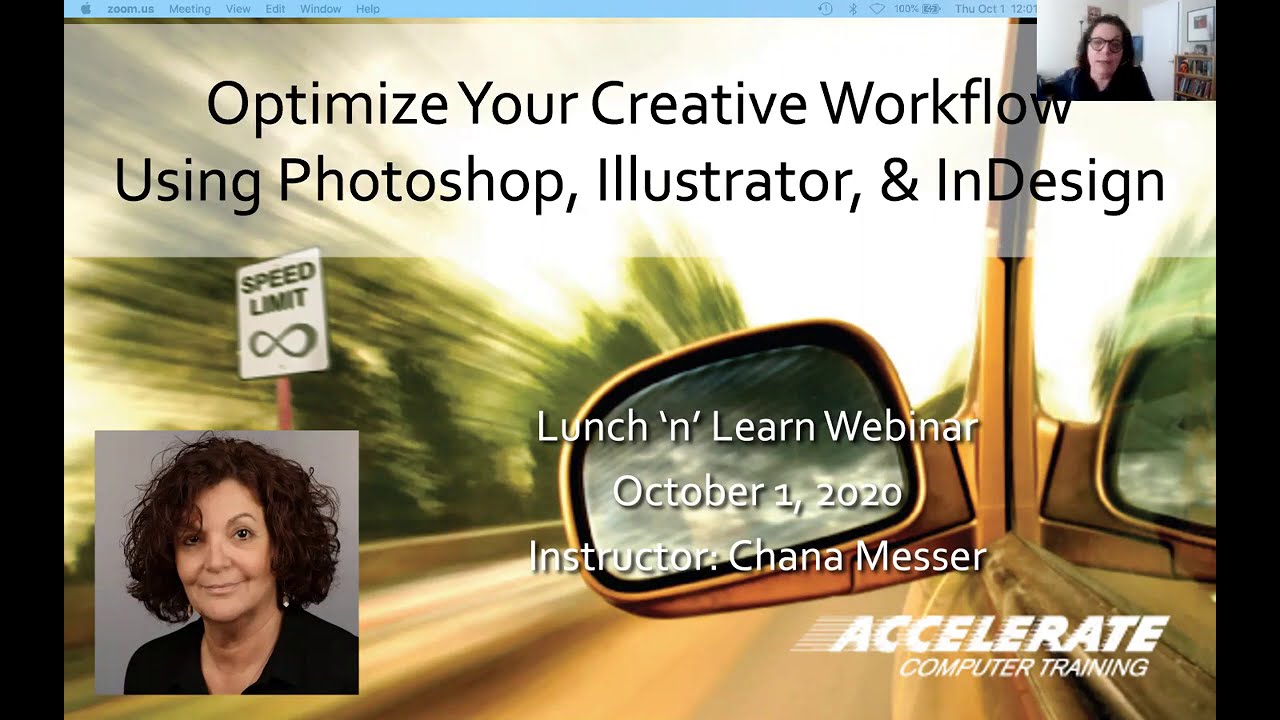
This free webinar, hosted by Accelerate Computer Training, was presented October 1, 2020 by artist, designer, Adobe Certified Instructor, and Accelerate trainer, Chana Messer. In this 60-minute presentation, Chana demonstrates her tips, tricks, and strategies on how to optimize your creative workflow. Watch as she constructs a tri-fold brochure ...
ripe quest
Thanks, @viral palm
fluid craneBOT
Gave +1 Creative Carma to @viral palm (current: #9 - 591)
haughty storm
sly hawk
ok, cool. - I just need to figure out what this new selection brush is!
its handy! I use it sometimes
 low moth
hello, im wondering how i can remove the black line from the image without ai, not really sure how to do it with the buildings and the bit under it
 haughty storm
low moth
hello, im wondering how i can remove the black line from the image without ai, n...
haughty storm
low moth
hello, im wondering how i can remove the black line from the image without ai, n...
you talking about the tall thick (bar?) black line next to the building?
low moth
haughty storm
you talking about the tall thick (bar?) black line next to the building?

i can send a full pic if u want
ive already done a little bit of it
haughty storm
yeah ok that's what I thought; looks like a reflection of another building; what tool did you use?
low moth
tool for what?
i took the picture indoors and i the pole was from the window or frame i believe
ripe quest
@velvet vault - Please see: https://discord.com/channels/547473772727238676/1042833042378592329
 empty sundial
Does anyone know how to fix the alignment of this selection? With it so off-centered it makes it very hard to select other pixels! Using Photoshop 2024 on desktop
 ripe quest
empty sundial
Does anyone know how to fix the alignment of this selection? With it so off-cent...
ripe quest
empty sundial
Does anyone know how to fix the alignment of this selection? With it so off-cent...
Not really sure what you're asking here. "Alignment of this selection."
empty sundial
Not really sure the best way to describe it, when I select something with the move tool, the selection around it is misaligned with the thing selected!
ripe quest
empty sundial
Not really sure the best way to describe it, when I select something with the mo...
There might be some extra, semi-transparent pixels in there that you can't see.
empty sundial
This happens after restarting photoshop, and also happens on a brand new page!
 stiff trail
So in a brand new document with only one layer, if you make a selection and go to move it, you get this misalignment happen ?
empty sundial
Correct!
stiff trail
( Turn off GPU accel just to rule that out, you know Adobe forums will ask you to do that anyway so may as well pull that tooth now 🙂 )
empty sundial
Thank you, will do that now!
stiff trail
Update drivers is the next one, then reset preferences as the holy trinity.
ripe quest
I cannot reproduce this behavior.
stiff trail
Me either on 25.7.0
What's current master, 26.0.0 ?
I have deadlines so didn't update... 🙂
empty sundial
stiff trail
( Turn off GPU accel just to rule that out, you know Adobe forums will ask you t...
This ended up working! Thank you guys so much for the help ❤️
stiff trail
Well, you now need to fix the GPU issue, but you at least know where the issue is 🙂
ripe quest
empty sundial
This ended up working! Thank you guys so much for the help ❤️
Main Menu: Help > GPU Compatibility... see if any issues are reported there.
empty sundial
I ended up getting an update in my graphics card and now it works 🙂
ripe quest
empty sundial
I ended up getting an update in my graphics card and now it works 🙂
I'm glad you got it sorted out!
 novel kite
guys how do i remove this logo and keep the pattern looking good?
 ripe quest
novel kite
guys how do i remove this logo and keep the pattern looking good?
ripe quest
novel kite
guys how do i remove this logo and keep the pattern looking good?
You can barely see the pattern. It's mostly covered up. I would probably just create something new.
haughty storm
can barely see the pattern? I see a red plank like wall with tan-ish yellow lines in between...
ripe quest
You're not going to be able to remove that and end up with anything coherent. Its mostly covered by the text/logo.
ripe quest
haughty storm
can barely see the pattern? I see a red plank like wall with tan-ish yellow line...
What's underneath this? Do you have x-ray vision or something?
 novel kite
haughty storm
can barely see the pattern? I see a red plank like wall with tan-ish yellow line...
novel kite
haughty storm
can barely see the pattern? I see a red plank like wall with tan-ish yellow line...
The pattern continues along the shirt
novel kite
haughty storm
can barely see the pattern? I see a red plank like wall with tan-ish yellow line...
The pattern continues along the shirt
ripe quest
Once was good enough. :)
novel kite
ripe quest
What's underneath this? Do you have x-ray vision or something?
It's a yellow line with a red background
ripe quest
novel kite
It's a yellow line with a red background
Its not very good quality to begin with. I'm assuming this is really zoomed in. (?)
novel kite
ripe quest
Once was good enough. :)
My internet cut of so the message didn't input till now
novel kite
ripe quest
Its not very good quality to begin with. I'm assuming this is really zoomed in. ...
Yes it's a part of a jersey
ripe quest
I guess it depends on the size of the final image to be exported. Maybe it won't matter if those pixels are small enough to not be noticeable.
You can try to use AI to "imagine" the texture but it's likely not going to be anything close to reality.
haughty storm
ripe quest
What's underneath this? Do you have x-ray vision or something?
no, but we can assume that's what needs to be there once the logo is removed; obviously that's a bit of work to do

not great, but it does remove it; you can still see wehre the logo was
ripe quest
haughty storm
no, but we can assume that's what *needs* to be there once the logo is removed; ...
You really have no idea until you can see the rest of the image, the size of the image and what you can get away with at the size to be exported.
novel kite
It will be noticeable but fractionally
haughty storm
ripe quest
You really have no idea until you can see the rest of the image, the size of the...
for sure, I agree this isn't the best; not saying that this would ultimately work but when this is all you're given.. wel then..
novel kite
But because ur removing the lines and the text spans alot of the width of the shirt it's going to be very noticeable
ripe quest
novel kite
But because ur removing the lines and the text spans alot of the width of the sh...
If you have really good reference materials, i.e. high quality images of the jersey from different angles, its possible that a skilled compositor could fake it.
novel kite
ripe quest
If you have really good reference materials, i.e. high quality images of the jer...
Yea there are a whole ton of images of the jersey online
ripe quest
Or if its really small and the details won't matter that much you could also attempt to fake it. Based on this example image, I don't really see how anyone could do this and make it look believable.
 stray zephyr
Guys
Just a quick question
I'm using Lightroom to edit my photos, but whenever I want to zoom in there isn't a short cut to precisely zoom in like how I can in Illustrator or Photoshop, it's either zoomed in 100% or zoomed out 100%
ripe quest
stray zephyr
I'm using Lightroom to edit my photos, but whenever I want to zoom in there isn'...
You can't hold the Ctrl key and drag a box around the region that you want to zoom in on?
stray zephyr
ripe quest
You can't hold the Ctrl key and drag a box around the region that you want to zo...
Yeah, I already tried that, but that just zoom all the way in
ripe quest
"All the way in..." Not on my app.
stray zephyr
It's not like Photoshop or Illustrator where you can just press Z and drag your mouse to zoom in or out
ripe quest
What about Ctrl + / - ?
stray zephyr
ripe quest
What about Ctrl + / - ?
Also doesn't work
ripe quest
haughty storm
stray zephyr
Also doesn't work
yeah I don't think LRc and Lr have the same keybinds the interface is definitely different, which is why I prefer LRc
😛
stray zephyr
ripe quest
Yeah, no, I don't want that, I want to be able to drag my mouse to zoom in or out like how you use in and out on Illustrator or photoshop
stray zephyr
haughty storm
yeah I don't think LRc and Lr have the same keybinds the interface is definitely...
What's the difference
ripe quest
stray zephyr
Yeah, no, I don't want that, I want to be able to drag my mouse to zoom in or ou...
Then please post to the Lr Community Forum and request that feature because Lr doesn't currently work that way.
stray zephyr
ripe quest
Then please post to the Lr Community Forum and request that feature because Lr d...
Alright, if it doesn't work like that, then there's no need to post a forum, I will just make use of what is available
haughty storm
stray zephyr
What's the difference
lots! actually I'll screenshot
ripe quest
stray zephyr
Alright, if it doesn't work like that, then there's no need to post a forum, I w...
The dev teams monitor the forums. Features are requested and get upvoted. However, they won't know that you want those features if you don't tell them.
"Please make zooming work like Photoshop." :)
stray zephyr
ripe quest
The dev teams monitor the forums. Features are requested and get upvoted. Howeve...
Oh, that nice
haughty storm
stray zephyr
Alright, if it doesn't work like that, then there's no need to post a forum, I w...
I'm not sure that this server is the right server for LR but this is the last I can do for you sorry 😦

but that's LRc
ripe quest
stray zephyr
Oh, that nice
I can get you the link. One moment.
Oops. "Ideas" Tab. https://community.adobe.com/t5/lightroom-ecosystem-cloud-based/ct-p/ct-lightroom?page=1&sort=latest_replies&filter=all&lang=all&tabid=ideas

https://community.adobe.com
Get the most out of Lightroom with our community.
stray zephyr
ripe quest
The dev teams monitor the forums. Features are requested and get upvoted. Howeve...
I will do that later tho, I need to finish editing a could of photos and make a video montage for a client, it's actually my first client after trying to get one for like 4 years now, most of them would either refuse or just ghost me on the day of the appointment, but I went from 0 to 100 real quick my first photo and video shoot was on a Mercedes i class, so yeah I'm finally going somewhere :)
haughty storm
hey @ripe quest how can we better deal with questions; I thought this channel was for PS related questions, everything else in #💬chat-general but at the same time sometimes chat/ #❓ask-a-question moves quick and I'm not always here and I just happen to see the conversation before I even scroll up
stray zephyr
haughty storm
I'm not sure that this server is the right server for LR but this is the last I ...
It's ok
stray zephyr
haughty storm
I'm not sure that this server is the right server for LR but this is the last I ...
Oh, yeah, no, I personally don't like this old look to it
stray zephyr
haughty storm
I'm not sure that this server is the right server for LR but this is the last I ...
I find this better, it's cleaner
 haughty storm
to each their own
ripe quest
haughty storm
hey <@712015771596750931> how can we better deal with questions; I thought this...
#❓ask-a-question - is for questions about the products, and how to do things with the products. The products include: Photoshop, (Desktop, Web, iPad), Adobe Camera Raw, Lightroom, Lightroom Classic, Photoshop Express, mainly. Sometimes we will deal with ancillary workflows with other products.
Beyond that, I'm not sure what you're asking.
stray zephyr
Anyway, thanks for the help, both of u
haughty storm
np 🙂
haughty storm
ripe quest
<#548246314383835146> - is for questions about the products, and how to do thing...
kinda difficult to remmber all that; would be great to see this channel's description updated, cuz it just says photoshop
likewise on all the other Adobe officail servers
ripe quest
haughty storm
kinda difficult to remmber all that; would be great to see this channel's descri...
It's all "Photoshop" products.
ripe quest
haughty storm
kinda difficult to remmber all that; would be great to see this channel's descri...
That should be easy enough to remember. If a staff member or Community Expert wants to take on questions about another piece of software, like InDesign, we do it as there is no dedicated InDesign Server.
But you don't have to remember anything other than we support the Photoshop-related products.
 viral sierra
Happy Friday everyone - I was wondering if someone could help me with some of what I believe to be alpha channel issues.
I have some decals on a transparent background I made in Illustrator. When I export as a PNG in Illustrator the background transparency is fine. When I edit these PNGs in Photoshop and save them again as a PNG the edges of all my decals have a red color. The issue seems to be that the color channel for the background is being changed from black to red by Photoshop. How do I stop that from happening?
Here is what the file looks like with color channels showing straight from Illustrator and then again once edited in Photoshop

 viral palm
viral sierra
Happy Friday everyone - I was wondering if someone could help me with some of wh...
viral palm
viral sierra
Happy Friday everyone - I was wondering if someone could help me with some of wh...
Not sure to understand what's happening and I don't recognize any Adobe UI on your screen shots... Could you share the png made with illustrator? What type of edit did you do on the png with photoshop? It could help to understand...
viral sierra
Of course, sorry for the clunky explanation. The UI you're seeing in the pictures is from the Nvidia Texture Tools Photoshop plugin which is the only way I could find to show that the background color is being changed.
Here are the two files. The edits I've done in Photoshop is a simple noise filter over everything + an overlay of a Clouds filter over the scratched paint stripes on the lower half of the image

 viral palm
viral sierra
Of course, sorry for the clunky explanation. The UI you're seeing in the picture...
viral palm
viral sierra
Of course, sorry for the clunky explanation. The UI you're seeing in the picture...
NP... So if I understand well the picture on the right is the one made in illustrator before your Photoshop edit. Right?
viral sierra
That is correct
viral palm
viral sierra
That is correct
What was the value of your noise filter? Cloud filter was a regular black and white rendering?
viral palm
viral sierra
Of course, sorry for the clunky explanation. The UI you're seeing in the picture...
Is it this line which is bothering you?
 viral sierra
I used an Amount of 1, Uniform distribution, and Monochromatic checked for Add Noise. Clouds was a normal black & white on a separate layer with 25% opacity and set to Overlay. All parts of the Clouds layer outside of those paint stripes were deleted
viral sierra
viral palm
Is it this line which is bothering you?
Getting rid of it certainly does something.

However it now has this white border which is also an issue
viral palm
viral sierra
However it now has this white border which is also an issue
Give me 2 min... and let's try something.
viral sierra
Okay, thank you and take your time!
viral palm
Your photoshop file with filter and clouds texture applied is still open?
viral sierra
It is
viral palm
viral sierra
It is
Could you share your layers panel to let me see the layer structure... We could try something...
viral sierra
Sure, only two layers - the decals from Illustrator and then the clouds overlay for the scratched red and green paint

(the Decals layer also has normal blender mode and 100% opacity)
viral palm
viral sierra
Sure, only two layers - the decals from Illustrator and then the clouds overlay ...
Decals layer is the file generated by illustrator and paint clouds is your photoshop edit. Ctrl+click on the two layers names in the panel to select them. Then Ctrl+G to group them.
With the rectangular marquee tool select the whole image then in the top menu go to Select>Modify>Contract and enter the value 10
With the group active hit the create mask icon
then try to save as png the red line should be gone...
viral sierra
Sorry for the confusion. I didn't paint white lines over the red line to get rid of it as the picture I posted implies. I deleted the red line but the the color channel for that area turned to white instead of black.
viral palm
 viral palm
viral sierra
Sorry for the confusion. I didn't paint white lines over the red line to get rid...
viral palm
viral sierra
Sorry for the confusion. I didn't paint white lines over the red line to get rid...
For your info the red line is already there on the illustrator file...
viral sierra
It is intentionally. When exporting from illustrator without an object covering the entire canvas for some reason I run into issues with the color channel for the background running into this same issue of some parts being white. This gives me a white border around my decals. You can see this happening in the PNG you just posted
 viral palm
viral sierra
It is intentionally. When exporting from illustrator without an object covering ...
viral palm
viral sierra
It is intentionally. When exporting from illustrator without an object covering ...
Did you try to make this "square around" a no fill no stroke shape in illustrator before the export?
Does the png shared with the video solve your problem?
 viscid fern
How would i go about removing the background i tried using refine hair but this is the most i got
 viral sierra
I have tried with no fill and no stroke - this is the result. As you can see the color channel for the background is not completely black. I have no idea why these certain areas turn white. My solution for this was to have the red border, which worked until I edited the same image in Photoshop

Unfortunately that PNG you shared with the video has the same issue as this - the background color channel is not completely black which is giving a visible white border around the decals
viral palm
viral sierra
Unfortunately that PNG you shared with the video has the same issue as this - th...
Ok sorry to hear that... I don't know where you are trying to use this file but I can't do more transparent than transparent...
viral sierra
No worries. I'm confused by it as well. Thank you for your help though
viral palm
viral sierra
No worries. I'm confused by it as well. Thank you for your help though
Does this one have the same problem?
 viral sierra
viral palm
Does this one have the same problem?
viral sierra
viral palm
Does this one have the same problem?
It does - although I think I figured it out how to fix this by complete accident
Grouping my layers and and then changing the Blend Mode of the group from Pass Through to Normal seems to work
No clue why but it seems to eliminate those white spots on the color channel
viral palm
viral sierra
Grouping my layers and and then changing the Blend Mode of the group from Pass T...
There is nothing more than the two layers shown before in your group? Weird... But happy for you.
viral sierra
viral palm
There is nothing more than the two layers shown before in your group? Weird... B...
Correct - no change from what I showed before besides grouping and changing the Blend Mode. I agree very weird but thank you lol
fluid craneBOT
Gave +1 Creative Carma to @viral palm (current: #9 - 592)
 clever ermine
Is there a way to print each of those sections to a new piece of paper?
Making a Grid to Print out a big image. it will nearly 2m Tall
 haughty storm
clever ermine
Is there a way to print each of those sections to a new piece of paper?
Making a...
haughty storm
clever ermine
Is there a way to print each of those sections to a new piece of paper?
Making a...
tbf I'd break that up into several images and use something like qimage to make a really big panel poster, qimage is good with that kind of thing IDK if there's any adobe products that does it well
haughty storm
viscid fern
How would i go about removing the background i tried using refine hair but this ...
removing backgrounds are a PITA sometimes, especially with one like this you'll hae to keep playing with the different tools and selections to get it all out
clever ermine
haughty storm
tbf I'd break that up into several images and use something like qimage to make ...
I found a way through Slice Tool
viscid fern
haughty storm
removing backgrounds are a PITA sometimes, especially with one like this you'll ...
hey just seen your message, what are some good alternative tools? I was just using a soft brush
haughty storm
magic wand, select brush, remove tool; you'll have to do all of those carefully
vapid flume
clever ermine
Is there a way to print each of those sections to a new piece of paper?
Making a...
The way I'd do it is to use a fixed size selection of the size of one your rectangles, that way it ensures that the sizing is precise which is sometimes not the case when you rely on snapping to guides

then separate each selection into its own layer (Layer > New layer via cut, CTRL+SHIFT+J)
The tricky bit is that you have to go back to the main layer in between each cut.
Then you can file> export>export layers as files when you're done, so you'll get one new file per layer, in the file format of your choice that you can print individually
However I would check if your printer can do that automatically. There is a "poster" mode in some printers that actually manages that for you
For example you can check that for Epson printers
 hushed niche
clever ermine
Is there a way to print each of those sections to a new piece of paper?
Making a...
hushed niche
clever ermine
Is there a way to print each of those sections to a new piece of paper?
Making a...
If you do not mind half toning, there is https://rasterbator.net

The Rasterbator
Wall art generator. Enlarges images to multiple pages, which you can then print and combine into huge posters.
tame cape
viral sierra
I have tried with no fill and no stroke - this is the result. As you can see the...
@viral palm
He definitely doesn't use Photoshop. Maybe that's where the problem lies ...?
viral sierra
tame cape
<@698155393649475695>
He definitely doesn't use Photoshop. Maybe that's where t...
I used exclusively Illustrator and Photoshop for creation and editing. I took the screenshots using the Nvidia Texture Tools photoshop plugin because that's the only way I could find to show how the background color channel was being changed
tame cape
viral sierra
I used exclusively Illustrator and Photoshop for creation and editing. I took th...
Can you please upload the Illustrator file for inspection (please convert the fonts to paths first)? Unfortunately I won't be back on the computer until tonight, but maybe someone else will have a look at the file before then.
viral sierra
Sure, here's the file. I did already find a fix as mentioned earlier but I'd welcome any deeper insight on to why this happens
 warm badge
Hi everyone! I'm trying to solve an issue with managing date metadata in my photos and would really appreciate some help.
Context: I started by searching if Google Photos could change the capture date metadata to be able to download photos and mantain the order in others gallerys like samsung one. I found out that it can’t do this automatically. Google Photos only allows me to manually adjust the "creation date" in their platform, not the IPTC or XMP metadata fields where the "capture date" is stored in the photo file.
I’m now looking for a way to automate this process. Ideally, I want software that can read the date from the file name and place it in the "capture date" metadata field of each image. Does anyone have experience or advice on how to do this? Maybe a tool or script that makes it easy? I ask it here cause maybe Adobe has already a tool for that on their suit, or even photoshop could maybe do that too... One of the problem is that there are some different name-date formats, for exaple there are some images that have the date like this xx-xx-xx,some others just have it like this xxxxxx, others have them with a screenshot text before the date...
viral palm
viral sierra
Sure, here's the file. I did already find a fix as mentioned earlier but I'd wel...
Is the problem still present in this image?
If so, I'm running out ideas...
 viral sierra
viral palm
Is the problem still present in this image?
If so, I'm running out ideas...
viral sierra
viral palm
Is the problem still present in this image?
If so, I'm running out ideas...
Sadly yes - you can see it here in the discord thumbnail where a white border is visible along the darker elements of the image
viral palm
viral sierra
Sadly yes - you can see it here in the discord thumbnail where a white border is...
Ok...😢
I don't know what's happenening... Good news is you found a way to work even if it looks weird and tedious. Sorry.
viral sierra
No problem at all - I really appreciate you taking the time to try and figure it out
 viral palm
 fallow berry
Is some brushes backwards compatible with other versions?
fallow berry
Is some brushes backwards compatible with other versions?
What is your version?
fallow berry
 fallow berry
viral palm
What is your version?
fallow berry
viral palm
What is your version?
version 26
viral palm
fallow berry
version 26
Where the .abr file you're trying to use come from?
fallow berry
 upbeat jungle
does anyone know why i cant draw in a layer without double clicking it 🧍🏻♂️
fallow berry
A toturial from a video
upbeat jungle
like im on layer 1 and then when i want to edit in layer 2 it shows the target channel is hidden and i need to double click the layer every time i want to switch layer
😭
viral palm
fallow berry
A toturial from a video
Opened it in my photoshop V26 without any problem.
By the way there is nothing exceptional in this .abr file => just a soft round presure size brush with smoothing feature on.
You have the same in the by default basics brushes set.
 viral palm
upbeat jungle
like im on layer 1 and then when i want to edit in layer 2 it shows the target c...
viral palm
upbeat jungle
like im on layer 1 and then when i want to edit in layer 2 it shows the target c...
could you share a screen shot of you photoshop UI and explain which tool you're trying to use and for what type of work/effect? It will be easier for us to find your problem.
fallow berry
viral palm
Opened it in my photoshop V26 without any problem.
By the way there is nothing ...
But it should have more then a "soft brush"
It should have 6
upbeat jungle
viral palm
could you share a screen shot of you photoshop UI and explain which tool you're ...
 viral palm
fallow berry
But it should have more then a "soft brush"
viral palm
fallow berry
But it should have more then a "soft brush"
Sorry there is just one... Maybe the file were corrupted...? Perhaps the reason why you can't open it...
warm badge
is it there a lightroom discord?
fallow berry
upbeat jungle
Pretty drawing btw
fallow berry
viral palm
Sorry there is just one... Maybe the file were corrupted...? Perhaps the reason ...
Thank you for your help:p
fluid craneBOT
Gave +1 Creative Carma to @viral palm (current: #9 - 593)
upbeat jungle
fallow berry
Pretty drawing btw
thank you 😼
fluid craneBOT
Gave +1 Creative Carma to @fallow berry (current: #611 - 2)
viral palm
upbeat jungle
You're in quick mask mode (your layer is hilighted in red in the Layers panel) Click on the icon shown in the screen shot to switch to normal mode.
 viral palm
warm badge
is it there a lightroom discord?
viral palm
warm badge
is it there a lightroom discord?
No Lightroom Discord but you can post your question here there are Lightroom usuers here (I'm not) who can surely help you.
warm badge
viral palm
No Lightroom Discord but you can post your question here there are Lightroom usu...
Oh, then, my purpose is to change some metadata dates to the photo name one withoud doing it one by one
upbeat jungle
viral palm
You're in quick mask mode (your layer is hilighted in red in the Layers panel) C...
THANK YOUUUU
fluid craneBOT
Gave +1 Creative Carma to @viral palm (current: #9 - 594)
viral palm
warm badge
Oh, then, my purpose is to change some metadata dates to the photo name one with...
I have no idea 'cause I don't use this app a lot.
I'd suggest you to ask on the Adobe Lightroom community
https://community.adobe.com/t5/lightroom-classic/ct-p/ct-lightroom-classic?page=1&sort=latest_replies&lang=all&tabid=all
https://community.adobe.com
Connect with fellow editors in our Lr Classic community.
haughty storm
tame cape
Can you please upload the Illustrator file for inspection (please convert the fo...
k, Nivida Texture Tool doesn't have a screenshot feature, but Nvidia Experience does (via shadowplay, for games) its obvious he's skirting around something
viral sierra
haughty storm
k, Nivida Texture Tool doesn't have a screenshot feature, but Nvidia Experience ...
I'm literally using Windows+Shift+S to take a screenshot...??
 timid coral
when tabbing out of photoshop (or just unfocusing the window) I need to click once to focus the window before being able to click anything. Can I change this?
ripe quest
timid coral
when tabbing out of photoshop (or just unfocusing the window) I need to click on...
Not really sure what this means. In Windows, you have to have an app active/selected to interact with it.
 kindred flint
Can someone help me blend
ripe quest
You'll have to be more specific because "blend" can mean any number of possible things.
Provide examples, screenshots, or whatever helps to demonstrate the problem or the goal.
 wanton tartan
hello world

i get this line when i zoom out
but not when i zoom in

any idea wh?
ripe quest
wanton tartan
but not when i zoom in
Main menu: Help > GPU Compatibility... Any errors or issues reported there?
wanton tartan
it is going to show in the final resolt
if not then i do not care
wanton tartan
ripe quest
Main menu: Help > GPU Compatibility... Any errors or issues reported there?
one sec to see
 ripe quest
Seems like some sort of rendering glitch if it only shows at certain zoom levels. You can try saving your work and restarting Photoshop.
ripe quest
wanton tartan
thanks love
Thanks will do. You can leave out the "love" part.
fluid craneBOT
Gave +1 Creative Carma to @wanton tartan (current: #195 - 8)
Gave +1 Creative Carma to @ripe quest (current: #3 - 2428)
ripe quest
Please try to be professional here. Thanks in advance.
timid coral
ripe quest
Not really sure what this means. In Windows, you have to have an app active/sele...
i don't know how else to word it so hope this helps
this is 2 monitors side by side
ripe quest
timid coral
this is 2 monitors side by side
OK. And? You have to actually click on an app/icon/button to do something in the app.
timid coral
ripe quest
OK. And? You have to actually click on an app/icon/button to do something in the...
it's an unnecessary 2nd click
on discord and any other app the first click focuses and 'activates' w/e you click on
ripe quest
timid coral
it's an unnecessary 2nd click
There are multiple "Windows" inside the Windows version of Photoshop. I guess you'll have to actually click on the Window you want to interact with. Otherwise, you could accidentally trigger something. You can post this to the Photoshop Community Forum as a bug or a feature request and see if the Dev Team will look into it.
timid coral
ripe quest
There are multiple "Windows" inside the Windows version of Photoshop. I guess yo...
it all makes sense now, tbh if it hasn't been "fixed" by now I should probably just get used to it
thanks for the help
ripe quest
timid coral
it all makes sense now, tbh if it hasn't been "fixed" by now I should probably j...
If you try to use various screen capture apps, you might see what I mean. It will see various panels in Photoshop as a unique "Window" that can be selected and captured. I'm not sure if that's the intended functionality or an artifact of writing the software. I'd be curious to know if it works the same way on MacOS.
haughty storm
viral sierra
I'm literally using Windows+Shift+S to take a screenshot...??
oh NOW you're telling the truth
timid coral
ripe quest
If you try to use various screen capture apps, you might see what I mean. It wil...
yeah i noticed the Tools window is one of few windows in photoshop that isn't focused on first click, though the "File, Edit, Image etc" is focused and clicked. I imagine if you hotkey all tool selections then you won't notice, thanks again
fluid craneBOT
Gave +1 Creative Carma to @ripe quest (current: #3 - 2429)
viral sierra
...sorry I didn't explicitly state how I was taking a screenshot earlier.. wtf? I don't understand the suspicion or the hostility here
I outlined the entire process I used which resulted in the issue, provided the file, Franck I believe recreated it which gave the same problem, wtf am I lying about and why would I? Lying about this would be counterproductive to me getting help
haughty storm
we're not here to argue about it, don't worry about it 🙂
ripe quest
viral sierra
I outlined the entire process I used which resulted in the issue, provided the f...
I think they're suggesting that you're not actually using Photoshop but some other app. The sample screenshot looks like Photopea, which we don't support here.
 mental harness
What's happening here?
ripe quest
mental harness
What's happening here?
Pushing pixels.
haughty storm
just PS help is happening ❤️
mental harness
Ohh
ripe quest
haughty storm
we're not here to argue about it, don't worry about it 🙂
You would do well to not accuse people of things. You're not staff and its not really your place to make accusations or call people out.
ripe quest
viral sierra
I outlined the entire process I used which resulted in the issue, provided the f...
I think its just a misunderstanding. Perhaps we can just move on to the focus of this channel.
haughty storm
ripe quest
You would do well to not accuse people of things. You're not staff and its not r...
and I think you're doing just the same, look at you goooo
assuming and accusing 😄
ripe quest
mental harness
What's happening here?
Did you have a Ps-related question?
ripe quest
haughty storm
and I think you're doing just the same, look at you goooo
If you want to create problems, you can be timed out. Feel free to keep that in mind.
mental harness
ripe quest
Did you have a Ps-related question?
No and yes. How do I share one of my creations on this server?
Because I have my ps creation saved
ripe quest
mental harness
No and yes. How do I share one of my creations on this server?
If you want to post for suggestions and advice on a project, export a web-friendly image and post to #📝project-feedback.
mental harness
Ohhh thank you! I will denfinetly check that out
ripe quest
mental harness
Ohhh thank you! I will denfinetly check that out
If you're trying to share multiple images and longer bodies of text with it then its better to post in the #1110544577850511401.
 iron sedge
when i use the brush tool and try and change the color, this color picker always pops up instead of the original color box thingy.
 ripe quest
iron sedge
when i use the brush tool and try and change the color, this color picker always...
ripe quest
iron sedge
when i use the brush tool and try and change the color, this color picker always...
You're probably in 32bit color mode.
iron sedge
OH UR RIGHT
 lime pebble
how can I make any image like this

like yk what i mean
do i have to manually draw it or is there some filter or something that does it
ripe quest
lime pebble
do i have to manually draw it or is there some filter or something that does it
Posterization... Use: Threshold or Posterize
ripe quest
lime pebble
how can I make any image like this
This is just a quick hit but probably this sort of workflow...
lime pebble
thank you so much
ripe quest
@marsh thicket - You can probably do that using a custom Pattern and then fill a shape with the Pattern.
 weary quail
guys i got two layers, the original manga artwork, and the cut out selection of the hair, i need on the original photo to get rid of the hair without having to cut out again is there a way? so in the end ive got one layers with just the hair cut out, and the other layer with just the main body frame but without the hair. if anyone could help that would be great ;p.
 marsh thicket
ripe quest
<@329806269672325121> - You can probably do that using a custom Pattern and then...
marsh thicket
ripe quest
<@329806269672325121> - You can probably do that using a custom Pattern and then...
i'm new what is that?
ripe quest
marsh thicket
i'm new what is that?
Probably not trivial if you're new to Photoshop.
ripe quest
marsh thicket
i'm look into it
You're going to need a well-defined shape to use and probably another layer with the outlines to put over-top of it.
marsh thicket
any tutorial you recommend
ripe quest
weary quail
guys i got two layers, the original manga artwork, and the cut out selection of ...
If you can select the hair, you can create a mask to mask out everything except the hair. Then you could use that object/selection to remove the hair on the other layer. (If I'm understanding your description.)
marsh thicket
ripe quest
You're going to need a well-defined shape to use and probably another layer with...
?
weary quail
ripe quest
If you can select the hair, you can create a mask to mask out everything except ...
which layer do i put the mask on? the original photo or the one of the hair cut out?
ripe quest
marsh thicket
?
There are two parts to this. One layer will have a shape that is filled with the "letters" pattern. Then another to put on top with the black outlines.
 ripe quest
weary quail
which layer do i put the mask on? the original photo or the one of the hair cut ...
ripe quest
weary quail
which layer do i put the mask on? the original photo or the one of the hair cut ...
Can you show me the image because I'm not sure I'm completely getting the whole issue.
weary quail
dont mind the hair 1/2 layer i just added that, i do manga animations on ae but the issue i stated above will make things 10x quicker for me if you can help me out aha

thats the cut out now i need that cut out to not be in on that original picutre so shes basicallyt hairless if that makes sense lol
 ripe quest
weary quail
thats the cut out now i need that cut out to not be in on that original picutre ...
ripe quest
weary quail
thats the cut out now i need that cut out to not be in on that original picutre ...
Ctrl click on Layer 2 to make those pixels a selection. Then switch to Layer 1 by clicking on it in the Layers Panel. Then with the selection active, add a Layer Mask to Layer 1. That should do it, if I'm understanding the issue.
weary quail
ripe quest
Ctrl click on Layer 2 to make those pixels a selection. Then switch to Layer 1 b...
its doing the opposite i think
 ripe quest
One moment
weary quail
all good ive got time
ripe quest
weary quail
its doing the opposite i think
Kind of a rush job trying to chop and recreate your character but hopefully this demonstrates what I mean...
The Layer Mask allows you to make refinements which is why we use that technique instead of erasing or deleting.
weary quail
okay, thanks alot, ill try this rn, i do succkk on ps ive been using it for a very small time so still learning alot
ripe quest
marsh thicket
any tutorial you recommend
I'm not sure if you'll be able to follow this entirely if you're brand new to the app but... You could do something like this:
Using Edit > Fill > Pattern... Script: Brick Fill...
weary quail
ripe quest
Kind of a rush job trying to chop and recreate your character but hopefully this...
how do i get that colour fill layer or do i not need?
ripe quest
weary quail
how do i get that colour fill layer or do i not need?
I just added it so I could see the edges of the character.
weary quail
ripe quest
I just added it so I could see the edges of the character.
how do auto select the whole subject? whats the key bind aha
ripe quest
weary quail
how do auto select the whole subject? whats the key bind aha
Ctrl click on the Layer thumbnail.
weary quail
ok im off topic but i got this somehow how do i get it to transparent now lmfao

im trying v hard aha
ahhhhh i did it
finally
i did it different somehow but yeah thank you sm either way i tried to do ur way and somehow messed up and got it lol
ripe quest
weary quail
i did it different somehow but yeah thank you sm either way i tried to do ur way...
You can get rid of that color if you don't want it.
weary quail
yeh i did
ripe quest
OK. Glad you got it sorted out
 hard reef
How could i make a slight motion blur like this on the bottom? I used motion blur but it blurs the whole image, is there a tool where i can manuelly pick to blur?
 haughty storm
hard reef
How could i make a slight motion blur like this on the bottom? I used motion blu...
haughty storm
hard reef
How could i make a slight motion blur like this on the bottom? I used motion blu...
there's a blur brush but I think you'll want to mask the area you want to blur and then add the motion blur filter and it will only apply it to the masked area
ripe quest
hard reef
How could i make a slight motion blur like this on the bottom? I used motion blu...
Convert it to a Smart Object first. Then add the Blur. Then paint on the Smart Filter Mask to apply the blur where you want it.
hard reef
ripe quest
Convert it to a Smart Object first. Then add the Blur. Then paint on the Smart F...
thats smart didnt think of that thank you
fluid craneBOT
Gave +1 Creative Carma to @ripe quest (current: #3 - 2430)
 drowsy stream
i have a group photo of me and my friends but i want to make my friend in the middle shorter, could someone help me with it? :D
ripe quest
drowsy stream
i have a group photo of me and my friends but i want to make my friend in the mi...
Please describe "help me with it" - Do you want to learn how to do this with Photoshop or do you want someone to do it for you?
drowsy stream
ripe quest
Please describe "help me with it" - Do you want to learn how to do this with Pho...
both actually xD
i am a beginner with photoshop and dont have the skills yet
wanton tartan
hi

i want to select the bubble
but the selection tools are onle selecting the black
is there a easy way to switch the black and the white so i can select the bubble
haughty storm
wanton tartan
but the selection tools are onle selecting the black
inverse the selection is one way
wanton tartan
it worked
i just did it
but still the magice selection took selecting every thing
nvm
my tolorence was 255
haughty storm
lower the tolerance
wanton tartan
XD
haughty storm
yeah
wanton tartan
haughty storm
lower the tolerance
thank you
get free carma from the master
fluid craneBOT
Gave +1 Creative Carma to @haughty storm (current: #36 - 53)
haughty storm
tyty
 river otter
Could someone teach me how to create this effect? I tried adjusting everything, but it didn’t work. I’m new to Photoshop.
 wanton tartan
river otter
Could someone teach me how to create this effect? I tried adjusting everything, ...
wanton tartan
river otter
Could someone teach me how to create this effect? I tried adjusting everything, ...
paint blue layer then put it above the image you want then reduce the opacity of the blue layer
or purple i think in this image is purple
that pruple line you can just paint it on top
haughty storm
gonne need to add a mask of the grid then inverse the selection and clear it so that it looks white and you don't even have to paint it, you can use a solid color adjustment layer
river otter
wanton tartan
paint blue layer then put it above the image you want then reduce the opacity of...
How do I reduce the layer?
haughty storm
river otter
How do I reduce the layer?
change the opacity

 ripe quest
river otter
Could someone teach me how to create this effect? I tried adjusting everything, ...
ripe quest
river otter
Could someone teach me how to create this effect? I tried adjusting everything, ...
Try a Gradient Map Adjustment Layer and pick custom colors to suit your needs.
ripe quest
river otter
Could someone teach me how to create this effect? I tried adjusting everything, ...
Create each image and then assmeble them into a grid afterwards.
You can create and save a custom gradient if you want or just drag/drop the same Gradient Map Adjustment Layer onto each document.
river otter
I made two! Thank you very much for your help! Normally, people don’t have patience with beginners.

 wanton tartan
ripe quest
Try a Gradient Map Adjustment Layer and pick custom colors to suit your needs.
wanton tartan
ripe quest
Try a Gradient Map Adjustment Layer and pick custom colors to suit your needs.
will that what came out with me with my way
what different exactly?

dose it better to learn that for me ?
bec that is new mec for me
ripe quest
wanton tartan
will that what came out with me with my way
what different exactly?
You only have one color. I have Gradient Ramp that can contain any number of colors.
 deep wolf
Hello everyone, does anyone know if it's possible to keep the grainy effect from the dissolve layer pre exportation? or like something to create a similar effect
ripe quest
wanton tartan
will that what came out with me with my way
what different exactly?
If I were doing to do what you did, I would use a Hue/Saturation Adjustment Layer and tick the Colorize option.
viral palm
deep wolf
Hello everyone, does anyone know if it's possible to keep the grainy effect from...
Not sure tounderstand what you mean by pre exportation... Could you clarify?
ripe quest
deep wolf
Hello everyone, does anyone know if it's possible to keep the grainy effect from...
Blend Modes like Dissolve and others are mathematically calculated. You can't really rasterize that. You could try to use other "noise" effects.
wanton tartan
is there is easy way to remove the red ?
 ripe quest
wanton tartan
is there is easy way to remove the red ?
ripe quest
wanton tartan
is there is easy way to remove the red ?
Desaturate the Layer to remove the color. Image > Adjustments > Desaturate
wanton tartan
how ?
haughty storm
make the red show more?
deep wolf
viral palm
Not sure tounderstand what you mean by pre exportation... Could you clarify?
basically when you have a shape and you put it under a dissolver layer mode, on the photoshop render it's really grainy, like a thick grainy fade, but when you export it the render gets "multiplied" and you get more of a blur than a grainy fade
I want to know how can I keep the grainy effect
Maybe i can illustrate?
viral palm
wanton tartan
how ?
Ctrl+U
wanton tartan
haughty storm
make the red show more?
no the other way around XD
i want it to be black but not losing the white of the bubble
ripe quest
wanton tartan
how ?
Or use a Hue/Saturation Adjustment and bring the saturation all the way down to 0.
viral palm
Better to change your layer to smart object before @wanton tartan
wanton tartan
ripe quest
Or use a Hue/Saturation Adjustment and bring the saturation all the way down to ...
that will change also the white of the bubble
ripe quest
Saturation only.
wanton tartan
 ripe quest
wanton tartan
ripe quest
wanton tartan
That's Lightness.
viral palm
wanton tartan
wrong cursor
ripe quest
SAT-UR-ATION.
haughty storm
lol as if we can "hear" that 😛
hushed niche
deep wolf
Hello everyone, does anyone know if it's possible to keep the grainy effect from...
Are you looking at your image at 100% magnification?
deep wolf
hushed niche
Are you looking at your image at 100% magnification?
I don't think so, how can I see that?
hushed niche
Double click the zoom tool.
viral palm
deep wolf
basically when you have a shape and you put it under a dissolver layer mode, on ...
Try to make a smart object with the two layers (dissolver one and the other) maybe...
And yes you could share your layer panel to give us a better idea.
ripe quest
viral palm
Try to make a smart object with the two layers (dissolver one and the other) may...
True. It could be converted to a Smart Object. (There is no need to combine it with another layer.)
deep wolf
okay so, it is already a smart object, with a field blur and a dissolve mode layer
on the real time render it looks like this

and on the exported thing
it looks like this

I just like the more aggressive look and want to keep it
ripe quest
deep wolf
First make sure you're viewing the canvas at at 100%. Ctrl 1 or View > 100%.
viral palm
deep wolf
I just like the more aggressive look and want to keep it
Is ther any layer Fx applied to your shape? (like drop shadow, outer glow or something else)
deep wolf
viral palm
Is ther any layer Fx applied to your shape? (like drop shadow, outer glow or som...
there's a field blur (filter>blur effects gallery> field blur)
do I turn it off?
ripe quest
No. With the Dissolve Blend Mode applied, convert the Smart Object into a New Smart Object. That should "freeze" the Dissolve effect.
viral palm
deep wolf
do I turn it off?
Wait... Could you share your layers panel or the entire UI please?
ripe quest
Although, if you want to edit the Blur again, you'll have to drill down into two Smart Objects. heh
vital socket
viral palm
Are you using graphic pen or mouse?
im using graphic pen, i use wacom to draw.
viral palm
ripe quest
True. It could be converted to a Smart Object. (There is no need to combine it w...
DId I missunderstand?... I thought there were two layers involved
deep wolf
viral palm
Wait... Could you share your layers panel or the entire UI please?
Sure, I have photoshop in french tho
deep wolf
viral palm
DId I missunderstand?... I thought there were two layers involved
no there is only one
ripe quest
viral palm
DId I missunderstand?... I thought there were two layers involved
It doesn't really matter how many layers are involved, tbh.
viral palm
deep wolf
Sure, I have photoshop in french tho
No problem.. I'm french 😉
viral palm
ripe quest
It doesn't really matter how many layers are involved, tbh.
Yep dissolve effect is great but we often have to deal with smart object (or rasterize for the most violent people) to keep the effect.
deep wolf
that's it

truly the problem is that I want to make the grains bigger
i mean the thing
this is too small

there s no way to make the grain look bigger?
ripe quest
deep wolf
there s no way to make the grain look bigger?
Dissolve is a Blend Mode. Not an effect. If you want an effect that you can control, you'll have to do this a different way.
deep wolf
ripe quest
Dissolve is a Blend Mode. Not an effect. If you want an effect that you can cont...
This is what I am asking, thank you, what would be the way?
fluid craneBOT
Gave +1 Creative Carma to @ripe quest (current: #3 - 2431)
ripe quest
deep wolf
This is what I am asking, thank you, what would be the way?
This method requires a somewhat complicated Effects and Adjustment Stack but can be modified in myriad ways...

Doing it this way, you could dial in various levels of control over each portion of the effect..
Someone else might have better ideas. Perhaps they will chime in.
[crickets]
Maybe not. :)
ripe quest
deep wolf
This is what I am asking, thank you, what would be the way?
You could also try something like this. Not as infinitely tweak-able but perhaps easier to understand...
deep wolf
Thank you so much for your help, I will try it out!!!
river otter
Do you create your own effects or download them ready-made?
river otter
I’m extremely sad; I can never save my GIFs. Could someone help me, please?

 river otter
GIFs remain static.
ripe quest
river otter
I’m extremely sad; I can never save my GIFs. Could someone help me, please?
You're using a version of Photoshop that more than a decade old. Not sure I can troubleshoot that. Sorry.
 woeful cargo
How would you get rid of the annoying edges around the flower

Like I tried tutorials and stuff but nothing seems to work cleanly
ripe quest
woeful cargo
Like I tried tutorials and stuff but nothing seems to work cleanly
You could try adding a Layer Mask and then refining the edge in the Select & Mask interface...
woeful cargo
this is the original photo btw. i will try what you said

Also why do you choose grey
is it a random colour or there is some use
since I plan to put this on a white background
ripe quest
woeful cargo
is it a random colour or there is some use
I just wanted to see the edge against a background color; not a transparency grid.
woeful cargo
oh makes sense
 kindred flint
Im trying to trace this but I got this instead

 haughty storm
not a terrible trace, so what's the prob?
kindred flint
How to draw the lips?
haughty storm
idk man, I don't draw
 late light
how to adjust pivot point?

 late light
huh
ripe quest
late light
how to adjust pivot point?
Please ask Pr questions in the Adobe Video server.
vapid flume
river otter
It depends if you want it simply as a vector file format (that file will contain a raster image). In that case, export it as a .svg using export as in Photoshop (you need to have ticked the "legacy" export as n the preferences for the .svg to apear)
That said, the file format will be vector format, but not the content of the file
If you want the content of the file to be vector, and given that it seems to be a photo, you need to vectorise it. You can do that with the auto trace function in Illustrator. There will be some simplication, you'll probably need to tweak things manually since the details are a bit complex for a vectorising function.
vapid flume
Otherwise if you need a quick and dirty job, you can go to Adobe Express and check the "convert to .svg" quick action. You can also use this direct link
https://www.adobe.com/express/feature/image/convert/svg
vapid flume
late light
ye
https://discord.gg/adobepremiere
here it is
 hallow rune
hi everyone
hallow rune
vapid flume
https://discord.gg/adobepremiere
here it is
sandrine i need help
vapid flume
Ask your question!
hallow rune
Hello friend, I have an urgent small need for my workplace, can you help me?
vapid flume
hallow rune
Hello friend, I have an urgent small need for my workplace, can you help me?
Just ask your question and if me or someone can help, we will. Don't ask to ask, just ask 🙂
hallow rune
my ask is
Hello friend, I have an urgent small need for my workplace, can you help me?
vapid flume
As long as you don't tell whhat you need, I will not be able to help. Spit it out!
hallow rune
Can you dm me and I will explain it to you in detail?
vapid flume
I don't do DMs, this is a community, public forum. If you need help, you just ask publicly, and someone will help if they know the answer
hallow rune
okey
i send photo
this photo


How can we paste the white photo on it?
Can someone please do it?
@vapid flume please helpp
very urgent
vapid flume
hallow rune
How can we paste the white photo on it?
You can use a function that is called "vanishing point"
here is the documentation and tutorial :
https://helpx.adobe.com/uk/photoshop/using/vanishing-point.html
https://www.youtube.com/watch?app=desktop&v=w5aMceFycN4
The Vanishing Point Filter and Perspective | Photoshop CC Tutorial | EASY
This Photoshop CC Tutorial discusses how to use the Vanishing Point Filter to add images, text and graphics to a photograph while maintaining proper perspective. This Photoshop tool allows us to create a simple grid and panels based on the perspective of your current image...
hallow rune
Someone needs to do it for me, I don't know
😞
i dont have adobe photoshop
I don't know anything about these things
vapid flume
hallow rune
Someone needs to do it for me, I don't know
So you need to ask in #💬chat-general if someone is nice enough to do it for you, they will. No guarantees
haughty storm
he keeps pinging other people too
vapid flume
@hallow rune Please don't ping people nilly willy. It's rude
If people want to help you, that's their call.
 plush rock
Hey, on my monitor I use increased saturation at all times. When I edit in photoshop, the colours I see, is there a way to export with the colours I'm seeing? With monitor saturation? 🤔🗨
ripe quest
plush rock
Hey, on my monitor I use increased saturation at all times. When I edit in photo...
I think you'll want to calibrate your monitor so that its correctly displaying colors. Then go from there.
plush rock
ripe quest
I think you'll want to calibrate your monitor so that its correctly displaying c...
Am I not able to use the saturation then globally?
ripe quest
plush rock
Am I not able to use the saturation then globally?
I'm not sure what this means.
plush rock
I like my monitor colorful, so I always use cranked saturation on my nvidia card
So when I'm editing, I'm wondering if I can export as I see on my screen
ripe quest
plush rock
I like my monitor colorful, so I always use cranked saturation on my nvidia card
But that's probably not a real representation of RGB values.
plush rock
Sorry if I'm a bad explainer
Just looking if there is a way to export exactly how I see it on my current monitor viewing.
vapid flume
plush rock
Just looking if there is a way to export exactly how I see it on my current moni...
Are you exporting to print or just to view on your own screen?
If you are exporting for screens that aren't yours, you need to emulate that extra saturation after thefact, because other people don't have your settings
plush rock
Yes I got that part covered. I'm just wondering if there is a way to export exactly how I see it on my screen
vapid flume
One way you could do it, is NOT tweak your GC settings, but view your images (in photoshop and other colour controled software) with a specific colour profile and use the proof view in Photoshop
vapid flume
plush rock
Yes I got that part covered. I'm just wondering if there is a way to export exac...
Not really
plush rock
I over saturate it beforehand to my liking, kinda hard to explain the situation, just wondering if there is a way to export exactly how I see it
vapid flume
Photoshop doesn't know about any settings on your end, only the ones in Photoshop
vapid flume
So you would need to create a colour profile that simulates your oversaturation and tewaek your images according to the proof view with that profile
But please don'tever print anything! 🙂
plush rock
Dumb question
Calibrating your monitor colour scheme like you mentioned, done within windows calibrate you mean?
 vapid flume
plush rock
Calibrating your monitor colour scheme like you mentioned, done within windows c...
vapid flume
plush rock
Calibrating your monitor colour scheme like you mentioned, done within windows c...
I do mine with a calibration device (Spyder)
vapid flume
plush rock
Srgb?
All those should be "normally" saturated, you need to create your own (And that's really out of the remit of this server tbh)
Other simpler solution would be to create your own LUT preset and apply it prior to exporting on all your images (you can automate that)
How to Make your own LUTS in Photoshop, step by step tutorial.
plush rock
vapid flume
this is cool, but just for view? doesnt set actual colour profile?
vapid flume
plush rock
this is cool, but just for view? doesnt set actual colour profile?
Depends you can set it as hard baked into the image, or just using for proofing. For example as you would do to simulate the colours of a specific printing machine (ink/paper combo) and colour correct your image with an informed choice of what it will look like.
It changes the colours on your screen to simulate the specific profile you need
plush rock
How to hard bake?
vapid flume
Honestly it is mostly used in controled evironments, not for simulating how things will look on a random person mobile phone (or even computer screen) since we never know how colours will look on others devices
That would work if everyone had a calibrated device, but it will never happen
edit> convert to profile (to "hard bake")
 vapid flume
I would be wary of doing it in your case if the images you share are for other people consumption (ie social media)
Most people's phones are already oversaturated by default (mine certainly was, that's something I immediately tweaked when I unwrapped it)
plush rock
tried that no difference, with my scenario
vapid flume
plush rock
tried that no difference, with my scenario
Did you choose a colour profile that you created?
plush rock
Ya, it's a tricky situation and hard to explain for me what my goal, is, but thanks man for the help :/
 heady sapphire
Hello everyone, forgive me for my bad English. I'm French and I'm preparing a satellite image for a game called dayz. As someone who uses the "spot Healing Brush Tool" a lot, I would like to know how to apply a natural transition to the different color layers of the island while keeping certain patterns.
 vapid flume
Because I can assure you there are no default colour profile that are saturated like you would wish to (I'm assuming there since I didn't see any image). Default profile tend to be for really maintream usages (paper, screen etc)
vapid flume
heady sapphire
Hello everyone, forgive me for my bad English. I'm French and I'm preparing a sa...
Your spot healing brush menu looks weird (see mine)
what version are you in?
Also, the French is weird in the interface 🙂 )

I would honestly use the stamp tool (clone stamp) because spot healing is taking its source sample from around the area you're clicking on and it can result in smudges when there is a hard delimitation between areas (say between sand and sea: different colour, different texture)
With the clone stamp you'll be the one deciding on what to sample, not Photoshop trying to create an average

Spot healing and the healing brush in general are good when the area you're sampling is relatively even (like skin for example) not when you're cloning on diverse areas
heady sapphire
vapid flume
Your spot healing brush menu looks weird (see mine)
what version are you in?
Als...
2022 😅
vapid flume
heady sapphire
2022 😅
Ah OK
heady sapphire
vapid flume
Maybe I'm not used to using this stamp...
 vapid flume
you should update, there is now a new tool called the remove tool that react well with those situations. Keep the clear delimitation between areas
 heady sapphire
my flow was at 30%, sorry, it seemed effective to me. I would just have to correct the colors. Thank you so much.
vapid flume
heady sapphire
Maybe I'm not used to using this stamp...
You need to resample to a different area each time you paint, otherwise it creates repeats. The clone tool is entirely manual, you are the one who decides what to sample
Also you need to control the hardness so the texture is preserved (not too soft)
heady sapphire
Yes, thank you very much 😁
 weary spruce
Hello I wanna ask how to make my picture to only fill the blank bacground

like this,how can he make the flag filled a specific Place

 sturdy wedge
Please help, I can't download Photoshop, I have a xps 13 2-in-1 9315
ripe quest
weary spruce
Hello I wanna ask how to make my picture to only fill the blank bacground
Try a Clipping Mask: https://discord.com/channels/547473772727238676/1081318392750940290
ripe quest
sturdy wedge
Please help, I can't download Photoshop, I have a xps 13 2-in-1 9315
Use a different browser. Opera isn't supported. Try: Chrome, Firefox or Edge.
viral palm
weary spruce
Hello I wanna ask how to make my picture to only fill the blank bacground
Just place your layer 1 above the shape you want to contain your image then right click beside Layer1 text in the layers panel and chose "Create Clipping Mask"... The link shared by @ripe quest is pretty clear I think you should get what you're looking for.
cerulean ivy

there are 2 layers which are duplicated, i cropped one of them to fit the board only
how do i crop the same area from the other layer so they are not overlapping?
viral palm
cerulean ivy
there are 2 layers which are duplicated, i cropped one of them to fit the board ...
Could you share the entire photoshop UI to see your layer order and which method you used to crop?
viral palm
cerulean ivy
Best way is to duplicate your board. Use the rectangular marquee tool to mask one layer then Alt+Click and drag the layer mask of "Layer1" to the copy then invert the mask (Ctrl+I with the mask selected),
 exotic galleon
hey please help me with this
here are multiple elements/layers
i wanna drag this a bit down but its so difficult to bring each and every element down individually and then adjust .
so how do I drag entile elements together.
 ripe quest
exotic galleon
hey please help me with this
here are multiple elements/layers
i wanna drag th...
ripe quest
exotic galleon
hey please help me with this
here are multiple elements/layers
i wanna drag th...
Group the Layers. Select all of the Layers in the Layers Panel by holding the Shift key and clicking on them. The do Ctrl G to put them in a Group. Then you can select the Group Layer and drag the Group around.
 alpine garnet
accidentally dragged my design from illustrator without grouping it

i cant remove the blue lines
how to fix?
 livid basalt
guys i have a question
so basically how do u apply camera raw filters on multople layers
cuz whenever i have to do it i find myself having to merge it all into one layer
im a beginner thats why
vapid flume
livid basalt
im a beginner thats why
I cannot apply it to multiple layers in one go, but one thing you can do is turn all the layers into smart objects (do it separately). Right click on the layer and choose "convert to smart layer), when all your layers are converted, apply the filter to one of them, you see the filter appear below the layer

So now, click on this line that says "Camera Raw filter" and drag it to each of the layers while holding ALT, you are now duplicating the filter to each of the other layers. Release the mouse button to copy it.
Note that now the filters can be tweaked individually, just double click on that same "Camera Raw filter" line
Alternatively, you can group all the layers, convert that group into a smart layer (same steps as before) and apply the ACR filter in that layer, it doesn't merge the group, but instead embed all the layers into one. If you want to see all your layers instact, just double click on that layer and it will open as a new document, that you can work on, save and that will update in your main document.

In this video, I explain Photoshop Smart Objects and some ways to use them to make photo editing easier.
LEARN PHOTOSHOP
Make learning Photoshop EASY with my Essential Adobe Photoshop CC book: https://lenscraft.co.uk/project/adobe-photoshop-cc-book/
FREE BOOK OFFER
Get your free copy of my book "6 Steps to Shooting Brilliant Landscape Photogra...
exotic galleon
ripe quest
Group the Layers. Select all of the Layers in the Layers Panel by holding the Sh...
thanks , also is there any way by which i can know which layer is associated with what element ? like in my case its written layer 1 , layer 2 ................ so i need to know what are the layers that i have to group
fluid craneBOT
Gave +1 Creative Carma to @ripe quest (current: #3 - 2432)
ripe quest
exotic galleon
thanks , also is there any way by which i can know which layer is associated wit...
Click on the name in the Layers panel and rename them; give them meaningful names.
For support with Adobe Premiere, please join and post in the Adobe Video Server: https://discord.gg/adobepremiere
exotic galleon
ripe quest
Click on the name in the Layers panel and rename them; give them meaningful name...
i have grouped , however still entire thing is not dragging
ripe quest
exotic galleon
i have grouped , however still entire thing is not dragging
Click on the Group Layer in the Layers Panel to activate it. Then get the Move Tool. V on the keyboard.
exotic galleon
thanks ,its working fine now . thanks a lot
 forest comet
I can't seem to change my program language, could anyone help?
 grave crystal
@frank cipher wait 20 gb on c drive or 20gb on instal location?
ripe quest
grave crystal
<@813432956449980506> wait 20 gb on c drive or 20gb on instal location?
System Requirements for Photoshop on the Desktop: https://helpx.adobe.com/photoshop/system-requirements.html
viral palm
forest comet
I can't seem to change my program language, could anyone help?
Got to preferences>Interface you have acces to UI language option,
Note you need to install photoshop in the other language first to have access to the different languages.
To do so reinstall Photoshop in the wanted language via creative cloud app.
 grave crystal
ripe quest
System Requirements for Photoshop on the Desktop: https://helpx.adobe.com/photo...
grave crystal
ripe quest
System Requirements for Photoshop on the Desktop: https://helpx.adobe.com/photo...
so i can't instal it on d drive? i can only instal it on c ?
 ripe quest
grave crystal
so i can't instal it on d drive? i can only instal it on c ?
ripe quest
grave crystal
so i can't instal it on d drive? i can only instal it on c ?
I wouldn't get too close to the ceiling on C / the drive with Windows installed. You could have problems beyond just running Photoshop. There should be significant free space for the Windows Paging File (virtual memory) as well as Scratch Disk space for Photoshop.
viral palm
grave crystal
so i can't instal it on d drive? i can only instal it on c ?
Perhaps @ripe quest could correct me if I'm wrong but the app must be on C/ drive. If you have an other drive I recommand you to set a scratch disk prior using Photoshop. 20GB will quickly be not enough to run photoshop... Temp files grow fast when photoshop is running...
ripe quest
viral palm
Perhaps <@712015771596750931> could correct me if I'm wrong but the app must be ...
You should definitely use another, separate fast device for Swap Disk space. But if someone doesn't have another one, they must use the OS Drive.
ripe quest
viral palm
Perhaps <@712015771596750931> could correct me if I'm wrong but the app must be ...
I don't think the app must be installed to C. You can set the install drive to be elsewhere. However, the Adobe Installer is going to put certain files on the OS drive anyways. So there's that as well. For certain files, DLLs, etc, I'm pretty sure the app expects some of those items to be on C. At least, on Windows.
forest comet
viral palm
Got to preferences>Interface you have acces to UI language option,
Note you need...
I did that but i think its some sort of bug it doesnt work
grave crystal
ripe quest
I don't think the app must be installed to C. You can set the install drive to b...
i figured the amount out lol
it's 2.5 gb
just changed c drive so all good now
viral palm
ripe quest
I don't think the app must be installed to C. You can set the install drive to b...
TBH I always install on my C because it's the fastest (SSD)... I've never tried installing apps on another disk... Good to know Thanks!
fluid craneBOT
Gave +1 Creative Carma to @ripe quest (current: #3 - 2434)
ripe quest
viral palm
TBH I always install on my C because it's the fastest (SSD)... I've never tried ...
I install everything to C as well because I don't want any problems. :)
Then I have separate SSDs for Scratch.
grave crystal
viral palm
TBH I always install on my C because it's the fastest (SSD)... I've never tried ...
well ugh i have my C drive ssd then all programs on another ssd and all files on 2 hdd
viral palm
ripe quest
Then I have separate SSDs for Scratch.
I have to confess I'm still using a regular hard drive as scratch disk...
ripe quest
viral palm
I have to confess I'm still using a regular hard drive as scratch disk...
How dare you! heh
I don't have any spinning disks in my PC anymore. :)
mental harness
I have a non PS related question. I made a server and I am trying to organize the channels. On this server if you look by the channels it says stuff like support and feedback, share and chat, and general announcements. How do I change the name of those on my server? I know how to change the name of the stuff on my server like # general and stuff like that. But how do I change like the topic of those channels? If you know what I mean so it's more organized.
grave crystal
ripe quest
I don't have any spinning disks in my PC anymore. :)
i assume you haven't had a ssd die on you lol
file recovery on a spinny boi is doable on a ssd pain and suffering
ripe quest
grave crystal
i assume you haven't had a ssd die on you lol
I've had one in the 2 dozen or so that I've bought.
ripe quest
mental harness
I have a non PS related question. I made a server and I am trying to organize th...
Not the appropriate channel/server for this question. Sorry.
viral palm
ripe quest
How dare you! heh
I am unmasked! I am so ashamed!🫣
mental harness
ripe quest
Not the appropriate channel/server for this question. Sorry.
Ohh is there any channels to ask this question?
grave crystal
ripe quest
Not the appropriate channel/server for this question. Sorry.
also tb ssds are expensive and for the stuff i work on aka booklets
ripe quest
mental harness
Ohh is there any channels to ask this question?
Try a Discord Help Server.
mental harness
Ok
grave crystal
so one booklet is roughly 15gb and i produce one every well 2 weeks
so filling 1 tb hardrive takes rly fast
ripe quest
grave crystal
also tb ssds are expensive and for the stuff i work on aka booklets
I have 2 500 GB SSDs for Scratch. They're cheap. I ony use them for swap/scratch and transfer. If they die, so be it.
I will get new ones. :)
grave crystal
ripe quest
I have 2 500 GB SSDs for Scratch. They're cheap. I ony use them for swap/scratch...
a fair i need to keep a archive of the files if it comes up again
so can't rly yolo it
been thinking on myb makeing a home server
bcs its getting rly taxing on space
 errant path
can someone help me edit a picture, cause i have been trying for hours but its just not working
ripe quest
My work gets backed up to a network drive and second backup nightly on a spinning disk.
ripe quest
errant path
can someone help me edit a picture, cause i have been trying for hours but its j...
grave crystal
ripe quest
My work gets backed up to a network drive and second backup nightly on a spinnin...
a fair enough
ripe quest
errant path
can someone help me edit a picture, cause i have been trying for hours but its j...
Are you wanting to learn how to do something with Photoshop or are you literally asking for someone to create this for you?
errant path
ripe quest
Are you wanting to learn how to do something with Photoshop or are you literally...
i dont mind learning it but i just need one picture edited so i can move on with a project im working on
i am going to be learning photoshop soon tho
river otter
I'm using the new Photoshop, but the image doesn't stay small like it did in Photoshop CS6 from 2012. The icon appears large. How can I make it the same size?
 ripe quest
river otter
I'm using the new Photoshop, but the image doesn't stay small like it did in Pho...
ripe quest
river otter
I'm using the new Photoshop, but the image doesn't stay small like it did in Pho...
The icon where? In the Layers Panel?
river otter
ripe quest
The icon where? In the Layers Panel?
In the Image Size.
ripe quest
I don't understand what you're talking about. Sorry.
viral palm
river otter
I'm using the new Photoshop, but the image doesn't stay small like it did in Pho...
Icon in tool bar are screen Resolution dependant but you can do some adjustment via Preference panel.
For panel you can adjust them via panel menu options... Please be more precise in your description...
 river otter
What is the brightness percentage of your computer screen?
viral palm
river otter
I'm using the new Photoshop, but the image doesn't stay small like it did in Pho...
Image shared is called "Image" not icon... you can zoom to fit window with ctrl+0.
viral palm
river otter
What is the brightness percentage of your computer screen?
don't know why you ask me that but it's 75%... Driven by the built in menu of my screens...🤔
river otter
viral palm
don't know why you ask me that but it's 75%... Driven by the built in menu of my...
It seems that when I increase the brightness of the computer, the edits lose their visual quality.
tame cape
viral sierra
Sure, here's the file. I did already find a fix as mentioned earlier but I'd wel...
Hi @viral sierra
Sorry, I didn't have enough time yesterday.
Your illustrator file seems to be well created and neatly organised. I could not find anything that could lead to an error during export.
I then opened a PNG exported from Illustrator in Photoshop, edited it with the values you specified and saved a PNG from Photoshop. Here are the results:


 grave spire

 viral sierra
tame cape
Hi <@228311434013048832>
Sorry, I didn't have enough time yesterday.
Your illus...
viral sierra
tame cape
Hi <@228311434013048832>
Sorry, I didn't have enough time yesterday.
Your illus...
No problem,thank you for taking a look - I don't see any noticeable issue with that aside from the clouds filter so that looks good! I did end up doing some research to find out exactly what the white edge around elements in transparent images is and apparently it is called "haloing". Its the result of something called premultiplied alpha that happens due to antialiasing. Idk I'm not exactly an expert with that stuff but apparently it's somewhat common. I found a more reliable way of fixing this by using Layer > Matting > Defringe or Remove White Matte
tame cape
viral sierra
No problem,thank you for taking a look - I don't see any noticeable issue with t...
It looks as if you have probably used different settings. This is because the problem does not seem to occur with the method you have described.
🤔
viral sierra
Perhaps, when exporting out of Illustrator I did an Export > Save for Web (Legacy) as a PNG-24 with default settings
Is that what you used as well?
I also wonder if it could be the cloud layer on yours. For mine I did a select pixels on my decals layer, inverted the selection, then deleted that selection on the clouds layer
tame cape
viral sierra
Is that what you used as well?
Here my settings (Illu)
 tame cape
viral sierra
I also wonder if it could be the cloud layer on yours. For mine I did a select p...
tame cape
viral sierra
I also wonder if it could be the cloud layer on yours. For mine I did a select p...
Wait a minute - lm try that
tame cape
viral sierra
I also wonder if it could be the cloud layer on yours. For mine I did a select p...
Here it is:
 viral sierra
Ah yeah it shows up now - you can see the halo around the dark elements on the lower half
This is what the background color channel looks like

This is with a Layer > Matting > Defringe of 2 and then a Layer > Matting > Remove White Matte
 tame cape
viral sierra
Ah yeah it shows up now - you can see the halo around the dark elements on the l...
tame cape
viral sierra
Ah yeah it shows up now - you can see the halo around the dark elements on the l...
Hmmh?
Do you mean the halo in the minimised view in Discord? You can't see it anymore if you download / save the file as PNG, open it in Photoshop and create a black layer underneath.
So in my opinion it's just a distorted browser view ...
 viral sierra
It's not just a browser issue unfortunately. For context I am using this image to place the separate decals onto a 3d model - this is what it looks like when using your original image

versus what it looks like after I use the Matting options
 tame cape
viral sierra
It's not just a browser issue unfortunately. For context I am using this image t...
tame cape
viral sierra
It's not just a browser issue unfortunately. For context I am using this image t...
Strange. That doesn't happen with me.
 viral sierra
🤷♂️ Idk honestly, I'm by no means an expert so there's probably something I'm messing up
But either way I seemed to have solved it atleast on my end. Thank you for your help 🙏
tame cape
viral sierra
But either way I seemed to have solved it atleast on my end. Thank you for your ...
You're welcome.
Please try one last time with the last file:
#❓ask-a-question message
Open it in the browser and save it. Please do not C&P !
Then open this file in Photoshop and drag your image into the file. What happens then?
viral sierra
Yes, same issue using those steps
 tame cape
viral sierra
Yes, same issue using those steps
tame cape
viral sierra
Yes, same issue using those steps
Ok. Then I don't know what to do. Because it works for me without any problems ...
I therefore consider the ‘remove white’ step to be superfluous. But if that's the only way it works for you ...
 zealous dune
hello, I would like to apply a paint to all the image except the part in red, how can i do it ?
 ripe quest
zealous dune
hello, I would like to apply a paint to all the image except the part in red, ho...
ripe quest
zealous dune
hello, I would like to apply a paint to all the image except the part in red, ho...
Try using a Hue/Saturation Adjustment Layer. Apply the adjustment and paint on the layer mask to remove the adjustment in those areas.
ripe quest
zealous dune
hello, I would like to apply a paint to all the image except the part in red, ho...
Describe "apply a paint"
 violet geode
How can I change the strenght of the generative ai? Like I'm trying to convert a picture to an oil painting style but its too intense and you can't really tell what it is anymore
zealous dune
ripe quest
Try using a Hue/Saturation Adjustment Layer. Apply the adjustment and paint on t...
thank you!
fluid craneBOT
Gave +1 Creative Carma to @ripe quest (current: #3 - 2436)
zealous dune
violet geode
How can I change the strenght of the generative ai? Like I'm trying to convert a...
just want to apply some color on "top" of it
violet geode
zealous dune
just want to apply some color on "top" of it
you want me to type that in?
zealous dune
violet geode
you want me to type that in?
sorry wrong message ahah
zealous dune
ripe quest
Describe "apply a paint"
I just want to apply some color on "top" of it
viral palm
violet geode
How can I change the strenght of the generative ai? Like I'm trying to convert a...
Ctrl+A to select all the picture then with the selection brush tool activated change the opacity value> regenerate...
 violet geode
viral palm
Ctrl+A to select all the picture then with the selection brush tool activated ch...
violet geode
viral palm
Ctrl+A to select all the picture then with the selection brush tool activated ch...
is that the same as making a new channel with a different brightness?
viral palm
violet geode
is that the same as making a new channel with a different brightness?
Are you talking about Luminosity Mask?
My option was more like this short:https://www.youtube.com/shorts/STPZTX7Si8c
 gloomy badger
so i am purposefully making a crappy edit of myself in a Halloween costume. However I cant get the shadow to "feel" right. can someone give a pointer on how to make the shadow look good in this strange perspective. Sorry if this is the wrong channel (I also censored my face for personal reasons)

I removed the shadow because i literally have no clue how it would look in this perspective
 dim hinge
could someone make a dc server logo in a minecraft theme saying "Lush SMP"
willing to pay a small amount depending on quality
river otter
quick question how do I add a clipping mask for a group?
ripe quest
river otter
quick question how do I add a clipping mask for a group?
Convert the Group to a Smart Object.
river otter
ripe quest
Convert the Group to a Smart Object.
hmm I have a cc layer with these and if I convert it just removes the effect
 viral palm
river otter
hmm I have a cc layer with these and if I convert it just removes the effect
viral palm
river otter
hmm I have a cc layer with these and if I convert it just removes the effect
Is there anything else than the 2 adjustment layers in the group "1"? Could you share the whole Layers panel to help us understand?
river otter
yeah I mean this is what I ahve
 viral palm
If you change Group 1 in smart object it's normal to lost effects besause there are only adjustment layers inside it. Perhaps we missunderstood what you want to do... So you want to apply a clipping mask to which group?
river otter
oh you cant make clipping layers for adjustment layers in a group? I just want all the effects to apply to layer 7 only from the ccs group
viral palm
river otter
oh you cant make clipping layers for adjustment layers in a group? I just want a...
No you can clip layers to a group but you can't clip a group to a layer.
In your case you can drag the 2 adjustment layers outside the group above (Layer 7) and clip them to it.
river otter
viral palm
No you can clip layers to a group but you can't clip a group to a layer.
In your...
kk thanks whats the keybind to quickly clip something instead of right clicking?
fluid craneBOT
Gave +1 Creative Carma to @viral palm (current: #9 - 595)
haughty storm
why don't letter sets have exactly the same dimensions? I selected all of the layers and resized them exactly the same
last 2-3 are not in the correct position so they're way off, but I'm talking M and U they're exactly the same size but they are not

updated, see, I and U are not the correct size

I didn't make these, so I have no idea
viral palm
river otter
kk thanks whats the keybind to quickly clip something instead of right clicking?
Hold Alt+ place your mouse cursor between the layers you want to clip. then click when you see the clipping icon appears.
viral palm
haughty storm
I didn't make these, so I have no idea
It's normal that letters with round edges on the top and bottom are taller...Don't want to be too theorical... It's to compensate the optic illusion given by round shape... But in your case your U is really really weird. Did you rescale your letters?
haughty storm
viral palm
It's normal that letters with round edges on the top and bottom are taller...Don...
yeah I rescaled them all exactly the same dimensions all at once
huh I noticed that when I first transform them the dimensions are not the final results; after committing they are completely different numbers
viral palm
haughty storm
yeah I rescaled them all exactly the same dimensions all at once
Which dimension are you referring to? Point size, Height, Width?
haughty storm
hang on
this shows the dimensions of all those layers selected at once px and H&W being 100%

yes I moved it to the project now yes I know its hard to see.. I ain't done yet
but here, the H&W are the same, but the pixels are not
 viral palm
haughty storm
this shows the dimensions of all those layers selected at once px and H&W being ...
viral palm
haughty storm
this shows the dimensions of all those layers selected at once px and H&W being ...
JUst to illustrate what I said... all O,U,S,Q exceed baseline to compensate optical illusion and make them look the same size...
Letters on your design are not from a regular font, they are stock images, aren't they? Did you use "place embeded" to import them? If so I suggest you to import them one by one at 100% (width and Height) then after give them the same scale ratio (one by one)...
 haughty storm
viral palm
JUst to illustrate what I said... all O,U,S,Q exceed baseline to compensate opti...
haughty storm
viral palm
JUst to illustrate what I said... all O,U,S,Q exceed baseline to compensate opti...
yeah I said they weren't a font; I don't know how I placed it, just dragged & dropped as a smart object
but I see the first two look ok the last one looks weird
viral palm
haughty storm
but I see the first two look ok the last one looks weird
Perhaps in this case eyeballing each letter one by one could be a solution... Your text is not so long 😉
haughty storm
viral palm
Perhaps in this case eyeballing each letter one by one could be a solution... Yo...
I ended up doing just that, so how do you import this not embedded?
viral palm
haughty storm
I ended up doing just that, so how do you import this not embedded?
No it's OK to embed... You get smart object and that's what we want. But sometimes the scale ratio is not 100%. Photoshop will resize the letters to make them fit on your canvas and since each letters has a different width the ratio could be different for some letters. So after that if you apply the same rescaling ratio to all letters you could get weird results... Hope I didn't lost you with my bad english 😉
haughty storm
viral palm
No it's OK to embed... You get smart object and that's what we want. But sometim...
no you're good I understand you well 🙂
so as long as I make the W & H 100%, got it; easy to do
and they were at 100% I had to manually fix the U
and thanks @viral palm
fluid craneBOT
Gave +1 Creative Carma to @viral palm (current: #9 - 596)
haughty storm
err except I didn't do them 100% for each so will have to do that next time I rerun this project
 late fern
how to delete the shadow
 serene coral
late fern
how to delete the shadow
serene coral
late fern
how to delete the shadow
I think you can probably just use layer mask to hide it?
haughty storm
that's what I was going to suggest, but hiding it with a mask just makes a white spot instead
they can use the remove tool
serene coral
haughty storm
that's what I was going to suggest, but hiding it with a mask just makes a white...
a white spot? given the shadow is on a separate layer, masking it shouldn't create any problems...
haughty storm
if its on a different layer? Did I didn't see anything about that?
sure yeah if its on a different layer; problem solved
 faint sparrow
 unkempt mantle
hello guys I have a very specific request so lets say I am cards that have questions in them and I have automated the import of questions from excel since some questions are 2 lines some are 4 I was wondering if there is a way to center the text within a certain area not the canvas since the question isnt the only thing on the card it cant really be in the very center of it
basically how do I vertically center the changed text to be centered within a certain area of the canvas
hallow rune
hi everyone i need logo for my hairdesign saloon
 lucid crane
hallow rune
hi everyone i need logo for my hairdesign saloon
lucid crane
hallow rune
hi everyone i need logo for my hairdesign saloon
As you can see from my avatar headshot, I’m probably not someone who can help 🤣
hallow rune
lucid crane
As you can see from my avatar headshot, I’m probably not someone who can help �...
You seem like a much more expert person than usual. 🤗😆😆
vapid flume
hallow rune
hi everyone i need logo for my hairdesign saloon
Requests can be made in the #💬chat-general (same as yesterday)
and same as yesterday, it will be if people agree to help you (unless you are willing to learn how to do it, and in that case, you are welcome to ask for tips here)
If you want for someone to design you a logo for free, then it will be up to people to see if they want to help you, there is obviously no guarantees.
hallow rune
vapid flume
Requests can be made in the <#548276405151203338> (same as yesterday)
and same a...
i know dude thx
fluid craneBOT
Gave +1 Creative Carma to @vapid flume (current: #8 - 765)
vapid flume
unkempt mantle
hello guys I have a very specific request so lets say I am cards that have quest...
You need to create a selection first and set the text to align according to the selection.
It's better when you set guides first, so the selection follows the guides
@unkempt mantle If you often design things from data from a excel sheet, you may want to investigate this function!
https://helpx.adobe.com/uk/photoshop/using/creating-data-driven-graphics.html
vapid flume
hallow rune
i know dude thx
Not a dude but OK!
vapid flume
hallow rune
u dont my enemy
Dude is for men 🙂
vapid flume
@unkempt mantle
vapid flume
hallow rune
iam really sorry
No worries!
unkempt mantle
vapid flume
<@338033719157981185>
thank you but I was wondering about the vertical one not the horizontal centering
fluid craneBOT
Gave +1 Creative Carma to @vapid flume (current: #8 - 766)
vapid flume
unkempt mantle
thank you but I was wondering about the vertical one not the horizontal centerin...
Same... If you make a selection all you need is to click on these instead for the vertical

Everything you need is in the top menu
vapid flume
unkempt mantle
its jsut weird how they hide in certain scenarios
It's a contextual menu, it depends on the tool you've chosen. If it's not there it means you cannot use it in that case
So in that case you need to select the move tool AND have the text layer highlighted
unkempt mantle
for some reason it doesent work properly with text only if I rastorize it
oh I see is there a way I can automatically make the text layer get rid of all the blank lines
and automatically expand if the text insterted is longer
since I can shorten the initial text layer to lets say the 2 lines and then use actioins for centering but when the 4 line text would get inserted through the script it wouldent appear in the 4 lines since I have restricted it to 2 now
hallow rune
hi everyone i need logo for my hairdesign saloon
unkempt mantle
this isnt really about photoshop though?
hallow rune
help
 keen edge
can anyone guide how these reflection are created, i tried with motion blurr but couldn't succeed
 viral palm
hallow rune
hi everyone i need logo for my hairdesign saloon
viral palm
hallow rune
hi everyone i need logo for my hairdesign saloon
Are you looking for some designers to hire? If so you can try to ask in #💬chat-general this channel is for asking question about Photoshop.
hallow rune
viral palm
Are you looking for some designers to hire? If so you can try to ask in <#548276...
i write but anything dont answered
viral palm
hallow rune
i write but anything dont answered
Posting the same question all over the channels is not the way to do. You asked in the right place first. If someone is interrested in working for free he will reply.
vapid flume
hallow rune
i write but anything dont answered
Possibly because nobody is interested.
It's not a right you have, but a favour someone may, or may not, grant you.
 novel jackal
