#❓ask-a-question
1 messages · Page 51 of 1
 little warren
i go to another chrome acc yet i was able to access behance even though im not logged in
very weird
but my main one doesnt work
and the main one has my adobe acc in it as well
 pale siren
does photoshop has variables for math? for example you can do math in some input box like image resolution, brush size, blur amount etc. but do you have resolution variables for canvas, image, and layer or a way to create some variables? it would be really good for automation (macros), because you could do percent based edits for example, so you don't have to resize the image/layer and the result would look the same but not limited to resolution
 vapid flume
You should contact customer service for this, I don't think anyone here can offer any assistance on personal accounts (at the very least you can check on the Behance discord server)
vapid flume
pale siren
does photoshop has variables for math? for example you can do math in some input...
Would it help?
https://www.youtube.com/watch?v=6W9C61U5jgU

Welcome to this complete tutorial on how to import and save variable data in Adobe Photoshop CC 2020. We start of with a blank document and a spreadsheet and end up with 20 different data sets which can be saved as .psd .jpeg and .pdf! Make sure to subscribe if it helped you!
(00:00) Start
(00:16) Set up Photoshop document
(01:25) Define the va...
 limpid scaffold
I recently came across this thumbnail from a youtube video
why do y'all think the girl doesnt fit in with the background

 lucid crane
limpid scaffold
I recently came across this thumbnail from a youtube video
why do y'all think th...
lucid crane
limpid scaffold
I recently came across this thumbnail from a youtube video
why do y'all think th...
the lighting on her doesn’t fit with the background
limpid scaffold
lucid crane
the lighting on her doesn’t fit with the background
so she needs to be really dark innit
btw for some reason I really dislike this
something doesnt feel right even after removing the girl
lucid crane
limpid scaffold
so she needs to be really dark innit
well we are to believe the lighting is coming from the chest centre of the picture and mainly from the top then her legs would certainly be darker
vapid flume
limpid scaffold
I recently came across this thumbnail from a youtube video
why do y'all think th...
Mostly because the direction of light is completely off (main light coming from behind her on the right, the chest emit a light from her middle to her face, but light only appear on the face))
That's the thing with those composites I keep seeing as thumbnails, it seem people don't have a proper understanding of how light and shadow work
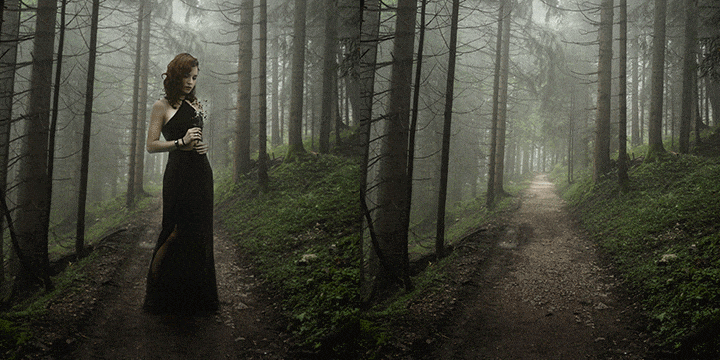
In this tutorial, we break down the compositing process with techniques for choosing images, making selections, and enhancing light and color. Learn to analyze light, perspective, and camera settings to predict how well photos will blend together.
There are tons of - very good - tutorials on the subject
limpid scaffold
hmm alright yes I get what you'all mean
what about the lighting on the car?
is it accurate?
vapid flume
limpid scaffold
is it accurate?
you have to ask yourself the question: where does this light on the hood of the car comes from. It can't be the moon, the moon is not a flash-light type of light
limpid scaffold
vapid flume
you have to ask yourself the question: where does this light on the hood of the ...
maybe the light is bouncing off from the sunset?
vapid flume
limpid scaffold
maybe the light is bouncing off from the sunset?
Well the person have never seen a real sunset then 🙂
I mean the bare minimum would be to observe nature.
I also strongly believe that understanding of photography really helps. The best compositers I've known where always photographers at heart
limpid scaffold
vapid flume
Well the person have never seen a real sunset then 🙂
I mean the bare minimum wo...
hmm true true
vapid flume
references, at the very least, are everywhere. You go to Unspalsh or whatever free stock website around and you start looking at references images "car in the sunset", and you work from there. I mean it can take months to master, you can't really fire up Photoshop and decide you'll be good at it without putting in some elbow grease first
limpid scaffold
okay I get your point.
a lot of photoshop is just understanding shadows lol
thanks for explaining
vapid flume
limpid scaffold
okay I get your point.
a lot of photoshop is just understanding shadows lol
than...
That's if you want things to be realistic, that's not necessarily everyone's aim. But if that' what you want, then you need to know how "real" things work. Since your task is to make things real.
Also, basic 3D skills come in handy. Sometimes, when I need to composite something and don't get the shadows right, I open a very simple 3D software (Adobe Dimension) and try to reproduce camera and lights on a set of basic shapes that mimic the object I have trouble with.
That way I get the real shadows and I can understand how they fall on the ground, on other objects, how they bounce off surfaces etc...
limpid scaffold
vapid flume
That's if you want things to be realistic, that's not necessarily everyone's aim...
btw one thing that I really struggle with the light on the face from below
I always manage to make it look really wierd
how do you deal with lighting on the face in general
vapid flume
limpid scaffold
I always manage to make it look really wierd
Faces are 3 dimensional objects, with lots of "cavities" and protruding elements (eye sockets, nose etc)
It's notoriously hard.
If you're good at drawing or willing to lear, learning how to draw shadows definitely helps. It's notoriously difficult
limpid scaffold
figures
vapid flume
There are great courses on YouTube an LinkedIn learning to draw figures (or you can join your local community art school if there is one)
limpid scaffold
what do you mean by figures?
vapid flume
limpid scaffold
what do you mean by figures?
bodies
limpid scaffold
like sketches?
vapid flume
yes, sketches
limpid scaffold
oh okay. so that helps?
vapid flume
Photoshop doesn't exist in a vaccum. it draws on the usual arts that were there before: Photography, drawing, painting... If you have a basic understanding of this, it helps a lot.
limpid scaffold
ah i see
vapid flume
Also, not everything is possible. If someone is being photographed with the wrong lighting, it sometimes worth redoing the photo, instead of trying to salvage things. Commercial compositing done well always start with great photography.
limpid scaffold
okay
vapid flume
See what the pros do
https://www.the-retouchers.com/
 limpid scaffold
yes wrong lighting on people or models(cars etc) really takes time to fix
vapid flume
limpid scaffold
yes wrong lighting on people or models(cars etc) really takes time to fix
Sometimes it's just impossible to fix...
vapid flume
 stark matrix
How to draw over an AI generated object.
stark matrix
How to draw over an AI generated object.
You need to draw on a new blank layer
vapid flume
AI generated layers are locked for drawing. You can still unlock them, but if you make a mistake you're toasted. Better drawing over a new layer so you can delete what you've done
stark matrix
and a quick question how to make parts of an image transparent?
oh nvm i found the eraser tool
pale siren
vapid flume
Would it help?
https://www.youtube.com/watch?v=6W9C61U5jgU
I know this and already explored/used them a couple of times, but what I need is the properties of the layers/images/documents etc. returned by photoshop as variables so I can do math with them.
For example the size of the image could be returned as a variable like imgSize("px") which would be the value in pixels of the image's width times height.
With it I could resize text with a macro based on the resolution of the image so the text would be always the same scale, and I don't have to scale the image to the text so I don't possibly lose details.
So when I record the macro instead of putting a fixed value for the text size, I would do math in the input box for the text size like: imgSize("px")*0.07
Think about this like you want to sew a jacket to the button (current method) instead of sew the button to the jacket (the method I want to achieve), where the jacket is the image and the button is the text :)

 hushed niche
vapid flume
AI generated layers are locked for drawing. You can still unlock them, but if yo...
hushed niche
vapid flume
AI generated layers are locked for drawing. You can still unlock them, but if yo...
Would duplicate and rasterize the copy be a good alternative?
 brittle goblet
id like to crop out perfect circle from this pizza and make everything around png so if id upload it anywhere there would be only round pizza without a background
 hushed niche
pale siren
I know this and already explored/used them a couple of times, but what I need is...
hushed niche
pale siren
I know this and already explored/used them a couple of times, but what I need is...
Hi, if the unit is set to percentage, then brushing steps would be replayed proportionally: https://helpx.adobe.com/photoshop/using/recording-tools-actions-cs6.html
 tight delta
Does Photoshop 2024 work on macOS Big Sur?
 thorn tulip

hey i was making something
and pressed some shortcut
and it went kinda black
how to undo

its not all black
or white
its weird
 pastel orchid
Anyone know something like this? https://www.youtube.com/watch?v=Yzmd9KWSDFg I understand this but I would like for it to follow the pen tools path, is there a way or do i need to do it manually
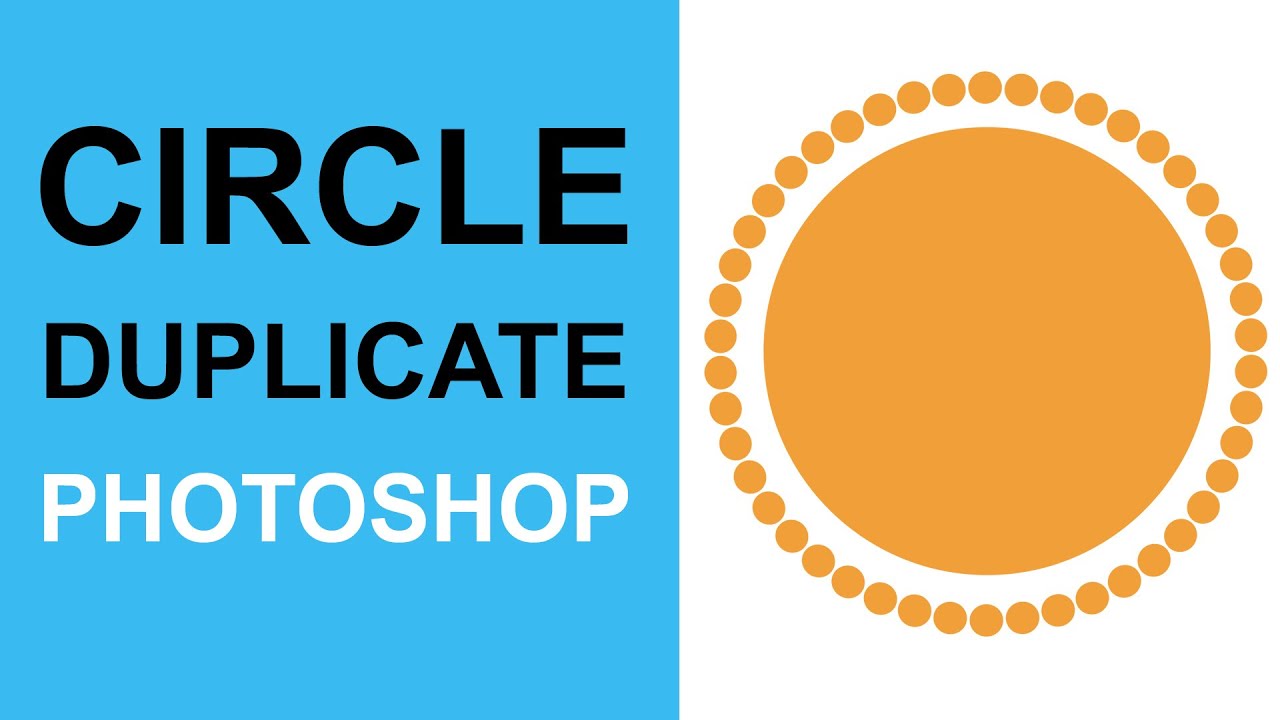
How to duplicate a shape around a circle in Adobe Photoshop CC 2024 2023 2022 2021 2020 CS6 etc
00:00 - Start of video tutorial and guides added
00:30 - Transform origin
01:00 - Show transform controls
01:11 - Rotate
01:28 - Duplication via keyboard shortcut
Online Education tutorials
#AdobePhotoshop
brittle goblet
brittle goblet
id like to crop out perfect circle from this pizza and make everything around pn...
ok nvm ive found out
little warren
guys is it just me or does the photoshops pen tool very different to the illustrators one
its like the pen tool for adobe illustrator is more accurate, efficient and flexible
like you can double tap an anchor point to convert a curved line to a straight one where in photoshop u can’t 💀
pastel orchid
pastel orchid
Anyone know something like this? https://www.youtube.com/watch?v=Yzmd9KWSDFg I u...
this, I can't do the same as in the video as it's not a perfect circle, so wha am I supposed to do without manually adding n rotating?
 tight delta
Does Photoshop 2024 work on macOS Big Sur?
 nova pike
is there a shortcut for turning Auto-Select on/off?
 vocal shale
nova pike
is there a shortcut for turning Auto-Select on/off?
vocal shale
nova pike
is there a shortcut for turning Auto-Select on/off?
There Is No Shortcut For It
But You Can Turn It On/Off Manually By Unchecking The Box Near Auto Select On The Top Options Bar
When You Are Using The Move Tool (Shortcut : V)
hushed niche
little warren
guys is it just me or does the photoshops pen tool very different to the illustr...
They have similarities and differences, so much that Deke McClelland did a 6 hours class on the topic: https://www.linkedin.com/learning/adobe-pen-tool-mastery

LinkedIn
Explore the intricacies of the Pen tool. Learn advanced techniques and how you can use the tool across Adobe Photoshop, Illustrator, and InDesign.
 mild garnet
anybody has experience with ps plug ins? spcifically coolorus? i don't get why it's prompting an error when i try installing it
 south minnow

accedentally merged these 2 pîctures toghether
is there anyway to like seperate these 2 pics?
mild garnet
south minnow
is there anyway to like seperate these 2 pics?
ctrl z?
 frank terrace
how do i recreate this? i need all other planets in the solar system for a school project.

 fierce hornet
south minnow
is there anyway to like seperate these 2 pics?
fierce hornet
south minnow
is there anyway to like seperate these 2 pics?
don't you have the original photo? if you don't have. The photo on the front can be easily separate by using crop tool.
1st one:
open photoshop select crop tool ( shortcut: c )
then just crop can save it as JPEG or PNG
2nd one:
for the 2nd photo you have to use gen fill. to do that.
select the front photo using rectangle tool
Click to generate.
 viral saddle
how do I get the surface area of a irregular shape / magic wand selection? I've already set the measurement scale in the Analysis menu
hushed niche
viral saddle
how do I get the surface area of a irregular shape / magic wand selection? I've...
Hello! Did you follow all the instructions? https://helpx.adobe.com/photoshop/using/measurement.html
hushed niche
mild garnet
anybody has experience with ps plug ins? spcifically coolorus? i don't get why i...
Hi, did you check the FAQ or ask in their email support channels? https://coolorus.com
Color picker plugin for Adobe Photoshop. Simple and clean interface, fast, responsive, scalable, with color schemes and RGB/RYB modes - all digital painter needs.

 ripe quest
 snow girder
genuinely scared is it a virus
snow girder
genuinely scared is it a virus
Probably a GPU issue. Main menu: Help > GPU Compatibility... run that. Any errors or issues reported there?
mild garnet
hushed niche
Hi, did you check the FAQ or ask in their email support channels? https://coolo...
Hi, sent them an email, i have low expectations they could help. Hope i m wrong
pale siren
hushed niche
Hi, if the unit is set to percentage, then brushing steps would be replayed prop...
Hi, that is one thing, what I need is properties stored in variables so I could do math on them with any tool or function where the input box accepts calculations, I did not find anything in this regard, probably with plugins it is possible to create these variables 🤔 but I have never tried to create one so, no idea about that 😅
 solid bloom
frank terrace
how do i recreate this? i need all other planets in the solar system for a schoo...
solid bloom
frank terrace
how do i recreate this? i need all other planets in the solar system for a schoo...
@frank terrace DM i can help you with thisc
pastel orchid
pastel orchid
this, I can't do the same as in the video as it's not a perfect circle, so wha a...
I still need help with this :'v
tight delta
What is a good Photoshop 2024 tutorial?
ripe quest
tight delta
What is a good Photoshop 2024 tutorial?
Photoshop. Main menu: Help > Hands-on Tutorials...
 buoyant citrus
hey everyone, im currently editing a panorama of the aurora (18 pictures) using auto-blend layers. now for some reason no matter what i do there is always a visible seam between these 2 pictures and i have no idea why. The colors on both sides of the seam match up


even when the line between the images is somewhere else a visible seam is created in that new place
all the other pictures work flawlessly btw
 sly hawk
buoyant citrus
hey everyone, im currently editing a panorama of the aurora (18 pictures) using ...
sly hawk
buoyant citrus
hey everyone, im currently editing a panorama of the aurora (18 pictures) using ...
Yes, I assume you can't adjust one layer without it impacting on the next in the chain.
Can you use a little bit of content aware fill to fix the seem?
or gen fill?
buoyant citrus
sly hawk
Yes, I assume you can't adjust one layer without it impacting on the next in the...
what do you mean?

 sly hawk
Where's the seem?
 sly hawk
I can barely see it. - but either way, if you draw a big patch over the area and then try generative fill, it may smooth it out better for you
buoyant citrus
yeah its not that visible in the screenshots but you can definetely see it with the full pic
is there any other way, i really want to avoid any ai if possible
dont like the idea of some of the picture not being real
nvmd i think i solved it by pushing the images out of alignment a bit
pale siren
buoyant citrus
yeah its not that visible in the screenshots but you can definetely see it with ...
check if theres enough overlap between those two layers then try to feather the masks (or blur the masks at that part)
 arctic burrow
Im a small musician and was wondering if anyone would like to make some Album Art for me?
hushed niche
pale siren
Hi, that is one thing, what I need is properties stored in variables so I could ...
Then, I would inquire with script writers. You could ask for help in the Adobe Community Forums.
 jade wedge
can someone help me?

im trying to make a cut like this at the top

on my triangle shape
 winged copper
Henlo. How do I remove these blue boxes everywhere?
I tried this: "To disable the blue box that appears when you select or hover over an object in Photoshop, you can try the following steps:
Go to View > Show > Slices and uncheck the box next to Bounding Box. This should remove the blue box from your workspace."
But it didnt work
 loud moat
winged copper
Henlo. How do I remove these blue boxes everywhere?
loud moat
winged copper
Henlo. How do I remove these blue boxes everywhere?
Can you show a screenshot of your Photoshop so we can see which blue boxes you are referring to?
winged copper
loud moat
Can you show a screenshot of your Photoshop so we can see which blue boxes you a...
When i hover over stuff. It's since the new version I think, but it's useless for me^^
 loud moat
winged copper
When i hover over stuff. It's since the new version I think, but it's useless fo...
loud moat
winged copper
When i hover over stuff. It's since the new version I think, but it's useless fo...
Try this, deselect Show Layer Bounds on Hover

May also need to deselect Show hover bounds from Layers depending on what you're particularly after, feature-wise
 cunning bobcat
quickest way to select everything within the out shell of my selection? and remove the negative in the interior?
 tight delta
What does Yearly billed monthly mean?
pale siren
tight delta
What does Yearly billed monthly mean?
you pay the annual fee in 12 monthly installments
tight delta
pale siren
you pay the annual fee in 12 monthly installments
How much would it be after 6 months? for £10/m
pale siren
Annual Plan, Paid Monthly — This option requires a 12-month commitment but is billed on a monthly basis, offering a lower price compared to the month-to-month plan. You can't cancel until the 12 months are up, with a potential cancellation fee if the subscription is terminated early.
Monthly Plan — The month-to-month plan allows users to subscribe and cancel at any time without a minimum commitment, but at a higher monthly cost.
so it would be £60 at the 6th month
- the fee if you terminate the subscription
 maiden notch
hi, wanted to ask like where do you guys find vector assets? for example, these dividers:
I can't really afford those paid websites so was wondering if there is something available which offers these free of cost, i'm just learning so won't be using this stuff for commercial usage anywyas.
 vapid flume
maiden notch
hi, wanted to ask like where do you guys find vector assets? for example, these ...
vapid flume
maiden notch
hi, wanted to ask like where do you guys find vector assets? for example, these ...
You can try things like
https://www.vecteezy.com/
or even the free section of popular Stock platforms, including Adobe stock
https://stock.adobe.com/uk/free?
another popular place but mostly for icons is the noun project
https://thenounproject.com/

Adobe Stock
Stunning, diverse collection of free Adobe Stock photos, vectors and videos. Free to download, cleared for commercial-use, royalty-free, no credit card required.
Noun Project has the most diverse collection of free icons and stock photos. Download SVG and PNG. Over 5 million art-quality icons and free photos.
maiden notch
tysm, you're really nice
vapid flume
You can ask for feedback in #📝project-feedback
limpid scaffold
vapid flume
You can ask for feedback in <#601848427541692447>
ah yes my bad forgot
vapid flume
limpid scaffold
ah yes my bad forgot
No worries!
limpid scaffold
how do you get the oval shape of brush to create shadows on the ground?
vapid flume
limpid scaffold
how do you get the oval shape of brush to create shadows on the ground?
When you open the brush settings (F5) there is an angle slider (next to hardness and size)
In that angle slider, you can also change the shape of of the brush by moving the dots on the circle

see how I made mine very oblong (you can also change it numerically with angle and roundness)
Not sure it's helpful for shadows though, I never used angles strokes for these
limpid scaffold
okay thanks
pastel orchid
sandrine is there a chance you could help me with this? I asked yd no one replied, I just wanna know if there's a way for this can be copied, pasted and rotated automatically without me needing to do it 1 by 1

 ember ridge
pastel orchid
sandrine is there a chance you could help me with this? I asked yd no one replie...
ember ridge
pastel orchid
sandrine is there a chance you could help me with this? I asked yd no one replie...
what can be copied?
pastel orchid
the star
ember ridge
like a lot of stars right
pastel orchid
yeah for it to go in the direction of the arrow
ember ridge
pasted once without doing it 1 by 1
there is a way, i forgot but the question is understood, the mods might help
there was a same issue for a guy with leaves which was ans
pastel orchid
yeah i thought too thats why I'm askin
ah
wish i could check the history u know the guys name?
so i search
ember ridge

Discover this HIDDEN Photoshop Script that will allow you to generate a random fill from a pattern!
🎯 SUBSCRIBE to get more amazing Photoshop tutorials!
► https://www.youtube.com/user/photoshoptrainingch?sub_confirmation=1
📘 INDEX - Photoshop Random Pattern Fill
00:00 - Introduction
00:28 - Remove Background Using Adobe Sensei
00:59 - Fixing ...
check this out
pastel orchid
i think that's only for random
vocal shale
ember ridge
https://www.youtube.com/watch?v=BFxeIJZGUSg
But This Will Create A Random Fill Pattern
vocal shale
One Min
vapid flume
pastel orchid
https://cdn.discordapp.com/attachments/548246314383835146/1238834343191773337/im...
The only way to automate this would be to recod an action (check the action section of the help files)
there is a command that allows you to repeat a transformation (Ctrl+Alt+T on a PC)
You need to transform manually once, and the Ctrl+Alt+T will repeat that transformation
Of course you can add that to any action you will make
pastel orchid
okay thx a lot i'll try
vapid flume
If you need to copy and pate a lot of stuff, and if you need them at random, consider the fill > pattern (edit fill)
https://medialoot.com/blog/how-to-make-a-random-pattern-fill-in-photoshop/

Medialoot
Patterns are one of the most important resources a designer can use. Of course there are tons of different ways to make them, either in Illustrator or in Photoshop. Although they're a bit more time consuming to make in Photoshop rather than in Illust
vapid flume
There is in Illustrator (that's called Symbols). There is maybe a external plug in for that in Photoshop? That seems plausible... You can do a quick search in the CC app
pastel orchid
thx tho sadly I don't have the newest photoshop, mine's torrented as I live in a poorer country and in education they just tell you to torrent it, there's no education lisence
so can't do that I guess
vocal shale
I Think You Can Use The Reference Point For This
vapid flume
Well, all I can say is that you're on the official Photoshop discord. so you won't get any real sympathy for cracked software (particularly when students discounts are so low)
 vivid wraith
any idea how to make this PNG crown look like it belongs?
 vapid flume
But you do you!
vocal shale
 vapid flume
vivid wraith
any idea how to make this PNG crown look like it belongs?
vapid flume
vivid wraith
any idea how to make this PNG crown look like it belongs?
Add a shadows that sits on the text?
vivid wraith
vapid flume
Add a shadows that sits on the text?
wow, i feel like an idiot lol
vocal shale
Just Duplicate The Shape And Add The Reference Point In The Middle Of The Other Shape That You Want To Rotate Around
pastel orchid
vocal shale
Just Duplicate The Shape And Add The Reference Point In The Middle Of The Other ...
i thought that's just for a circle, you can do it on any shape?
vivid wraith
vapid flume
Add a shadows that sits on the text?
helps it a lot thank you

 fluid craneBOT
Gave +1 Creative Carma to @vapid flume (current: #8 - 606)
vapid flume
vivid wraith
helps it a lot thank you
Waaayyyyy better!
vocal shale
pastel orchid
i thought that's just for a circle, you can do it on any shape?
No It Will Work On Any Shape I Think
Lemme Try
What Else Shape Do You Want To Try That On ?
Cuz If It's Like A Rectangle You Don't Need To Do That
pastel orchid
vapid flume
Well, all I can say is that you're on the official Photoshop discord. so you won...
what would I need to say to this though, my teachers told me to torrent it, that's how it goes where I live, If I had a job I would ofc get the newest version cuz I'd need it, but I understand, it's not like I'm looking for any sympathy, I came here for help and I get it, and I thank everyone that helped me till now
fluid craneBOT
Gave +1 Creative Carma to @vapid flume (current: #8 - 607)
 proud holly
hey does anyone think they could change the back ground to black and the black bit to green?

can remove the text aswell
pastel orchid
vocal shale
Cuz If It's Like A Rectangle You Don't Need To Do That
if it works on a circle that's not perfect then it would be fine, but I don't think it does, I mean i didn't try but I saw videos always do it on a perfect circle only
vocal shale
pastel orchid
if it works on a circle that's not perfect then it would be fine, but I don't th...
Maybe It Was Illustrator
Cuz It's More Vector Specified
 prime stag
I've managed to construct this portrait of myself with the help of AI... but I am struggling to add my arms in... anyone have any advice please?
 proud holly
proud holly
proud holly
@native shard
pastel orchid
idk i'll try both what you and sandrine said, I really thought there's a way easier way to do it as it looks like it's something a lot of people would do regularly in designs
thx a lot guys
vocal shale
pastel orchid
thx a lot guys
You Are Welcome
sly hawk
prime stag
I've managed to construct this portrait of myself with the help of AI... but I a...
Stay on the AI route?
 native shard
proud holly
hey does anyone think they could change the back ground to black and the black b...
native shard
proud holly
hey does anyone think they could change the back ground to black and the black b...
Do you have a little bigger size btw? i can record doing in photoshop and show you
prime stag
sly hawk
Stay on the AI route?
The AI wasn't PS AI
I don't have a PS license 🤣
I'm using PS though, I can't use PSAI
proud holly
native shard
Do you have a little bigger size btw? i can record doing in photoshop and show y...
that is the only image i have sorry
native shard
proud holly
that is the only image i have sorry
alright
native shard
proud holly
that is the only image i have sorry
Well its not clear quality but yeah here you go
proud holly
its fine thank you
native shard
proud holly
its fine thank you
its loading
proud holly
no problem
native shard
It does not show in recording for some reason, but after selecting i right clicked and clicked on "similar" that is very important @proud holly
native shard
proud holly
how do you unlock the layers
ctrl+j to duplicate
or just hover your mouse over the lock symbole and click it
proud holly
that doesnt work?
native shard
proud holly
that doesnt work?
uh
okay then right click on the layer, do you see duplicate layer option?
or maybe because yours is in smart object or not smart object
thats very strange idk why you cant duplicate
proud holly
i dont see that no
native shard
proud holly
i dont see that no
could you show me ss of the lock symbol
proud holly
 native shard
proud holly
native shard
proud holly
right so when you hover your mouse on top of the lock symbol
and click it, it does not unlock?
proud holly
no
proud holly
alright thank you
 proud holly
thanksyou
native shard
wc
 cold ridge
hey, does anyone know if there's a way to do this in photoshop and have it be editable? I've found a tutorial that involves rotating the text and copying it a hundred times but that's not gonna work as i have to create a lot of logos with this style


this is the style that i am trying to achieve
this is the only tutorial i found and it takes way too long for how many of these i am planning to make
 vocal shale
cold ridge
hey, does anyone know if there's a way to do this in photoshop and have it be ed...
vocal shale
cold ridge
hey, does anyone know if there's a way to do this in photoshop and have it be ed...
If You Want To Do It Manually Then Yeah You'll Need To Create A Lot Of Layers
Or You Can Search On Freepik Or Any Other Sites About An Editable Text Effect
hushed niche
pastel orchid
https://cdn.discordapp.com/attachments/548246314383835146/1238834343191773337/im...
Hi, if the shape was a part from a perfect circle, you could increase the size of the image, draw an overlapping circle to find its center, place the transformation point there, and do like in the tutorial you shared.
hushed niche
pastel orchid
sandrine is there a chance you could help me with this? I asked yd no one replie...
Hah! There is the pattern fill along a path option, see: https://youtu.be/PtTFfH41N84?si=lGO-tDzyoKuFL01S

Create patterns placed on a path in Photoshop using the edit menu fill script 'place along path' command. You can use it with the shape layer (and path) in Photoshop. Software tutorial Photoshop 2020 CC 2019 2018 2017 2015 etc
Another tutorial on the subject
https://youtu.be/xfN7R_rCv3M
Line place along path tutorial
https://youtu.be/78Te4XTIfIc
hushed niche
cold ridge
hey, does anyone know if there's a way to do this in photoshop and have it be ed...
Hi, use smart objects for editability, and record an action of the step and repeat. https://www.photoshopessentials.com/basics/photoshop-actions/record-action/

In this sixth tutorial in our Photoshop Actions series, learn how to record and play your very own custom actions in Photoshop!
hushed niche
proud holly
Hi, you are in index mode, go to image>mode and switch to RGB, you’ll be able to add layers, etc.
pastel orchid
hushed niche
Hi, if the shape was a part from a perfect circle, you could increase the size o...
yeah, you mean increase the size of the canvas tho?
 silver fox
Everytime I try adding a photo to edit it keeps saying "Could not complete your request because the disk is not available" Anyway to fix?
hushed niche
silver fox
Everytime I try adding a photo to edit it keeps saying "Could not complete your ...
Hi, could you explain what you mean by adding a photo? Are you trying to place an image in an existing design, are you using menus, drag and drop? Are the permissions on all the discs setup normally?
hushed niche
pastel orchid
yeah, you mean increase the size of the canvas tho?
Exactly, but it seems that it is not part of a perfect circle.
silver fox
hushed niche
Hi, could you explain what you mean by adding a photo? Are you trying to place a...
I am trying to drag and drop to start a new one, and I just keep getting that message
 rose ruin
 ember ridge
blending this

 daring cave
can anybody here share a tutorial for darkening an image and adding text over it like those on a website. I want to do it on photoshop. I tried searching on YouTube but it's giving me irrelevant search results
 elfin prawn
does anyone know how to fix generative fill altering edges outside the selection area?
ember ridge
@fading cliff send a screen shot of the issue
 fading cliff

i cant crop the image out
whatever i try
no ratio, any ratio
it doesnt react

only like that
ripe quest
fading cliff
Save the project and restart Photoshop.
ember ridge
the blue border is familiar
ripe quest
Also, this is the beta version. There might be issues/bugs in that release. Try the General Release. @fading cliff
ripe quest
fading cliff
is the model v3 avaible in the general release
Well, if the Crop Tool is not working in the beta and you want to crop, you'll have to do it a different way, eh? Crop it in the general release. Crop to transparent. Save it. Then bring it back into the beta if you want to use Generative Fill in the beta.
fading cliff
i dont think the issue lies there
ripe quest
Or you could create a new larger canvas and paste the image into it. Then use Gen Fill.
Sorry. I can't test this as I'm not on MacOS. Perhaps if someone else who is on the Mac and is tracking this, they could try it out.
fading cliff
i fixed it by reseting the crop tool with right click
didnt knew this was possible, chat gpt pointed it out to me
 dreamy cairn
Any ideas on how this type of retouching can be achieved? No it is NOT just a soft blur filter, lol. I've tried this. Any ideas would be greatly appreciated! x


 daring cave
can anybody here share a tutorial for darkening an image and adding text over it...
daring cave
daring cave
can anybody here share a tutorial for darkening an image and adding text over it...
can anybody here guide me
hushed niche
silver fox
I am trying to drag and drop to start a new one, and I just keep getting that me...
What about file>open?
silver fox
hushed niche
What about file>open?
Tried that
pastel orchid
hushed niche
Hah! There is the pattern fill along a path option, see: https://youtu.be/PtTFfH...
this worked amazingly, thank you, I just want to ask though, I can't use combine shapes option now I think cuz of that, what can I do to make it available cuz i wanted to cut off these white ones away from the shape
fluid craneBOT
Gave +1 Creative Carma to @hushed niche (current: #23 - 85)
pastel orchid

 untold lynx
i think thats beyond the scope of photoshop 🤣
 shy talon
 marble path
hello!! im very new to photoshop and i was wondering if there was a way to remove the metal bars?? i think they get in the way but i cant find a pic without them :(

 chilly warren
hey can someone help me? im downloading ae from adobe creative cloud, it said it works on my device, but whenever i install it it just goes as "failed, retry" without any error code

ive tried to download other versions of it as well
it said If you would like to install After Effects, you must update your system.
vocal shale
marble path
hello!! im very new to photoshop and i was wondering if there was a way to remov...
Have You Tried Generative Fill ?
marble path
vocal shale
Have You Tried Generative Fill ?
oh! not really, i dont really know how to use it haha but ill try checking it out 
vocal shale
marble path
oh! not really, i dont really know how to use it haha but ill try checking it ou...
Just Make A Selection On The Metal Bars And Hit Generate Without Writing A Prompt
marble path
vocal shale
Just Make A Selection On The Metal Bars And Hit Generate Without Writing A Promp...
thank you sm!! ill give it a try >:)c
fluid craneBOT
Gave +1 Creative Carma to @vocal shale (current: #132 - 11)
vocal shale
marble path
thank you sm!! ill give it a try >:)c
You're Welcome
 hot shadow

Adobe Stock
Download Water text style effect editable Stock Vector and explore similar vectors at Adobe Stock.
i downloaded this and dont know how to use it can anyone help
 velvet lotus
Hello there. I'm trying to create a line of flour, and having trouble getting it to the proper thinness
 tight notch
how would i use the refine edge tool on this mask so that the areas around the tree dont look so bad like this

 nocturne cairn
velvet lotus
Hello there. I'm trying to create a line of flour, and having trouble getting it...
nocturne cairn
velvet lotus
Hello there. I'm trying to create a line of flour, and having trouble getting it...
Can you provide more detail? Do you have a starting image?
nocturne cairn
chilly warren
hey can someone help me? im downloading ae from adobe creative cloud, it said it...
What operating system and version number are you running? Perhaps this or your hardware is too old to run it.
chilly warren
nocturne cairn
What operating system and version number are you running? Perhaps this or your h...
all i had to do was to change download location
thats literally all
on the web it said that but on adobe cloud it popped up the error code 133
nocturne cairn
chilly warren
all i had to do was to change download location
Excellent. Nicely done.
chilly warren
my system is all up to date to 2022
tight notch
where is the refine edge tool?
chilly warren
all the hardware beside the cpu is made after 2022
nocturne cairn
chilly warren
all the hardware beside the cpu is made after 2022
Could you elaborate on how you solved this problem as it could help others who read this?
chilly warren
idk i forgot how to
cause i didnt resolve it myself
i just youtubed error code 133
and its pretty self explanatory
nocturne cairn
tight notch
where is the refine edge tool?
Is this what you are looking for?
Select > Select and Mask
tight notch
yes i believe its that
nocturne cairn
chilly warren
i just youtubed error code 133
Cool
tight notch
but once im in there
how can i use it to make the edges not pixely
on my palm trees
bcuz i cant see any preview of whats going on
 nocturne cairn
tight notch
but once im in there
nocturne cairn
tight notch
but once im in there
Try increasing the Feather amount a little and then play with Contrast and Shift Edge
nocturne cairn
tight notch
bcuz i cant see any preview of whats going on
Have you played with the View option at the very top? The drop down menu gives you lots of preview options.
nocturne cairn
tight notch
bcuz i cant see any preview of whats going on
Also review those Show checkbox options at the top
tight notch
ugh yeah no matter what im getting those pixel edges
 ruby edge
Hello, I know this isnt a lightroom server but I just need help to resolve this message, it says that my storage limit is almost reached and I do not know how to clear space, get a bigger plan or such 😕

 ashen otter
Hello! What would be the easiest way to change the "RED" text of this gif nto something of my own liking?
Thank you.

 south stirrup
ashen otter
Hello! What would be the easiest way to change the "RED" text of this gif nto so...
south stirrup
ashen otter
Hello! What would be the easiest way to change the "RED" text of this gif nto so...
wdym?
hushed niche
chilly warren
nvm fixed
Hi, you might want to post Ae questions in the video discord: https://discord.gg/adobepremiere also you posted at 5am in Europe, which is 8pm in the east coast, maybe people were not in front of discord on that time slot. Do not always expect immediate answers. Users graciously share their experiences here in their free time…
ashen otter
south stirrup
wdym?
Okay, uhm I’m trying to change the text in that gif, I know I’ll have to edit each frame and replace the text, I’m just not sure how to approach this though
south stirrup
ashen otter
Okay, uhm I’m trying to change the text in that gif, I know I’ll have to edit ea...
like customise the text
ashen otter
south stirrup
like customise the text
I mean it’s not text in that sense but ya, the actual letters.
like something that’s not ‘RED’
south stirrup
ashen otter
like something that’s not ‘RED’
OH like change the colour?
hushed niche
ashen otter
Hello! What would be the easiest way to change the "RED" text of this gif nto so...
Hi, it is a gif, so you need to open it via file>scripts>load files into stack : https://www.adobe.com/creativecloud/file-types/image/raster/gif-file.html#how-to-open-a-gif-file the text won’t be text anymore you’ll have to erase and type anew one with a pixel font.
ashen otter
south stirrup
OH like change the colour?
no….i’m bad at explaining >.>
south stirrup
ashen otter
no….i’m bad at explaining >.>
so just change the text
south stirrup
ashen otter
yes
easy way just find a font that looks like it then get the same colour or the hard way u could take a ss of each letter of the alphabet and form words like that
ashen otter
south stirrup
easy way just find a font that looks like it then get the same colour or the har...
ya no i have the font :) i just wanna know how i would edit each frame
south stirrup
ashen otter
ya no i have the font :) i just wanna know how i would edit each frame
do u have premier pro?
ashen otter
ya launches premier pro
south stirrup
well I think u can do it by
putting the text u want in the timeline above the previous text but also get a black block to block the text already on there and line it there I think that would work but im not sure its worth trying
I havent worked much with gif's
tell me if it works
ashen otter
south stirrup
putting the text u want in the timeline above the previous text but also get a b...
oka uhmm
hmm
i think im onto something here
i need to remove the previous text first
ashen otter
south stirrup
tell me if it works
Is there a way to paste an image on a selected layers?
I'm trying to make a layer without the text and then trying to somehow put that on top of each layer that has RED in it

south stirrup
ashen otter
Is there a way to paste an image on a selected layers?
I would get a video of a black block then posistion it on the text then cut so it doesnt interupt the intro
ashen otter
south stirrup
I would get a video of a black block then posistion it on the text then cut so i...
how do i resize this in premier pro >.> the black block i mean
O i got it
oka now for the text
ashen otter
o i did it
@south stirrup LOOK!

i know the font isn't the same
but like
i love TNR Italic
south stirrup
Looks great
south stirrup
ashen otter
im going to show dis to my frens now
But I think U should extend the end bit a little more so it's not just a flash
Extend it to like 1.5 or 2 seconds
ashen otter
south stirrup
But I think U should extend the end bit a little more so it's not just a flash
but like
how
add a frame hold?
south stirrup
Just copy past it then cut it to Just the end and repeats a couple times
Prolly easier way but that's my way of doing it
 lavish jasper
hello guys, anyone got an idea why when i try to change the layer size its like stretching?
- normal text(layer)
- when i try to change the size


 robust viper
I'm creating my brand's logo, how could I remove the dot from the "i"? I did it using the text tool
 vocal shale
robust viper
I'm creating my brand's logo, how could I remove the dot from the "i"? I did it ...
vocal shale
robust viper
I'm creating my brand's logo, how could I remove the dot from the "i"? I did it ...
I prefer designing logos on adobe illustrator but if you want to do it on photoshop you can either mask it or change delete the dot from the path
sly hawk
Feel free to design a logo in photoshop all you want, but if you're serious about needing it as a 'proper' logo meant for large format print (like billboards, display stands etc) - it will need to be a vector image, most likely built in Adobe Illustrator.
If the logo is just meant for the odd website and social media posts and web banners, photoshop is fine.
@robust viper
sly hawk
robust viper
I'm creating my brand's logo, how could I remove the dot from the "i"? I did it ...
Your best best is to simply apply a layer MASK over the text.
 deep geyser
Is there a way to enable the ability to drag objects out of the artboard an still keep them visible?
 ember ridge
tight notch
where is the refine edge tool?
ember ridge
tight notch
where is the refine edge tool?
wait
 simple belfry
deep geyser
Is there a way to enable the ability to drag objects out of the artboard an stil...
simple belfry
deep geyser
Is there a way to enable the ability to drag objects out of the artboard an stil...
could you elaborate?

 ember ridge
simple belfry
could you elaborate?
ember ridge
simple belfry
could you elaborate?
i think he means to make a infinite space , more like the puzzle games where the pieces will be all over the screen even outside (the box we work in photoshop) he wants to see the pieces even tho they are not on the poster
simple belfry
it is indeed possible
@deep geyser Create an artboard
and drag the layer above the artboard
this will allow you to see the images outside of the box
ember ridge
oh wow never knew

 woeful python
how do you get that faded effect i circled. is it just an eraser with the opacity lowered or something else.
also how would yall approach recreating this graphic poster
 simple belfry
really simple
you start off by making your own brush
i can link a video for ya
@woeful python
woeful python
yes
simple belfry
and give u a time stamp
simple belfry
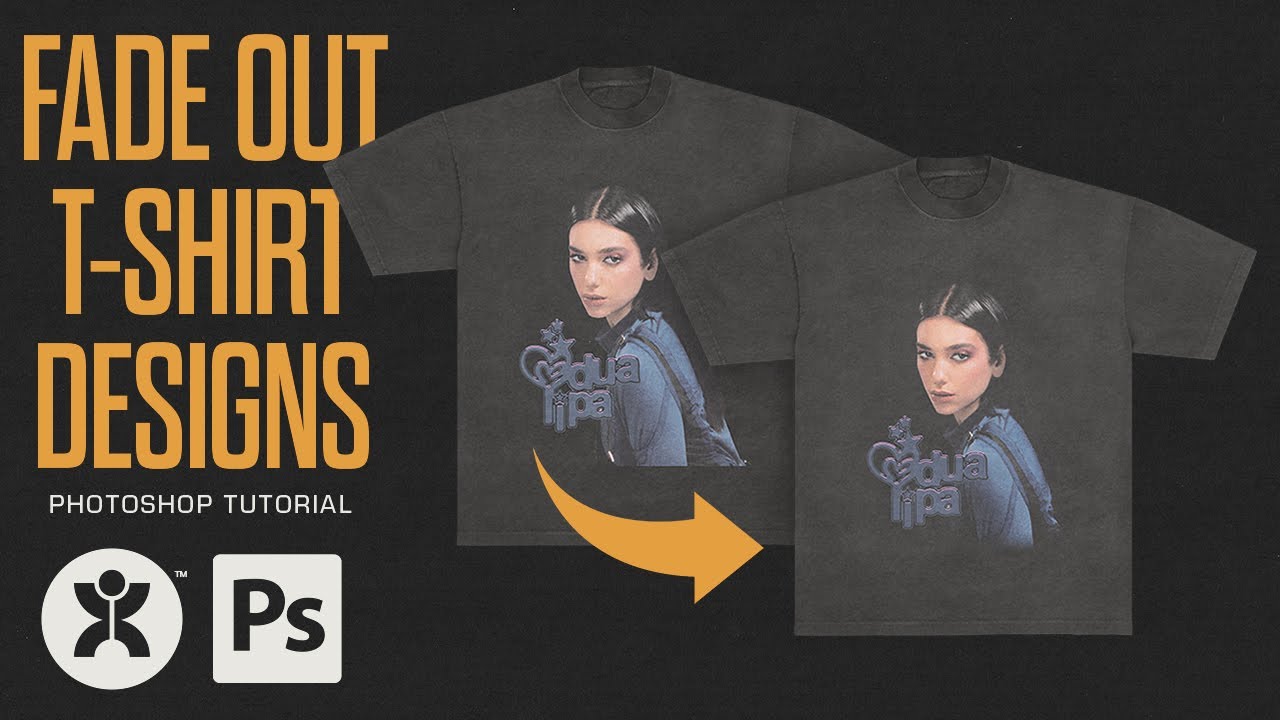
Fading out an image in your design can make or break the composition. In this video I go over the best ways to do so, including a soft fade with a touch of contrast, and a grungy fade. I teach you how to make a grunge brush from scratch as well, and demo it on multiple designs. Hope you learn something!
Looking for high quality textures to use?...
time stamp : 5:05
@woeful python
woeful python
thank you
what about the whole black and white theme as a whole
it doesnt look like a simple threshold layer ontop
simple belfry
because it isnt
just black and white gmap
with good texturing
most likely patterns
woeful python
ohh
simple belfry
for that noise effect you wanna use filter gallery at the very end
simple belfry
np!
woeful python
you have a good eye
simple belfry
yeah haha i mean im better at this then most other creative creations since the stuff you showed is mostly what i do
woeful python
can i see your work
simple belfry
sure, would rather post in dms since it would be flooding here
woeful python
i really like this type of poster style
simple belfry
same haha
woeful python
imma add you
hushed niche
robust viper
I'm creating my brand's logo, how could I remove the dot from the "i"? I did it ...
HI You could also look in the glyphs panel (windows>Glyphs) if the font has an [i dotless] that is used in Turkish, IIRC
hushed niche
lavish jasper
hello guys, anyone got an idea why when i try to change the layer size its like ...
Hi, check if the move tool has a lock between w and h then transforms will be proportional by default. Otherwise you need to hold shift.
 timber onyx
Sup.. Can anyone help me with my problem.. I created a thumbnail, and the resolution is low as it has to be but the image size is 160mb.. How can I reduce it ?
robust viper
hushed niche
HI You could also look in the glyphs panel (windows>Glyphs) if the font has an [...
thx
fluid craneBOT
Gave +1 Creative Carma to @hushed niche (current: #23 - 86)
hushed niche
timber onyx
Sup.. Can anyone help me with my problem.. I created a thumbnail, and the resolu...
How many pixels does it have? Check also for document ancestors: https://prepression.blogspot.com/2017/06/metadata-bloat-photoshopdocumentancestors.html?m=1

A small but growing number of Photoshop users have been noticing and complaining of excessive, bloated file sizes with certain files saved f...
sly hawk
timber onyx
Sup.. Can anyone help me with my problem.. I created a thumbnail, and the resolu...
Yeah, check the image dimensions- bottom left.
If it's a thumbnail, I assume it should be about 1080 x 1920 pixels.
timber onyx
sly hawk
If it's a thumbnail, I assume it should be about 1080 x 1920 pixels.
Its 1280 x 720
Ohh. Its 36283 x 20409 :DDDD I found my problem..
How can I reduce it ?
 old kindle
Is there an easy way to remove the centre of this image so I have two separate parts of the coin, the middle and edges

 unique mason
old kindle
Is there an easy way to remove the centre of this image so I have two separate p...
unique mason
old kindle
Is there an easy way to remove the centre of this image so I have two separate p...
I think the Magnetic Lasso Tool can help?
You can mark the middle part and copy and paste it and then delete the marked part. Then you can have both the parts separately. I hope that made sense ?
lucid crane
old kindle
Is there an easy way to remove the centre of this image so I have two separate p...
One way would be to duplicate the image to another layer. Then use the circular selection to select the joint between the middle and the outer edge. Use that to delete the middle. Move to the other layer invert the selection and use it to delete the outer.
You then have one layer with the centre and one layer with the outer 🙂
lavish jasper
hushed niche
Hi, check if the move tool has a lock between w and h then transforms will be pr...
hey,yes i fixed it now,tysm❤️
old kindle
unique mason
I think the Magnetic Lasso Tool can help?
You can mark the middle part and copy...
Thanks, it worked up until it says could not complete your request before the smart object is not directly editable
fluid craneBOT
Gave +1 Creative Carma to @unique mason (current: #877 - 1)
old kindle
Even after converting the image to a smart object
unique mason
old kindle
Thanks, it worked up until it says could not complete your request before the sm...
Did you Rasterize the Layer?
sly hawk
timber onyx
How can I reduce it ?
Image > size 🙂
 clever crown
Can anyone help me achieve this bevel & emboss + stroke effect? I've tried everything but i am fairly new.
- Whenever i add a bevel & emboss layer style, sure the lighting is correct but you also get this muted effect all around the text as well. For example, at the bottom of the A, mine continues past the corners for a tiny bit. I want it to abruptly stop as it reaches the corner.
- Then in the first image the stroke is sharp. If i apply stroke through a layer style i can't get pointy corners but if i convert the text to shape first, i can get the pointy corners but if then the bevel and emboss gets applies to the stroke as well.

 clever crown
Inner Shadow kinda half works. It does the first step perfectly, but then after i add it. How can i add a pointy stroke that ignores the inner shadow and applies it to the outside of the text?
Converting the text to shape and then adding strke to it doesn't seem to do the trick....
 vocal shale
clever crown
Inner Shadow kinda half works. It does the first step perfectly, but then after ...
vocal shale
clever crown
Inner Shadow kinda half works. It does the first step perfectly, but then after ...
Why don't you duplicate the text and add the inner shadow to the upper layer and the stroke to the other one ?
clever crown
Good question, cause i am dumb probably. That should work, let me try.
still it would be nice to do it with one layer
vocal shale
clever crown
still it would be nice to do it with one layer
You can select both layers and convert them to a one smart object layer
clever crown
vocal shale
You can select both layers and convert them to a one smart object layer
that's a thing?

but yeah this seems to work Ahmed.
Is there any way to apply a stroke with pointy corners on editable text?
vocal shale
clever crown
that's a thing?
You can still edit them separately if you convert them to smart object
 clever crown
I know that but you can't apply the stroke to the unified smart object layer though can you?
it won't have pointy corners
you will only be able to apply the stroke with layer styles then, and that doesn't give you an option for pointy corners
vocal shale
clever crown
you will only be able to apply the stroke with layer styles then, and that doesn...
Why would you need that when you can just add it inside a separated layer inside the smart object itself
vocal shale
clever crown
Thanks a lot for your help Ahmed!
You are welcome
 stoic hollow
Hey I’m having a problem with photoshop. Im trying to use the brush and erase but I get these white squares randomly. Btw Im using a computer with integrated gpu (intel graphics in my case) idk what to do.
 ripe quest
stoic hollow
Hey I’m having a problem with photoshop. Im trying to use the brush and erase bu...
ripe quest
stoic hollow
Hey I’m having a problem with photoshop. Im trying to use the brush and erase bu...
Main menu: Help > GPU Compatibility... any errors or issues reported there?
stoic hollow
ripe quest
Main menu: Help > GPU Compatibility... any errors or issues reported there?
The only thing that says is that my gpu drivers need to update
I checked and they are updated
Sorry it’s in Spanish. I’ll translate the errors. “It’s recommended to update the gpu drivers.” “The gpu drivers are not updated, (14 months, it should be less than 6)”
 ripe quest
stoic hollow
Sorry it’s in Spanish. I’ll translate the errors. “It’s recommended to update th...
ripe quest
stoic hollow
Sorry it’s in Spanish. I’ll translate the errors. “It’s recommended to update th...
Well, it says they're out-dated. What version of Photoshop is this? Help > About Photoshop...
ripe quest
stoic hollow
25.7.0
You can try setting the "Older GPU" in the Preferences. Edit > Preferences > Technology Previews.... choose "Older GPU" option. Then restart Photoshop.
stoic hollow
Lemme check
Seems to work I think
It’s not doing it
Like the white square things
Soo maybe that was it
ripe quest
stoic hollow
It’s not doing it
Try it out for a while and see if that problem comes back.
stoic hollow
ripe quest
Try it out for a while and see if that problem comes back.
Fo shure
Thanks humann
💙💙
ripe quest
stoic hollow
Thanks humann
You're welcome, pal.
 stoic ore
Does anyone know if theres a way to do shape packing in Photoshop? Maybe a plugin?

E.g. finding the optimal layout to fit as many items as possible on a page
ripe quest
stoic ore
Does anyone know if theres a way to do shape packing in Photoshop? Maybe a plugi...
There is a Pattern Fill feature and scripts that will change the behavior of the fill but nothing that works exactly like that. Photoshop does have a scripting API and if you're familiar with JavaScript, you might look into that. Perhaps someone has already created something like that. If not, you'd have to create it...
 stoic ore
ripe quest
There is a Pattern Fill feature and scripts that will change the behavior of the...
stoic ore
ripe quest
There is a Pattern Fill feature and scripts that will change the behavior of the...
i am familiar with javascript but ive sort of written off photoshop scripting as soon as i realized its impossible to do the simple task of alterating a particular pixel which is like the most fundamental image manipulation task. anyway, thanks
fluid craneBOT
Gave +1 Creative Carma to @ripe quest (current: #3 - 1986)
ripe quest
stoic ore
i am familiar with javascript but ive sort of written off photoshop scripting as...
Well, then try GDI, ImageMagick or something like that. Probably more suitable for this task.
stoic ore
yeah, thanks i already misuse a 3d modeling software for doing this its just nice to keep things in one program
 analog coyote
Someone knows why this happens?

Only happens when I borrow something in the clipping mask
 ripe quest
analog coyote
Someone knows why this happens?
ripe quest
analog coyote
Someone knows why this happens?
Why "what" happens exactly?
ripe quest
 rare sage
I mean the borders
rare sage
I mean the borders
Use a Layer Mask and paint on it with a custom textured brush.
analog coyote
ripe quest
Why "what" happens exactly?
that trasnparent thing
as if I had erased it with opacity
ripe quest
analog coyote
that trasnparent thing
I still don't understand what I'm supposed to see here.
analog coyote
wait
analog coyote
ripe quest
I still don't understand what I'm supposed to see here.
this part in red

only happens when I borrow something in the clipping mask
and I didn't borrow the image with opacity
ripe quest
"Borrow"? I don't understand what you're talking about.
analog coyote
the image originaly looked like this:
 analog coyote
this part in red
analog coyote
analog coyote
this part in red
I tried to quit that part with clipping mask and this happens
delete*
ripe quest
analog coyote
I tried to quit that part with clipping mask and this happens
Paint on a Layer Mask to remove it.
analog coyote
Yes, I already tried but it won't let me :,v
and happens with all the images :,v
I try to delete it and the piece stays there as if I had deleted it with little opacity when I didn't
ripe quest
Yeah. Sorry. I don't understand what you're talking about.
analog coyote
wait i'll send a video
ripe quest
analog coyote
I try to delete it and the piece stays there as if I had deleted it with little ...
With Layer Masks, black is completely transparent. White is completely opaque. Perhaps you were painting with some shade of grey.
analog coyote
ripe quest
With Layer Masks, black is completely transparent. White is completely opaque. P...
look:
stays there :,v
ripe quest
analog coyote
look:
You're using the "Eraser" Tool. And its in Brush mode. Are you using a Drawing Tablet? Perhaps, there is Pressure Sensitivity turned on?
ripe quest
analog coyote
And why does that happen with the eraser tool?
It would happen with any tool that has a pressure sensitivity setting on. Many Brushes will also behave that way.
ripe quest
Either turn off the Pressure Sensitivity for the Brush or choose a different brush.
rare sage
Do you see the cyan stroke of the image? How can I achive that grunge effect on the stroke?


It is present in here too
ripe quest
rare sage
Do you see the cyan stroke of the image? How can I achive that grunge effect on ...
I already answered above. Use a Custom Brush.
ripe quest
rare sage
Do you see the cyan stroke of the image? How can I achive that grunge effect on ...
 fresh kiln
Is there another way to get an outline of a number that’s not turning the number into a shape and going from there
ripe quest
fresh kiln
Is there another way to get an outline of a number that’s not turning the number...
Place the text (number) on a Layer. CTRL and click on the Layer Thumbnail. (This creates a selection around the object.) Create a new Layer. Edit > Stroke.
ripe quest
fresh kiln
Is there another way to get an outline of a number that’s not turning the number...
You could also do this so there is a little more control over it...
rare sage
 rare sage
ripe quest
rare sage
ripe quest
I had another way
I have a perchament brush that is very large, and used it as an eraser
on a 1 pixel stroke rectangle
What do you think about the result?
ripe quest
rare sage
What do you think about the result?
I wouldn't "erase" anything. I use Layer Masks so I don't permanently destroy the image. The non-destructive workflow is the professional way to approach this.
rare sage
ripe quest
I wouldn't "erase" anything. I use Layer Masks so I don't permanently destroy th...
Yeah, but the rectanngle stroke is easy to paste in case I need it
ripe quest
rare sage
Yeah, but the rectanngle stroke is easy to paste in case I need it
So if you're already set on doing it that way, why are you asking?
Anyways, I would use a Layer Mask. That's the recommended method but you're free to do whatever works best for you.
fresh kiln
ripe quest
You could also do this so there is a little more control over it...
thank you 🙏
 latent jackal
i have a client that wants me to enlarge their image, but im dealing with a blurry image and not sure how to make the quality better, any tips?
 ripe quest
latent jackal
i have a client that wants me to enlarge their image, but im dealing with a blur...
ripe quest
latent jackal
i have a client that wants me to enlarge their image, but im dealing with a blur...
Trace the shapes with the Pen Tool and make them vector objects. Then you can scale them up to whatever size you want without losing any quality.
latent jackal
ripe quest
Trace the shapes with the Pen Tool and make them vector objects. Then you can sc...
gotcha i tried taking an easier by just quick selecting the object and then coloring over it but that didnt help
latent jackal
ripe quest
Trace the shapes with the Pen Tool and make them vector objects. Then you can sc...
how do i make them into vector objects once ive traced them?
vocal shale
latent jackal
how do i make them into vector objects once ive traced them?
When you trace them with the pen tool (just make sure they're shape layers and not paths) the shape layers is already a vector object
ripe quest
latent jackal
how do i make them into vector objects once ive traced them?
Tracing them with the Pen Tool automatically makes them vector objects.
latent jackal
vocal shale
When you trace them with the pen tool (just make sure they're shape layers and n...
is there any way to make the object straighter without pressing shift
ripe quest
Alternatively, you could use Adobe Illustrator and the Trace Bitmap feature. If you have that app.
latent jackal
the lines seem pretty adjacent
latent jackal
ripe quest
Alternatively, you could use Adobe Illustrator and the Trace Bitmap feature. If ...
would that be easier?
ripe quest
latent jackal
would that be easier?
Probably. Unless you're a master of the Pen Tool. heh
latent jackal
ripe quest
Probably. Unless you're a master of the Pen Tool. heh
the pen tool is making me upset LMAO
i cant get the sizing right at all
ripe quest
I would probably prep that thing a bit first though... before tracing in Illustrator.
 ripe quest
latent jackal
this B is gonna be a nightmare
ripe quest
latent jackal
this B is gonna be a nightmare
This is what an auto-trace might look like...
 ripe quest
I would actually delete those rectangular shapes and just recreate those with new rectangles.
I would focus on cleaning up the "B" shape.
ripe quest
latent jackal
how do you do the auto trace?
Here is my example. You're free to play with that. Use it. Whatever.
latent jackal
oh sick!
thank you man
if i wanted to refine the edges would i just be able to do that in photoshop
ripe quest
latent jackal
if i wanted to refine the edges would i just be able to do that in photoshop
I would do it with Illustrator. I would keep a pristine vector version of it so that you could always go back to it. You never know what size you'll need with a logo.
Vector graphics have no resolution. They can be scaled to nearly any size without quality loss.
south stirrup
how do I polish this and make it look high res?
 ripe quest
south stirrup
how do I polish this and make it look high res?
ripe quest
south stirrup
how do I polish this and make it look high res?
Same advice as above. Create pristine vector graphics.
south stirrup
ripe quest
Same advice as above. Create pristine vector graphics.
so just redraw it in illustrator?
ripe quest
Or Photoshop. Photoshop has some vector tools. However, Illustrator has more tools and was specifically designed for that task.
south stirrup
ripe quest
Or Photoshop. Photoshop has some vector tools. However, Illustrator has more too...
dam I was hoping there was another way but I thought photoshop only supported rasterized images
ripe quest
south stirrup
dam I was hoping there was another way but I thought photoshop only supported ra...
If I were making a logo/icon/shapes like this, I would make this with vector graphics. Its cleaner for one thing. And resolution independent.
latent jackal
ripe quest
If I were making a logo/icon/shapes like this, I would make this with vector gra...
do you know how to center crop an image by aspect ratio by chance?
ripe quest
latent jackal
do you know how to center crop an image by aspect ratio by chance?
Get the Crop Tool. Set the Aspect Ratio in the Options. You should be able to drag the thing into place and then complete the crop.
latent jackal
ripe quest
Get the Crop Tool. Set the Aspect Ratio in the Options. You should be able to dr...
Aspect ratio 1:1 Center crop of 2.5:1 (for display in Maps) 1.5:1 (for display in Apple Wallet)
would that be in pixels?
ripe quest
1:1 are ratios. Not dimensions.
Dimensions are physical size, in pixels, inches, centimeters, etc.
ripe quest
south stirrup
dam I was hoping there was another way but I thought photoshop only supported ra...
Not sure what you're going for here. It's kind of a rough drawing but something a bit more symmetrical...
 latent jackal
so 1:1 would just be a square then
ripe quest
latent jackal
so 1:1 would just be a square then
Yeah. 1:1 is square. :)
south stirrup
ripe quest
Not sure what you're going for here. It's kind of a rough drawing but something ...
kk thx
fluid craneBOT
Gave +1 Creative Carma to @ripe quest (current: #3 - 1987)
latent jackal
ripe quest
Yeah. 1:1 is square. :)
and then how would i do the center crop? same process?
ripe quest
south stirrup
kk thx
Here is my Adobe Illustrator file... look at it, play with it, use it if you like.
ripe quest
latent jackal
and then how would i do the center crop? same process?
Get the Crop Tool. Set the aspect ratio. Move the artwork into place and crop. If you're trying to get a specific size of artwork, you could always make a canvas at that size and aspect ratio and paste the artwork into it. Then position it [the artwork] inside the Canvas. That's another way. Might be easier if there is a specific size you're trying to hit.
latent jackal
not sure if theres a specific size, thats all the info he gave me for sizing
latent jackal
latent jackal
Aspect ratio 1:1 Center crop of 2.5:1 (for display in Maps) 1.5:1 (for display i...
^
ripe quest
OK.

 unique bronze
does anyone know if this is an actual shape and if so what is it called?
 ripe quest
unique bronze
does anyone know if this is an actual shape and if so what is it called?
ripe quest
unique bronze
does anyone know if this is an actual shape and if so what is it called?
A shield?
south stirrup
unique bronze
does anyone know if this is an actual shape and if so what is it called?
I think its a crest
ripe quest
south stirrup
I think its a crest
Oh. Yes. Well, perhaps a crest. Also, an emblem or an insignia. @unique bronze
Sometimes a "seal."
south stirrup
true
ripe quest
south stirrup
true
Do you see what I mean? With this artwork: #❓ask-a-question message
If you create it as vector art, it's cleaner, you can rescale it to whatever size and you can always import to Photoshop and do other things with it.
south stirrup
ripe quest
If you create it as vector art, it's cleaner, you can rescale it to whatever siz...
howd u recreate it so fast?
ripe quest
south stirrup
howd u recreate it so fast?
This ain't my first rodeo. :)
Hi. For feedback and suggestions on work. Please post in #📝project-feedback . :)
 mystic hemlock
ripe quest
Hi. For feedback and suggestions on work. Please post in <#601848427541692447> ....
mystic hemlock
ripe quest
Hi. For feedback and suggestions on work. Please post in <#601848427541692447> ....
oh sry
cheers
 frozen magnet
Quick question, does anyone know how to turn like a detailed image

to a blob of paint
like this image
are there any tutorials for such
 fringe anvil
What’s it called when you make your image quality more pronounced like he does in his thumbnails, everything is more toned and saturated is there a certain setting
 south stirrup
fringe anvil
What’s it called when you make your image quality more pronounced like he does i...
south stirrup
fringe anvil
What’s it called when you make your image quality more pronounced like he does i...
ym the glow around him?
south stirrup
fringe anvil
What’s it called when you make your image quality more pronounced like he does i...
or do u mean how he is brighter then his surroundings
south stirrup
frozen magnet
Quick question, does anyone know how to turn like a detailed image
u can try tracing it by hand
sly hawk
frozen magnet
Quick question, does anyone know how to turn like a detailed image
https://www.youtube.com/watch?v=CGdGqcAQdMU - this is a good start.
sly hawk
fringe anvil
What’s it called when you make your image quality more pronounced like he does i...
A few things inclusing masking, over saturation and contrast adjustments
plus the outer glow.
 soft slate
how to change color of brush ?
sly hawk
fringe anvil
What’s it called when you make your image quality more pronounced like he does i...

 south stirrup
If something is saved as a svg eps etc can u view it without adobe photoshop or illustrator?
sly hawk
SVG or EPS?
aren't they two different file formats?
SVG's can ususally be viewed by opening them in a web browser like chrome or firefox.
--
for EPS, probably not. - you may need a tool to help you:
https://jumpshare.com/viewer/eps
south stirrup
ripe quest
Do you see what I mean? With this artwork: https://discord.com/channels/54747377...
one question why didnt u use straight black and instead used a lighter shade?
vapid flume
south stirrup
If something is saved as a svg eps etc can u view it without adobe photoshop or ...
Maybe use bridge?

Bridge also accepts .eps and opens up in your app of choice (same with .svg, pdf etc)
the pleasure of knowing what's inside a PDF, or a video by just looking at a thumbnail can never be topped 🙂
south stirrup
vapid flume
the pleasure of knowing what's inside a PDF, or a video by just looking at a thu...
how can I put it into a server pfp for a discord server cause it doesn't show up
vapid flume
south stirrup
how can I put it into a server pfp for a discord server cause it doesn't show up
what is a pfp? what are you trying to do?
We are the ones dealing with Bridge here
you have bridge when you get your Photoshop sub. They come together

If you want to learn how to use it
https://helpx.adobe.com/uk/bridge/user-guide.html
soft slate
soft slate
i did not working
my photoshop is loading and loading
it stuck
i even relaunched it
vapid flume
soft slate
i even relaunched it
Is it the first time you are opening the software? Do you have an active internet connection? (you need it)
soft slate
vapid flume
Is it the first time you are opening the software? Do you have an active interne...
nah
not first time
yes i have enthernet
soft slate
vapid flume
what is a pfp? what are you trying to do?
pfp-profile
vapid flume
soft slate
pfp-profile
I still don't know what is it 🙂
soft slate
this thing
vapid flume
educate me!
 vapid flume
OK, thanks. I still don't know what it has to do with Bridge
soft slate
yay i cant even close photoshop
vapid flume
soft slate
pfp-profile
Did you update recently? What is the version you have?
vapid flume
go to Help> about photoshop
 soft slate
i opened it last time like year ago
vapid flume
Maybe you need an update?
soft slate
phew
vapid flume
OPen your CC app and check if there are any updates waiting for you
soft slate
its working
soft slate
vapid flume
OPen your CC app and check if there are any updates waiting for you
what is that

 vapid flume
Yes you have it. When you bought and downloaded your subscription at Adobe, Photoshop came with the CC app (and bridge)
south stirrup
vapid flume
Yes you have it. When you bought and downloaded your subscription at Adobe, Phot...
sorry I meant the picture of the sever on the severlist for example this is the picture for this server
 vapid flume
south stirrup
sorry I meant the picture of the sever on the severlist for example this is the ...
vapid flume
south stirrup
sorry I meant the picture of the sever on the severlist for example this is the ...
There is no specific server for Bridge, but you can ask your questions here
There is a specific forum in the Adobe Community forum though
https://community.adobe.com/t5/bridge/ct-p/ct-bridge?page=1&sort=latest_replies&lang=all&tabid=all
frozen magnet
south stirrup
how can I put it into a server pfp for a discord server cause it doesn't show up
Settings Game Activity
Photoshop
vapid flume
If you use Photoshop (or any other Adobe app) and don't use Bridge, you miss at least 30% of all the automation possibilities
frozen magnet
You're talking about Rich Presence
south stirrup
vapid flume
There is no specific server for Bridge, but you can ask your questions here
no like discord server
vapid flume
It looks like your discussing Discord features here, not Photoshop features... So I really cannot answer that
frozen magnet
Are you asking how to get a server logo?
south stirrup
vapid flume
It looks like your discussing Discord features here, not Photoshop features... S...
no like the file cannot be seen by alot of software like discord for example
vapid flume
Which file?
vapid flume
no .eps are vector files and are incompatible with browser based apps
south stirrup
dam
vapid flume
you need Illustrator or the like to see them
south stirrup
thanks anyways
vapid flume
svg should work, if svg don't work with discord, it's an issue with Discord. You should contact them
svg are visible in any browser (FF, Edge, Safari, Chrome)
south stirrup
nah I think svg shows it self as code to discord so it doesn't recognise it
vapid flume
well, it's a discord issue then
 vapid flume
SVG is code anyway, they just don't have a proper reader to display it
vapid flume
I am a basic Discord user (as you probably guessed already) so ...
 torn condor
I have to split apartment by apartment.
Is pen tool way to go, or there is another way?
 native shard
torn condor
I have to split apartment by apartment.
Is pen tool way to go, or there is anoth...
native shard
torn condor
I have to split apartment by apartment.
Is pen tool way to go, or there is anoth...
split as in?
like in the middle? vertical? horizontal?
Please specify in details
sly hawk
torn condor
I have to split apartment by apartment.
Is pen tool way to go, or there is anoth...
Yeah, what's the end goal?
I feel like pen tool is the best option since it's not like each apartment is exactly rectangle,
Something like this?
 ripe quest
south stirrup
one question why didnt u use straight black and instead used a lighter shade?
ripe quest
south stirrup
one question why didnt u use straight black and instead used a lighter shade?
I don't know. I guess maybe my color palatte was set to CMYK instead of RGB.
 stable socket
how can I export the file with different dimensions - everytime I change the width etc it changed the below but I want to choose my own - it's quite frustrating
 ripe quest
stable socket
how can I export the file with different dimensions - everytime I change the wid...
ripe quest
stable socket
how can I export the file with different dimensions - everytime I change the wid...
What do you mean "different dimension" exactly? If you arbitrarily change the aspect ratio of the image, it might be squashed or stretched. If you want to crop or frame the artwork differently for a different AR, then you should do that BEFORE you get here.
sly hawk
Are all the dimensions in proportion with one another?
e.g. 100 x 100 AND then also 200 x 200?
stable socket
Hm probs not - I did 1920 x 1080 as custom which is fine - but I wanted to export the same project/picture to 1080 x 1920 - just wanted to test if it would work
sly hawk
so landscape... then you also want it portrait?
ripe quest
stable socket
Hm probs not - I did 1920 x 1080 as custom which is fine - but I wanted to expor...
See what I said above... They're completely different aspect ratios. You'd have to creatively crop the image to fit the new aspect ratio.
stable socket
I'm trying to find the best export for an instagram video reel - so I have the image in 1920x1080 but I am editing the picture or adding it onto my adobe premiere pro to export a video - maybe I can do it on premiere instead?
sly hawk
This would be the normal landscape version I guess....

if you tried to change the canvas size inside the export settings, it would then do this...

So to clarify, do you want to make a video in PORTRAIT, using a LANDSCAPE image?
If so, I'd suggest you just export out the image correctly as landscape, in photoshop and then import the landscape image into premier pro, and then you can pick the crop and export it in portrait using Premier pro
stable socket
sly hawk
So to clarify, do you want to make a video in PORTRAIT, using a LANDSCAPE image?
im gonna keep both landscape - just dont know the best way to size it down a little so it fits into the reel - my latest video looks good on thumbnail but when you click on it, the left and right edge is a bit hidden into the reel
sly hawk
instagram reel videos are portait aren't they?
 stable socket
yeah can I just change that in premiere pro directly for example?
sly hawk
you can't stick a whole landscape image into it and expect to see the whole thing.... unless you're willing to have a huge empty area above and below the image.
stable socket
guess i need to make some changes
sly hawk
stable socket
guess i need to make some changes

regardless of "which settings" or "which program" to use - you'll need to decide which option you want to go with
stable socket
i might go with option 1
ripe quest
stable socket
i might go with option 1
Instagram stories are 9:16. Not 16:9. Thus, you'll have to "crop" or "re-frame" the artwork to fit within that canvas size and aspect ratio.
 full bobcat
Hey, is there a way I can disable the feature that every time I want to open a new document, PS scans my copied files and automatically inputs these particular pixel dimensions? On my version (21.0.0) this always takes ages. (Like 5-10 seconds, but it gets annyoing)
ripe quest
full bobcat
Hey, is there a way I can disable the feature that every time I want to open a n...
You mean that you copy something to the clipboard and when you go to: File > New, it automatically chooses the same dimensions as the clipboard?
ripe quest
full bobcat
Yes
No. I don't think there is any way to disable that other than clearing the clipboard.
ripe quest
full bobcat
Is there at least a way to get it to do it faster?
To do what faster?
full bobcat
Well when I click on file>new, it always takes 5-10 seconds for it to read (i guess?) my clipboard. In that time I can't do anything and have to wait
If i click on something it only opens after these few seconds, and then also the wrong file becuase the new document moves everything by one
ripe quest
Sounds like something is up with either Photoshop or your computer. Try updating Photoshop.
Or clear the clipboard.
full bobcat
Yeah probably, thank you!
ripe quest
full bobcat
Yeah probably, thank you!
In Windows... Settings > Clipboard... "Clear clipboard data" and hit the "Clear" button. Try that and see if this "waiting period" persists when you do File > New...
full bobcat
It didn't change anything, I still need to wait but it just doesn't input anything new
weird
ripe quest
full bobcat
weird
Then there is [probably] some other issue.
full bobcat
Yep seems like it
 ripe quest
 midnight merlin
can someone help i looked everywhere 3d is not working
midnight merlin
can someone help i looked everywhere 3d is not working
The 3D features in Photoshop have been discontinued. See: https://helpx.adobe.com/photoshop/kb/3d-faq.html
midnight merlin
ah oki
midnight merlin
ripe quest
The 3D features in Photoshop have been discontinued. See: https://helpx.adobe.co...
so from where can i open 3d files?
ripe quest
midnight merlin
so from where can i open 3d files?
In an app that supports whatever file format you have. Adobe has moved most of the 3D functionality to other apps, like Adobe Substance...
midnight merlin
ok.....
stable socket
ripe quest
Instagram stories are 9:16. Not 16:9. Thus, you'll have to "crop" or "re-frame" ...
Reels are the same?
ripe quest
midnight merlin
ok.....
Or use an older version of Photoshop. Although, I'm not sure how far you can roll back to in the CC app. Read the page I posted above for suggestions from Adobe.
ripe quest
stable socket
Reels are the same?
I don't know. I'm sure you could Google that.
midnight merlin
ripe quest
Or use an older version of Photoshop. Although, I'm not sure how far you can rol...
i want the ai feature + 3d ig that wont be possible so i have to get some other software
hushed niche
full bobcat
It didn't change anything, I still need to wait but it just doesn't input anythi...
Hi, in help>system info you can see what takes time to load, there is a milliseconds (ms) reading. Do you have lots of fonts, presets, files on a network in the recent files?
robust viper
Does anyone know the name of this effect?
 ripe quest
robust viper
Does anyone know the name of this effect?
ripe quest
robust viper
Does anyone know the name of this effect?
Halftone
full bobcat
hushed niche
Hi, in help>system info you can see what takes time to load, there is a millisec...
Thanks for the hint! I'll check that later once I get home
fluid craneBOT
Gave +1 Creative Carma to @hushed niche (current: #22 - 87)
robust viper
ripe quest
Halftone
thanks
fluid craneBOT
Gave +1 Creative Carma to @ripe quest (current: #3 - 1988)
 median forge
Hey y’all, I did a model photoshoot in the suburbs and am trying to edit it for the concept “being bored in the suburbs”, sort of with the vibe that the model is going insane or that she’s trapped in the suburbs matrix lol
But I’m having trouble starting. Part of me wants to edit it to be kinda Inception style, where the landscape is bending around her and stuff, but overall I just don’t really know where I wanna take it. So if anyone wants to talk ideas, it’s a pretty creative+open ended concept
Here’s the photos I picked out from the shoot for anyone interested in talking ideas
 sly hawk

Maybe a photo where it's taken behind a chain link fence, to give a sort of prison/trapped vibe?
simple belfry
I was gonna suggest an idea but im not sure if theres actually a way to do it
is there anyway to lower the opacity of a layer mask?
if not that would be very useful id say
median forge
sly hawk
Maybe a photo where it's taken behind a chain link fence, to give a sort of pris...
Damn yea that would’ve been cool, I already had the photoshoot tho ☹️
median forge
simple belfry
is there anyway to lower the opacity of a layer mask?
For what effect?
 swift dock
If I update the beta version of PS now, is it possible to downgrade after?
 sweet field
median forge
Damn yea that would’ve been cool, I already had the photoshoot tho ☹️
sweet field
median forge
Damn yea that would’ve been cool, I already had the photoshoot tho ☹️
Unfortunately this is one of the problems with being a creative 😅 Getting ideas after completing shoots. What kind of editing did you have in mind before and during shooting?
simple belfry
median forge
For what effect?
nothing in particular
just asking if its a feature or not
median forge
simple belfry
just asking if its a feature or not
Yea, after you make the mask you can use a shade of grey instead of black and it’ll partially mask it
median forge
sweet field
Unfortunately this is one of the problems with being a creative 😅 Getting ideas...
Just somehow making the landscape swallow the model, and then using a dull gradient map to make her surroundings less stimulating
I could do something where I replace the sky with more suburbs but I feel like that’s kinda unoriginal lol
 pallid umbra
Hey guys, i have a basic height map in .obj format with no texture i want to create a texture UV for my heightmaps
how do i do this?
sweet field
median forge
Just somehow making the landscape swallow the model, and then using a dull gradi...
Sounds like you should create an image reference board if you don't have that yet. If you can point to that we can definitely help you out with the technical stuff
 fallen brook
hello do someone know how to change the view of making document in photoshop?
it used to look like that

now its like that
 simple belfry
median forge
Yea, after you make the mask you can use a shade of grey instead of black and it...
simple belfry
median forge
Yea, after you make the mask you can use a shade of grey instead of black and it...
i understand that yeah, just saying youll have to then go over the shades of black no?
when it could end up being more convinent if there was a feature where you could double click on the mask and allows you to also adjust opacity of either the whites or blacks
sweet field
fallen brook
now its like that
Ctrl+K to enter settings, then toggle the "Use legacy 'File New' interface"
 tight delta
How can I use Photoshop for Computer Science?
 plush pawn
hello
i want to recolor a .ai file.
but there are only two options in swatches:

what to do
median forge
sweet field
Sounds like you should create an image reference board if you don't have that ye...
Bet, I’ll go grab some inspo pics 👍
ripe quest
tight delta
How can I use Photoshop for Computer Science?
That's a bit of a generic question. Computer Science touches myriad technologies and fields of study. Photoshop is for creating and editing raster graphics. What in particular are you wanting to do in regards to "Computer Science?"
 steep dune
Does anyone know how I could figure out if my Photoshop file is permanentaly corrupted? When I try to open some of my old-ish files I get this error. "Could not complete your request because the disk is not available"
sweet field
steep dune
Does anyone know how I could figure out if my Photoshop file is permanentaly cor...
Where are these files located?
steep dune
I guess in my downloads folder
sweet field
fallen brook
i have this blocked
Try this!
 sweet field
steep dune
I guess in my downloads folder
sweet field
steep dune
I guess in my downloads folder
It sounds like there might be an issue with the path. Are you opening the file by clicking on the file in your folder or inside of Photoshop?
steep dune
sweet field
It sounds like there might be an issue with the path. Are you opening the file b...
Clicking on the file on downloads folder
sweet field
I would try moving the file to another folder and seeing if that fixes the issue
steep dune
Like the desktop?
sweet field
Yes, for example
steep dune
Nah same thing. After I moved it from the downloads to desktop
It’s just this one file too
 olive finch

Im not sure why vector masking is doing this now
Basically im trying to mask like the top image (So that it keeps it)
The bottom is just deleting it, not sure why it switched to this mode
 lime valley
When i press ctrl+i it Inverts the color but usually there is a menu with extra options about it. How do i bring it back?
 orchid knot
All my PS stuff is like this; any way to automatically have thumbnails?
 ripe quest
orchid knot
All my PS stuff is like this; any way to automatically have thumbnails?
ripe quest
orchid knot
All my PS stuff is like this; any way to automatically have thumbnails?
There might be some plugin for Windows that will build a preview of Photoshop files. You can also use Adobe Bridge. It can preview a bunch of imagery types, most importantly, the the Adobe formats, .psd, .ai, and others.
orchid knot
ripe quest
There might be some plugin for Windows that will build a preview of Photoshop fi...
I see. Is there any recommended batch converter to turn them all into PNGs?
ripe quest
orchid knot
I see. Is there any recommended batch converter to turn them all into PNGs?
Again. Look into Adobe Bridge. It can do batching operations as well. :)
It's a very powerful file management app, that can preview files and do many other useful things.
lime valley
lime valley
When i press ctrl+i it Inverts the color but usually there is a menu with extra ...
Can anyone answer please im waiting to continue and can't without it
ripe quest
lime valley
Can anyone answer please im waiting to continue and can't without it
You have to make the layer a Smart Object first. Then when you apply an Invert it will be stored as a Smart Filter. If that's what you mean.
lime valley
ripe quest
You have to make the layer a Smart Object first. Then when you apply an Invert i...
When you invert it gives a menu with color adjustments often and it's gone
I do the same procedure as normally but it doesn't appear
ripe quest
lime valley
When you invert it gives a menu with color adjustments often and it's gone
Invert? No. Maybe you're thinking about Hue/Saturation Adjustment Layer?
ripe quest
lime valley
I do the same procedure as normally but it doesn't appear
I don't know what this means. Sorry.
lime valley
Oh wait it was control U for that tf..
I must be tripping holy i did it earlier today i hope i don't have dementia
ripe quest
lime valley
I must be tripping holy i did it earlier today i hope i don't have dementia
Happens to everybody. Trying to keep 20 apps and their shortcuts in your head... its a challenge. :)
ripe quest
lime valley
What channel can I share my work?
#📝project-feedback - for feedback and suggestions. #1110544577850511401 to make a post with various images, go into details about its design or construction.
 livid wolf
hey! sorry if this is a redundant question, but how can i set the alpha value of a pixel? the 1-100% slider is insufficent for this as i need the full 0-255 range
 crimson path
Hey guys, what image style is this? How can I achieve this if I started of with a clear image of a car?

 radiant sparrow
(I have asked on Adobe Illustrator this, but I believe in this server is appropriate...)
Can anyone help me providing advices/tips on how I can produce these type of game icon sets (anything similar you have heard) on Adobe Photoshop? I have seen this type of cartoon-ish and stylized style, however, never able to understand where to start. Any help is appreciated!

 river otter
How much would u pay someone to create an easy Business flyer?
tight delta
ripe quest
That's a bit of a generic question. Computer Science touches myriad technologies...
Could I use it to make mockups of apps I am trying to develop?
 viscid rose
can someone help me find stabilizer in phototshop?
latent jackal
hey all
hushed niche
livid wolf
hey! sorry if this is a redundant question, but how can i set the alpha value of...
Hi, none of the main apps lets you get 256 opacity values in sliders, but it seems that figma (!) can get 10k numerical opacity values: https://bjango.com/articles/opacityprecision/

Bjango
Opacity is usually measured as a percentage in design tools, with zero percent being fully transparent, and one hundred percent being fully opaque.
hushed niche
viscid rose
can someone help me find stabilizer in phototshop?
Hello, There is a warp stabilizer in After Effects and Premiere pro, not in Photoshop : https://helpx.adobe.com/premiere-pro/using/stabilize-motion-warp-stabilizer-effect.html is it what you are after?
hushed niche
radiant sparrow
(I have asked on Adobe Illustrator this, but I believe in this server is appropr...
Hi, what is your issue? Are you able to sketch them on paper? Is it their angle/lighting you cannot achieve ?
hushed niche
crimson path
Hey guys, what image style is this? How can I achieve this if I started of with ...
Hello, I think this particular design is an airbrushed painting that’s been color separated then printed on fabric. Which aspect are you trying to replicate? please elaborate …
hushed niche
plush pawn
i want to recolor a .ai file.
Hi, IIRC you need to click on the color well and use another color picker. But the AI discord is here: https://discord.gg/adobeillustrator
viscid rose
hushed niche
Hello, There is a warp stabilizer in After Effects and Premiere pro, not in Phot...
a stabilizer for the brushes since my hand is shaky and makes shaky lines
hushed niche
olive finch
Hello, Check the settings of the tool in the option bar, is it set to intersect (edit: mistyped to exclude)
hushed niche
viscid rose
a stabilizer for the brushes since my hand is shaky and makes shaky lines
Hi, see the stroke smoothing section : https://helpx.adobe.com/photoshop/using/creating-modifying-brushes.html .
Or see: https://youtu.be/eUPAidoqS-c?si=dBI132jX58H5IC18 there are third party tools with more options : hejstylus on Mac: https://hejstylus.com or lazynezumi on Pc: https://lazynezumi.com

Discover how to create beautiful brush strokes using the new smoothing option and quickly make symmetrical paintings using Paint Symmetry tech preview in Photoshop CC.
Subscribe to Adobe Photoshop: https://adobe.ly/3vWtAiy
Learn More About Adobe Photoshop: https://adobe.ly/4bUzQbh
Try Adobe Photoshop: https://adobe.ly/3womKm8
About ...

Hej Stylus!
Hej Stylus! is the best global pen stabilizer application for macOS. Use it universally in any software on mac. As a productivity enhancer for digital illustration software, It’s capable of smoothing out position, pressure, tilt, and rotational values. It also maps pressure and stabilizes line draw
Lazy Nezumi Pro is a Windows app that helps you draw smooth, beautiful lines with your mouse or pen tablet. It works with Photoshop and many other art programs!
vapid flume
crimson path
Hey guys, what image style is this? How can I achieve this if I started of with ...
Not every image has a style (or maybe the style naming might be too niche and nobody uses it!). I would say retro realistic hand drawn, but that's just how I would name it
2 things I like to do when I need to fins similar images. I upload a sample on Google lens, and find related images. It will come up with a name at some point.
Also, upload in the visual search of any stock image platform (say Adobe stock), and see what other similar images it will come up with, inspect the keywods the creators used to describe it. You now got a name
This image replicates the printing defaults of old low quality magazines, so anything that adds thextures like halftones, grain etc will be good to experiment with.
Also this image is clearly a drawing and if you start from a photo, you may not achive the same result. However there are some filters/plug-ins actions around that you can use in Photoshop to make it look like a drawing (I always had mixed results with such things). You can find them searching on Behance and similar (art station, Dribble), on specialistic platforms (envato, Graphic River, Spoon graphics)
You'll have to do a bit of digging because most actions will try to create an artistic look (like this one)
https://www.behance.net/gallery/136916521/Free-Color-Pencil-Sketch-Photoshop-Action
but since it's not the style you're looking for, there may be some searching.
The other obvious solution will be to draw a "clean" car using the photo as a reference and add the texture after.

Free Color Pencil Sketch Photoshop Action
You can find all those textures in the Filter>Filter gallery
vapid flume
radiant sparrow
(I have asked on Adobe Illustrator this, but I believe in this server is appropr...
Since they have a 3D look and 3D features have been more or less terminated in Photoshop, you'll find that most people would try that in illustrator instead (I've done a quick search in Google since I'm not entirely familiar with this, and I see people using either illustrator, or a 3D program (Dimesnion, Blender, substance) and Photoshop to add some texture.
Keep in mind that Photoshop is not entirely well equiped for vector graphics and you likely want vector shapes for your icons, so keep that limitation in mind. Illustrator is capable of generating vectors (obviously) AND had some basic, but very cool 3D capabilities
see if that helps!
https://www.youtube.com/watch?v=D_NVhzUKMXM&list=PLnfeH--vEllrQSvIbxaOki2g4212MO5KG&index=1

This video shows you how to create a 3D icon using only Photoshop and Dimension. Fast & easy 3D tutorial. Follow along and learn my method. Make sure you like and subscribe if you want to see more video like this ;) Thanks.
Just keep in mind one thing. Most older tutorials, like this one, will use 3D features that were there in Photoshop at that time, but no longer are.
Particularly the ability to create 3D models to be exported in a 3D software. This now can be done in Illustrator
You can, however, decide not to take the 3D route and draw the icons by hand. That means you'll have to manually draw the 3D effects, in the same way a pen and paper (or painter) artist can create "fake" 3D simply by knowing where to put lights and shadows.
radiant sparrow
@vapid flume Thank you for the reply!
Well, they are not that 3D from what I’ve seen so far while searching for ideas at ArtStation… It is likely that the artist drew a sketch and then painted while using light and color theory + doing a bit of a “fake 3D” for the icon
Game UI icon sets are something that I have been really fascinated to try out to learn, but the only problem is just where to start

ArtStation
ArtStation is the leading showcase platform for games, film, media & entertainment artists.
fluid craneBOT
Gave +1 Creative Carma to @vapid flume (current: #8 - 608)
vapid flume
Yes, I can see you can also do that as "fake 3D" I touched upon that in the later part of my answer. When people come here, I alwyas (mostly wrongly) assume that they'd want something simple to start with, depending on how they put together their question of course. That's the flow of Discord interactions in my experience, a bit a shoot and respond type of communication 🙂
Any ways.
How would you start drawing something?
Firts you search for ideas, stylistic references, etc
then you sketch those icons, pen and paper, Fresco, Photoshop, whatever
Then you build the colours and highlights shadows by adding layers, the same way a painter will do
hushed niche
radiant sparrow
<@705735115434622987> Thank you for the reply!
Well, they are not that 3D from ...
Observation (what others did, how, why you like or dislike an element…) is a good starting point. The theme/era/style of the game will give you a design path to explore.
vapid flume
It's not different than any drawing/painting exercise.
You can start with this (⚠️ the guy's voice is VERY irritating)
https://www.youtube.com/watch?v=1Qo0KJi0fsg

This video is your perfect companion for starting digital art in Photoshop. In this beginner guide to Photoshop, you'll learn everything about all of the key functions, tools, and properties so that you can start digital painting right after you're done watching! I've also included some really important tricks and t for how to troubleshoot the b...
It's for beginners so skip it if it's not your case...
But like in any artistic endeavour, you'll first have to research, thumbnail/sketch and then start by drawing clean lines from your sketch, and build your colours, highlights and shadows on top.
One good start that is not linked to any software in particular would try to take a course on commercial illustration. They will explain the research and thumbnail/sketch process. Drawing iterations, culling bad ideas and concepts and keeping the good bits to integrate them into the good ideas.
It may look completely far off what you try to do, but believe me the concepts are the same. They are the same when I do a complex photo composite in Photoshop. I research references and I sketch my ideas. The same when I draw a font, there are plenty of sketches, most of them fill my bin.
people that offer those courses
https://www.skillshare.com/en/classes/composition-for-illustrators-expressing-ideas-with-story-structure-and-style/994903044?via=user-profile
https://www.kadenze.com/courses/introduction-to-graphic-illustration/info
https://www.domestika.org/en/courses/4922-commercial-illustration-for-beginners

In this online graphic arts course, students will use digital illustration tools to apply design principles and their own visual ideas into marketing/advertising media. This course is taught by Junichi Tsuneoka of Cornish College of the Arts.

Domestika
Learn commercial illustration from scratch and create effective key visuals for your clients
sly hawk
simple belfry
is there anyway to lower the opacity of a layer mask?
Did you get this sorted?
hushed niche
simple belfry
I was gonna suggest an idea but im not sure if theres actually a way to do it
Hi, target a layer mask, then use the density slider in your properties panel.
 honest thicket
I'm really struggling, I have two very different colours I'm trying to change but the rasterization is messing me up.


I hate how color range has a fuzziness slider. I prefer 100% automation. x_x
🤔
 frozen magnet
how would i achieve this paint splatter effect

 stiff trail
honest thicket
stiff trail
honest thicket
eWhat are your target colours ?
honest thicket
stiff trail
eWhat are your target colours ?
Black and yellow
Not the neon green colour but CMYK yellow
stiff trail
Convert to CMYK and use the Y channel as a mask ?
honest thicket
That might be too advanced for me but I'll do some research.
honest thicket
Yes I found a video tut on that actually. That's what I ended up using. The master slider or w/e
 honest thicket
😮
stiff trail
Stay in school kids! 😉
Apply Image has to be one of the most powerful and underused tools in PS.
I mean it's nothing you can't do manually with layers, it's just hella convenient.
It works here because your source colours are so distinct.
 stiff trail
's how I learned it too.
honest thicket
xD
stiff trail
(Formally I did engineering 🙂 )
honest thicket
Nice!
stiff trail
Mmeh.
Never went into it due to lack of confidence, so now I'm a photographer.
#BigMistake
honest thicket
I'm in the same boat brother, it's never too late.
I just never wanted to specialize.
stiff trail
It is now, I'm old.
frozen magnet
hey man after looking at the tutorial, the outcome i would want is something like this

would you think photoshop has a filter for it
or would you think it's a tracing done by hand
frozen magnet
sly hawk
https://www.youtube.com/watch?v=CGdGqcAQdMU - this is a good start.
apparently this one is more towards
just 1 side


 olive finch
hushed niche
Hello, Check the settings of the tool in the option bar, is it set to intersect ...
olive finch
hushed niche
Hello, Check the settings of the tool in the option bar, is it set to intersect ...
Where is the location for this option?
 zenith adder
Hi, ive run into a problem, so currently im working on a litte boardgame, so im putting cards into photoshop on a 10x15 cm sheet rn cuz thats the only test photopaper i have atm. but when i do the image im pasting in gets extremly pixilated, when in reality the iamge iteself is not pixilated its only pixiltaed when pasted in, whilst the size is the same


 ripe quest
tight delta
Could I use it to make mockups of apps I am trying to develop?
ripe quest
tight delta
Could I use it to make mockups of apps I am trying to develop?
Yes, you could.
hushed niche
torn condor
Why perspective makes object lose quality
Hi, you would have the same issue with a piece of paper that you put at an angle on a table : it would be more difficult to read. But it seems that the resolution is too low?
hushed niche
olive finch
Where is the location for this option?
Hi the option bar is the one at the top of the interface, if it is not showing, go to the windows menu.
For the new shape/add /remove/intersect options, they are located after the width and height options, before the alignment : https://helpx.adobe.com/photoshop/using/drawing-shapes.html
 terse panther
With Photoshop 2024 can i start with an imported Bust portrait and text ai to prepare it for CNC--like change all blacks to medium dark gray beard to almost white. nose to white-ish, etc? No other changes except what's texted. No Creative alterations.
hushed niche
zenith adder
Hi, ive run into a problem, so currently im working on a litte boardgame, so im ...
Hello, what is the resolution of the document, how many pixels ?
terse panther
This is a general "can I..." question for all my mm sizes.
hushed niche
terse panther
With Photoshop 2024 can i start with an imported Bust portrait and text ai to pr...
Hello, yes, if you create proper selections, you can alter tones and hues locally in Photoshop.
terse panther
Ahh, i was hoping ai could make the selections i indicate. Not so?
Can ai make selections that i test that i want to be isolated, or grouped--like all black colors--or just the top of the nose?
Should there be a reply to the 2 questions just asked now, or will the replies perhaps come later? ... Today's my first experience here.
olive finch
hushed niche
Hello, Check the settings of the tool in the option bar, is it set to intersect ...

You mean this?
 hasty cloak
When I want to save a PSD file to the cloud, the button is gray and I can't click it. Does anyone know why that is?
hushed niche
terse panther
Ahh, i was hoping ai could make the selections i indicate. Not so?
Ah, I misunderstood your question, for the moment, you can do AI pixels generation, not yet what you describe with text.
hushed niche
olive finch
Yes, that is the options bar. The path operations are towards the center.
hushed niche
terse panther
Can ai make selections that i test that i want to be isolated, or grouped--like ...
No, not yet.
 static gazelle
i have a crop duster pic from the internet
how can i change the color of the spray

i have it isolated but i cannot get a realistic color tint

it's hard to change the color of white
hushed niche
static gazelle
it's hard to change the color of white
Hello, using a clipped color layer with multiply might do what you are after: https://youtu.be/1GiWmuJ4vdo?si=cvdjoFNCDtvh-HES
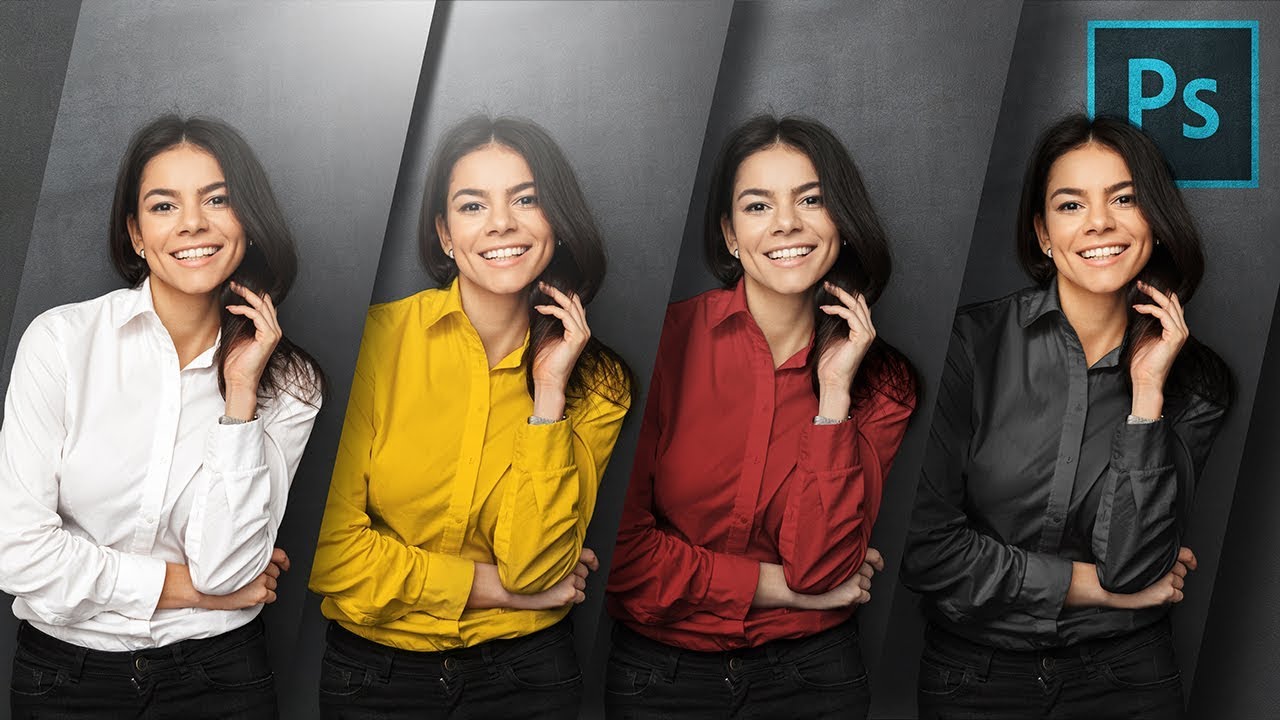
Using the Basic Concepts of Blend Modes, Easily Change White into Any Color Including Black in Photoshop! Create realistic colors by combining the power of Blend-If coupled with Adjustment Layers and Blend Modes!
In this tutorial, we will be using Solid Color Fill Layers along with Multiply Blend Mode to project color on the white object. Then,...
 gentle notch
I have a design that is letter size. I would like to print it so that the design goes all the way to the edges. Everytime I print theres like this margin border around the paper. Is it possible to achieve this or is the issue with my printer
sly hawk
Hey. I'm not at my machine at the moment and have been asked a question by a client....
Can you save a layered PSD file into a LAYERED PDF file?
 strong steeple
is there a good, fast, way to import an image, and scale it such that it fits within 5mm of the canvas edges?
preserving the aspect ratio
basically, for this print-shop I need the PDF to be exactly for example A2 sized, and the content to not go within 5mm of the edges
I have done this manually, but now I want to do this to a whole bunch of images
sly hawk
You know that when they say 'content' they're just talking about important stuff like headings or text?
If you're asking a print shop to print an A2 poster you would typically add at least 3mm BLEED and keep copy and bits like that at least 5mm away from the trim marks (Aka canvas edge)
strong steeple
nah, here I get as the finished size, the image is somewhere within that
and I then cut it
this is a plotting place for architectural plans, not a regular print shop
but they are cheap as F
 hoary vault
I have this issue with adobe tools and macOS. Whenever I have any app opened, new desktop icons that I add to it like screenshots, files or folders are all placed one over other like a pile of overlapping icons. I can’t move none of the desktop icons new or older ones unless I close the apps. Does any one knows how to fix this?
hushed niche
hoary vault
I have this issue with adobe tools and macOS. Whenever I have any app opened, ne...
A print screen?
hoary vault
Yes, in Mac it becomes a file automatically.
hushed niche
gentle notch
I have a design that is letter size. I would like to print it so that the design...
Hello, it is up to your printer, if it supports borderless printing.
hushed niche
hoary vault
Yes, in Mac it becomes a file automatically.
I meant : could you share a print screen of the situation ? I see something like that only when I click and hold on an app icon .
 hearty ferry
How to make 2000 like 1000 in color and effects?

 weary wyvern
gentle notch
I have a design that is letter size. I would like to print it so that the design...
weary wyvern
gentle notch
I have a design that is letter size. I would like to print it so that the design...
Not all printers support borderless printing. Check your printer manufacturer's site and see if it supports borderless printing. If it does, it's usually a settting that needs to be selected in printing preferences dialog box. If your printer does not support borderless printing, then I'm afraid, you are out of luck.
gentle notch
Got it thanks much,
 smoky turret
question about this stamp filter- you can control the light and dark balance and the smoothness, but is there any way to change the scale of the dots themselves? Currently the only solution I have found is to scale the image really high(?)

 worn coral
does anyone know how to recreate something like this in photoshop whenever i use a gradiant map it ends up looking really bad and not like this at al

 cinder scaffold
i need help with a really simple task any1 to show me how to do it
Image
this is what im getting when im trying to change the color of this balaclava which is kinda okay but i want it more realistic
Image
something like this
is anyone gonna be able to help out really quick or tell me how to do it if its simple because i need like a bunch of different colors

