#❓ask-a-question
1 messages · Page 34 of 1
 ripe quest
 astral dove
and can anyone tell me how to make this type of smoke/fog?
 naive valve
ripe quest
I mean, generally speaking, you just paint on the mask to hide pixels to "cut so...
naive valve
ripe quest
I mean, generally speaking, you just paint on the mask to hide pixels to "cut so...
Could you explain a little bit more, I'm new🙏🏾
ripe quest
naive valve
Could you explain a little bit more, I'm new🙏🏾
A Layer Mask is essentially way to remove pixels without actually deleting them permanently. It is referred to as a "non-destructive" workflow. Thus, you can always get those pixels back if you make a mistake or change your mind. You paint black to hide the pixels. Paint white to reveal them. The levels of grey in between are varying degrees of opacity.
ripe quest
naive valve
But how would I permanently remove parts of an image
After you paint on the mask and hide the pixels, you can apply the mask and that will permanently remove them from the layer.
naive valve
Im sorry is there a video your could reference going more into detail?
ripe quest
naive valve
Im sorry is there a video your could reference going more into detail?
You just right-click on the Layer Mask and choose "Apply Layer Mask"
That permanently removes the pixels and deletes the mask.
 lunar hollow
what if i'll install an older version of photoshop? i'm just trying to recreate this effect, not sure if it's posible now that 3d suppord has been dismissed
 ripe quest
lunar hollow
what if i'll install an older version of photoshop? i'm just trying to recreate ...
ripe quest
lunar hollow
what if i'll install an older version of photoshop? i'm just trying to recreate ...
I really don't know. I can't speak to the performance of that integrated GPU when using the 3D tools in old versions of Photoshop. I have no frame of reference on how well it works (or doesn't).
Please post this sort of thing in #📝project-feedback.
 charred slate
okay
naive valve
ripe quest
That permanently removes the pixels and deletes the mask.
Ohk then I can apply another one?
ripe quest
naive valve
Ohk then I can apply another one?
You could make a mask, paint on it and apply it. Then repeat the process over again at your leisure.
 wet hazel
Any body tell me all shortcuts in photoshop
 night gazelle
Hi everyone, I have a request.
Can anyone please help me heal a photo of myself?
There's a shadow line underneath my nose and I'd like to take that out
If anyone of you could help remove that shadow, I would greatly appreciate it.
 slate oar
Hello, I am making a logo and struggling with how to implement what I want to do through photoshop to then create it, any tips would be helpful, Dm me or reply to this if you can give some times, ty 🙂
 tall jay
Can anyone help me fix this error?

 river otter
hey guys! i have a question
how can i improve this?
it looks weird on the sky background
 serene coral
tall jay
Can anyone help me fix this error?
serene coral
tall jay
Can anyone help me fix this error?
What exactly are you doing?
ripe quest
night gazelle
Hi everyone, I have a request.
Can anyone please help me heal a photo of myself...
ripe quest
river otter
how can i improve this?
Please use the #📝project-feedback channel for comments/suggestions
 quaint python
hey guys, how can I turn off these "guide purple lines" when using move tool?
 ripe quest
quaint python
hey guys, how can I turn off these "guide purple lines" when using move tool?
ripe quest
quaint python
hey guys, how can I turn off these "guide purple lines" when using move tool?
View > Show > Smart Guides.... to toggle those on/off
ripe quest
wet hazel
Any body tell me all shortcuts in photoshop
Tell you? :) Main menu: Edit > Keyboard Shortcuts... or check out this reference from the Ps User Guide: https://helpx.adobe.com/photoshop/using/default-keyboard-shortcuts.html
 ivory rampart
<@&548221840750018590>
 vapid flume
ivory rampart
<@&548221840750018590>
vapid flume
ivory rampart
<@&548221840750018590>
Thanks!
 fluid craneBOT
Gave +1 Creative Carma to @ivory rampart (current: #128 - 11)
 unreal mirage
So
I have this curious question about needing to batch crop images from a large repository of images that have slightly different positions


example of what I need to crop
I know macros could somewhat do it but they are in slightly different positions and I need to do around 250 pages
 last turret
ivory rampart
<@&548221840750018590>
last turret
ivory rampart
<@&548221840750018590>
Yes?
 abstract carbon
how to find out what font people use

 warped plank
hello friends, How can I make the purple and blue parts glow?
 ivory rampart

copy your layer(ctrl+j) -> select black area with magic wand -> layer style glow
you probably could do better than that
warped plank
ivory rampart
you probably could do better than that
OK, thank you very much for your answer
fluid craneBOT
Gave +1 Creative Carma to @ivory rampart (current: #118 - 12)
ivory rampart
you can change glow colour to match better
 spring coyote
does anyone know why my stroke is all pixelated
 ivory rampart
you can change glow colour to match better
ivory rampart
ivory rampart
you can change glow colour to match better
 ivory rampart
spring coyote
does anyone know why my stroke is all pixelated
ivory rampart
spring coyote
does anyone know why my stroke is all pixelated
only vectors will be always smoothen, raster brush will be always pixelated
spring coyote
is there anyway to add an outline around it then that isn’t pixelated?
without a stroke?
ivory rampart
you could convert strokes to path this should smooth lines
▽ FOLLOW
Instagram ► https://www.instagram.com/obaedakorani/
Facebook ► https://www.facebook.com/obaeda.koranii
TikTok ► tiktok.com/@obaedakorani?lang=ar
▽ PLAYLIST
Latest Video ► https://youtu.be/YVdr7OFWoAQ
Thanks for watching.
Any comments are welcome!
#Photoshop_2022 #Design #Short_Tutorial #Tutorial #Short_Tutorial
warped plank
ivory rampart
Can I use a brush for glow?
river otter
how do i remove anti aliasing from the clone stamp?
warped plank
ivory rampart
sky is the limit 🙂
What a beautiful word, I agree with you, but the problem is that when I use the brush, it is like this for glow, but it was not like this when I used it before.
 ivory rampart
do you paint on separate layer? if yes maybe you had different blending mode? 
warped plank
ivory rampart
do you paint on separate layer? if yes maybe you had different blending mode? <:...
Yes, I used solid color

The problem I have with it is that I like the parts that are blue to be bright, but the problem is that it becomes pixelated and the middle is dim, the emitting light is brighter than itself.
ivory rampart
even when changing blending mode of layer?
warped plank
ivory rampart
even when changing blending mode of layer?
yes
ivory rampart
hmm not gonna lie you might wait for someone smarter than me
warped plank
ivory rampart
hmm not gonna lie you might wait for someone smarter than me
Please don't talk to yourself like that, you helped me a lot, I was able to get other opinions from your words.
ivory rampart
I meant you need someone with more experience than me, as i reached max in that case
warped plank
ivory rampart
I meant you need someone with more experience than me, as i reached max in that ...
OK, thank you very much for your time
fluid craneBOT
Gave +1 Creative Carma to @ivory rampart (current: #108 - 13)
ivory rampart
np hopefully you will find solution
 barren drum
Any helpful tips on how I might manipulate a chain around a lung to look as if it is squeezing/constraining it on photoshop? I’m not necessarily new to photoshop but I don’t remember much in the app so nothing too complex if possible 

 topaz lodge
why does lightroom takes up so much ram?
it takes 10gb of ram when i use lens blur features
 royal olive
If anybody is interested in a job or business partnership DM me!
 nimble linden
Hi, Im decently new to photoshop and was wondering if someone could send me on the right track to try to create something similar to this but with different text.

im curios how he did the light spots ont he text as well as the reflection. Im also wondering how I create the transitions form the glassy floor to the mosty black dark backround
 long trail
how do i make this moon red?
 ivory rampart
nimble linden
im curios how he did the light spots ont he text as well as the reflection. Im a...
ivory rampart
nimble linden
im curios how he did the light spots ont he text as well as the reflection. Im a...
Probably brush strokes on separate layer, as for mirror text was duplicated and mirrored with mask and gradient
ivory rampart
long trail
how do i make this moon red?
solid color with blending set to multiply or overlay
 tulip sage

y does my filter gallery go black when im editing something
and when i click done the whole design turns black
 cedar kestrel
how can i fade half of my image and make that part slowly become transparent?
it's a picture of a mountain
ripe quest
cedar kestrel
how can i fade half of my image and make that part slowly become transparent?
Add a Layer Mask. Then use a Black to White Gradient on the Mask.
cedar kestrel
ripe quest
Add a Layer Mask. Then use a Black to White Gradient on the Mask.
you mean layer mask > reveal all?
ripe quest
cedar kestrel
you mean layer mask > reveal all?
Start with that. Then use a Gradient on that new mask.
cedar kestrel
ripe quest
Start with that. Then use a Gradient on that new mask.
so, basically clip that gradient to the mask?
ripe quest
cedar kestrel
so, basically clip that gradient to the mask?
Select the mask and then use the Gradient Tool on the mask.
cedar kestrel
oh i was mistaking gradient map with that
ripe quest
tulip sage
and when i click done the whole design turns black
Difficult to diagnose based on just this description.
ripe quest
long trail
how do i make this moon red?
Is the moon on a separate layer?
tulip sage
ripe quest
Difficult to diagnose based on just this description.
wha other description can i give
ripe quest
long trail
how do i make this moon red?
An Adjustment Layer > Hue/Saturation + Colorize is a quick way to do it...
ripe quest
tulip sage
wha other description can i give
I don't know. What's on the layer?
 long trail
ripe quest
An Adjustment Layer > Hue/Saturation + Colorize is a quick way to do it...
long trail
ripe quest
An Adjustment Layer > Hue/Saturation + Colorize is a quick way to do it...
thank u so much! yes it was on another layer
fluid craneBOT
Gave +1 Creative Carma to @ripe quest (current: #3 - 1729)
ripe quest
tulip sage
Perhaps try to adjust the Light/Dark Balance... Unless there is more going on here that I'm not seeing. Or you're not activating the proper layer. I don't really know.
tulip sage

na it ain do nun n i am on right layer
the layer was merged w the black backround tho
ripe quest
tulip sage
the layer was merged w the black backround tho
It works for me. The settings might be different for you if your document is a different size. I really don't know. Sorry.
ripe quest
tulip sage
so i can show
You need an app for screen recording. Try ShareX.
cedar kestrel
ripe quest
thank you!
fluid craneBOT
Gave +1 Creative Carma to @ripe quest (current: #3 - 1730)
 cedar kestrel
do you know how can i make the gradient apply only to the bottom edge of the image?


maybe i should make a selection for that?
 plucky folio
arent these crt scan lines how can i get them to be so small
 ripe quest
cedar kestrel
do you know how can i make the gradient apply only to the bottom edge of the ima...
ripe quest
cedar kestrel
do you know how can i make the gradient apply only to the bottom edge of the ima...
You can paint it with a brush. With a layer mask: black hides pixels. White reveals pixels.
tulip sage
cedar kestrel
ripe quest
You can paint it with a brush. With a layer mask: black hides pixels. White reve...
thank youu!
fluid craneBOT
Gave +1 Creative Carma to @ripe quest (current: #3 - 1731)
ripe quest
plucky folio
arent these crt scan lines how can i get them to be so small
Not sure its CRT lines. It actually looks like some sort of texture.
ripe quest
tulip sage
I can't see what is going on here.
tulip sage
ripe quest
I can't see what is going on here.
whatchu want me to show u gng
ripe quest
tulip sage
whatchu want me to show u gng
I've already said, "I don't know what is happening here." And you're just showing parts of the screen. I can't tell what the problem is. Try this on a different image and see if it still occurs.
ripe quest
tulip sage
dosent rlly do anythang
Some filters don't work well with certain types of images. You'll just have to experiment with them to see how they affect the layer.
serene coral
plucky folio
arent these crt scan lines how can i get them to be so small
honestly, it looks like someone took a photo of this photo on a computer screen, notice how the lines align with slight pixelation
 clever widget
I'm new to PS and just installed it yesterday.
I'm currently having a problem with changing the scratch disk to other ones as my C drive is full but the app doesn't see D drive.
Both drive are NTFS.
 nocturne cairn
clever widget
I'm new to PS and just installed it yesterday.
I'm currently having a problem wi...
nocturne cairn
clever widget
I'm new to PS and just installed it yesterday.
I'm currently having a problem wi...
Can other apps see your D drive? Is Photoshop the only one that can't?
 late reef
is there an aftereffects discord
 cunning wasp
Hello, I'm a newcomer and I liked something about a creator, or rather, I liked the rounded edges. I wanted to ask how it's possible to make them like that. Could you send me a video or tutorial?
 serene coral
late reef
is there an aftereffects discord
cunning wasp
ivory rampart
You mean those white corners?
serene coral
late reef
is there an aftereffects discord
cunning wasp
ivory rampart
You mean those white corners?
yes i mean the white corners
ivory rampart
Mask your image -> create new layer with fill colour -> move layer with background below image

Discover what Layer Masks are and jump straight into real-world examples to learn the best ways to use them in Photoshop! Starting from basic concepts to fundamental techniques and best practices, this lesson covers every aspect of Layer Masking for beginners. I hope you enjoy this tutorial. Thank you so much for watching :)
► TIMESTAMPS:
00:00...
cunning wasp
ivory rampart
Mask your image -> create new layer with fill colour -> move layer with backgrou...
thank you for the advice, I appreciate it, unfortunately I didn't quite understand it, could you somehow make a tutorial for me, I don't want to be annoying or I just want to know the basics
fluid craneBOT
Gave +1 Creative Carma to @ivory rampart (current: #102 - 14)
ivory rampart
Im not best tutor and im at work atm
cunning wasp
I understand, maybe one will help me if there is someone as willing as you
vapid flume
cunning wasp
I understand, maybe one will help me if there is someone as willing as you
Have you tried the in-app tutorials?
They're tutorials where you can follow the step by step directly in Photoshop. It tells you waht to do depeding on what you are trying to do.
For example you can type-in mask in the serch bar and it will tell you how to create a mask
serene coral
cunning wasp
I understand, maybe one will help me if there is someone as willing as you
you can use this workflow to get rounded corners for any layer. I believe this is the best way to do this as this approach is non-destructive, meaning you can get back to any element of your project and edit it anyhow you like https://youtu.be/q34kz4HuwTo

Learn the best way to round the corners of your image with Photoshop. Plus how to add a border around the image after rounding the corners, and how to save your image and keep the corners transparent so it will look great on any background.
► Written tutorial on my website: https://www.photoshopessentials.com/photo-effects/how-to-round-corner...
vapid flume
Go to the help menu and lauch the hands on tutorials
 serene coral
cunning wasp
serene coral
cunning wasp
yet, for this Image I would try creating corner shapes to place above your design
vapid flume
If you type "mask" and then "all results for mask" you'll get this hand on tutorial ("get to know layer masks")
It's really easy to follow

once you've done it, you will understand all the YouTube tutorials better because you've done it before
cunning wasp
thank you all for your help❤️
 marsh sage
why i cant draw on photoshop on my drawing screen and i can draw on ms paint and paint sai?
vapid flume
marsh sage
why i cant draw on photoshop on my drawing screen and i can draw on ms paint and...
What happens when you try to do it? (I can confirm it works on my end) Is it a proper graphic tablet with a screen, or is it a touch screen? (as in integrated in a laptop)
marsh sage
vapid flume
What happens when you try to do it? (I can confirm it works on my end) Is it a p...
a screen drawing tablet Aka graphic tablet with a screen
vapid flume
marsh sage
a screen drawing tablet Aka graphic tablet with a screen
OK, I got one too. It is supposed to work. Can you explain what happens?
marsh sage
i can select options on photoshop fine like brush and bucket tool. But , when i try to draw with brush or any options it wont work at all
vapid flume
Can you send a screenshot of the whole PS window (with the layers panel, file tab... everything) while you are trying to draw? Make sure the graphic tablet is connected (but you can send a screenshot of the computer ie: duplicated screens)
marsh sage
vapid flume
Can you send a screenshot of the whole PS window (with the layers panel, file ta...
i will try
 marsh sage
vapid flume
Can you send a screenshot of the whole PS window (with the layers panel, file ta...
marsh sage
vapid flume
Can you send a screenshot of the whole PS window (with the layers panel, file ta...
here it is
 marsh sage
vapid flume
I meant that 🙂
marsh sage
vapid flume
I meant that 🙂
ok
 vapid flume
Because I can't really what's happening and also I don't necessarily need a video
First of all your layer is locked, you can't draw on that
have you tried on a new layer?
See my screenshot
marsh sage
vapid flume
Because I can't really what's happening and also I don't necessarily need a vide...
yes
vapid flume
Have you checked the settings for Photoshop? in your graphic tablet?
Here are mine

any thing bizarre there, like Window ink not ticked etc?
 marsh sage
vapid flume
Have you checked the settings for Photoshop? in your graphic tablet?
Here are mi...
marsh sage
vapid flume
Have you checked the settings for Photoshop? in your graphic tablet?
Here are mi...
no because i cant make it work for some reason
 vapid flume
marsh sage
no because i cant make it work for some reason
vapid flume
marsh sage
no because i cant make it work for some reason
Maybe it's something to do with the tablet then
Some programs are optimised for a tablet (Photoshop is one) other programs aren't and use the tablet like a regular mouse (MsPaint is one)
You'll need to download the newest drivers for the tablet and make sure you have access to the settings
What is the make/model of your tablet?
 vapid flume
I am not super familiar with them, but I am pretty sure it's supposed to work. In your message it says it doesn't recognised as plugged in. So if that's the case, you need to resolve that with them first, because it's definitely not normal
If it's a Bluethooth connection, try to plug in with a cable instead and see if it works better,
Ceratin options in Photoshop work with pressure, and some not. For example brushes work with pressure, and selections don't. That's means that it seems to be a pen issue, more than a tablet issue, it looks like the pressure isn't recognised
marsh sage
vapid flume
I am not super familiar with them, but I am pretty sure it's supposed to work. I...
it is not bluetooth connected
vapid flume
marsh sage
it is not bluetooth connected
You need to put it forward Ugee first if it says it's not connected
There is definitely an issue there that has nothing to do with Photoshop.
 gray totem
Scene: Emma and Jake walk hand in hand, symbolizing their journey of growth and love.
serene coral
gray totem
Scene: Emma and Jake walk hand in hand, symbolizing their journey of growth and ...
serene coral
ctrl+;
 wary magnet
Hey! Does anyone have tips for cleaning up an image like this?

I tried vectorizing it but really didnt like how it looked (because it rounded the edges), is there any other way of doing it?
Thanks a bunch in advance! ❤️
serene coral
wary magnet
"Remove JPEG Artifacts" Neural Filter is actually pretty good - I think you should try it!
serene coral
wary magnet
Didn't know that existed
you could also make a color range selection (given your shape/icon/logo is black and white and turn selection into a path, but you said you tried to vectorize it already?
wary magnet
Yeah, vectorizing sorta worked for me, like I said it rounded the edges which are meant to be sharp
serene coral
wary magnet
Where do I find it?
Filter>Neural Filters>JPEG Artifacts Removal
wary magnet
And manually going through all of my images (I have like 50+) would be a headache
serene coral
wary magnet
Yeah, vectorizing sorta worked for me, like I said it rounded the edges which ar...
How exactly did you approach vectorizing? There is no direct tool to do this in Photoshop...
Another question would be: do you want to get a vector file out of this?
wary magnet
serene coral
How exactly did you approach vectorizing? There is no direct tool to do this in ...
Yeah, I did it via illustrator, also I tried using https://vectormagic.com/ which basically does the same thing

Easily convert JPG, PNG, BMP, GIF bitmap images to SVG, EPS, PDF, AI, DXF vector images with real full-color tracing, online or using the desktop app!
wary magnet
serene coral
Another question would be: do you want to get a vector file out of this?
The end goal is that, yes, but I believe due to the jpeg artifacts and the low res of my initial image the vectorization algo doesnt pick up the sharp edges, so my plan was to use Photoshop to enhance the image quality and then vectorize
serene coral
wary magnet
The end goal is that, yes, but I believe due to the jpeg artifacts and the low r...
can you drop a sample of image you want to vectorize?
 serene coral
wary magnet
serene coral
wary magnet
ok so I got quite a nice result in Illustrator. I picked the black and white preset and in advanced settings I moved paths and corners sliders to 80-90%. Still needs some manual cleanup but it's there!
 wary magnet
serene coral
ok so I got quite a nice result in Illustrator. I picked the black and white pre...
wary magnet
serene coral
ok so I got quite a nice result in Illustrator. I picked the black and white pre...
Wow, this looks great!
I'll try it myself in a bit
wary magnet
serene coral
ok so I got quite a nice result in Illustrator. I picked the black and white pre...
Just to be clear, which part(s) need manual clean up in this example?
From the screenshot you shared everything looks perfect
serene coral
wary magnet
Just to be clear, which part(s) need manual clean up in this example?
in my case, there are some stray points and the rounded corner at the top could be smoother. easy to do manually
 stray thistle
Can anyone help? How can I edit these two pictures to have the same lighting source?
 astral dove
can anyone tell me how to make this smoke?

 craggy pumice
hello, can someone give quick tip how do cut out these parts? i typed "Test" and now i want to cut it half in some way. I have tried in my way but didnt work as i wanted. Maybe you guys are more educated and creative to help me out.
 ripe quest
astral dove
can anyone tell me how to make this smoke?
ripe quest
astral dove
can anyone tell me how to make this smoke?
Either find an image of smoke and composite it or paint. (Or a bit of both.)
ripe quest
craggy pumice
hello, can someone give quick tip how do cut out these parts? i typed "Test" and...
Add a Layer Mask and paint with black on the mask. Main menu: Layer > Layer Mask > Reveal All. Select the mask and then the Brush Tool. Paint on it with black to hide pixels. Paint with white to bring them back.
 inland vine
Is there any way to move only selected parts of an image across all layers instead of everything being moved at the same time?
ripe quest
inland vine
Is there any way to move only selected parts of an image across all layers inste...
Say more.
Share screen shots. Describe the goal.
 tulip obsidian
Any ideas to make mussolini's suit more suitable (darker) so it is similar to the other great figures?
 ripe quest
tulip obsidian
Any ideas to make mussolini's suit more suitable (darker) so it is similar to th...
ripe quest
tulip obsidian
Any ideas to make mussolini's suit more suitable (darker) so it is similar to th...
Adjustment Layers... Levels, Hue/Saturation, etc etc.
tulip obsidian
ripe quest
Adjustment Layers... Levels, Hue/Saturation, etc etc.
Thanksz it worked
 graceful sonnet
I've got a Smart Object which consists of a text layer set to Multiply blending mode w/ some layer styles applied. Unfortunately, this is making the Smart Object also set to Multiply blending mode. Is there any way to get it to apply a separate blending mode to the entire object without rasterizing the contents?
 limber jolt
uhh hey
is there a way tix his hair and seperate it from that collision with the background
 graceful sonnet
This is what's inside the object!

I figured it out. Adding a layer below the text for it to multiply onto removes the need for the Smart Object to get its color values from comparing the layer below (thus necessitating it is also in Multiply)
astral dove
ripe quest
Either find an image of smoke and composite it or paint. (Or a bit of both.)
composite paint?
 wraith torrent

 charred timber
Does anyone know any tips on how to place an object in someone’s hands making it look realistic
I want to add a box into someone’s empty hands
For example I want to add this Rolex box into this man’s hands making it look realistic and the lighting etc

 dreamy oracle
Where can I find my saves. Like if I save a project and want to go back to the latest save where do I find it
Previous saves
ivory rampart
unles you were creating separate files i don't think you can revert to previous ver
i think PS stores undo in psd files but that's limited to what your system can handle
ripe quest
dreamy oracle
Previous saves
Versioning is only available when you save PSDC (cloud format) and save in the cloud. Otherwise, you're responsible for saving iterations.
ripe quest
charred timber
For example I want to add this Rolex box into this man’s hands making it look re...
The first thing you'd need to do is find assets that are similar perspective. While lighting/shadows can be more easily "faked", perspective is much more challenging. At least with something like this.
 quasi canyon
how can I achieve a similar effect as this?
 ivory rampart
it looks like every line of text was blurred
probably text was converted to image and every line has higher amount of blur
ripe quest
quasi canyon
how can I achieve a similar effect as this?
And keep it easily editable? Proabably tough. It looks like each line has a different Layer Style > Stroke... with a different Stroke Size applied.
 broken tide
yo so im trying to make it so one of the buttons on my pen does undo on photoshop but it also registers as the "move" tool
is there any way to make it so it only undoes the stuff im trynna do
quasi canyon
ivory rampart
probably text was converted to image and every line has higher amount of blur
Perfect. I'll try to convert lines of text to an image and blur them to achieve a similar result.
ripe quest
quasi canyon
Perfect. I'll try to convert lines of text to an image and blur them to achieve ...
Not sure a Blur is going to do it. I think you're going to need a different Stroke Weight for each line (getting larger as it moves down to the bottom)
quasi canyon
Ok that make sense let me try it now
 jovial pond
So I'm working on this photo and so far I'm really happy with it except for the smoke trailer, it doesn't look good with the photo but I'm not sure how to improve the smoke trail, I used generative fill but should I find some png's of smoke trails that might make it look better?

I removed the fire part since it didnt look that great
ivory rampart
ripe quest
Not sure a Blur is going to do it. I think you're going to need a different Stro...
What about growing selection and using blur within selection
The other thing comes to my head is bleeding edges
Old ways of creating game textures
Were you had to bleed edges cause otherwise you had artefacts
limber jolt
uhh hey
is there a way tix his hair and seperate it from that collision with the background

 spring stump
how do i remove the black background?
 river otter
i would like to make a png with just the traces in black and white, someone can show me how?

 sly hawk
spring stump
how do i remove the black background?
sly hawk
spring stump
how do i remove the black background?
Find the original and make an easier background...
sly hawk
spring stump
how do i remove the black background?
But at that point, you may as well just remake it using a threshold layer
ripe quest
river otter
i would like to make a png with just the traces in black and white, someone can ...
Kinda tough to isolate that...
 sly hawk
river otter
i would like to make a png with just the traces in black and white, someone can ...
sly hawk
river otter
i would like to make a png with just the traces in black and white, someone can ...
something like this would work:
But @ripe quest's result was way better! 🙂
sly hawk
limber jolt
uhh hey
is there a way tix his hair and seperate it from that collision with th...
You know we'll suggest Generative fill....

Either that or remove the top of his head entirely and give him a new haircut
...or hand draw/fix it.
sly hawk
jovial pond
So I'm working on this photo and so far I'm really happy with it except for the ...
Yeah it looks a little bit thick, like santas' beard! I'd just run the gen fill again and find something a little lighter
jovial pond
sly hawk
Yeah it looks a little bit thick, like santas' beard! I'd just run the gen fill ...
Alright, do you think it would look better if the smoke was more darker or lighter?
Or is the current shade good enough?
sly hawk
Just less thick...
 river otter
ripe quest
Kinda tough to isolate that...
river otter
ripe quest
Kinda tough to isolate that...
Ty if im not abusing how would u change the name from victor heitor to vitor elves
fluid craneBOT
Gave +1 Creative Carma to @ripe quest (current: #3 - 1733)
river otter
sly hawk
*something* like this would work:
Learn a lot from this ty ❤️ ❤️
sly hawk
river otter
Ty if im not abusing how would u change the name from victor heitor to vitor elv...
I'd suggest you delete the existing text and re-write the title.
river otter
okki doki
sly hawk
river otter
okki doki
again, this sort of logic
river otter
Done ty very much guys
spring stump
sly hawk
But at that point, you may as well just remake it using a threshold layer
alr
sly hawk
astral dove
can anyone tell me how to make this smoke?
Same as the last time I answered you:
#❓ask-a-question message
jovial pond
sly hawk
Just less thick...
Oh alr, thanks for the help 👍
fluid craneBOT
Gave +1 Creative Carma to @sly hawk (current: #7 - 800)
limber jolt
sly hawk
You know we'll suggest Generative fill....
That's very amazing
THANK YOU JAMES! ❤️
fluid craneBOT
Gave +1 Creative Carma to @sly hawk (current: #7 - 801)
limber jolt
limber jolt
That's very amazing
THANK YOU JAMES! ❤️
If i wanted to cut the hair in the front part on his face
It won't be very hard
Either generative fill or manually somehow
You done the hardest part
Thank you
 unborn lotus
how do i slow down the animation i made in the export
 whole raft
Why can't I choose what I grouped?
When I select one item, it becomes the entire group.
 median forge
Anyone know how I can achieve this worn cardboard look around the edges of a picture?

And also if anyone has any suggestions for textures that kinda mimic the whole vintage look
 sand jungle
hello guy's i try to get a free photoshop program any way to get ?.
ripe quest
sand jungle
hello guy's i try to get a free photoshop program any way to get ?.
There is a 7-day free trial at adobe.com
 native shard
whole raft
Why can't I choose what I grouped?
When I select one item, it becomes the entire...
native shard
whole raft
Why can't I choose what I grouped?
When I select one item, it becomes the entire...
Hey, could you show me the SS example of your problem, so far i could only think you might have missed or messed something up in layer selection, layer order, locks and visibility, group properties and layer mask.
and if you want to select one item you could just use the move tool (V) it will allow you to hopefully select and move individual layers within a group without ungrouping
Also check if its a smart object or not
well thats all the things i could think about without seeing the image you are trying to do, hope that helps.
native shard
median forge
And also if anyone has any suggestions for textures that kinda mimic the whole v...
is that the same image you are trying to apply a vintage look upon?
native shard
median forge
Anyone know how I can achieve this worn cardboard look around the edges of a pic...
create a new layer above the current image, fill it with a base color that matches the cardboard color, add a texture and blend it to (i think multiply or overlay in the blending mode), and then just use eraser tool to simply erase and just leave the un-erased parts around the edges.
Once that is all done you can have something similar to the image you sent here, you could edit the stuff later on and polishing it according to your likings in blending modes by changing the blend or color or lighting etc etc.
thats the easiest and fastest way i could think of.
median forge
native shard
create a new layer **above** the current image, fill it with a **base** color th...
Thanks, anything in particular you’d recommend searching for as far as textures?
fluid craneBOT
Gave +1 Creative Carma to @native shard (current: #850 - 1)
native shard
median forge
Thanks, anything in particular you’d recommend searching for as far as textures?
if i could see the image you are trying to apply it to, i could give a suggestion that might match it
unless its a private work i dont mind
median forge
Cool one sec I’ll send it
native shard
alright
median forge
native shard
alright
I still have a lot I wanna work on but as far as sci fi vintage vhs vibes here’s where I’m at

Ik the text looks bad rn that’s just my first attempt 😭
native shard
median forge
I still have a lot I wanna work on but as far as sci fi vintage vhs vibes here’s...
woah, i dont know what could go along with white and brown at the same time
native shard
median forge
Ik the text looks bad rn that’s just my first attempt 😭
for your first attempt thats a pretty well custom made text, dont sweat it.
native shard
median forge
I still have a lot I wanna work on but as far as sci fi vintage vhs vibes here’s...
so you wanna apply on the entire image or just the small part of the image?
median forge
Mainly just make the edges look worn down, and then if there’s a different texture I can apply to the rest of the actual image I’d be down to apply that too
median forge
native shard
for your first attempt thats a pretty well custom made text, dont sweat it.
Yea I’m more just trying to figure out composition, like where to put it and what color and stuff. But i imagine I’ll figure that out if I give it enough time
native shard
median forge
Mainly just make the edges look worn down, and then if there’s a different textu...
i think black would go the best for this, here is a image i got from google that you could try directly and apply
 median forge
Sick thanks
native shard
or just try and make your own black one if this doesnt look good
after all you might as well practice the steps i mentioned earlier
feel free to ping me if anything else!
median forge
I went a little grunge but I think it works

 unreal basin
Had a question to see if anyone else is experiencing this issue (non beta) related, i've already submitted the request using the in-app feedback, but seems as if photoshop freezes for a little bit when first opening it / when opening a file, i'd say for a good 2-5 mins maybe a little less.
native shard
median forge
I went a little grunge but I think it works
oh, i see, you seem to have changed the font too, is that what you want as for the borders? or are you just not getting it? (i can try it too if you want, using the same image i sent you)
vapid flume
unreal basin
Had a question to see if anyone else is experiencing this issue (non beta) relat...
I haven't had it, but I would say sometimes Photoshop takes quite a long time to load, particularly if you got a crazy amount of patterns, brushes etc. Particularly if those patterns and brushes are big (in size)
So sometimes, it can feel like it freezes but actually it's just loading things. Maybe what you got is a real issue, difficult to say now
unreal basin
vapid flume
I haven't had it, but I would say sometimes Photoshop takes quite a long time to...
yeah i was thinking it could've been that, but i really don't have a whole lot, it's almost a fresh install since i just got back into it like 2 months ago.
vapid flume
Otherwise, I have had very little frezes and crashes using photoshop, particularly with the recent versions. It has become extremely rare for me for at leat a couple of years
vapid flume
unreal basin
yeah i was thinking it could've been that, but i really don't have a whole lot, ...
I work a lot with interior design companies, and I create a lot of patterns from artual artwork. Sometimes that artwork can be something around 4000 px wide and in a collection of colourway. You see where it's going.
Brushes (I'm a hoader) is another issue for me, but while I always take the extra step of cleaning my patterns folder at the end of a project, I am prepared to live with the downside of having a ridiculous amount of brushes. 🙂
All those things (the presets) can be downloaded and reloaded later, if you want to test things.
The isue now is that in previous versions of Photoshop, everything was located in the preset manager, so it was easy to keep tabs, but now, those presets are scattered all over the place
unreal basin
right right, yeah it makes sense.
vapid flume
Anyway, not saying that it's your issue, but it's a common issue.
unreal basin
right right, yeah i just got back into design 2 months ago, after having a family and buying a house and it became my full-time job just recently, and it particually only opens the moment i go to open whatever image/psd/ folder etc
vapid flume
Other stuff to take into consideration are your performance settings (in edit>preferences>performance) particularly the GPU settings, and the use of scratch disk, also in preferences
unreal basin
Like exactly right when this module opens

but once it unfreezes it doesn't do it anymore unless i close PS as a whole and reopen it again at a later time.
vapid flume
It seems like a disk access?
unreal basin
any of these opens it happens with, don't mean to clutter the chat I'll delete if need be just specifying which it occurs with
 vapid flume
See that link, it's always very helpful
https://helpx.adobe.com/uk/photoshop/kb/optimize-photoshop-cc-performance.html
and
https://helpx.adobe.com/uk/photoshop/using/performance-preferences.html
another one is the performance troubleshooting link:
unreal basin
I'll take a look at them, thank you for sending those. used PS for many years before my break and this is the first time this has ever occured.
vapid flume
unreal basin
I'll take a look at them, thank you for sending those. used PS for many years be...
To be fair, Photoshop has become a behemoth as well, and while it can run on a fairly modest computer, you still need that extra oomph
unreal basin
and i thought it might've been a PC ISSUE but wasn't that either, literally last week upgraded everything about it, so kinda confused me a little
vapid flume
If you keep up with all the versions, there are generally improvements upon a new big version addressing exactly those issues as well, so make sure you don't skip those "in-between" versions
And it's OK to clutter the chat, it's what's it's for!
unreal basin
Right, using the latest version as we speak. it's on auto-update as well.
it wouldn't be a scratch disk issue would it 🤔
vapid flume
unreal basin
it wouldn't be a scratch disk issue would it 🤔
I could be a consideration! I have mine on SSD disks as they're faster than standard disks (also external disks are always slower)
 unreal basin
hmm, so weird. cause mine is on the same thing.
 rough meadow
Any good site to get free images to use for photoshop no royalties, being able to use for comercial purpouse too like everything free no string attached?
river otter
Hello, does anybody know how to do this distortion/spikes in ps?


i can provide more examples
around the arms here

 serene coral
river otter
Hello, does anybody know how to do this distortion/spikes in ps?
serene coral
river otter
Hello, does anybody know how to do this distortion/spikes in ps?
is it about the reddish glow or aberration?
serene coral
rough meadow
Any good site to get free images to use for photoshop no royalties, being able t...
anything specific about what you are doing or your canvas? when does this happen?
river otter
serene coral
is it about the reddish glow or aberration?
nonono the distortion
around the character
 river otter
Hello, does anybody know how to do this distortion/spikes in ps?
river otter
river otter
Hello, does anybody know how to do this distortion/spikes in ps?
@serene coral you can see it better in the bathory album cover
serene coral
river otter
nonono the distortion
I'm not sure if I see it but to me it looks like a displacement map or liquifying with a small brush
river otter
serene coral
I'm not sure if I see it but to me it looks like a displacement map or liquifyin...
oh okay
 night marten
Hello, can someone help me? I updated my Photoshop today from 2023 to 2024 and since then the normal map generation has simply stopped working and I've already tried everything but I keep getting this error code even though it is activated. Strangely enough, it always happens with the 2023 Photoshop functions
error code: For 3D FUNCTIONS, ´´Use graphics processor´´ must be activated in the performance preferences. The graphics card must meet the minimum requirements and, if necessary, check whether it is working properly


 lunar sierra
For printing, i need a white border around this poster of a certain amount of millimeters, but no matter what i do it only measures in pixels. Does anyone here know how to put it in millimeters?
 native shard
night marten
Hello, can someone help me? I updated my Photoshop today from 2023 to 2024 and s...
native shard
night marten
Hello, can someone help me? I updated my Photoshop today from 2023 to 2024 and s...
Hey, maybe Reset Photoshop Preferences or Test/Verify Graphics Card Compatibility
serene coral
lunar sierra
For printing, i need a white border around this poster of a certain amount of mi...
right click on the ruler and select the measure you need
native shard
lunar sierra
For printing, i need a white border around this poster of a certain amount of mi...
Hey, open this poster in a new document, and then click on millimeters

or just do what wertos says
night marten
native shard
Hey, maybe **Reset Photoshop Preferences** or **Test/Verify Graphics Card Compat...
the Test/Verify Graphics Card Compatibility says that

its says compatible
native shard
night marten
the Test/Verify Graphics Card Compatibility says that
and did you resent preferences?
night marten
native shard
and did you resent preferences?
yes and still not working
i question too a friend and be him working too not
native shard
night marten
yes and still not working
do you happen to have any plugins that is of 2023 or something
native shard
night marten
no
dang, well thats all i could think of
night marten
native shard
dang, well thats all i could think of
but i think adobe has says 2023 always does the 3D options got deactivated but no more infos because when is down i dont know
ripe quest
Whats the issue you're having?
native shard
ripe quest
Whats the issue you're having?
not me, zomy does
ripe quest
native shard
not me, zomy does
OK. Please don't ping the staff. People can ask questions and when someone is available to answer, we will reply.
native shard
ripe quest
OK. Please don't ping the staff. People can ask questions and when someone is av...
okayyy
native shard
night marten
but i think adobe has says 2023 always does the 3D options got deactivated but n...
well i dont know that, i barely did any projects on those
i usually work on product photography and adverts (and then do some random hobbies which i put on insta lol)
ripe quest
night marten
but i think adobe has says 2023 always does the 3D options got deactivated but n...
The 3D functionality has been discontinued from Photoshop and Adobe has transitioned to the Substance 3D Suite of tools.
night marten
native shard
well i dont know that, i barely did any projects on those
because i was using the normal map generator in photoshop alot because i make some hobby 3d modeling dirtbikes and i made always my normal maps in photoshop and i dont know other normal map generators was so good to others
night marten
ripe quest
The 3D functionality has been discontinued from Photoshop and Adobe has transiti...
so no more normal map or bump map creating in photoshop? right
native shard
night marten
because i was using the normal map generator in photoshop alot because i make so...
uff :<
ripe quest
night marten
so no more normal map or bump map creating in photoshop? right
2D images can still be created with Photoshop. If you're looking to visualize these items in 3D, I'd suggest checking out Substance 3D (or other similar apps).
The 3D functionality in Ps was never really as robust as other, standard 3D editors; effective use required a lot of other tools. Building all of those things into Photoshop didn't really make sense. Thus, Substance 3D.
night marten
ripe quest
2D images can still be created with Photoshop. If you're looking to visualize th...
because i made this hole normal map in photoshop and on the 3d modeling bike looks realy good
 ripe quest
night marten
because i made this hole normal map in photoshop and on the 3d modeling bike loo...
ripe quest
night marten
because i made this hole normal map in photoshop and on the 3d modeling bike loo...
I have nothing further to add other than what I've said.
night marten
ripe quest
I have nothing further to add other than what I've said.
ye ye i understand
night marten
native shard
uff :<
here you can see a bike from me with a photoshop norm creator #🎨share-your-work-archive message
 bronze galleon
whats the best way to extend a person's coat/hair/hands ?
river otter
serene coral
I'm not sure if I see it but to me it looks like a displacement map or liquifyin...
do yk how i could replicate it
native shard
bronze galleon
whats the best way to extend a person's coat/hair/hands ?
meaning?
 civic portal
yea according to geforce exp its already updated
bronze galleon
native shard
meaning?
So i want to use the image of a person, but the hair is cut off, also one hand is cut off and a piece of clothing is cut off.
I have the Hair, Hand and clothes fully visibly on different pictures but from different angles.. I want to ask what's the best way to approach this
 dusky mason
When select my object and invert it to clear the background I get this line appearing, I don't know why? There is no feathering.
 native shard
bronze galleon
So i want to use the image of a person, but the hair is cut off, also one hand i...
native shard
bronze galleon
So i want to use the image of a person, but the hair is cut off, also one hand i...
well, so is the current person facing forward? and the other picture of that same person also facing forward?
i was thinking perhaps you could end up using object selection tool to select the fingers and CTRL+C and CTRL+V and paste them accordingly and make sure it looks as logical as possible, and then using the pencil tool for the touches.
Could do the same for that piece of clothing (assuming thats the same piece of clothing in your picture-2), as for the hair....i think adjusting that using Object selection tool and copy/paste could give you something good if not perfect
with enough given time you could:
- Zoom in for re-touching
- Blending options
- Brush tool in small size to add some touches on the hair for example
- Free transform multiple times to see which size looks the most logical and best fit.
bronze galleon
native shard
with enough given time you could:
> 1. Zoom in for re-touching
> 2. Blending op...
so mostly copy-pasting, and then retouching ?
native shard
dusky mason
When select my object and invert it to clear the background I get this line appe...
which line are you referring to?
native shard
bronze galleon
so mostly copy-pasting, and then retouching ?
ye, selecting the certain parts and copy/paste
because its a 2D image, its not like you can rotate a finger 😂
and suddenly magically bring out the behind part of the hand which wasnt even showing in the first place.
bronze galleon
@native shard can we jump in dm's ?
native shard
bronze galleon
<@1174235845386059787> can we jump in dm's ?
umm
ok
although i feel like someone later on might benefit from this
dusky mason
native shard
which line are you referring to?
 native shard
also will i get banned for taking these things to dms? 😂
native shard
dusky mason
oh, could you show me what the original image looks like?
bronze galleon
native shard
also will i get banned for taking these things to dms? 😂
lol im not sure maybe we can ask someone lol
 calm anvil
hi, please anyone have an idea how to cfreate this glowing edges watercolor/semi transparent effect? the original piece is somehow edited photo. i tried to recreate how this look can be achieved and i cannot get in any way that white glowing edge. the first image is reference and second is what i recreated


 native shard
dusky mason
native shard
dusky mason
just to confirm
first you use object selection tool
after that what exactly did you do?
dusky mason
i went round all the edges fixing up what the selection missed
inverted the selection
and then deleted it
median forge
native shard
oh, i see, you seem to have changed the font too, is that what you want as for t...
I tried black borders but couldn’t get it to look good
rough meadow
Okay since all "free to use" stockimages sites have either hidden agendas or bad photos.
Is there a site you sunscribe to qhere you cannuse all their images in commercial use like once you paid you dont have to worry off royalties oe licenses etc?
Im willing to pay as l8ng as I dont have to fiddle
 quaint wagon
Good afternoon guys! Does anybody have a anwser to this? My GC Is enabled, drivers updated, checked at preferences, but this still happening! NVIDIA GeFoerce RTX 3070
 ivory rampart
<@&548221840750018590> can we remove this spam
ivory rampart
quaint wagon
Good afternoon guys! Does anybody have a anwser to this? My GC Is enabled, drive...
it looks like you're trying to create bumpmap/normal map
those features been discontinued
quaint wagon
ivory rampart
those features been discontinued
Really? Still shows on my filters!
ivory rampart
quaint wagon
ivory rampart
https://helpx.adobe.com/uk/photoshop/kb/3d-faq.html
WOW, bummer!!! Thank you for the help
fluid craneBOT
Gave +1 Creative Carma to @ivory rampart (current: #97 - 15)
ivory rampart
if you need to create normalmap/bumpmap from picture you can use substance suite if you have it, or krita/gimp (free)
completely forgot about Nvidia plugin for PS https://developer.nvidia.com/nvidia-texture-tools-exporter

NVIDIA Developer
Allows users to create highly compressed texture files from image sources.
quaint wagon
Interesting, I'll look into it, thank you
last turret
ivory rampart
<@&548221840750018590> can we remove this spam
What spam?
ivory rampart
it's been sorted
 crystal sparrow
how is this pop out text effect done?
 rough meadow
What stockimages sites has the least hassle? I'm willing to pay subscription. All theese free sites seem to have hidden rules.
ripe quest
rough meadow
What stockimages sites has the least hassle? I'm willing to pay subscription. Al...
Hassle? What does this mean? Take a look at Adobe Stock.
rough meadow
ripe quest
Hassle? What does this mean? Take a look at Adobe Stock.
Hassle=struggle/problems
ripe quest
rough meadow
Hassle=struggle/problems
Yeah. Well, I think that's directly proportional to use case. The amount of stock assets you need, the costs of that investment, and final output will likely all potentially affect the situation. If your intent is to use the assets to mass produce merchandise, I think you're going to run into hurdles, hassles, problems and limitations.
You're essentially licensing people's IP to use in a certain way and regardless of the service you use, you should carefully review the license agreement to see if it fits with your use case.
If you don't want any limitations. Make your own images. :)
 limber stream
anyone know what these type of pictures are called?
 ripe quest
limber stream
anyone know what these type of pictures are called?
ripe quest
limber stream
anyone know what these type of pictures are called?
Probably a "collage" but this seems pretty messy. Barely coherent.
ripe quest
crystal sparrow
how is this pop out text effect done?
Perhaps something like this can get you started...
rough meadow
ripe quest
If you don't want any limitations. Make your own images. :)
I would love too but I don't have the best camera.
Well there has to be somewhere people get imagea from qince everyone uses photoshop
rough meadow
ripe quest
Yeah. Well, I think that's directly proportional to use case. The amount of stoc...
Do tou atleast know any site qhere I can either free or pay to use the photos on social media...I wanna photoshop imgaes and then show people on instagram tumblr etc..and I dont wanna have to pay royalties per image or like tag the people who made the imagw its such a hazze to do that per image. I rather pay l7ke 10-20$ per month to just download as many pics I want and use them, edit, play around, put them on my instagram etc.
ripe quest
rough meadow
Do tou atleast know any site qhere I can either free or pay to use the photos on...
If you just want to use stock to make image composites and such, any of the royalty free services would be adequate. Adobe Stock, Pexels, Pixabay, Unsplash, Freepik. However, just realize that thousands of people use this stuff to make comps and certain images are "overused." But regardless of that, I don't think you'd run into hassles with just basic usage to make your own layouts.
 dusty mist
Version 25.4.0 lags horribly after a minute or two. Why is that? (I'm just using earlier versions.)
 rose belfry
Hi. I need some help. On the latest version of Photoshop my external drive doesn't show up in the scratch disk preferences page, and Photoshop can't open since I don't have enough storage on my main drive. How can I fix this? It was working perfectly on older versions
 abstract carbon
how to check what font people use
ripe quest
tulip sage
how do i turn on generative fill
It's always on. Make a selection and then go to Edit > Generative Fill... or open the Contextual Task Bar. Window > Contextual Task Bar...
ripe quest
abstract carbon
how to check what font people use
Its not always possible. You can try the tool inside Photoshop. Main menu: Type > Match Font... and make a selection around the text. Or upload an image to scan at https://fonts.adobe.com
 teal talon
uber random question, there someone or a community in discord that helps with label designs lol
ripe quest
teal talon
uber random question, there someone or a community in discord that helps with la...
Describe "helps with..." label designs. Do you mean someone who can make something for you?
teal talon
ripe quest
Describe "helps with..." label designs. Do you mean someone who can make somethi...
Well looking for creative insirption really. I have made some, want to modernise them tho.
ripe quest
teal talon
Well looking for creative insirption really. I have made some, want to modernise...
If you post your designs to #📝project-feedback, you can get comments and suggestions from Community Experts and other community members.
 empty zinc
Hello, I need help to do something stupid and I can't do it haha.
I just want to take my day off the 9th and put it empty without it looking visually horrible. Someone can help me, I tried some things but it didn't come out well
 teal talon
ripe quest
If you post your designs to <#601848427541692447>, you can get comments and sugg...
teal talon
ripe quest
If you post your designs to <#601848427541692447>, you can get comments and sugg...
does it have to be using Adobe?
ripe quest
teal talon
does it have to be using Adobe?
You're in the Photoshop server so most of the people are going to suggest things from creating with Photoshop.
ripe quest
teal talon
does it have to be using Adobe?
If you're looking for technical help that is program-specific, you might be better off posting elsewhere. Such as in the server for the app that you're using.
ripe quest
empty zinc
Hello, I need help to do something stupid and I can't do it haha.
I just want to...
Not really sure what this means but if you're trying to remove something, try the Remove Tool.
 worn hull
Okay so, this is something thats sounds really simple, but i cant figure it out. i need to switch the color of the trees from the black into a forest green (duhh) but when using hue and saturation its not quite right. the color isnt consistent and not the desired color i want. i cant seem to figure it out and im not sure if coloring it with a brush myself is the only way

 edgy iron
Photoshop won't let me draw, it happens approximately every hour and I need to wait about a minute before I can draw. I've checked select area and brush opacity, they are not the reason. It really annoys me, can anyone help me?
 mint prairie
It won't let me edit the text.
 twin bronze
worn hull
Okay so, this is something thats sounds really simple, but i cant figure it out....
twin bronze
worn hull
Okay so, this is something thats sounds really simple, but i cant figure it out....
try filling it using color overlay layer style in normal mode, hue saturation is not the best way to manipulate black pixels
twin bronze
edgy iron
Photoshop won't let me draw, it happens approximately every hour and I need to w...
are rest of your apps or OS running fine when that happens?
 fleet idol
Hey I need help rq. Im gonna sound really really stupid but i gotta ask cuz im really unsure. Why cant i change the size of the image in Photo Shop. When i click on it the image dosnt show the points in the corners of the image to resize it.
Ive never had this issue before but im just stumped
serene coral
fleet idol
Hey I need help rq. Im gonna sound really really stupid but i gotta ask cuz im r...
enable "show transform controls" in the option bar with the move tool selected 
fleet idol
oh i found the problem. i was zoomed in to much and didnt see the corner points. stupid me. srry
and ty
 earnest ivy
can someone pls make the background black
 serene coral
earnest ivy
can someone pls make the background black
serene coral
earnest ivy
can someone pls make the background black
you'll have to mask the subject manually - the difference between the white sleeve and white background is not big enough to do it automatically
earnest ivy
i don’t have the thing downloaded so any chance you can do it and send it to me pls
serene coral
earnest ivy
i don’t have the thing downloaded so any chance you can do it and send it to me ...
earnest ivy
oh thank you
native shard
earnest ivy
can someone pls make the background black
is this your image?
i sent you a DM, check
earnest ivy
no
 stuck sparrow
While I’m learning photoshop should I just learn the specific thing I’m wanting to do e.g sports posters. Or should I watch like a 3 hour video explaining the basics of everything revolving photoshop?
vapid flume
stuck sparrow
While I’m learning photoshop should I just learn the specific thing I’m wanting ...
Personnaly, it's good to know what the software can do, even if you feel that it's useless, because you don't what you will eventually. You may concentrate on sport posters until someone asks you to make one with a retro feel and you don't know if Photoshop can create halftone textures or not, because you only learned about doing composites.
That said, you only need to know that it can do these things, and not necessarily study them in details. Once you know your onions, you'll know how to search for things. You'll never stop searching and learning, but knowing that you can do things with a software or another will help you looking for the right information
So I would take a full course first, and then concentrate on the aspects of your specific craft later
and 3 hours of video is really peanuts in the grand scheme of things. If you can get away with Learning Photoshop in 3 hours, please share your secret! 🙂
stuck sparrow
vapid flume
Personnaly, it's good to know what the software can do, even if you feel that it...
Yeah true because eventually I’ll might want to expand and do other things but then because I’ve only learnt how to do sports posters I won’t know how to go about doing it whereas watching a video that explains the software as a whole I’ll have an idea exactly like you said thank you 👍
fluid craneBOT
Gave +1 Creative Carma to @vapid flume (current: #8 - 530)
 pure mica
Hi everyone. I want to make this drawing in to a vector and isolate it so that I can put it on a t-shirt. Does anyone have any ideas on best way to do this?
 river otter
pure mica
Hi everyone. I want to make this drawing in to a vector and isolate it so that I...
river otter
pure mica
Hi everyone. I want to make this drawing in to a vector and isolate it so that I...
Just take it in photoshop and crop extra background then straight the image so that only that green board is visible
You can also make that black and white just to try how that suites if it's dull use smart filter to enhance the looks and quality
Then go to shop where tshirt printing work is being done or give order online with custom photo
According to me it will look good on Black or white tshirt depending how it's looking after editing
 unique burrow
hey guys does anyone know why my 3D thing stopped working?
like before it used to be ok and i could make stuff like 3d text but now when i try to make a 3d text it doesnt work at all
and when i try making it 3d using other method it gives me this error

it says i have to use gpu for it to work or make sure it meets the minimum requirements
(i didnt update adobe photoshop since the time it worked)
river otter
unique burrow
it says i have to use gpu for it to work or make sure it meets the minimum requi...
What's your Gpu specifications
river otter
unique burrow
not sure what you meant by that
Do Ctrl+K if photoshop if opening and select the drive which have maximum storage
unique burrow

 unique burrow
ok
river otter
unique burrow
In scratch disk select the drive which have maximum storage
 unique burrow
 river otter
In scratch disk select the drive which have maximum storage
river otter
river otter
In scratch disk select the drive which have maximum storage
Probably this will fix the issue
unique burrow
river otter
In scratch disk select the drive which have maximum storage
the one that has the most storage in general or the one with the most free storage?
river otter
unique burrow
the one that has the most storage in general or the one with the most free stora...
Free storage
river otter
Just try what you were doing
river otter
Yes
river otter
unique burrow
i'll try updating drivers
Using laptop or desktop
unique burrow
river otter
Using laptop or desktop
desktop
river otter
unique burrow
desktop
Do you have GPU in your system
unique burrow
yes
river otter
unique burrow
yes
Is that powerful
unique burrow
river otter
Is that powerful
not really but it can handle games like red dead redemption 2 and atomic heart at minimum settings
river otter
Ok so in windows Search Graphic Settings
unique burrow
next?

 unique burrow
ok
river otter
Then try keeping it high performance
Or else go to Nvidia control panel

In nvidia control panel go to Manage 3D settings
Then find photoshop and in that find settings of GPU keep high performance and check all settings are correct
Did it worked ? @unique burrow
unique burrow
sorry i was updating drivers and it cloesd all of my apps
unique burrow
river otter
Did it worked ? <@725401730195652682>
didnt try yet im waiting for it to finish updating
unique burrow
ok im going to try it now
ok photoshop started a little bit faster than usual
good start i guess
river otter
Hmm
river otter
Yes
river otter
unique burrow
still same error
If that Don't work Mod only can help 😞 because these all things solved my problem
Really Sorry
Or search online something post of Reddit or Medium
Do you have cracked version of photoshop ? 🤔
unique burrow
river otter
Do you have cracked version of photoshop ? 🤔
creative cloud
river otter
Means not cracked one
unique burrow
i downloaded it from creative cloud
river otter
unique burrow
i downloaded it from creative cloud
Try if it worked ?
unique burrow
river otter
Try if it worked ?
nope it didnt
river otter
Hey @unique burrow !!
If that Don't work Mod only can help 😞 because these all things solved my problem
Really Sorry
Search online something post of Reddit or Medium
unique burrow
river otter
Hey <@725401730195652682> !!
If that Don't work Mod only can help 😞 because t...
what mod?
river otter
unique burrow
what mod?
Moderator
unique burrow
oh
 haughty quail
Man i've been messing with this for like 2 hours and i cannot figure it out. Is this where i ask how to do something in pgotoshop?
I'm trying to make a mothersday card
It's a slot machine that says "You're my jackpot"
And on the reels which i've cleared i want it to say M O M, but i cannot for the life of me figure out how to correctly bend the letters so they look like thay're actually on the reels
I've tried distort, puppet warp, regular warp, i can almost get it looking right, but not quite
There's gotta be something im missing or an easier way, any tips would be awesome
 mental kiln
haughty quail
I'm trying to make a mothersday card
haughty quail
mental kiln
haughty quail
I'm trying to make a mothersday card
haughty quail
That's actually a phenominal tutorial and i really appreciate the time you've taken to put this here for me
Unfortunately my perspective is a bit wonky, leme share a screenshot of what i've got so far
Trying to get that M to bend on that slanted reel

This is as close as i've gotten but it looks off and sloppy 😦
 mental kiln
because you are working with low resolutions, look for files with better resolution...
 normal isle
Hello, could anyone help me a little bit? I need to make a stickman thats falling, but upwards, or like ascending up and i cant make it look right... Im rlly bad when it comes to shapes etc.

Does anyone know how i can make him look like hes actually going up instead of going weirdly down?
mental kiln
normal isle
Does anyone know how i can make him look like hes actually going up instead of g...
This wouldn't be a technical problem, it's a matter of studying and training...
normal isle
mental kiln
This wouldn't be a technical problem, it's a matter of studying and training...
Thats why im here lol
I dont know why it looks so weird, what specifically needs to be changed there
mental kiln
It would be more appropriate to ask in a drawing or cartoon animation group...
read walt disney books
normal isle
Is there an Adobe discord for that or should i go somewhere completely else
normal isle
mental kiln
read walt disney books
Im not gonna make a career out of this and i dont enjoy this, im just trying to make a quick design and never come back to it
mental kiln
take an image of the pose, leave it faded, and trace over it,
 viral palm
normal isle
Alr imma go try and fix it up a bit
viral palm
normal isle
Alr imma go try and fix it up a bit
just reflect it vertically and slighly rotate head and arms...
 ripe quest
viral palm
just reflect it vertically and slighly rotate head and arms...
ripe quest
viral palm
just reflect it vertically and slighly rotate head and arms...
Thanks, Franck!
fluid craneBOT
Gave +1 Creative Carma to @viral palm (current: #9 - 482)
 edgy mulch
Hi all, I am trying to take a stroked path over to a blank A0 canvas - I am getting scratch disks full - surely a basic outline can not be using my 16gb of RAM and 300gb of SSD?
ripe quest
edgy mulch
Hi all, I am trying to take a stroked path over to a blank A0 canvas - I am gett...
Check the size of your document. You might have the units set incorrectly (2000 centimeters, instead of 2000 pixels). That's the most common issue.
edgy mulch
I've done CM not MM
hahahahaha jesus
So i've been trialing windows on ARM and have gone from being cheesed off with it to thoroughly impressed now!
 crystal flower
I want to know how to blur the image more so you cant tell what it is
please help
ripe quest
crystal flower
I want to know how to blur the image more so you cant tell what it is
Filter > Blur... Choose a type of blur.
crystal flower
thank you
 quartz stratus
Is there a way to select a photoshop group the same way you can do CTRL+LClick on a layer like the image?

I can convert the group to smart object, then select that object and save the selection using Select > Save selection... but when I undo, it removes the saved selection.
native shard
quartz stratus
I can convert the group to smart object, then select that object and save the se...
Well basically if i am correct in trying to understand what you want to do with Hair shadow
First right click on the group in the layers panel and choose "Convert to Smart Object".
Click the "Add Layer Mask" icon at the bottom of the Layers panel.
Go to the "Select" menu and choose "Load Selection".
In the box, select "Layer Mask" from the menu and choose the layer mask.
Save the selection by going to "Select" > "Save Selection".
(i think thats the order of each, i will check in photoshop if incase you are not getting it)
quartz stratus
native shard
Well basically if i am correct in trying to understand what you want to do with ...
Right, that's a somewhat more complicated way than converting to a smart object and then just doing Ctrl+LClick on the newly created Smart Object, then problem is, after I save the selection using Select > Save Selection... that action gets stored in the history of moves, so when I want to undo and go back to the groups, it removes the saved selection, does that make sense?
 native shard
quartz stratus
Right, that's a somewhat more complicated way than converting to a smart object ...
native shard
quartz stratus
Right, that's a somewhat more complicated way than converting to a smart object ...
oh okay, that makes sense
quartz stratus
Basically, undoing back to the Convert to Smart Object command will remove the Save Selection
native shard
i remember something called an alpha channel, although i dont have experience in it
i think what you are trying to get towards is most likely creating an alpha channel
native shard
quartz stratus
Basically, undoing back to the `Convert to Smart Object` command will remove the...
true
native shard
quartz stratus
did you try creating an alpha channel?
quartz stratus
What I did was Convert > Select > Save and then opening a new empty document, loading the selection there, saving it on the temporary document using Select > Save Selection..., and then undoing on the original project, and whenever that selection was needed, I can reference it from tmp.psd but it's a duct tape fix, cause any changes to the document can't be dynamically updated on tmp.psd
quartz stratus
native shard
did you try creating an alpha channel?
Not familiar with this, give me a moment to search
native shard
quartz stratus
What I did was `Convert > Select > Save` and then opening a new empty document, ...
hmm, i havent worked much on .psd documents, but maybe you could try paths? like after selecting the group you can click on paths and save it as a path....but i dont know how it will work after that.
perhaps alpha channel might be the solution
quartz stratus
I searched for it, and are alpha channels just what masking something creates? The black/white/grey values that define what part of the image is shown, hidden or slightly transparent?
Creating these still seems to require converting a group to a smart object, and then making the alpha channel which will be added to the History of commands and therefore removed as I rollback to undo the smart object creation?
native shard
quartz stratus
I searched for it, and are alpha channels just what masking something creates? T...
oh okay, i thought alpha channel would help with that, didnt know it would just make things strange, i think you could then try the path method
quartz stratus
Yea path would work, but it requires me to manually select the path using the pen tool no? That's why I asked if the automatic selection of Ctrl+LClick on a layer could work the same way for Photoshop groups.
Thanks for the help, seems like my Duct tape fix, although definitely not perfect might be my best option. (Mostly because I'm lazy lol)
native shard
quartz stratus
Yea path would work, but it requires me to manually select the path using the pe...
i understand the lazy part 

 weary condor
in photoshop is there a key input where it restricts the brush tool to angle degree increments?
ik holding shift restricts it to 90 degree angles but im wondering if i can make it shorter like 15 or 30 degree angles
twin bronze
weary condor
ik holding shift restricts it to 90 degree angles but im wondering if i can make...
mine actually rotates 15 degrees when I hold shift, interesting
weary condor
could guidelines being present in the artboard effect it?
even if i dont touch the guidelines
twin bronze
I don t know but sounds unlikely, how are your guides placed exactly?
weary condor

oh
wait
am I not supposed to be continually drawing the line
but clicking where point A and point B will be
ripe quest
weary condor
ik holding shift restricts it to 90 degree angles but im wondering if i can make...
Window > Brush Settings... Select a brush. Locate the Angle field... to adjust it manually. Then on the keyboard: left arrow, and right arrow should rotate the angle. Hold Shift while using the arrow keys to increase the rotation.
 twin bronze
wait, are you saying you are able to rotate the brush tip while putting a stroke?
like manually?
i am probably misunderstanding that is not possible (manually)
ripe quest
Click once, press-hold Shift and then move the mouse, and click again; this will automatically draw a straight line between two points.
twin bronze
oh wait
you mean the stroke angle not the brush angle
no it can only be vertical or horizontal, you can use the line tool to draw diagonal lines in any angle
sorry my misunderstanding of your question
uh, why is my cat gone 😦
ripe quest
twin bronze
uh, why is my cat gone 😦
Because I deleted it.
twin bronze
that makes sense, have a nice day
ripe quest
weary condor
could guidelines being present in the artboard effect it?
The Brush Tool will "Snap to Guides" if you have that toggled on. View > Snap.... and View > Snap to....
river otter
Can someone help me?
I have a photo of a friend and he looks into the camera the same way frank ocean does here
I want the image to look just like that
I already set the contrast etc so the colors match
how can I make the same perfect effect so that it looks like it was taken on older cameras? any help would be appreciated
 tulip sage
ripe quest
It's always on. Make a selection and then go to Edit > Generative Fill... or ope...
tulip sage
ripe quest
It's always on. Make a selection and then go to Edit > Generative Fill... or ope...

its not there g
ripe quest
tulip sage
Then you'll need to update to a current version of Photoshop.
tulip sage
oh ye ty
ripe quest
tulip sage
oh ye ty
You'll also need to be signed in to an Adobe Account for it work.


 ripe quest
 bitter swan
You'd just flip and mirror the image and paint on a Layer Mask to hide half of the image.
 elfin furnace
Hi I have painted an elavation map, but I have ended up with a 1 pixel wide line of white pixels in my border, is there a way to get rid of those without going and handpainting over each of them one by one?

this is how it looks up close

Like can I do a border select but only inwards?
limber jolt
sly hawk
You know we'll suggest Generative fill....
can u send me the full photo tho?
cuz i cant use generative fill, sorry...
 fair warren
why is this wallpaper not deleting? or why can't i even change it?
 devout harbor
How can I get the drop shadow to acknowledge the outline like in the second image?

 bitter swan
ripe quest
You'd just flip and mirror the image and paint on a Layer Mask to hide half of t...
bitter swan
ripe quest
You'd just flip and mirror the image and paint on a Layer Mask to hide half of t...
What would I look up on youtube as a tutorial? Sorry I am new to PS lol
 dark aspen
Looking for advice on a replacement MacBook with a budget of around $1000. What specs should I be prioritizing?
mental kiln
devout harbor
How can I get the drop shadow to acknowledge the outline like in the second imag...
stroke, tranform to smart object , drop shadow
mental kiln
fair warren
why is this wallpaper not deleting? or why can't i even change it?
save the background PSD to the desktop, right click on the layer, relink file
You may have lost the link, the smart objects are in a temporary folder, so it's best to save them together with the main PSD
you also need to press crtl + s to update the SO
fair warren
mental kiln
you also need to press crtl + s to update the SO
this sentence right here was the solution
thank you so much
im dumb
devout harbor
mental kiln
stroke, tranform to smart object , drop shadow
Someone else in another server told me to change the shadow's spread and size settings and it worked, thanks anyway though
fluid craneBOT
Gave +1 Creative Carma to @mental kiln (current: #103 - 14)
mental kiln
elfin furnace
Hi I have painted an elavation map, but I have ended up with a 1 pixel wide line...
you need to work with higher resolution files, or redraw in shapes
 civic fern
hello guys,
i have a little problem with the new photoshop.
if i close photoshop before "export as png" finished. The photoshop just cancel the export.
its kinda different with old photoshop (maybe 2022/2023), where it will wait the process of export. is there a way / settings to set it?
bcs I did this behavior since photoshop cs2, so its kinda annoying now
 gray rose
yooo can someone help me switch a background from white to black on one picture, i tried doing it but it always is so buggy, if u can help me dm me ill send apic
 deep ravine
Guys, pls help, Photoshop isn't letting me use the transformation tool, It says is an error of the program...
ripe quest
deep ravine
Guys, pls help, Photoshop isn't letting me use the transformation tool, It says ...
Save your file and restart the app.
deep ravine
Already did, it's been like this for two weeks now
ripe quest
deep ravine
Already did, it's been like this for two weeks now
What version? Help > About Photoshop...
deep ravine
It won't let me check
ripe quest
deep ravine
It won't let me check
You can't access the main menu... ?
Try to uninstall/reinstall.
deep ravine
ripe quest
You can't access the main menu... ?
Nope, sorry to bother btw
ripe quest
Open the Creative Cloud app and remove Photoshop. Reboot the machine. Launch the CC App and reinstall Photoshop.
deep ravine
ripe quest
Open the Creative Cloud app and remove Photoshop. Reboot the machine. Launch the...
Oki Doki, ty
fluid craneBOT
Gave +1 Creative Carma to @ripe quest (current: #3 - 1740)
ripe quest
deep ravine
Oki Doki, ty
You could try deleting the Preferences first...
deep ravine
How can I do that?
ripe quest
Edit > Preferences... But if you can't use the main menu, you'll probably have to start Photoshop and hold down Shift Ctrl Alt as its starting. It will ask you to reset.
deep ravine
Oh wait, I was able to open the system info
deep ravine
ripe quest
What version? Help > About Photoshop...
24.1.0 20221206.r.166 be4691b x64
ripe quest
deep ravine
24.1.0 20221206.r.166 be4691b x64
Just open the CC app and do the update.
See if that fixes it.
deep ravine
Oki Doki
It says "updates have been disabled for this computer" why does that happen?
Am I banned or smth?
ripe quest
deep ravine
Am I banned or smth?
No idea. You should just be able to update the app.
deep ravine
Damn:( I'll have to look for another way to finish my project, but tysm mr/ms Humann!
 pure jasper
Does anyone know how I can recreate the look of this? I've been experimenting for hours and no result comes close. I'm a beginner
 river otter
I'm so frustrated
I wrote some text with a cool gradient, but it got messed up when I used it as a clipping mask. The gradient looks good without the mask, but I don't like that it turns the whole background black with the mask. Can you help me fix it?
With Clipping Mask

Without Clipping Mask

but without it makes the whole bg black
but it makes the text look good
I hate photoshop and it's tools
pure jasper
pure jasper
Does anyone know how I can recreate the look of this? I've been experimenting fo...
I'm talking specfically about the invidivual images, I'm struggling to get that negative colorless look and I know its not a simple levels adjustment, any tips?
twin bronze
pure jasper
I'm talking specfically about the invidivual images, I'm struggling to get that ...
you can achieve a similar look by applying noise in smaller sizes and upscaling it using hard edges algorithm, (or maybe using half tones but not sure if it would be the same) then use the curves to increase the contrast a lot, decrease the midtones, but I think that the strong look they provide are from the photographs themselves, not the vfx
twin bronze
river otter
I hate photoshop and it's tools
I recommend also posting your layers, showing how you created that gradient etc. for further clarity, I personally can' t understand where that black bg comes from based on this information
 crimson ridge
I am having an issue making a circle. I made my vertical and horizontal guides. I have the elipse tool choosen. My problem is when I start int eh center of my project and hold shift and pull it doesn't pull from the center out to make a perfect circle, it pulls from the end. Here is a picture
https://gyazo.com/7417d1bff267e28139964dd7fe2f7306
Can anyone tell me what I am doing wrong. Here are my settings
https://gyazo.com/155ca3df0e8925520f4f6325269ba07d

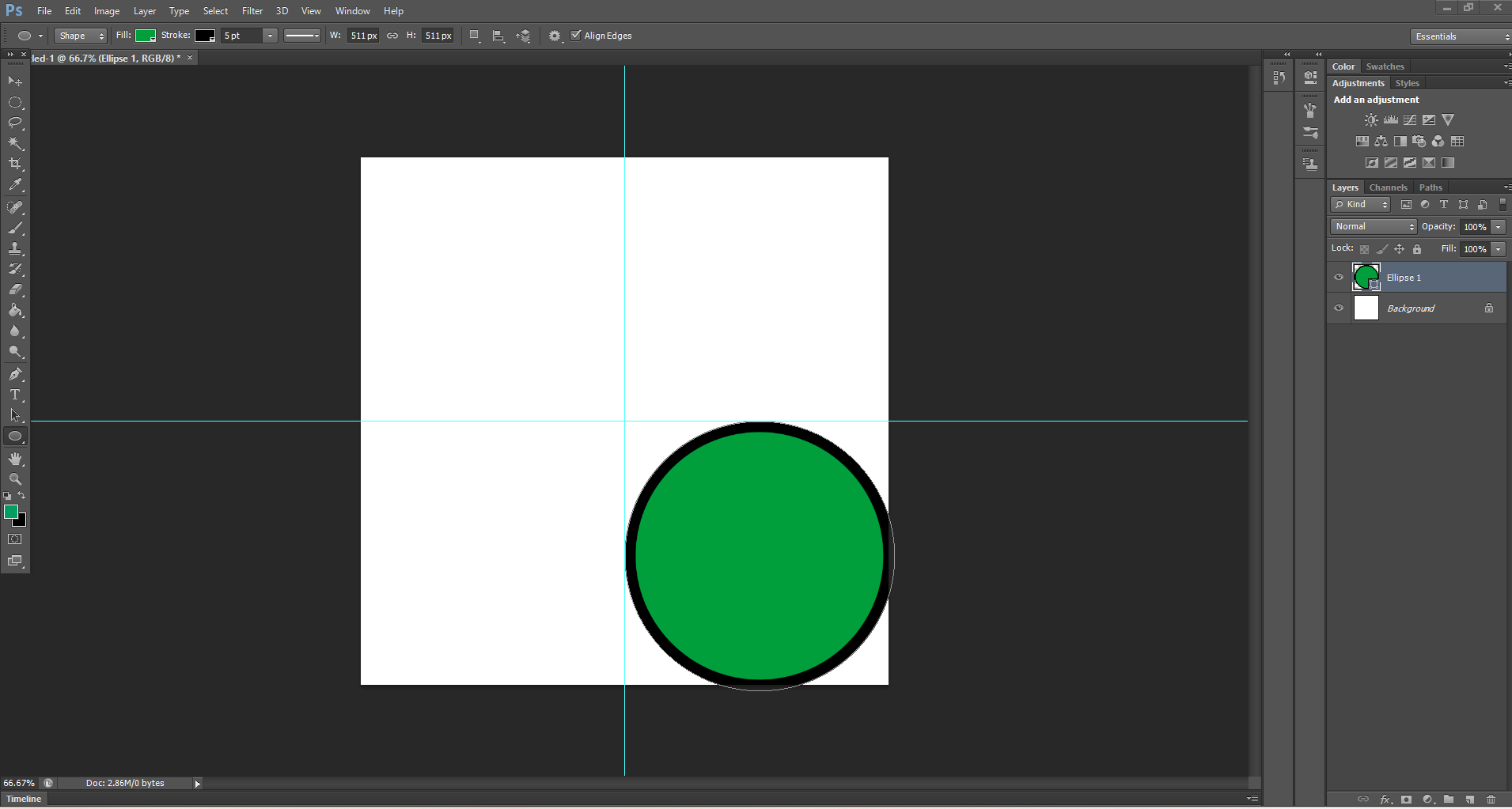 twin bronze
crimson ridge
I am having an issue making a circle. I made my vertical and horizontal guides. ...
twin bronze
crimson ridge
I am having an issue making a circle. I made my vertical and horizontal guides. ...
try alt+shift+drag
pure jasper
twin bronze
you can achieve a similar look by applying noise in smaller sizes and upscaling ...
how do I use the hardedges algorithim?
river otter
twin bronze
I recommend also posting your layers, showing how you created that gradient etc....
I got you

 twin bronze
pure jasper
how do I use the hardedges algorithim?
twin bronze
pure jasper
how do I use the hardedges algorithim?
 twin bronze
river otter
twin bronze
river otter
I think I now understand what is going on, gradient map naturally samples every layer below it to apply its effects, including your background. What happens when you duplicate your gradient map and clip it to both your text layers?
like this
 river otter
twin bronze
I think I now understand what is going on, gradient map naturally samples every ...
river otter
twin bronze
I think I now understand what is going on, gradient map naturally samples every ...
it gives me this ugly yellow blur

I almost want to end myself because of it
twin bronze
can you upload the psd if it is not a problem, maybe its just my brain not working, my ps reflexes may be able to solve it
river otter
twin bronze
can you upload the psd if it is not a problem, maybe its just my brain not worki...
I'll dm it to you cause I dont want people stealing my work
twin bronze
okay
native shard
Hi
native shard
river otter
it gives me this ugly yellow blur
hey man, pretty cool work you did so far
 sharp crypt
why wont photoshop allow me to set my custom resolution
 vapid flume
sharp crypt
why wont photoshop allow me to set my custom resolution
vapid flume
sharp crypt
why wont photoshop allow me to set my custom resolution
I never had it, but I found that
https://helpx.adobe.com/uk/photoshop/kb/invalid-numeric-entry-integer-96-8-required-photoshop.html
are you on the latest version?
I know it's not the exact same error, but I couldn't find one with the exact same error as yours.
sharp crypt
yup
vapid flume
Did you add a plug-in or other software that could hvave messed up with the registry?
vapid flume
Maybe this one helps more?
https://community.adobe.com/t5/photoshop-ecosystem-discussions/ps-video-render-problem-document-size-with-render-size-doesn-t-same/td-p/12566171

https://community.adobe.com
My document size is 1792x3000 but when i want to render a video, it shows me 1792x2304 and when i change it as 1792x3000, showing me warning dialog it says " An integer between 16 and 2304 is required. Closest value inserted." What is this? is this too much big for working on PS video?
Apparently it has to do with the maximum height and width of the video codec you are trying to use
I didn't know that (I never tried to render a really big video though!)
 candid lake
Hi guys and girls.
I'm allowed to choose a new laptop for about 2k.
My choices are:
Microsoft Surface Laptop Studio 2 - i7/16GB/
512GB/GeForce RTX 4050
Vs
Microsoft Surface Laptop 5 15" i7/32GB/1TB
BLACK (onboard Intelx graphics card)
I'm hoping someone can help me choose either 32 gb no gpu or 16 ram with 4050 gpu
sharp crypt
vapid flume
Apparently it has to do with the maximum height and width of the video codec you...
hey thank you so much man
fluid craneBOT
Gave +1 Creative Carma to @vapid flume (current: #8 - 531)
vapid flume
candid lake
Hi guys and girls.
I'm allowed to choose a new laptop for about 2k.
My choices ...
I am not techie enough to advise on a computer, but as a general rule I would always opt for a "real" graphic card rather than an integrated one. as an an Nvidia in tha case.
GPU in Photoshop is critical but not as much as when you use - say - after effects/ Premiere, or a 3D program. However, the more you can have the better. Fast memory, Fast (and fat) drives are also important (as you'll be relying on scratch disks as well)
That said, that depends what you want to do, apart from Photoshop. If you are a light Photoshop user and an Illustrator user as well, I would say RAM is more important than GPU (within reason), if you're a video or 3D user, GPU is crucial...But I may be rebuked by someone better versed than me on this one 🙂
J
Just for info: here are the requirements for Photoshop
https://helpx.adobe.com/uk/photoshop/system-requirements.html
You'll probably want to have a look at the "recommended" in your case...
candid lake
Wauw. Your amazing 🙂 thanks! Im a light user I suppose. Touchups etc so nothing dramatic (yet). That's why I was wondering
vapid flume
If I were you, I'll wait to have more advice from other people (You may want to ask again on a week day, there are more people available)
vapid flume
candid lake
Wauw. Your amazing 🙂 thanks! Im a light user I suppose. Touchups etc so nothing...
I have an old-ish quite powerful laptop, and have no issue with Photoshop really.
Processor Intel(R) Core(TM) i7-10700K CPU @ 3.80GHz 3.79 GHz
Installed RAM 64.0 GB (63.9 GB usable)
Graphic Card: NVidia GeForce RTX 2700, 8GB RAM
But I feel the blunt when I'm doing 3D
I would absolutely go for an Nvidia versus an integrated GPU though...
candid lake
Okay thank you so much. Been helpful 🙂 I like to do some blender aswell so I think I'm going for the 4050 Surface studio 2
vapid flume
candid lake
Okay thank you so much. Been helpful 🙂 I like to do some blender aswell so I th...
Regarding Blender, I analysed the situation, and know that only certain functions depend on the GPU (like rendering) but not all.
That means you can reliably model even on an entry level computer, but rendering will be a nightmare. Other 3D software rely on a GPU for most of their function, so do software like After Effects.
Something I would look into is what others say about the models you are looking at regarding ventilation etc (powerful fans?)
Honestly for 2K I wouldn't be too concerned, but know that while Surfaces are very nice machines, they also tend to be on the pricey side.
see if it helps
https://www.youtube.com/watch?v=zPhT1YqrLSw

This video discusses the different options available for and tries to assess the best computer for blender.
Chapters
00:00
00:25 - What budget is a low/mid budget machine?
01:23 - minimum spec for Blender?
01:58 - Blender on very slow machines
02:21 - What to do if you can't afford a decent machine
03:33 - Main Components
03:50 - CPU central...
https://community.adobe.com
I think you need a bigger budget. Puget Systems makes power machines for serious Photoshop users. They also test & compare top rated equipment. https://www.pugetsystems.com/solutions/photo-editing-workstations/adobe-photoshop/ https://www.pugetsystems.com/solutions/photo-editing-workstations/adob...
river otter
does anyone know how to make this type of distortion?


@serene coral could you please specify on how i can make it you said its displacement map
 pseudo shale
Hey guys! do you have any tips to achieve this look (not for the grain, there is other things i believe) thanks!
 serene coral
river otter
<@270302650078199808> could you please specify on how i can make it you said its...
serene coral
river otter
<@270302650078199808> could you please specify on how i can make it you said its...
I was talking about the first image only. I can't see anything common about all 3 images you sent?
river otter
serene coral
I was talking about the first image only. I can't see anything common about all ...
im not sure if you can see it but theres a distortion of some kind
if you view the first one here you can clearly see it around the head & arms
serene coral
pseudo shale
Hey guys! do you have any tips to achieve this look (not for the grain, there is...
the photo is blurry and messy in general, you can achieve it in Ps by applying blur of your choice and use overlays
serene coral
river otter
if you view the first one here you can clearly see it around the head & arms
yes and I believe this was achieved by using a displacement map
river otter
so i create a mask and use displacement map?
or do i use a pen tool
ima try it in after effects see if i can do it there
river otter
river otter
does anyone know how to make this type of distortion?
also, is there a way to recreate the redish glow in the second image
serene coral
river otter
so i create a mask and use displacement map?
maybe try researching how displacement maps work first, it will make everything much easier
serene coral
river otter
also, is there a way to recreate the redish glow in the second image
essentially, you want the red overlay on black parts of the image so it gives you the idea what the proper blending mode for this is. I would duplicate the image, blur it a bit and make it a duotone using your preferred method
 onyx moth
Why are the tools not working on one photo but i switch and they work perfectly fine? I have hand selected and it shows the normal cursor
on PS
nevermind i think it transferred back to lightroom..
obviously did that accidentally so how do i do it on purpose next time if i need to take it back to lightroom before exporting?
 olive stump
Hi
 sturdy belfry
calm anvil
sturdy belfry
calm anvil
hi, please anyone knows how to achieve this edit from a photo? sending the original vs edit

 native shard
calm anvil
hi, please anyone knows how to achieve this edit from a photo? sending the origi...
native shard
calm anvil
hi, please anyone knows how to achieve this edit from a photo? sending the origi...
you are trying to achieve which one?
left to right
or right to left?
please give more details, if its right to left then it seems using the blur tool
calm anvil
native shard
or right to left?
i am trying to achieve left from the right
native shard
and changing color saturation
native shard
calm anvil
i am trying to achieve left from the right
yuh
then just try that
although i am not sure you will get the exact results
(although you are just ruining the photo, idk why you would do that lol)
calm anvil
native shard
although i am not sure you will get the exact results
well i am trying to make an abstract art from it, im just trying to figure out how this effect can be achieved. i want to use it for my own art. here is the final result of person who created it.
 calm anvil
native shard
***(although you are just ruining the photo, idk why you would do that lol)***
calm anvil
native shard
***(although you are just ruining the photo, idk why you would do that lol)***
here is what i got so far... however there is no way i can achieve the final effect... something must be with the blending options which i do not get


 supple heart
can anyone do little work for me it will take legit 2 minutes
native shard
calm anvil
here is what i got so far... however there is no way i can achieve the final eff...
maybe try emboss
emboss might give that same effect
native shard
calm anvil
well i am trying to make an abstract art from it, im just trying to figure out h...
in the head area, over here
calm anvil
native shard
in the head area, over here
from the middle step ive sent above it looks like that the person on the picture was not cut out and placed on the background. to me it seems like the picture was edited as whole. but i might be wrong
definitely the picture is duplicated and one layer is distorted with wave, the bottom one is kinda semi-transparent
native shard
calm anvil
hi, please anyone knows how to achieve this edit from a photo? sending the origi...
i realized that here in the edited picture you are trying to achieve, there is borders on the boy and his head especially, white ones to be specific
and its like his bulky hair was never there

 calm anvil
native shard
and its like his bulky hair was never there
calm anvil
native shard
and its like his bulky hair was never there
i believe it was achieved with median
native shard
see the difference?
this is very strange to me, im starting to think he didnt do the blur effect directly
calm anvil
native shard
see the difference?
it is a median.. i have the same, but after that point i am stuck
native shard
and did something before it was achieved
native shard
calm anvil
it is a median.. i have the same, but after that point i am stuck
oh
sorry man i cant think of anything, i have never tried to technically destroy an image like this in order to know how it must be done
calm anvil
native shard
oh
 calm anvil
native shard
oh
calm anvil
native shard
oh
anyways thanks for replying at least:) i am absolutely desperate about this 😄 working on it for 2 days already
fluid craneBOT
Gave +1 Creative Carma to @native shard (current: #403 - 3)
 opal rune
Hi guys, does anyone have experience using Lightroom or Photoshop on iPad? Is the overheating issue effecting all the models? I want to buy an iPad, but heard that many people struggle with the overheat after 2 minutes even only viewing images. My friend has the latest version of iPad pro 12" and latest version of os and has the same issue. Screen dims to 50% to prevent cpu after 2 minutes.
I would by the iPad for using lightroom so would be crucial to know, but I can't test it beforehand
 iron linden
Any idea how I can add creases/folds like these into my art?

if theres a brush or something I can use for this, that would be helpful
 misty lance
Is it possible to achieve this shape by using Polygon Tool? If so, how?
 mental kiln
iron linden
Any idea how I can add creases/folds like these into my art?
mental kiln
iron linden
Any idea how I can add creases/folds like these into my art?
google > tissue/paper overlay > multiply layer
mental kiln
misty lance
Is it possible to achieve this shape by using Polygon Tool? If so, how?
photoshop only allows rounded corners in the rectangular shape, ideally it would be done in illustrator which allows you, but you can use some tricks like blurring and then choke using levels, it won't look similar....
but you can simply redraw over it using the pen, that's what I do most
iron linden
mental kiln
google > tissue/paper overlay > multiply layer
Will that work for cloth material too?
Sort of like a fabric
mental kiln
iron linden
Will that work for cloth material too?
yep
 cloud star
I was wondering if anyone could help me with this. So i want too make a glow on the edges of the svreen so i can have it asa glow effect on my stream i have made this but i want it too be thwe same on all sides

how do i do it
 eager raptor
Could someone help me fix the necks in this photo?
 mental kiln
eager raptor
Could someone help me fix the necks in this photo?
mental kiln
eager raptor
Could someone help me fix the necks in this photo?
stamp tool
mental kiln
cloud star
I was wondering if anyone could help me with this. So i want too make a glow on ...
gradient tool
river otter
How can i make these tail lights look real? i drew them in to be how i wanted but they look obviously fake

 hexed tapir
how to fix that? Just downloaded, and now i have this problem
 mental kiln
river otter
How can i make these tail lights look real? i drew them in to be how i wanted bu...
mental kiln
river otter
How can i make these tail lights look real? i drew them in to be how i wanted bu...
overlay blured brushs
mental kiln
hexed tapir
how to fix that? Just downloaded, and now i have this problem
reset workspace
 hexed tapir
mental kiln
reset workspace
hexed tapir
mental kiln
reset workspace
Not work
mental kiln
hexed tapir
Not work
reinstall the software
hexed tapir
Ok
cloud star
mental kiln
gradient tool
i have tried but then it is almost just like a circle in the middle of the screen while i want it as a glow like a square instead of a circle
hexed tapir
mental kiln
reinstall the software
i do that, but i have the same problem
mental kiln
cloud star
i have tried but then it is almost just like a circle in the middle of the scree...
radial gradient
mental kiln
hexed tapir
i do that, but i have the same problem
sorry I don't know how to help
cloud star
mental kiln
radial gradient
how do i add that
cloud star
but now it is just a circle i want it to be in a square
 zealous dune
hello, why can't i delete a selection with the lasso here ? using delete key or backspace doesnt work
 mental kiln
zealous dune
hello, why can't i delete a selection with the lasso here ? using delete key or ...
mental kiln
zealous dune
hello, why can't i delete a selection with the lasso here ? using delete key or ...
you are using a smart object, it does not allow this action until you rasterize, select your layer mask and paint
ripe quest
zealous dune
hello, why can't i delete a selection with the lasso here ? using delete key or ...
It's a Smart Object. An embedded file. You would need to enter the SO and edit it directly. Double-click on the layer thumbnail and it will open up in the new tab.
zealous dune
mental kiln
you are using a smart object, it does not allow this action until you rasterize,...
ty rasterize worked
fluid craneBOT
Gave +1 Creative Carma to @mental kiln (current: #97 - 15)
ripe quest
zealous dune
ty rasterize worked
Rasterizing the layer isn't always the wisest option but that's fine.
It really depends on the workflow.
zealous dune
ripe quest
Rasterizing the layer isn't always the wisest option but that's fine.
okk I see ty
sly hawk
zealous dune
hello, why can't i delete a selection with the lasso here ? using delete key or ...
Don't 'delete'. Use a layer mask. - Maybe make the gun a smart object before applying a the 'new' mask to it.
river otter
mental kiln
overlay blured brushs
wdym
sly hawk
river otter
How can i make these tail lights look real? i drew them in to be how i wanted bu...
river otter
Holy crap thank you so much that was very detailed
james for the win
I was able to make it perfectly how i wanted @sly hawk your amazing
 river otter
Thank you
@sly hawk would i be able to go in a vc and get some very specific real time help?
sly hawk
river otter
<@342046864692084738> would i be able to go in a vc and get some very specific r...
I may not be able to help. Can you explain loosely what you're trying to do?
river otter
Sure thing
So im trying to get these headlight housings on the left image and i have been able to crop them out and put them over it but i cant transform them to make them look real


I did a drawing of what it will look like just trying to make it look real

This was the drawing over a different image
And this is where im at but i cant seem to transform its shape properly
 sly hawk
river otter
And this is where im at but i cant seem to transform its shape properly
sly hawk
river otter
And this is where im at but i cant seem to transform its shape properly
Are you holding CNTRL and when dragging the edges of the light around to 'skew' it?
river otter
I am not
Ive gotten two corners to match up pretty good but i just wish i could make the layer transparent and cut a piece off
 river otter
Oh okay sweet thank you again james lol
I did manage to find another way of doing it but both work

i turned the opacity down on the headlight i plopped on there and then lined up two opposing corners and lasso'd the sides to fit
now i can make the bulbs from another picture after the other side!
Thanks James!
sly hawk
river otter
I did manage to find another way of doing it but both work
Yeah, I can see the difficultly in it.
river otter
For sure
Im getting that body kit in that color so i had to figure out how to change the color realistically, then make those custom lights i have a friend making lol
just trynna see what the finished product will look like before i spend 15k on it
 sly hawk
Not bad. - Do you need to make the inside Blue?

@river otter - This can be done with a 'gradient mask'
 strange raptor
How could I make this selection "straight"? I got it from ctrl clicking on the layer
 river otter
sly hawk
<@456226577798135808> - This can be done with a 'gradient mask'
river otter
sly hawk
<@456226577798135808> - This can be done with a 'gradient mask'
I actually wanted it black lol
I just finished
Final product vs drawing


Thank you again james, lowkey could not have done that if u didnt help lmao
sly hawk
strange raptor
How could I make this selection "straight"? I got it from ctrl clicking on the l...
Draw a negative selection box to 'chop off' the messy bits.
strange raptor
Woahhhh
fluid craneBOT
Gave +1 Creative Carma to @sly hawk (current: #7 - 803)
sly hawk
strange raptor
Thank you! 🥰
So what are ya making anyway?
sly hawk
river otter
Final product vs drawing
Cool. It should be easy enough to swap the actual lightbulbs if you want to...
strange raptor
I animate these car stereos, ripped a jpg from the internet and I'm just prepping it for animating, AI upscaling etc

An old one but thats one example
sly hawk
strange raptor
I animate these car stereos, ripped a jpg from the internet and I'm just preppin...
Oh fancy. Looking good.
dusty mist
My lasso and select/transform border is yellow for some reason. Why? It's never done this

 dusty mist
oh its just dark bg +a different version im used to nevermind
 oblique gust
how would I put an image in the black area of this

 wise panther
图片放在这个黑色图层上面,右击,有一个嵌入模式,就可以了
Put the image on top of this black layer, right click, there's an embed mode, and that's it
 inland warren
hi
oblique gust
alr ty
 ripe quest
oblique gust
how would I put an image in the black area of this
ripe quest
oblique gust
how would I put an image in the black area of this
Use a Clipping Mask.
oblique gust
how would I go about that
ripe quest
inland warren
kinda like this example
Its probably just a gradient background.
inland warren
ripe quest
Its probably just a gradient background.
dont suppose you would know which one?
if not, do you know what i could search up to find a video?
ripe quest
oblique gust
how would I go about that
oblique gust
ty <3
ripe quest
inland warren
dont suppose you would know which one?
if not, do you know what i could search ...
A Gradient Layer is just a type of object that can be added. You add it and choose colors for it.
inland warren
ripe quest
A Gradient Layer is just a type of object that can be added. You add it and choo...
is that one of these?
 ripe quest
Then other things can be put on top of it, I suppose. Like other graphics and text.
ripe quest
inland warren
is that one of these?
Yeah. The half-filled in circle...

 minor moss
is it just me or the Generative fill has gotten worse in the 2024 version?
like I can't understand how it became so bad

srsly?
ripe quest
minor moss
is it just me or the Generative fill has gotten worse in the 2024 version?
Photoshop is still using the older model. Try Firefly. Its using the newer model (Model 2). It should provide better results. https://firefly.adobe.com/

 dull abyss
anyone know how to put a image over a mask like this

like i want the image to only show in the white
 lusty vector
how do i open a object and place it
 visual falcon
yo guys i want to make a party invite
whats the best way to make it
and what software
serene coral
lusty vector
how do i open a object and place it
can you clarify your question? you can place an image in your project by dragging and dropping it
serene coral
visual falcon
and what software
I think you should use Adobe Express, it has many templates
dull abyss
serene coral
https://discord.com/channels/547473772727238676/1045711257178738760
I looked over that video it doesn’t go over the question I have
river otter
is it true that there is no dashed line in photoshop?
serene coral
dull abyss
I looked over that video it doesn’t go over the question I have
Can you clarify your question then?
serene coral
river otter
is it true that there is no dashed line in photoshop?
You can set the shape outline mode to dashed, you can even customize it to your liking

 strange eagle
Rate my art 10/0 ?


 strange eagle
Rate my art 10/0 ?
strange eagle
strange eagle
Rate my art 10/0 ?
The water that you see it is my water mark !
strange eagle
what?
strange eagle
sly hawk
Wrong channel
which channel?
sly hawk
If you specifically want feedback on a project you've done, I was suggesting you post it to #📝project-feedback/
crystal flower
this is what I have so far but I want the logo to basically look something like this


and also like angled so it looks like it is floating in a sense
sly hawk
crystal flower
this is what I have so far but I want the logo to basically look something like ...
ok. So put it on a layer behind the subject, then change the blending mode and opacity around a bit 🙂
crystal flower
thank you !!!
sly hawk
crystal flower
thank you !!!

Maybe paint in another brown background between the shapes and the buildings too... - maybe 80% opacity:

@crystal flower
crystal flower
Thank you very much for the help I will do this now
elfin furnace
is there a way to select out of a selected area in photoshop?
like I want to do a Color range select but only in a small rectangle
I suppse i can do it by masking everything else first but is there an easier way?
dull abyss
serene coral
Can you clarify your question then?
Basically I’m trying to apply a texture to that image but it’s ontop a background image

 sly hawk
 timber canyon

I presume you tried it and accidentally turned the whole page brown instead of just the text?
sly hawk
inland warren
kinda like this example
 zinc kiln
Hi all! I'm really hoping someone can help, as I can't find any appropriate solutions online. I have a set of droplets for image resizing, and for watermarking that I've used for a number of years now, with no issue. For some reason, this particular one no longer works, and throws up these "command not currently available" error messages. I can't understand why? Does anyone have any advice at all?


 timber canyon
sly hawk
timber canyon
sly hawk
nah bro Im trying to turn the whole page brown instead of the text
but every time I try to turn it brown
it doesnt turn brown
 torn condor
zinc kiln
Hi all! I'm really hoping someone can help, as I can't find any appropriate solu...
torn condor
zinc kiln
Hi all! I'm really hoping someone can help, as I can't find any appropriate solu...
Scripts - Image Processor is way faster way to resize loads of images.
 midnight plume
i am willing to buy a no screen graphics tablet...can anyone assist me to choose ?? kindly DM me please...thank you in advance ❤️
sly hawk
zinc kiln
Hi all! I'm really hoping someone can help, as I can't find any appropriate solu...
don't panic. This is usually because in the action/steps, the file isn't actually open.
It's like trying to resize an image before you've opened it. The option is just greyed out...

https://community.adobe.com
An action for resizing images and setting the resolution to 72 doesn't work anymore for batches. If I close all images and try to do a batch process, it will tell me that The command “Image Size” is not currently available. And whatever other commands I've used aren't available. If I have an imag...
I'm guessing that 'open' isn't in your list of actions @zinc kiln
sly hawk
timber canyon
nah bro Im trying to turn the whole page brown instead of the text
Well in the screenshot above you a have a selction around the shape.
remove the selection (Cntrl + D)
and try again
zinc kiln
sly hawk
I'm guessing that 'open' isn't in your list of actions <@806293566586093581>
Oh!... That is correct, 'open isn't in my list of actions. Thank you for sending over the link, I'll have a read through, now! 🙂
fluid craneBOT
Gave +1 Creative Carma to @sly hawk (current: #7 - 805)
timber canyon
oh shi yeah HAHAHA ty again bro
sly hawk
or go to background layer and thee EDIT > FILL
timber canyon
I got it now tysm man
torn condor
https://www.youtube.com/watch?v=-HvZFRFsG08
Just watching it, and I simply don't know why people do not use Image Processor instead.
This is way too complicated.
If you are creating a media-rich website with lots of still images for articles and blogs, You can automate the resizing process, using Photoshop "Droplets". Follow along as we show you the process of creating and using Droplets in Photoshop. Once you have created these amazing little wonders, resizing an image to any defined size you want will ...
sly hawk
torn condor
Scripts - Image Processor is way faster way to resize loads of images.
They're resizing AND adding a watermark
torn condor
Aaaaaa
sly hawk
Also,,,, I'd use the Image Processor Pro extension.