#❓ask-a-question
1 messages · Page 27 of 1
 river otter
 ripe quest
I don't understand the problem. I don't know your project, how your document is arranged or the context of conversation you had with Sandrine. Sorry.
You can Export Layer Comps to image files. But why you cannot, I really don't knw.
river otter
ripe quest
I don't understand the problem. I don't know your project, how your document is ...
I have simple background layer, and next layer is smart object.
Inside smart object i placed 10 images.
I saved layer comps for each image (only one image layer is visible per layer comp).
If I understand well, Sandrine said that these saved comps will appear in main project, but they do not in my case.
ripe quest
river otter
I have simple background layer, and next layer is smart object.
Inside smart obj...
If they are just layers, you probably don't need Layer Comps. You can use: File > Export > Layers to Files...
river otter
ripe quest
If they are just layers, you probably don't need Layer Comps. You can use: File ...
Guy asked for like thousand images that should be placed in some frame.
I tried it only to check if it works so I may need use that method sometime.
ripe quest
river otter
Guy asked for like thousand images that should be placed in some frame.
I tried ...
If you're trying to put a "frame" above each layer and export each one as an flattened image, then perhaps Layer Comps are appropriate. Its extremely difficult to understand from just these text descriptions of the problem.
river otter
May I send simple project?
ripe quest
No. I'm in the middle of something else right now. Sorry.
river otter
Ok
 native lodge
Hi, i am trying to generate an image but i dont know whats the right approach or how to do it most efficiently
Anyone who may help me and have spare time? 🙂
i have prepared a snippet on how i want the image to look like but i want "ai" to take over and "modernize" it
 neat quarry
what would be recomended for converting PSD to JPG
 visual tulip
river otter
Select iris and pupil, have it on new layer.
Once more duplicate.
Now on upper l...
visual tulip
river otter
Select iris and pupil, have it on new layer.
Once more duplicate.
Now on upper l...
It's okay, I think I understand, thank you very much.
 fluid craneBOT
Gave +1 Creative Carma to @vernal ember (current: #89 - 17)
ripe quest
native lodge
i have prepared a snippet on how i want the image to look like but i want "ai" t...
Its not really going to work that way with Generative Fill. Its not going to replace the entire image in one pass. You'll probably have to work on portions of the image.
ripe quest
neat quarry
what would be recomended for converting PSD to JPG
File > Export > Export As... JPG, choose the options that work for your project.
neat quarry
o shi, ty bro
native lodge
i see, i want to create an image with a nice background, and a men riding a horse backwards. whats the best approach here? I have the background but letting ai draw a men riding a horse backwards is almost impossible
it's a donkey 😄

i want to integrate this image "modernize" it and apply it to a disney like environment
ripe quest
native lodge
i see, i want to create an image with a nice background, and a men riding a hors...
It will probably be difficult. Try to render the horse. Then make a selection and try to render the guy.
native lodge
😄
gotcha, so first gen fill the horse/donkey then save, then import and gen fill the rest?
ripe quest
native lodge
i want to integrate this image "modernize" it and apply it to a disney like envi...
This is going to be complicated. Probably not going to be able to "gen fill" your way to desirable results.
ripe quest
native lodge
gotcha, so first gen fill the horse/donkey then save, then import and gen fill t...
No. You can Gen Fill on different layers. They will become different layers in the file.
native lodge
ahh nice, thank you, gonna try this out now 🙂
Any tips on how to use gen fill? any q's that are important? 🙂
ripe quest
native lodge
ahh nice, thank you, gonna try this out now 🙂
Any tips on how to use gen fill? ...
Probably watch some tutorials about it because this is a big topic with many things to keep in mind.
native lodge
uff 😄
 vapid flume
Sorry, I did miss your question. It's rather long to explian, hence why I provided the stream link that goes into extreme details on how to achieve this, in real time, plus the link to the help files and an extra tutorial
Have you watched them?
river otter
vapid flume
Have you watched them?
I did not. Can you send the link, please.
vapid flume
https://www.youtube.com/watch?v=hA_SFUcZTpg
https://www.youtube.com/watch?v=hA_SFUcZTpg
https://www.youtube.com/watch?v=b0Ch-ShfFW0&t=6s
https://www.behance.net/videos/05e50e6e-616d-4edb-877d-208fda7d8ad6/Mock-Ups
It's here #❓ask-a-question message
and in the following conversation
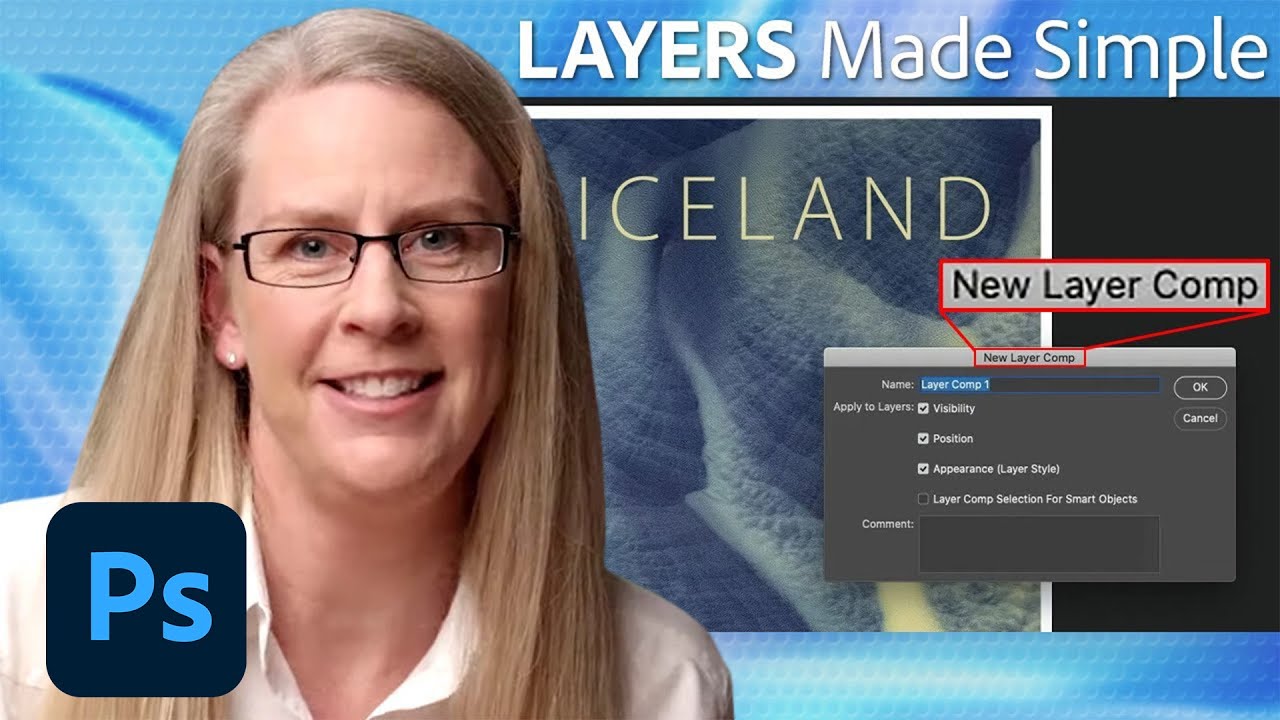
3, 2, 1… Photoshop! In this tutorial, Adobe Evangelist, Julieanne Kost shares important tips for using and managing Layer Comps.
Subscribe to Adobe Photoshop: https://www.youtube.com/adobephotosho...
Try Adobe Photoshop: https://adobe.ly/46TB5o1
Get Photoshop CC: http://adobe.ly/10ekpOA
Adobe Customer Care: https://helpx.adobe.com/contact
...

Photoshop tutorial showing you how to use Layer Comps alongside Smart Objects.
► Subscribe to My Channel Here: http://www.youtube.com/channel/UCdQ_ZkYaMe6qPoueUyPQgpQ?sub_confirmation=1
If you have any questions, please leave them below
or head over to this tutorial's page on our website:
➜ https://photoshoptrainingchannel.com/
👍 Subscribe +...

Shawn will be hosting Sandrine Bascouert making mock ups in Adobe Photoshop. https://www.behance.net/ImaginerieJoin Shawn's Discord: https://bit.ly/shawndiscordShawn is an Adobe Express Ambassador.Check outAdobe Express: https://express.adobe.com/
 sly hawk
... hey I recognise that last last troublemaker/guest. - I'll have to have a watch later @vapid flume
 twilit pollen
I have a question on something I'm trying to achieve. Essentially I have a photo of me that I've used PS to erase the background of so now the photo is just of me but its being saved in the same resolution as the original with a transparent background. Is there anyway to save the photo as a png and have it only be of me? No transparent background at all. Essentially just crop it down to the exact size and shape of the subject (me)?
 serene coral
twilit pollen
I have a question on something I'm trying to achieve. Essentially I have a photo...
serene coral
twilit pollen
I have a question on something I'm trying to achieve. Essentially I have a photo...
Image>Trim
river otter
vapid flume
https://www.youtube.com/watch?v=hA_SFUcZTpg
https://www.youtube.com/watch?v=hA_S...
Thank you.
I watched stream.
Nice to know for vector masking tip.
I think the thing in 4th. step you wanted to say in layer properties panel, as you are switching particular smart object layer comps in main project there.
However step 5 wont work.
This is just a way to switch smart object layer comp without openning it.
fluid craneBOT
Gave +1 Creative Carma to @vapid flume (current: #8 - 509)
river otter
Main project doesnt have own layer comps, so exporting as layer comps is greyed out (not possible).
 cedar kestrel
this is the color tool but how can i make it look like that in my workspace?

 trail pine
hey if i had a transparent curved object, how would i, im thinking "rig" the image to be able to drag those points and warp it as if it were a bezier curve instead of warping to a grid?
something like this, but when i drag the curve, the image warps behind
 ripe quest
cedar kestrel
this is the color tool but how can i make it look like that in my workspace?
ripe quest
cedar kestrel
this is the color tool but how can i make it look like that in my workspace?
WIndow > Color... From the 'hamburger menu' in upper the left corner, choose "Color Wheel"
 ripe quest
trail pine
something like this, but when i drag the curve, the image warps behind
ripe quest
trail pine
something like this, but when i drag the curve, the image warps behind
There really isn't any rigging like that in Photoshop where you can add a bones system and make it warp an object. The closest/most similar thing would be to use Puppet Warp. However, its not really meant to do what you're asking about.
cedar kestrel
ripe quest
WIndow > Color... From the 'hamburger menu' in upper the left corner, choose "Co...
thanks a lot!
fluid craneBOT
Gave +1 Creative Carma to @ripe quest (current: #3 - 1650)
trail pine
it kinkled a little bit but that was the most fun ive had on photoshop in ages lmao thanks
 warped drum
Hi, Im trying to make this background effect with the lines and the explosion type thing. What is it called and how can I make it? Or do I have to manually place every brush stroke?
 ripe quest
warped drum
Hi, Im trying to make this background effect with the lines and the explosion ty...
ripe quest
warped drum
Hi, Im trying to make this background effect with the lines and the explosion ty...
You could probably 'generate' it with Firefly / Gen Fill.
warped drum
I guess Im just looking for a square that looks the same as that (but with different colors)
What would I even say to generate it tho lol
Idk what it is called
cedar kestrel
warped drum
Hi, Im trying to make this background effect with the lines and the explosion ty...
that looks like bleach actually, the prompt could be something along the lines of
warped drum
cedar kestrel
that looks like bleach actually, the prompt could be something along the lines o...
As in they phsyically bleached the hoodie?
cedar kestrel
bleach explosion on a tshirt or sth
cedar kestrel
warped drum
As in they phsyically bleached the hoodie?
yes
warped drum
Why would it surround the characters hand then?
cedar kestrel
im not sure tho but it looks similar
ripe quest
warped drum
What would I even say to generate it tho lol
orange and yellow burst explosion, painterly or some such thing...
 warped drum
Hmm could I manually do it somehow? I think Id prefer that level of control
cedar kestrel
warped drum
And how do they color it red?
you can achieve different depths depending on how much bleach you put
ripe quest
warped drum
Hmm could I manually do it somehow? I think Id prefer that level of control
Then get out the paint brushes.
warped drum
ripe quest
Then get out the paint brushes.
Which brush would I use tho
ripe quest
Or do both. Generate it and then paint on it.
cedar kestrel
warped drum
Hmm could I manually do it somehow? I think Id prefer that level of control
there are brushes that change the color for every stroke you make
kyle has some really good ones for free, check his gumroad as well
ripe quest
No need for Gumroad. Sign in to your Adobe Account and go here: https://www.adobe.com/products/photoshop/brushes.html
Probably every brush you could ever need.
cedar kestrel
yeah but he has some other things i didnt find on there
ripe quest
There are enough free brushes provided by Adobe that will keep anyone busy for a long time.
ripe quest
And anyways, its not the brushes. Most artists I know do everything with one or two simple brushes.
cedar kestrel
yeah i have all of his brushes for photoshop lol, those are just things i added for fun
cedar kestrel
ripe quest
And anyways, its not the brushes. Most artists I know do everything with one or ...
true
ripe quest
warped drum
As in they phsyically bleached the hoodie?
Forget about using "bleached" or keywords like that. You generate, create and composite in pieces in full color first. You can "bleach" it (adjust brightness, contrast, levels, etc) later on.
I would concern myself with the getting the shapes, placement, colors first. Worry about how to present it after you have all of the pieces together.
warped drum
I dont think I have the skills for this lol
ripe quest
warped drum
I dont think I have the skills for this lol
You can learn. Its not that difficult. It just takes time, practice, devotion.
warped drum
Idek where I would start tho
I have the colors I think -- tho Ill probably want to change them after I see it
warped drum
this is what I got so far

Its alright... idk whats wrong with it tho. It just doesnt have the same explosion look
cedar kestrel
cedar kestrel
this is the color tool but how can i make it look like that in my workspace?
another question, when i press alt + click with the color picker, the color im positioned on doesnt show up on the color wheel as i'm doing that
 weary quartz
Just a snip of one of the sand parts of my illustration,
never done sand before, im trying to get a sand dune look but not really sure where to start, if anyone has some tips,
Im not trying to make it realisitc, just that concept art style blotchy painting aesthetic,

 hallow yacht
I'm having a pixelated brush issue

 short loom
how do i mimic this photo's color?
 ripe quest
short loom
how do i mimic this photo's color?
ripe quest
short loom
how do i mimic this photo's color?
I would try Harmonization... Convert to a Smart Object. Add a Layer Mask. (It won't work without it.) Then, Neural Filters > Harmonization... and tweak to the desired amount.
short loom
ripe quest
I would try Harmonization... Convert to a Smart Object. Add a Layer Mask. (It wo...
thanks!
fluid craneBOT
Gave +1 Creative Carma to @ripe quest (current: #3 - 1651)
 crisp crypt
how to make 2 lasso tool instances?

so there are 2 lasso tool at the same time without overwriting the other (pls ion get it)
ripe quest
crisp crypt
so there are 2 lasso tool at the same time without overwriting the other (pls io...
Hold Shift to add to the selection. Hold Alt to subtract from the selection.
hallow yacht
ripe quest
Hold Shift to add to the selection. Hold Alt to subtract from the selection.
I'm having pixelated brush issues but I didn't change my canvas's resolution, is there a fix?
ripe quest
No idea. I don’t know anything about your project or the document that you’re working on.
 simple tundra
Hi guys, I need help !
I created a file on Photoshop (size for a YouTube video thumbnail) I put the project so that it is transparent but I do not understand I can choose the white color (as you see) but not to see the small squares, (which is normally transparency it seems to me) someone can help me solve this problem ? Thank you very much
I have that, I don't understand
 serene coral
simple tundra
I created a file on Photoshop (size for a YouTube video thumbnail) I put the pro...
serene coral
simple tundra
I created a file on Photoshop (size for a YouTube video thumbnail) I put the pro...
is your ardboard's background set to be transparent? select the artboard and open the properties panel 
river otter
Is there a way to completely match text in an image to copy and add more of that same text, for example the text I'm trying to copy is a little pixelated.
 night plinth
How to make the color not go out of the selection. cause when I draw it feathers out of the selection.
 random harbor
how do i change the lens flare color
serene coral
random harbor
how do i change the lens flare color
you mean the filter ones or do you have an image asset?
random harbor
serene coral
you mean the filter ones or do you have an image asset?
hpld on lemme send an image
serene coral
river otter
Is there a way to completely match text in an image to copy and add more of that...
you have to manipulate the edited text to degrade it to match the original, that's the way
river otter
serene coral
you have to manipulate the edited text to degrade it to match the original, that...

random harbor
this one
 serene coral
night plinth
How to make the color not go out of the selection. cause when I draw it feathers...
serene coral
night plinth
How to make the color not go out of the selection. cause when I draw it feathers...
modify/refine your selection so it doesn't have semi-selected pixels in it
serene coral
random harbor
this one
these are predefined, you can only change the general look of it. everything else has to be done with regular methods
serene coral
river otter
<:LC_pepe_cry_ignore:1131940832275083334>
???
random harbor
ok
river otter
serene coral
???
nothing... 
serene coral
river otter
nothing... <:distraught:775754479613247528>
just try to match the text you added to the original. blur, sharpen, add noise...
river otter
serene coral
just try to match the text you added to the original. blur, sharpen, add noise.....
Okay I'll try
night plinth
serene coral
modify/refine your selection so it doesn't have semi-selected pixels in it
i made the selection from polyon
idk how to refin emy selection
serene coral
night plinth
idk how to refin emy selection
you can enter the quick mask mode by pressing Q and increase the contrast with levels (ctrl+L) to the point where no pixel is semi-selected
 median flame
how to make engraved text and engraved little picture
serene coral
median flame
how to make engraved text and engraved little picture
not sure engraved on what so I'll just drop the link https://www.youtube.com/results?search_query=photoshop+engraved+effect
 cunning viper
i have this image which i would like to put on a mobile phone cover.. the only problem its size is not upto that.. to make this i need the background in this image to be bigger.... i have seen in some yt videos that photoshop has an ai which can make the background bigger based on the image through ai... can someone help me with this...
 median flame
serene coral
not sure engraved on what so I'll just drop the link https://www.youtube.com/res...
median flame
serene coral
not sure engraved on what so I'll just drop the link https://www.youtube.com/res...
engraved on just white
no texture or stuff
serene coral
cunning viper
i have this image which i would like to put on a mobile phone cover.. the only p...
select the crop tool  and set the mode to generative fill
cunning viper
serene coral
select the crop tool <:ToolCrop:961195836333764608> and set the mode to generati...
yeah so i dont have photoshop... thats the main problem... i was hoping if someone could do it for me quick
or the free trial would have this feature? if yes i could download it
sly hawk
night plinth
i made the selection from polyon
@serene coral @night plinth - As an FYI, any of your LASSO TOOLs can be set to have anti-alias turned off...
Doing this will give you that ugly hard edge you wanted.
serene coral
cunning viper
or the free trial would have this feature? if yes i could download it
I believe so. you can follow this guide https://helpx.adobe.com/photoshop/using/generative-expand.html
serene coral
sly hawk
<@270302650078199808> <@921519420105453620> - As an FYI, any of your LASSO TOOLs...
ok so by 'polyon' they meant polygonal lasso... haha
sly hawk
(I assume so... The polygonal lasso, normal lasso, Magnetic lasso, - all allow anti-alias to be toggled on and off)
 sly hawk
Also @night plinth - I noticed is looked REALLY laggy for you. Try turning off SMOOTHING for the pencil tool if you don't need it anyway:
 sly hawk
 dreamy sable
It's a bright day. I doubt there would really be any, - especially with that crop that I can see.
dreamy sable
I usually don't like the way characters look when I integrate them into an image because they are not realistic. Any advice on how to make people look more realistic?
dreamy sable
dreamy sable
I usually don't like the way characters look when I integrate them into an image...
can u help me with this @sly hawk
cunning viper
serene coral
I believe so. you can follow this guide https://helpx.adobe.com/photoshop/using/...
yep i already claimed free trial already so theres no way I can do this
sly hawk
dreamy sable
can u help me with this <@342046864692084738>
Well the first obvious one is making sure the art style matches.
For example, trying to photoshop Bart Simpson into the Movie Avatar will never look believable.
river otter
dreamy sable
I usually don't like the way characters look when I integrate them into an image...
That is not something about Photoshop, but understanding colors and real life.
I had same question before.
I took some uDemy courses, I recommend them, some are great.
We all can advice you to balance colors, contrast, exposure, and basically we told you to use all tools in Photoshop, but the real answer is "Practice", watch real environment with new eyes, seek that highlights, shadows, colors wherever you walk, take image and look at it, study it, etc.
Getting as close as possible perspective, getting good colors balance, saturation, getting shadows and highlights as close as you can, getting haze ready.
Most important part of this process is picking images.
If you pick two wrong ones, you will never match them well.
vapid flume
river otter
Thank you.
I watched stream.
Nice to know for vector masking tip.
I think the th...
As far as I remember, you need the layer comps in both instances, not just one. That's how it works. You'll find about gazillions of tutorials exploring how to create mock-ups with layer comps and I think all of them showcase more or less the same stuff.
I can't tell you much more as of now, I am not a home, so I haven't got my PS open, but last time I checked one of my file to point you to the right direction. I had layer comps created in the "embedded file" (the content of the frame) as well as the mock up itself. I think it's well explained in the stream video as well.
 uneven stone
Hello There! I couldn't find an Adobe Fresco channel so i thought this is probably the next best thing and maybe somebody can help me 🙂 I am a Creative Cloud Subscriber and wanted to try out Fresco on MacOS. However i don't see it in my CC App and the link i found online only gives me an error...
Has it been discontinued or does anybody have any info?
Thanks!
The Link to the Desktop Version in question
serene coral
uneven stone
Has it been discontinued or does anybody have any info?
it's there for me (on Windows), can you see it if you go to Apps and then Illustration section of the Creative Cloud app?
sly hawk
(Just to check @serene coral - You on a mac?)
serene coral
sly hawk
(Just to check <@270302650078199808> - You on a mac?)
Nope but I believe I saw it on my Mac laptop the other day?... or did I?
 uneven stone
sly hawk
uneven stone
sly hawk
geez i was certain i read somewhere it's available for macos but i guess not :S
that might be the reason yea
serene coral
uhhhh
uneven stone
yea you're right it's because i'm on mac, silly me
thanks for clearing that up 😄 i was under the impression if there's an ipad version and a desktop version that macos would be kinda natural but guess not
serene coral

https://community.adobe.com
Am I able to download and run Adobe Fresco on my Apple Desktop computer? I see options for I-Phone, I-Pad and Windows Desktop, but not Apple Desktop. Thank you! [Renamed by Mod]
sly hawk
Yeah, feels a bit strange it's not to be fair.
Someone said "Well, it's made for touch screens, what's the point of desktop?" - but someone was quick to point out that it's on PC.
(How frequently do macs have touchscreens?)
serene coral
sly hawk
Yeah, feels a bit strange it's not to be fair.
Someone said "Well, it's made fo...
well, honestly, the ux could be a lot better on windows...
I mean you open it and immediately see it was designed for touchscreens
uneven stone
how would you guys compare fresco to procreate? unfortunately i don't have my ipad with me atm but i would really like to make comics on my ipad and feel like fresco could be a nice middle ground between procreate that misses some stuff and clip studio that feels a bit bloated on the platform...
sly hawk
Hey @serene coral
Random question... - first gut response:
Would you think of photoshop, indesign, chrome, baldurs gate 3 etc as PROGRAMS or APPS?
uneven stone
can i have multiple perspective grids in a document for starters 😄
sly hawk
uneven stone
how would you guys compare fresco to procreate? unfortunately i don't have my ip...
We both struggled to even identify is Fresco is even available on our machines. We probably can't give a very helpful answer to that personally.
sly hawk
sly hawk
Hey <@270302650078199808>
Random question... - first gut response:
Would you ...
#TeamProgram
uneven stone
Fair enough 😄
sly hawk
uneven stone
Fair enough 😄
I don't know too much since I don't do much in that area, but I was very impressed by clip studio paint. Some of its brush has features that photoshop and indesign still doesn't do.
serene coral
uneven stone
how would you guys compare fresco to procreate? unfortunately i don't have my ip...
I'm not an iPad user but I heard a lot of good about Procreate. Fresco feels a little... unfinished? Clip Studio Paint is amazing for painting but its learning curve is quite steep
serene coral
sly hawk
Hey <@270302650078199808>
Random question... - first gut response:
Would you ...
I would call a program anything that is used for work like Ps, Word, Excel. Apps for me are for... less serious tasks 😅
 mental crater
hey guys, is someone here who can maybe help me with a logo creation? i have a specific idea how it should look but dont have the skills to do it on my own 😄
sly hawk
I can't bring myself to call anything I install on a PC an 'app' - but I think that's more a Millennial thing.
sly hawk
mental crater
hey guys, is someone here who can maybe help me with a logo creation? i have a s...
Maybe. Write up a proper brief/description in #💬chat-general and if someone wants to help, they can get in touch.
river otter
if i'm making a vector shape, should i use illustrator or photoshop? like this WiP of mine but i need to make it more curvey
 serene coral
river otter
if i'm making a vector shape, should i use illustrator or photoshop? like this W...
serene coral
river otter
if i'm making a vector shape, should i use illustrator or photoshop? like this W...
making it in Illustrator will make it easier to work with and export when it's finished
river otter
can illustrator open my psd file? maybe thats a bit off topic
serene coral
river otter
can illustrator open my psd file? maybe thats a bit off topic
to some extend, yes. what is your goal?
river otter
(im newbie) just to rebuild this line (the line is the map of an ancient city's walls) also to be in my copyright while as similar to this picture im following, but ill probably make it thicker. inside the line wont really be anything. so far i was using the pen tool which made the yellow thing

 zenith harness
Can anyone guide me on how create this kind of artwork ?
 serene coral
river otter
(im newbie) just to rebuild this line (the line is the map of an ancient city's ...
serene coral
river otter
(im newbie) just to rebuild this line (the line is the map of an ancient city's ...
you're doing great!
serene coral
zenith harness
Can anyone guide me on how create this kind of artwork ?
what kind of answer are you looking for? this is a bunch of text, some images and graphic elements
zenith harness
serene coral
what kind of answer are you looking for? this is a bunch of text, some images an...
I'm talking about background. How create such kind of effect on pictures ?
serene coral
zenith harness
I'm talking about background. How create such kind of effect on pictures ?
the blur? or the paintery style?
zenith harness
Paintery style
serene coral
zenith harness
Paintery style
Easy: https://youtu.be/MWJJvuMByPA
Medium: https://youtu.be/fFQI7P7W9yk
Hard: https://youtu.be/U7SnfuIM778
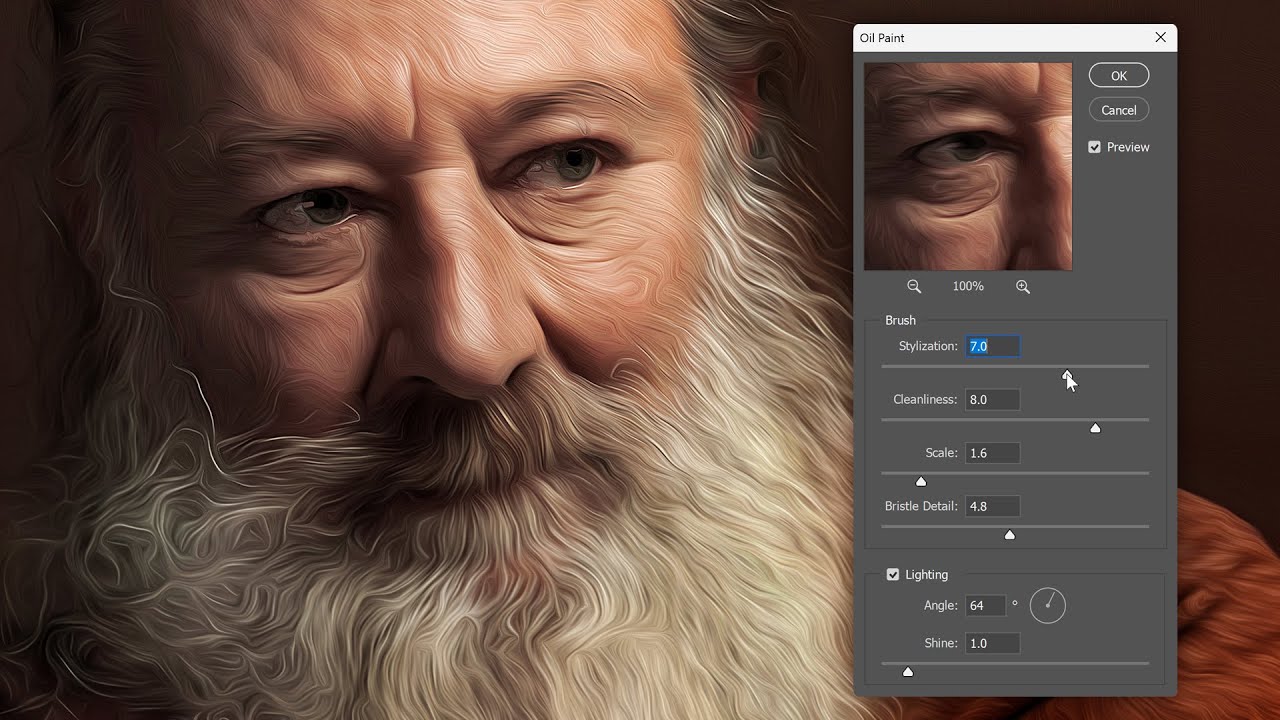
Transform your photos into stunning oil paintings with Photoshop's Oil Paint filter. Discover how the brush and lighting options affect different aspects of the oil painting effect, and how to adjust the effect in different areas by combining two Oil Paint filters on the same image! Even if you're a beginner with Photoshop, this video will have ...
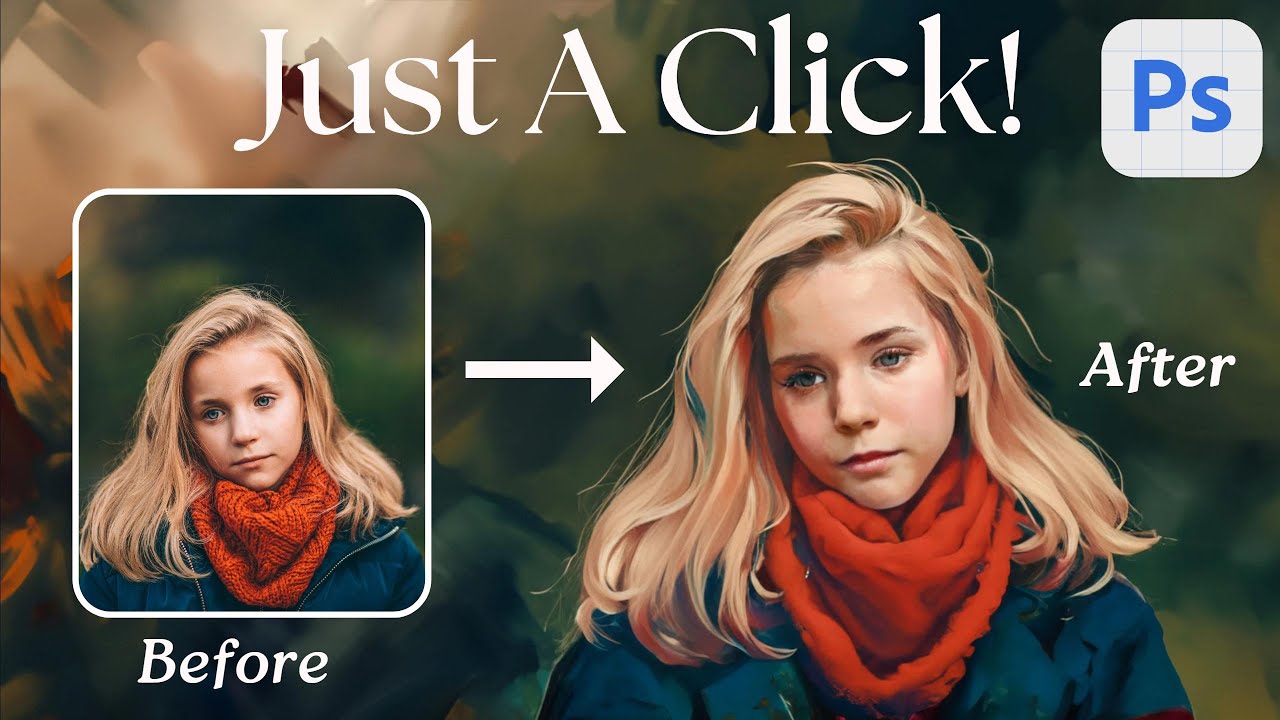
Download Actions and PSD files free: https://photoshopdesire.com/ In this quick guide, I'll show you how to turn any photo into a lifelike painting using Photoshop Beta.
First, ensure you have Photoshop Beta installed on your computer. If not, visit Adobe Creative Cloud to get it. Once installed, let's get started!
Inside Photoshop Beta, focus...

In this photoshop tutorial, we’ll check out a fast, fun, and easy way to create digital oil paintings! We’ll focus on one specific tool - the art history brush. Once you’re up and running, this tool unlocks all kind of awesome possibilities.... but first, it does help to get a basic sense of how the art history brush works and a few headaches yo...
 jade flare
are there any good places to ask after effect quesitons
 shut fulcrum
i’m at argos and had enough for only a 124 gb i think?
i’m not sure that would be enough but i’m getting it anyway to test out photoshop later today
128gb***
vapid flume
@shut fulcrum Well, technically you need 20GB, but of course that was just for the scratch disks (don't forget to set them up in the preferences panel!) all the rest will have to cater for saving the actual files. So only you can tell!
sly hawk
river otter
(im newbie) just to rebuild this line (the line is the map of an ancient city's ...
Hey, I'm not sure of your goal, and how much you've done yourself, but is this of any interest?
 zealous dune
Hello,
I am creating a texture sheet for a video game project. I was wondering if you know a way to "soften" the edges of the object so I don't have this blackborder all around the texture

 simple tundra
serene coral
is your ardboard's background set to be transparent? select the artboard and ope...
simple tundra
serene coral
is your ardboard's background set to be transparent? select the artboard and ope...
I put the background Transparent when I created the project, but I have that
 mental kiln
zealous dune
Hello,
I am creating a texture sheet for a video game project. I was wondering ...
mental kiln
zealous dune
Hello,
I am creating a texture sheet for a video game project. I was wondering ...
soften
 mental kiln
 unique gate
Hello guys there was a power outage while I was saving my file
unique gate
Hello guys there was a power outage while I was saving my file
Photopea . com , open, save , download
 fair fiber
Hi all. I just tried opening Photoshop and it popped up with a message, "Your graphics processor is incompatible" but I was using it yesterday just fine.
 waxen carbon
does anyone know what font is this ?
 mental kiln
waxen carbon
does anyone know what font is this ?
mental kiln
waxen carbon
does anyone know what font is this ?
https://www.myfonts.com/pages/whatthefont , seach for "creppy font" "mettal font"

Identify any font with our font finder tool. Upload an image, and we’ll search our collection of over 133,000 fonts for the best match.
shut fulcrum
vapid flume
<@922561205401444384> Well, technically you need 20GB, but of course that was j...
what it says now with the usb stick in

 bitter raft
Is there anyone here that has a macbook?
shut fulcrum
me :) although im not a moderator or anything
bitter raft
bitter raft
Is there anyone here that has a macbook?
I would like to know is it worth paying the extra buck if you want to use it for editing/businnes?
shut fulcrum
ahahh,,, uh
well
i have the macbook air that came out in 2023 M2 chip
ive spent £20 to buy an adapter for it to use usb sticks / other things
bitter raft
shut fulcrum
i have the macbook air that came out in 2023 M2 chip
I am think about buying that exact macbook
shut fulcrum
ive just spent another £15 buying a usb stick with 128 gb of storage just to use photoshop because i only have 256gb of storage on my macbook
@vapid flume having the same problem still aghhh

convinced i cant use photoshop on this stupid macbook
might go back to my 16 yr old hp laptop just for photoshop then use my macbook for literally everything esle
else*
bitter raft
shut fulcrum
ive just spent another £15 buying a usb stick with 128 gb of storage just to use...
I have the same plan as you said.
Why dont u use a external ssd
For storage
shut fulcrum
currently dont have the money for an external drive
im a 16 year old highschool student in the UK lol, i havent asked mum and dad though
bitter raft
Oh, I was just suggesting
shut fulcrum
they said they'd go about buying one for me if this usb stick did nothing
shut fulcrum
bitter raft
Oh, I was just suggesting
oh no no you are absolutely fine love!!!
i was suggested that yesterday on here
it looks like im gonna have to do it
if you do go ahead and buy this model macbook, do make sure to choose a good amount of storage. not 256 gb 🥲
bitter raft
shut fulcrum
if you do go ahead and buy this model macbook, do make sure to choose a good amo...
Do you have the option to expand your cloud? I dont know if that is a thing or not, but if you can you can save all on cloud and it’s connected on all apple devices
ripe quest
shut fulcrum
they said they'd go about buying one for me if this usb stick did nothing
So, first, I believe you need to have significant amount of free space on the OS drive for virtual memory (20GB or more). This is for general machine performance. You should never let the OS disk fill up right to the ceiling. Second, if you're going to use a USB drive for scratch disk purposes, it needs to be fast enough, SSD or USB 3.0 speeds, e.g. USB3 = 400MB/sec
You cannot use thumb drives or any USB2 devices as they are simply not fast enough to use as swap/scratch disks.
 hollow trout
where is the mirror tool
ripe quest
hollow trout
where is the mirror tool
Select the layer or object. Ctrl T, then right-click and choose "Flip" horizontal or vertical.
bitter raft
What do you suggest, getting a mac or a windows computer?
hollow trout
ripe quest
Select the layer or object. Ctrl T, then right-click and choose "Flip" horizonta...
dam is there no like the line thing where it instantly copies to left to right
ripe quest
bitter raft
What do you suggest, getting a mac or a windows computer?
I would get a Windows PC but that's my preference. More bang for the buck. Less money and fewer limitations. More upgrade possibilities.
ripe quest
hollow trout
dam is there no like the line thing where it instantly copies to left to right
I don't know what this means.
bitter raft
ripe quest
I would get a Windows PC but that's my preference. More bang for the buck. Less ...
Can you give me an example of a good pc if the budget is around 1.2k€
ripe quest
bitter raft
Can you give me an example of a good pc if the budget is around 1.2k€
There are so many different configurations...
ripe quest
bitter raft
Can you give me an example of a good pc if the budget is around 1.2k€
What do you want to do with this PC? Laptop or desktop?
bitter raft
Laptop
ripe quest
bitter raft
Laptop
Ugh. I don't know. The best specs you can get for 1200 bucks. heh
I would look at the following spes: Intel i7 (or even better i9), at least 32GB RAM and the best GPU you can afford.
bitter raft
What about if I bought a desktop?
ripe quest
bitter raft
What about if I bought a desktop?
What do you want to do with this PC?
bitter raft
I want to use it for editing/business/work
ripe quest
"editing" what?
ripe quest
bitter raft
I want to use it for editing/business/work
I would look at the following spes: Intel i7 (or even better i9), at least 32GB RAM and the best GPU you can afford.
ripe quest
bitter raft
And play a little games if it’s a windows computer
I'm not suggesting this PC but similar to this: https://www.amazon.com/CyberPowerPC-i7-13700F-GeForce-Windows-GXiVR8040A14/dp/B0CBL8N3FC/ref=sr_1_5?crid=1HWCTHBD989AY&keywords=computer+for+%241200&qid=1707154653&rnid=172282&s=pc&sprefix=computer+for+1200+%2Caps%2C114&sr=1-5&ufe=app_do%3Aamzn1.fos.765d4786-5719-48b9-b588-eab9385652d5

Destroy the competition with the CYBERPOWERPC Gamer Xtreme VR series of gaming desktops. The Gamer Xtreme VR series features the latest generation of high performance Intel Core processors and ultra-quick DDR RAM to easily handle system-intensive tasks, such as high definition video playback and ...
16GB RAM so you'd want to upgrade (to at least 32GB) when you could afford it.
 wispy nexus
Someone help me please
ripe quest
wispy nexus
Someone help me please
Please ask a specific question. :)
wispy nexus
my photoshop got bugged and i didn't save the project and if i force close photoshop i'll lose everything
im not even able to save the project because of program error
wait nvm
thanks god
my heart was about to stop actually
ripe quest
Save, save, save. Ctrl S once in a while if you're saving locally. :)
wispy nexus

you can see how it's bugged
i was trying to apply an image and it said couldn't complete because of program error
ripe quest
wispy nexus
Could be a GPU issue. Help > GPU Compatibility... any errors or issues reported there?
wispy nexus
i was spamming save and it said it's saved but it's not
until it solved itself alone
and saved
i love you bro @ripe quest
wispy nexus
ripe quest
Could be a GPU issue. Help > GPU Compatibility... any errors or issues reported ...
let me check
 ripe quest
wispy nexus
ripe quest
wispy nexus
Great! Maybe it was just a temporary Photoshop/Windows Virtual Memory issue.
ripe quest
wispy nexus
let me check
Perhaps just refresh the system. Save your work. Reboot Windows and see how it goes after that. :)
If it persists, it could be something with the Photoshop version you have installed or the Photoshop document. Maybe Scratch Disks. Its difficult to diagnose.
wispy nexus
ripe quest
Perhaps just refresh the system. Save your work. Reboot Windows and see how it g...
not a big deal tho
happens time to time
 somber trench
hi hi , so when i creat a ai image it replaces a object in my original pic and it replaces it , how can i stopt that ?
ripe quest
somber trench
hi hi , so when i creat a ai image it replaces a object in my original pic and i...
Generative Fill should create pixels on a new layer (above the one that was selected when you generated it).
Unless you're speaking about some other "AI" tool that you're using.
somber trench
no i meant the photshop ai
ripe quest
somber trench
no i meant the photshop ai
Generative Fill creates pixels on a new layer.
somber trench
ripe quest
Generative Fill creates pixels on a new layer.
so yu see the ball its the origanal . after i use the ai the ball und the person disapears

 ripe quest
somber trench
so yu see the ball its the origanal . after i use the ai the ball und the person...
ripe quest
somber trench
so yu see the ball its the origanal . after i use the ai the ball und the person...
Open the Layers Panel and look at the Layer Stack.
A Genertive Fill Layer is created with a Layer Mask on it. You can paint on the mask to remove portions that you don't want to see.
somber trench
alright , let us say i want to create lightling bolt on the ball, how should i do it with ai without removing the ball?
ripe quest
somber trench
alright , let us say i want to create lightling bolt on the ball, how should i d...
Well, I would probably do that a different way... But if you're going to use Gen Fill, you'd probably want to make smaller selections and do it in pieces. As opposed to selecting over the entire ball and just entering "lightning bolts" for the prompt. But that might work. You never know. This isn't an exact science.
Its likely going to require some re-rolls and even some subsequent tweaking using traditional Photoshop techniques to get a desirable effect.

 sly hawk
hollow trout
how can i clear the blue skys that are left
sly hawk
hollow trout
how can i clear the blue skys that are left
You do it in a different way to start with...
hollow trout
how
sly hawk
@hollow trout can you share your two original images and I'll show you
 sly hawk
or.... another option:
@hollow trout
You didn't share the background image, so I can't see how it compares when you try it on your specific background @hollow trout
hollow trout
sly hawk
You didn't share the background image, so I can't see how it compares when you t...
no need i just want the cloud transparent
sly hawk
ok, good luck then. - I've shown you two methods above
hollow trout
sly hawk
ok, good luck then. - I've shown you two methods above
big THANKS man that looks so awesome
fluid craneBOT
Gave +1 Creative Carma to @sly hawk (current: #7 - 753)
hollow trout
how do u make those overlays that slides in
sly hawk
I'm not sure what you mean. I showed everything I did within the video itself.
sly hawk
Did you hold ALT and click on the layer mask?
It won't look like anything changed, but it DID! 🙂
hollow trout
sly hawk
Did you hold ALT and click on the layer mask?
oh yeah thanks
fluid craneBOT
Gave +1 Creative Carma to @sly hawk (current: #7 - 754)
cedar kestrel
cedar kestrel
another question, when i press alt + click with the color picker, the color im p...
Asking again
 viral palm
cedar kestrel
Asking again
viral palm
cedar kestrel
Asking again
Alt+Click with Eyedropper tool => assigns picked color to the background color.
Color wheel shows you the foreground color.
(if you press X to switch between foreground/background color your color wheel should change show you the color you picked with the alt+click)

@cedar kestrel If you take the Brush tool and alt+click the color picked should appear in foreground and on your color wheel.
 lean kelp
When I want to change the hue and saturation of a layer, the preview changes it for all layers... How do I change that?
 velvet pivot
can u tell me how i get full pixel, not transparent pixels
 cedar kestrel
viral palm
Alt+Click with Eyedropper tool => assigns picked color to the background color.
...
cedar kestrel
viral palm
Alt+Click with Eyedropper tool => assigns picked color to the background color.
...
oh now i get it better, thx! although the color wheel is still not picking it up

 nocturne cairn
velvet pivot
can u tell me how i get full pixel, not transparent pixels
nocturne cairn
velvet pivot
can u tell me how i get full pixel, not transparent pixels
Can you provide more detail?Are you creating this? If so, how? Are you resizing someone elses graphic? etc...
sly hawk
velvet pivot
can u tell me how i get full pixel, not transparent pixels
If you were to do this, the result would likely look awful.
see for yourself, by just duplicating (cntrl+J) the same layer 50 times....
viral palm
cedar kestrel
oh now i get it better, thx! although the color wheel is still not picking it up
Check if your sample mode is on "All Layers" position...
Other modes may give you weird results depending wich layers are active or not...
For color sampling "All layers" mode is the more often used.
 unique gate
mental kiln
Photopea . com , open, save , download
unique gate
mental kiln
Photopea . com , open, save , download
Thank you!! saved a day worth of work
fluid craneBOT
Gave +1 Creative Carma to @mental kiln (current: #316 - 4)
cedar kestrel
viral palm
Check if your sample mode is on "All Layers" position...
Other modes may give yo...
it is
cedar kestrel
how can i make this rough edge smoother?
 short loom
How do I mimic this cover's colors?
Also, how do I add that grainy texture?
 ripe quest
short loom
How do I mimic this cover's colors?
Also, how do I add that grainy texture?
ripe quest
short loom
How do I mimic this cover's colors?
Also, how do I add that grainy texture?
You asked a similar question last night and I demonstrated to you how to do this. See: #❓ask-a-question message
short loom
ripe quest
You asked a similar question last night and I demonstrated to you how to do this...
alright, thanks. didn't realize the technique was similar here.
ripe quest
short loom
alright, thanks. didn't realize the technique was similar here.
The first part is matching the color using Harmonization (as before). After that, you could use Filter > Noise > Add Noise to add a bit of grain to the image.
 bold bison
Hey how do i resize a image from 64 pixels to 16 pixels without loosing any quality
im trying to make more detailed 16 pixel sprite art
but when i resize in most of the other programs it gives me a deformed sprite when scaling down
ripe quest
You can't. You're removing most of the pixels from the image and with them most of the detail.
bold bison
ahh i see thankyou
 oak mauve
Hey, so I wanted to post a survey here for my academic study. Didn't know where to ask, so I'm here
ripe quest
oak mauve
Hey, so I wanted to post a survey here for my academic study. Didn't know where ...
What's the survey about?
oak mauve
About photographers and how they interact with image alt-text, and how it could be made better
ripe quest
oak mauve
About photographers and how they interact with image alt-text, and how it could ...
How is the survey administered? Google Form or something similar?
ripe quest
oak mauve
Qualtrics
You can post in #💬chat-general but please don't repeatedly SPAM the server with it.
oak mauve
Gotcha, thanks for the information!
 primal nacelle
Can anyone give me some advice on this fake passport I edited
Can you tell its fake?
sly hawk
Yes. Plenty of signs that it's fake. - for one, the background colour changes between the 'head' and the text.
primal nacelle
There's no good guides on faking passports
sly hawk
primal nacelle
There's no good guides on faking passports
Just an FYI:
 serene coral
 grave fossil
anyone can help me
grave fossil
anyone can help me
yes, but first you have to ask your question!
grave fossil
serene coral
yes, but first you have to ask your question!
how to paste on png to other pic
like on this pic

i want this to paste on it
 serene coral
grave fossil
how to paste on png to other pic
serene coral
grave fossil
how to paste on png to other pic
open the first image and then drag and drop the second image over the first one
grave fossil
ok
serene coral
grave fossil
ok
got it?
grave fossil
yup
serene coral
grave fossil
yup
great, have fun!
 prime token
Hey ya'll, I need to make an Inner outline like this but making sure all the spacings are equal, how do I do that?

 serene coral
prime token
Hey ya'll, I need to make an Inner outline like this but making sure all the spa...
serene coral
prime token
Hey ya'll, I need to make an Inner outline like this but making sure all the spa...
use Illustrator
prime token
serene coral
use Illustrator
Yeah I'm sort of within the bounds of photoshop, anything I could do?
serene coral
prime token
Yeah I'm sort of within the bounds of photoshop, anything I could do?
duplicate the shape and eyeball transform it with warping. Ps simply does not have a tool or option to do this. In Illustrator you could select both shapes and create 1 blend that would be perfectly in between the two shapes.
prime token
serene coral
duplicate the shape and eyeball transform it with warping. Ps simply does not ha...
Just saying the outline doesn't neccessarily have to be another shape, It could be like a stroke or something.
serene coral
prime token
Just saying the outline doesn't neccessarily have to be another shape, It could ...
yes but the stroke will only work with a single shape. It will be within a fixed distance from the shape 'over' it.
if it's just for the looks and you're not going to use it somewhere where high precision is needed, you can duplicate the shape, adjust the scale and use warp transform it to make it fit between the other shapes
prime token
serene coral
if it's just for the looks and you're not going to use it somewhere where high p...
Precision Is somewhat needed, quality not so much.
So If there's any workaround any of ya'll know of, I'd appreciate It 👍
cedar kestrel
cedar kestrel
how can i make this rough edge smoother?
I want this to fade into the background but I couldn't find any examples
 ivory rampart
cedar kestrel
how can i make this rough edge smoother?
ivory rampart
cedar kestrel
how can i make this rough edge smoother?
Add blur with 2-3 pixels
cedar kestrel
ivory rampart
Add blur with 2-3 pixels
What type?
 spiral hawk
guys, whats the best canvas size for graphic design? want to put my graphic design in my tee
fair fiber
I'm trying to align a line but the options to align are greyed out.How do I fix that?
ivory rampart
spiral hawk
guys, whats the best canvas size for graphic design? want to put my graphic desi...
Not specialist but for prints uou want to go for as big as possible to have as much details you can have
ivory rampart
fair fiber
I'm trying to align a line but the options to align are greyed out.How do I fix ...
Do uou have active layer you want to align?
spiral hawk
ivory rampart
Not specialist but for prints uou want to go for as big as possible to have as m...
ok. whats the dpi that i needed tho?
ivory rampart
Minimum 300 i would say
fair fiber
ivory rampart
Do uou have active layer you want to align?
Yea. It's a line layer.
ivory rampart
fair fiber
Yea. It's a line layer.
You probably need to wait for someone with bit more knoll than me because I have no clue
fair fiber
I should know this, I'm certified but I haven't used PS in years. 💀
ivory rampart
Is it smart object?
fair fiber
Yea, but even after rasterizing it, it still doesn't allow me to align. Which is weird because I aligned a line earlier in the project.
I figured it out.
It was set to align to selection instead of canvas
Also does anybody know how to add this gradient to a line
 ivory rampart
Use line as mask on gradient? 
ivory rampart
Gradient as separate layer
And use line as mask
I think this way it will be easier to make changes if you need
At least that’s how I would do
cedar kestrel
fair fiber
I'm trying to align a line but the options to align are greyed out.How do I fix ...
Next to the alignment options should be three dots or something
Click that and change the text box to canvas
I don't have ps open so I don't remember much lol
fair fiber
It's not going to be a straight line though, the gradient will need go in different directions like the logo I sent and the gradient needs to seemless ly connect.
fair fiber
cedar kestrel
Next to the alignment options should be three dots or something
Yea, thats what I did and it workd.
ivory rampart
In that logo gradient is going up to down
cedar kestrel
fair fiber
Yea, thats what I did and it workd.
Yeah I just read it mb
fair fiber
When I set the gradient layer to screen its doing it for the whole file in stead of the line layer.
serene coral
fair fiber
When I set the gradient layer to screen its doing it for the whole file in stead...
you can just clip  the gradient or use gradient overlay layer style
fair fiber
How do you clip the gradient?
serene coral
fair fiber
How do you clip the gradient?
place the gradient layer above the layer you want to clip it to and press ctrl+alt+G or alt-click between the two layers in the layers panel
sly hawk
fair fiber
How do you clip the gradient?
Honestly, easiest way is wertos' other suggestion:
gradient overlay layer style
serene coral
sly hawk
Honestly, easiest way is wertos' other suggestion:
**gradient overlay layer styl...
haha I prefer clipping! 😄
sly hawk
ok, ok, fair enough. I thought you were trying to recreate the simple ps2 logo
clipping it is!
serene coral
fair fiber
Even with it movie in different directions?
yes, you can move the gradient around and change its size and direction with both methods
sly hawk
sly hawk
fair fiber
Even with it movie in different directions?
The way clipping works, is that you tell the layer ABOVE to shape itself to the layer below.

like.... pouring jelly into a mold.
fair fiber
When I click create clipping mask, the line dissappears
sly hawk
fair fiber
When I click create clipping mask, the line dissappears
can you share a screenshot?
fair fiber

 deep radish
sly hawk
The way clipping works, is that you tell the layer ABOVE to shape itself to the ...
deep radish
sly hawk
The way clipping works, is that you tell the layer ABOVE to shape itself to the ...
whats the difference between create a separate gradient layer than add fx gradient effect to text layer ?
fair fiber
sly hawk
can you share a screenshot?
I sent the screenshot.
sly hawk
deep radish
whats the difference between create a separate gradient layer than add fx gradi...
you can't apply multiple gradients at once using a layer effect (I don't think) - whereas you can with a clipping mask
@serene coral - any idea on @fair fiber screenshot?
fair fiber
Nvm. Once I rasterized it, it worked.
serene coral
sly hawk
you can't apply multiple gradients at once using a layer effect (I don't think) ...
you can click on the  icon in the layer styles window so it goes up to 10
fair fiber
Thank you all for the help!
 azure geyser
Hi all, i hope this is the correct area for a newbie question, in the below image im trying to remove/blend away the irritating sleepyman caught in my cats eye , what would be the best method to achieve this?
 serene coral
azure geyser
Hi all, i hope this is the correct area for a newbie question, in the below imag...
serene coral
azure geyser
Hi all, i hope this is the correct area for a newbie question, in the below imag...
the easiest way would be to use the remove tool, have you tried it?
azure geyser
i did not even know there was one, i have little to no experience of photo manip and was a tad overwhelmed looking at the option
sly hawk
azure geyser
i did not even know there was one, i have little to no experience of photo manip...
 azure geyser
got it now, thank you so much for the quick help!
river otter
Is it possible to have text in rectangle, and once text is going to leave the rectangle are rectangle should automatically resize?
Or, even vice versa.
Rectangle is the same but text auto resizes so it does not leave rectangle area.
ripe quest
river otter
Is it possible to have text in rectangle, and once text is going to leave the re...
Do you mean, use a text box and you want to keep a colored rectangle around/behind the text? If so, there is a convoluted way to do that in Photoshop using a text box and layer styles. Side note: that is much easier in Adobe Illustrator.
river otter
ripe quest
Do you mean, use a text box and you want to keep a colored rectangle around/behi...
Yes, that.
I am doing product advertisements, and I am more experienced in PS.
Trying to have template, where I would change products, background image, prize etc.

Also I was looking for option to have Superscript and Subscript one under another.
85/KM
sly hawk
No. That's something else
deep radish
Oh! OK
sly hawk
Right click on the icon to see the other similar tools
ripe quest
river otter
Trying to have template, where I would change products, background image, prize ...
Honestly, I would do layouts like this with Adobe Illustrator. However, you can create a text box with Layer Styles to render a background color behind it. The method is pretty convoluted and difficult to control but its possible.
river otter
ripe quest
Honestly, I would do layouts like this with Adobe Illustrator. However, you can ...
I see.
I tried with glow, as you said hard to control.
I guess I will leave and resize rectangle per need.
 red hearth
need help ASAP, so I'm tryna edit a GIF in photoshop where I add just one photo for the entire 50 timeline. Thing is whenever I drag a photo it's only 1 timeline and I have to manually edit and stretch it for each timline, is there like a way where I can just instantly put it in all 50 timeline?
river otter
I noticed that when Smart Object is created, and if it is transormed in original project, once openned it still keeps prior size.
How do I update Smart Object per its transformation, do I need to again click this layer and convert to smart object?
 vague pebble
So for some reason, when I draw using the brush, not only is the brush color completely different from what I selected in the color picker (top right), but it also has a decrease in opacity. Although both flow & opacity are 100%, no pressure-based opacity is enabled etc.
It is probably me being stupid having enabled some setting that is causing the issue, though I can't pinpoint what exactly is causing the issue.
 ripe quest
vague pebble
So for some reason, when I draw using the brush, not only is the brush color com...
ripe quest
vague pebble
So for some reason, when I draw using the brush, not only is the brush color com...
So the Blend Mode for that Layer is to 'Difference' - set it to 'Normal'
 pearl kindle
As a professional digital marketer and graphic designer, I possess a unique blend of creative and analytical skills that enable me to craft compelling visual experiences and drive impactful marketing campaigns.
ripe quest
pearl kindle
As a professional digital marketer and graphic designer, I possess a unique blen...
That's awesome. However, this is a channel for asking questions about Photoshp; not for self-promotion.
vague pebble
ripe quest
So the Blend Mode for that Layer is to 'Difference' - set it to 'Normal'
That is actually intentional, following a guide in a video for shading stuff and I doubt that's been the issue as it worked splendidly before.
ripe quest
vague pebble
That is actually intentional, following a guide in a video for shading stuff and...
Difference Blend Mode makes a... [considerable] difference in how its displayed.
 vague pebble
ripe quest
Difference Blend Mode makes a... [considerable] difference in how its displayed.
vague pebble
ripe quest
Difference Blend Mode makes a... [considerable] difference in how its displayed.
ah I see.
I am assuming "Layer 0" which I wanted to use for the background is the issue then
as its all white and manipulates the brush color I am using
It's weird though because I remember using it without any issues, including that layer
something changed
ripe quest
vague pebble
I am assuming "Layer 0" which I wanted to use for the background is the issue th...
Blend Modes work because there are layers below them to "blend with." Each mode is a mathematical algorithm which changes its attributes (and how it appears) on top of other elements.
vague pebble
ripe quest
Blend Modes work because there are layers below them to "blend with." Each mode ...
Is there a way to make it disregard a layer?
I use the difference blend mode so it blends with the flat colors as you can see here:
 ripe quest
vague pebble
I use the difference blend mode so it blends with the flat colors as you can see...
ripe quest
vague pebble
I use the difference blend mode so it blends with the flat colors as you can see...
Personally, I would put the sketch/line art on top and set its Blend Mode to "Multiply" mode. Then I would color 'underneath' it. Attempting to control colors using Difference mode seems a bit impractical to me. But whatever floats your boat. :)
 vague pebble
What does multiply do exactly?
ripe quest
vague pebble
What does multiply do exactly?
It drops the white out of my sketch, leaving only the grey pencil lines.
vague pebble
You shaded within your sketch/lines layer, correct?
ripe quest
vague pebble
You shaded within your sketch/lines layer, correct?
Shaded? I put the colors on a separate layer under the sketch. This way, I can quickly start trying out colors without messing with the sketch at all...

Or I can still manipulate the sketch separately if I have to change something.
Generally, I would put "fills" on one layer. Then I might do highlight and shadows on another layer. Or separate those as well into their own layers.
I find that its best to work "fast and loose." This is because the design and content change a lot. Like if you have a better idea. Especially, if you're creating something for a client.
However, "fast and loose" takes a lot of practice. Most notably, not getting too attached to any particular thing in the image.
vague pebble
It's hard for me to put into words so I am just going to try and show what exactly I mean. Let's say I want my eevee here to have strong eye bags

When I put my fill/flat color over it, it would look like this:
 ripe quest
vague pebble
When I put my fill/flat color over it, it would look like this:
ripe quest
vague pebble
When I put my fill/flat color over it, it would look like this:
The base fill colors should go underneath. On a Layer below the highlight/shadow layer.
vague pebble
Whereas I want it to (somewhat) look like this:
 vague pebble
ripe quest
The base fill colors should go underneath. On a Layer below the highlight/shadow...
vague pebble
ripe quest
The base fill colors should go underneath. On a Layer below the highlight/shadow...
Although I wasn't showing it, actually it is like that. The flat color is within a layer beneath the layer with the shading in it
ripe quest
vague pebble
Although I wasn't showing it, actually it is like that. The flat color is within...
Some people prefer to paint all of the color fills, highlight and shadow on one layer. Or will get it started on separate layers and then merge them later to blend things together. It just depends on how you like to work.
While there might be strategies that work better than others, it really just comes down to personal perference.
vague pebble
ripe quest
Some people prefer to paint all of the color fills, highlight and shadow on one ...
How exactly would it be possible to merge it, or do they also shade in the respective color?
Because I planned on shading in grey, thinking it would blend with the color fills
ripe quest
vague pebble
How exactly would it be possible to merge it, or do they also shade in the respe...
There are various methods... You can select layers and Merge them together. You can also make merged copies of layers.
vague pebble
vague pebble
When I put my fill/flat color over it, it would look like this:
when I merge, I would get the same result as in the image I replied to for example
(with blend mode on normal ofc)
ripe quest
vague pebble
when I merge, I would get the same result as in the image I replied to for examp...
Generally, yes. But I can't answer that definitively. It really depends how the layers are set up.
vague pebble
I am a PS first-timer, so pretty clueless. I just created the layers in the without any settings really changed yet: (fills, shading, sketch, lighting, highlights, sketch blur (duplication of sketch with less opacity).
 lunar belfry
so when editing text

photoshop sometimes pops up this menu
and prevents me from typing over my letter
for example here i want to put a capital A instead of the lower case a
what causes this menu to pop up?

how do i make it go away and edit my text like regular?
ripe quest
lunar belfry
how do i make it go away and edit my text like regular?
Its in Prefs. Edit > Preferences > Type... "Enable Type layer glyph alternates" checkbox.

 thanks
fair fiber
thanks
fair fiber
How can I add a gradient along a path using the pen tool?
ivory rampart
that's a tough cookie
ripe quest
fair fiber
How can I add a gradient along a path using the pen tool?
Something like this...
You'd probably have to recreate it. There isn't some automatic tool to do it, other than Generative Fill. However, even Gen Fill probably won't do it cleanly.
fair fiber
That works, thanks!
vague pebble
Is there a shortcut/keybind to increase brush size, instead of having to do it manually?
ripe quest
vague pebble
Is there a shortcut/keybind to increase brush size, instead of having to do it m...
Square brackets [ ]
 rare arch
When will they come out with the refection removal in camra raw filter? or is this going to be a LrC only option?
ripe quest
rare arch
When will they come out with the refection removal in camra raw filter? or is th...
They [Adobe] don't really offer ETAs for feature releases so there is no way to know if/when that will happen.
vague pebble
ripe quest
Square brackets [ ]
I have the qwertz keyboard layout, do you maybe know the shortcut for that?
river otter
ripe quest
You'd probably have to recreate it. There isn't some automatic tool to do it, ot...
damn rip then, thanks anyways
fluid craneBOT
Gave +1 Creative Carma to @ripe quest (current: #3 - 1655)
ripe quest
vague pebble
I have the qwertz keyboard layout, do you maybe know the shortcut for that?
You select the Brush Tool. Then you use the square brackets [ to decrease the size. ] to increase the size.
rare arch
ripe quest
They [Adobe] don't really offer ETAs for feature releases so there is no way to ...
I really hope so, My dad took a bunch of picture with his cellphone of pictures in a photo album the the problem is he captured the reflection of his cellphone in every single one of them...expects me to work my magic but I can only do so much. lol
ripe quest
vague pebble
I have the qwertz keyboard layout, do you maybe know the shortcut for that?
You can also select the Brush tool, hold the ALT key, right-click and drag right-left to change the size of the Brush.
vague pebble
ripe quest
You can also select the Brush tool, hold the ALT key, right-click and drag right...
That works, thanks!
fluid craneBOT
Gave +1 Creative Carma to @ripe quest (current: #3 - 1656)
ripe quest
rare arch
I really hope so, My dad took a bunch of picture with his cellphone of pictures ...
I feel your pain. :)
ripe quest
vague pebble
That works, thanks!
Glad you got it sorted out!
 silk plover
Hello, i got a big problem with text outline. it shows that i placed orange color, but the preview shows gray color, how do i fix?
vapid flume
silk plover
Hello, i got a big problem with text outline. it shows that i placed orange colo...
Can you show a screenshot of your whole Photoshop window? It easier to spot things that way, particularly when we can see the layers panel
silk plover
here, or dm?
vapid flume
Here!
silk plover
sorry for russian, got no time to change
 vapid flume
Sometimes we can also see colour profles etc..
No that's not the full screen.

that's a full screen 🙂
vapid flume
No worries
silk plover
 vapid flume
The problem is the language 🙂 sorry.
What does it says here?
 silk plover
let me change it to english right quick.
vapid flume
the tab where the name of the document is
it could be the colour profile, it could be the blending mode, it could be the layer styles
silk plover
vapid flume
The problem is the language 🙂 sorry.
What does it says here?
"gray./8#)"
vapid flume
That's why... You're not in a colour mode
silk plover
how to change to it?
 silk plover
ohhh, thank you very much :3
vapid flume
No problem
 vapid flume
Because you're in gray mode, most filters only work with a colour mode
how to change the language
ripe quest
Thanks, @vapid flume :)
fluid craneBOT
Gave +1 Creative Carma to @vapid flume (current: #8 - 510)
vapid flume
when you want to change the language for some help files people share here and elsewhere, you can locate the language tag in the URL
like here /ru/ and change it to the one of your language

I say that for all the other people for whom English isn't their first language
lean kelp
lean kelp
When I want to change the hue and saturation of a layer, the preview changes it ...
.
deep radish
how photoshop is far better than canva? ( I'm a Beginner just need clarity, canve have plenty of templates which you can edit easily and get the job done quickly? isn't it?
ripe quest
lean kelp
.
Clip it to a specific layer (or group of layers) using a Clipping Mask.
lean kelp
ripe quest
Clip it to a specific layer (or group of layers) using a Clipping Mask.
Thank you
fluid craneBOT
Gave +1 Creative Carma to @ripe quest (current: #3 - 1657)
deep radish
lean kelp
.
clip the hue saturation layer to the layer which needs to be affected
ripe quest
deep radish
how photoshop is far better than canva? ( I'm a Beginner just need clarity, canv...
Photoshop has different use cases.
ripe quest
deep radish
how photoshop is far better than canva? ( I'm a Beginner just need clarity, canv...
Canva is more of an "general graphic design tool."
vapid flume
deep radish
how photoshop is far better than canva? ( I'm a Beginner just need clarity, canv...
You can do simpler things quickly, but most Photoshop users tend to use it for more complex things (like Photo editing and compositing, painting, drawing etc)
ripe quest
While you can do graphic design layouts in Photoshop, its not specifically for that purpose. Its a bitmap editor, first and foremost. For the creation and editing of raster/pixel-based imagery.
 random canopy
does anyone have time to help me out with this project im trying to do, im struggling to use ps and jus need someone to get in call with
deep radish
@ripe quest@vapid flume Thank you for the answers
fluid craneBOT
Gave +1 Creative Carma to @ripe quest (current: #3 - 1658)
 deft sierra
I need help! I’m trying to focus stack and send the photos from Lightroom to photoshop however after selecting the photos the edit in photoshop option is greyed out
vapid flume
deft sierra
I need help! I’m trying to focus stack and send the photos from Lightroom to pho...
It quite bizarre, I never had it... but I found that in the Community Forum, and maybe that will help?
https://community.adobe.com/t5/lightroom-classic-discussions/edit-in-photoshop-greyed-out-in-lightroom-classic/td-p/14204232
But let's see if someone has a better idea.
https://community.adobe.com
I just updated both Lightroom Classic and Photoshop to the latest versions. After the update, the ‘edit in Photoshop’ option is greyed out. It worked before the update, as I used the feature just before updating, and found out that I hadn’t updated Photoshop and henceforth couldn’t use Generative fi...
deft sierra
It seems both are up to date
velvet pivot
first picture is very good, if i playe my picture its like the second pixture how can i fix it

 river otter
velvet pivot
first picture is very good, if i playe my picture its like the second pixture ho...
river otter
velvet pivot
first picture is very good, if i playe my picture its like the second pixture ho...
Whats "playe"?
Click on layer with right mouse and use "Convert to Smart Object", resize afterwards.
velvet pivot
river otter
Whats "playe"?
Click on layer with right mouse and use "Convert to Smart Object"...
place
river otter
Whats best advertisement ratio for each screen.
I find 4:3 working very well, but I wonder what you think about it?
sly hawk
velvet pivot
first picture is very good, if i playe my picture its like the second pixture ho...
It can be fixed by changing the interpolation settings in the transform settings.
river otter
16:9 seems small on phones, and if igo 1:1 it is perfect, but does not fit well on social media for desktop.
velvet pivot
sly hawk
It can be fixed by changing the interpolation settings in the transform settings...
my english ist terrible, i dont understand
sly hawk
velvet pivot
first picture is very good, if i playe my picture its like the second pixture ho...
Presumably this was originally smaller and you stretched it to this size?
 last turret
river otter
Whats best advertisement ratio for each screen.
I find 4:3 working very well, bu...
last turret
river otter
Whats best advertisement ratio for each screen.
I find 4:3 working very well, bu...
There's not a "best" per se cause every screen type is different. Do you mean a web advertisement? Social media advertisment? Google ad?
velvet pivot
sly hawk
Presumably this was originally smaller and you stretched it to this size?
yes but before i place it, i love it
river otter
last turret
There's not a "best" per se cause every screen type is different. Do you mean a ...
Social media.
But that would be useful in google ads.
I fond it bad to resize finished works.
last turret
river otter
Social media.
But that would be useful in google ads.
I would say most social is headed toward that full screen ad experience (9:16)
sly hawk
velvet pivot
yes but before i place it, i love it
ok. One moment.
river otter
last turret
I would say most social is headed toward that full screen ad experience (9:16)
Hmm, yea, thats best option to target mobile users.
river otter
velvet pivot
yes but before i place it, i love it
I usually open it in new project and turn it to smart object, rather then place embeded or linked.
Anyway, wait James.
sly hawk
 velvet pivot
i love u
sly hawk
I assume it worked then 🙂
velvet pivot
thank u so much :D
sly hawk
No Problem.
river otter
James, why you did not use transform instead selection, is there particular reason?
sly hawk
At the start? - The first 20 seconds was me just trying to show that the image was only about 16 pixels high
After faffing about with the selection tool I did then switch to use 'transform' for the sizing.
river otter
Aham.
 warm moat
any idea why on my tablet (huion) this is happening to my brush? It doesnt happen in diagnose tool.
I've tried smoothing which helps a bit but its laggy. I've also tried with the "use pen pressure instead of brush settings" toggle. Neither works.
 ripe quest
warm moat
any idea why on my tablet (huion) this is happening to my brush? It doesnt happe...
ripe quest
warm moat
any idea why on my tablet (huion) this is happening to my brush? It doesnt happe...
"It doesn't happen..." in the diagnose tool. What doesn't happen? Also, "Smoothing" in the Brush Options is to make the strokes more smooth as you draw them. It has nothing to do with the taper/falloff of the strokes (if that's what you're referring to).
warm moat
ripe quest
"It doesn't happen..." in the diagnose tool. What doesn't happen? Also, "Smoothi...
The weird tail that it gets. It also does not happen in krita
You can see that it tapers off until right before i take the pen off the tablet. Then the size stays a consistent value for a bit
It isnt tapering off naturally
Also sorry by diagnose tool i mean in Huions diagnose tool
ripe quest
warm moat
The weird tail that it gets. It also does not happen in krita
I don't have my Huion out to test this with you. (Its my back up device.) I'm using a Wacom Cintiq Pro. However, when I want to work with perfectly tapered lines, I often have to adjust the Tip Feel in the Tablet Properties. The default/factory setting doesn't perform well.
 warm moat
Yeah but regardless of those settings it doesnt get fixed
I have a feeling its related to lag from photoshop
ripe quest
warm moat
Yeah but regardless of those settings it doesnt get fixed
Sorry. I don't know what to tell you.
warm moat
Especially since its not happening elsewhere
I’ve got a pretty beefy system too. So i cant imagine thats the issue either
ripe quest
What lag? If you turn "Smoothing" all the way up to 100%, everyone experiences a lag, regardless of system as its trying to work against you to draw a "more smooth" line. And that has nothing to do with the tapering ends of the brush. That is pressure control.
warm moat
Idk. I’ll just hope someone comes along later who maybe knows. Thank you for your time though
warm moat
ripe quest
What lag? If you turn "Smoothing" all the way up to 100%, everyone experiences a...
Yeah but regardless of smooth %. Not visible lag, just some weird software input thing im guessing
ripe quest
What version of Photoshop is this?
warm moat
Latest. I’ve shut down computer so not sure which exactly but it’s been updated very very recently
ripe quest
warm moat
Latest. I’ve shut down computer so not sure which exactly but it’s been updated ...
OK. Good luck with it.
warm moat
Thanks. Maybe i’ll wake up to it being magically fixed
 cunning pilot
How do merge all these styled stuff into the image itself so that if i do Select > All and then Edit > copy, it will pick all of it up as if it existed on the image before i made the styles
 ripe quest
cunning pilot
How do merge all these styled stuff into the image itself so that if i do Select...
ripe quest
cunning pilot
How do merge all these styled stuff into the image itself so that if i do Select...
You want to create a merged copy of everything that's visible?
or just a group of layers?
cunning pilot
yeah pretty much
im trying to copy this layer and paste it into a layer mask
when i do it currently, it doesnt copy and paste all the effects i added
Sorry too that i dont know the technical terms!
ripe quest
To create a merged copy of everything, you would select the upper most layer in the stack and then do: Shift Ctrl Alt E
That should be everything that is currently visible merged into one layer.
cunning pilot
oh i mean like the effects specifically i can show you what i mean
cunning pilot
cunning pilot
How do merge all these styled stuff into the image itself so that if i do Select...
so this picture shows the effects i have on the image that i will be pasting into the layermask

edit then copy

holding down option on my mac and pressing the mask

it doesnt have the effects

ill show you the difference
what the layermask puts

what i want it to look like

(with the effects)
sorry for all the photos hopefully this shows what im trying to do
ripe quest
When you merge the layers, there are shapes in the background. The Drop Shaodw layer style is casting a shadow on those shapes. You'd probably have to hide those shapes -- turn those off in the layers panel.... If I'm understanding your issue properly.
cunning pilot
but why does the color change so drastically
cunning pilot
cunning pilot
what the layermask puts
this is what the image looks like when pasted into the layer mask and its way lighter with none of the effects
cunning pilot
cunning pilot
what i want it to look like
this is what it loojks like before i paste it into the layermask
just like the base image layer that im pulling from
maybe im approaching this issue wrong
 cunning pilot
ripe quest
When you merge the layers, there are shapes in the background. The Drop Shaodw l...
cunning pilot
ripe quest
When you merge the layers, there are shapes in the background. The Drop Shaodw l...
do you know the best way to paste these images that i styled into where the rectangles i placed down are. bassically the images get cropped to the shape of the rectangle
wispy nexus
when i click ctrl+alt+shift+T nothing happens can someone help me
(in other project it worked)
ripe quest
cunning pilot
do you know the best way to paste these images that i styled into where the rect...
Maybe a Clipping Mask... Not sure I understand. Check this out: https://discord.com/channels/547473772727238676/1081318392750940290
wispy nexus
but this one it didn't for some reason
ripe quest
wispy nexus
when i click ctrl+alt+shift+T nothing happens can someone help me
Shift Ctrl T is "Transform Again" which repeats the previous transform.
wispy nexus
yeah
ik
im trying to do this
In this tutorial, we will showing you how to create an editable graffiti text effect by using basic techniques in Photoshop.
Addon Files Download ► https://bit.ly/3vgjQKH
Font Download ► https://bit.ly/3fHXR8T
▽ FOLLOW
Instagram ► https://www.instagram.com/photuts/
Twitter ► https://twitter.com/photuts1
Facebook ► https://www.facebook.com/ph...
check 4:46
ripe quest
wispy nexus
ik
You have to do it once. Then you can use "Transform Again" to repeat the previous transform n times.
wispy nexus
ripe quest
You have to do it once. Then you can use "Transform Again" to repeat the previou...
it didn't work
i tried it in another layer from another file and it worked
cunning pilot
ripe quest
Maybe a Clipping Mask... Not sure I understand. Check this out: https://discord....
OMG THIS IS WHAT I WAS TRYING TO DO! Thank you so much thats awesome!
fluid craneBOT
Gave +1 Creative Carma to @ripe quest (current: #3 - 1659)
wispy nexus
so @ripe quest
ripe quest
wispy nexus
i tried it in another layer from another file and it worked
I don't know why its not working. Impossible for me to diagnose based on these descriptions.
cunning pilot
@ripe quest is there a good way to feather the edges so they blend into each other a little bit more
 ripe quest
cunning pilot
<@712015771596750931> is there a good way to feather the edges so they blend int...
ripe quest
cunning pilot
<@712015771596750931> is there a good way to feather the edges so they blend int...
To which edges are you referring?
You're trying to make the edges of the clipping mask "softer"?
cunning pilot
ripe quest
You're trying to make the edges of the clipping mask "softer"?
yeah i think so
like each image in the background is a rectangle
thats what the clipping mask is applied to
and id like to make the transition between each one a little smoother if possible
ripe quest
cunning pilot
and id like to make the transition between each one a little smoother if possibl...
One moment...
wispy nexus
ripe quest
I don't know why its not working. Impossible for me to diagnose based on these d...
isn't there another option for it
instead of the buttons
cunning pilot
ripe quest
One moment...
take your time! i appreciate your help!
ripe quest
cunning pilot
and id like to make the transition between each one a little smoother if possibl...
If I'm understanding the goal, you could add a Layer Mask onto the Shape Layer that you're using to "clip" the image. Then adjust the edges of the Layer Mask to feather it.
cunning pilot
ripe quest
If I'm understanding the goal, you could add a Layer Mask onto the Shape Layer t...
sweet thank you man you are seriously great
fluid craneBOT
Gave +1 Creative Carma to @ripe quest (current: #3 - 1660)
ripe quest
wispy nexus
instead of the buttons
Another option for what? That's how you do it. You transform it once. Then you repeat the transform. Not sure how else to explain it.
ripe quest
I'm glad you got it sorted out!
river otter
Hello, ive got my own brush here, with works great for me at 4% flow. Thats how i saved this one. However, when i switch to other brushes, like the lower one that i downloaded from an artist, it also places them at 4%

Why does photoshop do that? it would seem alot simpler to me if, by selecting a different brush, its own flow setting goes active
ripe quest
river otter
Why does photoshop do that? it would seem alot simpler to me if, by selecting a ...
Those are tool options. They're not necessarily related to the brush. However, they can be. If you go to save a Tool Preset, Photoshop should ask you if you want to create a new Brush with the Tool Settings included. Choose "Yes", give it a name and check the box for "Include Tool Settings." Boom. Now you have a Brush with your desired Tool Settings defined. :)

Pro Tip: If you create a lot of custom brushes, be sure to back up your Brush Set regularly.
river otter
I like when brush does not change my opacity and flow settings.
I deleted every single brush that does this.
river otter
ripe quest
Those are tool options. They're not necessarily related to the brush. However, t...
thank you very much, i hope that will help me figure it out
fluid craneBOT
Gave +1 Creative Carma to @ripe quest (current: #3 - 1661)
 carmine dome
Can someone explain how to create something like this. Something with perspective.
 fair fiber
There's a perspective tool.
carmine dome
fair fiber
There's a perspective tool.
i know that much. any tips on how to actually create it? this is done really well with perspective, shadowing, etc.
 acoustic shadow
please help!! how do i cut the white custom shape at the line of the ellipse?

i figured it might have to do with layer masks but thats so confusing
why cant i make a marquee selection of the shape so easily and then just select inverse and delete from the white shape
 warped crest
hi could anyone help me upscale an image? i cant see any of the texts in it 😭
river otter
carmine dome
Can someone explain how to create something like this. Something with perspectiv...
You answered your own question, it is perspective, and a bit looking like 3D on edges.
Copied in black, transform, distort and lay it over crowd, use gradient mask.
For 3D like effect, you could use bevel and emboss or use transform on text and move once by arrow, keep pasting with ctrl and j, until you feel it is enough, afterwards join all text layers except main.
This thing is easier in Illustrator, you use blend between two of the same text, but that trick does similar in Photoshop.
It also has gradient over main text layer, from vlack to white, and this is the part that makes it like arena lights falling over it.
Also, crowd in front is cropped or it is just separated image.
I believe it is selected, as it seems to be same arena.
That layer is above main text layer and bellow shadow text layer.
Or, you could use masks.
Ehh, many options for that one.
 turbid sparrow
hey, so my schools history department is aware of some art i have done in the past using some AI software and photoshop, and now want me to make a banner for school with all of them in it as like a histrical event. like all of them at last supper, or washington crossing the delware etc. wondering what you guys think is the best course of action or know of any services. im fairly new to generative AI on photoshop, could it potentially help me in this way?
river otter
acoustic shadow
Use simple selection tool, it will select only that white part.
grave fossil
hello anyone can tell me
how to match the font
i download a pic from internet ai
genrate the image
i dont know which font is this how to match it
 serene coral
grave fossil
serene coral
grave fossil
this text is AI generated? what did you use?
You can try feeding this image to fonts.adobe.com and see what is says it looks like and give you a similar font as I kind of doubt you'll find the exact same font since it's AI generated
 acoustic shadow
river otter
Use simple selection tool, it will select only that white part.
acoustic shadow
river otter
Use simple selection tool, it will select only that white part.
hey! you saved me, thanks!
fluid craneBOT
Gave +1 Creative Carma to @vernal ember (current: #86 - 19)
serene coral
grave fossil
i download a pic from internet ai
A sans serif typeface with 32 styles, available from Adobe Fonts for sync and web use. Adobe Fonts is the easiest way to bring great type into your workflow, wherever you are.
serene coral
grave fossil
how to use this web
 grave fossil
serene coral
grave fossil
serene coral
idk how to use it
can you pls me that font
or name of font
and tell me how to use it
serene coral
grave fossil
idk how to use it
literally press the button
serene coral
grave fossil
can you pls me that font
scroll up
grave fossil
can you help me pls
serene coral
grave fossil
or name of font
I sent the screenshot of the output and link to the font I found similar
serene coral
grave fossil
can you help me pls
A sans serif typeface with 32 styles, available from Adobe Fonts for sync and web use. Adobe Fonts is the easiest way to bring great type into your workflow, wherever you are.
grave fossil
how to download it
serene coral
grave fossil
how to download it
(make sure you're logged in)

 torn wharf
looking for a very skilled photo shopper, i have a picture that glass has broken on there. and if i try to remove the glass the picture will rip. i also have another picture of the same one but it is very faded. if anyone here thinks they can do it please dm me it will mean a lot.
acoustic shadow
torn wharf
looking for a very skilled photo shopper, i have a picture that glass has broken...
theres a subreddit called (i think) photoshop request, and if youre lucky many people will reply with an imgur link of your image photoshopped
torn wharf
acoustic shadow
theres a subreddit called (i think) photoshop request, and if youre lucky many p...
what do you mean? where can i find it?
vapid flume
torn wharf
what do you mean? where can i find it?
That's the one
https://www.reddit.com/r/PhotoshopRequest/

Reddit
A friendly place for free and paid photoshop requests. ⚠️ Read the rules before posting a request or a comment. Any violations will result in a ban without warning. If you're not sure if your post is allowed, contact the moderators.
vapid flume
Also depending how much you may want to offer, you can try on one of the many freelancing platforms (Upwork, PPH, etc) where you can find expert freelancers that come with reviews and recommendations about their work. Also these platforms use an escrow systrem, meaning your money is protected
vapid flume
torn wharf
do i click create a post?
No idea, I have never used reddit, but there is always a wikihow when you need it!
https://www.wikihow.com/Use-Reddit

wikiHow
Reddit is an American social news aggregation, web content rating, and discussion website. Registered members submit content to the site such as links, text posts, and images, which are then voted up or down by other members. You might've...
torn wharf
vapid flume
Also depending how much you may want to offer, you can try on one of the many fr...
oh okay are you a good photo shopper by any chance?
vapid flume
torn wharf
oh okay are you a good photo shopper by any chance?
That's my job, and no, I don't offer my skills here, I am here to help with Photoshop problems🙂
torn wharf
vapid flume
That's my job, and no, I don't offer my skills here, I am here to help with Phot...
could i send you photos and see what you think? if it worth doing and stuff
vapid flume
You can post them here, that's not a problem. Very few images are impossible to restore. That said, sometimes You need more of an illustrator than a retoucher, because you need to recontruct something that have disapeared, and "invent it" If that makes sense
But since you have a complete faded image, that's the bit that will help the restorer with this task
torn wharf
okay ill send them and let me know what you think and thank you
vapid flume
Also you will need to get a proper scan of that photo, so the restorer will either ask you to send the image for scan, or guide you to do it yourself with a scanner for you to get proper results. Don't even think about taking a photo BTW, it will look crap
Unless you have a nice repro stand and the proper lights (or willing to build one and have DIY skills)
torn wharf


 torn wharf
vapid flume
Unless you have a nice repro stand and the proper lights (or willing to build on...
torn wharf
vapid flume
Unless you have a nice repro stand and the proper lights (or willing to build on...
there are the photos
vapid flume
OK, it's not THAT bad!
I thought it would be completely faded
Definitely can be done
serene coral
what's the point of removing the glass here? just scan the photo?
vapid flume
serene coral
what's the point of removing the glass here? just scan the photo?
The glass is stuck on the photo. It happens when the gelatine is burnt into the glass
torn wharf
serene coral
what's the point of removing the glass here? just scan the photo?
the glass is stuck to the photo
vapid flume
When the photo has been left too long in direct light with a glass that wasn't designed to hold photos (I'm looking at you Ikea!)
serene coral
torn wharf
the glass is stuck to the photo
ah ok that makes sense now
torn wharf
yeah
vapid flume
Actually you could try removing the glass. But you'll need nerves of steel. You need to immerge the whole thing is tepid water and let the gelatine melt a bit again.
torn wharf
vapid flume
Actually you could try removing the glass. But you'll need nerves of steel. You ...
i tried doing a bit and you could hear it ripping thats why im here to see if anyone can do anything ahah.
vapid flume
There is a fine line between the gelatine not melted enough to let the glass go and you rip the photo, and too hot and the whole thing leave stains because the gelatine has gone in the water with the dyes
torn wharf
vapid flume
There is a fine line between the gelatine not melted enough to let the glass go ...
its been like it for a good year now
serene coral
vapid flume
There is a fine line between the gelatine not melted enough to let the glass go ...
haha that sounds quite risky to someone with no experience with warming chemicals to a very specific point 😅
vapid flume
If the gelatine has stuck in the photo and unless you live in a very hot and humid country, I would thin it's been into that glass frame more than 1 year!
I would say a decade. Gelatine doesn't melt that easily. Particularly if I judge by the style of the motorcycle, it doesn't seem that old, and the gelatine is probably the later style type (not make from bones, which were more fragile)
serene coral
back to the question - scanning the photo will give you the highest quality possible. if not, a proper photo taken in controlled enviroment would be a good point to start removing the glass in Photoshop
torn wharf
i dont have photo shop
vapid flume
To scan, you could put another glass pane on top of it, and return the photo and pane onto the scanner (the glass pane will be on top of the glass of the scanner
torn wharf
that why i’m here if anyone is skill enough to do it
vapid flume
If your glass pane is very clean (Clean it with alcool, touch it with cotton gloves) then it will scan properly
Once you get a nice scan, someone will be able to restore it, however it's still quite a lot of work, so I would bank on 2 hours of work.
torn wharf
vapid flume
Once you get a nice scan, someone will be able to restore it, however it's still...
theres to many cracks and gaps i dont really want to risk it its the only photo i have and that fadded one like i said im willing to pay
vapid flume
torn wharf
theres to many cracks and gaps i dont really want to risk it its the only photo ...
Well the issue is unless you bring it to be scanned, the end result will depend on the quality of the scan. Obviously the restorer could work from the faded photo, and that would be my first port of call so not to touch the original.
river otter
hello, I have a question, when using generative fill, it also effects things outside of my selection... how do I fix this?
vapid flume
Depending on your country, there are places where you can have the whole thing scanned and restorered. Obviously not as much as there was in the olden days (That was my first job as an apprentice 🙂 )
river otter

 vapid flume
but they could still be there, waiting for your custom
vapid flume
river otter
hello, I have a question, when using generative fill, it also effects things out...
I would paint the mask that is generated with the image to remove the bits I don't want. Just paint over the mistakes with black on the mask with a small brush
sly hawk
Where's the pic anyway? I didn't see it posted above
torn wharf
so theres nothing you can really do
river otter
vapid flume
I would paint the mask that is generated with the image to remove the bits I don...
I was gonna, but I know there's an easier way to and I don't remember how
and I can't find it ANYWHERE
vapid flume
torn wharf
so theres nothing you can really do
Me no, but feel free to ask on the reddit link
also I can give you the links to the platform I mentionned earlier
vapid flume
river otter
I was gonna, but I know there's an easier way to and I don't remember how
Easier than paint over with a brush?
How easy do you want it to be?
river otter
vapid flume
How easy do you want it to be?
Bc it affects something outside of the mask, Ik there's a way to make it not do that
and only affect what's inside of the selection
I just don't remember how 😭
torn wharf
vapid flume
Me no, but feel free to ask on the reddit link
i did and it keeps getting take down
the post
 vapid flume
the mask is based on your selection (more or less) by modifying the mask, you're modifying the area concerned
vapid flume
river otter
idk why it does that
Because it's artificial intelligence, it tries to detect what you want, sometimes it doesn't succeed. Maybe try another generation? It gives you three choices when you generate, so maybe try if one was better than the others and work from this one
I wouldn't expect a generated image to be 100% ready, I always had to retouch a bit to blend it in the rest
river otter
no ik, but I saw a vid on how to remove the feather it creates, I just forget the method and can't find the video
vapid flume
But in that case it's easy enough to correct the mask and remove the featheres bit
you could sharpen the mask, apply a maximum filter or remove the feather -if there is one - in the mask properties (you need to have the properties panel open)

 vapid flume
Sometimes, the good old pen tool and a proper work with the stamp tool gives you less headaches, particularly for such a small area with no significant detailed object
At least that's how I would do
sly hawk
river otter
I'm a bit confused why you'd use gen fill for that anyway?
Are you just trying to change the background?
torn wharf
@vapid flume
river otter
sly hawk
Are you just trying to change the background?
ye
torn wharf
everytime i try to post it, it keeps on saying, Sorry, this post has been removed by the moderators of r/PhotoshopRequest.
Moderators remove posts from feeds for a variety of reasons, including keeping communities safe, civil, and true to their purpose.
sly hawk
river otter
ye
If you could share the whole image, and explain loosely what you're trying to do, I'll send a video of how I'd do it....
river otter
I think I got it to look decent
vapid flume
Try that
https://www.behance.net/hire
or
https://www.upwork.com
or
https://www.peopleperhour.com
Your request should be along the lines of "Photo restoration needed"
Discover, connect with, and hire the world’s best design talent on Behance

PeoplePerHour.com
Get any project done on PeoplePerHour with our fantastic freelancing community. Post a project for free to find professional freelancers and find freelance jobs in minutes!.
river otter
 vapid flume
torn wharf
<@705735115434622987>
vapid flume
torn wharf
<@705735115434622987>
I answered above. Your username doesn't make it easy tagging you 🙂
sly hawk
river otter
Hopefully you can follow the process here...
Stick in my new background,
then remove the car from the new background,
then put the original car back in the new scene
Obviously it's a LOT better if you spend more than 2 minutes on it, and if you start with a decent res image in the first place
 dreamy oracle
Does anyone know how to fix thiss error?
I downloaded a action and when I try to play it this comes up

Basically says "The Select Command is not Available"
serene coral
dreamy oracle
Basically says "The Select Command is not Available"
open the action and see what it is trying to select. maybe because your layer is a smart object? you have to debug it yourself (or send screenshot of the action opened)
dreamy oracle
serene coral
open the action and see what it is trying to select. maybe because your layer is...
It worked now, but I manually need to click Ok every time.

Is there any way to get it to auto play by itself?
 river otter
For some reason I can't save to cloud documents, I just did on another project like an hour ago but I can't now with this one
when I press save to cloud documents it just reopens my files again
dreamy oracle
serene coral
I keep pressing it but nothing happens
nvm solved it. Thanks man your a legend
 candid turret
Hello i tried importing my HIF photos in photoshop or in lightroom and it doesnt seem to support the file type is there anyway i can import HIF/HEIF files on these applications?
river otter
candid turret
Hello i tried importing my HIF photos in photoshop or in lightroom and it doesnt...
mac or windows?
candid turret
river otter
mac or windows?
windows
river otter
candid turret
windows
dreamy oracle
Actually i have an issue I was using the wrong action. When I try to use this one it won't allow me to press Play
@serene coral
 serene coral
dreamy oracle
Actually i have an issue I was using the wrong action. When I try to use this on...
serene coral
dreamy oracle
Actually i have an issue I was using the wrong action. When I try to use this on...
you're trying to play a group. Select an action and you'll be able to press play
candid turret
river otter
https://helpx.adobe.com/photoshop/kb/ps-heic-codec.html
https://helpx.adobe.com/...
i already seem to download the heif extention and i still cant open them for some reason
 river otter
candid turret
i already seem to download the heif extention and i still cant open them for som...
candid turret
river otter
https://www.adobe.com/creativecloud/file-types/image/raster/heic-file.html#:~:te...
river otter
candid turret
i already seem to download the heif extention and i still cant open them for som...
candid turret
river otter
https://www.adobe.com/creativecloud/file-types/image/raster/heic-file.html#:~:te...
still says the same thing
i dont know what to do anymore
i shot my photos on HDR PQ using my canon camera and it gives me HIF files
serene coral
candid turret
i dont know what to do anymore
can you send the file here?
vapid flume
Just a thought, in the software you surely got when you purchased the camera, there should be a converter.
or we can try to convert it here
river otter
I used to have a canon, mine didn't come with anything like that
candid turret
serene coral
can you send the file here?
 vapid flume
I have a bog standard cheap Panasonic, and when you register your camera they give you a link to download the software. Mine also have a special website to update the firmware for the camera, and also the lenses
candid turret
river otter
I used to have a canon, mine didn't come with anything like that
my cam is canon r50 it doesnt really have "raw" but instead it has HDR PQ for it to shoot at high dynamic photos
vapid flume
When downloaded, it says it's an .avif file, and also that the file is corrupted
so it's a sequence of images?
candid turret
vapid flume
so it's a sequence of images?
hmmm not so sure how it works but i saw a reddit post that it takes multiple exposures and i think i need to combine them later on not so sure

 candid turret
vapid flume
this is what I got
candid turret
vapid flume
this is what I got
wow so how could i now open that to lightroom
vapid flume
candid turret
wow so how could i now open that to lightroom
I gave you a tiff, so you can import it into a catalogue and play with it as you please
serene coral
got it too by using an online converter but had to change the extension to HEIF
vapid flume
It just doesn't show as a stack, just a single image
candid turret
so i need to convert every hif photo into tif?
vapid flume
The thing is, I am 100% certain that Canon should have a proper converter for this
candid turret
vapid flume
The thing is, I am 100% certain that Canon should have a proper converter for th...
kinda dumb that they dont have
vapid flume
It would be completely idiotic if there weren't any available
vapid flume
candid turret
kinda dumb that they dont have
there is something called sending an email, that helps a lot in many situations
I would shoot them one!
serene coral
the worst thing is Microsoft charging $1 for the system extension to open the file 💀
candid turret
how do i convert it into tif for me to import the hif into lightroom?
vapid flume
In DPP, I experimented with HDR PQ. Since most web browsers will not display HIF, I then attempted to convert the HIF to JPEG. I am attaching examples of the results. I like the result produced by macOS Photos and the result produced by GraphicsMagick better than the result produced by DPP. The HIF ...


first google search
Canon forums will help
candid turret
candid turret
how do i convert it into tif for me to import the hif into lightroom?
do lightroom support tif?
vapid flume
candid turret
how do i convert it into tif for me to import the hif into lightroom?
I opened the file in Lightroom directly, and then I exported that file from Lightroom to a tiff. Lightroom handled that file format
Did you try? I had no issue with LrC reading the AVIF file
candid turret
vapid flume
I opened the file in Lightroom directly, and then I exported that file from Ligh...
it all just shows jpeg photos

is there a setting i need to change for me to see other file formats?
vapid flume
Not that I know of, is that Lightroom? or Lightroom classic?
You need to keep it updated as they add file formats all the time
candid turret
vapid flume
Not that I know of, is that Lightroom? or Lightroom classic?
lightroom classic

 stoic turret
Hi, is it possible to convert an image from RGB to CMYK, but with filters already used, such as a filter gallery, etc., so that the image does not change much?
candid turret
vapid flume
https://helpx.adobe.com/uk/lightroom-classic/help/supported-file-formats.html
weird i should be able to import it normally just like how you did it
vapid flume
candid turret
weird i should be able to import it normally just like how you did it
exactly, But I don't think you can restrict to a singular file format. Just make sure you got an updated version
serene coral
stoic turret
Hi, is it possible to convert an image from RGB to CMYK, but with filters alread...
nope, filter gallery and some other filter are simly disabled in modes other than rgb and will be disabled when changing the mode
stoic turret
Oh okey, thanks
torn wharf
sandrine you rekon you could edit the pants of something?
vapid flume
That's the latest version, with also Camera raw updated (Camera raw is the important bit)
 torn wharf
it will take a few seconds if your very fim wit ps
serene coral
stoic turret
Oh okey, thanks
you can sort of work around this by nesting your image with filters inside a smart object
vapid flume
torn wharf
sandrine you rekon you could edit the pants of something?
I already told you, I am not taking requests, I am just here to help
torn wharf
oh sorry
vapid flume
torn wharf
it will take a few seconds if your very fim wit ps
That's the best line if you want to alienate a retoucher (me included)
candid turret
vapid flume
exactly, But I don't think you can restrict to a singular file format. Just make...
this is the version im running
 vapid flume
candid turret
this is the version im running
vapid flume
candid turret
this is the version im running
So update it!
Go to your CC app and check for updates

see, I have some updates myself 🙂
candid turret
vapid flume
I opened the file in Lightroom directly, and then I exported that file from Ligh...
just to be sure how did you do this specifically
did you just drag and drop the file?
i still cant figure it out ughhh
vapid flume
I opened LrC, I chose import photos

I located the photo
it showed, and then I clicked on it to highlight it, then right clicked, chose export

and then exported as a TIFF
As you would do with any photos you'd want to work on
candid turret
serene coral
the worst thing is Microsoft charging $1 for the system extension to open the fi...
hello im still trying to find ways i i already bought this extension to open the file and i cant still figure out how to open it
mental kiln
Guys, is there a shortcut to toggle these options?
 candid turret
hello im still trying to find ways i i already bought this extension to open the...
candid turret
candid turret
hello im still trying to find ways i i already bought this extension to open the...
is it the hevc video file extension?
serene coral
candid turret
hello im still trying to find ways i i already bought this extension to open the...
if you open the image with windows photos app, is it displayed properly?
candid turret
serene coral
if you open the image with windows photos app, is it displayed properly?
nope still says the same thing

its this right?
 serene coral
candid turret
nope still says the same thing
serene coral
candid turret
nope still says the same thing
what if you change the extension of the file to .heif?
mental kiln
candid turret
nope still says the same thing
bro, just open it with paint, it always worked for me, so simple
candid turret
serene coral
what if you change the extension of the file to .heif?
how do i specifcally do that?
candid turret
mental kiln
bro, just open it with paint, it always worked for me, so simple
i dont see the point of doing that im trying to import it into lightroom as well
serene coral
candid turret
how do i specifcally do that?
right click file > properties > change the name from .HIF to .HEIF
mental kiln
mental kiln
Guys, is there a shortcut to toggle these options?
up
candid turret
serene coral
right click file > properties > change the name from .HIF to .HEIF

i will change the name to .HEIF?
or the name in the "type of file"
serene coral
mental kiln
Guys, is there a shortcut to toggle these options?
short answer: no
long answer: https://graphicdesign.stackexchange.com/questions/104901/how-to-switch-between-group-and-layers-using-a-keyboard-shortcut

Graphic Design Stack Exchange
How do I switch, using a keyboard shortcut, from selecting a grouped layer to selecting the layers grouped individually?
serene coral
candid turret
Show file name extensions in Windows 10 by following these three easy steps.
candid turret
serene coral
https://fileinfo.com/help/windows_10_show_file_extensions
im starting to lose hope here
 serene coral
candid turret
im starting to lose hope here
serene coral
candid turret
im starting to lose hope here
have you restarted your pc after installing the extension?
hold up

what are you opening? this is a hidden file
candid turret
serene coral
what are you opening? this is a hidden file
wdym
serene coral
candid turret
wdym
this is the way MacOS generates thumbnails or some other internal stuff, this is not the file you're looking for. find the one without ._ at the beginning
candid turret
serene coral
this is the way MacOS generates thumbnails or some other internal stuff, this is...

 serene coral
candid turret
serene coral
candid turret
did you restart the pc after getting the extension? I have no other ideas...
mental kiln
serene coral
short answer: no
long answer: https://graphicdesign.stackexchange.com/questions/...
Since Adobe doesn't think of a function that we need to change all the time, I installed the script to select the parent folder, but it didn't appear in my list of scripts,
candid turret
serene coral
did you restart the pc after getting the extension? I have no other ideas...
i have restarted so much times already damn this sucks
although i can open them easily on mac
candid turret
serene coral
did you restart the pc after getting the extension? I have no other ideas...
everytime i open the hevc video extention movies and tv application just open is it suppose to be like that?
serene coral
mental kiln
Since Adobe doesn't think of a function that we need to change all the time, I i...
you don't install scripts into Ps, just run them from a selected location. There are plugins that move scripts to gui
candid turret
serene coral
did you restart the pc after getting the extension? I have no other ideas...
ok progress somehow but this shows in lightroom


 river whale
Does anyone know how to make this effect layer properly?

I've tried all blending modes, but it doesn't look the same
serene coral
candid turret
ok progress somehow but this shows in lightroom
trying to find a working solution too...
serene coral
river whale
Does anyone know how to make this effect layer properly?
white text, linear light blending mode, lowered fill?
candid turret
serene coral
trying to find a working solution too...
thank youu for trying to help me though really do appreciate it hahahahahaha
fluid craneBOT
Gave +1 Creative Carma to @serene coral (current: #6 - 799)
candid turret
still cant find a solution
river whale
serene coral
white text, linear light blending mode, lowered fill?
damn this helped a lot
It was exactly that, just the color was more of a gold
serene coral
candid turret
still cant find a solution
can't get it to work on my end either. looks like you'll have to convert the photos first
candid turret
serene coral
can't get it to work on my end either. looks like you'll have to convert the pho...
to jpeg?
serene coral
candid turret
to jpeg?
or png or tiff
candid turret
serene coral
or png or tiff
how do you suggest to convert iit into tiff?
serene coral
candid turret
how do you suggest to convert iit into tiff?
I got it to work by using an online converter before. you can try any or find a program that can do it locally in bulk
 fickle phoenix
Hey there. I'm new to the digital painting and a complete beginner in a adobe photoshop in wacom one tablet. If anyone can guide me regarding, if I can get the link to download, the alternative of jingsketch brushes for adobe photoshop, as I can't afford the paid brushes. It would be a great help. Dear admins. Would you please also like to help me out, I don't even remember,if I can tag those admins here. Can't remember,if it's allowed to tag admins. Because I'm new to discord as well. So don't know about it much. So yeah. Any help from anyone would be welcome.
ripe quest
fickle phoenix
Hey there. I'm new to the digital painting and a complete beginner in a adobe ph...
I’ve already told you where you can download 1000s of brushes. How many times are you going to ask?
fickle phoenix
ripe quest
I’ve already told you where you can download 1000s of brushes. How many times ar...
No you haven't told me. Maybe I might have missed out that particular msg. Would you please like to reshare that link? Apologies for repeatedly asking. I thought maybe someone else will also come up with a solution of mine.
ripe quest
fickle phoenix
No you haven't told me. Maybe I might have missed out that particular msg. Would...
Yes. I have. Regardless, here is the link again: https://www.adobe.com/products/photoshop/brushes.html
fickle phoenix
ripe quest
Yes. I have. Regardless, here is the link again: https://www.adobe.com/products/...
Yeah but these aren't the substitute of the jingsketch brushes ig? 🤔
ripe quest
fickle phoenix
Yeah but these aren't the substitute of the jingsketch brushes ig? 🤔
You must be joking...
There is literally every brush you could ever need (realistically), unless you create your own custom brushes.
fickle phoenix
ripe quest
You must be joking...
Nop I'm not joking. See as I've told you I'm completely new to this digital painting thingy n to the adobe photoshop. So I've no idea about these things I got stuck while following a tutorial n there was no 1 2 guide me that's why I came here for the guidance.
fickle phoenix
ripe quest
There is literally every brush you could ever need (realistically), unless you c...
See the tutorial which I was following, was having every paint brush but then when I was doing the adobe photoshop I've very few of those brushes which doesn't match with the jingsketch brushes. Wait I'll share the pic with you.
ripe quest
fickle phoenix
Nop I'm not joking. See as I've told you I'm completely new to this digital pain...
If you don't have money to purchase "jingsketch" brushes, then you'll have to do something else. There are THOUSANDS of brushes on that page and I'm certain that you could find any number of replacements. Perhaps you could try them out.
fickle phoenix
ripe quest
If you don't have money to purchase "jingsketch" brushes, then you'll have to do...
Sure tysm for your guidance.
ripe quest
fickle phoenix
See the tutorial which I was following, was having every paint brush but then wh...
Also, if you need to follow a jingsketch tutorial specifically and you need jingsketch brushes to complete the tutorial, then you'll have to purchase the jingsketch brushes. You can't ask people to provide paid products to you for free.
fickle phoenix
OK sure.
I wanted to share the pic to you to explain why am I not able to download the brushes for free with the link which you've provided. But unable to do it on discord. As I'm new to discord. So would you please like to guide me that?
fickle phoenix
ripe quest
Also, if you need to follow a jingsketch tutorial specifically and you need jing...
I wasn't following a jingsketch tutorial. I was following some other tutorial in which that mentor recommended me to use jingsketch brushes.
fickle phoenix
I wanted you to explain via a picture on this discord. So how do I do that?
fickle phoenix
ripe quest
You don't have an Adobe Account?
I do have but that's of my cousin brothers one. He has purchased it for me.
candid turret
serene coral
I got it to work by using an online converter before. you can try any or find a ...
i have an update i downloaded lightroom on my mac which can open hif files but im not seing the hif files on lightroom itself
still shows the same error even if i change it into png

 fluid pollen
Hello everyone.
Can anyone help me create this effect? I'm a beginner and I've been trying for 3 hours without success.

 wispy mantle
Hey i need to erase this template around a gif
how do i do it to match every frame of the gif instead of doing one frame at a time?
 mental kiln
wispy mantle
mental kiln
wispy mantle
crop tool
is it the fastest way, or will you have to do batch processes
If your images are in a folder, open an image, recreate the rectangle using the shape tool, use this layer as a clip mask in your image, remove the white background layer, ctrl+shit+e, it will merge everything, save, create a batch action for this process
 ripe quest
wispy mantle
ripe quest
wispy mantle
You'd have to convert to a video timeline. Then group all the frames and use a Layer Mask on the Group to remove it.
 ripe quest
fluid pollen
Can anyone help me create this effect? I'm a beginner and I've been trying for 3...
ripe quest
fluid pollen
Can anyone help me create this effect? I'm a beginner and I've been trying for 3...
It just seems like some abstract shapes with the opacity turned down.
 median jolt
Hi, anyone knows how to edit only part of a text (one word) with the layer style function, I can only edit the whole sentence with the same style. Should I just create a new text ?
ripe quest
median jolt
Hi, anyone knows how to edit only part of a text (one word) with the layer style...
Layer Styles are specific to each Layer. If you need an object to have different Layer Styles, the objects would need to go on a different layer.
 crystal flower
I need help.
I am just wondering how to pain the background into a picture
e.g. the hair doesnt look perfectly cut out and I want to brush the background over it
 fringe dove
anyone know how i can achieve this glowing text effect

i followed a tutorial and got this i dont like how it weridly distorts the text
 mental kiln
makes the glow in a separate layer, duplicates