#❓ask-a-question
1 messages · Page 3 of 1
 somber mantle

 devout musk
can somebody name me a good free stock website?
 light tendon
I have part of an image and the background is transparent, I'd like to fill everything that ISNT transparent with a flat color, how do I do that?

 ripe quest
devout musk
can somebody name me a good free stock website?
ripe quest
devout musk
can somebody name me a good free stock website?
Pixabay, Pexels, Unsplash. Search Google for "free stock photos."
ripe quest
light tendon
I have part of an image and the background is transparent, I'd like to fill ever...
Make a new Color Fill layer (Layer > New Fill Layer > Solid Color... then choose the desired color). Position it below the other layer in the Layers Panel. Then you can merge the two layers into one.
However, that would be a destructive workflow. I would probably consider converting the two layers into a Smart Object. Then they could be easily be edited later if necessary.
light tendon
merging it into one just gives me the background with the lines on top, instead of only the lines becoming the background color
ripe quest
light tendon
merging it into one just gives me the background with the lines on top, instead ...
Sorry. I misunderstood the goal. Undo the merge action.
You want to create a fill color that fills all of the pixels on the canvas EXCEPT for where the lines are? In other words, those areas would be transparent?
light tendon
nope, the image is a drawing I scanned and I'm trying to remove everything BUT the lines I drew on the paper, I cut out the areas I dont need but now where the lines are I'd like to make it dark gray as I'm going to print it out again
I tried to use the layer with the lines as a mask for a solid color layer, but I cant seem to use a layer as a mask
ripe quest
So you just want to make the lines "thicker/darker" ?
light tendon
Yup
ripe quest
light tendon
Yup
What about just trying a Layer Style > Stroke on the layer? Choose a center alignment and then a stroke weight that makes sense for your design...
You could also couple this with a Color Overlay, choosing the same color to fill in any areas.
light tendon
awesome thanks! Is there any way to make the stroke even thinner? size is at 1px but its still pretty thick
I guess I could use a gradient as the fill color but not sure if thats the best way to go about it
ripe quest
Thinner than one pixel? heh
 shut raptor
hey sorry i know problem with my language reason my American Sign Language but not have Translation to english sorry
 grand stump
devout musk
can somebody name me a good free stock website?
grand stump
devout musk
can somebody name me a good free stock website?
Good is relative. D.Humann already told some Free-Stock Websites, but depending on your workflow maybe look exactly on the Terms of those. Some of these sites let everybody upload content, but not check any of the legal side ofthe photos. That can be if you will use them commercially be someday a little bit problematic. In most cases if using privatly it can be Ok. But again, if somebody uses a picture that another one has no rights given to use it that will be a problem. Always be aware of that.
grand stump
shut raptor
hey sorry i know problem with my language reason my American Sign Language but n...
No problem. seem to work fine.
ripe quest
shut raptor
hey sorry i know problem with my language reason my American Sign Language but n...
Sorry. I don't understand your question(s) above. Thus, I don't know how to help.
 north juniper
how do i fix this?

whenever i select a color with the eye dropper, the sliders do not change
i tried resetting preferences and that didn't do it
i don't know what to do here
ripe quest
north juniper
whenever i select a color with the eye dropper, the sliders do not change
What version of Photoshop is this?
ripe quest
north juniper
PS 2024 on Mac
I use Windows so I can't test or try to reproduce this. Hopefully, one of my colleagues on a Mac will chime in.
north juniper
going back to previous version worked
ripe quest
north juniper
going back to previous version worked
Must be a bug in v25.1
north juniper
yeah, with all the reports from other users, seems to be a 25.1 bug
ripe quest
north juniper
yeah, with all the reports from other users, seems to be a 25.1 bug
Sorry about that!
north juniper
's fine, not your fault
 polar meteor
Hi! I come with a question that bothers me tremendously. Is it possible to automatically draw contours based on a photo in PS? I would like to make a photo wallpaper with the outlines of a car, and doing it step by step, by hand, is time-consuming and not very even. Is there any way to detect contours in a photo and extract them as lines? I have tried filters but the effect is poor... I'm doing it first time 😅
ripe quest
polar meteor
Hi! I come with a question that bothers me tremendously. Is it possible to autom...
When you say "extract them as lines," do you mean as vector lines?
polar meteor
yup
i'll try to show you what i mean
I want to receive something like this

from photo/image
ripe quest
polar meteor
Probably easier using Adobe Illustrator and the Trace Bitmap feature.
polar meteor
ok then! thanks! I don't know why I didn't think about AI
ripe quest
polar meteor
ok then! thanks! I don't know why I didn't think about AI
You might have to "prep" the image a bit in Photoshop first.
Then trace it in Illustrator.
polar meteor
Yeah! Thanks!
 turbid umbra
hi guys! im kinda banging my head against a wall cause i select a color and it doesn't show the correct color that i selected on the color wheel tab, i would super love some help on how to fix this, ty!
 turbid umbra
north juniper
yeah, with all the reports from other users, seems to be a 25.1 bug
turbid umbra
north juniper
yeah, with all the reports from other users, seems to be a 25.1 bug
oop just saw this, sobbing atm lol this makes my job so hard
 graceful talon
Hi, need help. I'm looking for a tool that I'm almost sure exists, where I can paint to change to a specific color that I need
north juniper
turbid umbra
oop just saw this, sobbing atm lol this makes my job so hard
yeah, it's a new bug in 25.1, reverting to 25.0 fixed it for me
turbid umbra
north juniper
yeah, it's a new bug in 25.1, reverting to 25.0 fixed it for me
could you tell me how to revert please?
i would super appreciate it
north juniper
do you have the creative cloud app?
turbid umbra
yep!
north juniper
open that, go to apps, click the three dots, then uninstall photoshop
make sure to click "keep"
then, when you go to reinstall, click the three dots again, this time select other versions, then choose 25.0
turbid umbra
seems like it !!!!! thank you !!!
grand stump
practice, practice, practice.
 nocturne panther
why are there 5 colours in the triadic scheme selection in colors.adobe.com?

I hope this counts as a photoshop question since although its not on photoshop it's where these are used the most
 sly hawk
turbid umbra
hi guys! im kinda banging my head against a wall cause i select a color and it d...
sly hawk
turbid umbra
hi guys! im kinda banging my head against a wall cause i select a color and it d...
This seems to be an issue a lot of people are having at the moment. @stuck iron - Have you seen anything about this? (I can't replicate it).
 vapid flume
nocturne panther
why are there 5 colours in the triadic scheme selection in colors.adobe.com?
vapid flume
nocturne panther
why are there 5 colours in the triadic scheme selection in colors.adobe.com?
That's a fair point and one I agree with you wholeheartedlly
It's because Adobe colour always display 5 swatches, what ever you choose as a system
So: in this case, they display the 3 colours from a triad + 2 tints (the ones you see alongside the same axis as the blue and red on your example.
They are not part in the triadic system, they are just there so 5 colours could be displayed
basically only those touching the edges of the circle (and the yellow) should count
 pallid umbra
I don't know i did this wrong because of stress/time limit.
I want the silver railing to have the same color as the hard cover of the glass panel.
( Anthracite Hexcode: #336666)
Here's what i did to try to change the color.
I put the color layer on overlay becaue that seemed the most natural for me.


Does anyone have an anwer to how i can fix this?
Feel free to ping me, so i can respond quicker to your opinions 👍
 serene coral
pallid umbra
I don't know i did this wrong because of stress/time limit.
I want the silver r...
serene coral
pallid umbra
I don't know i did this wrong because of stress/time limit.
I want the silver r...
color fill layer with color blending mode is a good approach but instead of hue/sat below it I would use curves to control the brightness and contrast of the selected area
pallid umbra
serene coral
color fill layer with color blending mode is a good approach but instead of hue/...
That's a good idea.
I played around, idk if it matches
 serene coral
pallid umbra
That's a good idea.
I played around, idk if it matches
serene coral
pallid umbra
That's a good idea.
I played around, idk if it matches
try playing around with the color too
it needs this blueish tint
pallid umbra
serene coral
try playing around with the color too
you mean with the blending optios of the fill layer?
options*
serene coral
pallid umbra
you mean with the blending optios of the fill layer?
no, the color itself. try making it more saturated or brighter, see what works for you
pallid umbra
Understood!
vapid flume
pallid umbra
I don't know i did this wrong because of stress/time limit.
I want the silver r...
The issue is that it's not as simple as putting an overlay of the exact same colour, because the overlay takes into account the colour of the base. I would try "luminosity", or even more realistically, match it visually. There is also the issue of the highlights and shadows which will not be exactly the same hex colour obviously
So what I usually do is created a swatch (a square) with the exact colour, and position it very next to the object I need to match. I like it when it overlaps a little so the colour is easily identifiable
And then I use whatever I want, mostly curves, to match the colour
pallid umbra
vapid flume
The issue is that it's not as simple as putting an overlay of the exact same col...
What does the luminosity blendmode do? I have never used it.
Also thank you both for your time and help!!
vapid flume
pallid umbra
What does the luminosity blendmode do? I have never used it.
it strips the layer that is blended of any colour, only taking the luminosity into account. It still keeps the colour from the layer underneath. It preserves highlights and shadows really realistically. When done you can then try to match the colour by other means (sometimes with a similar layer, but with a hue or colour blend mode)
It's still more straightforward with curves for me
pallid umbra
Luminosity blendmode on the color fill layer?
vapid flume
pallid umbra
Luminosity blendmode on the color fill layer?
Yes, if that works of course. test things out
sometimes you discover things with blending modes, they're full of surprises 🙂
particularly if you use them with blend if etc
pallid umbra
Will i need to use a Hue/saturation correction layer with this?
vapid flume
pallid umbra
Will i need to use a Hue/saturation correction layer with this?
Yes, to put the colour back (in colorise mode), but then, as I say, I would rather match it with a swatch and a curves layer as @serene coral pointed out.
Sometimes in colour corrections, the less you stack, the better it is, less headache when you need to modify a tiny thing
Also, in what I do usually I use colour samplers

so I position my swatch, I position my samplers strategically around the area I want to match, keep an eye on the one I consider to be the middle point in the area (no obvious highlights, no obvious shadows, just the middle colour)
And I match with numbers and also visually
Nothing replaces your eyes there
pallid umbra
Something like this?
vapid flume
pallid umbra
Something like this?
Yes, I generally position it very next to the area so my eyes aren't "contaminated" by surrounding colours
serene coral
for my daily product retouching tasks, photo<curves<color fill in color mode works like 90% of the time. It gives consistent and predictable results, is easy and fast, and looks realistic, especially on plain objects. When needed, you can swap the color fill layer with a regular layer and simply paint the colors you need including gradations or small changes to make it look even better
vapid flume
if you overlap the swatch with the object, any deviation is really obvious. Position it next to a neutral zone

for example I would put the swatch directly over the railing here
I see a tiny tint of purple/blue in your railings, compared to the rest here. So I don't know if you rather match it to the rest of the window or the numbers
Don't forget it's photography, if they give you numbers but the photo is an ungraded, compressed jpeg, then there are chances it's not absolutely exact
pallid umbra
vapid flume
I see a tiny tint of purple/blue in your railings, compared to the rest here. So...
Yeah, that's my next goal to fix.
It was that i got confused and now i know how to continue
thank you @vapid flume !
 fluid craneBOT
Gave +1 Creative Carma to @vapid flume
pallid umbra
serene coral
for my daily product retouching tasks, photo<curves<color fill in color mode wor...
Thank you Wertos!
vapid flume
This was a team effort 🙂
Ultimately, as with everything in PS, there is no right or wrong, there is what works and what doesn't
If you find your own way, then that's what counts 🙂
pallid umbra
vapid flume
Ultimately, as with everything in PS, there is no right or wrong, there is what ...
Imo, it's amazing how powerful adobe tools have become
vapid flume
If you do it often enough, you'll find something that works for you and may be VASTLY different than what each of us use. That's OK!
 grand siren
(obviously not mine) did they have to go over it by hand or did they put some kind of filter over each of them since its clearly not real
 vapid flume
grand siren
(obviously not mine) did they have to go over it by hand or did they put some ki...
vapid flume
grand siren
(obviously not mine) did they have to go over it by hand or did they put some ki...
Just have a look at the directly above conversation. The OP was trying to match an object to another by changing the colours. It's the same here, however it's a very crude job. So not technically a filter but most likely a hue/saturation adjustement layer with an overlay blending mode or something of the kind
grand siren
vapid flume
Just have a look at the directly above conversation. The OP was trying to match ...
ohhh that makes a lot more sense, thank you
fluid craneBOT
Gave +1 Creative Carma to @vapid flume
vapid flume
grand siren
ohhh that makes a lot more sense, thank you
If you have to reproduce it, make sure you do better 😉
grand siren
vapid flume
If you have to reproduce it, make sure you do better 😉
lol
vapid flume
Specifically see how the highlights (the very bright parts) are preserved in the light pink one, and that they are completely muddled in the two other ones. This bright part should be the same in all the images. Right now it looks like someone have put a coloured glass pane in front of the hair
serene coral
grand siren
(obviously not mine) did they have to go over it by hand or did they put some ki...
looks like a gradient map to me
grand siren
vapid flume
Specifically see how the highlights (the very bright parts) are preserved in the...
youre right, that is what it looks liek
sly hawk
grand siren
(obviously not mine) did they have to go over it by hand or did they put some ki...
The absolute best option would be to use a gradient map like Wertos suggested. Not a hue/saturation adjustment.
Same logic works for your attempt above @grand siren
 warm hill
how do i make it so that the above layer is also visible?
 vapid flume
warm hill
how do i make it so that the above layer is also visible?
vapid flume
warm hill
how do i make it so that the above layer is also visible?
You need to extend your background: image > canvas size
warm hill
vapid flume
You need to extend your background: `image > canvas size`
how do i do th
vapid flume
You can only see what's inside the canvas in photoshop
another quick way is to go image > reveal all
It will automatically extend the canvas to include all layer contents

 verbal oyster
hello, is there any way to do this kind of shadow in ps? the guy im seeing is doing it in illustrator
 warm hill
vapid flume
another quick way is to go` image > reveal all`
warm hill
vapid flume
another quick way is to go` image > reveal all`
oh alr ty
fluid craneBOT
Gave +1 Creative Carma to @vapid flume
vapid flume
verbal oyster
hello, is there any way to do this kind of shadow in ps? the guy im seeing is do...
It's because it's dead simple in illustrator but photoshop doesn't have the same tools so you'll have to do it "manually"
not the exact same thing you want but might worth a watch https://www.youtube.com/watch?v=NpEJEJ2hjTI
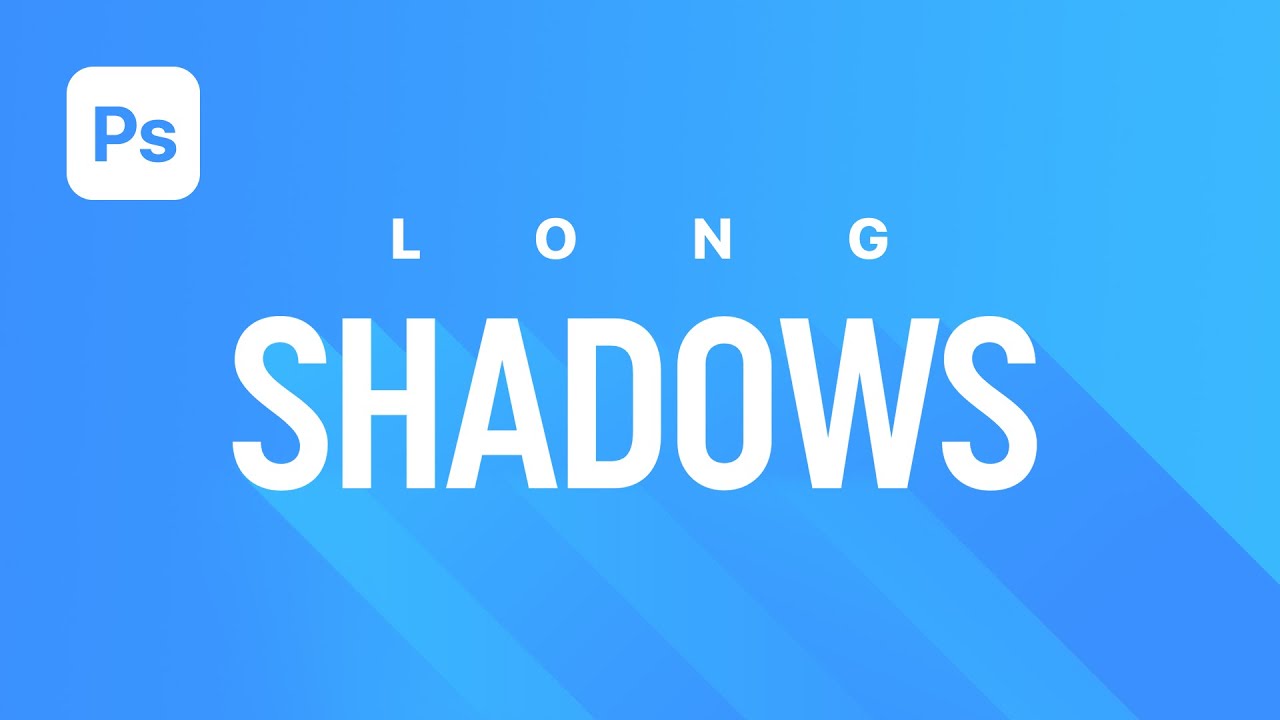
This tutorial will demonstrate how to create a custom long shadow effect in minutes using Adobe Photoshop. This method uses a custom 'action' that will enable you to instantly use this effect again in future, saving you a lot of time. Typically, creating a long shadow effect often involves rasterising the shadow. However, this technique uses Sma...
verbal oyster
okay thank you
ripe quest
sly hawk
This seems to be an issue a lot of people are having at the moment. <@6747750715...
Caity is out on leave. It seems like the issue has been reported. And I think it only affects MacOS.
pallid umbra
sly hawk
Hey <@145548162667511808> - See above 🙂
Heyo, where exactly?
sly hawk
pallid umbra
Heyo, where exactly?
(A clip of me using a 'gradient map' to recolour the rails) - no faffing around with curves, hue etc
pallid umbra
sly hawk
(A clip of me using a 'gradient map' to recolour the rails) - no faffing around ...
Thank you so much!
fluid craneBOT
Gave +1 Creative Carma to @sly hawk
warm hill
how do i make it so my font layer gets merged with all the individual layers of characters?

like i want half of that j on that girls layer
sly hawk
What do you mean by 'merged'? literally just 'flattened' in the PSD?
@warm hill ?
Just select all the layers in the layers panel, right click and click "merge Layers"
personally I wouldn't recommend it though.
warm hill
sly hawk
Just select all the layers in the layers panel, right click and click "merge Lay...
but i want the other layers i only wanna merge the font
 warm hill
 sly hawk
Perfect.
So... Are you wanting the TEXT to be sort of sliced up so for example the top half of 'KAISEN" is MERGED in with the polar bear image?
warm hill
sly hawk
So... Are you wanting the TEXT to be sort of sliced up so for example the top ha...
yes
grand siren
sly hawk
oops. - soz
no reason to be sorry lol
(if that is what soz stands for, im still not sure)
sly hawk
warm hill
yes
I can only think of doing it this way...
Not a particulary 'graceful' method. - It would have been something easier if it was chopping up shapes but everything on your canvas is a raster graphic.
warm hill
sly hawk
I can only think of doing it this way...
alr ty
fluid craneBOT
Gave +1 Creative Carma to @sly hawk
 grave tulip
Every so often I encounter this issue, which seems to happen randomly. I have an image of a screen placed as a smart object in a PSB (a png). I am trying to update this screen with a quick edit, so I hop into the smart object and make my corrections. I try to save my smart object out and I get this message: "Can't save this document back to its original file format. Flatten layers and discard extra data as necessary then choose File > Save again."
Ok, fair, so I flatten my smart object. Now, when I hit save, instead of updating the smart object, it prompts me to save a jpeg elsewhere. I have no way of updating my inner smart object. I could be a total idiot and missing something, but this is driving me crazy. What's the solution here?

 sly hawk
grave tulip
Every so often I encounter this issue, which seems to happen randomly. I have an...
sly hawk
grave tulip
Every so often I encounter this issue, which seems to happen randomly. I have an...
I think I know your issue.
It's because your original smart object was not layered.
grave tulip
Ah, so ensure the png is not flattened and maintains transparency when I originally bring it in then?
sly hawk
Try this:
- Open you smart object of the screen, and then do a SAVE A COPY of that smart object to your desktop as a PSD.
- Just close the smart object and ignore any error messages like the one you showed above
- Delete the smart object from your screen
- DRAG IN your NEW PSD from your desktop and place it back into position.
grave tulip
Ok, will try that now! Thank you so much for the help btw!
sly hawk
- Now you should be able to work without the annoying message about flattening layers
- Let me know if it works @grave tulip !
Alternatively, just make sure to literally FLATTEN the smart object before saving.
(But I prefer the non-disctructive route I mentioned above)
 grave tulip
@sly hawk it worked!! TYSM!!
sly hawk
With a disgustingly smug grin on my face..... "yeah of course it did" 🙂

 cunning flare
Hello! I got a problem. My indesign pages fail to correctly show up on PDF so I want to export them to Photoshop but I don't know how ._. can someone please help?
or eventually how do I fix my indesign PDF export if anyone knows ._. since there is no indesign discord
turbid umbra
ripe quest
Caity is out on leave. It seems like the issue has been reported. And I think it...
i don't use mac!
ripe quest
turbid umbra
i don't use mac!
I'm not experiencing it on Windows. Not sure what version of Photoshop you're running but perhaps open the CC app and "check for updates."
 foggy pumice
hi, does anyone know how to get those leafs around a text?

 desert condor
Is there a way to copy a layer from file A to B?
ripe quest
desert condor
Is there a way to copy a layer from file A to B?
Yes, Right-click on it in the Layers Panel and choose "Duplicate" and in the pop-up, choose the destination document.
Alternatively, you could just select the Layer in the Layers Panel and drag it over to another open Tab in Photoshop. Keep the mouse button down and hover over the tab and when it switches focus. Then drop the Layer into the document.
ripe quest
turbid umbra
i don't use mac!
foggy pumice
foggy pumice
hi, does anyone know how to get those leafs around a text?
this is homework and i can't really find anything online it's kind of urgent to me right now if anyone could help😅
ripe quest
foggy pumice
this is homework and i can't really find anything online it's kind of urgent to ...
You might be able to make a custom brush that is a leaf shape and then have the Brush strokes follow a path.
turbid umbra
ripe quest
I'm not experiencing it on Windows. Not sure what version of Photoshop you're ru...
it was on the most updated one!
but after yesterday, i had to revert it back to 25.0
ripe quest
turbid umbra
it was on the most updated one!
but after yesterday, i had to revert it back to ...
I'm using v25.1.0 and it seems to work.
turbid umbra
ripe quest
I'm using v25.1.0 and it seems to work.
thats the one i had
i was using it for the whole day without issues
then it just bugged and wouldnt go back
yeah i freaked out for like an hour cause i have stuff i needed to give to clients
glad i found this discord cx
ripe quest
turbid umbra
thats the one i had
I think there might be a bug in there. If it happens again, try double-clicking inside the triangle and see if that will force it to update.
turbid umbra
ripe quest
I think there might be a bug in there. If it happens again, try double-clicking ...
did that, did a bunch of random stuff trying to get it to work, messed with the hex codes, with anything that i thought could maybe get it back
but nothing worked

just reverting versions
ripe quest
I don't know. It works for me. Windows 10 Pro. Photoshop v25.1.0
turbid umbra
i used the same stuff,
but this was after an entire day of working
like, it was fine for 90% of my day
until it wasnt
 dusk hare
I was trying to make a displacement map. Is there any way you can create a directional gradient?
sly hawk
cunning flare
Hello! I got a problem. My indesign pages fail to correctly show up on PDF so I ...
What do you mean? How are they showing up then? Any screenshots?
sly hawk
ripe quest
You might be able to make a custom brush that is a leaf shape and then have the ...
Hey, sorry I think we discussed this before, but does photoshop (or illustrator) allow for 'full colour' brushes yet?
e.g. a brush which is a little car icon with black wheels and a red roof
Or a 'bush' which maybe looks like one of these?

 wide wadi
How can I just have the shell?

I would post the full picture but I don’t know if it falls under the rule since one of her breasts are exposed.
Birth of Venus painting made in the 1400s
ripe quest
sly hawk
Hey, sorry I think we discussed this before, but does photoshop (or illustrator)...
Photoshop has the Mixer Brush. Illustrator has the Sprayer or whatever. Can't recall the name of it atm.

 median turret
Does anyone know if PS can be installed on a non OS drive?
somber mantle
Why are these values different and how do i fix it
 ripe quest
median turret
Does anyone know if PS can be installed on a non OS drive?
ripe quest
median turret
Does anyone know if PS can be installed on a non OS drive?
Yes. It can. However, some Creative Cloud assets will still be put on the OS drive.
 magic tendon
Hi everyone. any tips for getting rid of the green screen glow on people? specifically hair.
sly hawk
magic tendon
Hi everyone. any tips for getting rid of the green screen glow on people? specif...
Yes, use a hue/saturation adjustment, with a mask, and targeting the green.
I started looking for an old video of mine where I show it, but found a link to a different one instead:
https://www.youtube.com/watch?v=x8rK1aWaMj8

This is minute mask Tip 7 of 10. It shows how fix color spill an issue that happens when your selection's edge color is off due to reflecting the original background.
To beta test when I have a new cl...
 lethal gale
I have a question. And it's probably a super simple one, but I am not at all savvy with PS.
I want to create a 64x64 black square set to 75% opacity (see-through) and I want to save it as a .TGA. How would I go about doing that?
 astral horizon
Can I get some help, I wanna place a product image onto this empty product, wanna create a template where I can just auto fit images here and for it to look semi realistic

any help?
ripe quest
lethal gale
I have a question. And it's probably a super simple one, but I am not at all sav...
Do this and then the final step would be: File > Save a Copy... Choose Targa file type from the list. Give the file a name. Click Save.
lethal gale
ripe quest
Do this and then the final step would be: File > Save a Copy... Choose Targa fil...
Thanks for the prompt answer! I thought you had to save it as an alpha mask or something?
fluid craneBOT
Gave +1 Creative Carma to @ripe quest
lethal gale
ripe quest
Do this and then the final step would be: File > Save a Copy... Choose Targa fil...
Because this just makes a light grey square. Not a black square you can see through.
ripe quest
lethal gale
Because this just makes a light grey square. Not a black square you can see thro...
Ah. Yeah. I wasn't thinking. Targa doesn't support per-pixel alpha; it needs a discreet alpha channel.
lethal gale
Can you guide me in the right direction to do it like that?
ripe quest
lethal gale
Can you guide me in the right direction to do it like that?
Does this look correct in whatever app you're using it with?
 ripe quest
lethal gale
On the top is a black square set to 75% opacity saved as .png
ripe quest
lethal gale
On the top is a black square set to 75% opacity saved as .png
I may have had the values flipped...
What a pain in the neck this is. You can't use a PNG file?
ripe quest
It's not going to be black because its transparent.
This requires making a Layer Mask. Layer Masks show or hide pixels based on greyscale values. Thus, you'd mask this off and (according to the post in the Ps Forum) save this mask as a separate channel. This just ends up being a "grey" block and the value of grey represents a level of transparency. Then you'd save as Targa with "Alpha Channel" checked.
Getting this to a specific value, I suppose would require some trial and error. I don't know.
Who uses Targa anymore? And why don't they support PNG? heh
 undone iris
astral horizon
Can I get some help, I wanna place a product image onto this empty product, wann...
undone iris
astral horizon
Can I get some help, I wanna place a product image onto this empty product, wann...
use the pen tool, make a selection of the white board. put whatever image you want above it, create a clipping mask. add shadows and highlights, play around with the blend mode and curves etc.
ripe quest
astral horizon
Can I get some help, I wanna place a product image onto this empty product, wann...
Not exactly sure I understand what is being placed on this object. Is it a placemat? If so, you're wanting to do something like this?
This is just a rough idea using a textured box that is converted to a Smart Object.
astral horizon
ripe quest
Not exactly sure I understand what is being placed on this object. Is it a place...
Oh yeah I have a 1920x1080 image I'd like to place onto there via cliping mask and for it to show on the right angle and everything, still possible with this method?
ripe quest
astral horizon
Oh yeah I have a 1920x1080 image I'd like to place onto there via cliping mask a...
I used a Layer Mask but you could certainly use a Clipping Mask.
astral horizon
let me try this out
ripe quest
astral horizon
let me try this out
Clipping Mask is going to require you trace that shape with the Pen Tool or make a Rectangle Shape and edit the anchor points to match up with the bitmap.
astral horizon
ripe quest
Clipping Mask is going to require you trace that shape with the Pen Tool or make...
oof, I'm not sure on how to do that, are you maybe able to send me the PSD on which I can just place any image onto and it would do that? I'm kinda messing things up on my own, sorry if it's a big request
this would be the image I'm trying to work on

and just place a wallpaper or whatever onto it so it curves with the placemat itself
astral horizon
uh sorry was I pinged? I can't seem to find it anymore
ripe quest
astral horizon
uh sorry was I pinged? I can't seem to find it anymore
One moment. I made the embedded object the wrong size. You said your images are 1920x1080px, correct?
astral horizon
ripe quest
One moment. I made the embedded object the wrong size. You said your images are ...
That aspect ratio yes
ripe quest
astral horizon
That aspect ratio yes
You should just be able to edit the Smart Object and insert a different image. You'll probably want to add some adjustment layers on top to match the light/shadow/contrast of the base layer.
 ripe quest
astral horizon
That aspect ratio yes
ripe quest
astral horizon
That aspect ratio yes
The Smart Object is made at 1920x1080 so if its a different size than that, you'll have to rescale it. If you change the Image Size of the Smart Object you'd need to edit the template layout.
astral horizon
Okay, doing it now, yeah unfortunately it's not the same aspect, I messed up
ripe quest
OK. Well, I can't work on this project for you. I have my own work to do so hopefully you can figure it out.
sly hawk
astral horizon
yeah for sure, thanks for the help!
I was going to say.... that card doesn't look 16:9
astral horizon
sly hawk
I was going to say.... that card doesn't look 16:9
3675
2175
sly hawk
astral horizon
3675
2175
Strange but ok 🙂
sly hawk
astral horizon
there's supposed to be a small cut off bleed area
You may prefer to create the playing card portrait, and then rotate it when it comes into your photo as a smart object.
 last arrow
astral horizon
Can I get some help, I wanna place a product image onto this empty product, wann...
last arrow
astral horizon
Can I get some help, I wanna place a product image onto this empty product, wann...
i believe you're looking for vanishing point
there are tutorials on youtube
astral horizon
Yeah I tried following one but it's super hard for a rounded edge
last arrow
maybe duplicating the background, selecting the background, masking it and putting it to the front
with the vanishing point in between
ripe quest
astral horizon
Yeah I tried following one but it's super hard for a rounded edge
Don't bother using Vanishing Point for this. If you're not familiar with how it works, you'll probably end up getting frustrated. Regardless, Transform > Distort is enough to put this in place.
astral horizon
Yup, got everything set up boss!
Thank you!
It's not perfect perfect, a bit too bright but I'll take it
 ripe quest
astral horizon
It's not perfect perfect, a bit too bright but I'll take it
ripe quest
astral horizon
It's not perfect perfect, a bit too bright but I'll take it
Try using Neural Filters > Harmonization on that layer as a Smart Filter. Choose the "background" layer to match it up to. Tweak the knobs and switches slightly to match the base.
 acoustic egret
How could I use this image to create a Minecraft style enchantment glint effect for a gif?


 fast zinc
How would I create a four point star on PHOTOSHOP.

 sudden verge
can anyone help? keep getting this error but i have room?

 fast zinc
sudden verge
can anyone help? keep getting this error but i have room?
fast zinc
sudden verge
can anyone help? keep getting this error but i have room?
I get that quite a lot, it may be ram or something it's talking about
I don't exactly know tho
Restarting and clearing some tasks on taskamanger seems to always help
warm hill
how can i take a something out of a layer with have a background
vapid flume
warm hill
how can i take a something out of a layer with have a background
You'll have to select the object and extract it to create another layer from it
Once the object is selected, go to layer>layer via cut (shortcut CTRL+ALT+J)
and it will create one layer with just your object. The original one will just contain the background which you can delete
now to select your object, the method used will depend on said object. It's complexity, how weel it is standing out from its background etc.
There is about 1000s of methods for that.
If you want to show your layer, we can advise the most straightforward way based on the actual subject
vapid flume
fast zinc
I get that quite a lot, it may be ram or something it's talking about
These are the scratch disks, they are used to offload the computing from the RAM when you're using some features intensively. Imagine you are saving that .psb (which is either a smart object or a file that is more than 2GB) on another disk, like an external one, then it's possible you don't have enough space there, and that have nothing to do with the scratch disks...
have a quick look also at your performances (not related with your issue, but it always help)
 warm hill
vapid flume
You'll have to select the object and extract it to create another layer from it
...
warm hill
vapid flume
You'll have to select the object and extract it to create another layer from it
...
alr ty
fluid craneBOT
Gave +1 Creative Carma to @vapid flume
vapid flume
and some good help here
https://helpx.adobe.com/uk/photoshop/kb/optimize-photoshop-cc-performance.html
 river otter
I'm new in ps and im searching for someone who can help me to make a customized sneaker
vapid flume
river otter
I'm new in ps and im searching for someone who can help me to make a customized ...
Try your luck in #💬chat-general unless you want to learn how to do it (and in that case you're at the right place! 🙂 )
sly hawk
fast zinc
How would I create a four point star on PHOTOSHOP.
Literally pick any of the first 50 results on google:
 sly hawk
sudden verge
can anyone help? keep getting this error but i have room?
sly hawk
sudden verge
can anyone help? keep getting this error but i have room?
Scope is correct, but also check your canvas size in case you're accidentally trying to save a file which is stupidly oversized.
 fast zinc
sly hawk
Literally pick any of the first 50 results on google:
fast zinc
sly hawk
Literally pick any of the first 50 results on google:
None of them tell 4 point star
fluid craneBOT
Gave +1 Creative Carma to @sly hawk
vapid flume
 open mica
You need to draw a selection and select the layer where the face appears
So the generation is made within the constrain of the selection
grand stump
open mica
What manipulation would you do to generate the fill to complete the person head?
I assume that there is some really bid hat on the head. so first I would erase all thats around to clean up the background and then use GenFill only on the head (without prompting maybe). I assume that if using GenFill First and clean up the background after will not produce good results.
 drifting tusk
hello i have a strange problem with photoshop that i never encountered before, everytime i close my photoshop all my brush groups collapse, so i have to reopen them every single time, can this be disabled somewhere? it usually never does this but now its closing all groups on the new update
 vapid flume
grand stump
I assume that there is some really bid hat on the head. so first I would erase a...
vapid flume
grand stump
I assume that there is some really bid hat on the head. so first I would erase a...
The hat was a " bicorne" (the same one as Napoleon's but wore sideways instead)
It's because the guy sporting it joined the french resistance during the second world war and probably earned that piece of costume with a distinction of some sort (Legion d'honneur? if that so, not the petty rank, but probably the highest rank)
Personnally, I wouldn't ven delete the hat from the original photo, just neatly select from the base of the head and then loosely on the top, and start generating from there. The main thing is there need to be a selection somehow. With a selection, the contextual bar will change from "select subject" to "generative fill" which will make it more obvious what to do next
vapid flume
drifting tusk
hello i have a strange problem with photoshop that i never encountered before, e...
Maybe I could be wrong but I think I never had the folder behaviour stick when I closed the program and opening it again... But now, you are making me doubt myself 😁
drifting tusk
the folders would always be open everytime i start up photoshop, after this update it doesnt happen anymore
 main burrow
hello everyone, someone know how I can link all my shapes between themselves?

 vapid flume
Sorry, i Think I never noticed I supposed. In my defense I put all my favourite brush into a spacial forder meaning that I don't really have to wade through them so often. I tried to do a quick search in the community forums
https://community.adobe.com/t5/photoshop-ecosystem/ct-p/ct-photoshop?page=1&sort=latest_replies&lang=all&tabid=all
and found nothing that could help, let's hope someone comes up with something!
https://community.adobe.com
Master Photoshop with the help of our global community.
vapid flume
main burrow
hello everyone, someone know how I can link all my shapes between themselves?
yOU CAN SELECT ALL THE LAYERS YOU WANT TO LINK (SHIFT + SELECT) AND RIGHT CLICK TO CHOOSE "LINK LAYERS"

ANY TRANSFORMATION, POSTIONNING, ETC WILL AFFECT ALL THE LINKED LAYERS
Sorry, caps lock!
 boreal fox
Hello guys! I have a questions about editing.
Idk if this is the right chat, but I have a photo which is not that great of a quality with really important text to me, and I was wondering maybe someone from here might help me? If you don't have time at least tell me if it's possible to make it readable because I've wasted like 2hrs trying to find a solution but can't find any 😄
And idk if i should continute searching or it's impossible.
vapid flume
boreal fox
Hello guys! I have a questions about editing.
Idk if this is the right chat, but...
Can you post it here? At least we could see if it's realistic to hope to make it legible. It also obviously depend on the size of the image (the bigger the better!)
boreal fox

Thats the best i got :/
I tried playing with the white and black levels but it only made it worse. 😄
If it's possible to atleast make it a little better that would kinda work
vapid flume
I don't think you'll get anything simply because the image is too small and the pixels of the screen interfere with the text.
I tried with a superzoom filter but obviously it enlarges the pixels as well as the text
boreal fox
Atleast I know i shoulnd't waste my time more haha, thank you Sandrine!
vapid flume
That said it looks suscipiously like an exam sheet so I am not even trying more than that 🙂
main burrow
vapid flume
yOU CAN SELECT ALL THE LAYERS YOU WANT TO LINK (SHIFT + SELECT) AND RIGHT CLICK ...
i'm not sure i have it but I want to erase the white part between the shapes
vapid flume
main burrow
i'm not sure i have it but I want to erase the white part between the shapes
It's a completely different matter than trying to link the layers. Sorry I don't understand want you want then. Maybe it's best you explain more in lengh, maybe adding a full screenshot as well?
vapid flume
main burrow
i'm not sure i have it but I want to erase the white part between the shapes
Maybe try that... I am trying to figure out what you want to do there (select all the layers first)
 main burrow
vapid flume
Maybe try that... I am trying to figure out what you want to do there (select al...
main burrow
vapid flume
Maybe try that... I am trying to figure out what you want to do there (select al...
I want to connect my shapes together so that I no longer see the gray space. Am I clear sorry I don't speak English very well


 vapid flume
main burrow
I want to connect my shapes together so that I no longer see the gray space. Am ...
vapid flume
main burrow
I want to connect my shapes together so that I no longer see the gray space. Am ...
I don't think you can in Photoshop. Maybe try that. You need to select all the shapes with the vector selection tool (the black arrow)
and choose that

You will need to merge the shapes first
however, it will not fill the greay area unless you create a shape that encompasses everything first, marge that will all the other shapes, and run the "merge shape component"
because Photoshop cannot "invent" the missing bits
So maybe the best bet is to draw a new complete shape from the outine of this one, put it below all the others and do the "merge shape" first, and then "merge shape composnent"
You need to test things out
sly hawk
main burrow
I want to connect my shapes together so that I no longer see the gray space. Am ...
You can't do anything 'automatic' but you could quite easily paint in the 'gaps'.
sly hawk
main burrow
I want to connect my shapes together so that I no longer see the gray space. Am ...
You obviously can't sort of just push the shapes together, since they won't fit properly.
 mortal vine
Any idea how I can tilt this popsickle and it's packet on the surface of the plate on photoshop?
 sly hawk
mortal vine
Any idea how I can tilt this popsickle and it's packet on the surface of the pla...
sly hawk
mortal vine
Any idea how I can tilt this popsickle and it's packet on the surface of the pla...
You can fake it, but it would be obviously wrong since it 'should' show the edge more, which of course isn't in the image
 mortal girder

 misty jolt
can i change the color of the rectangle now ?

due to my lack of skill i had the idea to add an outline on the inside from the inside and full opacity
i request this to all the suckers like me :)

 umbral compass


 cold vortex
Hi, looking for advice with saving JPG files. This week, when I save PNG as JPG, it adds strange lines across the JPG. (Photoshop and PS Express) It never happened before that. How can i fix it?
 sly hawk
cold vortex
Hi, looking for advice with saving JPG files. This week, when I save PNG as JPG,...
sly hawk
cold vortex
Hi, looking for advice with saving JPG files. This week, when I save PNG as JPG,...
Are you sure they were not on your PSD file too?
cold vortex
sly hawk
Are you sure they were not on your PSD file too?
yes, absolutely
clean png image in photoshop mobile on ipad pro and then saves JPG with strange artifacts


 sweet field
cold vortex
clean png image in photoshop mobile on ipad pro and then saves JPG with strange ...
sweet field
cold vortex
clean png image in photoshop mobile on ipad pro and then saves JPG with strange ...
What jpeg settings are you using when exporting? Looks like it's lower resolution than the original, which would explain some of the artifacting.
 bitter trench
hey I have a small issue with the color wheel. When I'm picking the color, the wheel/hue cube isn't reflecting that change. is there a way to fix this?
screen shot for example, the color picked is orange but the square is still stuck on green

 warped rampart
Is there any practical way to do embroidery effect? (All embroidery plugins are so expensive)
mortal vine
sly hawk
You can fake it, but it would be obviously wrong since it 'should' show the edge...
I made it like this, does this look realistic even the slightest?

 steady girder
bitter trench
hey I have a small issue with the color wheel. When I'm picking the color, the w...
steady girder
bitter trench
hey I have a small issue with the color wheel. When I'm picking the color, the w...
Try installing an earlier photoshop version. if you have 2 versions Installed delete one and do the same
bitter trench
steady girder
Try installing an earlier photoshop version. if you have 2 versions Installed de...
okk I'll try it thanks
fluid craneBOT
Gave +1 Creative Carma to @steady girder
bitter trench
how does that cause this though?
steady girder
what happened for me was i updated photoshop and suddenly i had this porblem, im assuming that its a bug that formed after the version update. I helped another guy with the same issue, he installed an earlier version and it disappeared. so did I
 forest canyon
How to remove the noise from the paper bags?
 warped rampart
forest canyon
How to remove the noise from the paper bags?
warped rampart
forest canyon
How to remove the noise from the paper bags?
you can use patch tool
or healing brush
 mortal crag
Yo can someone edit the bacground of a pic for me
cold vortex
sweet field
What jpeg settings are you using when exporting? Looks like it's lower resolutio...
I’m using the highest settings that are available to save JPEG file. JPEG files end up 5-7 MB (I worked with Adobe tools for 30+ years as 3D environment artist with BFA , but on PC, I got an iPad just this spring )


 young basin
@ripe questas you said, i updated to the new version, now this is showing, a pop-up prompts me to either start a free trial or purchase it

 buoyant viper
anyone here know how to make a realistic lava brush
 late reef
due in 4 hours and im freakin out, why does it do this? everytime I open a layer it does this

also i had a certain wash layer that ended up appearing like this...
 pallid umbra
Is there still any 3D support for photoshop?
I need to retexture some models and i am inexperienced with using blender
vapid flume
The 3D features are removed little by little. So personnaly I stoped using it
Nothing more frustrating that trying to do something that worked last month, and don't work anymore 🙂
vapid flume
pallid umbra
I need to retexture some models and i am inexperienced with using blender
Aren't we all! 😱
If you got the texture ready, you can try Dimension (you may need a full CC, but you can still try)
This is an End of Life product (replaced by the substance suite) but it's stable, and works. You'll have to install from your CC app
https://www.adobe.com/uk/products/dimension.html
 pallid umbra
vapid flume
If you got the texture ready, you can try Dimension (you may need a full CC, but...
pallid umbra
vapid flume
If you got the texture ready, you can try Dimension (you may need a full CC, but...
I have the full cc
So basically they got the 3d features out of photoshop so they can force you to work in Dimension if u want to stay in the adobe ecosystem? ( just my assumption)
vapid flume
late reef
due in 4 hours and im freakin out, why does it do this? everytime I open a layer...
I don't really know right now.
I would say likely a graphic card issue so the best bet would be to close PS, check the graphic drivers are up to date.
potentially check if the GC is enough to run in Photoshop first
and also potentially disabling a few stuff in your preferences in case you need the project finished over having more features.

 vapid flume
pallid umbra
So basically they got the 3d features out of photoshop so they can force you to ...
vapid flume
pallid umbra
So basically they got the 3d features out of photoshop so they can force you to ...
I think it was just to streamline things better. Dimension is included in the full CC, I don't think - but I may be wrong - you can buy it as a standalone. So no gain/loss for Adobe. Substance Suite proper (without Dimension) is a different sub entirely, as it's a completely new type of software coming from Adobe - well after they bought the thing from another company and developped it on their own terms)
pallid umbra
vapid flume
I think it was just to streamline things better. Dimension is included in the fu...
interesting
@late reef Close PS, restart your graphic card drivers, open PS
 vapid flume
To be honest, even if I used a bit of 3D in Photoshop (mainly modeling) the texturing and environment aspect was always really confusing (at least for me)
pallid umbra
vapid flume
To be honest, even if I used a bit of 3D in Photoshop (mainly modeling) the text...
3d modelling isn't cut out for me
but retexturing is actually easy
vapid flume
I have full Substance 3D and I like it 300% better than Blender. Blender is a wonderful software, but pitiful interface and not user friendly. Unfortunately, my computer doesn't agree with Substance (maybe Stager is OK-ish). So when I change my computer eventually, I'll stop trying to learn Blender for good 🙂
vapid flume
Substance HANDS DOWN
is quite expensive to be honest, but Susbatnce can do things that Blender cannot (as I understood, don't take my word for that, I'm a beginner)
pallid umbra
I will give Adobe Dimension a try first
it looks fun
using the #✍how-to-discord where can i ask questions regarding Dimension? ( Which server? )
vapid flume
If you try Dimension, you'll have a small taster of the interface. It's pretty basic, but it's aimed at beginner. So not sure you will be able to do what you want to do with your retexturing.
But you can certainly do things if you push it sideways (which I always do with software in general anyway). There is no modeling in Dimension (apart from primitives and some ready made objects) but you can import your own .obj (these have been created in Illustrator, the rest is done in Dimension

 vapid flume
pallid umbra
using the <#854103488904036392> where can i ask questions regarding Dimension? ...
vapid flume
pallid umbra
using the <#854103488904036392> where can i ask questions regarding Dimension? ...
That'll be the Substance server
discord.gg/substance3d
pallid umbra
vapid flume
That'll be the Substance server
discord.gg/substance3d
Oh thank you
fluid craneBOT
Gave +1 Creative Carma to @vapid flume
pallid umbra
it's not listed in the server list
vapid flume
Yes, because it's an off-shoot. I think it's more or less maintained by the people who were brought up from the original software company (Allegorithmic) to Adobe
Substance uses procedural everything (nodes in Blender) so if you got that bit right in Blender, you'll get that bit right in Substance. Dimension doesn't use that, it's just a stager, but you can apply texture, set lights and cameras...
 latent rock
AnimDessin2 (plugin for Timeline) don't appear in Photoshop on MacBook 👇
https://github.com/sbaril/Photoshop-Animation/issues/18
has this problem not been fixed in 2 years, or
is the information not relevant on Github? Idk, may have already found solutions. Thanks in advance!

GitHub
Hi, I'm a Graphic Design student and I'm having trouble viewing plug-ins in Photoshop (CC 2021 22.3.0) I am using a Macbook pro with m1 (OS: Big Sure) I tried to install the files with Anas...
open mica
vapid flume
So the generation is made within the constrain of the selection
Oh I understand: like this, and I put the prompt to "(guy with) bald head"?

If I select the head too it changes the face and orientation of course , which is not the goal ^^ but kinda cool

(original image) with that big hat

excuse me for not generating a thread here, could be more readable
vapid flume
I don't like threads so that's OK
I would say only select the top of the head and the hat to keep his face (Poor Paul 🙂 )
As always you need to trial and error. The generative AI learns from the attempts
Don't forget you got versions displayed on the right, so you can choose between 3
 young creek
anyone can help me with this? i tried to change the greyscale into RGB but still on greyscale after

 frank hinge
Hello, I have assigment to make a storyboard in illustrator and then animate it in powerpoint. Someone know how to do it? Because i habve no idea i have used the animate effects but its not ok
vapid flume
young creek
anyone can help me with this? i tried to change the greyscale into RGB but still...
Can we have a look at your original image? Maybe it was originally in Black and white? Also, do you need 16 bits? (You may need it, but we don't see that very often)
vapid flume
frank hinge
Hello, I have assigment to make a storyboard in illustrator and then animate it ...
I would have no idea how to do it, but since it's the Photoshop server here, you'd probably be better off asking in the Illustrator server
young basin
@vapid flume i updated to the new version, now this is showing, a pop-up prompts me to either start a free trial or purchase it
 young creek
vapid flume
Can we have a look at your original image? Maybe it was originally in Black and ...
young creek
vapid flume
Can we have a look at your original image? Maybe it was originally in Black and ...
i just ticked the 16 bit thinking it might fix but still the same
vapid flume
young basin
<@705735115434622987> i updated to the new version, now this is showing, a pop-u...
Can you go to your account and see if you have the right payment in place? (don't post screenshots 🙂 )
young creek
this is the original image
 vapid flume
if nothing seems wrong, you'll have to ask Adobe directly (Customer support) as only them have access to your account. There aren't Adobe employees here...
young basin
vapid flume
Can you go to your account and see if you have the right payment in place? (don'...
🙂
vapid flume
young creek
this is the original image
What is the file format of the artwork, and do you have a warning message when you import it?
vapid flume
young creek
i just ticked the 16 bit thinking it might fix but still the same
No it will just give the artwork for colours to work with, but most screens won't display it anyway
vapid flume
young basin
🙂
to go to your account the best bet is to go to your CCapp and go right to the top right of the screen

where your profile picture is
That's your CC app, (have you tried to sign out and sign in again? in case your payments options are up to date)
 young creek
vapid flume
What is the file format of the artwork, and do you have a warning message when y...
young creek
vapid flume
What is the file format of the artwork, and do you have a warning message when y...
no there's no warning when i imported the image
vapid flume
But what is the original file format and how is it displayed when you open it in Photoshop? (open, not place)
ripe quest
young basin
<@712015771596750931>as you said, i updated to the new version, now this is show...
If you have an active subscription and you can't access the application, you'll probably have to contact Adobe Customer Care. We can't help with issues related to your Adobe Account.
 sand forge
Question about Adobe Premiere Pro, dunno if theres a server for it but how does one import a ton of screenshots (100+) and make them all appear for the same length in this case 1.5 seconds, like not at the same time but Screenshot 1 (1.5sec) - Screenshot 2 (1.5sec) etc
vapid flume
You'd better go there
discord.gg/adobepremiere
(I never used premiere in my life, maybe someone else can help here, but it's better to go to the proper server)
open mica
vapid flume
As always you need to trial and error. The generative AI learns from the attempt...
Oh not bad! thank you a lot


 fluid craneBOT
Gave +1 Creative Carma to @vapid flume
open mica
without prompt, it's quite good (yet not really bald )
but with a prompt like (bald head) I always get a hat xD
I don't understand why, there is no negative prompt? ^^
Also, little question, is there an alternative to Topaz Gigapixel AI to increase the resolution in any Adobe software now?
sly hawk
young creek
this is the original image
Sorry if you're already sorted - but if not.... just make sure your workspace is RGB and THEN drag your image back in again
young basin
ripe quest
If you have an active subscription and you can't access the application, you'll ...
i dont
ripe quest
young basin
i dont
Then you'll have to subscribe if you want to keep using Photoshop.
young basin
ripe quest
Then you'll have to subscribe if you want to keep using Photoshop.
why did i listened to you and updated, now i cant use 2022 or 2023 🥲
not just Ps, most Adobe applications
ripe quest
young basin
why did i listened to you and updated, now i cant use 2022 or 2023 🥲
When you have problems with old versions of the app, updating to the latest version is the easiest fix. If you're using pirated software, you've got bigger problems.
sly hawk
I don't think you'll get much sympathy or help here *if * you're not paying for Adobe, and as a result, not able to use it.
ripe quest
Its amazing that people turn up here and seek support for their hacked apps.
light tendon
I'm trying to crop, I have the layer selected so crop is no longer greyed out but clicking it does nothing
sweet field
light tendon
I'm trying to crop, I have the layer selected so crop is no longer greyed out bu...
You're cropping the canvas? What do you mean by layer selected?
sweet field
Cropping is when you're making the canvas smaller/bigger. Are you trying to add a mask to the layer?
light tendon
nope just cropping like you'd do in paint, my image is too large
sweet field
Okay, what do you mean by it doing nothing? You have to use the crop tool to resize your canvas and then press the ✅ icon up at the top.
light tendon
I mean it just does nothing, nothing happens, I click on the tool and nothing changes, no things to drag in order to crop, my tool stays the same
sweet field
Could you post a screenshot of how your screen looks with the crop tool selected?
light tendon
 sweet field
Looks like you just have a selection there. You don't need to have a selection to crop. If the crop marks aren't showing up, try changing tools to move tool and back to crop. The bounding box you can drag should show up.
light tendon
without a selection the crop option is greyed out
sweet field
What crop option? Use the crop tool (hotkey C)
light tendon
oh, thanks!
sweet field
And if you use the image-crop option, you can make your selection and it will crop the image to what your selection is.
light tendon
I see, ty
young creek
vapid flume
But what is the original file format and how is it displayed when you open it in...
png
sweet field
young creek
png
Did you flatten the layers when you changed from greyscale to rgb? That will make the images remain black and white. Why do you not import the image after having changed to rgb?
light tendon
how do I make my eraser make my layer transparent? Like, I have an image and where I erase I want the layer underneath to become visible
young creek
sweet field
Did you flatten the layers when you changed from greyscale to rgb? That will mak...
no i didn't
sweet field
light tendon
how do I make my eraser make my layer transparent? Like, I have an image and whe...
The best way to do this is to create a mask, so you're working non-destructively.
sweet field
light tendon
how do I make my eraser make my layer transparent? Like, I have an image and whe...
Here's a quick tutorial on how to use masks! https://www.youtube.com/watch?v=ddbMxDT7J9Y
sweet field
young creek
no i didn't
Okay. You can still import the image when the color mode is in RGB. It'll have all its colors then.
vapid flume
open mica
Also, little question, is there an alternative to Topaz Gigapixel AI to incr...
I successfully use the integrated neural filter "super zoom". It's not ideal and neither solution is since it's un-resolvable issue but works well nonetheless
https://phlearn.com/tutorial/ai-super-scaling-graphic-integration-in-portraits/

In this Photoshop tutorial, we learn to seamlessly blend graphics with portraiture by using the Super Zoom feature to upscale graphics without losing resolution, applying Gradient Maps for color matching, and employing the Select Subject and Select and Mask tools for precise subject isolation. The result is a harmonious and visually appealing co...
Forget the effects, it's the super zoom that is important here
bitter trench
steady girder
what happened for me was i updated photoshop and suddenly i had this porblem, i...
thanks I'll do that, what a strange bug!
fluid craneBOT
Gave +1 Creative Carma to @steady girder
bitter trench
does 25.0 work or do I go further back?
river otter
why does this keep popping up
 vapid flume
river otter
why does this keep popping up
vapid flume
river otter
why does this keep popping up
It's because you are trying to paint (or something similar) on a smart object... You either need to rasterise your smart object, or do your modification on the embedded file (double click on the smart object to open it on a new tab and work on it there, save and then close)
ripe quest
river otter
why does this keep popping up
It's an embedded object/image inside the Photoshop document. Dbl-click on the Layer Thumbnail to open that Smart Object into in a new tab. You can edit it there. Save it and go back to the main document.
 ripe quest
river otter
ohh
ripe quest
river otter
ohh
If you don't want it to be a Smart Object, you can do like Sandrine suggested and rasterize that layer. Then is just becomes pixels.
ripe quest
river otter
by the way do you know how to like do that
How to do what?
river otter
ok so im trying to make a airline livery
and i want the grey to be on the plane
but its also outside
im terrible at explaining things
ripe quest
I would use an Adjustment Layer. Probably Hue/Saturation with a Layer Mask to only affect certain portions of the plane image.
river otter
oke tq


 rare saffron
ignore the Green Boxes
Is there a way to reduce or get rid of the blue ghosted light pieces all over my photos in some cases it looks super good and cool but I would love to try some versions without it

 lucid crane
 civic portal
is there a way to reduce the amount of detail in the elephants
civic portal
is there a way to reduce the amount of detail in the elephants
How about a quick and dirty selection of the elephants and then dehaze and reduce clarity in camera raw?
 civic portal
lucid crane
How about a quick and dirty selection of the elephants and then dehaze and reduc...
civic portal
lucid crane
How about a quick and dirty selection of the elephants and then dehaze and reduc...
Ah yes I can play around with filters and blurs right
lucid crane
civic portal
Ah yes I can play around with filters and blurs right
The ones I mentioned will give the effect of being in the distance which is I think what you want?
civic portal
Yes atmosphere perspective I'll try thag
river otter
is there any way to scale something to make it longer without making it wider
ripe quest
river otter
is there any way to scale something to make it longer without making it wider
If you don't scale in correct proportions to the original, things will look squashed or stretched.
river otter
ripe quest
If you don't scale in correct proportions to the original, things will look squa...
yea thats the point of what im trying to do
lucid crane
river otter
is there any way to scale something to make it longer without making it wider
control or command T gives you the transform controls
river otter
oke tq
ripe quest
What is "tq" supposed to mean? Thank-Q? heh
river otter
ah it bascially just means thank you
my therapist says it so much im just used to saying it too
river otter
lucid crane
control or command T gives you the transform controls
is there a way to make something just longer tho instead of both ways
lucid crane
river otter
is there a way to make something just longer tho instead of both ways
Pull the control on the middle of the line, not the corner
lucid crane
river otter
oke tq
yes 🙂
Take a little look : https://youtu.be/nBtUpxoVONQ?feature=shared

In this photoshop tutorial you will learn how to master the transform tool in Photoshop CC. Ed Gregory walks you through each part of this extremely powerful tool while walking you through a full project. Learn how to change the shapee of an object in Photoshop C, how to Photoshop Skew, Photoshop Distort and how to change perspective in Photosho...
river otter
oke thank you!
 feral dragon
lucid crane
yes 🙂
Take a little look : https://youtu.be/nBtUpxoVONQ?feature=shared
feral dragon
lucid crane
yes 🙂
Take a little look : https://youtu.be/nBtUpxoVONQ?feature=shared
What’s UI/UX
lucid crane
it’s short for user interface and user experience
open mica
vapid flume
I successfully use the integrated neural filter "super zoom". It's not ideal and...
Are there maybe PS plugins for upscaling?
thanks for the PS help overall
ripe quest
open mica
Are there maybe PS plugins for upscaling?
There are some. One of the popular ones is Topaz Gigapixel. It runs in standalone mode or launched from inside Photoshop.
 cold vortex
sweet field
What jpeg settings are you using when exporting? Looks like it's lower resolutio...
cold vortex
sweet field
What jpeg settings are you using when exporting? Looks like it's lower resolutio...
did you see my last message by any chance? I use the highest settings that are available to save jpegs. please help me with this, since I can’t really work anymore
 deep tulip
I couldn't find the Lightroom Discord so I'm asking this here:
For some reason when I "scale" the image in order to create the white border, my image appears to be rounded. How do I make it so that the image isn't rounded and displays as a rectangle? For reference, another shot I took is perfectly straight.

I also have PS, so if it's easier to fix on PS then I'm willing to do so
open mica
ripe quest
There are some. One of the popular ones is Topaz Gigapixel. It runs in standalon...
Is it included on the PS or Adobe membership?
ripe quest
open mica
Is it included on the PS or Adobe membership?
No. It's not from Adobe. Its a third-party app.
There are probably dozens of upscaler apps out there. Some are free; some are paid.
sly hawk
deep tulip
I couldn't find the Lightroom Discord so I'm asking this here:
For some reason...
I assume your stroke is set to 'outside' or 'centre'? - If you can make it 'inside' it will be fine...

Alternatively, you may need to draw a 'shape' and then apply a stroke, since you can have more controls on that...
sly hawk
deep tulip
I couldn't find the Lightroom Discord so I'm asking this here:
For some reason...
sly hawk
rare saffron
*ignore the Green Boxes*
Is there a way to reduce or get rid of the blue ghosted...
Congrats by the looks of it 🙂
river otter
Hi would anyone know why when I click the gradient changer the editor wont open? anyone know how to open it?
 verbal hatch
so im kind of confused im trying to use the brush (white) so i can remove the dark spots from the threshold but for some reason when i click the layer mask of the cross png i can only brush things that are black in the cross png box why is that cuz im trying to paint off the black spots

i also want to know how to do that because that seems cool to only paint a specific color i think that would be helpful
sly hawk
rare saffron
*ignore the Green Boxes*
Is there a way to reduce or get rid of the blue ghosted...
sly hawk
river otter
Hi would anyone know why when I click the gradient changer the editor wont open?...
Can you post a screenshot and circle what you're trying to click on...
sly hawk
verbal hatch
so im kind of confused im trying to use the brush (white) so i can remove the da...
Because your layer mask is ONLY effecting the cross.
sly hawk
verbal hatch
so im kind of confused im trying to use the brush (white) so i can remove the da...
Whack a layer mask over your GROUP below and try again 🙂
river otter
@sly hawk the green to white. when I click on it, it doesnt open editor
 sly hawk
verbal hatch
so im kind of confused im trying to use the brush (white) so i can remove the da...
sly hawk
verbal hatch
so im kind of confused im trying to use the brush (white) so i can remove the da...
 sly hawk
river otter
<@342046864692084738> the green to white. when I click on it, it doesnt open ed...
sly hawk
river otter
<@342046864692084738> the green to white. when I click on it, it doesnt open ed...
It works differently now. - Try drawing a gradient on your canvas first, even with the wrong colour
... you'll then be able to edit it afterwards. Simples.
(you'll be able to later edit the colours, angle, gradient, opacity etc)
....
Sorted?
river otter
yes but no. now i cant change the white to black
sly hawk
river otter
<@342046864692084738> the green to white. when I click on it, it doesnt open ed...

....or double click the DOTS on te gradient line on the canvas
light tendon
when I add a text box I get this, the letters are also insanely big
 fluid craneBOT
Gave +1 Creative Carma to @sly hawk
sly hawk
light tendon
why does my free transform tool select the bounding rectangle and not the layer?
make it a smart object if you want. It will then select the rectangle only and not the outer (transparent) pixels.
sly hawk
light tendon
when I add a text box I get this, the letters are also insanely big
Can you share your whole screen please?
I just want to see the size of the canvas vs the size of the text
light tendon
 sly hawk
light tendon
sly hawk
light tendon
Sorry - Whole screen, I just wasnted to see the canvas size.
if you have 48pt but the canvas is 60,000 pixels wide... we'll know the issue! 🙂
light tendon

 light tendon
now its better

I mean the pt size not the problem
no clue how it got to 14.88 lmao
sly hawk
light tendon
now its better
It looks like there is a clipping mask applied, which is probably confusing things a little.
 light tendon
deleted the weird text masks and still the same problem
sly hawk
I'm not sure. - What happens if you create a new document and try it?
If it's fine, then try dragging in your (working) text layer into this existing PSD file
light tendon
works in a new one, I'll do that
river otter
so my teacher in her vid whenever she uses her pen tool can see her path how can i do that
sly hawk
light tendon
works in a new one, I'll do that
strange. - Sorry I couldn't ID the issue.
light tendon
yup works thanks a lot, this is a template file I got from my college so probably something going on with that, the layer drag is a great workaround
sly hawk
river otter
so my teacher in her vid whenever she uses her pen tool can see her path how can...
What? This path?
 river otter
like when making a line she can see it before she clicks to make it. a linear path
sly hawk
river otter
like when making a line she can see it before she clicks to make it. a linear pa...

Tick RUBBER BAND
river otter
thank yoi
misty jolt
how can i open a dds file one photoshop ? i have to work with them a lot
sly hawk
misty jolt
how can i open a dds file one photoshop ? i have to work with them a lot
You could have googled that one:
https://www.youtube.com/watch?v=6yimyuWzgkg

How To Edit Open A DDS File in Photoshop 2022 - Assetto Corsa Car Skin
🔔 Subscribe for more Sim Drifting videos! 🔔
🔥 Drop a LIKE! 🔥
Link To DDS Plugin:
http://fnordware.blogspot.com/2014/09/dds-plug-in-for-after-effects-and.html
Twitch: https://www.twitch.tv/crilla18
TikTok: https://www.tiktok.com/@crilla18
Instagram: https://www.instagram.c...
verbal hatch
having an issue when i change the threshold of this image my texts are affected and disappear but i want the texts to not disappear
its only a certain text layer because im trying to move the text to be infront of the image then it disappears
 robust forge
how to make this white or black without using the brightness slider because it will make everything white or black?
 misty jolt
sly hawk
You could have googled that one:
https://www.youtube.com/watch?v=6yimyuWzgkg
misty jolt
sly hawk
You could have googled that one:
https://www.youtube.com/watch?v=6yimyuWzgkg
yes thank you, i usually google stuff i dont know but i completely forgot now...
fluid craneBOT
Gave +1 Creative Carma to @sly hawk
sly hawk
robust forge
how to make this white or black without using the brightness slider because it w...
Try using a levels adjustment
robust forge
it still doesn't look good
robust forge
actually this is nice thanks
robust forge
thank you!!
river otter
I cant paste my texture into my vanishing point screen. I 100% have it copied but when I ctrl+v nothing happens in the VP screen.

this is what happens when I ctrl v
so it works with other things not the texture itself. I did rasterize it

ok i found the issue but dont know how to fix
when my prof pastes her texture is a single panel in layers as when I do mine its still a mask
 misty jolt
hum, now that i can open dds files, how can i edit the mipmaps ? i have to for my game (these smaller and smaller textures)

 rare saffron
sly hawk
rare saffron
sly hawk
Thank you so much and it is my friend in the photo he asked me to take pictures of the suprise purposal
fluid craneBOT
Gave +1 Creative Carma to @sly hawk
river otter
river otter
I cant paste my texture into my vanishing point screen. I 100% have it copied bu...
bump
 halcyon crystal
yooo how do i redo a filter and also!,
How do I use filters without having to have it directly on my layer and just give me a filtered layer on top?
sly hawk
halcyon crystal
yooo how do i redo a filter and also!,
How do I use filters without having to h...
Video is a decade old, but still works....
https://www.youtube.com/watch?v=7twUMeP_VOI
Follow this tutorial to learn how to apply different filters on more than one image in Adobe Photoshop CS6.
Don't forget to check out our site http://howtech.tv/ for more free how-to videos!
http://youtube.com/ithowtovids - our feed
http://www.facebook.com/howtechtv - join us on facebook
https://plus.google.com/103440382717658277879 - our group...
 prime token
Maybe someone on here can help me with this:
The first one Is photoshop, the second Is gimp.


I want It to hard edged like that.
Same doc size/resolution)
sly hawk
prime token
Maybe someone on here can help me with this:
The first one Is photoshop, the sec...
what's the original image?
This is usually to do with antialiasing and interpolation when resizing
prime token
sly hawk
what's the original image?
 prime token
sly hawk
This is usually to do with antialiasing and interpolation when resizing
prime token
sly hawk
This is usually to do with antialiasing and interpolation when resizing
I opened It directly from the file to photoshop.
Turning on nearest neighbour sort of works,
But I loose some pixels.
 sly hawk
Thanks for the answer. - I'm AFK now but will take a look tomorrow
 sweet forge
hey any idea why drawing deletes random blocks?
am stressed
literally cant draw anything it keeps happening when i redownload i legit look like the image


 ember rose
am i allowed to pay someone to do something to a picture
ember rose
i have $4.50 i can mail a gift card to you
ripe quest
 dreamy fern
does anyone know what this blurry dotted effect is called?
dreamy fern
does anyone know what this blurry dotted effect is called?
Noise.
sweet forge
sweet forge
hey any idea why drawing deletes random blocks?
i figured out if i remove the bg it works but thats insanely stupid, is there a way i can have a bg????
ripe quest
ember rose
am i allowed to pay someone to do something to a picture
You can describe your project in the #💬chat-general channel. If someone is interested in working on it, they might reach out to you.
ripe quest
sweet forge
literally cant draw anything it keeps happening when i redownload i legit look l...
Without knowing more about the project, Layers, brushes you're using, it would be difficult to suggest something.
Just looking at this video, I don't know.
ember rose
ripe quest
You can describe your project in the <#548276405151203338> channel. If someone i...
can you please? do you have a price
ripe quest
ember rose
can you please? do you have a price
No, thanks.
ember rose
ripe quest
No, thanks.
if i get another quarter or 2 on my card im sure i can change a mind of 2
ripe quest
ember rose
if i get another quarter or 2 on my card im sure i can change a mind of 2
I told you above about a possible course of action. Good luck.
ember rose
No thank you
sweet forge
ripe quest
Without knowing more about the project, Layers, brushes you're using, it would b...
this happens with every project and every brush
every layer, as long as theres a bg
ripe quest
sweet forge
every layer, as long as theres a bg
Sorry. No idea what that could be.
sweet forge
no worries homie appreiciate the try
ripe quest
sweet forge
no worries homie appreiciate the try
Main menu: Help > GPU Compatibility... any issues reported there?
river otter
river otter
I cant paste my texture into my vanishing point screen. I 100% have it copied bu...
bump
ripe quest
river otter
bump
Have you followed the workflow(s) described in the User Guide? https://helpx.adobe.com/photoshop/using/vanishing-point.html
 sly wing
Hi guys
I desperately need help
I cannot export this Photoshop file and I don’t know why
I think the file exceeds 2G but I already tried grouping the layers and I still can’t get it to load
ripe quest
sly wing
I cannot export this Photoshop file and I don’t know why
Export it to what file type?
ripe quest
sly wing
I think the file exceeds 2G but I already tried grouping the layers and I still ...
If the file exceeds 2GB, you'll have to save the file in PSB file format.
 acoustic shadow
how do I put text in this marquee selection I've made?

 scenic lichen
im trying to put a gif onto an image and when i try to match l;ayers across frames it sstill shows the checkered background
halcyon crystal
how to make text swirl
I want the winter 2023 to swirl around the center text and lower its opacity as if it were behind the text
 halcyon crystal
sly hawk
Video is a decade old, but still works....
https://www.youtube.com/watch?v=7twUM...
halcyon crystal
sly hawk
Video is a decade old, but still works....
https://www.youtube.com/watch?v=7twUM...
so i just convert filters into smart filters basically?
serene coral
acoustic shadow
how do I put text in this marquee selection I've made?
it has to be a shape first. then you can use the type tool to type inside
serene coral
halcyon crystal
so i just convert filters into smart filters basically?
yes, working on your layers as smart objects will allow you to change a filter values anytime
serene coral
scenic lichen
im trying to put a gif onto an image and when i try to match l;ayers across fra...
can you elaborate? maybe add some screenshots?
acoustic shadow
serene coral
it has to be a shape first. then you can use the type tool to type inside
I learned I can make it into a work path then use text tool to input text
acoustic shadow
dreamy fern
does anyone know what this blurry dotted effect is called?
its called color noise, and i think you can emulate with a camera by increasing the ISO to a crazy amount. I believe you can make noise in photoshop and lightroom too. probably easier in lightroom
scenic lichen
serene coral
can you elaborate? maybe add some screenshots?
i fixed it thanks anyway
fluid craneBOT
Gave +1 Creative Carma to @serene coral
warped rampart
is there any practical way to do embroidery effect without using plugin? these plugins are way too expensive
 scenic pecan
I'm trying to import RAW that was taken from an Iphone to Photoshop but when importing it to Photoshop it's auto correcting the image?
Can someone help me?

 sly hawk
halcyon crystal
I want the winter 2023 to swirl around the center text and lower its opacity as ...
sly hawk
halcyon crystal
I want the winter 2023 to swirl around the center text and lower its opacity as ...
Learn/watch how to 'write along a path'. - also 10 characters isn't much, so it won't look very good.
sly hawk
acoustic shadow
how do I put text in this marquee selection I've made?

I will show you how to fill a shape with text in Photoshop. This is a fast and easy Photoshop tutorial. You can create word text in any shape such as a heart, circle, etc.
After you have your text into the custom shape, play with the different alignment and font size to get the best results. Use smaller font size for better results.
I used Pho...
lucid crane
scenic pecan
I'm trying to import RAW that was taken from an Iphone to Photoshop but when imp...
It's applying the AppleProRaw profile. You could select none or have a go at making your own that you liked. 🙂
https://www.youtube.com/watch?v=6Pvjkz0QV_Q
An advanced, step-by-step guide to creating Creative Profiles in Adobe Camera Raw for use in Adobe Camera Raw (ACR) 10.3 and later, Lightroom Classic 7.3 and later, and Lightroom CC 1.3 and later.
Please keep in mind that profiles are very different from presets, and as such, there's lots of stuff that can go wrong while making them. Experimen...
lucid crane
warped rampart
is there any practical way to do embroidery effect without using plugin? these p...
I see no one replied to your original question so how about this:
https://www.youtube.com/watch?v=wVtDPgAGSUA
Learn how to create your own denim texture using filters in Adobe Photoshop, and how to create an action for the stitched jeans text effect. ► Download Unlimited Stock Photos, Fonts & Templates with Envato Elements: https://elements.envato.com/?utm_campaign=yt_tutsplus_wVtDPgAGSUA&utm_medium=referral&utm_source=youtube.com&utm_content=descriptio...
warped rampart
lucid crane
I see no one replied to your original question so how about this:
https://www.yo...
will take a look, thank you!
fluid craneBOT
Gave +1 Creative Carma to @lucid crane
 ripe ridge
for some reason since yesterday the colours on the Hue Cube dont change anymore when I colour pick something. Does anybody know how to change that?
young creek
sweet field
Okay. You can still import the image when the color mode is in RGB. It'll have a...
i don't know its just that its all in the image. i tested other images but no problems at all
ripe quest
ripe ridge
for some reason since yesterday the colours on the Hue Cube dont change anymore ...
Try double-clicking inside the color block. Then try a single click to select the color.
cold vortex
when I save PNG as JEPG, it adds strange jagged lines across the JEPG. (Photoshop and PS Express) It never happened before that. How can i fix it? PNG is clean and I’m saving JEPG with highest settings

 ripe quest
cold vortex
when I save PNG as JEPG, it adds strange jagged lines across the JEPG. (Photosho...
ripe quest
cold vortex
when I save PNG as JEPG, it adds strange jagged lines across the JEPG. (Photosho...
Seems like a bug. You should post on the Photoshop Community Forum. Include all the relevant information. Platform and version. Photoshop version, etc. Include the symptoms and the screen shots.
sly hawk
yeah, someone posted a similar issue 24/48 hours ago
cold vortex
ripe quest
Seems like a bug. You should post on the Photoshop Community Forum. Include all ...
is this a correct place to post: https://community.adobe.com/t5/photoshop-ecosystem-bugs/saving-jpg-adds-jagged-lines-artifacts/idi-p/14195732#M94641
https://community.adobe.com
when I save PNG as JPG, it adds strange jagged lines across the JPG. (Photoshop and PS Express on iPad ) It never happened before that. How can I fix it? PNG is clean and I’m saving JPG with the highest settings. I'm using iPad Pro mobile photoshop and photoshop express
ripe quest
cold vortex
is this a correct place to post: https://community.adobe.com/t5/photoshop-ecosys...
Yes. That is the correct place. However, you should include information that will be helpful to troubleshot the issue. iOS version. Photoshop version and anything else that might be relevant to the issue. Then the dev team can take a look at it.
cold vortex
ripe quest
Seems like a bug. You should post on the Photoshop Community Forum. Include all ...
where on ipad i can check the version info?
 patent venture
Hello can someone have already this problem ?
 ripe quest
cold vortex
where on ipad i can check the version info?
ripe quest
cold vortex
where on ipad i can check the version info?
iOS information will be in Settings > General > About... Photoshop information will be under the App Settings > About...
sly hawk
patent venture
Hello can someone have already this problem ?
I assume that says something along the lines of "Impossibe to save this file due to a programme error"?
patent venture
sly hawk
I assume that says something along the lines of "Impossibe to save this file due...
Yes but not save just open
sly hawk
A random stab in the dark, but maybe this would help?
https://community.adobe.com/t5/photoshop-ecosystem-discussions/error-could-not-save-the-file-because-of-a-disk-error-in-photoshop/m-p/11663169#:~:text=You need to grant full,Photoshop to give it access!
https://community.adobe.com
I have been getting error while saving and merging the layers after updating to v22.1. My photoshop files are saved on creative cloud and I am importing the files to edit through external drive. PS It's working when I am hiding that specific layer. Macbook Pro early 2015 running BigSur.
I know it talks about saving, but it could apply to opening too
patent venture
sly hawk
I know it talks about saving, but it could apply to opening too
Thanks
fluid craneBOT
Gave +1 Creative Carma to @sly hawk
cold vortex
ripe quest
iOS information will be in Settings > General > About... Photoshop information w...
thank you. I found ios info, but not photoshop info Attaching screenshot
fluid craneBOT
Gave +1 Creative Carma to @ripe quest
ripe quest
cold vortex
thank you. I found ios info, but not photoshop info Attaching screenshot
In Photoshop for iOS, you tap your profile pic in the upper right hand corner of the GUI. That should open the App Settings. Then see: "About" and you should see the Photoshop version there.
cold vortex
ripe quest
In Photoshop for iOS, you tap your profile pic in the upper right hand corner of...
thank you. Is this a current version?
 fluid craneBOT
Gave +1 Creative Carma to @ripe quest
ripe quest
cold vortex
thank you. Is this a current version?
Yes. I believe it is.
cold vortex
what is the difference between those two Adobe express apps that i have on my ipad?

 ripe quest
cold vortex
what is the difference between those two Adobe express apps that i have on my ip...
ripe quest
cold vortex
what is the difference between those two Adobe express apps that i have on my ip...
Photoshop Express is for quick edits: e.g. highlight, shadow, contrast, level adjustments, applying preset filters to images and exporting the results. Adobe Express does many different things like creating layouts from template designs and more.
cold vortex
ripe quest
Photoshop Express is for quick edits: e.g. highlight, shadow, contrast, level ad...
thank you. Which one is better at removing background to create transparent png with smooth high quality edges?
fluid craneBOT
Gave +1 Creative Carma to @ripe quest
ripe quest
cold vortex
thank you. Which one is better at removing background to create transparent png ...
Probably "Photoshop" for iOS. Not Ps Express or Adobe Express.
cold vortex
ripe quest
Photoshop Express is for quick edits: e.g. highlight, shadow, contrast, level ad...
what about creative cloud? How does it compare to ps, ps express or Adobe express?
cold vortex
ripe quest
Seems like a bug. You should post on the Photoshop Community Forum. Include all ...
what do I do in the meantime while waiting this bug to be fixed? I can’t save any jpg files now?
ripe quest
cold vortex
what about creative cloud? How does it compare to ps, ps express or Adobe expres...
Creative Cloud is the product suite under which all the products exist as well as Adobe's cloud service where objects, libraries and projects can be stored.
ripe quest
cold vortex
what do I do in the meantime while waiting this bug to be fixed? I can’t save an...
I don't know. I suppose you'll have to find a workaround.
 lament moth
hi all - my color hue cube is not updating to reflect the color i have recently selected. I've tried everything from resetting my workspace, turning off and on the color window, to reinstalling photoshop. can someone please help me fix this problem??
 cold vortex
ripe quest
Creative Cloud is the product suite under which all the products exist as well a...
cold vortex
ripe quest
Creative Cloud is the product suite under which all the products exist as well a...
I see that there are also an option to remove background on Creative Cloud - PS is still better? (Gosh, so many options 😂)
ripe quest
lament moth
hi all - my color hue cube is not updating to reflect the color i have recently ...
It seems there is a bug in the current version. Try double-clicking inside the color box. Then try single clicking to select a color. See if that works.
ripe quest
cold vortex
I see that there are also an option to remove background on Creative Cloud - PS ...
It will likely depend on the image and image quality. Why don't you experiment with it and see.
cold vortex
ripe quest
I don't know. I suppose you'll have to find a workaround.
I tried working with smaller file and it saves a good quality jpg. but now I’ll have to resize my rendered files
 dusty mirage
anyone know how i can fix the eyes on this so they dont look as alien im a novice here
 cold vortex
ripe quest
I don't know. I suppose you'll have to find a workaround.
cold vortex
ripe quest
I don't know. I suppose you'll have to find a workaround.
I think mobile PS can’t save jpg with good quality that is larger than 6000 in width…
ripe quest
cold vortex
I think mobile PS can’t save jpg with good quality that is larger than 6000 in w...
Then use the Photoshop on the Desktop.
cold vortex
ripe quest
Then use the Photoshop on the Desktop.
True, but I already spend too much time in my dark small office, it’s nice to sit outside and work. Also, it’s easier to use mobile for painting with ipen.
ripe quest
cold vortex
True, but I already spend too much time in my dark small office, it’s nice to si...
OK. Well, good luck with it!
sly hawk
dusty mirage
anyone know how i can fix the eyes on this so they dont look as alien im a novic...
She kind of has no pupil, or it's very washed out... - See an alternative eye below 🙂

You would also see a slight reflection from the scenes lightsource too.
cold vortex
ripe quest
OK. Well, good luck with it!
thank youfor all of your help. Have a nice day
fluid craneBOT
Gave +1 Creative Carma to @ripe quest
lucid crane
cold vortex
what do I do in the meantime while waiting this bug to be fixed? I can’t save an...
Save it as a png and convert to jpg with some other tool 🙂
If you are on a Mac, preview can do that.
 pine elbow
Hello, being a beginner, I am a little lost in the middle of all the techniques. It would be to know if there would be a good way to match the colors between the different elements of the composite because I see a lot of different ones.
sly hawk
pine elbow
Hello, being a beginner, I am a little lost in the middle of all the techniques....
Go onto google and search for photoshop Harmonisation
cold vortex
lucid crane
Save it as a png and convert to jpg with some other tool 🙂
If you are on a Mac,...
Im on ipad pro . What can i use on it?
 unreal lagoon
So i have been messing with this for a while now and can not figure out how to get rid of the shadow or whatever it is in the image below. The image is on a smart layer. I have tried several different images all do the same can someone help me figure out how to make it stop doing this???

well what the heck it does not show up in the screenshot...lol
Never mind apparently i can only see it in photoshop once i save it and look at image it is not there. That is annoying i have fought with that for like 2 hours...lol
pine elbow
sly hawk
Go onto google and search for photoshop **Harmonisation**
Thanks !
fluid craneBOT
Gave +1 Creative Carma to @sly hawk
lucid crane
cold vortex
Im on ipad pro . What can i use on it?
I’m sorry, I don‘t have such a device so I can’t advise.
 woven dome
I’m making a mock-up and using distort to apply the image onto the template is there a fast way I can get the image to be symmetrical and make it snap to the points

 spiral yarrow
Hello Guys, i have a question that´s driving me insane. When i draw something and press alt to copy a color why isn´t it moving to the new color on the hue cube? it only changes the color on the foreground color square. I had a brake and i am so so sure that it changed on the hue cube as well.
ripe quest
spiral yarrow
Hello Guys, i have a question that´s driving me insane. When i draw something an...
It seems there is a bug in the current version. Try double-clicking inside the color box. Then try single clicking to select a color. See if that works.
river otter
I am a little new to photoshop, why is auto blend colors not working for me. When I do it the other image disapears and puts a copy of the background. I am trying to make my other image match my background colors/tone.
ripe ridge
ripe quest
Try double-clicking inside the color block. Then try a single click to select th...
yes that works. But isnt it possible to have that directly in the cube? without double clicking? It takes much more time like this
ripe quest
ripe ridge
yes that works. But isnt it possible to have that directly in the cube? without ...
You should only have to do that dbl-click the first time, no? It shouldn't happen at all. It's a bug that they will have to address.
ripe ridge
ripe quest
You should only have to do that dbl-click the first time, no? It shouldn't happe...
no it stays the same. I also restarted and its still like this
ripe quest
ripe ridge
no it stays the same. I also restarted and its still like this
What platform and version of Photoshop?
lucid crane
woven dome
I’m making a mock-up and using distort to apply the image onto the template is t...
Do you mean having that image fit to the corners I marked? If so, the aspect ratio will likely be wrong or the image will be cropped.

 near badger
any idea why when masking with pen tool get these kinda vestiges left over? they don't really affect the image unless shrunken or a glow/stroke is applied but still

it's pretty easy to just erase it but is there a way to exclude this ?
dreamy fern
how would you replicate this background effect?
 forest canyon
How to exclude the table section color, when changing color using hue/saturation?
 ripe quest
forest canyon
How to exclude the table section color, when changing color using hue/saturation...
ripe quest
forest canyon
How to exclude the table section color, when changing color using hue/saturation...
Use a Layer Mask on the Adjustment Layer and paint out the parts that you don't want to be affected.
 mild dagger
Is there something like best take feature, which is available on pixel 8, in photoshop with a small selection, using 2 or more images?
 lone hollow
im trying to get the outline shape of this flag, so that i can put the outline on a blank canvas and put another flag inside of it. how can i obtain the shape of this flag?
 river otter
dreamy fern
how would you replicate this background effect?
river otter
dreamy fern
how would you replicate this background effect?
play around with blur effects and some noise i guess idk tho
grand stump
dreamy fern
how would you replicate this background effect?
That seem to be a Motion blur effect.
river otter
i dont know much bout ps , how do i get this effect ? :v
 lucid crane
river otter
i dont know much bout ps , how do i get this effect ? :v
lucid crane
river otter
i dont know much bout ps , how do i get this effect ? :v
Its typically known as word art. No automated method in PS that I know. Manually: https://youtu.be/27eJ5yhUYPM?si=NhVRWZWZQhuhWQIZ

In this Photoshop tutorial video I will show you how to create a cat word art shape design or word cloud based on a cat's characteristics. Some of the words I used were curious, clever, independent, etc. I have included a chart in the tutorial listing many additional words you might use for a cat. The list is sorted by word length.
This tutoria...
river otter
Ah , thanks , imma look into it
lucid crane
@lone hollow
Select the blue border using magic mask or similar, Add layer mask, hide selection. You can now put your flag image underneath that layer and play with the wave filter to get the undulating effect.
ripe ridge
ripe quest
What platform and version of Photoshop?
Im using the latest version of PS on windows
25.1.0
vapid flume
ripe ridge
25.1.0
Can you try to go back one version?
It's available on your CC app.

 plush solstice
can any help me with what effects were used on this text just list them?
 lucid crane
plush solstice
can any help me with what effects were used on this text just list them?
lucid crane
plush solstice
can any help me with what effects were used on this text just list them?
I'll start by saying that the text is extruded. However although it's still hanging on in PS, 3D is being removed. You may or may not have it available to you.
https://helpx.adobe.com/photoshop/kb/3d-faq.html
plush solstice
lucid crane
I'll start by saying that the text is extruded. However although it's still hang...
alr I've figured out how to make the 3D text but 1 question
how was that black part made

was it done by gradient?
or something?
 lucid crane
plush solstice
lucid crane
plush solstice
or something ;- )
The extruded text has had lighting added. The end nearer the light is bright on the edges, the end further away ends up dark.
See this: https://youtu.be/Jk_fEn4lE8Q?si=M_9wQzRgtWwGXawV

Download Photoshop: https://prf.hn/l/VlpdEA9
If you liked this video, buy me a coffee here: https://ko-fi.com/2minutedesign
In this 2-minute video, we're going to learn how to create an awesome 3D text. We will be using Photoshop's 3D features to achieve this effect.
Along the way, we will use a variety of tools...
vapid flume
plush solstice
alr I've figured out how to make the 3D text but 1 question
Possibly adding a texture on a 3D text.or more likely a reflection of something else on that text with would be done in a 3D software and that text having a metallic material. Do you know if it was made in Photoshop? Seems unlikely, unless it was done when the 3D functionnality were complete, or drawn by hand, which is also very possible
plush solstice
Thanks both I'll try both of your tips later today @vapid flume @lucid crane
fluid craneBOT
Gave +1 Creative Carma to @vapid flume
river otter
hii, can someone help me please with my photo? my arm looks really weird
and i dont know how to change it
vapid flume
river otter
and i dont know how to change it
If you want to post your photo, we can tell you what you can do to correct it!
river otter
yea but i dont know anything about photoshop so i wanted to ask if someone can help me in the dms
vapid flume
Well, you either have to ask in #💬chat-general if someone wants to help you, but we don't really have a job/request board here, so sometimes we direct people to https://www.reddit.com/r/PhotoshopRequest/

reddit
 jovial reef
what's the best choice from these for printing high quality photos?
 jovial reef
what's the best choice from these for printing high quality photos?
jovial reef
jovial reef
what's the best choice from these for printing high quality photos?
I'm lost in the difference between baseline, optimized, and progressive 😭
can someone explain me?
serene coral
jovial reef
I'm lost in the difference between baseline, optimized, and progressive 😭
can s...
this article explains this modal pretty well https://tricky-photoshop.com/photoshop/learn-photoshop/jpeg-format-options-photoshop-16051/

TrickyPhotoshop | Read the ultimage guide on JPEG save options in Photoshop
jovial reef
serene coral
this article explains this modal pretty well https://tricky-photoshop.com/photos...
omg tysm for this!!!
lucid crane
jovial reef
what's the best choice from these for printing high quality photos?
Another viewpoint might be to use a non compressed file format like png if storage space is not an issue 🙂
sly hawk
woven dome
I’m making a mock-up and using distort to apply the image onto the template is t...
As Euan said, I'm not sure why you would want to so drastically stretch that poster, but if you insist.... try adding some simple guidelines to the corners by dragging from the edge/ruler onto the canvas. - Then you can later SNAP to the guidelines.
 visual falcon
guys is there any way i can make an exact replica of this? (soft copy)

please help as soon as possible
sly hawk
lone hollow
im trying to get the outline shape of this flag, so that i can put the outline o...
I've provided a few options here, watch the video carefully...
sly hawk
visual falcon
guys is there any way i can make an exact replica of this? (soft copy)
What do you mean? What did you do? Ruin the paper and realise you need to remake it and print it?
visual falcon
sly hawk
What do you mean? What did you do? Ruin the paper and realise you need to remake...
i do not know i just need it
i know its weird but yeah
sly hawk
I still don't know what you're asking. You can make an EXACT COPY of the image itself with copy and paste.
visual falcon
yess how
sly hawk
However, I'm sure that's not what you actually mean
visual falcon
i mean like
i need it on an A4
with the exact margins text style etc
im actually a beginner i got no PS experience
sly hawk
Is that th only photo you have?
visual falcon
unfortunately yes
sly hawk
I feel like you can do that using Microsoft Word. - The font looks like Calibri
visual falcon
okay let me try
sly hawk
Seems like a pointless exersize you trying to do it in photoshop @visual falcon when it's clear to me that it was made using the default settings/fonts in Microsoft Word. - Good luck!
 main leaf

what would be the easiest way to add shadows like this on every pole?
they're based on shapes I made myself.
 zenith imp

what I am trying to create is that I want to crop out all of these images individually and create new documents with each. how do I crop them out please help ctrl + x doesnt work
serene coral
zenith imp
what I am trying to create is that I want to crop out all of these images indivi...
You could try File>Automate>Crop and Straighten Photos
lucid crane
zenith imp
what I am trying to create is that I want to crop out all of these images indivi...
ctrl + x is not a default PS shortcut
serene coral
zenith imp
other than that, I'd make a selection, ctrl+j to copy selection to a new layer and with everything done File>Export>Layers to files
zenith imp
serene coral
You could try File>Automate>Crop and Straighten Photos

yeah it gave an error :D
this app is driving me nuts
serene coral
zenith imp
yeah it gave an error :D
while...?
zenith imp
serene coral
You could try File>Automate>Crop and Straighten Photos
when I tried "crop and straigthen photos" option

and now it is giving another error when I try to just select images individually
duh
serene coral
zenith imp
and now it is giving another error when I try to just select images individually
does the same happen on the stable build? I can see you're using beta
main leaf
main leaf
what would be the easiest way to add shadows like this on every pole?
anyone? I have no clue myself..
lone hollow
@lucid crane @sly hawk Thank you both so much, and that video helped me a lot James, I really appreciate it
fluid craneBOT
Gave +1 Creative Carma to @lucid crane
lone hollow
@sly hawk give james creative carma too, thanks james
oh sorry, i guess it doesnt work 😦
serene coral
thanks @sly hawk!
fluid craneBOT
Gave +1 Creative Carma to @sly hawk
serene coral
zenith imp
I will download another version. this one seems broken
you're using the beta - problems are to be expected. Try the stable version and let me know if it works for you
lucid crane
main leaf
Depends on how the poles are added to the file. One layer or each on its own layer? how did you make the shadows on those two?
main leaf
I just decided to draw them, right now I merged them all into 1 layer but I could remake them into seperate poles.
using drop shadow doesn't seem like an option because I'm not able to rotate the shadow.

 digital rapids
I want to apply a gradient to this image, but not all of it, just the bottom 1/3 of the image. If I apply a gradient using a FX layer (the best way I know how) it only applies it to the entire image. Anyone have any work around or specifics on this?
 lucid crane
main leaf
I just decided to draw them, right now I merged them all into 1 layer but I coul...
lucid crane
main leaf
I just decided to draw them, right now I merged them all into 1 layer but I coul...
Ok, here's a method to make realistic shadows: https://www.youtube.com/watch?app=desktop&v=67W0Xo1sIFE
I'd do it like this: Make one large pole and sort the shadow. Duplicate and shift shadow in the other direction.
(if you want it to appear they are lit from the center)
The copy and paste them where needed and the poles can be sized and the shadows will be sized also.

In this tutorial, I demonstrate how to add a realistic drop-shadow to a person using Photoshop.
🔗 MORE FROM NICOLE:
Free presets, textures, and training:
► https://nicolesy.com/free
Subscribe to the Nicolesy Newsletter:
► https://nicolesy.com/newsletter
Join my FREE photography community:
► https://nicolesy.me/circle
main leaf
digital rapids
I want to apply a gradient to this image, but not all of it, just the bottom 1/3...
I think the gradient tool would do the trick! It appears when you right click your paint bucket tool :)
main leaf
lucid crane
Ok, here's a method to make realistic shadows: https://www.youtube.com/watch?app...
Thank you! I'll check it out!
fluid craneBOT
Gave +1 Creative Carma to @lucid crane
digital rapids
main leaf
Thank you! I'll check it out!
I tried the gradient tool, but the issue is that does not effect my rat drawing. It just makes a new layer it seems. I am not sure how to get the gradient tool to apply to my image
 serene coral
digital rapids
I want to apply a gradient to this image, but not all of it, just the bottom 1/3...
serene coral
digital rapids
I want to apply a gradient to this image, but not all of it, just the bottom 1/3...
with the gradient fill as a layer style, you'd have to reposition the gradient and probably change the gradient points too. I would make a new gradient layer and use clipping mask to apply it to the image you have
serene coral
digital rapids
I tried the gradient tool, but the issue is that does not effect my rat drawing....
ctrl+alt+G
digital rapids
I am on mac (sorry I do not know the conversions for shortcuts), so I need to make a new gradient layer and then use a clipping mask to apply it, let me try that 👍
ooo that seems to have worked! Thank you very much for your time and help 
 serene coral
digital rapids
I am on mac (sorry I do not know the conversions for shortcuts), so I need to ma...
serene coral
digital rapids
I am on mac (sorry I do not know the conversions for shortcuts), so I need to ma...
just replace ctrl with cmd
 idle onyx
Hi
main leaf
lucid crane
Ok, here's a method to make realistic shadows: https://www.youtube.com/watch?app...
just tried it and it doesn't fit in this design, so I decided not to add it.
still thanks for your advice :)
 kind otter
@everyone When using Adobe express app on the android I add an image and it says upload failed try again. This is only happening with images from mid journey. Why? Actually it's happening with all the pictures from my phone.
river otter
uh i downloaded a texture pack but when i unzip it all the effects and all the overlays basiclly everything in the pack is seperated and i need it to fir all in one
ripe quest
kind otter
@everyone When using Adobe express app on the android I add an image and it says...
Please don't try to ping "everyone" - Just ask your question.
serene coral
kind otter
@everyone When using Adobe express app on the android I add an image and it says...
Hi, can you please ask in the Adobe Express community? https://discord.gg/adobeexpress
river otter
serene coral
Hi, can you please ask in the Adobe Express community? https://discord.gg/adobee...
can you maybe help me?
kind otter
serene coral
Hi, can you please ask in the Adobe Express community? https://discord.gg/adobee...
I will thanks
fluid craneBOT
Gave +1 Creative Carma to @serene coral
serene coral
river otter
uh i downloaded a texture pack but when i unzip it all the effects and all the o...
is it a texture pack for a game?
river otter
no
for editing
effects overlays etc
there all seperated
this is what i mean

someone pls help me
 vapid needle
Hey guys, I am currently looking for someone who could help me convert my 12 slices in photoshop over to another format in illustrator. If you can help please dm
 fathom fern
Is there a way to automatically spread 2 or more layers so they are next to each other
example: I want this to become this


distributing doesnt seem to work
 cosmic kestrel
is there anyone that can help me with putting a rectangle over some parts of an image in DM's
ripe quest
@cosmic kestrel @frail sluice - Please make these types of requests in the #💬chat-general channel. Briefly describe the project. If someone is interested in working on it, someone will probably reach out to you.
 frail sluice
ripe quest
<@695304550445350953> <@512342509305987080> - Please make these types of request...
frail sluice
ripe quest
<@695304550445350953> <@512342509305987080> - Please make these types of request...
Okay! Thanks
fluid craneBOT
Gave +1 Creative Carma to @ripe quest
 fierce hornet
ripe quest
<@695304550445350953> <@512342509305987080> - Please make these types of request...
fierce hornet
ripe quest
<@695304550445350953> <@512342509305987080> - Please make these types of request...
Can I send a personal message?
frail sluice
@ripe quest
sweet field
fathom fern
distributing doesnt seem to work
Are you using distribute objects or distribute spacing? With distribute spacing, you can press one of the objects, set the spacing to 0, and press the right button there.
 sly hawk
sweet field
Are you using distribute objects or distribute spacing? With distribute spacing,...
sly hawk
sweet field
Are you using distribute objects or distribute spacing? With distribute spacing,...
I never knew that was a thing 🙂
 fiery fog
hey all. I've been utilizing generative fill for product images and it's been great but I've ran into some problems. One in particular is when I go to expand an image, the results look fine but if you look closely theres a very faint line where the original and expanded pixels meet. When I use GF, I normally only go in tiles of 1024x1024px to avoid losing resolution. Not sure if theres a work around but if anyone has any advice I would greatly appreciate it!
here's what I'm talking about

I've tried feathering the selection before expanding but I keep getting the same results
this is what is happening when I expand even if i expand in small increments
zenith imp

I downloaded a new 2023 version of photoshop and now the resolution of the same photo on the same scale is different
any idea to fix this?
fiery fog
whats the canvas size?
zenith imp
6 cm x 9 cm
fiery fog
zenith imp
I downloaded a new 2023 version of photoshop and now the resolution of the same ...
dpi?
fiery fog
okay perfect. I was gonan say it was the dpi
zenith imp

so I cropped out all of the single images and now what I want to do is that I want this image to become the whole document with rounded corners
how do I do that anybody know
undone iris
zenith imp
how do I do that anybody know
ctrl t for free transform (note image quality could be lowered)
zenith imp
is there a way to do rescaling without playing with images res
and I should ask how can I save all of these files into 1 PSD file
 viscid crater
so uh
my layers are hidden
i think i hit a wrong keybind or smthing
but i dont see the right side of my screen anymore while in ps
i only see two tabs, "Libraries" and "adjustments"
undone iris
zenith imp
and I should ask how can I save all of these files into 1 PSD file
if you are working from the same project it will all be saved into one psd file
undone iris
zenith imp
is there a way to do rescaling without playing with images res
using plugins is the best way
 zenith imp
undone iris
using plugins is the best way
zenith imp
undone iris
using plugins is the best way
where can I find the plugins I need for this
undone iris
zenith imp
where can I find the plugins I need for this
on1 or topaz
 sweet field
sly hawk
I never knew that was a thing 🙂
sweet field
sly hawk
I never knew that was a thing 🙂
It's super useful! I use it a lot when working with a lot of objects
zenith imp

so I downloaded topaz gigapixel and this is the error I am facing with
I downloaded impbase.dll again on my computer and put in inside of sysWoW64 because my computer is 64 bits
it still didn't work
will putting impbase.dll file into the system32 file will fix this
I dont want to burn my pc so please answer
ripe quest
zenith imp
it still didn't work
That isn't an Adobe product. You should contact Topaz support.
zenith imp
is it because I cracked the photoshop?
ripe quest
zenith imp
is it because I cracked the photoshop?
I have no idea.
zenith imp
is there a way for me upscale an image without actually breaking its resolution.
like thats the only reason why I need gigapixel
ripe quest
zenith imp
like thats the only reason why I need gigapixel
So first off, you don't need Photoshop to use Topaz Gigapixel. It runs in standalone mode. Also, this is the official Photoshop server run by Adobe so talking about your illegal apps here is a bad idea.
ripe quest
zenith imp
is topaz illegal
Probably if you cracked that too.
zenith imp
I just clicked on the first site I saw
ripe quest
We can't help you. Sorry.
fiery fog
fiery fog
hey all. I've been utilizing generative fill for product images and it's been gr...
just circling back to my question from earlier!
or if there's a dedicated server for generative fill I would greatly appreciate some direction
ripe quest
fiery fog
or if there's a dedicated server for generative fill I would greatly appreciate ...
There isn't a separate server for GenFill. This is it.
ripe quest
fiery fog
or if there's a dedicated server for generative fill I would greatly appreciate ...
Have you tried making sure the selection extends over the existing areas? I wouldn't put the "tiles" directly next to each other. There should be a slight overlap.
sweet field
zenith imp
is topaz illegal
No, you can download plugins :)
ripe quest
You can download them "legally" if want support. heh
undone iris
zenith imp
is topaz illegal
topaz isint illegal lol but if you cracked it off some sketch site and are using cracked ps idk how to help
zenith imp
zenith imp
will putting impbase.dll file into the system32 file will fix this
you guys know anything about this?
fathom fern
sweet field
Are you using distribute objects or distribute spacing? With distribute spacing,...
I don't seem to have these buttons
ripe quest
I'm not sure why these things even need to be said but whatever.
 sterile gorge
Hey, I’m trying to take a video, crop the size of it, and export it as animated gif, can I do that in photoshop?
ripe quest
sterile gorge
Hey, I’m trying to take a video, crop the size of it, and export it as animated ...
Maybe. That depends on the file size and length. There are limits to what Photoshop can do with video. Also, there are limitations with the GIFa format.
fiery fog
ripe quest
Have you tried making sure the selection extends over the existing areas? I woul...
yeah that's what I normally do but I'm still getting that line. Like it's not blending very well
ripe quest
fiery fog
yeah that's what I normally do but I'm still getting that line. Like it's not bl...
I get that occasionally as well. Most of the time, I just create a merged copy of all my layers and paint over the seams with the Remove Tool. It usually works. :)
How well it works really depends on what's going on in the image.
fiery fog
ripe quest
I get that occasionally as well. Most of the time, I just create a merged copy o...
yeah I ended up doing that for the first photo. I was just wondering if anyone had the same problem or a fix. Thank you!
fluid craneBOT
Gave +1 Creative Carma to @ripe quest
fiery fog
ripe quest
How well it works really depends on what's going on in the image.
I was confused because the background I was trying to expand is a fairly simple 2 color gradient
sweet field
fathom fern
I don't seem to have these buttons
They are in the align menu. Try opening it in Window-Align
frail sluice
undone iris
topaz isint illegal lol but if you cracked it off some sketch site and are using...
What does “cracked” mean?
ripe quest
fiery fog
I was confused because the background I was trying to expand is a fairly simple ...
Generating pixels using a diffusion model isn't an exact science. It does a good job [matching the existing pixels] most of the time. Then you run into instances when its less than cooperative.
ripe quest
frail sluice
What does “cracked” mean?
It means pirated and we're not going to talk about that here. :)
frail sluice
Ahh, I see. 🏴☠️
fathom fern
sweet field
They are in the align menu. Try opening it in Window-Align
that is all i got

no window-allign
photoshop beta
ripe quest
fathom fern
that is all i got
Change "Align To" dropdown to "Canvas"
Unless you're trying to align to an active selection.
fathom fern
yeah active selection
either way
nothing in the menu changed really
whatever is shown in my screenshot just gets greyed out if not available and that is it
ripe quest
Sorry. I wasn't tracking your question. It sounds like @sweet field knows what you're trying to do. :)
sweet field
fathom fern
that is all i got
Apologies, I thought this was posted in the Illustrator server! I don't believe there is a way to do this in Photoshop. For work like this, Illustrator is recommended. There may be a script that could do this for PS, though. Let me take a quick look
fathom fern
is there an easy way to transfer all my layers into illustrator
sweet field
Since Photoshop is raster and Illustrator is vector, normally you would want to work the other way around. You can of course save the psd and open that in Illustrator—however I'm not super familiar with that type of workflow and won't be able to advise for efficiency
fathom fern
ill check it right away
goal is:
I have images of identical size and I want them to align in rows and columns
so I have a collage of all the images which I can then cut
is there a better way for this other than doing what I'm gonna do now: use illutrator to distribute them equally
sweet field
fathom fern
is there a better way for this other than doing what I'm gonna do now: use illut...
Sure, you can try File-Automate-Contact Sheet with Photoshop. I believe I did this a while back, let me see if I can find it
Here it is! Does this look like something you're trying to achieve? With contact sheet you can also have multiple rows and columns. #❓ask-a-question message
fathom fern
is that photoshop
i bet that is what I want maybe
I have X images
could be 20, could be 50
all identical in size
is that doable with that?
sweet field
Yup, try it out!
fathom fern
have a big sheet of all of them in rows and columns
will try
thanks, big help
it seems to take forever
fathom fern
sweet field
Yup, try it out!
so I can't seem to get it right

the space between the left and right part shouldn't be more than a few 100 pixels at best
~300 pixel between the actual edge, but here I get 1000+

gonna try auto spacing this time
1500*2100 are the images that I want to merge into 1 sheet