#✂challenges-feedback
1 messages · Page 83 of 1
 winter tinsel
 thorn urchin
Day 2, a bit late
 spare badge
Day 4 - camera raw filter
 eternal mica
I decided I would play around in Filter Gallery to see what I could come up with using my Camera Raw image as the baseline.
 sterile bane
@primal fulcrum wow - the mix of saturated colors and greyscale you achieved with camera raw is really nice!
@lucid plover great edits! i really like the mood of the blue rain edit
@young karma nice! i dig the pinkish tint
@fresh violet hello! the gold of the foreground is very striking against the blue of the sky
@dusky wave wow! nicely done! i'd love to see the original
@north galleon way to go! i want to see more!
@slow stirrup nice painted texture you achieved on the butterfly
 sacred field
Home Before Dark. Photo of kite that's hanging around my house. Camera Raw.
thorn urchin
Day 3
Oil version of an old photomanipulation of mine
sacred field
@thorn urchin The background reminds me of Starry Night! 🙂
 main talon
raster/vector lesson
sterile bane
@fringe sun love the ohio carnations & cardinal! 🏈 Really interesting use of blend modes and masking. The overlap of the cardinal's crest over the text helps to add some depth while the toned back flowers add interest & texture to the BG. nice job!
@sturdy vault awesome use of photo editing to make your photos more clear! it's so funny - i've seen that exact glass blower at the renfaire near me!
@cerulean shoal awesome! really love the textures you achieved on shinobu ❤️ however, since the text is the most "crisp" part of the image, my eye goes to the background first. I might try keeping the main figure a little more crisp and focusing the texture on the flowers. It could help the viewer know where to look first
@modern halo really nice! the shadows have a flat-effect that mimics the look of film photography
@untold iron nice shot! i'm curious about what tweaks you made to achieve this result - looks like the contrast was increased.. maybe some vibrance?
@cold oyster super cool base image - it's already pretty dramatic but you add even more drama by increasing the shadows and tweaking the color. nice!
thorn urchin
Day 4
Camera raw edit of Zelenci
 queen aspen
Challenge #3: Painting Photo
 unique flume
Unfortunately Intel HD 620 GPU on my laptop will not work with PS for Oil Paint Filter. I had to use Filters > Artistic > Paint Daub and F > A > Brush Strokes to get a painterly effect. Thankfully there is more that one way to achieve effects in PS.
sterile bane
@loud mist cool! how did you find editing in Camera RAW vs LR?
@ember crown ooo the orange/purple vibe is really nice. I like it. Right now, the vignette in the top left is a little bit distracting because it has the brightest part of the image (the white of the sky) right next to it. i might try to either tone back the vignette right there or darken/change the color of the sky a bit to match the rest of the photo. hope that helps!
@sacred field nice! cleans up real well :)
@safe linden look at that perspective warp! very nice, very nice. it's great that you could keep the detail in the buildings without loosing any of the drama from the sunset
@rocky kite cool! keep up the good work
@queen aspen glad to hear it! you achieved some really nice details in your edit without making anything too dark. well done
@winter tinsel wow look at this layering 😮 really nice. the background is sufficiently blurred so that the foreground really stands out. nice job!
@sweet fern cool! you really brought our the details without making it too crispy
@eternal mica nice edit from the Ramon Crater! digging it. I think the vignette in the top left/right is a liiiiitttttle distracting. it works best on the right because it's more blue instead of black. i think it works nicely at the bottom of the image, though
@pliant comet sweet! i really like the rhythm of the stones in the wall. the composition is extra specially because the kitten is about the size of one of the repeated stones. He/she looks like part of the pattern!
@sacred field nice job with the dehaze!
@young karma nice camera raw edits! the highlights look much better here
@thorn urchin wow - awesome reflection! how did you achieve the ripple-y effect in the water? displacement map, perhaps?
@untold iron nice edit! simple and clean
@spare badge great job lifting the shadows here - looks much better
@unkempt field LOVING the color theme in this piece. the lightness of the subject (bird) looks really nice silhouetted against the brighter BG. nice job!
@main talon nice combination of multiple images! the fact that the statue's head raises above the horizon line helps to break up the composition in a nice way
@merry stream nice edit! you brought out the details really nicely without being too heavy handed
@lime meadow nice! thanks for posting - i'm glad you liked the challenge 🙂
 nimble shardBOT
Gave +1 Creative Carma to @merry stream
sterile bane
@unique flume thanks for posting your workaround! very creative 🙂
 sturdy vault
@sterile bane Thanks. They must travel. We have a faire in northern Ok. It lasts 5 weekends. I have friends who work there.
eternal mica
@sterile bane Thanks Kathleen. Is there a way to have a vignette on one corner but not another? Wouldn't it look weird? Are you suggesting I delete the vignette completely?
 lime meadow
Camera Raw presets
sacred field
@sterile bane Thank you, ma'am! ;>
nimble shardBOT
Gave +1 Creative Carma to @sterile bane
 arctic rover
BEFORE
AFTER I'm blown away by the fine level of control on this filter. Had no idea! Currently I'm loving the black & white - he looks frosty.
 pliant comet
@sterile bane Thank you!! 🐈
nimble shardBOT
Gave +1 Creative Carma to @sterile bane
 coral stone
I loved the colorful composition @oblique anvil! The way that the brush strokes unified all images turned out very cool and I like how they preserved the details of the flowers and the feathers. Well done!
Very nice @mortal crescent! I like the colors that you applied to the boat. My only suggestion would be to brighten the Adventure text from the bottom, so it might be able to stand out from the dark tones of the background. Just an additional step that you might take to see if you like, you might play with some overlaps between the boat and the cardinal points. Keep it up, you're doing great!
@primal fulcrum I like how the orange contrasts really well to the cool tones from the image. The texture of the clothes is popping from the image very nicely, especially on the transition of the colors. Very good job! (Great job adding a LUT on the HDR toning, I think it matches really well the edits that you had already applied). 🙂
@lucid plover beautiful work, Fery! I loved both atmospheres that the colors created. I like how the cool colors match really nicely the nostalgic expression of the subject. About the first photo, the green tones always create an interesting look especially because of the angle that it was taken. Great job!
 lucid plover
Thank you @coral stone
nimble shardBOT
Gave +1 Creative Carma to @coral stone
coral stone
Oh, I can see that you added a subject to the image, @young karma! This is very cool! I think the color tones that you chose came together really well with the photo. My only point of feedback would be since the subject is receiving direct light (a light that had no obstacle between itself and the subject, that doesn't hit any object before the subject), he'd probably be positioned on the top of the left rocks, you might replace it to another asset that has some indirect light. Let me know if you have any question 🙂
Hello @fresh violet! Welcome to our community! You did a super cool work with the edits, I like how the saturation of the trees and the plants are looking on point. My only suggestion would be to desaturate the cyans just a touch, especially in the snow areas, so it will increase the realistic look of your photo. Feel free to tag me if you need any help. Keep creating!
@dusky wave these colors are stunning! Loved the way that they turned out in your composition, especially how the reflections on the water is looking very consistent. Beautiful image on the second version. I like how you made the greens coming from the lights to stand out. Awesome work!
Beautiful paint effect @north galleon! Really like how colorful your work is, especially the way you applied to liquify to the colors of the background. Excellent work!
@slow stirrup nice work! I like how the brush strokes are looking in your day 3! This is just personal preference, but I wonder if removing the white halo around the butterfly edges might give make it pop a little more. You achieved great colors on day 4, especially how you added some greens to the sea giving kind of a vintage look. Nicely done!
This turned out really cool @fringe sun! I loved the overlap that you created between the bird and the text. The lake composition is looking very nice as well. Perhaps you could brighten the vignette just a bit, so it won't look very dark, especially on the sky areas 🙂 Well done!
Great job @sturdy vault! Loved the way that you brought back the details from the shadows on both versions. Really like how you managed the lights of the glass image. 😄
I like the way the brush strokes came out in your work, @cerulean shoal! I can see that you added a subtle texture around the subject as well, this is a super cool touch that adds a nice personality to the composition. Nicely done!
@modern halo good job, Willi! I like the way that you created a bright sunny day look for the image. My only thought would be to darken the highlights just a touch, so the image won't lose details from these areas 🙂
Really like the way that the image is looking more vivid, @untold iron, especially how the contrast adjustments enhanced the details from the grass. Nice work!
Oh wow this is very impressive @cold oyster! The yellow/orange tones that you added for the highlights match really well to the colors of the shadows. Great job!
You did an amazing job recovering the details, especially from the sky and the road, @loud mist! I really like the way that the edits you made help the image to create a nice and pleasant feeling. Awesome work!
@ember crown I can see that the high contrast produced a nice drawing effect to the image, the shadow on the left made me think that there was something hidden on it when I first looked 😄 Well done!
Nice edits @sacred field I like the way that you brightened the shadows of the Petra image. Also, the desaturated look of the second version is looking very impressive, especially the reflected tones from the sky on the sea. Great job!
 untold iron
Thanks @sterile bane yes I used some vibrancy, increased the contrast and exposure and gave it a tint of yellow hue.
nimble shardBOT
Gave +1 Creative Carma to @sterile bane
coral stone
Super job adjusting the lines of the perspective @safe linden! I like how you brightened the image making it look very cohesive to the sky reflected on the buildings. The green tones of the bottom are looking very on point as well. Nicely done!
 loud mist
@sterile bane Thanks. Lightroom is the workhorse that helps me edit thousands of RAW images. The Camera Raw filter has most of the same controls that work the same as in LR and I was happy to find the dehazing feature as well as split toning, that I had been looking for in PS. For this composite image, it made sense to take them into PS for combining and then editing, rather than editing each one first in LR.
nimble shardBOT
Gave +1 Creative Carma to @sterile bane
coral stone
This is looking pretty nice, @rocky kite! I like the textures and the shape that you added to the cover. My only suggestion would be to brighten the overall image a bit more with a levels adjustment layer, so the tones from the text and even the textures from the background will stand out a little more 😉 Nicely done!
Loved the way that you recovered the hazy details of the third version, @queen aspen! The other adjustments are looking pretty awesome! Well done!
Really nice way of blending the elements, @winter tinsel! Loved the creative way that you created the stroke for the text. The tones from the background are looking great! 💯
sacred field
@coral stone Thanks, Valdair! 👍
nimble shardBOT
Gave +1 Creative Carma to @coral stone
coral stone
What a great image @sweet fern! Loved how the subtle edits made a nice difference on the before/after, I can see that the trees have more life and the warm tones from the rocks are feeling very cohesive from the shadows to the highlights. Great job!
 compact pecan
I used Lightroom instead of Camera Raw, but they are basically the same thing with the same tools. I would have removed the people with Photoshop if this were a project I was spending time with. Even so, for a PSDCC where we're practicing and learning, I think LR still did a pretty decent job!
original image SOC
 safe ledge
before and after. I never explored these filters (although I cheated a little) it's interesting. and I shouldn't have skipped ahead as I needed to do this in layers. will try again
that's my friend's parrot
he's happier in the after🙁
coral stone
@eternal mica very nice images, Ted! My only suggestion would be to make the vignettes a bit more subtle, especially the dark one. Camera Raw applies the same amount of vignette to all the corners, but there’s a cool trick about creating a custom vignette with the Levels adjustment layer, I made a quick video to show how the technique works, let me know if you need any help 🙂
@pliant comet this turned out really great! I loved the way that the wall has more contrast and the black & white adjustment that you applied. Excellent work!
Very nice adjustments @young karma! I like how the shadows have a dark blue tone. Loved the way that you made a composite with the subject, positioning him on a sunny area and applying a shadow on the rocks in front of him. Fantastic work!
@thorn urchin amazing work with the glow and the reflection! The overall image looks great 💯
 neat sparrow
lucid plover
neat sparrow
lucid plover
Thank You @sterile bane
nimble shardBOT
Gave +1 Creative Carma to @sterile bane
 simple idol
PS Daily Challenge 4 Camera Raw Filter Before and After. I took two different pictures and composited them together. the only composite here is the George Floyd. First photo is before and second is after.
 left abyss
Day 4, Camera Raw filter
 young karma
@young karma nice camera raw edits! the highlights look much better here
@sterile bane -- thx
Very nice adjustments @young karma! I like how the shadows have a dark blue tone. Loved the way that you made a composite with the subject, positioning him on a sunny area and applying a shadow on the rocks in front of him. Fantastic work!
@coral stone -- thx
 obtuse plover
sturdy vault
obtuse plover
sturdy vault
@coral stone Thanks. I was excited to use the camera raw to fix my mistake of not checking camera settings. Oops.
nimble shardBOT
Gave +1 Creative Carma to @coral stone
eternal mica
@coral stone Thanks for that tip. Neat trick. I had watched this video a while ago. Also a good way to make colored vignettes in LR. https://www.google.com/search?q=tutorial+create+olored+vignettte+in+lightroom&rlz=1C1SQJL_enUS844US844&oq=tutorial+create+olored+vignettte+in+lightroom&aqs=chrome..69i57j33.11426j0j7&sourceid=chrome&ie=UTF-8#kpvalbx=_Qp5RX96ZJqerytMPzPmGwAw30
nimble shardBOT
Gave +1 Creative Carma to @coral stone
eternal mica
@sterile bane @coral stone I used LR to create a colored vignette, matching the desert shades, and softened it up quite a bit
 bleak fossil
@young karma Great colors to this! I love the pink tint to everything. Kind of gives me a vibe of some of the classic 80s sci fi/fantasy illustrations that I'm a big fan of. My only suggestion would be to increase the contrast on the man, specifically deepen the darks to match the deep shadows of the environment to make him look like he's in the same scene a bit more. Really cool!
@thorn urchin This is so cool! Really great idea for this challenge. I like how the shape fits the color palette of the effects in the sky, and the glow looks great. Very nice job on the reflection, the blur and slightly darker tones give it a very realistic effect. Impressive work!
@primal fulcrum Very cool Sig! The degree to which you pushed the effect really gives it a believable painted look. I especially like how it turned out in the hair. Great texture!
@mortal crescent Looking good key! Really nice job on the graphic with this design, the boat looks good. My only suggestion would be to maybe change the text color to something that feels a bit more fitting with the more subdued colors of the scene. Maybe the orange from the sky right above the mountains to contrast the blue of the water and sky? Or maybe just something slightly less saturated? Really nice work!
 marble sentinel
bleak fossil
marble sentinel
bleak fossil
@lucid plover Looking good! I like how the edit brings out the warm tones in the face, and it gives the image a bit more contrast with those orange/blue tones. Nice work 👍
@fresh violet Hello Bruce! Nice work, I love the lighting in this image! It has some really nice warm/cool contrast between the sky and bricks. Great contrast overall!
@dusky wave Very nice, I love how far the colors are pushed in this beach camera raw challenge image, it gives the sky a very striking impression. Really nice clarity and contrast in this image!
lucid plover
thank you @bleak fossil
nimble shardBOT
Gave +1 Creative Carma to @bleak fossil
bleak fossil
@north galleon Great colors! I like the background pattern going on in this image, and the toned down colors of the flowers around the girl separate her and the background nicely. The texture really ties all the elements together very well. Looks good!
@slow stirrup Cool effect on this Day 3 challenge! The blur of the background separates it nicely from the butterfly. I feel like the butterfly lost a bit of the sharpness with the texture effect you added, but the outside edge still seems quite crisp. It makes the butterflies details seem a bit obscured. Perhaps masking out the effect around the body and the circle shapes slightly could bring back some sharpness in a few key areas to pull even more focus? Just a thought. I really like the sort of pearlescent colors in the Day 4 challenge, nice work!
@primal fulcrum These are really cool! I really like the cohesive colors and dramatic mood of the second one especially. I like how far both of these push the yellows and oranges of the sunset. Very nice to see different versions of the same image. 👍
@fringe sun Very nice! I love how clearly separated the shapes of the Day 3 challenge are between the bird, text, and background. Very nice color contrast as well. I like how you toned down the contrast of the background to really make the bird and text pop, looks good!
@sturdy vault These photos are looking good, much improved! I especially like how much the warmth of the skin was brought out on the glass maker image. Nice job!
@cerulean shoal Very nice! I like how the colors in the character's sleeves are repeated in the background gradient. There's also a nice textural difference between the character and smooth text/background. Nicely done!
@modern halo Looking good Willi! Though I think you might want to be careful about pushing the bright tones too high without making sure to boost the darks as well. You seem to be losing a bit of the midtone information in the sky and side of the cliff in sunlight. Just something to consider. Nice work!
 oblique anvil
The original and my camera raw, cleaned up version.
Same image but with a couple of presets applied
sturdy vault
@bleak fossil Thanks.
nimble shardBOT
Gave +1 Creative Carma to @bleak fossil
bleak fossil
@untold iron Looking good, this definitely helps give the photo some nice contrast and interest. It definitely pops out a lot more, and the more saturated color is a good look. 👍
@cold oyster Whoa, that edit definitely gives it a dramatic feel. I really like how it pushed that complementary color contrast of the yellow and purple. It definitely makes the chandelier and light source more eye catching!
@loud mist I really like the more orange trees with how they contrast with the blue of the sky. Getting that contrast and information back into the sky really helps improve this photo a ton. Nicely done!
@queen aspen I like the subtlety of the adjustments in the Petra image. Just enough to bring out the brightness a bit more and balance it out. The color shifts in the Sunset image give it a really interesting look too! Gives it much more contrast between the cool and warm tones. Really great contrast improvement in your photo as well. Looks good!
@obtuse plover Very cool, there's so much more punch to the sky and clouds in the edited version. It really brings out some nice color in water and separates the trees from the mountains in the background. Nice job!
@bronze bluff Cool effects! I like the clear contrast between the bird and leaves against the smooth neutral background. The saturated orange of the bird makes for a great focal point. If you have an issue with your selections on something like the leaves with a slight white ring around the edge you can always go to "Select->Modify" and expand or contrast your selection by a couple pixels which can help with that. These are looking good!
 cerulean shoal
@bleak fossil @sterile bane @coral stone Thank You all so much for the nice comments and the tips👍
nimble shardBOT
Gave +1 Creative Carma to @bleak fossil
bleak fossil
@left abyss Ooh, the addition of the color in the sky makes all the difference. Really creates a great color contrast and harmony in the image. The way it brings out the light in the shadows works very well too. Nice work!
@simple idol Nice job! The additional boost of color in the image looks good, as does the slight increase in overall brightness. 👍
 sleek loom
I Feel like I'm really late but here is my Challenge 2 ... Also I was having trouble getting the same yellow for the circle and font even though I selected the same color.
simple idol
Thank you @bleak fossil
nimble shardBOT
Gave +1 Creative Carma to @bleak fossil
bleak fossil
@safe ledge Very cool! I love the background swap. The flowers in the midground behind the parrot and blurred background give the image some great depth and focus nicely on the parrot. It really makes for a great color palette as well. Very nice work on the masking and replacing the perch!
@compact pecan Really nice adjustments with the contrast and saturation of this image! The way it brings out the sky helps a lot and creates some nice contrast with the orange flowers. It gives the image a nice crisp and bold feel overall. Looks good!
@ember crown Really interesting dramatic feel in this Petra image! I like the purples and reds in the image. The only suggestion I'd have would be to ease off on the effect a bit so there's more of a natural gradient in the shadows at the base of the cliff. So it doesn't quite dip into 100% clack which feels a bit unnatural. But of course it also just depends on the look you're going for. Nice job!
@sleek loom Great color in this design, nice work! I assume that might be because you're using something other than a normal blending mode which is affected by the colors underneath it? If that's the case you could always do a Levels and/or a Hue and Saturation adjustment manually until it appears to match the circle. Either that or change it to a Normal blending mode
@sacred field Hah, I like the subtle addition of the motorcycle, if you really want to push it further giving it a little shadow underneath would be a nice touch. Nice job with brightness adjustment in this image!
@safe linden Looking good! Those adjustments really balance out the values and contrast of the image while still keeping a natural look. Great color contrast between the blue of the sky and reflection of the sunset in the buildings! (The Bladerunner version is great too, hah)
@rocky kite Very nice! I really like the surface texture of the background and the gold text against the blue looks really nice. The only suggestion I have is I feel like the text is a bit dark overall and could be brightened up a bit. Nice work!
@sweet fern I like the subtlety of the adjustments here! Just enough to punch it up a bit for some added clarity and color contrast. Looks good 👍
@winter tinsel Really cool stylization to the Day 3 challenge! The composition and elements of the deer, text, flowers, and background all have a nice clean read against each other. The text behind the deer creates some nice depth too!
@eternal mica Nice job Ted, the added color contrast and clarity in the rocks and mountains are looking really good! It also gives the people a bit more contrast against the environment which is nice.
sacred field
@bleak fossil Thanks, Sam! Yeah, I was afraid the shadow I put in wasn't dark enough! Thanks for the advice! 👍
nimble shardBOT
Gave +1 Creative Carma to @bleak fossil
eternal mica
@bleak fossil Thank you Sam. Your critique is appreciated.
nimble shardBOT
Gave +1 Creative Carma to @bleak fossil
 tame jacinth
Paint Effect
 fringe sun
Challenge #4 Camera Raw Filter. While I used it to begin with I was not happy with the results so I went further and applied other filters and techniques. 🤪 Still not the best of results but not bad for a lo-res image taken at night almost 20 years ago!
 abstract parcel
Challenge 3 - Paint effect 😉 🦒
tame jacinth
Camera Raw Filter - Egypt 2006
 brittle flare
Day 4 - Camera Raw Filter
thorn urchin
@sterile bane thanks! I used the wave filter set to square horizontal and a low amplitude/generators
nimble shardBOT
Gave +1 Creative Carma to @sterile bane
 merry stream
day3🎨 🦜
 north galleon
@bleak fossil thanks for the feedback.
nimble shardBOT
Gave +1 Creative Carma to @bleak fossil
 gilded flame
Day 3 Challenge
 mortal crescent
Challenge 3 paint effects
gilded flame
Day 1 Challenge ( View of Brno -
Czech republic from Spilberk Castle)
coral stone
Hi awesome people! Hope you are having a wonderful and creative Friday! 🙂
Great color palette for the background @tame jacinth! Loved how you combined all the assets and made the brush strokes very sharp. This is just an optional step, but I wonder if playing with some blend modes on the cardinal points might make the bird stand out a little more, I believe that the Multiply and vberlay groups might give a cool result 😄 Great job!
Low-resolution images are a big challenge for the edits, @fringe sun! You did a great job with that! Really like the new addition to the sky. My only suggestion would be that, since you made the overall image darker, the lights of the buildings lost a little bit of the glow. If you want to enhance the lights, you can increase the highlights and shadows sliders just a touch. Here's a quick edit I made to show what I mean 🙂
gilded flame
Day 4 Challenge
 topaz bone
challenge 4
camera raw effect
and also did colour lookup effect
suggestions and corrections to be made are welcome! 🙂
 steep inlet
day-1
coral stone
I loved the paint effect in this one @abstract parcel! The colors suggest a nice nature vibe. My only suggestion would be to refine the layer mask just a bit more, so the edges might look a little smoother especially on the top area of the giraffe and the bush from behind. For that, you can select the layer mask, go to Select > Select and mask >, and fine-tune the Snooth and Feather sliders. Let me know if you need any help! 🙂
@tame jacinth just saw the Egypt picture, you did a very impressive job with the sky, the subtle vignette is looking super cool as well! 💯
Loved how the edits brought more life to the greens @brittle flare. The contrast and the lights are looking very on point! Great photo 🙂
You did a fantastic job recovering the details from the dark areas @shy bobcat! I like how you gave a great balance to the lights values of the image, making it look very cohesive! Awesome work!
coral stone
What a beautiful image, @merry stream! Loved the style that you brought to the font, Broadway is one of my favorites 🙂 The paint effect and the colors are looking awesome! Nicely done!
abstract parcel
How to do that? @coral stone
coral stone
@abstract parcel if you used a layer mask to remove the background from the image, select it > go to select > Select and mask > and increase these sliders 👇 ; When you finish, make sure that the Output to, is set to Layer Mask
Here's a quick video that shows how to do that. In this case the Smooth slider was not used, but you can use all of them according to how smooth you want the edges look 🙂 https://www.youtube.com/watch?v=7lDtw99bM3w
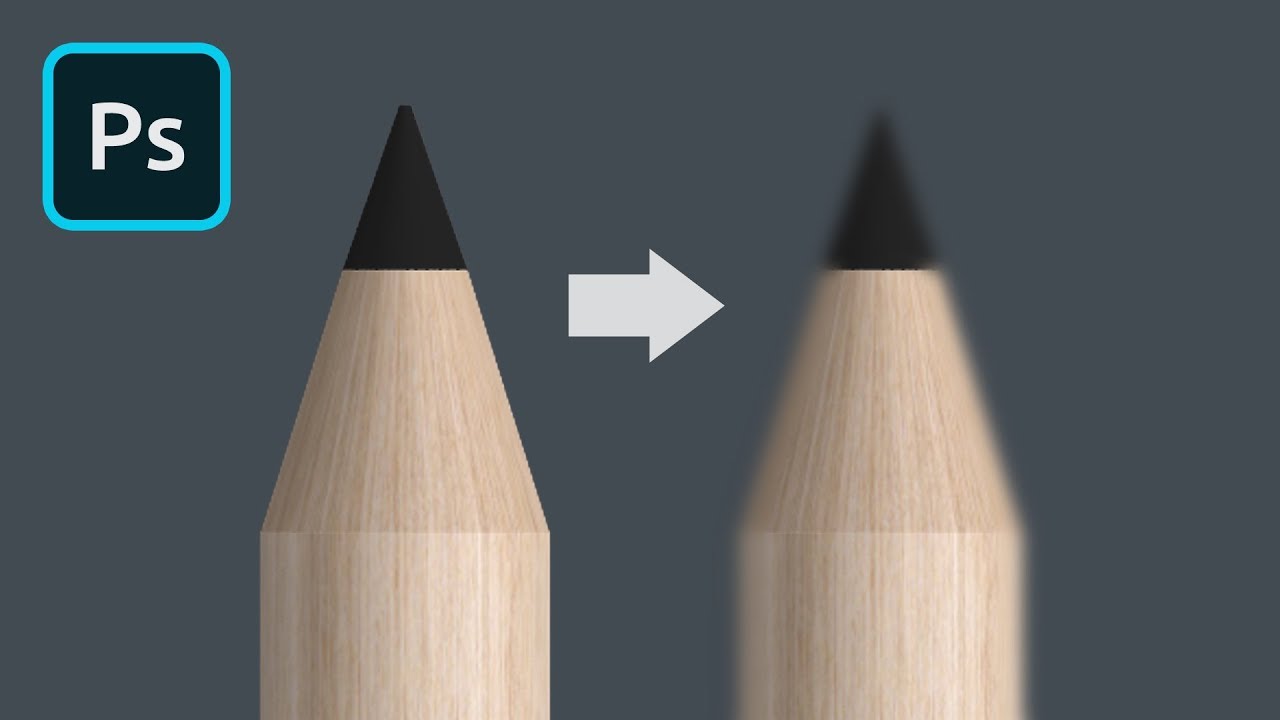
In this tutorial, we're going to learn how to quickly soften edges in Adobe Photoshop.
⭐️ UNLIMITED CREATIVE DOWNLOADS
Get access to over 600,000 ready-to-use photos, illustrations, templates, ...
 queen dew
Day 3 Paint Effects: Oilpaint versus Actionpainting versus Blend Modes👍
Day2 Vector and Raster
abstract parcel
young karma
@young karma Great colors to this! I love the pink tint to everything. Kind of gives me a vibe of some of the classic 80s sci fi/fantasy illustrations that I'm a big fan of. My only suggestion would be to increase the contrast on the man, specifically deepen the darks to match the deep shadows of the environment to make him look like he's in the same scene a bit more. Really cool!
@bleak fossil thanks for the feedback I'll make sure to keep that in mind on my next entries😁
Gave +1 Creative Carma to @coral stone
@nimble shard
Oh, I can see that you added a subject to the image, @young karma! This is very cool! I think the color tones that you chose came together really well with the photo. My only point of feedback would be since the subject is receiving direct light (a light that had no obstacle between itself and the subject, that doesn't hit any object before the subject), he'd probably be positioned on the top of the left rocks, you might replace it to another asset that has some indirect light. Let me know if you have any question 🙂
@coral stone ohh yeah thanks i forgot to keep that in mind when positioning him 😅
nimble shardBOT
Gave +1 Creative Carma to @coral stone
 icy cargoBOT
 deepu#4734 has been warned
Reason: Mass mention
 hollow yarrow
Day04 - Camera Raw Filter (Before)
Day04 - Camera Raw Filter (After)
Almost late on this challenge😅
coral stone
Awesome work @gilded flame! I loved the color palette that you chose for the background. The textures worked out really well. Great job!
Very nice work @topaz bone I loved the wat that you introduced some violet tones on the second version. The color lookup one is also very on point. My only suggestion would be that on the first version, you might give the rocks of the front, where the light is hitting, a little bit more of warm tones, just to match the ones on the bottom left 🙂 Well done!
I like that you chose some green tones for the background, @mortal crescent! I think it adds a cool nature context for the whole scene. Good job!
young karma
Day 2 Vector & Raster passport challenge. Inspired by the Czech crest tried to create a photo composite replica.
The Czech Republic crest used for my inspired for the day 2 challenge.
pliant comet
Day 5 - Content Aware Fill
There is no graffiti in this area of Dubrovnik, Croatia - but there were a lot of people! There are a couple of spots that I am not happy with, but overall this is much better than the edits I tried to make back then.
 sullen fractal
young karma
sullen fractal
young karma
Day 3 Paint effects. Used a mix of brushes, gallery filters and oil painting effect on my photo to turn it into a painting.
untold iron
thanks @bleak fossil
nimble shardBOT
Gave +1 Creative Carma to @bleak fossil
 slim lodge
Hello. Where do I find psd that Paul has used today in Light and Shadow masterclass please? I don't find it on Behance page unfortunately
simple idol
 slim lodge
@simple idol thank you, I need that too 😄 but I mean a photo with a street and glowing orb and the next one with the sea and dragon
nimble shardBOT
Gave +1 Creative Carma to @simple idol
simple idol
Ah, those were not provided. The dragon, I believe came from Turbosquid but I'm not sure where the street and the sea came from.
sterile bane
@cerulean shoal konoha! who's your favorite kage?
cerulean shoal
@cerulean shoal konoha! who's your favorite kage?
@sterile bane It has to be the "hokages". I guess the Sixth or Seventh😍
sterile bane
@cerulean shoal hehe sneaky. mine's the 4th hokage!
gilded flame
Thank you @coral stone for The feedback 😊
nimble shardBOT
Gave +1 Creative Carma to @coral stone
 chilly hawk
Paint Effect Challenge
fringe sun
Content Aware Editing Challenge Day 5. Difficult to use in this image. Used a lot more of the Clone stamp than Content Aware, although I did learn a lot more about all of those tools! 🤪
loud mist
Content Aware Editing. Renovated this bar - quite a challenge. Happy to learn the content-aware edit process. Also used the mixer brush in a smudge mode quite a bit.
untold iron
DCC - Day 5 - Content Aware Editing I have not yet added any elements to the image. It took a while to clean it up 😟 .
 kind ibex
I'm a little late to the party, but here's a past project merged with challenge #3. Before discovering PS daily challenge, I was making my own "challenge" lol. So I designed a soda can with a friend as inspiration.
 prime temple
WhyMe? and DeadKidz
sacred field
I couldn't find the Sand Blaster tool for the brick? This one is done! 🥱
kind ibex
i'm colorblind. growing up, i would get made fun of for seeing the clouds pink instead of gray.. purples instead of blue.. i used to feel bad about the way i saw the world, and now i see it as a strength. here's challenge four. learning to use camera raw settings #❗new-in-photoshop
icy cargoBOT
 emerald_orso, that command is disabled in this channel.
 safe linden
"Where everybody knows your name..." Content Aware Editing for #PSDCC Day 5
compact pecan
My try using the content aware tools. I used one tool per each surfboard. In this case, I found the spot removal tool didn't do a very good job - there wasn't enough pixels I guess because I got a lot of halo-ing.
original image
simple idol
PS Daily Challenge Day 5 Content Aware. I should add some shadows under the planters but we shall see. 😅
coral stone
Super cool work @hollow yarrow! I like the way that you enhanced the sunset mood by increasing the lights on the horizon and on the sea. Amazing job!
Beautiful work, @young karma! Loved how you blended the images and the shapes and still preserved the colors from the background, creating a cool context for the composition. The text and the ornament are looking very nice as well. Day 3 turned out really great, I really like the way that the brush strokes are looking on the petals. Nicely done
Very nice job with the composite, @lucid plover! The content-aware turned out really great with the subject and the small building on the background. My suggestion Is that you might adjust is the mask on these plants from the background. I believe that with the Refine Edge from the select & mask workspace might be able to give you a cool result (there is a great technique with Blend If that you can use to mask the sky as well, here’s a link for a video that shows in-depth how it works https://www.youtube.com/watch?v=YWPoZN2argc). Also, you might make the mountain less blurred and reduce the amount of contrast (for that you can use a Levels adjustment layer and bring the two sliders from the bottom, the black and white points, a little closer). Let me know if you need any help 🙂 Keep it up!
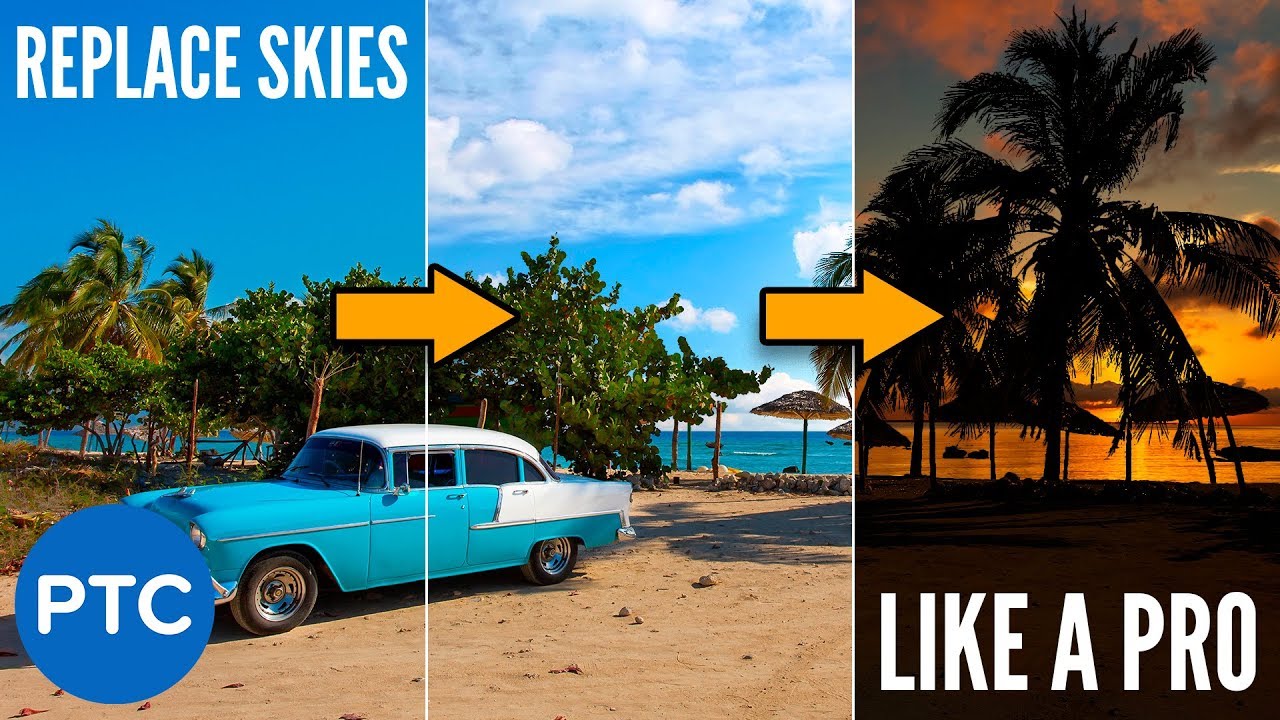
In this tutorial, you will learn how to replace the sky in a photo With Photoshop.
This Photoshop tutorial has two examples.
In the first example, I will show you how to do a simple sky replacement.
Then we will move to a more complex sky replacement with a completely diff...
Fantastic work @pliant comet! Loved the way that you were able to rebuild the entrance area and the stairs next to it. If I hadn't seen the original, it would be really hard to see that the photo was edited. Awesome job!
Cool job @sullen fractal! The way that you changed the whole atmosphere of the image is really impressive! My only suggestion is that, by looking at the original reflections of the sky on the water, there are some ripples. You might replicate the ripples on the moon reflection to make it look even more realistic, for that you can use the Wave filter inside Photoshop. Here’s a link that shows how it works in case you want to take a look https://www.youtube.com/watch?v=TcpEANS9b5g Great job!

Transform a Dull and Flat Photo to an Interesting One by Easily Adding Clouds and Reflections in Photoshop! Learn simple techniques to make natural sky replacements and create realistic reflections.
In this tutorial, we will use the power of blend modes, filters, and basic ma...
Very impressive work in all the versions @cerulean shoal! Loved the dramatic high contrast look of the black & white version! The colorful one is looking super cool as well, especially how vibrant the colors of the buildings are! Nicely done!
The brush strokes are looking super cool @chilly hawk! I also like how the texture of the background plays very well together with the ones of the branch and the bird. Nice job!
@fringe sun combining the tools is a great way to achieving more precise results, Macmat! Really like the new color that you applied to the statue. My only tip on the clone stamp process is that you can create a selection to limit the areas that you’re painting, especially in this area of the ground. You can use the Polygonal lasso tool to “continue” the short wall line on the left and instead of cloning the ground, you can extend the trees and the cornerstone, since you'll have a selection active, the cloning process will be limited just inside the selection helping it to follow the same ground line, increasing the realistic look of the image 🙂 Well done!
This is looking super cool @loud mist! I like how the clean up is neat and especially the new posters that you added. 💯
Don’t worry, @untold iron 🙂 Your edits are looking nice! I like the way that you cleaned up the door. The arcs and the yellow areas turned out very well. Good job!
No problem @kind ibex! Loved the way that the flowers add a cool context for the composition. If you want to take a step further, you might play with some overlaps between the flowers and the can, positioning some leaves or flowers in the front of it. Amazing job with the beach scene! 🙂 Keep it up, you’re doing awesome!
Loved the stylized New York City that you added to the wall, @prime temple! The way that you blended, made the original textures appear from it, increasing the realistic look of the composition. Very well done!
I can imagine the Sand Blaster icon on the Ps toolbar, @sacred field, that would be a nice addition hah! For the bricks you can combine the clone stamp or even the patch tool, it might take you some time. 😄 You can also find an asset that matches and replace the wall, that would be fun hah. Great job!
Yes sure, @whole flame! 😴Haha fantastic work with the removals! Loved how neat the yellow tones are and how you recovered the bricks. Excellent work!
@fluid wharf amazing edits, Abudalla! Loved how you recovered the details from the hazy image. The trees and their details are standing out really great! I also like the edits from the Petra image, though I wonder that if brightening the shadows a little bit would help to recover some details. 🙂 Nice job!
@mortal crescent super cool edits, Key! I like how the tones of the first version are very cohesive with the sky and its reflection on the water. The cyan tones from the second image are looking great as well. :thumbs:
Lovely work @fleet pecan! I loved the creative way that you edited the images. My only tip would be to darken the night version just a bit more, especially those lights on the left. Another tip is that there is a cool Lookup Table that you might take advantage to help you, which is the nightfromday 😉 Very good job!
Really like the way that the edits turned out on the image @safe linden! Especially the smooth yellow tones transition and the clean up of the bricks. Awesome work!
Wow this is looking amazing @compact pecan! Loved the way that you removed the letters and the logo and blended the new words. I like how you kept the shadow on the last surfboard as well. Excellent job!
Very nice edits @No not again! Loved how the you kept the shadows and highlights consistent on the black & white version. Nicely done!
sacred field
@coral stone Thanks, Valdair! I’ll keep those tips in mind for the next time! Have a great weekend! 🙂
nimble shardBOT
Gave +1 Creative Carma to @coral stone
coral stone
This is very creative @simple idol! I like the plants that you added to the image. My only suggestion would be to use a Foliage brush to mask the edges of the plants since right now they are a little smooth, it doesn’t feel very realistic. With the plant layer mask selected > pick the brush tool with a very small size and under the group, Special effects Brushes find this one: Kyle's Concept Brushes - Foliage Mix 2. This brush has a tool preset, selecting it will change the tool to the mixer brush, to keep with the brush tool just press ctrl+alt and click on the brush name. Then with black as your foreground color start to paint on the edges. This will make the blending look even more realistic 🙂. If you don't get a nice result, I advise you to find another asset or even experimenting with another brush. Let me know if you need any help.
You too @sacred field! Enjoy the holiday 🙂
Super cool picture @unique flume! Really like how vibrant the sky is looking. My only suggestion would be to reduce the texture just a touch, so the edges might look a little more natural 🙂 Great job!
simple idol
Ohhh exciting! Thank you @coral stone I’ll try that tomorrow!
nimble shardBOT
Gave +1 Creative Carma to @coral stone
untold iron
Thanks so much 🙂 @coral stone
nimble shardBOT
Gave +1 Creative Carma to @coral stone
unique flume
Super cool picture @unique flume! Really like how vibrant the sky is looking. My only suggestion would be to reduce the texture just a touch, so the edges might look a little more natural 🙂 Great job! 🙂
@coral stone Thanks Valdair ...I see the extreme pixilation from over texturizing, not realizing exactly how I accomplished that feat 😁 I appreciate the advice and did indeed make a revision with your recommendation and it looks much more natural. 👍
coral stone
No problem! 😄
simple idol
The brush worked okay but I decided less is more...
 ember crown
Challenge #5-Content Aware-Version 1
neat sparrow
chilly hawk
Camera Raw before and after Challenge
pliant comet
Thank you, @coral stone !
nimble shardBOT
Gave +1 Creative Carma to @coral stone
young karma
Daily Challenge 200904 - Content Aware
Daily Challenge 200904 original
Daily Challenge 200904 Content Aware Composite
Images used for composite
 fluid wharf
Thank you valdair for feedback
lucid plover
Thank you @coral stone
nimble shardBOT
Gave +1 Creative Carma to @coral stone
 whole flame
as Always, thanks you a lot @coral stone
nimble shardBOT
Gave +1 Creative Carma to @coral stone
bleak fossil
@hollow yarrow Really great clarity and focus to the center of the image on the Day 4 challenge. It really gives the water and sunset a striking look. Very nice!
@young karma Really cool idea and take on the Day 2 challenge! I really like the style of the banner and decorative borders at the bottom. The main thing I notice on the original crests is how clearly the graphic is separated from the background. I think in some of these the color, value, or even texture behind the animal could be pushed/changed a bit more to give it a clearer contrast. Just a thought. Really nice design!
@lucid plover Nice job with the object removal and sky replacement! If you want to get a more natural edge where the grass meets the sky and the trees on the left you might want to try the Refine Edge Brush tool if you haven't already. Though the tree on the right is looking really good. Nice job 👍
@pliant comet This looks great! I think complex object removal and this sort of editing can take a lot of practice but I think you nailed it! Everything is looking really natural and clean. Nice job on those complex textures!
@sullen fractal Ooh, very nice! Great to see how much you transformed this image. The sky swap and object removal look great. The only thing I would suggest would be to maybe give the reflection of the moon a slight blur and maybe lower the opacity ever so slightly. It might give it a more realistic reflection look. This came out great!
 bronze bluff
camera raw
@bronze bluff Cool effects! I like the clear contrast between the bird and leaves against the smooth neutral background. The saturated orange of the bird makes for a great focal point. If you have an issue with your selections on something like the leaves with a slight white ring around the edge you can always go to "Select->Modify" and expand or contrast your selection by a couple pixels which can help with that. These are looking good!
@bleak fossil Thanks for the feedback Sam i will go back and see what i can do there for sure.
@bronze bluff Really strong visual read to this design! I like the overlapping of the shapes here. I feel like the compass rose in the bottom right could even be a bit bigger to balance out the heavy visual weight of the left side. Though I suppose you could get in danger of making the bottom shapes too crowded if scaled too much, just a minor thought. Really cool look to this design!
@bleak fossil It was a small idea simple idea but i do know what you are talking about and thanks again.
whole flame
Paint Effects
Dramatic Landscapes
Camera Raw Filter
i'm not really sattisfied with the result of Paint Effects and the Camera Raw Filter (it's looking just like the original) 😦
young karma
Day 4 Camera Raw Filter. I used my own photo and applied the Camera Raw Filter to make it more sharper, bolder and brighter. Plus applying the healing tools . I was tempted to clear the clouds and make the sky blue but I wasn't sure if that would be over doing it. 🤔
The original photo - Mikulov Castle
fluid wharf
day 5
lucid plover
thank you @bleak fossil I didn't use mask for this edit,I just paint the clouds with cloud brush,and the trees are available in stock picture.
nimble shardBOT
Gave +1 Creative Carma to @bleak fossil
lucid plover
thank you for your suggestions @coral stone and @bleak fossil ,this is my revised version for the Content Aware,I fixed the depth problem on the mountain and also on the sky replacement
nimble shardBOT
Gave +1 Creative Carma to @coral stone
young karma
Day 5 Content-Aware Editing. I applied some of the techniques to my photo but sometimes there was too much content around so ended up using the magnetic lasso tool and brush tool to help me out at times. Struggled with the glasses too.
My original photo.
 tacit condor
PS DCC #2 Vector & Raster
 minor spire
prime temple
minor spire
prime temple
The Forbidden experiment
queen aspen
And with some details to ||#✂challenges-feedback message||
pliant comet
Thank you @bleak fossil
nimble shardBOT
Gave +1 Creative Carma to @bleak fossil
young karma
Day 4 Camera Raw Filter - I went ahead and added a blue sky to my original post. 🌞
safe ledge
camera raw not so happy with these... El Capitan (if you can guess that) and Wadi Shab, Oman. I tried getting "fancy " and cutting bits out to make different layers and then putting them back together again - so I could make one area greener, for example... Didn't work. then I tried to quick select the sky in the wadi shot and paint it a bit but that didn't work either.
ok how do I delete these yucko photos below.
yep hate that
original from the Wadi in Oman
young karma
ok how do I delete these yucko photos below.
@safe ledge -- click on the 3 dots next to the emoji for the photo and choose Delete --
unique flume
Lot of fun working all previous challenges into this one ...literally.
bronze bluff
challenge 5
simple idol
Having fun with this challenge and learning a lot. . . working on the foliage @bleak fossil. I'm going to follow your instructions very carefully after the weekend. Thank you
nimble shardBOT
Gave +1 Creative Carma to @bleak fossil
eternal mica
DCC13 05 200904
topaz bone
I apologise for late submission....
here is the challenge 5
If any corrections to be made, please let me know 🙂
bleak fossil
@chilly hawk Nice job on the paint effect challenge! The background and flowers really push that effect with their heavy texture. I also really like the color contrast between the orange of the parrot and the blue of the background. Makes for a strong focus in this image 👍
@fringe sun Very nice! This Day 5 challenge looks like a tricky one with the dense crowd, really nice job editing them out and keeping a natural look. This is more of a nitpick, but I think the seam of where the bush/hedge/green thing meets the ground on the left side could be lowered down ever so slightly. It kind of looks like the pavement slopes up with how high it is. But again, that's a very minor amount. The purple coloring of the statue is a nice touch, definitely makes it eye-catching. The color change looks really natural too, nicely done!
@loud mist This is really cool! Very nice job on all the removal editing on this. I like how you added a more mural-like painting on the door and posters on the walls. The potted plant is a great touch too! If I may nitpick for a second, I think darkening down the plant just a little, and deepening the dark tones around the bottom of the pot may help it fit the lighting of the scene a bit better. The lighting in the original photo seems to be kind of neutral and overcast, but the plant seems to be in more bright, direct sunlight. Really nice job on this, it definitely transforms the image!
@untold iron You cleaned this up very nicely! All the areas of content aware fill look really nice and natural with the texture intact. I especially like how you were able to get rid of the flower graffiti in the bottom right corner but maintained that texture and natural look of the white paint on the bricks. Nicely done!
@kind ibex That's great, glad you found these challenges and decided to join us! Really nice design, I like how cohesive the colors are. The background painterly effect came out really nicely too. I think it looks great, but I'm kind of wondering if there's a way to make the soda a bit stronger of a focal point compared to the background. Not sure if blurring the background ever so slightly would be the best solution, or darkening it down a bit and brightening that can... or just something to put a bit more focus and contrast on the can. Though honestly it's a minor nitpick if anything, hah. Really nice job, loving the light floral feel to this image 👍
@prime temple Really nice job with the editing and object removal in this challenge! I like how you added your own graphics onto it as well. My only suggestion would be to fit the graphics in the bottom right corner to match the perspective and surfaces of the scene a bit more. For example, maybe masking out the area where it overlaps the ground so it only appears to be on the wall. And even doing a perspective warp so the horizontal lines of the brick match with the direction of the lines on the original brick wall. Nicely done, this looks good!
@bronze bluff Looking good! Looks like you did a nice job of maintaining the wall’s texture with the content aware fill. I think it might help to make the added text look more realistic if you added a very subtle blur so the edges of the text aren’t super crisp, and maybe even lower the opacity and/or saturation a touch to give it a more natural look of being painted on a wall. You could even use a brush and mask to add a little roughness and texture or faded areas to the text if you wanted more of a worn look. Nice job!
@unique flume Hah, very nice idea! And really great job with the content aware fill and touch up, it’s all looking very natural. My only suggestion would be to use the perspective warp on the landscape picture you added on the right side so it lines up with the building line above it and the line where the building meets the street. Looking good!
@safe ledge These came out great! It’s crazy how much of a difference contrast adjustments can make on an image. The river image comes alive with those edits. My only minor suggestion would be on the image of the mountains. It might help to take a little of that deep contrast in the dark tones away from the ridge of the mountain in the center and push more of the deeper shadows into the trees in the center. It might help push more of a natural effect of atmospheric perspective into the image. These are looking solid!
@eternal mica Ooh, cool idea for this Day 5 challenge Ted! The glass door effect is a nice touch too. I think it might help to add a little bit of lighting information on the signs above the door. Perhaps a bit of a drop shadow to give the idea that it's a mounted sign on the wall, and maybe using a blending mode like multiply, soft/hard light, or something to add a little bit of a lighting gradient to give it a more realistic look and not look so perfectly flat. Really nice job on the content aware fill!
@topaz bone Looking good! Nice job with the content aware fill and object removal editing. I like the text you added. Though it might help to switch it to a blending mode (maybe multiply?) that will show the wall underneath it so we can see the bump of the wall on the left side of the word shown in the text for a more realistic look. Very nicely done!
unique flume
@unique flume Hah, very nice idea! And really great job with the content aware fill and touch up, it’s all looking very natural. My only suggestion would be to use the perspective warp on the landscape picture you added on the right side so it lines up with the building line above it and the line where the building meets the street. Looking good!
@bleak fossil
...wow! Outstanding eye for detail you have there. I actually did use perspective warp on the Duncan Phyfe chair, but I missed that detail on the landscape. I'll now remember to check perspective when dropping ANYthing into a scene!
eternal mica
@bleak fossil Thank you Sam. This was a lot of detail work getting the image cleaned up. I'll try your suggestions and repost.
nimble shardBOT
Gave +1 Creative Carma to @bleak fossil
eternal mica
@bleak fossil I added a lot more depth/texture to the signage and the text. I hope this is the look you were suggesting. I think it looks dramatically better. Thank you.
nimble shardBOT
Gave +1 Creative Carma to @bleak fossil
 latent hatch
safe ledge
latent hatch
safe ledge
@bleak fossil thank you!
nimble shardBOT
Gave +1 Creative Carma to @bleak fossil
young karma
Content-Aware Editing. I practiced using the techniques taught by Paul Trani on a different image. Anyone have advice on how to tidy up the handle and edges of the basket?
~Before~
 whole tangle
Here is my day 4 camera raw challenge, before and after.
After. I was unsure of removing the reflections on the window, but chose to keep them.
eternal mica
@young karma Did you try Transform>warp? Puppet tool? Maybe add some shadow to add depth/realism.
thorn urchin
Day 5 Before
Day 5 After
The automated content removal didn't work perfectly, so I had to do patching and cloning as well.
young karma
@eternal mica Thank you for the tip, I didn't think of that. Will definitely give it a try.
nimble shardBOT
Gave +1 Creative Carma to @eternal mica
 primal fulcrum
Ok @brittle slate I am so sorry I ever said you were going easy on us! This is by far the hardest clean up I have ever done.
 lilac raptor
Hey guys!
I have a question when designing wordmarks and youre choosing a font how do you go about editing the font so that it fits your brand especially if you found the perfect font.
spare badge
day 5-content-aware-editing
chilly hawk
Content Aware Challenge
bleak fossil
@chilly hawk Looking good! Very nice job with the content aware fill and object removal. The texture of the wall is looking nice and natural. The graphic on the door and sign out front are a nice touch!
@spare badge Nicely done! All the graffiti removal and content aware fill came out really well. The texture of the wall looks really natural. Nice work on the sign on the door too. It could be nice to put the same shade of red on the top of the door in place of the white background area behind the wine glasses at the bottom of the door. It would help the wine glasses read a bit better and help unify it with the sign above. It might also help to darken the white potted plants a bit to better match the overcast lighting of the scene. Looks good!
spare badge
Thank you for your feedback. @bleak fossil will work on that.
nimble shardBOT
Gave +1 Creative Carma to @bleak fossil
bleak fossil
@primal fulcrum Hah, there's definitely a ton to be removed in the source photo. Really nice job cleaning all this up, the textures of the wall are looking good. I think it might help to darken the red bricks on the right side of a wall a bit, they look a little too bright to match the rest of the scene. Nicely done!
@thorn urchin Very nicely done! The areas where you removed the people look very natural and convincing. The edits also add some really nice contrast and clarity to give the photo more interest. Nice job!
@whole tangle Looking good! This gives the image such a stronger focus on the cat and really balances the look of everything. I love the color it brings out in the cat. The only thing I notice is a bit of a sharp edge on the cat's fur. I'm not sure if you used the Refine Edge Brush tool when masking out the cat but that's a great tool for getting natural soft edges on complex forms. Great edits to this image!
whole tangle
@bleak fossil Thank you Sam! I noticed the dark edge too and you’re exactly right. I did not use the refine edge tool but am aware that I should have! I was being too hasty. I think I will go back and redo it. Thanks again! 🙂
nimble shardBOT
Gave +1 Creative Carma to @bleak fossil
bleak fossil
@young karma Nice job, this is an interesting image to try it on. It can definitely be a useful tool in many different circumstances. I think the key for this one would be to get the basket on its own layer. The basket handle is clearly defined, so if you spend some time to get a clean selection around the entire basket and put it on its own layer and then have the background separate you should be able to use content aware fill and other tools on the background layer without having to worry about affecting the edge of the handle. Let me know if that makes sense or not. It's looking good!
@latent hatch This turned out great! The added contrast and color really makes the image pop and feel more alive. I especially like the contrasting colors it brought out in the water and boat. Great edit!
@queen aspen Great edits! All the object removal is looking really clean and natural. I really like the edits you made with the glowing "Bar" and welcome sign above the door. I feel like it might look nice to give the "Welcome" sign a bit of a drop shadow to make it look more solidly on the wall. Even if the sign glows a bit they often have a solid backing, and it might give the sign a bit more contrast to pop out even more. It might also look nice to fill the square space at the top of the door with a similar/same graphic to give it a unified look. Very nice work!
hollow yarrow
Day 05 - Content-Aware Editing
original image by: eye for ebony - Unsplash
Day 05 - Work in progress
chilly hawk
Paint Effect_A picture of my pet Willie.
spare badge
Another try on content aware editing
abstract parcel
Challenge 5 - Content Aware Editing
 slow stirrup
@chilly hawk, is that Oli Paint effect? It's really beautiful!!
queen aspen
@bleak fossil : Thanks for your feedback. I agree with you about drop shadow and maybe about a door. So, I made some changes:
nimble shardBOT
Gave +1 Creative Carma to @bleak fossil
coral stone
@hollow yarrow woow this turned out really great! Loved the new textures and the stroke around her edges. Also, you did a pretty amazing job in creating some eye contact between the subject and the duplicate, it's a great trick to make the viewers to keep looking at the composition. 💯
@chilly hawk what a beautiful work, Cecilia! I loved the tropical color palette that you added. The palm leaves on the top worked out great as a natural vignette for the composition. Great job with the textures as well!
@plain sable super cool work, Susan! I like how you merged the three assets in a great way, keeping the details and the informations from the dark areas. Day 2 is looking very nice as well, the bevel & emboss was a cool touch to separate the cardinals from the background, my only suggestion is just a personal preference, but I believe that a gaussian blur on the background might be helpful in making the graphics to stand out a little more, you can keep the amount low, so the image won't lose its important details. I loved the background colors from day 3 💯
Oh this is looking very nice @spare badge! I like how you preserved the textures and added new elements. My only suggestion would be to apply a shadow to the lamp on the top of the door, you can use the drop shadow layer style and make it on the same direction as the one that the arc and top areas are casting (from the top to the bottom). Great job! 🙂
@covert loom lovely work, Mahedi! Loved the liquify on the background of the first version. The textures of the second one are looking very on point. Nicely done!
Hi @abstract parcel really like the way that you blended the text. I wonder if you could share with us the original, so we can see what you removed with the content aware 🙂
abstract parcel
ok
spare badge
Thank you @coral stone for your feedback. It skipped from my mind. Thank you for guidance.
nimble shardBOT
Gave +1 Creative Carma to @coral stone
coral stone
No problem 🙂
 covert loom
Thanks @coral stone
nimble shardBOT
Gave +1 Creative Carma to @coral stone
coral stone
Thanks for sharing @abstract parcel! You did a very impressive job removing the elements! The way that you preserved the textures turned out really cool. If you want you can use the crop tool for the element on the left, so there won't be any distractions 🙂
nimble shardBOT
Gave +1 Creative Carma to @abstract parcel
nimble shardBOT
Gave +1 Creative Carma to @coral stone
coral stone
@abstract parcel there is a cool trick that you can use if you want to remove those darks from the left. Press ctrl+shift+alt+E to create a merged copy of all layers,with the spot healing brush selected, choose Lighten as the blend mode for the tool on the top bar 👇. Then paint on the dark areas. Ps will preserve the lights of the areas that you're painting and will fill those darks based with the lighter content around 🙂
nimble shardBOT
Gave +1 Creative Carma to @coral stone
hollow yarrow
@hollow yarrow woow this turned out really great! Loved the new textures and the stroke around her edges. Also, you did a pretty amazing job in creating some eye contact between the subject and the duplicate, it's a great trick to make the viewers to keep looking at the composition. 💯
Thanks @coral stone, it was a quick one (not a big content-aware challenge😉 ). I'working on another one more challenging...
Coming soon...
bleak fossil
@queen aspen Ah, I like it! Very nice 👍
bleak fossil
@covert loom I really like what you did with the colors in each of these designs! They all have a distinctly different feel with the different color palettes. The last one has a bit of a surreal feel with the red sky at the top too. Nice work!
@abstract parcel Really nice job with the content aware fill! It looks like it kept the clean separation between the brown and blue parts of the wall very nicely. The updated changes look good too. One minor suggestion might be to make the dark areas of the text in the blue area the same color of the darker brown that we see in the upper area of the text. That way it will look like the text was painted directly over the wall instead of looking like the blue was glazed over the text, if that makes sense. It’s looking good!
@plain sable These are all really solid! I like the amount of vibrancy and contrast you added with Challenge 1, it really adds a lot of visual interest to an otherwise simple image, and really brings out the textures. I like the cohesive colors in Challenge 2, and the design is looking solid. Great colors in Challenge 3, and I like how well the parrot stands out from the background in terms of color and texture contrast. These are all looking very nice!
@chilly hawk Interesting textures in this paint effect challenge! The background almost has a sand art type of look, or even pastel with that texture. Really nice contrast between the bird and the background, the image has a nice focus to it. Very cool that you used your own image too!
@hollow yarrow Really cool idea for the Day 5 challenge! I really like the stylized elements of the painted version on the wall you added to give it more of a natural painted look. And of course the texture of the wall shows through very nicely to push that effect. I love seeing the process GIFs as well 👍
@north galleon Very cool! Before seeing the "before" image I wasn't even sure what the edit was. The filled/patched area looks really natural with the rest of the patterning of the image. Really helps focus the image on the art and design too, great edit!
abstract parcel
ok
north galleon
@bleak fossil thanks for the feedback.
nimble shardBOT
Gave +1 Creative Carma to @bleak fossil
nimble shardBOT
Gave +1 Creative Carma to @bleak fossil
 plain sable
Thanks @coral stone I'll try the blur 🙂
 wet thistle
plain sable
wet thistle
plain sable
Added a bit of blur to the image
plain sable
Made a tweak to the shadow behind the bar sign
arctic rover
Where I started
Where I wound up. Since New York was the passport definition (in name only!?) this is the real Tri-Boro bridge which has an IRL explosion of green parrots. The rest is a fantasy of camera raw filters and playing with light.
coral stone
Loved the way that you blended the Photoshop logo to the door @wet thistle! The textures popping from the graphics are looking great as well. My only suggestion would be to reduce the saturation of the spray cans on the bottom area, just to match even more the saturation of the other elements 🙂 Well done
abstract parcel
wet thistle
As always, thank you @coral stone !
nimble shardBOT
Gave +1 Creative Carma to @coral stone
abstract parcel
Thanks @bleak fossil
nimble shardBOT
Gave +1 Creative Carma to @bleak fossil
covert loom
Thanks @bleak fossil
nimble shardBOT
Gave +1 Creative Carma to @bleak fossil
 ruby panther
Challenge 2. Trying to catch up after staycation.
ruby panther
Challenge 3. Still trying to catch up...
steep inlet
day 3-paint effects
young karma
Daily Challenge 200904 - Content Aware No.2 - Made some tweaks
Daily Challenge 200904 - Content Aware No.2 - ORIGINAL
Daily Challenge 200904 - Content Aware No.2 - COMPOSITE
oblique anvil
This is my Day 2 Raster Vector Challenge
 cold oyster
Content Aware Animated
coral stone
Great job with the content-aware @hollow yarrow! I like how you changed the colors of the elements as well, especially the ones from the car. Since it has a shiny surface, it can be tricky to change the range of colors preserving the highlights. Awesome job!
Nice work @cerulean shoal! I like the way that the colors are looking consistent in the building. My suggestion is that since there are some lines on the bricks you can use the clone stamp tool combined with the vanishing point filter, to clone it in perspective, making it look even more realistic. Here's two links that show how to do that: https://www.youtube.com/watch?v=hshPCtAwSuo https://www.youtube.com/watch?v=NQnsB2LrPyg
Also, if you want the graphic to bend even more with the surface, I'd recommend you apply the Multiply or the Linear Burn blend mode 😉 Let me know if you need any help!

Learn how to remove objects maintaining the patterns or texture that follow complex perspectives with Photoshop! In this tutorial, we will explore the "Vanishing Point" filter in Photoshop, and learn how we can use it to define and work in perspective.
We will also learn how ...
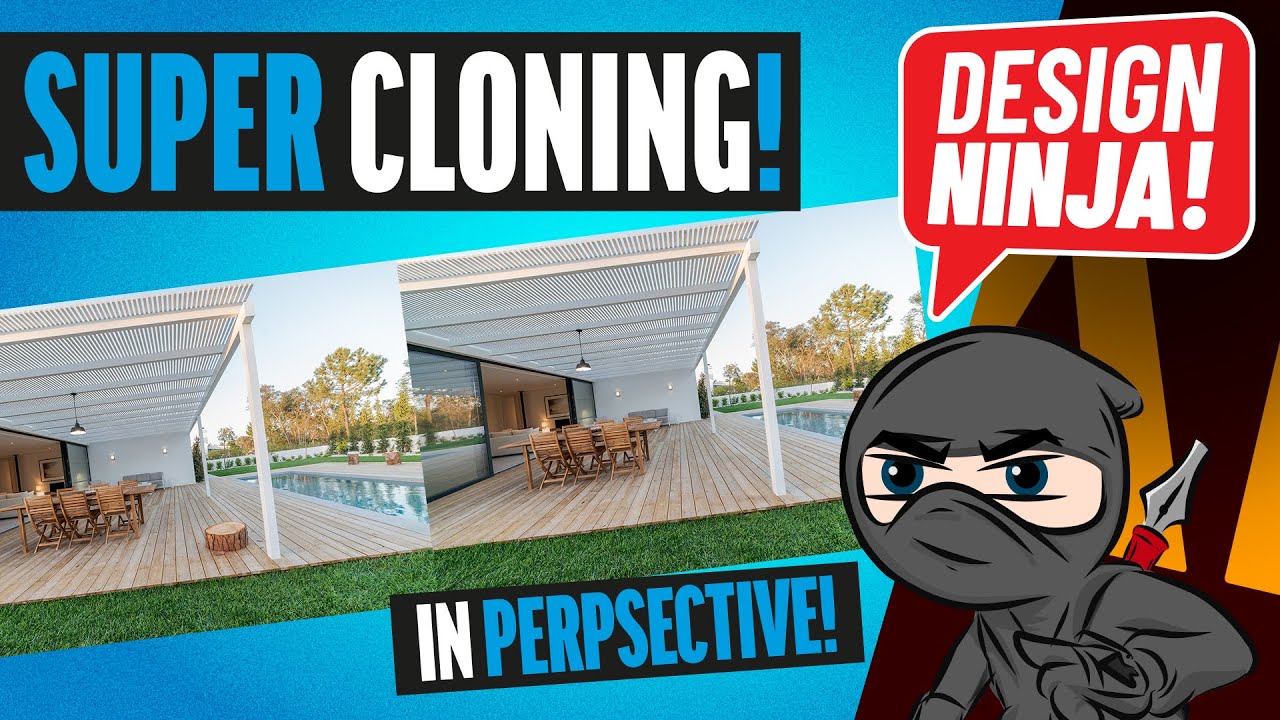
Healing where there's perspective involved can be really tricky—did you know there's a classic feature in Photoshop that can help? In this movie you'll learn the basics and then some more advanced methods with that feature.
@ruby panther! Missed you last week! Super cool works! I like the 3D effect on the text for challenge 2! The flare that you added was a very nice touch for it as well. Loved the colors of day 3,the blue tones on the background add a nice sense of depth for the composition. Nicely done!
@cold oyster oooh this turned out super cool! Really like how the images are blending very well, and especially the reflection that you added to the eye. My only suggestion would be to use the Spot Healing Brush to remove/reduce this pattern that the removal created 👇 Great job!
mortal crescent
Took me a while to do this but finally done 👍
cerulean shoal
Nice work @cerulean shoal! I like the way that the colors are looking consistent in the building. My suggestion is that since there are some lines on the bricks you can use the clone stamp tool combined with the vanishing point filter, to clone it in perspective, making it look even more realistic. Here's two links that show how to do that: https://www.youtube.com/watch?v=hshPCtAwSuo https://www.youtube.com/watch?v=NQnsB2LrPyg
Also, if you want the graphic to bend even more with the surface, I'd recommend you apply the Multiply or the Linear Burn blend mode 😉 Let me know if you need any help!
@coral stone Thanks for the tips. I'll look into it asap.👍
Learn how to remove objects maintaining the patterns or texture that follow complex perspectives with Photoshop! In this tutorial, we will explore the "Vanishing Point" filter in Photoshop, and learn how we can use it to define and work in perspective.
We will also learn how ...
Healing where there's perspective involved can be really tricky—did you know there's a classic feature in Photoshop that can help? In this movie you'll learn the basics and then some more advanced methods with that feature.
ruby panther
Thanks @coral stone ! Missed being here with all of you! But I'm BACK!😆
nimble shardBOT
Gave +1 Creative Carma to @coral stone
hollow yarrow
Day 5 - Content-aware Editing
Work in progress Video
untold iron
Thanks 🙂 @bleak fossil
nimble shardBOT
Gave +1 Creative Carma to @bleak fossil
covert loom
Content Aware
safe linden
AFTER : please give suggestions to make it better:)
@cerulean shoal I think content aware fill has a challenge on brick/block surfaces. Luckily, it is easy to clone a section of blocks, and paste it over the area you want to cover, so that you end up with lines that match the wall. And for your own art, change the layer style (I tried hard light and color). so that that the block pattern shows through the art like the banksy you are replacing. Here is a rough version using the clone and layers.
mortal crescent
Revised challenge 2
 brittle slate
Fun with filters!
safe linden
#PSDCC Day 6 Pixelate, Pointilize, Mezzotint the color halftone from the old print days
pliant comet
Day 6 - Filters with Paul Trani.
This was a lot of fun!I think I'll try more later. (And I need to practice my puppet warping.)
 feral oak
cold oyster
feral oak
cold oyster
Day 6 - Pixelate & Mezzotint
 silver trench
Day 6 -Wind Effect and Motion Blur 🙂
bleak fossil
@hollow yarrow Super cool, I love the animation! I really like how you changed the color of the scene to match the car. Breaking the car's segments up looks great, really nice palette and contrast to the whole image. Very nice process animation too!
@ruby panther This bridge photo definitely transforms this image, really brings out the shapes and balances the values to make everything readable. It really pushes the whole warm/cool contrast of the colors with the yellow and blue tones as well. Very nice work!
@covert loom Nice job with the content aware fill and object removal! The texture of the wall is looking nice and natural. The way you created some complimentary contrast with the purple tint of the ground makes for an interesting look. Nice work!
@mortal crescent Ooh, this is looking great! Very nice changes. The graphics all have a nice clear read against the background now. I like what you did with the masking and overlapping shapes between the compass rose and boat too. Looks good!
@safe linden Looking good! I really like the colors and halftone texture together, I could imagine this being a real Time cover. Nice clean graphic look to the cover too. I like how you kept the text textureless, it gives it a nice contrast from the background. Nicely done!
@pliant comet I love how far you pushed the stylization of this image! Really cool look to both the background and the astronaut. I like how they have a different style and effect to separate them from each other clearly. One thing I think might look good would be if you kept the edges of the astronaut sharp with a mask that follows the sharp edges of the cube shapes, but then fade the edges of the mask a little to give them a lower opacity look if you want a softer transition. Hopefully that makes sense. It might just give the edges a look that matches the astronaut's style a bit more instead of being so soft. Really nice work!
@feral oak Very nice! Really nice job on the stylization of the astronaut and background, they both have a great look to them. The color palette and contrast of the astronaut against the red planet are working really well. Nicely done!
@lucid plover The glitch effect is looking good! The blue tint definitely adds to that digital look 👍
lucid plover
thank you @bleak fossil
nimble shardBOT
Gave +1 Creative Carma to @bleak fossil
 dapper basin
Day 3 challenge -Paint Effects @brittle slate @quartz bear @bleak fossil
 quartz bear
Hi @dapper basin ! I'm not a mentor for the Photoshop challenges, but I think your bird photo edit looks great! I love the effects you added to the text and the colors look great.
pliant comet
Thank you, @bleak fossil ! I will definitely try your suggestion. I wasn't happy with the way the astronaut meshed with the background, but also wasn't sure how to fix it.
nimble shardBOT
Gave +1 Creative Carma to @bleak fossil
bleak fossil
@cold oyster Really interesting combination of effects here! I like the stylized feeling it creates, and it really helps tie this composite together in a cohesive look. It could be nice to see a bit more clarity/higher resolution in the focal point of the image, depending on what you want that to be. Either the dog's face or the photographer. Just an idea. Very cool!
@silver trench Looking good! I really like the contrast of the clean graphic lines through the image against the more textured motion lines on the runner. The faded blue effect behind the runner is a great touch too. The neon blue/red theme makes for a really interesting style to this image. Nicely done!
@oblique anvil The Day 2 design is looking very nice! There's a nice visual hierarchy in this image to lead the eye around, with the goose figure acting as a nice focal point. Really nice job on the vector designs!
@young karma Great composite! Really nice job with the content aware fill on the boat. My only suggestions is I think you could cool down the light that's hitting the boat/buoy/water to tint it slightly more blue (sometimes I just use a cooling photo filter for this effect) and even maybe darken it down ever so slightly to look more like moonlight and less like direct sunlight. It might also help to bump the glow of the moon up quite a bit to match the feeling that its a bright, full moon that's creating all that light. If you look up images of full moons you'll see how much of a glow they have in the dark night sky. Really nice work with these images!
@dapper basin Great stylization! The bird has a great soft look to it, and it reads very nicely against the contrasting colors and texture of the background. I also really love the texture and style you got in the text, very cool look to it. The darker background really does a great job of allowing the text and bird to pop out and balancing out the image. Looks good!
@steep inlet Nice job brightening the image! It adds some nice clarity to the photo. It kind of reminds me of a slightly aged look, or like an Instagram filter that gives that effect. I think that's a cool look, but if you wanted more of a modern look it could help to get a little more of the depth back in the dark tones, you'd just have to make sure to balance the levels or curves adjustment to keep some dark tones while still having the image brighter overall. Either way it's looking good 👍
@ruby panther Loving the colors in your painterly fish image! The texture and style of it really ties everything together nicely. I really like the text as well, the font seems to match the image nicely and the colors help tie it into the colors of the scene. Really nice vibrancy to this image!
loud mist
Fun! Enjoyed playing with some filters I have seldom used. Decided to apply to a flower collage with crystalize on the hibiscus, extrude on the berries and mezzotint on the orange cactus flowers
Here is the collage with no filters
On the flower collage what was bright orange on my monitor was a dull orange brown after uploading!
bleak fossil
@loud mist Odd, click "Open Original" after clicking on the image and the bright orange comes back. Sometimes Discord compresses the image thumbnails oddly... but usually it's not that noticeable for a simple JPEG. Usually it's something more obvious when uploading an animated GIF.
@loud mist Really nice work with the filters by the way! It's definitely fun playing around to see the different options Photoshop has to work with. I'm the same way, there's handful of the usual tools I use so it's easy to forget what else there is. Nice job masking out the different areas of the image. I especially like the effect on the hibiscus flowers!
dapper basin
@dapper basin Great stylization! The bird has a great soft look to it, and it reads very nicely against the contrasting colors and texture of the background. I also really love the texture and style you got in the text, very cool look to it. The darker background really does a great job of allowing the text and bird to pop out and balancing out the image. Looks good!
@bleak fossil Thank you so much for your comment!
Hi @dapper basin ! I'm not a mentor for the Photoshop challenges, but I think your bird photo edit looks great! I love the effects you added to the text and the colors look great.
@quartz bear Thanks a lot Jack! 👍 😁
steep inlet
@steep inlet Nice job brightening the image! It adds some nice clarity to the photo. It kind of reminds me of a slightly aged look, or like an Instagram filter that gives that effect. I think that's a cool look, but if you wanted more of a modern look it could help to get a little more of the depth back in the dark tones, you'd just have to make sure to balance the levels or curves adjustment to keep some dark tones while still having the image brighter overall. Either way it's looking good 👍
@bleak fossil got it..thanks for your feedback 🙂
oblique anvil
@bleak fossil Thank you, Sam.
nimble shardBOT
Gave +1 Creative Carma to @bleak fossil
 wary swan
My before and after images Challenge 4 Raw Filter.
Before:
After
I have not done it extrem edit. done it from the Raw image from my Canon PhotoShot SX70 HS
winter tinsel
Challenge #6 👽
queen aspen
Challenge #6: Filters
untold iron
DCC - Day 6 - Pixelate, Pointilize, Mezzotint
young karma
@young karma Great composite! Really nice job with the content aware fill on the boat. My only suggestions is I think you could cool down the light that's hitting the boat/buoy/water to tint it slightly more blue (sometimes I just use a cooling photo filter for this effect) and even maybe darken it down ever so slightly to look more like moonlight and less like direct sunlight. It might also help to bump the glow of the moon up quite a bit to match the feeling that its a bright, full moon that's creating all that light. If you look up images of full moons you'll see how much of a glow they have in the dark night sky. Really nice work with these images!
@bleak fossil - thx Sam , I will work on it..
pliant comet
@queen aspen I was scrolling through -when yours came up I thought, "Ohhh!" I really like what you did with the moon!
queen aspen
@pliant comet - thanks!
nimble shardBOT
Gave +1 Creative Carma to @pliant comet
sacred field
An interesting challenge!
eternal mica
DCC13 06 200908 Saratoga Race Track Saratoga Springs NY 07/2019
Sorry, the jpg save on the first upload didnt show the image properly
This is a little better. The mezzotint on the last 2 horses is not saving exactly as I have it in the psd format.
arctic rover
Fun with filters
 sweet fern
My take on Bowie's "Space Oddity." I wonder how Major Tom felt.
simple idol
PSDailyChallenge6. Photo taken in my neighborhood in Brooklyn. I thought the costume was interesting...
ember crown
Challenge 6: The Unknown reached!
main talon
coral stone
Cool edits @wary swan! Really like the contrast adjustments you made and how they made the image even more interesting, even the reflection on the lake. This is totally optional, but if you want, you might increase the saturation just a bit, to recover some color information among the forest and grass, you can easily do that increasing the vibrance slider (Vibrance will act as a smart saturation, preserving the areas that are already saturated). Great job! 💯
I like the way that you distributed the effects, @winter tinsel! The reflection on the astronaut uniform turned out to be amazing haha! Well done!
Very nice blending @queen aspen! Loved how you created a transition from the extrude to the crystallize effect for the background. The crystals around the nebula are looking like fragments of an explosion. Great work!
Super cool effects combinations @untold iron! I like how you did the edges of the planet. The way you used the wind effect to create a subtle disintegration for the astronaut was a nice touch. 👍
Haha @sacred field really cool job with the puppet warp, Marc! Loved the little addition on the left 😄
@eternal mica this turned out really cool! Loved that you added the wind effect to the horse to create the movement impression. The combination with the color halftone is looking very nice as well. Looks like the wind effect brought some of the black background on the left edge, you can easily adjust that by scaling up (and maybe shifting it to the left) the image just a touch 😉 Awesome work!
I like how the effects made all the elements came together really nicely, @sturdy vault! I absolutely loved the effect on the background. Great job!
Wow @arctic rover! Loved the great movement that you added to the water. The effect on the bridge is looking great, I like how it feels like some plants have grown throughout the structure. Excellent work!
This is very cool @sweet fern! I like the liquify filter on the astronaut, it makes it look like it’s being absorbed bt the planet. Nicely done!
The wind effect and the elements moving turned out into a great combination, @simple idol! It adds a nice sense of movement to the scene. Well done!
This is really great, @ember crown! Loved the extrude results on the moon! The glitchy effect on the astronaut was a great way to tell a story, it makes me think that he lost connection to the spaceship and so on… Good job!
@main talon this is looking amazing! I like how your work makes me want to touch it to feel the textures. The head replacement added a nice interesting look to the composition. Excellent work!
simple idol
Thank you @coral stone’
nimble shardBOT
Gave +1 Creative Carma to @coral stone
 fleet pecan
Filter Fun 😁
coral stone
haha this is super cool @fleet pecan! I like that you played with some overlaps with the text. The shadow was a super cool touch to enhance the sense of depth. The filters came out together really nicely as well! 🙂
tame jacinth
Filters
compact pecan
I could have spent several more hours just playing around with these filters, but I gotta call it a night.
bronze bluff
The 6th Challenge
eternal mica
@coral stone Thank you for your critique. I saw that and didnt know where it came from. As always, you gave me a simple easy solution. I Transformed it out of the image. Im still not happy with the way the jpg transition deals with the mezzotint. I left it in because I never used it before. (I'll work on it more the next time I use it.) Here it is.
nimble shardBOT
Gave +1 Creative Carma to @coral stone
coral stone
@eternal mica if you export it as a PNG does it get better? You can also try the Save For Web (File > Export > Save For Web) and try the PNG-24 or the JPEG Hight to see if we get any luck
@tame jacinth very cool work! I like how you played with the tect on the planet and the way that the effects are looking on the background. My only suggestion would be to add a little bit of shadow on the subject on the right, casted by the one on the left, just to add more depth to the scene. You can use a soft round brush with low flow > create a new layer between them > then paint 🙂
This turned out great @young karma! I loved how the effects matches really nicely the movement of the subject and the style as well. Fantastic work!
tame jacinth
Thanks Valdair Leonard
coral stone
@compact pecan really nice composition, Hugh! I like how the textures on the background are looking and the colorful planet on the left corner. If you want, you might adjust the rocket position to make it look like it's going to one of the two planets. This will help you to guide the viewers eyes and tell a story at the same time 😉 Well done!
Great job with the effects, @bronze bluff! I like how the edge of the planet is looking and the small fragments throughout the background. 👍
young karma
This turned out great @young karma! I loved how the effects matches really nicely the movement of the subject and the style as well. Fantastic work!
@coral stone -- Thx
sturdy vault
@coral stone Thanks. Background two filters.
nimble shardBOT
Gave +1 Creative Carma to @coral stone
sturdy vault
@sweet fern very cool effect on the astronaut.
fluid wharf
 unkempt field
Day 6 - Filters: Extrude
 sharp hedge
young karma
sharp hedge
young karma
Daily Challenge 200904 - Content Aware - Composite redo
spare badge
Day 6 - filters
 vague swift
bit of catching up.... day06- mines a bit tame 🙂 re-filters
covert loom
Thanks @bleak fossil
nimble shardBOT
Gave +1 Creative Carma to @bleak fossil
bleak fossil
@vague swift Great composite for the Day 6 challenge! Really loving the colors and unified look to the whole image. The lighting and everything seem to work really well together. I really like the texture of the filter around the planet and top left of the image, though it might be nice to see that level of grain consistent throughout the whole sky. Though it really just depends on the look you’re going for. This came out great 👍
@spare badge Very nice variety of filter effects in the Day 6 design! I especially like how you applied the filter on the background planet and astronaut to one side, it gives it an interesting sense of motion. Really cool colors too!
@sharp hedge Really awesome effect to see on a portrait image! I especially like how you have the most contrast and definitely in the face to really draw the eye. Kind of makes me think of those elaborate images people create with Minecraft blocks or Legos, hah. Really cool effect!
@unkempt field I really like how heavily you pushed this effect and how it almost fades into abstraction minus the bit of the astronaut's helmet we can see. It could be nice to see the effect a little on the helmet for a more gradual transition, just for a slight pixelation effect, but it just depends on the look you're going for. The helmet kind of looking like it's behind all the blocks is cool too. Really great colors on this!
@fluid wharf Really nice variety of filter effects on this image! The effect on the astronaut is looking really interesting, though it could be a nice look to see a more gradual transition between the effect and the astronaut if you masked out the effect with a soft brush. Just depends on the look you want of course. Nice work!
@eternal mica Wow, really interesting combination of effects here. I like how much the rider in the center and horse on the very left kind of look like they're glitching in or out of reality. The background effect adds a lot of a sense movement too. Very nice 👍
@bronze bluff These effects are looking good! I like how the astronaut kind of looks like he could be going through some spacetime warp/wormhole situation. Kind of a reality distorting effect. Looks cool!
@compact pecan Hah, for sure, definitely something you can play around with endlessly. Nice job on the different effects here! I especially like that sort of tie-dyed look of the planet in the upper left. It could be nice to brighten up the smoke trail to make it contrast the background better, but that's just personal preference really. Nice job!
@young karma Ooh, so good, you nailed it with the revisions on the ship image. Your mosaic image came out great! I love the fragmented effect on the pieces breaking away from her body. The dancer also contrasts really nicely with the background. A lot of great energy and motion in this design!
@tame jacinth Nicely done Lore! The filter effect and puppet warp are looking good. Really nice job on the masking of the faces within the suit too!
young karma
@young karma Ooh, so good, you nailed it with the revisions on the ship image. Your mosaic image came out great! I love the fragmented effect on the pieces breaking away from her body. The dancer also contrasts really nicely with the background. A lot of great energy and motion in this design!
@bleak fossil -- Thx for you help
eternal mica
@bleak fossil Thank you so much Sam. I enjoyed this challenge a lot. Playing with filters all together to merge the effects is really eye-opening. Great tutorial by @brittle slate
nimble shardBOT
Gave +1 Creative Carma to @bleak fossil
chilly hawk
Pixelate, Pointilize, Mezzotint Challenge
ruby panther
@bleak fossil Thank you for your feedback! 😃
nimble shardBOT
Gave +1 Creative Carma to @bleak fossil
cerulean shoal
Re submitted: @safe linden I cloned the walls and it worked a lot better :)(I didn't have time to do both sides)
whole flame
mortal crescent
Challenge 6, filters. I enjoyed this challenge
topaz bone
Challenge 6
here, I did crystallise,extrude, wind effect nd for additional highlight, I did oil paint effect (only for bg) in this...
😃
cold oyster
@bleak fossil I adjusted it a little bit so the dog's face comes though more, does it look better?
spare badge
Thank you for your feedback! @bleak fossil
nimble shardBOT
Gave +1 Creative Carma to @bleak fossil
eternal mica
@cold oyster awesome. I love the improvement.
primal fulcrum
I decided to keep going and this is now the final version
 shy bobcat
Day 6 - Pixelate, Pointilize, Mezzotint
ruby panther
Challenge 6. Fun with filters.
winter tinsel
Challenge #5 Content Aware Editing. (My original photo is by Hanna Cauhepe on UnSplash.)
What’s the best way to duplicate texture like the garage doors in this image? At one point I was using 3 different tools to get the colors and texture right. ...still working on it.
fringe sun
Day 6 Challenge - Filters
coral stone
@chilly hawk beautiful work! I like how you achieved a nice sense of depth by playing with the astronauts' scale. If you want to enhance this effect, you might position the little rocket behind the astronaut in the middle and create some overlaps. This will also help it to look like the rocket is really behind it according to the scale 🙂 Well done!
covert loom
Filters
coral stone
@left abyss super cool edits, Nicole! I like how the content-aware removal didn't create a repeated pattern, especially on the ground area. The only thing you might adjust is this area where the brick lines meet, since they are a little darker than the nearby areas, they seem to appear more, you can easily adjust that by picking a sample with the clone stamp tool of the last line of bricks, and paint there! 💯
hahah that's cool, @ruby panther did you draw it? I like the removals on the windows and how you kept the lines consistent. The left wall is looking great, especially how you preserved the lighting of all the areas. Nicely done!
Loved the 3D look of the planet, @whole flame! I think that it adds a cool depth to the scene. My only suggestion is that you might consider decreasing the intensity from the shadows/glow of the shape just a bit, so the whole composition might look even more balanced 🙂
Very nice job, @mortal crescent! I like how your composition has some hierarchy, especially with the subject in the front and the planet behind. Also, the way that you blended the planet on the bottom area makes it look even more interesting. Great job!
Hey @topaz bone! You did a very good job with the effect, my only suggestion would be to position the astronaut more to the front of the planet since its edges seem to be touching the edges of the planet, it creates what is called a tangent, which is some tension area where it looks like it's interacting, creating a relationship, but they aren't. Most of the time, creating overlaps is a great solution to avoid that and add more depth. 🙂
ruby panther
@coral stone Thanks! I used custom shapes but I did draw the face, of course. You tagged the wrong Shawn, just so you know. 😂
nimble shardBOT
Gave +1 Creative Carma to @coral stone
coral stone
Oh not again @ruby panther 🤣 🤣 🤣 🤣 sorry for that
gilded flame
Day 6 Challenge
coral stone
Hey, @young karma welcome to our community! That's an amazing piece! I loved the color palette that you used and the glow on the stylized font! Keep it up 💯
young karma
@coral stone thank u so much🌸
nimble shardBOT
Gave +1 Creative Carma to @coral stone
untold iron
thanks @coral stone 🙂
nimble shardBOT
Gave +1 Creative Carma to @coral stone
dapper basin
Day 6 Challenge - Filters - 😁 @brittle slate
hollow yarrow
Day 6 - Pixelate (and other filters)
brittle slate
Travel (distorting text)
 spark ledge
DCC - Day 5 Content Aware Editing. Thanks @brittle slate for the great sessions this week! This is my first time posting here. Here is my cleaned up building, almost "Zillow ready" I think! I wanted to try removing everything as a test if I could do it, but got stuck on the spherical cement trim there- so much of the original building is covered I dont know what to clone. I was wondering if anyone has a tip on what tool or process to use there?
nimble shardBOT
Gave +1 Creative Carma to @brittle slate
unique flume
wet thistle
Day 6
young karma
Pixelate, Pointilize, Mezzotint Filter Madness... Thanks to @brittle slate
hollow yarrow
Day 7 - Text Manipulation
gilded flame
Day 7 Challenge
whole flame
I thought, making a reflection is not difficult enough, I will add fire !!!
stupidest idea I've ever had.😑
No seriously, I wanted my text to contrast with the water in the image
queen dew
#6 Pixelate with different filters, before and after
after, have to explore and play with these filters much more
eternal mica
DCC13 07 200909 Sunset on a Caribbean Cruise 2019 Gradient/HDR/BM; Text>Transform> Distort> Erase; Text layers>Filter>Distort>Displace
untold iron
DCC - Day 7 - Text Manipulation
eternal mica
@hollow yarrow I was feeling so good and then I saw your Pixelate post. UGH .... I have a looooong way to go!!!!! 😞 😞 This is really special, even for your high standard. Great Job!!!💯
hollow yarrow
@hollow yarrow I was feeling so good and then I saw your Pixelate post. UGH .... I have a looooong way to go!!!!! 😞 😞 This is really special, even for your high standard. Great Job!!!💯
@eternal mica : thanks for your comment, I really appreciate but if my pictures discourage you I will stop posting 😜 .
Be proud of your work and keep creating... Learning is a never ending story (for everybody)🥴
 dusky wave
Algonquin Park - Text Manipulation
simple idol
Here is my text manipulation. The photo is mine. The text is from Biggie Smalls AKA as Notorious BIG
eternal mica
@hollow yarrow Sarcasm doesnt translate well in texts. I am anything but discouraged. Your work, and that of many others here in Discord, is my inspiration. I marvel at what is possible. I doubt I'll ever reach those heights, but I do my best, and each day I try to raise "my best" a notch higher. Thanks for your posts.
nimble shardBOT
Gave +1 Creative Carma to @hollow yarrow
 oak mist
Filters!
hollow yarrow
@hollow yarrow Sarcasm doesnt translate well in texts. I am anything but discouraged. Your work, and that of many others here in Discord, is my inspiration. I marvel at what is possible. I doubt I'll ever reach those heights, but I do my best, and each day I try to raise "my best" a notch higher. Thanks for your posts.
@eternal mica :👍 No problem I was kidding...🤪 But never doubt of what you are able to reach!!!...See you soon on Discord!
hollow yarrow
DCC13 07 200909 Sunset on a Caribbean Cruise 2019 Gradient/HDR/BM; Text>Transform> Distort> Erase; Text layers>Filter>Distort>Displace
@eternal mica : Not sure to be helpfull but your image is very hard to use for this challenge... The water is almost Black&White. Maybe with a colored text you'll be able to get a better result (I'm not sure but it could work).
Is it a personnal picure? I like the dramatic look of the clouds.
ember crown
Challenge 7-Never Get Out of The Boat- When the editing finally came to an end I accidently pressed a button and it turned everything dark. It was surprisingly apt to the quote today and so I decided that I would change the atmosphere of the composition entirely.
eternal mica
@hollow yarrow Thank you for your critique. I'll get back to the drawing board. It is a personal picture.
nimble shardBOT
Gave +1 Creative Carma to @hollow yarrow
loud mist
Fun to try the displacement mapping filter. The reflections in the upper part of the picture are part of the original image, not manipulated.
 regal ermine
Challenge #3 - gotta catch up but still VERY interested in bettering my PS skills.
winter tinsel
Challenge #7 Text Manipulation
arctic rover
Text Manipulation Day. Also don't travel with anyone you don't trust!
simple idol
Made some slight updates.
regal ermine
Camera RAW filter- from an early morning photo I took of the photographer- after the camera raw filter, the whole photo seems to have too much contrast, but when zoomed in, the detail of the shot is now better, ya? (In no way, a replacement for the ACTUAL PRO photographer's shot though - lol )
oblique anvil
@regal ermine I love how your flower are working. Nice.
pliant comet
Day 7 - Text Manipulation with Paul Trani
Happier times.
oblique anvil
My Content Aware Challenge, Day 5 maybe—Kind of retouching nightmare. But I made it to the top of the fire escape! : ) I had a hard time the patch tool and the content award move tool. They both get fuzzy around the edges and kind of transparent. I had to copy and paste whole chunks of the building to patch up this Frankenstein. Yikes.
vague swift
@bleak fossil thanks heaps Sam, I will give it a go! i quite like the dissolve layer effect... though i notice it doesn't get used much.
nimble shardBOT
Gave +1 Creative Carma to @bleak fossil
cold oyster
Text Manipulation
unique flume
sacred field
Text Manipulation. Acumin Variable Concept Font 👍 !
vague swift
enjoying the moon!
pliant comet
Wow @vague swift! I love what you did with the letters and the color from the moon.
coral stone
You did a super cool job removing the graphics, @steep inlet, especially on the pyramids, if I saw this image for the first time it would be really hard to tell that it’s edited. My only nitpick would be on the first version, you can use the clone stamp tool to complete this area on the bottom left part 😉 Great job!
@dusky wave nice work! I loved the way that the text is blending to the areas of the trees. My only suggestion would be to adjust the contrast of the text just a bit more on the areas that are placed on the sky, you can achieve that by darkening the background just a bit. Also, you might brighten the gray text just a bit more on the lower part. This will increase the readability of the text even more :)
@oak mist this is looking super cool! Loved the contrast effect that you achieved on both sides. The division on the center suggests a portal where the astronaut is passing, which is a great way to tell a story. 💯
@ember crown lovely color palette of the image! I can see that you used some filters, it turned out really interesting. I also like the font that you chose. Well done!
Beautiful photo @loud mist! I loved the natural reflection on the upper area. The displace effect created a very interesting look for the edges of the text. Nicely done!
Very nice job @fluid wharf! Really like the way that you applied the effect to the reflections. My suggestion would be that since on the version two the reflection of the tree is a little blurred, you might apply the same blur to the text as well, you can try gaussian blur and even motion blur in 90º. Also if you want to take a step further, you might play with some blending modes to recover some of the original colors of the water reflection 🙂 Great job
This is looking very nice @spare badge! The distortions that you applied to the text are looking very cool. I wonder if playing with some blend modes on the reflection of the first version might help it to blend even more to the water, just an idea 😉 Nicely done!
You got a super cool blending in this one, @winter tinsel! I like how even though some areas of the text are placed on a dark surface, they were still able to have enough contrast, which makes the readability work great. Well done!
That’s a lovely work @plain sable! The combination of the effect turned out great in your image, especially for the crystalize on the background. My only suggestion would be to brighten the second version just a bit more, to allow the colors and the effects to stand out a little more. Great job!
That’s a great advice @arctic rover! I like how the edges created a kind of texture style, and the way that you played with the rotation and some distortions for some letters, it added a great personality to the composition. That would be a great postcard. Cool job!
This is looking very cool @regal ermine! I like how you brought more brightness to the overall image without overexposing the sky and the highlights. The colors for day 3 are looking great as well! Well done!
Great colors @simple idol! The way that you added some highlights to the text fill made it look super cool. I also like your fonts choice, especially the one for Sky's the limit, it suggests a nice adventurous mood to the scene 👍
simple idol
Thank you @coral stone
nimble shardBOT
Gave +1 Creative Carma to @coral stone
coral stone
@queen aspen excellent use of the font, Pankratt! I like how the image produced a nice metallic look for the word Journey! The subtle shadows were a nice way to add depth and to separate the word to the background. Version 2 is looking very cool as well, here’s just a thought, if you want the textures to appear on the reflection area, you might play with some blend modes like Multiply, Linear Burn, or even the over from the Contrast group as Soft Light and Overlay 😉 Awesome work!
@pliant comet what a beautiful photo! I loved how it looks very well balanced and the dark olive green tone that you applied to the text. The font suggests some peaceful feeling which works really great with the context of the image. Awesome work with the reflection! 👍
@oblique anvil the effort was totally worth it, Colleen! This image is really challenging to remove the elements, especially because of its perspective. You did a very impressive job, especially on the top area where there is some scale variation due to this perspective. Excellent job!
@cold oyster this turned out really cool! I like how you managed the contrast very nicely, especially because the text occupies some of the dark and light areas of the background. The colors are looking very consistent with the ones that are present on the image. Nicely done!
@unique flume Lovely work, ML! I like how you played with some clipping masks for the title of the zine, I think it adds a nice context to the theme. My only suggestions would be to alight the Photo Zine to the middle, right now it is a little bit to the right, you can easily do that by clicking and dragging with the Smart Guides (View > Smart Guides) enabled, they will tell you the exact middle. Also, you might position the white text closer to the title or on the top of the yellow text, so there will be breathing room for the viewers to look, especially on the mountain 😉 Keep it up!
Acumin is one of my favorite fonts, @sacred field! I loved how you varied the styles throughout the lines, giving emphasis on the key words like Travel. The reflection blending on the water is looking super cool! Very well done!
This turned out really beautiful @vague swift! Loved the faded reflection on the water. The red tones on the text is a great touch for the composition! Excellent work!
vague swift
@coral stone thank you.
nimble shardBOT
Gave +1 Creative Carma to @coral stone
coral stone
@untold iron really cool work with the distortions, Jae! I like that you added a subtle shadow on the words allowing them to stand out more. Well done!
 deep junco
Hello! First post. Been enjoying the daily creative challenges. CC welcome.
unique flume
@coral stone ...thanks for those great suggestions. I made a screen clip of the edits. I see that the white text is just a bit off center of the yellow, but unfortunately I had merged that layer down into the background, so I couldn't quickly nudge it.
oblique anvil
Thank you for the positive feedback, @coral stone 🙂
nimble shardBOT
Gave +1 Creative Carma to @coral stone
spare badge
Thank you for your feedback! @coral stone will work on it.🙂
nimble shardBOT
Gave +1 Creative Carma to @coral stone
pliant comet
Thank you, @coral stone !
nimble shardBOT
Gave +1 Creative Carma to @coral stone
plain sable
thanks @coral stone I'll play with the second submission
nimble shardBOT
Gave +1 Creative Carma to @coral stone
neat sparrow
hollow yarrow
Day 7 - Text manipulation
shy bobcat
Day 7 - Text Manipulation
eternal mica
And a new different version of the same concept with differnet coloring and a different image
oblique anvil
My Day 6 Pixelate Challenge
sacred field
@coral stone Thanks, Valdair! 😀👍
nimble shardBOT
Gave +1 Creative Carma to @coral stone
bronze bluff
challenge 7 text manipulation
chilly hawk
Text challenge
left abyss
@coral stone I had been going over and over those lines in the bricks with the Healing brush tool. They would not line up the way I wanted I'm sure due to the perspective lines changing. It seems that using the Clone stamp tool works better to replace pixels whereas the healing brush does more of a blending? Is this correct? Is there a way to rotate while cloning to get more accurate perspective lines... maybe I'm asking too much, lol
Day 6, experimented with the filters. Here is an Extrude
and Mezzotint
bleak fossil
@gilded flame Day 6 challenge is looking great! I really like the sense of perspective the block shapes radiating out from the center. The value focus in the center is looking really good too!
@dapper basin Very cool! I like the combination of effects here. The big blocky shapes give a nice focus to the more detailed astronauts. I really like the sort of pixelated effect around the edge of the astronaut too, it blends nicely with the more detailed parts!
@hollow yarrow Very nice Franck! Really liking this combination of colors and textures. The bright colors and tones of the circle shape behind the helmet really make for a nice focal point. Loving the almost synth wave vibe of this!
@lucid plover Really nice job, the glow and reflection of the text is looking really solid! My only suggestion is the mountain in the background looks unnaturally faded for night. If you look at any night photography with mountains in it they’re usually very dark shapes. I think if you increase the contrast of the mountain but faded it out so it’s darker at the top and fades to a lighter tone near the bottom so that the person still pops out against the background that could look good. It might also give the glowing lights more pop. Nice work!
@spark ledge Very nice, welcome in! Glad you’re joining us. This is looking really good, nice job with the content aware fill and removal. The texture all looks really natural. I’m not sure exactly what area you’re referring to, but if the spot healing brush isn’t suitable then I would maybe try to clone stamp it the best I can, then use adjustment layers to match the lighting if I had to clone from another area. This is looking really solid!
gilded flame
Thank you @bleak fossil for yourfeedback 🙂
nimble shardBOT
Gave +1 Creative Carma to @bleak fossil
lucid plover
thank you @bleak fossil
nimble shardBOT
Gave +1 Creative Carma to @bleak fossil
bleak fossil
@eternal mica Really cool photo for this challenge, I like the dramatic lighting. I think it could help to see some more clarity in the reflection text in the center of the image, and it might help to blur it slightly on the sides of the image. Nice job 👍
@unique flume Very nice, I like the effect that he's kind of being warped or pulled by a black hole. The warp/filter effects are looking good!
@wet thistle Really cool idea! I like the controlled filter here, it really gives her clothing a great stylized look. The text contrast also draws the eye to her face very well. This came out great!
@young karma Nice variety of effects here! I really like the subtle splatter-like texture in the black background. Really cool warp effect with the horizon line, I like the spiral it creates towards the center of the image 👍
@whole flame Hah, it's always fun to push yourself with difficult effects. This came out nicely, I think the fire is looking good in the reflection of the water. I think it might help to blur the text in the reflection slightly, just so the edge isn't so perfectly sharp. Nicely done!
@queen dew Nice variety of filter effects here! I especially like the snow below the house. Kind of makes me think of that low poly game art style almost. Looks good!
@untold iron Looking good, really nice contrast and read to this image! I feel like the "Do It" text is almost a little too close together at an initial glance? Perhaps the letters in "Now" could be slightly closer together, and/or "Do it" could be slightly separated to give it a more clear read? But that's a pretty minor nitpick. Nice work!
@steep inlet Looking good! Great job removing the graffiti, the text is looking really natural. You could always clone stamp some of the small holes around the middle where they were lost if you wanted, but definitely not needed as it looks natural either way. The pyramid image looks great, that texture seems like it could be a tricky one too. Nice job!
@dusky wave Nice job with the displacement effect! It might help to make the text go completely over the trees and not the sky just to give it a bit more of a clear readability. Nicely done 👍
@simple idol Great to see you using your own photo! I really like the gradients you used for the text and how they match the colors of the image so well. Looks good!
@oak mist Cool idea! Great split between the two images in both color and texture. I really like the sort of icy/digital look of the blue area. Very nice!
@left abyss I think you could always do the clone effects and manipulate it further afterwards. Of course it always helps to have layers separated too. I often use the perspective warp, or even the normal warp tool to match things like perspective lines. Really nice job with the Day 6 challenge too! They both give a distinctly different looks and feel to the image. Nicely done!
@chilly hawk Nice work! The displacement effect is looking good. I think it could help to mask out the reflection text on the areas that overlap the rock to give it more of the effect that it's only reflecting on the water. It could also help to lower the opacity of the reflection to give it a more natural look. Looks good!
gilded flame
Day 7 Challenge V2 ( Is that better ? )
bleak fossil
@bronze bluff Nice job, even with all the green tones in this image the text still has a clear read to it. The masking of the single leaf is a really nice touch to add some depth 👍
@oblique anvil Really nice style to this Day 6 challenge! I like how the texture of the background separates all the other elements in the image. I feel like the snowman could maybe use a levels adjustment to boost the brights a bit to better balance it with the bright orange circle. Nice job!
@gilded flame Not sure if you're asking me since I was referring to the Day 6 challenge but that Day 7 is looking good too! I think the saturated blue adds a different feel which is nice, but it depends on what you're going for. I think the previous one looks a bit more desolate, even mysterious, but the more saturated blue looks a bit more calming. The subtle text displacement is an interesting effect. Looks good!
gilded flame
@bleak fossil No I were referring to the day 7 challenge, I weren't that satisfied with The first version 🙂
ruby panther
Challenge 7. Not sure this worked.
coral stone
Hey @left abyss, it's correct! Also, when you pick a source with the clone stamp tool, you can go to Window > Clone Source, to open the panel. There, you can do several things with the source collected, like flip horizontally and vertically, scale, and rotation, you can also have five different sources collected. After you adjust, you just have to paint, this will help you with the blending 🙂 Let me know if you need any help.
oblique anvil
Thanks, @bleak fossil I'll give that a try.
nimble shardBOT
Gave +1 Creative Carma to @bleak fossil
simple idol
Thanks @bleak fossil!
nimble shardBOT
Gave +1 Creative Carma to @bleak fossil
young karma
Daily Creative Challenge 200909 - Text Manipulation
hollow yarrow
@hollow yarrow Very nice Franck! Really liking this combination of colors and textures. The bright colors and tones of the circle shape behind the helmet really make for a nice focal point. Loving the almost synth wave vibe of this!
Thank you @bleak fossil!!!!
eternal mica
@bleak fossil Thank you Sam I'll work on that today
nimble shardBOT
Gave +1 Creative Carma to @bleak fossil
wet thistle
Thank you @bleak fossil 😀
nimble shardBOT
Gave +1 Creative Carma to @bleak fossil
untold iron
Thanks I'll make some updates @bleak fossil
nimble shardBOT
Gave +1 Creative Carma to @bleak fossil
primal fulcrum
These are some positive affirmation cards I had made over the weekend. So kind of a cheat on the assignment. 😀
ruby panther
Challenge 7. Ver. 2. Better.
oblique anvil
My Day 6 Challenge with some fine tuning and a quote thrown in.
young karma
Hi 🌼 my work in Challenge - Text Manipulation🧡
untold iron
Day 7 - Update
coral stone
This turned out really cool @cerulean shoal! I like the subtle amount of effects that you applied to the subject, maintaining some important areas like the eyes and some parts of the outfit allowing it to be recognizable. Great job!
Great improvement @ruby panther! Loved how you managed the perspective of the text and how it's blending on the surface now! The images that you clipped added a nice context as well. 🙂
Great atmosphere on your work, @young karma! I loved how the reflection is looking on the ground and how you kept the hazy look of the original image on it. The text distortions and the colors are looking great. Excellent job!
ruby panther
Thanks @coral stone Had to have some flowers for Paul. 😄
nimble shardBOT
Gave +1 Creative Carma to @coral stone
coral stone
@primal fulcrum super cool work playing with different fonts. I loved the way that you customized some letters as well. Nicely done!
@oblique anvil this is looking great! I like how the stars are dragging my attention from the snowman to the ship in the sky hah. The warm tones were a great idea to create a summer look for the overall composition. Awesome work!
@young karma Really like how you blended the texts and the effect that you created on the left area. My only suggestion would be to export it in .png or .jpeg, since the gif format has some limitations of colors, some banding, and a little bit of pixelization might occur 😉 Well done!
young karma
@coral stone Thank you ☺️ I’ll do that👍
nimble shardBOT
Gave +1 Creative Carma to @coral stone
young karma
jpeg ☑️
primal fulcrum
I still can't seem to get the displace to really show much.
I had to make the bump map really extreme to get any results and if i add it back over the top of the text then you can see that it did displace it.
But only at 100% and if I take away the bump map from over the top it again doesn't look like it displaced. and it looks awful on the rest of the pic with the bump map in place. and clipping made it look even worse
sturdy vault
Challenge 7
fringe sun
Challenge #7 Completed
queen aspen
@queen aspen excellent use of the font, Pankratt! I like how the image produced a nice metallic look for the word Journey! The subtle shadows were a nice way to add depth and to separate the word to the background. Version 2 is looking very cool as well, here’s just a thought, if you want the textures to appear on the reflection area, you might play with some blend modes like Multiply, Linear Burn, or even the over from the Contrast group as Soft Light and Overlay 😉 Awesome work!
@coral stone I used Soft Light for the map on the road and left only Drop Shadow for the globe:
brittle slate
Eagle! (blur)
cold oyster
Blurring
 cloud void
Hi everyone - I'm new to the challenge. #✂challenges-feedback but the one from August 31st
north galleon
Day-07
untold iron
DCC-Day 8 - Blur / Sharpness
sacred field
Blur and Sharpen. Path blur.
lucid plover
DCC Day 8,Automotive Poster
young karma
Text Manipulation with distortion effects💧
topaz bone
Thank you so much for the kind words! @coral stone I'll do it accordingly as you had mentioned above and will repost👍 😀
nimble shardBOT
Gave +1 Creative Carma to @coral stone
hollow yarrow
Day 8 - Blurring & Sharpening
Stock used
safe linden
#psdcc Day 8 Blurring and sharpening
hollow yarrow
Day 8 - Blurring & Sharpening
KIDZILLA
young karma
current challenge 😁
 leaden marlin
hollow yarrow
leaden marlin
hollow yarrow
#psdcc Day 8 Blurring and sharpening
@safe linden Love the color matching of your composite!👍
lucid plover
DCC Day 8,Love (blur and sharpen)
 vague knot
lucid plover
vague knot
lucid plover
hi @vague knot you can post it in #📝project-feedback
untold iron
Before Pic
leaden marlin
@hollow yarrow looks natural, like baby standing with the help of buildings 😃
pliant comet
Day 8 - Blur with Paul Trani
I met this lizard in Phoenix, Arizona in 2016. Does anyone have a suggestion for how to make his feet look a little more natural? I puppet warped, liquified, painted shadows... it's better but not quite there.
eternal mica
DCC13 08 200910 Julius Erving, The Original High Flyer picture courtesy of imasportsphile.com
untold iron
DCC - Day 5 My update.
 vague imp
Tried to replicate those skateboarding frame by frame pics I remember seeing in my CCS magazine growing up 😬
safe linden
#psdcc Day 7 Text Manipulation
oblique anvil
@coral stone 😊
eternal mica
eternal mica
enhanced Bokeh
winter tinsel
Challenge #8 (Photo Credits go to Matthew Henry and Jack B. Both on UnSplash.)
queen aspen
Challenge #8: Blurring
fringe sun
Challenge #8 Completed
sweet fern
loud mist
Used the path blur with strobe effect on the tuber and the tilt blur on the background
Original without filters
sturdy vault
Could be a disastrous landing. I can hear her saying not here go over there, go over there.
original
@queen aspen wonder what it would look with a partial reflection in the water? I like the scene.
@plain sable I really like the feel of the wind blowing.
plain sable
Thanks @sturdy vault
nimble shardBOT
Gave +1 Creative Carma to @sturdy vault
fleet pecan
Yosemite Text Image
spare badge
Day 8 - Blur effects
queen aspen
@queen aspen wonder what it would look with a partial reflection in the water? I like the scene.
@sturdy vault I think you're right. I didn't see it.
fleet pecan
Blur and sharpen
arctic rover
I still can't seem to get the displace to really show much.
@primal fulcrum Wonder if a blockier font would do the trick. There's a lot of spacing and not much font coverage. Just a thought.
Original
Tried to get an avalanche going in the background...sneaking up on the skiers.
eternal mica
@arctic rover how many pixels are you using for the displacement
@arctic rover maybe throw in a really high number to make the effect extreme to make sure youre following the correct steps
@arctic rover this area definitley is showing the blur.
compact pecan
"He's headed right for us!!" I used a path blur on each wing, then a field blur around his body. I finally touched it up just slightly with puppet warp.
coral stone
The displace effect turned out really nice in your image @young karma! I like how you introduced some cyan tones to create the effect that the letters are in the water. Well done!
Great job with the colors and matching the light direction @hollow yarrow! Loved the way that you masked the subject and blended it to the background. The grain on the blur areas gives that nice touch as well. Awesome job!
Very nice job @young karma! I like that you played with some textures making it look like snow. My only suggestion would be to desaturate some of the blue tones from the sky, (for that you can create a Hue/Saturation adjustment layer > with the hand icon click on the sky area > then just reduce the saturation) this will help the image to look like it's really a cold day 😉 Good job with the blur!
Super cool work, @leaden marlin! I like how the background image gives the impression that the butterfly is flying really high. The blur added a nice movement feel to the composition as well. Well done!
This turned out really great @lucid plover! I like how the blur created a depth of field effect on your composition. The scale adds a great sense of depth as well, suggesting that some butterflies are closer and others are farther. Awesome work!
Hi @pliant comet really like how the blur turned out in your image. Here's a couple of suggestions that might help you to make it look more natural. You might reduce a little bit the amount of blur of the background, just so the areas might still be recognizable at the same time as it suggests movement, another tip that I can give you is not apply the distortion on the blur layer, this kind of breaks the direction of the movement that the other areas created. Looking for some references images might give you some insights as well. I hope this helps, let me know if you have any doubt 😄
Woow this is looking great, @vague imp! I loved how the path blur has a nice amount enough to suggest movement to the subjects. This is just personal preference, but if you want, you might create the impression that they are going the same way by flipping horizontally one of the subjects. Again, just an idea 😉 Amazing work!
Hey @safe linden super cool work! I like how the font has some contrasty transition on its width. The reflection is looking very nice as well, I like how the original lighting of the water's surface is appearing. Great job matching the colors on day 8!
Lovely edits @plain sable! Loved how the direction of the blurs seems to be following the same movement line as the flowers. Challenge 7 is looking very good. This is totally optional, but if you want, you might play with some blending modes just to see how the text will interact with the background 😉 Nicely done!
Great edits, @eternal mica! I like how you added blur to the background areas next to the subject edges on version 2, I think that it really helps to sell the effect. Cool work with the text 👍
pliant comet
Thank you, @coral stone !
nimble shardBOT
Gave +1 Creative Carma to @coral stone
eternal mica
@coral stone Thanks Valdair. It was a fun challenge. I had not used most of the blur tools before.
nimble shardBOT
Gave +1 Creative Carma to @coral stone
coral stone
@winter tinsel very good job! I like how you blended the bokeh and the rain adding a dramatic atmosphere for the composition. If you want, you might apply the rain on those empty areas on the right, just to sell even more the effect. There is a way to make rain in Photoshop, which is combining the Noise filter and Motion blur. Here's a link that shows how to create it https://www.youtube.com/watch?v=_vWPnbJq8Zs 🙂 Awesome work!
Learn how to add rain to a photo with this easy-to-create rain effect for Photoshop CC and CS6. As with all of my tutorials, I cover every step so that everyone, even beginners, can follow along.
► Create more Photo Effects: https://www.youtube.com/watch?v=_a60ur9Dkps&list=PL...
Very good sense of movement in this one @queen aspen, especially on the left wing where the blur gives the impression that the eagle is flying fast. If you want, you might apply the same direction to the one from right as well, just to make it look like the wing is going up and down. I love how the fish on the feet suggests that it grabbed it from the water. Great job!
This is looking very cool @fringe sun!I like how the blur has a dark shade of blue creating a high contrast shadow for the scene. The graphic on the top area worked out great as well! 👍
Excellent use of the blur, @sweet fern! I like how the direction of it makes the eagle look like it's about to land. Well done! 🙂
Nice work, @loud mist! I like how the blur is following the same direction suggested by the original image. Also, the tilt-shift worked out great, the way that it looks subtle makes the image looks very balanced. Great job!
Awesome story in your photo @sturdy vault! I like how the blur added the speed to make me think, oh no, it’s going to crash haha. The edits of the photo are looking super cool, the flare that you added was a very nice touch for the image as well.
@fleet pecan the overlap turned out really cool in your text challenge. I like the clipped image that you added as well. Loved the color grading of today’s challenge, my only tip would be to add a little bit of noise on the subject, just to match the amount of noise present on the background image. For that you can create a new layer > fill with 50% of gray (the hex code is #808080) > convert the layer into a smart object > create a clipping mask with the subject’s layer > change the blend mode to Overlay or Soft Light > go to filter > noise > Add Noise. Then choose an amount that suits the noise present on the image. Let me know if you need any help 😉 Keep it up!
fringe sun
Thanks @coral stone . If you get a moment my Challenges #6 & #7 got missed (not surprising with all of these submissions... I don’t know how you guys keep it all straight!) and I would love some input if you have time. Thanks.
nimble shardBOT
Gave +1 Creative Carma to @coral stone
coral stone
This is super cool @arctic rover! If you want to enhance the avalanche effect, you use a cloud brush to create a kind of a fog where the snow is moving and a splatter brush to add some splatters of snow. In this Adobe Live from 2019, Jesús Ramirez shows how to create the brushes and add the splatters https://www.youtube.com/watch?v=oG75qpEClAk 🙂 Good job, Jude!

Learn to how you can improve your portfolio with Jesús Ramirez on Adobe Live! This week, Jesús will discuss how to spice up your portfolio and the importance of personal projects.
Jesús is a San Francisco Bay Area graphic designer/web developer who enjoys teaching Photoshop t...
lucid plover
Thank you @coral stone
nimble shardBOT
Gave +1 Creative Carma to @coral stone
coral stone
Excellent job masking the bird, @compact pecan! The feathers might be a little tricky to mask but you nailed it! My only nitpick would be to reduce the amount of blur of this area just a bit, since there’s not so much movement in this part, it would look sharper 😉
sturdy vault
@coral stone Thanks. That's what I was going for. I was snapping pictures and I love the story that came out of it. 😄
nimble shardBOT
Gave +1 Creative Carma to @coral stone
coral stone
Of course @fringe sun! Feel free to tag me whenever you need! The way that you clipped the Woodpecker image to the text made it look super cool! I like how the texts have enough contrast against the background and the little movement that you added to face-knife My only suggestion would be to smooth a little bit the edges of the trunk and the woodpecker, it doesn’t need to be a lot, just a touch. If you masked it you can select the mask and enter on the Select & Mask workspace (Select > Select & Mask) and add a little bit of smooth on the slider. Awesome work!
simple idol
PS Daily Challenge_Blurring and Sharpening
compact pecan
Excellent job masking the bird, @compact pecan! The feathers might be a little tricky to mask but you nailed it! My only nitpick would be to reduce the amount of blur of this area just a bit, since there’s not so much movement in this part, it would look sharper 😉
@coral stone is that the body? (sorry, your screenshot is so small!)
I re-did yesterday's challenge because I wasn't happy at all with my work. I hope you get the quote and the reference. It's an oldie but a goodie (and ad-libbed) in the movie!
coral stone
Sorry about that @compact pecan,😅 Thanks for letting me know. I meant this area here:
nimble shardBOT
Gave +1 Creative Carma to @compact pecan
compact pecan
awesome, @coral stone! That's not a nitpick at all - it's great help and feedback and I really appreciate it!!
plain sable
Thanks @coral stone I did try a blending mode and it didn't seem to give me anything
nimble shardBOT
Gave +1 Creative Carma to @coral stone
eternal mica
@compact pecan Quotes like that need no attribution. Its like explaining a good joke. You get it or it just aint worth it!!! BTW, really nice job.
@compact pecan Hugh, one suggestion. In an image like yours, I cant speak for others, but I know I would like to see the assets you used to put together that image. It helps me appreciate the creativity and understand the effort you put into the work.
compact pecan
@eternal mica the only asset I used was the shark image (unsplash) and a text layer. (the shark image is un-edited - only the text layer added above that). I used transform->perspective to create the depth of the text, then scrolled through multiply layer styles and a drop shadow until I found an effect I liked. Once I was happy with that, I used a b&w copy of the image for a displacement map. It all looked good from there, but I cleaned up the text a bit more with puppet warp bc I wanted a little more contour of the text to match the sea floor, then I finished it all up with a slight "blend-if" effect. Hope that helps! Thanks for the kind words...
nimble shardBOT
Gave +1 Creative Carma to @eternal mica
eternal mica
@compact pecan Thank you.
nimble shardBOT
Gave +1 Creative Carma to @compact pecan
winter tinsel
@coral stone Thank you for posting this tutorial on adding rain to images! I was looking for the one Jesus did when he shows how to make your own bokeh effects. I ended up finding one but I wish I would’ve writen these things down! Lol
nimble shardBOT
Gave +1 Creative Carma to @coral stone
young karma
Daily Challenge 200910 - Depth with Blur and Sharpen
Images used
@winter tinsel -- Is this the bokeh tutorial you were looking for? https://www.youtube.com/watch?v=2CU30I9QF5o

Photoshop tutorial showing you how to create and apply bokeh overlays in Photoshop.
In this tutorial you will learn to:
00:00 - Introduction
00:55 - Place images
01:48 - Create Bokeh with the Field Blur filter
02:45 - Apply overlays using Blending Modes
03:15 - Use Levels to ...
fringe sun
Really nice use of the Depth and Blur and Sharpen filters. Really Nice work! @young karma
dusky wave
my photo blur interpretation
fringe sun
@bleak fossil Sam, here is my Day 6 Challenge that was overlooked amongst the chaos the other day. I'm tagging you since I see you are online at the moment and would love to have some feed back on it. Thank you in advance!
nimble shardBOT
Gave +1 Creative Carma to @bleak fossil
fringe sun
Space Bunny
oblique anvil
@young karma Your blur challenge looks great.👍
young karma
@oblique anvil Thanks
nimble shardBOT
Gave +1 Creative Carma to @oblique anvil
oblique anvil
A little distortion on my text.
winter tinsel
@young karma Yes! Thank you so much for posting!
nimble shardBOT
Gave +1 Creative Carma to @warm oasis
ember crown
Challenge 7- I had to much fun!
bleak fossil
@fringe sun Lol, beautiful caption for the Day 7 challenge. Nice work on the text on this. The background does a really nice job of separating the foreground designs and images. Nicely done!
@fringe sun Nice combination of effects here! The motion blur does a nice job to give this image a bit of energy, and the focus really helps make the snowboarder pop. Looks good!
@fringe sun Nice Macmat! Hah, the space bunny image is great. I really like that you posted the source images for reference. Really cool variety of effects here, I especially like the sort of radial cube effect of the planet in the background. The whole thing has a sort of neon surreal, digitized look. I think it's looking solid, I might just suggest masking out the blur effect on the center of the rabbit's face a bit since the face usually makes for a good focal point. Looks good!
@queen aspen This is looking good! I feel like the sky could be a little bit lighter to give the quote a bit more pop and balance out the brightness/contrast of the text on the road. I really like the perspective and sort of reflective look to the text on the road. Nice job!
@oblique anvil This looks great! The adjustments to the photo really give it a lot more life and readability and the image gradient you used for the text fits really nicely. Well done!
@cold oyster Ooh, really nice use of color and focus here. Though I think it might be nice to leave a bit more of the foreground in focus and have the blur be a bit more gradual. Though this effect evokes more of a jarring feeling, and maybe that's what you were going for. Nice work!
@cloud void Awesome, welcome in! Glad you could join us. This is looking good, I really like the gradual fade in brightness and contrast between the foreground and midground in this image. There's a really nice shift in color from the greens/yellows and the blue tones of the background. Nicely done!
@north galleon Very nice! I really like the sense of scale with the text being on the horizon and the large reflection it gives off. It might help to add a slight blur to the reflection text so it isn't so perfectly sharp. Not sure if this would look good, but I wonder if color picking the text's color from the light part of the surfboard might make it fit the aged off-white colors of the rest of the image. Though not sure if that would make it read less clearly against the sky. Really nice sense of perspective with the text too!
@untold iron Nice, I can see a bit of subtle motion blur here. I think it could even be nice to push it a little further, so one edge is clearly more crisp than the other to give a solid sense of direction. Really nice color contrast in this image too!
@sacred field Here we witness the mighty eagle hunting it’s natural prey in the wild. Very nice job, hah. The motion blur in the wings is looking good! My only suggestion would be to boost the contrast of the eagle, specifically the dark tones so the legs and feet and eagle in general closer match the contrast of the hotdog. Maybe even desaturating the hotdog a couple points to match the less vibrant background image. Nicely done!
@lucid plover Very nice! It would be nice to see the original photo to see all the differences, but this is looking good. There’s a nice motion blur on the road. The front of the car makes a nice focal point with the more blurred background. The blur on the challenge from today creates a really nice focal point with the figures on the dock. 👍
lucid plover
thank you @bleak fossil
fringe sun
@bleak fossil Thanks for the great input! I really appreciate your insight!
chilly hawk
Text challenge
bleak fossil
@young karma Really cool image to use the displacement effect with! It seems to interact nicely with the ripples in the water. I wonder if reversing the gradient on the text so the blue is at the top and white is at the bottom might help the text contrast a little better against the background. Looking good!
@safe linden Haha, very nicely done! The masking and lighting is looking really good together. The tilt shift effect blur came out really well, and it draws focus nicely to the center of the image. Good job!
@hollow yarrow Impressive work with the matching of the lighting and colors of the scene! You really hit the mark with that. The blurred foreground create some really nice focus on the baby too. The way you made the baby grabbing/leaning on the building is a great touch!
@young karma Nice combination of images here! The blurring on the background creates a nice focus on the snowboarder and eagle in this scene. I feel like you could probably boost the contrast (specifically the dark tones) of the eagle, and even saturate the colors more to match the deep contrast and fairly bold colors of the snowboarder. Looking good!
@leaden marlin Cool image! I love the idea of a butterfly way up high. The text has a nice playful look too. I think the blur is looking good, but it might give it a stronger sense of motion if the center of the butterfly was still a bit more sharp, and it got blurry towards the ends of the wings. If everything is blurred it almost just looks out of focus. Nicely done!
@vague knot Very nice compositing of these images! The lighting and colors seem to match very well. Looks great!
@pliant comet I think it really just depends on what you’re going for. I think it’ll look a bit different if it’s a motion blur, vs a tilt shift blur, vs a depth of field blur, etc. I think the main thing that might look off with the feet is that the lizard is in perfect focus and everything else is heavily blurred. Usually in photos there’s a bit more of a gradual transition, or the ground plane where the subject is standing tends to be in focus a bit too. Nice work on this, the added contrast really adds a lot of interest and focus on the lizard, along with the focus/blur of course. 👍
@eternal mica Looking good Ted! I like the enhanced bokeh version, it seems to have a more natural and uniform level of focus. It separates the player from the background very well too. I wonder if a less busy/solid fill in the text might read a bit more clearly at a glance against the more heavily textured background. Nice job with the motion blur too, though I think blending that hard edge on the ball where the blur effect starts might look more natural. Nice work on this design!
@winter tinsel Nice work with the compositing of these images! The blur on the figures definitely gives the feeling of a bit of motion to the image. The rain effect pushes that as well. Nice job!
@queen aspen Nice job with the motion blur effect! I love that landscape environment, but I wonder if it might help to give it a slight depth of field blur to make it look like the camera was focused on the bird. I think the bird's head area being the sharpest point in the image would make it a nice focal point. It also might help sharpening up the bottom foot of the bird to contrast against the more blurred background if you choose to apply that effect. Really great source images for this design!
@sweet fern Very nice! I like how you kept the most blur at the ends of the wings with the rest of the eagle more in focus, really sells that motion effect well. 👍
@loud mist Nice, the tilt blur on the background adds some nice depth. I'd try and keep certain key areas of the tuber in focus to still make them the focal point but keep that sense of motion. Oftentimes just having their trailing back end a bit blurred does a nice job of that, so that way you can still keep focus on their face. It might even help to create a masked levels adjustment with a soft brush to add a bit more brightness to the center of the image where the tuber is to strengthen their focus even more since the image is a little dark overall. Just some thoughts, nice job!
@ember crown Hah, very cool, I like it! Really nice blur with both elements. I especially like the strong directional blur of the eagle. My only suggestion would be to use a levels adjustment on the eagle to increase the contrast in both the darks and lights so they closer match the shadow and light values of the plane. Right now the eagle looks a bit faded in comparison. Great image!
@dusky wave I like that you used the radial blur in this image! Though I think it might help to mask out the radial blur on the far propeller where the nose of the plan overlaps it, for a most realistic look. I also think you usually want the subject of your image to be in focus. Right now the car is blurred while the background is in sharper focus. I think what you could do is use an iris blur on the background so the foreground is in focus but the background gradually goes out of focus for a nice depth of field effect. As for the motion blur on the car, it might help to look at ad shots for cars to see how they achieve this. Usually the car will be in focus, but the wheels might have the radial blur to make them seem in motion, and you might have a bit of a motion blur along the back edge of the car to make it seem like it's zooming along. It's this controlled use of blur on the car and focus of the background that give everything a nice focused read. Just some thoughts, hopefully that makes sense. Nice job 👍
@chilly hawk The displacement effect is looking great! The only thing is I'd try lowering the opacity a good amount of the reflected text so it isn't such a deep black color, shows a bit of the water texture through it, and doesn't compete with the main text as much. Also masking out the text where the palm tree overlaps could be a nice touch. Great photo for this quote, I love the colors 👍
young karma
Very nice job @young karma! I like that you played with some textures making it look like snow. My only suggestion would be to desaturate some of the blue tones from the sky, (for that you can create a Hue/Saturation adjustment layer > with the hand icon click on the sky area > then just reduce the saturation) this will help the image to look like it's really a cold day 😉 Good job with the blur!
@coral stone thanks for the feedback. i'll keep that in mind 😁
@young karma Nice combination of images here! The blurring on the background creates a nice focus on the snowboarder and eagle in this scene. I feel like you could probably boost the contrast (specifically the dark tones) of the eagle, and even saturate the colors more to match the deep contrast and fairly bold colors of the snowboarder. Looking good!
@bleak fossil thanks for your feedback 😁 well i wanted to make the eagle look a little farther and huge but i guess i messed up 😂 .
shy bobcat
Day 8 - Blurring and sharpening
ember crown
@bleak fossil Thanks for the advice! I was wondering what was missing!
nimble shardBOT
Gave +1 Creative Carma to @bleak fossil
queen dew
#8 motion and blur: Jump the city, lost my cap somewhere😀
covert loom
eternal mica
@bleak fossil Sam, Thank you for your time and attention. I made the two changes you suggested.
nimble shardBOT
Gave +1 Creative Carma to @bleak fossil
young karma
Daily Challenge 200910 - Depth with Blur and Sharpen (2) - slight modification on the nose..
untold iron
DCC-Day 8 - Update @bleak fossil
 thorny scaffold
Ive burred Mr Snowboarder but i kind of want to make the blur a little more opaque how would i do that? Thank you very much.