#technical-support
1 messages · Page 46 of 1
 orchid flax
 desert briar
orchid flax
Just curious , ur pc specs pls?
desert briar
orchid flax
Just curious , ur pc specs pls?
 orchid flax
desert briar
orchid flax
desert briar
It shouldnt be a problem! U just need to make sure that you are setting it up correctly through custom ingest on streamlabs. U r just streaming to Kick or multistreaming?
desert briar
orchid flax
It shouldnt be a problem! U just need to make sure that you are setting it up co...
Streaming to kick. This has happened ever since I followed tutorials to make my stream quality better
orchid flax
desert briar
Streaming to kick. This has happened ever since I followed tutorials to make my ...
Oh ... Share your settings ss and I can help u make it better .. What GPU do u use?
desert briar
Can I just screen share it to you
orchid flax
Screenshare is not possible. Share the ss of your settings if possible.
desert briar
alr
desert briar
orchid flax
Oh ... Share your settings ss and I can help u make it better .. What GPU do u u...
thats the gpu
 orchid flax
U have good specs. It shouldnt lag and u can easily stream at 1080p60 without any issues.
Pls share your settings ss for SLOBS and I will provide u optimal settings.
desert briar
orchid flax
Oh ... Share your settings ss and I can help u make it better .. What GPU do u u...


 orchid flax
Thank you, just uncheck enforce streaming service option on the first screenshot
desert briar
done
 eternal verge
hello i have 10mb uploading speed when i am streaming its look like blur anyone help me pls i am set 5k bitrate for 720p 60fps
its look lile that
 orchid flax
eternal verge
hello i have 10mb uploading speed when i am streaming its look like blur anyone ...
orchid flax
eternal verge
hello i have 10mb uploading speed when i am streaming its look like blur anyone ...
Lower the bitrate down to 4500.
It doesnt look bad to me.
eternal verge
orchid flax
Lower the bitrate down to 4500.
i try that alos but still same issue
desert briar
orchid flax
The rest is all good.
Its still doing it
i tried streaming but it keeps saying reconnect
 desert briar
eternal verge
when i am move its blur
desert briar
eternal verge
when i am move its blur
i think its your settings in game
orchid flax
What exactly happens? U using the correct details for kick?
orchid flax
eternal verge
Its not the stream setting. Its ur game setting. Turn off blur

 desert briar
orchid flax
What exactly happens? U using the correct details for kick?
desert briar
orchid flax
What exactly happens? U using the correct details for kick?
Yeah i put in the correct stream url and key. When i stream on streamlabs for 1 second it works than on kick it just completely says user is not online and it stops the livestream
 eternal verge
i also try some anther games bro 😦
eternal verge
desert briar
i think its your settings in game
no bro its not game setting problem
orchid flax
eternal verge
i also try some anther games bro 😦
Other games are blurr too?
eternal verge
orchid flax
Other games are blurr too?
yes Rust also
orchid flax
desert briar
Yeah i put in the correct stream url and key. When i stream on streamlabs for 1 ...
Its ur internet. Try using restream and see if that works. Coz It doesnt work for me as well when I directly stream to Kick.
desert briar
orchid flax
Its ur internet. Try using restream and see if that works. Coz It doesnt work fo...
restream?
orchid flax
eternal verge
yes Rust also
What encoder do u use for streaming?
eternal verge
orchid flax
What encoder do u use for streaming?
 desert briar
its probably cause of this

 eternal verge
AMD HW H264
desert briar
disable hardware acceleration
orchid flax
desert briar
restream?
Yes when u go on kick stream key and all, it will show u restream underneath stream URL and Key. Try using that.
desert briar
ok
 gritty isle
desert briar
Yeah i put in the correct stream url and key. When i stream on streamlabs for 1 ...
gritty isle
desert briar
Yeah i put in the correct stream url and key. When i stream on streamlabs for 1 ...
I've seen this commonly reported with Kick.
Make sure your Output Resolution is 1920x180 (or smaller) and note that they will only give you 720p if you have less than 3 viewers.
Make sure your Bitrate doesn't exceed 8000.
orchid flax
eternal verge
Uncheck streaming service encoder settings.
Keyframe to 2
Preset to max quality
eternal verge
orchid flax
Uncheck streaming service encoder settings.
Keyframe to 2
Preset to max quality
preset there is just Quality bro so its fine ?
 orchid flax
eternal verge
preset there is just Quality bro so its fine ?
orchid flax
eternal verge
preset there is just Quality bro so its fine ?
Yes thats fine
desert briar
gritty isle
I've seen this commonly reported with Kick.
Make sure your Output Resolution ...
my bitrate doesnt exceed 8000 and is this good? @gritty isle
 eternal verge
orchid flax
Yes thats fine
eternal verge
orchid flax
Yes thats fine
and pls look this setting bro
 orchid flax
eternal verge
and pls look this setting bro
orchid flax
eternal verge
and pls look this setting bro
Oh yes downscale filter to lancoz
orchid flax
eternal verge
and pls look this setting bro
What option do u get on FPS type
 crisp isle
Uuuuhm... so apparently I accidentally chat banned someone, one of my biggest supporters. I was looking at a stream I had just done through Streamlabs, and I clicked on his name and this pop out chat window for him alone, showed up. I clicked on the X in the upper right corner of it, and then I noticed all chat message from him disappeared. And I thought that was strange, but left it.
eternal verge
orchid flax
What option do u get on FPS type
 crisp isle
I just got a message from him, and he's telling me he tried to pop into my stream the other day and message in the chat and it said he was banned. I was like... what? So since it happened in the streamlabs app, how do I UNBAN him from being able to chat in my stream?
gritty isle
desert briar
my bitrate doesnt exceed 8000 and is this good? <@301571565840236564>
Don't use the Custom options in the two resolution fields. Just set them both directly to 1920x1080. And for Base Resolution, that should be what ever your monitor is set at.
orchid flax
eternal verge
Choose Common FPS value
eternal verge
orchid flax
Choose Common FPS value
okay bro let me check
orchid flax
@desert briar tht was a typo error by @gritty isle LOL
eternal verge
start the stream
desert briar
orchid flax
<@456226577798135808> tht was a typo error by <@301571565840236564> LOL
oh
orchid flax
eternal verge
start the stream
Filter to lancoz tooo
eternal verge
orchid flax
Filter to lancoz tooo
yes bro it is
gritty isle
crisp isle
Uuuuhm... so apparently I accidentally chat banned someone, one of my biggest su...
Go to that platform and unban them. If Twitch, just type /unban <username> in your Twitch chat so for example.
desert briar
gritty isle
Don't use the *Custom* options in the two resolution fields. Just set them both...
still isnt working
 crisp isle
gritty isle
Go to that platform and unban them. If Twitch, just type `/unban <username>` in...
crisp isle
gritty isle
Go to that platform and unban them. If Twitch, just type `/unban <username>` in...
ok i'll try that. thank you.
orchid flax
desert briar
still isnt working
Its the server issue. U need to try restream. Trust me I have reported this to kick before thats why they added restream option
desert briar
orchid flax
Its the server issue. U need to try restream. Trust me I have reported this to k...
ok
crisp isle
gritty isle
Go to that platform and unban them. If Twitch, just type `/unban <username>` in...
do i have to be streaming in order for me to be able to type in the chat /unban and then the user name?
gritty isle
desert briar
still isnt working
Screen shot Settings -> Video and Settings -> Output
gritty isle
crisp isle
do i have to be streaming in order for me to be able to type in the chat /unban ...
No, Twitch chat is always active.
desert briar
gritty isle
Screen shot Settings -> Video and Settings -> Output
where is screenshot settings im getting confused
are you talking about streamlabs settings or window settings
orchid flax
gritty isle
Screen shot Settings -> Video and Settings -> Output
He has shared it above. Its not the settings. Its connecting issue to Kick. I had same issue and I have spoken to their supoort. They added restream option after that
desert briar
ill just use restream
crisp isle
gritty isle
No, Twitch chat is always active.
Oh... um.. huh? Ok I'm on the twitch website now... where do I type this.. because I can't see any chat open.
gritty isle
desert briar
are you talking about streamlabs settings or window settings
In Streamlabs Desktop. Click the ⚙️ icon in the lower left corner to bring up Settings. Then go to Video and take a screen shot then go to Outpuit and take screen shot.
orchid flax
desert briar
ill just use restream
Yes use that and report back now. Its simple and fast. It will be fixed.
desert briar
orchid flax
Yes use that and report back now. Its simple and fast. It will be fixed.
ill try just 1 last time for kick
gritty isle
crisp isle
Oh... um.. huh? Ok I'm on the twitch website now... where do I type this.. becau...
Click your PFP, then choose Channel. Then under the Video Player, click Chat.
orchid flax
crisp isle
Oh... um.. huh? Ok I'm on the twitch website now... where do I type this.. becau...
Go to your channel and look for chat tab beside all tabs like videos and all
desert briar
gritty isle
In Streamlabs Desktop. Click the ⚙️ icon in the lower left corner to bring up S...

 gritty isle
Okay then I'm out!
eternal verge
@orchid flaxbro still same issue
can i send u live stream video link here or dm to check ?
orchid flax
eternal verge
can i send u live stream video link here or dm to check ?
U can use a clip here.
eternal verge
orchid flax
U can use a clip here.
its allow to share link here?
https://youtu.be/ijHhBAQzAbo look pls @orchid flax
desert briar
eternal verge
https://youtu.be/ijHhBAQzAbo look pls <@644441232382099467>
dont click that link
eternal verge
desert briar
dont click that link
what happend ? this is youtube link
eternal verge
lol this is short link when u copy from youtube video screen
desert briar
orchid flax
U can use a clip here.
help pls
eternal verge
https://www.youtube.com/watch?v=ijHhBAQzAbo this is fine @desert briar
desert briar
nvm
orchid flax
@eternal verge I know lol . I got it. Its not an issue with settings, its AMD encoder issue. Ehat AMD card do u have ?
eternal verge
orchid flax
<@608254454076014592> I know lol . I got it. Its not an issue with settings, its...
RX 570 4GB 256 bit
orchid flax
@desert briar it worked?
 orchid flax
desert briar
im confused what to do here
orchid flax
desert briar
im confused what to do here
Yes so use this on SLOBS in custom ingest and start stream
eternal verge
@orchid flax ur msg deleted idk why can you resent pls what you say?
desert briar
orchid flax
Yes so use this on SLOBS in custom ingest and start stream
will it stream on kick too?
okay i just answered my own question
eternal verge
bro if i use software x264 so there get good result in 720p ?
orchid flax
eternal verge
bro if i use software x264 so there get good result in 720p ?
Yes! U can try
 high shuttle
hi i don't have any quality options in twitch.how can i fix
orchid flax
Older AMD encoders are not good as I used 580 8GB and my stream looked same as urs. So I changed to NVIDIA card. But newer AMD cards have improved alot.
gritty isle
high shuttle
hi i don't have any quality options in twitch.how can i fix
When you start a stream, Twitch may transform your broadcast into multiple quality formats to meet the needs of devices and audiences around the world. These quality options are called transcodes. Not everyone has the bandwidth to support a 1080p60 broadcast, and network conditions can change over time.
Partners are provided transcodes for all of their broadcasts. Non-partnered channels receive transcodes based on availability.
orchid flax
desert briar
will it stream on kick too?
Yes it will. Enjoy.
eternal verge
orchid flax
Older AMD encoders are not good as I used 580 8GB and my stream looked same as u...
yeah bro you are right this is amd card issue, i think i need to sale them and buy nvidia 1660 super 6gb its good i think
desert briar
orchid flax
Yes it will. Enjoy.
tysm
high shuttle
gritty isle
When you start a stream, Twitch may transform your broadcast into multiple quali...
My network conditions are fine.
orchid flax
@desert briar it worked? Right?
gritty isle
high shuttle
My network conditions are fine.
Are you a Twitch Partner?
high shuttle
gritty isle
Are you a Twitch Partner?
no i'm new
gritty isle
high shuttle
no i'm new
Then you are not guaranteed transcoding (the quality options you asked about). Consult the Twitch Help Article here: https://help.twitch.tv/s/article/transcoding-options-faq?language=en_US
desert briar
orchid flax
<@456226577798135808> it worked? Right?
its lagging when im playing and sometimes it says channel is currently offline. Like when im playing the stream just completely pauses and then it works again
now its on a loading screen
orchid flax
desert briar
its lagging when im playing and sometimes it says channel is currently offline. ...
U must check your internet.
desert briar
orchid flax
U must check your internet.
My internet is okay
5 bars and my router is close
orchid flax
desert briar
My internet is okay
What speed do u have?
desert briar
orchid flax
What speed do u have?
how do i check my speed
orchid flax
desert briar
how do i check my speed
orchid flax
desert briar
oh also on kick i have no title
Yes u need to manually set that on kick dashboard
desert briar
orchid flax
Yes u need to manually set that on kick dashboard
ok
 eternal verge
@orchid flax bro this look same like before look
desert briar
orchid flax
Speedtest.net
 eternal verge
Dan bro look https://www.youtube.com/watch?v=2JDFmj-SfB0
high shuttle
gritty isle
Then you are not guaranteed transcoding (the quality options you asked about). ...
thanks for helping
gritty isle
high shuttle
thanks for helping
You're welcome.
orchid flax
eternal verge
Dan bro look https://www.youtube.com/watch?v=2JDFmj-SfB0
Its way better now
eternal verge
no bro its look same like last stream
orchid flax
desert briar
thats nice. U shuldnt have any issues.
orchid flax
eternal verge
no bro its look same like last stream
Not for me
desert briar
orchid flax
thats nice. U shuldnt have any issues.
well i am having issues
eternal verge
 desert briar
bro wtf
orchid flax
desert briar
well i am having issues
Run a speedtest on restream.io/speed-test
desert briar
Im streaming and every 10 seconds it stops streaming and streaming
nah wtf is this
 orchid flax
They r ur previous streams.
desert briar
no they werent
i literally just made 1 stream and for some reason it stops it and than starts another stream
it keeps making more streams
orchid flax
Do the speedtest on restream.io/speed-test and then choose the best server there to stream too that
Its same as twitch. So u need a good server to stream to.
desert briar
orchid flax
Do the speedtest on restream.io/speed-test and then choose the best server there...
which ones the best one
 orchid flax
desert briar
which ones the best one
orchid flax
desert briar
which ones the best one
damn 3000+ ping on all servers.
desert briar
orchid flax
damn 3000+ ping on all servers.
is that bad
orchid flax
Ofcourse it is bad . It should be less. So I guess restream is not working for u too. Where r u from?
desert briar
maryland
orchid flax
USA?
desert briar
yes
orchid flax
Did u try to reset ur stream key on kick and try again?
desert briar
no but i feel like that wont work ill still try it tho
orchid flax
Directly to kick only.
orchid flax
Yes go ahead
orchid flax
I guess u need to contact kick support regarding this. Its not a issue for SLOBS. its kick issue. Secondly, try to stream to twitch using SLOBS and see if that works?
orchid flax
desert briar
it works everywhere else but kick
Here u go... 😇 its not SLOBS then. Its Kick only. Bye now. C ya.
Good night guys! C ya tomorrow.
 agile owl
Good night
 indigo birch
I've got a StreamLabels question I was hoping someone could help with. Is there any way to edit the dollar amounts donated in the all time top donators list? I've run into 2 issues I'd like to resolve:
- For some strange reason, one of my top donors has been separated into two different entries on this list, even though they are on there with identical names. I'd like to merge them together.
- I'm going to be refunding one of my donors who happens to be on that list, and as such would like to remove them.
 cosmic holly
 undone flicker
hello everyone who can help, my streamlab does not connect to the twitch chat
agile owl
undone flicker
hello everyone who can help, my streamlab does not connect to the twitch chat
is your account connected?
 quiet coral
Is there a way to remove Music from VODS, because everytime i check the twitch vods, it gets unchecked on its own
 quick bluff
quiet coral
Is there a way to remove Music from VODS, because everytime i check the twitch v...
quick bluff
quiet coral
Is there a way to remove Music from VODS, because everytime i check the twitch v...
you can set audio tracks when recording
then just mute the music track, idk about streaming tho
undone flicker
agile owl
is your account connected?
Yes\
agile owl
undone flicker
Yes\
Did you close SLOBS and reopen it o3o?
undone flicker
Yup
agile owl
Ah
Okay I want you to close it and run it as admin (what that means is right click and you can select the option), If that dsoesn't work try relogging into SLOBS and pressing the little refresh button
undone flicker
relogin helped, thanks:)
agile owl
:D
agile owl
quiet coral
Is there a way to remove Music from VODS, because everytime i check the twitch v...
if its published already sorry there's no way to edit music out from twitch
quiet coral
agile owl
if its published already sorry there's no way to edit music out from twitch
it isnt published, but i wanted it to show up while streaming then removed after streaming
agile owl
quiet coral
it isnt published, but i wanted it to show up while streaming then removed after...
oh
 steady mesa
What's the best way to get TTS to play out of a speaker for IRL? So far the closest thing I've done is open the widget URL for the alert box in a browser on my phone, but it's really unreliable and only sometimes plays the audio. Plus, if my phone screen locks, it stops working
 wispy latchBOT
@quiet coral
# Twitch VOD Track:
- Twitch VOD Track is a new feature implemented in 1.1.x, which allows users to exclude audio from Twitch VODs (video on demand).
- The purpose of this feature is to exclude DMCA/Copyright music from your VOD. To enable this feature, first verify you have version 1.1.0 or above, (you can verify your version in the top left of Streamlabs Desktop) if you do not have this version, head over to https://streamlabs.com and download a new installer.
# To Configure:
- Settings > Output > Enable "advanced encoder settings” (if in Simple Output Mode) > Enable “Twitch VOD Track (Uses Track 2)”. If you would like to utilize a different track you will need to be in Advanced output mode at the top of your Output settings.
- Open Advanced Audio Options (settings wheel next to the Streamlabs Desktop mixer).
- On the right hand side, see tracks 1 through 6 highlighted, if track 2 (default Twitch VOD Track) is highlighted for any audio sources, the audio will go through to the VOD.
- If another VOD track is used, then that specific track will mute the audio going through to the Twitch VOD.
Make sure to only use the Twitch VOD track for any audio that should go to the Twitch VOD. To exclude a source from the VOD, ensure the configured VOD track is not enabled.``` jagged sigil
Hello. I need some serious help. I have the "record while streaming" setting switched on since I figured it would make uploading VODs much easier rather than downloading them from twitch then uploading them, but for some reason the second audio track (mic) is not playing on YouTube. Only game audio.
This happens to every vod recorded through streamlabs, even though the actual file itself plays both audio tracks fine, so the problem is obviously on YouTube's end, but I have no idea how to fix this, I tried googling around but that didn't help. Anyone got an idea on how to fix this?
Also, when I re-export it through premiere (as mp4's, same as the originals), both tracks play just fine on youtube. so im really confused at where the problem lies.
 merry sinew
Hello
I have a question, currently my streamlabs is in horizontal mode when I am viewing the applications (games to be recorded) but when I actually record it, it does so in portrait mode
crisp isle
I was able to remove the band on my friend. Thank you for you help @gritty isle !
merry sinew
Any quick setting changes that might help?
 zenith sparrow
My alerts are not working in streamlabs console
gritty isle
zenith sparrow
My alerts are not working in streamlabs console
Click here to go to your Account Settings on the Streamlabs Console web site https://console.streamlabs.com/account. Once logged in, click Disconnect under Streamlabs Widget and then reconnect it. This should resolve your issue.
gritty isle
merry sinew
Any quick setting changes that might help?
Check your Output Resolution.
merry sinew
Ah, thank you!
zenith sparrow
Thanks !!! I’ll try
 modest torrent
I have a question, I just changed out my old ram sticks for new ones, I played games off stream and there were no issues. Now that I'm live, the game seems to be experiencing freezing issues (just for a split second mid game) and it wasn't doing that before? would that be because of OBS?
 neon crow
jagged sigil
This happens to every vod recorded through streamlabs, even though the actual fi...
neon crow
jagged sigil
This happens to every vod recorded through streamlabs, even though the actual fi...
Are you using the selective recording feature? https://streamlabs.com/content-hub/post/selective-recording-in-streamlabs-desktop
neon crow
modest torrent
I have a question, I just changed out my old ram sticks for new ones, I played g...
If the only thing you changed was your RAM I would guess there’s something not right with it. Did you get faster RAM and is it reflected in the performance tab of task manager as running the correct speed?
modest torrent
I had 2 different sets of ram that I put together but they were having issues
2 sticks of 3200mph
2 sticks of 3600mph
I realized its probably not best to mix as the speeds would only be able to reach 3200 and there might be other issues So I took the 2 sticks of 3200 out, Leaving 2 sticks of 3600 in.
also I did turn on an XMP 1 profile from BIOS. Memory in task manager is running at 3600 yes
I played games off stream and there was no lag or no issues, but when I started streaming im experiencing second long stutters mid game at random points and it does not seem to be running how it was before
I also have GPU scheduling on for Streamlabs, and have not been running SLOBS in admin
jagged sigil
neon crow
Are you using the selective recording feature? <https://streamlabs.com/content-h...
Nope. Both audio tracks are in the twitch vod and in the recorded streamlabs vod. But for some reason the mic track doesn't play when uploaded to youtube.
 weak hill
can someone help me with this ? chat freezes a lot , even with the last 2 update still happening

 worn sequoia
hi everyone new out here , even though i have been using streamlabs for 3 yrs lol ! i came to know today that streamlabs has their own discord lol ! what an irony
neon crow
jagged sigil
Nope. Both audio tracks are in the twitch vod and in the recorded streamlabs vod...
There’s a dumb suggestion, but can you do this: Yes, I understand that. I’ve had this option now and then. Enable all 6 audio tracks then uncheck and check track 6 and set your audio monitoring device at Settings -> Advanced
neon crow
weak hill
can someone help me with this ? chat freezes a lot , even with the last 2 update...
Which platform are you streaming to?
 opaque spear
weak hill
can someone help me with this ? chat freezes a lot , even with the last 2 update...
opaque spear
weak hill
can someone help me with this ? chat freezes a lot , even with the last 2 update...
i think you just need simply to disconnect ( bottom left corner ) and reconnect, you have change something ( name of your stream where you stream, passeword, API ...
 floral reef
Pener
 icy spear
Hello everyone, when I want to stream from StreamLabs Obs mobile app, the following message appears: "Stream ended screen capture permission revoked you have externally ended the display capture session re enable screen and start streaming again"
I have all permissions accepted, I use a Huawei Nova 5T, if you help me with this I would appreciate
 scenic prairie
when i try to change my game to gta this pops up

i've tried to log out and log back in reinstalling streamlabs and i tried to clear my cace
gritty isle
scenic prairie
when i try to change my game to gta this pops up
Click Show details and screen shot again. Could be one of your tags is the culprit.
 humble gale
icy spear
Hello everyone, when I want to stream from StreamLabs Obs mobile app, the follow...
humble gale
icy spear
Hello everyone, when I want to stream from StreamLabs Obs mobile app, the follow...
I would say to submit a ticket. Searching the discord it looks like this is a known issue
wispy latchBOT
{1} If you were unable to find answers to your question(s) in the #1057658928365842512 or our self help articles on Creator Resource Hub https://streamlabs.com/content-hub/support , then please submit a ticket at https://support.streamlabs.com/hc/en-us/requests/new and our team would be able to help you there!
scenic prairie
gritty isle
Click *Show details* and screen shot again. Could be one of your tags is the cu...
i removed all my tags so i don't have any

i've tried putting my category on just chatting and it works
gritty isle
scenic prairie
i've tried putting my category on just chatting and it works
Glad you sorted it out!
scenic prairie
gritty isle
Glad you sorted it out!
no but like i want to be set on grand theft auto v but thats not letting me do that, thats my problem
 random basin
scenic prairie
no but like i want to be set on grand theft auto v but thats not letting me do t...
random basin
scenic prairie
no but like i want to be set on grand theft auto v but thats not letting me do t...
Go live and try to change it while you are live.
On the Twitch dashboard itself
scenic prairie
random basin
On the Twitch dashboard itself
is not letting me choose it
random basin
scenic prairie
is not letting me choose it
Does it gives you an error?
scenic prairie
hold on 1 sec
scenic prairie
i fix it
 terse temple
hey. For some reason I cant heaer the out from any of my media sources. Im using a macbook pro retina
random basin
terse temple
hey. For some reason I cant heaer the out from any of my media sources. Im using...

Streamlabs
With the release of Streamlabs Desktop for Mac, a common question is “Why can’t I capture desktop audio?”. Unlike Windows, macOS does not have...
gritty isle
scenic prairie
i fix it
How did you resolve?
scenic prairie
i logged out and ran it as admin
i think you have to run it as admin when loading back up then log in
gritty isle
scenic prairie
i logged out and ran it as admin
Yes, running as administrator is recommended.
weak hill
neon crow
Which platform are you streaming to?
Twitch . i did everything still the chat not working
 lunar ridge
anyone know about this issue ?
 weak hill
if it work , it will freez within 2h
scenic prairie
lunar ridge
anyone know about this issue ?
i literally jsut had this
lunar ridge
how did you fix it
scenic prairie
i logged out of twitch closed it ran as administartor and logged back in
lunar ridge
ill try it thanks
scenic prairie
if not maybe try clearing you cache

 lunar ridge
scenic prairie
if not maybe try clearing you cache
lunar ridge
scenic prairie
if not maybe try clearing you cache
im trying to reinstall
gritty isle
weak hill
You need to log out, quit Streamlabs Deskto, wait a few minutes, launch Streamlabs Desktop as administrator, and then log back in.
wispy latchBOT
@weak hill
Click the :gear: at the bottom left of Streamlabs Desktop. Then the logout button should be at the bottom left of the popup as shown:
https://i.gyazo.com/d85a0f693148ea5b9e4c6b03d7cbf703.png
 gritty isle
scenic prairie
if not maybe try clearing you cache
gritty isle
scenic prairie
if not maybe try clearing you cache
Please do not clear the cache unless instructed to do so by a Streamlabs staff or volunteer!
weak hill
i did it before then it back again , im live for 9:30h , i don't wanna lose that
gritty isle
weak hill
i did it before then it back again , im live for 9:30h , i don't wanna lose that
Then at the top of the embedded chat dock, click where it says Refresh Chat. Barring that, I have another troubleshooting step but you need to be offline so please come back when you're not live.
weak hill
gritty isle
Then at the top of the embedded chat dock, click where it says *Refresh Chat*. ...
ok , i will logout and clean temp , restart my PC now , but is there any idea what Cuse this ? , last time i loset 21h live , and now 9h , i want to stop that from happening or avoid from happening again
gritty isle
weak hill
ok , i will logout and clean temp , restart my PC now , but is there any idea w...
So you're ending your stream?
desert briar
hey I'm wondering if anyone can please help me 🙂
I've hit a brick wall an don't know what to do. My webcam works fine on everything but in Streamlabs it lags really badly an there's no custom fps options except 5 but 30 should be there
I have tried several settings to no avail and did an online test and the webcam appears fine so i'm not sure what the issue is
Thanks 🙂
gritty isle
desert briar
hey I'm wondering if anyone can please help me 🙂
I've hit a brick wall an don'...
What's you issue?
weak hill
gritty isle
So you're ending your stream?
i just did , becuse one told me we can't hear you too ,
i ended streams like that at lest 7 times
desert briar
gritty isle
What's you issue?
just edited with the issue, thanks! 🙂
gritty isle
weak hill
i just did , becuse one told me we can't hear you too ,
Okay, please follow these steps exactly, don't skip any steps. If you're unsure about a step, please ask.
- Log out in Streamlabs Desktop and quit it.
- Go to the Streamlabs web site and logout.
- Clear the cache in your web browser and clear the cache in the web browser. Do this step on any device you've accessed the Streamlabs web site with.
Then follow this guide: https://streamlabs.com/content-hub/post/how-to-disconnect-your-streamlabs-account
Once you've completed the guide, launch Streamlabs Desktop and log back in with your Twitch.
gritty isle
desert briar
hey I'm wondering if anyone can please help me 🙂
I've hit a brick wall an don'...
Are you on a PC?
weak hill
ok , i didn't logout Streamlabs web site thanks
desert briar
gritty isle
Are you on a PC?
I am
gritty isle
desert briar
I am
Okay, thank you for confirming that. Please quit Streamlabs Desktop and wait a minute. Then launch it as administrator and see if that helps out.
gritty isle
weak hill
i will and i will clean all cache & temps
Don't clear the cache in Streamlabs Desktop! This causes more problems!
desert briar
gritty isle
Okay, thank you for confirming that. Please quit Streamlabs Desktop and wait a ...
Tried that already :/
weak hill
gritty isle
*Don't clear the cache in Streamlabs Desktop! This causes more problems!*
yeah i did that mistake before lol
should i reinstall it too ? after the clean and restart th PC
gritty isle
desert briar
Tried that already :/
Screen shot the properties for the Video Capture source you have for your web cam.
gritty isle
weak hill
should i reinstall it too ? after the clean and restart th PC
No, no need to reinstall. Just follow the steps I posted, don't add or subtract or skip any steps.
desert briar
gritty isle
Screen shot the properties for the Video Capture source you have for your web ca...
okay ty 🙂 (its only white because I covered the cam, the only issue seems to be lag)
 agile owl
Oh my god
gritty isle
desert briar
okay ty 🙂 (its only white because I covered the cam, the only issue seems to be...
That's fine, it does show the image though and works but lags, correct?
gritty isle
agile owl
Oh my god
You okay, Hislop?
desert briar
gritty isle
That's fine, it does show the image though and works but lags, correct?
yep
agile owl
gritty isle
You okay, Hislop?
Just wondering how big that monitor is in Azureas screenshot 😂
weak hill
desert briar
aha, ultrawide 🙂
gritty isle
desert briar
yep
And the camera is outputting at 1920x1080?
weak hill
34"
desert briar
yep
I did a test online an these were the results

so according to that it is outputing at 1920x1080
gritty isle
desert briar
yep
If you're running Streamlabs Desktop maximized, I'd put it back to just a window.
Also in the Properties, please go to the Resolution/FPS Type drop down menu and screen shot what you see there.
desert briar
gritty isle
If you're running Streamlabs Desktop maximized, I'd put it back to just a window...
put it to just a window ? dont understand sorry

there no 30 option for some reason but im guessing that is because the top option would be that
gritty isle
desert briar
put it to just a window ? dont understand sorry
Yes, don't run it fully maximized on your monitor.
desert briar
okay ty
gritty isle
desert briar
there no 30 option for some reason but im guessing that is because the top optio...
Hmmmm, interesting.
gritty isle
desert briar
there no 30 option for some reason but im guessing that is because the top optio...
Yes, change it to Match Output FPS please and see if that helps.
desert briar
gritty isle
Yes, change it to *Match Output FPS* please and see if that helps.
thats what its already on
gritty isle
desert briar
thats what its already on
Weird. In your original screen shot it was set to Custom.
desert briar
I have also tried all 3 options but sadly no better
gritty isle
desert briar
I have also tried all 3 options but sadly no better
Was there a driver or any software that came with the camera?
desert briar
says Match Output FPS in the OG screenshot 🙂
only says custom under res/FPS Type theres no custom option in fps
desert briar
gritty isle
Was there a driver or any software that came with the camera?
I cant recall but since it works fine elsewhere would that make any difference?
gritty isle
desert briar
I cant recall but since it works fine elsewhere would that make any difference?
Possible. Do you know the make and model of the camera? If it's truly HD, I would think it would be capable to 60 FPS.
desert briar
gritty isle
*Possible*. Do you know the make and model of the camera? If it's truly HD, I w...
It was a cheap one from amazon 🙂 https://www.amazon.co.uk/gp/product/B086QTK3NL/ref=ppx_yo_dt_b_search_asin_title?ie=UTF8&psc=1
from reading reviews no drivers are needed apparently an as I say no issues elsewhere :/
gritty isle
desert briar
from reading reviews no drivers are needed apparently an as I say no issues else...
Yeah, guess we're stuck with 30 FPS.
Do you have this plugged directly into your PC or is it plugged into a USB Hub?
desert briar
gritty isle
Yeah, guess we're stuck with 30 FPS.
Do you have this plugged directly into you...
directly
I used it in the past on my old pc an just havent go around to using it on my new pc until today an havent used steamlabs for like a year but its my old account so settings have carried over
gritty isle
desert briar
directly
And it's not plugged into a USB 3.0 port?
desert briar
gritty isle
And it's not plugged into a USB 3.0 port?
it is
gritty isle
desert briar
it is
Hmmmm, try moving it to a USB 2.0 port. It says its USB 2.0 compatible but does't mention USB 3.0.
desert briar
gritty isle
Hmmmm, try moving it to a USB 2.0 port. It says its USB 2.0 compatible but does...
okay thanks 🙂
done but still laggy
gritty isle
desert briar
okay thanks 🙂
And I'd do that with Streamlabs Desktop not running.
desert briar
okay ill restart it
 jaunty viper
Does anybody know if we can run kick through stream labs
wispy latchBOT
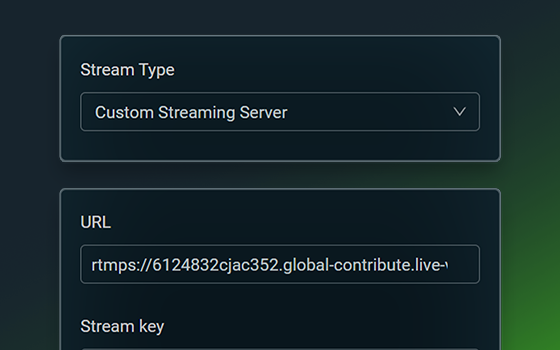
At this time, Streamlabs doesn't have an estimation of when we'll have native broadcasting to Kick.com. In the mean time, you can stream to Kick via Custom Ingest, here's a guide to get your started:
https://streamlabs.com/content-hub/post/how-to-stream-new-platform-custom-ingest
Streamlabs
Looking to stream to a platform that's not currently integrated with Streamlabs Desktop? Here's how.
desert briar
gritty isle
And I'd do that with Streamlabs Desktop *not* running.
still lagging :/
gritty isle
desert briar
still lagging :/
Okay, thank you for trying that. Let me confer on this. May I reply or ping you back in a few minutes?
desert briar
gritty isle
Okay, thank you for trying that. Let me confer on this. May I reply or ping yo...
sure thanks for trying to help 🙂
gritty isle
desert briar
sure thanks for trying to help 🙂
Do you have any other USB devices in use besides the web cam?
desert briar
yeah quite a few
but I cant see that being the issue if the cam works on other things
gritty isle
desert briar
yeah quite a few
Okay. Please make sure the web cam is plugged into the back of the PC and not one of the front USB ports. What other USB devices do you have in use?
desert briar
gritty isle
Okay. Please make sure the web cam is plugged into the back of the PC and not o...
I have thanks, keybpard, mouse, mousematt. headphones, wireless charger, usb hub think that it
is there no way to reset all steamlabs settings to default and manually back up scenes and import them so I can try that do u know?
gritty isle
desert briar
I have thanks, keybpard, mouse, mousematt. headphones, wireless charger, usb hub...
Do you have anything plugged into the USB Hub?
Also, do you have the Video Capture source for the web cam in other scenes?
gritty isle
desert briar
is there no way to reset all steamlabs settings to default and manually back up ...
There's not a way to do that.
desert briar
gritty isle
Do you have anything plugged into the USB Hub?
Also, do you have the Video Capt...
yep the wireless charger, unplugged the hub an restarted steamlabs an no different
steamlabs bugged out so I had to restart sorry
I do in other scenes, but no duplicates
gritty isle
desert briar
I do in other scenes, but no duplicates
Okay, let's do this.
- Unplug the USB Hub from the PC.
- Click the down arrow in the Scene selector panel then click Manage Scene Collections then create a new Scene Collection.
- In this new Scene Collection, add just the Video Capture source for the web cam and see see if the lag is still there.
And make sure you're running Streamlabs Desktop as administrator.
desert briar
Delete webcam from all scenes an readded cam but no different, made a new scene collection and in there made a webcam so there wouldnt be any other things an nothing :/
ah well yeah just did that u suggested
no sadly an yes def ran it as admin
desert briar
gritty isle
There's not a way to do that.
seems strange theres no way to do that you would think there would be
gritty isle
desert briar
Delete webcam from all scenes an readded cam but no different, made a new scene ...
So in the new Scene Collection you just had one Scene with just the Video Capture source and the camera still lagged?
desert briar
gritty isle
So in the new Scene Collection you just had one Scene with just the Video Captur...
yes
gritty isle
desert briar
yes
And in other applications the camera has no lag?
desert briar
no lag in any other application* 🙂
gritty isle
desert briar
no lag in any other application* 🙂
Ah, thanks for clarifying that.
desert briar
gritty isle
Ah, thanks for clarifying that.
🙂
 abstract plazaBOT
Are you knowledgeable about Streamlabs products? Do you like being rewarded while helping others? Apply to be a part of the  Streamlabs Support Volunteer Program! BONUS POINTS FOR GERMAN 🇩🇪
Application Link:
https://forms.gle/eKS29zWfFjGEzaRp7
For details, see our post in #announcements:
#announcements message

Google Docs
Fill out the form below to be considered for our Volunteer Application. Please see our the Streamlabs Privacy Policy to understand how your data may be collected, accessed, and stored. Data may be deleted upon request.
To be considered for acceptance into the Streamlabs Support Volunteer Application, applicants must submit this form. We will fo...
gritty isle
desert briar
🙂
In Streamlabs Desktop, please screen shot Settings -> Video.
Also, do you have multiple monitors or just the one?
 desert briar
gritty isle
In Streamlabs Desktop, please screen shot Settings -> Video.
Also, do you have ...
desert briar
gritty isle
In Streamlabs Desktop, please screen shot Settings -> Video.
Also, do you have ...
thanks 🙂
gritty isle
desert briar
thanks 🙂
And is that monitor set to 1920x1080?
 prime glacier
hi guys, I have problem in streamlabs events
I got 3 subs and nothing appeared in alertbox
but it appeared in twitch feed
desert briar
gritty isle
And is that monitor set to 1920x1080?
oh no I should have had it on 3440x1440
changed it now but no better
gritty isle
desert briar
oh no I should have had it on 3440x1440
Yes, the base resolution should match your monitor but when you change it, you will have to rearrange your sources since.
What is the refresh rate of the monitor?
desert briar
gritty isle
Yes, the base resolution should match your monitor but when you change it, you w...
done 🙂
175
gritty isle
desert briar
done 🙂
175
Set the refresh rate of the monitor to 120 please.
Also, FYI 👇
wispy latchBOT
@desert briar ```md
How to remove Black Bars from your stream
- In Windows Display Settings, you would need to make sure you have a 16:9 monitor resolution (Typically 1920x1080)
- In the game you're playing, you would want the render resolution to be 16:9 as well. (Basically matching info from above)
- In Streamlabs Desktop > Settings > Video > Base Resolution, that would also need to be 16:9 resolution (Same as above)
If any of those things are not being done, then your stream is not going to be true 16:9 and your game will have black bars.
- You can select the capture source in your sources list > right click it > transform > fit/stretch to screen, should help```
desert briar
gritty isle
Set the refresh rate of the monitor to 120 please.
Done, not fixed :?
gritty isle
desert briar
Done, not fixed :?
desert briar
gritty isle
Also, FYI 👇
whats that for sorry?
gritty isle
prime glacier
hi guys, I have problem in streamlabs events
I got 3 subs and nothing appeared i...
Did you recently become a Twitch Affiliate?
desert briar
yeah I dunno what to do at this point its given me a headache :/
prime glacier
prime glacier
hi guys, I have problem in streamlabs events
I got 3 subs and nothing appeared i...
just the followers and tips in streamlabs events
prime glacier
gritty isle
Did you recently become a Twitch Affiliate?
like 3 days
random basin
desert briar
yeah I dunno what to do at this point its given me a headache :/
I think that webcam just does not like Streamlabs.
desert briar
random basin
I think that webcam just does not like Streamlabs.
I have used it in the past though :/
on my old setup
random basin
that is weird! i mean very weird.
gritty isle
prime glacier
like 3 days
Okay, thanks for confirming. When you become a Twitch Affiliate, more data comes across the API so its a good idea to refresh the connection between Streamlabs and Twitch.
- Log out in Streamlabs Desktop and quit it.
- Log out of the Streamlabs web site on every device you access it with.
- Follow this guide: https://streamlabs.com/content-hub/post/how-to-disconnect-your-streamlabs-account
- Launch Streamlabs Desktop and log back in with your Twitch.
NOTE This will not go back in time and capture events that were missed (the 3 subs). New subs going forward will be captured.
gritty isle
random basin
that is weird! i mean very weird.
Yes, very weird.
gritty isle
desert briar
on my old setup
Okay, try this:
Quit Streamlabs Desktop.
Go to the Windows Device Manager, find the Web Cam and remove the device there and then unplug it from the PC.
Reboot the PC.
Once the PC is fully back up, plug the Web Cam back in and let Windows detect it and set it up.
Launch Streamlabs Desktop and see if anything has changed.
desert briar
gritty isle
Okay, try this:
Quit Streamlabs Desktop.
Go to the Windows Device Manager, fi...
what do u mean by remove it, disable it or uninstall it ?
gritty isle
desert briar
what do u mean by remove it, disable it or uninstall it ?
Right click on the Web Cam in Windows Device Manager, choose Uninstall Device. Then unplug it from the PC.
prime glacier
gritty isle
Okay, thanks for confirming. When you become a Twitch Affiliate, more data come...
I did it when i got my first one
and i got 2 now
and the problem is still happening
desert briar
gritty isle
Right click on the Web Cam in Windows Device Manager, choose Uninstall Device. ...
okay ty
desert briar
gritty isle
Okay, try this:
Quit Streamlabs Desktop.
Go to the Windows Device Manager, fi...
done windows didn't set it up it just reappered under cameras
gritty isle
prime glacier
and i got 2 now
and the problem is still happening
Then I'd run the steps again. Please make sure that in the disconnect service guide, you click Disconnect on Streamlabs. If you don't do this step, the connection is not refreshed.
 desert briar
am I okay to put my refresh rate back to 175?
Oh !
so theres no lag now thats great
gritty isle
desert briar
so theres no lag now thats great
OH! That's great!
desert briar
only issue is the webcam is upside down aha
prime glacier
gritty isle
Then I'd run the steps again. Please make sure that in the disconnect service g...
yeah i did that in last time
gritty isle
desert briar
only issue is the webcam is upside down aha
Weird.
prime glacier
gritty isle
Then I'd run the steps again. Please make sure that in the disconnect service g...
i disconnected everything here
gritty isle
prime glacier
i disconnected everything here
Oh don't do that. Just Streamlabs.
random basin
desert briar
only issue is the webcam is upside down aha
There is a button to invert camera
prime glacier
it was streamlabs and some bots it dosen't matter
desert briar
I changed it in windows to filip it 180 an the lag is back so I guess that is whats casuing the issue
it is starange how theres no lag in anything but streamlabs tho
random basin
desert briar
I changed it in windows to filip it 180 an the lag is back so I guess that is wh...
Oo that is a very peculiar webcam LOL
random basin
desert briar
it is starange how theres no lag in anything but streamlabs tho
Remove the fkllip option on windows
desert briar
okay well if I can rotate it in streamlabs I guess ill have to manually do it through windows when using the camera with other things
how do I rotate it in streamlabs again?
random basin
desert briar
okay well if I can rotate it in streamlabs I guess ill have to manually do it t...
 gritty isle
prime glacier
it was streamlabs and some bots it dosen't matter
gritty isle
prime glacier
it was streamlabs and some bots it dosen't matter
You logged out in Streamlabs Desktop? Just quitting it doesn't log you out.
wispy latchBOT
@prime glacier
Click the :gear: at the bottom left of Streamlabs Desktop. Then the logout button should be at the bottom left of the popup as shown:
https://i.gyazo.com/d85a0f693148ea5b9e4c6b03d7cbf703.png
prime glacier
gritty isle
You logged out in Streamlabs Desktop? Just quitting it doesn't log you out.
yeah
random basin
In Streamlabs press the Flip Vertically @desert briar
desert briar
Great thanks for all the help @gritty isle & @random basin !!!
very strange but at least finally I know how to work around it aha
prime glacier
 gritty isle
prime glacier
yeah
gritty isle
prime glacier
yeah
Screen shot the Twitch Connections settings for Streamlabs please.
random basin
desert briar
very strange but at least finally I know how to work around it aha
Did it fix it for good?
gritty isle
desert briar
Great thanks for all the help <@301571565840236564> & <@339153318943129601> !!!
You're welcome! Thanks to Gltich for the final tip on removing and adding the device back!
prime glacier
 desert briar
random basin
Did it fix it for good?
desert briar
random basin
Did it fix it for good?
well I will just have to untick flipping it in windows whenever I use streamlabs so its a workaround at least aha
must be some weird interaction streamlabs has with that settings in windows
random basin
desert briar
well I will just have to untick flipping it in windows whenever I use streamlabs...
Lets go! If it works it works! Sir @gritty isle the GOAT of support! Happy streaming @desert briar
gritty isle
prime glacier
Have you logged back in yet? I don't see Streamlabs connected there?
prime glacier
gritty isle
Have you logged back in yet? I don't see Streamlabs connected there?
no i just did it again when u told me
gritty isle
prime glacier
no i just did it again when u told me
When you log back in with your Twitch, make sure you see a Streamlabs conenction there in Twitch 'connected a few seconds ago'.
prime glacier
 gritty isle
prime glacier
gritty isle
prime glacier
Okay thanks for confirming that. I checked the Twitch channel on your Discord profile and I see you are live. Were you live this whole time?
prime glacier
gritty isle
Okay thanks for confirming that. I checked the Twitch channel on your Discord p...
streamelemnts
desert briar
gritty isle
Also, FYI 👇
why was this needed sorry ?
prime glacier
but i use streamlabs alerts
gritty isle
prime glacier
but i use streamlabs alerts
BUT were you live the whole time?
gritty isle
desert briar
why was this needed sorry ?
Just in case you have black bars on your stream. Ultra Wide monitors outputting at 1080p can have black bars.
wispy latchBOT
{1} ```md
How to remove Black Bars from your stream
- In Windows Display Settings, you would need to make sure you have a 16:9 monitor resolution (Typically 1920x1080)
- In the game you're playing, you would want the render resolution to be 16:9 as well. (Basically matching info from above)
- In Streamlabs Desktop > Settings > Video > Base Resolution, that would also need to be 16:9 resolution (Same as above)
If any of those things are not being done, then your stream is not going to be true 16:9 and your game will have black bars.
- You can select the capture source in your sources list > right click it > transform > fit/stretch to screen, should help```
desert briar
gritty isle
Just in case you have black bars on your stream. Ultra Wide monitors outputting...
ah okay yeah I was about to ask about that ty
gritty isle
desert briar
ah okay yeah I was about to ask about that ty
You're welcome.
prime glacier
gritty isle
BUT were you live the whole time?
yeah, but i think it dosen't matter
desert briar
I think the reason I didnt have it set to my monitors resoulution is because I have heard setting it to utrawide isnt advised in most cases
so if I have output set to that will it not appear as my resolution or ? 😛
 gritty isle
prime glacier
yeah, but i think it dosen't matter
gritty isle
prime glacier
yeah, but i think it dosen't matter
And that was my fault, I should have told you that you need to be offline when you perform this disconnect guide. So please once you end your stream, go through these steps again. It won't properly disconnect and reconnect while you are live.
gritty isle
desert briar
so if I have output set to that will it not appear as my resolution or ? 😛
You can see it in the Preview Window what it will look like on stream.
desert briar
gritty isle
You can see it in the Preview Window what it will look like on stream.
okay ty
desert briar
gritty isle
You can see it in the Preview Window what it will look like on stream.
so I looked at the command u sent, I have the resoultion matching my monitor but I still have black bars unless I were to really zoom in
so can I not put the base canvas back down to fix that?
gritty isle
desert briar
so can I not put the base canvas back down to fix that?
If that works for you, sure.
desert briar
gritty isle
If that works for you, sure.
great thanks 🙂
gritty isle
desert briar
great thanks 🙂
You're welcome.
 strong acorn
how can i get the privew back onto my obs?

i cannot for the life of me figure out how to reset to show my game and camera
i want it to be stationary aboevt he mixer section and not a projector off to the side
i dont know what to google search to try and figure out it. ive restarted my computer and obs
gritty isle
strong acorn
how can i get the privew back onto my obs?
You need to go into the Layout Editor and put the Editor Display into your Layout.
gritty isle
strong acorn
Thank you
You're welcome!
prime glacier
gritty isle
And that was my fault, I should have told you that you need to be offline when y...
no its wasn't your fault, it worked without me being offline
so thank you so much <3
gritty isle
prime glacier
no its wasn't your fault, it worked without me being offline
so thank you so muc...
You're welcome.
 cyan bloom
I can get others events like sub in chat widget?
 mossy acorn
Super niche issue, but I run a 2 pc set up with streamlabs obs on both pcs. I stream from my laptop, using an elgato capture card that captures games/voicemeeter/everything else from my gaming pc. I enjoy playing music on my stream, and have heard of a way to turn off vod audio capture specifically from the music source so only people watching stream live can hear the music but it wont appear on the vod. The issue I am having is that slobs is capturing all the audio from the capture card as one audio source, and I can't figure out how to isolate the spotify audio source out so that I can utilize slobs to not capture it for the vod. Anyone have any tips/experience dealing with this?
 slender sandal
does anyone know where i can find notes for what 1.13.3 fixed?
neon crow
mossy acorn
Super niche issue, but I run a 2 pc set up with streamlabs obs on both pcs. I st...
You’d need to run Spotify on the streaming computer so you can use the VOD track
gritty isle
slender sandal
does anyone know where i can find notes for what 1.13.3 fixed?
General Bug fixes. No new features and no user facing changes.
slender sandal
gritty isle
General Bug fixes. No new features and no user facing changes.
do you know if the bug that caused streamlabs to crash while in studio mode has been fixed?
that's all I really care about
gritty isle
slender sandal
do you know if the bug that caused streamlabs to crash while in studio mode has ...
The Studio Mode crash should be fixed in 1.13.3.
slender sandal
gritty isle
The Studio Mode crash should be fixed in 1.13.3.
great thank you!
gritty isle
slender sandal
great thank you!
You're welcome!
mossy acorn
neon crow
You’d need to run Spotify on the streaming computer so you can use the VOD track
I wouldn't be able to hear any of the music in that case cause my headset and microphone all go through the gaming PC.
neon crow
mossy acorn
I wouldn't be able to hear any of the music in that case cause my headset and mi...
The only other way would be to send Spotify over lineout to the streaming pc
But it would still probably end up being in the vod
mossy acorn
I guess I could use a separate pair of headphones, like in ear ones underneath my over ear ones
Yeah that's definitely going to be the easiest fix
Thank you!
 gusty sequoia
I am trying to setup a most recent follower stream label but every time I make the new stream label the crop box is huge and the text doesn’t show up. Can anyone help?
desert briar
 desert briar
desert briar
desert briar
I’m trying to set up my stream after getting rid of a virus, then this popped up, what do I have to do Streamlabs?
desert briar
desert briar
I’m trying to set up my stream after getting rid of a virus, then this popped u...
And make sure that it’s virus safe
gritty isle
desert briar
I’m trying to set up my stream after getting rid of a virus, then this popped u...
I'd perform a clean install of your video card drivers. See the next post from the bot for helpful instructions.
wispy latchBOT
@desert briar
Please perform a clean install of your GPU Drivers. Once you've completed them, you will need to restart your PC.
# NVIDIA Users: https://www.nvidia.com/en-us/geforce/drivers/
- Enter your specs to search for the driver correlating to your graphics card and operating system.
- Download the driver > select "Custom installation" > check "Perform a clean installation"
- NOTE: The NVENC encoder does not support NVIDIA drivers prior to 390.77 (released on Jan 29, 2018)```
```md
# AMD Users: https://www.amd.com/en/support/kb/faq/gpu-601
- After downloading the AMD Cleanup Utility, locate the file and double click on the AMDCleanupUtility.exe
- A notification will populate to ask if you want to run it in safe mode or not. AMD recommends safe mode, but either will function for this purpose.
- The next notification will indicate that it will remove all of your old AMD driver and application components, please press OK.
- NOTE: During the cleanup process, the display may flicker or turn black for a few seconds. This is normal while driver components are being removed.``` tame stirrup
Anyone ruin into an issue with multi stream, where Youtube works, but twitch says its live but not?
desert briar
problem, I don't know what my video card drive is
gritty isle
tame stirrup
Anyone ruin into an issue with multi stream, where Youtube works, but twitch say...
Most likely, that is becasue your bitrate is too high. Unless you're a Twitch Partner, Twitch will only allow a bitrate that does not exceed 6000.
gritty isle
desert briar
problem, I don't know what my video card drive is
Is your video card AMD or Nvidia? Go to your Windows Device Manager and open the Display Adapater section to see your exact card.
desert briar
gritty isle
Is your video card AMD or Nvidia? Go to your Windows Device Manager and open th...
I’m streaming on mobile for now
gritty isle
desert briar
I’m streaming on mobile for now
Okay, well, when you're ready to return to your PC, you can find your exact video card in the Windows Device Manager under the Display Adapter section. Then from there you can follow either the AMD or Nvidia section of this guide: https://streamlabs.com/content-hub/post/clean-install-of-graphics-driver-tutorial
 dim lark
hey guys, any idea why my chat is like that? names dont start at the same line, but the text does, I wanna do it the other way
 cyan bloom
dim lark
hey guys, any idea why my chat is like that? names dont start at the same line, ...
cyan bloom
dim lark
hey guys, any idea why my chat is like that? names dont start at the same line, ...
i can help you
Does anyone know if it is possible to obtain the information if a person subscribed, followed or gave bits through the chatbox?
dim lark
cyan bloom
i can help you
dm me
 quartz vessel
can i please have some help?
agile owl
How can we help
quartz vessel
im trying to stream but my yt wont connect to streamlabs
 echo jewel
How do I get videos from rekordbox into obs can’t find what source to add to do it. Help guys please
cyan bloom
dim lark
dm me
i did
gritty isle
echo jewel
How do I get videos from rekordbox into obs can’t find what source to add to do ...
Use the Media Source.
 sweet goblet
Can someone help me with using Streamlabs obs on my desktop to stream Xbox series s without a capture card?
agile owl
quartz vessel
im trying to stream but my yt wont connect to streamlabs
Okay, log out of Streamlabs and close it then Re-open Streamlabs as Admin and log back in and it should work
 ancient sail
should i check enforce streaming service encoder settings? or leve it unchecked
 plush locust
How do I get like the default gift box and bits alert box? Like the difference color ones
ancient sail
 sweet goblet
My issue is I have the remote play application and Streamlabs up, but when I pull the Streamlabs tab to change my scenes and stuff the remote play is frozen. Is there a way to have stream labs up without the remote play freezing?
agile owl
ancient sail
should i check enforce streaming service encoder settings? or leve it unchecked
I say keep it checked.
quartz vessel
it didnt work
agile owl
quartz vessel
it didnt work
did you run as admin?
quartz vessel
how do i do that?
agile owl
right click on Streamlabs OBS in start menu or on desktop and you'll see run as admin
 prime parcel
Hi, i have a issue with the download of the "social-reminder-animations"
When i dowload it, i have just a black animation
Someone can help ???
ancient sail
agile owl
I say keep it checked.
i dont have any issues just wondering what would be better for best stream settings
echo jewel
I know how to show videos in obs. I want to output my record box video dj to obs
agile owl
ancient sail
i dont have any issues just wondering what would be better for best stream setti...
ah that's fine :)
I have it checked on my OBS and I've not had a problem with it
ancient sail
just see alot of people are saying untick it so just wanted to see what people in here think
gritty isle
@echo jewel I can't provide support in DM's, sorry. Are you trying to add a video (like an MP4) to show on stream or are you trying to capture this other application?
If you want to show a video on stream, add it via a Media Source. If you're wanting to stream the application, then use Window Capture.
quartz vessel
nope didnt work at all
sweet goblet
Can someone help me with using Streamlabs obs on my desktop to stream Xbox series s without a capture card?
echo jewel
gritty isle
<@811260792996626472> I can't provide support in DM's, sorry. Are you trying to...
Hiya, I’m starting to videdj with recordbox. Using recordboxs inbuilt video dj .I add a video in. Rekordbox and it plays it to the music. I want to output it to my scene on obs
gritty isle
echo jewel
Hiya, I’m starting to videdj with recordbox. Using recordboxs inbuilt video dj ....
Then use Window Capture and select the recordboxs window.
echo jewel
gritty isle
Then use Window Capture and select the recordboxs window.
Ok rufus. I’ll give it a go. Thank you for your help
gritty isle
echo jewel
Ok rufus. I’ll give it a go. Thank you for your help
You're welcome.
quartz vessel
@agile owl it didn't work I even tried pasting the stream key
gritty isle
sweet goblet
Can someone help me with using Streamlabs obs on my desktop to stream Xbox serie...
We have a guide that help guide you: https://streamlabs.com/content-hub/post/using-streamlabs-with-consoles-ps4xbox
@sweet goblet 👆 See my reply above. We cannot provide support in DM's.
sweet goblet
I have done those steps…. My issue is when I click off the Xbox app to go to Streamlabs it stops mirroring my gameplay… so how do I get it to still mirror my gameplay and I can still change scenes on my Streamlabs?
gritty isle
sweet goblet
I have done those steps…. My issue is when I click off the Xbox app to go to Str...
Set up Hotkey in Streamlabs Desktop to change scenes. https://streamlabs.com/content-hub/post/how-to-set-up-hotkeys-in-streamlabs-desktop
 shell spire
Does someone know how to change username on streamlabs?
quartz vessel
I still need help to set up my yt stream
gritty isle
shell spire
Does someone know how to change username on streamlabs?
Can you elaborate on that?
gritty isle
quartz vessel
I still need help to set up my yt stream
Have you used Streamlabs before or is this your first time trying to use it?
shell spire
gritty isle
Can you elaborate on that?
huh?
quartz vessel
first time
quartz vessel
its ok
gritty isle
quartz vessel
first time
Then all you need to do is log in in Streamlabs Desktop. Just click the ⚙️ to bring up Settings then at the bottom of Settings click Log In, then select the YouTube icon. That sets up your Streamlabs account and automatically populates your channel name and stream key in Streamlabs Desktop.
Then you just have to add your scenes and source and get other settings like output resolution, bitrate and encoder set.
plush locust
How do I get these kind of alert boxes it’s like the default one and the default twitch bits
 gritty isle
quartz vessel
and what is bitrate and encoder set?
gritty isle
quartz vessel
and what is bitrate and encoder set?
Settings -> Output. Be sure to also go to Settings -> Video and make sure the Base Resolution is the same as the resolution of your monitor and your Output Resolution is wht resolution you want your stream to be. Strting out best to set the Output Resolution to 1280x720.
quartz vessel
already set
gritty isle
Okay, sounds like you're close to being ready to go live. For your reference, we do have a good getting started guide that can answer a lot of questions https://streamlabs.com/content-hub/post/getting-started-with-streamlabs-desktop. But let us know if there's anything else we can answer for you.
quartz vessel
that had nothing to do with my problem. my yt won't connect
agile owl
when you logged in with streamlabs did it give you a browser popup for your yt account?
quartz vessel
no
agile owl
okay log out of streamlabs
agile owl
okay go log in and stop when you see the "sign in with your content platform"
this part
 quartz vessel
ok done next
quartz vessel
ok
agile owl
now it should ask you to sign in with google account
 light path
hey can anybody help me?
agile owl
click your google account and then that's it you're good to go
light path
@agile owl can you help me
agile owl
light path
<@201456214972825601> can you help me
sure what's up?
quartz vessel
still wont connect and i tried this like 5 times
gritty isle
quartz vessel
still wont connect and i tried this like 5 times
Please try this:
- Quit Streamlabs Desktop.
- Click this link: https://streamlabs.com/logout.
- Launch Streamlabs Desktop and log in.
If that does not work, please quit Streamlabs Desktop and then go into your Windows Settings and change your default web browser to Microsoft Edge or Firefox (if you have it installed) and try again.
If switching the default web browser to Edge or Firefox doesn't work, then make sure that Streamlabs Desktop is not running and switch the default web browser to something else then switch back to Edge or Firefox and try again.
light path
 quartz vessel
how di I switch my browser?
gritty isle
light path
hey can anybody help me?
Just state your issue rather than asking if you can ask. And don't tag those not actively assisting you.
 gritty isle
light path
gritty isle
light path
This happens a lot. User the QR code method.
light path
@gritty isle sorry to bother but…
 gritty isle
light path
<@301571565840236564> sorry to bother but…
gritty isle
light path
<@301571565840236564> sorry to bother but…
You should scan the QR code with your TikTok app not your camer'a phone.
light path
still doesn’t work.. it just says scanned…
gritty isle
light path
still doesn’t work.. it just says scanned…
And your not able to log in the usual way with your username and password?
light path
gritty isle
And your not able to log in the usual way with your username and password?
i am . but then i get the same error of "maximum attempts reached" or something like that
gritty isle
light path
i am . but then i get the same error of "maximum attempts reached" or something ...
And the QR code method doesn't work?
agile owl
if both ways are getting same error best thing you could do is give it a day to cool down and then try again with the qr method
gritty isle
 mental gorge
<@301571565840236564>
mental gorge
<@301571565840236564>
Please don't tag those not actively assisting you, thank you!
mental gorge
sry
gritty isle
mental gorge
when i test my alert sounds they don’t go off in my stream
Make sure the Alerts are not muted. Look at the top right of the Mini Feed. If the speaker icon is red with a slash through it, your alerts are muted. Click that to unmute them.
mental gorge
they arent i checked that already
it doesnt even show up in my mixer that i have a alert box but on streamlabs.com it does
gritty isle
mental gorge
it doesnt even show up in my mixer that i have a alert box but on streamlabs.com...
The Alert Box plays audio over the Desktop Audio device. If you go to Settings -> Audio, do you have a device specifically selected as Desktop Audio Device 1? Also make sure that that device is not muted in the Mixer.
mental gorge
settings where, on streamlabs desktop?
gritty isle
mental gorge
settings where, on streamlabs desktop?
Yes.
mental gorge
gritty isle
The Alert Box plays audio over the Desktop Audio device. If you go to Settings ...
now i do
and no its not muted
gritty isle
mental gorge
now i do
Okay, now test your alerts. You should be able to hear them.
mental gorge
gritty isle
Okay, now test your alerts. You should be able to hear them.
it still doesnt work
gritty isle
mental gorge
it still doesnt work
Screen shot the whole Streamlabs Desktop window please.
wispy latchBOT
{1}
# Windows:
- Press the Print Screen key, which may be entitled "PrtSc" or something similar. If your computer has an Fn key on the lower-left side of the keyboard, you might need to press Fn and ⎙ Print Screen at the same time.
- Press the Windows key + Shift + S on your keyboard and then highlight the required area and use CTRL + V, then hit Enter, where you'd like to send your screenshot.

# Mac:
- “shift+command+4” to capture a selected area of the screen, then paste where you'd like to send your screenshot
- Some users will only be able to use “shift+command+3”``` gritty isle
mental gorge
gritty isle
mental gorge
Your Desktop Audio device (Speakers) is muted in the Mixer. Speaker icon with a slash through it. Unmute it there.
gritty isle
Also I don't see an Alert Box widget in that scene. You need to click the + sign in the Source selector panel and add the Alert Box Widget and then make sure that its at the top of the Source list.
mental gorge
it works now
gritty isle
YAY!
mental gorge
thank you so much
gritty isle
mental gorge
thank you so much
You're welcome!
 hoary vigil
Anyone know why a Media Share video doesnt have any Audio?
 desert basin
Hey - I have audio no problem, but my Streamlabs window doesn't have a Mixer window - I'm Stereo and have a mic and desktop audio set up fine - any idea how I can get a mixer window to appear? (And maybe get rid of the "Mini Feed" window that I don't need as I'm only recording and not streaming")? Thanks in advance!
neon crow
desert basin
Hey - I have audio no problem, but my Streamlabs window doesn't have a Mixer win...
On the left you can click the editor layout and modify the layout how you need
desert basin
neon crow
On the left you can click the editor layout and modify the layout how you need
When I click on "Editor" I don't get anything popping up - should I? It doesn't do anything - highlighted Green for me
neon crow
desert basin
When I click on "Editor" I don't get anything popping up - should I? It doesn't ...
If you expand that section you should see a layout editor thingy
You have to click the expand icon in the middle of the left pane to see it
 dense dome
I can't get the Discord desktop app to show up in my Streamlabs desktop app. I want to do a co-stream and capture the other person's video. Can someone please help?
orchid flax
dense dome
I can't get the Discord desktop app to show up in my Streamlabs desktop app. I w...
You can always use display capture and stream on discord then to capture his camera.
desert basin
neon crow
If you expand that section you should see a layout editor thingy
Sorry, it's expanded (got a column with Editor and an icon at the top of it) but no options appearing with it
 gritty isle
desert basin
Sorry, it's expanded (got a column with Editor and an icon at the top of it) but...
gritty isle
desert basin
Sorry, it's expanded (got a column with Editor and an icon at the top of it) but...
You need to log in first.
orchid flax
desert basin
U r not logged in
dense dome
orchid flax
You can always use display capture and stream on discord then to capture his cam...
I’ve never done that. I’ve always done a windows capture on Streamlabs desktop app. Do you know why Discord isn’t showing up in Streamlabs?
orchid flax
dense dome
I’ve never done that. I’ve always done a windows capture on Streamlabs desktop a...
U mean as a source?
Oh I got it. So you are selecting window capture and trying to find discord app which is not showing up? Right?
Is the discord app already running?
desert basin
orchid flax
U r not logged in
Ah, sorted - interestingly, the layout changes are captured even if you log out again.
orchid flax
desert basin
Ah, sorted - interestingly, the layout changes are captured even if you log out ...
Glad to help. The changes might not be saved if you log out.
dense dome
orchid flax
U mean as a source?
This is excatly it. I opened the Discord app first, then the Streamlabs app, and Discord didn't show in the list of sources for windows capture.
And the Discord app is up and running.
orchid flax
dense dome
This is excatly it. I opened the Discord app first, then the Streamlabs app, and...
Thats strange. Let me check it on my end.
Works fine for me. Strange. Do one thing. Try turning everything down and restart your pc. Once done , then try again.
dense dome
orchid flax
Works fine for me. Strange. Do one thing. Try turning everything down and restar...
Sure! I'll be a couple of minutes.
dense dome
orchid flax
Works fine for me. Strange. Do one thing. Try turning everything down and restar...
It's a Macbook Air 2020 M1. Did you need that info?
orchid flax
dense dome
It's a Macbook Air 2020 M1. Did you need that info?
Oh sorry I would have asked that too but is it same after the restart? I think it will be same as windows.
dense dome
orchid flax
Oh sorry I would have asked that too but is it same after the restart? I think i...
I closed Streamlabs and the Discord app, and restarted my laptop. The I opened the apps again and tried looking for Discord to do a windows capture, but I couldn't find it.
orchid flax
I have not used macbook ever
dense dome
orchid flax
I have not used macbook ever
Can you suggest anything else I might do now?
 versed zealot
whenever I try to stream on xbox to streamlabs it keeps saying ''you need to link a subscription to your account to use the selected broadcast destination'' and I don't know what I'm doing wrong I'm so confused
gritty isle
versed zealot
whenever I try to stream on xbox to streamlabs it keeps saying ''you need to lin...
Streamlabs Console is a subscription service. You would need to log into the Streamlabs Console site, click your PFP in the upper right, choose Account Settings, then scroll down and choose either the Monthly or Annual plan.
Streamlabs Console is also included in our Streamlabs Ultra subscription. If you're using Streamlabs Console this way, please make sure you set up your Streamlabs ID then log into the Streamlabs Console with your Streamlabs ID rather than your Twitch.
versed zealot
gritty isle
Streamlabs Console is a subscription service. You would need to log into the St...
do I have to buy the streamlabs subscription to use streamlabs console?
gritty isle
versed zealot
do I have to buy the streamlabs subscription to use streamlabs console?
Yes, its a subscription service. You can pay either monthly or annually. It comes with a 7 day free trial.
Streamlabs Console is also included with a Streamlabs Ultra subscription. Do you have a Streamlabs Ultra subscription?
versed zealot
gritty isle
Yes, its a subscription service. You can pay either monthly or annually. It co...
no but I did buy it already but I don't remember buying it
 gritty isle
versed zealot
no but I did buy it already but I don't remember buying it
gritty isle
versed zealot
no but I did buy it already but I don't remember buying it
Streamlabs Ultra you mean?
versed zealot
gritty isle
Streamlabs Ultra you mean?
no just the normal one
gritty isle
versed zealot
no just the normal one
Okay, then you'll need to choose either the Monthly or Annual plan and enter your billing details in order to continue.
dense dome
orchid flax
Oh sorry I would have asked that too but is it same after the restart? I think i...
Thanks for your help today, my good friend. I have DMed a couple of friends about my issue, and we'll see what they say. I'll come back here and ask for more help if I need it. Bless you, my friend, and take care of yourself 🙂
 verbal adder
Brand newbie... first time on this forum. I am experiencing a wierd issue with mthe microphone. Occasionally when I "record" or when I go "live" the mic will freeze at full volume and just creates static in the recording or live feed. If I change the mic to "default" while this happens, it reverts back to working normally and generally doesn't cause any more trouble. Can anyone help with this kind of issue? Thanks
wispy latchBOT
@verbal adder Click your Start Menu in Windows and type "Change system sounds" and hit enter. Click the Playback tab and/or Recording tab and right-click your microphone/headphones and click Properties. Click the Advanced Tab and uncheck the box for Allow applications to take exclusive control of this device. You should also do this for your microphone/headphones under the respective tab.
 broken elbow
hi, i tried everything i also reinstalled streamlabs and overwatch but nothing. both in automatic capture mode and in the one with the choice of a specific window, streamlaìbs can not find Overwatch2. or it finds it but the screen remains blocked. how can i solve?
verbal adder
Thank you Streamlabs BOT, I did that and will continue testing.
 zealous forge
I'm trying to cancel my subscription as I'll be taking a break but I keep getting this message when I try to? this happens on the mobile app and web:

could anyone offer some support
 buoyant oak
I tried adding a new scene overlay and this happend

 pure ivy
I Also Need Help, My Streamlabs is bugged and i can't do a stream on YouTube, at least not if i use Streamlabs.
 wicked anchor
whats everyone....can someone help!!....i was playin my xbox while running my streamlabs so i have sound...then i had to update windows10 now i got NOO sound ....
quiet coral
Is twitch vod track not working anymore
desert briar
One message removed from a suspended account.
agile owl
desert briar
One message removed from a suspended account.
make sure your game capture source is bottom of webcam source
that way your cam will be on top :)
desert briar
One message removed from a suspended account.
desert briar
 sinful stag
I can help
sinful stag
I can help
One message removed from a suspended account.
agile owl
desert briar
One message removed from a suspended account.
click on the cam source and then you'll get the ability to minimize it
sinful stag
Can someone help me connect my mic back to my streamlabs?
I have an elgato mic and when I first plugged it in it was working but now its not
agile owl
sinful stag
I have an elgato mic and when I first plugged it in it was working but now its n...
Have you checked the "Mixer" part of your streamlabs o3o?
sinful stag
yeah- and when I first set it up it had audio connected but now it doesnt
agile owl
alright click on the ⚙️ in mixer and it'll bring up advanced audio settings
sinful stag
I tried and its connected to my mic but the audio level bars arent there
I could hop on a call and show you but again- wouldnt have a mic
It's connected to my pc but its not working in anything
agile owl
okay do you still have the options open? click on global settings
sinful stag
okay I'm there it's set to default- shoudl it be set to my mic?
agile owl
yeah set it to mic
sinful stag
it doesnt have my mic as an option- it has my monitors and my PC though
I'd happily go on a call to see if you can help- idk if discord has access to my mic though
agile owl
send me a screenshot of the global settings page let me have a looksee
sinful stag
DM it to you or put it here?
agile owl
here is fine
 sinful stag
would you mind going on a discord call and we can message until my mic works?
Oh it works on discord
but not SLOBS
Only if you're comfortable- I wish they had a VC here
agile owl
No calls i'm afraid the family are in bed 😭
sinful stag
Oh no! Okay do you know Elgato?
agile owl
I know of it
sinful stag
I have the mic and camera and the cam is fine but the mic is what I'm having trouble with- it says it works with SLOBS but now it's saying it only works with OBS?
agile owl
I may know another way for it to work
agile owl
it's no problem
sinful stag
Is theres a video or something I can follow?
gritty isle
sinful stag
Is theres a video or something I can follow?
In the lower left corner of your monitor, click the Start button, looks like the Microsoft logo. Then choose Settings.
agile owl
Ty Rufus
sinful stag
okay now what?
 gritty isle
Good work, Hislop! 
agile owl
Ty Rufus
wispy latchBOT
How was your support experience today? We'd love to hear your thoughts! Please feel free to provide your feedback here: https://forms.gle/y21sHdUmC6JbuoFq6
gritty isle
@sinful stag 👆🏻
sinful stag
Yes! Doing that now
 warped citrus
Do you guys have any idea why my follower alert isnt showing up anymore? In general streamlabs doesnt seem to receive new followers in my MiniFeed. I can only tell someone followed when I am on the twitch mod view of my stream.
gritty isle
warped citrus
Do you guys have any idea why my follower alert isnt showing up anymore? In gene...
Hi there! 👋 Refreshing the connection between Streamlabs and the end platform will resolve this. Please follow exactly all the steps in this guide: https://streamlabs.com/content-hub/post/how-to-disconnect-your-streamlabs-account Including the log outs.
👉🏻 NOTE This will not go back and capture any events that were missed. You'll need a new event (new follow on Twitch, new subscriber on YouTube, etc) as verification. I can follow on Twitch or subscribe on YouTube for verification if you like. An unfollow/refollow or unsubscribe/resubscribe won't trigger a new alert.
Also note the guide has sections for the 4 platforms we have full integration with, Twitch, YouTube, Facebook, and Trovo. So only follow the section for the platform you're using.
👉🏻 ** NOTE ** You need to offline to perform this procedure. Do not perform this while you are live!
warped citrus
Thank you. I will try everything.
sinful stag
Thank you again- I really appreciate you!
dim lark
Guys how do I put my chat so instead of the text messages lining up, its the first badge who's lined up (or rather the username itself)

 red eagle
Hi. I just updated streamlabs obs and my webcam isn't showing anymore. It works just fine on google meet or microsoft teams, but it appears completely blacked out on slobs. Does anyone have any idea on how to fix it?
wispy latchBOT
@red eagle Delete all of your webcam sources in all of your scenes. Once it's completely removed, re-add it in a singular scene. Then if you need to add it to another scene choose Add from existing and not Create New. If you find that your webcam still isn't working, check out this troubleshooting guide: https://streamlabs.com/content-hub/post/webcam-troubleshooting
neon crow
dim lark
Guys how do I put my chat so instead of the text messages lining up, its the fir...
If you change the style of the chatbox does it do what you’re looking for? There isn’t really a setting for alignment
warped citrus
gritty isle
Hi there! 👋 Refreshing the connection between Streamlabs and the end platfor...
Ty fixed it
gritty isle
warped citrus
Ty fixed it
You’re welcome.
 main zenith
any reason why my cloudbot wont work? I have tried turning it on refreshing off refreshing. the bot doesnt even log into my chat
 queen jewel
Could anyone possibly help me I’m a new streamer trying to get my stream labs up and running properly if you can help and know what your doing please private message me and I’ll add you to a discord call
gritty isle
queen jewel
Could anyone possibly help me I’m a new streamer trying to get my stream labs up...
We have a great getting started guide: https://streamlabs.com/content-hub/post/getting-started-with-streamlabs-desktop. To start, please be sure to log into the Streamlabs web site with the platform and channel you want to stream to. That will setup your Streamlabs account.
 slim thistle
Hey guys, can someone help me, I am using a xr1 pro yet I cannot get my preview to go up to 4k and it is extremely pixelated, can someone help me?


 gritty isle
main zenith
any reason why my cloudbot wont work? I have tried turning it on refreshing off ...
gritty isle
main zenith
any reason why my cloudbot wont work? I have tried turning it on refreshing off ...
Make sure that Streamlabs is not hidden or banned on your channel. Cloudbot only works with Twitch, YouTube, and Trovo.
main zenith
shouldnt be banned or hidden, but unsure how to check. it doesnt show any sign of being here tho
gritty isle
main zenith
shouldnt be banned or hidden, but unsure how to check. it doesnt show any sign o...
What platform?
main zenith
gritty isle
What platform?
twitch and youtube
gritty isle
main zenith
twitch and youtube
For Twitch, just type /unban streamlabs in your Twitch chat. Then type /mod streamlabs in your Twitch chat. For YouTube, log into the Streamlabs web site with your YouTube and go to the Cloudbot page, instructions there to make sure Streamlabs is a (standard) moderator on your channel but be sure to scroll down and make sure that Streamlabs isn’t banned or hidden.
On YouTube, if you set Streamlabs as a managing moderator, remove that. Needs to be set as a standard moderator.
slim thistle
slim thistle
Hey guys, can someone help me, I am using a xr1 pro yet I cannot get my preview ...
This
main zenith
gritty isle
For Twitch, just type `/unban streamlabs` in your Twitch chat. Then type `/mod ...
wasnt hidden or banned sadly, still no luck on twitch and i changed it to standard. gonna give that a shot thank you
gritty isle
slim thistle
This
One thing if the base resolution of your monitor is 3840x2160, just select that in the Base Resolution drop down and the same in the Output Resolution field if that’s what you want you stream to be. You don’t need to use the custom setting.
gritty isle
main zenith
wasnt hidden or banned sadly, still no luck on twitch and i changed it to standa...
Okay, let me know how it goes.
@slim thistle I would also uncheck Look Ahead. And what platform are you trying to stream to?
main zenith
gritty isle
Okay, let me know how it goes.
no luck for either
gritty isle
main zenith
no luck for either
For both platforms…
Follow these steps to reset Cloudbot. Do not skip or shorten the waits.
- Unmod streamlabs
- Toggle Cloudbot off
- Wait for at least 10 minutes
- Toggle Cloudbot back on
- Mod streamlabs
- Wait 10 minutes before trying commands
main zenith
will give it a shot thank you
slim thistle
gritty isle
One thing if the base resolution of your monitor is 3840x2160, just select that ...
Thats the thing, I have a new monitor that is 4k and also use XR1 Pro which supports 4k but my output and base only go up to 1080p when not using custom, and when I do properties and preview it only goes up to 720p
slim thistle
gritty isle
<@953952584316624907> I would also uncheck Look Ahead. And what platform are yo...
Discord for now
gritty isle
And for YouTube, it can take up to 10 minutes for Cloudbot to join your stream and you have to be live with a Public stream. Cloudbot won’t work with a Unlisted or Private stream. @main zenith
main zenith
i will give it a shot tm to fix youtube thank you
gritty isle
slim thistle
Discord for now
Discord doesn’t have a RTMP URL and stream key. Discord has its own way of going live which is basically sharing your screen. https://support.discord.com/hc/en-us/articles/360040816151-Go-Live-and-Screen-Share
gritty isle
slim thistle
Thats the thing, I have a new monitor that is 4k and also use XR1 Pro which supp...
Hmmmm, I’d put in a ticket and troubleshoot with the team. I’m not quite sure how to resolve this.
wispy latchBOT
@slim thistle If you were unable to find answers to your question(s) in the #1057658928365842512 or our self help articles on Creator Resource Hub https://streamlabs.com/content-hub/support , then please submit a ticket at https://support.streamlabs.com/hc/en-us/requests/new and our team would be able to help you there!
slim thistle
gritty isle
Hmmmm, I’d put in a ticket and troubleshoot with the team. I’m not quite sure h...
Just one more question then, do you know how to change the resolution of the preview which I have been using to stream to discord
gritty isle
slim thistle
Just one more question then, do you know how to change the resolution of the pre...
Discord just shares your screen. So what ever you have your monitor set to is what it uses.
slim thistle
gritty isle
Discord just shares your screen. So what ever you have your monitor set to is w...
Ye ik, moreso talking about how to change resolution on source projector or output projector
gritty isle
slim thistle
Ye ik, moreso talking about how to change resolution on source projector or outp...
The Output Resolution is what you want to adjust.
 boreal heart
can i show the message "Viewer has redeemed 'Channel Point'" into the chatbox with streamlabs ?
gritty isle
boreal heart
can i show the message "Viewer has redeemed 'Channel Point'" into the chatbox wi...
Chatbox doesn’t have that capability, sorry.
 woven cipher
I cant merge my twitch… is it the data migration problem
gritty isle
woven cipher
I cant merge my twitch… is it the data migration problem
What happens when you try to merge your Twitch?
woven cipher
It just go to white then went to account settings page
gritty isle
desert briar
while im streanibg do i have to switch tbs just to see chat?
If you’re on a PC, you could use the Game Overlay: https://streamlabs.com/content-hub/post/streamlabs-game-overlay-for-single-monitors
gritty isle
woven cipher
It just go to white then went to account settings page
Log out of the Streamlabs web site by clicking your PFP in the upper right and choose Logout. If your using Chrome or Opera, please try again with either Microsoft Edge or Firefox.
boreal heart
gritty isle
Chatbox doesn’t have that capability, sorry.
ok. i finding the way to do this but thank you.
slim thistle
Ok figured out how to get my screen to look more clean, still tho, my projector looks like this and it refuses to run at 4k
 orchid flax
@slim thistle What platform are u streaming to?
slim thistle
orchid flax
<@953952584316624907> What platform are u streaming to?
Im not exactly trying to stream, just trying to share my screen to discord
orchid flax
You cannot do it through SLOBS. U need to just share the screen through discord.
And if discord server is not boosted, u can only stream at 720p
 ashen eagle
i'm having an issue where i try and test my alerts and only my donation alert works and my other alerts keep reseting, any adivce?
 dense minnow
Hey all. I’m using StreamLabs’ chat widget, and for some reason, when certain messages start getting a bit longer than small phrase, it starts adding in a larger and larger space between the username and message. Any ideas what might be the cause? I can send my HTML and CSS for the widget if needed.

 crisp coral
anyone knows why when i change my alerts in he control panel they seem fine and testing them looks fine, but when someone actually triggers them, they pop up as they were before the changes
neon crow
crisp coral
anyone knows why when i change my alerts in he control panel they seem fine and ...
There should be a “refresh cache” button in the settings. If that doesn’t work, make sure you have the correct alerts selected for your themes. In the Alert Box section of your dashboard next to the URL, there’s a manage themes button. Click it and make sure that your alerts are listed under your current scene collection.
neon crow
ashen eagle
i'm having an issue where i try and test my alerts and only my donation alert wo...
Where are you changing the alerts?
wispy latchBOT
@dense minnow If you were unable to find answers to your question(s) in the #1057658928365842512 or our self help articles on Creator Resource Hub https://streamlabs.com/content-hub/support , then please submit a ticket at https://support.streamlabs.com/hc/en-us/requests/new and our team would be able to help you there!
ashen eagle
neon crow
Where are you changing the alerts?
in alert box properties
crisp coral
neon crow
There should be a “refresh cache” button in the settings. If that doesn’t work, ...
im not using the desktop app
im on panel control via browser
neon crow
ashen eagle
in alert box properties
Once you’ve made the changes, can you refresh the cache in the alert box properties window?
neon crow
crisp coral
im on panel control via browser
You can refresh the browser source in obs
There’s still a button there I believe
ashen eagle
neon crow
Once you’ve made the changes, can you refresh the cache in the alert box propert...
like do you want me to do it, or if the option is there
neon crow
ashen eagle
like do you want me to do it, or if the option is there
Yes do it
 paper bridge
Hi I need help
I am doing streaming now but my bot Streamlabs cloudbot no show up please help
ashen eagle
neon crow
Yes do it
seems to be working now, thank you.
 ocean veldt
I could use some help setting up my streamlabs ultra for a charity event. Specifically setting up a bot to help with donations and putting up goals and such
wispy latchBOT
@ocean veldt
If you are a Streamlabs Ultra Subscriber or All-Stars member
 Link your Discord under integrations for access to our Ultra/VIP roles and private chats
:point_right: https://streamlabs.com/dashboard/#/settings/integrations
:star: upgrade to Ultra here: https://streamlabs.com/ultra?refl=discord
neon crow
ocean veldt
is anyone available to help?
Can I have you pop into #ultra-support with your question now?
orchid flax
dense minnow
Hey all. I’m using StreamLabs’ chat widget, and for some reason, when certain me...
U need to set the widget from SLOBS now. Just adjust the height and width. It should be fixed.
 fleet ore
does anyone know how to open up a ticket
wispy latchBOT
@fleet ore If you were unable to find answers to your question(s) in the #1057658928365842512 or our self help articles on Creator Resource Hub https://streamlabs.com/content-hub/support , then please submit a ticket at https://support.streamlabs.com/hc/en-us/requests/new and our team would be able to help you there!
 burnt hearth
hello im new here
does anyone know how can I connect Tiktok as a secondary multistream?
neon crow
burnt hearth
does anyone know how can I connect Tiktok as a secondary multistream?
Multistreaming requires an Ultra subscription
wispy latchBOT
@burnt hearth ```md
What is Ultra?
A next-level creative suite featuring pro versions of all of our amazing tools!
What is included?
- Former Streamlabs Prime benefits
- Crossclip Pro
- Willow Pro
- Melon Pro
- Oslo Pro
- Streamlabs Console```
For more details on what is included, check out our article outlining all of the benefits here: https://streamlabs.com/content-hub/post/is-streamlabs-ultra-worth-it
burnt hearth
neon crow
Multistreaming requires an Ultra subscription
hello orsuna I just upgrade to ULTRA today but Tiktok is not showing on the platforms to connect
i have connected to Facebook as a primary
neon crow
burnt hearth
hello orsuna I just upgrade to ULTRA today but Tiktok is not showing on the plat...
You’ll need to link your tiktok in your dashboard under settings > platforms
 hallow cosmos
Does game capture mode not work with Roblox?
 neon crow
hallow cosmos
Does game capture mode not work with Roblox?
neon crow
hallow cosmos
Does game capture mode not work with Roblox?
You can specify the window in game capture or use window capture instead
hallow cosmos
i tried window capture but its too laggy
when using quicksync to record, the recording is laggy but ingame is smooth
 neon crow
Are you just recording or are you streaming at the same time?
hallow cosmos
recording
neon crow
So when you play back the recording is it laggy or is it just the preview in streamlabs desktop?
wispy latchBOT
{1} This short 3 minute video here, may help with that issue: https://www.youtube.com/watch?v=WnRhaZaQ2ns
# Are You Having Issues With Performance or Frame Rate Issues?
- Would make sure you have notifications enabled in: Streamlabs Desktop > Settings > Notifications
- Enable all Notifications and set the threshold to about 5% for all 3 notification types
- Once notifications are enabled, start streaming + gaming for about 15 mins or until you get errors/notifications.

# Types of errors/notifications that could be seen while having issues.
- Lagged Frames > Compositor overloaded, commonly high GPU usage.
- Skipped Frames > Encoder overloaded, commonly high CPU usage on x264.
- Dropped Frames > Network issues, try other servers or restart equipment.```:arrow_right: **More Info: <https://streamlabs.com/content-hub/post/dropped-frames-cpugpu-issues-and-improving-stream-quality>**Typically this applies to GPU encoding ^^. But can affect CPU encoding. Can I ask what CPU you have, and can you screenshot your settings?


 neon crow
hallow cosmos
neon crow
hallow cosmos
Change keyframes to 0
What are the other settings. Also, that’s a really old CPU
hallow cosmos

smooth on desktop but in roblox, so laggy idk why
even on roblox, i check the console it says 60 fps
neon crow
hallow cosmos
What is that checkbox for force GPU as render device?
Can you screenshot the whole window so I understand the context please?
Also are you on a laptop or desktop?
hallow cosmos
desktop
neon crow
What GPU do you have?
hallow cosmos
intel HD Graphics 4600
neon crow
So you’re running everything off the CPU….thats probably going to be part of the reason it’s recording so bad.
You might have to lower the output resolution
hallow cosmos
i tried 1280x720 but still laggy when recording in roblox (windowed mode)
neon crow
Odds are it’s an issue with utilizing the CPU to render Roblox and not having a discrete GPU
hallow cosmos
yah looks like roblox has issues with recording
i tried honkai, its smooth when recording and also the output
 brittle perch
How to remove my video background when my camera is on?
 pine kite

 agile plover
So, everytime I try to use game capture, on games. I.E "Minecraft", "Stardew Valley" it just, doesn't work at all.
Even attempting screen capture, it wouldn't work.
Alright, so now I've learned, it just won't detect my main monitor. From the looks of it.
orchid flax
hallow cosmos
You have a old CPU and its not powerful enough to game and stream at the same time considering that you dont have a GPU as well
orchid flax
agile plover
So, everytime I try to use game capture, on games. I.E "Minecraft", "Stardew Val...
Game capture doesnt work for some games. Try to do display capture and check.
buoyant oak
Hey guys i need some help, when i stream my viewers cant hear thoese i talk with on discord, how do i fix that?
random basin
buoyant oak
Hey guys i need some help, when i stream my viewers cant hear thoese i talk with...
Console or PC?
 sage gull
Hi, I just started using Streamlabs and I’m trying to work with the “Selective Recording” feature for 5 cameras, but for some reason it’s not working. It only renders the canvas window, but not a separate file for each camera. What could be the problem?
buoyant oak
random basin
Console or PC?
Pc
gritty isle
sage gull
Hi, I just started using Streamlabs and I’m trying to work with the “Selective R...
Selective Recording allows you to select sources that appear on stream and in the recording, or only on stream, or only in the recording. It does not create a separate file for each source. https://streamlabs.com/content-hub/post/selective-recording-in-streamlabs-desktop
gritty isle
buoyant oak
Pc
In Streamlabs Desktop, click the ⚙️ icon in the lower left to bring up Settings then go to Audio. The set the Desktop Audio Device 1 to the same device you use in in Discord.
sage gull
gritty isle
Selective Recording allows you to select sources that appear on stream and in th...
Oh, I totally misunderstood the purpose of the feature.
Thank you for clarifying.
Is there any feature of Streamlabs that will allow me to record the cameras to separate files?
orchid flax
sage gull
Oh, I totally misunderstood the purpose of the feature.
Thank you for clarifying...
What do you mean by separate files?
gritty isle
sage gull
Oh, I totally misunderstood the purpose of the feature.
Thank you for clarifying...
We don’t have anything like that, sorry.
sage gull
orchid flax
What do you mean by separate files?
That each camera will be recorded to it's own mp4/mkv file in full resolution.
In different words, i don't render the canvas, i render the cameras
sage gull
gritty isle
We don’t have anything like that, sorry.
OK.
Thank you:)
gritty isle
sage gull
OK.
Thank you:)
You’re welcome.
wicked anchor
I got a windows 10 update yesterday...so I went ahead and installed it...and when I first did this I was on my PC with things running including my xbox, streamlabs. It finished updating and when I went back I had NOO wound only video. I opened the elgato game capture and then it works...and only been working when I keep it open...please help🔥
gritty isle
wicked anchor
I got a windows 10 update yesterday...so I went ahead and installed it...and whe...
Windows Update often re-enumerates your device ID’s and will this invalidate device selections in streaming software. Go though your setup and ensure that the correct devices are selected. If you see a device that’s a long string of seemingly random characters, that’s a device that had its ID changed. Windows Update does this there isn’t a way to prevent it.
desert briar
Hello is there an estimate when streamlabs will email me back been 2 weeks now
wicked anchor
gritty isle
Windows Update often re-enumerates your device ID’s and will this invalidate dev...
OKAY....so is there any other way to fix it if it doenst work?...
 manic lotus
Hi there! I wan´t to add a Custom Command with !Merch
When i try to add this Command it says
"!Merch is already used by another Command with the same name"
But in my Command List there is no Command with !Merch
all other Commands Working Fine
humble gale
manic lotus
Hi there! I wan´t to add a Custom Command with !Merch
When i try to add this Com...
it's another command under "misc" in the default commands on cloudbot
manic lotus
humble gale
it's another command under "misc" in the default commands on cloudbot
thanks LUL that was a easy one
random basin
desert briar
Hello is there an estimate when streamlabs will email me back been 2 weeks now
Hi there! Do you have the ticket ID? I can pass it to the team and they would have a look into it for you.
desert briar
random basin
Hi there! Do you have the ticket ID? I can pass it to the team and they would ha...
Let me find it hold on
#717607 is my ticket number or if thing someone got back to me and said they would pass on my suggestion but I never heard if they accepted it or not
random basin
desert briar
#717607 is my ticket number or if thing someone got back to me and said they wou...
Ah ok, so regarding suggestions, they are always passed to the relevant team. But as you can understand there is a process about any change, even small one, and that is an internal process that there is no way for the team to notify the users about their own suggestions being implemented or not. In the case of any implementation we always make announcements on our Social Media accounts and in here under announcements.
 high pendant
Hello, I've added a browser alert, but when I test the alert nothing pops up on my overlay. Could anyone help?
desert briar
random basin
Ah ok, so regarding suggestions, they are always passed to the relevant team. Bu...
Ok thank you hopefully my suggestion gets added because console streamers should have a way to play background music
high pendant
high pendant
Hello, I've added a browser alert, but when I test the alert nothing pops up on ...
my alert is fully set up, link/width/height are all properly done, I just have no clue why it isn't working. URL is from StreamElements if that affects anything
random basin
desert briar
Ok thank you hopefully my suggestion gets added because console streamers should...
We appreciate you for the suggestion and I can assure you all of the sugestions are taken very seriously by our team!
random basin
high pendant
my alert is fully set up, link/width/height are all properly done, I just have n...
Are you having an issue with Streamlabs it self?
high pendant
random basin
Are you having an issue with Streamlabs it self?
i'm having an issue with my alert popping up inside of streamlabs
like i've set up everything correctly (afaik) but when i test the alert it doesn't pop up
random basin
but the alerts are from Stream Elements?
desert briar
random basin
We appreciate you for the suggestion and I can assure you all of the sugestions ...
❤️
random basin
can you show me a print screen of your sources please?
high pendant
 random basin
can you open the alert source settings please?
high pendant
 random basin
make it 1920x1080 and refresh cache and try again
high pendant
doesn't work
random basin
delete the source, create a new one and copy the link for the source again from SE
and try again
high pendant
still doesn't work
desert briar
@high pendant You trying to get alerts to work on streamlabs console?
high pendant
no, pc
desert briar
Awe some times of it don’t work disconnect your twitch and reconnect sometimes it fixes it
random basin
Well I would say you have a Stream Elements issue! I would advise you either to use Streamlabs Alerts or to ask for support on the SE Discord and they are the ones who would know better.
high pendant
alright, thank you for your time!
desert briar
Is there a way to add kappamon with streamlabs console @random basin
To add it I need to put the url but not sure if streamlabs console has that feature
If not I would like to make a suggestion lol
 drowsy basin
I was gonna ask for help but i just figured it out streamlabs is amazing btw
gritty isle
wicked anchor
OKAY....so is there any other way to fix it if it doenst work?...
Usually just double checking and adjusting accordingly if needed the sound decides resolves this.
drowsy basin
drowsy basin
I was gonna ask for help but i just figured it out streamlabs is amazing btw
Nevermind it still does not work when I try to go live it says "You need to link a subscription to your account to use the selected broadcast destination" what does that mean... do I have to buy Ultra?
gritty isle
drowsy basin
Nevermind it still does not work when I try to go live it says "You need to link...
Your trying to stream using Streamlabs Console?
drowsy basin
Yes
gritty isle
drowsy basin
Yes
Streamlabs Console is a subscription service. You would need to log into the Streamlabs Console site, click your PFP in the upper right, choose Account Settings, then scroll down and choose either the Monthly or Annual plan.
Streamlabs Console is also included in our Streamlabs Ultra subscription. If you're using Streamlabs Console this way, please make sure you set up your Streamlabs ID then log into the Streamlabs Console with your Streamlabs ID rather than your Twitch.
 low imp

Hey uhm I know most people here can’t help this but can someone maybe easy my mind a bit
I was ordering merch from a YouTuber and woke up to this message
gritty isle
low imp
Hey uhm I know most people here can’t help this but can someone maybe easy my mi...
You would need to submit a ticket as those of us in this discord don’t have access to the Merch systems. Click that button to submit a ticket please. They will be able to investigate and get back to you.
low imp
I already have I was just wondering if somebody knew what it could be so I’m not as worried if that makes since sorry 🙇
gritty isle
low imp
I already have I was just wondering if somebody knew what it *could be* so I’m n...
No worries. No way to tell for sure, but it could be an item is on back order. Or for some reason there is an issue with your shipping address. The Merch team will be able to sort it out for you.
low imp
Ok thank you sir :3 that makes me feel a little less worried
gritty isle
low imp
Ok thank you sir :3 that makes me feel a little less worried
You’re welcome. Rest easy and enjoy your day. 👋🏻
wicked anchor
its still not working...but if i open elegto game capture...it works fine!!! 😡
 delicate venture
Where do I request for refund
 limpid field
Two things for anyone who may know:
- How do I restore a previous configuration state? I've logged into Streamlabs Desktop on an old PC, and it nuked all my current set up on my current PC. It has forced all the scenes and sources back to stuff I haven't had for three years.
- How in the world can I move my webcam source and resize it's window? Because it used to work like any other source in the scene, but no matter what I do now I can't move it around or resize it other than changing the resolution. It is not locked, and I can adjust other sources just fine.
delicate venture
….
 shell apex
im trying to set up youtube streaming in hdr but when i look for the correct encoder in the advance streaming encoder drp down the HDR codec is not there ?
but the nvidia nvenc hevc codec is there for recording ?
delicate venture
Ok I’ll be sure to let support know how much help I received. Thank you very much
wispy latchBOT
{1} If you were unable to find answers to your question(s) in the #1057658928365842512 or our self help articles on Creator Resource Hub https://streamlabs.com/content-hub/support , then please submit a ticket at https://support.streamlabs.com/hc/en-us/requests/new and our team would be able to help you there!
gritty isle
delicate venture
Ok I’ll be sure to let support know how much help I received. Thank you very muc...
My apologies but sometimes all the Volunteers are not available. For a refund, you will need to submit a ticket here: https://support.streamlabs.com/hc/en-us/requests/new. We cannot assist with refunds in Discord due to privacy and security of your confidential information.
wicked anchor
man this is annoyin..still not working...but of course if i open up elegto game capture on my PC it works like im on OBS...why is that...and how the hell do i fix it...im tryin run it thru streamlabs OBSa...and i checked everything and restarted 20 times...smhh
 night steeple
is streamlabs console avaliable for PS5 or just xbox
 lament heron
Hello, I'm having issues logging in to twitch/youtube/streamlabs on the initial startup of streamlabs after a fresh install. I tried running as an administrator but no luck. When try clicking twitch/youtube/streamlabs it does nothing but all the other options load just fine. Does anyone know how to fix?
It was working before I had to reinstall windows due to a corrupted drive.
I can log in to the website just not the app
gritty isle
night steeple
is streamlabs console avaliable for PS5 or just xbox
Sorry, Streamlabs Console is only available for Xbox.
lament heron
@gritty isle I managed to fix my issue by merging to a different account no need for help anymore.
gritty isle
lament heron
<@301571565840236564> I managed to fix my issue by merging to a different accoun...
All righty! Glad you got it sorted out! I had just arrived home from the park with the dog and needed to unleash and remove his harness so it took a bit of time for me to continue reading here.
wicked anchor
lament heron
Hello, I'm having issues logging in to twitch/youtube/streamlabs on the initial ...
kinda fill like im havin the same problem...but if i open my game capture on elegto...its runs and plays fine,...just NOT on streamlabs
lament heron
wicked anchor
kinda fill like im havin the same problem...but if i open my game capture on ele...
mine wasnt an issue of recording, I straight up could not click log in 😭
gritty isle
shell apex
im trying to set up youtube streaming in hdr but when i look for the correct enc...
This Google Help article for YouTube has the answers: https://support.google.com/youtube/answer/10265272?hl=en#zippy=%2Ccommon-encoder-configuration-requirements
 tranquil oyster
does anyone know if obs teleport (obs 29.1.3) will work sending from my gaming pc to Streamlabs on my second pc?
gritty isle
lament heron
mine wasnt an issue of recording, I straight up could not click log in 😭
OH! That's alwasy a browser issue with Chrome or Opera. Quit Streamlabs Desktop, change your default web browser to Microsoft Edge or Firefox, and then try again.
lament heron
gritty isle
OH! That's alwasy a browser issue with Chrome or Opera. Quit Streamlabs Deskto...
Thanks for the tip! Chrome ended up working eventually by pure luck then with a streamlabs log in. If i have the issue in the future I'll know how to solve it thank you!
gritty isle
tranquil oyster
does anyone know if obs teleport (obs 29.1.3) will work sending from my gaming p...
You'd need to ask over in the OBS Studio Discord but for a 2 PC setup, you'd want to use NDI.
https://streamlabs.com/content-hub/post/create-ndi-stream-output-with-obs-studio
https://streamlabs.com/content-hub/post/ndi-receiving-setup-in-streamlabs-desktop
gritty isle
lament heron
Thanks for the tip! Chrome ended up working eventually by pure luck then with a ...
You're welcome.
tranquil oyster
ndi still supported well? I used to use it but since coming back I'm seeing a lot of referral to the teleport.. Just want to be sure I'm using best alterative for no capture card
gritty isle
tranquil oyster
ndi still supported well? I used to use it but since coming back I'm seeing a lo...
For Streamlabs Desktop, best to use NDI. As far as I understand, it should still work. For the OBS Studio side, check this: https://obsproject.com/forum/resources/obs-ndi-newtek-ndi™-integration-into-obs-studio.528/
gritty isle
wicked anchor
kinda fill like im havin the same problem...but if i open my game capture on ele...
Sadly I don't have that kind of set up but we do have a guide for Elgato capture cards that might help out: https://streamlabs.com/content-hub/post/streamlabs-desktop-capture-card-issues-solutions.
shell apex
gritty isle
This Google Help article for YouTube has the answers: <https://support.google.c...
excuse me for being dumb but isnt that setting up for streaming in hdr but not with streamlabs ?
gritty isle
shell apex
excuse me for being dumb but isnt that setting up for streaming in hdr but not w...
The same settings should be available in Stremalabs Desktop. We're built off the open source code from OBS Studio. For the color space options, you'd go to Settings -> Advanced in Streamlabs Desktop. And you'll have to use Stream to custom ingest in order to use the HLS RTMP URL's.
And I didn't find this earlier, apologies: https://streamlabs.com/content-hub/post/how-to-stream-hdr-content-youtube
high pendant
high pendant
Hello, I've added a browser alert, but when I test the alert nothing pops up on ...
me again, the guys over at SE couldn't figure out the issue since the alert worked fine on their side. anyone got ideas?
gritty isle
high pendant
me again, the guys over at SE couldn't figure out the issue since the alert work...
In Streamlabs Desktop, go to Settings -> Advanced -> Sources and uncheck Enable Browser Source Hardware Acceleration, click Done, restart Streamlabs Desktop, and test again.
Also, if you take the URL for your SE widget, and plop it into the address bar of a browser tab, do you see and/or hear the alert if you manually trigger them?
high pendant
gritty isle
In Streamlabs Desktop, go to Settings -> Advanced -> Sources and uncheck Enable ...
no for the second one, but the weird thing is it just started working
i opened up an overlay on streamelements and tested it there, it appears as two different things but it works on my stream

 cyan bloom
Hi, I need help. How can I make Chatbot know if they are bits, free subs, among others? I mean, they are not messages from people.
 gritty isle
high pendant
do i just need to keep streamelements open in the background? or should i be fin...
gritty isle
high pendant
do i just need to keep streamelements open in the background? or should i be fin...
Not sure on that since we're not them 😉 but if they have an event list thing, maybe that has to be open for their alerts to work. 🤷♂️
high pendant
gritty isle
Not sure on that since we're not them 😉 but if they have an event list thing, m...
alright, thank you :)
gritty isle
cyan bloom
Hi, I need help. How can I make Chatbot know if they are bits, free subs, among ...
Looks like you're into a Python script for Chatbot. For the best support, please hop over to the Streamlabs Chatbot discord. They have several Python knowledgable Volunteers that can assist you. There's an invite link below from the bot in case you need it. 👇
wispy latchBOT
@cyan bloom Need Help? 
 #known-issues is a great place to check out to see if it's an issue the team is currently working on
Check out our #1057658928365842512 to find guides on how to solve your problem
Creator Resource Hub also has a ton of guides and blogs about getting the most out of streaming at https://streamlabs.com/content-hub
#technical-support for help from the community
Need help specifically for Chatbot? Please reach out in the Chatbot Discord @ https://discord.gg/xFcsxft
 If you are an Ultra subscriber or a
  VIP link your Streamlabs & Discord at https://streamlabs.com/dashboard/#/settings/integrations to get access to private channels to receive help.
If you can't find what you need please submit a ticket at: https://support.streamlabs.com/hc/en-us/requests/new
cyan bloom
gritty isle
Looks like you're into a Python script for Chatbot. For the best support, pleas...
Sorry, I'm talking about the Chatbox widget, not chatbot.
Is the same?
gritty isle
cyan bloom
Sorry, I'm talking about the Chatbox widget, not chatbot.
Is the same?
Oh, okay. We can't assist with the custom code directly as there's so many variations and variables in play.
wispy latchBOT
{1} ```md
Using Custom Code (HTML/CSS/JS) in your alerts/widgets and/or using the Streamlabs Dev API.
- Unfortunately custom code is not something we give support for, due to that vast amount of possibilities at play.
- We'd suggest taking time to learn how HTML/CSS/JS works if you would like to do advanced customizations. <links below>
- Most of the Widget Themes in the Themes Tab in Streamlabs Desktop use custom code, which you could install then browse through the code.```:arrow_right: Tutorials at: https://www.w3schools.com/css If you prefer video tutorials: https://www.youtube.com/user/thenewboston/playlists
:hash: If you're looking for information about the Streamlabs Dev API, you can find our API Documentation at: https://dev.streamlabs.com/
cyan bloom
gritty isle
Oh, okay. We can't assist with the custom code directly as there's so many vari...
thanx, only need documentation and inever see this, only need that, the customization is my work
gritty isle
cyan bloom
thanx, only need documentation and inever see this, only need that, the customiz...
You might check over at the Streamlabs Dev site https://dev.streamlabs.com
cyan bloom
gritty isle
You might check over at the Streamlabs Dev site <https://dev.streamlabs.com>
I did not find what I needed, but thanks for the answer
gritty isle
cyan bloom
I did not find what I needed, but thanks for the answer
You're welcome.
 orchid geode
my game capture wont capture the game im playing
agile owl
orchid geode
my game capture wont capture the game im playing
What game are you trying to capture?
orchid geode
roblox
agile owl
orchid geode
roblox
Try out "Window Capture"
orchid geode
oh alright
humble gale
I mean, if you want all the sound muted on your Vods then you can keep it the same
gritty isle
Roblox has a new anti-cheat feature which broke game capture.
agile owl
o.o
orchid geode
agile owl
o.o
but the screen is too wide
orchid geode
gritty isle
Roblox has a new anti-cheat feature which broke game capture.
oh okay
agile owl
orchid geode
but the screen is too wide
Right click on Window Capture -> Transform -> Fit to screen
 paper mirage
Hi, I was Testing Out Streamlabs After a Long Time. To Check it Out I subscribed To Myself From my Other Youtube Account and the Streamlab Mini Feed and The Latest Subscriber Label Does not Show the Account I Just Subscribed From.
humble gale
VOD track is for what saves on Twitch after your stream is over. Right now you have all of your sound going to your VOD track. but if you were to untick one so you didn't hear that sound on your VOD, you also wouldn't hear it on your stream either.
VOD track really is used for things that you want to filter off of your "past recording" on Twitch. If you aren't using it for any reason, you might as well turn it off
slim thistle
Anyone know how to output this at a higher resolution?
 gritty isle
paper mirage
Hi, I was Testing Out Streamlabs After a Long Time. To Check it Out I subscribed...
gritty isle
paper mirage
Hi, I was Testing Out Streamlabs After a Long Time. To Check it Out I subscribed...
This is due to a privacy setting on YouTube and cannot be 'fixed' inside Streamlabs.
By default, YouTube accounts have their subscriptions set to Private. This means if a someone subscribes to your channel, Streamlabs can't detect that subscription and thus won't alert you.
The subscriber (the person watching your live stream), would need to make the subscriptions Public before subscribing to your channel in order for Streamlabs to detect the event and alert you.
You can see this setting here: https://www.youtube.com/account_privacy
And remember that this setting you your account does not matter in this case. If person clicking the subscribe button on your channel would need to first change this setting. Changing it afterwards would not cause an alert. And an unsubscribe/resubscribe also will not trigger an alert.
humble gale
example:
I want to split my music from my game audio so my music plays on stream but my game audio doesn't. I would use VOD track, and untick the music from my vod track
Then just turn off vod track
that way you'll never have issues accidently clicking something
Audio monitoring is for when you need to hear what is playing out to the stream at teh same time. So mp4s that you add as a media source would be good to do audio montioring on
but you shouldn't be monitoring your mic audio, or your desktop audio unless your monitoring device (like your headphones) are different than your desktop audio
paper mirage
gritty isle
This is due to a privacy setting on YouTube and cannot be 'fixed' inside Streaml...
Thanks But The Account I Subscribed From Never Subscribed to My Channel Before and This was the First Time, the Subscriptions are set to Public in The Account I Subscribed From and Still It Didn't Show.
humble gale
if you untick it, the nubmer will disappear
 merry raft
Hi! I was wondering if it is possible to use an external USB camera in combination with the Streamlabs mobile app? I can't seem to find an answer.
gritty isle
paper mirage
Thanks But The Account I Subscribed From Never Subscribed to My Channel Before a...
It can sometimes take a while for alerts to come through. The YouTube API will have delays with subscriber alerts sometimes up to 4 hours. Nothing we can do about that.
humble gale
merry raft
Hi! I was wondering if it is possible to use an external USB camera in combinati...
afaik no unless it's something like an ip cam sometimes works
whatever is set to default is typically what you would want to use
slim thistle
slim thistle
Anyone know how to output this at a higher resolution?
Idk why but it just caps at this no matter my efforts
humble gale
slim thistle
Idk why but it just caps at this no matter my efforts
what is your monitor's screensize?
paper mirage
gritty isle
It can sometimes take a while for alerts to come through. The YouTube API will ...
Alright, If it Does not Update In 4 Hours Then I Will Ask For Support Again. Thanks
gritty isle
paper mirage
Alright, If it Does not Update In 4 Hours Then I Will Ask For Support Again. Tha...
You’re welcome.
slim thistle
humble gale
what is your monitor's screensize?
I think 16:9
humble gale
you should check your display settings on your computer to see what your resolution is for your monitor
slim thistle
3840x2160
humble gale
in Streamlabs Desktop go to settings > video what is it set to there?

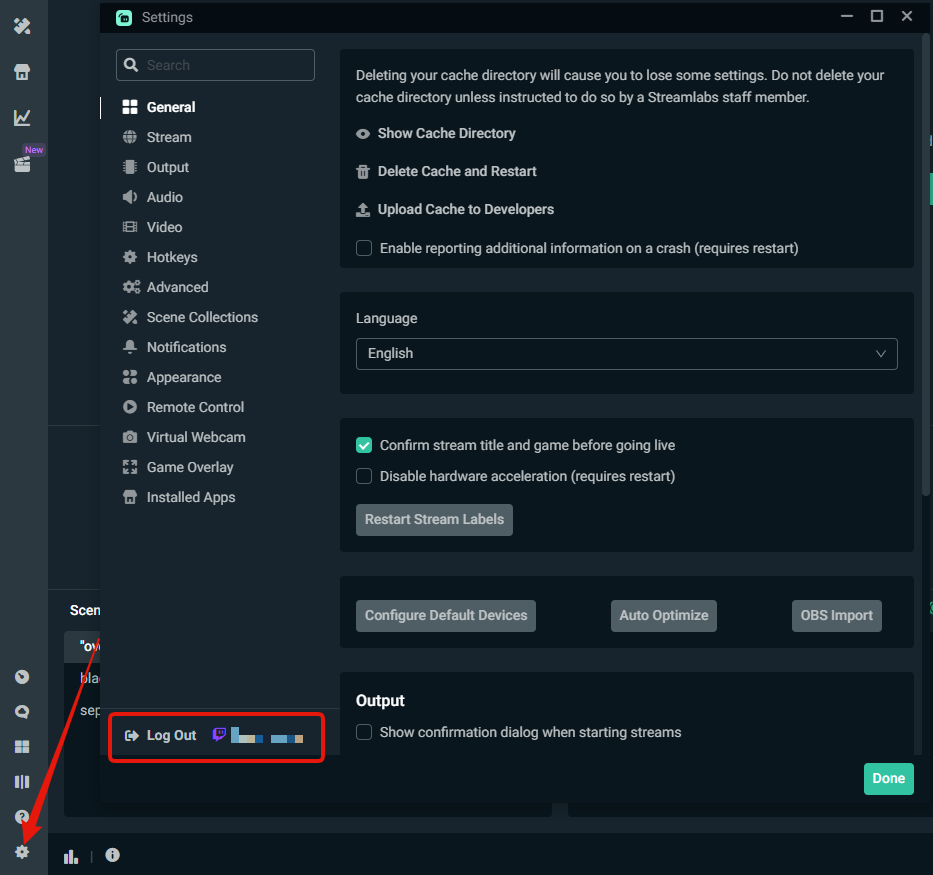 humble gale
in settings > output can you screenshot that too?
slim thistle
 humble gale
well i would probably untick enforce streaming service encoder. Then i mean what exaclty are you using the projector for?
slim thistle
humble gale
well i would probably untick `enforce streaming service encoder`. Then i mean w...
To be able to share my screen on pc when gaming on ps5 particularly to discord
humble gale
why not just use virtual webcam