 orchid remnant
Repo Link: https://github.com/sambow23/blender-remix
A Blender addon that let's you import and export RTX Remix compatible assets.
Requirements
- A system running Windows (or use Wine on Linux)
- Blender 4.0.2 or higher
- texconv from DirectXTex (only if using the git method)
Installation
Release
- Download the latest release
- Install the addon in Blender:
- Go to
Edit > Preferences > Add-ons - Click
Install...and select thertx_remix_importer.zip - Enable the
Remix Toolkit for Blenderaddon
- Go to
Git Repo
- Clone this repository
- Place
texconv.exeinrtx_remix_importer/texconv/(make thetexconvfolder) - Install the addon in Blender:
- Go to
Edit > Preferences > Add-ons - Click
Install...and select thertx_remix_importerfolder - Enable the
Remix Toolkit for Blenderaddon
- Go to
Usage
Import Captures
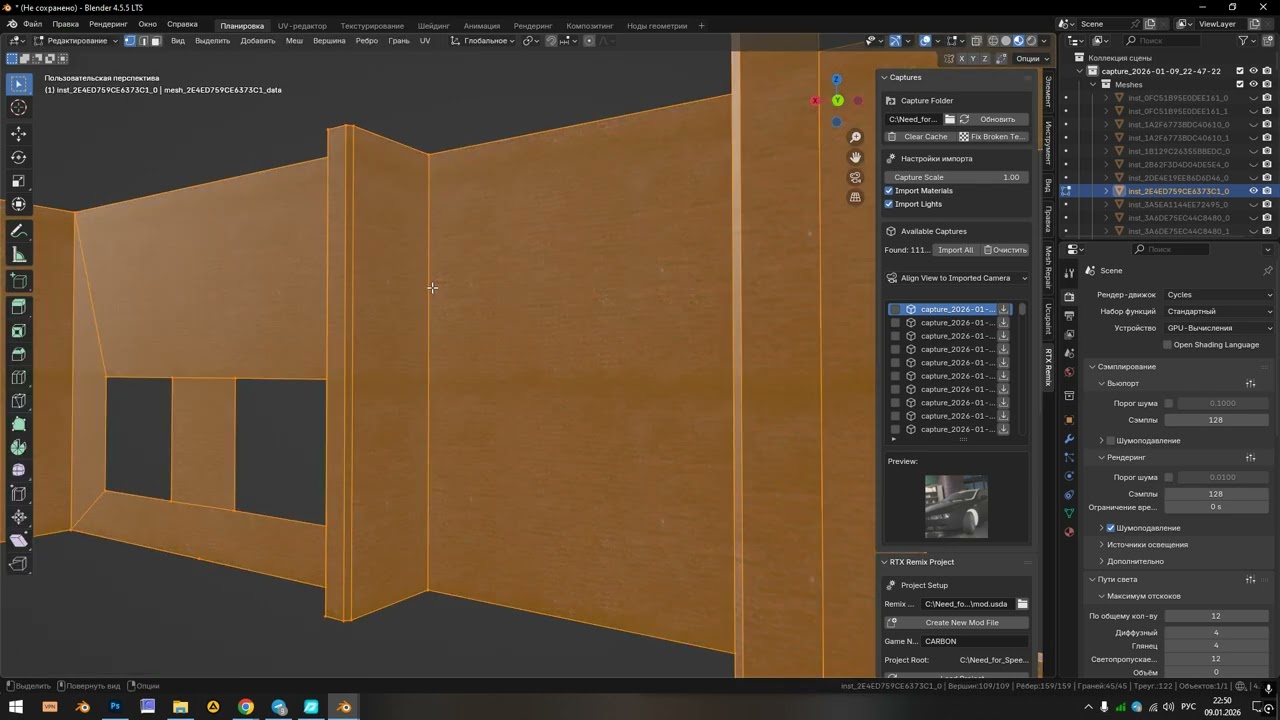
- Use the RTX Remix panel in the 3D viewport sidebar (N-key)
- Select your game's capture folder under
Captures > Capture Folder - Import individual capture USD files or batch import multiple using the checkboxes on the left side of the capture name
Asset Exports and Management
Mod Management
- Under
RTX Remix Project>Remix Mod File, select an existing mod.usda or create a new one
Sublayers
- Under
RTX Remix Project>Sublayers, select existing sublayer or create a new one
Meshes and Lights
- Under
RTX Remix Project>Remix Anchor Target. Select an anchor asset using the dropper icon (this would be an object in the game that has a stable hash) - Import/create meshes and/or lights and place them anywhere in the capture
- Select the assets you're going to export, then press
Export selectedunderRTX Remix Project>Mesh & Light Exports
Materials
- Select a mesh you're going to replace the material with, then open the
Shader Editor- By default, RTX Remix materials will use the Aperture Opaque material, but this can be replaced with Principled BSDF if needed.
- If you want to use Aperture Opaque/Translucent, select
Create Aperture Opaque/TranslucentunderRTX Remixon the sidebar inside the Shader Editor - Connect material inputs/outputs as usual.
- When you're finished, press
Export selectedunderRTX Remix Project>Material Exports
Known Issues
- Non-anchor mesh replacements are considered experimental and will have issues
- Albedo textures with an Alpha channel may not import/export correctly
- Some or all .dds textures are purple
- Happens with invalid .dds texture formats, use
Captures > Fix Broken Texturesto fix it
- Happens with invalid .dds texture formats, use
- The
Aperture Opaquenode group is not hooked up completely, there are some missing features (animation, iridescence, flags, etc) - Skinned mesh exporting is not supported yet
- Loading changes from a project's mod.usda can result in undefined behavior. This is being worked on.
Credits
- Uncle Burrito for the Aperture Opaque node group
⠀


 harsh wave

 shrewd cobalt


 stone grail


 muted blaze


 (and another gmod map i forgot to remove)
 cloud hazel


 lean quarry


 fallen spade


 jovial wharf


 rocky topaz

 stark gate


 CR when u make an HDRI skydome do you make it in blender and than export it as a usda file? And then open a capture, then import the HDRI skydome, and then texture it?


 wind harbor
 like here:




 austere cape
 final cloak




 old creek


 violet cove




 queen wolf

 weird that the remix capture settings aren't affecting anything. I'll take a look, thanks for sending the capture




 (this seems to only happen when duplicating the light, if i make one from scratch it works properly.)
 not sure if that's just me atp.