#bots
1 messages · Page 137 of 1
 sand scaffoldBOT
sand scaffoldBOT
sand scaffoldBOT
rody440, you just advanced to level 2
sand scaffoldBOT
silencer247, you just advanced to level 3
sand scaffoldBOT
alakay_x, you just advanced to level 2
alwaysyourfault, you just advanced to level 1
aiusagi1960, you just advanced to level 4
sand scaffoldBOT
GG @gilded meteor , you just unlocked the achievement: Casual Typer! 🥳
 sand scaffoldBOT
tylern0l, you just advanced to level 1
sand scaffoldBOT
swimmingswaglessshroud, you just advanced to level 4
sand scaffoldBOT
forbidden_codex, you just advanced to level 17
sand scaffoldBOT
jjd8898_56623, you just advanced to level 1
sand scaffoldBOT
thesevenera, you just advanced to level 7
sand scaffoldBOT
ladrillo8945, you just advanced to level 1
sand scaffoldBOT
kacperek1523, you just advanced to level 2
sand scaffoldBOT
GG @fallen lake , you just unlocked the achievement: True Star! 🥳

 frosty eagle
!ws
 frank tuskBOT
Luna Pixel's World Sharing
Our modpacks don't support any mods that add singleplayer hosting / world sharing because we already provide free world sharing. The 'Essential' mod is therefore incompatible.
To share your world using our own world hosting, click the 'Open to Lan' or 'Share World' button in the game menu when in a singleplayer world, and share the world.
It will give you an address, like magma-cube.mc.lunapixel.gg, which your friends can use to connect directly to your world as if it were a server!
We still highly suggest not to play through LAN as LAN is untested and unreliable. Using it will cause longterm damage to your world.
There is no reason to use LAN, as we support both paid and free methods of hosting a server the normal way.

 lusty hill
!server
frank tuskBOT
Free Method
To host a server on your own computer, read the selfhosting guide.
This guide goes over how to install, create, and launch a free Minecraft server on all operating systems (MacOS, Linux and Windows). The guide also guides you through installing Java and optimizing your server for better performance.
If you are installing one of our older modpacks, ignore the "README" file that is included in the serverpack files, as they have outdated information.
Paid Method
We suggest renting a server from Bisect Hosting:
Approx. $10 - $25 a month depending on what plan you choose. You can also get 25% off with Code LunaPixel.
Go here and order a plan which fits you. We suggest 1GB per player but nothing lower than 4GB as the server needs at least 3GB to run.
Go to #server-hosting for more Info!
The following advice works for both the Free and Paid methods:
Transferring Your World
If you're playing Singleplayer and want to transfer your world to your server, simply go to your modpack files and navigate to the saves folder. Inside of this folder, you will see your world saves. Rename your desired world save to world. You can then transfer this folder to your server files. If your world was hosted via world sharing, this process has to be done by the person who would click "Share World".
Fixing Lag
To resolve lag issues, simply run the !tps command in #bots and follow the directions provided.
sand scaffoldBOT
radioactive366, you just advanced to level 1
sand scaffoldBOT
tylern0l, you just advanced to level 2
sand scaffoldBOT
fregles3839, you just advanced to level 1
sand scaffoldBOT
tylern0l, you just advanced to level 3
atakan1795sd, you just advanced to level 1
zumbia, you just advanced to level 1
sand scaffoldBOT
zumbia, you just advanced to level 2
jelle3678, you just advanced to level 1
GG @fiery widget , you just unlocked the achievement: Give or Take! 🥳
 sand scaffoldBOT
GG @lost turret , you just unlocked the achievement: Chatter! 🥳
 sand scaffoldBOT
lerroyyjankens, you just advanced to level 2
sand scaffoldBOT
0xgianni, you just advanced to level 5
omgitsfrisbie, you just advanced to level 5
sand scaffoldBOT
reignyluvsdoodle, you just advanced to level 1
sand scaffoldBOT
juan309, you just advanced to level 3
sand scaffoldBOT
saqfr, you just advanced to level 10
sand scaffoldBOT
toosweatbitchhh, you just advanced to level 1
sand scaffoldBOT
gameking1happy, you just advanced to level 11
game_dweller, you just advanced to level 1
sand scaffoldBOT
andrewtimjohn, you just advanced to level 1
GG @desert lotus , you just unlocked the achievement: Casual Typer! 🥳
 sand scaffoldBOT
uskizzik, you just advanced to level 5
sand scaffoldBOT
andrewtimjohn, you just advanced to level 2
kafuoo, you just advanced to level 14
sand scaffoldBOT
andrewtimjohn, you just advanced to level 3
sand scaffoldBOT
GG @tranquil mountain , you just unlocked the achievement: Casual Typer! 🥳

andrewtimjohn, you just advanced to level 4
 empty parcel
frank tuskBOT
empty parcel
frank tuskBOT
If this command was run in response to your question/issue, it is likely because switching away from the launcher you are currently using would fix your problem.
From our experience, the most stable launcher by far is ATLauncher, also known as ATL. Keep in mind that ATL is NOT related to TLauncher in any way, and is not a cracked launcher.
To install ATL, do the following:
1. Go to https://atlauncher.com/download. If you are on MacOS, then choose the "Jar" version under the "Other" tab.
2. Install and run the setup, then open the program.
3. Login to your Microsoft account that owns the Java Edition of Minecraft from the Accounts tab on the right. This process is 100% safe, as it goes directly through Microsoft. ATL doesn't see your account credentials.
4. Go to the Packs tab on the right, then click "Curseforge" on the left.
5. Search the modpack you wish to download.
6. Click "Install". Then, follow the on-screen directions.
7. Go to the Instances tab, and click "Play" on the modpack you downloaded. If you ever see an "Update" button on the instance, click it.
This video explains the process: https://youtu.be/xMYW1wMbmkM
To transfer your Curseforge world to ATL, simply right click the modpack on Curseforge, or click the 3 dots, then click "Open Folder". Copy the Saves folder, then click "Open Folder" on ATL and paste the Saves folder there. Do the same with the XaerosMinimap folder, or the Journeymap folder, to transfer over any waypoints you've created.
Because ATL downloads the exact same files as Curseforge does, your world will be the exact same and you will be able to join the same servers. ATL also works without an internet connection (after you've installed the modpack, of course), and does not have any bloat from Overwolf. You are free to uninstall both Overwolf and Curseforge with ATL installed.
 dusky heath
!ws
frank tuskBOT
Luna Pixel's World Sharing
Our modpacks don't support any mods that add singleplayer hosting / world sharing because we already provide free world sharing. The 'Essential' mod is therefore incompatible.
To share your world using our own world hosting, click the 'Open to Lan' or 'Share World' button in the game menu when in a singleplayer world, and share the world.
It will give you an address, like magma-cube.mc.lunapixel.gg, which your friends can use to connect directly to your world as if it were a server!
We still highly suggest not to play through LAN as LAN is untested and unreliable. Using it will cause longterm damage to your world.
There is no reason to use LAN, as we support both paid and free methods of hosting a server the normal way.
sand scaffoldBOT
rafa9811, you just advanced to level 2
gruglu, you just advanced to level 2
eluclid, you just advanced to level 1
hadesthetriangle, you just advanced to level 1
josh_64086, you just advanced to level 1
sand scaffoldBOT
ilikeurcutg, you just advanced to level 1
redhoodedblast, you just advanced to level 1
sand scaffoldBOT
rafa9811, you just advanced to level 3
sand scaffoldBOT
demonpalyz213, you just advanced to level 4
lofitapes, you just advanced to level 1
sand scaffoldBOT
bleachyabum, you just advanced to level 1
sand scaffoldBOT
earlegrey, you just advanced to level 1
 spiral jewel
!ws
frank tuskBOT
Luna Pixel's World Sharing
Our modpacks don't support any mods that add singleplayer hosting / world sharing because we already provide free world sharing. The 'Essential' mod is therefore incompatible.
To share your world using our own world hosting, click the 'Open to Lan' or 'Share World' button in the game menu when in a singleplayer world, and share the world.
It will give you an address, like magma-cube.mc.lunapixel.gg, which your friends can use to connect directly to your world as if it were a server!
We still highly suggest not to play through LAN as LAN is untested and unreliable. Using it will cause longterm damage to your world.
There is no reason to use LAN, as we support both paid and free methods of hosting a server the normal way.
sand scaffoldBOT
.nostos., you just advanced to level 1
spiral jewel
!server
frank tuskBOT
Free Method
To host a server on your own computer, read the selfhosting guide.
This guide goes over how to install, create, and launch a free Minecraft server on all operating systems (MacOS, Linux and Windows). The guide also guides you through installing Java and optimizing your server for better performance.
If you are installing one of our older modpacks, ignore the "README" file that is included in the serverpack files, as they have outdated information.
Paid Method
We suggest renting a server from Bisect Hosting:
Approx. $10 - $25 a month depending on what plan you choose. You can also get 25% off with Code LunaPixel.
Go here and order a plan which fits you. We suggest 1GB per player but nothing lower than 4GB as the server needs at least 3GB to run.
Go to #server-hosting for more Info!
The following advice works for both the Free and Paid methods:
Transferring Your World
If you're playing Singleplayer and want to transfer your world to your server, simply go to your modpack files and navigate to the saves folder. Inside of this folder, you will see your world saves. Rename your desired world save to world. You can then transfer this folder to your server files. If your world was hosted via world sharing, this process has to be done by the person who would click "Share World".
Fixing Lag
To resolve lag issues, simply run the !tps command in #bots and follow the directions provided.
sand scaffoldBOT
null22466, you just advanced to level 3
sand scaffoldBOT
trankien, you just advanced to level 1
sand scaffoldBOT
scopez51201, you just advanced to level 1
sand scaffoldBOT
pyruswon, you just advanced to level 2
sand scaffoldBOT
pyruswon, you just advanced to level 3
sand scaffoldBOT
crowbar_., you just advanced to level 1
sand scaffoldBOT
kawasakirider3, you just advanced to level 1
francorce, you just advanced to level 4
sand scaffoldBOT
imthatguy1000, you just advanced to level 2
ayylisten_, you just advanced to level 2
sand scaffoldBOT
thetouchthefeel., you just advanced to level 2
sand scaffoldBOT
GG @median minnow , you just unlocked the achievement: Chatter! 🥳
 sand scaffoldBOT
im_ilkov, you just advanced to level 1
 misty sky
!fps
frank tuskBOT
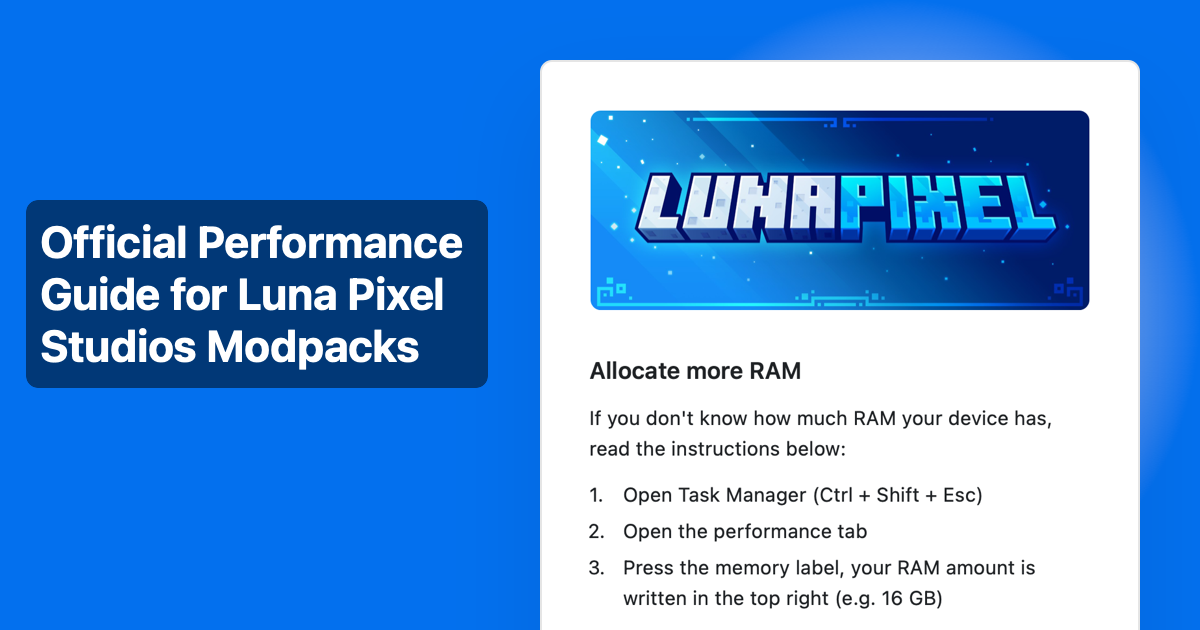 sand scaffoldBOT
streakzzyy, you just advanced to level 1
sand scaffoldBOT
javapeoplebelike_34842, you just advanced to level 1
sand scaffoldBOT
streakzzyy, you just advanced to level 2
sand scaffoldBOT
thefallencrusader, you just advanced to level 16
 quiet loom
!server
frank tuskBOT
Free Method
To host a server on your own computer, read the selfhosting guide.
This guide goes over how to install, create, and launch a free Minecraft server on all operating systems (MacOS, Linux and Windows). The guide also guides you through installing Java and optimizing your server for better performance.
If you are installing one of our older modpacks, ignore the "README" file that is included in the serverpack files, as they have outdated information.
Paid Method
We suggest renting a server from Bisect Hosting:
Approx. $10 - $25 a month depending on what plan you choose. You can also get 25% off with Code LunaPixel.
Go here and order a plan which fits you. We suggest 1GB per player but nothing lower than 4GB as the server needs at least 3GB to run.
Go to #server-hosting for more Info!
The following advice works for both the Free and Paid methods:
Transferring Your World
If you're playing Singleplayer and want to transfer your world to your server, simply go to your modpack files and navigate to the saves folder. Inside of this folder, you will see your world saves. Rename your desired world save to world. You can then transfer this folder to your server files. If your world was hosted via world sharing, this process has to be done by the person who would click "Share World".
Fixing Lag
To resolve lag issues, simply run the !tps command in #bots and follow the directions provided.
sand scaffoldBOT
kildfam, you just advanced to level 1
sand scaffoldBOT
streakzzyy, you just advanced to level 4
GG @shadow apex , you just unlocked the achievement: Casual Typer! 🥳
 sand scaffoldBOT
bingbong89., you just advanced to level 1
sand scaffoldBOT
bingbong89., you just advanced to level 2
sand scaffoldBOT
alexanderthegeek, you just advanced to level 1
sand scaffoldBOT
.creeperkitty, you just advanced to level 6
sand scaffoldBOT
genhelmpascal_5838, you just advanced to level 1
sand scaffoldBOT
fluffykitty., you just advanced to level 1
sand scaffoldBOT
burritobeef, you just advanced to level 1
misty sky
!fps
frank tuskBOT
 rocky trail
!ws
frank tuskBOT
Luna Pixel's World Sharing
Our modpacks don't support any mods that add singleplayer hosting / world sharing because we already provide free world sharing. The 'Essential' mod is therefore incompatible.
To share your world using our own world hosting, click the 'Open to Lan' or 'Share World' button in the game menu when in a singleplayer world, and share the world.
It will give you an address, like magma-cube.mc.lunapixel.gg, which your friends can use to connect directly to your world as if it were a server!
We still highly suggest not to play through LAN as LAN is untested and unreliable. Using it will cause longterm damage to your world.
There is no reason to use LAN, as we support both paid and free methods of hosting a server the normal way.
rocky trail
!server
frank tuskBOT
Free Method
To host a server on your own computer, read the selfhosting guide.
This guide goes over how to install, create, and launch a free Minecraft server on all operating systems (MacOS, Linux and Windows). The guide also guides you through installing Java and optimizing your server for better performance.
If you are installing one of our older modpacks, ignore the "README" file that is included in the serverpack files, as they have outdated information.
Paid Method
We suggest renting a server from Bisect Hosting:
Approx. $10 - $25 a month depending on what plan you choose. You can also get 25% off with Code LunaPixel.
Go here and order a plan which fits you. We suggest 1GB per player but nothing lower than 4GB as the server needs at least 3GB to run.
Go to #server-hosting for more Info!
The following advice works for both the Free and Paid methods:
Transferring Your World
If you're playing Singleplayer and want to transfer your world to your server, simply go to your modpack files and navigate to the saves folder. Inside of this folder, you will see your world saves. Rename your desired world save to world. You can then transfer this folder to your server files. If your world was hosted via world sharing, this process has to be done by the person who would click "Share World".
Fixing Lag
To resolve lag issues, simply run the !tps command in #bots and follow the directions provided.
sand scaffoldBOT
just121, you just advanced to level 1
sand scaffoldBOT
redaskg, you just advanced to level 4
sand scaffoldBOT
fluffykitty., you just advanced to level 2
sand scaffoldBOT
GG @silver palm , you just unlocked the achievement: Fire Starter! 🥳
 sand scaffoldBOT
just121, you just advanced to level 2
sand scaffoldBOT
ellaurion, you just advanced to level 1
chrysalide, you just advanced to level 1
sand scaffoldBOT
lordrex777, you just advanced to level 1
sand scaffoldBOT
GG @strange rampart , you just unlocked the achievement: Give or Take! 🥳

alankwzz, you just advanced to level 4
sand scaffoldBOT
mrmysticc, you just advanced to level 1
sand scaffoldBOT
sirconfley, you just advanced to level 2
ollybobbolly, you just advanced to level 1
sand scaffoldBOT
lordcardinals, you just advanced to level 1
sand scaffoldBOT
cowsticker, you just advanced to level 10
sand scaffoldBOT
claire.da.hoe, you just advanced to level 1
sand scaffoldBOT
crowbar_., you just advanced to level 2
sand scaffoldBOT
russeii, you just advanced to level 1
sand scaffoldBOT
onlyjordz, you just advanced to level 1
joash667, you just advanced to level 1
onlyjordz, you just advanced to level 2
sand scaffoldBOT
_jxami, you just advanced to level 2
sand scaffoldBOT
kuba, you just advanced to level 1
sand scaffoldBOT
wallice420, you just advanced to level 1
sand scaffoldBOT
pjthe1dj., you just advanced to level 1
steavengameryt, you just advanced to level 4
sand scaffoldBOT
clappii, you just advanced to level 1
 granite urchin
!wsfull
frank tuskBOT
 World Sharing servers are likely currently at capacity
If you or your friend are receiving an error such as "An error occurred in Luna", or "Connection refused: no further information" when trying to play through "Open to LAN" or "Share World", it's likely that Luna's servers (used for world sharing) are currently full. We don't have a way to notify you when slots on our servers free up, but you are welcome to try again later.
We understand and recognize that this may be inconvenient, so we recommend in this case to host or rent your own server. Self-hosting is free, for more information on hosting options, type !server in #bots.
Please note as well that this is a static command, it does not change/know when servers are full or not
 gloomy frigate
!server share
frank tuskBOT
Free Method
To host a server on your own computer, read the selfhosting guide.
This guide goes over how to install, create, and launch a free Minecraft server on all operating systems (MacOS, Linux and Windows). The guide also guides you through installing Java and optimizing your server for better performance.
If you are installing one of our older modpacks, ignore the "README" file that is included in the serverpack files, as they have outdated information.
Paid Method
We suggest renting a server from Bisect Hosting:
Approx. $10 - $25 a month depending on what plan you choose. You can also get 25% off with Code LunaPixel.
Go here and order a plan which fits you. We suggest 1GB per player but nothing lower than 4GB as the server needs at least 3GB to run.
Go to #server-hosting for more Info!
The following advice works for both the Free and Paid methods:
Transferring Your World
If you're playing Singleplayer and want to transfer your world to your server, simply go to your modpack files and navigate to the saves folder. Inside of this folder, you will see your world saves. Rename your desired world save to world. You can then transfer this folder to your server files. If your world was hosted via world sharing, this process has to be done by the person who would click "Share World".
Fixing Lag
To resolve lag issues, simply run the !tps command in #bots and follow the directions provided.
sand scaffoldBOT
GG @south flame , you just unlocked the achievement: Give or Take! 🥳
 sand scaffoldBOT
angel_ttv8, you just advanced to level 3
sand scaffoldBOT
GG @brisk lintel , you just unlocked the achievement: Chatter! 🥳

GG @small geode , you just unlocked the achievement: Chatter! 🥳

laratide, you just advanced to level 1
quinn_8, you just advanced to level 5
infernoreaper12, you just advanced to level 1
sand scaffoldBOT
slowlyautistic, you just advanced to level 1
sand scaffoldBOT
kalypso14, you just advanced to level 1
sand scaffoldBOT
mmdeathknight, you just advanced to level 2
sand scaffoldBOT
steelixbr, you just advanced to level 1
sand scaffoldBOT
Ari ( ping me ), you just advanced to level 4
sand scaffoldBOT
modderg, you just advanced to level 1
sand scaffoldBOT
alltoashes, you just advanced to level 1
sand scaffoldBOT
xavieryt_, you just advanced to level 1
 trail ledge
!server
frank tuskBOT
Free Method
To host a server on your own computer, read the selfhosting guide.
This guide goes over how to install, create, and launch a free Minecraft server on all operating systems (MacOS, Linux and Windows). The guide also guides you through installing Java and optimizing your server for better performance.
If you are installing one of our older modpacks, ignore the "README" file that is included in the serverpack files, as they have outdated information.
Paid Method
We suggest renting a server from Bisect Hosting:
Approx. $10 - $25 a month depending on what plan you choose. You can also get 25% off with Code LunaPixel.
Go here and order a plan which fits you. We suggest 1GB per player but nothing lower than 4GB as the server needs at least 3GB to run.
Go to #server-hosting for more Info!
The following advice works for both the Free and Paid methods:
Transferring Your World
If you're playing Singleplayer and want to transfer your world to your server, simply go to your modpack files and navigate to the saves folder. Inside of this folder, you will see your world saves. Rename your desired world save to world. You can then transfer this folder to your server files. If your world was hosted via world sharing, this process has to be done by the person who would click "Share World".
Fixing Lag
To resolve lag issues, simply run the !tps command in #bots and follow the directions provided.
sand scaffoldBOT
skeldy, you just advanced to level 1
sand scaffoldBOT
darkenwolf2050, you just advanced to level 1
sand scaffoldBOT
Lurker, you just advanced to level 7
tempestx1999, you just advanced to level 9
sand scaffoldBOT
GG @elder oxide , you just unlocked the achievement: Chatter! 🥳
 sand scaffoldBOT
thricebite, you just advanced to level 12
sand scaffoldBOT
thenebulamage, you just advanced to level 1
naptimehyena, you just advanced to level 2
 late marsh
!pirate
sand scaffoldBOT
mangohazeplug, you just advanced to level 1
sand scaffoldBOT
GG @eternal warren , you just unlocked the achievement: Give or Take! 🥳

tebil, you just advanced to level 1
sand scaffoldBOT
syntaksivirhe, you just advanced to level 1
sand scaffoldBOT
astrallfangs, you just advanced to level 1
 exotic agate
!ws
frank tuskBOT
Luna Pixel's World Sharing
Our modpacks don't support any mods that add singleplayer hosting / world sharing because we already provide free world sharing. The 'Essential' mod is therefore incompatible.
To share your world using our own world hosting, click the 'Open to Lan' or 'Share World' button in the game menu when in a singleplayer world, and share the world.
It will give you an address, like magma-cube.mc.lunapixel.gg, which your friends can use to connect directly to your world as if it were a server!
We still highly suggest not to play through LAN as LAN is untested and unreliable. Using it will cause longterm damage to your world.
There is no reason to use LAN, as we support both paid and free methods of hosting a server the normal way.
 fluid bay
!ws
frank tuskBOT
Luna Pixel's World Sharing
Our modpacks don't support any mods that add singleplayer hosting / world sharing because we already provide free world sharing. The 'Essential' mod is therefore incompatible.
To share your world using our own world hosting, click the 'Open to Lan' or 'Share World' button in the game menu when in a singleplayer world, and share the world.
It will give you an address, like magma-cube.mc.lunapixel.gg, which your friends can use to connect directly to your world as if it were a server!
We still highly suggest not to play through LAN as LAN is untested and unreliable. Using it will cause longterm damage to your world.
There is no reason to use LAN, as we support both paid and free methods of hosting a server the normal way.
sand scaffoldBOT
wasonly, you just advanced to level 2
 frosty flume
!tps
frank tuskBOT
Please follow the guide here for changing the Java version your server uses. This will improve performance dramatically. If you are on a third party server host, you likely can not change the Java version your server uses. Bisect Hosting and a few VPS providers do allow changing Java version, though, which can usually be done through your server dashboard.
The method on Bisect is to simply go to the main dashboard page, and select "GraalVM 22" as the Java distribution. If it crashes, use 21 instead.
For further performance improvements, you can also follow this guide.
Reducing server render distance in the server.properties file is also a very good way of reducing lag. Most of our modpacks include mods like Bobby and Farsight, which make it so reducing server render distance will not affect players.
If lag persists, run the following command ingame:
/spark profiler start --only-ticks-over 50
Then, send the link in this channel.
sand scaffoldBOT
ragnar.dev, you just advanced to level 3
sand scaffoldBOT
cucu.ramza, you just advanced to level 1
 sly frigate
!help
sand scaffoldBOT
🚫 It looks like you don't have any commands to show.
To enable or add commands, head to your dashboard and enable the plugins of your choice -> https://mee6.xyz/dashboard/790272037578473512
sand scaffoldBOT
GG @zenith acorn , you just unlocked the achievement: Give or Take! 🥳
 sand scaffoldBOT
toxicfruitgamer, you just advanced to level 1
sand scaffoldBOT
shadowkhs15, you just advanced to level 2
kingofasiatb, you just advanced to level 1
 tight otter
!alternates
frank tuskBOT
If this command was run in response to your question/issue, it is likely because switching away from the launcher you are currently using would fix your problem.
From our experience, the most stable launcher by far is ATLauncher, also known as ATL. Keep in mind that ATL is NOT related to TLauncher in any way, and is not a cracked launcher.
To install ATL, do the following:
1. Go to https://atlauncher.com/download. If you are on MacOS, then choose the "Jar" version under the "Other" tab.
2. Install and run the setup, then open the program.
3. Login to your Microsoft account that owns the Java Edition of Minecraft from the Accounts tab on the right. This process is 100% safe, as it goes directly through Microsoft. ATL doesn't see your account credentials.
4. Go to the Packs tab on the right, then click "Curseforge" on the left.
5. Search the modpack you wish to download.
6. Click "Install". Then, follow the on-screen directions.
7. Go to the Instances tab, and click "Play" on the modpack you downloaded. If you ever see an "Update" button on the instance, click it.
This video explains the process: https://youtu.be/xMYW1wMbmkM
To transfer your Curseforge world to ATL, simply right click the modpack on Curseforge, or click the 3 dots, then click "Open Folder". Copy the Saves folder, then click "Open Folder" on ATL and paste the Saves folder there. Do the same with the XaerosMinimap folder, or the Journeymap folder, to transfer over any waypoints you've created.
Because ATL downloads the exact same files as Curseforge does, your world will be the exact same and you will be able to join the same servers. ATL also works without an internet connection (after you've installed the modpack, of course), and does not have any bloat from Overwolf. You are free to uninstall both Overwolf and Curseforge with ATL installed.
sand scaffoldBOT
comcombre263, you just advanced to level 1
sand scaffoldBOT
bic77, you just advanced to level 1
 crimson holly
!tps
frank tuskBOT
Please follow the guide here for changing the Java version your server uses. This will improve performance dramatically. If you are on a third party server host, you likely can not change the Java version your server uses. Bisect Hosting and a few VPS providers do allow changing Java version, though, which can usually be done through your server dashboard.
The method on Bisect is to simply go to the main dashboard page, and select "GraalVM 22" as the Java distribution. If it crashes, use 21 instead.
For further performance improvements, you can also follow this guide.
Reducing server render distance in the server.properties file is also a very good way of reducing lag. Most of our modpacks include mods like Bobby and Farsight, which make it so reducing server render distance will not affect players.
If lag persists, run the following command ingame:
/spark profiler start --only-ticks-over 50
Then, send the link in this channel.
sand scaffoldBOT
GG @dusky moth , you just unlocked the achievement: Give or Take! 🥳

vxern, you just advanced to level 2
late marsh
!prommove
frank tuskBOT
Elocin projects have moved!
Nicole/Elocin, the dev of Prominence 1/2 modpacks, YSNS mod, and much more has gone independent to her own studio for her projects. She is no longer affiliated with Luna Pixel Studios in any way.
You can find the invite link inside the CurseForge Prominence project page.
sand scaffoldBOT
frnoobz, you just advanced to level 1
 jovial sapphire
!server
frank tuskBOT
Free Method
To host a server on your own computer, read the selfhosting guide.
This guide goes over how to install, create, and launch a free Minecraft server on all operating systems (MacOS, Linux and Windows). The guide also guides you through installing Java and optimizing your server for better performance.
If you are installing one of our older modpacks, ignore the "README" file that is included in the serverpack files, as they have outdated information.
Paid Method
We suggest renting a server from Bisect Hosting:
Approx. $10 - $25 a month depending on what plan you choose. You can also get 25% off with Code LunaPixel.
Go here and order a plan which fits you. We suggest 1GB per player but nothing lower than 4GB as the server needs at least 3GB to run.
Go to #server-hosting for more Info!
The following advice works for both the Free and Paid methods:
Transferring Your World
If you're playing Singleplayer and want to transfer your world to your server, simply go to your modpack files and navigate to the saves folder. Inside of this folder, you will see your world saves. Rename your desired world save to world. You can then transfer this folder to your server files. If your world was hosted via world sharing, this process has to be done by the person who would click "Share World".
Fixing Lag
To resolve lag issues, simply run the !tps command in #bots and follow the directions provided.
sand scaffoldBOT
mily_5508, you just advanced to level 1
ilikeurcutg, you just advanced to level 2
sand scaffoldBOT
astrallfangs, you just advanced to level 2
sand scaffoldBOT
ilikeurcutg, you just advanced to level 3
sand scaffoldBOT
awetrinity, you just advanced to level 1
exil., you just advanced to level 1
godz_potato, you just advanced to level 1
 flint seal
!ea
frank tuskBOT
The Essential mod is completely incompatible with all of our modpacks, and there's no reason to use it. All of our modpacks already come with built-in, free world hosting, by clicking the "Share World' button in the Open to LAN menu. You can learn more by typing !ws in the #bots channel. You can also run type !server in the same channel to learn how to properly host a server for better performance and more flexibility. In modpacks that aren't owned by us, you can use mods such as e4mc or WorldHost to host a server completely for free without Essential's many issues and crashes and the microtransactions that they constantly bother users with. To learn more about alternatives to the Essential mod, check out this website.
flint seal
!ws
frank tuskBOT
Luna Pixel's World Sharing
Our modpacks don't support any mods that add singleplayer hosting / world sharing because we already provide free world sharing. The 'Essential' mod is therefore incompatible.
To share your world using our own world hosting, click the 'Open to Lan' or 'Share World' button in the game menu when in a singleplayer world, and share the world.
It will give you an address, like magma-cube.mc.lunapixel.gg, which your friends can use to connect directly to your world as if it were a server!
We still highly suggest not to play through LAN as LAN is untested and unreliable. Using it will cause longterm damage to your world.
There is no reason to use LAN, as we support both paid and free methods of hosting a server the normal way.
 lethal tulip
!ws
frank tuskBOT
Luna Pixel's World Sharing
Our modpacks don't support any mods that add singleplayer hosting / world sharing because we already provide free world sharing. The 'Essential' mod is therefore incompatible.
To share your world using our own world hosting, click the 'Open to Lan' or 'Share World' button in the game menu when in a singleplayer world, and share the world.
It will give you an address, like magma-cube.mc.lunapixel.gg, which your friends can use to connect directly to your world as if it were a server!
We still highly suggest not to play through LAN as LAN is untested and unreliable. Using it will cause longterm damage to your world.
There is no reason to use LAN, as we support both paid and free methods of hosting a server the normal way.
sand scaffoldBOT
frostisfrozen, you just advanced to level 6
sand scaffoldBOT
GG @finite geode , you just unlocked the achievement: Casual Typer! 🥳
 sand scaffoldBOT
hajun_eron, you just advanced to level 2
sand scaffoldBOT
pinkpsycho, you just advanced to level 1
sand scaffoldBOT
backwoods0420, you just advanced to level 1
 opaque galleon
!server
frank tuskBOT
Free Method
To host a server on your own computer, read the selfhosting guide.
This guide goes over how to install, create, and launch a free Minecraft server on all operating systems (MacOS, Linux and Windows). The guide also guides you through installing Java and optimizing your server for better performance.
If you are installing one of our older modpacks, ignore the "README" file that is included in the serverpack files, as they have outdated information.
Paid Method
We suggest renting a server from Bisect Hosting:
Approx. $10 - $25 a month depending on what plan you choose. You can also get 25% off with Code LunaPixel.
Go here and order a plan which fits you. We suggest 1GB per player but nothing lower than 4GB as the server needs at least 3GB to run.
Go to #server-hosting for more Info!
The following advice works for both the Free and Paid methods:
Transferring Your World
If you're playing Singleplayer and want to transfer your world to your server, simply go to your modpack files and navigate to the saves folder. Inside of this folder, you will see your world saves. Rename your desired world save to world. You can then transfer this folder to your server files. If your world was hosted via world sharing, this process has to be done by the person who would click "Share World".
Fixing Lag
To resolve lag issues, simply run the !tps command in #bots and follow the directions provided.
opaque galleon
!tps
frank tuskBOT
Please follow the guide here for changing the Java version your server uses. This will improve performance dramatically. If you are on a third party server host, you likely can not change the Java version your server uses. Bisect Hosting and a few VPS providers do allow changing Java version, though, which can usually be done through your server dashboard.
The method on Bisect is to simply go to the main dashboard page, and select "GraalVM 22" as the Java distribution. If it crashes, use 21 instead.
For further performance improvements, you can also follow this guide.
Reducing server render distance in the server.properties file is also a very good way of reducing lag. Most of our modpacks include mods like Bobby and Farsight, which make it so reducing server render distance will not affect players.
If lag persists, run the following command ingame:
/spark profiler start --only-ticks-over 50
Then, send the link in this channel.
sand scaffoldBOT
crow_xo, you just advanced to level 1
 primal siren
!server
frank tuskBOT
Free Method
To host a server on your own computer, read the selfhosting guide.
This guide goes over how to install, create, and launch a free Minecraft server on all operating systems (MacOS, Linux and Windows). The guide also guides you through installing Java and optimizing your server for better performance.
If you are installing one of our older modpacks, ignore the "README" file that is included in the serverpack files, as they have outdated information.
Paid Method
We suggest renting a server from Bisect Hosting:
Approx. $10 - $25 a month depending on what plan you choose. You can also get 25% off with Code LunaPixel.
Go here and order a plan which fits you. We suggest 1GB per player but nothing lower than 4GB as the server needs at least 3GB to run.
Go to #server-hosting for more Info!
The following advice works for both the Free and Paid methods:
Transferring Your World
If you're playing Singleplayer and want to transfer your world to your server, simply go to your modpack files and navigate to the saves folder. Inside of this folder, you will see your world saves. Rename your desired world save to world. You can then transfer this folder to your server files. If your world was hosted via world sharing, this process has to be done by the person who would click "Share World".
Fixing Lag
To resolve lag issues, simply run the !tps command in #bots and follow the directions provided.
sand scaffoldBOT
russeii, you just advanced to level 2
sand scaffoldBOT
deepsagar, you just advanced to level 1
sand scaffoldBOT
ankawastaken, you just advanced to level 1
sand scaffoldBOT
w9555, you just advanced to level 1
sand scaffoldBOT
GG @shut hinge , you just unlocked the achievement: Give or Take! 🥳

lantyrchen, you just advanced to level 3
frank tuskBOT
Luna Pixel's World Sharing
Our modpacks don't support any mods that add singleplayer hosting / world sharing because we already provide free world sharing. The 'Essential' mod is therefore incompatible.
To share your world using our own world hosting, click the 'Open to Lan' or 'Share World' button in the game menu when in a singleplayer world, and share the world.
It will give you an address, like magma-cube.mc.lunapixel.gg, which your friends can use to connect directly to your world as if it were a server!
We still highly suggest not to play through LAN as LAN is untested and unreliable. Using it will cause longterm damage to your world.
There is no reason to use LAN, as we support both paid and free methods of hosting a server the normal way.
late marsh
!when
frank tuskBOT
Don't ask devs for ETA's, it's rude.
For the majority of devs this is a hobby, asking when a project they're working on will release adds unnecessary pressure. The only thing that increased pressure does is contribute towards demotivation and burnout, causing the project to take longer.
 violet ocean
!server
frank tuskBOT
Free Method
To host a server on your own computer, read the selfhosting guide.
This guide goes over how to install, create, and launch a free Minecraft server on all operating systems (MacOS, Linux and Windows). The guide also guides you through installing Java and optimizing your server for better performance.
If you are installing one of our older modpacks, ignore the "README" file that is included in the serverpack files, as they have outdated information.
Paid Method
We suggest renting a server from Bisect Hosting:
Approx. $10 - $25 a month depending on what plan you choose. You can also get 25% off with Code LunaPixel.
Go here and order a plan which fits you. We suggest 1GB per player but nothing lower than 4GB as the server needs at least 3GB to run.
Go to #server-hosting for more Info!
The following advice works for both the Free and Paid methods:
Transferring Your World
If you're playing Singleplayer and want to transfer your world to your server, simply go to your modpack files and navigate to the saves folder. Inside of this folder, you will see your world saves. Rename your desired world save to world. You can then transfer this folder to your server files. If your world was hosted via world sharing, this process has to be done by the person who would click "Share World".
Fixing Lag
To resolve lag issues, simply run the !tps command in #bots and follow the directions provided.
sand scaffoldBOT
leafblower098, you just advanced to level 1
 jade hazel
!pregen
frank tuskBOT

Noob explains how to Pre Generate your Minecraft World.
▬▬▬▬▬▬▬▬▬▬▬▬▬▬▬▬▬▬▬▬▬▬▬▬▬▬▬▬▬▬
➔ Modpack: https://www.curseforge.com/minecraft/modpacks/better-minecraft-modpack
➔ Discord: https://discord.com/invite/9S5tfrY4Fr
▬▬▬▬▬▬▬▬▬▬▬▬▬▬▬▬▬▬▬▬▬...
 barren basin
!ws
frank tuskBOT
Luna Pixel's World Sharing
Our modpacks don't support any mods that add singleplayer hosting / world sharing because we already provide free world sharing. The 'Essential' mod is therefore incompatible.
To share your world using our own world hosting, click the 'Open to Lan' or 'Share World' button in the game menu when in a singleplayer world, and share the world.
It will give you an address, like magma-cube.mc.lunapixel.gg, which your friends can use to connect directly to your world as if it were a server!
We still highly suggest not to play through LAN as LAN is untested and unreliable. Using it will cause longterm damage to your world.
There is no reason to use LAN, as we support both paid and free methods of hosting a server the normal way.
barren basin
!server
frank tuskBOT
Free Method
To host a server on your own computer, read the selfhosting guide.
This guide goes over how to install, create, and launch a free Minecraft server on all operating systems (MacOS, Linux and Windows). The guide also guides you through installing Java and optimizing your server for better performance.
If you are installing one of our older modpacks, ignore the "README" file that is included in the serverpack files, as they have outdated information.
Paid Method
We suggest renting a server from Bisect Hosting:
Approx. $10 - $25 a month depending on what plan you choose. You can also get 25% off with Code LunaPixel.
Go here and order a plan which fits you. We suggest 1GB per player but nothing lower than 4GB as the server needs at least 3GB to run.
Go to #server-hosting for more Info!
The following advice works for both the Free and Paid methods:
Transferring Your World
If you're playing Singleplayer and want to transfer your world to your server, simply go to your modpack files and navigate to the saves folder. Inside of this folder, you will see your world saves. Rename your desired world save to world. You can then transfer this folder to your server files. If your world was hosted via world sharing, this process has to be done by the person who would click "Share World".
Fixing Lag
To resolve lag issues, simply run the !tps command in #bots and follow the directions provided.
 naive root
!alternates
frank tuskBOT
If this command was run in response to your question/issue, it is likely because switching away from the launcher you are currently using would fix your problem.
From our experience, the most stable launcher by far is ATLauncher, also known as ATL. Keep in mind that ATL is NOT related to TLauncher in any way, and is not a cracked launcher.
To install ATL, do the following:
1. Go to https://atlauncher.com/download. If you are on MacOS, then choose the "Jar" version under the "Other" tab.
2. Install and run the setup, then open the program.
3. Login to your Microsoft account that owns the Java Edition of Minecraft from the Accounts tab on the right. This process is 100% safe, as it goes directly through Microsoft. ATL doesn't see your account credentials.
4. Go to the Packs tab on the right, then click "Curseforge" on the left.
5. Search the modpack you wish to download.
6. Click "Install". Then, follow the on-screen directions.
7. Go to the Instances tab, and click "Play" on the modpack you downloaded. If you ever see an "Update" button on the instance, click it.
This video explains the process: https://youtu.be/xMYW1wMbmkM
To transfer your Curseforge world to ATL, simply right click the modpack on Curseforge, or click the 3 dots, then click "Open Folder". Copy the Saves folder, then click "Open Folder" on ATL and paste the Saves folder there. Do the same with the XaerosMinimap folder, or the Journeymap folder, to transfer over any waypoints you've created.
Because ATL downloads the exact same files as Curseforge does, your world will be the exact same and you will be able to join the same servers. ATL also works without an internet connection (after you've installed the modpack, of course), and does not have any bloat from Overwolf. You are free to uninstall both Overwolf and Curseforge with ATL installed.
sand scaffoldBOT
scriptz_21, you just advanced to level 1
_rxr8, you just advanced to level 1
ay3vx, you just advanced to level 1
sand scaffoldBOT
mr.vako, you just advanced to level 1
sand scaffoldBOT
kavin_vignesh, you just advanced to level 1
sand scaffoldBOT
kimolly, you just advanced to level 4
sand scaffoldBOT
johnthejojojo, you just advanced to level 1
lemacabre, you just advanced to level 2
sand scaffoldBOT
gottiem, you just advanced to level 1
sand scaffoldBOT
si_ahmad, you just advanced to level 1
sand scaffoldBOT
It's the birthday of @bleak latch! 🎂
sand scaffoldBOT
flimsymelon, you just advanced to level 1
hollyxiti, you just advanced to level 1
sand scaffoldBOT
itz_magic, you just advanced to level 1
 civic obsidian
!alternates
frank tuskBOT
If this command was run in response to your question/issue, it is likely because switching away from the launcher you are currently using would fix your problem.
From our experience, the most stable launcher by far is ATLauncher, also known as ATL. Keep in mind that ATL is NOT related to TLauncher in any way, and is not a cracked launcher.
To install ATL, do the following:
1. Go to https://atlauncher.com/download. If you are on MacOS, then choose the "Jar" version under the "Other" tab.
2. Install and run the setup, then open the program.
3. Login to your Microsoft account that owns the Java Edition of Minecraft from the Accounts tab on the right. This process is 100% safe, as it goes directly through Microsoft. ATL doesn't see your account credentials.
4. Go to the Packs tab on the right, then click "Curseforge" on the left.
5. Search the modpack you wish to download.
6. Click "Install". Then, follow the on-screen directions.
7. Go to the Instances tab, and click "Play" on the modpack you downloaded. If you ever see an "Update" button on the instance, click it.
This video explains the process: https://youtu.be/xMYW1wMbmkM
To transfer your Curseforge world to ATL, simply right click the modpack on Curseforge, or click the 3 dots, then click "Open Folder". Copy the Saves folder, then click "Open Folder" on ATL and paste the Saves folder there. Do the same with the XaerosMinimap folder, or the Journeymap folder, to transfer over any waypoints you've created.
Because ATL downloads the exact same files as Curseforge does, your world will be the exact same and you will be able to join the same servers. ATL also works without an internet connection (after you've installed the modpack, of course), and does not have any bloat from Overwolf. You are free to uninstall both Overwolf and Curseforge with ATL installed.
sand scaffoldBOT
epicdinodragon, you just advanced to level 1
sand scaffoldBOT
entity_4046974, you just advanced to level 1
GG @mild galleon , you just unlocked the achievement: Casual Typer! 🥳
 sand scaffoldBOT
leafblower098, you just advanced to level 2
sand scaffoldBOT
alvie0077, you just advanced to level 2
sand scaffoldBOT
.xzeno., you just advanced to level 1
sand scaffoldBOT
.grisbyy, you just advanced to level 1
sand scaffoldBOT
philbofett, you just advanced to level 1
sand scaffoldBOT
_aax.k, you just advanced to level 1
sand scaffoldBOT
tantai_2509, you just advanced to level 1
sand scaffoldBOT
gardenfps, you just advanced to level 1
sand scaffoldBOT
the_drunken_sniper, you just advanced to level 1
sand scaffoldBOT
derqq123, you just advanced to level 1
sand scaffoldBOT
angelicwanderer, you just advanced to level 1
sand scaffoldBOT
crewmenkyle, you just advanced to level 1
sand scaffoldBOT
Ari ( ping me ), you just advanced to level 5
sand scaffoldBOT
ilikeurcutg, you just advanced to level 4
 thin mountain
!rank
sand scaffoldBOT
 sand scaffoldBOT
lcrazyjean, you just advanced to level 4
sand scaffoldBOT
hipothy, you just advanced to level 2
sand scaffoldBOT
karlami, you just advanced to level 1
sand scaffoldBOT
louk, you just advanced to level 1
sand scaffoldBOT
umbyx_, you just advanced to level 1
filipe085585, you just advanced to level 1
sand scaffoldBOT
redaskg, you just advanced to level 5
GG @tender glade , you just unlocked the achievement: Casual Typer! 🥳

ay3vx, you just advanced to level 2
colocated, you just advanced to level 2
sand scaffoldBOT
ladowaraobrotowa, you just advanced to level 1
sand scaffoldBOT
cHin4916, you just advanced to level 30
sand scaffoldBOT
droxkiller_714, you just advanced to level 1
someonewholike, you just advanced to level 1
sand scaffoldBOT
luckysonofaduck, you just advanced to level 1
mrkrazygamer, you just advanced to level 1
_azulzb, you just advanced to level 1
onlyjordz, you just advanced to level 3
sand scaffoldBOT
sameeeq, you just advanced to level 1
sand scaffoldBOT
infinity8588, you just advanced to level 1
_azulzb, you just advanced to level 2
xkarno, you just advanced to level 2
sand scaffoldBOT
dave._fancylastname, you just advanced to level 1
sand scaffoldBOT
dundette, you just advanced to level 2
sand scaffoldBOT
teallight, you just advanced to level 5
sand scaffoldBOT
GG @covert cloud , you just unlocked the achievement: Casual Typer! 🥳
 sand scaffoldBOT
d_u_c_k, you just advanced to level 1
sand scaffoldBOT
ententententent, you just advanced to level 1
 pure hazel
!ws
frank tuskBOT
Luna Pixel's World Sharing
Our modpacks don't support any mods that add singleplayer hosting / world sharing because we already provide free world sharing. The 'Essential' mod is therefore incompatible.
To share your world using our own world hosting, click the 'Open to Lan' or 'Share World' button in the game menu when in a singleplayer world, and share the world.
It will give you an address, like magma-cube.mc.lunapixel.gg, which your friends can use to connect directly to your world as if it were a server!
We still highly suggest not to play through LAN as LAN is untested and unreliable. Using it will cause longterm damage to your world.
There is no reason to use LAN, as we support both paid and free methods of hosting a server the normal way.
 sleek kettle
.sb 1240367346946670662 ?r Your account was compromised. Be aware of what you click, and enable 2FA before rejoining!
 twin anvilBOT
sleek kettle
.sb 1240367346946670662 ?r Your account was compromised. Be aware of what you cl...
twin anvilBOT
sleek kettle
.sb 1240367346946670662 ?r Your account was compromised. Be aware of what you cl...
 Unsuccessful Operation!

 No actual members were found! Try again!
sleek kettle
.hb 1240367346946670662 ?r Your account was compromised. Be aware of what you click, and enable 2FA before rejoining!
twin anvilBOT
Ban result:
 Reason: Your account was compromised. Be aware of what you click, and enable 2FA before rejoining!
 Moderator: @sleek kettle

 Details:
 Duration:
Soft Ban:
Hack Ban: 
DM-Members:
<:success:660789936651370497> Successful bans

matti067#0
<:cancel:660789591900684329> Unsuccessful bans
All users were banned!
sand scaffoldBOT
peach0frog, you just advanced to level 1
sand scaffoldBOT
22858_, you just advanced to level 2
sand scaffoldBOT
lipqzpq, you just advanced to level 1
GG @sleek kettle , you just unlocked the achievement: This Girl is on Fire! 🥳

0xb1, you just advanced to level 1
sand scaffoldBOT
ay3vx, you just advanced to level 3
sand scaffoldBOT
greatkingkeenan, you just advanced to level 2
garkon, you just advanced to level 1
 somber turret
!tps
frank tuskBOT
Please follow the guide here for changing the Java version your server uses. This will improve performance dramatically. If you are on a third party server host, you likely can not change the Java version your server uses. Bisect Hosting and a few VPS providers do allow changing Java version, though, which can usually be done through your server dashboard.
The method on Bisect is to simply go to the main dashboard page, and select "GraalVM 22" as the Java distribution. If it crashes, use 21 instead.
For further performance improvements, you can also follow this guide.
Reducing server render distance in the server.properties file is also a very good way of reducing lag. Most of our modpacks include mods like Bobby and Farsight, which make it so reducing server render distance will not affect players.
If lag persists, run the following command ingame:
/spark profiler start --only-ticks-over 50
Then, send the link in this channel.
 mystic tide
!drivers
frank tuskBOT
You (likely) need to update your graphics drivers in order to resolve the crash. Here's how to go about doing that!
1. Identify your graphics card
if you already know skip to the next step
- Open task manager
- Navigate to the "Performance" tab (on Windows 11 this is the button that looks like a heart pulse)
- Press the GPU 0 graph and read your GPU from the top right
Note:
In some cases you may see a GPU 0 and GPU 1. This means your CPU has its own GPU, as well as a dedicated one. You probably want GPU 1 (which is usually the better one), but you can ask staff to clarify if necessary.
2. Download your drivers from the manufacturers site
Depending on what you read before, you likely need drivers from either AMD, Intel, or NVIDIA
AMD: https://www.amd.com/en/support
Intel: https://www.intel.com/content/www/us/en/download-center/home.html
NVIDIA: https://www.nvidia.com/Download/index.aspx?lang=en-us
Note:
- For NVIDIA you want to select "Game Ready Driver (GRD)" (this is the default option) for the best performance. Once installing you'd probably prefer downloading GeForce Experience, which will notify you when there's an available drivers update.
- For Intel, you probably want to press "Get Started" under the "Automatically update your drivers and software", which will simplify the process and update everything automatically
- For AMD you probably want to just press "Download Windows Drivers", which will download something called AMD Adrenaline, which will update your drivers automatically.
3. Run the installation, restart your computer, and try playing MC again
- At this point, hopefully your Minecraft is running. If it still does not work, please post any new logs and staff will help assist you with finding the right solution.
sand scaffoldBOT
wovan, you just advanced to level 1
sand scaffoldBOT
blaz1kenn, you just advanced to level 1
 cinder crypt
!tps
frank tuskBOT
Please follow the guide here for changing the Java version your server uses. This will improve performance dramatically. If you are on a third party server host, you likely can not change the Java version your server uses. Bisect Hosting and a few VPS providers do allow changing Java version, though, which can usually be done through your server dashboard.
The method on Bisect is to simply go to the main dashboard page, and select "GraalVM 22" as the Java distribution. If it crashes, use 21 instead.
For further performance improvements, you can also follow this guide.
Reducing server render distance in the server.properties file is also a very good way of reducing lag. Most of our modpacks include mods like Bobby and Farsight, which make it so reducing server render distance will not affect players.
If lag persists, run the following command ingame:
/spark profiler start --only-ticks-over 50
Then, send the link in this channel.
cinder crypt
!alternates
frank tuskBOT
If this command was run in response to your question/issue, it is likely because switching away from the launcher you are currently using would fix your problem.
From our experience, the most stable launcher by far is ATLauncher, also known as ATL. Keep in mind that ATL is NOT related to TLauncher in any way, and is not a cracked launcher.
To install ATL, do the following:
1. Go to https://atlauncher.com/download. If you are on MacOS, then choose the "Jar" version under the "Other" tab.
2. Install and run the setup, then open the program.
3. Login to your Microsoft account that owns the Java Edition of Minecraft from the Accounts tab on the right. This process is 100% safe, as it goes directly through Microsoft. ATL doesn't see your account credentials.
4. Go to the Packs tab on the right, then click "Curseforge" on the left.
5. Search the modpack you wish to download.
6. Click "Install". Then, follow the on-screen directions.
7. Go to the Instances tab, and click "Play" on the modpack you downloaded. If you ever see an "Update" button on the instance, click it.
This video explains the process: https://youtu.be/xMYW1wMbmkM
To transfer your Curseforge world to ATL, simply right click the modpack on Curseforge, or click the 3 dots, then click "Open Folder". Copy the Saves folder, then click "Open Folder" on ATL and paste the Saves folder there. Do the same with the XaerosMinimap folder, or the Journeymap folder, to transfer over any waypoints you've created.
Because ATL downloads the exact same files as Curseforge does, your world will be the exact same and you will be able to join the same servers. ATL also works without an internet connection (after you've installed the modpack, of course), and does not have any bloat from Overwolf. You are free to uninstall both Overwolf and Curseforge with ATL installed.
frank tuskBOT
The Essential mod is completely incompatible with all of our modpacks, and there's no reason to use it. All of our modpacks already come with built-in, free world hosting, by clicking the "Share World' button in the Open to LAN menu. You can learn more by typing !ws in the #bots channel. You can also run type !server in the same channel to learn how to properly host a server for better performance and more flexibility. In modpacks that aren't owned by us, you can use mods such as e4mc or WorldHost to host a server completely for free without Essential's many issues and crashes and the microtransactions that they constantly bother users with. To learn more about alternatives to the Essential mod, check out this website.
 formal crow
!ws
frank tuskBOT
Luna Pixel's World Sharing
Our modpacks don't support any mods that add singleplayer hosting / world sharing because we already provide free world sharing. The 'Essential' mod is therefore incompatible.
To share your world using our own world hosting, click the 'Open to Lan' or 'Share World' button in the game menu when in a singleplayer world, and share the world.
It will give you an address, like magma-cube.mc.lunapixel.gg, which your friends can use to connect directly to your world as if it were a server!
We still highly suggest not to play through LAN as LAN is untested and unreliable. Using it will cause longterm damage to your world.
There is no reason to use LAN, as we support both paid and free methods of hosting a server the normal way.
sand scaffoldBOT
badassbatdad, you just advanced to level 5
sand scaffoldBOT
d_u_c_k, you just advanced to level 2
sand scaffoldBOT
kristian6794, you just advanced to level 1
sand scaffoldBOT
cyberday, you just advanced to level 2
 main moon
!ws
frank tuskBOT
Luna Pixel's World Sharing
Our modpacks don't support any mods that add singleplayer hosting / world sharing because we already provide free world sharing. The 'Essential' mod is therefore incompatible.
To share your world using our own world hosting, click the 'Open to Lan' or 'Share World' button in the game menu when in a singleplayer world, and share the world.
It will give you an address, like magma-cube.mc.lunapixel.gg, which your friends can use to connect directly to your world as if it were a server!
We still highly suggest not to play through LAN as LAN is untested and unreliable. Using it will cause longterm damage to your world.
There is no reason to use LAN, as we support both paid and free methods of hosting a server the normal way.
sand scaffoldBOT
max008389, you just advanced to level 1
sand scaffoldBOT
einfachbubenhaft, you just advanced to level 1
sand scaffoldBOT
GG @wet wind , you just unlocked the achievement: Chatter! 🥳

quapsie_41632, you just advanced to level 1
sand scaffoldBOT
inglotekk_, you just advanced to level 1
sand scaffoldBOT
GG @twin sigil , you just unlocked the achievement: To Infinity!! 🥳

polymerq, you just advanced to level 17
dylano0927, you just advanced to level 1
sand scaffoldBOT
Lurker, you just advanced to level 8
yoyoyounesb_11466, you just advanced to level 1
ladowaraobrotowa, you just advanced to level 2
gucios0653, you just advanced to level 1
sand scaffoldBOT
the_drunken_sniper, you just advanced to level 2
sand scaffoldBOT
bartay0937, you just advanced to level 4
sand scaffoldBOT
trollerest., you just advanced to level 2
sand scaffoldBOT
max008389, you just advanced to level 2
sand scaffoldBOT
xyberschwifty, you just advanced to level 1
sand scaffoldBOT
greedy.goblin_, you just advanced to level 1
sand scaffoldBOT
jehrzy, you just advanced to level 1
sand scaffoldBOT
crossheat, you just advanced to level 4
sand scaffoldBOT
tantai_2509, you just advanced to level 2
pyrcebenj, you just advanced to level 1
sand scaffoldBOT
GG @elder oxide , you just unlocked the achievement: Stay Awhile and Listen! 🥳
 sand scaffoldBOT
anti3166, you just advanced to level 2
sand scaffoldBOT
goro_roro, you just advanced to level 1
sand scaffoldBOT
locallad2022, you just advanced to level 1
sand scaffoldBOT
qbsmartguy, you just advanced to level 1
sand scaffoldBOT
nothingburgor, you just advanced to level 1
sand scaffoldBOT
goodfun, you just advanced to level 2
sand scaffoldBOT
savv02371, you just advanced to level 2
 umbral totem
!ws
frank tuskBOT
Luna Pixel's World Sharing
Our modpacks don't support any mods that add singleplayer hosting / world sharing because we already provide free world sharing. The 'Essential' mod is therefore incompatible.
To share your world using our own world hosting, click the 'Open to Lan' or 'Share World' button in the game menu when in a singleplayer world, and share the world.
It will give you an address, like magma-cube.mc.lunapixel.gg, which your friends can use to connect directly to your world as if it were a server!
We still highly suggest not to play through LAN as LAN is untested and unreliable. Using it will cause longterm damage to your world.
There is no reason to use LAN, as we support both paid and free methods of hosting a server the normal way.
sand scaffoldBOT
ilikeurcutg, you just advanced to level 5
 pseudo lantern
!server
frank tuskBOT
Free Method
To host a server on your own computer, read the selfhosting guide.
This guide goes over how to install, create, and launch a free Minecraft server on all operating systems (MacOS, Linux and Windows). The guide also guides you through installing Java and optimizing your server for better performance.
If you are installing one of our older modpacks, ignore the "README" file that is included in the serverpack files, as they have outdated information.
Paid Method
We suggest renting a server from Bisect Hosting:
Approx. $10 - $25 a month depending on what plan you choose. You can also get 25% off with Code LunaPixel.
Go here and order a plan which fits you. We suggest 1GB per player but nothing lower than 4GB as the server needs at least 3GB to run.
Go to #server-hosting for more Info!
The following advice works for both the Free and Paid methods:
Transferring Your World
If you're playing Singleplayer and want to transfer your world to your server, simply go to your modpack files and navigate to the saves folder. Inside of this folder, you will see your world saves. Rename your desired world save to world. You can then transfer this folder to your server files. If your world was hosted via world sharing, this process has to be done by the person who would click "Share World".
Fixing Lag
To resolve lag issues, simply run the !tps command in #bots and follow the directions provided.
sand scaffoldBOT
septexxx, you just advanced to level 1
sand scaffoldBOT
septexxx, you just advanced to level 2
sand scaffoldBOT
manteiguito, you just advanced to level 1
sand scaffoldBOT
majesticmonstrosity, you just advanced to level 3
 formal coral
!prommove
frank tuskBOT
Elocin projects have moved!
Nicole/Elocin, the dev of Prominence 1/2 modpacks, YSNS mod, and much more has gone independent to her own studio for her projects. She is no longer affiliated with Luna Pixel Studios in any way.
You can find the invite link inside the CurseForge Prominence project page.
sand scaffoldBOT
longlivethegod_adolf, you just advanced to level 1
foreverundead, you just advanced to level 1
 south lark
!ws
frank tuskBOT
Luna Pixel's World Sharing
Our modpacks don't support any mods that add singleplayer hosting / world sharing because we already provide free world sharing. The 'Essential' mod is therefore incompatible.
To share your world using our own world hosting, click the 'Open to Lan' or 'Share World' button in the game menu when in a singleplayer world, and share the world.
It will give you an address, like magma-cube.mc.lunapixel.gg, which your friends can use to connect directly to your world as if it were a server!
We still highly suggest not to play through LAN as LAN is untested and unreliable. Using it will cause longterm damage to your world.
There is no reason to use LAN, as we support both paid and free methods of hosting a server the normal way.
south lark
!server
frank tuskBOT
Free Method
To host a server on your own computer, read the selfhosting guide.
This guide goes over how to install, create, and launch a free Minecraft server on all operating systems (MacOS, Linux and Windows). The guide also guides you through installing Java and optimizing your server for better performance.
If you are installing one of our older modpacks, ignore the "README" file that is included in the serverpack files, as they have outdated information.
Paid Method
We suggest renting a server from Bisect Hosting:
Approx. $10 - $25 a month depending on what plan you choose. You can also get 25% off with Code LunaPixel.
Go here and order a plan which fits you. We suggest 1GB per player but nothing lower than 4GB as the server needs at least 3GB to run.
Go to #server-hosting for more Info!
The following advice works for both the Free and Paid methods:
Transferring Your World
If you're playing Singleplayer and want to transfer your world to your server, simply go to your modpack files and navigate to the saves folder. Inside of this folder, you will see your world saves. Rename your desired world save to world. You can then transfer this folder to your server files. If your world was hosted via world sharing, this process has to be done by the person who would click "Share World".
Fixing Lag
To resolve lag issues, simply run the !tps command in #bots and follow the directions provided.
sand scaffoldBOT
toosweatbitchhh, you just advanced to level 2
movinglook, you just advanced to level 1
jelbean, you just advanced to level 3
south lark
!ws
frank tuskBOT
Luna Pixel's World Sharing
Our modpacks don't support any mods that add singleplayer hosting / world sharing because we already provide free world sharing. The 'Essential' mod is therefore incompatible.
To share your world using our own world hosting, click the 'Open to Lan' or 'Share World' button in the game menu when in a singleplayer world, and share the world.
It will give you an address, like magma-cube.mc.lunapixel.gg, which your friends can use to connect directly to your world as if it were a server!
We still highly suggest not to play through LAN as LAN is untested and unreliable. Using it will cause longterm damage to your world.
There is no reason to use LAN, as we support both paid and free methods of hosting a server the normal way.
sand scaffoldBOT
ijustvictor, you just advanced to level 1
lannister3624, you just advanced to level 1
thrive2003, you just advanced to level 1
sand scaffoldBOT
lumppofcheese, you just advanced to level 1
sand scaffoldBOT
afuea, you just advanced to level 3
sand scaffoldBOT
ashe, you just advanced to level 1
 static tulip
!tps
frank tuskBOT
Please follow the guide here for changing the Java version your server uses. This will improve performance dramatically. If you are on a third party server host, you likely can not change the Java version your server uses. Bisect Hosting and a few VPS providers do allow changing Java version, though, which can usually be done through your server dashboard.
The method on Bisect is to simply go to the main dashboard page, and select "GraalVM 22" as the Java distribution. If it crashes, use 21 instead.
For further performance improvements, you can also follow this guide.
Reducing server render distance in the server.properties file is also a very good way of reducing lag. Most of our modpacks include mods like Bobby and Farsight, which make it so reducing server render distance will not affect players.
If lag persists, run the following command ingame:
/spark profiler start --only-ticks-over 50
Then, send the link in this channel.
sand scaffoldBOT
kyhrew, you just advanced to level 1
sand scaffoldBOT
phoebe_bea, you just advanced to level 1
sand scaffoldBOT
GG @torn hearth , you just unlocked the achievement: Chatter! 🥳

grandvizier726, you just advanced to level 1
sand scaffoldBOT
ramact, you just advanced to level 4
sand scaffoldBOT
GG @near ember , you just unlocked the achievement: Chatter! 🥳
 sand scaffoldBOT
fsvoz, you just advanced to level 1
sand scaffoldBOT
atlasmason, you just advanced to level 4
sand scaffoldBOT
uf_kvngquan, you just advanced to level 1
ish_blaze, you just advanced to level 4
realfederoke_yt, you just advanced to level 1
sand scaffoldBOT
kennayee, you just advanced to level 1
sand scaffoldBOT
nothingburgor, you just advanced to level 2
sand scaffoldBOT
atlasmason, you just advanced to level 5
sand scaffoldBOT
trazyn_too_infinite, you just advanced to level 1
erock2414yt, you just advanced to level 1
movinglook, you just advanced to level 2
sand scaffoldBOT
realsebyake, you just advanced to level 5
sand scaffoldBOT
pratyksh.08, you just advanced to level 1
sand scaffoldBOT
kafuoo, you just advanced to level 15
gr4tisninj4, you just advanced to level 1
sand scaffoldBOT
blue51, you just advanced to level 1
bigsebby201, you just advanced to level 1
newbiesoldierrush, you just advanced to level 2
gokutheories._97360, you just advanced to level 1
alexosaurus, you just advanced to level 1
 ruby vapor
!server
frank tuskBOT
Free Method
To host a server on your own computer, read the selfhosting guide.
This guide goes over how to install, create, and launch a free Minecraft server on all operating systems (MacOS, Linux and Windows). The guide also guides you through installing Java and optimizing your server for better performance.
If you are installing one of our older modpacks, ignore the "README" file that is included in the serverpack files, as they have outdated information.
Paid Method
We suggest renting a server from Bisect Hosting:
Approx. $10 - $25 a month depending on what plan you choose. You can also get 25% off with Code LunaPixel.
Go here and order a plan which fits you. We suggest 1GB per player but nothing lower than 4GB as the server needs at least 3GB to run.
Go to #server-hosting for more Info!
The following advice works for both the Free and Paid methods:
Transferring Your World
If you're playing Singleplayer and want to transfer your world to your server, simply go to your modpack files and navigate to the saves folder. Inside of this folder, you will see your world saves. Rename your desired world save to world. You can then transfer this folder to your server files. If your world was hosted via world sharing, this process has to be done by the person who would click "Share World".
Fixing Lag
To resolve lag issues, simply run the !tps command in #bots and follow the directions provided.
ruby vapor
!ws
frank tuskBOT
Luna Pixel's World Sharing
Our modpacks don't support any mods that add singleplayer hosting / world sharing because we already provide free world sharing. The 'Essential' mod is therefore incompatible.
To share your world using our own world hosting, click the 'Open to Lan' or 'Share World' button in the game menu when in a singleplayer world, and share the world.
It will give you an address, like magma-cube.mc.lunapixel.gg, which your friends can use to connect directly to your world as if it were a server!
We still highly suggest not to play through LAN as LAN is untested and unreliable. Using it will cause longterm damage to your world.
There is no reason to use LAN, as we support both paid and free methods of hosting a server the normal way.
sand scaffoldBOT
jarardcain, you just advanced to level 1
sand scaffoldBOT
noobedmaster7, you just advanced to level 1
el_b., you just advanced to level 4
davidj123456, you just advanced to level 15
sand scaffoldBOT
decaductor, you just advanced to level 1
movinglook, you just advanced to level 3
presenski, you just advanced to level 8
 hot meteor
!alternates
frank tuskBOT
If this command was run in response to your question/issue, it is likely because switching away from the launcher you are currently using would fix your problem.
From our experience, the most stable launcher by far is ATLauncher, also known as ATL. Keep in mind that ATL is NOT related to TLauncher in any way, and is not a cracked launcher.
To install ATL, do the following:
1. Go to https://atlauncher.com/download. If you are on MacOS, then choose the "Jar" version under the "Other" tab.
2. Install and run the setup, then open the program.
3. Login to your Microsoft account that owns the Java Edition of Minecraft from the Accounts tab on the right. This process is 100% safe, as it goes directly through Microsoft. ATL doesn't see your account credentials.
4. Go to the Packs tab on the right, then click "Curseforge" on the left.
5. Search the modpack you wish to download.
6. Click "Install". Then, follow the on-screen directions.
7. Go to the Instances tab, and click "Play" on the modpack you downloaded. If you ever see an "Update" button on the instance, click it.
This video explains the process: https://youtu.be/xMYW1wMbmkM
To transfer your Curseforge world to ATL, simply right click the modpack on Curseforge, or click the 3 dots, then click "Open Folder". Copy the Saves folder, then click "Open Folder" on ATL and paste the Saves folder there. Do the same with the XaerosMinimap folder, or the Journeymap folder, to transfer over any waypoints you've created.
Because ATL downloads the exact same files as Curseforge does, your world will be the exact same and you will be able to join the same servers. ATL also works without an internet connection (after you've installed the modpack, of course), and does not have any bloat from Overwolf. You are free to uninstall both Overwolf and Curseforge with ATL installed.
 zinc silo
!optifine
frank tuskBOT
It is highly advised to not use Optifine, as it is very glitchy, will increase loading times to upwards of 10 minutes, and will decrease your FPS substantially. All Luna Pixel Studios modpacks come with shader support without Optifine via Oculus on Forge and Iris on Fabric. Optifine is also incompatible with all of our modpacks. The game will not launch with Optifine installed.
If you are interested in Optifine alternatives for your own gameplay, you can find a list here
Note that a majority of these mods are already included in our modpacks.
For an indepth explanation of why Optifine is bad, you can read this document created by Sodium's developer, Jellysquid.
sand scaffoldBOT
shobon_x, you just advanced to level 1
sand scaffoldBOT
retrojordz, you just advanced to level 4
sand scaffoldBOT
beefycock, you just advanced to level 1
sand scaffoldBOT
lushy1850, you just advanced to level 1
sand scaffoldBOT
apple_juicer7, you just advanced to level 2
cinder crypt
!port
frank tuskBOT
If you're having issues with your friends joining your server, your port for Minecraft may be closed.
-
Check with https://portchecker.co/ with your IP and Minecraft's port (drop down menu) to see if it's open.
-
If it's closed you will need to search online "How to open Minecraft port for server with (ISP Name)
Important note: a lot will allow port forwarding, but there may be some ISPs that will not allow any port forwarding. Please check online if this is the case for yours.
 nocturne current
!ws
frank tuskBOT
Luna Pixel's World Sharing
Our modpacks don't support any mods that add singleplayer hosting / world sharing because we already provide free world sharing. The 'Essential' mod is therefore incompatible.
To share your world using our own world hosting, click the 'Open to Lan' or 'Share World' button in the game menu when in a singleplayer world, and share the world.
It will give you an address, like magma-cube.mc.lunapixel.gg, which your friends can use to connect directly to your world as if it were a server!
We still highly suggest not to play through LAN as LAN is untested and unreliable. Using it will cause longterm damage to your world.
There is no reason to use LAN, as we support both paid and free methods of hosting a server the normal way.
sand scaffoldBOT
dumbo19, you just advanced to level 2
hot meteor
!help
sand scaffoldBOT
 Luna Pixel Studios Plugins Commands
**Birthdays**
</help:1145941150495162392> birthdays
**Giveaways**
</help:1145941150495162392> giveaways
**MEE6 AI**
</help:1145941150495162392> ai
**Levels**
</help:1145941150495162392> levels
**Moderator**
</help:1145941150495162392> moderator
**Emojis**
</help:1145941150495162392> emojis
**Achievements**
</help:1145941150495162392> achievements

justamood, you just advanced to level 1
 scarlet locust
!alternates
frank tuskBOT
If this command was run in response to your question/issue, it is likely because switching away from the launcher you are currently using would fix your problem.
From our experience, the most stable launcher by far is ATLauncher, also known as ATL. Keep in mind that ATL is NOT related to TLauncher in any way, and is not a cracked launcher.
To install ATL, do the following:
1. Go to https://atlauncher.com/download. If you are on MacOS, then choose the "Jar" version under the "Other" tab.
2. Install and run the setup, then open the program.
3. Login to your Microsoft account that owns the Java Edition of Minecraft from the Accounts tab on the right. This process is 100% safe, as it goes directly through Microsoft. ATL doesn't see your account credentials.
4. Go to the Packs tab on the right, then click "Curseforge" on the left.
5. Search the modpack you wish to download.
6. Click "Install". Then, follow the on-screen directions.
7. Go to the Instances tab, and click "Play" on the modpack you downloaded. If you ever see an "Update" button on the instance, click it.
This video explains the process: https://youtu.be/xMYW1wMbmkM
To transfer your Curseforge world to ATL, simply right click the modpack on Curseforge, or click the 3 dots, then click "Open Folder". Copy the Saves folder, then click "Open Folder" on ATL and paste the Saves folder there. Do the same with the XaerosMinimap folder, or the Journeymap folder, to transfer over any waypoints you've created.
Because ATL downloads the exact same files as Curseforge does, your world will be the exact same and you will be able to join the same servers. ATL also works without an internet connection (after you've installed the modpack, of course), and does not have any bloat from Overwolf. You are free to uninstall both Overwolf and Curseforge with ATL installed.
sand scaffoldBOT
toykorabbit, you just advanced to level 1
captainspy, you just advanced to level 1
sand scaffoldBOT
kedarini, you just advanced to level 2
sand scaffoldBOT
GG @coarse radish , you just unlocked the achievement: Casual Typer! 🥳

 coarse radish
huh
 stray prism
!drivers
frank tuskBOT
You (likely) need to update your graphics drivers in order to resolve the crash. Here's how to go about doing that!
1. Identify your graphics card
if you already know skip to the next step
- Open task manager
- Navigate to the "Performance" tab (on Windows 11 this is the button that looks like a heart pulse)
- Press the GPU 0 graph and read your GPU from the top right
Note:
In some cases you may see a GPU 0 and GPU 1. This means your CPU has its own GPU, as well as a dedicated one. You probably want GPU 1 (which is usually the better one), but you can ask staff to clarify if necessary.
2. Download your drivers from the manufacturers site
Depending on what you read before, you likely need drivers from either AMD, Intel, or NVIDIA
AMD: https://www.amd.com/en/support
Intel: https://www.intel.com/content/www/us/en/download-center/home.html
NVIDIA: https://www.nvidia.com/Download/index.aspx?lang=en-us
Note:
- For NVIDIA you want to select "Game Ready Driver (GRD)" (this is the default option) for the best performance. Once installing you'd probably prefer downloading GeForce Experience, which will notify you when there's an available drivers update.
- For Intel, you probably want to press "Get Started" under the "Automatically update your drivers and software", which will simplify the process and update everything automatically
- For AMD you probably want to just press "Download Windows Drivers", which will download something called AMD Adrenaline, which will update your drivers automatically.
3. Run the installation, restart your computer, and try playing MC again
- At this point, hopefully your Minecraft is running. If it still does not work, please post any new logs and staff will help assist you with finding the right solution.
sand scaffoldBOT
movinglook, you just advanced to level 4
daoist.oak, you just advanced to level 1
jamzie_jam, you just advanced to level 1
sadbutpretty, you just advanced to level 2
hazel (ping for mac), you just advanced to level 40
 upper geode
!tps
frank tuskBOT
Please follow the guide here for changing the Java version your server uses. This will improve performance dramatically. If you are on a third party server host, you likely can not change the Java version your server uses. Bisect Hosting and a few VPS providers do allow changing Java version, though, which can usually be done through your server dashboard.
The method on Bisect is to simply go to the main dashboard page, and select "GraalVM 22" as the Java distribution. If it crashes, use 21 instead.
For further performance improvements, you can also follow this guide.
Reducing server render distance in the server.properties file is also a very good way of reducing lag. Most of our modpacks include mods like Bobby and Farsight, which make it so reducing server render distance will not affect players.
If lag persists, run the following command ingame:
/spark profiler start --only-ticks-over 50
Then, send the link in this channel.
sand scaffoldBOT
mootred, you just advanced to level 10
sand scaffoldBOT
loppter, you just advanced to level 1
sand scaffoldBOT
joaquin_55404, you just advanced to level 1
sand scaffoldBOT
brzishere, you just advanced to level 1
sand scaffoldBOT
winston06190, you just advanced to level 2
sand scaffoldBOT
ashe, you just advanced to level 2
sand scaffoldBOT
catalyze., you just advanced to level 8
sand scaffoldBOT
slumburger, you just advanced to level 2
sand scaffoldBOT
matthewthe69er, you just advanced to level 1
sand scaffoldBOT
dimdoodie, you just advanced to level 1
 grave basalt
!rank
sand scaffoldBOT
 late marsh
!rank
sand scaffoldBOT
 sand scaffoldBOT
GG @brave nacelle , you just unlocked the achievement: Give or Take! 🥳
 sand scaffoldBOT
kina7886, you just advanced to level 1
sand scaffoldBOT
ogpargon, you just advanced to level 3
 violet ember
!tps
frank tuskBOT
Please follow the guide here for changing the Java version your server uses. This will improve performance dramatically. If you are on a third party server host, you likely can not change the Java version your server uses. Bisect Hosting and a few VPS providers do allow changing Java version, though, which can usually be done through your server dashboard.
The method on Bisect is to simply go to the main dashboard page, and select "GraalVM 22" as the Java distribution. If it crashes, use 21 instead.
For further performance improvements, you can also follow this guide.
Reducing server render distance in the server.properties file is also a very good way of reducing lag. Most of our modpacks include mods like Bobby and Farsight, which make it so reducing server render distance will not affect players.
If lag persists, run the following command ingame:
/spark profiler start --only-ticks-over 50
Then, send the link in this channel.
sand scaffoldBOT
m.._, you just advanced to level 1
sand scaffoldBOT
jssl, you just advanced to level 1
sand scaffoldBOT
majesticmonstrosity, you just advanced to level 4
sand scaffoldBOT
joaquin_55404, you just advanced to level 2
sand scaffoldBOT
suckalemonlittleman__68124, you just advanced to level 2
sand scaffoldBOT
suckalemonlittleman__68124, you just advanced to level 3
sand scaffoldBOT
yonexxi, you just advanced to level 1
sand scaffoldBOT
ogpargon, you just advanced to level 4
 urban river
!tps
frank tuskBOT
Please follow the guide here for changing the Java version your server uses. This will improve performance dramatically. If you are on a third party server host, you likely can not change the Java version your server uses. Bisect Hosting and a few VPS providers do allow changing Java version, though, which can usually be done through your server dashboard.
The method on Bisect is to simply go to the main dashboard page, and select "GraalVM 22" as the Java distribution. If it crashes, use 21 instead.
For further performance improvements, you can also follow this guide.
Reducing server render distance in the server.properties file is also a very good way of reducing lag. Most of our modpacks include mods like Bobby and Farsight, which make it so reducing server render distance will not affect players.
If lag persists, run the following command ingame:
/spark profiler start --only-ticks-over 50
Then, send the link in this channel.
 stable apex
!tps
frank tuskBOT
Please follow the guide here for changing the Java version your server uses. This will improve performance dramatically. If you are on a third party server host, you likely can not change the Java version your server uses. Bisect Hosting and a few VPS providers do allow changing Java version, though, which can usually be done through your server dashboard.
The method on Bisect is to simply go to the main dashboard page, and select "GraalVM 22" as the Java distribution. If it crashes, use 21 instead.
For further performance improvements, you can also follow this guide.
Reducing server render distance in the server.properties file is also a very good way of reducing lag. Most of our modpacks include mods like Bobby and Farsight, which make it so reducing server render distance will not affect players.
If lag persists, run the following command ingame:
/spark profiler start --only-ticks-over 50
Then, send the link in this channel.
sand scaffoldBOT
ky_ky_17, you just advanced to level 1
 kind sage
!server
frank tuskBOT
Free Method
To host a server on your own computer, read the selfhosting guide.
This guide goes over how to install, create, and launch a free Minecraft server on all operating systems (MacOS, Linux and Windows). The guide also guides you through installing Java and optimizing your server for better performance.
If you are installing one of our older modpacks, ignore the "README" file that is included in the serverpack files, as they have outdated information.
Paid Method
We suggest renting a server from Bisect Hosting:
Approx. $10 - $25 a month depending on what plan you choose. You can also get 25% off with Code LunaPixel.
Go here and order a plan which fits you. We suggest 1GB per player but nothing lower than 4GB as the server needs at least 3GB to run.
Go to #server-hosting for more Info!
The following advice works for both the Free and Paid methods:
Transferring Your World
If you're playing Singleplayer and want to transfer your world to your server, simply go to your modpack files and navigate to the saves folder. Inside of this folder, you will see your world saves. Rename your desired world save to world. You can then transfer this folder to your server files. If your world was hosted via world sharing, this process has to be done by the person who would click "Share World".
Fixing Lag
To resolve lag issues, simply run the !tps command in #bots and follow the directions provided.
stable apex
!tps
frank tuskBOT
Please follow the guide here for changing the Java version your server uses. This will improve performance dramatically. If you are on a third party server host, you likely can not change the Java version your server uses. Bisect Hosting and a few VPS providers do allow changing Java version, though, which can usually be done through your server dashboard.
The method on Bisect is to simply go to the main dashboard page, and select "GraalVM 22" as the Java distribution. If it crashes, use 21 instead.
For further performance improvements, you can also follow this guide.
Reducing server render distance in the server.properties file is also a very good way of reducing lag. Most of our modpacks include mods like Bobby and Farsight, which make it so reducing server render distance will not affect players.
If lag persists, run the following command ingame:
/spark profiler start --only-ticks-over 50
Then, send the link in this channel.
sand scaffoldBOT
kiritoxasuna._., you just advanced to level 1
sand scaffoldBOT
haakimii, you just advanced to level 1
sand scaffoldBOT
melo1804, you just advanced to level 1
sand scaffoldBOT
peach0frog, you just advanced to level 2
sand scaffoldBOT
boxed_by_connor08, you just advanced to level 1
sand scaffoldBOT
steineren, you just advanced to level 1
sand scaffoldBOT
artxch, you just advanced to level 2
sand scaffoldBOT
mousmoulis, you just advanced to level 1
29nova04, you just advanced to level 1
sand scaffoldBOT
merky8606, you just advanced to level 1
GG @humble storm , you just unlocked the achievement: Casual Typer! 🥳
 sand scaffoldBOT
.vitek., you just advanced to level 1
sand scaffoldBOT
happinessmachine, you just advanced to level 5
ltsilverious, you just advanced to level 6
einbrecher, you just advanced to level 1
k0js, you just advanced to level 2
86tapia, you just advanced to level 1
 cloud sierra
!ws
frank tuskBOT
Luna Pixel's World Sharing
Our modpacks don't support any mods that add singleplayer hosting / world sharing because we already provide free world sharing. The 'Essential' mod is therefore incompatible.
To share your world using our own world hosting, click the 'Open to Lan' or 'Share World' button in the game menu when in a singleplayer world, and share the world.
It will give you an address, like magma-cube.mc.lunapixel.gg, which your friends can use to connect directly to your world as if it were a server!
We still highly suggest not to play through LAN as LAN is untested and unreliable. Using it will cause longterm damage to your world.
There is no reason to use LAN, as we support both paid and free methods of hosting a server the normal way.
sand scaffoldBOT
einbrecher, you just advanced to level 2
jack07864, you just advanced to level 3
sand scaffoldBOT
k0js, you just advanced to level 3
sand scaffoldBOT
anatoli001, you just advanced to level 1
sand scaffoldBOT
hyperardey, you just advanced to level 1
sand scaffoldBOT
ashe, you just advanced to level 3
zettahel, you just advanced to level 1
einbrecher, you just advanced to level 3
frank tuskBOT
Please follow the guide here for changing the Java version your server uses. This will improve performance dramatically. If you are on a third party server host, you likely can not change the Java version your server uses. Bisect Hosting and a few VPS providers do allow changing Java version, though, which can usually be done through your server dashboard.
The method on Bisect is to simply go to the main dashboard page, and select "GraalVM 22" as the Java distribution. If it crashes, use 21 instead.
For further performance improvements, you can also follow this guide.
Reducing server render distance in the server.properties file is also a very good way of reducing lag. Most of our modpacks include mods like Bobby and Farsight, which make it so reducing server render distance will not affect players.
If lag persists, run the following command ingame:
/spark profiler start --only-ticks-over 50
Then, send the link in this channel.
sand scaffoldBOT
businessmonkey_, you just advanced to level 2
GG @dreamy ginkgo , you just unlocked the achievement: Give or Take! 🥳
 sand scaffoldBOT
cereal4you., you just advanced to level 1
sand scaffoldBOT
haakimii, you just advanced to level 2
sand scaffoldBOT
feketehun0r, you just advanced to level 2
julis_tv, you just advanced to level 1
sand scaffoldBOT
reignyluvsdoodle, you just advanced to level 2
sand scaffoldBOT
pandaowo, you just advanced to level 28
acetemptation, you just advanced to level 1
llennyy_, you just advanced to level 6
haakimii, you just advanced to level 3
 meager anchor
!ws
frank tuskBOT
Luna Pixel's World Sharing
Our modpacks don't support any mods that add singleplayer hosting / world sharing because we already provide free world sharing. The 'Essential' mod is therefore incompatible.
To share your world using our own world hosting, click the 'Open to Lan' or 'Share World' button in the game menu when in a singleplayer world, and share the world.
It will give you an address, like magma-cube.mc.lunapixel.gg, which your friends can use to connect directly to your world as if it were a server!
We still highly suggest not to play through LAN as LAN is untested and unreliable. Using it will cause longterm damage to your world.
There is no reason to use LAN, as we support both paid and free methods of hosting a server the normal way.
sand scaffoldBOT
dejvidjenej, you just advanced to level 1
sand scaffoldBOT
leclowndu93150, you just advanced to level 2
sand scaffoldBOT
nidoskull, you just advanced to level 1
sand scaffoldBOT
victordlp8, you just advanced to level 1
sand scaffoldBOT
blaize36, you just advanced to level 2
 plucky glade
!ws
frank tuskBOT
Luna Pixel's World Sharing
Our modpacks don't support any mods that add singleplayer hosting / world sharing because we already provide free world sharing. The 'Essential' mod is therefore incompatible.
To share your world using our own world hosting, click the 'Open to Lan' or 'Share World' button in the game menu when in a singleplayer world, and share the world.
It will give you an address, like magma-cube.mc.lunapixel.gg, which your friends can use to connect directly to your world as if it were a server!
We still highly suggest not to play through LAN as LAN is untested and unreliable. Using it will cause longterm damage to your world.
There is no reason to use LAN, as we support both paid and free methods of hosting a server the normal way.
sand scaffoldBOT
.banana_, you just advanced to level 2
thettigerking, you just advanced to level 9
sand scaffoldBOT
meeendyyy, you just advanced to level 1
sand scaffoldBOT
s_b_y_m, you just advanced to level 1
sand scaffoldBOT
jelbean, you just advanced to level 4
sand scaffoldBOT
ccurt89, you just advanced to level 2
sand scaffoldBOT
bowardwowardd, you just advanced to level 2
sand scaffoldBOT
ragequitmaster, you just advanced to level 1
sand scaffoldBOT
sasa83hun, you just advanced to level 1
sand scaffoldBOT
mangom0nke, you just advanced to level 2
sand scaffoldBOT
mobilesuitbundem, you just advanced to level 1
sand scaffoldBOT
hahaha1352, you just advanced to level 1
sand scaffoldBOT
volt72, you just advanced to level 1
allwhitegfazos, you just advanced to level 12
sand scaffoldBOT
majesticmonstrosity, you just advanced to level 5
sand scaffoldBOT
volt72, you just advanced to level 2
sand scaffoldBOT
james29._., you just advanced to level 1
sand scaffoldBOT
sieklo009, you just advanced to level 1
 plain violet
!server
frank tuskBOT
Free Method
To host a server on your own computer, read the selfhosting guide.
This guide goes over how to install, create, and launch a free Minecraft server on all operating systems (MacOS, Linux and Windows). The guide also guides you through installing Java and optimizing your server for better performance.
If you are installing one of our older modpacks, ignore the "README" file that is included in the serverpack files, as they have outdated information.
Paid Method
We suggest renting a server from Bisect Hosting:
Approx. $10 - $25 a month depending on what plan you choose. You can also get 25% off with Code LunaPixel.
Go here and order a plan which fits you. We suggest 1GB per player but nothing lower than 4GB as the server needs at least 3GB to run.
Go to #server-hosting for more Info!
The following advice works for both the Free and Paid methods:
Transferring Your World
If you're playing Singleplayer and want to transfer your world to your server, simply go to your modpack files and navigate to the saves folder. Inside of this folder, you will see your world saves. Rename your desired world save to world. You can then transfer this folder to your server files. If your world was hosted via world sharing, this process has to be done by the person who would click "Share World".
Fixing Lag
To resolve lag issues, simply run the !tps command in #bots and follow the directions provided.
frank tuskBOT
Luna Pixel's World Sharing
Our modpacks don't support any mods that add singleplayer hosting / world sharing because we already provide free world sharing. The 'Essential' mod is therefore incompatible.
To share your world using our own world hosting, click the 'Open to Lan' or 'Share World' button in the game menu when in a singleplayer world, and share the world.
It will give you an address, like magma-cube.mc.lunapixel.gg, which your friends can use to connect directly to your world as if it were a server!
We still highly suggest not to play through LAN as LAN is untested and unreliable. Using it will cause longterm damage to your world.
There is no reason to use LAN, as we support both paid and free methods of hosting a server the normal way.
sand scaffoldBOT
rustico4785, you just advanced to level 1
sand scaffoldBOT
daniel_park99, you just advanced to level 1
sand scaffoldBOT
daniel_park99, you just advanced to level 2
quip2024, you just advanced to level 1
ltsilverious, you just advanced to level 7
sand scaffoldBOT
magical_capybara_83242, you just advanced to level 1
jennak24, you just advanced to level 1
 sand spire
!alternatives
sand scaffoldBOT
jennak24, you just advanced to level 2
sand scaffoldBOT
johannes.spinnenschreck, you just advanced to level 4
sand scaffoldBOT
chloe, you just advanced to level 93
73h3, you just advanced to level 1
musbey, you just advanced to level 1
rmfd01, you just advanced to level 1
necrosx, you just advanced to level 1
musbey, you just advanced to level 2
jennak24, you just advanced to level 3
halfcaught, you just advanced to level 1
halfcaught, you just advanced to level 2
GG @fallow dragon , you just unlocked the achievement: Casual Typer! 🥳

xzcxczx, you just advanced to level 1
musbey, you just advanced to level 3
sand scaffoldBOT
halfcaught, you just advanced to level 3
sand scaffoldBOT
zokeyo, you just advanced to level 1
sand scaffoldBOT
leclowndu93150, you just advanced to level 3
sand scaffoldBOT
cellardoor1440, you just advanced to level 1
 agile mist
!server
frank tuskBOT
Free Method
To host a server on your own computer, read the selfhosting guide.
This guide goes over how to install, create, and launch a free Minecraft server on all operating systems (MacOS, Linux and Windows). The guide also guides you through installing Java and optimizing your server for better performance.
If you are installing one of our older modpacks, ignore the "README" file that is included in the serverpack files, as they have outdated information.
Paid Method
We suggest renting a server from Bisect Hosting:
Approx. $10 - $25 a month depending on what plan you choose. You can also get 25% off with Code LunaPixel.
Go here and order a plan which fits you. We suggest 1GB per player but nothing lower than 4GB as the server needs at least 3GB to run.
Go to #server-hosting for more Info!
The following advice works for both the Free and Paid methods:
Transferring Your World
If you're playing Singleplayer and want to transfer your world to your server, simply go to your modpack files and navigate to the saves folder. Inside of this folder, you will see your world saves. Rename your desired world save to world. You can then transfer this folder to your server files. If your world was hosted via world sharing, this process has to be done by the person who would click "Share World".
Fixing Lag
To resolve lag issues, simply run the !tps command in #bots and follow the directions provided.
sand scaffoldBOT
hahaha1352, you just advanced to level 2
sand scaffoldBOT
alkarat, you just advanced to level 1
sand scaffoldBOT
prime_jeff121, you just advanced to level 1
sand scaffoldBOT
GG @median lodge , you just unlocked the achievement: Give or Take! 🥳
 sand scaffoldBOT
soulcylinder249, you just advanced to level 1
86tapia, you just advanced to level 2
sand scaffoldBOT
velvetyi, you just advanced to level 1
sand scaffoldBOT
that_one_lizard, you just advanced to level 1
GG @fresh trout , you just unlocked the achievement: Give or Take! 🥳
 sand scaffoldBOT
crazyhead20211, you just advanced to level 1
sand scaffoldBOT
arisu4908, you just advanced to level 1
sand scaffoldBOT
patchstep, you just advanced to level 1
theharbinger10, you just advanced to level 1
sand scaffoldBOT
rocketopanchi, you just advanced to level 1
dimdoodie, you just advanced to level 3
sand scaffoldBOT
dylanm., you just advanced to level 1
sand scaffoldBOT
iulius666, you just advanced to level 1
sand scaffoldBOT
nuturfriend, you just advanced to level 2
sand scaffoldBOT
cyferkowypl, you just advanced to level 1
sand scaffoldBOT
arousedsnail, you just advanced to level 1
sand scaffoldBOT
lil_vali, you just advanced to level 1
thin mountain
!rank
sand scaffoldBOT

ernand., you just advanced to level 2
terraxwxv2, you just advanced to level 8
sand scaffoldBOT
GG @inner dew , you just unlocked the achievement: Casual Typer! 🥳

 silver laurel
!ws
frank tuskBOT
Luna Pixel's World Sharing
Our modpacks don't support any mods that add singleplayer hosting / world sharing because we already provide free world sharing. The 'Essential' mod is therefore incompatible.
To share your world using our own world hosting, click the 'Open to Lan' or 'Share World' button in the game menu when in a singleplayer world, and share the world.
It will give you an address, like magma-cube.mc.lunapixel.gg, which your friends can use to connect directly to your world as if it were a server!
We still highly suggest not to play through LAN as LAN is untested and unreliable. Using it will cause longterm damage to your world.
There is no reason to use LAN, as we support both paid and free methods of hosting a server the normal way.
silver laurel
!server
frank tuskBOT
Free Method
To host a server on your own computer, read the selfhosting guide.
This guide goes over how to install, create, and launch a free Minecraft server on all operating systems (MacOS, Linux and Windows). The guide also guides you through installing Java and optimizing your server for better performance.
If you are installing one of our older modpacks, ignore the "README" file that is included in the serverpack files, as they have outdated information.
Paid Method
We suggest renting a server from Bisect Hosting:
Approx. $10 - $25 a month depending on what plan you choose. You can also get 25% off with Code LunaPixel.
Go here and order a plan which fits you. We suggest 1GB per player but nothing lower than 4GB as the server needs at least 3GB to run.
Go to #server-hosting for more Info!
The following advice works for both the Free and Paid methods:
Transferring Your World
If you're playing Singleplayer and want to transfer your world to your server, simply go to your modpack files and navigate to the saves folder. Inside of this folder, you will see your world saves. Rename your desired world save to world. You can then transfer this folder to your server files. If your world was hosted via world sharing, this process has to be done by the person who would click "Share World".
Fixing Lag
To resolve lag issues, simply run the !tps command in #bots and follow the directions provided.
sand scaffoldBOT
_aax.k, you just advanced to level 2
sand scaffoldBOT
hunterecarpen, you just advanced to level 1
dejvidjenej, you just advanced to level 2
sand scaffoldBOT
carlo03465, you just advanced to level 1
sand scaffoldBOT
wiktor055, you just advanced to level 1
dejvidjenej, you just advanced to level 3
thin mountain
!fps
frank tuskBOT
sand scaffoldBOT
_alchoholic, you just advanced to level 2
sand scaffoldBOT
tayo7390, you just advanced to level 1
 verbal rapids
!ws
frank tuskBOT
Luna Pixel's World Sharing
Our modpacks don't support any mods that add singleplayer hosting / world sharing because we already provide free world sharing. The 'Essential' mod is therefore incompatible.
To share your world using our own world hosting, click the 'Open to Lan' or 'Share World' button in the game menu when in a singleplayer world, and share the world.
It will give you an address, like magma-cube.mc.lunapixel.gg, which your friends can use to connect directly to your world as if it were a server!
We still highly suggest not to play through LAN as LAN is untested and unreliable. Using it will cause longterm damage to your world.
There is no reason to use LAN, as we support both paid and free methods of hosting a server the normal way.
sand scaffoldBOT
.jolan., you just advanced to level 1
sand scaffoldBOT
oofioisbizzare, you just advanced to level 3
sand scaffoldBOT
vktrvghn, you just advanced to level 1
sand scaffoldBOT
zenithmeteora, you just advanced to level 1
sand scaffoldBOT
normal_username, you just advanced to level 1
sand scaffoldBOT
aru16, you just advanced to level 2
sand scaffoldBOT
dancastello, you just advanced to level 1
sand scaffoldBOT
smoothie_kohi, you just advanced to level 1
sand scaffoldBOT
kevin_64, you just advanced to level 1
sand scaffoldBOT
vktrvghn, you just advanced to level 2
 devout sparrow
!alternates
frank tuskBOT
If this command was run in response to your question/issue, it is likely because switching away from the launcher you are currently using would fix your problem.
From our experience, the most stable launcher by far is ATLauncher, also known as ATL. Keep in mind that ATL is NOT related to TLauncher in any way, and is not a cracked launcher.
To install ATL, do the following:
1. Go to https://atlauncher.com/download. If you are on MacOS, then choose the "Jar" version under the "Other" tab.
2. Install and run the setup, then open the program.
3. Login to your Microsoft account that owns the Java Edition of Minecraft from the Accounts tab on the right. This process is 100% safe, as it goes directly through Microsoft. ATL doesn't see your account credentials.
4. Go to the Packs tab on the right, then click "Curseforge" on the left.
5. Search the modpack you wish to download.
6. Click "Install". Then, follow the on-screen directions.
7. Go to the Instances tab, and click "Play" on the modpack you downloaded. If you ever see an "Update" button on the instance, click it.
This video explains the process: https://youtu.be/xMYW1wMbmkM
To transfer your Curseforge world to ATL, simply right click the modpack on Curseforge, or click the 3 dots, then click "Open Folder". Copy the Saves folder, then click "Open Folder" on ATL and paste the Saves folder there. Do the same with the XaerosMinimap folder, or the Journeymap folder, to transfer over any waypoints you've created.
Because ATL downloads the exact same files as Curseforge does, your world will be the exact same and you will be able to join the same servers. ATL also works without an internet connection (after you've installed the modpack, of course), and does not have any bloat from Overwolf. You are free to uninstall both Overwolf and Curseforge with ATL installed.
devout sparrow
i assume these instructions can be used for neoforge as well?
 strong remnant
!updatemodpack
frank tuskBOT
To properly update the modpack you're playing, it depends on the launcher you are using. This video can explains it on CurseForge launcher, and the same method can be used on other launchers as well, but it's not necessary to use this method on others.
-
CurseForge - See above video
-
PrismLauncher -> Select your instance, and click "Edit" on the right. the 3rd tab down will say "CurseForge", click on it, and there will be a dropdown menu, if not already selected, the latest version of the pack will be at the top of it. click "Update Pack". Sometimes there will be new mods to manually download due to liscensing issues, click "Open Missing" and it will automatically download and checked, and copied to the instance folder. It's safe to delete these mods in your downloads folder once done. Once all are detected, the "Open Missing" will be grayed out. You can click 'Continue" at this point, and it will finish the update process and tell you when its successful.
-
ATLauncher - Under the "Instances" tab, find the pack you would like to update. there will be an "Update" button. There will be a dropdown menu, and if not already selected, the latest version of the pack will be at the top of it to select. Click "Update" once selected. Sometimes there will be new mods to manually download due to licensing issues, click "Open Missing" and it will automatically download and checked, and copied to the instance folder. It's safe to delete these mods in your downloads folder once done. Once all are detected, You can click "OK ", and it will finish the update process.
sand scaffoldBOT
notaturhousern, you just advanced to level 3
 umbral jacinth
!rank
sand scaffoldBOT
🚫 You aren't ranked yet. Send some messages first, then try again.
sand scaffoldBOT
GG @brittle verge , you just unlocked the achievement: Give or Take! 🥳
 sand scaffoldBOT
fellowchoom, you just advanced to level 1
sand scaffoldBOT
GG @glad basin , you just unlocked the achievement: Fire Starter! 🥳

Lurker, you just advanced to level 9
sand scaffoldBOT
GG @raw cargo , you just unlocked the achievement: Casual Typer! 🥳

GG @serene tartan , you just unlocked the achievement: Casual Typer! 🥳

f0rest_131, you just advanced to level 1
sand scaffoldBOT
tidalspl, you just advanced to level 2
ayanokouji1311, you just advanced to level 3
sand scaffoldBOT
supermanisontop, you just advanced to level 3
im_julia, you just advanced to level 3
sand scaffoldBOT
_alchoholic, you just advanced to level 3
sand scaffoldBOT
vumyz, you just advanced to level 1
sand scaffoldBOT
.mogs, you just advanced to level 1
juninsalchicha, you just advanced to level 1
sand scaffoldBOT
kiera_bee, you just advanced to level 1
sand scaffoldBOT
daytona18, you just advanced to level 1
sand scaffoldBOT
donat5379, you just advanced to level 1
sand scaffoldBOT
nationpowa, you just advanced to level 2
cHin4916, you just advanced to level 31
sand scaffoldBOT
crunkfrexx, you just advanced to level 1
sand scaffoldBOT
pr0ph3cy, you just advanced to level 3
moltenbunny., you just advanced to level 1
sand scaffoldBOT
derqq123, you just advanced to level 2
 cosmic terrace
!alternates
frank tuskBOT
If this command was run in response to your question/issue, it is likely because switching away from the launcher you are currently using would fix your problem.
From our experience, the most stable launcher by far is ATLauncher, also known as ATL. Keep in mind that ATL is NOT related to TLauncher in any way, and is not a cracked launcher.
To install ATL, do the following:
1. Go to https://atlauncher.com/download. If you are on MacOS, then choose the "Jar" version under the "Other" tab.
2. Install and run the setup, then open the program.
3. Login to your Microsoft account that owns the Java Edition of Minecraft from the Accounts tab on the right. This process is 100% safe, as it goes directly through Microsoft. ATL doesn't see your account credentials.
4. Go to the Packs tab on the right, then click "Curseforge" on the left.
5. Search the modpack you wish to download.
6. Click "Install". Then, follow the on-screen directions.
7. Go to the Instances tab, and click "Play" on the modpack you downloaded. If you ever see an "Update" button on the instance, click it.
This video explains the process: https://youtu.be/xMYW1wMbmkM
To transfer your Curseforge world to ATL, simply right click the modpack on Curseforge, or click the 3 dots, then click "Open Folder". Copy the Saves folder, then click "Open Folder" on ATL and paste the Saves folder there. Do the same with the XaerosMinimap folder, or the Journeymap folder, to transfer over any waypoints you've created.
Because ATL downloads the exact same files as Curseforge does, your world will be the exact same and you will be able to join the same servers. ATL also works without an internet connection (after you've installed the modpack, of course), and does not have any bloat from Overwolf. You are free to uninstall both Overwolf and Curseforge with ATL installed.
sand scaffoldBOT
larry_jqk, you just advanced to level 1
 rapid aurora
!alternates
sand scaffoldBOT
_cerealwithnomilk, you just advanced to level 1
sand scaffoldBOT
omega.studios, you just advanced to level 4
sand scaffoldBOT
GG @regal bane , you just unlocked the achievement: Chatter! 🥳

GG @regal bane , you just unlocked the achievement: Stay Awhile and Listen! 🥳
 sand scaffoldBOT
annienightweaver, you just advanced to level 1
davyjones1927, you just advanced to level 1
sand scaffoldBOT
deadpixel4976, you just advanced to level 1
thecrtman, you just advanced to level 1
sand scaffoldBOT
radin_69, you just advanced to level 1
sand scaffoldBOT
lil_bus, you just advanced to level 4
sand scaffoldBOT
greggers505, you just advanced to level 1
leiz9634, you just advanced to level 17
thin mountain
!best
frank tuskBOT
There is no best, it's based on preference. What's best is to try it out yourself as what you like may be something someone else dislikes.
sand scaffoldBOT
kronoszm, you just advanced to level 3
sand scaffoldBOT
GG @earnest pasture , you just unlocked the achievement: To Infinity!! 🥳
 sand scaffoldBOT
qapixel_2nd, you just advanced to level 1
 warm badge
!alternates
frank tuskBOT
If this command was run in response to your question/issue, it is likely because switching away from the launcher you are currently using would fix your problem.
From our experience, the most stable launcher by far is ATLauncher, also known as ATL. Keep in mind that ATL is NOT related to TLauncher in any way, and is not a cracked launcher.
To install ATL, do the following:
1. Go to https://atlauncher.com/download. If you are on MacOS, then choose the "Jar" version under the "Other" tab.
2. Install and run the setup, then open the program.
3. Login to your Microsoft account that owns the Java Edition of Minecraft from the Accounts tab on the right. This process is 100% safe, as it goes directly through Microsoft. ATL doesn't see your account credentials.
4. Go to the Packs tab on the right, then click "Curseforge" on the left.
5. Search the modpack you wish to download.
6. Click "Install". Then, follow the on-screen directions.
7. Go to the Instances tab, and click "Play" on the modpack you downloaded. If you ever see an "Update" button on the instance, click it.
This video explains the process: https://youtu.be/xMYW1wMbmkM
To transfer your Curseforge world to ATL, simply right click the modpack on Curseforge, or click the 3 dots, then click "Open Folder". Copy the Saves folder, then click "Open Folder" on ATL and paste the Saves folder there. Do the same with the XaerosMinimap folder, or the Journeymap folder, to transfer over any waypoints you've created.
Because ATL downloads the exact same files as Curseforge does, your world will be the exact same and you will be able to join the same servers. ATL also works without an internet connection (after you've installed the modpack, of course), and does not have any bloat from Overwolf. You are free to uninstall both Overwolf and Curseforge with ATL installed.
warm badge
!modrinth
frank tuskBOT
Currently LPS packs are not being updated on the Modrinth site, and as such are outdated. This is while the devs figure out a way to automate uploads of the pack properly.
Until the packs can be properly updated, we recommend using ATL (use !alternates in #bots for further info on the installation process ) or Prism launcher. You can download the CurseForge version of our packs on these launchers while still being able to make instances from Modrinth versions of other packs not owned by us.
Please note this does not apply to individual mod projects of developers at LPS.
sand scaffoldBOT
ninjona, you just advanced to level 1
sand scaffoldBOT
crazyswedishdude4, you just advanced to level 2
i.raised.you, you just advanced to level 1
greek_hero, you just advanced to level 2
 gray bison
!alternates
frank tuskBOT
If this command was run in response to your question/issue, it is likely because switching away from the launcher you are currently using would fix your problem.
From our experience, the most stable launcher by far is ATLauncher, also known as ATL. Keep in mind that ATL is NOT related to TLauncher in any way, and is not a cracked launcher.
To install ATL, do the following:
1. Go to https://atlauncher.com/download. If you are on MacOS, then choose the "Jar" version under the "Other" tab.
2. Install and run the setup, then open the program.
3. Login to your Microsoft account that owns the Java Edition of Minecraft from the Accounts tab on the right. This process is 100% safe, as it goes directly through Microsoft. ATL doesn't see your account credentials.
4. Go to the Packs tab on the right, then click "Curseforge" on the left.
5. Search the modpack you wish to download.
6. Click "Install". Then, follow the on-screen directions.
7. Go to the Instances tab, and click "Play" on the modpack you downloaded. If you ever see an "Update" button on the instance, click it.
This video explains the process: https://youtu.be/xMYW1wMbmkM
To transfer your Curseforge world to ATL, simply right click the modpack on Curseforge, or click the 3 dots, then click "Open Folder". Copy the Saves folder, then click "Open Folder" on ATL and paste the Saves folder there. Do the same with the XaerosMinimap folder, or the Journeymap folder, to transfer over any waypoints you've created.
Because ATL downloads the exact same files as Curseforge does, your world will be the exact same and you will be able to join the same servers. ATL also works without an internet connection (after you've installed the modpack, of course), and does not have any bloat from Overwolf. You are free to uninstall both Overwolf and Curseforge with ATL installed.
sand scaffoldBOT
draconicbombhd, you just advanced to level 2
insomni.tea, you just advanced to level 5
fictomedia, you just advanced to level 3
GG @rigid phoenix , you just unlocked the achievement: Casual Typer! 🥳

to_kit, you just advanced to level 1
heccy_uwa, you just advanced to level 1
gitter, you just advanced to level 3
matti_12, you just advanced to level 2
draconicbombhd, you just advanced to level 3
fulltime_vape_addict, you just advanced to level 1
mootred, you just advanced to level 11
ancientstone, you just advanced to level 1
sleepymandie, you just advanced to level 1
.torari, you just advanced to level 3
sand scaffoldBOT
ayylisten_, you just advanced to level 3
sand scaffoldBOT
svennxz, you just advanced to level 1
sand scaffoldBOT
svennxz, you just advanced to level 2
sand scaffoldBOT
Reeek, you just advanced to level 1
deadpixel4976, you just advanced to level 2
sand scaffoldBOT
normal_username, you just advanced to level 2
sand scaffoldBOT
brolythelegendx_0791, you just advanced to level 1
sand scaffoldBOT
mudasnake, you just advanced to level 3
sand scaffoldBOT
skyboi_., you just advanced to level 1
sand scaffoldBOT
qapixel_2nd, you just advanced to level 2
sand scaffoldBOT
scilentz, you just advanced to level 1
sand scaffoldBOT
doubts, you just advanced to level 2
 old condor
!tps
frank tuskBOT
Please follow the guide here for changing the Java version your server uses. This will improve performance dramatically. If you are on a third party server host, you likely can not change the Java version your server uses. Bisect Hosting and a few VPS providers do allow changing Java version, though, which can usually be done through your server dashboard.
The method on Bisect is to simply go to the main dashboard page, and select "GraalVM 22" as the Java distribution. If it crashes, use 21 instead.
For further performance improvements, you can also follow this guide.
Reducing server render distance in the server.properties file is also a very good way of reducing lag. Most of our modpacks include mods like Bobby and Farsight, which make it so reducing server render distance will not affect players.
If lag persists, run the following command ingame:
/spark profiler start --only-ticks-over 50
Then, send the link in this channel.
old condor
sand scaffoldBOT
minikosmita, you just advanced to level 2
sand scaffoldBOT
xaku12904, you just advanced to level 1
gameking1happy, you just advanced to level 12
sand scaffoldBOT
ninjona, you just advanced to level 2
erdeigyula, you just advanced to level 1
GG @dusky shoal , you just unlocked the achievement: Give or Take! 🥳
 sand scaffoldBOT
yeti_escobar, you just advanced to level 1
sand scaffoldBOT
luca.beyer, you just advanced to level 1
sand scaffoldBOT
mackiestingray, you just advanced to level 1
sand scaffoldBOT
kailuni2, you just advanced to level 2
dragonrage, you just advanced to level 1
sand scaffoldBOT
gothstix, you just advanced to level 2
daytona18, you just advanced to level 2
.jolan., you just advanced to level 2
sand scaffoldBOT
chubby.unicorn, you just advanced to level 1
daytona18, you just advanced to level 3
gothstix, you just advanced to level 3
sand scaffoldBOT
svennxz, you just advanced to level 3
sand scaffoldBOT
thegreatcharta, you just advanced to level 1
sand scaffoldBOT
blazeplayz, you just advanced to level 1
a_c_e_y_, you just advanced to level 1
sand scaffoldBOT
blazeplayz, you just advanced to level 2
sand scaffoldBOT
onyx_uwu, you just advanced to level 1
sand scaffoldBOT
kulrathfiik, you just advanced to level 1
zinc silo
!glfw
frank tuskBOT
For users who are experiencing issues with the built-in GLFW, there's a quick and easy solution for you to use the latest, bug-free GLFW that can remedy the solution.
- Download a pre-built GLFW library from my repository at https://github.com/Frontear/glfw-libs/releases. Ensure you download the correct file from the desription of the release. You may also compile it yourself, details can be found here: https://www.glfw.org/docs/latest/compile.html
- Save the file in a location you can remember and will NOT delete (the file MUST stay there or else it will stop working)
- In your launcher, go to the java parameters (this is the place you put your GC arguments), and add
-Dorg.lwjgl.glfw.libname=/path/to/the/file. If, for example, you downloaded the file in your Downloads (C:\Users\Me\Downloads\glfw3.dll, then your argument would be-Dorg.lwjgl.glfw.libname=C:\Users\Me\Downloads\glfw3.dll)
zinc silo
!macjdk
frank tuskBOT
For Mac devices using Apple Silicon/arm (M1/M2/etc.) CPUs
There is an issue with Java 17.0.8 and newer where you may experience "A fatal error has been detected by the Java Runtime Environment", which can cause the Java runtime to crash under a variety of circumstances. To resolve this:
Mac:
- Go here and hover over the Download buttons until you see one with the option to install a .dmg file. If you have an M-series Mac, then make sure to install the ARM64 version of this file.
- Run the
!alternatescommand in #bots and follow the directions. If you already have ATL installed, move on to step 3. - Click "Settings" on the right
- Click "Java/Minecraft" at the top
- Set "Use Java Provided by Minecraft" to false by unchecking the checkbox
- Manually specify the following Java path in the text box to the left to the "Reset" button:
/Library/Java/JavaVirtualMachines/zulu-21.jdk/Contents/Home
sand scaffoldBOT
topdarrg, you just advanced to level 1
sand scaffoldBOT
GG @astral current , you just unlocked the achievement: Give or Take! 🥳
 sand scaffoldBOT
gummyroach, you just advanced to level 1
sand scaffoldBOT
almaaaaaaaa0099, you just advanced to level 1
sand scaffoldBOT
GG @crystal shore , you just unlocked the achievement: Give or Take! 🥳
 sand scaffoldBOT
ninjona, you just advanced to level 3
 tranquil spruce
sand scaffoldBOT
tranquil spruce
sand scaffoldBOT
sigmuss_17881, you just advanced to level 1
sand scaffoldBOT
candyghostcici, you just advanced to level 12
sand scaffoldBOT
gunzone, you just advanced to level 6
sand scaffoldBOT
ozzzzy, you just advanced to level 1
sand scaffoldBOT
nothingburgor, you just advanced to level 3
 wise crag
!drivers
frank tuskBOT
You (likely) need to update your graphics drivers in order to resolve the crash. Here's how to go about doing that!
1. Identify your graphics card
if you already know skip to the next step
- Open task manager
- Navigate to the "Performance" tab (on Windows 11 this is the button that looks like a heart pulse)
- Press the GPU 0 graph and read your GPU from the top right
Note:
In some cases you may see a GPU 0 and GPU 1. This means your CPU has its own GPU, as well as a dedicated one. You probably want GPU 1 (which is usually the better one), but you can ask staff to clarify if necessary.
2. Download your drivers from the manufacturers site
Depending on what you read before, you likely need drivers from either AMD, Intel, or NVIDIA
AMD: https://www.amd.com/en/support
Intel: https://www.intel.com/content/www/us/en/download-center/home.html
NVIDIA: https://www.nvidia.com/Download/index.aspx?lang=en-us
Note:
- For NVIDIA you want to select "Game Ready Driver (GRD)" (this is the default option) for the best performance. Once installing you'd probably prefer downloading GeForce Experience, which will notify you when there's an available drivers update.
- For Intel, you probably want to press "Get Started" under the "Automatically update your drivers and software", which will simplify the process and update everything automatically
- For AMD you probably want to just press "Download Windows Drivers", which will download something called AMD Adrenaline, which will update your drivers automatically.
3. Run the installation, restart your computer, and try playing MC again
- At this point, hopefully your Minecraft is running. If it still does not work, please post any new logs and staff will help assist you with finding the right solution.
sand scaffoldBOT
fatchipmunk666, you just advanced to level 2
sand scaffoldBOT
striker_zn, you just advanced to level 1
sand scaffoldBOT
username_2234, you just advanced to level 1
late marsh
!logs
frank tuskBOT
To better assist with fixing your issue, we will need some logs:
- Curseforge -> Right click the modpack instance -> „Open Folder”.
- ATLauncher -> Click „Open Folder” on the modpack instance.
- MultiMC -> Select your instance and click „Instance Folder” on the right.
- PrismLauncher -> Select your instance and click „Folder” on the right.
- For servers -> Open the folder containing your server files.
To find the „latest.log” file, navigate to the 'logs' folder.
To find the „hs_err_pid.log” file, simply look for the file name after opening the instance folder.
To find a crash report, navigate to the „crash-reports” folder and find the most recent file after your crash occurred.
Once located, please upload the requested file here. If it fails, upload to https://mclo.gs/ and share the link here.
warm badge
!tps
frank tuskBOT
Please follow the guide here for changing the Java version your server uses. This will improve performance dramatically. If you are on a third party server host, you likely can not change the Java version your server uses. Bisect Hosting and a few VPS providers do allow changing Java version, though, which can usually be done through your server dashboard.
The method on Bisect is to simply go to the main dashboard page, and select "GraalVM 22" as the Java distribution. If it crashes, use 21 instead.
For further performance improvements, you can also follow this guide.
Reducing server render distance in the server.properties file is also a very good way of reducing lag. Most of our modpacks include mods like Bobby and Farsight, which make it so reducing server render distance will not affect players.
If lag persists, run the following command ingame:
/spark profiler start --only-ticks-over 50
Then, send the link in this channel.
sand scaffoldBOT
itstwisst2915, you just advanced to level 1
sand scaffoldBOT
supremeshadic, you just advanced to level 4
sand scaffoldBOT
topdarrg, you just advanced to level 2
thecraighead, you just advanced to level 4
GG @shut ruin , you just unlocked the achievement: Casual Typer! 🥳
 sand scaffoldBOT
thecraighead, you just advanced to level 5
sand scaffoldBOT
mrmonowheel, you just advanced to level 1
sand scaffoldBOT
alvaren, you just advanced to level 1
sand scaffoldBOT
vexg, you just advanced to level 3
sand scaffoldBOT
thesir101, you just advanced to level 1
zinc silo
!drivers
frank tuskBOT
You (likely) need to update your graphics drivers in order to resolve the crash. Here's how to go about doing that!
1. Identify your graphics card
if you already know skip to the next step
- Open task manager
- Navigate to the "Performance" tab (on Windows 11 this is the button that looks like a heart pulse)
- Press the GPU 0 graph and read your GPU from the top right
Note:
In some cases you may see a GPU 0 and GPU 1. This means your CPU has its own GPU, as well as a dedicated one. You probably want GPU 1 (which is usually the better one), but you can ask staff to clarify if necessary.
2. Download your drivers from the manufacturers site
Depending on what you read before, you likely need drivers from either AMD, Intel, or NVIDIA
AMD: https://www.amd.com/en/support
Intel: https://www.intel.com/content/www/us/en/download-center/home.html
NVIDIA: https://www.nvidia.com/Download/index.aspx?lang=en-us
Note:
- For NVIDIA you want to select "Game Ready Driver (GRD)" (this is the default option) for the best performance. Once installing you'd probably prefer downloading GeForce Experience, which will notify you when there's an available drivers update.
- For Intel, you probably want to press "Get Started" under the "Automatically update your drivers and software", which will simplify the process and update everything automatically
- For AMD you probably want to just press "Download Windows Drivers", which will download something called AMD Adrenaline, which will update your drivers automatically.
3. Run the installation, restart your computer, and try playing MC again
- At this point, hopefully your Minecraft is running. If it still does not work, please post any new logs and staff will help assist you with finding the right solution.
sand scaffoldBOT
quwu7584, you just advanced to level 1
sand scaffoldBOT
willyg12, you just advanced to level 1
GG @junior vapor , you just unlocked the achievement: Casual Typer! 🥳

GG @junior vapor , you just unlocked the achievement: Give or Take! 🥳

quwu7584, you just advanced to level 2
gothstix, you just advanced to level 5
sand scaffoldBOT
crispbonerman, you just advanced to level 1
sand scaffoldBOT
.potaot, you just advanced to level 2
sand scaffoldBOT
leum45, you just advanced to level 52
sand scaffoldBOT
jadebfirehawk, you just advanced to level 2
quwu7584, you just advanced to level 3
gothstix, you just advanced to level 6
sand scaffoldBOT
rodagigglesymcelijah, you just advanced to level 1
sand scaffoldBOT
gothstix, you just advanced to level 7
mrmonowheel, you just advanced to level 2
 lucid sandal
frank tuskBOT
lucid sandal
frank tuskBOT
Luna Pixel's World Sharing
Our modpacks don't support any mods that add singleplayer hosting / world sharing because we already provide free world sharing. The 'Essential' mod is therefore incompatible.
To share your world using our own world hosting, click the 'Open to Lan' or 'Share World' button in the game menu when in a singleplayer world, and share the world.
It will give you an address, like magma-cube.mc.lunapixel.gg, which your friends can use to connect directly to your world as if it were a server!
We still highly suggest not to play through LAN as LAN is untested and unreliable. Using it will cause longterm damage to your world.
There is no reason to use LAN, as we support both paid and free methods of hosting a server the normal way.
sand scaffoldBOT
byaidann, you just advanced to level 1
sand scaffoldBOT
dieter67., you just advanced to level 1
sand scaffoldBOT
GG @craggy stream , you just unlocked the achievement: Give or Take! 🥳

 viral iris
!ws
frank tuskBOT
Luna Pixel's World Sharing
Our modpacks don't support any mods that add singleplayer hosting / world sharing because we already provide free world sharing. The 'Essential' mod is therefore incompatible.
To share your world using our own world hosting, click the 'Open to Lan' or 'Share World' button in the game menu when in a singleplayer world, and share the world.
It will give you an address, like magma-cube.mc.lunapixel.gg, which your friends can use to connect directly to your world as if it were a server!
We still highly suggest not to play through LAN as LAN is untested and unreliable. Using it will cause longterm damage to your world.
There is no reason to use LAN, as we support both paid and free methods of hosting a server the normal way.
sand scaffoldBOT
daber99954, you just advanced to level 2
vincent_fy, you just advanced to level 1
sand scaffoldBOT
the_falcontime, you just advanced to level 1
sand scaffoldBOT
lastshrek, you just advanced to level 1
pietroscaliasavonaro, you just advanced to level 2
sand scaffoldBOT
sepharim, you just advanced to level 1
sand scaffoldBOT
ajanixpanda, you just advanced to level 4
jakequake, you just advanced to level 1
 final helm
!modrinth
frank tuskBOT
Currently LPS packs are not being updated on the Modrinth site, and as such are outdated. This is while the devs figure out a way to automate uploads of the pack properly.
Until the packs can be properly updated, we recommend using ATL (use !alternates in #bots for further info on the installation process ) or Prism launcher. You can download the CurseForge version of our packs on these launchers while still being able to make instances from Modrinth versions of other packs not owned by us.
Please note this does not apply to individual mod projects of developers at LPS.
sand scaffoldBOT
mrmonowheel, you just advanced to level 3
kazoku_lp, you just advanced to level 1
sand scaffoldBOT
alvaren, you just advanced to level 2
sand scaffoldBOT
bookwyrm, you just advanced to level 2
sand scaffoldBOT
naptimehyena, you just advanced to level 3
annienightweaver, you just advanced to level 2
sand scaffoldBOT
quwu7584, you just advanced to level 4
Lurker, you just advanced to level 10
zerosleepy, you just advanced to level 1
sand scaffoldBOT
httpsba0, you just advanced to level 1
sand scaffoldBOT
hollyxiti, you just advanced to level 2
uncosplayer, you just advanced to level 1
 pine pecan
!updatemodpack
frank tuskBOT
To properly update the modpack you're playing, it depends on the launcher you are using. This video can explains it on CurseForge launcher, and the same method can be used on other launchers as well, but it's not necessary to use this method on others.
-
CurseForge - See above video
-
PrismLauncher -> Select your instance, and click "Edit" on the right. the 3rd tab down will say "CurseForge", click on it, and there will be a dropdown menu, if not already selected, the latest version of the pack will be at the top of it. click "Update Pack". Sometimes there will be new mods to manually download due to liscensing issues, click "Open Missing" and it will automatically download and checked, and copied to the instance folder. It's safe to delete these mods in your downloads folder once done. Once all are detected, the "Open Missing" will be grayed out. You can click 'Continue" at this point, and it will finish the update process and tell you when its successful.
-
ATLauncher - Under the "Instances" tab, find the pack you would like to update. there will be an "Update" button. There will be a dropdown menu, and if not already selected, the latest version of the pack will be at the top of it to select. Click "Update" once selected. Sometimes there will be new mods to manually download due to licensing issues, click "Open Missing" and it will automatically download and checked, and copied to the instance folder. It's safe to delete these mods in your downloads folder once done. Once all are detected, You can click "OK ", and it will finish the update process.
sand scaffoldBOT
benitocamelo, you just advanced to level 1
 unique cypress
!ws
frank tuskBOT
Luna Pixel's World Sharing
Our modpacks don't support any mods that add singleplayer hosting / world sharing because we already provide free world sharing. The 'Essential' mod is therefore incompatible.
To share your world using our own world hosting, click the 'Open to Lan' or 'Share World' button in the game menu when in a singleplayer world, and share the world.
It will give you an address, like magma-cube.mc.lunapixel.gg, which your friends can use to connect directly to your world as if it were a server!
We still highly suggest not to play through LAN as LAN is untested and unreliable. Using it will cause longterm damage to your world.
There is no reason to use LAN, as we support both paid and free methods of hosting a server the normal way.
unique cypress
!server
frank tuskBOT
Free Method
To host a server on your own computer, read the selfhosting guide.
This guide goes over how to install, create, and launch a free Minecraft server on all operating systems (MacOS, Linux and Windows). The guide also guides you through installing Java and optimizing your server for better performance.
If you are installing one of our older modpacks, ignore the "README" file that is included in the serverpack files, as they have outdated information.
Paid Method
We suggest renting a server from Bisect Hosting:
Approx. $10 - $25 a month depending on what plan you choose. You can also get 25% off with Code LunaPixel.
Go here and order a plan which fits you. We suggest 1GB per player but nothing lower than 4GB as the server needs at least 3GB to run.
Go to #server-hosting for more Info!
The following advice works for both the Free and Paid methods:
Transferring Your World
If you're playing Singleplayer and want to transfer your world to your server, simply go to your modpack files and navigate to the saves folder. Inside of this folder, you will see your world saves. Rename your desired world save to world. You can then transfer this folder to your server files. If your world was hosted via world sharing, this process has to be done by the person who would click "Share World".
Fixing Lag
To resolve lag issues, simply run the !tps command in #bots and follow the directions provided.
unique cypress
!tps
frank tuskBOT
Please follow the guide here for changing the Java version your server uses. This will improve performance dramatically. If you are on a third party server host, you likely can not change the Java version your server uses. Bisect Hosting and a few VPS providers do allow changing Java version, though, which can usually be done through your server dashboard.
The method on Bisect is to simply go to the main dashboard page, and select "GraalVM 22" as the Java distribution. If it crashes, use 21 instead.
For further performance improvements, you can also follow this guide.
Reducing server render distance in the server.properties file is also a very good way of reducing lag. Most of our modpacks include mods like Bobby and Farsight, which make it so reducing server render distance will not affect players.
If lag persists, run the following command ingame:
/spark profiler start --only-ticks-over 50
Then, send the link in this channel.
sand scaffoldBOT
byaidann, you just advanced to level 2
sand scaffoldBOT
mrvexiorginal, you just advanced to level 1
sand scaffoldBOT
elss, you just advanced to level 1
sand scaffoldBOT
notwerdan, you just advanced to level 1
 sly delta
!alternates
frank tuskBOT
If this command was run in response to your question/issue, it is likely because switching away from the launcher you are currently using would fix your problem.
From our experience, the most stable launcher by far is ATLauncher, also known as ATL. Keep in mind that ATL is NOT related to TLauncher in any way, and is not a cracked launcher.
To install ATL, do the following:
1. Go to https://atlauncher.com/download. If you are on MacOS, then choose the "Jar" version under the "Other" tab.
2. Install and run the setup, then open the program.
3. Login to your Microsoft account that owns the Java Edition of Minecraft from the Accounts tab on the right. This process is 100% safe, as it goes directly through Microsoft. ATL doesn't see your account credentials.
4. Go to the Packs tab on the right, then click "Curseforge" on the left.
5. Search the modpack you wish to download.
6. Click "Install". Then, follow the on-screen directions.
7. Go to the Instances tab, and click "Play" on the modpack you downloaded. If you ever see an "Update" button on the instance, click it.
This video explains the process: https://youtu.be/xMYW1wMbmkM
To transfer your Curseforge world to ATL, simply right click the modpack on Curseforge, or click the 3 dots, then click "Open Folder". Copy the Saves folder, then click "Open Folder" on ATL and paste the Saves folder there. Do the same with the XaerosMinimap folder, or the Journeymap folder, to transfer over any waypoints you've created.
Because ATL downloads the exact same files as Curseforge does, your world will be the exact same and you will be able to join the same servers. ATL also works without an internet connection (after you've installed the modpack, of course), and does not have any bloat from Overwolf. You are free to uninstall both Overwolf and Curseforge with ATL installed.
 cinder lagoon
!drivers
frank tuskBOT
You (likely) need to update your graphics drivers in order to resolve the crash. Here's how to go about doing that!
1. Identify your graphics card
if you already know skip to the next step
- Open task manager
- Navigate to the "Performance" tab (on Windows 11 this is the button that looks like a heart pulse)
- Press the GPU 0 graph and read your GPU from the top right
Note:
In some cases you may see a GPU 0 and GPU 1. This means your CPU has its own GPU, as well as a dedicated one. You probably want GPU 1 (which is usually the better one), but you can ask staff to clarify if necessary.
2. Download your drivers from the manufacturers site
Depending on what you read before, you likely need drivers from either AMD, Intel, or NVIDIA
AMD: https://www.amd.com/en/support
Intel: https://www.intel.com/content/www/us/en/download-center/home.html
NVIDIA: https://www.nvidia.com/Download/index.aspx?lang=en-us
Note:
- For NVIDIA you want to select "Game Ready Driver (GRD)" (this is the default option) for the best performance. Once installing you'd probably prefer downloading GeForce Experience, which will notify you when there's an available drivers update.
- For Intel, you probably want to press "Get Started" under the "Automatically update your drivers and software", which will simplify the process and update everything automatically
- For AMD you probably want to just press "Download Windows Drivers", which will download something called AMD Adrenaline, which will update your drivers automatically.
3. Run the installation, restart your computer, and try playing MC again
- At this point, hopefully your Minecraft is running. If it still does not work, please post any new logs and staff will help assist you with finding the right solution.
sand scaffoldBOT
GG @scarlet rain , you just unlocked the achievement: Give or Take! 🥳

 scarlet rain
!rank
sand scaffoldBOT
 sand scaffoldBOT
gabzter, you just advanced to level 1
sand scaffoldBOT
sirdeadspace, you just advanced to level 4
 twin sigil
!tps
frank tuskBOT
Please follow the guide here for changing the Java version your server uses. This will improve performance dramatically. If you are on a third party server host, you likely can not change the Java version your server uses. Bisect Hosting and a few VPS providers do allow changing Java version, though, which can usually be done through your server dashboard.
The method on Bisect is to simply go to the main dashboard page, and select "GraalVM 22" as the Java distribution. If it crashes, use 21 instead.
For further performance improvements, you can also follow this guide.
Reducing server render distance in the server.properties file is also a very good way of reducing lag. Most of our modpacks include mods like Bobby and Farsight, which make it so reducing server render distance will not affect players.
If lag persists, run the following command ingame:
/spark profiler start --only-ticks-over 50
Then, send the link in this channel.
sand scaffoldBOT
dbiy, you just advanced to level 2
 wild cloud
!tps
frank tuskBOT
Please follow the guide here for changing the Java version your server uses. This will improve performance dramatically. If you are on a third party server host, you likely can not change the Java version your server uses. Bisect Hosting and a few VPS providers do allow changing Java version, though, which can usually be done through your server dashboard.
The method on Bisect is to simply go to the main dashboard page, and select "GraalVM 22" as the Java distribution. If it crashes, use 21 instead.
For further performance improvements, you can also follow this guide.
Reducing server render distance in the server.properties file is also a very good way of reducing lag. Most of our modpacks include mods like Bobby and Farsight, which make it so reducing server render distance will not affect players.
If lag persists, run the following command ingame:
/spark profiler start --only-ticks-over 50
Then, send the link in this channel.
sand scaffoldBOT
jorplesborples, you just advanced to level 1
sand scaffoldBOT
baguetonix, you just advanced to level 1
 haughty lance
frank tuskBOT
haughty lance
frank tuskBOT
If this command was run in response to your question/issue, it is likely because switching away from the launcher you are currently using would fix your problem.
From our experience, the most stable launcher by far is ATLauncher, also known as ATL. Keep in mind that ATL is NOT related to TLauncher in any way, and is not a cracked launcher.
To install ATL, do the following:
1. Go to https://atlauncher.com/download. If you are on MacOS, then choose the "Jar" version under the "Other" tab.
2. Install and run the setup, then open the program.
3. Login to your Microsoft account that owns the Java Edition of Minecraft from the Accounts tab on the right. This process is 100% safe, as it goes directly through Microsoft. ATL doesn't see your account credentials.
4. Go to the Packs tab on the right, then click "Curseforge" on the left.
5. Search the modpack you wish to download.
6. Click "Install". Then, follow the on-screen directions.
7. Go to the Instances tab, and click "Play" on the modpack you downloaded. If you ever see an "Update" button on the instance, click it.
This video explains the process: https://youtu.be/xMYW1wMbmkM
To transfer your Curseforge world to ATL, simply right click the modpack on Curseforge, or click the 3 dots, then click "Open Folder". Copy the Saves folder, then click "Open Folder" on ATL and paste the Saves folder there. Do the same with the XaerosMinimap folder, or the Journeymap folder, to transfer over any waypoints you've created.
Because ATL downloads the exact same files as Curseforge does, your world will be the exact same and you will be able to join the same servers. ATL also works without an internet connection (after you've installed the modpack, of course), and does not have any bloat from Overwolf. You are free to uninstall both Overwolf and Curseforge with ATL installed.
sand scaffoldBOT
RoboGames, you just advanced to level 1
sand scaffoldBOT
optiomal, you just advanced to level 8
sand scaffoldBOT
_dumpster, you just advanced to level 1
scholarmcgee, you just advanced to level 1
hyujik., you just advanced to level 1
sand scaffoldBOT
developer providencedaemon, you just advanced to level 8
sleek kettle
.sb 801965325063028738 ?r compromised account, sending spam/mr beast scams
twin anvilBOT
Ban result:
Reason: compromised account, sending spam/mr beast scams
Moderator: @sleek kettle
Details:
Duration:
Soft Ban:
Hack Ban:
DM-Members:
<:success:660789936651370497> Successful bans
lightless_shadow
<:cancel:660789591900684329> Unsuccessful bans
All users were banned!
sand scaffoldBOT
annienightweaver, you just advanced to level 3
men0fire, you just advanced to level 1
sand scaffoldBOT
zabaa21, you just advanced to level 2
bigguccisosa444, you just advanced to level 1
cobalt360, you just advanced to level 1
 hidden brook
frank tuskBOT
hidden brook
frank tuskBOT
Luna Pixel's World Sharing
Our modpacks don't support any mods that add singleplayer hosting / world sharing because we already provide free world sharing. The 'Essential' mod is therefore incompatible.
To share your world using our own world hosting, click the 'Open to Lan' or 'Share World' button in the game menu when in a singleplayer world, and share the world.
It will give you an address, like magma-cube.mc.lunapixel.gg, which your friends can use to connect directly to your world as if it were a server!
We still highly suggest not to play through LAN as LAN is untested and unreliable. Using it will cause longterm damage to your world.
There is no reason to use LAN, as we support both paid and free methods of hosting a server the normal way.
sand scaffoldBOT
hyujik., you just advanced to level 2
 grim trout
!rank
sand scaffoldBOT
 sand scaffoldBOT
nonnooblenoob, you just advanced to level 1
sand scaffoldBOT
GG @ashen laurel , you just unlocked the achievement: Give or Take! 🥳

 ocean skiff
!ws
frank tuskBOT
Luna Pixel's World Sharing
Our modpacks don't support any mods that add singleplayer hosting / world sharing because we already provide free world sharing. The 'Essential' mod is therefore incompatible.
To share your world using our own world hosting, click the 'Open to Lan' or 'Share World' button in the game menu when in a singleplayer world, and share the world.
It will give you an address, like magma-cube.mc.lunapixel.gg, which your friends can use to connect directly to your world as if it were a server!
We still highly suggest not to play through LAN as LAN is untested and unreliable. Using it will cause longterm damage to your world.
There is no reason to use LAN, as we support both paid and free methods of hosting a server the normal way.
ocean skiff
!server
frank tuskBOT
Free Method
To host a server on your own computer, read the selfhosting guide.
This guide goes over how to install, create, and launch a free Minecraft server on all operating systems (MacOS, Linux and Windows). The guide also guides you through installing Java and optimizing your server for better performance.
If you are installing one of our older modpacks, ignore the "README" file that is included in the serverpack files, as they have outdated information.
Paid Method
We suggest renting a server from Bisect Hosting:
Approx. $10 - $25 a month depending on what plan you choose. You can also get 25% off with Code LunaPixel.
Go here and order a plan which fits you. We suggest 1GB per player but nothing lower than 4GB as the server needs at least 3GB to run.
Go to #server-hosting for more Info!
The following advice works for both the Free and Paid methods:
Transferring Your World
If you're playing Singleplayer and want to transfer your world to your server, simply go to your modpack files and navigate to the saves folder. Inside of this folder, you will see your world saves. Rename your desired world save to world. You can then transfer this folder to your server files. If your world was hosted via world sharing, this process has to be done by the person who would click "Share World".
Fixing Lag
To resolve lag issues, simply run the !tps command in #bots and follow the directions provided.
sand scaffoldBOT
Lurker, you just advanced to level 11
sand scaffoldBOT
xaulii, you just advanced to level 1
sand scaffoldBOT
hazel (ping for mac), you just advanced to level 41
Luna | C:DnDesires & C:DnDecor, you just advanced to level 6
sand scaffoldBOT
GG @sullen meadow , you just unlocked the achievement: Give or Take! 🥳

_russiandoge, you just advanced to level 1
gothstix, you just advanced to level 9
sand scaffoldBOT
quwu7584, you just advanced to level 5
sand scaffoldBOT
GG @raw yew , you just unlocked the achievement: Give or Take! 🥳

 raw yew
!RANK
sand scaffoldBOT
 sand scaffoldBOT
_russiandoge, you just advanced to level 2
sand scaffoldBOT
azaryian105, you just advanced to level 1