#bots
1 messages · Page 127 of 1
 split canopy
 frank tuskBOT
 World Sharing servers are currently at capacity
If you're receiving the error "Connection refused: no further information" when trying to join a friend through "Start Co-op" or "Host World", it's likely that Luna's servers (used for world sharing) are currently full. We don't have a way to notify you when slots on our servers free up, but you are welcome to try again later.
We understand and recognise that this may be inconvenient, so we recommend in this case to host or rent your own server. For more information on hosting options, type !server.
split canopy
!server
frank tuskBOT
Free Method
To host a server on your own computer, read the selfhosting guide.
This guide goes over how to install, create, and launch a free Minecraft server on all operating systems (MacOS, Linux and Windows). The guide also guides you through installing Java and optimizing your server for better performance.
If you are installing one of our older modpacks, ignore the "README" file that is included in the serverpack files, as they have outdated information.
Paid Method
We suggest renting a server from Bisect Hosting:
Approx. $10 - $25 a month depending on what plan you choose. You can also get 25% off with Code LunaPixel.
Go here and order a plan which fits you. We suggest 1GB per player but nothing lower than 4GB as the server needs at least 3GB to run.
Go to #server-hosting for more Info!
The following advice works for both the Free and Paid methods:
Transferring Your World
If you're playing Singleplayer and want to transfer your world to your server, simply go to your modpack files and navigate to the saves folder. Inside of this folder, you will see your world saves. Rename your desired world save to world. You can then transfer this folder to your server files. If your world was hosted via world sharing, this process has to be done by the person who would click "Share World".
Fixing Lag
To resolve lag issues, simply run the !tps command in #bots and follow the directions provided.
frank tuskBOT
Luna Pixel's World Sharing
Our modpacks don't support any mods that add singleplayer hosting / world sharing because we already provide free world sharing. The 'Essential' mod is therefore incompatible.
To share your world using our own world hosting, click the 'Open to Lan' or 'Share World' button in the game menu when in a singleplayer world, and share the world.
It will give you an address, like magma-cube.mc.lunapixel.gg, which your friends can use to connect directly to your world as if it were a server!
We still highly suggest not to play through LAN as LAN is untested and unreliable. Using it will cause longterm damage to your world.
There is no reason to use LAN, as we support both paid and free methods of hosting a server the normal way.
 split canopy
!wsfull
frank tuskBOT
World Sharing servers are currently at capacity
If you're receiving the error "Connection refused: no further information" when trying to join a friend through "Start Co-op" or "Host World", it's likely that Luna's servers (used for world sharing) are currently full. We don't have a way to notify you when slots on our servers free up, but you are welcome to try again later.
We understand and recognise that this may be inconvenient, so we recommend in this case to host or rent your own server. For more information on hosting options, type !server.
split canopy
!help
 sand scaffoldBOT
 Luna Pixel Studios Plugins Commands
**Birthdays**
</help:1145941150495162392> birthdays
**Giveaways**
</help:1145941150495162392> giveaways
**MEE6 AI**
</help:1145941150495162392> ai
**Levels**
</help:1145941150495162392> levels
**Moderator**
</help:1145941150495162392> moderator
**Emojis**
</help:1145941150495162392> emojis
**Achievements**
</help:1145941150495162392> achievements

potatopath, you just advanced to level 1
brytonbro, you just advanced to level 4
fbsjshdbd, you just advanced to level 2
sleej., you just advanced to level 2
sand scaffoldBOT
zoliworks, you just advanced to level 1
cxerrylxve, you just advanced to level 1
auri [doesnt know what u mean], you just advanced to level 13
deatux, you just advanced to level 13
b24fun, you just advanced to level 11
kaioyy, you just advanced to level 3
ovoluke., you just advanced to level 1
lonesoldier420, you just advanced to level 1
schuba, you just advanced to level 10
split canopy
!WSFULL
frank tuskBOT
World Sharing servers are currently at capacity
If you're receiving the error "Connection refused: no further information" when trying to join a friend through "Start Co-op" or "Host World", it's likely that Luna's servers (used for world sharing) are currently full. We don't have a way to notify you when slots on our servers free up, but you are welcome to try again later.
We understand and recognise that this may be inconvenient, so we recommend in this case to host or rent your own server. For more information on hosting options, type !server.
split canopy
!server
frank tuskBOT
Free Method
To host a server on your own computer, read the selfhosting guide.
This guide goes over how to install, create, and launch a free Minecraft server on all operating systems (MacOS, Linux and Windows). The guide also guides you through installing Java and optimizing your server for better performance.
If you are installing one of our older modpacks, ignore the "README" file that is included in the serverpack files, as they have outdated information.
Paid Method
We suggest renting a server from Bisect Hosting:
Approx. $10 - $25 a month depending on what plan you choose. You can also get 25% off with Code LunaPixel.
Go here and order a plan which fits you. We suggest 1GB per player but nothing lower than 4GB as the server needs at least 3GB to run.
Go to #server-hosting for more Info!
The following advice works for both the Free and Paid methods:
Transferring Your World
If you're playing Singleplayer and want to transfer your world to your server, simply go to your modpack files and navigate to the saves folder. Inside of this folder, you will see your world saves. Rename your desired world save to world. You can then transfer this folder to your server files. If your world was hosted via world sharing, this process has to be done by the person who would click "Share World".
Fixing Lag
To resolve lag issues, simply run the !tps command in #bots and follow the directions provided.
split canopy
!wsfull
frank tuskBOT
World Sharing servers are currently at capacity
If you're receiving the error "Connection refused: no further information" when trying to join a friend through "Start Co-op" or "Host World", it's likely that Luna's servers (used for world sharing) are currently full. We don't have a way to notify you when slots on our servers free up, but you are welcome to try again later.
We understand and recognise that this may be inconvenient, so we recommend in this case to host or rent your own server. For more information on hosting options, type !server.
split canopy
!wsfull
frank tuskBOT
World Sharing servers are currently at capacity
If you're receiving the error "Connection refused: no further information" when trying to join a friend through "Start Co-op" or "Host World", it's likely that Luna's servers (used for world sharing) are currently full. We don't have a way to notify you when slots on our servers free up, but you are welcome to try again later.
We understand and recognise that this may be inconvenient, so we recommend in this case to host or rent your own server. For more information on hosting options, type !server.
sand scaffoldBOT
somebodyx3, you just advanced to level 1
split canopy
!wsfull
frank tuskBOT
World Sharing servers are currently at capacity
If you're receiving the error "Connection refused: no further information" when trying to join a friend through "Start Co-op" or "Host World", it's likely that Luna's servers (used for world sharing) are currently full. We don't have a way to notify you when slots on our servers free up, but you are welcome to try again later.
We understand and recognise that this may be inconvenient, so we recommend in this case to host or rent your own server. For more information on hosting options, type !server.
split canopy
!wsfull
frank tuskBOT
World Sharing servers are currently at capacity
If you're receiving the error "Connection refused: no further information" when trying to join a friend through "Start Co-op" or "Host World", it's likely that Luna's servers (used for world sharing) are currently full. We don't have a way to notify you when slots on our servers free up, but you are welcome to try again later.
We understand and recognise that this may be inconvenient, so we recommend in this case to host or rent your own server. For more information on hosting options, type !server.
split canopy
!wsfull
frank tuskBOT
World Sharing servers are currently at capacity
If you're receiving the error "Connection refused: no further information" when trying to join a friend through "Start Co-op" or "Host World", it's likely that Luna's servers (used for world sharing) are currently full. We don't have a way to notify you when slots on our servers free up, but you are welcome to try again later.
We understand and recognise that this may be inconvenient, so we recommend in this case to host or rent your own server. For more information on hosting options, type !server.
sand scaffoldBOT
Dehoisted, you just advanced to level 1
split canopy
!wsfull
frank tuskBOT
World Sharing servers are currently at capacity
If you're receiving the error "Connection refused: no further information" when trying to join a friend through "Start Co-op" or "Host World", it's likely that Luna's servers (used for world sharing) are currently full. We don't have a way to notify you when slots on our servers free up, but you are welcome to try again later.
We understand and recognise that this may be inconvenient, so we recommend in this case to host or rent your own server. For more information on hosting options, type !server.
sand scaffoldBOT
freddofoo, you just advanced to level 6
sand scaffoldBOT
.time99, you just advanced to level 9
GG @fossil kelp , you just unlocked the achievement: Give or Take! 🥳

xxk, you just advanced to level 1
sand scaffoldBOT
breadman26, you just advanced to level 1
matteosp, you just advanced to level 2
smacco, you just advanced to level 2
borsakaplani_, you just advanced to level 2
raw6555, you just advanced to level 1
zorr2001, you just advanced to level 3
GG @green cobalt , you just unlocked the achievement: Casual Typer! 🥳

matisekkk_, you just advanced to level 2
sand scaffoldBOT
GG @shut epoch , you just unlocked the achievement: Give or Take! 🥳
 sand scaffoldBOT
sourcitrusss, you just advanced to level 14
zyphlox, you just advanced to level 7
aderax0132, you just advanced to level 2
 ember kindle
frank tuskBOT
ember kindle
frank tuskBOT
Free Method
To host a server on your own computer, read the selfhosting guide.
This guide goes over how to install, create, and launch a free Minecraft server on all operating systems (MacOS, Linux and Windows). The guide also guides you through installing Java and optimizing your server for better performance.
If you are installing one of our older modpacks, ignore the "README" file that is included in the serverpack files, as they have outdated information.
Paid Method
We suggest renting a server from Bisect Hosting:
Approx. $10 - $25 a month depending on what plan you choose. You can also get 25% off with Code LunaPixel.
Go here and order a plan which fits you. We suggest 1GB per player but nothing lower than 4GB as the server needs at least 3GB to run.
Go to #server-hosting for more Info!
The following advice works for both the Free and Paid methods:
Transferring Your World
If you're playing Singleplayer and want to transfer your world to your server, simply go to your modpack files and navigate to the saves folder. Inside of this folder, you will see your world saves. Rename your desired world save to world. You can then transfer this folder to your server files. If your world was hosted via world sharing, this process has to be done by the person who would click "Share World".
Fixing Lag
To resolve lag issues, simply run the !tps command in #bots and follow the directions provided.
sand scaffoldBOT
yahyasra13, you just advanced to level 1
benogeekin, you just advanced to level 2
 restive scaffold
!drivers
frank tuskBOT
You (likely) need to update your graphics drivers in order to resolve the crash. Here's how to go about doing that!
1. Identify your graphics card
if you already know skip to the next step
- Open task manager
- Navigate to the "Performance" tab (on Windows 11 this is the button that looks like a heart pulse)
- Press the GPU 0 graph and read your GPU from the top right
Note:
In some cases you may see a GPU 0 and GPU 1. This means your CPU has its own GPU, as well as a dedicated one. You probably want GPU 1 (which is usually the better one), but you can ask staff to clarify if necessary.
2. Download your drivers from the manufacturers site
Depending on what you read before, you likely need drivers from either AMD, Intel, or NVIDIA
AMD: https://www.amd.com/en/support
Intel: https://www.intel.com/content/www/us/en/download-center/home.html
NVIDIA: https://www.nvidia.com/Download/index.aspx?lang=en-us
Note:
- For NVIDIA you want to select "Game Ready Driver (GRD)" (this is the default option) for the best performance. Once installing you'd probably prefer downloading GeForce Experience, which will notify you when there's an available drivers update.
- For Intel, you probably want to press "Get Started" under the "Automatically update your drivers and software", which will simplify the process and update everything automatically
- For AMD you probably want to just press "Download Windows Drivers", which will download something called AMD Adrenaline, which will update your drivers automatically.
3. Run the installation, restart your computer, and try playing MC again
- At this point, hopefully your Minecraft is running. If it still does not work, please post any new logs and staff will help assist you with finding the right solution.
sand scaffoldBOT
er1w, you just advanced to level 1
liamh.exe, you just advanced to level 1
starboy3757, you just advanced to level 2
GG @velvet elm , you just unlocked the achievement: To Infinity!! 🥳

.ryle., you just advanced to level 8
benogeekin, you just advanced to level 3
satoshi0696, you just advanced to level 2
unihan, you just advanced to level 2
sand scaffoldBOT
alexander_8910, you just advanced to level 1
xyellowyokex, you just advanced to level 1
 red light
!alternates
frank tuskBOT
If this command was run in response to your question/issue, it is likely because switching away from the launcher you are currently using would fix your problem.
From our experience, the most stable launcher by far is ATLauncher, also known as ATL. Keep in mind that ATL is NOT related to TLauncher in any way, and is not a cracked launcher.
To install ATL, do the following:
1. Go to https://atlauncher.com/download. If you are on MacOS, then choose the "Jar" version under the "Other" tab.
2. Install and run the setup, then open the program.
3. Login to your Microsoft account that owns the Java Edition of Minecraft from the Accounts tab on the right. This process is 100% safe, as it goes directly through Microsoft. ATL doesn't see your account credentials.
4. Go to the Packs tab on the right, then click "Curseforge" on the left.
5. Search the modpack you wish to download.
6. Click "Install". Then, follow the on-screen directions.
7. Go to the Instances tab, and click "Play" on the modpack you downloaded. If you ever see an "Update" button on the instance, click it.
This video explains the process: https://youtu.be/xMYW1wMbmkM
To transfer your Curseforge world to ATL, simply right click the modpack on Curseforge, or click the 3 dots, then click "Open Folder". Copy the Saves folder, then click "Open Folder" on ATL and paste the Saves folder there. Do the same with the XaerosMinimap folder, or the Journeymap folder, to transfer over any waypoints you've created.
Because ATL downloads the exact same files as Curseforge does, your world will be the exact same and you will be able to join the same servers. ATL also works without an internet connection (after you've installed the modpack, of course), and does not have any bloat from Overwolf. You are free to uninstall both Overwolf and Curseforge with ATL installed.
sand scaffoldBOT
limonadagamer_54713, you just advanced to level 2
alexander_8910, you just advanced to level 2
furuhaya_kairama, you just advanced to level 2
kaktusxvb, you just advanced to level 2
 twilit mountain
!tps
frank tuskBOT
Please follow the guide here for changing the Java version your server uses. This will improve performance dramatically. If you are on a third party server host, you likely can not change the Java version your server uses. Bisect Hosting and a few VPS providers do allow changing Java version, though, which can usually be done through your server dashboard.
The method on Bisect is to simply go to the main dashboard page, and select "GraalVM 22" as the Java distribution. If it crashes, use 21 instead.
For further performance improvements, you can also follow this guide.
Reducing server render distance in the server.properties file is also a very good way of reducing lag. Most of our modpacks include mods like Bobby and Farsight, which make it so reducing server render distance will not affect players.
If lag persists, run the following command ingame:
/spark profiler start --only-ticks-over 50
Then, send the link in this channel.
sand scaffoldBOT
haznutlatte, you just advanced to level 17
darkdynamics, you just advanced to level 2
 late marsh
!logs
frank tuskBOT
To better assist with fixing your issue, we will need some logs:
-
Curseforge -> Right click the modpack instance -> Open Folder.
-
ATLauncher -> Click 'Open Folder' on the modpack instance.
-
MultiMC -> Select your instace and click 'Instance Folder' on the right.
-
** For servers** -> Open the folder containing your server files.
To find the latest.log file, navigate to the 'logs' folder.
To find the hs_err_pid.log file, simply look for the file name after opening the instance folder.
To find a crash report, navigate to the 'crash-reports folder and find the most recent file after your crash occurred.
Once located, please upload the requested file here. If it fails, upload to https://mclo.gs/ and share the link here.
sand scaffoldBOT
alexander_8910, you just advanced to level 3
 proven mural
!server
frank tuskBOT
Free Method
To host a server on your own computer, read the selfhosting guide.
This guide goes over how to install, create, and launch a free Minecraft server on all operating systems (MacOS, Linux and Windows). The guide also guides you through installing Java and optimizing your server for better performance.
If you are installing one of our older modpacks, ignore the "README" file that is included in the serverpack files, as they have outdated information.
Paid Method
We suggest renting a server from Bisect Hosting:
Approx. $10 - $25 a month depending on what plan you choose. You can also get 25% off with Code LunaPixel.
Go here and order a plan which fits you. We suggest 1GB per player but nothing lower than 4GB as the server needs at least 3GB to run.
Go to #server-hosting for more Info!
The following advice works for both the Free and Paid methods:
Transferring Your World
If you're playing Singleplayer and want to transfer your world to your server, simply go to your modpack files and navigate to the saves folder. Inside of this folder, you will see your world saves. Rename your desired world save to world. You can then transfer this folder to your server files. If your world was hosted via world sharing, this process has to be done by the person who would click "Share World".
Fixing Lag
To resolve lag issues, simply run the !tps command in #bots and follow the directions provided.
sand scaffoldBOT
bviron, you just advanced to level 2
kodi_voidwalker, you just advanced to level 3
idestroyale, you just advanced to level 1
joanne2491252, you just advanced to level 3
monksthemonkey, you just advanced to level 1
theozinn12, you just advanced to level 1
watsune, you just advanced to level 1
proven mural
!port
frank tuskBOT
If you're having issues with your friends joining your server, your port for Minecraft may be closed.
-
Check with https://portchecker.co/ with your IP and Minecraft's port (drop down menu) to see if it's open.
-
If it's closed you will need to search online "How to open Minecraft port for server with (ISP Name)
Important note: a lot will allow port forwarding, but there may be some ISPs that will not allow any port forwarding. Please check online if this is the case for yours.
sand scaffoldBOT
odnt, you just advanced to level 1
simpan231, you just advanced to level 1
GG @gilded aurora , you just unlocked the achievement: Casual Typer! 🥳

 empty coyote
!fps
frank tuskBOT
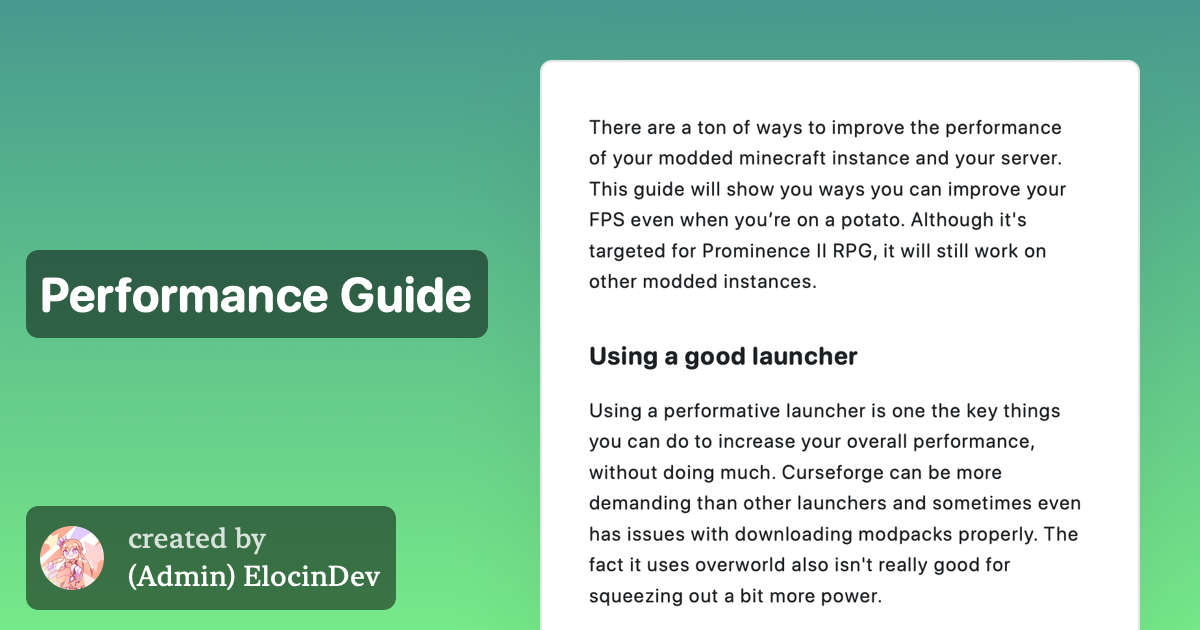 sand scaffoldBOT
theozinn12, you just advanced to level 2
GG @bright lark , you just unlocked the achievement: Give or Take! 🥳

.techh, you just advanced to level 6
qneon, you just advanced to level 2
 winter ether
!alternates
frank tuskBOT
If this command was run in response to your question/issue, it is likely because switching away from the launcher you are currently using would fix your problem.
From our experience, the most stable launcher by far is ATLauncher, also known as ATL. Keep in mind that ATL is NOT related to TLauncher in any way, and is not a cracked launcher.
To install ATL, do the following:
1. Go to https://atlauncher.com/download. If you are on MacOS, then choose the "Jar" version under the "Other" tab.
2. Install and run the setup, then open the program.
3. Login to your Microsoft account that owns the Java Edition of Minecraft from the Accounts tab on the right. This process is 100% safe, as it goes directly through Microsoft. ATL doesn't see your account credentials.
4. Go to the Packs tab on the right, then click "Curseforge" on the left.
5. Search the modpack you wish to download.
6. Click "Install". Then, follow the on-screen directions.
7. Go to the Instances tab, and click "Play" on the modpack you downloaded. If you ever see an "Update" button on the instance, click it.
This video explains the process: https://youtu.be/xMYW1wMbmkM
To transfer your Curseforge world to ATL, simply right click the modpack on Curseforge, or click the 3 dots, then click "Open Folder". Copy the Saves folder, then click "Open Folder" on ATL and paste the Saves folder there. Do the same with the XaerosMinimap folder, or the Journeymap folder, to transfer over any waypoints you've created.
Because ATL downloads the exact same files as Curseforge does, your world will be the exact same and you will be able to join the same servers. ATL also works without an internet connection (after you've installed the modpack, of course), and does not have any bloat from Overwolf. You are free to uninstall both Overwolf and Curseforge with ATL installed.
sand scaffoldBOT
GG @velvet elm , you just unlocked the achievement: Casual Typer! 🥳

myxxtic, you just advanced to level 2
xxk, you just advanced to level 2
doctor3, you just advanced to level 2
kel3120, you just advanced to level 1
benogeekin, you just advanced to level 4
ofirmat, you just advanced to level 1
gamingnerdleith, you just advanced to level 2
dark_angeel, you just advanced to level 2
 pine arch
!server
frank tuskBOT
Free Method
To host a server on your own computer, read the selfhosting guide.
This guide goes over how to install, create, and launch a free Minecraft server on all operating systems (MacOS, Linux and Windows). The guide also guides you through installing Java and optimizing your server for better performance.
If you are installing one of our older modpacks, ignore the "README" file that is included in the serverpack files, as they have outdated information.
Paid Method
We suggest renting a server from Bisect Hosting:
Approx. $10 - $25 a month depending on what plan you choose. You can also get 25% off with Code LunaPixel.
Go here and order a plan which fits you. We suggest 1GB per player but nothing lower than 4GB as the server needs at least 3GB to run.
Go to #server-hosting for more Info!
The following advice works for both the Free and Paid methods:
Transferring Your World
If you're playing Singleplayer and want to transfer your world to your server, simply go to your modpack files and navigate to the saves folder. Inside of this folder, you will see your world saves. Rename your desired world save to world. You can then transfer this folder to your server files. If your world was hosted via world sharing, this process has to be done by the person who would click "Share World".
Fixing Lag
To resolve lag issues, simply run the !tps command in #bots and follow the directions provided.
sand scaffoldBOT
galaxyqueenmochi, you just advanced to level 6
behelit2813, you just advanced to level 1
yonix7764, you just advanced to level 2
assortedmayhemyt, you just advanced to level 1
fesi2k20, you just advanced to level 3
toucan._., you just advanced to level 2
hiromashi, you just advanced to level 1
 gentle summit
!tps
frank tuskBOT
Please follow the guide here for changing the Java version your server uses. This will improve performance dramatically. If you are on a third party server host, you likely can not change the Java version your server uses. Bisect Hosting and a few VPS providers do allow changing Java version, though, which can usually be done through your server dashboard.
The method on Bisect is to simply go to the main dashboard page, and select "GraalVM 22" as the Java distribution. If it crashes, use 21 instead.
For further performance improvements, you can also follow this guide.
Reducing server render distance in the server.properties file is also a very good way of reducing lag. Most of our modpacks include mods like Bobby and Farsight, which make it so reducing server render distance will not affect players.
If lag persists, run the following command ingame:
/spark profiler start --only-ticks-over 50
Then, send the link in this channel.
sand scaffoldBOT
ofirmat, you just advanced to level 2
 severe lion
!rank
sand scaffoldBOT

sidestrikerr, you just advanced to level 3
vedriya, you just advanced to level 1
slayerhoodz, you just advanced to level 1
 low canyon
!server
frank tuskBOT
Free Method
To host a server on your own computer, read the selfhosting guide.
This guide goes over how to install, create, and launch a free Minecraft server on all operating systems (MacOS, Linux and Windows). The guide also guides you through installing Java and optimizing your server for better performance.
If you are installing one of our older modpacks, ignore the "README" file that is included in the serverpack files, as they have outdated information.
Paid Method
We suggest renting a server from Bisect Hosting:
Approx. $10 - $25 a month depending on what plan you choose. You can also get 25% off with Code LunaPixel.
Go here and order a plan which fits you. We suggest 1GB per player but nothing lower than 4GB as the server needs at least 3GB to run.
Go to #server-hosting for more Info!
The following advice works for both the Free and Paid methods:
Transferring Your World
If you're playing Singleplayer and want to transfer your world to your server, simply go to your modpack files and navigate to the saves folder. Inside of this folder, you will see your world saves. Rename your desired world save to world. You can then transfer this folder to your server files. If your world was hosted via world sharing, this process has to be done by the person who would click "Share World".
Fixing Lag
To resolve lag issues, simply run the !tps command in #bots and follow the directions provided.
sand scaffoldBOT
behelit2813, you just advanced to level 2
grumblade, you just advanced to level 1
 azure jolt
!ws
frank tuskBOT
Luna Pixel's World Sharing
Our modpacks don't support any mods that add singleplayer hosting / world sharing because we already provide free world sharing. The 'Essential' mod is therefore incompatible.
To share your world using our own world hosting, click the 'Open to Lan' or 'Share World' button in the game menu when in a singleplayer world, and share the world.
It will give you an address, like magma-cube.mc.lunapixel.gg, which your friends can use to connect directly to your world as if it were a server!
We still highly suggest not to play through LAN as LAN is untested and unreliable. Using it will cause longterm damage to your world.
There is no reason to use LAN, as we support both paid and free methods of hosting a server the normal way.
sand scaffoldBOT
presenski, you just advanced to level 6
dragonite9401, you just advanced to level 3
funwet, you just advanced to level 3
themilkman7022, you just advanced to level 1
mk7269, you just advanced to level 1
daniell3130, you just advanced to level 1
braven_wolf, you just advanced to level 14
 mint timber
!alternates
frank tuskBOT
If this command was run in response to your question/issue, it is likely because switching away from the launcher you are currently using would fix your problem.
From our experience, the most stable launcher by far is ATLauncher, also known as ATL. Keep in mind that ATL is NOT related to TLauncher in any way, and is not a cracked launcher.
To install ATL, do the following:
1. Go to https://atlauncher.com/download. If you are on MacOS, then choose the "Jar" version under the "Other" tab.
2. Install and run the setup, then open the program.
3. Login to your Microsoft account that owns the Java Edition of Minecraft from the Accounts tab on the right. This process is 100% safe, as it goes directly through Microsoft. ATL doesn't see your account credentials.
4. Go to the Packs tab on the right, then click "Curseforge" on the left.
5. Search the modpack you wish to download.
6. Click "Install". Then, follow the on-screen directions.
7. Go to the Instances tab, and click "Play" on the modpack you downloaded. If you ever see an "Update" button on the instance, click it.
This video explains the process: https://youtu.be/xMYW1wMbmkM
To transfer your Curseforge world to ATL, simply right click the modpack on Curseforge, or click the 3 dots, then click "Open Folder". Copy the Saves folder, then click "Open Folder" on ATL and paste the Saves folder there. Do the same with the XaerosMinimap folder, or the Journeymap folder, to transfer over any waypoints you've created.
Because ATL downloads the exact same files as Curseforge does, your world will be the exact same and you will be able to join the same servers. ATL also works without an internet connection (after you've installed the modpack, of course), and does not have any bloat from Overwolf. You are free to uninstall both Overwolf and Curseforge with ATL installed.
sand scaffoldBOT
quextual, you just advanced to level 2
shine.s, you just advanced to level 1
zyphlox, you just advanced to level 8
_lizardman., you just advanced to level 10
 limpid plume
!rank

 cursive badge
!wsfull
frank tuskBOT
World Sharing servers are currently at capacity
If you're receiving the error "Connection refused: no further information" when trying to join a friend through "Start Co-op" or "Host World", it's likely that Luna's servers (used for world sharing) are currently full. We don't have a way to notify you when slots on our servers free up, but you are welcome to try again later.
We understand and recognise that this may be inconvenient, so we recommend in this case to host or rent your own server. For more information on hosting options, type !server.
cursive badge
!server
frank tuskBOT
Free Method
To host a server on your own computer, read the selfhosting guide.
This guide goes over how to install, create, and launch a free Minecraft server on all operating systems (MacOS, Linux and Windows). The guide also guides you through installing Java and optimizing your server for better performance.
If you are installing one of our older modpacks, ignore the "README" file that is included in the serverpack files, as they have outdated information.
Paid Method
We suggest renting a server from Bisect Hosting:
Approx. $10 - $25 a month depending on what plan you choose. You can also get 25% off with Code LunaPixel.
Go here and order a plan which fits you. We suggest 1GB per player but nothing lower than 4GB as the server needs at least 3GB to run.
Go to #server-hosting for more Info!
The following advice works for both the Free and Paid methods:
Transferring Your World
If you're playing Singleplayer and want to transfer your world to your server, simply go to your modpack files and navigate to the saves folder. Inside of this folder, you will see your world saves. Rename your desired world save to world. You can then transfer this folder to your server files. If your world was hosted via world sharing, this process has to be done by the person who would click "Share World".
Fixing Lag
To resolve lag issues, simply run the !tps command in #bots and follow the directions provided.
sand scaffoldBOT
snowyisafella, you just advanced to level 1
jvgn, you just advanced to level 1
smacco, you just advanced to level 3
webmaster, you just advanced to level 3
keenapprentice, you just advanced to level 2
meli_crazy, you just advanced to level 1
meli_crazy, you just advanced to level 2
titan.187, you just advanced to level 1
chiillyfroze, you just advanced to level 3
passiones, you just advanced to level 12
drmachineheart, you just advanced to level 7
sand scaffoldBOT
themilkman7022, you just advanced to level 2
thetode, you just advanced to level 1
 crude nova
!rank
sand scaffoldBOT

 autumn orchid
?
sand scaffoldBOT
camfight3r, you just advanced to level 7
 tight blade
!ws
frank tuskBOT
Luna Pixel's World Sharing
Our modpacks don't support any mods that add singleplayer hosting / world sharing because we already provide free world sharing. The 'Essential' mod is therefore incompatible.
To share your world using our own world hosting, click the 'Open to Lan' or 'Share World' button in the game menu when in a singleplayer world, and share the world.
It will give you an address, like magma-cube.mc.lunapixel.gg, which your friends can use to connect directly to your world as if it were a server!
We still highly suggest not to play through LAN as LAN is untested and unreliable. Using it will cause longterm damage to your world.
There is no reason to use LAN, as we support both paid and free methods of hosting a server the normal way.
tight blade
!wsfull
frank tuskBOT
World Sharing servers are currently at capacity
If you're receiving the error "Connection refused: no further information" when trying to join a friend through "Start Co-op" or "Host World", it's likely that Luna's servers (used for world sharing) are currently full. We don't have a way to notify you when slots on our servers free up, but you are welcome to try again later.
We understand and recognise that this may be inconvenient, so we recommend in this case to host or rent your own server. For more information on hosting options, type !server.
sand scaffoldBOT
yspectree, you just advanced to level 5
tight blade
!server
frank tuskBOT
Free Method
To host a server on your own computer, read the selfhosting guide.
This guide goes over how to install, create, and launch a free Minecraft server on all operating systems (MacOS, Linux and Windows). The guide also guides you through installing Java and optimizing your server for better performance.
If you are installing one of our older modpacks, ignore the "README" file that is included in the serverpack files, as they have outdated information.
Paid Method
We suggest renting a server from Bisect Hosting:
Approx. $10 - $25 a month depending on what plan you choose. You can also get 25% off with Code LunaPixel.
Go here and order a plan which fits you. We suggest 1GB per player but nothing lower than 4GB as the server needs at least 3GB to run.
Go to #server-hosting for more Info!
The following advice works for both the Free and Paid methods:
Transferring Your World
If you're playing Singleplayer and want to transfer your world to your server, simply go to your modpack files and navigate to the saves folder. Inside of this folder, you will see your world saves. Rename your desired world save to world. You can then transfer this folder to your server files. If your world was hosted via world sharing, this process has to be done by the person who would click "Share World".
Fixing Lag
To resolve lag issues, simply run the !tps command in #bots and follow the directions provided.
sand scaffoldBOT
peachy_gloww, you just advanced to level 8
 west thicket
!alternates
sand scaffoldBOT
GG @hearty stratus , you just unlocked the achievement: Casual Typer! 🥳

deatux, you just advanced to level 14
west thicket
/!alternates
sand scaffoldBOT
raeuberhotzenplotz, you just advanced to level 1
Irdkerm, you just advanced to level 4
west thicket
!alternates
frank tuskBOT
If this command was run in response to your question/issue, it is likely because switching away from the launcher you are currently using would fix your problem.
From our experience, the most stable launcher by far is ATLauncher, also known as ATL. Keep in mind that ATL is NOT related to TLauncher in any way, and is not a cracked launcher.
To install ATL, do the following:
1. Go to https://atlauncher.com/download. If you are on MacOS, then choose the "Jar" version under the "Other" tab.
2. Install and run the setup, then open the program.
3. Login to your Microsoft account that owns the Java Edition of Minecraft from the Accounts tab on the right. This process is 100% safe, as it goes directly through Microsoft. ATL doesn't see your account credentials.
4. Go to the Packs tab on the right, then click "Curseforge" on the left.
5. Search the modpack you wish to download.
6. Click "Install". Then, follow the on-screen directions.
7. Go to the Instances tab, and click "Play" on the modpack you downloaded. If you ever see an "Update" button on the instance, click it.
This video explains the process: https://youtu.be/xMYW1wMbmkM
To transfer your Curseforge world to ATL, simply right click the modpack on Curseforge, or click the 3 dots, then click "Open Folder". Copy the Saves folder, then click "Open Folder" on ATL and paste the Saves folder there. Do the same with the XaerosMinimap folder, or the Journeymap folder, to transfer over any waypoints you've created.
Because ATL downloads the exact same files as Curseforge does, your world will be the exact same and you will be able to join the same servers. ATL also works without an internet connection (after you've installed the modpack, of course), and does not have any bloat from Overwolf. You are free to uninstall both Overwolf and Curseforge with ATL installed.
sand scaffoldBOT
GG @languid parrot , you just unlocked the achievement: Chatter! 🥳

GG @onyx pollen , you just unlocked the achievement: Chatter! 🥳

GG @midnight flax , you just unlocked the achievement: Chatter! 🥳

lazyllama._., you just advanced to level 1
themachetegod, you just advanced to level 1
pausing, you just advanced to level 2
bllh, you just advanced to level 1
stfu1233_, you just advanced to level 1
GG @cloud hemlock , you just unlocked the achievement: Casual Typer! 🥳

funwet, you just advanced to level 4
 cloud hemlock
!tps
frank tuskBOT
Please follow the guide here for changing the Java version your server uses. This will improve performance dramatically. If you are on a third party server host, you likely can not change the Java version your server uses. Bisect Hosting and a few VPS providers do allow changing Java version, though, which can usually be done through your server dashboard.
The method on Bisect is to simply go to the main dashboard page, and select "GraalVM 22" as the Java distribution. If it crashes, use 21 instead.
For further performance improvements, you can also follow this guide.
Reducing server render distance in the server.properties file is also a very good way of reducing lag. Most of our modpacks include mods like Bobby and Farsight, which make it so reducing server render distance will not affect players.
If lag persists, run the following command ingame:
/spark profiler start --only-ticks-over 50
Then, send the link in this channel.
sand scaffoldBOT
.cappin, you just advanced to level 3
noovanity, you just advanced to level 2
raw6555, you just advanced to level 2
hayuoni, you just advanced to level 1
split canopy
!wsfull
frank tuskBOT
World Sharing servers are currently at capacity
If you're receiving the error "Connection refused: no further information" when trying to join a friend through "Start Co-op" or "Host World", it's likely that Luna's servers (used for world sharing) are currently full. We don't have a way to notify you when slots on our servers free up, but you are welcome to try again later.
We understand and recognise that this may be inconvenient, so we recommend in this case to host or rent your own server. For more information on hosting options, type !server.
sand scaffoldBOT
miyamotomusashi8025, you just advanced to level 11
sand scaffoldBOT
tempus5h7h, you just advanced to level 2
jiekew, you just advanced to level 3
jokeslayer, you just advanced to level 4
haydonator, you just advanced to level 2
deoxtew, you just advanced to level 6
mutantpc, you just advanced to level 1
knashville, you just advanced to level 8
GG @urban lintel , you just unlocked the achievement: Casual Typer! 🥳

sourcitrusss, you just advanced to level 15
mayul, you just advanced to level 1
split canopy
!ws
frank tuskBOT
Luna Pixel's World Sharing
Our modpacks don't support any mods that add singleplayer hosting / world sharing because we already provide free world sharing. The 'Essential' mod is therefore incompatible.
To share your world using our own world hosting, click the 'Open to Lan' or 'Share World' button in the game menu when in a singleplayer world, and share the world.
It will give you an address, like magma-cube.mc.lunapixel.gg, which your friends can use to connect directly to your world as if it were a server!
We still highly suggest not to play through LAN as LAN is untested and unreliable. Using it will cause longterm damage to your world.
There is no reason to use LAN, as we support both paid and free methods of hosting a server the normal way.
sand scaffoldBOT
hiromashi, you just advanced to level 2
split canopy
!wsfull
frank tuskBOT
World Sharing servers are currently at capacity
If you're receiving the error "Connection refused: no further information" when trying to join a friend through "Start Co-op" or "Host World", it's likely that Luna's servers (used for world sharing) are currently full. We don't have a way to notify you when slots on our servers free up, but you are welcome to try again later.
We understand and recognise that this may be inconvenient, so we recommend in this case to host or rent your own server. For more information on hosting options, type !server.
sand scaffoldBOT
mooomel, you just advanced to level 1
thefallencrusader, you just advanced to level 12
split canopy
!wsfull
frank tuskBOT
World Sharing servers are currently at capacity
If you're receiving the error "Connection refused: no further information" when trying to join a friend through "Start Co-op" or "Host World", it's likely that Luna's servers (used for world sharing) are currently full. We don't have a way to notify you when slots on our servers free up, but you are welcome to try again later.
We understand and recognise that this may be inconvenient, so we recommend in this case to host or rent your own server. For more information on hosting options, type !server.
sand scaffoldBOT
wheatmane, you just advanced to level 1
yohann6520, you just advanced to level 1
wise, you just advanced to level 3
funwet, you just advanced to level 5
sand scaffoldBOT
matteoplupluplu, you just advanced to level 1
moiksama, you just advanced to level 1
aloosty, you just advanced to level 1
kalamazoo4148, you just advanced to level 1
GG @dusky stratus , you just unlocked the achievement: Casual Typer! 🥳

sir_merlin, you just advanced to level 5
midgeholt, you just advanced to level 1
jesus_e_gomez, you just advanced to level 1
zachary.o., you just advanced to level 1
w1llums, you just advanced to level 2
leorack29, you just advanced to level 3
sand scaffoldBOT
rocket6400, you just advanced to level 1
toprak7850, you just advanced to level 1
rhadian_c777, you just advanced to level 1
split canopy
!wsfull
frank tuskBOT
World Sharing servers are currently at capacity
If you're receiving the error "Connection refused: no further information" when trying to join a friend through "Start Co-op" or "Host World", it's likely that Luna's servers (used for world sharing) are currently full. We don't have a way to notify you when slots on our servers free up, but you are welcome to try again later.
We understand and recognise that this may be inconvenient, so we recommend in this case to host or rent your own server. For more information on hosting options, type !server.
sand scaffoldBOT
camilodax, you just advanced to level 1
monkeygamerwithcrocs, you just advanced to level 1
rocket6400, you just advanced to level 2
GG @regal willow , you just unlocked the achievement: To Infinity!! 🥳
 split canopy
!wsfull
frank tuskBOT
World Sharing servers are currently at capacity
If you're receiving the error "Connection refused: no further information" when trying to join a friend through "Start Co-op" or "Host World", it's likely that Luna's servers (used for world sharing) are currently full. We don't have a way to notify you when slots on our servers free up, but you are welcome to try again later.
We understand and recognise that this may be inconvenient, so we recommend in this case to host or rent your own server. For more information on hosting options, type !server.
 analog galleon
!ws
frank tuskBOT
Luna Pixel's World Sharing
Our modpacks don't support any mods that add singleplayer hosting / world sharing because we already provide free world sharing. The 'Essential' mod is therefore incompatible.
To share your world using our own world hosting, click the 'Open to Lan' or 'Share World' button in the game menu when in a singleplayer world, and share the world.
It will give you an address, like magma-cube.mc.lunapixel.gg, which your friends can use to connect directly to your world as if it were a server!
We still highly suggest not to play through LAN as LAN is untested and unreliable. Using it will cause longterm damage to your world.
There is no reason to use LAN, as we support both paid and free methods of hosting a server the normal way.
 tall furnace
!drivers
frank tuskBOT
You (likely) need to update your graphics drivers in order to resolve the crash. Here's how to go about doing that!
1. Identify your graphics card
if you already know skip to the next step
- Open task manager
- Navigate to the "Performance" tab (on Windows 11 this is the button that looks like a heart pulse)
- Press the GPU 0 graph and read your GPU from the top right
Note:
In some cases you may see a GPU 0 and GPU 1. This means your CPU has its own GPU, as well as a dedicated one. You probably want GPU 1 (which is usually the better one), but you can ask staff to clarify if necessary.
2. Download your drivers from the manufacturers site
Depending on what you read before, you likely need drivers from either AMD, Intel, or NVIDIA
AMD: https://www.amd.com/en/support
Intel: https://www.intel.com/content/www/us/en/download-center/home.html
NVIDIA: https://www.nvidia.com/Download/index.aspx?lang=en-us
Note:
- For NVIDIA you want to select "Game Ready Driver (GRD)" (this is the default option) for the best performance. Once installing you'd probably prefer downloading GeForce Experience, which will notify you when there's an available drivers update.
- For Intel, you probably want to press "Get Started" under the "Automatically update your drivers and software", which will simplify the process and update everything automatically
- For AMD you probably want to just press "Download Windows Drivers", which will download something called AMD Adrenaline, which will update your drivers automatically.
3. Run the installation, restart your computer, and try playing MC again
- At this point, hopefully your Minecraft is running. If it still does not work, please post any new logs and staff will help assist you with finding the right solution.
sand scaffoldBOT
.vil3x., you just advanced to level 1
hihihi4711, you just advanced to level 2
ripjawsproxy, you just advanced to level 1
jrpcrusher, you just advanced to level 1
 grave basalt
!rank
sand scaffoldBOT

hihihi4711, you just advanced to level 3
borgus, you just advanced to level 3
grave basalt
!ca
frank tuskBOT
sand scaffoldBOT
renechibois, you just advanced to level 1
 cunning yoke
!ws
frank tuskBOT
Luna Pixel's World Sharing
Our modpacks don't support any mods that add singleplayer hosting / world sharing because we already provide free world sharing. The 'Essential' mod is therefore incompatible.
To share your world using our own world hosting, click the 'Open to Lan' or 'Share World' button in the game menu when in a singleplayer world, and share the world.
It will give you an address, like magma-cube.mc.lunapixel.gg, which your friends can use to connect directly to your world as if it were a server!
We still highly suggest not to play through LAN as LAN is untested and unreliable. Using it will cause longterm damage to your world.
There is no reason to use LAN, as we support both paid and free methods of hosting a server the normal way.
sand scaffoldBOT
zestybestyy, you just advanced to level 1
analog galleon
!help
sand scaffoldBOT
Luna Pixel Studios Plugins Commands
**Birthdays**
</help:1145941150495162392> birthdays
**Giveaways**
</help:1145941150495162392> giveaways
**MEE6 AI**
</help:1145941150495162392> ai
**Levels**
</help:1145941150495162392> levels
**Moderator**
</help:1145941150495162392> moderator
**Emojis**
</help:1145941150495162392> emojis
**Achievements**
</help:1145941150495162392> achievements
analog galleon
!ws
frank tuskBOT
Luna Pixel's World Sharing
Our modpacks don't support any mods that add singleplayer hosting / world sharing because we already provide free world sharing. The 'Essential' mod is therefore incompatible.
To share your world using our own world hosting, click the 'Open to Lan' or 'Share World' button in the game menu when in a singleplayer world, and share the world.
It will give you an address, like magma-cube.mc.lunapixel.gg, which your friends can use to connect directly to your world as if it were a server!
We still highly suggest not to play through LAN as LAN is untested and unreliable. Using it will cause longterm damage to your world.
There is no reason to use LAN, as we support both paid and free methods of hosting a server the normal way.
sand scaffoldBOT
funwet, you just advanced to level 6
ema_p08, you just advanced to level 1
aiusagi1960, you just advanced to level 3
hayuoni, you just advanced to level 2
sand scaffoldBOT
hojatsu, you just advanced to level 7
 vast estuary
!ws
frank tuskBOT
Luna Pixel's World Sharing
Our modpacks don't support any mods that add singleplayer hosting / world sharing because we already provide free world sharing. The 'Essential' mod is therefore incompatible.
To share your world using our own world hosting, click the 'Open to Lan' or 'Share World' button in the game menu when in a singleplayer world, and share the world.
It will give you an address, like magma-cube.mc.lunapixel.gg, which your friends can use to connect directly to your world as if it were a server!
We still highly suggest not to play through LAN as LAN is untested and unreliable. Using it will cause longterm damage to your world.
There is no reason to use LAN, as we support both paid and free methods of hosting a server the normal way.
sand scaffoldBOT
kingue, you just advanced to level 1
sand scaffoldBOT
hoballah, you just advanced to level 1
.vil3x., you just advanced to level 2
ext09, you just advanced to level 1
split canopy
!alternates
frank tuskBOT
If this command was run in response to your question/issue, it is likely because switching away from the launcher you are currently using would fix your problem.
From our experience, the most stable launcher by far is ATLauncher, also known as ATL. Keep in mind that ATL is NOT related to TLauncher in any way, and is not a cracked launcher.
To install ATL, do the following:
1. Go to https://atlauncher.com/download. If you are on MacOS, then choose the "Jar" version under the "Other" tab.
2. Install and run the setup, then open the program.
3. Login to your Microsoft account that owns the Java Edition of Minecraft from the Accounts tab on the right. This process is 100% safe, as it goes directly through Microsoft. ATL doesn't see your account credentials.
4. Go to the Packs tab on the right, then click "Curseforge" on the left.
5. Search the modpack you wish to download.
6. Click "Install". Then, follow the on-screen directions.
7. Go to the Instances tab, and click "Play" on the modpack you downloaded. If you ever see an "Update" button on the instance, click it.
This video explains the process: https://youtu.be/xMYW1wMbmkM
To transfer your Curseforge world to ATL, simply right click the modpack on Curseforge, or click the 3 dots, then click "Open Folder". Copy the Saves folder, then click "Open Folder" on ATL and paste the Saves folder there. Do the same with the XaerosMinimap folder, or the Journeymap folder, to transfer over any waypoints you've created.
Because ATL downloads the exact same files as Curseforge does, your world will be the exact same and you will be able to join the same servers. ATL also works without an internet connection (after you've installed the modpack, of course), and does not have any bloat from Overwolf. You are free to uninstall both Overwolf and Curseforge with ATL installed.
sand scaffoldBOT
vioarrfn, you just advanced to level 1
ext09, you just advanced to level 2
shaybelle, you just advanced to level 1
sand scaffoldBOT
silrising, you just advanced to level 1
beetrixgaming, you just advanced to level 1
late marsh
!aternos
frank tuskBOT
We don't support Aternos nor can we assist you with using it for reasons listed below;
- You are unable to add / edit the mods to implement a fix that can be game changing at times.
- We are unable to control the updates of our packs on Aternos, nor ever will.
- The hosting is not strong enough to host our packs on there without it crashing every so often.
- We have other free methods that work much better than Aternos does. Run the !ws command and the !server command in #bots for more information on how to host a server for free.
sand scaffoldBOT
deatux, you just advanced to level 15
bloodrush362, you just advanced to level 1
 knotty path
!wiki
sand scaffoldBOT
ggbridget, you just advanced to level 1
chipbag., you just advanced to level 1
hayuoni, you just advanced to level 3
split canopy
!wsfull
frank tuskBOT
World Sharing servers are currently at capacity
If you're receiving the error "Connection refused: no further information" when trying to join a friend through "Start Co-op" or "Host World", it's likely that Luna's servers (used for world sharing) are currently full. We don't have a way to notify you when slots on our servers free up, but you are welcome to try again later.
We understand and recognise that this may be inconvenient, so we recommend in this case to host or rent your own server. For more information on hosting options, type !server.
sand scaffoldBOT
emmetcooper, you just advanced to level 2
kateich, you just advanced to level 1
roastted, you just advanced to level 1
kartieeer, you just advanced to level 1
split canopy
!wsfull
frank tuskBOT
World Sharing servers are currently at capacity
If you're receiving the error "Connection refused: no further information" when trying to join a friend through "Start Co-op" or "Host World", it's likely that Luna's servers (used for world sharing) are currently full. We don't have a way to notify you when slots on our servers free up, but you are welcome to try again later.
We understand and recognise that this may be inconvenient, so we recommend in this case to host or rent your own server. For more information on hosting options, type !server.
 ornate cradle
!ws
frank tuskBOT
Luna Pixel's World Sharing
Our modpacks don't support any mods that add singleplayer hosting / world sharing because we already provide free world sharing. The 'Essential' mod is therefore incompatible.
To share your world using our own world hosting, click the 'Open to Lan' or 'Share World' button in the game menu when in a singleplayer world, and share the world.
It will give you an address, like magma-cube.mc.lunapixel.gg, which your friends can use to connect directly to your world as if it were a server!
We still highly suggest not to play through LAN as LAN is untested and unreliable. Using it will cause longterm damage to your world.
There is no reason to use LAN, as we support both paid and free methods of hosting a server the normal way.
split canopy
!wsfull
frank tuskBOT
World Sharing servers are currently at capacity
If you're receiving the error "Connection refused: no further information" when trying to join a friend through "Start Co-op" or "Host World", it's likely that Luna's servers (used for world sharing) are currently full. We don't have a way to notify you when slots on our servers free up, but you are welcome to try again later.
We understand and recognise that this may be inconvenient, so we recommend in this case to host or rent your own server. For more information on hosting options, type !server.
 glacial dirge
!alternates
frank tuskBOT
If this command was run in response to your question/issue, it is likely because switching away from the launcher you are currently using would fix your problem.
From our experience, the most stable launcher by far is ATLauncher, also known as ATL. Keep in mind that ATL is NOT related to TLauncher in any way, and is not a cracked launcher.
To install ATL, do the following:
1. Go to https://atlauncher.com/download. If you are on MacOS, then choose the "Jar" version under the "Other" tab.
2. Install and run the setup, then open the program.
3. Login to your Microsoft account that owns the Java Edition of Minecraft from the Accounts tab on the right. This process is 100% safe, as it goes directly through Microsoft. ATL doesn't see your account credentials.
4. Go to the Packs tab on the right, then click "Curseforge" on the left.
5. Search the modpack you wish to download.
6. Click "Install". Then, follow the on-screen directions.
7. Go to the Instances tab, and click "Play" on the modpack you downloaded. If you ever see an "Update" button on the instance, click it.
This video explains the process: https://youtu.be/xMYW1wMbmkM
To transfer your Curseforge world to ATL, simply right click the modpack on Curseforge, or click the 3 dots, then click "Open Folder". Copy the Saves folder, then click "Open Folder" on ATL and paste the Saves folder there. Do the same with the XaerosMinimap folder, or the Journeymap folder, to transfer over any waypoints you've created.
Because ATL downloads the exact same files as Curseforge does, your world will be the exact same and you will be able to join the same servers. ATL also works without an internet connection (after you've installed the modpack, of course), and does not have any bloat from Overwolf. You are free to uninstall both Overwolf and Curseforge with ATL installed.
sand scaffoldBOT
jasioch1, you just advanced to level 1
yonix7764, you just advanced to level 3
besilaruscawl, you just advanced to level 1
 cursive kelp
!alternates
frank tuskBOT
If this command was run in response to your question/issue, it is likely because switching away from the launcher you are currently using would fix your problem.
From our experience, the most stable launcher by far is ATLauncher, also known as ATL. Keep in mind that ATL is NOT related to TLauncher in any way, and is not a cracked launcher.
To install ATL, do the following:
1. Go to https://atlauncher.com/download. If you are on MacOS, then choose the "Jar" version under the "Other" tab.
2. Install and run the setup, then open the program.
3. Login to your Microsoft account that owns the Java Edition of Minecraft from the Accounts tab on the right. This process is 100% safe, as it goes directly through Microsoft. ATL doesn't see your account credentials.
4. Go to the Packs tab on the right, then click "Curseforge" on the left.
5. Search the modpack you wish to download.
6. Click "Install". Then, follow the on-screen directions.
7. Go to the Instances tab, and click "Play" on the modpack you downloaded. If you ever see an "Update" button on the instance, click it.
This video explains the process: https://youtu.be/xMYW1wMbmkM
To transfer your Curseforge world to ATL, simply right click the modpack on Curseforge, or click the 3 dots, then click "Open Folder". Copy the Saves folder, then click "Open Folder" on ATL and paste the Saves folder there. Do the same with the XaerosMinimap folder, or the Journeymap folder, to transfer over any waypoints you've created.
Because ATL downloads the exact same files as Curseforge does, your world will be the exact same and you will be able to join the same servers. ATL also works without an internet connection (after you've installed the modpack, of course), and does not have any bloat from Overwolf. You are free to uninstall both Overwolf and Curseforge with ATL installed.
ornate cradle
!server
frank tuskBOT
Free Method
To host a server on your own computer, read the selfhosting guide.
This guide goes over how to install, create, and launch a free Minecraft server on all operating systems (MacOS, Linux and Windows). The guide also guides you through installing Java and optimizing your server for better performance.
If you are installing one of our older modpacks, ignore the "README" file that is included in the serverpack files, as they have outdated information.
Paid Method
We suggest renting a server from Bisect Hosting:
Approx. $10 - $25 a month depending on what plan you choose. You can also get 25% off with Code LunaPixel.
Go here and order a plan which fits you. We suggest 1GB per player but nothing lower than 4GB as the server needs at least 3GB to run.
Go to #server-hosting for more Info!
The following advice works for both the Free and Paid methods:
Transferring Your World
If you're playing Singleplayer and want to transfer your world to your server, simply go to your modpack files and navigate to the saves folder. Inside of this folder, you will see your world saves. Rename your desired world save to world. You can then transfer this folder to your server files. If your world was hosted via world sharing, this process has to be done by the person who would click "Share World".
Fixing Lag
To resolve lag issues, simply run the !tps command in #bots and follow the directions provided.
 quartz stirrup
!wsfull
frank tuskBOT
World Sharing servers are currently at capacity
If you're receiving the error "Connection refused: no further information" when trying to join a friend through "Start Co-op" or "Host World", it's likely that Luna's servers (used for world sharing) are currently full. We don't have a way to notify you when slots on our servers free up, but you are welcome to try again later.
We understand and recognise that this may be inconvenient, so we recommend in this case to host or rent your own server. For more information on hosting options, type !server.
ornate cradle
!help
sand scaffoldBOT
Luna Pixel Studios Plugins Commands
**Birthdays**
</help:1145941150495162392> birthdays
**Giveaways**
</help:1145941150495162392> giveaways
**MEE6 AI**
</help:1145941150495162392> ai
**Levels**
</help:1145941150495162392> levels
**Moderator**
</help:1145941150495162392> moderator
**Emojis**
</help:1145941150495162392> emojis
**Achievements**
</help:1145941150495162392> achievements
sand scaffoldBOT
n0rki, you just advanced to level 1
sadnessofdespair, you just advanced to level 8
ovoluke., you just advanced to level 2
sand scaffoldBOT
_trafalgar, you just advanced to level 1
 plush dew
!server
frank tuskBOT
Free Method
To host a server on your own computer, read the selfhosting guide.
This guide goes over how to install, create, and launch a free Minecraft server on all operating systems (MacOS, Linux and Windows). The guide also guides you through installing Java and optimizing your server for better performance.
If you are installing one of our older modpacks, ignore the "README" file that is included in the serverpack files, as they have outdated information.
Paid Method
We suggest renting a server from Bisect Hosting:
Approx. $10 - $25 a month depending on what plan you choose. You can also get 25% off with Code LunaPixel.
Go here and order a plan which fits you. We suggest 1GB per player but nothing lower than 4GB as the server needs at least 3GB to run.
Go to #server-hosting for more Info!
The following advice works for both the Free and Paid methods:
Transferring Your World
If you're playing Singleplayer and want to transfer your world to your server, simply go to your modpack files and navigate to the saves folder. Inside of this folder, you will see your world saves. Rename your desired world save to world. You can then transfer this folder to your server files. If your world was hosted via world sharing, this process has to be done by the person who would click "Share World".
Fixing Lag
To resolve lag issues, simply run the !tps command in #bots and follow the directions provided.
sand scaffoldBOT
the_piskotek_66561, you just advanced to level 7
sand scaffoldBOT
GG @solid yarrow , you just unlocked the achievement: Casual Typer! 🥳
 sand scaffoldBOT
mr.kolbasz., you just advanced to level 3
grumblade, you just advanced to level 2
 twin sigil
!server
frank tuskBOT
Free Method
To host a server on your own computer, read the selfhosting guide.
This guide goes over how to install, create, and launch a free Minecraft server on all operating systems (MacOS, Linux and Windows). The guide also guides you through installing Java and optimizing your server for better performance.
If you are installing one of our older modpacks, ignore the "README" file that is included in the serverpack files, as they have outdated information.
Paid Method
We suggest renting a server from Bisect Hosting:
Approx. $10 - $25 a month depending on what plan you choose. You can also get 25% off with Code LunaPixel.
Go here and order a plan which fits you. We suggest 1GB per player but nothing lower than 4GB as the server needs at least 3GB to run.
Go to #server-hosting for more Info!
The following advice works for both the Free and Paid methods:
Transferring Your World
If you're playing Singleplayer and want to transfer your world to your server, simply go to your modpack files and navigate to the saves folder. Inside of this folder, you will see your world saves. Rename your desired world save to world. You can then transfer this folder to your server files. If your world was hosted via world sharing, this process has to be done by the person who would click "Share World".
Fixing Lag
To resolve lag issues, simply run the !tps command in #bots and follow the directions provided.
twin sigil
!ws
frank tuskBOT
Luna Pixel's World Sharing
Our modpacks don't support any mods that add singleplayer hosting / world sharing because we already provide free world sharing. The 'Essential' mod is therefore incompatible.
To share your world using our own world hosting, click the 'Open to Lan' or 'Share World' button in the game menu when in a singleplayer world, and share the world.
It will give you an address, like magma-cube.mc.lunapixel.gg, which your friends can use to connect directly to your world as if it were a server!
We still highly suggest not to play through LAN as LAN is untested and unreliable. Using it will cause longterm damage to your world.
There is no reason to use LAN, as we support both paid and free methods of hosting a server the normal way.
sand scaffoldBOT
ryuzu_y, you just advanced to level 1
exodusxcrnage, you just advanced to level 8
flosuuu, you just advanced to level 2
GG @candid dock , you just unlocked the achievement: Give or Take! 🥳
 twin sigil
!server
frank tuskBOT
Free Method
To host a server on your own computer, read the selfhosting guide.
This guide goes over how to install, create, and launch a free Minecraft server on all operating systems (MacOS, Linux and Windows). The guide also guides you through installing Java and optimizing your server for better performance.
If you are installing one of our older modpacks, ignore the "README" file that is included in the serverpack files, as they have outdated information.
Paid Method
We suggest renting a server from Bisect Hosting:
Approx. $10 - $25 a month depending on what plan you choose. You can also get 25% off with Code LunaPixel.
Go here and order a plan which fits you. We suggest 1GB per player but nothing lower than 4GB as the server needs at least 3GB to run.
Go to #server-hosting for more Info!
The following advice works for both the Free and Paid methods:
Transferring Your World
If you're playing Singleplayer and want to transfer your world to your server, simply go to your modpack files and navigate to the saves folder. Inside of this folder, you will see your world saves. Rename your desired world save to world. You can then transfer this folder to your server files. If your world was hosted via world sharing, this process has to be done by the person who would click "Share World".
Fixing Lag
To resolve lag issues, simply run the !tps command in #bots and follow the directions provided.
sand scaffoldBOT
zyksen, you just advanced to level 5
split canopy
!wsfull
frank tuskBOT
World Sharing servers are currently at capacity
If you're receiving the error "Connection refused: no further information" when trying to join a friend through "Start Co-op" or "Host World", it's likely that Luna's servers (used for world sharing) are currently full. We don't have a way to notify you when slots on our servers free up, but you are welcome to try again later.
We understand and recognise that this may be inconvenient, so we recommend in this case to host or rent your own server. For more information on hosting options, type !server.
sand scaffoldBOT
useless_rat, you just advanced to level 1
calmux, you just advanced to level 6
tmbasel, you just advanced to level 1
willtheannihilator, you just advanced to level 2
8nightmareking8, you just advanced to level 3
project_orpheus, you just advanced to level 1
shadekaii, you just advanced to level 2
manuel_al72, you just advanced to level 3
hash0646, you just advanced to level 2
hayuoni, you just advanced to level 4
GG @split canopy , you just unlocked the achievement: Casual Typer! 🥳

kawkaisstillbetter, you just advanced to level 9
ornate cradle
!ws
frank tuskBOT
Luna Pixel's World Sharing
Our modpacks don't support any mods that add singleplayer hosting / world sharing because we already provide free world sharing. The 'Essential' mod is therefore incompatible.
To share your world using our own world hosting, click the 'Open to Lan' or 'Share World' button in the game menu when in a singleplayer world, and share the world.
It will give you an address, like magma-cube.mc.lunapixel.gg, which your friends can use to connect directly to your world as if it were a server!
We still highly suggest not to play through LAN as LAN is untested and unreliable. Using it will cause longterm damage to your world.
There is no reason to use LAN, as we support both paid and free methods of hosting a server the normal way.
sand scaffoldBOT
GG @nocturne mist , you just unlocked the achievement: Chatter! 🥳

671gz, you just advanced to level 1
 barren prawn
wsg chat
sand scaffoldBOT
korii.shi, you just advanced to level 1
cxv_, you just advanced to level 1
bruhwarrior, you just advanced to level 2
_darrel., you just advanced to level 3
maisar167, you just advanced to level 1
darelius, you just advanced to level 7
roytaltyvx, you just advanced to level 3
bennybear0, you just advanced to level 1
v_vv, you just advanced to level 2
cocourtnae, you just advanced to level 3
lumistille, you just advanced to level 1
maisar167, you just advanced to level 2
opiumlover6969, you just advanced to level 1
yeeter_theguy, you just advanced to level 2
noovanity, you just advanced to level 3
 hollow aurora
!server
frank tuskBOT
Free Method
To host a server on your own computer, read the selfhosting guide.
This guide goes over how to install, create, and launch a free Minecraft server on all operating systems (MacOS, Linux and Windows). The guide also guides you through installing Java and optimizing your server for better performance.
If you are installing one of our older modpacks, ignore the "README" file that is included in the serverpack files, as they have outdated information.
Paid Method
We suggest renting a server from Bisect Hosting:
Approx. $10 - $25 a month depending on what plan you choose. You can also get 25% off with Code LunaPixel.
Go here and order a plan which fits you. We suggest 1GB per player but nothing lower than 4GB as the server needs at least 3GB to run.
Go to #server-hosting for more Info!
The following advice works for both the Free and Paid methods:
Transferring Your World
If you're playing Singleplayer and want to transfer your world to your server, simply go to your modpack files and navigate to the saves folder. Inside of this folder, you will see your world saves. Rename your desired world save to world. You can then transfer this folder to your server files. If your world was hosted via world sharing, this process has to be done by the person who would click "Share World".
Fixing Lag
To resolve lag issues, simply run the !tps command in #bots and follow the directions provided.
sand scaffoldBOT
inexist., you just advanced to level 1
GG @unkempt snow , you just unlocked the achievement: Chatter! 🥳

darkshadow.5, you just advanced to level 1
rainbowspite, you just advanced to level 1
hiredhelp.2, you just advanced to level 2
 vivid knoll
!tps
frank tuskBOT
Please follow the guide here for changing the Java version your server uses. This will improve performance dramatically. If you are on a third party server host, you likely can not change the Java version your server uses. Bisect Hosting and a few VPS providers do allow changing Java version, though, which can usually be done through your server dashboard.
The method on Bisect is to simply go to the main dashboard page, and select "GraalVM 22" as the Java distribution. If it crashes, use 21 instead.
For further performance improvements, you can also follow this guide.
Reducing server render distance in the server.properties file is also a very good way of reducing lag. Most of our modpacks include mods like Bobby and Farsight, which make it so reducing server render distance will not affect players.
If lag persists, run the following command ingame:
/spark profiler start --only-ticks-over 50
Then, send the link in this channel.
sand scaffoldBOT
kazoempie, you just advanced to level 1
sand scaffoldBOT
opiumlover6969, you just advanced to level 2
 lusty cedar
!ws
frank tuskBOT
Luna Pixel's World Sharing
Our modpacks don't support any mods that add singleplayer hosting / world sharing because we already provide free world sharing. The 'Essential' mod is therefore incompatible.
To share your world using our own world hosting, click the 'Open to Lan' or 'Share World' button in the game menu when in a singleplayer world, and share the world.
It will give you an address, like magma-cube.mc.lunapixel.gg, which your friends can use to connect directly to your world as if it were a server!
We still highly suggest not to play through LAN as LAN is untested and unreliable. Using it will cause longterm damage to your world.
There is no reason to use LAN, as we support both paid and free methods of hosting a server the normal way.
sand scaffoldBOT
sab_o, you just advanced to level 5
 queen rune
frank tuskBOT
queen rune
frank tuskBOT
Luna Pixel's World Sharing
Our modpacks don't support any mods that add singleplayer hosting / world sharing because we already provide free world sharing. The 'Essential' mod is therefore incompatible.
To share your world using our own world hosting, click the 'Open to Lan' or 'Share World' button in the game menu when in a singleplayer world, and share the world.
It will give you an address, like magma-cube.mc.lunapixel.gg, which your friends can use to connect directly to your world as if it were a server!
We still highly suggest not to play through LAN as LAN is untested and unreliable. Using it will cause longterm damage to your world.
There is no reason to use LAN, as we support both paid and free methods of hosting a server the normal way.
sand scaffoldBOT
Luna Pixel Studios Plugins Commands
**Birthdays**
</help:1145941150495162392> birthdays
**Giveaways**
</help:1145941150495162392> giveaways
**MEE6 AI**
</help:1145941150495162392> ai
**Levels**
</help:1145941150495162392> levels
**Moderator**
</help:1145941150495162392> moderator
**Emojis**
</help:1145941150495162392> emojis
**Achievements**
</help:1145941150495162392> achievements
its.toki, you just advanced to level 1
itsosy, you just advanced to level 1
 muted pasture
!drivers
frank tuskBOT
You (likely) need to update your graphics drivers in order to resolve the crash. Here's how to go about doing that!
1. Identify your graphics card
if you already know skip to the next step
- Open task manager
- Navigate to the "Performance" tab (on Windows 11 this is the button that looks like a heart pulse)
- Press the GPU 0 graph and read your GPU from the top right
Note:
In some cases you may see a GPU 0 and GPU 1. This means your CPU has its own GPU, as well as a dedicated one. You probably want GPU 1 (which is usually the better one), but you can ask staff to clarify if necessary.
2. Download your drivers from the manufacturers site
Depending on what you read before, you likely need drivers from either AMD, Intel, or NVIDIA
AMD: https://www.amd.com/en/support
Intel: https://www.intel.com/content/www/us/en/download-center/home.html
NVIDIA: https://www.nvidia.com/Download/index.aspx?lang=en-us
Note:
- For NVIDIA you want to select "Game Ready Driver (GRD)" (this is the default option) for the best performance. Once installing you'd probably prefer downloading GeForce Experience, which will notify you when there's an available drivers update.
- For Intel, you probably want to press "Get Started" under the "Automatically update your drivers and software", which will simplify the process and update everything automatically
- For AMD you probably want to just press "Download Windows Drivers", which will download something called AMD Adrenaline, which will update your drivers automatically.
3. Run the installation, restart your computer, and try playing MC again
- At this point, hopefully your Minecraft is running. If it still does not work, please post any new logs and staff will help assist you with finding the right solution.
sand scaffoldBOT
didi___, you just advanced to level 17
beey, you just advanced to level 1
jyngg_, you just advanced to level 1
foxyyyy__, you just advanced to level 1
mr.redmelon, you just advanced to level 2
d3vot3d, you just advanced to level 3
BroMo (Nerfed), you just advanced to level 25
nxthanielw, you just advanced to level 1
greyham, you just advanced to level 1
vance.ae, you just advanced to level 4
GG @indigo light , you just unlocked the achievement: Give or Take! 🥳

 cunning depot
!tps
frank tuskBOT
Please follow the guide here for changing the Java version your server uses. This will improve performance dramatically. If you are on a third party server host, you likely can not change the Java version your server uses. Bisect Hosting and a few VPS providers do allow changing Java version, though, which can usually be done through your server dashboard.
The method on Bisect is to simply go to the main dashboard page, and select "GraalVM 22" as the Java distribution. If it crashes, use 21 instead.
For further performance improvements, you can also follow this guide.
Reducing server render distance in the server.properties file is also a very good way of reducing lag. Most of our modpacks include mods like Bobby and Farsight, which make it so reducing server render distance will not affect players.
If lag persists, run the following command ingame:
/spark profiler start --only-ticks-over 50
Then, send the link in this channel.
sand scaffoldBOT
sushino1, you just advanced to level 1
Better Glitchtopher, you just advanced to level 5
mandarina68_og, you just advanced to level 1
 orchid elm
!ws
frank tuskBOT
Luna Pixel's World Sharing
Our modpacks don't support any mods that add singleplayer hosting / world sharing because we already provide free world sharing. The 'Essential' mod is therefore incompatible.
To share your world using our own world hosting, click the 'Open to Lan' or 'Share World' button in the game menu when in a singleplayer world, and share the world.
It will give you an address, like magma-cube.mc.lunapixel.gg, which your friends can use to connect directly to your world as if it were a server!
We still highly suggest not to play through LAN as LAN is untested and unreliable. Using it will cause longterm damage to your world.
There is no reason to use LAN, as we support both paid and free methods of hosting a server the normal way.
 robust sentinel
!help
sand scaffoldBOT
Luna Pixel Studios Plugins Commands
**Birthdays**
</help:1145941150495162392> birthdays
**Giveaways**
</help:1145941150495162392> giveaways
**MEE6 AI**
</help:1145941150495162392> ai
**Levels**
</help:1145941150495162392> levels
**Moderator**
</help:1145941150495162392> moderator
**Emojis**
</help:1145941150495162392> emojis
**Achievements**
</help:1145941150495162392> achievements
robust sentinel
DAWG
sand scaffoldBOT
tolafolaa, you just advanced to level 1
diamondgblondi, you just advanced to level 1
 upbeat oriole
!server
frank tuskBOT
Free Method
To host a server on your own computer, read the selfhosting guide.
This guide goes over how to install, create, and launch a free Minecraft server on all operating systems (MacOS, Linux and Windows). The guide also guides you through installing Java and optimizing your server for better performance.
If you are installing one of our older modpacks, ignore the "README" file that is included in the serverpack files, as they have outdated information.
Paid Method
We suggest renting a server from Bisect Hosting:
Approx. $10 - $25 a month depending on what plan you choose. You can also get 25% off with Code LunaPixel.
Go here and order a plan which fits you. We suggest 1GB per player but nothing lower than 4GB as the server needs at least 3GB to run.
Go to #server-hosting for more Info!
The following advice works for both the Free and Paid methods:
Transferring Your World
If you're playing Singleplayer and want to transfer your world to your server, simply go to your modpack files and navigate to the saves folder. Inside of this folder, you will see your world saves. Rename your desired world save to world. You can then transfer this folder to your server files. If your world was hosted via world sharing, this process has to be done by the person who would click "Share World".
Fixing Lag
To resolve lag issues, simply run the !tps command in #bots and follow the directions provided.
sand scaffoldBOT
peachy_gloww, you just advanced to level 9
z1haze, you just advanced to level 1
grave basalt
!rank
sand scaffoldBOT

presentxp, you just advanced to level 1
greyham, you just advanced to level 2
haylayfiseverim, you just advanced to level 3
n0rki, you just advanced to level 2
z1haze, you just advanced to level 2
shakinoon, you just advanced to level 1
waodus, you just advanced to level 1
presentxp, you just advanced to level 2
lauriwarro, you just advanced to level 2
GG @sleek kettle , you just unlocked the achievement: Mmm I'm Lovin It! 🥳

snekprim, you just advanced to level 2
yahyasra13, you just advanced to level 2
 clear dew
!ws
frank tuskBOT
Luna Pixel's World Sharing
Our modpacks don't support any mods that add singleplayer hosting / world sharing because we already provide free world sharing. The 'Essential' mod is therefore incompatible.
To share your world using our own world hosting, click the 'Open to Lan' or 'Share World' button in the game menu when in a singleplayer world, and share the world.
It will give you an address, like magma-cube.mc.lunapixel.gg, which your friends can use to connect directly to your world as if it were a server!
We still highly suggest not to play through LAN as LAN is untested and unreliable. Using it will cause longterm damage to your world.
There is no reason to use LAN, as we support both paid and free methods of hosting a server the normal way.
sand scaffoldBOT
shakinoon, you just advanced to level 2
presentxp, you just advanced to level 3
blitz004., you just advanced to level 2
korii.shi, you just advanced to level 2
ville_pille, you just advanced to level 1
coolboinoah., you just advanced to level 7
liveleakwolf, you just advanced to level 1
wewul, you just advanced to level 1
makizeen, you just advanced to level 1
haznutlatte, you just advanced to level 18
presentxp, you just advanced to level 4
ville_pille, you just advanced to level 2
.hermanek, you just advanced to level 1
GG @maiden grove , you just unlocked the achievement: Give or Take! 🥳

whatislove4221, you just advanced to level 1
deerkillerskate, you just advanced to level 5
levilotl._60900, you just advanced to level 1
thefallencrusader, you just advanced to level 13
GG @abstract escarp , you just unlocked the achievement: Give or Take! 🥳

 rapid flint
!server
frank tuskBOT
Free Method
To host a server on your own computer, read the selfhosting guide.
This guide goes over how to install, create, and launch a free Minecraft server on all operating systems (MacOS, Linux and Windows). The guide also guides you through installing Java and optimizing your server for better performance.
If you are installing one of our older modpacks, ignore the "README" file that is included in the serverpack files, as they have outdated information.
Paid Method
We suggest renting a server from Bisect Hosting:
Approx. $10 - $25 a month depending on what plan you choose. You can also get 25% off with Code LunaPixel.
Go here and order a plan which fits you. We suggest 1GB per player but nothing lower than 4GB as the server needs at least 3GB to run.
Go to #server-hosting for more Info!
The following advice works for both the Free and Paid methods:
Transferring Your World
If you're playing Singleplayer and want to transfer your world to your server, simply go to your modpack files and navigate to the saves folder. Inside of this folder, you will see your world saves. Rename your desired world save to world. You can then transfer this folder to your server files. If your world was hosted via world sharing, this process has to be done by the person who would click "Share World".
Fixing Lag
To resolve lag issues, simply run the !tps command in #bots and follow the directions provided.
sand scaffoldBOT
bsid, you just advanced to level 3
ttsgamer, you just advanced to level 3
setogaya_, you just advanced to level 1
671gz, you just advanced to level 2
GG @odd eagle , you just unlocked the achievement: Casual Typer! 🥳

 dim shoal
!alternates
frank tuskBOT
If this command was run in response to your question/issue, it is likely because switching away from the launcher you are currently using would fix your problem.
From our experience, the most stable launcher by far is ATLauncher, also known as ATL. Keep in mind that ATL is NOT related to TLauncher in any way, and is not a cracked launcher.
To install ATL, do the following:
1. Go to https://atlauncher.com/download. If you are on MacOS, then choose the "Jar" version under the "Other" tab.
2. Install and run the setup, then open the program.
3. Login to your Microsoft account that owns the Java Edition of Minecraft from the Accounts tab on the right. This process is 100% safe, as it goes directly through Microsoft. ATL doesn't see your account credentials.
4. Go to the Packs tab on the right, then click "Curseforge" on the left.
5. Search the modpack you wish to download.
6. Click "Install". Then, follow the on-screen directions.
7. Go to the Instances tab, and click "Play" on the modpack you downloaded. If you ever see an "Update" button on the instance, click it.
This video explains the process: https://youtu.be/xMYW1wMbmkM
To transfer your Curseforge world to ATL, simply right click the modpack on Curseforge, or click the 3 dots, then click "Open Folder". Copy the Saves folder, then click "Open Folder" on ATL and paste the Saves folder there. Do the same with the XaerosMinimap folder, or the Journeymap folder, to transfer over any waypoints you've created.
Because ATL downloads the exact same files as Curseforge does, your world will be the exact same and you will be able to join the same servers. ATL also works without an internet connection (after you've installed the modpack, of course), and does not have any bloat from Overwolf. You are free to uninstall both Overwolf and Curseforge with ATL installed.
 vivid crystal
!wsfull
frank tuskBOT
World Sharing servers are currently at capacity
If you're receiving the error "Connection refused: no further information" when trying to join a friend through "Start Co-op" or "Host World", it's likely that Luna's servers (used for world sharing) are currently full. We don't have a way to notify you when slots on our servers free up, but you are welcome to try again later.
We understand and recognise that this may be inconvenient, so we recommend in this case to host or rent your own server. For more information on hosting options, type !server.
vivid crystal
!wsfull
frank tuskBOT
World Sharing servers are currently at capacity
If you're receiving the error "Connection refused: no further information" when trying to join a friend through "Start Co-op" or "Host World", it's likely that Luna's servers (used for world sharing) are currently full. We don't have a way to notify you when slots on our servers free up, but you are welcome to try again later.
We understand and recognise that this may be inconvenient, so we recommend in this case to host or rent your own server. For more information on hosting options, type !server.
sand scaffoldBOT
czarnug, you just advanced to level 1
giuse23828, you just advanced to level 2
losthussein, you just advanced to level 6
GG @normal herald , you just unlocked the achievement: Casual Typer! 🥳

 steel heron
!tps
frank tuskBOT
Please follow the guide here for changing the Java version your server uses. This will improve performance dramatically. If you are on a third party server host, you likely can not change the Java version your server uses. Bisect Hosting and a few VPS providers do allow changing Java version, though, which can usually be done through your server dashboard.
The method on Bisect is to simply go to the main dashboard page, and select "GraalVM 22" as the Java distribution. If it crashes, use 21 instead.
For further performance improvements, you can also follow this guide.
Reducing server render distance in the server.properties file is also a very good way of reducing lag. Most of our modpacks include mods like Bobby and Farsight, which make it so reducing server render distance will not affect players.
If lag persists, run the following command ingame:
/spark profiler start --only-ticks-over 50
Then, send the link in this channel.
sand scaffoldBOT
taztactical, you just advanced to level 1
 golden prawn
Better MC 4 - v39 crashed. The logs have been uploaded to mclo.gs:
- 1.20.1 [FORGE]
- What launcher did you run Minecraft with? (e.g. CurseForge, ATLauncher, MultiMC, ...)
- Have you changed the modpack in any way except mods?
- v39
- Have you ever gotten past the crash condition without crashing, or does the game always crash?
- What steps cause the crash?
latest.log | debug.log head / tail (~27k lines) | crash-2025-04-20_22.50.29-client.txt | crash_assistant_app.log
Mod list changes beyond the modpack:
Updated mods:
[2;34mstoragenetwork[0m ([2;31m1.12.2[0m > [2;32m1.11.3[0m)
!tps
frank tuskBOT
Please follow the guide here for changing the Java version your server uses. This will improve performance dramatically. If you are on a third party server host, you likely can not change the Java version your server uses. Bisect Hosting and a few VPS providers do allow changing Java version, though, which can usually be done through your server dashboard.
The method on Bisect is to simply go to the main dashboard page, and select "GraalVM 22" as the Java distribution. If it crashes, use 21 instead.
For further performance improvements, you can also follow this guide.
Reducing server render distance in the server.properties file is also a very good way of reducing lag. Most of our modpacks include mods like Bobby and Farsight, which make it so reducing server render distance will not affect players.
If lag persists, run the following command ingame:
/spark profiler start --only-ticks-over 50
Then, send the link in this channel.
golden prawn
Better MC 4 - v39 crashed. The logs have been uploaded to mclo.gs:
- 1.20.1 [FORGE]
- What launcher did you run Minecraft with? (e.g. CurseForge, ATLauncher, MultiMC, ...)
- Have you changed the modpack in any way except mods?
- v39
- Have you ever gotten past the crash condition without crashing, or does the game always crash?
- What steps cause the crash?
latest.log | debug.log head / tail (~27k lines) | crash-2025-04-20_22.50.29-client.txt | crash_assistant_app.log
Mod list changes beyond the modpack:
Updated mods:
[2;34mstoragenetwork[0m ([2;31m1.12.2[0m > [2;32m1.11.3[0m)
!wsfull
frank tuskBOT
World Sharing servers are currently at capacity
If you're receiving the error "Connection refused: no further information" when trying to join a friend through "Start Co-op" or "Host World", it's likely that Luna's servers (used for world sharing) are currently full. We don't have a way to notify you when slots on our servers free up, but you are welcome to try again later.
We understand and recognise that this may be inconvenient, so we recommend in this case to host or rent your own server. For more information on hosting options, type !server.
 unkempt wagon
!ws
frank tuskBOT
Luna Pixel's World Sharing
Our modpacks don't support any mods that add singleplayer hosting / world sharing because we already provide free world sharing. The 'Essential' mod is therefore incompatible.
To share your world using our own world hosting, click the 'Open to Lan' or 'Share World' button in the game menu when in a singleplayer world, and share the world.
It will give you an address, like magma-cube.mc.lunapixel.gg, which your friends can use to connect directly to your world as if it were a server!
We still highly suggest not to play through LAN as LAN is untested and unreliable. Using it will cause longterm damage to your world.
There is no reason to use LAN, as we support both paid and free methods of hosting a server the normal way.
sand scaffoldBOT
champion_dna2, you just advanced to level 1
vivid crystal
!WSFULL
frank tuskBOT
World Sharing servers are currently at capacity
If you're receiving the error "Connection refused: no further information" when trying to join a friend through "Start Co-op" or "Host World", it's likely that Luna's servers (used for world sharing) are currently full. We don't have a way to notify you when slots on our servers free up, but you are welcome to try again later.
We understand and recognise that this may be inconvenient, so we recommend in this case to host or rent your own server. For more information on hosting options, type !server.
unkempt wagon
!server
frank tuskBOT
Free Method
To host a server on your own computer, read the selfhosting guide.
This guide goes over how to install, create, and launch a free Minecraft server on all operating systems (MacOS, Linux and Windows). The guide also guides you through installing Java and optimizing your server for better performance.
If you are installing one of our older modpacks, ignore the "README" file that is included in the serverpack files, as they have outdated information.
Paid Method
We suggest renting a server from Bisect Hosting:
Approx. $10 - $25 a month depending on what plan you choose. You can also get 25% off with Code LunaPixel.
Go here and order a plan which fits you. We suggest 1GB per player but nothing lower than 4GB as the server needs at least 3GB to run.
Go to #server-hosting for more Info!
The following advice works for both the Free and Paid methods:
Transferring Your World
If you're playing Singleplayer and want to transfer your world to your server, simply go to your modpack files and navigate to the saves folder. Inside of this folder, you will see your world saves. Rename your desired world save to world. You can then transfer this folder to your server files. If your world was hosted via world sharing, this process has to be done by the person who would click "Share World".
Fixing Lag
To resolve lag issues, simply run the !tps command in #bots and follow the directions provided.
sand scaffoldBOT
korii.shi, you just advanced to level 3
GG @grave basalt , you just unlocked the achievement: Give or Take! 🥳

imdxrkbruh, you just advanced to level 1
joanne2491252, you just advanced to level 4
makerboi88, you just advanced to level 9
donna_yc, you just advanced to level 1
torsoto, you just advanced to level 1
ventedsun, you just advanced to level 6
yumi_9600, you just advanced to level 5
toucan._., you just advanced to level 3
vreoysar15, you just advanced to level 5
brytonbro, you just advanced to level 5
domaaa420, you just advanced to level 1
shotzy9710, you just advanced to level 1
braven_wolf, you just advanced to level 15
starboy3757, you just advanced to level 3
aystar0718, you just advanced to level 3
korii.shi, you just advanced to level 4
andysrb, you just advanced to level 1
servernotfound, you just advanced to level 3
hielovy, you just advanced to level 2
yonix7764, you just advanced to level 4
lihka_., you just advanced to level 2
exotic3672, you just advanced to level 1
 rose dagger
!ws
frank tuskBOT
Luna Pixel's World Sharing
Our modpacks don't support any mods that add singleplayer hosting / world sharing because we already provide free world sharing. The 'Essential' mod is therefore incompatible.
To share your world using our own world hosting, click the 'Open to Lan' or 'Share World' button in the game menu when in a singleplayer world, and share the world.
It will give you an address, like magma-cube.mc.lunapixel.gg, which your friends can use to connect directly to your world as if it were a server!
We still highly suggest not to play through LAN as LAN is untested and unreliable. Using it will cause longterm damage to your world.
There is no reason to use LAN, as we support both paid and free methods of hosting a server the normal way.
sand scaffoldBOT
djtgaming, you just advanced to level 1
xshadow10, you just advanced to level 1
aegog, you just advanced to level 1
pigochi, you just advanced to level 1
thetode, you just advanced to level 2
drmachineheart, you just advanced to level 8
kaelandog73, you just advanced to level 2
itznotmeo, you just advanced to level 1
m113s, you just advanced to level 1
 honest bridge
!ws
frank tuskBOT
Luna Pixel's World Sharing
Our modpacks don't support any mods that add singleplayer hosting / world sharing because we already provide free world sharing. The 'Essential' mod is therefore incompatible.
To share your world using our own world hosting, click the 'Open to Lan' or 'Share World' button in the game menu when in a singleplayer world, and share the world.
It will give you an address, like magma-cube.mc.lunapixel.gg, which your friends can use to connect directly to your world as if it were a server!
We still highly suggest not to play through LAN as LAN is untested and unreliable. Using it will cause longterm damage to your world.
There is no reason to use LAN, as we support both paid and free methods of hosting a server the normal way.
winter ether
!alternatives
honest bridge
!server
frank tuskBOT
Free Method
To host a server on your own computer, read the selfhosting guide.
This guide goes over how to install, create, and launch a free Minecraft server on all operating systems (MacOS, Linux and Windows). The guide also guides you through installing Java and optimizing your server for better performance.
If you are installing one of our older modpacks, ignore the "README" file that is included in the serverpack files, as they have outdated information.
Paid Method
We suggest renting a server from Bisect Hosting:
Approx. $10 - $25 a month depending on what plan you choose. You can also get 25% off with Code LunaPixel.
Go here and order a plan which fits you. We suggest 1GB per player but nothing lower than 4GB as the server needs at least 3GB to run.
Go to #server-hosting for more Info!
The following advice works for both the Free and Paid methods:
Transferring Your World
If you're playing Singleplayer and want to transfer your world to your server, simply go to your modpack files and navigate to the saves folder. Inside of this folder, you will see your world saves. Rename your desired world save to world. You can then transfer this folder to your server files. If your world was hosted via world sharing, this process has to be done by the person who would click "Share World".
Fixing Lag
To resolve lag issues, simply run the !tps command in #bots and follow the directions provided.
winter ether
!alternates
frank tuskBOT
If this command was run in response to your question/issue, it is likely because switching away from the launcher you are currently using would fix your problem.
From our experience, the most stable launcher by far is ATLauncher, also known as ATL. Keep in mind that ATL is NOT related to TLauncher in any way, and is not a cracked launcher.
To install ATL, do the following:
1. Go to https://atlauncher.com/download. If you are on MacOS, then choose the "Jar" version under the "Other" tab.
2. Install and run the setup, then open the program.
3. Login to your Microsoft account that owns the Java Edition of Minecraft from the Accounts tab on the right. This process is 100% safe, as it goes directly through Microsoft. ATL doesn't see your account credentials.
4. Go to the Packs tab on the right, then click "Curseforge" on the left.
5. Search the modpack you wish to download.
6. Click "Install". Then, follow the on-screen directions.
7. Go to the Instances tab, and click "Play" on the modpack you downloaded. If you ever see an "Update" button on the instance, click it.
This video explains the process: https://youtu.be/xMYW1wMbmkM
To transfer your Curseforge world to ATL, simply right click the modpack on Curseforge, or click the 3 dots, then click "Open Folder". Copy the Saves folder, then click "Open Folder" on ATL and paste the Saves folder there. Do the same with the XaerosMinimap folder, or the Journeymap folder, to transfer over any waypoints you've created.
Because ATL downloads the exact same files as Curseforge does, your world will be the exact same and you will be able to join the same servers. ATL also works without an internet connection (after you've installed the modpack, of course), and does not have any bloat from Overwolf. You are free to uninstall both Overwolf and Curseforge with ATL installed.
sand scaffoldBOT
mbalc, you just advanced to level 1
lxshootie, you just advanced to level 1
exotic3672, you just advanced to level 2
animelover684, you just advanced to level 1
xiv3313, you just advanced to level 3
coolboinoah., you just advanced to level 8
.killr_, you just advanced to level 1
ceo_irl, you just advanced to level 2
knashville, you just advanced to level 9
leomfx, you just advanced to level 3
issune, you just advanced to level 1
 vernal zenith
!tps
frank tuskBOT
Please follow the guide here for changing the Java version your server uses. This will improve performance dramatically. If you are on a third party server host, you likely can not change the Java version your server uses. Bisect Hosting and a few VPS providers do allow changing Java version, though, which can usually be done through your server dashboard.
The method on Bisect is to simply go to the main dashboard page, and select "GraalVM 22" as the Java distribution. If it crashes, use 21 instead.
For further performance improvements, you can also follow this guide.
Reducing server render distance in the server.properties file is also a very good way of reducing lag. Most of our modpacks include mods like Bobby and Farsight, which make it so reducing server render distance will not affect players.
If lag persists, run the following command ingame:
/spark profiler start --only-ticks-over 50
Then, send the link in this channel.
sand scaffoldBOT
beetrixgaming, you just advanced to level 2
GG @fossil crown , you just unlocked the achievement: Casual Typer! 🥳

issune, you just advanced to level 2
sand scaffoldBOT
.pldm, you just advanced to level 1
drakoh07, you just advanced to level 1
exotic3672, you just advanced to level 3
GG @trail canyon , you just unlocked the achievement: Give or Take! 🥳

 thorny rapids
!ws
frank tuskBOT
Luna Pixel's World Sharing
Our modpacks don't support any mods that add singleplayer hosting / world sharing because we already provide free world sharing. The 'Essential' mod is therefore incompatible.
To share your world using our own world hosting, click the 'Open to Lan' or 'Share World' button in the game menu when in a singleplayer world, and share the world.
It will give you an address, like magma-cube.mc.lunapixel.gg, which your friends can use to connect directly to your world as if it were a server!
We still highly suggest not to play through LAN as LAN is untested and unreliable. Using it will cause longterm damage to your world.
There is no reason to use LAN, as we support both paid and free methods of hosting a server the normal way.
sand scaffoldBOT
Madison Beer, you just advanced to level 2
 signal quarry
!ws
frank tuskBOT
Luna Pixel's World Sharing
Our modpacks don't support any mods that add singleplayer hosting / world sharing because we already provide free world sharing. The 'Essential' mod is therefore incompatible.
To share your world using our own world hosting, click the 'Open to Lan' or 'Share World' button in the game menu when in a singleplayer world, and share the world.
It will give you an address, like magma-cube.mc.lunapixel.gg, which your friends can use to connect directly to your world as if it were a server!
We still highly suggest not to play through LAN as LAN is untested and unreliable. Using it will cause longterm damage to your world.
There is no reason to use LAN, as we support both paid and free methods of hosting a server the normal way.
signal quarry
!server
frank tuskBOT
Free Method
To host a server on your own computer, read the selfhosting guide.
This guide goes over how to install, create, and launch a free Minecraft server on all operating systems (MacOS, Linux and Windows). The guide also guides you through installing Java and optimizing your server for better performance.
If you are installing one of our older modpacks, ignore the "README" file that is included in the serverpack files, as they have outdated information.
Paid Method
We suggest renting a server from Bisect Hosting:
Approx. $10 - $25 a month depending on what plan you choose. You can also get 25% off with Code LunaPixel.
Go here and order a plan which fits you. We suggest 1GB per player but nothing lower than 4GB as the server needs at least 3GB to run.
Go to #server-hosting for more Info!
The following advice works for both the Free and Paid methods:
Transferring Your World
If you're playing Singleplayer and want to transfer your world to your server, simply go to your modpack files and navigate to the saves folder. Inside of this folder, you will see your world saves. Rename your desired world save to world. You can then transfer this folder to your server files. If your world was hosted via world sharing, this process has to be done by the person who would click "Share World".
Fixing Lag
To resolve lag issues, simply run the !tps command in #bots and follow the directions provided.
grave basalt
!rank
sand scaffoldBOT

gan0001, you just advanced to level 3
deerkillerskate, you just advanced to level 6
mh0., you just advanced to level 1
novalikescatss, you just advanced to level 3
klorbygoy, you just advanced to level 1
♂ Lerin ♀, you just advanced to level 36
mentallyillchild, you just advanced to level 1
_lizardman., you just advanced to level 11
GG @primal bramble , you just unlocked the achievement: Give or Take! 🥳

xxk, you just advanced to level 3
deatux, you just advanced to level 16
theratmandoo, you just advanced to level 1
onetapped, you just advanced to level 1
vedriya, you just advanced to level 2
deerkillerskate, you just advanced to level 7
GG @surreal mica , you just unlocked the achievement: Chatter! 🥳

ofirmat, you just advanced to level 3
 manic pilot
!wsfull
frank tuskBOT
World Sharing servers are currently at capacity
If you're receiving the error "Connection refused: no further information" when trying to join a friend through "Start Co-op" or "Host World", it's likely that Luna's servers (used for world sharing) are currently full. We don't have a way to notify you when slots on our servers free up, but you are welcome to try again later.
We understand and recognise that this may be inconvenient, so we recommend in this case to host or rent your own server. For more information on hosting options, type !server.
sand scaffoldBOT
risingddm, you just advanced to level 12
 still echo
!wsfull
frank tuskBOT
World Sharing servers are currently at capacity
If you're receiving the error "Connection refused: no further information" when trying to join a friend through "Start Co-op" or "Host World", it's likely that Luna's servers (used for world sharing) are currently full. We don't have a way to notify you when slots on our servers free up, but you are welcome to try again later.
We understand and recognise that this may be inconvenient, so we recommend in this case to host or rent your own server. For more information on hosting options, type !server.
sand scaffoldBOT
grzzlyy, you just advanced to level 1
manic pilot
!wsfull
frank tuskBOT
World Sharing servers are currently at capacity
If you're receiving the error "Connection refused: no further information" when trying to join a friend through "Start Co-op" or "Host World", it's likely that Luna's servers (used for world sharing) are currently full. We don't have a way to notify you when slots on our servers free up, but you are welcome to try again later.
We understand and recognise that this may be inconvenient, so we recommend in this case to host or rent your own server. For more information on hosting options, type !server.
 tepid sigil
!ws
frank tuskBOT
Luna Pixel's World Sharing
Our modpacks don't support any mods that add singleplayer hosting / world sharing because we already provide free world sharing. The 'Essential' mod is therefore incompatible.
To share your world using our own world hosting, click the 'Open to Lan' or 'Share World' button in the game menu when in a singleplayer world, and share the world.
It will give you an address, like magma-cube.mc.lunapixel.gg, which your friends can use to connect directly to your world as if it were a server!
We still highly suggest not to play through LAN as LAN is untested and unreliable. Using it will cause longterm damage to your world.
There is no reason to use LAN, as we support both paid and free methods of hosting a server the normal way.
sand scaffoldBOT
thefallencrusader, you just advanced to level 14
GG @twilit sigil , you just unlocked the achievement: Pro Typer! 🥳
 still echo
!wsfull
frank tuskBOT
World Sharing servers are currently at capacity
If you're receiving the error "Connection refused: no further information" when trying to join a friend through "Start Co-op" or "Host World", it's likely that Luna's servers (used for world sharing) are currently full. We don't have a way to notify you when slots on our servers free up, but you are welcome to try again later.
We understand and recognise that this may be inconvenient, so we recommend in this case to host or rent your own server. For more information on hosting options, type !server.
sand scaffoldBOT
funwet, you just advanced to level 7
still echo
!wsfull
frank tuskBOT
World Sharing servers are currently at capacity
If you're receiving the error "Connection refused: no further information" when trying to join a friend through "Start Co-op" or "Host World", it's likely that Luna's servers (used for world sharing) are currently full. We don't have a way to notify you when slots on our servers free up, but you are welcome to try again later.
We understand and recognise that this may be inconvenient, so we recommend in this case to host or rent your own server. For more information on hosting options, type !server.
manic pilot
!wsfull
frank tuskBOT
World Sharing servers are currently at capacity
If you're receiving the error "Connection refused: no further information" when trying to join a friend through "Start Co-op" or "Host World", it's likely that Luna's servers (used for world sharing) are currently full. We don't have a way to notify you when slots on our servers free up, but you are welcome to try again later.
We understand and recognise that this may be inconvenient, so we recommend in this case to host or rent your own server. For more information on hosting options, type !server.
sand scaffoldBOT
xmgrantvo, you just advanced to level 1
holycrusadermarlin, you just advanced to level 2
still echo
!wsfull
frank tuskBOT
World Sharing servers are currently at capacity
If you're receiving the error "Connection refused: no further information" when trying to join a friend through "Start Co-op" or "Host World", it's likely that Luna's servers (used for world sharing) are currently full. We don't have a way to notify you when slots on our servers free up, but you are welcome to try again later.
We understand and recognise that this may be inconvenient, so we recommend in this case to host or rent your own server. For more information on hosting options, type !server.
sand scaffoldBOT
wearethesame_66373, you just advanced to level 2
rootmode, you just advanced to level 1
 reef quest
!rank
sand scaffoldBOT
 manic pilot
!wsfull
frank tuskBOT
World Sharing servers are currently at capacity
If you're receiving the error "Connection refused: no further information" when trying to join a friend through "Start Co-op" or "Host World", it's likely that Luna's servers (used for world sharing) are currently full. We don't have a way to notify you when slots on our servers free up, but you are welcome to try again later.
We understand and recognise that this may be inconvenient, so we recommend in this case to host or rent your own server. For more information on hosting options, type !server.
sand scaffoldBOT
tybgtempest, you just advanced to level 1
still echo
!wsfull
frank tuskBOT
World Sharing servers are currently at capacity
If you're receiving the error "Connection refused: no further information" when trying to join a friend through "Start Co-op" or "Host World", it's likely that Luna's servers (used for world sharing) are currently full. We don't have a way to notify you when slots on our servers free up, but you are welcome to try again later.
We understand and recognise that this may be inconvenient, so we recommend in this case to host or rent your own server. For more information on hosting options, type !server.
still echo
!wsfull
frank tuskBOT
World Sharing servers are currently at capacity
If you're receiving the error "Connection refused: no further information" when trying to join a friend through "Start Co-op" or "Host World", it's likely that Luna's servers (used for world sharing) are currently full. We don't have a way to notify you when slots on our servers free up, but you are welcome to try again later.
We understand and recognise that this may be inconvenient, so we recommend in this case to host or rent your own server. For more information on hosting options, type !server.
sand scaffoldBOT
hiredhelp.2, you just advanced to level 3
still echo
!wsfull
frank tuskBOT
World Sharing servers are currently at capacity
If you're receiving the error "Connection refused: no further information" when trying to join a friend through "Start Co-op" or "Host World", it's likely that Luna's servers (used for world sharing) are currently full. We don't have a way to notify you when slots on our servers free up, but you are welcome to try again later.
We understand and recognise that this may be inconvenient, so we recommend in this case to host or rent your own server. For more information on hosting options, type !server.
sand scaffoldBOT
GG @dawn ridge , you just unlocked the achievement: Who Needs Sleep?! 🥳

sticky2224, you just advanced to level 1
mcfloofnugget, you just advanced to level 1
still echo
!wsfull
frank tuskBOT
World Sharing servers are currently at capacity
If you're receiving the error "Connection refused: no further information" when trying to join a friend through "Start Co-op" or "Host World", it's likely that Luna's servers (used for world sharing) are currently full. We don't have a way to notify you when slots on our servers free up, but you are welcome to try again later.
We understand and recognise that this may be inconvenient, so we recommend in this case to host or rent your own server. For more information on hosting options, type !server.
still echo
!wsfull
frank tuskBOT
World Sharing servers are currently at capacity
If you're receiving the error "Connection refused: no further information" when trying to join a friend through "Start Co-op" or "Host World", it's likely that Luna's servers (used for world sharing) are currently full. We don't have a way to notify you when slots on our servers free up, but you are welcome to try again later.
We understand and recognise that this may be inconvenient, so we recommend in this case to host or rent your own server. For more information on hosting options, type !server.
 torpid onyx
frank tuskBOT
torpid onyx
frank tuskBOT
Free Method
To host a server on your own computer, read the selfhosting guide.
This guide goes over how to install, create, and launch a free Minecraft server on all operating systems (MacOS, Linux and Windows). The guide also guides you through installing Java and optimizing your server for better performance.
If you are installing one of our older modpacks, ignore the "README" file that is included in the serverpack files, as they have outdated information.
Paid Method
We suggest renting a server from Bisect Hosting:
Approx. $10 - $25 a month depending on what plan you choose. You can also get 25% off with Code LunaPixel.
Go here and order a plan which fits you. We suggest 1GB per player but nothing lower than 4GB as the server needs at least 3GB to run.
Go to #server-hosting for more Info!
The following advice works for both the Free and Paid methods:
Transferring Your World
If you're playing Singleplayer and want to transfer your world to your server, simply go to your modpack files and navigate to the saves folder. Inside of this folder, you will see your world saves. Rename your desired world save to world. You can then transfer this folder to your server files. If your world was hosted via world sharing, this process has to be done by the person who would click "Share World".
Fixing Lag
To resolve lag issues, simply run the !tps command in #bots and follow the directions provided.
still echo
!wsfull
frank tuskBOT
World Sharing servers are currently at capacity
If you're receiving the error "Connection refused: no further information" when trying to join a friend through "Start Co-op" or "Host World", it's likely that Luna's servers (used for world sharing) are currently full. We don't have a way to notify you when slots on our servers free up, but you are welcome to try again later.
We understand and recognise that this may be inconvenient, so we recommend in this case to host or rent your own server. For more information on hosting options, type !server.
still echo
!wsfull
frank tuskBOT
World Sharing servers are currently at capacity
If you're receiving the error "Connection refused: no further information" when trying to join a friend through "Start Co-op" or "Host World", it's likely that Luna's servers (used for world sharing) are currently full. We don't have a way to notify you when slots on our servers free up, but you are welcome to try again later.
We understand and recognise that this may be inconvenient, so we recommend in this case to host or rent your own server. For more information on hosting options, type !server.
sand scaffoldBOT
asowneryt, you just advanced to level 1
conjuration!!!!!!!!!!!!!!!!!!!!!, you just advanced to level 64
lunar9921, you just advanced to level 1
quietassassin, you just advanced to level 2
sand scaffoldBOT
treyadinmorningpike, you just advanced to level 1
unclebulgarian, you just advanced to level 1
whoisdime_95467, you just advanced to level 1
maisar167, you just advanced to level 3
sand scaffoldBOT
ainz06846, you just advanced to level 4
ninjatoastman, you just advanced to level 1
sand scaffoldBOT
y0ursp3ll, you just advanced to level 1
saturnsring98, you just advanced to level 1
sand scaffoldBOT
dmt.exe, you just advanced to level 8
sand scaffoldBOT
katze0537, you just advanced to level 3
spooky4927, you just advanced to level 1
m4ttyblox, you just advanced to level 1
sleej., you just advanced to level 3
sand scaffoldBOT
mariligidlit, you just advanced to level 1
sand scaffoldBOT
fynn1900, you just advanced to level 1
waterycoolman34, you just advanced to level 1
flosuuu, you just advanced to level 3
solsaa_, you just advanced to level 1
mrgino00, you just advanced to level 1
 austere ridge
!ws
frank tuskBOT
Luna Pixel's World Sharing
Our modpacks don't support any mods that add singleplayer hosting / world sharing because we already provide free world sharing. The 'Essential' mod is therefore incompatible.
To share your world using our own world hosting, click the 'Open to Lan' or 'Share World' button in the game menu when in a singleplayer world, and share the world.
It will give you an address, like magma-cube.mc.lunapixel.gg, which your friends can use to connect directly to your world as if it were a server!
We still highly suggest not to play through LAN as LAN is untested and unreliable. Using it will cause longterm damage to your world.
There is no reason to use LAN, as we support both paid and free methods of hosting a server the normal way.
sand scaffoldBOT
faso_babu, you just advanced to level 1
yobe.iwnl, you just advanced to level 2
quartz stirrup
!wsfull
frank tuskBOT
World Sharing servers are currently at capacity
If you're receiving the error "Connection refused: no further information" when trying to join a friend through "Start Co-op" or "Host World", it's likely that Luna's servers (used for world sharing) are currently full. We don't have a way to notify you when slots on our servers free up, but you are welcome to try again later.
We understand and recognise that this may be inconvenient, so we recommend in this case to host or rent your own server. For more information on hosting options, type !server.
 cloud carbon
!pwiki
frank tuskBOT
 sand scaffoldBOT
project_orpheus, you just advanced to level 2
moscacareca, you just advanced to level 9
cunning depot
!lag
 vale saffron
!server
frank tuskBOT
Free Method
To host a server on your own computer, read the selfhosting guide.
This guide goes over how to install, create, and launch a free Minecraft server on all operating systems (MacOS, Linux and Windows). The guide also guides you through installing Java and optimizing your server for better performance.
If you are installing one of our older modpacks, ignore the "README" file that is included in the serverpack files, as they have outdated information.
Paid Method
We suggest renting a server from Bisect Hosting:
Approx. $10 - $25 a month depending on what plan you choose. You can also get 25% off with Code LunaPixel.
Go here and order a plan which fits you. We suggest 1GB per player but nothing lower than 4GB as the server needs at least 3GB to run.
Go to #server-hosting for more Info!
The following advice works for both the Free and Paid methods:
Transferring Your World
If you're playing Singleplayer and want to transfer your world to your server, simply go to your modpack files and navigate to the saves folder. Inside of this folder, you will see your world saves. Rename your desired world save to world. You can then transfer this folder to your server files. If your world was hosted via world sharing, this process has to be done by the person who would click "Share World".
Fixing Lag
To resolve lag issues, simply run the !tps command in #bots and follow the directions provided.
cunning depot
!tps
frank tuskBOT
Please follow the guide here for changing the Java version your server uses. This will improve performance dramatically. If you are on a third party server host, you likely can not change the Java version your server uses. Bisect Hosting and a few VPS providers do allow changing Java version, though, which can usually be done through your server dashboard.
The method on Bisect is to simply go to the main dashboard page, and select "GraalVM 22" as the Java distribution. If it crashes, use 21 instead.
For further performance improvements, you can also follow this guide.
Reducing server render distance in the server.properties file is also a very good way of reducing lag. Most of our modpacks include mods like Bobby and Farsight, which make it so reducing server render distance will not affect players.
If lag persists, run the following command ingame:
/spark profiler start --only-ticks-over 50
Then, send the link in this channel.
cunning depot
sand scaffoldBOT
clownsong, you just advanced to level 1
toxiceliminating, you just advanced to level 1
alrzain, you just advanced to level 1
toxiceliminating, you just advanced to level 2
still echo
!wsfull
frank tuskBOT
World Sharing servers are currently at capacity
If you're receiving the error "Connection refused: no further information" when trying to join a friend through "Start Co-op" or "Host World", it's likely that Luna's servers (used for world sharing) are currently full. We don't have a way to notify you when slots on our servers free up, but you are welcome to try again later.
We understand and recognise that this may be inconvenient, so we recommend in this case to host or rent your own server. For more information on hosting options, type !server.
sand scaffoldBOT
hanomag75, you just advanced to level 1
finnypuu, you just advanced to level 2
cranberrygolf3, you just advanced to level 1
grave basalt
!rank
sand scaffoldBOT

yspectree, you just advanced to level 6
toxiceliminating, you just advanced to level 3
aystar0718, you just advanced to level 4
copinglawyer, you just advanced to level 2
manic pilot
!wsfull
frank tuskBOT
World Sharing servers are currently at capacity
If you're receiving the error "Connection refused: no further information" when trying to join a friend through "Start Co-op" or "Host World", it's likely that Luna's servers (used for world sharing) are currently full. We don't have a way to notify you when slots on our servers free up, but you are welcome to try again later.
We understand and recognise that this may be inconvenient, so we recommend in this case to host or rent your own server. For more information on hosting options, type !server.
sand scaffoldBOT
besilaruscawl, you just advanced to level 2
goosechief, you just advanced to level 1
sand scaffoldBOT
sukadeetznootz, you just advanced to level 1
 honest sun
!drivers
frank tuskBOT
You (likely) need to update your graphics drivers in order to resolve the crash. Here's how to go about doing that!
1. Identify your graphics card
if you already know skip to the next step
- Open task manager
- Navigate to the "Performance" tab (on Windows 11 this is the button that looks like a heart pulse)
- Press the GPU 0 graph and read your GPU from the top right
Note:
In some cases you may see a GPU 0 and GPU 1. This means your CPU has its own GPU, as well as a dedicated one. You probably want GPU 1 (which is usually the better one), but you can ask staff to clarify if necessary.
2. Download your drivers from the manufacturers site
Depending on what you read before, you likely need drivers from either AMD, Intel, or NVIDIA
AMD: https://www.amd.com/en/support
Intel: https://www.intel.com/content/www/us/en/download-center/home.html
NVIDIA: https://www.nvidia.com/Download/index.aspx?lang=en-us
Note:
- For NVIDIA you want to select "Game Ready Driver (GRD)" (this is the default option) for the best performance. Once installing you'd probably prefer downloading GeForce Experience, which will notify you when there's an available drivers update.
- For Intel, you probably want to press "Get Started" under the "Automatically update your drivers and software", which will simplify the process and update everything automatically
- For AMD you probably want to just press "Download Windows Drivers", which will download something called AMD Adrenaline, which will update your drivers automatically.
3. Run the installation, restart your computer, and try playing MC again
- At this point, hopefully your Minecraft is running. If it still does not work, please post any new logs and staff will help assist you with finding the right solution.
sand scaffoldBOT
jasioch1, you just advanced to level 2
the_real_paz, you just advanced to level 1
shadekaii, you just advanced to level 3
 young stratus
!ws
frank tuskBOT
Luna Pixel's World Sharing
Our modpacks don't support any mods that add singleplayer hosting / world sharing because we already provide free world sharing. The 'Essential' mod is therefore incompatible.
To share your world using our own world hosting, click the 'Open to Lan' or 'Share World' button in the game menu when in a singleplayer world, and share the world.
It will give you an address, like magma-cube.mc.lunapixel.gg, which your friends can use to connect directly to your world as if it were a server!
We still highly suggest not to play through LAN as LAN is untested and unreliable. Using it will cause longterm damage to your world.
There is no reason to use LAN, as we support both paid and free methods of hosting a server the normal way.
young stratus
!server
frank tuskBOT
Free Method
To host a server on your own computer, read the selfhosting guide.
This guide goes over how to install, create, and launch a free Minecraft server on all operating systems (MacOS, Linux and Windows). The guide also guides you through installing Java and optimizing your server for better performance.
If you are installing one of our older modpacks, ignore the "README" file that is included in the serverpack files, as they have outdated information.
Paid Method
We suggest renting a server from Bisect Hosting:
Approx. $10 - $25 a month depending on what plan you choose. You can also get 25% off with Code LunaPixel.
Go here and order a plan which fits you. We suggest 1GB per player but nothing lower than 4GB as the server needs at least 3GB to run.
Go to #server-hosting for more Info!
The following advice works for both the Free and Paid methods:
Transferring Your World
If you're playing Singleplayer and want to transfer your world to your server, simply go to your modpack files and navigate to the saves folder. Inside of this folder, you will see your world saves. Rename your desired world save to world. You can then transfer this folder to your server files. If your world was hosted via world sharing, this process has to be done by the person who would click "Share World".
Fixing Lag
To resolve lag issues, simply run the !tps command in #bots and follow the directions provided.
 manic prism
!tps
frank tuskBOT
Please follow the guide here for changing the Java version your server uses. This will improve performance dramatically. If you are on a third party server host, you likely can not change the Java version your server uses. Bisect Hosting and a few VPS providers do allow changing Java version, though, which can usually be done through your server dashboard.
The method on Bisect is to simply go to the main dashboard page, and select "GraalVM 22" as the Java distribution. If it crashes, use 21 instead.
For further performance improvements, you can also follow this guide.
Reducing server render distance in the server.properties file is also a very good way of reducing lag. Most of our modpacks include mods like Bobby and Farsight, which make it so reducing server render distance will not affect players.
If lag persists, run the following command ingame:
/spark profiler start --only-ticks-over 50
Then, send the link in this channel.
 frosty meadow
!alternates
frank tuskBOT
If this command was run in response to your question/issue, it is likely because switching away from the launcher you are currently using would fix your problem.
From our experience, the most stable launcher by far is ATLauncher, also known as ATL. Keep in mind that ATL is NOT related to TLauncher in any way, and is not a cracked launcher.
To install ATL, do the following:
1. Go to https://atlauncher.com/download. If you are on MacOS, then choose the "Jar" version under the "Other" tab.
2. Install and run the setup, then open the program.
3. Login to your Microsoft account that owns the Java Edition of Minecraft from the Accounts tab on the right. This process is 100% safe, as it goes directly through Microsoft. ATL doesn't see your account credentials.
4. Go to the Packs tab on the right, then click "Curseforge" on the left.
5. Search the modpack you wish to download.
6. Click "Install". Then, follow the on-screen directions.
7. Go to the Instances tab, and click "Play" on the modpack you downloaded. If you ever see an "Update" button on the instance, click it.
This video explains the process: https://youtu.be/xMYW1wMbmkM
To transfer your Curseforge world to ATL, simply right click the modpack on Curseforge, or click the 3 dots, then click "Open Folder". Copy the Saves folder, then click "Open Folder" on ATL and paste the Saves folder there. Do the same with the XaerosMinimap folder, or the Journeymap folder, to transfer over any waypoints you've created.
Because ATL downloads the exact same files as Curseforge does, your world will be the exact same and you will be able to join the same servers. ATL also works without an internet connection (after you've installed the modpack, of course), and does not have any bloat from Overwolf. You are free to uninstall both Overwolf and Curseforge with ATL installed.
sand scaffoldBOT
methallium, you just advanced to level 1
manic pilot
!wsfull
frank tuskBOT
World Sharing servers are currently at capacity
If you're receiving the error "Connection refused: no further information" when trying to join a friend through "Start Co-op" or "Host World", it's likely that Luna's servers (used for world sharing) are currently full. We don't have a way to notify you when slots on our servers free up, but you are welcome to try again later.
We understand and recognise that this may be inconvenient, so we recommend in this case to host or rent your own server. For more information on hosting options, type !server.
sand scaffoldBOT
bensonismyname105, you just advanced to level 1
sparrows, you just advanced to level 1
darwinzd, you just advanced to level 3
fr.muller, you just advanced to level 1
aderax0132, you just advanced to level 3
sand scaffoldBOT
sparrows, you just advanced to level 2
kiwihm, you just advanced to level 2
wolterkroes16, you just advanced to level 1
still echo
!wsfull
frank tuskBOT
World Sharing servers are currently at capacity
If you're receiving the error "Connection refused: no further information" when trying to join a friend through "Start Co-op" or "Host World", it's likely that Luna's servers (used for world sharing) are currently full. We don't have a way to notify you when slots on our servers free up, but you are welcome to try again later.
We understand and recognise that this may be inconvenient, so we recommend in this case to host or rent your own server. For more information on hosting options, type !server.
 sleek kettle
?taglist @sour dune
frank tuskBOT
No tags matched the filter
sleek kettle
?taglist
frank tuskBOT
Available tags (use with !tag): [A] alternates, aternos [B] backup, best [C] ca, compare, compat, cracked [D] define, devs, discord, drivers [E] Enddust, ea [F] fps, ftbteams [G] glfw, google, gpu [L] linux, logs, lunadown, lvl10, lvl50 [M] macjdk, maple, mmcn, modified, moreinfo [N] nbt [O] oneshot, openjdk, optifine, outdated [P] PromGuides, paging, performance, pins, pit, port, powershell, pregen, prom, promstart, proof, pwiki [Q] queststuck [S] server, serverpack, sharkiemilkshake, spellbinding, storage, suggestion [T] tps, trims, tryit [U] updatemodpack, updatemods, updateserver [V] vc [W] when, windows11, wrongpack, wsfull
 sour dune
wow
sleek kettle
sour dune
wow
Now you know 🙂
sour dune
!fps
frank tuskBOT
sand scaffoldBOT
bberry7, you just advanced to level 1
ken_pay, you just advanced to level 1
lostcrt, you just advanced to level 1
enginazor, you just advanced to level 2
adamilk333, you just advanced to level 1
sour dune
!best
frank tuskBOT
There is no best, it's based on preference. What's best is to try it out yourself as what you like may be something someone else dislikes.
sand scaffoldBOT
morfy5880, you just advanced to level 1
n.klas, you just advanced to level 1
top_secret0651_02945, you just advanced to level 1
bsid, you just advanced to level 4
 clever prism
!server
frank tuskBOT
Free Method
To host a server on your own computer, read the selfhosting guide.
This guide goes over how to install, create, and launch a free Minecraft server on all operating systems (MacOS, Linux and Windows). The guide also guides you through installing Java and optimizing your server for better performance.
If you are installing one of our older modpacks, ignore the "README" file that is included in the serverpack files, as they have outdated information.
Paid Method
We suggest renting a server from Bisect Hosting:
Approx. $10 - $25 a month depending on what plan you choose. You can also get 25% off with Code LunaPixel.
Go here and order a plan which fits you. We suggest 1GB per player but nothing lower than 4GB as the server needs at least 3GB to run.
Go to #server-hosting for more Info!
The following advice works for both the Free and Paid methods:
Transferring Your World
If you're playing Singleplayer and want to transfer your world to your server, simply go to your modpack files and navigate to the saves folder. Inside of this folder, you will see your world saves. Rename your desired world save to world. You can then transfer this folder to your server files. If your world was hosted via world sharing, this process has to be done by the person who would click "Share World".
Fixing Lag
To resolve lag issues, simply run the !tps command in #bots and follow the directions provided.
manic pilot
!wsfull
frank tuskBOT
World Sharing servers are currently at capacity
If you're receiving the error "Connection refused: no further information" when trying to join a friend through "Start Co-op" or "Host World", it's likely that Luna's servers (used for world sharing) are currently full. We don't have a way to notify you when slots on our servers free up, but you are welcome to try again later.
We understand and recognise that this may be inconvenient, so we recommend in this case to host or rent your own server. For more information on hosting options, type !server.
sand scaffoldBOT
.neofax, you just advanced to level 1
partisan2234, you just advanced to level 3
 median sluice
!wsfull
frank tuskBOT
World Sharing servers are currently at capacity
If you're receiving the error "Connection refused: no further information" when trying to join a friend through "Start Co-op" or "Host World", it's likely that Luna's servers (used for world sharing) are currently full. We don't have a way to notify you when slots on our servers free up, but you are welcome to try again later.
We understand and recognise that this may be inconvenient, so we recommend in this case to host or rent your own server. For more information on hosting options, type !server.
sand scaffoldBOT
lostcrt, you just advanced to level 2
median sluice
!wsfull
frank tuskBOT
World Sharing servers are currently at capacity
If you're receiving the error "Connection refused: no further information" when trying to join a friend through "Start Co-op" or "Host World", it's likely that Luna's servers (used for world sharing) are currently full. We don't have a way to notify you when slots on our servers free up, but you are welcome to try again later.
We understand and recognise that this may be inconvenient, so we recommend in this case to host or rent your own server. For more information on hosting options, type !server.
sand scaffoldBOT
diosama, you just advanced to level 1
kzli, you just advanced to level 6
rockypapaya, you just advanced to level 2
hiredhelp.2, you just advanced to level 4
 rapid saddle
!server
frank tuskBOT
Free Method
To host a server on your own computer, read the selfhosting guide.
This guide goes over how to install, create, and launch a free Minecraft server on all operating systems (MacOS, Linux and Windows). The guide also guides you through installing Java and optimizing your server for better performance.
If you are installing one of our older modpacks, ignore the "README" file that is included in the serverpack files, as they have outdated information.
Paid Method
We suggest renting a server from Bisect Hosting:
Approx. $10 - $25 a month depending on what plan you choose. You can also get 25% off with Code LunaPixel.
Go here and order a plan which fits you. We suggest 1GB per player but nothing lower than 4GB as the server needs at least 3GB to run.
Go to #server-hosting for more Info!
The following advice works for both the Free and Paid methods:
Transferring Your World
If you're playing Singleplayer and want to transfer your world to your server, simply go to your modpack files and navigate to the saves folder. Inside of this folder, you will see your world saves. Rename your desired world save to world. You can then transfer this folder to your server files. If your world was hosted via world sharing, this process has to be done by the person who would click "Share World".
Fixing Lag
To resolve lag issues, simply run the !tps command in #bots and follow the directions provided.
sand scaffoldBOT
mrbomber0992, you just advanced to level 1
stariyda, you just advanced to level 1
median sluice
!wsfull
frank tuskBOT
World Sharing servers are currently at capacity
If you're receiving the error "Connection refused: no further information" when trying to join a friend through "Start Co-op" or "Host World", it's likely that Luna's servers (used for world sharing) are currently full. We don't have a way to notify you when slots on our servers free up, but you are welcome to try again later.
We understand and recognise that this may be inconvenient, so we recommend in this case to host or rent your own server. For more information on hosting options, type !server.
 vague frost
!ea
frank tuskBOT
The Essential mod is completely incompatible with all of our modpacks, and there's no reason to use it. All of our modpacks already come with built-in, free world hosting, by clicking the "Share World' button in the Open to LAN menu. You can learn more by typing !ws in the #bots channel. You can also run type !server in the same channel to learn how to properly host a server for better performance and more flexibility. In modpacks that aren't owned by us, you can use mods such as e4mc or WorldHost to host a server completely for free without Essential's many issues and crashes and the microtransactions that they constantly bother users with. To learn more about alternatives to the Essential mod, check out this website.
vague frost
there it is
sand scaffoldBOT
lukaxxx, you just advanced to level 1
t3line, you just advanced to level 3
triplo8357, you just advanced to level 1
alpha_1ce, you just advanced to level 13
median sluice
!ws
frank tuskBOT
Luna Pixel's World Sharing
Our modpacks don't support any mods that add singleplayer hosting / world sharing because we already provide free world sharing. The 'Essential' mod is therefore incompatible.
To share your world using our own world hosting, click the 'Open to Lan' or 'Share World' button in the game menu when in a singleplayer world, and share the world.
It will give you an address, like magma-cube.mc.lunapixel.gg, which your friends can use to connect directly to your world as if it were a server!
We still highly suggest not to play through LAN as LAN is untested and unreliable. Using it will cause longterm damage to your world.
There is no reason to use LAN, as we support both paid and free methods of hosting a server the normal way.
frank tuskBOT
World Sharing servers are currently at capacity
If you're receiving the error "Connection refused: no further information" when trying to join a friend through "Start Co-op" or "Host World", it's likely that Luna's servers (used for world sharing) are currently full. We don't have a way to notify you when slots on our servers free up, but you are welcome to try again later.
We understand and recognise that this may be inconvenient, so we recommend in this case to host or rent your own server. For more information on hosting options, type !server.
sand scaffoldBOT
neopolitan3272, you just advanced to level 3
kingue, you just advanced to level 2
gealvus, you just advanced to level 3
grave basalt
!macjdk
frank tuskBOT
For Mac devices using Apple Silicon/arm (M1/M2/etc.) CPUs
There is an issue with Java 17.0.8 and newer where you may experience "A fatal error has been detected by the Java Runtime Environment", which can cause the Java runtime to crash under a variety of circumstances. To resolve this:
Mac:
- Go here and hover over the Download buttons until you see one with the option to install a .dmg file. If you have an M-series Mac, then make sure to install the ARM64 version of this file.
- Run the
!alternatescommand in #bots and follow the directions. If you already have ATL installed, move on to step 3. - Click "Settings" on the right
- Click "Java/Minecraft" at the top
- Set "Use Java Provided by Minecraft" to false by unchecking the checkbox
- Manually specify the following Java path in the text box to the left to the "Reset" button:
/Library/Java/JavaVirtualMachines/zulu-21.jdk/Contents/Home
still echo
!wsfull
frank tuskBOT
World Sharing servers are currently at capacity
If you're receiving the error "Connection refused: no further information" when trying to join a friend through "Start Co-op" or "Host World", it's likely that Luna's servers (used for world sharing) are currently full. We don't have a way to notify you when slots on our servers free up, but you are welcome to try again later.
We understand and recognise that this may be inconvenient, so we recommend in this case to host or rent your own server. For more information on hosting options, type !server.
still echo
!wsfull
frank tuskBOT
World Sharing servers are currently at capacity
If you're receiving the error "Connection refused: no further information" when trying to join a friend through "Start Co-op" or "Host World", it's likely that Luna's servers (used for world sharing) are currently full. We don't have a way to notify you when slots on our servers free up, but you are welcome to try again later.
We understand and recognise that this may be inconvenient, so we recommend in this case to host or rent your own server. For more information on hosting options, type !server.
sand scaffoldBOT
naenaethan, you just advanced to level 1
 junior temple
!wsfull
frank tuskBOT
World Sharing servers are currently at capacity
If you're receiving the error "Connection refused: no further information" when trying to join a friend through "Start Co-op" or "Host World", it's likely that Luna's servers (used for world sharing) are currently full. We don't have a way to notify you when slots on our servers free up, but you are welcome to try again later.
We understand and recognise that this may be inconvenient, so we recommend in this case to host or rent your own server. For more information on hosting options, type !server.
sand scaffoldBOT
joanne2491252, you just advanced to level 5
pinktaper, you just advanced to level 1
junior temple
!wsfull
frank tuskBOT
World Sharing servers are currently at capacity
If you're receiving the error "Connection refused: no further information" when trying to join a friend through "Start Co-op" or "Host World", it's likely that Luna's servers (used for world sharing) are currently full. We don't have a way to notify you when slots on our servers free up, but you are welcome to try again later.
We understand and recognise that this may be inconvenient, so we recommend in this case to host or rent your own server. For more information on hosting options, type !server.
sand scaffoldBOT
GG @uneven birch , you just unlocked the achievement: Casual Typer! 🥳
 manic prism
Travellers backpack magnet upgrade not picking stuff up any ideas..its enabled.
sand scaffoldBOT
yspectree, you just advanced to level 7
mariligidlit, you just advanced to level 2
d3vot3d, you just advanced to level 4
bignut, you just advanced to level 1
willtheannihilator, you just advanced to level 3
opiumlover6969, you just advanced to level 3
gealvus, you just advanced to level 4
 rocky patio
!ws
frank tuskBOT
Luna Pixel's World Sharing
Our modpacks don't support any mods that add singleplayer hosting / world sharing because we already provide free world sharing. The 'Essential' mod is therefore incompatible.
To share your world using our own world hosting, click the 'Open to Lan' or 'Share World' button in the game menu when in a singleplayer world, and share the world.
It will give you an address, like magma-cube.mc.lunapixel.gg, which your friends can use to connect directly to your world as if it were a server!
We still highly suggest not to play through LAN as LAN is untested and unreliable. Using it will cause longterm damage to your world.
There is no reason to use LAN, as we support both paid and free methods of hosting a server the normal way.
sand scaffoldBOT
kalebjunior, you just advanced to level 3
 rancid grail
!wsfull
frank tuskBOT
World Sharing servers are currently at capacity
If you're receiving the error "Connection refused: no further information" when trying to join a friend through "Start Co-op" or "Host World", it's likely that Luna's servers (used for world sharing) are currently full. We don't have a way to notify you when slots on our servers free up, but you are welcome to try again later.
We understand and recognise that this may be inconvenient, so we recommend in this case to host or rent your own server. For more information on hosting options, type !server.
rancid grail
!ws
frank tuskBOT
Luna Pixel's World Sharing
Our modpacks don't support any mods that add singleplayer hosting / world sharing because we already provide free world sharing. The 'Essential' mod is therefore incompatible.
To share your world using our own world hosting, click the 'Open to Lan' or 'Share World' button in the game menu when in a singleplayer world, and share the world.
It will give you an address, like magma-cube.mc.lunapixel.gg, which your friends can use to connect directly to your world as if it were a server!
We still highly suggest not to play through LAN as LAN is untested and unreliable. Using it will cause longterm damage to your world.
There is no reason to use LAN, as we support both paid and free methods of hosting a server the normal way.
sand scaffoldBOT
majorwhiteout, you just advanced to level 1
rancid grail
!server
frank tuskBOT
Free Method
To host a server on your own computer, read the selfhosting guide.
This guide goes over how to install, create, and launch a free Minecraft server on all operating systems (MacOS, Linux and Windows). The guide also guides you through installing Java and optimizing your server for better performance.
If you are installing one of our older modpacks, ignore the "README" file that is included in the serverpack files, as they have outdated information.
Paid Method
We suggest renting a server from Bisect Hosting:
Approx. $10 - $25 a month depending on what plan you choose. You can also get 25% off with Code LunaPixel.
Go here and order a plan which fits you. We suggest 1GB per player but nothing lower than 4GB as the server needs at least 3GB to run.
Go to #server-hosting for more Info!
The following advice works for both the Free and Paid methods:
Transferring Your World
If you're playing Singleplayer and want to transfer your world to your server, simply go to your modpack files and navigate to the saves folder. Inside of this folder, you will see your world saves. Rename your desired world save to world. You can then transfer this folder to your server files. If your world was hosted via world sharing, this process has to be done by the person who would click "Share World".
Fixing Lag
To resolve lag issues, simply run the !tps command in #bots and follow the directions provided.
sand scaffoldBOT
GG @cinder grove , you just unlocked the achievement: Casual Typer! 🥳

 hard sequoia
frank tuskBOT
hard sequoia
frank tuskBOT
Free Method
To host a server on your own computer, read the selfhosting guide.
This guide goes over how to install, create, and launch a free Minecraft server on all operating systems (MacOS, Linux and Windows). The guide also guides you through installing Java and optimizing your server for better performance.
If you are installing one of our older modpacks, ignore the "README" file that is included in the serverpack files, as they have outdated information.
Paid Method
We suggest renting a server from Bisect Hosting:
Approx. $10 - $25 a month depending on what plan you choose. You can also get 25% off with Code LunaPixel.
Go here and order a plan which fits you. We suggest 1GB per player but nothing lower than 4GB as the server needs at least 3GB to run.
Go to #server-hosting for more Info!
The following advice works for both the Free and Paid methods:
Transferring Your World
If you're playing Singleplayer and want to transfer your world to your server, simply go to your modpack files and navigate to the saves folder. Inside of this folder, you will see your world saves. Rename your desired world save to world. You can then transfer this folder to your server files. If your world was hosted via world sharing, this process has to be done by the person who would click "Share World".
Fixing Lag
To resolve lag issues, simply run the !tps command in #bots and follow the directions provided.
sand scaffoldBOT
shiro0030, you just advanced to level 1
 formal belfry
!server
frank tuskBOT
Free Method
To host a server on your own computer, read the selfhosting guide.
This guide goes over how to install, create, and launch a free Minecraft server on all operating systems (MacOS, Linux and Windows). The guide also guides you through installing Java and optimizing your server for better performance.
If you are installing one of our older modpacks, ignore the "README" file that is included in the serverpack files, as they have outdated information.
Paid Method
We suggest renting a server from Bisect Hosting:
Approx. $10 - $25 a month depending on what plan you choose. You can also get 25% off with Code LunaPixel.
Go here and order a plan which fits you. We suggest 1GB per player but nothing lower than 4GB as the server needs at least 3GB to run.
Go to #server-hosting for more Info!
The following advice works for both the Free and Paid methods:
Transferring Your World
If you're playing Singleplayer and want to transfer your world to your server, simply go to your modpack files and navigate to the saves folder. Inside of this folder, you will see your world saves. Rename your desired world save to world. You can then transfer this folder to your server files. If your world was hosted via world sharing, this process has to be done by the person who would click "Share World".
Fixing Lag
To resolve lag issues, simply run the !tps command in #bots and follow the directions provided.
sand scaffoldBOT
brytonbro, you just advanced to level 6
largepapasmurf, you just advanced to level 1
 cinder grove
!server
frank tuskBOT
Free Method
To host a server on your own computer, read the selfhosting guide.
This guide goes over how to install, create, and launch a free Minecraft server on all operating systems (MacOS, Linux and Windows). The guide also guides you through installing Java and optimizing your server for better performance.
If you are installing one of our older modpacks, ignore the "README" file that is included in the serverpack files, as they have outdated information.
Paid Method
We suggest renting a server from Bisect Hosting:
Approx. $10 - $25 a month depending on what plan you choose. You can also get 25% off with Code LunaPixel.
Go here and order a plan which fits you. We suggest 1GB per player but nothing lower than 4GB as the server needs at least 3GB to run.
Go to #server-hosting for more Info!
The following advice works for both the Free and Paid methods:
Transferring Your World
If you're playing Singleplayer and want to transfer your world to your server, simply go to your modpack files and navigate to the saves folder. Inside of this folder, you will see your world saves. Rename your desired world save to world. You can then transfer this folder to your server files. If your world was hosted via world sharing, this process has to be done by the person who would click "Share World".
Fixing Lag
To resolve lag issues, simply run the !tps command in #bots and follow the directions provided.
 upbeat nacelle
!server
frank tuskBOT
Free Method
To host a server on your own computer, read the selfhosting guide.
This guide goes over how to install, create, and launch a free Minecraft server on all operating systems (MacOS, Linux and Windows). The guide also guides you through installing Java and optimizing your server for better performance.
If you are installing one of our older modpacks, ignore the "README" file that is included in the serverpack files, as they have outdated information.
Paid Method
We suggest renting a server from Bisect Hosting:
Approx. $10 - $25 a month depending on what plan you choose. You can also get 25% off with Code LunaPixel.
Go here and order a plan which fits you. We suggest 1GB per player but nothing lower than 4GB as the server needs at least 3GB to run.
Go to #server-hosting for more Info!
The following advice works for both the Free and Paid methods:
Transferring Your World
If you're playing Singleplayer and want to transfer your world to your server, simply go to your modpack files and navigate to the saves folder. Inside of this folder, you will see your world saves. Rename your desired world save to world. You can then transfer this folder to your server files. If your world was hosted via world sharing, this process has to be done by the person who would click "Share World".
Fixing Lag
To resolve lag issues, simply run the !tps command in #bots and follow the directions provided.
upbeat nacelle
!ws
frank tuskBOT
Luna Pixel's World Sharing
Our modpacks don't support any mods that add singleplayer hosting / world sharing because we already provide free world sharing. The 'Essential' mod is therefore incompatible.
To share your world using our own world hosting, click the 'Open to Lan' or 'Share World' button in the game menu when in a singleplayer world, and share the world.
It will give you an address, like magma-cube.mc.lunapixel.gg, which your friends can use to connect directly to your world as if it were a server!
We still highly suggest not to play through LAN as LAN is untested and unreliable. Using it will cause longterm damage to your world.
There is no reason to use LAN, as we support both paid and free methods of hosting a server the normal way.
sand scaffoldBOT
evaniel, you just advanced to level 1
 main portal
!alternates
frank tuskBOT
If this command was run in response to your question/issue, it is likely because switching away from the launcher you are currently using would fix your problem.
From our experience, the most stable launcher by far is ATLauncher, also known as ATL. Keep in mind that ATL is NOT related to TLauncher in any way, and is not a cracked launcher.
To install ATL, do the following:
1. Go to https://atlauncher.com/download. If you are on MacOS, then choose the "Jar" version under the "Other" tab.
2. Install and run the setup, then open the program.
3. Login to your Microsoft account that owns the Java Edition of Minecraft from the Accounts tab on the right. This process is 100% safe, as it goes directly through Microsoft. ATL doesn't see your account credentials.
4. Go to the Packs tab on the right, then click "Curseforge" on the left.
5. Search the modpack you wish to download.
6. Click "Install". Then, follow the on-screen directions.
7. Go to the Instances tab, and click "Play" on the modpack you downloaded. If you ever see an "Update" button on the instance, click it.
This video explains the process: https://youtu.be/xMYW1wMbmkM
To transfer your Curseforge world to ATL, simply right click the modpack on Curseforge, or click the 3 dots, then click "Open Folder". Copy the Saves folder, then click "Open Folder" on ATL and paste the Saves folder there. Do the same with the XaerosMinimap folder, or the Journeymap folder, to transfer over any waypoints you've created.
Because ATL downloads the exact same files as Curseforge does, your world will be the exact same and you will be able to join the same servers. ATL also works without an internet connection (after you've installed the modpack, of course), and does not have any bloat from Overwolf. You are free to uninstall both Overwolf and Curseforge with ATL installed.
sand scaffoldBOT
gmodosan, you just advanced to level 3
d4ngrs, you just advanced to level 2
yspectree, you just advanced to level 8
xcench, you just advanced to level 1
opiumlover6969, you just advanced to level 4
s0mbss, you just advanced to level 1
raeuberhotzenplotz, you just advanced to level 2
still echo
!wsfull
frank tuskBOT
World Sharing servers are currently at capacity
If you're receiving the error "Connection refused: no further information" when trying to join a friend through "Start Co-op" or "Host World", it's likely that Luna's servers (used for world sharing) are currently full. We don't have a way to notify you when slots on our servers free up, but you are welcome to try again later.
We understand and recognise that this may be inconvenient, so we recommend in this case to host or rent your own server. For more information on hosting options, type !server.
 ionic ice
!server
frank tuskBOT
Free Method
To host a server on your own computer, read the selfhosting guide.
This guide goes over how to install, create, and launch a free Minecraft server on all operating systems (MacOS, Linux and Windows). The guide also guides you through installing Java and optimizing your server for better performance.
If you are installing one of our older modpacks, ignore the "README" file that is included in the serverpack files, as they have outdated information.
Paid Method
We suggest renting a server from Bisect Hosting:
Approx. $10 - $25 a month depending on what plan you choose. You can also get 25% off with Code LunaPixel.
Go here and order a plan which fits you. We suggest 1GB per player but nothing lower than 4GB as the server needs at least 3GB to run.
Go to #server-hosting for more Info!
The following advice works for both the Free and Paid methods:
Transferring Your World
If you're playing Singleplayer and want to transfer your world to your server, simply go to your modpack files and navigate to the saves folder. Inside of this folder, you will see your world saves. Rename your desired world save to world. You can then transfer this folder to your server files. If your world was hosted via world sharing, this process has to be done by the person who would click "Share World".
Fixing Lag
To resolve lag issues, simply run the !tps command in #bots and follow the directions provided.
sand scaffoldBOT
deatux, you just advanced to level 17
 warm hawk
!alternates
frank tuskBOT
If this command was run in response to your question/issue, it is likely because switching away from the launcher you are currently using would fix your problem.
From our experience, the most stable launcher by far is ATLauncher, also known as ATL. Keep in mind that ATL is NOT related to TLauncher in any way, and is not a cracked launcher.
To install ATL, do the following:
1. Go to https://atlauncher.com/download. If you are on MacOS, then choose the "Jar" version under the "Other" tab.
2. Install and run the setup, then open the program.
3. Login to your Microsoft account that owns the Java Edition of Minecraft from the Accounts tab on the right. This process is 100% safe, as it goes directly through Microsoft. ATL doesn't see your account credentials.
4. Go to the Packs tab on the right, then click "Curseforge" on the left.
5. Search the modpack you wish to download.
6. Click "Install". Then, follow the on-screen directions.
7. Go to the Instances tab, and click "Play" on the modpack you downloaded. If you ever see an "Update" button on the instance, click it.
This video explains the process: https://youtu.be/xMYW1wMbmkM
To transfer your Curseforge world to ATL, simply right click the modpack on Curseforge, or click the 3 dots, then click "Open Folder". Copy the Saves folder, then click "Open Folder" on ATL and paste the Saves folder there. Do the same with the XaerosMinimap folder, or the Journeymap folder, to transfer over any waypoints you've created.
Because ATL downloads the exact same files as Curseforge does, your world will be the exact same and you will be able to join the same servers. ATL also works without an internet connection (after you've installed the modpack, of course), and does not have any bloat from Overwolf. You are free to uninstall both Overwolf and Curseforge with ATL installed.
sand scaffoldBOT
kawkaisstillbetter, you just advanced to level 10
lop____, you just advanced to level 1
daddy_devito2005, you just advanced to level 13
luberlune, you just advanced to level 1
nx_akuma, you just advanced to level 1
deerkillerskate, you just advanced to level 8
mijzui, you just advanced to level 1
GG @median trout , you just unlocked the achievement: Casual Typer! 🥳

roshi_, you just advanced to level 1
themrnegative, you just advanced to level 3
liveleakwolf, you just advanced to level 2
frank tuskBOT
If this command was run in response to your question/issue, it is likely because switching away from the launcher you are currently using would fix your problem.
From our experience, the most stable launcher by far is ATLauncher, also known as ATL. Keep in mind that ATL is NOT related to TLauncher in any way, and is not a cracked launcher.
To install ATL, do the following:
1. Go to https://atlauncher.com/download. If you are on MacOS, then choose the "Jar" version under the "Other" tab.
2. Install and run the setup, then open the program.
3. Login to your Microsoft account that owns the Java Edition of Minecraft from the Accounts tab on the right. This process is 100% safe, as it goes directly through Microsoft. ATL doesn't see your account credentials.
4. Go to the Packs tab on the right, then click "Curseforge" on the left.
5. Search the modpack you wish to download.
6. Click "Install". Then, follow the on-screen directions.
7. Go to the Instances tab, and click "Play" on the modpack you downloaded. If you ever see an "Update" button on the instance, click it.
This video explains the process: https://youtu.be/xMYW1wMbmkM
To transfer your Curseforge world to ATL, simply right click the modpack on Curseforge, or click the 3 dots, then click "Open Folder". Copy the Saves folder, then click "Open Folder" on ATL and paste the Saves folder there. Do the same with the XaerosMinimap folder, or the Journeymap folder, to transfer over any waypoints you've created.
Because ATL downloads the exact same files as Curseforge does, your world will be the exact same and you will be able to join the same servers. ATL also works without an internet connection (after you've installed the modpack, of course), and does not have any bloat from Overwolf. You are free to uninstall both Overwolf and Curseforge with ATL installed.
sand scaffoldBOT
cocogum, you just advanced to level 1
starboy3757, you just advanced to level 4
opiumlover6969, you just advanced to level 5
rich7472, you just advanced to level 1
sparki23, you just advanced to level 1
jerryjrthe3rd, you just advanced to level 1
GG @final loom , you just unlocked the achievement: Casual Typer! 🥳

redbru, you just advanced to level 3
majorwhiteout, you just advanced to level 2
tepso_, you just advanced to level 3
 brittle ferry
!tps
frank tuskBOT
Please follow the guide here for changing the Java version your server uses. This will improve performance dramatically. If you are on a third party server host, you likely can not change the Java version your server uses. Bisect Hosting and a few VPS providers do allow changing Java version, though, which can usually be done through your server dashboard.
The method on Bisect is to simply go to the main dashboard page, and select "GraalVM 22" as the Java distribution. If it crashes, use 21 instead.
For further performance improvements, you can also follow this guide.
Reducing server render distance in the server.properties file is also a very good way of reducing lag. Most of our modpacks include mods like Bobby and Farsight, which make it so reducing server render distance will not affect players.
If lag persists, run the following command ingame:
/spark profiler start --only-ticks-over 50
Then, send the link in this channel.
sand scaffoldBOT
sterimist, you just advanced to level 1
 viral berry
!ws
frank tuskBOT
Luna Pixel's World Sharing
Our modpacks don't support any mods that add singleplayer hosting / world sharing because we already provide free world sharing. The 'Essential' mod is therefore incompatible.
To share your world using our own world hosting, click the 'Open to Lan' or 'Share World' button in the game menu when in a singleplayer world, and share the world.
It will give you an address, like magma-cube.mc.lunapixel.gg, which your friends can use to connect directly to your world as if it were a server!
We still highly suggest not to play through LAN as LAN is untested and unreliable. Using it will cause longterm damage to your world.
There is no reason to use LAN, as we support both paid and free methods of hosting a server the normal way.
sand scaffoldBOT
smallidiot, you just advanced to level 3
GG @burnt hinge , you just unlocked the achievement: Give or Take! 🥳

GG @prisma moon , you just unlocked the achievement: Give or Take! 🥳

falloria, you just advanced to level 2
ronnysmill, you just advanced to level 2
hojatsu, you just advanced to level 8
misterduck., you just advanced to level 1
puck7780, you just advanced to level 5
sand scaffoldBOT
GG @sage flame , you just unlocked the achievement: Give or Take! 🥳

samsscicle, you just advanced to level 1
tweaking.gohan., you just advanced to level 1
kidfromca, you just advanced to level 1
thetode, you just advanced to level 3
hollowness.void, you just advanced to level 1
m113s, you just advanced to level 2
luvcleoo, you just advanced to level 1
egmnbaristatli, you just advanced to level 1
djtgaming, you just advanced to level 2
cod8211, you just advanced to level 1
mr.boomin., you just advanced to level 2
pigochi, you just advanced to level 2
djtgaming, you just advanced to level 3
jerome2824, you just advanced to level 2
GG @green gull , you just unlocked the achievement: Casual Typer! 🥳

glitch7959, you just advanced to level 3
acethelewdgod, you just advanced to level 1
.beerburger, you just advanced to level 1
pigochi, you just advanced to level 3
drmachineheart, you just advanced to level 9
xulezza, you just advanced to level 1
djtgaming, you just advanced to level 4
GG @weary hare , you just unlocked the achievement: Give or Take! 🥳

GG @chrome sky , you just unlocked the achievement: Casual Typer! 🥳

GG @robust fable , you just unlocked the achievement: Give or Take! 🥳

lumirads, you just advanced to level 3
shakinoon, you just advanced to level 3
iron_oxide, you just advanced to level 1
eventhorizon96, you just advanced to level 1
still echo
!wsfull
frank tuskBOT
World Sharing servers are currently at capacity
If you're receiving the error "Connection refused: no further information" when trying to join a friend through "Start Co-op" or "Host World", it's likely that Luna's servers (used for world sharing) are currently full. We don't have a way to notify you when slots on our servers free up, but you are welcome to try again later.
We understand and recognise that this may be inconvenient, so we recommend in this case to host or rent your own server. For more information on hosting options, type !server.
sand scaffoldBOT
michelvontwitch, you just advanced to level 1
 grim trout
still echo
!wsfull
grim trout
still echo
!wsfull
the text doesn't change
still echo
thank you
grim trout
it's not an active status thing
sand scaffoldBOT
vaniillaxox, you just advanced to level 1
glitch7959, you just advanced to level 4
GG @errant dragon , you just unlocked the achievement: True Star! 🥳

tj2075, you just advanced to level 1
sand scaffoldBOT
joshlord77, you just advanced to level 2
brankbank, you just advanced to level 1
vxliuz, you just advanced to level 1
 granite cobalt
!drivers
frank tuskBOT
You (likely) need to update your graphics drivers in order to resolve the crash. Here's how to go about doing that!
1. Identify your graphics card
if you already know skip to the next step
- Open task manager
- Navigate to the "Performance" tab (on Windows 11 this is the button that looks like a heart pulse)
- Press the GPU 0 graph and read your GPU from the top right
Note:
In some cases you may see a GPU 0 and GPU 1. This means your CPU has its own GPU, as well as a dedicated one. You probably want GPU 1 (which is usually the better one), but you can ask staff to clarify if necessary.
2. Download your drivers from the manufacturers site
Depending on what you read before, you likely need drivers from either AMD, Intel, or NVIDIA
AMD: https://www.amd.com/en/support
Intel: https://www.intel.com/content/www/us/en/download-center/home.html
NVIDIA: https://www.nvidia.com/Download/index.aspx?lang=en-us
Note:
- For NVIDIA you want to select "Game Ready Driver (GRD)" (this is the default option) for the best performance. Once installing you'd probably prefer downloading GeForce Experience, which will notify you when there's an available drivers update.
- For Intel, you probably want to press "Get Started" under the "Automatically update your drivers and software", which will simplify the process and update everything automatically
- For AMD you probably want to just press "Download Windows Drivers", which will download something called AMD Adrenaline, which will update your drivers automatically.
3. Run the installation, restart your computer, and try playing MC again
- At this point, hopefully your Minecraft is running. If it still does not work, please post any new logs and staff will help assist you with finding the right solution.
sand scaffoldBOT
alenmarcos, you just advanced to level 1
vedriya, you just advanced to level 3
pinkblooky, you just advanced to level 1
GG @arctic cove , you just unlocked the achievement: Give or Take! 🥳
 sand scaffoldBOT
taxevadinglizard, you just advanced to level 1
vedriya, you just advanced to level 4
GG @surreal mica , you just unlocked the achievement: Stay Awhile and Listen! 🥳

 surreal mica
;-;
sand scaffoldBOT
cubed.public, you just advanced to level 6
sand scaffoldBOT
hoballah, you just advanced to level 2
.cappin, you just advanced to level 4
sadexplosiver, you just advanced to level 2
2pac1398, you just advanced to level 2
grave basalt
!rank

 nocturne spade
!wsfull
frank tuskBOT
World Sharing servers are currently at capacity
If you're receiving the error "Connection refused: no further information" when trying to join a friend through "Start Co-op" or "Host World", it's likely that Luna's servers (used for world sharing) are currently full. We don't have a way to notify you when slots on our servers free up, but you are welcome to try again later.
We understand and recognise that this may be inconvenient, so we recommend in this case to host or rent your own server. For more information on hosting options, type !server.
nocturne spade
!server
frank tuskBOT
Free Method
To host a server on your own computer, read the selfhosting guide.
This guide goes over how to install, create, and launch a free Minecraft server on all operating systems (MacOS, Linux and Windows). The guide also guides you through installing Java and optimizing your server for better performance.
If you are installing one of our older modpacks, ignore the "README" file that is included in the serverpack files, as they have outdated information.
Paid Method
We suggest renting a server from Bisect Hosting:
Approx. $10 - $25 a month depending on what plan you choose. You can also get 25% off with Code LunaPixel.
Go here and order a plan which fits you. We suggest 1GB per player but nothing lower than 4GB as the server needs at least 3GB to run.
Go to #server-hosting for more Info!
The following advice works for both the Free and Paid methods:
Transferring Your World
If you're playing Singleplayer and want to transfer your world to your server, simply go to your modpack files and navigate to the saves folder. Inside of this folder, you will see your world saves. Rename your desired world save to world. You can then transfer this folder to your server files. If your world was hosted via world sharing, this process has to be done by the person who would click "Share World".
Fixing Lag
To resolve lag issues, simply run the !tps command in #bots and follow the directions provided.
grave basalt
!macjdk
frank tuskBOT
For Mac devices using Apple Silicon/arm (M1/M2/etc.) CPUs
There is an issue with Java 17.0.8 and newer where you may experience "A fatal error has been detected by the Java Runtime Environment", which can cause the Java runtime to crash under a variety of circumstances. To resolve this:
Mac:
- Go here and hover over the Download buttons until you see one with the option to install a .dmg file. If you have an M-series Mac, then make sure to install the ARM64 version of this file.
- Run the
!alternatescommand in #bots and follow the directions. If you already have ATL installed, move on to step 3. - Click "Settings" on the right
- Click "Java/Minecraft" at the top
- Set "Use Java Provided by Minecraft" to false by unchecking the checkbox
- Manually specify the following Java path in the text box to the left to the "Reset" button:
/Library/Java/JavaVirtualMachines/zulu-21.jdk/Contents/Home
sand scaffoldBOT
lucas.idiart, you just advanced to level 1
epicpacemaker, you just advanced to level 3
s0mbss, you just advanced to level 2
hoballah, you just advanced to level 3
Just Chaotic Jen, you just advanced to level 40
Dex, you just advanced to level 1
 knotty marsh
!help
sand scaffoldBOT
Luna Pixel Studios Plugins Commands
**Birthdays**
</help:1145941150495162392> birthdays
**Giveaways**
</help:1145941150495162392> giveaways
**MEE6 AI**
</help:1145941150495162392> ai
**Levels**
</help:1145941150495162392> levels
**Moderator**
</help:1145941150495162392> moderator
**Emojis**
</help:1145941150495162392> emojis
**Achievements**
</help:1145941150495162392> achievements
monkeyjesuz, you just advanced to level 1
ilovedeepwoken123456, you just advanced to level 1
knotty marsh
!tps
frank tuskBOT
Please follow the guide here for changing the Java version your server uses. This will improve performance dramatically. If you are on a third party server host, you likely can not change the Java version your server uses. Bisect Hosting and a few VPS providers do allow changing Java version, though, which can usually be done through your server dashboard.
The method on Bisect is to simply go to the main dashboard page, and select "GraalVM 22" as the Java distribution. If it crashes, use 21 instead.
For further performance improvements, you can also follow this guide.
Reducing server render distance in the server.properties file is also a very good way of reducing lag. Most of our modpacks include mods like Bobby and Farsight, which make it so reducing server render distance will not affect players.
If lag persists, run the following command ingame:
/spark profiler start --only-ticks-over 50
Then, send the link in this channel.
sand scaffoldBOT
micechan_, you just advanced to level 1
sand scaffoldBOT
randaddy_ii, you just advanced to level 4
njumb0, you just advanced to level 1
GG @weary python , you just unlocked the achievement: Give or Take! 🥳

 cloud wagon
!rank
sand scaffoldBOT
🚫 You aren't ranked yet. Send some messages first, then try again.