
#bots
1 messages · Page 121 of 1
 sand scaffoldBOT
_smoke_thefuckingbrit, you just advanced to level 2
tonyymainn, you just advanced to level 5
echoxmakerx, you just advanced to level 4
mrgalco, you just advanced to level 4
 smoky stratus
!alternates
 frank tuskBOT
If this command was run in response to your question/issue, it is likely because switching away from the launcher you are currently using would fix your problem.
From our experience, the most stable launcher by far is ATLauncher, also known as ATL. Keep in mind that ATL is NOT related to TLauncher in any way, and is not a cracked launcher.
To install ATL, do the following:
1. Go to https://atlauncher.com/download. If you are on MacOS, then choose the "Jar" version under the "Other" tab.
2. Install and run the setup, then open the program.
3. Login to your Microsoft account that owns the Java Edition of Minecraft from the Accounts tab on the right. This process is 100% safe, as it goes directly through Microsoft. ATL doesn't see your account credentials.
4. Go to the Packs tab on the right, then click "Curseforge" on the left.
5. Search the modpack you wish to download.
6. Click "Install". Then, follow the on-screen directions.
7. Go to the Instances tab, and click "Play" on the modpack you downloaded. If you ever see an "Update" button on the instance, click it.
This video explains the process: https://youtu.be/xMYW1wMbmkM
To transfer your Curseforge world to ATL, simply right click the modpack on Curseforge, or click the 3 dots, then click "Open Folder". Copy the Saves folder, then click "Open Folder" on ATL and paste the Saves folder there. Do the same with the XaerosMinimap folder, or the Journeymap folder, to transfer over any waypoints you've created.
Because ATL downloads the exact same files as Curseforge does, your world will be the exact same and you will be able to join the same servers. ATL also works without an internet connection (after you've installed the modpack, of course), and does not have any bloat from Overwolf. You are free to uninstall both Overwolf and Curseforge with ATL installed.
sand scaffoldBOT
goldenomegagear, you just advanced to level 5
bxlaa., you just advanced to level 6
sand scaffoldBOT

 crystal solar
!server
frank tuskBOT
Free Method
To host a server on your own computer, read the selfhosting guide.
This guide goes over how to install, create, and launch a free Minecraft server on all operating systems (MacOS, Linux and Windows). The guide also guides you through installing Java and optimizing your server for better performance.
If you are installing one of our older modpacks, ignore the "README" file that is included in the serverpack files, as they have outdated information.
Paid Method
We suggest renting a server from Bisect Hosting:
Approx. $10 - $25 a month depending on what plan you choose. You can also get 25% off with Code LunaPixel.
Go here and order a plan which fits you. We suggest 1GB per player but nothing lower than 4GB as the server needs at least 3GB to run.
Go to #server-hosting for more Info!
sand scaffoldBOT
GG @hallow pasture , you just unlocked the achievement: To Infinity!! 🥳
 sand scaffoldBOT

pedrex2466, you just advanced to level 5
castmic2523, you just advanced to level 2
GG @spiral reef , you just unlocked the achievement: Chatter! 🥳
 sand scaffoldBOT
milosloves5256, you just advanced to level 1
arenzale, you just advanced to level 1
kin316, you just advanced to level 2
tedcraft_10827, you just advanced to level 1

 opaque lance
/rank....
 brittle otter
!alternates
frank tuskBOT
If this command was run in response to your question/issue, it is likely because switching away from the launcher you are currently using would fix your problem.
From our experience, the most stable launcher by far is ATLauncher, also known as ATL. Keep in mind that ATL is NOT related to TLauncher in any way, and is not a cracked launcher.
To install ATL, do the following:
1. Go to https://atlauncher.com/download. If you are on MacOS, then choose the "Jar" version under the "Other" tab.
2. Install and run the setup, then open the program.
3. Login to your Microsoft account that owns the Java Edition of Minecraft from the Accounts tab on the right. This process is 100% safe, as it goes directly through Microsoft. ATL doesn't see your account credentials.
4. Go to the Packs tab on the right, then click "Curseforge" on the left.
5. Search the modpack you wish to download.
6. Click "Install". Then, follow the on-screen directions.
7. Go to the Instances tab, and click "Play" on the modpack you downloaded. If you ever see an "Update" button on the instance, click it.
This video explains the process: https://youtu.be/xMYW1wMbmkM
To transfer your Curseforge world to ATL, simply right click the modpack on Curseforge, or click the 3 dots, then click "Open Folder". Copy the Saves folder, then click "Open Folder" on ATL and paste the Saves folder there. Do the same with the XaerosMinimap folder, or the Journeymap folder, to transfer over any waypoints you've created.
Because ATL downloads the exact same files as Curseforge does, your world will be the exact same and you will be able to join the same servers. ATL also works without an internet connection (after you've installed the modpack, of course), and does not have any bloat from Overwolf. You are free to uninstall both Overwolf and Curseforge with ATL installed.
sand scaffoldBOT
aperol_enjoyer, you just advanced to level 1
GG @noble hare , you just unlocked the achievement: Stay Awhile and Listen! 🥳

mr.rickjr, you just advanced to level 1
sunshinedn, you just advanced to level 1
iimrniceguyii, you just advanced to level 8
 oblique saddle
frank tuskBOT
oblique saddle
frank tuskBOT
Free Method
To host a server on your own computer, read the selfhosting guide.
This guide goes over how to install, create, and launch a free Minecraft server on all operating systems (MacOS, Linux and Windows). The guide also guides you through installing Java and optimizing your server for better performance.
If you are installing one of our older modpacks, ignore the "README" file that is included in the serverpack files, as they have outdated information.
Paid Method
We suggest renting a server from Bisect Hosting:
Approx. $10 - $25 a month depending on what plan you choose. You can also get 25% off with Code LunaPixel.
Go here and order a plan which fits you. We suggest 1GB per player but nothing lower than 4GB as the server needs at least 3GB to run.
Go to #server-hosting for more Info!
sand scaffoldBOT
mja9000, you just advanced to level 3
haqiman, you just advanced to level 1
reverse_hex, you just advanced to level 1
redgalaxy93, you just advanced to level 1
adriann8520, you just advanced to level 4
kalebjunior, you just advanced to level 2
turbo_cheese, you just advanced to level 6
xxcheesefanxx, you just advanced to level 1
jestkybomj, you just advanced to level 1
elnise, you just advanced to level 1
GG @torn iris , you just unlocked the achievement: Casual Typer! 🥳
 sand scaffoldBOT

GG @errant coyote , you just unlocked the achievement: Casual Typer! 🥳

optimumm, you just advanced to level 4
hydraoc, you just advanced to level 1
creativenameig, you just advanced to level 8
zab420, you just advanced to level 7
GG @woeful pawn , you just unlocked the achievement: Chatter! 🥳

knjy, you just advanced to level 1
tontonflairix35, you just advanced to level 1
yarx347, you just advanced to level 1
somethingwrong., you just advanced to level 1
frost6157, you just advanced to level 1
theylovenotme, you just advanced to level 4
sand scaffoldBOT
vulpezerda, you just advanced to level 1
unaverageamerican, you just advanced to level 1
tapze_, you just advanced to level 1
lonestar469, you just advanced to level 2
hydraoc, you just advanced to level 2
jlxkq, you just advanced to level 1
sand scaffoldBOT
unaverageamerican, you just advanced to level 2
jlxkq, you just advanced to level 2
akirame, you just advanced to level 1
apexyyds, you just advanced to level 1
furkito667, you just advanced to level 1
minbo4091, you just advanced to level 1
kutlaca, you just advanced to level 2
opaque lance
/rank............
sand scaffoldBOT
ryaank2, you just advanced to level 3
opaque lance
!rank
sand scaffoldBOT

mika_theguy, you just advanced to level 1
binnbean, you just advanced to level 1
ausartheviler, you just advanced to level 2
xfynesse, you just advanced to level 1
abdullahseedat, you just advanced to level 4
xeraga, you just advanced to level 1
willestemesmo, you just advanced to level 1
binnbean, you just advanced to level 2
jayebirdslc, you just advanced to level 1
sand scaffoldBOT
trevita., you just advanced to level 3
qingspec, you just advanced to level 1
joooven., you just advanced to level 1
almostwise, you just advanced to level 13
GG @finite pine , you just unlocked the achievement: Casual Typer! 🥳

sadow, you just advanced to level 2
asifdead., you just advanced to level 1
finitial, you just advanced to level 1
sand scaffoldBOT

swdwr, you just advanced to level 1
.whatsfordinner., you just advanced to level 2
draakko, you just advanced to level 1
 empty rain
!drivers
frank tuskBOT
You (likely) need to update your graphics drivers in order to resolve the crash. Here's how to go about doing that!
1. Identify your graphics card
if you already know skip to the next step
- Open task manager
- Navigate to the "Performance" tab (on Windows 11 this is the button that looks like a heart pulse)
- Press the GPU 0 graph and read your GPU from the top right
Note:
In some cases you may see a GPU 0 and GPU 1. This means your CPU has its own GPU, as well as a dedicated one. You probably want GPU 1 (which is usually the better one), but you can ask staff to clarify if necessary.
2. Download your drivers from the manufacturers site
Depending on what you read before, you likely need drivers from either AMD, Intel, or NVIDIA
AMD: https://www.amd.com/en/support
Intel: https://www.intel.com/content/www/us/en/download-center/home.html
NVIDIA: https://www.nvidia.com/Download/index.aspx?lang=en-us
Note:
- For NVIDIA you want to select "Game Ready Driver (GRD)" (this is the default option) for the best performance. Once installing you'd probably prefer downloading GeForce Experience, which will notify you when there's an available drivers update.
- For Intel, you probably want to press "Get Started" under the "Automatically update your drivers and software", which will simplify the process and update everything automatically
- For AMD you probably want to just press "Download Windows Drivers", which will download something called AMD Adrenaline, which will update your drivers automatically.
3. Run the installation, restart your computer, and try playing MC again
- At this point, hopefully your Minecraft is running. If it still does not work, please post any new logs and staff will help assist you with finding the right solution.
sand scaffoldBOT
bobcatthecrewchief, you just advanced to level 1
eclipses_._, you just advanced to level 2
dynamic_2, you just advanced to level 3
bryantheginger, you just advanced to level 3
 woeful token
!fps
frank tuskBOT
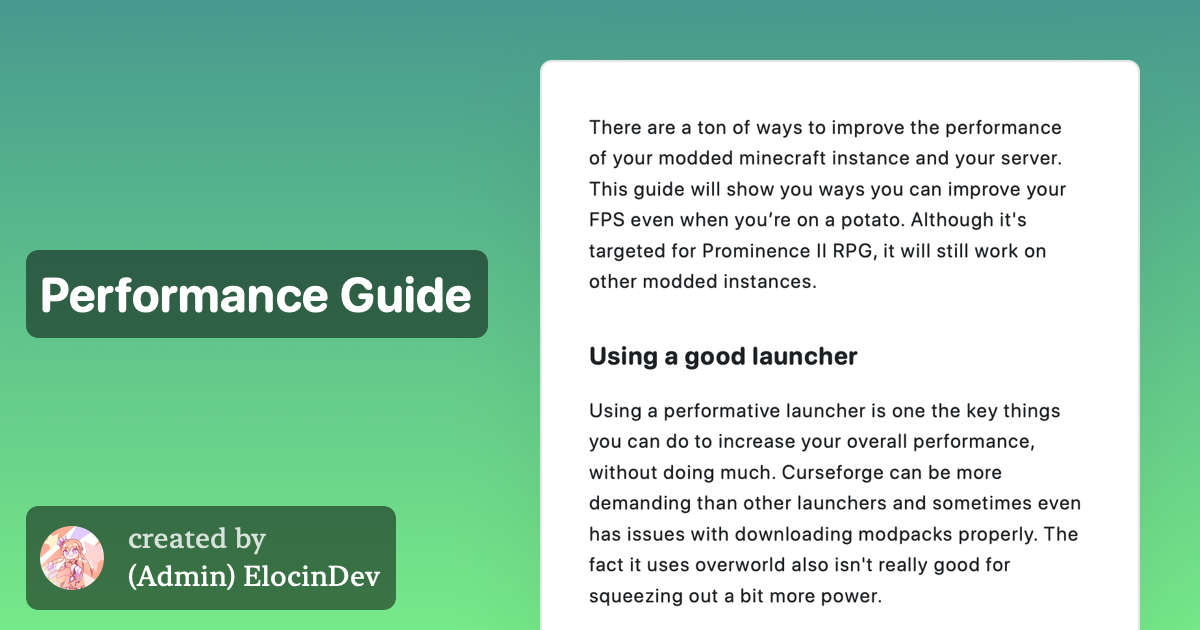 sand scaffoldBOT
god_of_hapiness, you just advanced to level 1
bobcatthecrewchief, you just advanced to level 2
 sick gorge
!aternos
frank tuskBOT
We don't support Aternos nor can we assist you with using it for reasons listed below;
- You are unable to add / edit the mods to implement a fix that can be game changing at times.
- We are unable to control the updates of our packs on Aternos, nor ever will.
- The hosting is not strong enough to host our packs on there without it crashing every so often.
- We have other free methods that work much better than Aternos does. Run the !ws command and the !server command in #bots for more information on how to host a server for free.
sand scaffoldBOT
buzzybuzzbzzbzztpsst, you just advanced to level 3
kenay2125, you just advanced to level 1
 agile tide
!server
frank tuskBOT
Free Method
To host a server on your own computer, read the selfhosting guide.
This guide goes over how to install, create, and launch a free Minecraft server on all operating systems (MacOS, Linux and Windows). The guide also guides you through installing Java and optimizing your server for better performance.
If you are installing one of our older modpacks, ignore the "README" file that is included in the serverpack files, as they have outdated information.
Paid Method
We suggest renting a server from Bisect Hosting:
Approx. $10 - $25 a month depending on what plan you choose. You can also get 25% off with Code LunaPixel.
Go here and order a plan which fits you. We suggest 1GB per player but nothing lower than 4GB as the server needs at least 3GB to run.
Go to #server-hosting for more Info!
opaque lance
/rank......
sand scaffoldBOT
pumpkinated., you just advanced to level 2
lucystyx, you just advanced to level 1
illusion223, you just advanced to level 1
exletalis, you just advanced to level 2
ordinaryappl, you just advanced to level 6
 crude nova
!rank
 sand scaffoldBOT
pixelwashere., you just advanced to level 6
 spare bear
!ws
frank tuskBOT
Luna Pixel's World Sharing
Our modpacks don't support any mods that add singleplayer hosting / world sharing because we already provide free world sharing. The 'Essential' mod is therefore incompatible.
To share your world using our own world hosting, click the 'Open to Lan' or 'Share World' button in the game menu when in a singleplayer world, and share the world.
It will give you an address, like magma-cube.mc.lunapixel.gg, which your friends can use to connect directly to your world as if it were a server!
We still highly suggest not to play through LAN as LAN is untested and unreliable. Using it will cause longterm damage to your world.
There is no reason to use LAN, as we support both paid and free methods of hosting a server the normal way.
 sand scaffoldBOT
inflexiblefacet, you just advanced to level 1
 smoky umbra
!alternates
frank tuskBOT
If this command was run in response to your question/issue, it is likely because switching away from the launcher you are currently using would fix your problem.
From our experience, the most stable launcher by far is ATLauncher, also known as ATL. Keep in mind that ATL is NOT related to TLauncher in any way, and is not a cracked launcher.
To install ATL, do the following:
1. Go to https://atlauncher.com/download. If you are on MacOS, then choose the "Jar" version under the "Other" tab.
2. Install and run the setup, then open the program.
3. Login to your Microsoft account that owns the Java Edition of Minecraft from the Accounts tab on the right. This process is 100% safe, as it goes directly through Microsoft. ATL doesn't see your account credentials.
4. Go to the Packs tab on the right, then click "Curseforge" on the left.
5. Search the modpack you wish to download.
6. Click "Install". Then, follow the on-screen directions.
7. Go to the Instances tab, and click "Play" on the modpack you downloaded. If you ever see an "Update" button on the instance, click it.
This video explains the process: https://youtu.be/xMYW1wMbmkM
To transfer your Curseforge world to ATL, simply right click the modpack on Curseforge, or click the 3 dots, then click "Open Folder". Copy the Saves folder, then click "Open Folder" on ATL and paste the Saves folder there. Do the same with the XaerosMinimap folder, or the Journeymap folder, to transfer over any waypoints you've created.
Because ATL downloads the exact same files as Curseforge does, your world will be the exact same and you will be able to join the same servers. ATL also works without an internet connection (after you've installed the modpack, of course), and does not have any bloat from Overwolf. You are free to uninstall both Overwolf and Curseforge with ATL installed.
sand scaffoldBOT
dalibe, you just advanced to level 1
mja9000, you just advanced to level 4
zinc_magnesium, you just advanced to level 2
morvarch, you just advanced to level 2
10007791, you just advanced to level 11
assassinsa1_, you just advanced to level 2
lucystyx, you just advanced to level 2
 next nova
!ws
frank tuskBOT
Luna Pixel's World Sharing
Our modpacks don't support any mods that add singleplayer hosting / world sharing because we already provide free world sharing. The 'Essential' mod is therefore incompatible.
To share your world using our own world hosting, click the 'Open to Lan' or 'Share World' button in the game menu when in a singleplayer world, and share the world.
It will give you an address, like magma-cube.mc.lunapixel.gg, which your friends can use to connect directly to your world as if it were a server!
We still highly suggest not to play through LAN as LAN is untested and unreliable. Using it will cause longterm damage to your world.
There is no reason to use LAN, as we support both paid and free methods of hosting a server the normal way.
next nova
!server
frank tuskBOT
Free Method
To host a server on your own computer, read the selfhosting guide.
This guide goes over how to install, create, and launch a free Minecraft server on all operating systems (MacOS, Linux and Windows). The guide also guides you through installing Java and optimizing your server for better performance.
If you are installing one of our older modpacks, ignore the "README" file that is included in the serverpack files, as they have outdated information.
Paid Method
We suggest renting a server from Bisect Hosting:
Approx. $10 - $25 a month depending on what plan you choose. You can also get 25% off with Code LunaPixel.
Go here and order a plan which fits you. We suggest 1GB per player but nothing lower than 4GB as the server needs at least 3GB to run.
Go to #server-hosting for more Info!
sand scaffoldBOT
nocluewhy_, you just advanced to level 2
__razer, you just advanced to level 8
trevita., you just advanced to level 4
mder_elhp, you just advanced to level 5
tripp_rise_20591, you just advanced to level 1
alemialone, you just advanced to level 1
sunshinecrystal, you just advanced to level 2
minetape, you just advanced to level 1
 clear nymph
!server
frank tuskBOT
Free Method
To host a server on your own computer, read the selfhosting guide.
This guide goes over how to install, create, and launch a free Minecraft server on all operating systems (MacOS, Linux and Windows). The guide also guides you through installing Java and optimizing your server for better performance.
If you are installing one of our older modpacks, ignore the "README" file that is included in the serverpack files, as they have outdated information.
Paid Method
We suggest renting a server from Bisect Hosting:
Approx. $10 - $25 a month depending on what plan you choose. You can also get 25% off with Code LunaPixel.
Go here and order a plan which fits you. We suggest 1GB per player but nothing lower than 4GB as the server needs at least 3GB to run.
Go to #server-hosting for more Info!
sand scaffoldBOT
endro1, you just advanced to level 1
sand scaffoldBOT
youneszup, you just advanced to level 1
yapperyin, you just advanced to level 1
blaidd22, you just advanced to level 1
minetape, you just advanced to level 2
slavic.sasha, you just advanced to level 1
tonyymainn, you just advanced to level 6
blaidd22, you just advanced to level 2
gyro_the_depresso, you just advanced to level 2
 inland hemlock
!ws
frank tuskBOT
Luna Pixel's World Sharing
Our modpacks don't support any mods that add singleplayer hosting / world sharing because we already provide free world sharing. The 'Essential' mod is therefore incompatible.
To share your world using our own world hosting, click the 'Open to Lan' or 'Share World' button in the game menu when in a singleplayer world, and share the world.
It will give you an address, like magma-cube.mc.lunapixel.gg, which your friends can use to connect directly to your world as if it were a server!
We still highly suggest not to play through LAN as LAN is untested and unreliable. Using it will cause longterm damage to your world.
There is no reason to use LAN, as we support both paid and free methods of hosting a server the normal way.
clear nymph
!server
frank tuskBOT
Free Method
To host a server on your own computer, read the selfhosting guide.
This guide goes over how to install, create, and launch a free Minecraft server on all operating systems (MacOS, Linux and Windows). The guide also guides you through installing Java and optimizing your server for better performance.
If you are installing one of our older modpacks, ignore the "README" file that is included in the serverpack files, as they have outdated information.
Paid Method
We suggest renting a server from Bisect Hosting:
Approx. $10 - $25 a month depending on what plan you choose. You can also get 25% off with Code LunaPixel.
Go here and order a plan which fits you. We suggest 1GB per player but nothing lower than 4GB as the server needs at least 3GB to run.
Go to #server-hosting for more Info!
sand scaffoldBOT
opticaal., you just advanced to level 1
yisusclaus, you just advanced to level 1
 proven kraken
!ws
frank tuskBOT
Luna Pixel's World Sharing
Our modpacks don't support any mods that add singleplayer hosting / world sharing because we already provide free world sharing. The 'Essential' mod is therefore incompatible.
To share your world using our own world hosting, click the 'Open to Lan' or 'Share World' button in the game menu when in a singleplayer world, and share the world.
It will give you an address, like magma-cube.mc.lunapixel.gg, which your friends can use to connect directly to your world as if it were a server!
We still highly suggest not to play through LAN as LAN is untested and unreliable. Using it will cause longterm damage to your world.
There is no reason to use LAN, as we support both paid and free methods of hosting a server the normal way.
 gloomy depot
!ws
frank tuskBOT
Luna Pixel's World Sharing
Our modpacks don't support any mods that add singleplayer hosting / world sharing because we already provide free world sharing. The 'Essential' mod is therefore incompatible.
To share your world using our own world hosting, click the 'Open to Lan' or 'Share World' button in the game menu when in a singleplayer world, and share the world.
It will give you an address, like magma-cube.mc.lunapixel.gg, which your friends can use to connect directly to your world as if it were a server!
We still highly suggest not to play through LAN as LAN is untested and unreliable. Using it will cause longterm damage to your world.
There is no reason to use LAN, as we support both paid and free methods of hosting a server the normal way.
sand scaffoldBOT
milka1798, you just advanced to level 1
inflexiblefacet, you just advanced to level 2
die4rai, you just advanced to level 1
gloomy depot
!help
sand scaffoldBOT
 Luna Pixel Studios Plugins Commands
**Birthdays**
</help:1145941150495162392> birthdays
**Giveaways**
</help:1145941150495162392> giveaways
**MEE6 AI**
</help:1145941150495162392> ai
**Levels**
</help:1145941150495162392> levels
**Moderator**
</help:1145941150495162392> moderator
**Emojis**
</help:1145941150495162392> emojis
**Achievements**
</help:1145941150495162392> achievements

GG @hollow lotus , you just unlocked the achievement: Casual Typer! 🥳

dailydrug, you just advanced to level 1
thebaguette., you just advanced to level 3
elaina_kawaii, you just advanced to level 18
grieve7, you just advanced to level 1
kysoto, you just advanced to level 5
luggnugg, you just advanced to level 5
sand scaffoldBOT
GG @misty cove , you just unlocked the achievement: Casual Typer! 🥳

xb47., you just advanced to level 5
sand scaffoldBOT
billyfrog., you just advanced to level 1
sand scaffoldBOT
saritomy, you just advanced to level 1
gumihye, you just advanced to level 2
strayavis, you just advanced to level 1
sand scaffoldBOT
mallyboi9669, you just advanced to level 1
bbcenjoyur_43583, you just advanced to level 2
sand scaffoldBOT
therrevv, you just advanced to level 1
sand scaffoldBOT
fff3318, you just advanced to level 4
santasdad, you just advanced to level 12
maaarcy, you just advanced to level 3
mineacc00, you just advanced to level 3
mallyboi9669, you just advanced to level 2
 minor scarab
!server
frank tuskBOT
Free Method
To host a server on your own computer, read the selfhosting guide.
This guide goes over how to install, create, and launch a free Minecraft server on all operating systems (MacOS, Linux and Windows). The guide also guides you through installing Java and optimizing your server for better performance.
If you are installing one of our older modpacks, ignore the "README" file that is included in the serverpack files, as they have outdated information.
Paid Method
We suggest renting a server from Bisect Hosting:
Approx. $10 - $25 a month depending on what plan you choose. You can also get 25% off with Code LunaPixel.
Go here and order a plan which fits you. We suggest 1GB per player but nothing lower than 4GB as the server needs at least 3GB to run.
Go to #server-hosting for more Info!
sand scaffoldBOT
holyfather7576, you just advanced to level 1
samorsmth, you just advanced to level 9
nanoflower, you just advanced to level 1
saintofsix, you just advanced to level 1
GG @hollow venture , you just unlocked the achievement: Casual Typer! 🥳

creativenameig, you just advanced to level 9
sand scaffoldBOT
GG @humble yoke , you just unlocked the achievement: Give or Take! 🥳

gsultanishvili, you just advanced to level 11
sand scaffoldBOT
ineqah, you just advanced to level 2
 oblique reef
!server
frank tuskBOT
Free Method
To host a server on your own computer, read the selfhosting guide.
This guide goes over how to install, create, and launch a free Minecraft server on all operating systems (MacOS, Linux and Windows). The guide also guides you through installing Java and optimizing your server for better performance.
If you are installing one of our older modpacks, ignore the "README" file that is included in the serverpack files, as they have outdated information.
Paid Method
We suggest renting a server from Bisect Hosting:
Approx. $10 - $25 a month depending on what plan you choose. You can also get 25% off with Code LunaPixel.
Go here and order a plan which fits you. We suggest 1GB per player but nothing lower than 4GB as the server needs at least 3GB to run.
Go to #server-hosting for more Info!
sand scaffoldBOT
bubblerider, you just advanced to level 1
oblique reef
!ws
frank tuskBOT
Luna Pixel's World Sharing
Our modpacks don't support any mods that add singleplayer hosting / world sharing because we already provide free world sharing. The 'Essential' mod is therefore incompatible.
To share your world using our own world hosting, click the 'Open to Lan' or 'Share World' button in the game menu when in a singleplayer world, and share the world.
It will give you an address, like magma-cube.mc.lunapixel.gg, which your friends can use to connect directly to your world as if it were a server!
We still highly suggest not to play through LAN as LAN is untested and unreliable. Using it will cause longterm damage to your world.
There is no reason to use LAN, as we support both paid and free methods of hosting a server the normal way.
sand scaffoldBOT
kenay2125, you just advanced to level 2
sand scaffoldBOT
GG @shadow yacht , you just unlocked the achievement: Give or Take! 🥳
 sand scaffoldBOT
parnoxia, you just advanced to level 1
sand scaffoldBOT
naasu5992, you just advanced to level 2
riniiii0409, you just advanced to level 1
GG @winter abyss , you just unlocked the achievement: Give or Take! 🥳

firemagic09, you just advanced to level 1
sand scaffoldBOT
naasu5992, you just advanced to level 3
akira.m16, you just advanced to level 15
 wheat flame
!ws
frank tuskBOT
Luna Pixel's World Sharing
Our modpacks don't support any mods that add singleplayer hosting / world sharing because we already provide free world sharing. The 'Essential' mod is therefore incompatible.
To share your world using our own world hosting, click the 'Open to Lan' or 'Share World' button in the game menu when in a singleplayer world, and share the world.
It will give you an address, like magma-cube.mc.lunapixel.gg, which your friends can use to connect directly to your world as if it were a server!
We still highly suggest not to play through LAN as LAN is untested and unreliable. Using it will cause longterm damage to your world.
There is no reason to use LAN, as we support both paid and free methods of hosting a server the normal way.
frank tuskBOT
Free Method
To host a server on your own computer, read the selfhosting guide.
This guide goes over how to install, create, and launch a free Minecraft server on all operating systems (MacOS, Linux and Windows). The guide also guides you through installing Java and optimizing your server for better performance.
If you are installing one of our older modpacks, ignore the "README" file that is included in the serverpack files, as they have outdated information.
Paid Method
We suggest renting a server from Bisect Hosting:
Approx. $10 - $25 a month depending on what plan you choose. You can also get 25% off with Code LunaPixel.
Go here and order a plan which fits you. We suggest 1GB per player but nothing lower than 4GB as the server needs at least 3GB to run.
Go to #server-hosting for more Info!
sand scaffoldBOT
nanoshinobi, you just advanced to level 1
sand scaffoldBOT

user_clc, you just advanced to level 1
bluees_, you just advanced to level 1
dioguinho9084, you just advanced to level 3
.enderium, you just advanced to level 4
assassinsa1_, you just advanced to level 3
._mage, you just advanced to level 5
stellarharbour, you just advanced to level 3
sand scaffoldBOT
assassinsa1_, you just advanced to level 4
gotvna, you just advanced to level 1
abdullahseedat, you just advanced to level 5
GG @pseudo lantern , you just unlocked the achievement: Casual Typer! 🥳

plhh, you just advanced to level 4
creativenameig, you just advanced to level 10
GG @manic flare , you just unlocked the achievement: Casual Typer! 🥳

saprogamer, you just advanced to level 7
 old path
!server
frank tuskBOT
Free Method
To host a server on your own computer, read the selfhosting guide.
This guide goes over how to install, create, and launch a free Minecraft server on all operating systems (MacOS, Linux and Windows). The guide also guides you through installing Java and optimizing your server for better performance.
If you are installing one of our older modpacks, ignore the "README" file that is included in the serverpack files, as they have outdated information.
Paid Method
We suggest renting a server from Bisect Hosting:
Approx. $10 - $25 a month depending on what plan you choose. You can also get 25% off with Code LunaPixel.
Go here and order a plan which fits you. We suggest 1GB per player but nothing lower than 4GB as the server needs at least 3GB to run.
Go to #server-hosting for more Info!
sand scaffoldBOT
eth4wn, you just advanced to level 1
idmaster567, you just advanced to level 1
thegreatsheikhi, you just advanced to level 1
sand scaffoldBOT
paparufus, you just advanced to level 1
GG @timid lagoon , you just unlocked the achievement: Casual Typer! 🥳

naasu5992, you just advanced to level 4
ziomark, you just advanced to level 11
GG @carmine apex , you just unlocked the achievement: Give or Take! 🥳

frost6157, you just advanced to level 2
nexo8360, you just advanced to level 7
opr18, you just advanced to level 1
1argo, you just advanced to level 2
assassinsa1_, you just advanced to level 5
sand scaffoldBOT
howlong1394, you just advanced to level 3
sand scaffoldBOT
snowyy_kitten, you just advanced to level 1
settingdust, you just advanced to level 1
assassinsa1_, you just advanced to level 6
jens2233, you just advanced to level 1
lucluc86, you just advanced to level 1
lizardsarewholesome., you just advanced to level 1
big minecraft 8, you just advanced to level 1
Ako, you just advanced to level 11
sand scaffoldBOT
GG @tepid scroll , you just unlocked the achievement: Chatter! 🥳

alcyonidus, you just advanced to level 1
haqiman, you just advanced to level 3
GG @twin sigil , you just unlocked the achievement: Give or Take! 🥳

xao_dea, you just advanced to level 1
pruinboy, you just advanced to level 13
abraham69, you just advanced to level 2
jvco_b, you just advanced to level 3
 opaque lance
some words for xp....
sand scaffoldBOT
thomasfate, you just advanced to level 1
azure_eiyu, you just advanced to level 1
realkidwolf, you just advanced to level 1
rifqi., you just advanced to level 13
opaque lance
some words for xp....
sand scaffoldBOT
binnbean, you just advanced to level 3
big minecraft 8, you just advanced to level 2
42kmozzy, you just advanced to level 1
riqueoak, you just advanced to level 1
bout_de_bois, you just advanced to level 1
nam.1353, you just advanced to level 1
ad_fate, you just advanced to level 1
farz_fr, you just advanced to level 1
mallyboi9669, you just advanced to level 3
GG @wet sage , you just unlocked the achievement: Give or Take! 🥳

jaylinn1644, you just advanced to level 1
naasu5992, you just advanced to level 5
GG @sharp nova , you just unlocked the achievement: Give or Take! 🥳

 opaque lance
some words for xp....
sand scaffoldBOT
pumpkinated., you just advanced to level 3
_kotodama, you just advanced to level 3
syzyf87, you just advanced to level 1
 wraith river
!ws
frank tuskBOT
Luna Pixel's World Sharing
Our modpacks don't support any mods that add singleplayer hosting / world sharing because we already provide free world sharing. The 'Essential' mod is therefore incompatible.
To share your world using our own world hosting, click the 'Open to Lan' or 'Share World' button in the game menu when in a singleplayer world, and share the world.
It will give you an address, like magma-cube.mc.lunapixel.gg, which your friends can use to connect directly to your world as if it were a server!
We still highly suggest not to play through LAN as LAN is untested and unreliable. Using it will cause longterm damage to your world.
There is no reason to use LAN, as we support both paid and free methods of hosting a server the normal way.
sand scaffoldBOT
GG @river island , you just unlocked the achievement: Casual Typer! 🥳

jvco_b, you just advanced to level 4
kents727, you just advanced to level 1
castigao, you just advanced to level 1
opaque lance
some words for xp....
sand scaffoldBOT
GG @ebon oyster , you just unlocked the achievement: True Star! 🥳

daddygabu, you just advanced to level 11
omega_k_, you just advanced to level 1
sand scaffoldBOT
vitinho_programas, you just advanced to level 3
kollys, you just advanced to level 1
jens2233, you just advanced to level 2
tigies, you just advanced to level 1
 sand scaffoldBOT
luggnugg, you just advanced to level 6
sand scaffoldBOT
 sand scaffoldBOT
finasty_, you just advanced to level 1
sand scaffoldBOT
 opaque lance
!rank et20oo1
sand scaffoldBOT
Invalid command usage, try using it like:
</rank:1145941150495162395> (optional member)
Arguments:
member: User mention (@User) or user ID (159985870458322944)
 grim trout
opaque lance
even more words....
grim trout
opaque lance
even more words....
doesn't work for all messages sent. it's gonna take time
opaque lance
grim trout
doesn't work for all messages sent. it's gonna take time
I know... + it's over 10 levels left
sand scaffoldBOT
jamps, you just advanced to level 4
sand scaffoldBOT
rxthexletter, you just advanced to level 3
strayavis, you just advanced to level 2
pokegirl19, you just advanced to level 2
sergyleeds, you just advanced to level 1
i_shot_a_pig, you just advanced to level 3
GG @ebon dragon , you just unlocked the achievement: Chatter! 🥳

guy, you just advanced to level 4
conrado0, you just advanced to level 1
sand scaffoldBOT
lorepay, you just advanced to level 1
zyksen, you just advanced to level 3
chrono_shindo., you just advanced to level 7
Pao, you just advanced to level 1
bluees_, you just advanced to level 2
morsar36, you just advanced to level 1
sand scaffoldBOT
ShardMario, you just advanced to level 2
sand scaffoldBOT
xenonxe, you just advanced to level 1
vvvv7, you just advanced to level 8
GG @torpid canyon , you just unlocked the achievement: Pro Typer! 🥳

smolbeanstalk, you just advanced to level 2
professor_wako, you just advanced to level 4
GG @upper jacinth , you just unlocked the achievement: Casual Typer! 🥳

 candid tiger
!server
frank tuskBOT
Free Method
To host a server on your own computer, read the selfhosting guide.
This guide goes over how to install, create, and launch a free Minecraft server on all operating systems (MacOS, Linux and Windows). The guide also guides you through installing Java and optimizing your server for better performance.
If you are installing one of our older modpacks, ignore the "README" file that is included in the serverpack files, as they have outdated information.
Paid Method
We suggest renting a server from Bisect Hosting:
Approx. $10 - $25 a month depending on what plan you choose. You can also get 25% off with Code LunaPixel.
Go here and order a plan which fits you. We suggest 1GB per player but nothing lower than 4GB as the server needs at least 3GB to run.
Go to #server-hosting for more Info!
The following advice works for both the Free and Paid methods:
Transferring Your World
If you're playing Singleplayer and want to transfer your world to your server, simply go to your modpack files and navigate to the saves folder. Inside of this folder, you will see your world saves. Rename your desired world save to world. You can then transfer this folder to your server files. If your world was hosted via world sharing, this process has to be done by the person who would click "Share World".
Fixing Lag
To resolve lag issues, simply run the !tps command in #bots and follow the directions provided.
sand scaffoldBOT
flameduo101, you just advanced to level 5
goofballchimp78, you just advanced to level 1
je__fe, you just advanced to level 2
castmic2523, you just advanced to level 3
jomshy, you just advanced to level 3
GG @surreal geode , you just unlocked the achievement: Give or Take! 🥳

_kotodama, you just advanced to level 4
lb_luke, you just advanced to level 2
ordinaryappl, you just advanced to level 7
silverking, you just advanced to level 5
GG @sweet rover , you just unlocked the achievement: Casual Typer! 🥳

waffleconsumer, you just advanced to level 3
dqnillo, you just advanced to level 5
the_warthog., you just advanced to level 1
 pale aurora
!rank
sand scaffoldBOT

 gusty star
!ws
frank tuskBOT
Luna Pixel's World Sharing
Our modpacks don't support any mods that add singleplayer hosting / world sharing because we already provide free world sharing. The 'Essential' mod is therefore incompatible.
To share your world using our own world hosting, click the 'Open to Lan' or 'Share World' button in the game menu when in a singleplayer world, and share the world.
It will give you an address, like magma-cube.mc.lunapixel.gg, which your friends can use to connect directly to your world as if it were a server!
We still highly suggest not to play through LAN as LAN is untested and unreliable. Using it will cause longterm damage to your world.
There is no reason to use LAN, as we support both paid and free methods of hosting a server the normal way.
sand scaffoldBOT
fuckingfenix, you just advanced to level 1
moosemanact, you just advanced to level 1
swaggerisaqt, you just advanced to level 1
rosey_roulette, you just advanced to level 4
 chilly stone
!ws
frank tuskBOT
Luna Pixel's World Sharing
Our modpacks don't support any mods that add singleplayer hosting / world sharing because we already provide free world sharing. The 'Essential' mod is therefore incompatible.
To share your world using our own world hosting, click the 'Open to Lan' or 'Share World' button in the game menu when in a singleplayer world, and share the world.
It will give you an address, like magma-cube.mc.lunapixel.gg, which your friends can use to connect directly to your world as if it were a server!
We still highly suggest not to play through LAN as LAN is untested and unreliable. Using it will cause longterm damage to your world.
There is no reason to use LAN, as we support both paid and free methods of hosting a server the normal way.
sand scaffoldBOT
GG @brave gull , you just unlocked the achievement: Give or Take! 🥳

pumpkinated., you just advanced to level 4
sand scaffoldBOT
khalid00aa, you just advanced to level 1
sand scaffoldBOT
bbcenjoyur_43583, you just advanced to level 3
deblon., you just advanced to level 1
enrico42, you just advanced to level 3
GG @umbral oak , you just unlocked the achievement: Give or Take! 🥳

xiaoyuexxy8yyx, you just advanced to level 1
ibrahimmiah., you just advanced to level 1
eddysseus, you just advanced to level 5
GG @ivory oxide , you just unlocked the achievement: Chatter! 🥳

GG @lyric rain , you just unlocked the achievement: Casual Typer! 🥳

lume_xx, you just advanced to level 12
sand scaffoldBOT
mder_elhp, you just advanced to level 6
dqnillo, you just advanced to level 6
fain6789, you just advanced to level 2
mallyboi9669, you just advanced to level 4
ildanas, you just advanced to level 2
 glad jungle
!server
frank tuskBOT
Free Method
To host a server on your own computer, read the selfhosting guide.
This guide goes over how to install, create, and launch a free Minecraft server on all operating systems (MacOS, Linux and Windows). The guide also guides you through installing Java and optimizing your server for better performance.
If you are installing one of our older modpacks, ignore the "README" file that is included in the serverpack files, as they have outdated information.
Paid Method
We suggest renting a server from Bisect Hosting:
Approx. $10 - $25 a month depending on what plan you choose. You can also get 25% off with Code LunaPixel.
Go here and order a plan which fits you. We suggest 1GB per player but nothing lower than 4GB as the server needs at least 3GB to run.
Go to #server-hosting for more Info!
The following advice works for both the Free and Paid methods:
Transferring Your World
If you're playing Singleplayer and want to transfer your world to your server, simply go to your modpack files and navigate to the saves folder. Inside of this folder, you will see your world saves. Rename your desired world save to world. You can then transfer this folder to your server files. If your world was hosted via world sharing, this process has to be done by the person who would click "Share World".
Fixing Lag
To resolve lag issues, simply run the !tps command in #bots and follow the directions provided.
sand scaffoldBOT
swiss0000, you just advanced to level 1
mja9000, you just advanced to level 5
melpsy, you just advanced to level 2
ysehporp, you just advanced to level 1
ookami_3, you just advanced to level 1
l0ward, you just advanced to level 5
jackmehoff7271, you just advanced to level 1
sand scaffoldBOT
Ako, you just advanced to level 12
GG @austere falcon , you just unlocked the achievement: Casual Typer! 🥳

myumichi, you just advanced to level 1
sand scaffoldBOT
sapith, you just advanced to level 1
sand scaffoldBOT
solara0306, you just advanced to level 1
sand scaffoldBOT
a8a8a8a8a8a8a8a8a8a8a8a8a8a8a8a8, you just advanced to level 1
sand scaffoldBOT
raygon_coctel, you just advanced to level 1
 elfin plank
!tps
frank tuskBOT
Please follow the guide here for changing the Java version your server uses. This will improve performance dramatically. If you are on a third party server host, you likely can not change the Java version your server uses. Bisect Hosting and a few VPS providers do allow changing Java version, though, which can usually be done through your server dashboard.
The method on Bisect is to simply go to the main dashboard page, and select "GraalVM 22" as the Java distribution. If it crashes, use 21 instead.
For further performance improvements, you can also follow this guide.
Reducing server render distance in the server.properties file is also a very good way of reducing lag. Most of our modpacks include mods like Bobby and Farsight, which make it so reducing server render distance will not affect players.
If lag persists, run the following command ingame:
/spark profiler start --only-ticks-over 50
Then, send the link in this channel.
sand scaffoldBOT
xiaoyuexxy8yyx, you just advanced to level 2
sand scaffoldBOT
kleend, you just advanced to level 1
GG @half frost , you just unlocked the achievement: Give or Take! 🥳

tonyymainn, you just advanced to level 7
meatkermit., you just advanced to level 1
raygon_coctel, you just advanced to level 2
794.59, you just advanced to level 1
raygon_coctel, you just advanced to level 3
 drowsy field
!ws
frank tuskBOT
Luna Pixel's World Sharing
Our modpacks don't support any mods that add singleplayer hosting / world sharing because we already provide free world sharing. The 'Essential' mod is therefore incompatible.
To share your world using our own world hosting, click the 'Open to Lan' or 'Share World' button in the game menu when in a singleplayer world, and share the world.
It will give you an address, like magma-cube.mc.lunapixel.gg, which your friends can use to connect directly to your world as if it were a server!
We still highly suggest not to play through LAN as LAN is untested and unreliable. Using it will cause longterm damage to your world.
There is no reason to use LAN, as we support both paid and free methods of hosting a server the normal way.
sand scaffoldBOT
bxlaa., you just advanced to level 7
sand scaffoldBOT
sadking, you just advanced to level 1
yicheng_0505, you just advanced to level 1
settingdust, you just advanced to level 2
katelynnarcee, you just advanced to level 1
io_kai, you just advanced to level 1
momonkyeo, you just advanced to level 1
raygon_coctel, you just advanced to level 4
momonkyeo, you just advanced to level 2
kiakky, you just advanced to level 2
orcao, you just advanced to level 1
sand scaffoldBOT
ellesse.y, you just advanced to level 1
amphy2k, you just advanced to level 1
lizardsarewholesome., you just advanced to level 2
GG @tepid swallow , you just unlocked the achievement: Casual Typer! 🥳

eddysseus, you just advanced to level 6
epun._., you just advanced to level 4
praiseayman, you just advanced to level 2
orcao, you just advanced to level 2
slavic.sasha, you just advanced to level 2
maxiblz, you just advanced to level 1
jestem_lego_batmanem, you just advanced to level 1
kitakye32, you just advanced to level 1
piqachu, you just advanced to level 5
eclipses_._, you just advanced to level 3
sallyangelic, you just advanced to level 1
 late marsh
!rank
sand scaffoldBOT

buzzybuzzbzzbzztpsst, you just advanced to level 4
elenshquigall, you just advanced to level 1
soapirain, you just advanced to level 1
enviu, you just advanced to level 1
sand scaffoldBOT
momonkyeo, you just advanced to level 3
ajanixpanda, you just advanced to level 1
jelly.o, you just advanced to level 2
.whatsfordinner., you just advanced to level 3
rustyoverlord, you just advanced to level 3
neybin, you just advanced to level 1
 brisk hill
!ws
frank tuskBOT
Luna Pixel's World Sharing
Our modpacks don't support any mods that add singleplayer hosting / world sharing because we already provide free world sharing. The 'Essential' mod is therefore incompatible.
To share your world using our own world hosting, click the 'Open to Lan' or 'Share World' button in the game menu when in a singleplayer world, and share the world.
It will give you an address, like magma-cube.mc.lunapixel.gg, which your friends can use to connect directly to your world as if it were a server!
We still highly suggest not to play through LAN as LAN is untested and unreliable. Using it will cause longterm damage to your world.
There is no reason to use LAN, as we support both paid and free methods of hosting a server the normal way.
 hardy mulch
!alternates
frank tuskBOT
If this command was run in response to your question/issue, it is likely because switching away from the launcher you are currently using would fix your problem.
From our experience, the most stable launcher by far is ATLauncher, also known as ATL. Keep in mind that ATL is NOT related to TLauncher in any way, and is not a cracked launcher.
To install ATL, do the following:
1. Go to https://atlauncher.com/download. If you are on MacOS, then choose the "Jar" version under the "Other" tab.
2. Install and run the setup, then open the program.
3. Login to your Microsoft account that owns the Java Edition of Minecraft from the Accounts tab on the right. This process is 100% safe, as it goes directly through Microsoft. ATL doesn't see your account credentials.
4. Go to the Packs tab on the right, then click "Curseforge" on the left.
5. Search the modpack you wish to download.
6. Click "Install". Then, follow the on-screen directions.
7. Go to the Instances tab, and click "Play" on the modpack you downloaded. If you ever see an "Update" button on the instance, click it.
This video explains the process: https://youtu.be/xMYW1wMbmkM
To transfer your Curseforge world to ATL, simply right click the modpack on Curseforge, or click the 3 dots, then click "Open Folder". Copy the Saves folder, then click "Open Folder" on ATL and paste the Saves folder there. Do the same with the XaerosMinimap folder, or the Journeymap folder, to transfer over any waypoints you've created.
Because ATL downloads the exact same files as Curseforge does, your world will be the exact same and you will be able to join the same servers. ATL also works without an internet connection (after you've installed the modpack, of course), and does not have any bloat from Overwolf. You are free to uninstall both Overwolf and Curseforge with ATL installed.
sand scaffoldBOT
akarui_berto, you just advanced to level 13
durpmuccurrut, you just advanced to level 2
 honest stirrup
frank tuskBOT
honest stirrup
frank tuskBOT
Free Method
To host a server on your own computer, read the selfhosting guide.
This guide goes over how to install, create, and launch a free Minecraft server on all operating systems (MacOS, Linux and Windows). The guide also guides you through installing Java and optimizing your server for better performance.
If you are installing one of our older modpacks, ignore the "README" file that is included in the serverpack files, as they have outdated information.
Paid Method
We suggest renting a server from Bisect Hosting:
Approx. $10 - $25 a month depending on what plan you choose. You can also get 25% off with Code LunaPixel.
Go here and order a plan which fits you. We suggest 1GB per player but nothing lower than 4GB as the server needs at least 3GB to run.
Go to #server-hosting for more Info!
The following advice works for both the Free and Paid methods:
Transferring Your World
If you're playing Singleplayer and want to transfer your world to your server, simply go to your modpack files and navigate to the saves folder. Inside of this folder, you will see your world saves. Rename your desired world save to world. You can then transfer this folder to your server files. If your world was hosted via world sharing, this process has to be done by the person who would click "Share World".
Fixing Lag
To resolve lag issues, simply run the !tps command in #bots and follow the directions provided.
sand scaffoldBOT
rener, you just advanced to level 4
stupidchezzcat, you just advanced to level 1
realxerzy, you just advanced to level 1
_xsairex, you just advanced to level 1
GG @rain parrot , you just unlocked the achievement: Casual Typer! 🥳

neroo132, you just advanced to level 1
jam08334, you just advanced to level 1
 azure merlin
!drivers
frank tuskBOT
You (likely) need to update your graphics drivers in order to resolve the crash. Here's how to go about doing that!
1. Identify your graphics card
if you already know skip to the next step
- Open task manager
- Navigate to the "Performance" tab (on Windows 11 this is the button that looks like a heart pulse)
- Press the GPU 0 graph and read your GPU from the top right
Note:
In some cases you may see a GPU 0 and GPU 1. This means your CPU has its own GPU, as well as a dedicated one. You probably want GPU 1 (which is usually the better one), but you can ask staff to clarify if necessary.
2. Download your drivers from the manufacturers site
Depending on what you read before, you likely need drivers from either AMD, Intel, or NVIDIA
AMD: https://www.amd.com/en/support
Intel: https://www.intel.com/content/www/us/en/download-center/home.html
NVIDIA: https://www.nvidia.com/Download/index.aspx?lang=en-us
Note:
- For NVIDIA you want to select "Game Ready Driver (GRD)" (this is the default option) for the best performance. Once installing you'd probably prefer downloading GeForce Experience, which will notify you when there's an available drivers update.
- For Intel, you probably want to press "Get Started" under the "Automatically update your drivers and software", which will simplify the process and update everything automatically
- For AMD you probably want to just press "Download Windows Drivers", which will download something called AMD Adrenaline, which will update your drivers automatically.
3. Run the installation, restart your computer, and try playing MC again
- At this point, hopefully your Minecraft is running. If it still does not work, please post any new logs and staff will help assist you with finding the right solution.
 trim hazel
!tps
frank tuskBOT
Please follow the guide here for changing the Java version your server uses. This will improve performance dramatically. If you are on a third party server host, you likely can not change the Java version your server uses. Bisect Hosting and a few VPS providers do allow changing Java version, though, which can usually be done through your server dashboard.
The method on Bisect is to simply go to the main dashboard page, and select "GraalVM 22" as the Java distribution. If it crashes, use 21 instead.
For further performance improvements, you can also follow this guide.
Reducing server render distance in the server.properties file is also a very good way of reducing lag. Most of our modpacks include mods like Bobby and Farsight, which make it so reducing server render distance will not affect players.
If lag persists, run the following command ingame:
/spark profiler start --only-ticks-over 50
Then, send the link in this channel.
sand scaffoldBOT
GG @carmine apex , you just unlocked the achievement: Pro Typer! 🥳

nextshot, you just advanced to level 1
andrewthebate, you just advanced to level 17
Infatuation!!!!!!!, you just advanced to level 69
nextshot, you just advanced to level 2
_kotodama, you just advanced to level 5
ziomark, you just advanced to level 12
rener, you just advanced to level 5
nextshot, you just advanced to level 3
sand scaffoldBOT
GG @severe juniper , you just unlocked the achievement: Pro Typer! 🥳

primordialneal, you just advanced to level 1
GG @onyx mica , you just unlocked the achievement: Casual Typer! 🥳

nextshot, you just advanced to level 4
GG @normal mantle , you just unlocked the achievement: To Infinity!! 🥳

 normal mantle
e
sand scaffoldBOT
zag.g, you just advanced to level 1
rifqi., you just advanced to level 14
zag.g, you just advanced to level 2
fearkamarri, you just advanced to level 1
GG @undone wyvern , you just unlocked the achievement: Chatter! 🥳

deputyfatnuts, you just advanced to level 1
oskurd, you just advanced to level 2
 fast aurora
!server
frank tuskBOT
Free Method
To host a server on your own computer, read the selfhosting guide.
This guide goes over how to install, create, and launch a free Minecraft server on all operating systems (MacOS, Linux and Windows). The guide also guides you through installing Java and optimizing your server for better performance.
If you are installing one of our older modpacks, ignore the "README" file that is included in the serverpack files, as they have outdated information.
Paid Method
We suggest renting a server from Bisect Hosting:
Approx. $10 - $25 a month depending on what plan you choose. You can also get 25% off with Code LunaPixel.
Go here and order a plan which fits you. We suggest 1GB per player but nothing lower than 4GB as the server needs at least 3GB to run.
Go to #server-hosting for more Info!
The following advice works for both the Free and Paid methods:
Transferring Your World
If you're playing Singleplayer and want to transfer your world to your server, simply go to your modpack files and navigate to the saves folder. Inside of this folder, you will see your world saves. Rename your desired world save to world. You can then transfer this folder to your server files. If your world was hosted via world sharing, this process has to be done by the person who would click "Share World".
Fixing Lag
To resolve lag issues, simply run the !tps command in #bots and follow the directions provided.
sand scaffoldBOT
zerasmash, you just advanced to level 1
m4t3x, you just advanced to level 1
deathbybunnies, you just advanced to level 1
._mage, you just advanced to level 6
sand scaffoldBOT
zag.g, you just advanced to level 3
howdybossss, you just advanced to level 1
deathbybunnies, you just advanced to level 2
deerguydeer, you just advanced to level 1
sab_o, you just advanced to level 3
 dense sinew
!ws
frank tuskBOT
Luna Pixel's World Sharing
Our modpacks don't support any mods that add singleplayer hosting / world sharing because we already provide free world sharing. The 'Essential' mod is therefore incompatible.
To share your world using our own world hosting, click the 'Open to Lan' or 'Share World' button in the game menu when in a singleplayer world, and share the world.
It will give you an address, like magma-cube.mc.lunapixel.gg, which your friends can use to connect directly to your world as if it were a server!
We still highly suggest not to play through LAN as LAN is untested and unreliable. Using it will cause longterm damage to your world.
There is no reason to use LAN, as we support both paid and free methods of hosting a server the normal way.
sand scaffoldBOT
GG @opaque star , you just unlocked the achievement: Chatter! 🥳

GG @opaque star , you just unlocked the achievement: Stay Awhile and Listen! 🥳

 bleak latch
!pwiki
frank tuskBOT
 sand scaffoldBOT
knjy, you just advanced to level 2
malekthegreat, you just advanced to level 1
w4xneon, you just advanced to level 1
nam.1353, you just advanced to level 2
 ancient wren
!ws
frank tuskBOT
Luna Pixel's World Sharing
Our modpacks don't support any mods that add singleplayer hosting / world sharing because we already provide free world sharing. The 'Essential' mod is therefore incompatible.
To share your world using our own world hosting, click the 'Open to Lan' or 'Share World' button in the game menu when in a singleplayer world, and share the world.
It will give you an address, like magma-cube.mc.lunapixel.gg, which your friends can use to connect directly to your world as if it were a server!
We still highly suggest not to play through LAN as LAN is untested and unreliable. Using it will cause longterm damage to your world.
There is no reason to use LAN, as we support both paid and free methods of hosting a server the normal way.
sand scaffoldBOT
soapirain, you just advanced to level 2
GG @versed light , you just unlocked the achievement: Casual Typer! 🥳

._mage, you just advanced to level 7
malekthegreat, you just advanced to level 2
 steady charm
!server
frank tuskBOT
Free Method
To host a server on your own computer, read the selfhosting guide.
This guide goes over how to install, create, and launch a free Minecraft server on all operating systems (MacOS, Linux and Windows). The guide also guides you through installing Java and optimizing your server for better performance.
If you are installing one of our older modpacks, ignore the "README" file that is included in the serverpack files, as they have outdated information.
Paid Method
We suggest renting a server from Bisect Hosting:
Approx. $10 - $25 a month depending on what plan you choose. You can also get 25% off with Code LunaPixel.
Go here and order a plan which fits you. We suggest 1GB per player but nothing lower than 4GB as the server needs at least 3GB to run.
Go to #server-hosting for more Info!
The following advice works for both the Free and Paid methods:
Transferring Your World
If you're playing Singleplayer and want to transfer your world to your server, simply go to your modpack files and navigate to the saves folder. Inside of this folder, you will see your world saves. Rename your desired world save to world. You can then transfer this folder to your server files. If your world was hosted via world sharing, this process has to be done by the person who would click "Share World".
Fixing Lag
To resolve lag issues, simply run the !tps command in #bots and follow the directions provided.
sand scaffoldBOT
aureliahex, you just advanced to level 5
andrew.5381, you just advanced to level 1
snekwithhet, you just advanced to level 1
bigbackblanca, you just advanced to level 1
flameduo101, you just advanced to level 6
mrionut, you just advanced to level 2
_jordee, you just advanced to level 9
 ornate lion
!server
frank tuskBOT
Free Method
To host a server on your own computer, read the selfhosting guide.
This guide goes over how to install, create, and launch a free Minecraft server on all operating systems (MacOS, Linux and Windows). The guide also guides you through installing Java and optimizing your server for better performance.
If you are installing one of our older modpacks, ignore the "README" file that is included in the serverpack files, as they have outdated information.
Paid Method
We suggest renting a server from Bisect Hosting:
Approx. $10 - $25 a month depending on what plan you choose. You can also get 25% off with Code LunaPixel.
Go here and order a plan which fits you. We suggest 1GB per player but nothing lower than 4GB as the server needs at least 3GB to run.
Go to #server-hosting for more Info!
The following advice works for both the Free and Paid methods:
Transferring Your World
If you're playing Singleplayer and want to transfer your world to your server, simply go to your modpack files and navigate to the saves folder. Inside of this folder, you will see your world saves. Rename your desired world save to world. You can then transfer this folder to your server files. If your world was hosted via world sharing, this process has to be done by the person who would click "Share World".
Fixing Lag
To resolve lag issues, simply run the !tps command in #bots and follow the directions provided.
sand scaffoldBOT
bryantheginger, you just advanced to level 4
GG @tepid scroll , you just unlocked the achievement: Stay Awhile and Listen! 🥳

matterdaddy., you just advanced to level 1
greengiant67, you just advanced to level 1
vitaminscandd, you just advanced to level 1
nutnibbler, you just advanced to level 3
 paper crag
!server
frank tuskBOT
Free Method
To host a server on your own computer, read the selfhosting guide.
This guide goes over how to install, create, and launch a free Minecraft server on all operating systems (MacOS, Linux and Windows). The guide also guides you through installing Java and optimizing your server for better performance.
If you are installing one of our older modpacks, ignore the "README" file that is included in the serverpack files, as they have outdated information.
Paid Method
We suggest renting a server from Bisect Hosting:
Approx. $10 - $25 a month depending on what plan you choose. You can also get 25% off with Code LunaPixel.
Go here and order a plan which fits you. We suggest 1GB per player but nothing lower than 4GB as the server needs at least 3GB to run.
Go to #server-hosting for more Info!
The following advice works for both the Free and Paid methods:
Transferring Your World
If you're playing Singleplayer and want to transfer your world to your server, simply go to your modpack files and navigate to the saves folder. Inside of this folder, you will see your world saves. Rename your desired world save to world. You can then transfer this folder to your server files. If your world was hosted via world sharing, this process has to be done by the person who would click "Share World".
Fixing Lag
To resolve lag issues, simply run the !tps command in #bots and follow the directions provided.
paper crag
!tps
frank tuskBOT
Please follow the guide here for changing the Java version your server uses. This will improve performance dramatically. If you are on a third party server host, you likely can not change the Java version your server uses. Bisect Hosting and a few VPS providers do allow changing Java version, though, which can usually be done through your server dashboard.
The method on Bisect is to simply go to the main dashboard page, and select "GraalVM 22" as the Java distribution. If it crashes, use 21 instead.
For further performance improvements, you can also follow this guide.
Reducing server render distance in the server.properties file is also a very good way of reducing lag. Most of our modpacks include mods like Bobby and Farsight, which make it so reducing server render distance will not affect players.
If lag persists, run the following command ingame:
/spark profiler start --only-ticks-over 50
Then, send the link in this channel.
paper crag
!help
sand scaffoldBOT
Luna Pixel Studios Plugins Commands
**Birthdays**
</help:1145941150495162392> birthdays
**Giveaways**
</help:1145941150495162392> giveaways
**MEE6 AI**
</help:1145941150495162392> ai
**Levels**
</help:1145941150495162392> levels
**Moderator**
</help:1145941150495162392> moderator
**Emojis**
</help:1145941150495162392> emojis
**Achievements**
</help:1145941150495162392> achievements
lizardsarewholesome., you just advanced to level 3
kockamen123, you just advanced to level 2
_brokeman, you just advanced to level 1
chickenwithagun, you just advanced to level 2
 thick cedar
!ws
frank tuskBOT
Luna Pixel's World Sharing
Our modpacks don't support any mods that add singleplayer hosting / world sharing because we already provide free world sharing. The 'Essential' mod is therefore incompatible.
To share your world using our own world hosting, click the 'Open to Lan' or 'Share World' button in the game menu when in a singleplayer world, and share the world.
It will give you an address, like magma-cube.mc.lunapixel.gg, which your friends can use to connect directly to your world as if it were a server!
We still highly suggest not to play through LAN as LAN is untested and unreliable. Using it will cause longterm damage to your world.
There is no reason to use LAN, as we support both paid and free methods of hosting a server the normal way.
sand scaffoldBOT
acimir, you just advanced to level 1
samueladams0015, you just advanced to level 1
davor42_0, you just advanced to level 1
doppmc, you just advanced to level 1
ymirormirror, you just advanced to level 1
 hard granite
!server
frank tuskBOT
Free Method
To host a server on your own computer, read the selfhosting guide.
This guide goes over how to install, create, and launch a free Minecraft server on all operating systems (MacOS, Linux and Windows). The guide also guides you through installing Java and optimizing your server for better performance.
If you are installing one of our older modpacks, ignore the "README" file that is included in the serverpack files, as they have outdated information.
Paid Method
We suggest renting a server from Bisect Hosting:
Approx. $10 - $25 a month depending on what plan you choose. You can also get 25% off with Code LunaPixel.
Go here and order a plan which fits you. We suggest 1GB per player but nothing lower than 4GB as the server needs at least 3GB to run.
Go to #server-hosting for more Info!
The following advice works for both the Free and Paid methods:
Transferring Your World
If you're playing Singleplayer and want to transfer your world to your server, simply go to your modpack files and navigate to the saves folder. Inside of this folder, you will see your world saves. Rename your desired world save to world. You can then transfer this folder to your server files. If your world was hosted via world sharing, this process has to be done by the person who would click "Share World".
Fixing Lag
To resolve lag issues, simply run the !tps command in #bots and follow the directions provided.
hard granite
!ws
frank tuskBOT
Luna Pixel's World Sharing
Our modpacks don't support any mods that add singleplayer hosting / world sharing because we already provide free world sharing. The 'Essential' mod is therefore incompatible.
To share your world using our own world hosting, click the 'Open to Lan' or 'Share World' button in the game menu when in a singleplayer world, and share the world.
It will give you an address, like magma-cube.mc.lunapixel.gg, which your friends can use to connect directly to your world as if it were a server!
We still highly suggest not to play through LAN as LAN is untested and unreliable. Using it will cause longterm damage to your world.
There is no reason to use LAN, as we support both paid and free methods of hosting a server the normal way.
sand scaffoldBOT
mrpiano, you just advanced to level 1
sand scaffoldBOT
maaarcy, you just advanced to level 4
vitaminscandd, you just advanced to level 2
Artorias, you just advanced to level 4
GG @keen lichen , you just unlocked the achievement: Chatter! 🥳

looshbih, you just advanced to level 1
chabcio, you just advanced to level 4
b1oods4nctum, you just advanced to level 1
itsbbrendon, you just advanced to level 1
octinne, you just advanced to level 1
sand scaffoldBOT
jaayydennn, you just advanced to level 1
ordinaryappl, you just advanced to level 8
jaayydennn, you just advanced to level 2
meatkermit., you just advanced to level 2
GG @frail ferry , you just unlocked the achievement: Chatter! 🥳

 frail ferry
sand scaffoldBOT
frail ferry
sand scaffoldBOT
vitaminscandd, you just advanced to level 3
dioguinho9084, you just advanced to level 4
sand scaffoldBOT
bracicia, you just advanced to level 2
richie2max, you just advanced to level 1
xniuby, you just advanced to level 3
dynamic_2, you just advanced to level 4
GG @tiny terrace , you just unlocked the achievement: Who Needs Sleep?! 🥳

GG @umbral edge , you just unlocked the achievement: Casual Typer! 🥳

GG @marsh mist , you just unlocked the achievement: Chatter! 🥳

GG @marsh mist , you just unlocked the achievement: Stay Awhile and Listen! 🥳

 zinc silo
!rank
sand scaffoldBOT

Here you go! 🧙♂️
aod0185, you just advanced to level 1
ausartheviler, you just advanced to level 3
kirbo_64_the_second, you just advanced to level 3
arenzale, you just advanced to level 2
tinytibbles, you just advanced to level 2
 turbid trellis
!alternates
frank tuskBOT
If this command was run in response to your question/issue, it is likely because switching away from the launcher you are currently using would fix your problem.
From our experience, the most stable launcher by far is ATLauncher, also known as ATL. Keep in mind that ATL is NOT related to TLauncher in any way, and is not a cracked launcher.
To install ATL, do the following:
1. Go to https://atlauncher.com/download. If you are on MacOS, then choose the "Jar" version under the "Other" tab.
2. Install and run the setup, then open the program.
3. Login to your Microsoft account that owns the Java Edition of Minecraft from the Accounts tab on the right. This process is 100% safe, as it goes directly through Microsoft. ATL doesn't see your account credentials.
4. Go to the Packs tab on the right, then click "Curseforge" on the left.
5. Search the modpack you wish to download.
6. Click "Install". Then, follow the on-screen directions.
7. Go to the Instances tab, and click "Play" on the modpack you downloaded. If you ever see an "Update" button on the instance, click it.
This video explains the process: https://youtu.be/xMYW1wMbmkM
To transfer your Curseforge world to ATL, simply right click the modpack on Curseforge, or click the 3 dots, then click "Open Folder". Copy the Saves folder, then click "Open Folder" on ATL and paste the Saves folder there. Do the same with the XaerosMinimap folder, or the Journeymap folder, to transfer over any waypoints you've created.
Because ATL downloads the exact same files as Curseforge does, your world will be the exact same and you will be able to join the same servers. ATL also works without an internet connection (after you've installed the modpack, of course), and does not have any bloat from Overwolf. You are free to uninstall both Overwolf and Curseforge with ATL installed.
sand scaffoldBOT
doggo3592, you just advanced to level 8
sand scaffoldBOT
soapirain, you just advanced to level 3
hryfrz, you just advanced to level 5
siketh, you just advanced to level 1
shdw, you just advanced to level 1
 regal lily
!ws
frank tuskBOT
Luna Pixel's World Sharing
Our modpacks don't support any mods that add singleplayer hosting / world sharing because we already provide free world sharing. The 'Essential' mod is therefore incompatible.
To share your world using our own world hosting, click the 'Open to Lan' or 'Share World' button in the game menu when in a singleplayer world, and share the world.
It will give you an address, like magma-cube.mc.lunapixel.gg, which your friends can use to connect directly to your world as if it were a server!
We still highly suggest not to play through LAN as LAN is untested and unreliable. Using it will cause longterm damage to your world.
There is no reason to use LAN, as we support both paid and free methods of hosting a server the normal way.
sand scaffoldBOT
huskytea, you just advanced to level 1
b1oods4nctum, you just advanced to level 2
 austere stone
!alternates
frank tuskBOT
If this command was run in response to your question/issue, it is likely because switching away from the launcher you are currently using would fix your problem.
From our experience, the most stable launcher by far is ATLauncher, also known as ATL. Keep in mind that ATL is NOT related to TLauncher in any way, and is not a cracked launcher.
To install ATL, do the following:
1. Go to https://atlauncher.com/download. If you are on MacOS, then choose the "Jar" version under the "Other" tab.
2. Install and run the setup, then open the program.
3. Login to your Microsoft account that owns the Java Edition of Minecraft from the Accounts tab on the right. This process is 100% safe, as it goes directly through Microsoft. ATL doesn't see your account credentials.
4. Go to the Packs tab on the right, then click "Curseforge" on the left.
5. Search the modpack you wish to download.
6. Click "Install". Then, follow the on-screen directions.
7. Go to the Instances tab, and click "Play" on the modpack you downloaded. If you ever see an "Update" button on the instance, click it.
This video explains the process: https://youtu.be/xMYW1wMbmkM
To transfer your Curseforge world to ATL, simply right click the modpack on Curseforge, or click the 3 dots, then click "Open Folder". Copy the Saves folder, then click "Open Folder" on ATL and paste the Saves folder there. Do the same with the XaerosMinimap folder, or the Journeymap folder, to transfer over any waypoints you've created.
Because ATL downloads the exact same files as Curseforge does, your world will be the exact same and you will be able to join the same servers. ATL also works without an internet connection (after you've installed the modpack, of course), and does not have any bloat from Overwolf. You are free to uninstall both Overwolf and Curseforge with ATL installed.
sand scaffoldBOT
7dev2, you just advanced to level 1
sand scaffoldBOT
Just Chaotic Jen, you just advanced to level 38
GG @cobalt heron , you just unlocked the achievement: Pro Typer! 🥳

exyy, you just advanced to level 5
GG @empty urchin , you just unlocked the achievement: Casual Typer! 🥳

 young zealot
p!wiki
sand scaffoldBOT
masterbpk4, you just advanced to level 3
.dmun, you just advanced to level 1
naasu5992, you just advanced to level 6
ej2u, you just advanced to level 2
aureliahex, you just advanced to level 6
havkie, you just advanced to level 6
lordingvar, you just advanced to level 1
huskytea, you just advanced to level 2
andrew8322, you just advanced to level 4
pale aurora
!rank
sand scaffoldBOT
 pale aurora
zinc silo
!rank
pale aurora
zinc silo
!rank
might dethrone me at some point ngl
sand scaffoldBOT
biotoxik1, you just advanced to level 3
sand scaffoldBOT
mirage256_, you just advanced to level 1
 dusky arrow
!tps
frank tuskBOT
Please follow the guide here for changing the Java version your server uses. This will improve performance dramatically. If you are on a third party server host, you likely can not change the Java version your server uses. Bisect Hosting and a few VPS providers do allow changing Java version, though, which can usually be done through your server dashboard.
The method on Bisect is to simply go to the main dashboard page, and select "GraalVM 22" as the Java distribution. If it crashes, use 21 instead.
For further performance improvements, you can also follow this guide.
Reducing server render distance in the server.properties file is also a very good way of reducing lag. Most of our modpacks include mods like Bobby and Farsight, which make it so reducing server render distance will not affect players.
If lag persists, run the following command ingame:
/spark profiler start --only-ticks-over 50
Then, send the link in this channel.
 orchid sequoia
!fps
frank tuskBOT
sand scaffoldBOT
xotic7862, you just advanced to level 3
thespecialist8819, you just advanced to level 7
bwanabeast, you just advanced to level 1
injectthereject, you just advanced to level 1
syenous1000, you just advanced to level 3
cintra_sp, you just advanced to level 1
mr.masix, you just advanced to level 4
theboyjixinxzhe, you just advanced to level 1
sand scaffoldBOT
vandevos, you just advanced to level 3
orchid sequoia
!rank
sand scaffoldBOT
 sand scaffoldBOT
swiss0000, you just advanced to level 2
 reef quest
!server
frank tuskBOT
Free Method
To host a server on your own computer, read the selfhosting guide.
This guide goes over how to install, create, and launch a free Minecraft server on all operating systems (MacOS, Linux and Windows). The guide also guides you through installing Java and optimizing your server for better performance.
If you are installing one of our older modpacks, ignore the "README" file that is included in the serverpack files, as they have outdated information.
Paid Method
We suggest renting a server from Bisect Hosting:
Approx. $10 - $25 a month depending on what plan you choose. You can also get 25% off with Code LunaPixel.
Go here and order a plan which fits you. We suggest 1GB per player but nothing lower than 4GB as the server needs at least 3GB to run.
Go to #server-hosting for more Info!
The following advice works for both the Free and Paid methods:
Transferring Your World
If you're playing Singleplayer and want to transfer your world to your server, simply go to your modpack files and navigate to the saves folder. Inside of this folder, you will see your world saves. Rename your desired world save to world. You can then transfer this folder to your server files. If your world was hosted via world sharing, this process has to be done by the person who would click "Share World".
Fixing Lag
To resolve lag issues, simply run the !tps command in #bots and follow the directions provided.
sand scaffoldBOT
swdwr, you just advanced to level 2
 slender ice
!ws
frank tuskBOT
Luna Pixel's World Sharing
Our modpacks don't support any mods that add singleplayer hosting / world sharing because we already provide free world sharing. The 'Essential' mod is therefore incompatible.
To share your world using our own world hosting, click the 'Open to Lan' or 'Share World' button in the game menu when in a singleplayer world, and share the world.
It will give you an address, like magma-cube.mc.lunapixel.gg, which your friends can use to connect directly to your world as if it were a server!
We still highly suggest not to play through LAN as LAN is untested and unreliable. Using it will cause longterm damage to your world.
There is no reason to use LAN, as we support both paid and free methods of hosting a server the normal way.
sand scaffoldBOT
GG @twin sigil , you just unlocked the achievement: Chatter! 🥳

GG @twin sigil , you just unlocked the achievement: Stay Awhile and Listen! 🥳

monotone6226, you just advanced to level 1
momonkyeo, you just advanced to level 4
 arctic moat
How do I request troubleshooting help for my game crashing?
sand scaffoldBOT
monotone6226, you just advanced to level 2
GG @coral geyser , you just unlocked the achievement: Casual Typer! 🥳

io_kai, you just advanced to level 2
GG @north yacht , you just unlocked the achievement: Give or Take! 🥳

eddysseus, you just advanced to level 7
elaina_kawaii, you just advanced to level 19
sand scaffoldBOT
omar_43576, you just advanced to level 1
sand scaffoldBOT
GG @icy path , you just unlocked the achievement: Casual Typer! 🥳

.shaggster, you just advanced to level 1
GG @red tundra , you just unlocked the achievement: Casual Typer! 🥳

b1oods4nctum, you just advanced to level 3
nerion, you just advanced to level 2
topramen2000, you just advanced to level 4
sand scaffoldBOT
GG @gloomy forge , you just unlocked the achievement: Give or Take! 🥳

plhh, you just advanced to level 6
GG @whole zinc , you just unlocked the achievement: Casual Typer! 🥳

inflexiblefacet, you just advanced to level 3
aiusagi1960, you just advanced to level 2
.whatsfordinner., you just advanced to level 4
zero_0zero, you just advanced to level 1
sand scaffoldBOT
thrange, you just advanced to level 1
 safe knoll
!server
frank tuskBOT
Free Method
To host a server on your own computer, read the selfhosting guide.
This guide goes over how to install, create, and launch a free Minecraft server on all operating systems (MacOS, Linux and Windows). The guide also guides you through installing Java and optimizing your server for better performance.
If you are installing one of our older modpacks, ignore the "README" file that is included in the serverpack files, as they have outdated information.
Paid Method
We suggest renting a server from Bisect Hosting:
Approx. $10 - $25 a month depending on what plan you choose. You can also get 25% off with Code LunaPixel.
Go here and order a plan which fits you. We suggest 1GB per player but nothing lower than 4GB as the server needs at least 3GB to run.
Go to #server-hosting for more Info!
The following advice works for both the Free and Paid methods:
Transferring Your World
If you're playing Singleplayer and want to transfer your world to your server, simply go to your modpack files and navigate to the saves folder. Inside of this folder, you will see your world saves. Rename your desired world save to world. You can then transfer this folder to your server files. If your world was hosted via world sharing, this process has to be done by the person who would click "Share World".
Fixing Lag
To resolve lag issues, simply run the !tps command in #bots and follow the directions provided.
sand scaffoldBOT
stan3d, you just advanced to level 4
dioguinho9084, you just advanced to level 5
mrionut, you just advanced to level 3
sand scaffoldBOT
anaalridder808, you just advanced to level 1
GG @desert onyx , you just unlocked the achievement: Chatter! 🥳

katelynnarcee, you just advanced to level 2
layla_kraus, you just advanced to level 1
ni_nish, you just advanced to level 1
kitsun_123, you just advanced to level 1
layla_kraus, you just advanced to level 2
deathbybunnies, you just advanced to level 3
icetea9678, you just advanced to level 1
kitsun_123, you just advanced to level 2
 valid edge
!server
frank tuskBOT
Free Method
To host a server on your own computer, read the selfhosting guide.
This guide goes over how to install, create, and launch a free Minecraft server on all operating systems (MacOS, Linux and Windows). The guide also guides you through installing Java and optimizing your server for better performance.
If you are installing one of our older modpacks, ignore the "README" file that is included in the serverpack files, as they have outdated information.
Paid Method
We suggest renting a server from Bisect Hosting:
Approx. $10 - $25 a month depending on what plan you choose. You can also get 25% off with Code LunaPixel.
Go here and order a plan which fits you. We suggest 1GB per player but nothing lower than 4GB as the server needs at least 3GB to run.
Go to #server-hosting for more Info!
The following advice works for both the Free and Paid methods:
Transferring Your World
If you're playing Singleplayer and want to transfer your world to your server, simply go to your modpack files and navigate to the saves folder. Inside of this folder, you will see your world saves. Rename your desired world save to world. You can then transfer this folder to your server files. If your world was hosted via world sharing, this process has to be done by the person who would click "Share World".
Fixing Lag
To resolve lag issues, simply run the !tps command in #bots and follow the directions provided.
sand scaffoldBOT
medo32__, you just advanced to level 1
blaze_panda009, you just advanced to level 1
 abstract echo
!drivers
frank tuskBOT
You (likely) need to update your graphics drivers in order to resolve the crash. Here's how to go about doing that!
1. Identify your graphics card
if you already know skip to the next step
- Open task manager
- Navigate to the "Performance" tab (on Windows 11 this is the button that looks like a heart pulse)
- Press the GPU 0 graph and read your GPU from the top right
Note:
In some cases you may see a GPU 0 and GPU 1. This means your CPU has its own GPU, as well as a dedicated one. You probably want GPU 1 (which is usually the better one), but you can ask staff to clarify if necessary.
2. Download your drivers from the manufacturers site
Depending on what you read before, you likely need drivers from either AMD, Intel, or NVIDIA
AMD: https://www.amd.com/en/support
Intel: https://www.intel.com/content/www/us/en/download-center/home.html
NVIDIA: https://www.nvidia.com/Download/index.aspx?lang=en-us
Note:
- For NVIDIA you want to select "Game Ready Driver (GRD)" (this is the default option) for the best performance. Once installing you'd probably prefer downloading GeForce Experience, which will notify you when there's an available drivers update.
- For Intel, you probably want to press "Get Started" under the "Automatically update your drivers and software", which will simplify the process and update everything automatically
- For AMD you probably want to just press "Download Windows Drivers", which will download something called AMD Adrenaline, which will update your drivers automatically.
3. Run the installation, restart your computer, and try playing MC again
- At this point, hopefully your Minecraft is running. If it still does not work, please post any new logs and staff will help assist you with finding the right solution.
sand scaffoldBOT
jaayydennn, you just advanced to level 3
GG @carmine apex , you just unlocked the achievement: It's Alive! It's Alive!! 🥳

 spice tulip
!rank
sand scaffoldBOT

 carmine apex
!rank
sand scaffoldBOT

haznutlatte, you just advanced to level 3
neko_chan17, you just advanced to level 1
baha_blast., you just advanced to level 2
Bela (Enjoyer of Dune), you just advanced to level 80
zero_0zero, you just advanced to level 2
sand scaffoldBOT
bigbackblanca, you just advanced to level 2
eng2887, you just advanced to level 6
osobot88, you just advanced to level 1
ibr6d / إبراهيم, you just advanced to level 1
monkiponkironki, you just advanced to level 1
chudlivoechudo, you just advanced to level 1
khang33, you just advanced to level 2
azure_eiyu, you just advanced to level 2
kuller972, you just advanced to level 2
keyd_, you just advanced to level 1
 sterile oxide
!alternates
frank tuskBOT
If this command was run in response to your question/issue, it is likely because switching away from the launcher you are currently using would fix your problem.
From our experience, the most stable launcher by far is ATLauncher, also known as ATL. Keep in mind that ATL is NOT related to TLauncher in any way, and is not a cracked launcher.
To install ATL, do the following:
1. Go to https://atlauncher.com/download. If you are on MacOS, then choose the "Jar" version under the "Other" tab.
2. Install and run the setup, then open the program.
3. Login to your Microsoft account that owns the Java Edition of Minecraft from the Accounts tab on the right. This process is 100% safe, as it goes directly through Microsoft. ATL doesn't see your account credentials.
4. Go to the Packs tab on the right, then click "Curseforge" on the left.
5. Search the modpack you wish to download.
6. Click "Install". Then, follow the on-screen directions.
7. Go to the Instances tab, and click "Play" on the modpack you downloaded. If you ever see an "Update" button on the instance, click it.
This video explains the process: https://youtu.be/xMYW1wMbmkM
To transfer your Curseforge world to ATL, simply right click the modpack on Curseforge, or click the 3 dots, then click "Open Folder". Copy the Saves folder, then click "Open Folder" on ATL and paste the Saves folder there. Do the same with the XaerosMinimap folder, or the Journeymap folder, to transfer over any waypoints you've created.
Because ATL downloads the exact same files as Curseforge does, your world will be the exact same and you will be able to join the same servers. ATL also works without an internet connection (after you've installed the modpack, of course), and does not have any bloat from Overwolf. You are free to uninstall both Overwolf and Curseforge with ATL installed.
 upper hawk
!server
frank tuskBOT
Free Method
To host a server on your own computer, read the selfhosting guide.
This guide goes over how to install, create, and launch a free Minecraft server on all operating systems (MacOS, Linux and Windows). The guide also guides you through installing Java and optimizing your server for better performance.
If you are installing one of our older modpacks, ignore the "README" file that is included in the serverpack files, as they have outdated information.
Paid Method
We suggest renting a server from Bisect Hosting:
Approx. $10 - $25 a month depending on what plan you choose. You can also get 25% off with Code LunaPixel.
Go here and order a plan which fits you. We suggest 1GB per player but nothing lower than 4GB as the server needs at least 3GB to run.
Go to #server-hosting for more Info!
The following advice works for both the Free and Paid methods:
Transferring Your World
If you're playing Singleplayer and want to transfer your world to your server, simply go to your modpack files and navigate to the saves folder. Inside of this folder, you will see your world saves. Rename your desired world save to world. You can then transfer this folder to your server files. If your world was hosted via world sharing, this process has to be done by the person who would click "Share World".
Fixing Lag
To resolve lag issues, simply run the !tps command in #bots and follow the directions provided.
sand scaffoldBOT
scarlietga, you just advanced to level 5
keyd_, you just advanced to level 2
lightawper, you just advanced to level 1
billyfrog., you just advanced to level 2
phatthanasak, you just advanced to level 1
turtsmcgurts, you just advanced to level 1
reincipher, you just advanced to level 1
mrpiano, you just advanced to level 2
sand scaffoldBOT
keyd_, you just advanced to level 3
elitescouter, you just advanced to level 3
katelynnarcee, you just advanced to level 3
GG @wispy bison , you just unlocked the achievement: Casual Typer! 🥳

offonly, you just advanced to level 2
bumbommies, you just advanced to level 30
zauktv, you just advanced to level 1
GG @twin sigil , you just unlocked the achievement: Casual Typer! 🥳

lisp_beamer, you just advanced to level 1
 cold robin
!best
frank tuskBOT
There is no best, it's based on preference. What's best is to try it out yourself as what you like may be something someone else dislikes.
sand scaffoldBOT
.darthplagueisthewise, you just advanced to level 1
GG @teal vector , you just unlocked the achievement: Casual Typer! 🥳
 sand scaffoldBOT
daddy_devito2005, you just advanced to level 10
 waxen sapphire
!ws
frank tuskBOT
Luna Pixel's World Sharing
Our modpacks don't support any mods that add singleplayer hosting / world sharing because we already provide free world sharing. The 'Essential' mod is therefore incompatible.
To share your world using our own world hosting, click the 'Open to Lan' or 'Share World' button in the game menu when in a singleplayer world, and share the world.
It will give you an address, like magma-cube.mc.lunapixel.gg, which your friends can use to connect directly to your world as if it were a server!
We still highly suggest not to play through LAN as LAN is untested and unreliable. Using it will cause longterm damage to your world.
There is no reason to use LAN, as we support both paid and free methods of hosting a server the normal way.
sand scaffoldBOT
io_kai, you just advanced to level 3
denbombard3809, you just advanced to level 4
ghostnado, you just advanced to level 2
pegasus124, you just advanced to level 2
bigolmarvin, you just advanced to level 1
aliceontop_, you just advanced to level 2
ilyaku, you just advanced to level 1
gun_bird, you just advanced to level 1
jainaymadden, you just advanced to level 1
panda_it, you just advanced to level 1
_skyliner, you just advanced to level 1
kayajanc, you just advanced to level 1
cnavarro05, you just advanced to level 1
joonaskali, you just advanced to level 1
loolsplayz, you just advanced to level 8
boatrowan, you just advanced to level 1
panda_it, you just advanced to level 2
naasu5992, you just advanced to level 7
aureliahex, you just advanced to level 7
rhadex, you just advanced to level 2
cousion5581, you just advanced to level 3
takahiroice, you just advanced to level 1
bluees_, you just advanced to level 3
my_wordly., you just advanced to level 1
house_kitty_mew, you just advanced to level 1
panda_it, you just advanced to level 3
ecis, you just advanced to level 1
cheaser25, you just advanced to level 1
JunoCat, you just advanced to level 5
saszlyk, you just advanced to level 3
nitsu29, you just advanced to level 2
orcao, you just advanced to level 3
azure_eiyu, you just advanced to level 3
master_10, you just advanced to level 3
sand scaffoldBOT
lunatickmainacc, you just advanced to level 1
the_big_cook, you just advanced to level 1
nariya, you just advanced to level 7
Jubi, you just advanced to level 3
bossman2002, you just advanced to level 2
haqiman, you just advanced to level 4
itsvlad05, you just advanced to level 1
themasterdonut, you just advanced to level 1
nextshot, you just advanced to level 5
dr.drain, you just advanced to level 1
trevita., you just advanced to level 5
bandosx, you just advanced to level 2
default_unknown, you just advanced to level 1
huskytea, you just advanced to level 3
kirky6666, you just advanced to level 1
picoz, you just advanced to level 2
jdruizzz, you just advanced to level 1
sand scaffoldBOT
GG @south kestrel , you just unlocked the achievement: Casual Typer! 🥳

 golden spruce
!alternates
frank tuskBOT
If this command was run in response to your question/issue, it is likely because switching away from the launcher you are currently using would fix your problem.
From our experience, the most stable launcher by far is ATLauncher, also known as ATL. Keep in mind that ATL is NOT related to TLauncher in any way, and is not a cracked launcher.
To install ATL, do the following:
1. Go to https://atlauncher.com/download. If you are on MacOS, then choose the "Jar" version under the "Other" tab.
2. Install and run the setup, then open the program.
3. Login to your Microsoft account that owns the Java Edition of Minecraft from the Accounts tab on the right. This process is 100% safe, as it goes directly through Microsoft. ATL doesn't see your account credentials.
4. Go to the Packs tab on the right, then click "Curseforge" on the left.
5. Search the modpack you wish to download.
6. Click "Install". Then, follow the on-screen directions.
7. Go to the Instances tab, and click "Play" on the modpack you downloaded. If you ever see an "Update" button on the instance, click it.
This video explains the process: https://youtu.be/xMYW1wMbmkM
To transfer your Curseforge world to ATL, simply right click the modpack on Curseforge, or click the 3 dots, then click "Open Folder". Copy the Saves folder, then click "Open Folder" on ATL and paste the Saves folder there. Do the same with the XaerosMinimap folder, or the Journeymap folder, to transfer over any waypoints you've created.
Because ATL downloads the exact same files as Curseforge does, your world will be the exact same and you will be able to join the same servers. ATL also works without an internet connection (after you've installed the modpack, of course), and does not have any bloat from Overwolf. You are free to uninstall both Overwolf and Curseforge with ATL installed.
sand scaffoldBOT
hej_irrgrrbrap, you just advanced to level 1
adam19142, you just advanced to level 1
s.b.z, you just advanced to level 1
layla_kraus, you just advanced to level 3
dapanikz, you just advanced to level 1
naasu5992, you just advanced to level 8
lonewolf3370, you just advanced to level 6
powderedwriter, you just advanced to level 1
denbombard3809, you just advanced to level 5
pale aurora
!rank
sand scaffoldBOT

inflexiblefacet, you just advanced to level 4
leggygunboy, you just advanced to level 1
It's the birthday of @jade geyser! 🎂
itshamus, you just advanced to level 1
mja9000, you just advanced to level 6
sand scaffoldBOT
99k9, you just advanced to level 7
parkeralt101_56991, you just advanced to level 1
GG @sleek sedge , you just unlocked the achievement: Casual Typer! 🥳

djlv, you just advanced to level 1
icetea9678, you just advanced to level 2
tripp_rise_20591, you just advanced to level 2
kingtico95, you just advanced to level 1
lordmaximus05, you just advanced to level 1
pichea, you just advanced to level 1
havkie, you just advanced to level 7
itshash_, you just advanced to level 3
sand scaffoldBOT
kaijo, you just advanced to level 1
denbombard3809, you just advanced to level 6
ff_f_ffff, you just advanced to level 1
fzgt, you just advanced to level 1
pichea, you just advanced to level 2
blooop2822, you just advanced to level 11
sterile oxide
!fps
frank tuskBOT
sand scaffoldBOT
sleepyheroes, you just advanced to level 1
cheaser25, you just advanced to level 2
swiss0000, you just advanced to level 3
 wet patio
!rank
sand scaffoldBOT

GG @mighty ice , you just unlocked the achievement: Chatter! 🥳

sakak, you just advanced to level 15
feelin_fresh, you just advanced to level 1
i_shot_a_pig, you just advanced to level 4
feelin_fresh, you just advanced to level 2
sentoc, you just advanced to level 13
kaijo, you just advanced to level 2
sand scaffoldBOT
scubasteave, you just advanced to level 2
sand scaffoldBOT
markus_0130, you just advanced to level 3
settingdust, you just advanced to level 3
bagetti, you just advanced to level 1
sand scaffoldBOT
GG @steady mica , you just unlocked the achievement: Casual Typer! 🥳
 sand scaffoldBOT
futomoto, you just advanced to level 1
GG @fading jolt , you just unlocked the achievement: Casual Typer! 🥳
 sand scaffoldBOT
opticaal., you just advanced to level 2
sand scaffoldBOT
leggygunboy, you just advanced to level 2
swiss0000, you just advanced to level 4
sand scaffoldBOT
alexsaurus., you just advanced to level 5
_brokeman, you just advanced to level 2
sand scaffoldBOT
mr.rares, you just advanced to level 1
domplz, you just advanced to level 3
mr.rares, you just advanced to level 2
 empty stump
!server
frank tuskBOT
Free Method
To host a server on your own computer, read the selfhosting guide.
This guide goes over how to install, create, and launch a free Minecraft server on all operating systems (MacOS, Linux and Windows). The guide also guides you through installing Java and optimizing your server for better performance.
If you are installing one of our older modpacks, ignore the "README" file that is included in the serverpack files, as they have outdated information.
Paid Method
We suggest renting a server from Bisect Hosting:
Approx. $10 - $25 a month depending on what plan you choose. You can also get 25% off with Code LunaPixel.
Go here and order a plan which fits you. We suggest 1GB per player but nothing lower than 4GB as the server needs at least 3GB to run.
Go to #server-hosting for more Info!
The following advice works for both the Free and Paid methods:
Transferring Your World
If you're playing Singleplayer and want to transfer your world to your server, simply go to your modpack files and navigate to the saves folder. Inside of this folder, you will see your world saves. Rename your desired world save to world. You can then transfer this folder to your server files. If your world was hosted via world sharing, this process has to be done by the person who would click "Share World".
Fixing Lag
To resolve lag issues, simply run the !tps command in #bots and follow the directions provided.
sand scaffoldBOT
GG @vocal raft , you just unlocked the achievement: Casual Typer! 🥳

domplz, you just advanced to level 4
kiakky, you just advanced to level 3
mimi, you just advanced to level 46
paperplatess, you just advanced to level 1
will4098, you just advanced to level 1
trim hazel
?taglist
frank tuskBOT
Available tags (use with !tag): [A] alternates, aternos [B] backup, best [C] compare, compat, cracked [D] define, devs, discord, drivers [E] ea [F] fps, ftbteams [G] glfw, google, gpu [L] linux, logs, lunadown, lvl10 [M] macjdk, maple, mmcn, modified, moreinfo [N] nbt [O] oneshot, openjdk, optifine, outdated [P] PromGuides, paging, performance, pins, pit, port, powershell, pregen, prom, proof, pwiki [Q] queststuck [S] server, serverpack, sharkiemilkshake, storage, suggestion [T] tps, tryit [U] updatemodpack, updateserver [V] vc [W] when, windows11, wsfull
sand scaffoldBOT
domplz, you just advanced to level 5
sand scaffoldBOT
paperplatess, you just advanced to level 2
sand scaffoldBOT
naasu5992, you just advanced to level 9
sand scaffoldBOT
egirlkaira, you just advanced to level 1
Lmaonase, you just advanced to level 15
GG @timid lagoon , you just unlocked the achievement: Give or Take! 🥳

neko_chan17, you just advanced to level 2
ibr6d / إبراهيم, you just advanced to level 2
spice tulip
!levels
sand scaffoldBOT
Here you go! 🧙♂️
 languid kettle
!rank
sand scaffoldBOT
 languid kettle
wowie im in the top 100s
sand scaffoldBOT
ShardMario, you just advanced to level 3
sand scaffoldBOT
GG @gaunt gust , you just unlocked the achievement: Casual Typer! 🥳
 sand scaffoldBOT
cmb._., you just advanced to level 1
snapsadboy, you just advanced to level 1
duliowastaken, you just advanced to level 1
cmb._., you just advanced to level 2
sand scaffoldBOT
const1., you just advanced to level 1
sand scaffoldBOT
qwertyasdjkl, you just advanced to level 14
_slamus, you just advanced to level 1
._mage, you just advanced to level 8
the_big_cook, you just advanced to level 2
 timid lagoon
!rank
sand scaffoldBOT

GG @junior swift , you just unlocked the achievement: Give or Take! 🥳

naasu5992, you just advanced to level 10
GG @zinc silo , you just unlocked the achievement: Mmm I'm Lovin It! 🥳

trinkwasser2, you just advanced to level 1
katelynnarcee, you just advanced to level 4
gyro_the_depresso, you just advanced to level 3
wilfredwartaal, you just advanced to level 1
fokturek, you just advanced to level 1
gibby6605, you just advanced to level 1
sand scaffoldBOT
🐟🐟🐟, you just advanced to level 7
gsultanishvili, you just advanced to level 12
gluttony.1, you just advanced to level 1
meatkermit., you just advanced to level 3
GG @ionic pumice , you just unlocked the achievement: True Star! 🥳

bracicia, you just advanced to level 3
sand scaffoldBOT
idiotrat, you just advanced to level 1
knjy, you just advanced to level 3
GG @river arch , you just unlocked the achievement: Casual Typer! 🥳
 spice tulip
!rank 863982772594147328
sand scaffoldBOT

 desert onyx
!rank
sand scaffoldBOT

 uneven hinge
!rank
sand scaffoldBOT

enderbuoy, you just advanced to level 4
popka5079, you just advanced to level 1
donutboi26, you just advanced to level 1
 ionic pumice
!rank
sand scaffoldBOT

sundrip, you just advanced to level 1
erkolex, you just advanced to level 1
GG @oblique cloud , you just unlocked the achievement: Casual Typer! 🥳

martshehe, you just advanced to level 1
GG @cerulean badger , you just unlocked the achievement: Casual Typer! 🥳

gibby6605, you just advanced to level 2
domplz, you just advanced to level 6
exrn, you just advanced to level 1
 terse valley
!server
frank tuskBOT
Free Method
To host a server on your own computer, read the selfhosting guide.
This guide goes over how to install, create, and launch a free Minecraft server on all operating systems (MacOS, Linux and Windows). The guide also guides you through installing Java and optimizing your server for better performance.
If you are installing one of our older modpacks, ignore the "README" file that is included in the serverpack files, as they have outdated information.
Paid Method
We suggest renting a server from Bisect Hosting:
Approx. $10 - $25 a month depending on what plan you choose. You can also get 25% off with Code LunaPixel.
Go here and order a plan which fits you. We suggest 1GB per player but nothing lower than 4GB as the server needs at least 3GB to run.
Go to #server-hosting for more Info!
The following advice works for both the Free and Paid methods:
Transferring Your World
If you're playing Singleplayer and want to transfer your world to your server, simply go to your modpack files and navigate to the saves folder. Inside of this folder, you will see your world saves. Rename your desired world save to world. You can then transfer this folder to your server files. If your world was hosted via world sharing, this process has to be done by the person who would click "Share World".
Fixing Lag
To resolve lag issues, simply run the !tps command in #bots and follow the directions provided.
sand scaffoldBOT
littlewhitefox, you just advanced to level 3
.whatsfordinner., you just advanced to level 5
GG @unkempt kiln , you just unlocked the achievement: Casual Typer! 🥳

morrotea, you just advanced to level 1
sand scaffoldBOT
nubydy, you just advanced to level 1
noetotyle, you just advanced to level 1
panda_it, you just advanced to level 4
 dry hound
!ws
frank tuskBOT
Luna Pixel's World Sharing
Our modpacks don't support any mods that add singleplayer hosting / world sharing because we already provide free world sharing. The 'Essential' mod is therefore incompatible.
To share your world using our own world hosting, click the 'Open to Lan' or 'Share World' button in the game menu when in a singleplayer world, and share the world.
It will give you an address, like magma-cube.mc.lunapixel.gg, which your friends can use to connect directly to your world as if it were a server!
We still highly suggest not to play through LAN as LAN is untested and unreliable. Using it will cause longterm damage to your world.
There is no reason to use LAN, as we support both paid and free methods of hosting a server the normal way.
sand scaffoldBOT
yasratcha_2706, you just advanced to level 1