#How to do hover-animation over group of PNGs?
117 messages · Page 1 of 1 (latest)
 weak remnant
help!!1!
 unique herald
Hey @weak remnant! Are both of these png images (like 2 png image), or are these 5 different png images that are being rearranged for the two?
weak remnant
hey these are 5 different png images with a spotlight thing in each of them

@unique herald
weak remnant
what should i do
weak remnant
lmk when ur free
unique herald
@weak remnant What is the spotlight for?
But it is in general idea wise it is pretty similar to how to animate a button. You basically jsut want to make the two setups (what you already have) and then put an on click or whatever smart animate on it.
One thing though, instead of using groups, use frames. So put the images in a frame for the first setup, then copy paste it and rearrange them. Groups i dont think can have interactions.
weak remnant
unique herald
<@456226577798135808> What is the spotlight for?
But it is in general idea wise...
spotlight is for the soft light effect
 unique herald
weak remnant
ik but how do u put the images in it
unique herald
weak remnant
ik but how do u put the images in it
You make a frame, and then you drag the images on the frame
weak remnant
done what next?
unique herald
make a copy of it, rearrange the images how you want them to be
so it has the two states that you need and all the things in the frame have the same layer name this way which is important
weak remnant
got it
unique herald
and then just go to prototype and drag them to each other and add smart animate
simialr to how animating a button works
weak remnant
wdym by layer name
weak remnant
unique herald
simialr to how animating a button works
right
unique herald

these names need to be the same across
thats how figma knows that what is x in the first one that is also x in the second one
since if you copy paste and then rearrange, everything will remain the same
weak remnant
got it
unique herald
ofc you can do it manually too, but that sometimes ends up with figma not recognizing things

 unique herald
weak remnant
where do i put the one i put in the back?
unique herald
weak remnant
where do i put the one i put in the back?
So there should be only one while hover to make that animation. And that one connection should come from the parent frame (that holds the images
unique herald
weak remnant
navigate to?
So navigate to would make it go to that frame. If you want it to be on a page where on hover it changes, you want to make them into component variants
and insert an instance of it into the page
similar to how youu would do for a button
weak remnant
sorry im a bit confused which on is the parent frame

you mentioned one connection
also i want the transition to stay on one page
unique herald
weak remnant
sorry im a bit confused which on is the parent frame
Okay so i see what you did here, you put each of the images into a frame
What i meant previously to put all the images in one frame
weak remnant
ohhhhh
unique herald
(so if you think of a button, the button itself is one frame, and the text and icons inside are the images)
unique herald
Now if you want it to stay on the same page, then make them into component variants (the two version of the frame where the images are arranged differently)
and then copy paste on of the component onto the page. Also between the component variants setup a connection to smart animate
it is pretty much the same how to do it with a button, so you can look into that first to faimiliarize yourself with the concepts
 unique herald

Figma Learn - Help Center
Before you start
Who can use this feature
Variants are supported on any team or plan. Publishing component sets to a library is only supported Professional and Education teams, or Figma Organizat...
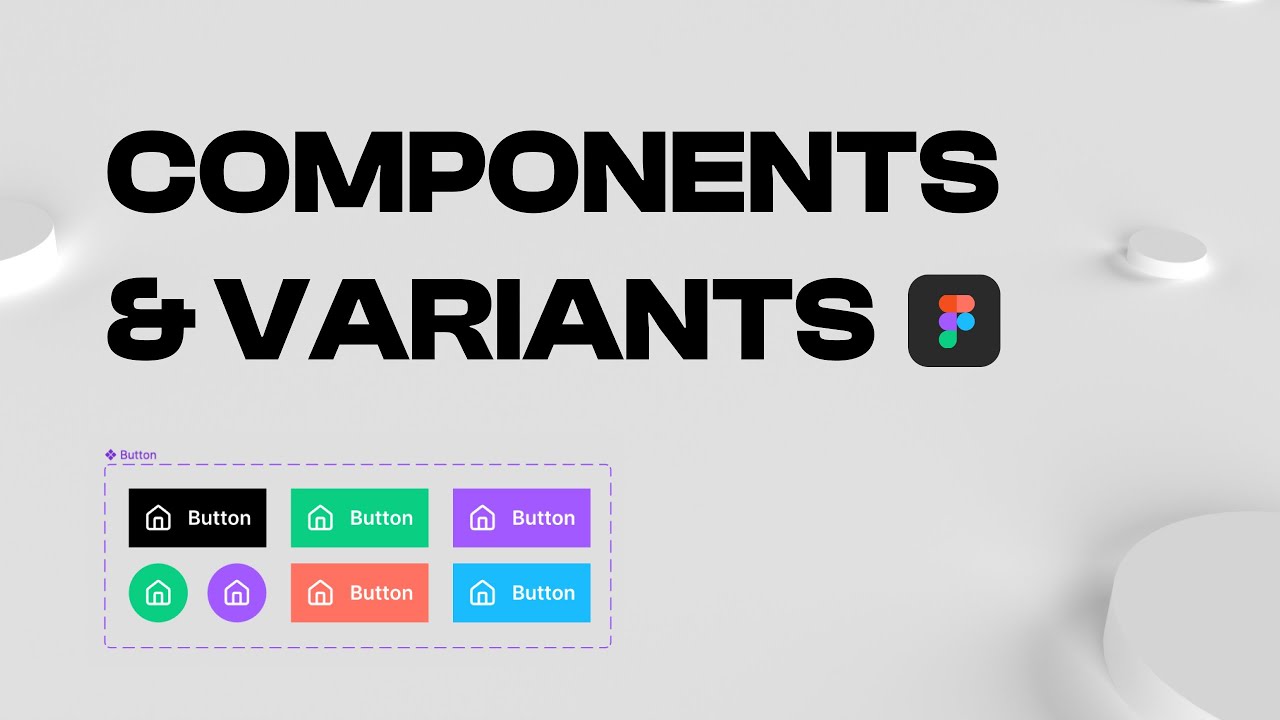
Everything you need to know to master Figma Components, Component Properties & Variants in Figma.
In this video we will go over each aspect of components. From how to create components to setting custom boolean, instance swap, variants and text properties. Everything you need to start using components in Figma and create design systems with Fi...
 unique herald
So you made a component there! So one way you can make it into variants is by making both into components and then select both and on the right side it should say combine as variants
I didnt look through the videos in detail but i assume what they do there is selecting both and then on the top selecting create component set whereas you probably just selected creat component
weak remnant
 unique herald
Oh okay so those are variants! When theres a dashed box around that are component variants
So look at the videos and see hownto use them
weak remnant
confused why are there 2 properties for one variant

how to get rid of property 1
this is soo hard 😭
weak remnant
unique herald
So look at the videos and see hownto use them
;-;
unique herald
weak remnant
confused why are there 2 properties for one variant
So i think that appeared because of the way you already had things named. You just need to right click to delete it
Or if it doesnt work here, select the dashed box itself and then right click there
weak remnant
unique herald
Or if it doesnt work here, select the dashed box itself and then right click the...
what do i select
theres nothing on propertys
unique herald
The dashed purple box (that the variants are in)
weak remnant
nvm i found it
so the Name (property) should be hovered and the value true or fasle?
unique herald
weak remnant
so the Name (property) should be hovered and the value true or fasle?
You can do that or it can also be state and it is hovered or unhovered
weak remnant

 unique herald
Just do what you suggested. Where it is true or false
Or u can do where its called atate and it is default or hovered
Whatever u would like
weak remnant
what next
 unique herald
Check how they did on hover with the buttons in the second window
Its the same idea!
weak remnant
have waited for around 30 minutes and still my thing doesn't load on the present mode

yet in my edditing view i see it clear

very strange, and the eyeball isnt closed
what can i do @unique herald
weak remnant
😭
weak remnant
.
unique herald
weak remnant
.
Okay so here in the video, you can see that it is not the component variant that you created there will show up
 weak remnant
Okay
unique herald
so it is not the component in the dashed thing that will show up on your page
but an instance of it
so you want to copy paste one of them onto the page
and it will call back to the one you have created
 unique herald
so you see here both of them has a diamond that is filled so that is incorrect
 weak remnant
right
unique herald
try to select one of the component variants
then copy it
and then select your page
and then paste it
weak remnant
 unique herald
(basically when you paste iit, you dont want it to show up in the dashed lined bo because then it creates another variant)
So here i can see it showed up within
unique herald
unique herald
try to select one of the component variants
Try to do these 4 steps here
 unique herald
yeah so here you can see it is not filled so that is an instance of the component!

So if you try you can see that you cant add stuff to it, you cant change the setup of it
you can only do those in the main component
unique herald
weak remnant
THANK YOU
yeah! glad it worked out!
weak remnant
ye tbh im not trying to learn figma
unique herald
I hope you understand these a bit better now or why we did what we did and maybe the button videos make a bit more sense now also 🙂