#My d drive is classified as a device in file manager. Is this normal?
87 messages · Page 1 of 1 (latest)
 trail hull
 latent jetty
trail hull
yes
latent jetty
trail hull
yes
By the way, i was trying to install an epic games store title with lutris and for some reason it didn't recognize my d drive. What can i do for wine to recognize it?
trail hull
idk
trail hull
check in Disks app.what is the filesystem type for that drive/partition?
an option is make a folder in your Home folder, (no spaces in name) and then setup fstab to mount that drive there at startup
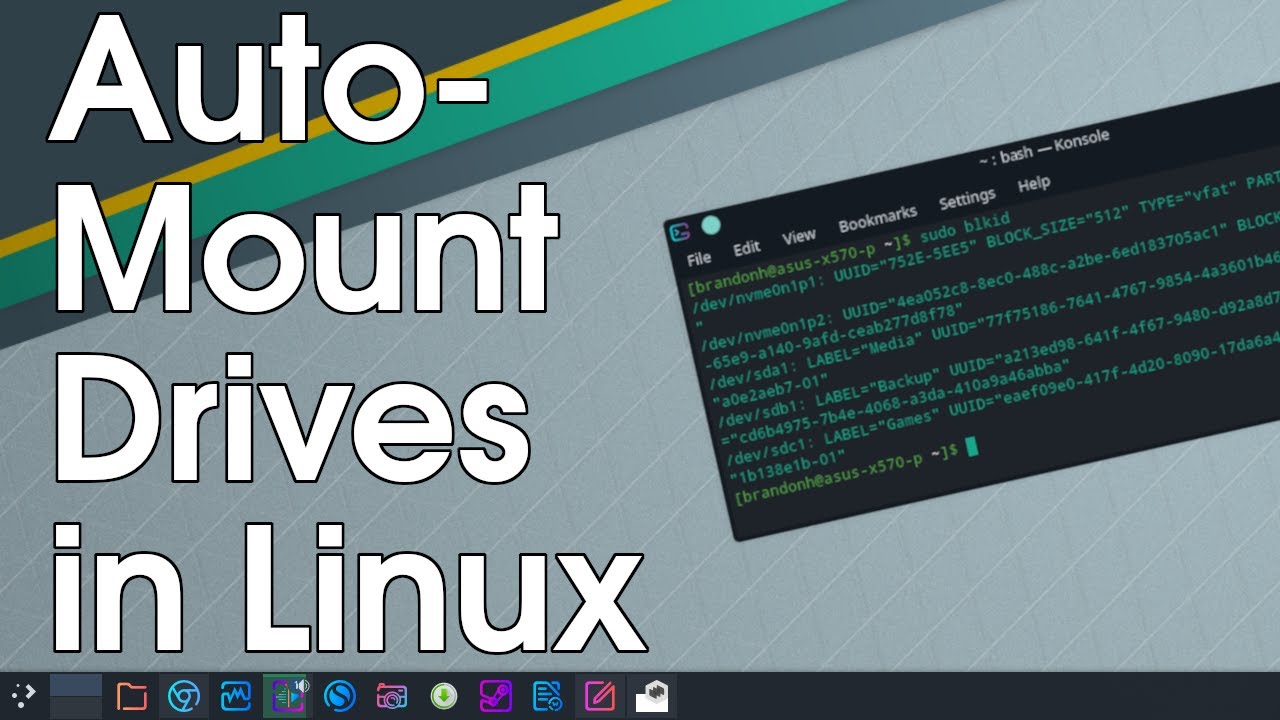
Reviewing how to automatically mount Hard Disk Drives, SSD, USB, and any other mountable storage drives in Linux. We will do this by finding the drive information including the mount point and UUID. We will then create a new mount directory and edit the fstab file with all the information needed to set up auto-mount on startup.
There is a full...
latent jetty
trail hull
check in Disks app.what is the filesystem type for that drive/partition?
its ext4
latent jetty
trail hull
an option is make a folder in your Home folder, (no spaces in name) and then set...
Idk if this might be a stupid queston but what does it mean to mount or unmount a drive? i never had that option in windows
trail hull
it just means put the device into read-ready mode. u manually mount by clicking on the device in file manager,
or by clicking the triangular black play button in Disks app, with the correct drive and partition selected
latent jetty
Ok
trail hull
the video above teaches how to automount to a folder from startup
and then u can use Disks app to "hide from user interface" the volume u dont want to show in the Devices list in file manager. (after setting up like in video)
latent jetty
trail hull
the video above teaches how to automount to a folder from startup
But if i set the disk up in a folder does it mean i can access my games drive as if it was in my normal drive?
And does it take up space of the c drive if i mount the d drive there?
trail hull
pretty much yes.
no it uses its own space/sectors
it just integrates into the filetree. u can point your music app theree to read music files, or a game to read save files
it's good that it is ext4. Linux should handle it easily and properly.
the only "tweak" i have once heard is that if Steam can't read or write to it, the drive's "owner" can be set to the 'nobody' user.

the above is an example where Owner (kevin) can read and write that file/folder. Any devices or services or friends that kevin put into his kevin "group" can only read, not modify or delete. The third and final thing that just says "Access" is any other user or program. And as you can see that is set read-only.
this window affects only the file or folder. (if you pick the very topmost folder of the drive (aka root of drive) then you have option to tick a "Apply to all subfolders within this"
however to change the owner of a volume or drive, use the Disks app, gears icon.
it has a thing that says "take ownership"
WINE should see other "drives" (actually partitions, or maybe actual disks) IF THEY ARE MOUNTED.
latent jetty
@trail hull i followed the tutorial and it didnt work
and error appeared saying line 15 in the fstab text file (where i put the uuid of my drive) was ignored for some reason
trail hull
show a pic of the Disks app, with the exact drive or volume highlighted
latent jetty
oh wait ik what i did wrong
trail hull
and also a pic of MAXIMIZED notepad window of the fstab
latent jetty
In the video the guy put no spaces between the uuid and the equal sign
I did
I think that might have made it be ignored
trail hull
just watch the spaces, the file types, the spelling case...
umm.. check ur other fstab entries that were default created.
i think it is supposed to be UUID=
and that's why i also said the folder u make as ur mountpoint, don't name it with any spaces in it. (for simplicity)
latent jetty
Wait
I corrected the spacing in the fstab file but it still ios being ignored
What can i do?
trail hull
u did a save and reboot?
latent jetty
I didnt reboot the system yet
Can that fix it?
trail hull
he makes the mistake of saying to press Ctrl+(zero) in the video.. it's supposed to be Ctrl-O (letter O) to save in nano
reopen the fstab file, and make sure your changes saved correctly. if they did, then close and reboot
latent jetty
trail hull
he makes the mistake of saying to press Ctrl+(zero) in the video.. it's supposed...
I noticed that and used ctrl o
its looking like this

The label of the drive is "jogos" btw
trail hull
dont put a space after equal sign
trail hull
should look similar to the other entries
trail hull
neat.
latent jetty
Thanks
trail hull
now u should see in Disks app, all things run by the Mint system have a star symbol in them
latent jetty
Ok
trail hull
now just check owner of the top level folder of that game drive
for example, if its name is "pedroca" go to that folder, then right click, Properties: Permissions
latent jetty
Its says im the owner
trail hull
good.
does it have read-write perm for "others" (the third field)
if not, then set that
and tick the "apply to all subfolders"
trail hull
trail hull
sorry, the 4th field.. where the arrow points in this pic
latent jetty
Wait
Its in portuguese but it lists acess to folder and access to file
Access to folder is set to nothing (nenhum)
Access to file isn't set to anything

What do i set these to
Bc i couldnt find the option to set them to others
latent jetty
Access to folder (1st option) lists:
Only list files
Access files
Create and delete files
Nothing
Access to file (2nd option) lists:
Nothing
Read-only
Read and write
trail hull
put both to read and write, then click apply to subfolders too
latent jetty
I can only put read and write on the 2nd option
The closest thing to that on the 1st option is create and delete files, do i put it to that?
trail hull
yes
latent jetty
Everytime i click to apply these perms to all subfolders the 2nd option turns into "---"
trail hull
ok leave it
latent jetty
OK
trail hull
should prob work now
trail hull
trail hull
WINE should see other "drives" (actually partitions, or maybe actual disks) IF T...
.
trail hull
latent jetty
So if i reset my pc it will be mounted automatically, right?
u already tried
or if u didn't then reboot