#capture-cards
1 messages · Page 68 of 1
 past basin
 fickle dragon
4K Pro is sort of a 4K60 Pro with more resolution and signal support. Same form factor.
past basin
Oh, that was supposed to be features, not futures. oops
I read it as looking for future support 🙂
 craggy relic
So I do duel pc n im only recording no streaming and on my gaming pc I play 1440p 240hz and I want to record 1440p 60fps at least maybe 120fps can I do that?
 warped ledge
craggy relic
So I do duel pc n im only recording no streaming and on my gaming pc I play 1440...
warped ledge
craggy relic
So I do duel pc n im only recording no streaming and on my gaming pc I play 1440...
4K X is what I would suggest.
craggy relic
warped ledge
4K X is what I would suggest.
Thx✨
warped ledge
craggy relic
Thx✨
you're welcome
craggy relic
Hey, so I have the 4K X, and I’m playing at 1440p 240Hz. I have a couple of questions: do I need to duplicate my screen to show it on my capture card? Also, I’ve been getting screen tearing, and I heard that I need to even it out by recording at 1440p 120fps. Is there more ways to prevent screen tearing?
 lone crypt
craggy relic
Hey, so I have the 4K X, and I’m playing at 1440p 240Hz. I have a couple of ques...
lone crypt
craggy relic
Hey, so I have the 4K X, and I’m playing at 1440p 240Hz. I have a couple of ques...
There are a few ways to do it, including just using the passthrough like a console would, as a simplest starting point.
But duplicating the display can work for computers, as long as you don’t use HDR.
Testing on the captured video? Or the game display you’re playing on?
craggy relic
lone crypt
There are a few ways to do it, including just using the passthrough like a conso...
What if I don’t want to duplicate?
lone crypt
Well as I said, just run it like a console would. Pass the video through the capture card and to your display from the capture card output.
Doing so is considered the simplest way to do it.
The main downside here is you’ll need the capture computer turned on (or at least for the capture card to be powered on) in order to use your game computer display.
craggy relic
Oooo I see wat u mean
craggy relic
lone crypt
Doing so is considered the simplest way to do it.
The main downside here is you...
So how do I set that part up?
lone crypt
craggy relic
So how do I set that part up?
Just connect it…
Take the HDMI going from GPU to your main display, and patch it to capture card input instead.
Then add the second HDMI from capture card output to display input.
craggy relic
lone crypt
Just connect it…
Take the HDMI going from GPU to your main display, and patch i...
So I made a recording but the video it’s kind slow when moving in game and a little choppy
lone crypt
Sounds like the frame timing isn’t right. Assuming the gameplay on the passthrough looked normal. What did you make the recording with and did you set the frame rate?
 smoky kestrel
Hi, any settings i should adjust before I start streaming on Twitch?
 warped ledge
smoky kestrel
Hi, any settings i should adjust before I start streaming on Twitch?
warped ledge
smoky kestrel
Hi, any settings i should adjust before I start streaming on Twitch?
it depends...
What GPU
Check this out, as it may help. 😉 https://www.nvidia.com/en-us/geforce/guides/broadcasting-guide/

Configure OBS to get the most quality out of your stream.
warped ledge
smoky kestrel
thanks
you're welcome, just follow the guide for what you need.
craggy relic
lone crypt
Sounds like the frame timing isn’t right. Assuming the gameplay on the passthrou...
Ok so I just went ahead and duplicated it it was better but there a audio issue I’m using wave link on my gaming pc I wanted to have it on the gaming pc and I add the capture card into the stream mix in wave link but it’s not picking up nothing else other then my mic so it can only hear me talk
lone crypt
craggy relic
Ok so I just went ahead and duplicated it it was better but there a audio issue ...
The capture card is on the stream pc, you don’t add that to wave link; it’s not even on that pc.
Simply choose your capture card from the dropdown box for the stream mix. Then that whole mix goes to the capture card so the stream pc hears it.
craggy relic
lone crypt
The capture card is on the stream pc, you don’t add that to wave link; it’s not ...
Ya I did that but it’s not picking up anything only my mic like in the stream mix bar it’s moving when I talk nothing else
lone crypt
craggy relic
Ya I did that but it’s not picking up anything only my mic like in the stream mi...
Show me a screen shot of your wave link please.
 gentle otter
why does the frame rate drop? Sometimes it's after prolonged use and sometimes when I first start it up.
craggy relic
i use a elgato hd60x to stream from my ps5 and its not connecting anymore. Ive tried multiple hdmi cords and usb-c cords. My computer wont recognize the usb device either. How do i fix this?
 past ruin
hey guys, i have an issue when sharing my discord screen share with my hd60 pro internal capture card via 2 pc's, does anyone know hows to fix the pixilated/blurry screen?
past basin
gentle otter
why does the frame rate drop? Sometimes it's after prolonged use and sometimes w...
There's nto enough info here - what capture card? What are the PC specs? What are you capturing? What software are you using to capture the card? Usually slowdown like that is related to the PC's performance or app - especially if you're working with a laptop which would heat up and slow down over time more than most desktops. Sometimes things just need a restart too, if that hasn't hapened in a while
past basin
craggy relic
i use a elgato hd60x to stream from my ps5 and its not connecting anymore. Ive t...
Does the light turn on, on HD60 X and if so, what colour is it? When you say it's not recognized by the PC does it show up in device manager at all (usually under cameras)? Do you have a spare USB 3.0 (5 Gbps or faster) you can test with the card?

 waxen eagle
🫡
craggy relic
past basin
Does the light turn on, on HD60 X and if so, what colour is it? When you say it...
the light starts blue then flashes red. Im not sure how to check if it shows up like that but its not showing up on obs when i go to add it into a capture device. Yes ive tried three different cords neither has worked.
past basin
craggy relic
the light starts blue then flashes red. Im not sure how to check if it shows up ...
Were the cords specifically rated for 5 Gbps or faster? (USB 3.0 / SuperSpeed etc) Most cables out there are only rated for USB 2.0, especially charger cables, as most things do not need USB 3.0 bandwidth (for something like a keyboard or mouse that much data would be massive overkill).
If you check Windows Device manger, check under the cameras section to see if HD60 X is listed there. If not check for any devices listed with a yellow exclimation mark or red X in the list (these should be visible without having to expand the list if there are any)
craggy relic
past basin
Were the cords specifically rated for 5 Gbps or faster? (USB 3.0 / SuperSpeed e...
I know 2 are the 3rd im not sure about
craggy relic
past basin
If you check Windows Device manger, check under the cameras section to see if HD...
Ok ill check that
 turbid plank
hey i need some help with my elgato hd60 X cant get my sound to work on stream
past basin
What app are you using, and what are you trying to capture (and how is it connected)? Do you get audio on the computer at all?
turbid plank
just using it for streaming on discord with friends, switch 2, and yes my audio is working normally
past basin
When you're setting it up in Discord you ned to select the sound device during the setup stage. If you have Nitro this is on the second screen after selecting the card - but if you don't it's unnder the gear icon in the bottom right of the page where you select the card
That's what usually trips up folks with Discord audio
eg

And for Nitro it's the box on the second page

 turbid plank
oh wow thanks that worked for the stream, now 2nd issue i cant hear the audio when i have the source changed to my switch
that was an easy fix for the stream thank you
i can hear the audio when i specifaccly select "listen to this device" in the sound manager is that the only way i should be able to hear it?
past basin
No worries it comes up every now and then.
I think it should be giving you audio when you watch the stream in discord too (only active when you're tabbed into it iirc). But I'd have to check that when I have a moment to be sure
turbid plank
hey either way 1 issue fixed is a big win for me thank you very much
past basin
I'll try to check the other in a bit when I'm free from work - been a while since I tried to set that up
turbid plank
thank you again, @ me if you find out. you have my gratitude
 humble glen
turbid plank
i can hear the audio when i specifaccly select "listen to this device" in the so...
humble glen
turbid plank
i can hear the audio when i specifaccly select "listen to this device" in the so...
Discord doesn’t output the audio back out. I use an OBS source preview using the audio monitoring feature instead so I have better control over the volume and not harm the volume of actual recordings
turbid plank
@humble glen thanks for answering, im actually not hearing audio from my headset when i switch to that hdmi setting. if that makes sense
my switch 2 is on my HDMI port 2. i have the video working just fine but cant hear anything. Im unsure if this is a problem with the elgato or some other issue
but my stream is playing the sound and video correctly
past basin
I think what Blanke is saying is they screenshare an OBS Projector window instead of directly sharing the card in Discord, so they can hear the audio via OBS
turbid plank
ahh i see sorry i misunderstood
 faint cedar
Wondering if someone can give me some assistance with my ipad connecting with my HD60x? "Invalid Outpuit Resolution Selected".
past basin
faint cedar
Wondering if someone can give me some assistance with my ipad connecting with my...
How are you connecing to the iPad - HD60 X shipped with a USB-C to Type-A connector, so how did you connect them? If you're using a replacement cable make sure it's rated for USB 3.0 / 5 Gbps as most are only USB 2.0. Same for an adapter or dock. Also what model of Air is it? One with a USB-C port built in?
Ah just saw the other message - yeah the M2 Air should work fine with it, so likely a connection issue with the cable or however it's hooked up
 slender basin
Evening folks...I got a 4k Pro a couple days ago, but I'm having a really miserable experience trying to set it up. Is there anyone who has encountered this issue?
 warped ledge
slender basin
Evening folks...I got a 4k Pro a couple days ago, but I'm having a really misera...
warped ledge
slender basin
Evening folks...I got a 4k Pro a couple days ago, but I'm having a really misera...
is it an ultrawide, ir just curved?
slender basin
Curved
warped ledge
slender basin
Curved
did you duplicate or extend?
warped ledge
slender basin
Both monitors are turning on/off
did you install the drivers?
slender basin
The 4K capture utility, yes
I genuinely don't know what's wrong here. I've been trying various things for the past 6 hours
The capture pc seems to do ok...but anything from/to the game pc is broken
warped ledge
slender basin
The capture pc seems to do ok...but anything from/to the game pc is broken
Elgato
Elgato Hardware Drivers - Windows 10/11A UVC (USB Video Class) device is plug-and-play hardware that uses built-in Windows drivers, eliminating the need for proprietary installations. Devices like ...
slender basin
I'm assuming these need to be on the Capture PC...
warped ledge
slender basin
I'm assuming these need to be on the Capture PC...
on the streaming pc that has the capture card installed, via the 4K pro Drivers
slender basin
It said it's already there, but I reinstalled just in case
warped ledge
slender basin
It said it's already there, but I reinstalled just in case
I would close out the app, and duplicate in the display settings. make sure yor gaming monitor is your main, and duplicate it to the capture card.
also, try elgato studio vs 4k capture utlity, and see if the same thing happens
 warped ledge
slender basin
Hope this helps
warped ledge
slender basin
Hope this helps
yeah looks normal, but your gaming PC, follow that duplication process I mentioned
slender basin
I can't seem to find it...and with the monitor disconnecting every other second I don't know what to do
warped ledge
slender basin
I can't seem to find it...and with the monitor disconnecting every other second ...
make sure the cables are secure
slender basin
I'll check again
Everything is nice and snug. The cables that have clips are all the way in. But this is what I'm looking at.
I can't find the duplicate option anywhere...
warped ledge
slender basin
I can't find the duplicate option anywhere...
right click on your gaming pc's main screen click on display settings
slender basin
I will, as soon as the signal comes back
Or not. If there is an option to duplicate displays...it would only appear if the other display (the capture card) is connected, right?
Because I'm not even able to see my desktop...
warped ledge
slender basin
Or not. If there is an option to duplicate displays...it would only appear if th...
the gaming behaves like a console. so you have to on the gaming pc duplicate to the capture card.
on your streaming pc you install the software via elgato studio, and the drivers.
on the gaming pc, hdmi from the gpu to the capture card's IN, you probably don't need to use passthrough via OUT, and that should show up on your streaming pc. audio use this pn both pc's https://marketplace.elgato.com/audio/wavecast

Find Stream Deck plugins, graphics, video, and audio products for Elgato apps. Enhance streaming with our digital marketplace.
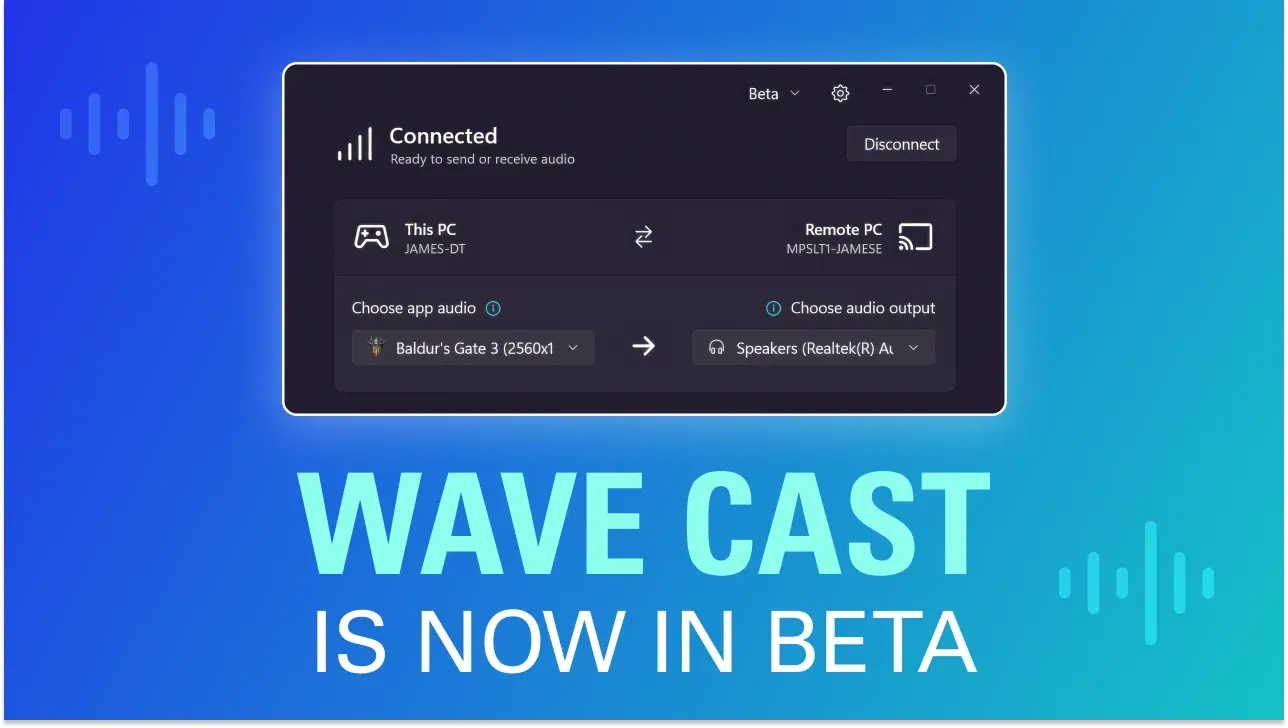
Try the Wave Cast beta. Send audio from your gaming PC to your streaming PC with low latency and simple setup.
slender basin
Still haven't gotten a glimpse of the gaming pc desktop. Just keeps flashing some static then "entering standby mode"
warped ledge
how are your cables connected?
slender basin
From gaming pc->capture card->from capture card->main monitor
The streaming pc monitor is on a separate cable
warped ledge
slender basin
From gaming pc->capture card->from capture card->main monitor
ok, gaming pc needs to connect to the gaming monitor via display port, then the gaming gpu hdmi port connects to the IN on the streaming pc's capture card from the gaming pc.
slender basin
Well, changed the monitor source to display port...
warped ledge
slender basin
Well, changed the monitor source to display port...
i mean screen tearing...
slender basin
I'm trying to get to the settings to try duplicating again
slender basin
I now see the 2 monitor options...but now I can't see my mouse due to the tearing...
warped ledge
slender basin
I now see the 2 monitor options...but now I can't see my mouse due to the tearin...
question, this monitor is connected directly to the gaming pc's gpu via display port?
slender basin
Yes. I have an hdmi going from the 4070 to the capture card. And a DP coming from the 4070 straight to the monitor
OH THANK GOD. I was able to get it

Seems it's been forced into 1080 though
warped ledge
slender basin
Seems it's been forced into 1080 though
depending on what your settings are that might be correct
slender basin
Well, the gaming pc Monitor is 4k240...but if changing the resolution to that breaks Elgato things...
warped ledge
slender basin
Well, the gaming pc Monitor is 4k240...but if changing the resolution to that br...
Elgato
This is a list of supported passthrough and capture resolutions. For each input resolution, the supported capture resolution is supported by 4K Pro.
These resolutions and frame rates do not consi...
warped ledge
slender basin
Well, the gaming pc Monitor is 4k240...but if changing the resolution to that br...
that might help
slender basin
Oh lord...so I think i can play with 4k 240, just not capture it?
warped ledge
slender basin
Oh lord...so I think i can play with 4k 240, just not capture it?
correct lol
slender basin
So me changing the monitor resolution back to 4k 240 shouldn't unleash gremlins?
warped ledge
4K X can do 4K 144
warped ledge
slender basin
So me changing the monitor resolution back to 4k 240 shouldn't unleash gremlins?
not at all

slender basin
 warped ledge
slender basin
So me changing the monitor resolution back to 4k 240 shouldn't unleash gremlins?
warped ledge
slender basin
So me changing the monitor resolution back to 4k 240 shouldn't unleash gremlins?
le't s try it though
slender basin
warped ledge
 slender basin
NOPE
warped ledge
slender basin
NOPE
no issues right, not NOPE as it's not working right???
warped ledge
slender basin
And that's 4k 30hz
DSC maybe what monitor
slender basin
Samsung 32" Odyssey Neo G8 (G85NB) 4K UHD 240Hz
 warped ledge
slender basin
Samsung 32" Odyssey Neo G8 (G85NB) 4K UHD 240Hz
warped ledge
slender basin
Samsung 32" Odyssey Neo G8 (G85NB) 4K UHD 240Hz
check the specs and see if this is mentioned, also screen tearing is G-Sync on?
slender basin
I don't thing so...let me check
warped ledge
lastly, on the streaming pc change it to Display on the EDID
slender basin
Hmm...I can't even check the display menu because it's disconnecting/tearing
warped ledge
slender basin
Hmm...I can't even check the display menu because it's disconnecting/tearing
change it back to what was working...
warped ledge
slender basin
The monitor says the adaptive g sync is off
turn it on
slender basin
Function not available...
warped ledge
slender basin
Function not available...
on the streaming pc did you also change the EDID?
slender basin
Doing that right now
warped ledge
slender basin
psst @past basin wanna help me a bit
slender basin
EDID...is that in studio or utility?
slender basin
In studio it's good let me check utility
 warped ledge
slender basin
In studio it's good let me check utility
warped ledge
slender basin
In studio it's good let me check utility
they do the same thing no need in the other
slender basin
So do I need to disconnect the DP from the Gaming PC now?
past basin
slender basin
The monitor says the adaptive g sync is off
Don't use Display if there's nothing in the HDMI Out on that card, that'll only work in Passthrough mode
warped ledge
slender basin
So do I need to disconnect the DP from the Gaming PC now?
remove the hdmi from your gaming pc's gpu for right now, and see if the monitor flickers without being connected to the capture card
past basin
er replied to the wrong bit there, don't mind that, just tryin to get up to speed.
EDID should be Internal or Merged for a cloned display though
Montior would be sending it's own EDID to the GPU over the DP
warped ledge
past basin
er replied to the wrong bit there, don't mind that, just tryin to get up to spee...
thanks, I knew it was one or the other. he's getting sreen tearing directly on the gaming monitor though...
usually seeit on the capture cards not on the main
past basin
Honestly my first guess here is impaired cable or electronic interference
warped ledge
past basin
Honestly my first guess here is impaired cable or electronic interference
maybe
 south rivet
question. why is it that when my series x is plugged up to my capture card the output settings on the monitor only let it go to 1080p when the monitor is 1440p? (elgato hd60 x)
but when the xbox goes direclty to the monitor it supports 1440p
past basin
south rivet
question. why is it that when my series x is plugged up to my capture card the o...
Set HD60 X's Input EDID mode to "Display" using Elgato Studio or 4K Capture Utility and see if that clears it up. In Studio it's in the pull out side menu, in 4KCU in settings under devices. May have to disconnect and reconnect (or restart) the xbox to get it to pick up the EDID changes
slender basin
So remove the DP from the gaming PC GPU...while leaving the hdmi that's going to the capture card?
past basin
Just to test does the monitor still have issues if you have the card and monitor both connected, but aren't cloning them?
I know Nvidia has had a number of issues with display cloning lately, would be good to see if just having both things connected is causing issues here
warped ledge
past basin
I know Nvidia has had a number of issues with display cloning lately, would be g...
taking notes cause I haven't encountered this one yet via 4k 240
slender basin
I know the earlier photos/videos were when I only had HDMI connected...
past basin
This was connected in passthrough before (HDMI out on GPU to 4K PRo, HDMI Out on 4K Pro to monitor)?
slender basin
Correct
past basin
It's the monitor that's flickering correct, not fullscreen capture app right?
slender basin
The gaming pc monitor was flickering and tearing, while the streaming pc app was losing signal over and over
south rivet
curious about something else. i dont use the capture card to stream. mostly its to push audio through to my pc so i can use the same headset for discord and console gaming. is 4k capture utlity or elgato studio better for this vs obs?
past basin
slender basin
The gaming pc monitor was flickering and tearing, while the streaming pc app was...
It does this same issue both in passthrough mode, and clone/duplicate mode?
slender basin
I hadn't even been able to get to duplicate when on hdmi...the option didn't exist
past basin
south rivet
curious about something else. i dont use the capture card to stream. mostly its ...
I tend to use OBS with Fullscreen projector myself - but Discord is picky and different apps may capture more easily on different systems. I'd go with OBS or Elgato Studio usually though as they should have lower latency than 4K Capture Utility usually
south rivet
ok good to know.
past basin
slender basin
I hadn't even been able to get to duplicate when on hdmi...the option didn't exi...
No you'd need them both connected to different ports to duplicate
slender basin
...my head. It hurts.
So I have to leave the DP in then?
south rivet
past basin
I tend to use OBS with Fullscreen projector myself - but Discord is picky and di...
see i did that but the projector was lagging just a hair from time to time
past basin
slender basin
...my head. It hurts.
So I have to leave the DP in then?
I'm coming in here late. I'm looking to confirm, do you have the exact same problem when you're connected either way? HDMI only or DP/HDMI?
Or has the issue changed
slender basin
It was with HDMI. But after plugging in a DP and being patient I was able to turn on duplicate displays.
warped ledge
past basin
It's the monitor that's flickering correct, not fullscreen capture app right?
correct
past basin
Okay, I need a moment to process that. Having the same issue with both single cable and dual cable hooked to the GPU is throwing me.
Does the capture card work correctly if the monitor is disconnected entirely or does it still keep losing and regaining signal? Also you may need to rebooth both PCs after chaning EDID settings in a dual PC setup to get those changes to take, so you might want to try that after it's set to Intenral as well (we want both the GPU and Capture card powered off, so ideally full shut down both machines for 15-20 seconds and restart)
slender basin
As a side note, Studio has no input...
past basin
See if that persists after the reboot. I'm assuming you still have both cables connected and the screen cloned here?
slender basin
Yes. Just to confirm, I need to change the EDID to internal?
slender basin
That's gonna be a no...
past basin
You powered down and restarted both machines already AFTER changing that setting?
We want a cold reboot so they resync with the new EDID
Dual PC setups sometimes don't resync correctly without shutting down first
slender basin
I'll try it...hopefully it won't break everything.
slender basin
Oof. Real bad screen tearing on the gaming pc as I went to turn it off
Streaming pc is doing a windows update
Ok..both are fully off. Do I need to turn one on before the other?
past basin
You'll want them both off at the same time ideally, so I'd wait on that update before turning the gaming PC on
As long as they're both off at the same time, restart order doesn't matter
We just wanted the GPU and the Capture Card both fully powred off at the same time for a bit
slender basin
Ok, turning both on
Ok...I have signal to the streaming pc monitor. The gaming PC doesn't (probably because it auto defaulted to HDMI which is going to the Capture card). Should I swap it to DP?
past basin
It should have come up on both if the screen was cloned still. But if you're talking about the monitor itself you can give that a shot.
slender basin
Should I open Studio before swapping the inputs?
 past basin
Shouldn't matter
slender basin
Ok, studio is open...nothing coming in. I'm going to swap the inputs on the other monitor
past basin
You might want to double check your display cloning is still running too
past basin
If you pull the HDMI cable there now does that stop entirely?
slender basin
From the gaming pc?
 keen crater
past basin
Okay, I need a moment to process that. Having the same issue with both single c...
keen crater
past basin
Okay, I need a moment to process that. Having the same issue with both single c...
seems with the latest windows update this became an issue, using default / internal if you say disable the elgato in windows will cause the monitors to flicker, turning it back on stops it, disconnecting the cable and plugging back in fixes it. setting it to 1440p or 1080p or 4k edid fixes the issue
past basin
Okay, reconnect the HDMI and pull the DP, lets see if the capture card works when it's not on the same setup as the monitor
keen crater
slender basin
Ok, I'll be pulling the HDMI from the gaming pc to the card
it resets the windows monitor conect / disconnect
slender basin
Ok, DP is pulled and HDMI is back in
past basin
Also, are both of those monitors hooked to the gaming PC or is one the streaming PC and the other the gaming PC?
past basin
slender basin
Ok, DP is pulled and HDMI is back in
Are you able to capture the screen without issues like that?
keen crater
@past basin i had 100% this same issue after moving nothing in the pc was changed only thing that was done was updating windows to the latest 24h2 update.
not trying to distract or anything
past basin
It might be, but have to exhaust everyting before referring to support or suggesting an update rollback generally.
This setup also has never worked yet as far as I'm aware.
keen crater
past basin
It might be, but have to exhaust everyting before referring to support or sugges...
np i just didn't want you to think i was trying to overstep or anything .
past basin
I'm just realising they're hitting the issue at 4K240 - if that second monitor is connected to the same PC they might be exceeding the supported overall video bandwidth on the GPU which looks about the same too
slender basin
Ummm...no go houston
 past basin
slender basin
Ummm...no go houston
past basin
slender basin
Ummm...no go houston
Okay, the monitor is still unplugged, that's just the capture card correct?
slender basin
Gaming pc->capture card ->monitor
past basin
We don't want hte monitor involved here at all
I want to see if the capture card works with no monitor invovled
slender basin
So pull the HDMI out from the card?
past basin
The monitor's HDMI yes, we still want it connected to the GPU though
(the card that is)
slender basin
Ok...HDMI Out to the monitor is out
past basin
Okay, do you have video in the capture app now?
slender basin
Nope
past basin
New question - what motherboard is in that capture PC?
keen crater
is this a pci - e cap card @past basin
past basin
Yeah 4K Pro
slender basin

 past basin
slender basin
past basin
slender basin
That look slike a Dell part number. This an Alienware? If so you know the model of the PC?
keen crater
past basin
Yeah 4K Pro
well if that is the case he may need to force the pci e to 2-5 x whatever his motherboard supports in the uefi, some pci e cards have issues negoating it
if its pcie is set to auto though the pch
slender basin
It is, I believe it as an Area 51 R5...or something like that
Trying to look for the exact number
keen crater
easy way to test if its that is swap the gpu to the second slot and put the cap card n the slot closest to the cpu
if it works fine that way its having issues with auto negoation
past basin
I'm trying to find the PCIe spec for that motherboard - the manual is really not clear on it at all 😐
Like I know the veresion, but it basically claims all the full size slots are actually x16 - that's usually workstation territory not gaming PC
You can try another slot though. I'd also check what Jamie suggested when you boot it up if you can get into BIOS see if there's an option to set the PCIe version on the port you're using
instead of Auto try setting it to 2.0 if available
slender basin
Let me grab my tools
keen crater
past basin
I'm trying to find the PCIe spec for that motherboard - the manual is really not...
PCI slots (x3) PCIe 3.0 x16; (x2) PCIe 3.0 x8; PCIe 3.0 x4;
slender basin
Powering down to swap
past basin
keen crater
PCI slots (x3) PCIe 3.0 x16; (x2) PCIe 3.0 x8; PCIe 3.0 x4;
Yeah - I found that. But that's 68 lanes of PCIe, not including the m.2 slot. There's got to be some bifurcation of lane sharing going on with that board
There's one refrence in the manual that the dual GPU setup runs in x8/x8 for example, but not the full breakdown I'd expect in the motherboard manual
keen crater
past basin
Yeah - I found that. But that's 68 lanes of PCIe, not including the m.2 slot. ...
There is
16x1 2x8 3x4
thats what Cgpt found so...
slender basin

Number revealed once I pulled the GPU
Ok, the capture card is now in the top slot.
Just slot the GPU right below it?
past basin
I think it's doing to insiste the GPU be in slot 1, but you can try it

 past basin
I'd say go for it - worst case it'll fail to POST and you have to swap it back
Though what Jamie mentioned about Windows Updates reminds me of something too - if it still doesnt' work when we get it rebooted, go to Windows Settings, search for camera and choose Manage Cameras. Go to 4K Pro and check if it has an adavanvced settings options - if it does disable multicam support
Becaue that will cap you at 1080 and has been known to cause other quirks (not to be confused with the multicam support that's already part of 4K Pro's driver)
slender basin
Well...i can't get the io hatch to close on the capture card... here's hoping it'll work
keen crater
so long as ya dont unplug it while its on you should be fine its just a test
 past basin
slender basin
Nope
past basin
slender basin
Nope
Set that EDID back to Internal
slender basin
Restart?
past basin
wouldn't hurt
slender basin
Should I check the bios as well?
past basin
If you can yeah - not all with have that option but you want to see if it'll let you set the PCIe version for a slot the card is in (ideally to 2.0)
slender basin
Any ideas?
 keen crater
it wil be under oc prob
or advanced
it was under OC for me and its not really an OC option
 keen crater
give min
 keen crater
its prob that or it would be called DMI link speed
does it just have enabled disabled?
slender basin
Yep
slender basin
 keen crater
you can disable it but i have a feeling thats global not per slot
so your moltherboard the default is disabled
try to run it as disabled see if that fixes it
 past basin
What is the gaming PC resolution currently set to - this worked when it was set lower right?
slender basin
Uhhhhhhh, I'd have to go back to DP to find out.
So with HDMI and DP plugged in...it says 4k
30hz
past basin
Looking at the manual this monitor might be using Display Stream Compression at higher settings

Which means that once you get high enough for DSC to kick in, you won't be able to capture
slender basin
Soooo try 1440?
keen crater
1440p is such a magic number
past basin
Shouldn't matter if it's cloned but you're oging to need to go back to DP for hte monitor HDMI for the card to have a chance of it working
HDMI from the GPU to the card, then from card to monitor won't play nice when the DSC kicks in
keen crater
slender basin
Oh, I stand corrected
nm
slender basin
 keen crater
Its Alive!
slender basin
Studio just needed a restart
keen crater
slender basin
Studio just needed a restart
That happens!
slender basin
Strange...
 keen crater
i dont have that version of elgato studio so
keen crater
slender basin
Should I try boosting up progressively
what you mean?
make sure in your elgato on the gameing pc
slender basin
Huh? I mean in display settings
 past basin
slender basin
Also, I'm still on 30hz
past basin
slender basin
Also, I'm still on 30hz
Your source is showing 4K60 in Studio, recording at 1080p60. Where are you seeing 30?
slender basin
 keen crater
can ya change that?
 past basin
oh for the love of. What's the native resolution on that monitor?
keen crater
past basin
oh for the love of. What's the native resolution on that monitor?
3440x1440
slender basin
Forgive me...I'm mentally toasted here.
keen crater
175hz
slender basin
I was just asking if I can start increasing the hz count
keen crater
to make your life way easier
and arcsane not go insane
dont use clone , use it as a second screen
then use obs on the gaming pc to just mirror the image to the cap card
ultrawide is going to be a nightmare with that
past basin
They linked it earlier now that I've gone back - Samsung 32" Odyssey Neo G8 (G85NB) 4K UHD 240Hz. So native 4K. I'm guessing it's manually set to 1440p for performance? Then GPU is scaling that up to match the panel which is why active signal is different (you can disable GPU scaling and see what the monitor does on it's own with it if need be).
But yeah, if it'll let you up the refresh rate try that. I'm not sure how the card is reading 60 source if the active signal is supposed to be 30 though tbh

 past basin
Try 59.95 first, that's NTSC standard for 60. 4K Pro should play nice with that
slender basin
Sooooo epilepsy
past basin
Since above 4K60 it has to step down resolution to 1080p for recording
what on earth
You have two monitors there - are they both attached to the gaming PC?
slender basin
The one on the left is for the streaming PC
past basin
okay, wanted to be sure we were hitting a GPU video bandwidth issue
Since problems seemed to kick in when refresh rates were turned up
past basin
slender basin
Sooooo epilepsy
This is the gaming monitor right?
not the capture app screen?
slender basin
Correct.
past basin
Is the streaming PC monitor also 4K? If you hook it up to the gaming PC to test in place of the capture card do you start getting the weird effects too?
That would tell us if this is a multi monitor gpu/software issue or something specific to the card
slender basin
https://a.co/d/3QqPUv6 this is the streaming pc monitor

Enjoy blazing speed and full immersion that allows you to truly get into the game with the Samsung 27-Inch CRG5 240Hz Curved Gaming Monitor (LC27RG50FQNXZA). The 1800R curved screen pulls you in and immerses you in the action while the refresh rate and G-Sync compatibility give you crisp images i...
slender basin
past basin
Is the streaming PC monitor also 4K? If you hook it up to the gaming PC to test...
Wat...you mean use it as the monitor?
past basin
Hook both monitors to the gaming PC, remove the capture card. Basically I want to see if the gaming PC is having multi dislpay issues in general or if this is just the card that's causing issues
 past basin
Can you switch one of them to HDMI to see if that changes anything?
Since it's when the capture card is there on HDMI we start seeing issues
slender basin
Uhhh yeah, one sec
Main monitor is HDMI, left one is DP

As a side note, wallpaper engine is running live wallpapers with no tearing or lagging
past basin
Bah, I was kind of hoping it was a multi display issue so we'd at least know what was going on here
slender basin
Gremlins
past basin
Seems like it
Well, that's ruled out, you can swap it back there now
the monitor that is
keen crater
so is this monitor true 4k
past basin
yeah
past basin
according to the spec sheet Samsung 32" Odyssey Neo G8 (G85NB) 4K UHD 240Hz
past basin
Grabbing the specs right from Samsung reports 2160p.
 keen crater
past basin
Grabbing the specs right from Samsung reports 2160p.
keen crater
past basin
Grabbing the specs right from Samsung reports 2160p.
ty much
past basin
They like to recycle names though - could be a previous G8 did ultrawide
keen crater
past basin
They like to recycle names though - could be a previous G8 did ultrawide
True true
and the cable he is using is rated for 8k (the elgato provided cable is an actual 8k60)
err just the elgato hdmi cable i mean
past basin
That . . . is a good question. It's in a cloned setup at the moment so @slender basin we should have checked this earlier but are you using the original HDMI cable that came with the card?
If you'ore using a HDMI 2.0 (or older) cable we could see weirdness too
slender basin
What cable...
past basin
HDMI
keen crater
 slender basin
Does it have the elgato logo on it?
past basin
It should, yes
keen crater
all of my cables from elgato do
only ask because not all cables are umm rated the same , and ya .... Found that one the hard way myself
past basin
Yeah should look exactly like that image

Including an 8K label on the side of the connector on at least one end
slender basin
I'm looking all over...I can't find it
past basin
It would have been in the box under the card, when you open up the insert.
Are you using a different HDMI cable between the gaming PC and streaming PC at the moment then, not the original that came with the card?
slender basin
No...because it didn't reach.
keen crater
oof
slender basin
kill me
keen crater
that could cause a huge issue
past basin
Do you know what the cable you're using is rated for?
slender basin
Uhhhhh one moment
past basin
It needs to be HDMI 2.1 to go above 4K60 - so it should be labelled Ultra or 48 Gbps or something similar
High Speed or 18 Gbps would be a 2.0 cable
If it's even slower (1.4) that would explain the 4K30 you keep getting stuck at
 past basin
Should be fine - it's stamped 8K. Means it's HDMI 2.1. So to confirm that's the cable currently run betwen the PCs?
slender basin
It was. Right now it's unplugged.
past basin
Okay. It's still possible this is a cable issue though, as I mentioned earlier that was my first guess. If you can get the systems closer to test with, I'd probalby run that original Elgato 8K cable to see what happens
HDMI 2.1 is known to have a short dropoff distsnce, so it's possible the cable you'ore using is having issues with higher signal rates for the higher settings because it is too long
keen crater
if ya need a longer run its typically better to get a booster for inline
slender basin
Really...this short of a space is enough to cause problems?
 past basin
Yeah, booster or convert to fiber and back. 4K240 breaks down at as early as 10ft iirc depending on the cable
keen crater
slender basin
Really...this short of a space is enough to cause problems?
for hdmi actually yes
past basin
Yeah, lower settigns like 1080p60 can go 25-50 ft on a good cable. Higher settings like 4K240 drop off way, way quicker, and are more dependant on the quality of the cable you're using
Especially if they pass righ tby electrical noise like your PSU
keen crater
Passive (Un-boosted) Copper 10–15 ft (3–5 m) 4k 120hz
Active Copper Up to 25 ft (7.6 m)
past basin
10 ft at 120? Okay yeah, 240 is probably even shorter then
slender basin
That's what I was wanting though...I'd like to play games at higher stuff, but then have it sent to the card at 1080
keen crater
past basin
10 ft at 120? Okay yeah, 240 is probably even shorter then
ya
AOC is 300+ feet but ya
not buying that
aoc is active optical cable
past basin
Yeah - though I'm still not sure where the 4K30 is coming in here they were seeing unless the cable has issues
Since it's a cloned setup
Might be best to go the way you suggested and use OBS projector to downscale to 1080p
keen crater
past basin
Yeah - though I'm still not sure where the 4K30 is coming in here they were seei...
i watched LLT video about hdmi cables, ya umm most those cables if they are NOT name brand ya
slender basin
I'm genuinely surprised there's no VCs to stream this in
Would be so much easier that way
keen crater
your going to have a huge issue running that at 4k 240hz to the cap card
they dont even recommend doing 4k240hz without an active cable
since 4k240 without dsc does require active optical
past basin
Their 4K240 should only be the DP link to the main monitor righ tnow though, since they're cloning the screen
slender basin
Yep
past basin
capture card was getting stuck at 4K30 on active signal for some reason though. Which is how we got waylaid into the monitor specs since hte resolution is set to 1440p
keen crater
TBH i wouldn't clone, i would just extend and see what the cap card can do, then install obs on the gaming pc use display capture and then preview to the elgato display on the gaming pc
Then on the streaming pc use the elgato software to see the obs preview that you stuck to the elgato screen (on the gaming pc)

but it would goto the elgato display that doesn't have a monitor attached
if that works without issue it would at least rule out dsc or not
slender basin
At this point...I'm about ready to call it quits. The signal is over on the stream pc...but i can't increase the refresh rate on the game pc.
keen crater
slender basin
At this point...I'm about ready to call it quits. The signal is over on the stre...
dont clone extend and set the rez and what not on your display and the elgato
install that to the gaming pc, and ya see above
slender basin
Nope...still get pulsing light
keen crater
whats your gpu?
slender basin
In the game PC, 4070. In the stream pc 1080
past basin
Ideally I'd try swapping that HDMI cable if at all possible at this point. Maybe reaching out to #official-tech-support as well as they may be able to tell if there are any issues with the card itself from the logs.
But based on the way the issue is getting BOTH monitors even the one on DP, you might also want to try a different version of the GPU Driver - possibly after using DDU (display driver uninstaller) to get a clean install. It's hard to say though this could still be an issue with the cable or the card. If the setup can move closer for testing you can at least rule out the cable by using the one that was incluced instead as a test.
Otherwise go Jamie's route, use OBS to reduce the signal on the gaming PC itself, instead of the current setup where we're scaling down only after getting to the streaming PC. That'll be a lot more tolerant of cable issues
keen crater
both at 4k240 wont work at all
your prob limted to 4k60 on both or 4k120 dsc is whats going to cause issues
past basin
DSC isn't an issue in cloned or extended mode, only in passthrough
keen crater
i thought it was an issue cloned
past basin
Nah, GPU can run one port with DSC and one without generally
keen crater
What’s happening
Your GPU sends 4K 240 Hz to the Elgato.
The Elgato can’t properly advertise support for >60 Hz, so some monitors and GPUs fall back to the safest mode they both agree on: 4K 30 Hz.
That’s why your display is stuck there, even though the hardware can do more.
🔹 Fixes / Workarounds
Force EDID Override (Preferred)
Use a tool like CRU (Custom Resolution Utility) or Nvidia Control Panel to manually set your monitor’s EDID so it only negotiates 4K 120 Hz (instead of trying for 240).
This prevents the “fall back to 30 Hz” issue.
Limit Output to 4K 120 Hz in GPU Settings
In Nvidia Control Panel → Change Resolution → set 3840×2160 @ 120 Hz before enabling passthrough.
This usually locks it at 120 Hz stable with Elgato instead of failing down to 30 Hz.
HDMI 2.1 EDID Emulator / Splitter (Hardware Fix)
A small device that “sits” between the GPU and Elgato and forces the GPU to see your monitor’s full HDMI 2.1 capabilities.
Popular ones: Dr. HDMI 8K, Lindy EDID Emulator.
This tricks the Elgato into letting the passthrough hit 120/240 Hz properly.
✅ Bottom line:
The Elgato cannot record beyond 4K 60, but it should passthrough 4K 120 Hz just fine.
If you’re getting 30 Hz passthrough, it’s an EDID handshake issue — you can fix it by:
Locking the GPU to 4K 120 Hz,
Using CRU to clean the EDID, or
Adding an EDID emulator between GPU and Elgato.
i fed it into ai
past basin
4K Pro's EDID will actually report 4K240 as available - it's internal to the card where anything above 4K60 source signal gets scaled down to 1080p. It'll still pass through up to 4K240
past basin
We tried it without the monitor attached at all too
past basin
That would be worth trying - if it is a cable quality/distance issue with the HDMI stepping down might work. But we're still not sure where the 30 hz cap is coming in here on the active signal if it's not cable quality problems
keen crater
this is where im confused
past basin
I'm still leaning towarsd that longer HDMI cable being an issue. If the PC's can get close enough to use the short one to at least test it, it would be something I'd try to rule it out
keen crater
so he has 2 pc 2 mointors, one is plugged into the gaming pc the other cable is ran from the gpu to elgato hdmi in
slender basin
I've been digging around for the "official" cable...still no luck
keen crater
how is he using passthough?
past basin
They're not - that was something that was tested earlier
They're currently configured for cloning
They were on passthrough when Vic was running them through earlier
keen crater
past basin
They're currently configured for cloning
thats why i said dont use clone , use the elgato as a dumb display , meaning no passthough but its not cloned
so it would be display 1 on the gaming pc would be his g8 the second wouild be the elgato
set the elgato to whatever it allows.
then install OBS and have it capture his G8 with display capture
then in obs on the gaming pc where its capturing that display
send the preview to the elgato display on the gaming pc
it will show up in the streaming pc
past basin
keen crater
thats why i said dont use clone , use the elgato as a dumb display , meaning no ...
Yeah, that's extended mode.
Even in cloned mode you can change refresh rates between the devices though, just not resolutions (and you lose HDR)
So we were trying to get 4K240 on the monitor over DisplayPort, and say 4K60 on capture
keen crater
past basin
Yeah, that's extended mode.
Even in cloned mode you can change refresh rates bet...
well it would tell us if its a card issue
and it doesnt require much else other then installing obs and testing that would at least elimate a defective card

set the fractal fps value to the refresh rate that elgato is allowing
sorry im just trying to eliminate the card being an issue
if it works like that then its prob cables or bandwith
past basin
It may not given the state of NVIdia's multi display drivers lately - we've had issues where they were actively in the subreddit collecting info because a recent driver broke extended and cloned mode all in one go. Good times.
It should not make any difference to the capture card if the display is cloned or extended generally, except the resolution and HDR. As long as what comes out of the GPU is valid.
But if you wanted to just check the signal they get with extedned mode we don't even really need to setup OBS, just set it to extended mode and see what it gets just showing the desktop
keen crater
past basin
It may not given the state of NVIdia's multi display drivers lately - we've had ...
that too
just wanted to rule out the card is all
cause if the card is defective in any way
we are doing manythings for no reason
hey can you dm me a link to the better 4k utility
cause i cant find the beta
past basin
Studio isn't in beta anymore it's available at https://www.elgato.com/downloads now
 keen crater
past basin
Studio isn't in beta anymore it's available at https://www.elgato.com/downloads ...
keen crater
past basin
Studio isn't in beta anymore it's available at https://www.elgato.com/downloads ...
ty
im shocked the 4k utility didnt update itself
to that version
past basin
Note that 4K Capture Utility can still do some things Srudio can't though, like Flashback recording - they'll be adding those things in later
It woudln't - they're completely different apps at the base, and actually support some different products
keen crater
past basin
Note that 4K Capture Utility can still do some things Srudio can't though, like ...
ah ok that explains that!
by the way the only way to ever use discord
 past basin
eg original 4K60 and HD60 S won't work with Studio. 4K S won't work with 4K Capture Utility. Studio is also written for Windows, Windows ARM, and macOS, instead of just Windows x86
 keen crater
past basin
eg original 4K60 and HD60 S won't work with Studio. 4K S won't work with 4K Cap...
keen crater
past basin
eg original 4K60 and HD60 S won't work with Studio. 4K S won't work with 4K Cap...
ty muches
slender basin
I just saw the time
past basin
keen crater
by the way the only way to ever use discord
lol. Looks familiar

Yeah it's been a whlie
keen crater
past basin
lol. Looks familiar
yes very much so
my god cant ever go back to using discord any other way
slender basin
I missed lunch and dinner trying to get this working.
keen crater
go eat dude
come back with full stomach and fresh eyes another day
unless you need this running asap
past basin
Hoenstly if it were me, I'd take a break then tomorrow open a ticket with support and see if you can get another HDMI 2.1 / Ultra Speed / 48 Gbps cable to test with. If that's a no go, you can try the OBS Studio projector - if nothing else you can downsale the signal OUT of the gaming PC go 1080p then so it won't be as picky with cabling
keen crater
just as a note the cables atm are 21 bucks on amazon
if ya need to pick up a few
ngl i been replacing all my hdmi stuff in my house with elgato cables lol
and tossing all the old cables
slender basin
I'm gonna call it...I appreciate all of your help so far. I just need a break
keen crater
slender basin
I'm gonna call it...I appreciate all of your help so far. I just need a break
understandable
tomorrow if yuo still have issues
slender basin
It truly sucks that there's no VCs to stream in...would make this infinitely easier for you guys
keen crater
if im here @ me i can discord cal you and video share
slender basin
I might take you up on that. I'll look for the cable some more in the morning...maybe I'll excavate it in the mound of other cables
keen crater
when i have to do work its on discord anyways so its not like i am ya know lol
keen crater
slender basin
I might take you up on that. I'll look for the cable some more in the morning......
i would actually test a proper cable too just to make sure
if you do need a non elgato cable , cable matters cables i do know work with elgato cap cards without issue
I have a few of those cables that are tested and vetted
anyways go rest dude and eat!
slender basin
I've just been using cables i amassed over the years, with some longer ones recently purchased from micro center
keen crater
slender basin
I've just been using cables i amassed over the years, with some longer ones rece...
ya most of those are prob 1080p cables
slender basin
It really sucks that I need the official cable though. I moved everything around to make a better workspace as well...
Well, that's enough for tonight. Thanks again
keen crater
slender basin
Well, that's enough for tonight. Thanks again
Np anytime.
Arcane is first class !
past basin
Thanks, and thanks for the help yourself.
Hopefully we can get this sorted in short order, and it's just something like cable.
I've got one more think to try with custom EDID's I've seen help before too but I've got to rebuild instructions on doing that since it's something I picked up from someone else.
 lone basin
hi! can someone help me with my capture card? my screen is all pink on my xbox and dont know how to fix
 jaunty elm
lone basin
hi! can someone help me with my capture card? my screen is all pink on my xbox a...
jaunty elm
lone basin
hi! can someone help me with my capture card? my screen is all pink on my xbox a...
what capture card do you have
lone basin
elgato hd60x
lone basin
jaunty elm
what capture card do you have
^^
jaunty elm
lone basin
elgato hd60x
what software do you have
lone basin
wym
i mean i have the elgato drivers installed and i’m using obs
it’s fine on my pc when it mirrors but it’s my actual xbox screen that’s pink
past basin
There's no drivers for HD60 X - iit uses UVC drivers which are built into the OS. There are Elgato apps that work with it though like 4K Capture Utility and Elgato Studio. You're likely going to want to use one of those here so you can change the input EDID on the card (if the display is pink I would try setting it to Display EDID mode). You'll find that setting in the side pull out in Studio, or under the devices section of settings in 4KCU. (this setting cannot be changed within OBS)
lone basin
awesome. i did see this last night when i was researching possible issues. I tried downloading 4k capture utility but it wouldn’t work. is there anyway you could send me the download bc maybe im trying the wrong one. That would be absolutely awesome and ill let you know if it works which i think it will
past basin
https://www.elgato.com/downloads - it should be on the page there. Keep in mind that it can't access the card while OBS is still using it.
If that continues to not work, swap it out for Elgato Studio from the same link instead
lone basin
sounds good. thanks so much for your help
past basin
no problem - hopefully that takes care of it. Good luck
 hasty creek
Hello, I have had a problem for a while that I can't resolve, I am in dual pc in passthrough with a capture card, and sometimes the stream/record drops fps for a few seconds then returns to normal. There are no lost frames according to the stats. And on my game screen nothing either.
Has this ever happened to anyone?
lone crypt
The recording has dropped frames but nothing on the stats? Are we talking about OBS?
I think if OBS is showing no dropped frames then the capture card itself must be freezing or not capturing during that time for some reason, right?
So proceeding on that guess, could the video feed be changing modes at these times; something that might make the card resync? Big frame rate change in a VRR situation? Changing display modes like full screen exclusive to borderless or…. Any clues?
hasty creek
It's in OBS yes but it also does it in 4K utility. I have Gsync active. It's the preview/record that lags/drops frames but nothing in the stats indicates a loss. It also does it even when I'm just on the desktop and I move a window not necessarily in game
It's a 4K X and it's well connected in USB C 3.2 gen2 10Gbps
I also tried without gsync, and I even tried another capture card in PCIE and it does the same thing
it's as if the card wanted to resync
lone crypt
hasty creek
It's in OBS yes but it also does it in 4K utility. I have Gsync active. It's the...
Oh it’s the preview…
You need to check if it’s in the recording before you say what’s happening
Record/stream is priority and the preview it will let lag if it needs to.
hasty creek
yes it's in the recording too
and it's really only this source that does that, even when it's in a scene alone with nothing else
lone crypt
Ok.
This feels like it’s pointing to the windows display system. When you say it’s happening when you drag a window around.
Is your game in full screen, exclusive, borderless?
I’m suspecting something funny about the driver and how windows in handling the VRR and the app window draw system.
Nvidia has really forgotten how to write drivers, too. Lots of weird problems have come along since they dropped the display buffer in order to market frame generation as a replacement for making faster GPUs
But it happens with VRR turned off? I don’t know… does that mean is just a GPU driver interaction with the windows application display background process?
hasty creek
I tried in full screen and without border it does the same. And when I say move a window, I stay on the desktop just moving in all directions for example the steam window, after a while it does it then returns to normal. I also suspect I think the signal sent by HDMI but what can I do I am stuck
It also does it without VRR, yes.
I tried with and without Vsync too I really tried a lot of things without success
And like I said, it seems pretty suspicious to me that it's happening to me with a PCIe card.
I should also point out that I recently reinstalled Windows on both PCs because it was doing this before too, but nothing changed.
 sudden hedge
I have an Elgato HD60X streaming from my desktop pc to my laptop (I run OBS from my laptop). I have it set to 'Listen to this device' on the laptop, so that I can hear the audio from the desktop. Howerver, when I have spotify playing, the audio for spotify is doubling. If i turn off the 'Listen to this device', then I cannot hear my game audio from the desktop.
lone crypt
hasty creek
I tried in full screen and without border it does the same. And when I say move ...
Since it’s when you drag a windows around… there’s a windows background process responsible for drawing those.
I think it must be something that’s going on with that process. Some interaction.
lone crypt
sudden hedge
I have an Elgato HD60X streaming from my desktop pc to my laptop (I run OBS from...
I think you’re setting that “listen to” backwards.
Are you listening via the game pc? Or are you listening to game audio after it gets to the stream pc?
sudden hedge
lone crypt
I think you’re setting that “listen to” backwards.
Are you listening via the ga...
It is set on the laptop, should it be set on the desktop? Because when I got to the recording tab of 'more sound settings' I do not see the elgato there. (on the desktop pc.)
hasty creek
lone crypt
Since it’s when you drag a windows around… there’s a windows background process ...
Yes, but so what? That's what I've been trying to find for a long time ^^'
lone crypt
hasty creek
Yes, but so what? That's what I've been trying to find for a long time ^^'
I don’t know. Mine doesn’t do that. Just trying to work with the clues and point you in a direction.
lone crypt
sudden hedge
It is set on the laptop, should it be set on the desktop? Because when I got to ...
Where are your headphones connected? What computer are you listening to?
hasty creek
I tried when I installed windows to only install obs and nothing else and it still did it
sudden hedge
lone crypt
Where are your headphones connected? What computer are you listening to?
My headphones are connected to my laptop
lone crypt
hasty creek
I tried when I installed windows to only install obs and nothing else and it sti...
That would seem to have ruled out everything that isn’t installed then.
I think I’d be checking drivers. If your GPU is old enough go back to before all the problems started. Remember to DDU to be sure. Best guess I have.
lone crypt
sudden hedge
My headphones are connected to my laptop
In that case you don’t have to use listen to at all.
Just set all sources you want to hear as “monitor and output” in OBS advanced audio settings.
And in OBS settings make sure your audio monitor device is what you’re listening to. (Which I think you already have since you hear it at all)
hasty creek
I have a 5090 in the gaming PC and a 4070ti in the streaming PC. I installed the drivers at the same time as Windows via the Nvidia site, it seems strange to me.
sudden hedge
lone crypt
In that case you don’t have to use listen to at all.
Just set all sources you w...
Right, but you are misunderstanding. If I don't have 'Listen to this device' set, I cannot hear the game audio from my desktop. I'm not talking about when I am streaming. I cannot hear it even without OBS open.
Spotify is the only ap that is plyaing double audio. With or without OBS running.
lone crypt
hasty creek
I have a 5090 in the gaming PC and a 4070ti in the streaming PC. I installed the...
If you have 5090 then you’re stuck using drivers late enough to support that generation, which is when all the issue started. (Well, a little before that as they got ready)
I don’t have any other info. It sucks but it’s just something the world is dealing with. Nvidia drivers have fallen off a cliff and all kids of problems have shown up and we every day deal with them in here because of their performance with capture.
hasty creek
Maybe try a DDU and try to install the drivers without internet since otherwise windows installs them automatically when restarting the pc
lone crypt
You could try using OBS preview projector method instead of passthrough to the capture card.
That’s a little more to set up, but OBS is magical how it can smooth over issues.
Most of the driver issues we find end up with preview projector being the only solution
hasty creek
So I tried this method and it does exactly the same thing as passthrough, that's why I think the problem comes from the gaming pc and the hdmi signal sent to the card
lone crypt
sudden hedge
Right, but you are misunderstanding. If I don't have 'Listen to this device' set...
Yeah, that will always be true if you’re listening on the stream pc instead of the game pc.
lone crypt
hasty creek
So I tried this method and it does exactly the same thing as passthrough, that's...
Ah that’s a shame. So whatever is causing the frames to hang is happened before OBS can receive them on the game pc.
Did you try all the methods like display capture and game capture?
hasty creek
Yes I tried everything nothing works
lone crypt
sudden hedge
Spotify is the only ap that is plyaing double audio. With or without OBS running...
To get back to this, if you want to hear audio when the stream pc is not on, you should probably be connecting headphones to the game pc instead. This will also give you lower latency.
If you want to keep going with the method you have now, Spotify needs to be left out of the “listen to” or left out of OBS audio monitoring (set to output only) if it’s a source.
If you hear it twice, it’s because it’s being sent by both of these to your headphones. Turn one of them off.
sudden hedge
lone crypt
Yeah, that will always be true if you’re listening on the stream pc instead of t...
So, are you saying that I cannot use the Elgato to stream to my laptop AND listen to the audio there? Becuase that was how I understood it was supposed to work.
Spotify audio doubles even when OBS is closed
lone crypt
sudden hedge
So, are you saying that I cannot use the Elgato to stream to my laptop AND liste...
It’s not that you can’t… but that’s not how I would set it up.
But you can do that. Just has some more latency.
Ok so where is Spotify playing from, and is Spotify a source in OBS?
sudden hedge
It is a source in OBS, but is also muted curently. I have the spotify app installed.
lone crypt
What audio device is Spotify set to output to?
hasty creek
lone crypt
Ah that’s a shame. So whatever is causing the frames to hang is happened before ...
do you have gsync on ? or off ?
sudden hedge
lone crypt
What audio device is Spotify set to output to?
It is set to my headset on the laptop.
lone crypt
sudden hedge
It is set to my headset on the laptop.
And where is any “listen to” setting set? Which devices?
sudden hedge
The only device I am 'listening to' is the elgato and it is set to my headset.
lone crypt
So the capture card input, listen to this device on… the headphones
sudden hedge
lone crypt
So the capture card input, listen to this device on… the headphones
Just for fun I changed the 'listen to' to output to the realtek device and that fixed it.
Although it seems now that the game sounds are gone
lone crypt
From what, to the Realtek decide?
Yeah because you’re not hearing your capture card anymore
If that stopped the Spotify doubling, then your Spotify is on the capture card device somehow.
sudden hedge
Full disclosure, I am beyond frustrated with this situation and have been dealing with audio issues for more than a year now and I almost gave up the other day, considered tossing my whole setup in the garbage. So, if any of that is coming out in my comments, I am so sorry.
lone crypt
sudden hedge
Full disclosure, I am beyond frustrated with this situation and have been dealin...
I understand.
In my opinion, listening to the stream computer is not the best setup, but since you’re running Spotify on the stream computer you might find it confusing to route that back to the game computer, which would be needed to hear it on the game computer.
And you’d need a sound mixer such as wave link to be able to mix this all in a way that’s manageable.
But frankly, a setup that has game audio and other sources really should have an audio mixer in order to make the process manageable even on the stream computer.
I think what you should try to do first is turn off the listen to, and instead try using OBS as the audio mixer. Turn on monitoring for any sources you want to hear and balance them there.
sudden hedge
But, don't I need to be listening to the stream computer for OBS?
This is what I get when I turn off 'listen to' and turn on monitor and output
lone crypt
You have an output routed to an input…. And the delay sounds like almost a half second.
So I think you still have a “listen do” enabled somewhere. Which could also explain the doubling from before
No, you don’t have to listen on the stream pc but it’s all about how complex of a system you want to build.
By the time you are adding more audio sources to your stream than just game audio and mic, you mixing and routing will be a real nightmare without a proper audio mixing solution.
I would highly recommend a mixer of some kind.
If you don’t have one, then my suggestion is to take the whole setup down to bare bones and start over so you can keep track of what you’re doing.
sudden hedge
Well, I use OBS for mixing. I have the application audio capture option which is what I am using to separate my sources.
At the end of the day, I want to simplify the setup as much as possible to eradicate these issues as much as possible.
lone crypt
sudden hedge
Well, I use OBS for mixing. I have the application audio capture option which is...
I suggest turning off all the listen to this device settings that you have set. Check every device because I suspect there’s an extra one you’re not realizing.
And make sure nothing in the whole computer is routed to the headset.
Then with OBS sources (and application audio capture) OBS should be your only mixer. This way it’s not possible to double up anything. It’s all managed in one place and you can visually see what’s going on and mix the levels as you hear them.
That’s the simplest way to do with the setup you are using.
It’s not the best way, but it’s the least confusing way, and since you don’t have any other mixer, confusion is the obstacle here.
sudden hedge
Thanks for your help 🙂
keen crater
Also if you're doing all this from the stream pc, you can use voice meter Banana and route the elgato your mic and any apps to that you want , then set voice meter as the input for OBS
lone crypt
hasty creek
do you have gsync on ? or off ?
Back to this, I have tested VRR on and off with my capture card in duplicate display method, and with OBS preview projector method, with nvidia 3080 and with RX 9070xt.
I didn’t notice any difference in capture with the setting, but my nvidia card is old enough to not have to use any of the recent drivers. And the AMD card doesn’t do the scaling I need so I prefer the preview projector method anyway.
Aaaand I also play in VR, so I really don’t care what my display on my monitor looks like in the first place.
But the capture is fine for me with VRR on or off. Looks the same, locked at 60hz while playing at 90 in my headset, and the main display is 144, though it’s always locked to 90 anyway since it’s vr.
 storm vale
I need some assistance...I'm trying to set up a 2 pc streaming setup for streaming retro games. My gaming pc has a amd r5 5600g and a rx6400 in it and my streaming system is a laptop with a r7 4600h and a 1660ti. I have 2 monitors on the gaming pc and 1 monitor plus the laptop screen on the streaming pc. My problem is I can not get my capture card to display a video or sound signal through obs. It's a elgato hd60 s. I've tried running an hdmi cable from thr gpu to the in on the capture card, a USB c to usb a on the streaming pc and both a hdmi from the out of the capture card to a monitor and without it. Help....
lone crypt
storm vale
I need some assistance...I'm trying to set up a 2 pc streaming setup for streami...
Is the light on the capture card lit? What color?
What do you see when you add the video capture source to OBS?
storm vale
lone crypt
Is the light on the capture card lit? What color?
What do you see when you add t...
When I plug in the USB cable I see a white light for a half second. As for OBS, I don't see anything.
slender basin
@past basin @keen crater Remember how we were talking about using the right cable?
Yeah, turns out it's the cable I've been using this whole time. I legit tore apart my apartment looking for it, only to find out I've been using it the whole time.
 lone crypt
storm vale
When I plug in the USB cable I see a white light for a half second. As for OBS, ...
lone crypt
storm vale
When I plug in the USB cable I see a white light for a half second. As for OBS, ...
White doesn’t stay on?
In OBS does the device appear in the list of sources? When you add the video source you select the capture card from the list?
Need more detail here. You see black screen? Or a message saying no input signal, or something else?
storm vale
lone crypt
White doesn’t stay on?
In OBS does the device appear in the list of sources? Whe...
Light doesn't stay on. The card does show up in the surces
When I change the source to the card there is no picture in OBS
lone crypt
storm vale
When I change the source to the card there is no picture in OBS
Is any other app open? Looking for something that could be using the card since it only can be used by one at a time.
Also let’s check privacy settings. Are cameras allowed to be used by apps on this computers privacy settings?
Finally, there’s a new virtual camera thing being built into win11 that can sometimes take over if it isn’t disabled… though I forget what it’s called…
storm vale
lone crypt
Is any other app open? Looking for something that could be using the card since ...
There are other apps or programs that are open
As for privacy settings, I'm not sure
Top screen is my gaming system and bottom is streaming system
 lone crypt
See above. Check those privacy settings. Restart the computer and make sure no other app is using the capture card.
Also I see you have a custom resolution set in OBS. Let’s reset that to a default preset. At least get it working before you go customizing the settings.
The hdmi feed from the game computer, is that a duplicated display?
What resolution?
Or is it passthrough from the game computer?
storm vale
The monitor is connected to the capture cards output port.
I just reset all settings to default
Restarting
Monitor is 100hz
warped ledge
slender basin
<@269997944671830017> <@107236075646238720> Remember how we were talking about u...
So it was a bad cable?
warped ledge
keen crater
Also if you're doing all this from the stream pc, you can use voice meter Bana...
There is wave cast now! 
Just depends on audio needs
slender basin
warped ledge
So it was a bad cable?
I have no idea anymore...I'm waiting for on of them to get back on to sit down and help me some more
warped ledge
slender basin
I have no idea anymore...I'm waiting for on of them to get back on to sit down a...
Where are you currently at in the process?
slender basin
Umm, waiting more or less...The Gaming PC is still at 1440 30hz
warped ledge
slender basin
Umm, waiting more or less...The Gaming PC is still at 1440 30hz
I mean what part are you on, via steps?
slender basin
I had swapped the GPU and Capture Card in the PCIE slots...I NOW know that I'm using the "official" cable...
Studio now has input...but again, it's stuck at 1440 30hz. Any time I change hz it begins to freak out again
 warped ledge
slender basin
warped ledge
slender basin
what about 60hz? that's standard...
slender basin
I'll try...earlier the only option I had was for 59.95 hz. But now I see 60hz.
Let me select it
Seems to be ok so far
wth
It switched it to 1080 again
warped ledge
slender basin
It switched it to 1080 again
that's so weird.
 warped ledge
slender basin
On 1440 now...but 60hz is gone
warped ledge
slender basin
On 1440 now...but 60hz is gone
checking a few things on the monitor g8 right?
which model?
slender basin
slender basin
Samsung 32" Odyssey Neo G8 (G85NB) 4K UHD 240Hz
@warped ledge
slender basin
I've just been sitting here...trying to set up the Stream Deck on the Streaming PC
It's...been problematic
gentle otter
past basin
There's nto enough info here - what capture card? What are the PC specs? What ...
I have an HD60 X, I'm not a computer guy so I don't really know what PC specs are, I know I can run any game I'd like at it's highest performance. It's a darn powerful one. I'm tryna capture Switch 2 (I know there are complications with it, but it runs well sometimes.) I do have to restart/Plug in and out or unplug everything and start my capture card a lot, I get the red light often.
lone crypt
slender basin
On 1440 now...but 60hz is gone
59.9 is the same as 60. That's just NTSC lingo
keen crater
warped ledge
There is wave cast now! <a:thumbsup:1162009713714663455>
thanks for that, tbh i just setup vmb ages ago and once ya know it aint broke dont replace it lol
lone crypt
wave cast isn't a replacement for a mixer like voicemeeter or wave link. It's a replacement for audio cables between two computers. (which is something mixers can also help with, but wave cast is a much simpler function and doesn't mix, is what I'm saying)
slender basin
All i know is changing the refresh rate unleashes gremolins
keen crater
slender basin
I've just been sitting here...trying to set up the Stream Deck on the Streaming ...
sorry actually been really busy today and was NOT on the pc. if 1080p is working fine and 1440p-4k defaults to 30 hz and your using the elgato cable, its a dsc issue or your hitting a bandwidth limit, since your pc is older and Gen 3 was more new gen to that motherboard (its default is Gen 2 PCI-e), hence the gen 3 enable disable you may actually be limited on the motherboard due to the fact its running at gen 2 pci e speeds
slender basin
Soooo I might just be out of luck?
keen crater
im gong to call you because tbh i dont know what you all really did last night and i dont want to type all this out. but yes
I think you maybe bottlenecked
past basin
gentle otter
I have an HD60 X, I'm not a computer guy so I don't really know what PC specs ar...
One of the first things we're going to need to figure out here is why the capture card light is going red. Switch 2 doesn't really do much fancy stuff like VRR or anything in docked mode, so if you get signal it should generally be pretty stable if the PC is keeping up. My first guess is USB issues - eg, if you have the capture card and say a camera on the same USB controller in the system they could be competing for bandwidth at times.
You may also want to check USB Tree Viewer (https://www.uwe-sieber.de/usbtreeview_e.html) once the issue happesn - when the card has a red light pop into that app, select the card on the left side and check if the three speeds ont he right are all still listed as superspeed or higher. This tool is also useful for checking what devices you have that connect to what USB controllers in the system. A single controller shares bandwidth with all ports connected to it, so if it's maxing out you can use the tool to try the other ports and see if you can get your device to show up undere a different controller (assuming the computer has more than one that is).
warped ledge
keen crater
sorry actually been really busy today and was NOT on the pc. if 1080p is working...
this monitor after research has dsc for sure, so scan lines are a thing at 240
keen crater
warped ledge
this monitor after research has dsc for sure, so scan lines are a thing at 240
Thank you!
warped ledge
I'm also wondering if the PCIE banddwidth is only allowing 1080p due to limits...
past basin
slender basin
All i know is changing the refresh rate unleashes gremolins
One more thing I'd try here is cloning the EDID from your monitor and giving it to the capture card to use as a custom one. I've only seen this fix an issue with a multi screen setup once, but it's worth a shot.
You'll want to get CRU https://www.monitortests.com/forum/Thread-Custom-Resolution-Utility-CRU
Once it's installed on the gaming PC fire it up. Select your monitor in the drop down at the top. This will show your EDID for the gaming monitor. Hit Export at the bottom, give the file a name you'll remember. Then save it and copy it to the streaming PC. On the Streaming PC use Elgato Studio or 4K Capture Utility to load in a Custom EDID and select the file you just copied over.
This is kind of a last ditch effort here, but if the GPU on the gaming PC isn't playing nice with the EDID from the capture card for some reason there's a chance it'll clear it up. If this doesn't work it's probably time to file a ticket with #official-tech-support
gentle otter
past basin
One of the first things we're going to need to figure out here is why the captur...
Thank you, I'll look into this when I have a moment
keen crater
@warped ledge @past basin got his video working
getting his audio setup atm for his streams
warped ledge
keen crater
<@476160810457235466> <@269997944671830017> got his video working
Share the fix please!
I’m curious what the fix was
keen crater
warped ledge
Share the fix please!
TLDR his cables were not rated for 4k so atm hes using his elgato cable for his main cable to his monitor to gaming pc, and then an dp to hdmi for the elgato at 1080p 120
and using the obs preview thing
i sent him a link for a dp to dp that is rated for 4k 500
so he can do 1440p 240 / 1440p whateve when he gets a new cable
warped ledge
keen crater
so he can do 1440p 240 / 1440p whateve when he gets a new cable
yeah want to make sure you're using the correct cables for the best picture.
keen crater
Cable Matters [VESA Certified] 54Gbps DisplayPort 2.1 Cable 3m/9.8ft, DP54 Cable with, 8K 165Hz, 4K 500Hz/480Hz in Black with FreeSync, G-SYNC and HDR for Gaming Monitor, PC, RTX 4080/4090, RX 7900

its what I use for my display and it works and then the elgato cable for elgato things
warped ledge
keen crater
Cable Matters [VESA Certified] 54Gbps DisplayPort 2.1 Cable 3m/9.8ft, DP54 Cable...
I use this brand myself.
keen crater
warped ledge
I use this brand myself.
works great
but hes all setup now
even did the audio etc
warped ledge
awesome, was it wave cast or voicemeeter?
keen crater
warped ledge
awesome, was it wave cast or voicemeeter?
voice meter his streaming pc is win 10
and cant be done to 11
we were going to do the wave until we found out was 10 not 11
keen crater
warped ledge
awesome, was it wave cast or voicemeeter?
also that monitor if you enable gsync will only allow 120 hz no matter what
keen crater
warped ledge
awesome, was it wave cast or voicemeeter?
i though on the other hand am going to try wave studio for mysetup since both are 11 and test it out
 gentle gale
ive been having random crackling audio with the elgato game capture neo. everything is upto date and seems to be set as it should be? im unsure to why, is there anyone who would be able to help at all?
gentle otter
past basin
One of the first things we're going to need to figure out here is why the captur...
The part that stinks is that all my USB ports are taken up by important stuff.
keen crater
powered hub is your best option and put non critical or non bandwith senstive things on that
past basin
As someone who just spent the last hour rearranging things and installing a 4th powered hub, I feel this pain
 gray robin
hello i got hd60x recording my ps5 the 4k utilty dont reconize hd60x. but i got my ps 5 capture on my second screen ?
 jaunty elm
gray robin
hello i got hd60x recording my ps5 the 4k utilty dont reconize hd60x. but i got...
jaunty elm
gray robin
hello i got hd60x recording my ps5 the 4k utilty dont reconize hd60x. but i got...
the light on the capture card isnt on was it working before?
sudden hedge
RE: Sound issues from yesterday. I am trying something new. I had removed all input/output devices from my desktop, apart from the onboard audio. I then was able to isolate what was the onboard audio source and rename the input and output devices to OnBoard Audio (Desktop). Then, I disabled those. Hopefully this eliminates any further confusion with my desktop. I then reinstalled my Sound Blaster AE-5 Pro. I now have a 3.5 mm audio cable running from the headphone jack on the Sound Blaster to the analog audio jack on the Elgato HD60X. The 4k capture utility is installed on my laptop and I have gone into the settings there and changed the audio source from HDMI to Analog. At this point, I am not worried (yet) about any audio echo (doubling). I cannot hear any sound from the Elgato, though, I do have it setup to 'listen to this device' in the sound settings of my laptop. Have I done anything incorrectly? I'm starting not to trust my knowledge.
sudden hedge
sudden hedge
RE: Sound issues from yesterday. I am trying something new. I had removed all in...
On my laptop, I have 3 output sources, which is my Arctis Nova 7 headset, my Blue Yeti Speakers (disabled) and the onboard audio (disabled). The input devices are as follows: Microphone - Yeti Classic (enabled), Elgato HD60X - default device (enabled), microphone Arctis Nova 7 (disabled), stereo mix - realtek audio (disabled - assuming onboard), fhd camera microphone (disabled), microphone array - realtek audio (disabled - assuming onboard).
lone crypt
I still think it sounds like you’re doing this in a complicated way.
There was no issue getting audio to the stream computer over hdmi… so why complicate it with an analog audio cable?
sudden hedge
Because I was getting echo and there was no other device set to listen. I checked all of them. Now I have gone through and eliminated the possibility for certain. My monitors have speakers built in, ASUS VA24D. I did have them disabled, however, when I removed the Elgato, the echoing issues vanished. So, I figured maybe to try and bypass HDMI audio.
lone crypt
Yeah…. But there’s no difference between using the capture card in digital or analog audio mode.
The point of the analog port is so console players can feed their audio from voice chat from their headset into the capture with the chat link pro splitter cable.
sudden hedge
Well, I was wondering if the feedback loop somehow could have been going through the monitor speakers. It is literally only the game sounds coming from the PC that are feedback looping.
lone crypt
The capture card only uses one audio path at a time… and OBS doesn’t know the difference.
The echo is from listening to the audio twice.
It’s got to be from the listen to this device setting somewhere, or it’s in OBS somewhere
sudden hedge
Well, the echo happens even with OBS closed. I can't isolate it any further.
lone crypt
Right, so you are monitoring the game sound into something that is playing it back into the program in OBS
If it happens when OBS is closed then it must be in the listen to settings.
As o suggested yesterday, those should all be off
sudden hedge
I even uninstalled my soundblaster AE-5 pro to eliminate another possible souce which did nothing.
lone crypt
Having audio devices on the computer isn’t the problem.
It’s in that listen to setting
Though removing them does take them out of the list of possible devices that have the setting on
sudden hedge
Well, I guess I don't know what I am doing so I should probably just stop wasting my time and yours and move on from tech.
lone crypt
I think you should simplify.
Set the capture card back to digital and reverse that. Turn off all the listen to settings.
Check every device in mmsys.cpl
With nothing open, you shouldn’t hear anything from the capture card
Once that’s confirmed, then we check out OBS.
sudden hedge
Okay. I have done some things. The result of which, is that I either have to be running OBS or the Elgato 4k Capture Utility, but I can hear the game sounds (from my desktop) with my laptop-connected headset and the 'listen to this device' for the Elgato HD60x turned off.
What I did, was re-installed the Elgato game capture application (which I foolishly uninstalled because I wondered if the sound caputre app was causing problems.). I now have the output and input on my desktop sent to the Elgato sound capture source. In the sound capture software, I figured out how to route the sound through my Sound Blaster and then into the HD60X. So on my laptop the HD60x is now the default device for both audio and communications in the recording tab. I can confirm no feedback loops in either software.


 sudden hedge
Okay. I have done some things. The result of which, is that I either have to be ...
sudden hedge
sudden hedge
Okay. I have done some things. The result of which, is that I either have to be ...

 lone crypt
sudden hedge
lone crypt
sudden hedge
Ok, good I think.
That’s probably where we would have ended up. And this will give you less audio latency compared to monitoring game audio through OBS.
So now, we need to make sure things still sound right with OBS open.
I think the only thing you should need to do is make sure the audio source that contains game audio, or any source that is currently being sent to your headset through the game capture app or a “listen to”
…make sure all those are set in OBS to be output only. So they don’t monitor.
Only sources like alerts that originate in OBS should be monitored.
sudden hedge
Ok, so, if I don't set the advanced audio properties in OBS to monitor the game capture, there is no sound going to my headset.
lone crypt
Right, sources set that way will only go to the output
sudden hedge
And I cannot have both OBS and the 4K utility open simultaneously.
lone crypt
The video capture can only be used by one app at a time
sudden hedge
Right, so I need to monitor the game sounds in OBS so I can here them as well as stream.
lone crypt
You said you could already hear the game sounds.
Or wait… you were monitoring from game capture
Is that right
sudden hedge
Well, technically, sound capture (on the desktop pc) is sending the game audio to the HD60x to my laptop.
lone crypt
Right but your headphones are connected to the laptop, right? So that’s what we care about.
sudden hedge
Yes, as far as the desktop is concerned all is good. I have no concerns there and I now get to actually use the AE-2 plus I have had installed for so long and (probably) wasn't using.
So, we just need to worry about how and where the sound is coming into the laptop.
If I am using the 4K software (installed on the laptop) it just works, no problems. If I am using OBS, I have to turn on monitor for the game source.
lone crypt
sudden hedge
If I am using the 4K software (installed on the laptop) it just works, no proble...
Right. Yup.
Or…. You can set the listen to this device, to repeat the capture card audio to whatever you’re listening to. But if you set that, you have to turn off monitoring in OBS and capture utility (whichever app you were monitoring in)
There probably isn’t a difference in how that would work, and I think OBS will give you more control so I would probably keep it this way.
Plus, windows occasionally likes to just turn off the listen to setting or mess up the audio randomly when it updates… so monitoring with OBS instead will be more reliable and give you fewer things to check in the long term.
You can just look at OBS audio panel and see your sound, mute the source to check, etc.
sudden hedge
lone crypt
Right. Yup.
Or…. You can set the listen to this device, to repeat the capture c...
Yeah, I'm going to leave it as is now. Thank you so much for the help and sorry for the frustration.
gentle gale
gentle gale
ive been having random crackling audio with the elgato game capture neo. everyth...
anyone?
past basin
gentle gale
anyone?
Does it happen on different apps? eg 4K Capture Utility, Elgato Studio, OBS? Does it happen if you use a different USB port?
gentle gale
I didnt try a different port
but I will
it was also for some reason not picking up on anything but elgato studio
ok this is weird so now its picking up on tiktok studio etc but not on my hdmis what the. . .
right, sorted that and yes the usb port has been changed and its still crackling
past basin
It'll only pick up in one app at a time so you want to make sure nothing using it is still open when testing other apps.
Is the problem constant or does it change or stop for a while after rebooting? Are you using the original cable that came with the card?
Also any chance you have an audio sample of what the crackling is like?
gentle gale
ive tried it on multiple different sources.
it doesnt stop or change its just the same, and yes same cable
but no I dont but I can find something that may sound similar
its somewhat like the sound in this here. but its more...consistent https://www.youtube.com/watch?v=Z43c1-_Aa_s
Hey, guys in this I try to show how I fixed the problem of the dreaded crackling when you use a game capture device. I really hopes this will help everyone and this problem can be no more. Please leave a like if this helped and subscribe because it would really help me. It the least you could do if it helped. :)
SORRY FOR BAD QUALITY THINK I ME...
 azure nimbus
Hello!! I'm looking for help on finding my capture card in obs
if anyone can help me that would be great
it's there
but it's not showing anything
azure nimbus
does anyone know how to work the audio with the chat link pro for obs?
I can hear my game
and my pc audio
but obs can't pick it up
 brazen fog
Hello
Has anyone had any issues with the HD60 X and the PS5 since the update today?
It is capturing in OBS as intended but my issue is that when I change the input on my monitor it no longer shows the picture
I have checked the cables and connections and even tried different cables and connections and I keep getting the same results
I've connected everything to a different PC and monitors and am having the same issues
Everything works as intended (normal) with the SWITCH 2 and I can view the picture and record via OBS
When I do change inputs, the HD60 X does cycle through white and blue with pink as well for the PS5 but not the SWITCH 2 apart from the initial switch
I have checked the the HDCP has not been enabled but I figured that if it were enabled I wouldn't be able to capture anything in OBS
any help would be greatly appreciated as I am pulling my hair out over this and I have a feeling that there is a setting somewhere that may have changed since the PS5 update as nothing else has changed besides the update from yesterday
lone crypt
azure nimbus
does anyone know how to work the audio with the chat link pro for obs?
Chat link pro is intended to use with consoles so you can have your party chat and game audio both in the capture card audio.
What are you doing with it that includes audio from a pc?
past basin
azure nimbus
but it's not showing anything
What are you capturing, What specific capture card are you using, and are you getting a black screen or a No Signal screen?
Also how are you hearing your game - through the PC or direct from whatever you're capturing?
azure nimbus
I figured out my audio issues
But my issue is frames
I feel like I’m not hitting the full 60 fps like my capture card is advertising
past basin
azure nimbus
I feel like I’m not hitting the full 60 fps like my capture card is advertising
What capture card do you have, what device are you capturing, and what resolution are you running things at?
azure nimbus
past basin
What capture card do you have, what device are you capturing, and what resolutio...
I have the elgato 4k s and I'm running it at 1080p so it shouldn't be an issue
past basin
Yeah, it should be able to handle 1080p60 in pretty much any format unless it's on a USB 2.0 connection.
If you go into OBS source properties for the card and set the resolution manually is 60 available as a frame rate option? Alternatively does it perform more like you'd expect with a different app like Elgato Studio?
past basin
azure nimbus
its through a usb c
USB-C is the connector, not the speed.
Most PC ports using USB Type C connectors are 3.0 or faster, but not always (likewise a LOT of USB-C cables are 2.0 speed sicne they're mostly needed for charging - but if you're using the original cable with 4K S that shouldn't be an issue).
azure nimbus
It doesn't let me change my fps

 azure nimbus
for mine it just says highest and default
i changed it
does it still stream in 60 fps? or can i change that too?
 past basin
Stream is set by your OBS video settings and output settings - so if you want to change that you'll need to update it. Most platforms won't take over 60 or won't support enough bitrate to have a quality stream above 60 though
azure nimbus
it just feels a little framey still
it says it's streaming the full 60 but it doesn't look like it but it could just be my eyes
 true oak
Hello all, does anybody in here use the Elgato 4K S? I've been having "no signal" issues with it since it updated. I have checked all of the connections but nothing seems to work. For context, I have my PS5 connected to the 4K S using the original PS5 HDMI cable, the USB C cable that came with the 4K S is used to connect to my PC, and the HDMI that came with the capture card is used to connect to my monitor. I had no issues with the capture card until after the software/firmware update
 crisp crown
Did you only check connections or did you check other things? like making sure HDCP isn't turned back on or maybe check EDID settings and such from the software (utility capture or elgato studio whichever you use)
otherwise maybe uninstall and reinstall 🤔
true oak
HDCP is not switched on. I have tried all 3 options under the EDID section of Elgato Studio. OBS studio gets no signal too
crisp crown
maybe wait and see if someone who knows more looks at your issue
right now I can't think of what could be the issue so all I can say would be to reinstall but not sure that would even solve it
true oak
I'll give that try. Thanks for helping
crisp crown
No worries, hope this will help
lone crypt
What color is the light on the capture card?
true oak
White
lone crypt
That indicates normal operation. Do you get passthrough video to a display?
(Normal for no input signal, I should say)
true oak
My monitor display times out when I attempt to change the source because of no signal and then reverts back to the previous source
lone crypt
So everything is pointing to no inout signal. Display and capture card are agreeing.
Let’s take the hdmi out of the capture card input and plug that directly into a display.
If you don’t get picture, reseat both ends of the hdmi cable. Maybe a couple times. Just need to get this console sending video. Rule out a bad cable or connector.
true oak
The HDMI directly from console to monitor works immediately
lone crypt
Ok now let’s check the resolution settings and stuff like that. Make sure they are all what you expect.
That card should be able to handle anything the console can throw at it but…. We check
true oak
My console resolution is set to 1440p - 60Hz
lone crypt
Console, cable, display; all work.
Let’s go back to the capture card. See if reconnecting gets picture to the capture app, passthrough display, or both.
true oak
The capture app shows no input signal, and switching the source to the HDMI times out and reverts the source back to PC display
lone crypt
Maybe dirty connector, or something wrong with the capture card.
Any other apps running? It can only be used in one at a time
But it would still send passthrough if that was the issue, I think
lone crypt
Really seems like the capture card then. Ruling everything else out.
You said this happened after an update, what’s the firmware look like? Can we reflash that?
true oak

The update happened last night (UK time), and since then hasn't worked
It was an automatic update
lone crypt
Not making it to passthrough I feel like… either the card is broken or firmware is messed up, or there’s an issue with the connector.
crisp crown
Is it possible to roll back?
if it's doable then rolling back and checking if it then works would be one way to rule out wether it's the firmware or the card?
past basin
azure nimbus
it just feels a little framey still
Sorry was stepped out there for work. Is the source you're capturing doing a steady 60 out? Also does the preview look 60 but the recording/stream doesn't, or are they both looking like they have issues? You might want to try turning on buffering in the OBS Source Properties for the card to see if that helps
true oak
crisp crown
if it's doable then rolling back and checking if it then works would be one way ...
I don't see any option to roll back the firmware
crisp crown
think for that you'd need to uninstall and manually reinstall the earlier firmware but idk if that is even possible
lone crypt
Hold on, what was updated? The operating system? Or 4k utility?
crisp crown
unlike software
past basin
crisp crown
Is it possible to roll back?
It's not without going through #official-tech-support as the launch firmware for it isn't available.
crisp crown
past basin
It's not without going through <#842491937038925865> as the launch firmware for ...
ohh okay thanks ! good to know about that
past basin
Other cards we can pull firmware from previous versions of the app - but this is app v 1.0.1 and a new card
true oak
lone crypt
Hold on, what was updated? The operating system? Or 4k utility?
The device itself
past basin
That said my first guess here is update changed something with the EDID. Is there a monitor int he HDMI out going to the capture card and does that work?
true oak
past basin
That said my first guess here is update changed something with the EDID. Is the...
I've checked both the HDMI cables directly from the console to the monitor and they both work without any issue. When they are plugged into the capture card I get no signal
past basin
true oak
I've checked both the HDMI cables directly from the console to the monitor and t...
But there is a monitor in the HDMI OUT? I'm asking because that affects how we troubleshoot for EDID issues
true oak
Yes, there is a monitor in HDMI out
I've tried the 3 options available in the device settings and none of the change the signal
past basin
Good. If you load up Elgato Studio there now what is the EDID Input Mode currently set to?

Also note that you may need to restart the PS5 each time you change it (or unplug and reconnect the HDMI) to get it to pick up that the EDID actually changed
true oak
It's currently on display
past basin
So it's on Display but we're still not getting any signal to the display in HDMI out either?
Does the top of the scren where it shows the resolution show any input at all at the moment? If not, try setting it to Internal, then disconnct and reconnect (or restart) the console
Also before I forget if your PS5 also updated around the same time, try turning HDCP on and back off. I've sometimes seen a PS5 system update trigger that without actually showing it as set
azure nimbus
past basin
Sorry was stepped out there for work. Is the source you're capturing doing a st...
I haven’t tried the actual stream yet but yes the preview seems like it’s stuttering
past basin
Good news is I can confirm that that firmware should still be working for PS5 in general - we just need to see what happened here that it's not agreeing with your setup so we can adjust
past basin
azure nimbus
I haven’t tried the actual stream yet but yes the preview seems like it’s stutte...
Try a local recording and see if it stutters there - OBS and most other apps will sacrafice preview performance to try and keep recording and stream smooth if there are any issues
past basin
past basin
Good news is I can confirm that that firmware should still be working for PS5 in...
 azure nimbus
past basin
Try a local recording and see if it stutters there - OBS and most other apps wil...
azure nimbus
past basin
Try a local recording and see if it stutters there - OBS and most other apps wil...
Okay will do
past basin
Also the buffer option - you may want to take it off auto and try it both manually on and off to see if either performs better
true oak
past basin
So it's on Display but we're still not getting any signal to the display in HDMI...

This is what I'm getting after the switch to internal
past basin
true oak
That's better than no signal - do you still get signal on your monitor like that? If not, what resolution is the monitor? Using Internal my bypass monitor resolution checkinig so you might have to set the PS5 resolution manually
true oak
past basin
That's better than no signal - do you still get signal on your monitor like that...
No signal to monitor. It times out and reverts back to PC source. The monitor itself is 1440 - 144Hz
2560x1440
past basin
Okay, try the EDID input mode on Merged and see if anything changes.
EDID is basically a bit of data the monitor and card send to the PS5 telling it what display modes are available. Internal tells it to use the card's only. Display uses the monitor's only. Usually Display is most compatible but something here changed where the card and monitor aren't agreeing. With any luck merged mode which combines the two will sort it out
lone crypt
Maybe the update just needed the setting to be touched. Maybe try display again?
Like how the hdcp or hdr tone mapping can get stuck and need to be toggled by updates?
past basin
Possible - that's the next thing I'd check after merged, in case the card was somehow caching the EDID and got tripped up
true oak
Merged shows a signal on the software, but when I try to change the source on the monitor it times out and reverts back to PC. The signal drops out on the software (no signal message) during the time the monitor attempts to change source
lone crypt
That’s weird, right? The console and monitor were very happy together on their own. What’s up with this edid?
past basin
oh wait the monitor is not always on the HDMI input for the card? Okay on some monitor's that'll trip up EDID negotiation because they actually turn off ports that aren't actively in use.
Can you disconnect whatever else is going to the monitor and try that again to give it time to set the mode? You'll likely want to disconnect the PS5 HDMI agian and reconnect it to get it to resync
We want it to stay on the HDMI port the console/card goes to long enough for both the card and PS5 to sync up with the EDID it's broadcasting
Quickest way to do that is disconnect whatever else is there (or if it gives you the option disable automatic input switching)
true oak
No, the monitor is not always on HDMI for the card. I play both PC and PS5. When I use my PS5 I change the source on my main monitor from DP to HDMI (which the card is connected to)
I have disconnected my DP from the monitor and it has automatically picked up the PS5 signal and changed the source to that. Both the software and the monitor are showing the PS5 now
past basin
Okay, reconnect the DP, with any luck the PS5 should remember that EDID now that it has it locked in
true oak
Reconnected the DP; having the same issue with the source timing out and reverting to DP before it finds the signal for HDMI
past basin
Checking something. While I'm looking into this, do you use your PS5 in 120hz mode or just 60?
true oak
120Hz is set to automatic. Normally set to 60
past basin
Okay, so we know it's an EDID problem. If you set the card to Internal mode again and turn on the custom EDID mode and set that to 1440p, do we get both the monitor and the capture app working at the same time that way?
Again may have to restart things or disconnect and reconnect to resync that
true oak
No signal is showing on the software or the monitor
past basin
On neither? Even on Internal? What on earth
And the PS5 was either restarted or reconnected?
true oak
Both
past basin
What if you choose the 1440p HDR option in the dropdown instead
true oak
The signal has now just shown up on both the monitor and software just as I was about to change to 1440 HDR
past basin
Okay, the only issue with that EDID set like it is, is it's capped at 60 Hz since it's there for compatibility
true oak
The light on the card has changed to blue
past basin
Good - indicates blue signal
er good
Okay so right now we have things set to they work at 1440p60 in SDR. If you need HDR you'll want to try the 1440p HDR option to be able to enable it on the PS5. If you need above 60 Hz there's some more things we can try - specifically we can try to clone the monitor's EDID and load it into the card
true oak
My monito doesn't support HDR, so there's no issue there. 60Hz isn't a problem for me. I just want the card to work and have a consistent signal
I really appreciate the help
past basin
No worries, glad we got it to connect after
past basin
Okay, lets see if we can get it to use the monitor's EDID afterall then. It shoudln't have compatibility issues with it's own EDID. Gimme a min to find a link
You're going to want CRU (Custom Resolution Utility) to try this - https://www.monitortests.com/forum/Thread-Custom-Resolution-Utility-CRU
install it, load it up, and select your monitor in the drop down up top.

Then Export it using the button in the bottom left. This should give you an EDID file. In Studio set the EDID to Custom, and it should ask you for the EDID file you just created.
(It's worth noting we don't usually have to make this many adjustments here - I'm not sure what happened that the card and monitor aren't playing nice after the update)
true oak
Do I need to keep the mode set to internal?
past basin
yes
true oak
File is loaded into the custom field and it looks like I can change the source without it reverting back to PC source
I'm not getting any audio though
true oak
No speakers on my monitor. I use headphones and the sound comes through the card
usually
past basin
If you go into CRU, I'm assuming there's no mention of audio in the extension block then? That'd be the trip up here
 true oak
 past basin
huh. There's an audio format there. If you double click that what's listed?
Does it look like this?
 true oak
Yes
past basin
Just to be sure there was audio before right? No headset connected to the console?
true oak
Although mine says 7 slots left not 9
past basin
THat's fine different monitors'
true oak
past basin
Just to be sure there was audio before right? No headset connected to the conso...
Yeah, my headphones are connected to the PC and the audio came through with the video signal
past basin
I'm assuming if you double click that "Stereo" option it shows Left/Right?
For the speaker setup
 past basin
Okay lets make sure we didn't trip up the PS5 then - if you go into the PS5 settings under Sound, is it still set to output to HDMI?

Bottom option there hsould also be Linear PCM
 true oak
Both are as they should be
past basin
Okay, we've made a lot of changes to thigns while testing, I'd reboot the PC before we go any further just to make sure something isn't bugged out. (I'm assumign that audio setting for 4K S on the right is also set to HDMI Audio)
past basin
When we had things on merged earlier and the monitor was disconnected did we have sound then, do you recall?
true oak
I don't recall
past basin
Okay, back in CRU if you click on the extensions again under the audio formats, if you click the LPCM again do you get these options specifically?
 true oak
Yes
past basin
Do you recall if we had audio on 1440p's internal EDID?
true oak
I do not. I didn't have my headphones on at all
past basin
I'd restart the PS5 there first to see if that clears it up, and if not pop it back to 1440p so we can see if that EDID has audio. I've been assuming the EDID change might have done the audio in, but it might be something else
true oak
Changing back to 1440 causes a "no signal"
true oak
on the app
past basin
rebooting the PS5 and giving it a minute might help - we did note it took a while last time to kick over too
past basin
Okay - we on 1440p mode there or the one we loaded in from the monitor?
If it's 1440p lets give it a few minutes to make sure it's not going to drop the monitor like last time
past basin
Well if it holds, that's good. Maybe we should have rebooted last time we changed it over
Though if the audio came back with a reboot, the one we took from the monitor might work now too if we do hit issues
true oak
Looks like it's holding up. Thank you for the help. I am beyond grateful
lone crypt
Masterclass
past basin
Glad you've got it sorted out, lets hope that's the last of the hiccups 🙂
brazen fog
That thread is crazy and I’m glad you worked it out. I am going to try and follow it as I am experiencing the same issue
past basin
Honestly it basically boiled down to changing the input EDID mode, then rebooting everything (we skipped the PC first time which seems to have contributed to how long it took to sort out)
brazen fog
Thank you so much for all of your work
crisp crown
happy to see you guys were able to help Rudy !
 naive meteor
Hey all! Im trying to learn how to use my new HD60X but aint getting it to work as i want to. Dual pc set up. HMU if anyone is down for a chat 🙂
warped ledge
naive meteor
Hey all! Im trying to learn how to use my new HD60X but aint getting it to work ...
are both pc's windows?
naive meteor
warped ledge
are both pc's windows?
Yes, running windows 11 on both. Samsung odyssey g7 240hz monitor. Got the capture card outport connected to the monitor and inport connected to my gaming pc hdmi port, and also running a dpi cable from gaming pc to monitor
naive meteor
naive meteor
Yes, running windows 11 on both. Samsung odyssey g7 240hz monitor. Got the captu...
Current screen on gaming pc.
 naive meteor
Current screen on gaming pc.
naive meteor
naive meteor
Current screen on gaming pc.
Current screen on streaming pc

Can't get anything to show up other than the desktop background and the bottom bar. it responds to when i click a program on the bar showing which window is clicked on, but not showing the window itself.
past basin
naive meteor
Yes, running windows 11 on both. Samsung odyssey g7 240hz monitor. Got the captu...
Don't run both the monitor over DP and through capture card pass through - those are meant for two different styles of connection:
- GPU to Capture Card In, Capture Card Out to monitor - this is passthrough, whatever goes the capture card goes to the monitor, the PC sees the capture card as the monitor (if you don't change the EDID).
- GPU ro Capture Card via HDMI, CPU to Monitor via DisplayPort - this would be for a screen cloning, duplicating setup where you clone the monitor to the capture card via Windows or your GPU software.
Pick one of those styles, and disconnect the cable you don't need to decllutter and deconfuse the setup.
Since you're getting a blank desktop there now you're running like it was a duplicated setup, but skipped the step where you clone the monitor to the capture card's virtual monitor on the gaming PC. Essentially gaming PC is treating it like a second monitor, and because it's not cloned it doesn't show anything that's on your main monitor.
 meager scaffold
Is there any way to get rid of the artifacts without switching my xbox to 60fps mode?
 warped ledge
past basin
Don't run both the monitor over DP and through capture card pass through - those...
warped ledge
past basin
Don't run both the monitor over DP and through capture card pass through - those...
ty. I stepped away earlier.
naive meteor
past basin
Don't run both the monitor over DP and through capture card pass through - those...
Took the hdmi out cable off and got it working somewhat. Issue now is no sounds coming through. Tried in streamlabs and obs and ive set custom audio device to elgato aswell
past basin
How are you sending the audio over to the capture card? Did you set the gaming PC to go to the capture card or are you splitting it with something like the wavecast beta or voicemeeter?
If you're listening right on the gaming PC you'll have to split the audio first
naive meteor
past basin
How are you sending the audio over to the capture card? Did you set the gaming ...
Ive set the gaming pc to go to capture card, audiojack etc, but i see would need something to split it in order to hear from gaming pc too. which would you recommend?
 frosty breach
Hello, my sound on OBS is a bit delayed. How do I fix this?
craggy relic
Duel pc with elgato 4k x capture card on my gaming pc im playing 1440p 240hz and on my recording pc im using 1440p 120fps thru the capture card but issue is its showing screen tears everything else is good but that how can I get rid of it?
craggy relic
Anyone?
past basin
craggy relic
Duel pc with elgato 4k x capture card on my gaming pc im playing 1440p 240hz and...
This depends on your setup. Tearing can sometimes beccause by specific GPU driver updates, having VRR on, or something just being out of sync. Borderless windowed gaming tends to be less prone to it on most setups, though occasioanlly we'll see a setup where it's the other way around. Some folks also try putting the card into extended mode instead of cloned and duplicate the screen with OBS and screen projector instead.
past basin
frosty breach
Hello, my sound on OBS is a bit delayed. How do I fix this?
How delayed are you seeing, and does the delay change over time? If it's like a full second or more you can try muting the card and adding it again as an audio input capture. If it's just a few milliseconds off and you're comparing it to the passthrough screen, that's nomral because the audio and video going into the capture card are supposed to get synced, and the video will have a slight processing delay to the audio is delayed to match (though audio also has it's own processing delay, the video sync is usually higher and has more impact).
past basin
naive meteor
Ive set the gaming pc to go to capture card, audiojack etc, but i see would need...
You could try Wave Cast beta right now while it's free - lets you capture the audio and send it over the network to the other PC. Otherwise something like Voicemeeter would work. Elgato's old Sound Capture app that's bundled with Game Capture HD can also work in a pinch for audio splitting but is less configurable and no longer updated.
craggy relic
past basin
You could try Wave Cast beta right now while it's free - lets you capture the au...
It’s nun wrong with audio or anything just when I had it duplicate it had screen tearing I extend it tried the obs way ppl say that had problems so I didn’t wan to do that like idk I just want the screen tearing to stop
past basin
craggy relic
It’s nun wrong with audio or anything just when I had it duplicate it had screen...
The replies on audio were to other folks.
In your case try different versions of the GPU driver, make sure VRR/G-Sync/Freesync is off. In some cases enabling V-Sync will help if the game has it. Bordnerless windowed mode usually works better than fullscreen but try both ways to see if either works better. You can also try enabling Buffering in the source properties for your capture card if you're using something like OBS on the capture PC to see if that helps.
craggy relic
Ok the buffering part I did that
craggy relic
past basin
The replies on audio were to other folks.
In your case try different versions of...
What is better duplicate or do the obs clone method
past basin
Can differ depending on the system. Typically clone works better for most folks -but you lose the ability to use HDR when Windows clones a display. In some cases the OBS method works best (seems especially the case with some AMD cards, which seem more prone to tearing while cloning).
craggy relic
past basin
Can differ depending on the system. Typically clone works better for most folks...
Do I need to set anything on obs before doing project screen
past basin
It'll be on the gaming PC for the projector version of OBS, so you'll need to either add your display or specific game as a soruce to project. If you want to do HDR that also has to be setup in OBS's video properties - if not just the basic scene setup should do.
craggy relic
past basin
It'll be on the gaming PC for the projector version of OBS, so you'll need to ei...
And where do I find and turn off all the synce and the vrr
past basin
Game Video Settings or GPU software, depending on the game or setup you're running
craggy relic
past basin
Game Video Settings or GPU software, depending on the game or setup you're runni...
Ye idk I’m still getting screen tears 😞
craggy relic
past basin
Game Video Settings or GPU software, depending on the game or setup you're runni...
How can I do the pass thru part
past basin
craggy relic
How can I do the pass thru part
Pasthrough just means you hook it up like a console - GPU to capture card HDMI IN, Capture Card HDMI OUT to your monitor.
 frigid vapor
So I recently got the 4KS capture card, and idk why but for some strange reason, the HDR looks terrible, my montior is not even HDR compatible. My video recordings look like crap. I was using this capture card just yesterday a ok without this, but for some strange reason, the HDR mode just got enabled out of nowhere. I wanna turn it off. 4K Capture Utility doesnt even detect it either, only Elgato Studio and OBS do.
 warped ledge
frigid vapor
So I recently got the 4KS capture card, and idk why but for some strange reason,...
warped ledge
frigid vapor
So I recently got the 4KS capture card, and idk why but for some strange reason,...
in elgato studio the side bar, turn off HDR tone mapping, and on the swith 2, turn off HDR.

 warped ledge
frigid vapor
its fixed now
warped ledge
frigid vapor
its fixed now
you're welcome
humble glen
frigid vapor
How do i capture at 1080p120fps on 4KS
On Elgato's software or OBS? Yes the 4KS supports 1080p 120
frigid vapor
humble glen
On Elgato's software or OBS? Yes the 4KS supports 1080p 120
elgato studio
past basin
frigid vapor
elgato studio
If your source is in 1080p120 Studio should automatically try to record at that rate. Keep in mind since you're working with Switch 2 that very few titles actually offer 120 Hz mode right now, and the conosle will only offer 60 on anything that doesn't. I think right now it's mostly Welcome Tour, Street Firghter 6, Silksong, Hades 2 - and iirc Cyberpunk 2077 uses 120 Hz mode to do 40 fps performance mode.
frigid vapor
past basin
If your source is in 1080p120 Studio should automatically try to record at that ...
yeah im aware of that