#capture-cards
1 messages · Page 67 of 1
 past basin
(I'm assuming you mean the former though since you mentioned usnig it with the PS5)
Can you check the model number on the bottom of your Cam Link 4K? Does it end in 1, 2 or 3? Eg 20GAM9903
 dry bluff
past basin
If you're talking about the compute rmonitor you're running the capture software...
dry bluff
past basin
If you're talking about the compute rmonitor you're running the capture software...
i sent u a dm so i dont spam here with my nonsense stuff 😂
past basin
Yeah, I wouldn't generally do that without checking first - my DMs are all muted because I kept getting people messaging me while I'm at work. I clear them out about once a month, and that's. Already back up to 65 notices. 😐
That said if you have a 4K TV that doesn't do 1440p, and a 1080p monitor - is there a reason you're trying to get 1440p footage?
dry bluff
Because I can’t always play on same device so I want to figure out how it’s gonna work on different monitors.
I understand that 1080p will be what I will be seeing on monitor, but doesn’t capture card decide on what resolution the footage will be recorded ? So my recording will be 1440p but my monitor will just not show it or not ?
past basin
The computer decides what resolution to request from the card for recording, but passthrough on the HDMI out port always matches source signal, so the source has to be something the monitor supports
The main point of passthrough js no processing so no added delay
 strong thorn
Can anyone help me? I have an HD60X and when I go and open my 4k Capture Utility, it cant find my card. Any idea why?
past basin
strong thorn
Can anyone help me? I have an HD60X and when I go and open my 4k Capture Utility...
If it's actually stating no capture device found, the usual hiccup is the USB connection. Is the light on the front of the card on?
strong thorn
past basin
If it's actually stating no capture device found, the usual hiccup is the USB co...
I pulled the cord and plugged back in. It lights up for a few seconds then stops
past basin
That's not generally a good sign - it should have a white light on when there's power, blue when there's good signal, and red when there's an issue like bad signal
strong thorn
Yeah I have nothing
past basin
Are you using the original cable that came with it, in a USB 3.0 port?
(or faster)
Also is it plugged directly into the PC? Hubs and docks can sometimes cause issues (especially hubs that don't have external power)
strong thorn
Yes, its in a 3.0 and directly into PC
past basin
Try using USB Tree Viewer - https://www.uwe-sieber.de/usbtreeview_e.html
Do you see the capture card on the left side of the list it gives?
 past basin
Failed device is probably the card, that would explain why the light isn't staying on
Try moving it to a different USB port
If you happen to have a spare cable youc an try that as well (it needs to be at least 5 Gbps in speed)
strong thorn
past basin
Try moving it to a different USB port
I swapped ports with my USB hub which has my mouse, kb etc and now it works. But what doesnt make sense is why it didnt work in that USB port but does in another. So I dont think my one USB port is bad or my m&k wouldnt be working right but clearly is
past basin
strong thorn
I swapped ports with my USB hub which has my mouse, kb etc and now it works. But...
Might be interference from something else or a problem where the port isn't giving out enough power for some reasno (since mouse and keyboard need less). Could also just have been some dirt in there and it may work if you move it back even. Sometimes USB issues are like voodoo
strong thorn
I'll keep that in mind. My PC is due for a cleaning soon anyways. Thanks!
past basin
I didn't hear back on what model number your Cam Link 4K has - so for a bit more detail I was asking because the image you linked shows a 4K60 signal - only the most recent revision to Cam Link 4K supports 4K60, and that camera seems to output 60 fps by default at 4K. You may want to try changing the camera settings to 4K30 if it allows, or down to 1080p.
You may also want to check if it works in Camera Hub, instead of using 4K Capture Utility.
 late egret
Having issue where the monitor says no signal but I can see my Xbox screen on the software on my pc
past basin
late egret
Having issue where the monitor says no signal but I can see my Xbox screen on th...
I misread that in the other channel sorry - try Display for your Input EDID setting. If you're getting Xbox but not the monitor it needs to choose a mode compatible with the Display
late egret
past basin
I misread that in the other channel sorry - try Display for your Input EDID sett...
Internal display and merged don’t make it show on this monitor plugged into the Out on elgato
 past basin
late egret
Internal display and merged don’t make it show on this monitor plugged into the ...
past basin
late egret
Internal display and merged don’t make it show on this monitor plugged into the ...
Try display if you didn't already, you may need to restart or disconnect the XBox's HDMI after changing the setting to get it to pick up. Also what model of monitor is it?
late egret
past basin
Try display if you didn't already, you may need to restart or disconnect the XBo...
$100 piece of trash from Amazon
Koorui
My main monitor worked for it knew it was the monitor!
past basin
Huh, weird that it's not working in display EDID mode. You migh tbe able to get it to play ncie if you set it to Internal and change the bottom option for EDID to 1080p specifically - but hard to say if the monitor is being a problem like that
 frosty breach
Sorry for my late response but I am trying to prevent my camera from using my capture card so that obs can use it.
Disabling and reenabling the HD60X Camera in Settings happened to work although idk if this is a temporary solution.
past basin
frosty breach
Sorry for my late response but I am trying to prevent my camera from using my ca...
I'm assuming you mean you want an app to stop using your capture card as it's camera? Cameras won't access the card - but the card shows as a camera to the computer so any app that uses a camera can make a claim on it. Common things are stuff like NVidia Broadcast's virtual camera, other streaming/recording apps and video conference calls. If you're on Windows 11, the camera privacy settings will have a section for recent activity where you can see all apps making camera calls lately - make sure none of them are set to default to your HD60 X, and that should clear it up
frosty breach
past basin
I'm assuming you mean you want an app to stop using your capture card as it's ca...
It appears the Camera app is the main culprit. I did find a setting that let me disable the Camera app from using my camera so that helps. Zoom is the only other program that uses my camera and it doesn't use my Capture Card by default.
past basin
Hoepfully that's all there is to it then - good luck
 wind orchid
I've had this problem for so long now 😔
I've tried everything, but it persists.
Does anyone else have this problem?
It just randomly happens, can be 20m into it or 4 hours
 old plinth
is it normal, that the the gameplay is kinda laggy using the 4k pro? (palying switch 2)
and im in the 4k game capture software
 lone crypt
old plinth
is it normal, that the the gameplay is kinda laggy using the 4k pro? (palying sw...
lone crypt
old plinth
is it normal, that the the gameplay is kinda laggy using the 4k pro? (palying sw...
The preview on the capture software? Or the video file playing back?
lone crypt
wind orchid
I've had this problem for so long now 😔
I've tried everything, but it persists...
That seems like a scan sync issue. Pretty weird!
I’d generally guess that something is in the wrong mode. Maybe check EDID settings, make sure everything is in compatible modes with all the devices and stuff like that? Resetting and replugging in between might be necessary.
past basin
wind orchid
I've had this problem for so long now 😔
I've tried everything, but it persists...
That sort of rolling screen issue is a sync problem as jnTracks said - usually VRR/G-Sync/Freesync is the problem, when a montor and capture card using it don't agree on a mode. Is there a monitor in the HDMI out of the card here? If so try setting the input EDID mode to "internal" on the card with 4K Capture Utility or Elgato Studio, and if that doesn't help turn off any VRR tech. If it's still a no go, try another cable - if the cable is impaired somehow it can also do this.
 hearty temple
so I got the elgato 4k x but i can't seem to get the audio to come through via hdmi audio. i have my speakers plugged into my monitor and it still isn't being detected the 4k x as an audio device in windows 11
past basin
hearty temple
so I got the elgato 4k x but i can't seem to get the audio to come through via h...
To confirm, it doesn't show up under Sound, video and game controllers in Device Manager?
If you move it to different port so Windows reinstalls it does that change?
 hollow creek
Is there somebody who might be able to help with a obs/elgato question?
past basin
hollow creek
Is there somebody who might be able to help with a obs/elgato question?
Folks are in and out here thoguh the day - generally ask your question and if someone knows the answer they'll get back to you
hollow creek
I appreciate it. I just bought a 4K X. I have a dual pc setup. 1440p monitor on my gaming pc and the second pc the usb c is plugged into is a 4k tv. On the Base Resolution for OBS, do I match the monitor my gaming pc is on or the tv?
past basin
hollow creek
I appreciate it. I just bought a 4K X. I have a dual pc setup. 1440p monitor on ...
Base resolution is whatever resolution you want to work with the video at genreally. It's essentially your video canvas size for the working copy of the video (You can also change the output size instead, but usually they'll be set the same). For example, if you're working with 4K video, you'd want a canvas size of 4K so you don't lose detail while you're working, even if you're going to downscale to 1080p after with the output canvas size. So base is the live working copy, output is what you actually save it as.
If you're doing dual PC and the gaming monitor has a 1440p resolution, generally set it to that to match the resolution. If you only want 1080p reocrding you'd then set the output to 1080p
You can in theory also scale up, but that doesn't work as well sicne your source would be lower res
Your recording won't care much about the spec on the streaming PC - but the game being run at 1440p on the gaming computer will be a limit to pay attention to
hollow creek
I will try that. Basically the text and such is very blurry in the video so I'm trying to fix that issue>.
past basin
Yeah, assuming you're scaling down (and not trying to scale up), add a downscaling filter, it should help with the text. Lanczos is usually the best option if you've got the power for it (and with a dedicated streaming PC you probably do).


 past basin
Did you already disable HDCP?
 opal ledge
it was never on
old plinth
lone crypt
The preview on the capture software? Or the video file playing back?
the view on the capture software that i can turn fullscreen
lone crypt
old plinth
the view on the capture software that i can turn fullscreen
Preview might not be perfect if your system isn’t keeping up; the app will prioritize the video feed and let the preview lag. Should check your recordings.
old plinth
lone crypt
Preview might not be perfect if your system isn’t keeping up; the app will prior...
but i wanna play...not record
lone crypt
Than connect the console directly to the display.
old plinth
and with my 2070 and ryzen 5 i had no lag problem whatsoever. now with a ryzen 9 and 5060 i doubt that should be a problem now
old plinth
lone crypt
Than connect the console directly to the display.
not possible
lone crypt
Well, playing on preview is not intended. It will be latent at best and might not be smooth, depends on a lot of factors.
The intended use for a console is to capture using the card and connect a display to the passthrough (hdmi out) port of the card to view the video feed in real time.
If you got a capture card as a way to put your switch gameplay on a larger screen, I think you got the wrong thing…. Is that what you’re meaning to do? Or am I still missing something?
old plinth
i wanted to stream my switch gameplay to friends on discord
lone crypt
ok. so again, check the actual captured video, not the preview.
old plinth
and even if i were to put the switch into my screen it would not fix the no sound problem id have. makign me use the game capture software for sound which, yet again, has delayed sound
lone crypt
well it's always going to be somewhat delayed. that's just a fact of how capture cards and the software words
again, the intention is to be playing on the passthrough
the stream can be compensated for with sync offset. but there's always latency
so is the problem the gameplay isn't smooth, or is it latent?
old plinth
lone crypt
again, the intention is to be playing on the passthrough
so basically if i dont have build in speaker in my screen im féd
old plinth
lone crypt
so is the problem the gameplay isn't smooth, or is it latent?
both the sound and the gameplay is laten by like half a second
and on my old, worse, system those problem did not exist
lone crypt
well that sounds like a lot of latency, usually a smaller fraction of a second. but yes
 sterile zealot
Heya boyz. Decided to jump in with a Q... I have been in absolute awe for last 8 hours.
4K Pro - giving source of 2160p144 (which isn't even doable on that card as default) while I'm sitting on 1440p240 screen. I might be drunk or smoking something, but that shouldnt be happening? 😄
lone crypt
there are many factors
sterile zealot
Just built a new streaming rig, and my CC is acting absolutely weird. also, at that source resolution it gives me super weird popping/crackling sounds on line-in. 👀
lone crypt
well when you said "laggy" I was questioning your computer power, but if you just mean latent, then yes that's normal and there are many factors about your hardware that could make one system have more or less latency than another
old plinth
lone crypt
well when you said "laggy" I was questioning your computer power, but if you jus...
but it makes no sense that a worse system has less latency than the better one
lone crypt
old plinth
and on my old, worse, system those problem did not exist
but regarding hearing the sound in real time without display speakers (or when needing headphones because of a mic) that's what the chat link pro cable is for. Splits the analog out from the console into your headphones and the analog in port on the capture card so you can hear it and see it in real time with that, and the passthrough display
lone crypt
old plinth
but it makes no sense that a worse system has less latency than the better one
the latency doesn't always have much to do with the cpu and GPU speed
some of it is the capture card, some is the USB chipset. some other factors in the computer. but it's not a processing power thing. There might be some buffering settings, but generally turning off or reducing buffers causes less smooth performance and sometimes failures, and it isn't going to bring you up to the same low latency as the passthrough anyway.
old plinth
i have an internal capture card. i fail to see how i am ment to connect the chat cable to that
lone crypt
sterile zealot
Just built a new streaming rig, and my CC is acting absolutely weird. also, at t...
that might be a USB chipset issue. your new board might have the ASmedia usb chipset which is known to have issues with audio and some other things
lone crypt
old plinth
i have an internal capture card. i fail to see how i am ment to connect the chat...
oh that doesn't have an audio input. So yeah, that's not meant to be used this way either
so the display with audio would be the way to go. Maybe the display has a headphone port? (mine does)
sterile zealot
lone crypt
that might be a USB chipset issue. your new board might have the ASmedia usb chi...
I have done good 48 hour testing, the only thing that makes it pop/crackle is as soon as I jump on default internal EDID
but can you answer, why am I getting defaulted on the capture card 2160p144 which isn't even possible? 😄
also while I have no 4K screens connected to it 👀
lone crypt
many older cards didn't have a 1440p mode, so if you go higher than 1080p they go straight to 2160
my HD60S+ does that. (and drops to 30fps)
sterile zealot
but I've already tested it, worked with it, know that it works as inteded on Intel (well it was)
lone crypt
It can't capture 1440 so if I feed it that, it will capture 2160p30 instead
sterile zealot
now I got 9950x with a good mb/ddr5 all the bells and whistles... so what am I missing :/
lone crypt
not saying anything about your CPU or motherboard
you said the capture card didn't do 1440p and was going up to 2160 instead. Mine does the same and I explained why
sterile zealot
Yeah, I got you, I'm wondering what is making it go loco, by things it should be even be better as AMD has more lanes than Intel, and on my end it just goes other way around 🙁
sterile zealot
lone crypt
you said the capture card didn't do 1440p and was going up to 2160 instead. Mine...
it does 1440p60 on edid
as soon as I jump higher, no signal.
lone crypt
the capture cards need 4 lanes of pcie 4x
(from memory)
if you think it's having a bandwidth issue, some motherboards share lanes with m.2 slots and have some pcie slots that are restricted or need to be set to the right mode. You'd have to check your motherboard manual
sterile zealot
Well, I've been back and forth with the audio issue, only not too long ago I found out capture card is doing that. Thought my MB was bad... but it wasn't, as everything is fine, until I go to default internal settings
lone crypt
anyway, the elgato site says the 4k pro does do 1440p at 144.... And it needs pcie 2.0 x4... so yeah it needs 4 lanes
sterile zealot
Definitely have those, well, I've tried multiple PCIE slots on MB
lone crypt
but there were some different version of the 4k pro, and some got renamed... so if it's not the most recent one then I'd be out of my ability to tell you which it is and what the capability difference was
lone crypt
old plinth
i have an internal capture card. i fail to see how i am ment to connect the chat...
one more thing before I leave you: there is a specific help page elgato put up for capture with the switch 2. It's got some quirks. so that is worth looking up and seeing if there's anything in there throwing things off. Apparently it's a bear to capture and is tempermental. They even made a new card almost as if just for switch 2.
Ok I have business to attend to. Sorry I can't be more help but maybe some of that set you both in the right direction.
sterile zealot
Well, thanks anyway. 🙂 Might need to call them on Monday during working hours... 😄
lone crypt
oh and if you're playing with edid, sometimes you need to unplug and replug, maybe even a couple times, to get things to reset and connect again.
sterile zealot
lone crypt
oh and if you're playing with edid, sometimes you need to unplug and replug, may...
I’ll try it tomorrow. It’s 4am 🫡 thanks boss
past basin
opal ledge
it was never on
I mean, HDCP is defaulted to on.
Do you have a monitor plugged into the HDMI out of the card, and do you get signal on that? It's possible for the PS5 to get a monitor mode from the monitor that won't work the the card if that's what's up.
opal ledge
past basin
I mean, HDCP is defaulted to on.
Do you have a monitor plugged into the HDMI out...
These were sent earlier, everything else but the monitor is showing up on OBS and Elgato studio

 past basin
opal ledge
These were sent earlier, everything else but the monitor is showing up on OBS an...
past basin
opal ledge
These were sent earlier, everything else but the monitor is showing up on OBS an...
Do you have a monitor connected to the HDMI OUT of the card for passthrough though? I saw those pictures earlier, but that doesn't tell me if you're getting signal on an external monitor
opal ledge
I did, its unplugged now so I could play with my friends
past basin
opal ledge
I did, its unplugged now so I could play with my friends
Has this setup worked before, or is it a new setup?
opal ledge
It worked perfectly fine on my laptop
past basin
Also has the PS5 updated recently? I've seen HDCP reset with a system update before and still claim it was off. It might be worth toggling HDCP on the PS5 back on and off again to make sure it's disabled correcty
Fortunately that's rare, I've only ever seen it like 3 times
opal ledge
I'll try that, that tracks with how every update for anything makes things go wonky
past basin
Actually if ther'es no monitor there anymore - if you pull out the settings on the side in Studio, what's the EDID mode set to? If it's display set it to Internal.
 lyric sedge
When streaming to my friends in discord, is there a way to stop it from picking up my mic through the elgato?\ i have a HD60 X
past basin
lyric sedge
When streaming to my friends in discord, is there a way to stop it from picking ...
It shouldn't do that - but Discord doesn't default the audio device to the capture card when you set it up at first anyway. Do you also not get the actual game audio? If so Discord is probably just selecting the wrong device. On the second page of setting up the stream make sure the audio device, second option there, is set to the card


(if you're doing it on a non-nitro account it's the cog in the bottom right instead - for some reason that changes depending on if you have Nitro or not)
 lyric sedge
past basin
It shouldn't do that - but Discord doesn't default the audio device to the captu...
lyric sedge
past basin
It shouldn't do that - but Discord doesn't default the audio device to the captu...
I do get the game audio but for some reason its doubling my mic audio too
im losing my mind trying to figure it out
past basin
lyric sedge
I do get the game audio but for some reason its doubling my mic audio too
What device is it using though? Some virtual feeds might have your mic in there, but the raw capture card audio should not.
past basin
Specifically the capture card yes. If you're using something like Elgato Sound Capture in there it might trip it up
Ah good
past basin
Glad to hear you got it working!
 sterile zealot
@past basin u still around? Saw you answering my reddit post 😄
sterile zealot
Well, still trying to figure out what might be causin no Signal on 4K Pro. Default settings giving the wrong Source, while 1440 edid works only at 60hz, as soon as you switch higher it just stays on no signal, power cycle / turn off all of that has been tried.
sterile zealot
Just for some more info
Input EDID: Internal EDID (Internal) [1440] 1440p60 ✅ 1440p100/120/144 ❎
Input EDID: Internal EDID (Internal) [Default] 2160p144 ✅
I feel like that could be driver related issue, while I was on my old system, I'm one of those people, if it works, don't touch it and fix it... now when I had to put on a new one, it acts super weird...
lone crypt
lyric sedge
i tried to connect my ps5 and it just gives me this screen
Did you change the input resolution?
sterile zealot
@lone crypt maybe you know, is there any chance of getting older Hardware drivers anywhere?
lone crypt
I’m sure they exist but I don’t know where.
I guess I’d point you to #official-tech-support
sterile zealot
yeah Ill be on that first thing tomorrow
sterile zealot
sterile zealot
Just for some more info
Input EDID: Internal EDID (Internal) [1440] 1440p60 ✅ ...
Update on this. It looks like I just choose the wrong MB for the job... unfortunate. Bad research and I listened to some advices that I should've not done. 🙂
Doesn't look like Elgato issue in the end, but choice of the motherboard, I might update this as soon as I get the new one.
lyric sedge
lone crypt
Did you change the input resolution?
Multiple times i swapped off and on to 1080p
lone crypt
What about the refresh rate, VRR, HDR; that stuff all is part of making the inout signal in range for the card.
lyric sedge
Fixed all that stuff too, i went online to try and find an answer and did all that too
lone crypt
Alright so some other basics could be just… unplug and replug a couple times?
I’ll have to google that upscaling thing. Sounds like you’re asking the capture app to use a higher res than the console is set to.
Or that’s what it thinks you’re doing at least
So console resolution setting and the resolution setting need to be the same, or capture resolution at least can’t be higher than the console output is set to
past basin
sterile zealot
<@269997944671830017> u still around? Saw you answering my reddit post 😄
I wasn't at the time - I'm just getting on the go for the day and going through the reddit replies there now. It sounds like you wound up with not enough PCIe lanes on your motherboard in the end there?
sterile zealot
@past basin

how can you make a mb with one 16x speed and then the rest are 1x
Just the whole symptom page is 1:1 with my issues. 😄
and no other options to change it in bios as well...
past basin
sterile zealot
how can you make a mb with one 16x speed and then the rest are 1x
Pretty common these days, sadly. They still put it in a x16 slot too, since some devices like a GPU might run (though way less fast) on less lanes, but need the full physical slot to fit in. Uncompressed video capture intake needs a lot of bandwidth though so doesn't scale down well to less lanes in this case though
past basin
sterile zealot
and no other options to change it in bios as well...
What's your motherboard? The expansion port listing in the manual can usually clear up what a slot actually is and if it's adjustable
sterile zealot
I already checked, and its bad... on pcie lane part.
so getting a new mobo next week, that should fix my current issues and bring enough space for future improvement like Cam Link Pro that I wanted to get.
past basin
Nice.
sterile zealot
well, 500eur ASUS ProArt X870E-Creator and we should be golden 😄
past basin
Shiny
None of my machines have the number of lanes or even USB ports that system would
sterile zealot
I mean I dont really even care about the looks, just the things it does. and this is like the perfect thing for everything and future proof myself as I'm not expecting to upgrade my system for atleast 2-3 years imo
need to get rid of all the faulty camlinks that I have 👀 
but yeah, I would say its 90% mb fault, but obviously as soon as Ill get it, I can update
opal ledge
past basin
Actually if ther'es no monitor there anymore - if you pull out the settings on t...
Nevermind, I swapped the HMDI cables and its working now
lyric sedge
lone crypt
So console resolution setting and the resolution setting need to be the same, or...
Thats why im confused everything youve said is good and setup right
lone crypt
lyric sedge
Thats why im confused everything youve said is good and setup right
Could have the wrong EDID setting?
lyric sedge
lone crypt
Could have the wrong EDID setting?
input or output?
lone crypt
lyric sedge
input or output?
I think the answer to this is: yes.
Those settings could impact what resolutions the devices are telling each other are available to use.
past basin
lyric sedge
You can also get this screen if you're connected to a USB 2.0 port or using a USB 2.0 cable, instead of 3.0
(or using a USB hub, dock or adapter that's not working at 3.x speeds)
 prisma marten
Dude i am having same issue
Alright so .
I've already change my Elgato Camlink 4k once let's see how it goes .
Build (to give context).
Also next month getting this Beast
Final buildas ka manai
CPU: AMD Ryzen 7 7800X3D
GPU: NVIDIA RTX 3070 (8GB) (Transferred from Lenovo)
Motherboard: MSI MAG B850 Tomahawk Max WiFi
RAM: 64GB (2x32GB) Kingston Fury Beast DDR5-6000 CL30 EXPO
Storage 1: 1TB NVMe SSD (Transferred from Lenovo)
Storage 2 (Optional Upgrade): Samsung 990 Pro 2TB NVMe SSD (PCIe 4.0)
CPU Cooler: Be Quiet! Dark Rock Pro 5
Power Supply: Be Quiet! Pure Power 12 M 850W (ATX 3.0, 80+ Gold)
Case: Be Quiet! Pure Base 500 Window Metallic Gray
Now the story.
6months ago . I bought fresh camlink 4k from retailer, it worked fine ,but after 3months. I got this (image attached)
Alright bought new one.
It worked for 3months and bam issue :
It freezes randomly or even shuts down

Camera Lumix g-7
Set up and 1080 60
And most interesting thing that camlinks both of them get heated very fast
 crystal trail
I need help I’m trying to get these at 240 hertz and I get this but when I put 60 it works I need help please and thanks
 prisma marten
As i recall cap is 60. Have you tried 60?
 sterile escarp
I'm having the worst luck with the Elgato hd60 s+
first I couldnt get the ps3 working because of the HDCP and I didnt have a splitter that strip. no issue I'll try my ps4.
I disable the hdcp on the ps4 and it shows video on the 4k capture utility but no audio and i cant seem to fix the issue
 humble glen
sterile escarp
I'm having the worst luck with the Elgato hd60 s+
first I couldnt get the ps3 w...
humble glen
sterile escarp
I'm having the worst luck with the Elgato hd60 s+
first I couldnt get the ps3 w...
is the audio output set to the HDMI device
sterile escarp
humble glen
is the audio output set to the HDMI device
Yeah both the PS4 and the $k utility is set to HDMI out but the 4k utility doesnt have any sound on the meter
4k
I also noticed when I go to sound setting on windows 11 and go to more sound settings I dont see the capture card in the recording section> i wanted to check this to make sure the comouter was listening to this device
sound also works on the Tv monitor but not on the computer
sterile escarp
I have now also tried a ps5.
so its either my PC or the card
lone crypt
sterile escarp
I also noticed when I go to sound setting on windows 11 and go to more sound set...
Checking the settings of the card with capture utility, make sure the audio mode is digital.
Then on the console audio should be stereo pcm.
It’s concerning that your computer isn’t showing the device as a microphone. Might be a sub issue, I guess?
 brave radish
Hello yellows 🙂
Anyone knows why sometimes the signal blinks ? (anormally) like i get it it can blink, but why does sometimes it stands out of signal?
I have an elgato 4k pro , and i'm trying to setup 2560x1440 144 hz but 144 hz won't and 100 hz does but sometimes blink
sterile zealot
brave radish
Anyone knows why sometimes the signal blinks ? (anormally) like i get it it ca...
What hardware you got? On your streaming pc
brave radish
sterile zealot
What hardware you got? On your streaming pc
evrything ?
sterile zealot
Mb/cpu/gpu
brave radish
cpu is a 5900x gpu is a750 fdrom intel and mother board is a b550 but which model i actually forgot, and on a streamign computer yes sir
sterile zealot
You can check it in different ways/ bios/apps which exact motherboard you got... to me it sounds similar issue to mine, where motherboards pcie slots simply cannot get enough bandwith for full 1440p144hz signal
If you can run it at 1440p60 , barely on 1440p100 , but can't do it on 1440p144 that would tell me thats something to do with not having enough bandwith to push the full picture thru
brave radish
B550 gaming plus (MS-7C56)
And i think it's a PCI express 4 if that's what you wanted to refer to ? for the bandwith ?
sterile zealot
brave radish
And i think it's a PCI express 4 if that's what you wanted to refer to ? for the...
this the one?
 brave radish
sounds like
sterile zealot
in which slot you got your capture card in?
 sterile zealot
thats an interesting choice.
brave radish
sterile zealot
thats an interesting choice.
that's the wrong spot ?
sterile zealot
well, from what I understand, your gpu is probably struggling hard by being in pcie 3.0 x1 speed slot
you got any m2 ssd's ?
brave radish
sterile zealot
well, from what I understand, your gpu is probably struggling hard by being in p...
well yeah i actually believe my gpu is at 65% but what can i do ? i mean my best solution is twitch broadcasting for 2k and from that everything is captured there and gpu handles almost nothing but yeah it's still at 65%
sterile zealot
Well, just for myself, the first thing what I would do is try switching around gpu and capture card. so gpu to the top slot, and capture card to the one gpu is in right now. Check if that changes anything at all.
brave radish
don't i need the bandwidth of the pice4 for the capture card ?
lone crypt
Yes the GPU is is the wrong slot, but depending on the motherboard layout the bottom slot might have less than 4 lanes. Which the capture card needs
sterile zealot
By idea, you should have enough if you dont have like 2 m.2 ssd's
that take pcie lanes as well
lone crypt
Though, since this computer is capturing / streaming and not gaming, the GPU might be fine in that slot
brave radish
only have one SSD to make the computer work to be honest
sterile zealot
Thats just my guess, I'm in the same boat right now, by buying a bad motherboard for streaming and not having enough bandwith on my pcie slots. 😄
brave radish
i checked to have a PICE4 but only thought for the capture card to be honest ^^
sterile zealot
but it's always worth a try. I had two days of troubleshooting to get to bottom of my issue
lone crypt
brave radish
i checked to have a PICE4 but only thought for the capture card to be honest ^^
The capture card only needs pcie 2.0, but 4 lanes is needed
The GPU is probably fine where it is, considering it’s a capture pc and it’s not playing games
brave radish
i thought there wazs a bandwidth minimum requirement or maybe i'm wrong ?
lone crypt
Yes, and it’s pcie 2.0 x4
brave radish
pcie2.0 x4 has enough for 2k so ? i'll check my manual meanwhile
sterile zealot
It's always worth a try to switch them around and see what happens. Nothing bad will come from it. you only got two options on your motherboard 🙂
brave radish
that's what i found
 sterile zealot
either the one you have now, or the one switched the two things around
also check if the bios is updated. @brave radish
small thing, but can make a big difference
lone crypt
brave radish
pcie2.0 x4 has enough for 2k so ? i'll check my manual meanwhile
Since the cards requirements say pcie2.0 x4, we assume the card is wired for 4 lanes of pcie 2.0.
So the card is running pcie2.0 no matter what slot it’s in.
If the slot only has 1 lane of pcie4…. Even though that would be enough bandwidth if it was fully used as pcie4.0… the card is running 2.0 so it would only have 1/4th of the speed it needs.
brave radish
sterile zealot
also check if the bios is updated. <@613722025302687765>
i think i did not too long ago
brave radish
lone crypt
Since the cards requirements say pcie2.0 x4, we assume the card is wired for 4 l...
so what does it means ?
lone crypt
brave radish
so what does it means ?
I don’t know what you’re asking
sterile zealot
but always, check firmware, check drivers, reinstall them, see if that helps if you havent @brave radish
switch between internal/display, try setting edid if you haven't but thats what I assume you've tried
brave radish
in any ways i think i'm up to date on gpu / cpu etc capture card too only thing it would help me is to switch th gpu of spot to gain around 40% gain even if i don't need the gpu ?
Doesn't explain why the capture card can blink a lot sometimes ? or it's gpu related to you ?
lone crypt
I have no idea why it sometimes blinks. I think you mean a black screen for a second, right?
My HD60s+ does that occasionally. My guess is that the video fps fluctuates and the card has to resync the video feed.
brave radish
by blink i mean the screen turns black and says NO SIGNAL
lone crypt
But moving the GPU isn’t necessary and wouldn’t help with this, for sure.
If you find that the bottom slot has at least 4 lanes of pcie 2.0 then there would be no harm in moving it
brave radish
Second slot has 4 lines apparently
lone crypt
Mine doesn’t show that. Maybe just a difference in how the card handles the same thing, but if you see no signal then the issue might be before the card. The source video is turning off, or the cable or connector is failing
Could be
brave radish
i just bought a new cable for it >< able to capture 8k60hz as for the source i dunno :/
 narrow mulch
hi! anyone having the same crackling sounds? capture card is hd60 x
lone crypt
narrow mulch
hi! anyone having the same crackling sounds? capture card is hd60 x
Same as what?
narrow mulch
lone crypt
Same as what?
if you guys are having crackling sounds when using elgato hd60x
lone crypt
I don’t have crackling (or that exact card) but some things like that have turned out to be a problematic usb chipset.
But usually I would ask to have some details about the setup and to hear a recording
brave radish
lone crypt
Mine doesn’t show that. Maybe just a difference in how the card handles the same...
a new example of what it does sometimes when it blinks
 lone crypt
I was expecting a video but this is an image. Is the game supposed to look like this?
brave radish
lone crypt
I was expecting a video but this is an image. Is the game supposed to look like...

and since i moved gpu on first slot and elgato on first slot i have a black screen can't manage to get a signal even tho it is detected right now
lone crypt
brave radish
and since i moved gpu on first slot and elgato on first slot i have a black sc...
That seems like a sign that the bottom slot doesn't have enough lanes for the card. Either it's never does, or it's sharing with a m.2 slot or something.
So that garbled image looks like a bad hdmi cable or connector to me. Could be dirty or loose connector, or cable that is failing. Sometimes a wire pair gets broken connection or shorts out.
brave radish
i checked for the m2 slot it's on m2_1
brave radish
lone crypt
That seems like a sign that the bottom slot doesn't have enough lanes for the ca...
it only does that when i push the capture card to 2560x1440 somehow
okay for the signal i had to redo the video capture device as i feared it happenend to me a few times already this source was wrecked
lone crypt
If you change slots (same with usb ports) the system will see it as a totally difference device and you'll need to reset your sources in OBS and stuff
brave radish
ahhh it explains why i had a black screen
i thought the hardware lost signal and wasn't working anymore
lone crypt
Ok I looked up your motherboard to be sure. The bottom full length slot is 3.0 x4. and when a m.2 drive is installed in slot two, this pcie slot will totally not function at all.
So we know you'll be fine with your m.2 installed in slot one, both pcie slots will be fast enough for this card.
 lone crypt
Your GPU will be better in the top slot, where it has x16 lanes. But the bottom slot has x4 lanes of 3.0 which is probably enough that you might not have noticed the difference except if the GPU is very powerful and in a modern game. Probably not for capture at all.
But anyway yesh, you should be fine to leave it this way.
brave radish
tried it out to remove the bottleneck
i think it's like 1 gb per line right ?
and it requires 2 ?
lone crypt
Gen 3 is 1GB/s per lane yes
gen 4 is double that
your top slot can be in gen 3 or 4 mode
bottom is gen 3 only
brave radish
now i'm gonna try if capture card want to or not in this slot to get me a signal in 2560x1440@144
and i have a signal which i never happenned to have before °°
lone crypt
the capture card is fully functional in either slot, acording to the specs
brave radish
yeah but why does it allows to work at 144 hz when it wouldn't in the other slot ?
lone crypt
don't know, you said it was a 4k pro. is that the full model name? There were a few versions over the years, of elgato cards with very similar names and it's easy to get confused and which it is...
is it new?
brave radish
lone crypt
don't know, you said it was a 4k pro. is that the full model name? There were a...

Elgato
8K60 passthrough, 4K60 capture. VRR and true 10-bit HDR. 4K Pro turns your high-end PC or dual PC setup into the ultimate streaming machine.
funniest is that the website says 1440p60 and i'm pushing it to 1440p144 😅
 lone crypt
This card is capable of basically everything
brave radish
yeah but i've a 5120x1440 so it can't do everything just "yet" ^^;
lone crypt
if something wasn't working before in the other slot my best guess is maybe even just needed to be reseated, or driver install went funny or something.
Well some unusual wide formats are possible, and some of that uses custom EDID. I don't know much about that kind of thing, but people play around with it and stuff.
Just might not have official support
brave radish
i found out this maybe it could help you ?
When you installed your Elgato in slot 1 (instead of the GPU):
Slot 1 is designed for the GPU, not for capture cards.
Your GPU was forced into slot 2, which only runs at PCIe 3.0 x4.
In that setup, communication between the GPU and Elgato had to go through the chipset, instead of direct CPU ↔ GPU lanes.
This limited the available bandwidth and caused issues with high refresh rates and resolutions.
As a result, the Elgato could only provide restricted options (e.g. 1440p but locked at 60/120 Hz)
lone crypt
Where did this info come from?
brave radish
oh forgot i was on the web maybe i can try and research it again ?
lone crypt
I don’t know. Maybe. It sounds like an AI response, so I’m skeptical.
What it’s saying seems not totally impossible —that the GPU with limited lanes changed something, but… I’m skeptical because the capture card is communicating with the source device (the other pc or console) about what resolution and fps it can use.
crystal trail
My screen is black
lone crypt
The GPU doesn’t have anything to do with that
crystal trail
Is there any way
lone crypt
crystal trail
Is there any way
Need details or we can’t help
brave radish
lone crypt
I don’t know. Maybe. It sounds like an AI response, so I’m skeptical.
What it’s...
nevermind found out that the slot 2 is linked to the chipset but that the 1st slot is linked to the cpu
Maybe as you said since gpu was on slot 2 it was not getting enough signal for the capture card ? i dunno ><
sorry i like to know why it usually doesn't wanan work the way it's supposed to to figure out later as you get knowledge ^^
lone crypt
I'm still skeptical. The GPU shouldn't have effected what resolution and frame rate the capture card can opperate at
the GPU isn't involved in that, at all
it only does encoding. and the slot it was in was well more than enough to keep up with the data transfer for that. (it's more than the capture card needs, for example. More than double what the capture card needs
there is no need for the connection across the CPU and chipset to have any impact on this, what so ever.
brave radish
do you have a clue for me for the next time in case then ?
lone crypt
I mean, there are people way more expert in capture cards than me, but I know enough to be dangerous about computer parts and building them and all this. I think the capture card can perform the same in either slot. I think most likely the problem was something else, that might have been resolved just by reseating the card, or the cable, or driver reinstall or something
What are you expecting to happen again for next time? the garbled color in the video feed?
brave radish
yeah i don't know the "no signal" showing on and off again
lone crypt
No signal indicates a problem before the capture card. So an issue in the console or the HDMI connection.
If you see no connection message, the card is working with the computer in order to put that message in the video feed. Know what I mean?
if it's an intermittent problem --comes and goes-- then I'd say something is loose to cable is breaking somehow. Most likely
or connectors dirty.
Something causing a connection to drop out or be unstable
brave radish
oki doki i'll check for dust or dirt at first
lone crypt
another reason I wonder if you solving something by moving it to a different slot... just reseated all the connections and it's working better now. You know?
brave radish
yeah maybe that too
brave radish
lone crypt
another reason I wonder if you solving something by moving it to a different slo...
at long least, we can say problem solved i'm even able to put my original resolution of 5120x1440 + the capture card on 2560x1440@144 hz no signal jumping or anything am pretty happy 🙂
lone crypt
Nice!
narrow mulch
lone crypt
I don’t have crackling (or that exact card) but some things like that have turne...
I hope you can hear the crackling sounds! Unsure how to fix that T_T
lone crypt
narrow mulch
I hope you can hear the crackling sounds! Unsure how to fix that T_T
Are you recording this in OBS? If not please try OBS. If it’s still crackles… oh I’ll wait for Arcsane.
I was going to say, check the stats dock in OBS to make sure it’s not dropping frames.
 fickle dragon
USB connection or chipset is typical there. Trying out different ports around the computer is a good way to solve that
 stuck wasp
Hello all
I got sent here from the Studio app, I apologize is this is the wrong place to post.
Ive got an HD60 X and dual monitors on a PC, no consoles involved. The HD60x is connected to the monitor running 2560x1440. The other monitor is 3440x1440 if that matters. I think theres some resolution issues between the capture device and the monitor/graphics card. I say that because that monitor is "blurry" like its up or down scaling the resolution to match. Plus, when I pull up the on-screen menu for the monitor there is a clear sharpness difference.
Google searches have told me to adjust the EDID setting but that doesnt show up in my settings where it should. Included are some pictures of the settings incase I didn't explaing it well.
Thanks!

 past basin
stuck wasp
Hello all
I got sent here from the Studio app, I apologize is this is the wron...
past basin
stuck wasp
Hello all
I got sent here from the Studio app, I apologize is this is the wron...
HD60 X doesn't offiicially support Ultrawide like 3440x1440, so if you're having quality issues there that could be a problem. It should work fine with standard 1440p (2560x1440) - but you need to make sure the source is outputting in 1440p - your source here is 4K and scaled down. A lot of 1440p monitors will take a 4K signal, partly because not everything is 1440p compatible since that's not an official broadcast standard - that's probably tripping things up here. So set the output on whatever you're capturing to 1440p manually and see if it clears up.
That said what are you actually capturing here? Is this a Dual PC setup, or just one? You mentioned no consoles, but capture cards only really provide a HDMI inupt, no performance benefits, so if you need to capture the 3440x1440 display, I'd suggest software capture like OBS or Shadowplay instead.
Also in Studio the EDID settings are in the pullout on the side. It's only in the main settings under Device in the older 4K Capture Utility
 stuck wasp
I guess I thought there would be a bit of a performance impact with out the capture device. Ha oh well. Thanks for the info!
past basin
Good luck with the setup either way!
But yeah, capture cards generally stlll use the CPU or GPU for video encoding though the software
 warped lava
Hi, I just recently got a 4k S capture card. I'd been using the HD60 S for a good few years, and it conked out on me finally. Downside, the new card seems to run worse? I'm not sure what I'm doing wrong but the preview footage in Elgato Studio (which, for the record, I like a lot less than the good old Game Capture app) fairly often drops frames, and runs slower. The resolution is fine and perfect, but sometimes it just starts dropping frames.
 craggy relic
So I connected my gaming pc to my streaming pc but it’s only show the second screen and not the whole screen on my gaming pc I’m using the m.2 btw
past basin
warped lava
Hi, I just recently got a 4k S capture card. I'd been using the HD60 S for a goo...
Do you have issues with it if you use a different app like Meld Studio or OBS?
past basin
There's not much configurability in Elgato Studio at the moment - they're adding features over time to bring up up to match the older 4K Capture Utility, but right now if Studio isn't working correctly for you I'd either keep using OBS or contact #official-tech-support
You could do some checks like making sure the card has the latest firmware, or you can cap the recording resolution, but there's not too much else in there that would affect performance
I'd normally suggest making sure your video drivers are up to date too, since it interfaces with the GPU - but I'm not sure if that'll help since OBS is handling things fine
past basin
craggy relic
So I connected my gaming pc to my streaming pc but it’s only show the second scr...
m.2? Do you mean 4K60 Pro Mk2?
Also how did you connect the card? It'll only get one screen at a time, if you connected it via passthrough (GPU to HDMI In on the card, HDMI OUT to the monitor) it'll only capture the monitor you connected it to. If you duplicated the screen instead, it'll only get the one you duplicated the screen to
 pulsar crest
Hey guys, does anyone know why my Elgato HD60x works fine at 1920x1080, but when I switch to 2560x1440 everything not only gets darker but also looks worse quality? At first I thought it was just the resolution acting weird, but even after switching back to 1920x1080 the colors are still darker and the overall quality looks worse too.
pulsar crest
pulsar crest
Hey guys, does anyone know why my Elgato HD60x works fine at 1920x1080, but when...
idk if its supposed to be like this but it seems like the grays are darker but everything else seems normal but i cant really tell
past basin
pulsar crest
idk if its supposed to be like this but it seems like the grays are darker but e...
Based on the description the RGB colour range auto detect might have set the wrong mode. I'd try chaning that manually to see if either limited or full (also called shrink and expand depending on the app), works better
pulsar crest
past basin
Based on the description the RGB colour range auto detect might have set the wro...
not a good example js kinda showing the like white having weird colors on it

idk if this help u but some blues are gray on the recording
Sorry for the wall of text, but when I turn on HDR, this weird gray overlay shows up on my screen but the colors look correct after that.
u can see the gray overlay too 😭

 north kindle
In Elgato Studio I am having audio desync after a long session. The beginning of the video the audio is in sync and then after around 3 hours the audio goes out of sync. Does anyone know how to fix this?
past basin
pulsar crest
not a good example js kinda showing the like white having weird colors on it
You're capturing the capture preview here - that's going to give you scaling artifacts as it scales down.
Also likely the cause of testing colour cast - you're likely seeing the HDR tonemapping.
And it's overlapping over and over
pulsar crest
past basin
You're capturing the capture preview here - that's going to give you scaling art...
it happens sometimes in the recording like it scales down when i dont have it scaling down and i think i figured out the problem
HDR was on but it wasnt supported with cable
past basin
north kindle
In Elgato Studio I am having audio desync after a long session. The beginning o...
If you have VRR on, try turning that off - I've seen at least one other person mention audio desynced while VRR was on
past basin
pulsar crest
it happens sometimes in the recording like it scales down when i dont have it sc...
I meant more the preview is scaling down there because it's nested into itself and not fullscreen. But glad to hear it sounds like you sorted the issue
north kindle
past basin
If you have VRR on, try turning that off - I've seen at least one other person m...
I did have it on 🙁
 thorny elk
I have this capture card but it doesn't work for my ps5. Only works for my nintendo switch!
It USED to work for my ps5 years ago but I dunno if maybe there was an update with the ps5 where now this capture card is no longer supported but.. here it is please help!
Elgato 4K60 Pro MK.2, Internal Capture Card
 crisp crown
did you check if your capture card's firmware is up to date? Sadly couldn't find anything about such an issue on the elgato help page
past basin
thorny elk
I have this capture card but it doesn't work for my ps5. Only works for my ninte...
Check if HDCP was turned back on, on the PS5. Sometimes that can get turned back on by system updates.
thorny elk
past basin
Check if HDCP was turned back on, on the PS5. Sometimes that can get turned bac...
It wasn't due to hdcp!
thorny elk
crisp crown
did you check if your capture card's firmware is up to date? Sadly couldn't find...
I think I already tried that ummm
HDCP is off yeah
past basin
If you use 4K Capture Utility do you see a source signal in the top right of the app?
thorny elk
Wait it works!
past basin
Also what does it actually do - just a black screen? No signal screen? or something else?
ah
thorny elk
I swear I tried fixing this 2 yrs ago ish and I tried EVERYTHING and I couldn't get it to work
What the heck
Okiedokery then I have next question
What hdmi splitter would ya recommend for this?
Something that would be supportive of this capture card
That way I could capture my game but also still have it appear on my tv/monitor
past basin
Use the passthrough in the card itself generally - the HDMI out in the card works like a splitter already. The only caveat really is that you need to have power to the card (so either PC on, or an always on PCIe slot) for it to work.
Adding other splitters and the like can sometimes mess with things like EDID sync - not to say you can't use them, but mileage varies. If you need another splitter for some reason, make sure it's HDMI 2.0 or higher to match 4K60 Pro Mk2, for best results
thorny elk
Hmhm ok
How do external capture cards work nowadays? Do they connect to pc via usb c possibly?
crisp crown
I don't know about internal ones nor how do "old" external cards worked but external are basically hdmi in, hdmi out and a usb c port
straightforward imo
 lone crypt
thorny elk
How do external capture cards work nowadays? Do they connect to pc via usb c pos...
lone crypt
thorny elk
How do external capture cards work nowadays? Do they connect to pc via usb c pos...
They are by usb. You’d have to check the box content of the exact model to know which connector the usb cable will terminate in.
But it is C on the capture card side, yes.
thorny elk
Mk cool
thorny elk
past basin
Use the passthrough in the card itself generally - the HDMI out in the card work...
I tried this but it limits at 1080p it seems
Says that 1440p and 4k aren't supported
 past basin
thorny elk
I tried this but it limits at 1080p it seems
past basin
thorny elk
I tried this but it limits at 1080p it seems
It really shouldn't - 4K60 Pro Mk2 should have no issues with passthrough at either of those resolutions unless the TV itself is 1080p
thorny elk
TV is an oled c series
past basin
I am not familiar with the specs on those, but I assume that means 4K?
thorny elk
Mhm
past basin
If you check the 4K Capture Utility under settings in the device section what is EDID input mode currently set to? Try setting it to display then run 1440p test mode on the PS5
(you can check it with Elgato Studio instead too if you're using that)
 past basin
You need to use one of thsoe two utilities to set EDID on the card, but once your'e done you can go back to OBS
thorny elk
It does say format is 1080p60
past basin
On the EDID settings?

 past basin
That's Stream Link - turn that off. It creates an NDI source for use with apps like OBS - but you're likely using the card with OBS directly and don't need it
thorny elk
Mk
past basin
Yeah, if the card is on internal EDID Mode and 1080p that would explain it. Set Input EDID mode to Display

 past basin
Was it already on Display or did you just change that? You can set the bottom option to default here too
past basin
Input EDID mode determins where the Extended Display Identification Data that tells the device (ps5) what display modes are available is coming from.
thorny elk
Oh
past basin
Internal usees the card's list (or the override in the bottom). Display uses the TV's. Merged tries to merge the lists
thorny elk
Er what do you think I should use
past basin
Display SHOULD have been getting you all modes available from the TV, but you can also try Internal and set the bottom option to Default so it doesn't lock you to 1080p and see if that works
thorny elk
Okiedoke thanks
past basin
You'll probably need to run the 1440p detection or unplug and reocnnect the HDMI cable to get the PS5 to pick up the changes
thorny elk
Also what are the downsides of using hdmi passthrough from the capture card to my tv?
past basin
Mostly just that the card needs to be powered for it to work
thorny elk
It's capped at 60fps for one. I'm on ps5 pro so I could normally get higher
Are there other features that aren't supported tho?
Like dolby or hdr or whateverr
past basin
If you're playing at 4K that's going to happen with the card attached at all because 4K60 Pro Mk2 is a HDMI 2.0 card, it can't go above 4K60
thorny elk
OK
past basin
Capture Card will not like Dolby generally - it's stereo only. Dolby for Headphones will usually work because it's a tweaked stereo signal but may sound weird to people who don't use it
HDR and VRR and the like should be fine.
thorny elk
Mmk I'll try everything out thanks!
thorny elk
past basin
Capture Card will not like Dolby generally - it's stereo only. Dolby for Headph...
As soon as I go into a game the screen goes black and gets choppy
I could still see the video on my pc monitor from the 4k capture utility but the display on the tv is no go. Very stuttery until it went black. The display on capture utility was stuttering too
past basin
Are you using the original cable that came with either the PS5 or the 4K60 Pro Mk2?
past basin
Is the cable you are using rated for HDMI 2.0 / 18 Gbps or faster? On both the capture card and the TV
If there's something like a 1.4 cable in there it would cause that
and explain why things were set at 1080p earlier
thorny elk
past basin
If you're not sure what it is
What would it say?
thorny elk
E246588 awm STYLE 20276 VW-1 HOTRON HIGH SPEED WITH ETHERNET
past basin
High Speed with Ethernet should be a 2.0 generally
If you do have a spare cable it wouldn't hurt to try it just hte same
thorny elk
past basin
If you do have a spare cable it wouldn't hurt to try it just hte same
I might be better off getting a really good hdmi splitter instead
That way the capture card gets the finished product and that's it, rather that losing quality assurance from running feed from the capture card to the tv
past basin
thorny elk
That way the capture card gets the finished product and that's it, rather that l...
Splitters are going to output the same signal on both sides though, so you're likely going to wind up with the same hiccups, unless you get one with a scaler built into it
thorny elk
past basin
Splitters are going to output the same signal on both sides though, so you're li...
Scaler?
For boosting resolution?
past basin
For boosting or reducing
If you're involving a splitter since the TV supports modes higher than the capture card you might need to step things down (note that not many scalers support refresh rate scaling though)
thorny elk
Well if I get a splitter it will be a good one
I wouldn't buy a cheap one that could affect quality
Whats the difference between a splitter and a switch?
past basin
Switch you connect mutiple devices with a single output and switch between which is active. Splitter takes one source signal and sends it to two or more outputs at the same time.
(Since it splits the one signal it will generally send the exact same source to both outputs which is why without a scaler there's no point in having one over using passthrough)
thorny elk
Icic
thorny elk
past basin
(Since it splits the one signal it will generally send the exact same source to ...
If I were to get another game capture card so I have 2. I've been using my mk2 pro for my camera since it hasn't worked properly for ps5
So if I wanted to say, get a new external game card, which one would be the best?
External also so I could swap between ps5 pro and n switch 2 more easily
past basin
For the externals 4K X is currently the flagship
thorny elk
Okiedoke and what's the main differences between external and internal? I know internal is better but I don't remember why
past basin
(A HDMI Switch would also let you switch between the consoles mode easily - just make sure it's returnable if there's any compatibility issues, not all play nice with capture)
Interal used to be better just because it had more bandwidth for video, but 4K X moved to 10 Gbps USB (USB 3.2 Gen 2). So there's tradeoffs for each now.
4K Pro (the current internal, repalces 4K60 Pro Mk2), offers higher passthrough (up to 8K60), and does HDR on every resolutions it supports for example - but if your source signal is over 4K60, (eg 4K120), it has to drop the capture resolution to 1080p to keep up (same for 1440p240 support, it drops to 720 for capture - passthrough is unaffected for both).
4K X meanwhile has MJPEG support allowing it to compress the video while capturing whick lets it capture up to 4K144 (using compressed mode over 4K60). It cannot passthrough 8K however, and only offers HDR capture on some resolutions (eg, at 4K only on 4K30, 60 on lower resolutions - you can still pass through HDR at higher to the passthrough port, but the actual capture at other formats gets converted down to SDR via tonemapping)
If you multistream, the internal cards also offer the ability to be used by multiple apps at once - the externals are UVC (USB Video Class) and can't do that on Windows withouth other apps (like 4K Capture Utility's Screen Link).
thorny elk
Ok thanks for the info. So if I'm using my tv 4k 120hz. The external will retain that same quality?
I don't even need crazy capture quality, I just want the quality on my tv that I'm playing on to be the best it can be while also streaming the footage using my pc
past basin
https://help.elgato.com/hc/en-us/articles/360041842611-Elgato-Capture-Devices-Device-comparison and the chart at the bottom of https://www.elgato.com/us/en/p/game-capture-4k-pro compare the cards a bit more.
But yes, 4K X supports 4K120 - just keep in mind that at 4K120 you can pass through HDR but only capture in SDR so colour on the capture might look slightly different due to the tonemapping
https://e.lga.to/4K_X_Resolutions also shows what modes 4K X supports And https://e.lga.to/4K_Pro_Resolutions shows the 4K Pro modes
(Sorry for delays, lunch break is over so I'm in and out between work stuff)
thorny elk
past basin
https://help.elgato.com/hc/en-us/articles/360041842611-Elgato-Capture-Devices-De...
So the 4k x captiure card is freat for streaming?
past basin
It's Elgato's current top of the line external one, yes
thorny elk
Okiedoke
past basin
If you don't need above 4K60 you could go with 4K S too. But X is still the top model
thorny elk
past basin
If you don't need above 4K60 you could go with 4K S too. But X is still the top...
Ok I have it now
past basin
That was really quick. Local store had stock I take it?
thorny elk
past basin
That was really quick. Local store had stock I take it?
Yep! So first thing I noticed i that on my tv it's a lot darker for some reason
And VRR is not supported
past basin
Odd - card supports VRR. Does that still report no VRR if you run the 1440p test on the PS5 again?
thorny elk
Connected device does not support 1440p
past basin
It shoudln't be messing with the TV's picture either - though might switch from RGB to YcBCr colour
Does the TV actually support 1440p? It's not a broadcast standard so that might be normal here - I just wanted to run the test because it should tell the PS5 to redetect everything like VRR support too
thorny elk
The color format is still rgb
thorny elk
past basin
Does the TV actually support 1440p? It's not a broadcast standard so that might...
Don't know
Prob not?
It's a lg c7 oled 55 inch tv
Was over $2000 when I bought it so I'd assume but who knows
past basin
Okay, probably an RGB range issue for the darkness. Automatic detection might be getting it wrong with the capture card there. If you go into the PS5 there should be an option to change the RGB / HDMI Colour range between limited and full - try chaning that and see if the darkness issue clears up
Yeah not a lot of TV's do 1440p - it's not a broadcast standard but something that came over from PC monitors (which is also why the PS5 requires extra steps to set it up and didn't have it at launch)
past basin
You can put it back to full if you can manually set the TV to full (capture card can also be set to full in 4K Capture Utility or Elgato Studio if that's not detecting right)
Odds are the card being there is just tripping up the TV's audio detection of what mode it should be in
thorny elk
Hmn
So elgato utility is already detecting my internal card
Is there a way to open up my new card instead?

It shows that you should be able to get a drop down menu but nah
I'll restart pc
Hm still no option to change it
past basin
thorny elk
I'll restart pc
Which one did you get? 4K X or S? If you got S you'll need Elgato Studio instead
thorny elk
past basin
Which one did you get? 4K X or S? If you got S you'll need Elgato Studio inste...
X
past basin
S worn't work in the older 4KCU
Hm. X should be showing up in the drop down there
That pulldown only has the Mk2?
 thorny elk
For capture device? yeah
past basin
Oh. What version of 4K Capture Utility do you have? If it's out of date it won't see the newer cards
Yeah, you're on 1.7.9 - go to general tab of settings and update it
thorny elk
Ok
thorny elk
Hooray that worked
So how do I change the rgb now?
I don't get a signal really unless I open obs first
 past basin
You shoudln't get a signal at all if OBS is open. Only one app at a time can use the USB cards
Er, a signal in 4KCU that is
thorny elk
I can't seem to get a signal at all on elgato app
past basin
Close OBS out and then restart 4KCU
thorny elk
Even with obs closed
past basin
Go into settings and under the device tab make sure it's not still trying to use your 4K60 Pro Mk2
thorny elk
past basin
Go into settings and under the device tab make sure it's not still trying to use...
Ye I did
Every time I open it up again I have to change it though
past basin
Huh. Given you only just upadted the app it might be worth trying to restart the PC.
That said any chance you're on Win 11 24H2?
thorny elk
but still no signal
past basin
Once we sort the signal it should auto switch to whichever card has signal
 past basin
hm, not the Windows Multicam issue then
Yeah, I'd start with a reboot if you haven't already
thorny elk
Ok I'll restart pc again
thorny elk
past basin
Yeah, I'd start with a reboot if you haven't already
Still no go
Weird I wonder what changed
Works fine on OBS
past basin
That is weird. Does it show a Source signal for 4K X in the top right of 4K Capture Utility?
thorny elk
 past basin
And this is working in OBS? Did you add it as a new Video Capture Device to the sources?
thorny elk
Yeah
past basin
Try Elgato Studio from https://www.elgato.com/downloads


 thorny elk
past basin
Try Elgato Studio from https://www.elgato.com/downloads
thorny elk
past basin
Try Elgato Studio from https://www.elgato.com/downloads
Not sure how to open this file
Oh I need windows 11 for that
I'm on windows 10
past basin
Uninstall 4KCU, and try installing version 1.7.13 from here: https://help.elgato.com/hc/en-us/sections/5126053814029-Elgato-4K-Capture-Utility-Release-Notes
thorny elk
Keep settings?
past basin
I've rarely seen some systems have issues with the move to ffmpeg that happened in 1.7.14. Been a whlie though
You can for now, if it doesn't work we'll remove them too next time
thorny elk
past basin
You can for now, if it doesn't work we'll remove them too next time
Still no signal
Btw the colors were fine on my monitor
It just changed on my tv
past basin
What on earth. How is OBS getting signal if 2 versions of 4KCU can't
thorny elk
Dunno
humble glen
thorny elk
Not sure how to open this file
Since you’re using a LTSC build, msix packages don’t have a app associated since it doesn’t come with the app installer package
past basin
Are there any firmware updates available iof you go to the device tab in 4KCU settings and select the 4K X?
humble glen
https://github.com/mjishnu/alt-app-installer exists if you don't want the microsoft store or the app installer package installed
thorny elk
past basin
Are there any firmware updates available iof you go to the device tab in 4KCU se...

This is it
thorny elk
humble glen
<https://github.com/mjishnu/alt-app-installer> exists if you don't want the micr...
How do I download it? I've never understood github too well
Finding the download button has always been hell lol
This?
 humble glen
Yeah releases
thorny elk
humble glen
Yeah releases
I downloaded it but how do I open it?
past basin
Before we sink too much time in to this - a better question. If 4KCU is still able to change the settings, do you NEED it, or are you okay with OBS?
thorny elk
past basin
Before we sink too much time in to this - a better question. If 4KCU is still a...
I don't need it. I've not used it in a long time. We need it to change the rgb for the card right?
past basin
Only if the colour is off on the card
It's the HDMI Colour Range setting in your picture though
(different apps, consoles and TVs change the name of it sometimes)
thorny elk
past basin
(different apps, consoles and TVs change the name of it sometimes)
Eh
So what should I do you think
past basin
If it's working, that's fine - I might reach out to #official-tech-support to see if they can see what's causing the app not to get signal
thorny elk
past basin
If it's working, that's fine - I might reach out to <#842491937038925865> to see...
Dang now I can't seem to get my mk2 pro to show on obs
Elgatooo whyyy
past basin
That doesn't make sense. It's not just buried under the 4K X source and needs to be moved up is it?
thorny elk
past basin
That doesn't make sense. It's not just buried under the 4K X source and needs t...
Nah I already did that
Bleh what a mess
past basin
They don't even use the same drivers - they shouldn't be interfering with one another
If you right click the Mk2, and go to Open Source Projector, do you get video in the projector window?
Didn't accidentally put the HDMI from the PS5 into the OUT plug on the card? I'm grasping at straws here
thorny elk
past basin
Didn't accidentally put the HDMI from the PS5 into the OUT plug on the card? I'...
Nah the hdmi cable goes from my camera straight into the in slot in my internal card
thorny elk
past basin
If you right click the Mk2, and go to Open Source Projector, do you get video in...
How do I do this
humble glen
thorny elk
I downloaded it but how do I open it?
opening it should give you this and from there you can click options and then install UWP app
 past basin
 thorny elk
 past basin
If you're using an older version of OBS it'll be Fullscreen and Windowed projector menus instead of open source projector
thorny elk
past basin
If you're using an older version of OBS it'll be Fullscreen and Windowed project...
Yeah it went fullscreen and it still just shows the same thing
I just updates obs though
Like an hour ago
past basin
Does it still work in 4K Capture Utility?
thorny elk
past basin
Does it still work in 4K Capture Utility?
Nope
past basin
Did you downgrade 4K Capture Utility earlier back to 1.7.13? Or is it still on 1.7.15
thorny elk
past basin
Did you downgrade 4K Capture Utility earlier back to 1.7.13? Or is it still on ...
 past basin
Genral tab, not device
thorny elk
 past basin
Do you have the latest driver for 4K60 Pro Mk2 from https://help.elgato.com/hc/en-us/articles/360027961152-Elgato-Hardware-Drivers ?
Elgato
Elgato Hardware Drivers - Windows 10/11A UVC (USB Video Class) device is plug-and-play hardware that uses built-in Windows drivers, eliminating the need for proprietary installations. Devices like ...
thorny elk
past basin
Do you have the latest driver for 4K60 Pro Mk2 from https://help.elgato.com/hc/e...
Yup
Just tried it and it says it's already
past basin
Okay, lets try installing 1.7.9 that you were on earlier then https://help.elgato.com/hc/en-us/articles/10485410242445-Elgato-4K-Capture-Utility-1-7-9-Release-Notes
thorny elk
past basin
Okay, lets try installing 1.7.9 that you were on earlier then https://help.elgat...
That's on older release no/
past basin
Yes - but it's what your 4K60 Pro Mk2 was working on when we started
thorny elk
Oh mk
past basin
If it doesn't work we can just update it again
thorny elk
past basin
If it doesn't work we can just update it again
Ok it works again
past basin
What on earth
Okay try 1.7.11 - that's the earliest one that works with 4K X
Maybe that one will play nice with both
thorny elk
past basin
https://help.elgato.com/hc/en-us/articles/23749168389517-Elgato-4K-Capture-Utili...
Yeah still works
past basin
Does 4K X work with that one?
thorny elk
Nope
It shows but when I clicked on it, it wouldn't swap over
But both sources now show on obs which is nice
past basin
Okay, does 4K60 Pro Mk2 work in OBS again after this?
(Also PS5 didn't go to sleep while we were working on Mk2 did it? That'd keep it from swtiching)
Nice
That's the main thing
past basin
If you want 4K Capture Utility to work for recording I'd check with #official-tech-support about what's going on there, but as long as you can change the settings on 4K X with it is the main thing
thorny elk
I'm all troubleshooted out now tbh lol
But tyvm for helping me so much!
Least it's set up on obs for both sources. Might return the X after trying it a bit I dunno yet
thorny elk
past basin
Good luck with it all!
Btw turning HDR on in my ps5 fixed the darkness issue
I usually have HDR off though cuz I think it's supposed to introduce a but if input lag
past basin
Yeah HDR invalidates needing HDMI colour / RGB range
It shoudln't really add much latency but it is 10 bit colour instead of 8, so it's possible. Pasthrough should be unaffected though
thorny elk
Okiedoke
thorny elk
past basin
Yeah HDR invalidates needing HDMI colour / RGB range
I just noticed there's no audio being transmitted unless I play the audio from the tv on ps5
When I use my headphones it doesn't work though
past basin
Are you plugging the headphones into the PS5? Doing that would cause it to disasble HDMI audio because of the way PS5 audio works (one audio stream per user), in which case you'd likely want something like chat link to split hte audio out of the headset jack (assuming you're using 3.5mm wired headphones)
thorny elk
Plugged into soundblaster g6
That is plugged into the ps5
There's gotta be a way to do it
Ok I figured something out but I'll need a toslink to mini toslink cable
 smoky kestrel
Hi, so I’m trying to do a dual pc setup. I have my gaming monitor plugged directly into my gaming pc, and then an hdmi out from my pc to the Elgato capture card, and then Elgato capture card connect to my laptop. The issue I’m having is as soon as I plug in the capture card to my gaming pc, my gaming monitor colors change. It looks brighter and washed out. Any idea how to fix this? Thanks
past basin
smoky kestrel
Hi, so I’m trying to do a dual pc setup. I have my gaming monitor plugged direct...
How are you connecting thinigs - screen cloning (both monitor and capture card go to different ports of the GPU on the gaming PC, nothing in the HDMI OUT for the capture card), or passthrough (GPU to capture card, output on capture card to monitor)?
smoky kestrel
past basin
How are you connecting thinigs - screen cloning (both monitor and capture card g...
No passthrough. My gaming monitor is plugged in directly to my pc GPU, then from my pc using gpu hdmi to Elgato capture card, and then usb c to my streaming laptop. I can see my gameplay on OBS on my streaming laptop, but as soon as I plug in Elgato to my gaming pc the screen on my gaming monitor turns very bright and washed out.
I hope that makes sense! Sometimes I’m not very good explaining this stuff 🤣
past basin
smoky kestrel
No passthrough. My gaming monitor is plugged in directly to my pc GPU, then from...
Any chance you normally have HDR on? Cloning a display in Windows disables it - your HDR getting shut off might be throwing out the gamma. If you disable HDR first then connect the capture card and clone to it, what happens?
smoky kestrel
past basin
Any chance you normally have HDR on? Cloning a display in Windows disables it -...
Ohhhhh I didn’t know this
I know HDR is on. Should I turn it off on both windows and also my monitor?
I think there’s an HDR option on my monitor too
past basin
In theory turning it off on Windows should be enough
the monitor should automatically switch over
smoky kestrel
Ill try it as soon as i get home and I’ll let you know. Thanks so much !
past basin
Good luck with it
smoky kestrel
past basin
Good luck with it
It worked! that was the issue! It looks much better now, although I didnt realize how good HDR made the game look 🙁 Im trying to figure out a new setting for my monitor so it looks better
past basin
If you run it in passthrough you may be able to get the HDR working.
you can also put the card up as an extended monitor and use something like OBS fullscreen projector mode to copy your main display over while preserving HDR (though you need to also setup OBS for HDR for this)
smoky kestrel
past basin
If you run it in passthrough you may be able to get the HDR working.
you can als...
I read somewhere that passthrough adds latency, does it?
past basin
It shouldn't no. You MAY have to set your monitor or TV to gaming mode manually though
I've seen people complain about latency because their monitor stops switching automatically
It may limit your resolution or refresh rate if you're pusning something HDMI 2.1 can't handle though
(this was a bigger issue in the HDMI 2.0 days)
smoky kestrel
I think I got it to look better now so I should be okay. I do notice that the quality of the recording is pretty bad... im guess its 1080p
smoky kestrel
past basin
It may limit your resolution or refresh rate if you're pusning something HDMI 2....
Gotcha. I wonder if the other more expensive Elgato capture cards don’t have this issue, is it with all of them? Or just this one?
past basin
smoky kestrel
Gotcha. I wonder if the other more expensive Elgato capture cards don’t have thi...
The HDR not working when cloned? That's actually a Windows limit, not the card. You'll have the same problem with any card, or even cloning actual monitors
smoky kestrel
past basin
The HDR not working when cloned? That's actually a Windows limit, not the card....
Ok it did work 🙌🏼 thank you so much! Tomorrow I’ll work on how to route the audio to the streaming pc😅
past basin
smoky kestrel
Ok it did work 🙌🏼 thank you so much! Tomorrow I’ll work on how to route the au...
Look into the Wave Cast beta for the audio - it's free whlie the beta test is ongoing and lets you run the audio over the network. Otherwise you'll want a different app like Voicemeeter (or the old Elgato Sound Capture app that was bundled with the Game Capture HD app) so you can split the audio to listen on the gaming PC and still send a copy to the streaming PC at the same time
prisma marten
Quick update on my Cam Link issue:
I’m still getting random freezes and striped glitches in OBS. On a 10Gb USB port it’s hit or miss, but on a USB 3.0 hub it usually recovers. Now I’m wondering — could it be because I have the camera added as a separate scene and also as a new source in multiple scenes? Maybe that’s what’s causing the instability.
lone crypt
prisma marten
**Quick update on my Cam Link issue:**
I’m still getting random freezes and stri...
I’m not totally sure, but asking your system to address the camera multiple times can cause problems.
In OBS you can add the camera multiple times as a duplicate source, which should be just OBS repeating it, rather than different video feeds starting and stopping.
If you already have your camera as a scene, you can add that scene as a source in other scenes, resizing and moving it as needed. That will also be using the same source multiple times rather than multiple instances of the video feed. Either way should work well.
prisma marten
lone crypt
I’m not totally sure, but asking your system to address the camera multiple time...
So the CamLink as a Scene source sounds doable
lone crypt
prisma marten
So the CamLink as a Scene source sounds doable
If you’re adding or adjusting anything about the look of the camera with the scene, then that’s the way to go.
If the cam link scene doesn’t include anything other than the cam link, then there’s no real difference between nesting the scene, and duplicating the source into other scenes.
But OBS is wildly efficient so it really won’t matter anyway.
prisma marten
lone crypt
If you’re adding or adjusting anything about the look of the camera with the sce...
Well. So in panic ,I bought also new camlink....and it arrived when issue got fixed
wind orchid
My stream image just freezes randomly during my stream, can be 20m in or 4hours but it happens nearly every time.
Does anyone know what the course is ?
 wary kraken
Hey everyone new to server thought I could get help here I have a hd60x I've used it about 5 times and just recently I've been having the problem were when I connect it into my ps5 and I open up 4k capture utility software I am hear zero audio, I went to my settings made sure audio was set to hdmi and when I still didnt hear anything I went almost every way to try to fix it I even bought a chat link pro thinking it would work but no nothing so if yall can shoot any ideas I would really appreicate that.
lone crypt
wary kraken
Hey everyone new to server thought I could get help here I have a hd60x I've use...
Couple quick things: see that the console audio is stereo pcm mode. But if you tried analog and that didn’t worth either, was the audio coming to the headphones through the chat link?
On the computer, check privacy settings to make sure microphones are allowed to be used.
wary kraken
omg it worked ive been trying to fix this for days thank you so much
lone crypt
wary kraken
omg it worked ive been trying to fix this for days thank you so much
Which thing was it?
 dire leaf
hello all, I am new here! I have been using a HD 60 S+ for a while now and today I hooked it back up to my PS5 to try and stream on streamelements to Twitch, I am constalty losing connection and I can not seem to get it to star running! can someone please help me!!! thank you!!!!
dire leaf
wind orchid
My stream image just freezes randomly during my stream, can be 20m in or 4hours ...
have you gotten an answer? I have the same issues, I am using a HD60 S+ on my PS5 to my ROG ALLY handheld to use for streamelelemnts
 verbal quail
Anyone ever have issues with the 4k 60 Pro MK2? I don't think I am getting 60 fps in OBS and there is screen tearing at times.
wind orchid
dire leaf
have you gotten an answer? I have the same issues, I am using a HD60 S+ on my PS...
No answer but I figured something out myself, firstly stteamlabs works better than obs, less freezes
And 2nd if I click on the video capture and switch it to webcam then back to the HD60X it resets the camera and it continues without having to stop or restart the stream.
If you learn anything please stay in touch.
lone crypt
I originally didn’t reply because it sounds like the stream computer was a ROG Ally, which I’m not sure is capable of this task.
But generally if you’re having connection or video dropout issue with HD60S+ consider the video might be going out of range for this older card.
If the resolution exceeds 1080p60 then the card will attempt to go to 4k30. It’s not able to support higher take rates and variable frame rates will probably not work, as with hdr as well.
Many modern consoles can change frame rate a lot, on the fly, like in menus and stuff, which will cause an older card like this to need to resync. Maybe a new handshake.
And finally, you could also just have dirty or damaged connectors coming loose, or just a cable with damage inside that intermittently shorts out pairs of wires.
 cerulean jolt
hi guys, good day. wanted to ask. my capture card recently got a problem like this video attached. anyone knows how to fix this? the audio kinda stuck
past basin
What capture card and what app are you using to record? If you use a different app does the audio problem persist?
cerulean jolt
i use HD60X and this one recorded by Elgato Studio. i did open via OBS, it kinda did the same thing
past basin
cerulean jolt
i use HD60X and this one recorded by Elgato Studio. i did open via OBS, it kinda...
If you go into device preferences, what firmware revision is the card on?
You might also want to check that Windows Audio Enchancements aren't enabled on the card, as that's been known to do some weird things to audio.
Windows Audio Enchancements can be located in one of two places depending on your version and build of Windows.
First, you can check if enhancements are on by going into Windows Settings and checking under System > Sound and find your capture card. Go into it, and check at the bottom for any mention of audio enhancements or spatial audio (usually towards the bottom) and turn them off.
If neither are there, check the old Windows Sound Settings instead. Press Windows Key + R, type mmsys.cpl in the box that comes up and press OK. Go to the recording tab, find the capture card then go to properties. Check for any enhancement or spatial audio tabs and disable anything in there, and check the advanced tab to see if there's any enhancements or spatial audio options to turn off there as well.
Based on your audio hardware, software and Windows version and updates, enhancements could be in either of these locations, both or none. If they're not in any of them, you can assume enhancements are off

 random quest
Hey! I'm having some issues with my game capture neo, I have my passthrough and input source at 120fps, and my recording at 60fps, however in any recording software I use (Elgato Studio, and OBS), it just outputs this weird green tint in the recording. I can solve it by just changing my input source to 60fps, but it says on the site that it supports a 1080p120 passthrough and 1080p60 recording. Is this an undocumented issue with the card or is there an issue with my setup and settings?

 hoary bough
Hello guys! I am looking to start recording some of my switch 2 gameplay and upload it to Youtube. Which capture card would you guys recommend? I also do not have a USB-C port on my PC if that means anything
humble glen
hoary bough
Hello guys! I am looking to start recording some of my switch 2 gameplay and upl...
Is your PC a laptop or desktop? If it's a laptop please list the model so we can see what USB version it has, if it's a desktop list your motherboard. If you don't know your motherboard you can find it by searching "System Information" in Windows, opening the app, and finding the "Baseboard product" in the list
hoary bough
Desktop, I have an AM4 motherboard X570 Gaming X @humble glen
humble glen
The main thing is I'd go for is a PCIE capture card, especially if you can find a good recent card used (I found a 4k60 Pro Mk2 for $50 on ebay). If you need portability or you don't have space for a PCIE card on your motherboard however, I'd just simply go for a 4K S which can go up to 4k 60fps.
it's just nice to save on a USB port on the back of your PC and not have to worry about motherboard USB hub bandwidth concerns
 humble glen
yeah Mk1s are fatter and take the whole height of the slot
hoary bough
Thank you soo much, I live in Canada and I am seeing them for 150 CAD (on FBM)
humble glen
Elgato
Elgato Game Capture 4K60 Pro MK.2 has a few differences between it, and the original Elgato Game Capture 4K60 Pro.
Differences Between The Two Models
Here is a photo of the new Elgato Game Ca...
here's an article showing the difference
And if you have concerns about the Switch 2, it works flawlessly for me on my Switch 2 and PS5. I just made sure to update the firmware once I got it
hoary bough
Nice, and you have used it with OBS?
humble glen
yeah exclusively, I just use 4k capture utility to update firmware
it's my main way of using my Switch 2 when I'm in a VC on Discord
I can use the passthrough on the 2nd input on my main monitor and get audio on my PC headset through OBS audio monitoring
this makes a great setup for clipping games (replay buffer), which I usually do. I use an additional audio input source so it isn't as loud on my end, but not quiet in the recording

 hoary bough
Is two monitors a necessity for recording on OBS while gaming on switch 2
humble glen
It’s a nice-have
hoary bough
Thanks for all of your hep
smoky kestrel
Hi, Im using the HD60x. Im using the projection option from OBS to elgato and recording on my laptop. Is this the quality I'm supposed to get with this card? Am I doing something wrong? Also, I have no audio.
past basin
smoky kestrel
Hi, Im using the HD60x. Im using the projection option from OBS to elgato and re...
What app are you using to record on the streaming PC, and what are your encoding settings? This looks like the encoder is a bit low for the fast paced motion
past basin
If this is a Dual PC setup, how are you splitting audio from the gaming PC to go to the streaming computer? Are you using something like Wave Cast, VBAN, or a app like Wave Link or Voicemeeter to split the audio off.
For OBS the encoder settings should in output under settings
smoky kestrel
I havent done anything with audio because I was trying to figure out video first, but I do have wave link and using wave XLR
 past basin
If Wave Link is setup on the gaming PC, use that and point your Stream Mix to the HDMI/Capture Card, and it should pass over any audio you've setup in Wave Link
smoky kestrel
 past basin
yeah, 2500 kbps is pretty low unless you're dealing with very slow Internet for streaming
past basin
That's because it's set to use your stream encoder in the Video Encoder option
humble glen
your recording encoder is set to use the same as the streaming encoder
past basin
Given you're using x264, you're doing software encoding. If that streaming PC has a decent CPU set it around 8-12K and dial it up or down more as needed (higher settings are more recording, but take more power and storage space)
If you're planning to stream, it'll depend on the platform
smoky kestrel
it has the ultra 9 275HX
past basin
eg, default Twitch recommends 6,000 kbps (though they have new enchanced mode too that should go higher, I've got to look up how high). YT has their own suggestions too
smoky kestrel
and 5070 laptop gpu
past basin
Yeah, it shouldn't break a sweat turning that up a good chunk then.
smoky kestrel
so maybe 8k?
past basin
Oh, I'm assuming this is 1080 p recording?
past basin
Start at 8 probably, and go up as needed.
What's OBS set to record in though?
It defaults to 1080p usually
humble glen
That info would be in the video tab of OBS settings^
smoky kestrel
I think its looking a bit better
past basin
If it is 1080p and you're only recording locally I'd probably start off at 12k tbh, the PC should handle it, assuming you have lots of storage space
smoky kestrel
 past basin
Oh, it's recording in 720p. 8 should be good then
smoky kestrel
should I increase it for it to look better?
humble glen
the recording looks really dark
past basin
If you've got the storage space, I'd give it a shot yeah.
past basin
Yeah, was just going to suggest that
Set them both to 1440p
The base is the setup for your scent whlie it's working on the video, the output is what it records at (Usually you want those to be the same, but not always)
Biggest reason to change them would be if you'ore scaling multiple elements from native res to something else - so you'd only need to run one scaler.
smoky kestrel
whats weird is I dont see 1440 as an option
 past basin
Manually type in 2560x1440
smoky kestrel
should I increase the fps too?
past basin
The list is only prefilled with more common options
Eh, for recording 60 is usually fine
smoky kestrel
I see the option now
past basin
If you're using HDR, HD60 X won't let you pull more than 60 fps without tonemapping to SDR either
smoky kestrel
it definitely looks better! I think I need to fix something with the colors
past basin
Probably - are you gaming in HDR?
past basin
If you're gaming in HDR and using OBS projector, both OBS on the gaming PC and the recording PC need to be setup for HDR (see EposVox's videos on that here: https://www.youtube.com/watch?v=2A7beDFV5H0&list=PLzo7l8HTJNK_HIUFhcIqOKSmlz0u0VJpB) , you then also need to use Elgato Studio or 4K Capture Utility to turn off HDR tonemapping in the settings (side panel in Studio, for 4K Capture Utility hold down CTRL when you open the settings, go to device tab and turn off the option that enables the tonemapper when you exit). You could also follow some of the steps here for setting up OBS - https://www.elgato.com/us/en/explorer/products/capture/record-hdr-gameplay-with-obs-studio-and-elgato/
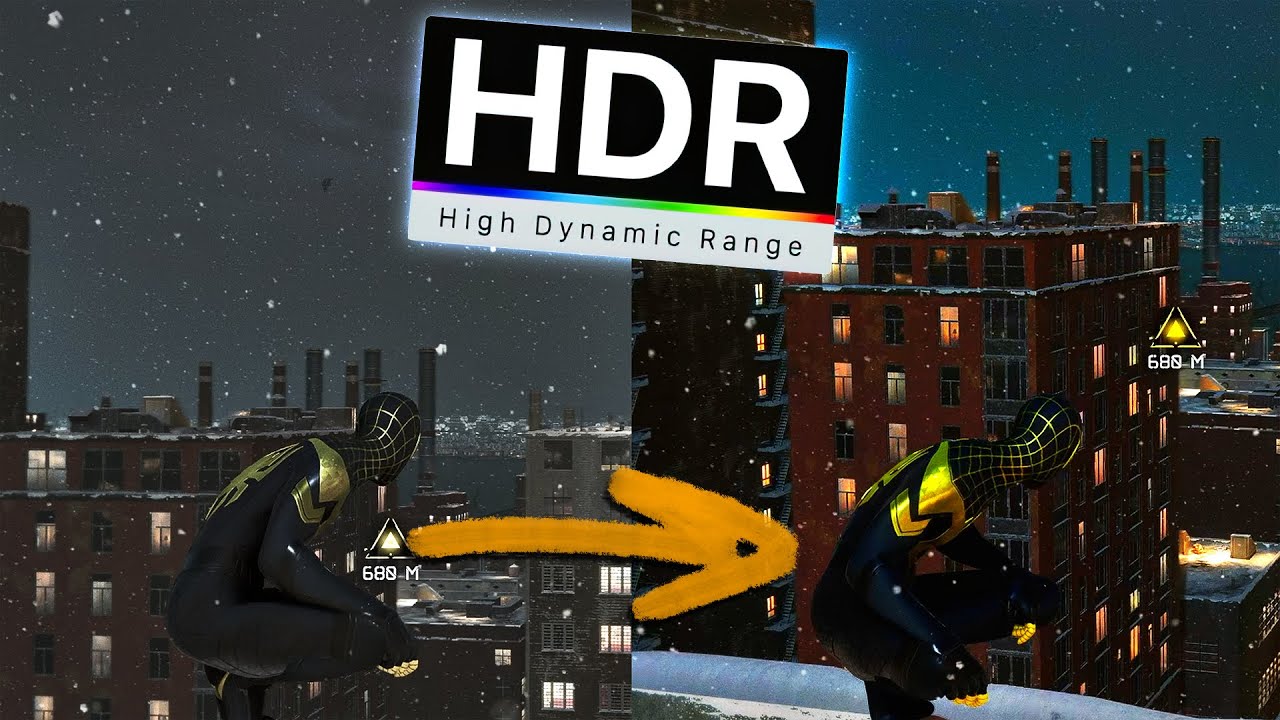
⭐ Watch this video ad-free on Nebula: https://nebula.app/videos/eposvox-how-to-stream-in-hdr-to-youtube-with-obs-studio-complete-workflow-guide
📹 Support my work AND get exclusive content with Nebula, bundled with Curiosity Stream for under $15/year at https://go.nebula.tv/eposvox 📼
Today we're looking at how you can stream in HDR to You...
Step‑by‑step guide to capturing 10‑bit HDR footage from PlayStation 5, Xbox Series X, or Switch 2 with OBS Studio and an Elgato capture card
smoky kestrel
thats why Im using the projection method so I can still use HDR
cuz it would get so bight and mess with the colors
past basin
Is your OBS already setup for P010 and Rec. 2100 PQ?
If so you might just need to turn off the card's tonemapping
By default it converts to SDR for compatibility. That conversion isn't perfect though, and is likely why your colours look off
Also if you're recording in HDR, change your video encoder on the streaming PC to something like H.265 or AV1 hardware encoding. iirc, H.264/X264 doesn't do HDR (I need to double check that, but I know that used to be an issue)
humble glen
Does twitch support AV1 yet?
smoky kestrel
honestly I dont know waht that is. most tutorial i watched was more like "plug in" and you are good to go lol
past basin
Only in closed beta as far as I'm aware
humble glen
from a whole year ago
past basin
smoky kestrel
honestly I dont know waht that is. most tutorial i watched was more like "plug i...
Are you just recording or also streaming?
That'll change some suggestions here
smoky kestrel
I plan on doing both
past basin
humble glen
from a whole year ago
I don't think that was running when they originally announced it. The focused on enchanced broadcasting mode and multistream ingestion first too, near as I can tell.
Okay, if you're doing both you need to either change your recording settings to not use the stream encoder and set that up on it's own, or we need to adjust some other settings back down.
also do you know what platform you'll stream on? Youtube is the only one currently doing HDR support so if you're not going there, you may have to deal with teh tonemapping or game with HDR off (though you can adjust it by loading a LUT into OBS after)
smoky kestrel
mainly twitch
do I need to select custom output under recording to separate steaming and recording?
past basin
Under the recording tab in your output settings you need to change the Video Encoder
Right now you had it set to just used the streaming one, which copies the streaming settings
smoky kestrel
those are my option
 past basin
For Twitch you're going to be limited to H.264 based encoding, and no HDR. They'll also cap you at 12 Mbps / 12,000 kbps if you have enhanced broadcasting turned on. 8 if you don't.
For recording specifically, either AV1 or HEVC. AV1 is newer and has better compression, so I'd start there. If you have performance issues while encoding turn it down.
smoky kestrel
Id like to keep HDR only because my gameplay looks better for me
past basin
For streaming either NVENC H.264 or x264. THe first runs on the GPU the latter on the CPU
smoky kestrel
nvidia av1?
past basin
smoky kestrel
Id like to keep HDR only because my gameplay looks better for me
For Twitch you'll need to tonemap the capture then - you can pass HDR through the capture card just fine to whatever you have connected into the HDMI OUT port - but you can't send HDR to Twitch. So you'll need to either let the card tonemap it to SDR, or tonemap it yourself with OBS.
I don't know if you can tonemap only the stream though, I think you'd wind up with both stream and recording tonemapped to SDR - I honestly can't say I've looked into it (though I can think of some ways around that like using 4K Capture Utility for the recording and setting the Stream Link option to feed it to OBS as an NDI source and letting OBS tonemap the stream feed)
HDR is going to add complexity, the easiest way is letting the card do the conversion. Twitch streaming will require some form of conversion either way. If you want to record in HDR and stream in SDR its' going to be a headache
Long tory short, Twitch has a lot of legacy devices to support, like mobile and TV Streaming sticks, on top of other issues. so are pretty limited in what they support for formats at the moment
So trying to handle HDR and stream to Twitch at the same time leads to headaches
smoky kestrel
OK this is very helpful! reading through all this right now
past basin
Yeah, sorry it's a lot of info. Working with HDR is hard enough without trying to maintain a SDR copy.
smoky kestrel
one question about my setup though. So originally I wanted to have my main monitor plugged into my gaming pc and then HDMI OUT and into HDMI in into the capture card, and thats how I was recording before, but it would mess up with my HDR. Someone recommended doing the projector option with OBS. Is it possibel to go back to my old setup and keep HDR active?
past basin
smoky kestrel
one question about my setup though. So originally I wanted to have my main monit...
Do you have a monitor in the HDMI out from the capture card, or are both the capture card and the monitor going to the GPU?
smoky kestrel
I didnt want to do passthrough because of latency and I play at 360 fps
past basin
ah
smoky kestrel
no passthrough
past basin
Latency wouldn't be an issue with passthrough - its point is not adding latency by bypassing internal processing. 360 Hz would be though
smoky kestrel
so you think the projection option with OBS is my best option?
past basin
But yeah, Windows disables HDR on cloned displays, so projector via OBS is the way to go
 noble plover
Hi, I have an Elgato Game Capture Neo that is not working. I have a Switch 1 connected to it and am using the original usb cable to connect to my pc. It's not showing up in obs or 4k capture utility, and passthrough doesn't work either. There is a white light on the device though. In device manager it shows up as "Unknown USB Device (Port Reset Failed). Have tried multiple USB 3.0 ports and same thing
smoky kestrel
past basin
But yeah, Windows disables HDR on cloned displays, so projector via OBS is the w...
it definietly looks much better! Thank you so so so much!
if I adjust the same setting in the OBS thats projecting, do you think it will improve?
Im gonna try playing some more games tonight without HDR... if I can adjust colors to a way i like, I may just turn off HDR completely
past basin
Try looking into LUTs so you can tweak the colour shift you're getting from the tonemapping to improve it. If you apply that on the streaming PC's feed from the capture card it shoudl help
past basin
noble plover
Hi, I have an Elgato Game Capture Neo that is not working. I have a Switch 1 con...
No signs of drit or damage with the cable? Any chance you've got a spare cable kicking about to test with (also needs to be USB 3.0 / 5 Gbps or faster).
My first guess is cable defect or it somehow picked up dirt
noble plover
Cable looks ok, I tried with a high quality USB C to C from my macbook (I'm using a Windows PC for this though) and no difference unfortunately
smoky kestrel
Im using the ones that came with the card, but I can test with others and see
smoky kestrel
past basin
Try looking into LUTs so you can tweak the colour shift you're getting from the ...
is this on the OBS recording or the one projecting?
past basin
smoky kestrel
is this on the OBS recording or the one projecting?
Since the HDR to SDR colour shift is happening with the card, it'll have to be on the recording one.
smoky kestrel
is the LUT in the same recordin settings?
past basin
noble plover
Cable looks ok, I tried with a high quality USB C to C from my macbook (I'm usin...
Was the USB-C cable rated for 5 Gbps plus though? A lot of higher end charging ones are USB 2.0
Though if you have a macbook, does that see the capture card?
past basin
smoky kestrel
is the LUT in the same recordin settings?
Uh, it'll be an OBS filter iirc. I don't really deal with them too much to be honest as most of my gear is configured for SDR
noble plover
past basin
Was the USB-C cable rated for 5 Gbps plus though? A lot of higher end charging ...
oh it may not actually support 5 Gbps upon some quick research, whoops. However the card is not detected on my mac using quicktime player and the original cable + a USB-A to C adapter that supports USB 3.0
so could still be the original cable
past basin
Yeah, that's my first guess. Any USB-C to A or c to c cable of the right speed works, by the usual issue is getting one that's the right speed, since most tend to be 2.0
smoky kestrel
past basin
Uh, it'll be an OBS filter iirc. I don't really deal with them too much to be h...
is this what you were reffering to?
 past basin
No, there should be one for look up tables (LUTs). It's honestly probably something you'll want to check out a guide on, as it can get pretty involved
smoky kestrel
past basin
No, there should be one for look up tables (LUTs). It's honestly probably somet...
Sounds good! Thanks so much!
noble plover
past basin
Yeah, that's my first guess. Any USB-C to A or c to c cable of the right speed ...
wouldn't passthrough still work if the cable was bad, since the card was still getting power?
past basin
Depends on if there's a secondary issue like EDID settings, or if it's not getting enough power
Usually yes though
sterile zealot
So Just an update. The whole culprit and issue was my chosen motherboard, when you upgrade your streaming rig, make sure you don't make similar mistake that I did, and dont choose PCIe slots with 1x speed, that is not changeable in BIOS.
New motherboard sorted all my issues out and I'm back to business.
🚫 ASUS X870 MAX GAMING WIFI7
✅ ASUS X870E ProArt CREATOR-WIFI
Thank you gentleman. Take care.
past basin
Glad to hear you got it sorted out
 cold shale
Good morning. Wondering if someone may have run into this before because we are stumped.
We plugged our PS5 into the capture card that is connected to the mother board. We have audio disabled in the capture software and have audio fully turned down on the PC, but somehow the PS5 is fully overriding all those settings when opening the capture software and playing the audio at full-blast through the attached PC speakers. The only way to stop it is to fully unplug every audio output on the device.
Any advice? We cannot find anything online about this happening.
 torn finch
what software are you capturing your audio and video with?
cold shale
Elgato Game Capture 4K Pro
The audio normally runs through Wavelink but that is being overriden as well as that is what the PC default is set to.
We aren't trying to record or anything, just using the capture card as an HDMI passtrough so we can play the console on the monitor without having to directly plug it into the monitor.
past basin
Are you using 4K Capture Utility, Elgato Studio, or something like OBS Studio is what they were asking there I believe
cold shale
4K Capture Utility.
past basin
How are things connected - just the HDMI from the PS5 to the capture card, or do you have anything like Chat Link or a mixer running?
cold shale
The only thing to the capture card is the PS5. We have a Stream Deck as well but that's it besides our Wavelink mic and external speakers.
The crazy thing is that if we turn off every single audio setting on the PS5, the PC, and the Stream Deck and then turn on the capture software, it instantly outputs audio at full volume even though everything still shows off.
past basin
Is your Wave Link volume resetting when that happens? I have heard tell of some users hitting a bug in 2.0.6 where when you open an app the volume is resetting to full
If your Wave Link is outputting the capture card audio to monitor or stream mix set to the speakers it might be that loading the app is resetting it to full
cold shale
All audio is set to go through the wave link mic setting (as we use normally) and that is what the system default is set to as well. The system shows everything off but let me check again.
So just ran a test based on your response.
The wavelink shows that all output is muted but the second we turn on the capture software, the volume goes full max while still showing muted at the same time. We are on 2.0.6 and there isn't an update option from that version we can see.
past basin
Yeah, still waiting on an update to fix that. You can roll back to 2.0.4 in the meantime if you have to - all the old versions are available here: https://help.elgato.com/hc/en-us/sections/4913442828941-Wave-Link-Release-Notes
I'd reach out to #official-tech-support on it as well
They may want to collet info to see why that's happening on your system, and may have some sort of workaround in the meantime
cold shale
Ok thank you so much for all of your help. This actually brought a lot of relief because we both thought we were insane and not finding anything online about it was making it worse.
At least now we know the issue and can do a temp work around while waiting for a new patch.
past basin
Yeah, there's a few mentions of the Wave Link issue but unless you knew tha was the issue it'd be like hunting a ghost in the system. Glad you know what it is now at least
smoky kestrel
Hii, so thank you @past basin so much for helping me fix the video! It looks so much better now! the issue im having now is with audio. It sounds really bad. I'm using wave link to route the sound to my streaming laptop. The only thing I have changed regarding audio was the bitrate which I changed to 320, but it didnt improve it. I'm not sure what to do at this point. Any suggestions? Thanks so much
this is a video to show what it sounds like, but I guess it wont let you guys play it cuz its in Mkv?
past basin
This sounds like there's noise cancellation happening. You can usually fix this by disabling Windows Audio Enchancements on the capture card.
Windows Audio Enchancements can be located in one of two places depending on your version and build of Windows.
First, you can check if enhancements are on by going into Windows Settings and checking under System > Sound and find your capture card. Go into it, and check at the bottom for any mention of audio enhancements or spatial audio (usually towards the bottom) and turn them off.
If neither are there, check the old Windows Sound Settings instead. Press Windows Key + R, type mmsys.cpl in the box that comes up and press OK. Go to the recording tab, find the capture card then go to properties. Check for any enhancement or spatial audio tabs and disable anything in there, and check the advanced tab to see if there's any enhancements or spatial audio options to turn off there as well.
Based on your audio hardware, software and Windows version and updates, enhancements could be in either of these locations, both or none. If they're not in any of them, you can assume enhancements are off
smoky kestrel
Thanks so much for all this info. I went ahead and turned them off

it sounds much better, but still too quite
past basin
If you go into Windows Sound settings again, is the card's volume turned up there? Sometimes Windows doesn't have it running at full volume which will affect your recording
smoky kestrel
yeah 100%

Oh i turned my laptop volume up lol it sounds better... does it sound quiet to you?
should I change the quality to studio? maybe?>
past basin
It does sound quiet. Quality shouldn't affect the volume though
No audio filters or anything in OBS? Console's own volume isn't turned down is it?
smoky kestrel
I also having it all the way up in OBS

this is a dual pc setup and using wave link on the gaming pc
past basin
smoky kestrel
I also having it all the way up in OBS
You can actually turn that up over 100% by either adding a gain filter or going to advanved audio settings on the gear icon and setting it above 100% there. But you generally shouldn't have to
You might need to turn it up on the gaming PC if that's the case though
smoky kestrel
like turn up my gaming pc system audio?
past basin
How are you splitting the audio on the gaming PC again?
smoky kestrel
ok so I have the turtle beach 700 gen 3 and I have my gaming pc connected to my headphones via the usb dongle, and then I have my streaming laptop connected via bluetooth. I used wave link on my gaming pc to route the audio going to my headphone and then also to elgato capture card for OBS on my streaming laptop
past basin
Ah - so the default audio device is the Wave Link input right now?
smoky kestrel
so this is what it looks like on wave link
 past basin
If you go into Windows Sound settings and check the capture card / HDMI Out, is that also fully turned up? Wave Link's volume settings don't affect hardware level volume for non-Wave devices

 past basin
Hm
What if you play something other than the game, do things like YouTube videos have correct volume when it gets to the streaming PC?
I also assume the game sounds fine in your headset?
past basin
If you record with a different app like Elgato Studio or 4K Capture Utliity to test, do they also get low audio or is it only OBS?
smoky kestrel
audio sounded pretty awful
past basin
That sounds like more noise cancellation, what on earth
So Windows Audio Enchancements were turned off on the streaming PC for HD60 X, not the gaming PC correct? Is there any other app running on the streaming PC that might be trying to do noise cancellation? Sonar, Nahimic, Bang and Ofulsen, etc?
smoky kestrel
oh I turned the audio enhancement on the gaming pc
I guess i did it on the wrong one
smoky kestrel
YOu are amazing!
ITs been fixed! that was the issue!
THANK YOU SOOO SO SO SO SO MUCH!
past basin
Gald to hear you got it sorted!
 echo osprey
hello lovely super smart humans - i just got an Elgato HD60 X today. Ive been using an Elgato HD60 S for over 5 years now to stream my ipad screen to my pc for my twitch streams. Lately the HD60 S stopped connecting so we got the upgraded HD60 X. But im having a hard time getting it to work. Pretty much I just need it to mirror my ipad screen to OBS, but i've tried Elgato Studio, and Elgato 4k Capture Utility to no avail. It just shows a black screen. I have HDMI in to a HDMI female port to a OSB C plugged into my ipad. Then the USB C plugged into the Elgato and the USB plugged into a 3.0 port on my pc. Any help would be so appreciated before i lose my mind 
echo osprey
i think i found out i needed a USB-C Digital AV Multiport Adapter, will possibly check back in when it arrives
past basin
Having only just gotten back, that's the one I recommend and the one Elgato staff have tested. So hopefully that's all you need to sort it out
Though of the old one worked with HD60 S it should work with HD60 X
I'd suggest trying the two different EDID input modes in the 4K Capture Utility settings for the device (or side panel on Elgato Studio)
 keen cloud
Hi Arcsane I’m JameelPerkins asking can Apple av usb c to vga adapter work with MY elgato HD60X yes or no https://a.co/d/12II082?


The USB-C VGA Multiport Adapter lets you connect your USB-C or Thunderbolt 3 (USB-C) enabled Mac, iPad, or iPhone to a VGA display, while also connecting a standard USB device and a USB-C charging cable. The USB-C VGA Multiport Adapter allows you to mirror your USB-C enabled Mac, iPad, or iPhone ...
Please answer ?
humble glen
why VGA specifically
keen cloud
I don’t I just wanted to know would it work yes or no
 warped ledge
keen cloud
I don’t I just wanted to know would it work yes or no
warped ledge
keen cloud
I don’t I just wanted to know would it work yes or no
Jameel did you look at the spec requirements for the capture card?
keen cloud
Yes but I still don’t know
warped ledge
keen cloud
Yes but I still don’t know
where are you confused on the spec requirements?
keen cloud
All I’m asking do it work or not
 azure hemlock
Unless you've bought a NEWER iPad it won't work, no matter what you try or how many times you ask.
warped ledge
keen cloud
All I’m asking do it work or not
I feel like your questions, since you always have some devices that aren't on the specs, might be better answered by #official-tech-support I would advised reaching out to them directly. 
past basin
keen cloud
Hi Arcsane I’m JameelPerkins asking can Apple av usb c to vga adapter work with ...
Are you trying to capture the iPad with a computer this time? It won't work to capture things to the iPad like you were looking to do before, because it's an output device.
If you're looking to capture the iPad with a computer this time, the VGA adapter also won't work with the capture card - it would need to be a the HDMI multiport adapter.
keen cloud
Ok
 sudden lance
audio picks up on screen on obs but cannot hear audio (switch 2)
 humble glen
sudden lance
audio picks up on screen on obs but cannot hear audio (switch 2)
humble glen
sudden lance
audio picks up on screen on obs but cannot hear audio (switch 2)
Did you enable audio monitoring within the advanced audio properties?
sudden lance
yes
humble glen
screenshot the advanced audio properties window
past basin
Also check that your monitoring output device is set correctly in the main settings under audio, in the advanced section. If you have to change it, you will likely need to restart OBS as well
 sonic hatch
Can anybody help me, I bought the Elgato 4K S, I play on PS5 on 1440p 120hz , i was streaming in 1080p 60hz, yesterday I updated my Elgato and after that I can not play on 120 Hz, if I do my screen looks blurry and green why does it only work in 60hz, I tried everything I need someone to help me please
cerulean jolt
hi, anyone knows why is it showing no input in Elgato Studio?
 past basin
cerulean jolt
hi, anyone knows why is it showing no input in Elgato Studio?
past basin
cerulean jolt
hi, anyone knows why is it showing no input in Elgato Studio?
Honestly if it's getting video and just reading no input, it's probably just a bug. Studio is a fairly new app, I think we're only on 1.0.1 yet. I'd probably report it to #official-tech-support
past basin
sonic hatch
Can anybody help me, I bought the Elgato 4K S, I play on PS5 on 1440p 120hz , i ...
To confirm it was a firmware update you did on the card? Using Elgato Studio try changing the Input EDID Mode - you'll find that setting on the pull out on the right. If you have a display in the HDMI OUT try setting it to Display first. That's the most likely thing to go awry there
sonic hatch
past basin
To confirm it was a firmware update you did on the card? Using Elgato Studio tr...
I tried to change EDID nothing worked, it only happens when I play on 120hz on any resolution, but when I change it to 60hz everything worked, I want to play in 1440p 120hz and stream with 1080p 60hz.
 near chasm
Anyone know why it wont capture my switch I have tried Using different HDMI cables and nothing

The light on my capture card is just flashing red
humble glen
What color USB port is your capture card connected to on your PC? flashing red doesn't sound good
also what capture card are you using
near chasm
I am using the HD60 X
Let me check the color hol up
It is connected to the red USB port on my PC
humble glen
What is your motherboard? If you don't know your motherboard you can find it by searching "System Information" in Windows, opening the app, and finding the "Baseboard product" in the list
Try a basic blue port on the back of the PC to see if the red flashing indicator goes away and you hear a USB connection noise from Windows. Your current issue is getting your PC to recognize the card
near chasm
This is my motherboard

 jaunty elm
if i remember correctly the hd60x needs a 3.x port
humble glen
nvm that board doesn't have basic 3.0 ports or any other colored ports other than 2.0s at the top which shouldn't be used for it anyway
It's just 3.2 gen 2 mainly which of course will work
but elgato studio should still show the card even if it doesn't have signal, and emit a "no signal" screen
near chasm
Should I reinstall the app?
humble glen
does it appear elsewhere like in your recording devices (mics) in windows?
near chasm
Nope
jaunty elm
near chasm
Nope
have you tried installing 4k capture utility and seeing if that picks up the signal?
near chasm
Yea it doesnt
past basin
It should also show up under cameras in device manager.
Are you using the original USB cable that came with it, and is it connected direct to the computer? If it's connected with a 2.0 cable or there's a 2.0 adapter in there somewhere that'll also throw things off.
near chasm
I am using the Cable it came with
It is connected directly into the computer
I have a protection plan on it should I exchange it?
past basin
https://www.uwe-sieber.de/usbtreeview_e.html <- If you use USB Tree Viewer, does it show up on the left side? If so there should be three speeds in the summary on the right, are they all listing SuperSpeed or higher?
For example,

 past basin
near chasm
This is what I see
past basin
near chasm
This is what I see
Is HD60 X not listed on the left side at all there?
near chasm
Nope
humble glen
going out a whim, you could try updating chipset drivers. They're from January so you might've probably already done it, but if you haven't it has a slight chance of being able to fix it. https://www.msi.com/Motherboard/MPG-Z690-EDGE-WIFI/support#driver
past basin
My best guess is cable issue, or problem with the card then.
I'd also check for signs of damage or dirt in the USB connections on both the cable and the card. If it's flashing red it's getting power, and it doesn't have specific drivers (uses UVC drivers built into Windows), so if it's not showing up there's a data connection error somewhere. Dirt in the jack could do it. If that's all clear you might indeed want to exchange the unit.
Though if you can get access to another computer or USB-C iPad to test it with to be sure that'd be a good idea too.
jaunty elm
past basin
My best guess is cable issue, or problem with the card then.
I'd also check for ...
to see if its the card or the port
near chasm
I used a different cable and I heard the ding when you connect something but it still won’t capture it
past basin
near chasm
I used a different cable and I heard the ding when you connect something but it ...
How does it look in USB Tree Viewer on the new cable?
near chasm
It says failed enumeration
past basin
near chasm
It says failed enumeration
If you move it to a different port does it do the same?
near chasm
Yea
past basin
If you've already tried multiple USB cables and are seeing that in multiple ports on the PC , then unless there's dirt in the port I'd exchange the card or go through warranty support via #official-tech-support
Especially if other USB devies work fine in the ports you tried
If you have access to another PC I'd still test there to be sure it's not an issue with the USB controller on the PC, but it's unlikely
Did this card ever work before?
 coral nacelle
Anyone ever use a capture card on an iPad? i can get it to show up on my pc but the screen is frozen then turns black
 grizzled pivot
Hey everyone, I have an internal 4k Pro in my streaming pc and it is connected to my gaming computers HDMI port on the gpu. My gaming 180Hz gaming monitor connected via DP cable cannot clone with the capture card. I have tried downscaling to 60Hz but it doesn't help. When I start playing games live my game will crash without any warning or error codes, even in the event viewer in windows. Can anyone relate or help?
Edit: If I connect my gaming monitor with DP to HDMI cable it will clone but the game will then crash
past basin
coral nacelle
Anyone ever use a capture card on an iPad? i can get it to show up on my pc but ...
What USB-C to HDMI adapter are you using? Some of those don't play nice with iPad capture setups.
Also make sure you're not testing with HDCP protected content like Netflix
past basin
grizzled pivot
Hey everyone, I have an internal 4k Pro in my streaming pc and it is connected t...
If cloning isn't working check your GPU driver is up to date - NVidia had issues with some recent drivers that broke the abililty to clone a display
grizzled pivot
past basin
If cloning isn't working check your GPU driver is up to date - NVidia had issues...
Reinstalling the newest driver in Nvidia app didn't make it possible to clone.
past basin
grizzled pivot
Reinstalling the newest driver in Nvidia app didn't make it possible to clone.
Does rolling back the driver to a previous version help. Also when you say you cannot clone with the capture card do you mean you litearlly can't start cloning it, or do you actually mean that when you're cloning the game crashes? If the latter try setting your game to borderless windowed
grizzled pivot
past basin
Does rolling back the driver to a previous version help. Also when you say you ...
The problem was that inside display settings, clicking clone display 1 and 2 (2 being Elgato 4k) it just automatically went back to extended. But now after some tinkering I set both gaming display and 4k to 120hz inside nvidia control panel and that made it able to be cloned. Gonna try gaming a little now to see if the crash still happens. The game crashing only happened when the capture card was connected to gaming pc and open in either obs or 4k software on streaming pc.
past basin
Ah, good luck with it then
grizzled pivot
past basin
Ah, good luck with it then
No the game is still crashing to to desktop without any error code.
past basin
Is it game specific or are all games doing it?
grizzled pivot
Today it happened with both f1 23 and Forza Horizon 5. Last time it happened to both of those plus Repo main menu
past basin
The issue here is going be that the capture card shows up as a monitor to the gaming PC - so for things to be crashing out like that means the games or the GPU driver are generally not playing nice with multiple displays. Usually borderless windowed mode will work better than fullscreen (and for any game supporting DX12 shouldn't get a performance hit like older games used to). I'd try setting your game to borderless first then connect the card and see if anything changes. If it's already borderless, try it in fullscreen
Failing that, roll back the GPU driver a verseion of two to see if it's a version specific bug on that front
coral nacelle
past basin
What USB-C to HDMI adapter are you using? Some of those don't play nice with iP...
Anker powered micro usb hub
grizzled pivot
past basin
Failing that, roll back the GPU driver a verseion of two to see if it's a versi...
I just tried borderless windowed mode and full screen with the newest update to gpu driver and gpu driver 572.1 and the game crashed every time
past basin
grizzled pivot
I just tried borderless windowed mode and full screen with the newest update to ...
Looking into startup crashes on both of those games I'm seeing suggestions to completely remove the GPU Driver with DDU (Display Driver Uninstaller) and reinstall it. Seems there may be some known issues with both. I've also seen suggestions on Forza to cap frame rates, or make sure refresh rate is set to match the display (or capture card in this case) and noe variable.
past basin
coral nacelle
Anker powered micro usb hub
Micro-USB as in USB Micro B plugs, or as in that's part of the product branding?
If you hook the adapter straight to a monitor or TV does it work as expected?
coral nacelle
past basin
Micro-USB as in USB Micro B plugs, or as in that's part of the product branding?...
Sorry auto correct
Anker powered usb-c hub
past basin
coral nacelle
Anker powered usb-c hub
Check it against a TV or monitor, make sure it plays nice with the iPad if you haven't arleady and that this isn't a video output issue before we spend too much time assuming it's a capture issue.
craggy relic
4k pro vs 4k60 pro which one is better?
humble glen
craggy relic
4k pro vs 4k60 pro which one is better?
4K Pro is newer, but the 4k60 Pro Mk.2 is almost the same other than having HDMI 2.0 than 2.1
craggy relic
humble glen
4K Pro is newer, but the 4k60 Pro **Mk.2** is almost the same other than having ...
Does the 4k pro have more futures?
warped ledge
craggy relic
4k pro vs 4k60 pro which one is better?
I love my 4K Pro, but I've had both. I think the 4K Pro is better.
the capture, and passthrough are what sold me on the card. https://help.elgato.com/hc/en-us/articles/23479165158029-Elgato-Game-Capture-4K-Pro-Supported-Resolutions-and-Frame-Rates
Elgato
This is a list of supported passthrough and capture resolutions. For each input resolution, the supported capture resolution is supported by 4K Pro.
These resolutions and frame rates do not consi...
however, the best out there would be this one, and it's external. https://help.elgato.com/hc/en-us/articles/23479175821069-Elgato-Game-Capture-4K-X-Supported-Resolutions-and-Frame-Rates
Elgato
This is a list of supported passthrough and capture resolutions. For each input resolution, the supported capture resolution is shown as supported by 4K X.
These resolutions and frame rates do no...
I also have the 4K X for my Mac Mini