#capture-cards
1 messages · Page 66 of 1
 frail mesa
 past basin
Good luck with it!
 earnest coral
Hey so I just started using the elgato HD60 S Capture card to start streaming my switch 2 but I've been having a pretty noticeable input delay while playing, does anyone know a solution ?
 lone crypt
earnest coral
Hey so I just started using the elgato HD60 S Capture card to start streaming my...
lone crypt
earnest coral
Hey so I just started using the elgato HD60 S Capture card to start streaming my...
Sounds like you might be watching the captured video feed.
Connect the capture card hdmi out to a display to view the real-time video.
All capture cards have some latency in conversion and then the computer and capturing app add some, too. That’s normal.
earnest coral
I started watching it through obs and it works perfectly but thanks 🙂
 frail hound
are internal capture cards for streaming or just recording on pc?
is it just better latency for the internal one?
past basin
frail hound
are internal capture cards for streaming or just recording on pc?
They can do either streaming or recording - all a capture card does it get video into the PC, the apps take it from there.
Current gen Latency is about the same through the lineup, internal or external. The internal does have more HDR recording supported resolutions and refresh rates, while the external 4K X has the ability to record in 4K in higher refresh rates - so they both have their tradeoffs
frail hound
past basin
They can do either streaming or recording - all a capture card does it get video...
thanks
 maiden jay
Hi, I have my 4K X showing up like this, my primary Asus display is a 2K 180hz, and there's no option to select 180hz in 4KX, either it needs to be at 144 or 180, I experience minor stutters when watching the feed on my OBS, is that something regarding this? Any help regarding this would be highly appreciated.
Asus and 4K are duplicated in windows.


 past basin
maiden jay
Hi, I have my 4K X showing up like this, my primary Asus display is a 2K 180hz, ...
past basin
maiden jay
Hi, I have my 4K X showing up like this, my primary Asus display is a 2K 180hz, ...
What happens if you set both card and monitor to 120? That usually works better for recording since it's evenly divisble by 60 and can help prevent tearing or stutter issues
maiden jay
past basin
What happens if you set both card and monitor to 120? That usually works better...
I want to keep using 180 for gaming purposes 🙁
Haven't tried that also though, but how about setting 4K X to 240hz? would that work?
past basin
maiden jay
I want to keep using 180 for gaming purposes 🙁
Haven't tried that also though, ...
180 and 120 might work - 180 is a multiple of 60 - but it's a factor of 3 so I'm worries it might still stutter. 240 monitor and 120 card might work
There's enough enhancements on gaming setups these days that often you've got to test the settings on your specific rig to be sure
maiden jay
Yeah but my monitor can do upto 180hz, and in this case, what other frame rate you recommend setting for 4K X if not 144 or 240?
past basin
I figured the monitor was going to be 180 capped - that's why I was suggesting 120.
If you hooked the card up in passthrough configuration and set Internal EDID Mode to display, there is a chance it'll take a 180 signal thorugh the card then (since the card can pass through up to 240 at 1440p), but it's not on the offical supported resolutions matrix so you'd have to test it to be sure
If you can get it on 180 which is a multiple of 60, most likely things will be smoother
Actually - you could try setting the PC to 180 and the card to 60 too
Unless you plan to stream or record in high refresh rate, the main issue is getting that 144 out of there because it'll not divide clean to 60 OR 180
maiden jay
Yeah I record and stream in 1440 60, so what you said totally makes sense to me. I'll set 4K X at 2K 60, but what should I set in the elgato studio? Does it need to be on display, internal or merged?
past basin
maiden jay
Yeah I record and stream in 1440 60, so what you said totally makes sense to me....
Sounds like you've got a cloned display setup, so Internal or merged
There's nothing in the HDMI OUT port in a cloned setup to pull a Display EDID from
maiden jay
Yeah HDMI out on my 4K X is always empty, I don't use any passthrough.
past basin
Yeah, Internal or merged then. Since there's nothing in the out, merged will only pull the internal list anyway
maiden jay
Perfect. Thank you so much Arcsane helping me this much. I highly appreciate you brother 🙏
 jagged bay
hello, i’ve been using the hd60x capture card for a while but it randomly stopped showing/working on my game pc just now. it still works on my stream pc so i was wondering i can get some quick help?
lone crypt
jagged bay
hello, i’ve been using the hd60x capture card for a while but it randomly stoppe...
What have you tried so far?
Have you unplugged and replugged it? Have you rebooted?
past basin
jagged bay
hello, i’ve been using the hd60x capture card for a while but it randomly stoppe...
As it it stopped showing on the gaming PC as a display? I've seen one user report yesterday that they had to roll back the latest NVidia driver update as the card wouldn't be seen on the newest. Any chance you updated drivers before the card disappeared? You might also want to try the "My display is not shown" option in NVidia Control Panel to run rigourous detection mode.


Otherwise if you did update the driver before the problem, roll it back
jagged bay
past basin
As it it stopped showing on the gaming PC as a display? I've seen one user repo...
omgg this worked thank you so much
jagged bay
lone crypt
What have you tried so far?
Have you unplugged and replugged it? Have you reboot...
yeah last night i was resetting pc, changing wires and everything wasn’t working but i just saw that it randomly got unchecked in my nividia control panel 😭
lone crypt
Yup, nvidia seems to have completely forgotten how to write a stable driver since the 50 series and their obsession with frame generation.
 warped ledge
lone crypt
Yup, nvidia seems to have completely forgotten how to write a stable driver sinc...
warped ledge
lone crypt
Yup, nvidia seems to have completely forgotten how to write a stable driver sinc...
yeah I'm on an April driver because of the black screens via a 5090.
I'm hesitant to update the driver when i have stability, and have things completely reinstalled after rolling back destroyed my recovery and c:/ drive - thanks Nvidia...
 mild olive
Hey guys Im wondering if anyone can give me some tips. I got the HD 60x and im trying to get the video to show up onto my streamlabs desktop and it just shows that its a black screen
anyone know why
everything is connected and i can see the capture on the elgato studio
past basin
mild olive
everything is connected and i can see the capture on the elgato studio
Make sure you close Studio before opening Streamlabs Desktop - only one app at a time can pull video from the card
 placid crown
Hey! I’m currently using OBS to capture clips with my friends, and I’m trying to offload that load to a capture card.
Thinking about getting the HD60X since I don’t need insane recording quality, just high Hz passthrough, which it has.
I’d love to replace OBS entirely with the capture utility. I noticed it has a “Trigger Flashback Recording” hotkey, which sounds perfect, but all I can find says it’s limited to 30 seconds
and it doesn’t look like you can change it? Is that true? If so, is there any workaround, and why is it hardcoded to 30s?
Also, does anyone know if using the capture utility to clip instead of having OBS minimized while capturing actually improves performance?
 thick berry
hey yall i just joined cause i have an issue with obs and the elgato capture card and im wondering if anyone can help, i recently got a switch 2 like yesterday and i was setting it all up but when i opened obs none of the audio would play
fyi i already have had elgato set up with my old switch i simply replaced consoles and now its not playing audio, the video is fine i just dont know why theres no audio
past basin
placid crown
Hey! I’m currently using OBS to capture clips with my friends, and I’m trying to...
A capture card just provides a HDMI Input to your computer to capture outside sources. It has not benefit to performance, as apps like OBS or 4K Capture Utility that pull video from the card still use your GPU or CPU to encode the video. The benefit for PC users comes in with dual PC where you can offload all that encoding onto a whole second PC that has a capture card in it. For single PC use there's no performance benefit to using a capture card over using OBS.
Flashback recording can record significantly longer than 30 secs - the 30 seconds things is a limit of the Stream Deck action for it, while in app you can go back over the whoe flashback recording to make clips. The default is actually 2 hours.
past basin
thick berry
hey yall i just joined cause i have an issue with obs and the elgato capture car...
Make sure the Switch 2 is set to Stereo audio. That's one of the most common hiccups if audio capture was already working with other devices.
thick berry
it was already on stereo
and ive already checked obs for if it was set to monitor and output and i got nothing
i even updated elgatos software
past basin
No headsets or anything connected to the Switch 2 right?
thick berry
nope
past basin
Try changing the Input EDID mode in 4K Capture Utility - in rare cases this can affect sound options. Try Internal first, then Display if that doesn't help. It'll be in device tab of settings for 4K Capture Utility - you may need to disconnect and reconnect the HDMI to force Switch 2 to pick up on the change when done.
thick berry
OH MY GOD IT WORKED THANK YOU
past basin
Glad to hear it!
 craggy relic
Hello everyone, I would appreciate some help. I bought an HD60x and when I connect it to an iPad and then to a computer, I don't get any audio. Can you help?
I really need help
 cursive wasp
Subject: Problem with iPad Pro / Samsung S22 Ultra not displaying correctly on Elgato 4KX
Message:
Hello Elgato Support,
I am experiencing an issue when trying to connect my devices to the Elgato 4KX.
My setup is:
iPad Pro (via USB-C to HDMI adapter) → HDMI switch/dock → Elgato 4KX → Monitor
I also tested with Samsung S22 Ultra (USB-C to HDMI) → Elgato 4KX → Monitor
In both cases, the video signal shows up for a few seconds and then the screen goes black.
I have tested multiple HDMI 2.1 certified cables and different HDMI hubs (Baseus 16-in-1, Bifa 7-in-1, and Vention 8K switch), but the problem persists.
The signal works normally when I connect the iPad Pro or Samsung directly to the monitor, so the issue only happens when the signal goes through the Elgato 4KX.
Could this be related to HDCP compatibility, or is there a recommended solution for capturing video from iPad Pro or Samsung S22 Ultra via HDMI using the Elgato 4KX?
Thank you for your support.
warped ledge
cursive wasp
Subject: Problem with iPad Pro / Samsung S22 Ultra not displaying correctly on E...
just to confirm with the iPad Pro you are charging it while in use?
craggy relic
craggy relic
Hello everyone, I would appreciate some help. I bought an HD60x and when I conne...
?
past basin
craggy relic
Hello everyone, I would appreciate some help. I bought an HD60x and when I conne...
iPadOS will only output audio to the last audio device connected - if you have a multi adapter thing sometimes means iPad will only send audio to the 3.5mm jack or the HDMI jack and not both. Likewise if you connect any kind of bluetooth headset you'll lose HDMI audio. Different USB-C to HDMI adapters can also work differently - do you head HDMI audio on a TV or monitor if you connect the iPad to that? That would rule out a number of potential issues.
It would also help to know what kind of computer you have and what app you're using to record with
craggy relic
past basin
iPadOS will only output audio to the last audio device connected - if you have a...
I connect the iPad to the adapter and the adapter connects to the Elgato and then the output to the computer screen, the mirroring works but there is no audio from the iPad.
craggy relic
past basin
iPadOS will only output audio to the last audio device connected - if you have a...
What do I need to do to also receive audio from the iPad?
past basin
Are you using the standard Apple adapter, or a multi adapter that has a 3.5mm out too? No other audio devices like Bluetooth connected to it?
Do you hear HDMI audio on a TV or monitor if you connect the iPad to that? That would rule out a number of potential issues.
It would also help to know what kind of computer you have and what app you're using to record with.
craggy relic
past basin
Are you using the standard Apple adapter, or a multi adapter that has a 3.5mm ou...
I connect through an adapter called Energi, there is audio on the computer itself, but the audio from the iPad does not go to the computer. I also check through the Elgato app itself, and in principle this is for broadcasting on TikTok Live.
past basin
craggy relic
I connect through an adapter called Energi, there is audio on the computer itsel...
Does that adapter have a 3.5mm audio out? Have you had a chance to test it with a TV or monitor with speakers to make sure it's actually sending audio out? What sort of computer do you have, mac or PC? Are there any other audio devices connected to the iPad like earbuds?
maiden jay
Hi Arcsane, just wanted to update you, I turned 4K X to 60hz, that works great but now the issue is since it is duplicated on my gaming screen, which is a 180hz screen, the games feel really choppy and in 60hz in borderless windowed mode. They feel great in full screen mode but the only issue with full screen is that it don't allow me to tab out to my other monitor which is connected to my gaming pc as well. Isn't there a way to feed in custom EDID for 180hz in 4K X so I get an option to set it to 180hz so it matches exactly with my monitor?
past basin
maiden jay
Hi Arcsane, just wanted to update you, I turned 4K X to 60hz, that works great b...
I am not sure if it'll take a custom EDID for 180 - what resolution were you running at again?
You can try it if you know how to make a custom EDID, or can get one from support - both 4K Capture Utility and Elgato Studio will let you set a custom EDID file, if you set the Input EDID mode to Internal.
maiden jay
past basin
I am not sure if it'll take a custom EDID for 180 - what resolution were you run...
2560x1440.
past basin
I think that fits under the HDMI 2.1 bandwidth then at least - so it might work.
That said if the card is in passthrough mode (monitor in the HDMI OUT) you could also try using Display for the Input EDID mode and it should just pass along the EDID right from the screen, ignoring the built in one on 4K X. That might work too
maiden jay
past basin
That said if the card is in passthrough mode (monitor in the HDMI OUT) you could...
Yeah but I don't have the pass through populated, so I just take hdmi in from the gaming PC
Is this way right to get the EDID for my gaming monitor? https://www.nvidia.com/content/Control-Panel-Help/vLatest/en-us/mergedProjects/Workstation/To_get_an_EDID_from_a_display_and_save_it.htm
past basin
maiden jay
Is this way right to get the EDID for my gaming monitor? https://www.nvidia.com/...
Can't say I've ever used Nvidia Control Panel to extract an EDID, but worth a shot
But yeah, I get that you're not using passthrough at the moment, but I was suggesting testing it to see what happens
craggy relic
past basin
Does that adapter have a 3.5mm audio out? Have you had a chance to test it with...
Regarding testing the adapter, I did not check if it outputs audio. The ports on this adapter are USB, network, TYPC, and HDMI, and the computer is a regular gaming desktop.
maiden jay
past basin
But yeah, I get that you're not using passthrough at the moment, but I was sugge...
Sure yeah, I'll test it out too
 last flicker
Hi everyone,
I’m using an Elgato 4K Pro to capture a Switch 2 signal and view it in MPC-HC. I noticed the FPS isn’t a fixed 4K 60fps; it fluctuates between 59.94 and 60.22. Sometimes, when panning the camera quickly, I see frame skips. I’d like to know if there’s a way to set a fixed FPS.
spec: ASUS TUF Gaming GeForce RTX 4090 OC Edition 24GB GDDR6X
monitor: dell aw2725q (enabled g-sync)
ssd: Kingston KC3000 2T M.2 NVMe GEN4x4 SSD
ram: G.SKILL Trident Z5 RGB Series DDR5 32GB (2 x 16GB)
cpu: Intel® Core™ i9-13900KF 24 Cores 32 Threads 32M
motherboard: ASUS TUF GAMING Z790-PLUS WIFI ATX
OS: Microsoft Windows 11 Home
 jaunty elm
last flicker
Hi everyone,
I’m using an Elgato 4K Pro to capture a Switch 2 signal and view i...
jaunty elm
last flicker
Hi everyone,
I’m using an Elgato 4K Pro to capture a Switch 2 signal and view i...
normally i ask what usb port you have the card plugged into but since you have a 4k pro which plugs into a pcie port on the mobo so what version is the pcie lane on (i have no idea of the card needs a pcie x1, x2, x4 etc
past basin
craggy relic
Regarding testing the adapter, I did not check if it outputs audio. The ports on...
So you haven't tested if there's audio coming from the adapter? That's one of the first things you should test if at all possible, because it tells us if the issue with with the iPad and adapter, or with the audio intake on 4K X. iPad's have a history of quirks when used with non-Apple adapters in some cases.
Can I also take this as confirmation you don't have any headphones or earbuds connected to the iPad? As I said earlier if you do, that will mute the HDMI audio out and there would be nothing to capture.
past basin
last flicker
Hi everyone,
I’m using an Elgato 4K Pro to capture a Switch 2 signal and view i...
Are you seeing fluctuations in a single playback or between files/sessions? 59.94 is broadcast standard 60 fps for NTSC, 60.02 is sometimes what you get on a PC equivalent instead (though 60.22 is odd, and usually it'll be 60.002 and rarely 60.02 depening on the panel used in a monitor that's providing an EDID). I'm not familiar with that particular app you're using but I'd check if the problem persists in other apps like Elgato Studio, OBS Studio, Meld Studio, etc to rule out software / compatibility issues. I'm unclear if you're viewing the Switch 2 live in MPC-HC or viewing a recorded playback, but if the latter you may also need to check what encoding format the app you record with is setup for.
last flicker
jaunty elm
normally i ask what usb port you have the card plugged into but since you have a...
pcie 4.0 x16
 jaunty elm
last flicker
pcie 4.0 x16
jaunty elm
last flicker
pcie 4.0 x16
So is the 4k pro plugged into the lane that you have circled in?
last flicker
past basin
Are you seeing fluctuations in a single playback or between files/sessions? 59....
I uploaded the video, the fps isn’t a fixed 59.94 or 60.02
past basin
last flicker
pcie 4.0 x16
That slots is actualyl wired as x4 based on the manual, but still meets the requirements. You can't go by the physical slot size thes days, always check the tech specs or manual.
past basin
last flicker
I uploaded the video, the fps isn’t a fixed 59.94 or 60.02
I'm not familiar with that app but that just looks like the app itself trying to keep playback within spec. I'd have suggested checking with them, but seems that app hasn't updated in 8 years, so no idea what their support situation is like.
What format is the video in? I see the container is AVI, but is this H.264, H.265/HEVC, etc?
craggy relic
Is there a way to improve the quality of the sharing I'm shown? @past basin
last flicker
@past basin
I tried OBS and turned off G-Sync, and the problem seems to be fixed
past basin
craggy relic
Is there a way to improve the quality of the sharing I'm shown? <@26999794467183...
Do you mean you have a video quality issue? If so that'll depend a bit on what sort of issue you're having. The HDMI adapter may step your resolution down from what's on the iPad. But there could be config issues too. I'm unclear on what is meant by "the sharing I'm shown" here?
past basin
last flicker
<@269997944671830017>
I tried OBS and turned off G-Sync, and the problem seems ...
Interesting - glad to hear you seem to have sorted it out.
craggy relic
past basin
Do you mean you have a video quality issue? If so that'll depend a bit on what ...
I mean, in Tiktok Studio, the quality is really poor.
At the same level of Japanese screen sharing that I bought, you will catch
past basin
Ah - I can't say I've used that app. Is the quality poor in other apps like Elgato Studio or 4K Capture Utility? That'd help you narrow down if it's an issue with video from the capture card or a software setting with Tiktok
craggy relic
past basin
Ah - I can't say I've used that app. Is the quality poor in other apps like Elg...
I'll check with the apps and send it to you so you can see.
 dark cliff
i need helpppppppp im about to cry fr fr
ive bought an elgato HD60X but i cant get my switch 2 to play 120hz in passtrough mode i dont know why
past basin
dark cliff
i need helpppppppp im about to cry fr fr
ive bought an elgato HD60X but i cant ...
What game are you trying to play? It'll only do 120Hz mode with specific titles like Street Figther 6, and Welcome Tour
(Or with some games like CyperPunk 2077 which uses 120 Hz mode to get tear free 40 fps play)
dark cliff
thats my bad then i was about to freaking loose my mind
past basin
All good - it caught a lot of people off guard during Switch 2 launch. People were expecting Mario Kart in particular to do 120 fps mode when docked and it didn't
 fast hemlock
Ok, I’m dumb in this field, can someone explain what a CC is? (Capture Card)
 humble glen
fast hemlock
Ok, I’m dumb in this field, can someone explain what a CC is? (Capture Card)
humble glen
fast hemlock
Ok, I’m dumb in this field, can someone explain what a CC is? (Capture Card)
A capture card will capture any unencrypted HDMI device like a Console or PC into a capture card's Input port, and send that signal through either USB or PCIE to another PC to record (aka capture). Most capture cards will also have an out (output) port to passthrough the HDMI for input lag-free signal.
You'd use this over a console's native capture features to add more details to your stream/recording like a background, chat, sub count, ect.
lone crypt
Adds a HDMI input to a computer.
past basin
I'm pretty sure that was your post I just replied to on reddit actually
past basin
If you disconnect the monitor in the HDMI out does the app get video?
Also is there any change if you use the Elgato Studio app instead?
(make sure to close 4KCU first - only one app at a time can pull the video)
Sounds good, Studio is likely newer than the box since it only launched a few months ago. It should be at the same https://www.elgato.com/downloads link as the other app
 fast hemlock
@humble glen Thank you!
Can CC’s do wireless? Like if there is a Receiver on the other end.
lone crypt
There is such a thing as wireless hdmi transmitters/receivers.
I can’t confirm that will work, but I’ve seen them at the store.
So that would sit in place of any of the hdmi connections.
But NDI is the tested and commercially used solution for sending video signals over network. The NDI plugin for OBS works great. On Ethernet. I’ve never tried it wireless but it could work if your network is very solid and fast.
(That’s all from one computer to another, not consoles which need hdmi)
 random blaze
My capture card isn’t working properly when plugged into the switch
warped ledge
random blaze
My capture card isn’t working properly when plugged into the switch
Switch 1 or Switch 2?
random blaze
Switch 1
warped ledge
random blaze
Switch 1
which capture card?
random blaze
4ks
warped ledge
random blaze
4ks
you have IN connected to the console, OUT connected to the TV/Gaming Monitor, and the USB to the PC?
Switch 1 is docked?
warped ledge
ok, and the TV setting on the Switch is 1080p?
random blaze
warped ledge
ok, and the TV setting on the Switch is 1080p?
Let me check
random blaze
warped ledge
ok, and the TV setting on the Switch is 1080p?
I don’t have that as a option
Only got 480p and 720p
warped ledge
random blaze
Only got 480p and 720p
can you try docking the switch directly with the TV and change the setting from auto to 1080p please and then connect the capture card.
warped ledge
random blaze
I was getting frustrated
it happens. sadly the Switch 1 does this from time to time.
 solemn belfry
Hello y'all. I was wondering why my Elgato HD60S , I can no longer hear audio from my capture. before moving, my setup was all okay. and i could play my Nintendo Switch 1 games using my PC monitor by playing from the Game capture HD preview. i had the line analog audio 3.5 mm plugged into my PC's Line in, and i would be able to hear my games audio from there and play my game entirely from my PC screen without needing to change sources. Now that i've moved and set everything up again, i dont know what went wrong and why i cant hear any audio anymore. The Game Capture HD shows that there is volume coming from the game.
 grand flower
Hi, i just got the 4K X today ive been using the HD60 s for the longest time now that i got the 4K X everything is working but my game sound, i use streamlabs and i can get the picture to show but my stream cant hear no game or party chat sound at all, idont use the party chat link because i use the astro A50 headset with adapter and it worked fine with the older card, but no its not working at all
humble glen
grand flower
Hi, i just got the 4K X today ive been using the HD60 s for the longest time now...
In the audio mixer of Streamlabs, does the capture card have a spot there?
grand flower
@humble glen yes
warped ledge
grand flower
Hi, i just got the 4K X today ive been using the HD60 s for the longest time now...
Are you in a 3.0, USB port or 3.2
Did you monitor an output, the audio source, or see an audio source for it?
grand flower
like ill get the ps5 sound to come then when close streamlabs and reopen it my capture card picture is blank and the sound is just gone, then i have to go into the properties and click activate and deactivate multiple times before the capture cards works then the sound just takes forever i have to change my sound output on my ps5 to HDMI Device (TV) then maybe it will work but not all the time and i just got that new capture card and my first 4k samsung tv yesterday and today
So all if not all my usb ports are good
warped ledge
grand flower
like ill get the ps5 sound to come then when close streamlabs and reopen it my c...
Did you disable USB suspend, and try different 3.0 or 3.2 ports
warped ledge
grand flower
yea i switch them
@past basin I’ll let you take over buddy, because I’m at work but what I’m thinking is the USB tree thing needs to check the speed
past basin
warped ledge
<@269997944671830017> I’ll let you take over buddy, because I’m at work but what...
Also working - it'll be a while before I am free to go over this. I'll check in when I'm free
grand flower
It’s ok, I’ll keep messing with it
I’ll text back in here if I get it working consistently
lone crypt
solemn belfry
Hello y'all. I was wondering why my Elgato HD60S , I can no longer hear audio fr...
If you see activity on the audio meter in the app, my guess would be that the output device in the computer is muted or configured wrong.
Have you simply restarted and unplugged and replugged the hdmi and usb? How about a different usb port?
Assuming this is windows, open mmsys.cpl and check that the correct output device is selected and hooked up. Open the properties of the device and make sure its level is turned up and any enhancements and spatial effects are disabled.
Could try toggling to a different sample rate and bit depth. 48khz 16bit should be native for that card, though 24bit should also work… but basically just check all that stuff and see if anything is set wrong or just toggling it wakes something up.
solemn belfry
lone crypt
If you see activity on the audio meter in the app, my guess would be that the ou...
ok so i managed to find how to make the audio come back. I did as you said and opened mmsys.cpl and checked out GameCaptureHD60S on my recordings tab and enabled listen to this device. now i can hear it clearly
you are a lifesaver man ❤️
i dont know why its in the recordings tab though
lone crypt
solemn belfry
you are a lifesaver man ❤️
Ah ok so you’re passing it through to the listening device with “listen to”
Is that how you were doing it before?
Windows has a lovely habit of turning that setting off when there is an update of any kind, or if a device gets disconnected. So I’m not surprised if that was how it was configured previously.
solemn belfry
lone crypt
Ah ok so you’re passing it through to the listening device with “listen to”
Is t...
i honestly have no clue. i just managed to press some stuff back then until then it worked.
ok i dont think i may have solved it yet
mild olive
Whats up everyone. Im wondering if anyone else has this issue or its just me. I bought an Elgato HD60x about a week ago to stream from and get video content from my xbox. Most of the time when I am play and streaming/recording, my elgato capture freezes on me. If im not paying very close attention to my streamlabs I wont notice it and the only way I cant get it to un freeze is to open the video configuration, just to have it freeze again in the 10/15 mins. Anyone have a solution or a work around they use? Anyone else have this issue?
past basin
mild olive
Whats up everyone. Im wondering if anyone else has this issue or its just me. I ...
First thing I'd do here is try another app like Elgato Studio or 4K Capture Utility for a test recording. You're going to want to see if is the card that's freezing or the setup with Streamlabs specifically that's freezing up.
You may also want to use one of those two apps to check that your HD60 X has up to date firmware (in 4KCU it's under the devices section of settings, in Studio, under the device preferences in the card pulldown in the top left).
It may also be worth trying it in different USB ports - it may be getting interference from something else on the same USB controller causing a temporary interruption that freezes the feed. You can check what controller it's on with a tool like USB Tree Viewer (https://www.uwe-sieber.de/usbtreeview_e.html) . That'll show you what connects to what USB controllers inside your PC and if need be you can try moving the card around until it's on a different controller (assuming your PC has more tha none - some, especially laptops may not)
 exotic kestrel
why is it when I plug in my HD60 S+ I get this notification and its unable to be read (Windows 10)
 lone crypt
exotic kestrel
why is it when I plug in my HD60 S+ I get this notification and its unable to be...
lone crypt
exotic kestrel
why is it when I plug in my HD60 S+ I get this notification and its unable to be...
Are you connecting through a hub? Looks like a hub or cable that isn’t compatible, or might be broken.
Try a different port, cable, bypass the hub, etc.
exotic kestrel
lone crypt
Are you connecting through a hub? Looks like a hub or cable that isn’t compatibl...
Im used both the Elgato Studio and OBS but they both would capture for a couple, of seconds then stop. I don't think it's the cable either, because it would work on my windows 11 fine. I'm curious if its a UVC problem, but I don't understand how that or how to update it.
lone crypt
The s+ is a uvc device so, it needs no driver. Universal.
If all the cables and ports are working right then….
Check out usb free viewer to get more insight. Diagnostic info.
exotic kestrel
lone crypt
The s+ is a uvc device so, it needs no driver. Universal.
If all the cables and...
Ill check it out thanks for helpin!
past basin
If it's working fine on one PC and not another, check your USB ports for dirt, damage or corrosion too. They can interfere with connectivity. If you need to clean a USB port, rubberized dental picks are usually a good choice - don't forget to power the system off either.

 lost anvil
Hello I'm having issues with my chat link pro it's making a very loud noise every time it's plugged it into my hd60 X
past basin
lost anvil
Hello I'm having issues with my chat link pro it's making a very loud noise ever...
If it's plugged into a controller that's connected via wire to the console (or direct to console for a Switch), make sure the ground loop isolator on the wire is set to on.
 cyan venture
Hey guys. So I've had the HD60X for a while and have never had issues with it. I use it in a dual-pc setup, and all of a sudden the video source is still going through to OBS on the streaming pc, but no audio. When I check wave link on the gaming PC the HD60X is no longer an option in the stream output tab. Also, the device is no longer in my sound settings or device manager. I do see it in my streaming pc, but iirc that is backwards, as I want the playback device to be the hd60x for the stream output on the gaming pc. Any help would be appreicated. I've tried restarting both pcs, unplugging the capture card, rolling back NVIDIA drivers as that was something I did yesterday, swapping USB ports on the streaming pc.
past basin
When you check the Nvidia driver setup and do a custom setup, is the HD Audio driver selected for install?
 cyan venture
I usually do express but yes custom shows the HD Audio selected.
 lost anvil
here my issue right now warning volume is loud so please turn down your audio
past basin
cyan venture
I usually do express but yes custom shows the HD Audio selected.
If you go into mmsys.cpl and check the recording tab and right click both show disabled devices and show disconnected devices, does the card show up?
past basin
lost anvil
here my issue right now warning volume is loud so please turn down your audio
You have a feedback loop setup in your audio somehwere it sounds like. What app are you using to record?
lost anvil
obs
cyan venture
past basin
If you go into mmsys.cpl and check the recording tab and right click both show d...
No even with show disabled devices checked.
past basin
lost anvil
obs
Did you set it up to play back the audio from the capture card on the computer too? If so try muting Desktop audio.
lost anvil
past basin
Did you set it up to play back the audio from the capture card on the computer t...
I've tried that
like I heard the same thing in my headset
I don't know what's going on
past basin
lost anvil
like I heard the same thing in my headset
If you disconnect the end going into the capture card do you still hear it?
in the headset that is
cyan venture
past basin
If you go into mmsys.cpl and check the recording tab and right click both show d...
It does show up on my streaming pc recording tab, but not gaming.
past basin
cyan venture
No even with show disabled devices checked.
And you already tried rolling back the driver too? That's throwing me a bit tbh. Did you ever load any kind of custom EDID into the card? Does changing the cards Input EDID mode from the streaming computer affect anything?
past basin
cyan venture
It does show up on my streaming pc recording tab, but not gaming.
Just to double check, you're looking for it on the playback tab on the gaming PC, correct?
past basin
lost anvil
I think my chat link pro might be busted
You shouldn't hear anything other than the console audio out when Chat Link is connected correctly - I'm not sure how you're getting audio feedback into the headset that's in the chat link that way - the capture card has no audio out on the analog jack
lost anvil
past basin
You shouldn't hear anything other than the console audio out when Chat Link is c...
I have no idea what's going on
past basin
Just to confirm you have the chat link plugged in with the long cable (that has the ground loop isolator block on it) going into the capture card, right?
That end should have only 3 metal contacts on the plug, 2 black bands
cyan venture
past basin
And you already tried rolling back the driver too? That's throwing me a bit tbh...
Yeah I did. I know I can't think of a potential root cause. No I did not load a custom EDID. I usually have it set to Display so I can pass through 240fps. Let me toggle it.
lost anvil
past basin
Just to confirm you have the chat link plugged in with the long cable (that has ...
yes I do
cyan venture
past basin
Just to double check, you're looking for it on the playback tab on the gaming PC...
Yes in both, and that is what is confusing to me is that it's showing the the streaming pc but not the gaming, seems backwards to me.
past basin
cyan venture
Yeah I did. I know I can't think of a potential root cause. No I did not load a ...
You may need to restart the PC after changing the EDID input mode (the gaming PC), to get it to pick up the change
past basin
cyan venture
Yes in both, and that is what is confusing to me is that it's showing the the st...
Streaming PC it's a recording device over USB. Gaming PC it's a playback device over HDMI. Different connections, different purposes
lost anvil
you think buying a new chat link pro will fix my issue?
cyan venture
past basin
Streaming PC it's a recording device over USB. Gaming PC it's a playback device...
Yeah but it was showing playback on streaming and none on gaming. However, big cheers to you as just toggling the EDID mode fixed it 🤣
past basin
cyan venture
Yeah but it was showing playback on streaming and none on gaming. However, big c...
Ah, guessing that monitor has no audio out? If it was on Display and there's no audio EDID from the monitor that could trip it up
cyan venture
Nope has audio out, I switched it to merged and back to display and all is well in the world now.
past basin
cyan venture
Nope has audio out, I switched it to merged and back to display and all is well ...
At at least it's working, glad it's sorted
past basin
lost anvil
you think buying a new chat link pro will fix my issue?
I couldn't say for certain. I'm not sure how you're getting feedback on the headset on Chat Link Pro to begin with - HD60 X has no audio out there. What kind of headset is this? Basic 3.5mm wired headset or something that has a dual connection to the PC?
cyan venture
Yeah, never had that one before, good to know about it for future reference though. I think it could've gotten tripped up by the NVIDIA update though, as that was the only thing applied to the computer when I shut it off yesterday.
lost anvil
past basin
I couldn't say for certain. I'm not sure how you're getting feedback on the hea...
I'm using a steelseries arctis 7 plus with a aux cable
past basin
cyan venture
Yeah, never had that one before, good to know about it for future reference thou...
Could be. I've heard tell of the latest one causing some issues with detection of capture cards as monitors even.
past basin
lost anvil
I'm using a steelseries arctis 7 plus with a aux cable
Are you using the AUX cable that goes to the steelseries proprietary connector? Or the 3.5mm jack on the headset - because that jack is a headphone share jack and could be the source of the problem.
lost anvil
past basin
Are you using the AUX cable that goes to the steelseries proprietary connector? ...
3.5mm jack
past basin
The headset should have come with a cable for the steelseries connector next to it, try that instead
lost anvil
ok I'll that
nope still doing it
I think the capture card is broken
I tested the recording and it's doing this
oops that's in mkv my bad
just found out my 2 year warranty just ended last month so can't a replacement
past basin
lost anvil
just found out my 2 year warranty just ended last month so can't a replacement
Sorry, had to step away a minute.
Test it with a different app like Elgato Studio or 4K Capture Utility first. The way it was feeding back still sounds like some sort of feedback look, and the delay on it sounds more like a software issue than a analog audio fault
 sour marten
so im getting the Neo Capture card to use between 2 PCs, the thing is, which pc gets the sound capture software?
the streaming/recording pc will have a 4790K and a 2060 6GB card and the gaming pc will have a 5900X and 3080 if that helps
lost anvil
I think fixed it
lone crypt
sour marten
so im getting the Neo Capture card to use between 2 PCs, the thing is, which pc ...
Can you be more specific? Capture cards are an input device for audio and video at the same time.
warped ledge
sour marten
the streaming/recording pc will have a 4790K and a 2060 6GB card and the gaming ...
Don’t you use sound capture, use wave cast it’s on the Elgato marketplace.
 lime plaza
Hello I'm using a HD60 S and streaming some switch 2 games for friends it seems to work well for the most part. The only issue I'm having are these Lime green aspect bars on top and bottom of Bravely Default. I was wondering if there were any way to change the aspect ratio or crop the game to get rid of these brightly colored eye sores

 obsidian fable
Is there a way to capture switch 2 in table top mode? Theres some games that require the touch screen but not sure how to connect the capture card
warped ledge
obsidian fable
Is there a way to capture switch 2 in table top mode? Theres some games that req...
might need a custom dock that has official parts in it for portability and handle purposes like a charger, but outputs to the capture card/tv
humble glen
I doubt the touch screen is functional whilst docked
 inland pilot
Obs questions, I have a webcam usb but the autofocus won't turn off (Mac) I click properties no options, I search every Mac setting about this nothing to fix it, how do I fix this autofocus when turning it off isn't a option
lone crypt
inland pilot
Obs questions, I have a webcam usb but the autofocus won't turn off (Mac) I clic...
What camera are you using?
past basin
lime plaza
Hello I'm using a HD60 S and streaming some switch 2 games for friends it seems ...
What app are you recording with here taht you're getting thsoe green lines? Assuming the game outputs at 1080p, you should not generally see letterboxing like that with an app set to standard 1080p.
past basin
obsidian fable
Is there a way to capture switch 2 in table top mode? Theres some games that req...
No, as Bkanke suggests there, it cannot run both displays at once. Video output is disabled in handheld/tabletop mode, and the built in screen is disabled when it's docked.
 digital iris
hey guys, Elgato Cam Link 4K will connect my camera to my pc at its full quality right? and not 720p, instead of 4k like just a regular usb connection
humble glen
digital iris
hey guys, Elgato Cam Link 4K will connect my camera to my pc at its full quality...
Would be false advertising if it couldn't do 4k

Just make sure it's plugged in a USB 3.0 port at least
digital iris
humble glen
Just make sure it's plugged in a USB 3.0 port at least
i am going to connect it to my camera with a micro hdmi
i saw online somehwere that that would work
humble glen
What Camera is it specifically? Elgato has a decent crowdsourced list of supported cameras
digital iris
humble glen
What Camera is it specifically? Elgato has a decent crowdsourced list of support...
fx30
humble glen
 digital iris
humble glen
digital iris
humble glen
oh so it cant do 4k60?
humble glen
yeah that's strange, that is a community verification though
digital iris
humble glen
yeah that's strange, that is a community verification though
it looks like none can do 4k60
even the better cams
does this thing even support 4k60?
humble glen
It is rated for 4k60 only over MJPG
digital iris
humble glen
It is rated for 4k60 only over MJPG
what exactly is mjpg
past basin
Motion JPEG. It's a compression format
Biggest thing you'll see if a slight touch of video latency. Possibly come jpeg artifacts if you really go pixel peeping looking for them.
Note that only the latest revision, with model 20GAM9903 supports 4K60 and MJPEG.
 normal knoll
hey I got a elgato hd60x and whenever I look at my stream or my stream preview it always looks like it's running on 30fps or even lower is there anyway I can fix this?
humble glen
normal knoll
hey I got a elgato hd60x and whenever I look at my stream or my stream preview i...
What are you capturing
 zenith quartz
I would upgrade my computer 💻, if upgraded free that is
 frosty breach
Hello I am trying to use my HD60 X with my Switch 2 with my capture software of choice being OBS. It's been almost a year since I've done this with my Wii U and for some reason the camera application on my PC seems to be using the capture card and OBS isn't able to use it. Any ideas to change the priority?
I am also wondering why I can't search for my old messages because I remember I had an issue with sound and video being off sync and was trying to figure out what settings I needed to try to prevent that. I had left awhile ago due to the 100 server limit.
 keen cloud
Yes or no can this work ?


 jaunty elm
keen cloud
Yes or no can this work ?
jaunty elm
keen cloud
Yes or no can this work ?
Uh I don’t understand can you explain what you are trying to do?
lone crypt
frosty breach
Hello I am trying to use my HD60 X with my Switch 2 with my capture software of ...
USB capture cards can only be addressed by one app at a time. There is no priority; if an app is already using it, then no others will be able to.
Start OBS virtual camera if you’re needing to send the video feed to an additional app.
lone crypt
normal knoll
hey I got a elgato hd60x and whenever I look at my stream or my stream preview i...
Preview is not necessarily what’s being captured, since the recorded video takes priority if your computer can’t keep up. So it could be.
past basin
keen cloud
Yes or no can this work ?
No. Your iPad 10 only has a USB 2.0 port. Cam Link 4K requires USB 3.0 or faster.
jaunty elm
past basin
No. Your iPad 10 only has a USB 2.0 port. Cam Link 4K requires USB 3.0 or faste...
If I may… I think only the iPad Pros usb c port is 3.x also what about the normal cam link or is it just the 4k
past basin
jaunty elm
If I may… I think only the iPad Pros usb c port is 3.x also what about the norma...
Of current gen iPads only the base model, aka A16 / Gen 11 cannot run the card - even the mini supports USB 3.0 these days. Jameel has a 10th gen base model which also can't - they're in here every couple months asking about different setups. The base A14 and A16 models are the only USB-C model iPads that are capped at USB 2.0 for whatever reason.
The original Cam Link also required USB 3.0.
jaunty elm
Oh ok
past basin
I've still no idea why the A16 at least didn't get USB 3.0 - all the other models had it by then
 formal flint
I have a cam link 4k that I've plugged into my EOS R8 but the camera hub just says "connect a device" still
jaunty elm
formal flint
I have a cam link 4k that I've plugged into my EOS R8 but the camera hub just sa...
first off, #camera-prompter second does it show up under windows?
normal knoll
humble glen
What are you capturing
i like to capture mlb the show 25 and it just looks choppy with it being streamed
humble glen
What device are you capturing specifically
 crude finch
Problem: Game Capture Neo not outputting audio to Discord "share" feature.
Context: Hello, I just purchased an "Game Capture Neo" and hooked it up successfully. I'm trying to stream out to Discord, and Discord recognizes it as a "Capture Device". It's showing the video no problem, but no audio unfortunately
humble glen
crude finch
Problem: Game Capture Neo not outputting audio to Discord "share" feature.
Cont...
make sure you select the audio device in the little settings menu on the bottom right
 crude finch
humble glen
make sure you select the audio device in the little settings menu on the bottom ...
crude finch
humble glen
make sure you select the audio device in the little settings menu on the bottom ...
- That's crazy their ui is like that, you should get those options BEFORE confirming your app selection.
- Thanks a ton, that was very clean
humble glen
yeah it confused me at first too, I moved to just using a OBS projector cause I wanna hear both my PC audio and my console without turning the volume down for the capture card
crude finch
humble glen
yeah it confused me at first too, I moved to just using a OBS projector cause I ...
do you source projector or preview projector
humble glen
either are fine, but source projector would be the most optimal I guess
crude finch
humble glen
either are fine, but source projector would be the most optimal I guess
The source projector is giving me good video but no audio, and the cog settings icon from before is missing
 crude finch
got it thanks!
warped ledge
@mint stirrup Hi please ask here vs a DM. It's against the rules, but I can help tomorrow. Today I was busy configuring a new layout for Meld Studio, and I'm super Excited to use it.
 fading latch
not sure why but Sound Capture isn't working anymore. i will load it up and it won't let me use the option to have sound from both speakers and the tv. this is new and kinda annoying
craggy relic
Hey how do you record live commentary on El Gato Studio program?
I see no options in settings
humble glen
It doesn’t have mic support yet
craggy relic
Okay hope I will figure out when mic support gets added I would love to know as Studio is the only software that supports 4K S. For now I will use OBS with 4K S capture card when I need to record gameplay using my mic and if I am doing a gameplay without mic I can use Studio.
humble glen
OBS is really all you need anyway
craggy relic
Doesn’t run smooth and videos don’t look smooth compared to Elgato Studio
humble glen
From the preview or the actual recording?
 unreal fern
Hello im trying to use my 4k60 pro capture card for a dual pc streaming setup and im trying to connect everything correctly so if anybody has any tips or tricks for me to try please let me know i've been trying to get this to work since yesterday.
inland pilot
past basin
I've still no idea why the A16 at least didn't get USB 3.0 - all the other model...
Hey brother new issue so when I click voice isolation non my mic Mac, it helps with the background noise a lot. But it also affects the el gato game capture, even when I set my USB mic to the main mic in settings. Any advice
craggy relic
So I have 2 pc and 2 monitors one for each I’m using one pc for gaming and the other for recording I’m going to use the 4k60 mk.2 to put in my recording pc to record off of my gaming pc in obs I want to record 1440 on my recording pc but I have a 1080p monitor and my other monitor is 1440p can I still record 1440p videos even tho I’m on a 1080p monitor?
past basin
inland pilot
Hey brother new issue so when I click voice isolation non my mic Mac, it helps w...
I don't know if it's possible to only apply the mic mode changes to just one device on a mac, tbh, and don't have one in front of me to check. If it was the option would probably be in the system settings for audio devices.
Other than that, if you have access to another noise cancellation tool, such as Voice Focus in Wave Link you could try that instead of the built in one.
past basin
craggy relic
So I have 2 pc and 2 monitors one for each I’m using one pc for gaming and the o...
Yes. The recording PC doesn't need to match the resolution you're recording at. Since the gaming PC has a 1440 screen you''ll be able to passthrough or clone a 1440p signal to the card
past basin
unreal fern
Hello im trying to use my 4k60 pro capture card for a dual pc streaming setup an...
Is there anything in specific you're looking for? There's a few ways to setup a dual PC setup, without knowing more about how you're trying to put it together some tips could be meant for one styel of setup and actually trip you up.
There's 3 main ways to do it
- Passthrough mode - basically hooked up like a console, the GPU goes to the capture card HDMI IN, and the HDMI OUT on the capture card does to the gaming PC monitor.
- Cloned Mode - Capture card and monitor go plugged directly into the GPU, both in different slots. HDMI OUT on the card remains empty. Clone the gaming PC display to the capture car via GPU app or Windows Settings. *Note this mode locks out HDR, Windows doesn't currently allow it on cloned screens
- Excented mode / software clone - same connections as above, but instead of cloning the screen in Windows or your display settings, you use something like OBS Fullscreen Projector instead - setup a secen in OBS and project that to the capture card (which will show as a second monitor, when left in exxtended mode). This lets you clone with HDR, and setup specific scenes so not everything on the screen goes to the capture card. It also lets you clone in a lower resolution (eg, if you have an older card that can't hanlde the resolution of your gaming PC's main monitor). It is the most complex to setup though, and isn't as common to use as the other two.
warped ledge
@mint stirrup for the 4K S+, make sure IN is connected to the Console via the Switch 2's Dock, and OUT if you're using passthrough to your Gaming TV/Gaming Monitor. The USB needs to connect to your Streaming PC. Use 4K Capture Utility, you could try Elgato Studio and see if you get picture. lastly, disable USB Suspend. Access Power Options: Search for "power plan" or "edit power plan" in the Windows search bar and select the corresponding result.
Choose Your Power Plan: If you are using a laptop, you'll need to adjust settings for both "On battery" and "Plugged in" power modes. Select the power plan you are currently using.
Change Advanced Power Settings: Click on "Change plan settings" (or "Change plan settings" next to your active plan) and then "Change advanced power settings".
Locate USB Settings: Expand the "USB settings" category.
Disable Selective Suspend: Expand the "USB selective suspend setting" and change the setting to "Disabled".
Apply Changes: Click "Apply" and then "OK" to save your changes. Reboot your PC and you should have it working.
 mint stirrup
warped ledge
<@286329976272191489> for the 4K S+, make sure IN is connected to the Console v...
mint stirrup
warped ledge
<@286329976272191489> for the 4K S+, make sure IN is connected to the Console v...
thank you so much i will give it a try 🙂 really appreciate it
@warped ledge Elgato studio dosent even recognize my capture card 🙁
warped ledge
mint stirrup
<@476160810457235466> Elgato studio dosent even recognize my capture card 🙁
4K capture utility will
mint stirrup
warped ledge
4K capture utility will
thank you ill try above and let you know 😄
craggy relic
past basin
Yes. The recording PC doesn't need to match the resolution you're recording at...
Thank you🙏🏿
warped ledge
inland pilot
Hey brother new issue so when I click voice isolation non my mic Mac, it helps w...
are you using the top menu from Apple for the Audio
inland pilot
Yea
warped ledge
inland pilot
Yea
that's why it does it for all audio on Mac os for some reason. The same issues with the camera bluring out on all apps vs that specific. you might have do to it by the application or audio software vs the top menu mode. I feel like apple half baked this feature.
 lethal shore
So I’m using a 4k capture card for my console to PC. Every time I start my stream it gets really laggy. Anything I can do to prevent that?
lone crypt
lethal shore
So I’m using a 4k capture card for my console to PC. Every time I start my strea...
Perhaps your computer components aren’t powerful enough to keep up with the encoding setting you set.
 polar osprey
4k60 Pro not recognized in 4k utility software . Any ideas ? Latest software, drivers, etc . Windows 10 OS
past basin
polar osprey
4k60 Pro not recognized in 4k utility software . Any ideas ? Latest software, dr...
Is it the original or the Mk2? Does your motherboard actually have enough PCIe lanes available for it? It's not sharing lanes with an NVMe slot or anything is it?
polar osprey
past basin
Is it the original or the Mk2? Does your motherboard actually have enough PCIe ...
It’s the original . My PCIe does share a lane with the NVMe slot . Is that an issue ? The 4k60 Pro draws that much ?
past basin
polar osprey
It’s the original . My PCIe does share a lane with the NVMe slot . Is that an is...
It can be. Does the slot have x4 lanes available? You can't go by physical size and likely have to check the manual
polar osprey
past basin
It can be. Does the slot have x4 lanes available? You can't go by physical siz...
This is the only page about the slots in the manual

I’m using #4 which is shared with the NVMe
past basin
That's the part to worry about. Is M2_3 empty? That'd be the lowest one right above the bottom PCIe

If M2_3 NVMe slot is in use it'll disable the PCIe port you need
 past basin
If the NVMe slot is empty, that should be fine for PCIe lanes then. You might check the BIOS to see if you can manually set the PCIe version, (card needs at least PCIe 2.0), instead of letting it set to auto - I've seen auto mode cause detection issues with the card in the past
polar osprey
past basin
If the NVMe slot is empty, that should be fine for PCIe lanes then. You might c...
I’ll check that out, thank you !
polar osprey
 novel python
Also your gpu is sagging
novel python
Also your gpu is sagging
LianLi’s built in anti sag bracket must be failing 😅
novel python
I dont see it
polar osprey
novel python
I dont see it
LianLi’s is a bracket on the board, you can’t see it in this pic . I also have an adjustable leg at the end … it’s not going anywhere
 lone crypt
It’s probably right below the non-sagging GPU, eh?
polar osprey
lone crypt
It’s probably right below the non-sagging GPU, eh?
I hate it when it does that 😅
lone crypt
And, insult to injury; on a Monday, no less!
 stone ledge
hi
my hd60x is plugged in with both cables but it comes up with an error saying it dosent have hdmi
no imput signal
past basin
stone ledge
my hd60x is plugged in with both cables but it comes up with an error saying it ...
What colour light is on, on the front of HD60 X?
Also what are you trying to capture with the card?
novel python
polar osprey
LianLi’s is a bracket on the board, you can’t see it in this pic . I also have a...
ion see anything
novel python
stone ledge
my hd60x is plugged in with both cables but it comes up with an error saying it ...
read manual
novel python
past basin
What colour light is on, on the front of HD60 X?
ehm
hd60x doesnt have a light
atleast not mine
past basin
novel python
hd60x doesnt have a light
It should - the standard light colours on front of it are white for power, no signal, blue for good signal, and red for signal problem or other error
Most of the cards have similar lights, on HD60 X, 4K X and 4K S, it'll be on the front face of the card (the part with the analog audio port)
If the light on yours is non-functional I'd check the firmware is up to date - but it doesn't really affect anything other than trying to troubleshoot
 frozen pollen
Anyone has a .bin file for custom EDID 1440p60 ?
my 4k x EDID was set to internal and changed out of nowhere from 1440p60 to 1440p59
your recommendation to use internal EDID was the cherry on top that got me to have no tearing XD thank you so much for back then!!
frozen pollen
If I use refresh rates higher than 60 I get this weird ?cropping at the bottom of my screen

The top of the screen is missing as well

 autumn holly
hi guys, after putting my HD60X on my PS5 i can't use 120 FPS anymore do u know why ?
past basin
frozen pollen
my 4k x EDID was set to internal and changed out of nowhere from 1440p60 to 1440...
Just a note, 59 here is actually 59.94 which is NTSC standard broadcast version of 60 fps, compared to PC which is like 60.002 usually iirc. What are you trying to capture there? Some devices will prefer the NTSC version - eg PS5 tends to prefer 59.94, Xbox seems to like 60. But you'd probably have to edit an EDID yourself or see if support can make you one if you want to manually fix it to 60 via EDID
past basin
autumn holly
hi guys, after putting my HD60X on my PS5 i can't use 120 FPS anymore do u know ...
What resolution are you working with and what device at you trying to capture?
autumn holly
1080p and COD Gameplay
past basin
autumn holly
1080p and COD Gameplay
COD isn't a device. I meant what sort of console (or PC)?
Though 1080p120 should be no issue as long as HDR is disabled.
humble glen
Their original post says ps5
past basin
So it does. Thats' what I get for going through two posts at a time.
But yes test it with HDR disabled. Sometimes running the 1440p test can also resolve issues with the available display modes not being detected corretly.
Beyond that you may want to try going into 4K Capture Utility (or Elgato Studio) and changing the Input EDID Mode to Display (may require disconnecting and reconnecting the HDMI to get the PS5 to pick up the change sometimes)
That way it'll pull the EDID info that tells the console what modes are available right from the display in the HDMI OUT of the card, instead of trying to merge it with the card's own EDID which can cause hiccups in some setups.
(Merged is the default to make sure the mode chosen is compatible with the card, but there's usually enough overlap these days to avoid issues)
polar osprey
@past basin sent you a dm
 long cedar
Hello all , new here to discord but not new to Elgato products. Is anyone familiar with the 4K Pro PCIE capture card? I have two PCs. Both have RTX 5090 GPUs. I am a crazy person but I like to game in 4K HDR 120fps. I installed the 4K Pro PCIE in one of the PCs. The other PC will do the actual gaming. My settings on both PCs are 4K HDR 120fps. I know the 4K Pro can only capture 4K HDR 60fps. However when I record a video, my recordings are severly downgraded to 1080p HDR 60fps. Any help on what I am doing wrong would be apprediated.
https://www.elgato.com/us/en/p/game-capture-4k-pro

Elgato
8K60 passthrough, 4K60 capture. VRR and true 10-bit HDR. 4K Pro turns your high-end PC or dual PC setup into the ultimate streaming machine.
warped ledge
long cedar
Hello all , new here to discord but not new to Elgato products. Is anyone famili...
are you cloning it? or extending and using OBS to preview for HDR, or treating the Gaming PC like a console and passthrough?
Also the card can Record 4K 60, not 120 but you can passhthrough 120
long cedar
I am using the Elgato 4K Capture Software
warped ledge
long cedar
I am using the Elgato 4K Capture Software
but you duplicate or extend using OBS preview?
warped ledge
past basin
Is there anything in specific you're looking for? There's a few ways to setup a...
@long cedar please read this.
long cedar
ok let me check that out. Hopefully I am being clear what I am trying to do. I want to record 4k HDR 60 and play on my display at 4K HDR 120fps
@warped ledge I read that but I am not seeing a solution to my situation. Maybe I am missing something. Can I send a signal from my gaming PC that has settings of 4K HDR 120fps into the capture card, that capture card will record at 4K HDR 60fps, and then with passthrough coming out of the card I will play at 4K HDR 120fps?
warped ledge
long cedar
<@476160810457235466> I read that but I am not seeing a solution to my situation...
here's the resolution matrix https://help.elgato.com/hc/en-us/articles/23479165158029-Elgato-Game-Capture-4K-Pro-Supported-Resolutions-and-Frame-Rates
Elgato
This is a list of supported passthrough and capture resolutions. For each input resolution, the supported capture resolution is supported by 4K Pro.
These resolutions and frame rates do not consi...
 warped ledge
long cedar
<@476160810457235466> I read that but I am not seeing a solution to my situation...
warped ledge
long cedar
<@476160810457235466> I read that but I am not seeing a solution to my situation...
to answer yes
long cedar
according to that list I can only capture 4K HDR 60fps and passtrough 4K HDR 60fps. It doen't seem like there is compatibility to capture 4K HDR 60fps/120fps and passthrough 4K HDR 120fps. Am I reading that right?
warped ledge
long cedar
according to that list I can only capture 4K HDR 60fps and passtrough 4K HDR 60f...
double checking I might have looked at just the capture part vs passthrough give me a few misn please.
long cedar
@warped ledge ok thanks for checking into this and helping
 fickle dragon
long cedar
according to that list I can only capture 4K HDR 60fps and passtrough 4K HDR 60f...
fickle dragon
long cedar
according to that list I can only capture 4K HDR 60fps and passtrough 4K HDR 60f...
With 4K Pro, that is correct.
4K120 input is 1080p120 on the capture side.
warped ledge
fickle dragon
With 4K Pro, that is correct.
thanks Brett, i was testing it with my PS5, and mac but I wasn't fast enough.
fickle dragon
If you want to play at 4K120 and capture 4K60, 4K X can do this.
Just fundamental under the hood design differences.
long cedar
4k HDR 120?
warped ledge
fickle dragon
If you want to play at 4K120 and capture 4K60, 4K X can do this.
yes, and that why I was wrong earlier. lol
I was like wait, let me check my gaming rig. lol
warped ledge
fickle dragon
Just fundamental under the hood design differences.
we need one via PCIE. lol
warped ledge
long cedar
I want to capture 4K HDR 60fps and play at 4K HDR 120fps
4K X does this well.
fickle dragon
Capturing 4K60 HDR while playing at 4K120 HDR isn't possible in any combination.
4K X can do 4K60 SDR, HDR puts it over the limit of what USB 3.2 Gen 2 10Gbps can provide. 1440p60 HDR, sure thing
warped ledge
where you can pass through 4K 120 and record 4K 60
and my stuff isn't in HDR for this reason alone
long cedar
Is there an update or product coming that can do what I want? Surely this isn’t too crazy right?
warped ledge
that and the metadata
warped ledge
long cedar
Is there an update or product coming that can do what I want? Surely this isn’t ...
they can't comment on that
past basin
As this is a PC setup you can also clone your display to the capture card instead of using passthrough. That way you can set the capture card to 4K60, while the main monitor runs 4K120. To do it with HDR enabled you'll need to be running OBS on the gaming PC, configured for HDR, and use fullscreen projector to clone the display to the capture card instead of Windows Display Settings (card gets left in exteneded mode like it was a second monitor)
warped ledge
past basin
As this is a PC setup you can also clone your display to the capture card instea...
yeah, I do this sometimes.
the most I get on mine is 21:9 vs 32:9
lol
fickle dragon
Oh yea if you're cloning using both outputs on the GPU you still have options.
Passthrough is reliant on what the actual processing hardware on the device can do.
long cedar
Cloning is “Greek” to me. OBS recording at 4K HDR gives so many issues that I gave up and used the Elgato 4k capture
Hopefully Elagato comes out with an updated product to fix this issue. Thanks again for the help.
warped ledge
long cedar
Hopefully Elagato comes out with an updated product to fix this issue. Thanks ag...
cloning is in the display setting you clone your main to the capure card
OBS preview is better for the HDR vs cloing you can extend
in the display settings
fickle dragon
Cloning can refer to a few things, but it's basically relying on either an app or your operating system to send the same image to two outputs. Aka, Monitor + Capture Card. Without connecting a monitor to the HDMI OUT on the capture card.
Helps workaround a lot of limitations that pop up.
warped ledge
fickle dragon
Cloning can refer to a few things, but it's basically relying on either an app o...
yeah, i do this a lot
heheh
long cedar
Thanks
fickle dragon
We always have more products cooking in the oven for the future. :)
warped ledge
fickle dragon
We always have more products cooking in the oven for the future. :)
Leeks...


long cedar
fickle dragon
We always have more products cooking in the oven for the future. :)
Nice! Looking forward to what’s next.
long cedar
warped ledge
Leeks...
Haha
 ruby rover
Any techs available to help troubleshoot an audio routing issue? Dual PC, HD60S (game PC), Astro Mixamp, HD60S analog Aux cable being used. Can see audio on Game PC in 4k capture utility, but not hearing it through headset(connected to game PC) through the HD60S default device
inland pilot
man THERES ALWAYS A ISSUE now my mic whenever i talk has static smhhhhhhhhhh
lone crypt
inland pilot
$5 whoever helps fix i don't wanna buy a new mic lol
It’s against the rules to ask for or offer money
lone crypt
ruby rover
Any techs available to help troubleshoot an audio routing issue? Dual PC, HD60S ...
Not sure what you mean by hd60S “default device”
What is routing the audio?
ruby rover
Hd60s is usbc to stream pc and set as windows default audio device
lone crypt
inland pilot
man THERES ALWAYS A ISSUE now my mic whenever i talk has static smhhhhhhhhhh
When you say static… do you mean hiss? Could it be room noise the mic is hearing?
Tell us the details about your setup
lone crypt
ruby rover
Hd60s is usbc to stream pc and set as windows default audio device
Oh the stream pc? As default input?
ruby rover
I may have got it figured out though last night after playing around.
lone crypt
You need the sound to go to your listing device by default on the game pc. Then split off a copy to the stream pc.
If your mixamp thing can’t do that on its own, you could try wave cast (in beta) or just use the windows os feature of “listen to this device on…” in the properties of the listening device.
Assign it to the capture card.
 drowsy siren
I was tinkering with OBS and my Switch 2, and with a 1080p capture card, it does black once the Switch 2 changes to 120fps mode for one mini-game, even though OBS was set to 60fps for everything.
So I switched to my 4K el Gato cam link, and the video worked, but it won't play any audio now.
I looked on Reddit, and someone said they needed a better CPU to capture audio from the 4K cam link, but they didn't say what CPU they got, or what the minimum CPU you need to capture 4K audio is.
Does anyone know what I'd need?
My current CPU is an AMD Ryzen 9 3900X 12-core 24-thread.
Also, I tried recording video from the 4K cam link in the 'Elgato 4K Capture Utility' app, and no audio on videos recorded on that either.
lone crypt
CPU shouldn't make a difference between having or not having audio on a video capture source. Never heard of that and can't think of a reason it would be true. But sometimes it doesn't come through the video source for whatever reason
Actually, USB chipsets... Some of those cause issues with audio on capture cards and if the user changed USB chipsets in the process of changing CPU and that fixed it, maybe they got the wrong idea
lone crypt
drowsy siren
I was tinkering with OBS and my Switch 2, and with a 1080p capture card, it does...
I think it's the ASMedia USB chipsets, some of those have issues. You could look in your motherboard manual, if you have one of those, try a different port that isn't on that chipset. and/or update the firmware for the chipset. I think I've seen reports of that resolving it and making audio more stable on them.
Best guess from where I sit
drowsy siren
lone crypt
I think it's the ASMedia USB chipsets, some of those have issues. You could loo...
I plugged in the cam link into a red USB (which I think supports USB 3.2 gen 2), and that got the audio working, but now the frame rate of the game capture is under 30fps
I made sure to set the device settings to 60hz and 1080p
lone crypt
Under 30fps on the preview, or in the capture once you play back the file?
drowsy siren
Is this just a GPU issue? Like I need an upgrade
lone crypt
What app are you capturing with and and what is the encoder setting? If it's obs, go to view and show the stats screen so you can see what part of the process isn't keeping up.
drowsy siren
lone crypt
What app are you capturing with and and what is the encoder setting? If it's ob...
I'm using OBS
idk where to check stats
lone crypt
Stats panel
lone crypt
Menu bar, view, docks, stats
Other info it would be helpful to know:
What is your GPU?
What is your encoder setting in OBS?
drowsy siren
 lone crypt
Doesn't really tell you anything while you're not streaming or recording. Once you start one of those, your hardware starts to work and you'll see what's up.
drowsy siren
lone crypt
Other info it would be helpful to know:
What is your GPU?
What is your encoder ...
I have a 1080 GPU, and my video encoder setting in OBS is NVIDA NVENC H.264
lone crypt
Ok so that should be fine. Your GPU should be able to handle that as long as you're not asking it to do some crazy quality.
drowsy siren
lone crypt
Doesn't really tell you anything while you're not streaming or recording. Once ...
Here it is while recording video
 lone crypt
only 193 frames into encoding in this screen shot... but seems to be doing fine so far. no dropping frames. So you're seeing something wrong when recording?
drowsy siren
This is what it recorded while showing those stats
humble glen
Usually red USB ports handled by the chipset are never really that good, have you already listed your motherboard?
drowsy siren
Also in this recording, for some reason it only recorded the music, but not the sound effects
lone crypt
Yeah looks like it's not in sync. But obs isn't showing any dropped frames (I assume, still)
The audio thing could be that the switch is not sending stereo audio
humble glen
drowsy siren
Also in this recording, for some reason it only recorded the music, but not the ...
that would be because of surround sound, I don't think there's capture cards that record anything above stereo. So make sure you force stereo in the Switch's settings
lone crypt
if it's sending surround, the capture card is likely only getting the rear channels or something
drowsy siren
audio settings on the Switch 2 are already on stereo
lone crypt
The switch seems to be not sending steady 1080p60. if you can't force that mode, it might be going out of range of the capture card. Did you say what the capture card is?
Could also be a usb issue. try different ports. 1080p60 doesn't require 3.2 gen 2. for what that's worth
(and the color of a port doesn't exactly mean you know for sure... unfortunately standards are only as standard as the wide range of manufacturers want to stick to them.)
Lots of things could be throwing it off and make a different port a better choice. You can use USB tree viewer to see what the capture card is actually connected at.
drowsy siren
ok, I didn't change any settings, and now suddenly it's hearing the sound effects
op, never mind
I think the audio is just super delayed
drowsy siren
yes, the stats show 60fps while it records like this
lone crypt
I've played the hell out of metroid and this seems like it's playing back at the wrong speed.
Ok so, is the switch locked to 1080p60? or is it deviating and going higher than that in resolution or frame rate?
drowsy siren
yes, it's set to 1080, that's what my monitor is, so I don't have a reason to set it higher
lone crypt
I think for some reason the frames are not synced right. Audio is way off and playback is not the right speed. I think it's spacing the frames out and who knows why that's making the audio go late, too.
 midnight onyx
Hey guys, I'm assuming this is not the first time this issue was brought up, but does anyone knows if we have any tread about audio crackling/popping issues with HD60 X?
humble glen
The USB just seems like a bizzare speed, no need to make more videos on the same port
also please say what motherboard model you have so we can look up the specifications of the rear I/O
lone crypt
midnight onyx
Hey guys, I'm assuming this is not the first time this issue was brought up, but...
That's usually a USB issue.
lone crypt
drowsy siren
yes, it's set to 1080, that's what my monitor is, so I don't have a reason to se...
I'm agreeing this feels like a USB issue. try different ports, and download USB tree viewer to check that it's connected at the proper speed.
midnight onyx
lone crypt
That's usually a USB issue.
I have replaced the cable to 3.2, switched HDMI to 2.1, tried different ports- Removed all other components but mouse and keyboard.
lone crypt
Use a different port. I think the ASMedia usb controllers are usually the culprit. Update their frimware maybe, or just use a different port
midnight onyx
When I switch back to my old HD60S the issue is gone.
lone crypt
uh huh
drowsy siren
lone crypt
I'm agreeing this feels like a USB issue. try different ports, and download USB ...
Tried another red USB port, and I got the frame rate back, but the whole bar in the OBS audio mixer for the game disappeared
it re-appears when I change to other devices
but vanishes specifically when I select the 4K Cam Link
lone crypt
drowsy siren
Tried another red USB port, and I got the frame rate back, but the whole bar in ...
Windows interprets the same device as a new one when connected to a different port. You'll likely need to redo the video capture source and it's settings in OBS. And there might be differences... sometimes the audio just won't come through the same source and you have to add an audio source of the capture card for the audio
midnight onyx
I have my computer specs here in case it could be of use.
I did try checking through USBTree and I'm not sure if It's just me being oblivious to the usage of USBtree or what, but it seems that even when I connect it to the back of my computer it says that the elgato is connected to an USB hub and not to the 'root'.
lone crypt
Cam link is a pretty limited capture device. Not really meant for consoles, but for SLR cameras
drowsy siren
lone crypt
Windows interprets the same device as a new one when connected to a different po...
I made a new video source for the 4K cam link, and the audio bar won't come back
lone crypt
so try doing what I suggested
drowsy siren
lone crypt
so try doing what I suggested
I did
I deleted the 4K cam link source, and made a new one
humble glen
including using USB Tree Viewer?
drowsy siren
idk what that is
lone crypt
drowsy siren
I deleted the 4K cam link source, and made a new one
add an audio source, select the cam link as the device
midnight onyx
midnight onyx
I have replaced the cable to 3.2, switched HDMI to 2.1, tried different ports- R...
Ontop of that, I noticed that the audio crackle is only present when I have the video capture source active somehow. Either through the 4k Capture Utility or through OBS.
drowsy siren
lone crypt
add an audio source, select the cam link as the device
I made an audio source, selected the 4K cam link, and it shows no audio coming through
wait, the thing I selected wasn't the 4K cam link
it doesn't even show it as an option
sorry
lone crypt
drowsy siren
I made an audio source, selected the 4K cam link, and it shows no audio coming t...
That stinks. Well like I said, camlink is not intended for consoles. It’s a much less flexible capture device meant for slr cameras.
Try different usb ports and see if you get it to work on any of them, with either of these configurations for the sources.
But it might just not work.
That’s why Elgato make capture cards intended for game consoles which are more flexible.
drowsy siren
It says it's a 4- Cam Link
 lone crypt
midnight onyx
Ontop of that, I noticed that the audio crackle is only present when I have the ...
lone crypt
midnight onyx
Ontop of that, I noticed that the audio crackle is only present when I have the ...
As I said above, this is usually a usb issue. Is the port you’re using have an ASMedia chipset? Those have problems routinely with many capture devices.
drowsy siren
idk if it just goes by another name for audio devices
lone crypt
Yeah that’s the cam link
midnight onyx
lone crypt
As I said above, this is usually a usb issue. Is the port you’re using have an A...
How can I check that?
lone crypt
midnight onyx
How can I check that?
Look in your motherboard manual. Or just download usb tree viewer, which will give you all kinds of good diagnostic info.
midnight onyx
lone crypt
Look in your motherboard manual. Or just download usb tree viewer, which will gi...
Thank you for the heads up! I took a look and it seems that ASMedia seems to be the case for the USB controllers here seeing as I'm running on an AORUS.
I'll try the firmware update. I have been going crazy trying to solve this issue 
At least now I have a path I can try to take
lone crypt
You might have some ports that don’t use that controller also. Motherboard manual could help, and usb tree viewer will show the full breakdown of all the ports in your system and what controllers they are on.
midnight onyx
I'll take a look at that. I was reviewing the manual, but I'm kinda lost haha, I just know that there is an ASMedia controller in there.
But really, thank you so much for the guidance, @lone crypt
lone crypt
Sure!
Usually there is a mix of controllers in a motherboard. USB tree viewer should probably be your first stop if the manual isn’t making it clear right away. You’ll see the structure of a tree and quickly see if any controllers aren’t that type.
midnight onyx
That is noted!
drowsy siren
lone crypt
That stinks. Well like I said, camlink is not intended for consoles. It’s a much...
I'm able to capture video and audio from the console just fine with a 1080p cam link. I think my PC just doesn't handle input from a 4K device very well.
I used to use the 4K cam link for my camera, and it would make the camera take a few seconds to show up when I'd change scenes in OBS.
My PC is 5 years old now, so I'm due for an upgrade.
 mighty briar
If I have a 1440p monitor in my gaming pc & I use my 4k60 pro in my stream pc, then I clone my monitor to my capture card on my gaming pc - can that cause network frame drops in obs?
lone crypt
mighty briar
If I have a 1440p monitor in my gaming pc & I use my 4k60 pro in my stream pc, t...
Network frame drops means your internet upload speed isn’t keeping up with the bitrate you are sending.
mighty briar
lone crypt
Network frame drops means your internet upload speed isn’t keeping up with the b...
Any idea on how to fix it. I mean I just factory reset my network card and router, direct connect with ethernet on a 2.5gb network - different cables etc
Also I dual stream yt and twitch and it seems to only drop out for twitch
I tried to stream only twitch and still same thing
Tried different servers as well
lone crypt
Not your router, your internet service.
Your upload speed needs to be higher enough than the bitrate of your stream for headroom
mighty briar
lone crypt
Not your router, your internet service.
Your upload speed needs to be higher en...
2.5gb up/down should be well over enough
isp came out today and said no issues in lines either, swapped the modem as well just incase
direct connect from modem same issue
lone crypt
Well that’s what network dropped frames means.
And if it’s just twitch during a dual stream, maybe the choke point is later in the path. Try a different ingest server? I don’t know. But it’s not anything to do with your capture card or monitors.
inland pilot
lone crypt
When you say static… do you mean hiss? Could it be room noise the mic is hearing...
Hey brother thank you for this and my apologies. But it's white noise that I hear that fuzzy noise when I speed muffles my voice. I was able to confirm that it wasn't any background fans noises anything, I have a hyper X s quadcast mic and a Mac Pro. I tired plugging into diff usb ports, different cables, usbc to usbc, no luck
 steel solstice
just got the hd60 x and it won't connect to my obs like my other capture cards have. i need help
lone crypt
inland pilot
Hey brother thank you for this and my apologies. But it's white noise that I hea...
So it’s not a wave device; only static when you speak?
Mac has some built in processing for mics, when you click the yellow microphone icon in the right side of menu bar. Voice isolation effects. Usually the complaint is that your capture card audio is being muffled, and turns out the voice isolation process was being applied to the capture card. So it was trying to mute most of the game audio.
So check that out, I guess.
Other than that I think I’d need to hear a recording to say any more.
lone crypt
steel solstice
just got the hd60 x and it won't connect to my obs like my other capture cards h...
Need more info. Details about how it’s set up and what it’s doing.
 marble night
Just bought and installed the Elgato 4K S. Worked just fine when first installed, perfect output. Received a notification for a firmware update via Elgato Studio, so I followed the instructions and did so.
Now the color is extremely oversaturated.
Oversaturation is present in both OBS and Elgato Studio.
past basin
Disconnect it for 15-20 seconds from everything and reconnect to restart it and try again.
If it's still oversaturated it would help to have a screenshot so we can see how badly - some different issues will be more prominent than others
marble night
Should I only disconnect HDMIs or power as well?
past basin
marble night
Should I only disconnect HDMIs or power as well?
Power is the main one to worry about, but HDMI should also be disconnected
marble night
past basin
Power is the main one to worry about, but HDMI should also be disconnected
Still oversaturated. (Left is Elgato, Right is previous capture card)

 past basin
That look slike it might be double tonemapped. Try restarting the PC - it's possible Windows didn't detect changes in the capture card when the firmware udpated
Alternatively disable HDR on the Switch 2 and see if it clears up
marble night
Turning off HDR didnt help. Resetting my PC to see if that fixes it.
If this doesn't fix it, is there any way to roll back the firmware to the out-of-box firmware?
Still oversaturated.
past basin
I don't think so offhand - firmware comes bundled with the app. There's no old enough version of Studio to go back to that would have had earlier firmware.
Support may have the factory firmware available though through #official-tech-support
If you move the card to a diferent USB port to trigger Windwows to reinstall it does anything change?
Oh, you might want to try toggling the HDR tonemapping in Studio's settings too. both on and off, firmware update may have reset that
If it's tonemapping SDR to SDR it would have colour issues like that
marble night
Does Elgato Studio have tonemapping settings? I only see resolution control in the recording and nothing else, and the website doesn't say if the 4K S is compatible with 4K capture utility.
past basin
It does - it's in the pull out on the right side (accessed by the button on top). I'd get a screenshot but my Windows start menu seems to be broken of all things this morning. . . .
marble night
Turning that off fixed it. Looks good in both Elgato Studio and OBS. Thank you! I didn't want my first stream on the new set up to look scuffed as hell 😭
past basin
All good. Odds are the firmware update just reset the tonemapping setting
Good luck with it!
marble night
Thank you!
fickle dragon
If I understand the issue, that is something we're looking to have fixed on the OBS Side. Previous cards had this fixed in OBS code.
Yea it's a setting double up somewhere in the chain.
4K S is the first capture card to only be supported in Elgato Studio as 4KCU was sunset a while ago.
novel python
marble night
Still oversaturated. (Left is Elgato, Right is previous capture card)
Enable or disable hdr
novel python
marble night
Turning off HDR didnt help. Resetting my PC to see if that fixes it.
Dawg
marble night
novel python
Dawg
Issues already been fixed
marble night
marble night
Turning that off fixed it. Looks good in both Elgato Studio and OBS. Thank you! ...
.
novel python
marble night
Issues already been fixed
I vomited
warped ledge
novel python
I vomited
Please keep that to yourself
novel python
Why
 forest perch
Hey having an issue that I'm hoping someone here can help with: I have an Elgato 4K X which I currently have a Switch 2 connected to. My issue is that the light is white when the Switch 2 is turned off, but then goes to yellow when its turned on (The Switch 2). When its yellow I don't receive any signal. I've used this same capture card for multiple hours for recording and streaming purposes while using this same Switch 2. This issue happened last week and it went away randomly the next day, until now. I'm using all the same standard cables that came with it, it's hooked up via USB-C directly into the motherboard (Again I've used it for many hours no issue and haven't changed or replaced any cables). Any idea what could be causing it?
When it's yellow it's not picked up in either OBS or Elgato Game Capture Software.
Or white for that matter.
It does output video to my monitor, but no sound. And as mentioned, doesn't get picked up in any software. Flashes white for a split second and then turns to permanent yellow.
past basin
forest perch
Hey having an issue that I'm hoping someone here can help with: I have an Elgato...
Amber light usually means something like it's stuck in USB 2.0 mode for some reason. It's an uncommon light to see - usual colors are white for power, no signal, blue for good signal, red for signal issue (and some other errors). If you run USB Tree Viewer - https://www.uwe-sieber.de/usbtreeview_e.html - and select 4K X on the left, what does the summary on the right look like in the speed section?

Ideally everything should be at least super speed. If anything is coming up High Speed or Full Speed, it would explain the amber light and lack of video
forest perch
I'll check in a minute, thanks for the reply. It's weird; as soon as I turn the Switch 2 off it goes back to displaying a white light.
forest perch
past basin
Amber light usually means something like it's stuck in USB 2.0 mode for some rea...
Unless I'm crazy, I'm not even seeing it?

Oh my god I'm an idiot. Figured it out; wrong cable was plugged into the 4K.
USB-C cable from Switch 2 was what was plugged into the 4K X (Cable I use to charge Pro controller). Either way thanks for the quick reply @past basin. Sorry for wasting your time.
past basin
forest perch
USB-C cable from Switch 2 was what was plugged into the 4K X (Cable I use to cha...
Glad you sorted it out 🙂
 obsidian iron
anyone has a clue how i can fix this?
it kleeps lagging/blackscreen as seen in video
its a hd60s
feburary this year everything was fine. i was just installing new game and prepare everything for next month and i see this 🙁
i opend capture utility and it seems like the capture card looses connection when this happens.
lone crypt
Could be a cable going bad. Could also be the video signal going out of range. Some consoles that can go higher than 60fps could do some jumping around of frame rate in menus.
That’s my first guess
 spring cloak
hi everyone.. I have an elgato neo, used to stream my orignal switch off obs worked fine, now oim just trying to use my switch 2 but cant get video on my laptop and now im tryig it on my wifes new pc still cant see my video on the computer
 crisp crown
until someone who knows can reply, and in case you haven't, check out the elgato faq page about the switch 2
https://help.elgato.com/hc/en-us/articles/35977221307153-Nintendo-Switch-2-Troubleshooting-Video-and-Audio-Issues-with-Elgato-Capture-Devices
hope you can find an answer there maybe 
humble glen
spring cloak
hi everyone.. I have an elgato neo, used to stream my orignal switch off obs wor...
What color is the capture card's LED showing
lone crypt
switch 2 can produce video signals that are out of range of the game capture neo, while the switch 1 could not. that faq should help you restrict your console's mode so it stays withing the limited resolution, refresh rate, and color space range of your capture card.
 wispy merlin
novel python
Why
wispy merlin
novel python
Why
Some people can be triggered by what you said and to keep a safe space, it’s better to start your message with trigger warnings and then use spoiler tags, if you really want to share something triggering. I also don’t believe this was the right server or channel to share.
I do hope you’re feeling okay.
warped ledge
novel python
Why
<@&581565551495741448>
warped ledge
wispy merlin
Some people can be triggered by what you said and to keep a safe space, it’s bet...
No worries the mods got this. 
 runic quest
Hey question does the ps5 slim work with the 4k s capture card
Cuz when I plug it in on the capture software it says its not able to detect it
crisp crown
it should work, if you look at the website it doesn't specify which ps5 so my guess is it is compatible with all ps5
as seen on this screenshot , went on the product page and when scrolling down it says "is my console compatible?" and there it shows this ^
 runic quest
ok cuz when i plug it in it keeps saying no imput signal when its plugged in
crisp crown
maybe you skipped a step
check this out https://www.elgato.com/fr/en/explorer/products/capture/how-to-set-up-game-capture-4k-s-with-playstation-5-and-playstation-5-pro/
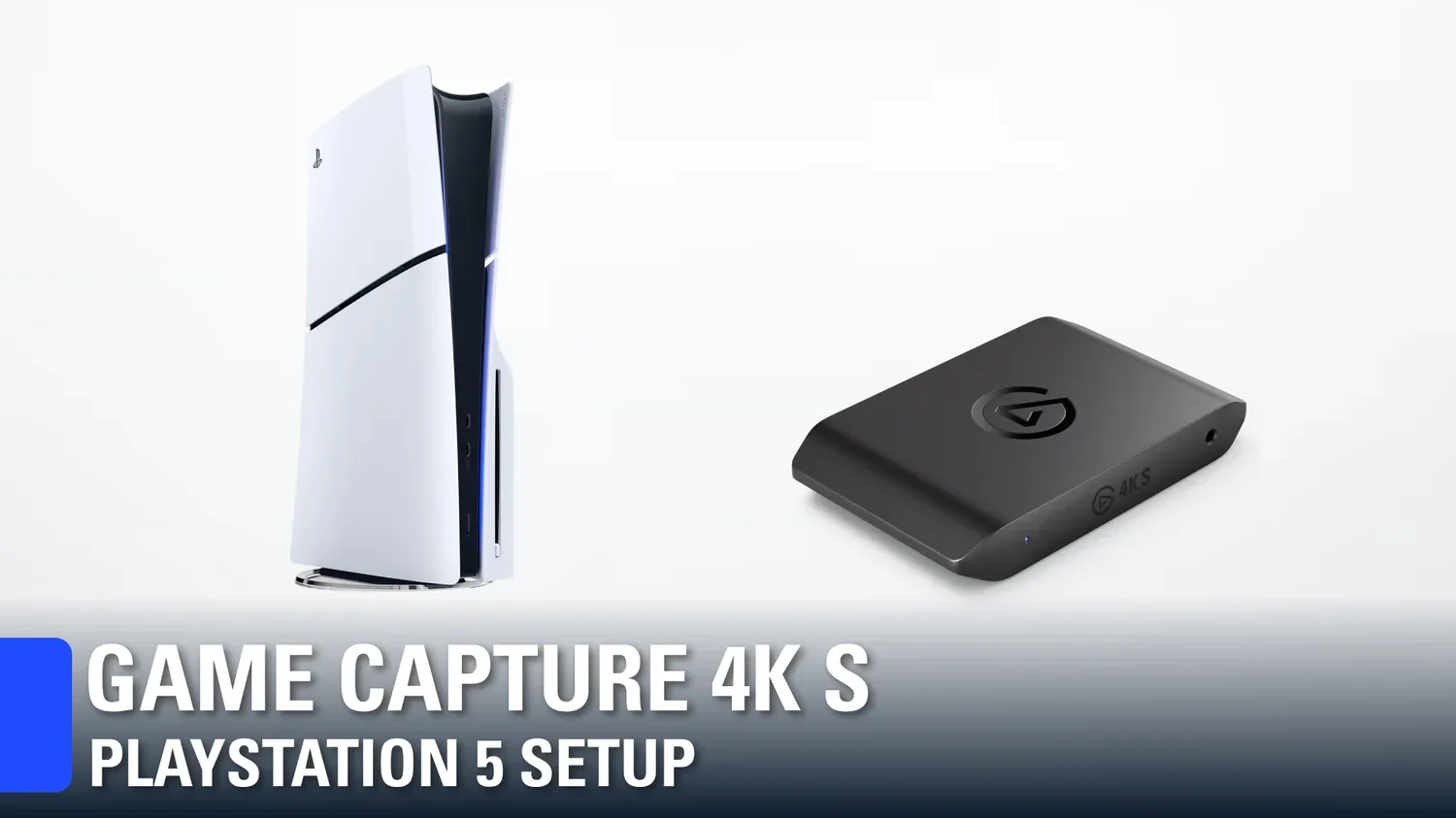
Wondering how to set up PlayStation 5 or PlayStation 5 Pro with Elgato's Game Capture 4K S? Here's a step-by-step guide!
runic quest
crisp crown
maybe you skipped a step
check this out https://www.elgato.com/fr/en/explorer/p...
thanks envy ❤️
crisp crown
not sure if the reddit post I checked back then for my similar issue would work for you because I have the HD60 X not the 4K S BUT in case will still share the link because you never know
https://www.reddit.com/r/elgato/comments/1d8ig6v/hd60x_no_signal_on_monitor/
you're welcome ! hope one of these things will help you resolve the issue !
runic quest
It works! Youre a beautiful soul @crisp crown ❤️ thanks for the assistance.
crisp crown
amazing ! glad I could help 
warped ledge
runic quest
Cuz when I plug it in on the capture software it says its not able to detect it
also make sure you turned of HDCP.
 unkempt marsh
Hi uh I just wanna ask
Although can’t remember which HD60 capture card i got (nvm k remember now. It’s HD60 X)
But does ALL the HD60 capture card covers the Nintendo switch 2?
 kind cairn
Hello everybody! I want to connect my Laptop Gameplay to my PC OBS. I would like to record both the PC and laptop gameplay via OBS but the quality the HD60X captured in 1920x1080 isnt that great, as the logos and text aren’t very smooth and sharp. I saw that I can add a Sharpen filter in OBS but i Ask you if there is a way i can make the quality better for 1920x1080 without filters. Some games look awful when adding forced-sharpen.
lone crypt
kind cairn
Hello everybody! I want to connect my Laptop Gameplay to my PC OBS. I would like...
Is the gameplay on these computers 1440p or 4k? If you're capturing 1080p gameplay at 1080p then it will look fine, but if you're capturing a higher res at a lower one, then you're obviously reducing the detail there.
You will need a higher powered capture card if you want to capture at higher resolution.
kind cairn
lone crypt
Is the gameplay on these computers 1440p or 4k? If you're capturing 1080p gamepl...
Everything is 1080p, the Windows taskbar isn’t clean, it looks blurry for example.
To fix this issue i can add Sharp in OBS, but in games (like Minecraft) the UIs looks bad.
past basin
kind cairn
Everything is 1080p, the Windows taskbar isn’t clean, it looks blurry for exampl...
Do you happen to have a screenshot? Also if it's noticeable while pixel peeping, it may be chroma subsampling - HD60 X and most other capture cards tend to default to 4:2:0, which means the colour applied over the chroma (essentialy the black and white light of the image) is truncated. This can result in minor artifacting along high contrast edges. There's some examples here - https://help.elgato.com/hc/en-us/articles/360027950532-Chroma-Subsampling-on-HDMI-Passthrough - if what it looks like (though the actual details in this article are specific to older cards for the passthrough bit - HD60 X doesn't do chroma subampling on passthrough like older ones, only on capture).
Chroma subsampling isn't usually an issue since not only do most capture cards do it, but also most streaming platforms. Overall 1080p source to 1080p capture should be clear over all.
So a screenshot would help to determine what you're actuallyl seeing
kind cairn
Check some details like the taskbar (too blury) from the first image, or the ItemsBar/HungerBar from the game (blurry/pixelated) in the second image. The third image is recorded only with OBS, no capture card and that's how i want the game to look like in 1080p.


 humble glen
you sure your bitrate isn't set to some low value? I wouldn't use constant bitrate for recording
kind cairn
In 4k Capture Utility is the same blurry look. The taskbar from the top is capture card and the bottom one is the normal one
 kind cairn
humble glen
you sure your bitrate isn't set to some low value? I wouldn't use constant bitra...
kind cairn
humble glen
you sure your bitrate isn't set to some low value? I wouldn't use constant bitra...
I've made the screenshot via OBS fullscreen preview, no video required
kind cairn
humble glen
you sure your bitrate isn't set to some low value? I wouldn't use constant bitra...
I use Constant QP 14 but this is not relevant cuz it looks bad by it, not from a recording
Moreover, i use the HDMI Cable that it came with the HD60X, the Elgato HDMI.
lone crypt
kind cairn
In 4k Capture Utility is the same blurry look. The taskbar from the top is captu...
In this screen shot it looks like the captured image is blown up a bit.
How do they look if they are scaled to the same size?
kind cairn
lone crypt
In this screen shot it looks like the captured image is blown up a bit.
How do ...
I’ve made the screenshot from 4K Capture Utility when right clicking and entering fullscreen. Thats my laptop Display Scale. It should have been much cleaner and sharp.
 plucky ore
I have the Game Capture Neo but I can't get it to appear as an option for a video capture device in Streamlabs or OBS. Can anyone help?
warped ledge
plucky ore
I have the Game Capture Neo but I can't get it to appear as an option for a vide...
Is IN connected to the Console/Gaming PC, OUT to your TV/Gaming Monitor? Also if it's a console is HDCP off? Are you connected to a USB 3.0 port on your Streaming PC?
plucky ore
Yes. Yesterday I downloaded Elgato Studio and was able to see my gameplay there but I can't get it to work with Streamlabs
humble glen
show your list of capture device sources
plucky ore
 humble glen
that's not the properties of the source
plucky ore
Sorry I don't really know what you mean
humble glen
right click the video capture device already in your sources (at the top of the list) and click properties
plucky ore
 humble glen
is the neo showing a light and does windows see that it's plugged in through USB Device Tree Viewer (https://www.uwe-sieber.de/usbtreeview_e.html)
plucky ore
Yes the light is on. I'm not sure what to do on that site. But it should see that its plugged in because i was able to see my gameplay on elgato studio yesterday
warped ledge
plucky ore
Yes the light is on. I'm not sure what to do on that site. But it should see tha...
is there one that says capture card?
Streamlabs has one specifically for capture cards now. vs video, or camera
plucky ore
I see this. But maybe i need to update or something?
 lone crypt
kind cairn
I’ve made the screenshot from 4K Capture Utility when right clicking and enterin...
lone crypt
kind cairn
I’ve made the screenshot from 4K Capture Utility when right clicking and enterin...
If you’re trying to compare the source to the capture with this scrutiny, you need to have the side by side at the same size.
You’re seeing some blur from scaling up. If you view them the same size, then you can know what ever you see doesn’t include any scaling; pixels the same size. Then any blur you see you can now is from the capture.
warped ledge
plucky ore
I see this. But maybe i need to update or something?
looks like it should be video capture via capture card, and you should see your card. also try port hopping till you see it.
 sudden lance
my obs is picking up audio but i cannot hear it at all

feel like i've tried everything
plugged into a switch 2 btw if that matters
past basin
sudden lance
my obs is picking up audio but i cannot hear it at all
Is your capture card set to have audio monitoring set to Monitor & Output in the advanced audio settings under the edit menu?
 summer tiger
Having an issue where my input is just solid green on OBS, but I can hear audio from my switch
sudden lance
past basin
Is your capture card set to have audio monitoring set to Monitor & Output in the...
yerp
summer tiger
summer tiger
Having an issue where my input is just solid green on OBS, but I can hear audio ...
My video*
past basin
sudden lance
yerp
Check under the main settings, then go to the audio section, and scroll down to the advanced section and make sure the monitoring device is set correctly - changing this often requires restarting OBS before it'll actually switch
past basin
summer tiger
My video*
What capture card are you using? And are you on PC or Mac?
sudden lance
this correct?
 summer tiger
past basin
What capture card are you using? And are you on PC or Mac?
summer tiger
past basin
What capture card are you using? And are you on PC or Mac?
Elgato 4k60 pro mk2 I think! And im on pc
past basin
sudden lance
this correct?
It is, but I meant for you to check this setting -
 past basin
summer tiger
Elgato 4k60 pro mk2 I think! And im on pc
past basin
summer tiger
Elgato 4k60 pro mk2 I think! And im on pc
Has this worked before? Is the card installed in a PCIe slot that has at least x4 lanes?
Also does that card get video if you use 4K Capture Utility or Elgato Studio intead of OBS?
summer tiger
past basin
Has this worked before? Is the card installed in a PCIe slot that has at least ...
Work in my previous desktop, not sure what that second wuestion means
sudden lance
would that be right
 summer tiger
past basin
Also does that card get video if you use 4K Capture Utility or Elgato Studio int...
summer tiger
past basin
Also does that card get video if you use 4K Capture Utility or Elgato Studio int...
Good idea, will download the elgato one
 past basin
summer tiger
Work in my previous desktop, not sure what that second wuestion means
past basin
summer tiger
Work in my previous desktop, not sure what that second wuestion means
4K60 Pro Mk2 requires a PCIe 2.0 x4 slot or higher to run - if it doesn't get enough PCIe bandwidth you can get a green screen.
You have to check the tech sheet or manual for the motherboard these days - not all phsycial slots are wired for the full size, and sometimes things like NVMe drives split off lanes from the PCIe slots
past basin
sudden lance
would that be right
Is that your normal speakers or headphones for the PC that you want to listen on?
sudden lance
yeah
past basin
Should generally be fine - do you hear any other noise from OBS and just not the current console, or do you get no sound at all?
sudden lance
yk what's weird is i just installed streamlabs and the audio works fine
and this only changed in obs after an update to my windows last night
past basin
At least that seems like it's an OBS setting and not a card problem
sudden lance
honestly if it works on streamlabs i'm chilling no big deal
past basin
Ah - try setting that Monitoring Device back to Default, or set it to something else and set it back again. Sometimes Windows updates might mess wtih audio drivers, and flipping the settings to something else and back can help
summer tiger
past basin
4K60 Pro Mk2 requires a PCIe 2.0 x4 slot or higher to run - if it doesn't get en...
Does this mean it just won't work with my computer then?
 past basin
summer tiger
Does this mean it just won't work with my computer then?
past basin
summer tiger
Does this mean it just won't work with my computer then?
That does look liek a problem. If you scroll up in the manual there should be a section with the specs of the board that has an Expansion Ports section that should confirm. But that does look like PICe x1 slots with x16 slots
I miss the days when you could still generally go by the slot size
summer tiger
 past basin
summer tiger
past basin
summer tiger
Yeah, they're all running at x1. That'll cause you issues with any of the PCIe cards newer than HD60 Pro
(except the GPU one, but your GPU needs that and it doesn't appear it works for general devices anyway)
summer tiger
I recall on my previous oc sometimes the screen would go green as well
But it would still work sometimes
Earlier today it was like green and white garbled static
past basin
Sometimes I've seen it work on x1 slot as long as it's not going above 1080p60, has the lateste firmware and all - but even then it can be unreliable since the spec calls for x4
If it was having issues previously trying to run it in an x1 slot likely hasn't done it any favours
summer tiger
How do I get it to run at 1080p60? I have my switch 2 plugged in
summer tiger
past basin
If it was having issues previously trying to run it in an x1 slot likely hasn't ...
It may have been in a x1 slot before
I havent a clue
past basin
summer tiger
How do I get it to run at 1080p60? I have my switch 2 plugged in
luck. Sadly it's not meant to run that way by design.
I've seen it work for some folks and not others. No idea what the difference is. Could be firmware, could be card hardware revisions, could be something different about the PCs. Though even if it does sometimes they report things like audio issues or glitching.
past basin
Glad it's working! Good luck with it! Keep that 1080p60 limit in mind if you upgrade to something else later though
With that motherboard you'd probably want to go with a USB card in the future if you upgrade your cpature setup
summer tiger
wi;; dp. thanks!!
 safe crescent
anyone know why when i screenshare my elgato 4kx on discord i get this loop of loading
and it wont show a picture, was working fine yesterday but now i get like a black screen

im connected to my switch 2
to my pc
spring cloak
humble glen
What color is the capture card's LED showing
Sorry for the late response. White
spring cloak
humble glen
What color is the capture card's LED showing
I got it working finally I think it was just the USB cord I didn't. Have the one from the cuptuee card. The USB 3.0 but I got one and bought a USB a 3.0 to USB c adapter I realized I didn't need anymore but thanks for reaching out

 lone crypt
safe crescent
lone crypt
safe crescent
Do you have the capture card image open in another app at the same time? USB capture cards can only be used by one app at a time.
kind cairn
lone crypt
If you’re trying to compare the source to the capture with this scrutiny, you ne...
The first image is by using the OBS TELEPORT via Network on my streaming pc and the second image is the quality when using the HD60X to my streaming pc. I see that via Network is much better, how is that possible? (You should Check both images on a big screen/PC and look at the Windows 11 taskbar for the difference). Also check the top right corner of the wallpaper in both images. Some artifact-lines are more visible in the capture card one (the right image).

 lone crypt
In this comparison, I think the difference would likely be color space and encoder settings. I don’t know about teleport; if it has any configuration.
kind cairn
lone crypt
In this comparison, I think the difference would likely be color space and encod...
The Teleport Plugin uses Network to transfer the Gaming OBS Screen to Streaming OBS
kind cairn
lone crypt
In this comparison, I think the difference would likely be color space and encod...
What i have to do? I have the same blurry image in 4k capture utility too
lone crypt
kind cairn
The Teleport Plugin uses Network to transfer the Gaming OBS Screen to Streaming ...
It encodes the feed in order to send it on the network.
Look, I see it. Just trying to tick things off the list of possible causes.
Is the canvas size in OBS the same as the capture size?
kind cairn
lone crypt
It encodes the feed in order to send it on the network.
Look, I see it. Just t...
Yes, everything is 1080p, the monitors resolutions too.
lone crypt
kind cairn
Yes, everything is 1080p, the monitors resolutions too.
Alright so… what are we missing…
For what it’s worth, I compared by old HD60S+ to a direct NDI feed and I couldn’t tell the difference. Back when I was getting it set up.
Ok so this is a duplicated display, right?
Could there be some FXAA or something else forced in the driver on that duplicate?
That would effect the monitor feed to capture card but wouldn’t effect NDI.
Or whatever that thing you used that does the same thing as NDI
kind cairn
lone crypt
Alright so… what are we missing…
For what it’s worth, I compared by old HD60S+ t...
Yes is duplicated, the HDMI in from HD60X is in my Gaming Pc(laptop) with 1 monitor.
The quality on my physical monitor is the same
kind cairn
lone crypt
That would effect the monitor feed to capture card but wouldn’t effect NDI.
Or ...
Yeah is the same as NDI
lone crypt
The capture card is a dupe though. So I’m imagining what is different. Maybe some fxaa or some scaling or something is set on the dupe.
Just trying to come up with something
What if instead of duplicating the display, you set it up as passthrough, as you would with a console?
kind cairn
The problem is that i only have 1 monitor and duplicated the screen to the HD60X? The HDMI port on my laptop is going to the dedicated gpu, not to the integrated so is ok
lone crypt
Oh it’s a laptop.
Well then that experiment can’t happen. Did you check the driver settings to see if it’s doing some forced fxaa on the duplicate?
Nvidia control panel, or AMD adrenaline; depending
kind cairn
lone crypt
Oh it’s a laptop.
Well then that experiment can’t happen. Did you check the dri...
Where to find that in nvidia control panel?
lone crypt
Should be in the menu when you right click desktop
lone crypt
This would be really strange, by the way. To have fxaa forced but not have set it that way yourself. Never seen that before.
After that… I don’t know.. could it be a limitation of the laptop? Might have limitations on secondary displays.
kind cairn
lone crypt
This would be really strange, by the way. To have fxaa forced but not have set i...
I connected the card in my USB 3.0 too, i will check for the fxaa. Is typec better than 3.0 in this case?
lone crypt
kind cairn
I connected the card in my USB 3.0 too, i will check for the fxaa. Is typec bett...
Type c is a connector. Not a speed. USB c and usb A can be any speed.
Wait… what do you mean you connected it by usb, too?
Capture card is connected by usb to stream pc.
Game pc is connected to capture card by hdmi
kind cairn
lone crypt
Type c is a connector. Not a speed. USB c and usb A can be any speed.
Wait… wh...
I meant that i’ve connected to streaming pc usb 3.0, not 2.0
lone crypt
Yeah that is required, pretty sure
All your computers ports might not be considered equal, but the connector type does not necessarily mean a port is faster or slower. A type c might even be slow or just for power, sometimes.
Something might be written on them or just verify in the manual.
But usually if the video is working and it’s allowing yuy2 mode then the port is probably fast enough. If it’s using mjpeg… actually I think that’s just for cameras, right?
Anyway. Yeah
kind cairn
lone crypt
All your computers ports might not be considered equal, but the connector type d...
Using the capture card, my Minecraft UI like the Hunger Bar has a bigger black stroke than normal. With NDI i don’t have this problem. What is the solution for this?
lone crypt
Bigger black stroke….
I’m really feeling like this is a resolution difference somehow. What else would cause that, right?
Like the game can see a different resolution and makes the game menus look different.
kind cairn
lone crypt
Bigger black stroke….
I’m really feeling like this is a resolution difference so...
Same feeling but i swear that everything is set at 1920x1080
kind cairn
lone crypt
Like the game can see a different resolution and makes the game menus look diffe...
On my laptop screen everything seems normal, and after you boot up the game, the UI can’t be changed so is not a problem with the resolutions of the game. On desktop with nothing open, the taskbar is too blurry and weird, that means that the problem isn’t the game.
Do i need to make changes in 4k Capture Utility?
lone crypt
In capture utility you can set the capture card settings, wonder if something in there is not right?
It’s as if the card is capturing a slightly lower resolution and then scaling it up. That’s how it feels
kind cairn
do Other settings in this App exist rather than these?


These are the NVIDIA Control Panel settings.

 lone crypt
Man, I’m really running out of ideas.
I’m not really the capture card black belt around here but it seems like you’re doing everything right.
Game computer is a laptop? I wonder if the hdmi port has some difference about it. Laptops sometimes do that kind of thing
kind cairn
lone crypt
Man, I’m really running out of ideas.
I’m not really the capture card black bel...
Yeah i am trying with a laptop
The HDMI Port is 2.1 so it should support
lone crypt
Any hdmi port will support 1080p60
So it wasn’t a laptop before? I thought you said it was
kind cairn
lone crypt
Any hdmi port will support 1080p60
Just tested with another hdmi cable directly to a monitor and tbe quality is good
So the problem is not the port
lone crypt
Ok now put the capture card the middle of that, so it goes hdmi to capture in, the capture out to display. As if you’re capturing a console.
kind cairn
lone crypt
Ok now put the capture card the middle of that, so it goes hdmi to capture in, t...
Changed the hdmi cable and plugged with the capture card, and in OBS still low quality
kind cairn
lone crypt
Ok now put the capture card the middle of that, so it goes hdmi to capture in, t...
Ok so plugged the HDMI Out to a monitor and is low quality on the monitor
So the HDMI Port is fine, the HDMI Cables are fine, the problem is from the HD60X or something from the laptop...
CHATGPT:
“If you’ve already set everything to 1080p 60 FPS and it still looks bad through the HD60 X passthrough, then the issue is almost certainly color format / range negotiation between your laptop → HD60 X → monitor."
Some months ago I tested this capture card with an typec ipad and it looked great in 1080p or 1440p
kind cairn
lone crypt
Ok now put the capture card the middle of that, so it goes hdmi to capture in, t...
LOL Bro i did something and it is great now.
I found out that when i leave fullscreen now, it goes back to the low quality, but when i fullscreen the game, it is very sharp and good
lone crypt
Ok so the system is not sending correct 1080p when you’re not in full screen; and capture card is scaling up or something.
So is this full screen exclusive, or borderless full screen… or, doesn’t really matter but these are things to test.
I bet this is a quirk of the laptop
kind cairn
lone crypt
Ok so the system is not sending correct 1080p when you’re not in full screen; an...
Found out that on older Minecraft versions like 1.12.2, in fullscreen it works great, but on newer versions it looks bad.
kind cairn
lone crypt
Ok so the system is not sending correct 1080p when you’re not in full screen; an...
Ok but the Windows itself still looks bad, the problem for this what is it?
lone crypt
My current best guess is there is something funny about how this computer handles external displays on that port. I'd be reading the manual and such
kind cairn
lone crypt
My current best guess is there is something funny about how this computer handle...
I've changed the fullscreen resolution from "Current Resolution" to the same but manually 1920x1080 165hz and now it is ok.
past basin
keen cloud
Can ELGATO HD60X WORK ON RAZER EDGE YES OR NO ?
Assuming you're trying to use the Edge to capture video with, and not capture video from, No. That's not something that's officially supported
 ivory iron
I have an Elgato Neo capture card. Whenever I change the resolution in Valorant, the whole game becomes glitched, and my display is 2K, but the resolution automatically switches to 4K.
I play on 4:3 it used to work but i got new Monitor now its not working
warped ledge
ivory iron
I play on 4:3 it used to work but i got new Monitor now its not working
console or PC?
ivory iron
warped ledge
console or PC?
PC
i am not able to play on 4:3
Valorant i didnt tried other games but i play mostly valorant
WTF even native also not working
i chagned input EDID to meged and native res started working
 strong quarry
Does anyone know if the Elgato 4K Pro can passthrough 720p signal for PS3? They only mention it can capture it
past basin
strong quarry
Does anyone know if the Elgato 4K Pro can passthrough 720p signal for PS3? They ...
Anything it can capture, it can pass through.
strong quarry
past basin
Anything it can capture, it can pass through.
So why isn't it mentioned? I guess it's an outdated resolution for a monitor
past basin
strong quarry
So why isn't it mentioned? I guess it's an outdated resolution for a monitor
It's in the second chart on the resolution listing - https://e.lga.to/4K_Pro_Resolutions . But yeah, isn't on the top chart, likely as if everything were there it'd scale off the page too much.

Elgato
This is a list of supported passthrough and capture resolutions. For each input resolution, the supported capture resolution is supported by 4K Pro.
These resolutions and frame rates do not consi...
strong quarry
Thanks 👍
keen cloud
Ok
 echo zephyr
im a little confused, could someone help me?
i have the game capture hd from 2013 and i want to get sound capture to work
echo zephyr
im confused about quite alot and there's like 0 guides about this device other than just how to set it up
like bare minimum
past basin
echo zephyr
im a little confused, could someone help me?
Voluneteers are in and out thorugh the day so it's best to leave your question with as much details as possibe and if someone knows the answer they'll get back to you. What specifically are you running into trouble with, with sound capture?
echo zephyr
yeah, i wanna be able to stream my ps5 to my friends on discord
past basin
Oh, you're talking capture card's sound feed, not the Sound Capture app that came with Game Capture HD.
Does the sound work in other apps like Game Capture HD? You can grab that from https://help.elgato.com/hc/en-us/articles/360027964072-Elgato-Game-Capture-HD-Software-Release-Notes-Windows if you don't have it already
Elgato
Below is a comprehensive list of Elgato Game Capture HD software releases.Still using Windows 7? Download Game Capture 3.2 here.Please Note: Elgato Game Capture HD60 S and Elgato Game Capture 4K60 ...
If it works in other apps you may just need to check that Discord is using the right device for sound - location of that setting changes a bit depending on if you have Nitro or not, so it's easily overlooked
Eg, if you don't have Nitro it's donw on this little gear in the bottom right when you'ore setting up the device capture options

If you do have nitro that page doesn't have that option, so it'll be right front and center on the next page

 echo zephyr
but i have the game capture hd
like the product from 2013

this little thingamajig
past basin
echo zephyr
but i have the game capture hd
Yes, I got that. It originally uses the Game Capture HD app, so that's why I wanted to make sure you get sound in there first, to make sure everything else is setup right.
If there's no sound in the capture software itself then we look at how you have the PS5 connected
echo zephyr
i mean it's really nothing much, just a power cable and hdmi going to the capture card
past basin
Yes, but there's a bunch of settings on both the card and the PS5 that can be wrong, and if a headset is connected to the PS5 things get more complicated. So do you hear audio from the card when using the capture app? We need to know if this is a discord specific issue or not
echo zephyr
i do hear the card
tbh, i was first a little confused with the sound capture but then figured it out, what i now need help is to fix the delay with the capture card
past basin
You may not be able to do much about that - Game Capture HD is a old USB 2.0 based card, it relies on compression to get the video to the computer over a 2.0 cable, which adds a notable amount of video latency
echo zephyr
so i need to get another card for less latency?
past basin
Depends on if you're just trying to lower the latency in Discord or not. If the issue is trying to play the game, the reason the card has a HDMI OUT is so you can use passthrough mode that won't have that latency with another screen
echo zephyr
yeah it's just kinda boring that if i have the dongle of my headphones on my pc, the audio will be delayed, and if it's on my ps, i won't be able to hear my friends
past basin
oh, the audio delay. You can try using something like Chat Link instead so you can get audio from the console headset direct and split it off to the capture card (which has to be set in Analog audio mode - I'm honeslty not 100% how to set that for Discord as the older cards set it per app at the driver level). That said then your headset isn't connected to the PC for discord.
hm
You could use a mixer or mixamp but that can get a little pricey
Personally I use a Steelseries Arctis Nova Pro which has a GameDAC I can connect to the PC and console at the same time to get around issues like this
That said you could also use the audio from the console and run your discord from the PS5 version of Discord to hear your friends
echo zephyr
but the problem is i need to be able to stream the game
and im tired of using youtube streaming
past basin
You can still use the capture card while you're using console discord though? (though you'll need another mic on the PC to mix your own voice in on the computer).
echo zephyr
and.. how do i stream to my friends from the capture card then if im on call on console discord?
past basin
Oh I missed describing a step - I meant using two accounts so you can join from both systems at the same time
echo zephyr
you know what i'll just get a newer graphics card at some point lol, thank you for trying to help me of course!
past basin
That's probably the quickest way to get the latency down. There's still a touch with th enewer cards but it's measured in milliseconds (like 30-70ms), compared to the old cards where it could be a half second or so
In the short term, consiuder the PS remote play app and screen capture that with Discord instead. The latency should be lower than a 12 year old capture card.
 regal cedar
Ive been having issues with game capture neo and was wondering if anyone knew a fix, i have eevrything set up exactly how it should be but every time for some reason i only see a black screen
humble glen
regal cedar
Ive been having issues with game capture neo and was wondering if anyone knew a ...
What device are you trying to capture, what's the color of the status light on the capture card when everything's been setup, and is the USB plugged into a proper 3.0 or higher speed USB port on your streaming PC
 humble glen
have you already went through this? https://help.elgato.com/hc/en-us/articles/35977221307153-Nintendo-Switch-2-Troubleshooting-Video-and-Audio-Issues-with-Elgato-Capture-Devices
regal cedar
yeah
no luck unfortnatly
im trying this specifically on my switch 2 but its like this with all my consoles
humble glen
Do you have Elgato Studio or 4K Capture Utility installed in order to view the device's firmware version
regal cedar
humble glen
Do you have Elgato Studio or 4K Capture Utility installed in order to view the d...
yo thank u, it was because i was using a 2.0 slot instead of a 2.0 and the elgato studio told me that
thanks for ur help
 royal junco
hi i need audio help i have no clue what im donig i have an elgato hd60x and its all working but when i stream, the audio doesnt go to the stream on discord and its just silent
humble glen
royal junco
hi i need audio help i have no clue what im donig i have an elgato hd60x and its...
make sure you select the audio device in the little settings menu on the bottom right
 royal junco
oh what the frick thats a thing? ok let me see
im NOT sure which to choose im going to be honest
 humble glen
the one named elgato ofc
royal junco
oh im stupid
royal junco
humble glen
the one named elgato ofc
can i ask why my stream doesnt load? im streaming. the audio works now thank you. but when i choose hd60x it just keeps loading
humble glen
Probably discord being discord, try restarting the app or do what I do which is just using a OBS projector using audio monitoring instead
royal junco
humble glen
Probably discord being discord, try restarting the app or do what I do which is ...
THATS WHAT IM TRYING 😭
But it doesn't work
Audio doesn't transmit and my voice just echoes
humble glen
you're trying to do an OBS setup? Screenshot your advanced audio properties if you are
 royal junco
humble glen
you're trying to do an OBS setup? Screenshot your advanced audio properties if y...
royal junco
humble glen
you're trying to do an OBS setup? Screenshot your advanced audio properties if y...
well anything works as long as it works lmfao
humble glen
you're monitoring your mic if that's on purpose, you're supposed to monitor the video capture device
royal junco
i send it to vb audio cable
voicemeter or smth
i use monitor and output for the filter i believe?
idk how it works i think its
i speak -> goes to mic -> goes through obs filter -> goes to voice meter banana -> discord
royal junco
humble glen
you're monitoring your mic if that's on purpose, you're supposed to monitor the ...
when i put monitor and output, my friends just hear my splatoon audio without stream
humble glen
you then do a fullscreen source projector on your video capture
Since I just use passthrough on my main monitor anyway, I just pull up the source projector then switch my input over
then share my entire screen (or just OBS if you want them to only hear what's coming from OBS)
royal junco
humble glen
you then do a fullscreen source projector on your video capture
it doesnt work i dont understanddddd
its on monitor off for video capture device and they cant hear my switch audio
i put it on monitor on and output then they hear it regardless of whether or not im streaming
humble glen
it's because of your voicemeeter setup, I don't personally do that
royal junco
humble glen
it's because of your voicemeeter setup, I don't personally do that
what alternative do i have/
humble glen
you can do the Discord device streaming, just make sure OBS is fully closed before trying to stream it to Discord or remove the video capture source. UVC devices (including most modern USB Elgato Capture devices) on Windows can only be used by one process at a time
royal junco
humble glen
you can do the Discord device streaming, just make sure OBS is fully closed befo...
i use my switch through obs preview though
 feral garnet
I have a PS3 and a splitter so I can display it to the Elgato Studio but it won't appear on the game capture at all. Also, when it does display on the studio so I can just show my friends what I'm playing, the video is stuttering. Is there anyway I can fix that in the settings or any other fix I can do? The audio is completely fine, the video is the only thing suffering
oh wait nvm i fixed it 👍
ruby rover
Hey Team, lately I have had no video output using my HD60S after bringing my PC out of sleep.
When I disconnect the USBC cable, the computer bluescreens. CY2018 or something if I remember correctly. Once I get it restarted, it works as normal.
lone crypt
ruby rover
Hey Team, lately I have had no video output using my HD60S after bringing my PC ...
Sleep is really buggy on x86 CPUs. especially around peripherals. one of the many things arm is much better at)
It might be something to do with the power state of usb ports that changes when the cpu goes into sleep, so you could check on that.
Look up usb selective suspend, and maybe the other power options there.
But after trying those things, if it doesn’t work on that system, then it probably won’t. And the recommendation would be to not use the sleep state. Or at least don’t use it when perineal are connected.
ruby rover
dang okay.
frozen pollen
past basin
Just a note, 59 here is actually 59.94 which is NTSC standard broadcast version ...
Completely missed the msg! I use dual pc set up, monitor is 180hz but I want 60fps recording
The only way I get monitor to stay at 60 is by setting it manually on windows settings when I start recording (every time, windows resets it) while setting EDID to desktop monitor so it will stick to 60 as well.
frozen pollen
frozen pollen
If I use refresh rates higher than 60 I get this weird ?cropping at the bottom o...
Any ideas why this occurs? I’ve seen a similar issue before here but can’t find it anymore
I have an additional question:
in the AMD adrenaline software, are there any recommendations in terms of game settings so I won’t have screen tear?
You’ll find my endless search for a recording without tear here🤣
Vic helped me a LOT but I’ve recently found I have unnoticeable tears, but they are still present!
I wonder if it is amd settings
 main ridge
Elgato Studio not displaying my cap card elp
past basin
main ridge
Elgato Studio not displaying my cap card elp
What capture card are you running?
main ridge
4k X
past basin
Any errors? Also are there any lights on the capture card?
main ridge
past basin
What capture card are you running?
past basin
main ridge
It's seeing the card, and that the card has signal there, it's just not getting video. This can often happen because another app is trying to use the card at the same time - common culprits are things like virtual cameras such as NVidia Broadcast, or video conferencing apps. If you check in Windows 11 camera privacy settings you can also see a recent activity section that'll tell you what apps may be using the card (since Windows sees it as a camera) so you can check if anything unexpected is calling out to a camera and possibly the card. While in the privacy settings you also want to make sure it's set to allow both apps, and Desktop apps to use cameras on the system.
You may also want to test 4K X with 4K Capture Utility from https://help.elgato.com/hc/en-us/articles/35731668493841-Elgato-4K-Capture-Utility-1-7-15-Release-Notes to make sure this isn't just an issue with Studio
Elgato
What’s new in 4K Capture Utility 1.7.15? 🔁 Firmware update 24.12.10 for Game Capture 4K XThis firmware version is a recommended update and comes with these improvements:Enhanced HDMI pass-through t...
I'd also try restarting the PC if you haven't already
main ridge
woking in the cam app aswell but not the elgato studio
past basin
frozen pollen
Completely missed the msg! I use dual pc set up, monitor is 180hz but I want 60f...
Can't say I've seen that video artifacting before, but my first guess would be HDMI cable isn't fast enough or is impaired. My second guess would be EDID problems, in which case you can try changing the input EDID in 4K CApture Utility or Elgato Studio to see if either Internal or Display mode clears it up (sometimes the gaming computer will need to be restarted to pick up the change)
main ridge
Elgato 4K Capture is fine its the elgoto studio
past basin
main ridge
woking in the cam app aswell but not the elgato studio
Can you go to the Windows Camera Settings, find 4K X and check if you have the Windows update with the Advanced features option there? If you do, disable the option for multi-app support - it can break capture with some apps
main ridge
past basin
Can you go to the Windows Camera Settings, find 4K X and check if you have the W...
dont see it
past basin
Not the camera app, the Windows Camera Settings. under the main Windows Settings. Go to Settings in Windows, and type Camera in the search and select Manage Cameras, then find 4K X there and go to the settings for it to see if the advanved options are avialable
main ridge
this part
past basin
main ridge
this part
That's the the earlier bit I asked about, yes. Not the current setting to check.
Though make sure NVidia Broadcast's camera options aren't set to default to your capture card either (since the card is working with 4K Capture Utility I suspect it's not, the more likely culprit is if you have the most recent 24H2 updates with the multicam function that doesn't play nice with capture cards)
frozen pollen
past basin
Can't say I've seen that video artifacting before, but my first guess would be H...
Noooo not the EDiD🤪
I am using a very high quality hdmi so I’d be upset if it was a bad one
I’ll see if internal solves it but honestly I’m more concerned of screen tear than this issue haha
past basin
Does it happen if you lower the resolution? That might indicate if it's a potential cable hiccup. I'd also check for any kind of dust or dirt that might have gotten into any of the connectors. But I can't see I've seen that particular pattern of video issue before
past basin
main ridge
this part
Apparently I missed part of that video when I checked earlier. Yeah that option is off. If Studio still isn't working, and rebooting didn't help either, I'd check with the support team through #official-tech-support Since the card is workign in other apps the most likely issue is a Studio bug.
(Though I'd also check for updates in the app if you have had it installed for more than a few days)
main ridge
past basin
That's the the earlier bit I asked about, yes. Not the current setting to check...
just finish doing ddu unistaller from save mode. and reinstalling grapics driver again with out nvida broadcast and ill see if it workks
frozen pollen
past basin
Does it happen if you lower the resolution? That might indicate if it's a poten...
haven't tried resolution, but it happens at higher Hz
interesting! will check for dust
main ridge
now its working

 long walrus
Hi all, i need some help with my elgato hd60x capture card. I tried searching everwhere but couldnt find anything. I downlaoded the elgato studio and its displaying my game but when i try get it on my main monitor where i normally play my ps5 its just a balck screen and switched back to my pc app were the game is on/ IF ANYONE CAN HELP, WILL BE MUCH APPRECIATED.
long walrus
nevermind boys fixed the poblme
 tough halo
audio from my 4K X started getting crackly last night - tried rebooting the pc, reconnecting the USB, still getting it - any ideas? it's only audio from the device, other audio sources are clean -_-
lone crypt
tough halo
audio from my 4K X started getting crackly last night - tried rebooting the pc, ...
Started last night; is that in the middle of a capture session? What changed? Different usb port? Any other devices added? Anything in the audio system changed? (not necessarily this device but others)
tough halo
lone crypt
Started last night; is that in the middle of a capture session? What changed? Di...
middle of a session, audio just started crackling - I have two other 4K X's I only use occasionally (for other consoles)
trying to test those now, just noticed there's a firm ware update, so might pop those on first
wish they all didn't show up with the same exact device name, haha
lone crypt
Middle of the session throws out basically all my good answers (guesses)
And a reboot replug didn’t fix it.
So doesn’t that rule out basically everything? Haha
Besides cable failed…. Right in that moment?
But I think we would expect cable failure to knock out the feed by lowering the usb speed.
tough halo
hmm, maybe it's a system thing, was finally able to get a different 4K X & hdmi cable to output in the Elgato Utility - but can't get it to show up in OBS now
seems wonky all around - maybe I can do some kind of driver reinstall
lone crypt
You aren’t trying to view two apps at the same time, right?
tough halo
nah, i make sure to close one before opening the other
let me do a fresh reboot and just open OBS right away in case maybe the utililty has a deathgrip on it
ok, a reboot with another elgato 4k x seems to be working, will do some more testing when I don't have to start up the stream 30 min ago lol
I appreciate the help @lone crypt !
lone crypt
You’re welcome for explaining nothing. Haha
 bold ferry
does anyone know how to get rid of the delay for the elgato on obs it feels like my device has about a 3 second delay i think my device is the Elgato Game Capture HD from like 2013
humble glen
bold ferry
does anyone know how to get rid of the delay for the elgato on obs it feels like...
Your only fix is upgrading to a newer card that does an uncompressed stream with USB 3.0 speeds or higher. Or going with a PCIE card
USB 2.0 cards have a delay due to their video having to be compressed
bold ferry
got ya would it make a difference if i put the capture card into the usb 3.0 port
past basin
bold ferry
got ya would it make a difference if i put the capture card into the usb 3.0 por...
Depends on the capture card
One 4K X and 4K S which have MHPEG support using some of the higher modes can also result in extra delay from the compression.
bold ferry
past basin
Depends on the capture card
this is the one i use
 past basin
bold ferry
this is the one i use
past basin
bold ferry
this is the one i use
Ah, no that card is USB 2.0 itself, so even on a 3.0 port it'll only run on 2.0 mode
past basin
bold ferry
do you know what i would have to set my mic and music sync offset
I don't offhand, it'll vary a bit by system to system anyway. Your best bet to use a tool to figure it out - worst case make a recording where you clap your hands or make a noise in game, then load the video into an editor where you can see the audio and look for the spike from the noise and figure out how many frames off it is. There used to be some web tools to do that for you, though it's been a while since I've looked them up
bold ferry
got ya
past basin
If I get a minute from work in a bit I'll see if I can find one of the sites, but I don't have them on hand at the moment
bold ferry
its fine but thanks for all your help i think i will think about upgrading soon
lone crypt
I think even if you know the exact latency of the card, your system may vary a bit from that and your mic and camera likewise have their own latency.
So the move is to measure your latency with your exact configuration running.
Use something like this https://youtu.be/TjAa0wOe5k4?si=ZvSGHlEqkDoMEr3V
record a bit. Include your camera and clap your hands to slate.
Then zoom in on the recorded frames in an editor and measure everything. You’ll likely have to do this a few times to get all the sync offsets correct.

H.264 download: http://link.twitch.tv/synctest-h264
ProRes download: http://link.twitch.tv/synctest-prores
bold ferry
thanks i will check that out
 native kindle
Hey Im using a 4K X on my xbox and on my PC everything is setup so it works with Obs studios. Is there a way when I know I wont be recording that day to play on my xbox without turning the Pc on ? I dont want to have the pc running 2 days in a row when I know I wont record anything.
humble glen
native kindle
Hey Im using a 4K X on my xbox and on my PC everything is setup so it works with...
Does your PC still supply power to the USBs when it's off?
pretty sure that's all passthrough needs on the card anyway
native kindle
humble glen
Does your PC still supply power to the USBs when it's off?
Hmm I dont know :/ unfortunately
humble glen
The capture cards do have light indicators
native kindle
If my Pc is out Im not getting a signal on my Monitor even if the xbox is on
native kindle
humble glen
The capture cards do have light indicators
Ill try
humble glen
Most Bios options can allow you to have it supply USB power when off as well
native kindle
humble glen
Most Bios options can allow you to have it supply USB power when off as well
Ive read something like that
Ill check if my motherboard has that feature
past basin
If you PC doesn't have that option the next best thing is powered USB hub. We don't usually suggest hubs if you can avoid them since mileage can vary on how compatible they are and some cause issues - but they usually work okay as long as they're the right speed (10 Gbps / 3.2 Gen 2 for 4K X or faster). Just make sure it's returnable if it's not compatible with your setup.
native kindle
It worked with the Bios settings but now I have the next Problem after I have enabled the option to have usb power always on when I open obs the record is not showing the right screen at least not on the obs window. But when I double click on settings on the 4k x it shows it. Any ideas how to fix that ?
 past basin
native kindle
It worked with the Bios settings but now I have the next Problem after I have en...
past basin
native kindle
It worked with the Bios settings but now I have the next Problem after I have en...
While you have the card selected in the sources list press CTRL-F to snap the video to the full OBS canvas
past basin
Probably accidentially clicked and dragged the edge or something
There's some key commands for moving things around too
 hazy quiver
hey, im trying to connect my fx30 to 4k capture utility but its just a black screen.

i thought the problem was me not having an sd card but i read you dont need one for hdmi connection
ivory iron
I have elgato neo and i am not able to play on 4:3 res idk why i am using mirror method
it used to work before
past basin
hazy quiver
hey, im trying to connect my fx30 to 4k capture utility but its just a black scr...
What is an FX30 in this context, and what capture card are you using?
past basin
ivory iron
I have elgato neo and i am not able to play on 4:3 res idk why i am using mirror...
Neo doesn't officially support 4:3, so I'm surprised it was working before. I've never seen one pick up 4:3 before so I'm not sure community support will be able to help you with this one.
You could try different input EDID modes if there's a monitor attached to the HDMI out to see if the monitor's 4:3 mode would get picked up, but that's all that comes to mind
ivory iron
past basin
Neo doesn't officially support 4:3, so I'm surprised it was working before. I'v...
i just want my game to run on 4:3
past basin
You can check if official support if the EDID settings don't help you - but again that card doesn't officially support any 4:3 aspect ratios so they may not be able to help either
If it's dual PC you could disable display scaling to psuh a 4:3 on a 16:9 then crop on the streaming PC
ivory iron
past basin
If it's dual PC you could disable display scaling to psuh a 4:3 on a 16:9 then c...
thats not the issue the problem is my game does not open with 4:3 res it glitch out but if i unplug the capture card eveyrhting works great
past basin
It's probably because Neo doesn't have a 4:3 EDID. Did adjusting that do anything? Like I said the best chance of that working at all is if the monitor in the HDMI OUT has a 4:3 EDID to actually send the device a 4:3 mode, so you'd want to test with Input EDID mode set to display
 scarlet apex
Hi, I just bought the HD60 X to stream my PS5 on Twitch. I’ve connected all the cables properly and downloaded the Elgato software, but after turning on my PS5, the interface doesn’t appear. Could you please help me?
past basin
scarlet apex
Hi, I just bought the HD60 X to stream my PS5 on Twitch. I’ve connected all the ...
Did you already disable HDCP on the PS5?
past basin
The second video on this page shows you how to turn that off https://help.elgato.com/hc/en-us/articles/5329003032973-Elgato-Game-Capture-HD60-X-PlayStation-5-Setup
It's Higb Bandwidth Digital Content Protection so blocks capture
past basin
If you're setting it up on PS5 for the first time, this is the usual hiccup, so most likely
past basin
No problem, good luck with the new card
scarlet apex
one last thing sir, how can i have my PS5 interface on my first monitor (in full screen) and at the same time have my obs on the second screen pls
past basin
Right click the capture card in your sources and go to the open projector options, you can project the video to the other screen
scarlet apex
thank u so much
lone crypt
scarlet apex
thank u so much
Or better yet, patch the hdmi from the capture card outout to the display you want to see it on! (Right?)
So you’d be switching inputs on that monitor to show the passthrough of the console.
I’m assuming you don’t have a dedicated display for the console.
Maybe that’s not better for you, but. An option
scarlet apex
The HDMI output from the capture card is already connected to the HDMI 2 port of my main monitor, but when I switch to HDMI 2 on the monitor, it says there's no signal.
lone crypt
Hmm. Well that’s supposed to work. Passthrough is generally what you’re intended to play a console on since it’s the lowest latency.
Some aspect of the signal out of range for that display?
scarlet apex
I don’t know haha, I’m not very familiar with this stuff. And by the way, do you know how to get the console sound into my headphones that are plugged into my computer?
past basin
It might work if you set it to HDMI 2 first, then turn on the card and console. Sometimes if the monitor isn't set to the HDMI port already it actually powers off so the console and card may boot up not thinking it's there to pull EDID info from (which has all the display settings to make sure it uses a compatiblle signal)
scarlet apex
alr it worked
i tried few times
and i worked
thanks guys
and for the sound problem ? do u have any advices ?
lone crypt
What sound problem is that?
scarlet apex
scarlet apex
I don’t know haha, I’m not very familiar with this stuff. And by the way, do you...
this is not a problem but i dont know what to do
past basin
In advavned audio settings (gear on the audio panel, or from the edit menu) set the capture card monitor mode to Monitor And Output - OBS adds things iwth audio monitoring off by default.
Other than that, it should just be adding the card, nad the audio should be there
scarlet apex
on obs ?
past basin
Sorry I'm in and out here this morning - I may have mixed you up with another user. What app are you using the capture card with?
past basin
Yeah, then change the setting in OBS. Advanced Audio Properties is under the edit menu, then there's a monitor option you'll need to change there
(as in audio monitor in this case, not a display, but it's just called monitor)
 obtuse trench
Hi. I just got my 4K S yesterday. And when i record my PS5 PRO gameplay (via Elgato Studio), the gameplay footage is sped up.
How can i fix this?
lone crypt
Sounds like the frame rate must be mismatched somehow
obtuse trench
lone crypt
Sounds like the frame rate must be mismatched somehow
is it possible to passthrough 1440p120 while recording at 1440p60?
lone crypt
Yeah should be. Depends on the capture card but that one should be fine.
If it’s sped up, it would need to be either playing back at the wrong frame rate, which means the meta data is wrong or the recording or playing app is writing/reading it wrong. Right?
obtuse trench
how do i change the recording format in elgato studio?
i can't seem to find it
it always set/fixed to 1440p120
past basin
not currently available in Studio (likely to be added in future updates as they're adding in features that 4K Capture Utility has over time). For now if you need to adjust something Studio cannot do, use a third party app like Meld Studio or OBS Studio
obtuse trench
past basin
not currently available in Studio (likely to be added in future updates as they'...
ahh i see, ok.
i can do that with OBS but i was wondering if it's possible to just use Elgato Studio, since the quality of the footage and file size is better than OBS.
past basin
Generally the quality of OBS should be even more adjustable than Studio, but currently no, Studio doesn't support that at the moment
obtuse trench
past basin
Generally the quality of OBS should be even more adjustable than Studio, but cur...
yes, but i compared elgato and OBS with roughly the same quality, Elgato footage seem to be smaller than OBS.
I'm just being nitpicky, but yes no worries. i'll just use OBS for now
thank you @past basin @lone crypt
fickle dragon
Filesize is a factor of bitrate. Elgato Studio may be recording at a lower bitrate. Quality can be a factor of both bitrate and encoding efficiency.
Controlling fps, bitrate, and other quality settings is coming in the future.
 dry bluff
hello, i want to start recording ps5 gameplay footage and im curious about resolutions. My 4K tv doesnt support 1440p so i also cant set my ps5 to 1440p. if i use elgato 4K S capture card is there a way to capture 1440 even if my tv doesnt support it ?
past basin
dry bluff
hello, i want to start recording ps5 gameplay footage and im curious about resol...
Yes, but not while you have the TV hooked up to it, as that'll not get signal like that. Well not direclty - you could capture on hte PC and hook your TV to the GPU instead and use something like OBS projector to send a scaled up version of the 1440p capture to the TV.
humble glen
Couldn’t you just downscale the capture to 1440p by limiting the capture card to it, and still pass through 4k
past basin
humble glen
Couldn’t you just downscale the capture to 1440p by limiting the capture card to...
Yes, you could passthrough and capture 4K and downscale to 1440p. I've assumed since they're trying to set the PS5 to 1440p they're likely after the performance of running in 1440 mode instead of 2160. But good catch I may have minunderstood the ask
hazy quiver
past basin
What is an FX30 in this context, and what capture card are you using?
FACECAM 4K FX30
past basin
hazy quiver
FACECAM 4K FX30
Facecam 4K is just called Facecam 4K, where is FX30 coming from here? Is this the camera you're using? https://www.elgato.com/us/en/p/facecam-4k ?

Elgato
Our most powerful Facecam yet, capturing Ultra HD video at a smooth 60 frames per second. With DSLR-like control and a suite of cinematic effects, it even supports lens filters—a first for webcams.
hazy quiver
past basin
Facecam 4K is just called Facecam 4K, where is FX30 coming from here? Is this t...
yes
wait no
fx30 is my camera
im using the el gato 4k capture
or whatever its called
past basin
. . . okay to confirm you DON'T have a Facecam 4K. You're using some other camera called FX30? What capture card are you using with it?
hazy quiver
past basin
. . . okay to confirm you DON'T have a Facecam 4K. You're using some other came...
bro
the 4k camlink
past basin
Okay - you threw me there because Facecam is a brand
Cam Link and camera questions generally go in #camera-prompter
hazy quiver
past basin
Okay - you threw me there because Facecam is a brand
Ok
hazy quiver
past basin
Cam Link and camera questions generally go in <#1080643564616286288>
i dont have an el gato camera
past basin
hazy quiver
i dont have an el gato camera
I get that now - that's why you threw me when you said you did here

I'm assuming that was supposed to be Cam Link 4K
hazy quiver
yea
dry bluff
also if i use a 1080p monitor with the ps5,can i set it to output and capture 1440p footage through capture card even if my monitor doesnt support the resolution ?
past basin
If you're using passthrough ,then no, the card cannot pass through 1440p to a 1080p screen. If you force 1440p that way the monitor won't get a signal