#capture-cards
1 messages · Page 64 of 1
 stuck trail
 past basin
Tonemapping from 10 bit HDR to to 8 bit SDR that uses a different gamma curve is pretty problematic at times - often folks apply custom LUTs (lookup tables) for each game in OBS to correct for the shifts.
stuck trail
past basin
Tonemapping from 10 bit HDR to to 8 bit SDR that uses a different gamma curve is...
Basically applying a specific tonemapped setup for each game they play?
past basin
stuck trail
It's on right now, what do you mean?
It's ourtight designed to prevent capture cards from working with it. That means you're splitter is also interfering with copy protection and likely affects the EDID.
stuck trail
past basin
It's ourtight designed to prevent capture cards from working with it. That mean...
So the problem could be the splitter?
past basin
stuck trail
Basically applying a specific tonemapped setup for each game they play?
Applying colour correction to the tonemapped video,
past basin
stuck trail
So the problem could be the splitter?
It might be. Some of those bypass ones are kinda buggy, especially if HDCP is trying to force itself back on
Is there a particular reason for the splitter instead of just using the HDMI OUT on the capture card?
stuck trail
past basin
Is there a particular reason for the splitter instead of just using the HDMI OUT...
When HDR was on with my TV some of my games, the TLOU2 was either going straight black after a few minutes of gameplay or wouldn't boot. So I looked it up & people said use a splitter. So I got one & set it up.
It also can possibly be the EDID settings of the splitter but right now it's set to all 0-0-0
past basin
I've no idea what that means for that specific splitter, but if it's affecting a video issue you had previously, it's definitely affecitng something.
I'd try removing the splitter, set the EDID input mode to Internal on the card and see if the game still has issues.
Also make sure HDCP is off on the console first
stuck trail
Plus without the splitter I can't even record my PS3 with my Elgato 4K X. I have to get a separate capture card, and so the PS3 is straight black 24/7 without it.
past basin
Apparently Last of Us II has known issues with HDCP
past basin
stuck trail
Plus without the splitter I can't even record my PS3 with my Elgato 4K X. I have...
Just use it with the PS3 then. No HDR or anything for it to throw off there
That's because PS3 has always on HDCP, it can't be turned off like the 4 and 5
stuck trail
past basin
Just use it with the PS3 then. No HDR or anything for it to throw off there
No like it with the Elgato 4K X, HDR or not, it was black only.
stuck trail
past basin
I've no idea what that means for that specific splitter, but if it's affecting a...
I've done this setup earlier today & that's how I fixed the colors when I change it to the splitter. This specific capture card (not the model, the literal card) has given me a plethora of issues since day 1.
past basin
stuck trail
No like it with the Elgato 4K X, HDR or not, it was black only.
Yes - because it has always on HDCP. You have a bypass splitter that's removing it. But it's causing issues with the PS5 signal likely. So test the PS5 without it, and HDCP off, and only use the splitter when you're using the PS3
On PS4 and PS5 you can turn HDCP off in the video options - that wasn't available with PS3
stuck trail
past basin
Yes - because it has always on HDCP. You have a bypass splitter that's removing...
Let me look up my splitter manual because I've done this before. I didn't have the splitter for a long time & HDCP was always off & I know the colors had been off at random a few times before. But I'll still check again one sec.
past basin
If you have the manual make sure it's a HDMI 2.1 capable splitter too as 4K X is a HDMI 2.1 card. Otherwise If you use a mode like 4K120 it won't keep up right.
stuck trail
That's the manual for my exact splitter I'm using.
past basin
Can you remove that file - because those bypass splitters are not legal in many places we're not supposed to discuss them on the server. An model is enough detail to be an issue
That still has the model info
stuck trail
That's what you asked for. You asked for the model to detail the issue.
stuck trail
past basin
I asked you to check if it was a HDMI 2.1 capable one.
I just was sharing the documentation so info can be cross-shared. But yes, it is a HDMI 2.1 capable one.
past basin
but we can't leave the model up there
In any case your washout issue looke like tonemapping. I don't know 100% why it's going on and off, but splitters are known to cause EDID mismatch issues, and HDCP is known to cause issues with the last of us II all on it's own when I look it up. So I'd test the PS5 with the thing removed, and HDCP turned off on the console, to see what things look like
If you want to leave HDR on, on the PS5, then tonemapping is going to wind up being part of the equation if you want to stream to Twitch anyway, since they don't support HDR though
The fastest way to get accurate colour to Twitch is going to include disabling HDR on the console. With the splitter out and HDR and HDCP off we want to see if you still get colour shifting issues.
Once we have everything consistent we can sort out anything else that needs sorting then (eg not point in fixing color issue yet if they keep changing on us)
 umbral parrot
This is a bit of a crazy question... would the new elgato network adapter thing for stream decks theoretically would that work on a capture card too? And let me broadcast that via network?
past basin
No, not enough bandwidth
umbral parrot
How much bandwidth woild be needed it is usb to ethernet and a cat5e can do 2.5gbps so...
past basin
For example HD60 X requires a USB 3.0 connection that runs at 5 Gbps (without TCP/IP overheads). 4K X uses up to 10 Gbps
Also I doubt the adapter for Stream Deck will go above 1 Gbps since they're all based on USB 2.0 480 Mbps connections (and don't even use all that)
There are ways to do video over network but generally they require encoding at the source to compress things
 opaque crow
When I have elgato studio open, is there a setting in the program to prevent my PC's monitor from sleeping while it's running?
It's typically playing a fullscreen video feed with audio, so it's weird it doesn't stay awake through that
 warped ledge
opaque crow
It's typically playing a fullscreen video feed with audio, so it's weird it does...
warped ledge
opaque crow
It's typically playing a fullscreen video feed with audio, so it's weird it does...
You might have to check a Windows setting. That might not be an application related issue.
 crystal lake
I am using the new Elgato Studio and even with the 4K Capture Utility, my PS5 image freezes on the app. The PS5 doesn't freeze and I can still hear the game, but I have to close the app and then reopen it for it to work. Is that common?
 brave radish
Yoyo i'm back from time to time as usual 😄 any news for 5120 x 1440 with Elgato 4k pro ? just seen the new product but i guess its not gonna w ork too for my use ?
past basin
crystal lake
I am using the new Elgato Studio and even with the 4K Capture Utility, my PS5 im...
That shouldn't be a common issue, no. What capture card are you using, and what videio options (resolution, HDR, VRR, Refresh Rate, etc) are you capturing at?
past basin
brave radish
Yoyo i'm back from time to time as usual 😄 any news for 5120 x 1440 with Elgato...
Nothing official I've heard of yet. You might be able to run that at a custom EDID on 4K Pro, but given the sheer number of pixels there I don't know what sort of refresh rate you'd get out of it, if any.
brave radish
yeah i already have sometimes the capture card doing "no signal" flashing and then game captures back boring doesn't happen much but happens ^^
past basin
Have you reached out to support to see if they can help there? In edge cases like this it may help to duplicate the EDID directly from the monitor to load onto the card to ensure timings match correctly. That little bit of cutting out is usually a very small offset in the timings not matching up between things correctly. Though given the unsupported resolution that may not help either
brave radish
not really and support seems hard they ask for the reference of the card etc and i'm lazy to dismount it from the pc 😄
 fair hawk
hello guys so im streaming with dual pc setup and elgato hd 60 pro and when i game without it im at 240 fps when i lunch obs and dupplicated my screen i go down to legit 60 fps i dont really know what to do i wanna stream lol my device seems old but on all the other game than apex is fine i stream for like 2 years no problem
 lone crypt
fair hawk
hello guys so im streaming with dual pc setup and elgato hd 60 pro and when i ga...
lone crypt
fair hawk
hello guys so im streaming with dual pc setup and elgato hd 60 pro and when i ga...
Yup, the issue is with your GPU not being willing to scale the resolution and frame rate of the duplicate display to be different from the main display.
Nvidia GPUs did this well for many years but recently they forgot how to write a good driver and many problems happen.
Instead, you can set the capture card output to extend desktop instead of duplicate. Select the res and frame rate you capture at.
Then run OBS on the game computer add a display capture source. No need to encode anything, just right click the preview and select preview projector, and pick your capture card from the list. OBS will scale it to the res and frame rate of your capture card.
The old controls for scaling the duplicate display was in nvidia control panel.
If your GPU is not 50 series you might be able to roll back to a driver that worked right, but might give up some new game compatibility by doing so.
This is coming up a lot.
The OBS projector solution is really great though and does it all very smoothly. OBS is amazing and this also gives flexibility to have it help with audio routing if you needed it to. Very good option.
(One of us needs to make a video about this because I’ve typed it too many times lately!)
fair hawk
@lone crypt does this work on a dual pc setup?
lone crypt
That’s the only time it would work.
OBS sends the picture to the capture card, and does all the scaling needed so the card is happy and you can have any res and frame rate you want on your main display
lone crypt
If you’ve kept your nvidia drivers up to date, then I expect they are the issue. But it’s ok this solves it and makes you not rely on the GPU for any of this
But feel free to play around with scaling the duplicated display in nvidia control panel settings if you want.
fair hawk
Duplicated display seems to be the issue
I speak french in tryna understand what I need to do but ill start by reroll my driver I think
right now seems i only see the background lol
lone crypt
Ok. Sorry for the language barrier. Drivers from before the 50 series cards came out should work better.
lone crypt
fair hawk
right now seems i only see the background lol
That probably means the capture card is on extend desktop… it’s acting as a second display. Instead of a duplicate of the main display
(That is what you would use if you do this OBS method)
lone crypt
I’m suggesting you run OBS on the game computer,
Add a display capture. And then right click the preview in OBS and start preview projector > to the capture card.
crystal lake
past basin
That shouldn't be a common issue, no. What capture card are you using, and what...
The 4KX, I am capturing a PS5, HDR off, VRR off at 120 on a 1440P display. The settings I provided are from the PS5 except for the 1440P display which is where I am viewing the content.
 humble glen
we're so back. Can confirm the fix works

 leaden mist
I bought an Elgato 4K X a month ago and all it has done is been an absolute nightmare. Every 20-30 minutes it loses signal. I haven't been able to stream consistently due to that happening. I have tweaked power settings and made sure no usb device or display can be put to sleep in my stream pc.
- How do i get the 4K X to STOP losing input signal?
 warped ledge
leaden mist
I bought an Elgato 4K X a month ago and all it has done is been an absolute nigh...
warped ledge
leaden mist
I bought an Elgato 4K X a month ago and all it has done is been an absolute nigh...
only 1 app at a time can use use the capture card.
warped ledge
leaden mist
I bought an Elgato 4K X a month ago and all it has done is been an absolute nigh...
as for the loss in signal, try a different USB 3.2 or 3.0 port.
make sure all the cables are securely connected
leaden mist
warped ledge
only 1 app at a time can use use the capture card.
yes. I know this. I was sharing both to show what i was using as hardware. thats not how i use the capture card
leaden mist
warped ledge
as for the loss in signal, try a different USB 3.2 or 3.0 port.
I only have one 3.0 USB-C port in my stream pc.
 static latch
I tried recording my nintendo switch 2 on my computer but it's so glitch and slow
warped ledge
static latch
I tried recording my nintendo switch 2 on my computer but it's so glitch and slo...
are you using an external dock, or directly to the PC?
warped ledge
leaden mist
I only have one 3.0 USB-C port in my stream pc.
sorry message above was for you
warped ledge
static latch
I tried recording my nintendo switch 2 on my computer but it's so glitch and slo...
can you list the specs on the capture card?
static latch
Nv the other port on the computer was better
leaden mist
warped ledge
are you using an external dock, or directly to the PC?
directly to the PC. i have a suspicion that the usb type c port in my motherboard is a 2.0 and outdated which might be why it keeps losing signal. will need to confirm it otherwise i could use a power block for the usb c.
however, not sure what is being transmitted through the usb-c.
i assume audio/video is routed through hdmi and usb-c is just for power?
 kind sparrow
ok so im not exactly sure what im missing here. so i dont have wave link. i have beacns mixer. wouldnt that be able to split it as well?
warped ledge
leaden mist
directly to the PC. i have a suspicion that the usb type c port in my motherboar...
USB-C transfers Data, and Power.
leaden mist
warped ledge
USB-C transfers Data, and Power.
i know that a pinout for a USB-C can transfer data and more information. i assumed the USB-c was being used for power. is there a pinout of the USB-C? what data is being sent through it?
warped ledge
kind sparrow
ok so im not exactly sure what im missing here. so i dont have wave link. i have...
what about wave cast if you're doig dual pc?
warped ledge
leaden mist
i know that a pinout for a USB-C can transfer data and more information. i assum...
everything via HDMI and the aux.
leaden mist
warped ledge
everything via HDMI and the aux.
so HDMI video/audio is sent through HDMI. the aux is the audio and it travels through the HDMI.
or
you mean that the USB-C is taking the data from the HDMI and the HDMI is just being used for a video/audio feed but the data is being sent through the USB-C?
warped ledge
leaden mist
so HDMI video/audio is sent through HDMI. the aux is the audio and it travels th...
this part, USB-C is taking the data from the HDMI and the HDMI is just being used for a video/audio feed but the data is being sent through the USB-C
you can use audio over hdmi or aux depending on party chat
leaden mist
warped ledge
this part, USB-C is taking the data from the HDMI and the HDMI is just being use...
okay that makes sense. hm going to check my motherboard to see if its a true usb-c 3.0.
as far as audio over hdmi I had that setup which explains why the audio was always working but the video capture wasn't.
warped ledge
leaden mist
okay that makes sense. hm going to check my motherboard to see if its a true usb...
that's probably sue to 2.0 vs 3.o on the port
leaden mist
warped ledge
that's probably sue to 2.0 vs 3.o on the port
thats what i think it is, which means i need to upgrade my stream pc. it has an MSI Z390-A Pro mobo
kind sparrow
warped ledge
what about wave cast if you're doig dual pc?
so wavecast wont work on the streaming PC. says OS is too old
which i dont understand since its windows 11
warped ledge
kind sparrow
so wavecast wont work on the streaming PC. says OS is too old
you can do this...
 warped ledge
kind sparrow
which i dont understand since its windows 11
warped ledge
kind sparrow
which i dont understand since its windows 11
check the mobo manufacturer and see if there is 3.0
kind sparrow
welp i was wrong. streaming pc is windows 10
kind sparrow
warped ledge
you can do this...
ok so with this option i would still need a different cord then
leaden mist
@warped ledge so my motherboard the MSI Z390-A Pro (in my stream pc) does have a Gen2, Type C 3.1 USB port which is how the Elgato 4K X is plugged in.
 leaden mist
experimenting by downgrading my Nvidia drivers to see if its more stable. so far so good. also had a memory leak and fixed that
 grizzled sky
For some of my clips on the HD60S on valorant I seem to be experiencing screen tearing on my capture, what could be the issue?
Could it be the mismatch of my monitor 280 hertz and my capture 60? Should I bump down my monitor to 240?
 marble halo
I still get code 28 after downloading drivers (from the side) for HD60
past basin
marble halo
I still get code 28 after downloading drivers (from the side) for HD60
What's the specific model number on bottom of that card? And which drivers did you get - the Game Capture HD app or the standalone drivers themselves?
marble halo
Oh it does not have a model number on the bottom,, I think it was on the sticker n it came of ages ago Ill have to google it. The game capture hd app and the drivers
past basin
Does it show up under either cameras or Sound controllers in Device manager? Some of the cards have two parts to them and can get stuck if only one half installs with the other not getting updated. Sometimes moving the card to another driver can help as well.
If it's the original HD60 make sure the USB Mini B cable is rated for USB 2.0 as well - if it's got a 1.x cable it might not carry enough power to operate the card correctly
 past basin
marble halo
it shows up in other devices and sound, video, game controlers
past basin
marble halo
it shows up in other devices and sound, video, game controlers
Sound Capture is a virtual device installed by Game Capture HD the app, you can skip that.
marble halo
Oh okay
past basin
That said that looks like Game Capture HD under other devices, not HD60. I don't work with the older cards that much, but I wouldn't have expected that? Happen to have a pic of that card?
marble halo

 past basin
Huh, yeah, that's not what I'd have expected. Fair enough though, since technically the full name is Game Capture HD60
And you grabbed the standalone driver for HD60 from this link, or somewhere else? https://help.elgato.com/hc/en-us/articles/360027961152-Elgato-Hardware-Drivers
Elgato
Elgato Hardware Drivers - Windows 10/11A UVC (USB Video Class) device is plug-and-play hardware that uses built-in Windows drivers, eliminating the need for proprietary installations. Devices like ...
You might also want to tell it in Device Manager to check drivers, if it'll let you select the update option on the drivers tab of the properties
marble halo
past basin
Huh, yeah, that's not what I'd have expected. Fair enough though, since technic...
Oh
marble halo
past basin
And you grabbed the standalone driver for HD60 from this link, or somewhere else...
Yes
How do I tell it to check drivers? it says install but idk if thats it
past basin
Could be - I don't have a device without drivers to confirm what that option looks like these days
marble halo
ah okay
past basin
Generally moving it to another USB port on the PC should trigger a reinstall of it too as Windows will see it as a different copy of the same thing
marble halo
nothing happening
leaden mist
well, singlehandedly the most frustrating "upgrade" ive made. went from a razer riptide that just worked to the Elgato 4K X which continues to lose signal and freeze.
- Drivers are up to date for the Elgato 4K X
- Only one USB-C 3.1 on my stream pc motherboard which the Elgato 4K X is directly plugged into
- Doesnt matter if I use the Elgato Studio or OBS. It loses signal and freezes.
- I'm on Windows 11
- All USB drivers are updated
- Reverted and then updated the Nvidia drivers. I'm on an Nvidia RTX 2070 for my stream pc
- Fixed a memory leak with my 32GB DDR4 3200Mhz RAM.
Continuing to tweak and troubleshoot, but this device has caused me more annoyance than anything. I've set the USB port to never sleep thereby the data should ALWAYS be sending/receiving. Audio never fails. I always have audio but video I always lose after 20-30 mins. That's one month of streaming and one month of having to reset the device every single stream.
IS there an update to fix this issue? Not a workaround but a legit software update that will fix this issue?
 urban knot
is 4K S better for Switch 2 then 4k X ?
leaden mist
urban knot
is 4K S better for Switch 2 then 4k X ?
I've had nothing but problems with the 4K X.
Seriously considering returning it, and reverting back to my Razer Riptide then upscaling the output from 1080p to 1440p for twitch.
leaden mist
Theres a few issues I'm noticing:
- windows 11 is having issues with usb-c type connections. This doesnt happen on windows 10.
- If you start elgato studio it will run in the background and prevent obs from working properly.
Going to uninstall elgato studio and 4k capture utility as their just bloatware. Then install the drivers for the capture card directly from elgato to see if that fixes it. Basically elgato needs to work on their software and provide an update to fix the compatibility with windows 11 changes.
 past basin
leaden mist
Theres a few issues I'm noticing:
1. windows 11 is having issues with usb-c typ...
past basin
leaden mist
Theres a few issues I'm noticing:
1. windows 11 is having issues with usb-c typ...
Do not run both apps at the same time - only one app can access a USB capture card at the same time.
There is no driver for 4K X - it uses the OS's UVC driver as do all the other UVC cards since HD60 S+.
If you're having USB issues after upgrading to Win 11, especially the latest Win 11 builds with the planned USB Driver changes, make sure you update your motherboards UEFI/BIOS and your chipset / USB controller drivers - especially if you have an ASMedia (or AMD since they use the ASMedia designs) based cards as the MS included USB Drivers for those have a history of issues.
Studio is fully Win 11 compatible, it's so new it only even eft beta in the last month. 4K Capture Utility should be too. Neither should be triggering USB malfunction errors - that's generally a hardware issue or a driver issue (and you're using the Win 11 provided USB Driver there, not anything Elgato wrote).
Do you get the same issue if you use a different USB port using a USB C to A adapter, or a different USB-C to A cable (has to be at least 5 Gbps to work with 4K X, 10 Gbps is better as some modes require 10)
past basin
urban knot
is 4K S better for Switch 2 then 4k X ?
Think of it like the Xbox X and S lines. X is the higher end one. Both should work with switch 2
past basin
marble halo
nothing happening
Nothing changes in a different USB port, even if you only moved the card after installing those standalone drivers, not the Game Capture HD app? And you tried another USB 2.0 mini b cable?
urban knot
Will the 4k Pro work with Intel i7 6850k? or does it specifically need to be gen 8 +?
leaden mist
past basin
Do not run both apps at the same time - only one app can access a USB capture ca...
- I know this. The issue is that if you run elgato studio FIRST, it runs in the background because elgato studio is bad software.
- UVC was what was appealing in the first place.
- BIOS is updated. USBs are updated.
- 4K capture utility fails to run on win11. Studio runs but I'm not using it to stream with.
- I only have ONE USB-C 3.1 slot on my motherboard for my stream pc. It outputs 10 GB/s
The issues may very well be my motherboard. But I highly doubt it as my blackmagic design 4K intensity AND my Razer Riptide both work on the same stream pc with the same hardware. THUS it makes me doubt the reliability of the elgato codebase and it's interaction with windows 11. Meaning, it is a software issue dealing with windows and how it interacts with the device itself. There's a few routes that could be as I don't know how the USB-C on the elgato 4k x is programmed. Since I don't have a pinout and how you wrote your software, I can't fix the issue or tell you "hey, this is the problem. here's a solution that i had that fixed it."
past basin
leaden mist
1. I know this. The issue is that if you run elgato studio FIRST, it runs in the...
What do you mean by pinout? It's a standard USB-C pinout for a data connection.
leaden mist
past basin
What do you mean by pinout? It's a standard USB-C pinout for a data connection.
just because it's pinout is the same, doesn't explain the logic applied to the pinout. when you program hardware, you actually give logic to the pin so it knows what to do based off bytes.
i could wire up the usb-c and cool itll apply power and a few things but other pins will not do anything until i give them information to do sometehing with. the data thats sent for audio/video through it has information. that information is programmed to interact with the device and be translated by the usb-c in/out and then translated by the cpu, ram, gpu etc
then that information/data is converted and boom you have audio and video
past basin
It's a standard data pinout, the card converts everything to a datastream and transmits as data - this isn't something like pin x is video.
Which is why you can try the card with a USB-A adatper as mentioned earlier if you only have the one USB-C port (just make sure it's at least 5 Gbps minimum)
It's a standard UVC connection, so you can base any concerns about layout to standard USB Video Class documentation.
humble glen
The software doesn't matter if OBS shows this same issue. It's either your motherboard's USB hub's bandwidth is already being taken up which can be fixed with unplugging other USBs, getting a dedicated USB PCIE card, or your specific capture card is most likely defective. As a last ditch that wouldn't be much of an effort is the USB 3.1 port could be connected to the chipset instead of being handled by the CPU, so try updating your chipset drivers if you haven't.
 native kindle
Hey I just bought an 4k x and I want record gameplay on xbox but also on pc is that possible with one setup ? To switch from whatever source I want to record ?
leaden mist
humble glen
The software doesn't matter if OBS shows this same issue. It's either your mothe...
- USB bandwidth isn't overloaded.
- I do have a PCIE usb I can install and test.
- i doubt the Elgato 4K X is defective
- All drivers are updated and current. Went through and updated every single driver in device manager.
Likely i have a defective motherboard and something is wrong with the usb-c to the mobo
native kindle
I dont get how to use the 4k x with my pc Im looking everwhere. Everybody shows how to use it with a console but Nobody use it just for the pc.
humble glen
native kindle
I dont get how to use the 4k x with my pc Im looking everwhere. Everybody shows ...
as in using it for a dual PC setup?
native kindle
humble glen
as in using it for a dual PC setup?
Nope just for a single pc
humble glen
it can't capture anything by itself like the older 4k S+ was able to, it won't give you any performance benefits
native kindle
How do I capture it on my pc ? Just with the 4k capture utility ?
humble glen
you're best off just using your GPUs built in hardware encoder with OBS if you're just wanting to record something on your PC
native kindle
I thought the quality would be better with the 4k x ?
leaden mist
native kindle
I thought the quality would be better with the 4k x ?
- what streaming program are you using?
-obs studio
-streamelements
-other - single pc simplifies things and makes it easier.
native kindle
leaden mist
1. what streaming program are you using?
-obs studio
-streamelements
-other
2. s...
No streaming I wanted to start a youtube channel after getting a few 10K views on some vids I uploaded. So I just want to record stuff and edit it later. I also want to record from my series x thats why I bought the 4k x. I would like to set it up to switch to whatever source I want to record from without switching cables if thats possible.
Wanted to start recording from my pc tomorrow.
humble glen
oh you didn't mention the xbox
leaden mist
native kindle
No streaming I wanted to start a youtube channel after getting a few 10K views o...
I didn't ask if you were streaming. I asked what program you're using. Regardless of whether you're making content for youtube or twitch, you're likely to use one of those programs to record/stream the video.
native kindle
humble glen
oh you didn't mention the xbox
Wanted to start with pc anyway. But later I also want to record from series x
leaden mist
The program you use helps us figure out how to best help you and guide on getting the capture card to work as each programs setup is different
native kindle
leaden mist
I didn't ask if you were streaming. I asked what program you're using. Regardles...
I thought of starting with elgato 4k capture utility cause thats what the device is from 😅
humble glen
If you want to stream your PC it's simply done easily through software like OBS as your PC's graphics card should already have a hardware encoder and doesn't involve a capture card. If you want to use the 4K X on your Xbox, the HDMI cable output from your Series X goes into your Capture Card's (4K X) Input, and the output of the Capture Card goes to your TV or monitor for the passthrough. The USB-C connection goes into your PC
native kindle
I have not used anything by now. Its years ago I recorded something with the hd60 plus or something
leaden mist
native kindle
I thought of starting with elgato 4k capture utility cause thats what the device...
I've not had success with 4k capture utility actually running. You'd have better luck with Elgato Studio to record if you want to stick with Elgato's propreitary software
native kindle
humble glen
If you want to stream your PC it's simply done easily through software like OBS ...
Tryed to set it up like this but it kept saying device is in use elsewhere thats why I wanted to at least get recording from my pc to work cause thats what I need tomorrow.
native kindle
leaden mist
I've not had success with 4k capture utility actually running. You'd have better...
What do you think is the best to capture Gameplay from Pc ?
leaden mist
native kindle
What do you think is the best to capture Gameplay from Pc ?
It depends on how tech savvy you are. If you're new to recording this then I'd recommend Elgato Studio to start with. OBS studio is easy but you'll spend an hour or so learning the ui and seting up your scene and sources. It's not hard but it does take a little time and familiarity.
native kindle
Ok then I will start with elgato studio but I will switch to OBS once I have a bit more time.
leaden mist
For example, OBS studio can capture your display which would require $0 and no need for a capture card.
That's for recording gameplay on the pc
but for recording xbox, you will need the capture card.
native kindle
How is it with Elgato Studio do I need the 4k x to capture with that ?
leaden mist
I use Elgato Studio to get updates for firmware thats it
It works. It's user friendly and you should get a plug and record experience out of it.
native kindle
Nice sounds good. Thanks for your help I really appreciate it.
One last thing
Is it possible to set it up and use my pc and xbox to record without switching cables and stuff with the 4k x. Cause that would be the perfect solution for me.
humble glen
4K X works with both Elgato Studio, 4k Utility, OBS, or anything that can take a camera input. Capture cards basically act as a microphone and a webcam
leaden mist
native kindle
Is it possible to set it up and use my pc and xbox to record without switching c...
Yes. In obs you can set up multiple scenes to record different sources
you can have one scene for the xbox, and one scene for the pc
then with sources you can select the display you want to capture and record
humble glen
native kindle
Is it possible to set it up and use my pc and xbox to record without switching c...
Are you using a monitor or a TV?
native kindle
humble glen
Are you using a monitor or a TV?
Monitor
 surreal horizon
hey i just downloaded the elgato Studio and for some reason my mic is not being recorded with the gameplay
leaden mist
humble glen
4K X works with both Elgato Studio, 4k Utility, OBS, or anything that can take a...
It simply passes video and audio data through usb-c from one device to the pc it's plugged into.
humble glen
native kindle
Monitor
is your PC hooked up through displayport or HDMI to your monitor? and does your monitor have multiple HDMI ports
native kindle
humble glen
is your PC hooked up through displayport or HDMI to your monitor? and does your ...
Hdmi and yes the Monitor has 2 Hdmi Ports
humble glen
if they're not populated with anything else you can simply change the HDMI input on your monitor's controls
native kindle
I think the xbox needs to be connected to the elgato and then streamed to the pc to record.
humble glen
yeah the Xbox goes to your capture card first in the input port, then you can use the capture card's output port to your monitor
native kindle
humble glen
yeah the Xbox goes to your capture card first in the input port, then you can us...
But then I dont have any program on xbox t capture I guess
humble glen
your PC will do the capturing through the USB port in the middle
native kindle
humble glen
your PC will do the capturing through the USB port in the middle
Ah damn thats nice 🤣
Im so new to this stuff
O man
Im getting old 😝
So I want to use the Pc tomorrow to record like I said
Elgato studio is downloaded the 4k x is connected
Driver is updated
It still says no signal
How do I start to record 😅
humble glen
there's a big record button at the bottom
native kindle
Its greyed out
humble glen
it'll need a signal first
native kindle
So do I still ned to put my pc into the elgato and then to the monitor to redcord from pc ? Or just put in the usbc ?
Sorry for that dumb questions
humble glen
just the USB port
The PC gets everything it needs through the USB
Your Xbox will need to be on, and it's HDMI connected to the capture card's HDMI Input port, and the HDMI Output can go to your monitor to get the lag-free passthrough
native kindle
Im still getting no signal the usbc is connected to the pc
And the driver was updated
humble glen
your Xbox is on and connected to the input of the capture card?
humble glen
yeah both your PC and Xbox will need to be in use
if you want to just record your PC you'll need to dip into OBS studio
native kindle
but I just want to record my pc gameplay
why ? I thought CVUSMO said its possible with elgato studio
humble glen
Elgato Studio only interfaces with their capture cards and doesn't do PC game recording
OBS is pretty simple to setup for basic use nowadays especially since there's a setup wizard when it's first launched
humble glen
like with layouts of your OBS or just how to start with a basic desktop capture
native kindle
how to start with a basic desktop capture but I already captured something but the quality is really bad changed it to 4k now and will try again
is there something like center that can be used while playing ?
humble glen
could you show your output recording settings in OBS?
mainly want to know what encoder it's set to and it's bitrate
 humble glen
it would be in the output tab which is the 4th one
but be aware that 4k video recordings will be really huge in disk size if you want to output in that
native kindle
But isnt that why I bought a 4k x for ?
Even if Im not using it now to record from my pc 🤣
humble glen
The 4K X is just a HDMI capture card which can capture the output of a device like a console
your current use case is only for capturing the Xbox to your PC
Do you know what graphics card you have?
native kindle
Rx 7900 xtx
How do other people record the gameplay not in 4k ?
Any Idea why the sound is that bad ? Quality is good but the sound is awfull.
warped ledge
native kindle
Any Idea why the sound is that bad ? Quality is good but the sound is awfull.
Are you connected to a USB 3.0, 3.1, or 3.2 port?
marble halo
past basin
Nothing changes in a different USB port, even if you only moved the card after i...
Yeah
 jaunty elm
warped ledge
Are you connected to a USB 3.0, 3.1, or 3.2 port?
jaunty elm
warped ledge
Are you connected to a USB 3.0, 3.1, or 3.2 port?
Cuz I’m pretty sure that the 4k x won’t work with a 2.x (x=variable on the 2.x thing) cuz of the communication speeds between 2.x ports and 3.x ports
warped ledge
jaunty elm
Cuz I’m pretty sure that the 4k x won’t work with a 2.x (x=variable on the 2.x t...
Correct, you need at least 3.0
jaunty elm
warped ledge
Correct, you need at least 3.0
On my pc like every port is 3.x even the top 2 ports are 3.x (I think it’s 3.1)
warped ledge
jaunty elm
On my pc like every port is 3.x even the top 2 ports are 3.x (I think it’s 3.1)
Then you should be OK. Make sure that when you are port hopping that you listen for both sound and check for video to make sure that both are good. Also make sure nothing is plugged into the port either the left or the right of it because the ports are likea tree they share power.
jaunty elm
warped ledge
Then you should be OK. Make sure that when you are port hopping that you listen ...
It’s a ROG strix g10dk


 waxen eagle
static latch
How do I record audio using delgato
humble glen
waxen eagle
static latch
How do I record audio using delgato
humble glen
Elgato Studio already captures audio from your capture card, are you asking on how to put your mic in the capture?
static latch
waxen eagle
Have you checked out: https://help.elgato.com/hc/en-us/articles/37231557626129-E...
So I just put it in the capture card and it will record what I say
waxen eagle
You have to configure a Microphone with it
static latch
How do I do that
humble glen
Elgato Studio currently doesn't have mic support, either use OBS Studio or the older 4K Capture Utility
waxen eagle
Ah there we go. Sorry haven't used it yet. Saw the section on Mic permissions and see its related to the Elgato audio specifically.
static latch
How do I record audio in 4k capture utility
past basin
static latch
How do I record audio in 4k capture utility
In settings in the upper right, got to the mic tab and setup your mic. It'll record a commentary track along with your video
past basin
marble halo
Yeah
In device manager under the properties for the card, under the details section, what is the VID and PID for that card? It should look something like this with different values. If you have a HD60 and installed the HD60 drivers from the site, and restarted the system you should not be getting a driver uninstalled error. Would like to confirm that it's not something like a HD60 S in a HD60 shell as I've seen that come up once before on a used card.
 past basin
native kindle
but I think the video quulity is good now just the sound is off
past basin
native kindle
but I think the video quulity is good now just the sound is off
Do you have a clip of what things sound like for you at the moment?
leaden mist
used multiple usb ports and the elgato 4K X still has issues with a steady data stream. its like the display goes to sleep after 20 mins. im able to use my blackmagic design intensity pro 4k and my razer riptide through the same usb ports and they are reliable. no issues. for now, im going to put the 4k X on the shelf and wait for a firmware update as the issue stems from the firmware, not my hardware.
past basin
leaden mist
used multiple usb ports and the elgato 4K X still has issues with a steady data ...
Consider reaching out to #official-tech-support if you're hitting issues. If it's not something getting reported, it won't get an update.
Also when you updated your USB Controller drivers did you note what brand it was? If it was ASMedia or AMD make sure you updated to a version not tagged with (Microsoft) as some of the 10 Gbps ASMedia/AMD controllers have known driver problems with the driver included with Windows (though usually that presents as audio). You want to make sure you have the OEM one.
What firmware is your 4K X currently on anyway?
The Riptide also appears to be 5 Gbps USB 3.0 devices not 10 Gbps USB 3.2 Gen 2 like the 4K X. The " blackmagic design intensity pro 4k" is coming up as a PCIe card so that wouldn't hit the same issues anyway. Any chance it's the Shuttle? That's what comes up for USB versions of the Intensity - in which case it's also 5 Gbps USB 3.0.
Going back to your original post, you're losing signal, not USB connection. You appear to have the EDID set to Display. Do you actually have a display connected in the card's passthrough / HDMI OUT port? If not set that to Input EDID mode to Internal. That error screen you see in OBS comes from the card - that implied the card isn't losing USB connectivity, but having actual issues with signal. Most likely culprit is EDID there, unless your console is outputting something like VRR that's out of range of the card (which should also get capped on an Internal EDID).
leaden mist
past basin
Consider reaching out to <#842491937038925865> if you're hitting issues. If it'...
tomorrow ill gather all the data and submit an official report. i appreicate the help and think we've narrowed it down to the issue. realy want to be using the 4k x but for now reverting to an older capture card
the display is connected to the HDMI OUT that i use as my main monitor. I'm not using a console. This is PC <-> PC
will read through this again in the morning when im fresh. thanks for insight and for the help again
 versed dust
hey I got the elgato studio app and was wondering if it had more latency then obs. I sometimes like to watch through my computer what I am playing on my tv so what is a better more responsive passthrough obs or elgato studio? Or are they the same. I hate the elgato 4k capture utility because it has so much latency
past basin
versed dust
hey I got the elgato studio app and was wondering if it had more latency then ob...
It was built to have lower latency than our previous apps - comparison to OBS would depend a bit on your setup, and hardware running it - but it does seem similarlly low.
Passthrough would still be more responsive than previewing with any app though.
Since passing through to the HDMI OUT bypasses most if not all of the internal processing.
versed dust
I know but still I have a set up where I have my tv ontop and my monitor on the bottom. I have a high end set up with a nvidia gpu. So would it be obs or would they be about the same?
past basin
About the same. It can differ based on your setup so really the best bet is to try it yourself and see which one works best for you
versed dust
thanks
ill be damned they are about the same but the studios passthrough quality is so much better
past basin
That took me a second to parse sorry - passthrough is specifically for the HDMI OUT to a TV or monitor, as in the signal litereally passes through the card.
Preview is what you're playing on in the app (and is technically the captured video).
Odd that the preview would be different between them though - maybe OBS's canvas is set lower
 wheat oar
So I am looking for help and direction here:
I stream from my PC and my Xbox. When I stream from my Xbox it is just my Xbox screen. The PC I am able to use OBS and include some bells and whistles. I was looking to make my stream more seamless and improve quality no matter what device I stream from. After doing some reading on reddit I purchase the Elgato HD60X. My first issue arose. My PC is roughly 30 feet from my console/TV. The USB 3.0 cable needed to connect the card to my PC was way more expensive than 2 - 30 foot gold plated HDMI cables. So I bought those and ran the cables. Now I am finding that when I stream using OBS with the HD60X as the video capture device I have game audio but no mic audio. I found a tutorial of how to get everything setup that was supposed to include audio, (turning on party/headset audio on xbox) as well as some OBS settings. That obviously didn't work. Now after further research I am assuming that the only way to get microphone audio included in my stream is a chat link pro. This brings me to another issue. My headset is wireless and has no aux port. Plus again the capture card is 30 foot from the console.
Do I have any options to include microphone audio (mine & teammates in game, party chat) without spending another nearly $100 for a long enough USB 3.0 cable to relocate my capture card closer to the console, purchasing a new headset with the aux port and purchasing a chat link pro.
Can anyone lend me a hand here please?
warped ledge
wheat oar
So I am looking for help and direction here:
I stream from my PC and my Xbox. ...
so a few things. HDMI shouldn't be more than 10FT long, but if it's working great... As for USB do the steps in the screen shot. Make sure you check all your USB 3.0 ports till you find one that works. Make sure nothing else is in the port next too it as it shares power. make sure your BIOS and Drivers from your MOBO manufacturer are updated, and then for the MIC issue, your going to need a MIC for OBS for your viewers to hear you.
 wheat oar
warped ledge
so a few things. HDMI shouldn't be more than 10FT long, but if it's working grea...
wheat oar
warped ledge
so a few things. HDMI shouldn't be more than 10FT long, but if it's working grea...
Will that capture/stream party chat and in game chat?
warped ledge
wheat oar
Will that capture/stream party chat and in game chat?
You could do your party chat over HDMI, but you still need a microphone for your PC versus your console. So you would still communicate your mic through your gaming console, and then you would need one for OBS because it would not transfer over your voice.
You could also use a chat link pro, for party chat. If you’re using your headset for audio. But again you would still need a secondary microphone for your PC.
native kindle
warped ledge
Are you connected to a USB 3.0, 3.1, or 3.2 port?
How can I check that ?
wheat oar
warped ledge
You could also use a chat link pro, for party chat. If you’re using your headset...
So I need 2 microphones in order to stream audio chat using the capture card? How do you then stream xbox party chat or in game chat audio? I am so confused.....ugh
native kindle
The elgato 4k x needs at least usbc 3.0 right ? I have a Msi mag b650 tomahawk wifi it says 1x USB 10Gbps Type C (Front)
1x USB 20Gbps Type C (Rear) so does it matter which one I use ?
Also I did not use the Elgato 4k x when recording yesterday I used Obs studio without the Elgato to capture right from the PC. The Audio seemed kinda weird but when I setup a new source and added Gaming there were 2 Audio sources I guess thats what messed it up. Watched a tutorial on Yt and it worked after that.

Seems like the only usbc at the back is 3.2 cant find any info about the usbc on top of the pc.
jaunty elm
native kindle
The elgato 4k x needs at least usbc 3.0 right ? I have a Msi mag b650 tomahawk w...
Yep the 4k x (and maybe 4k s) is required to have at least a usb 3.x port
native kindle
there is nothing under 3.2 in the msi mag 650 tomahawk wifi
native kindle
So when I capture Gameplay with OBS the colors look kinda washed out is that normal ?
past basin
native kindle
So when I capture Gameplay with OBS the colors look kinda washed out is that nor...
Usual cause of that is the HDR to SDR tonemapping if your souree is HDR, or in some cases RGB colour range if you're working exclusively with SDR
If you turn off HDR on your source and the colours match up you'll know it's tonemapping though.
past basin
jaunty elm
Yep the 4k x (and maybe 4k s) is required to have at least a usb 3.x port
Based on the spec sheek 4K S can run on 2.0, but you lose a LOT of the available options that way. 3.0 or faster is indeed best.
native kindle
past basin
Usual cause of that is the HDR to SDR tonemapping if your souree is HDR, or in s...
I figured it out with some helpful youtube videos. I had to change a lot in the settings but rn its working pretty good. Tomorrow I will upload a video to youtube and see how it performs then. Its looking good so far on my pc. Video is good, Audio is good and it runs smooth. Maybe I need a few more tweaks. Will watch more videos tomorrow.
 lost oak
Hi i need help with my hd60x capture card
i got it today, it worked like for a few seconds then i had to update my game capture utility, after that it stoped working.
I alway receive the Note that my Edid isnt working, i tried everythin for the last 2 hours but i cant solve it, has anyone a solution?
 eternal dawn
if i may ask a quick question what should this setting be on
 past basin
Depends on what your console or other captured device is set to for RGB range
Bypass will try to auto detect though
 frozen pollen
I have uploaded videos for comparison if you'd like the links
I have also been streaming using the VD extra monitor and it is working well XD
native kindle
Whats are the most common programs to use to edit videos ? I want to add text to my videos like Powerpyx is doing. I dont want no voice of me just text and keep it simple. I just want to make small guides. Builds, collectible guides and stuff like that. What are most youtubers using ? Especially I would be interested in what powerpyx uses cause I love the way they add the text to the videos.
Like is there a similar editor to adobe premiere pro that is for free ?
Is Davincii Resolve any good ?
past basin
Davinci Resolve is a common recommendation, yes
The free version does enough for most content creators, and it works pretty well
native kindle
Does anyone know a place where I can show my Videos so people can tell me how to improve the quality ? Cause I dont know why but it still doesnt look as smooth and good as ingame.
I mean its not bad at all but could be better I guess. The Game looks super smooth while playing but the youtube video looks like much less fps.
 echo dome
Hello everyone!
I have been having problems with my 4k X for some time now.
First of all: My gaming monitor can run 4k144 and is Gsync compatible. It is mirrored to the capture card via Windows and I then continue to play via the native signal of the graphics card.
Everything works perfectly without the capture card. Gsync remains permanently active and I can see the fluctuating frame rate on the monitor OSD.
However, as soon as I play a game (i.e. as soon as I get out of the main menu and am in the 3D environment), Gsync shuts down. The indicator disappears and the monitor only shows the maximum 144 FPS without fluctuation and the Gsync indicator is active.
As soon as I take the capture card out of the calculation again, everything continues to work perfectly.
Has anyone had any experience with this and possibly a workaround?
until 1-2 weeks ago it worked fine, just couldn't tab out of some games because it would deactivate and when tabbing out and back in it would work again. but as far as i know nothing happened that i noticed that would explain this new behavior
lost oak
lost oak
i got it today, it worked like for a few seconds then i had to update my game ca...
Could anyone help?
humble glen
lost oak
Could anyone help?
Have you already attempted using more up to date software instead like Elgato Studio or OBS
lost oak
Yes I did, I’m pretty sure that I’ve tried everything
humble glen
What firmware version is your capture card on, and does the card get recognized when plugged into the USB port (listening for the USB insert indicator noise from windows)
lost oak
Where can I check the firmware of my capture card?
humble glen
Elgato Studio can show it within the settings menu within the devices tab
lost oak
 humble glen
That’s concerning
The latest MCU version is 25.6.21, 31.0.0 doesn’t exist
Did you already attempt this? There’s instructions at the bottom to see if you can force a firmware update getting it to the actual version
 lost oak
humble glen
The latest MCU version is 25.6.21, 31.0.0 doesn’t exist
lost oak
humble glen
The latest MCU version is 25.6.21, 31.0.0 doesn’t exist
I just get this
The only think I can do is download the utility app again with the same version
humble glen
4k capture utility is telling you that it can’t update the firmware?
 humble glen
Not the software version
echo dome
hold ctrl and click on the cogwheel and than on Device, and check for firmware update
humble glen
Holding Ctrl when opening settings will bypass the version check and hopefully get it to flash a proper firmware
 echo dome
which EDID are you using?
lost oak
The merged one
echo dome
That's the mode, below that is the EDID itself
 echo dome
have you tried other edid modes?
lost oak
yes. i've really tried everything since yesterday
i got it yesterday, it worked for like 2-4Min after that it stopped working
echo dome
try to reflash the firmware with holding ctrl when clicking on "update firmware" as Blanke said.
maybe your current firmware is corrupt
otherwise i think contacting customer support would be a great idea
 humble glen
lost oak
I just get this, I have to add a folder where the update is
humble glen
lost oak
I just get this, I have to add a folder where the update is
what's the model number of your HD60 X
lost oak
 lost oak
humble glen
what's the model number of your HD60 X
lost oak
humble glen
what's the model number of your HD60 X
You mean that?
humble glen
lost oak
You mean that?
the middle sticker is your serial, all the other wording is too blurry to read, can you take a clearer picture of the underside
lost oak
 humble glen
lost oak
I just get this, I have to add a folder where the update is
humble glen
lost oak
I just get this, I have to add a folder where the update is
4K Utility has all the firmware in the files thankfully, set the first dropdown to MCU, click that "select file" button, find the FW_HD60_X_Rev2_MCU.bin file in the folder it opens and select it, once all those steps are done you should be able to flash the right MCU firmware. Please don't close 4k Utility, don't unplug the capture card, and don't shut your PC off when it is updating.
You don't need to update the basis, as it's already set correctly
lost oak
Thanks bro!
But where should I find that file? Don’t have it
It’s doing something, will give you a feedback
humble glen
The firmwares should be under C:\Program Files\Elgato\4KCaptureUtility
lost oak
It worked!!!
You’re a legend mate, thank you very much!!
 regal wadi
im trying to full unistall the capture card used for old cameras due to some techinal issues, and all im missing is removing the last driver of elvidcap, but it is NO WHERE to be found, am i missing something?
 keen crater
@warped ledge if you made a custom base 64 then converted it to edid it should work on the elgato right as a custom edid
Resolution: 2560×1440 @ 60Hz (CVT-RB)
Color Mode: 8-bit RGB / YCbCr 4:2:2 (standard HDMI 2.0 range)
VRR / HDR / ALLM: Disabled
Audio: standard 2-channel stereo PCM
Extension Blocks: None — for full compatibility
warped ledge
keen crater
<@476160810457235466> if you made a custom base 64 then converted it to edid it ...
I've never dabbled in EDID customs. Sounds like a fun thing, but I also would want to make sure I can do that before confirming.
keen crater
warped ledge
I've never dabbled in EDID customs. Sounds like a fun thing, but I also would wa...
ya same lol, Honestly i just need to buy a new freaking screen
well i mean return this one and find one that is curved and hdmi 2.1 + DP
 shell delta
So I haven’t used my 4K60 Pro MK.2 in awhile, hooked back up my PlayStation 5 and seen there’s a firmware update, to use VRR. Went through the process and it completed but now when I play Last of Us 2 I’m getting audio static/lag in OBS. So I tried two other games and there’s no issues. Anyone know what can be causing it?
keen crater
could be the game
humble glen
shell delta
So I haven’t used my 4K60 Pro MK.2 in awhile, hooked back up my PlayStation 5 an...
Is it only on games that use VRR?
shell delta
humble glen
Is it only on games that use VRR?
Kinda seems like it. I did turn off VRR and HDR and it’s still doing it
humble glen
Could you show the firmware and driver version you are on

 echo dome
Hello everyone!
I have been having problems with my 4k X for some time now.
Fi...
echo dome
echo dome
Hello everyone!
I have been having problems with my 4k X for some time now.
Fi...
any ideas?
lone crypt
echo dome
any ideas?
Sounds like the same nvidia driver bugs that many people are experiencing recently.
If you want a workaround until nvidia remembers how to write a good driver (or maybe this becomes your permanent solution because it’s great)
You can use OBS preview projector to copy your main display to the capture card instead of duplicating the main display.
You’ll need to set the capture card display to “extend desktop” in the OS first, of course. This works great and OBS smooths over the sampling of the video signal at different frame rate from what you’re gaming at and even different resolutions if you need.
echo dome
lone crypt
Sounds like the same nvidia driver bugs that many people are experiencing recent...
the only problem is that in Hunt Showdown, for example, as soon as I turn on OBS and then have the screen recording on as a source, I miss up to 40FPS
and i use a dual PC setup to have all the power available for gaming on my gaming PC
lone crypt
echo dome
the only problem is that in Hunt Showdown, for example, as soon as I turn on OBS...
Is your game running exclusive full screen?
I use dual pc for the same reason, because I play vr and need max power for the games.
OBS preview uses essentially zero resources. Less than 1% cpu.
echo dome
lone crypt
Is your game running exclusive full screen?
I use dual pc for the same reason, b...
tried it in Fullscreen Borderless and exklusive Fullscreen
maybe it's HAGS
lone crypt
Never yse exclusive full screen.
And just as you open OBS, you say? You aren’t starting encoding or virtual camera, right?
echo dome
I have not yet tried to switch it off
no, but maybe NDI ist running in the backgound, one second
lone crypt
The only thing you need is a display capture source, and the start preview projector. No encoding of any kind on the game pc
Ndi encodes. Turn that off
echo dome
yeah the preview NDI was on, i turned it off and try it again
okay, now I have my FPS back but GSync is now switching off again
okay, nvm. control panel tried to fool me. but now the capture card signal is choppy AF and doesn't look like a stable 60, let alone 144FPS
and with higher resolution at maximum Hz there is a noticeable delay on the CC
okay, I think I've managed it somehow. CC to 4k144 and canvas and output resolution to 4k120 and then restarted OBS. now it works somehow. it will be interesting to see if the nvidia driver changes in this life. it's sad that you have to do it so “awkwardly”
 fresh cairn
Hey, I got an issue if anyone can help me with it. I got a dual PC setup and I recently bought a new monitor and now whenever I try to connect my capture cards to my gaming PC to connect to the monitor and also the streaming PC, it's not that's the input isn't recognized. It does get recognized, however it just gets taught in a perpetual loop of basically trying to detect the signal and the image on the new monitor is very delayed
 kindred cliff
i’m getting some crazy ghosting for the passthrough on my 4k pro (notice the shadows on the crystals), but the capture itself in OBS/4k capture utility is totally fine
ive tried on both of my monitors and it appears to be a consistent issue linked to the capture card passthrough output (also occurs for multiple games on the switch 2 as well)
 zenith quartz
Hey I need help
lone crypt
echo dome
okay, I think I've managed it somehow. CC to 4k144 and canvas and output resolut...
Delay is normal.
 random blaze
is the 4K S
Next-gen console capture card work well with xbox one and work with original switch
frozen pollen
I tried duplicating my 1080p monitor, set everything up as 60hz on windows settings, but I feel like duplicating monitor to elgato 4K X was more GPU intensive for my PC compared to the Virtual Desktop set up I had done before. My game was actually losing frames on the VR headset + some stutters even.
random blaze
frozen pollen
I tried duplicating my 1080p monitor, set everything up as 60hz on windows setti...
Which elgato capture is better for Nintendo switch and Xbox series x
frozen pollen
random blaze
Which elgato capture is better for Nintendo switch and Xbox series x
🤷🏻♂️
frozen pollen
frozen pollen
I tried duplicating my 1080p monitor, set everything up as 60hz on windows setti...
I’m also having screen tear by duplicating my 1080p screen, which was unexpected
 plucky nymph
The issue i am having my "video capture device" is a Elgato 4k x capturing video from my ps5 pro but not the audio is was at one point but now its gone from the audio mixer on OBS.
 quiet pendant
i bought a Elgato Game Capture From 2012 and idk why it doesnt show the screen on obs it shows on obs and i can use it but there is no screen. Any help
humble glen
random blaze
Which elgato capture is better for Nintendo switch and Xbox series x
Capture Cards just capture whatever unencrypted HDMI signal you have so you don't have to worry about x console (as long as it's a pretty modern capture card), the question is is what you want to capture at. The 4k S is capable of 4k 60 capture which is pretty much the most you need for online content creation
random blaze
humble glen
Capture Cards just capture whatever unencrypted HDMI signal you have so you don'...
I want to use on my Nintendo switch and the future Xbox one series x that’s coming out in 2027
warped ledge
random blaze
I want to use on my Nintendo switch and the future Xbox one series x that’s comi...
nvmd, just saw it.
warped ledge
random blaze
Which elgato capture is better for Nintendo switch and Xbox series x
it really depends on current or future proofing and your budget
humble glen
We don't really know anything about future next gen consoles and what they're gonna be using
warped ledge
humble glen
We don't really know anything about future next gen consoles and what they're go...
facts
warped ledge
frozen pollen
I’m also having screen tear by duplicating my 1080p screen, which was unexpected
did you change the edid to display?
warped ledge
random blaze
is the 4K S
Next-gen console capture card work well with xbox one and work with ...
I think they made it for a setup up from the HD60-S and HD60X. 🙂
warped ledge
kindred cliff
ive tried on both of my monitors and it appears to be a consistent issue linked ...
I've not encoutered this did you update the firmware?
humble glen
random blaze
I want to use on my Nintendo switch and the future Xbox one series x that’s comi...
But, as long as that new Xbox uses HDMI, it'll work with a 4K S
warped ledge
fresh cairn
Hey, I got an issue if anyone can help me with it. I got a dual PC setup and I r...
you dont' have a switcher or anything connect just a direct connect right?
warped ledge
humble glen
But, as long as that new Xbox uses HDMI, it'll work with a 4K S
ideally...
frozen pollen
warped ledge
did you change the edid to display?
I think I left it on default (I think auto?)
warped ledge
frozen pollen
I think I left it on default (I think auto?)
try display or internal, see if that helps. 🙂
frozen pollen
But please not I am duplicating thus not using the passthrough XD
Will try! Thanks Vic!
I have YT link to the issue if yoh want
warped ledge
frozen pollen
Will try! Thanks Vic!
it helps even when I'm not dupliacting

via console gaming.
frozen pollen
Cool!!
warped ledge
frozen pollen
I have YT link to the issue if yoh want
yeah, you can post it or send me a dm, and I can check it further
frozen pollen
Ok!! I will send you a DM
warped ledge
lone crypt
Sounds like the same nvidia driver bugs that many people are experiencing recent...
this process is also ideal for HDR Gaming/Streaming.
 willow tendon
For Elgato Studio, what needs to be changed for only the Capture / Software Resolution to change, not the Passthrough?
Like I want my passthrough to be 4K but my capture to be 1080p
random blaze
I want this one https://www.elgato.com/us/en/p/game-capture-hd60-x

Elgato
With HD60 X, capture PS5 or Xbox gameplay like a pro. Play high-fidelity games as intended with VRR support and up to 4K60 HDR10 passthrough. Use your favorite broadcast app and create high resolution 4K30 or 1080p60 HDR10 content for audiences on any vid
warped ledge
willow tendon
Like I want my passthrough to be 4K but my capture to be 1080p
you can change it here.


 willow tendon
uhh
warped ledge
random blaze
I want this one https://www.elgato.com/us/en/p/game-capture-hd60-x
this should work with the Switch, and current XBOX's, but IDK about any future consoles. It's like Blanke said, if there is HDMI, then ideally it should work.
willow tendon
warped ledge
isn't this video recording?
like the video files sent to PC folders
wait so it'll impact both?
warped ledge
willow tendon
like the video files sent to PC folders
you can change it, but I usually use OBS for downscaling.
willow tendon
trying to move from OBS to this
warped ledge
willow tendon
trying to move from OBS to this
yeah so you would change the recording.
warped ledge
willow tendon
so leave the EDID at default 4K and change the recording to 1080p?
correct
willow tendon
sweet thank you
warped ledge
willow tendon
sweet thank you
just to show you it's only the recording you change
 warped ledge
willow tendon
sweet thank you
warped ledge
willow tendon
sweet thank you
you're welcome!
humble glen
random blaze
I want this one https://www.elgato.com/us/en/p/game-capture-hd60-x
Are you buying brand new? The 4K S is set the Replace the HD60 X and is cheaper
well, in terms of MSRP
random blaze
humble glen
Are you buying brand new? The 4K S is set the Replace the HD60 X and is cheaper
Cool is it better than hd60x
willow tendon
warped ledge
just to show you it's only the recording you change
🙏
warped ledge
random blaze
Cool is it better than hd60x
it's a great capture card and has 4k. 🙂
as long as the game you play and console does 4k
but 4k 60, and has HDR passthrough
random blaze
warped ledge
it's a great capture card and has 4k. 🙂
Yeah I’ll get that one
warped ledge
random blaze
Yeah I’ll get that one

Elgato
Pixel-perfect 4K60 or high frame rate capture, with zero latency passthrough. Stream and record fast and clean on almost any system you throw at 4K S.
this will list all the data on it.
random blaze
warped ledge
https://www.elgato.com/us/en/p/game-capture-4k-s
I like this one
warped ledge
random blaze
I like this one
for the price it's great!!!
if I were going to have a starter, it would be this card. 🙂
random blaze
Thanks for the help
random blaze
warped ledge
ty <@884316869618704475> for hopping in too!!!
Thank you @humble glen
brave radish
Hello there anyone's free 🙂 ?
humble glen
brave radish
Hello there anyone's free 🙂 ?
Ask your question and you'll get the fastest answer
fresh cairn
warped ledge
you dont' have a switcher or anything connect just a direct connect right?
yep
warped ledge
fresh cairn
yep
what are you using for recording, and which capture card?
brave radish
Well it's bit of weird because i don't even know how to ask myself but the entry video s ignal is flashing like sometimes it goes no entry sometimes it goes 2160p60 and so on i have an elgato 4k pro and i use OBS to fullscreen projector on my gaming PC in the middle of this i have my capture card that is plugged into my streaming computer so i'm sending the signal from the gaming pc to streaming PC but i cannot manage to understand how to have the signal stop flickering
warped ledge
brave radish
Well it's bit of weird because i don't even know how to ask myself but the entr...
try the edid in display
fresh cairn
warped ledge
what are you using for recording, and which capture card?
I'm recording my gaming PC using an elgato 4k x capture card
warped ledge
brave radish
Well it's bit of weird because i don't even know how to ask myself but the entr...
also make sure the cables are securely connected
brave radish
warped ledge
try the edid in display
what to do ? i start to be clueless i've tried to settle the edid in 1080p nothing shows up
warped ledge
brave radish
what to do ? i start to be clueless i've tried to settle the edid in 1080p nothi...
are you using studio?
warped ledge
fresh cairn
I'm recording my gaming PC using an elgato 4k x capture card
what resolution, and framerate?
fresh cairn
warped ledge
what resolution, and framerate?
currently 4K at 240fps but tried a variety of refresh rates and resolutions which all had the same effect
brave radish
warped ledge
are you using studio?
Obs studio? If so yes it is.
It’s weird like a minute ago the signal went to 768p60 now it’s 1080p119 gaming screen is turning the signal always flicker to the point i have to reboot the pc it’s boring @warped ledge 😑
Went to no signal back
warped ledge
brave radish
It’s weird like a minute ago the signal went to 768p60 now it’s 1080p119 gamin...
I meant the utulity app like Elgato Studio or 4K Capture utility.
warped ledge
fresh cairn
currently 4K at 240fps but tried a variety of refresh rates and resolutions whic...
what was the game you show, looked like Zelda.
warped ledge
brave radish
But the entry in the signal is swapping on it’s own
was there a firmware update?
brave radish
warped ledge
was there a firmware update?
Not really it has allways been like that and îm up to date
But the software isn’t upgrading the firmware is it ?
fresh cairn
warped ledge
what was the game you show, looked like Zelda.
that wasn't me
warped ledge
fresh cairn
that wasn't me
did you change the app to show the edid to display or internal?
fresh cairn
warped ledge
did you change the app to show the edid to display or internal?
not sure if I have done that
warped ledge
fresh cairn
not sure if I have done that
 fresh cairn
warped ledge
fresh cairn
warped ledge
where is this option?
humble glen
That's the sidebar of Elgato Studio (Top Right)
 fresh cairn
humble glen
That's the sidebar of Elgato Studio (Top Right)
fresh cairn
humble glen
That's the sidebar of Elgato Studio (Top Right)
for the option above? My program layout looks different
humble glen
Are you using 4K Capture Utility or Elgato Studio, both are different programs
 humble glen
Settings (Top right Cog icon) > Device Tab
brave radish
Not too sure if it has something with the gaming pc cause it has 5120x1440@240fps native going to the CC :
"Elgato 4k Pro" then to the streaming PC the registering goes well but the entry signal is flickering and i'm trying to get a 1080p signal to the streaming comp ~
warped ledge
brave radish
But the software isn’t upgrading the firmware is it ?
correct
brave radish
warped ledge
correct
so i need to manually upgrade the firmware ?
warped ledge
brave radish
so i need to manually upgrade the firmware ?
maybe not, but the drivers are updated right?
fresh cairn
humble glen
Settings (Top right Cog icon) > Device Tab
Ok, then?
brave radish
i only plugged my card inside it and upgraded the software 4k utility tool i don't know if the firmware is the last or not
warped ledge
brave radish
i only plugged my card inside it and upgraded the software 4k utility tool i do...
4k pro right?
humble glen
fresh cairn
Ok, then?
you can change the EDID settings there
brave radish
warped ledge
4k pro right?
Yep 4k pro
warped ledge
brave radish
Yep 4k pro
fresh cairn
humble glen
you can change the EDID settings there
Ok, nothing changed. One sec let me record the issue
 rose sapphire
Hello, good afternoon. I just purchased an Elgato 4K Pro capture card.
I'm having distortion and disconnection issues when using it in 4K. This happens seconds after switching to 4K. If I use it in 1080p, it works fine, although I do experience distortion in 1080p, but it's not that common.
The capture card is connected to an MSI B550 MAG Tomahawk. I have an MSI RTX 3080 TRIO.
I've already tried connecting a Nintendo Switch 2 and a laptop to 4K. The problem is exactly the same.
warped ledge
fresh cairn
Ok, nothing changed. One sec let me record the issue
did you try internal as well?
brave radish
warped ledge
https://help.elgato.com/hc/en-us/articles/360027961152-Elgato-Hardware-Drivers
so i just install that and nothing more ?
warped ledge
brave radish
so i just install that and nothing more ?
these are the drivers, then we can see what happens.
fresh cairn
warped ledge
did you try internal as well?
Yes
brave radish
warped ledge
these are the drivers, then we can see what happens.
okay i've instaleld that in the gaming PC the 4k utility is on the streaming comp ~
warped ledge
fresh cairn
Yes
Check your TV's settings: Look for options like "response time," "overdrive," or "game mode." Experiment with different settings, as some may reduce ghosting while others might introduce other artifacts.
warped ledge
brave radish
okay i've instaleld that in the gaming PC the 4k utility is on the streaming com...
wait the drivers need to be on the streaming pc
brave radish
warped ledge
wait the drivers need to be on the streaming pc
okay reinstalling them right now
humble glen
rose sapphire
Hello, good afternoon. I just purchased an Elgato 4K Pro capture card.
I'm havi...
Which PCIE slot are you using
warped ledge
fresh cairn
Yes
there maybe a possibility as well... If you're experiencing ghosting on your 4K display and suspect Display Stream Compression (DSC) is involved
fresh cairn
warped ledge
Check your TV's settings: Look for options like "response time," "overdrive," or...
I'm not on a TV, here's a video of the issue
brave radish
warped ledge
wait the drivers need to be on the streaming pc
it said it was already installed so i just overrided to redo it
warped ledge
brave radish
it said it was already installed so i just overrided to redo it
the firmware would be manual, but usually not suggesting to do that if there wasn't a pending update.
so it comes down to a few things, could be game related.
console? or PC?
brave radish
warped ledge
console? or PC?
computer it is
warped ledge
brave radish
computer it is
ok, so the game, what's the resolution it's running at and framerate?
brave radish
well i get no signal at all without games right now
rose sapphire
humble glen
Which PCIE slot are you using
It's connected to PCI-E 3, which is x16 but runs on GEN 3x4.
My RTX 3080 is on PCI-E 1.
warped ledge
fresh cairn
I'm not on a TV, here's a video of the issue
I've seen this before, I have to dig for the workaround given the Monitor is ideal for the card. some monitors dont' play nice.
fresh cairn
warped ledge
I've seen this before, I have to dig for the workaround given the Monitor is ide...
Ok thank you
warped ledge
brave radish
well i get no signal at all without games right now
you should get a screen though.
warped ledge
brave radish
well i get no signal at all without games right now
are you duplicating your main?
or are you extending and using OBS preview?
brave radish
i'm using projector mode
warped ledge
brave radish
i'm using projector mode
yeah it will stay blank until you have something running via extended and obs projector mode.
brave radish
 warped ledge
brave radish
warped ledge
brave radish
I preview it to the capture card
 warped ledge
brave radish
it's in french but i can translate that if you want
warped ledge
brave radish
it's in french but i can translate that if you want
i understand it. I can pull it in english
brave radish
warped ledge
i understand it. I can pull it in english
all good👍
warped ledge
brave radish
all good👍
whne you preview to the capture card, anythin come up?
brave radish
well the signal flickered and i had to reboot computer again
the gaming screen is a 5120x1440 and i don't know why the capture card is trying to capture a 2160p signal when i'm asking him a 1080p
warped ledge
fresh cairn
Ok thank you
I think your issue is related to the EDID restriction. @past basin this might be up your alley.
brave radish
Usually it's him helping me yeah
warped ledge
brave radish
Usually it's him helping me yeah
yeah he's pretyy cool like that!
brave radish
i don't know i tried to swap the gaming pc resolution to 2560x1440 because usually it turns t he capture card crazy
warped ledge
brave radish
i don't know i tried to swap the gaming pc resolution to 2560x1440 because usua...
what did you all come up with last time?
I know it was working for a while.
brave radish
i think i was in 2560x1440 but the capture card is somehow trying to capture 2160p it's boring
and why 2160p ?
i mean i don't even have a 2160p monitor it's a samsung odyssey g9 which is 5120x1440p@240 hz
warped ledge
brave radish
and why 2160p ?
might be the base via PBP for that monitor. ex: mine it's 3840x1080 but base in pbp is 1080
brave radish
yeah but i want the game in the middle of the screen and put things on sides like browser etc
looks weird to have the game on the left or right ><
i might be asking too much to the capture card but i can't manage to get a signal are the settings good at first ?
warped ledge
brave radish
looks weird to have the game on the left or right ><
I get it, I use fancy zones when i'm live for this reason to have it centered, but PBP might be your solution vs the full screen. it's not what you want to hear, but the ideal for now.
I have to do pbo when doing a dual pc so my left is game, and my right is the streaming stuff when i'm doing that.
Samsung doesn't make the display with centering the main.
it's 2 montors in 1, left and right, or full use mode single.
brave radish
sometimes i reget having this screen i mean if you check at it samsung g8 does everything in a betetr way 😢
warped ledge
there really isn't a capture card out there yet for the UW
warped ledge
brave radish
sometimes i reget having this screen i mean if you check at it samsung g8 does...
I've been looking at 2 of their oleds...

brave radish
yeah but right now i cannot afford anything 'ive to pay a lot of stuff for a while so getting a G8 .. 😢
warped ledge
elgato is the closes in terms of UW via 21:9 but that's the mmost I could get via black bars on the side.
warped ledge
brave radish
yeah but right now i cannot afford anything 'ive to pay a lot of stuff for a wh...
no tv to use???
brave radish
i've settled 2560x1440 back right now and the screen isn't showing black bars anymore 😄
warped ledge
brave radish
i've settled 2560x1440 back right now and the screen isn't showing black bars an...
I'd say just endure it until something comes to market for us UW peeps
brave radish
warped ledge
I'd say just endure it until something comes to market for us UW peeps
i saw the announcement for a new product earlier this week i was like finally something ?
and then .. nope :/
warped ledge
brave radish
and then .. nope :/
don't lose sight about the future. They love to keep us on our toes!!!
 honest copper
Hey all! I'm super new to using capture cards. Just bought a pre-owned HD60s and my mac won't recognize the device but I can get a signal from my Switch 2 to my monitor. What am I doing wrong? Which application am I supposed to download?
fresh cairn
warped ledge
I think your issue is related to the EDID restriction. <@269997944671830017> thi...
did try changing the EDID options again but no new results
rose sapphire
rose sapphire
Hello, good afternoon. I just purchased an Elgato 4K Pro capture card.
I'm havi...
I hope you can help me. I'm waiting my turn to be seen, please.
warped ledge
fresh cairn
did try changing the EDID options again but no new results
I mean they aren't reading properly like the monitor isn't playing nice with the card type thing
warped ledge
rose sapphire
Hello, good afternoon. I just purchased an Elgato 4K Pro capture card.
I'm havi...
I can VC and we can check a few things, distortion shouldn't happen, but give me like 30 mins.
rose sapphire
warped ledge
I can VC and we can check a few things, distortion shouldn't happen, but give me...
Sure, thank you very much!
fresh cairn
warped ledge
I mean they aren't reading properly like the monitor isn't playing nice with the...
ok gotcha, thank you and apologies if I came off as impatient. Just trying to make sure I followed the advice correctly
humble glen
honest copper
Hey all! I'm super new to using capture cards. Just bought a pre-owned HD60s and...
Is it the HD60 S or the HD60 S+
honest copper
humble glen
Is it the HD60 S or the HD60 S+
Just S. Not +
humble glen
honest copper
Hey all! I'm super new to using capture cards. Just bought a pre-owned HD60s and...
Are you using an Intel Mac or an Apple Silicon one
warped ledge
fresh cairn
ok gotcha, thank you and apologies if I came off as impatient. Just trying to ma...
no worries, I didn't see it that way.
honest copper
humble glen
Are you using an Intel Mac or an Apple Silicon one
Macbook Pro M1 (Silicon)
humble glen
Unfortunately the base HD60S isn't a UVC device and doesn't work with Apple Silicon macs
honest copper
humble glen
Unfortunately the base HD60S isn't a UVC device and doesn't work with Apple Sili...
Dang, thanks anyway!
brave radish
warped ledge
don't lose sight about the future. They love to keep us on our toes!!!
might have found , it was doing the scale on the screen instead of not doing any, and when set to not doing any it was set on what it sees instead of the graphic processor

here's the difference


you might probably understand that it was stretching it ..
that's how i solved my problem last time with Arcsane @warped ledge but then you have black bars on sides as you see
rose sapphire
@humble glen It's connected to PCI-E 3, which is x16 but runs on GEN 3x4.
My RTX 3080 is on PCI-E 1.
kindred cliff
warped ledge
I've not encoutered this did you update the firmware?
sorry i just saw this! i have the latest firmware and ive experimented with a bunch of EID combinations. next thing im going to try is decreasing the resolution to see if that helps. but im honestly stumped
also the game was zelda BOTW as you guessed!!!
humble glen
rose sapphire
<@884316869618704475> It's connected to PCI-E 3, which is x16 but runs on GEN 3x...
If you have OBS studio installed, can you add the capture card as a video capture source and click "Configure video"
rose sapphire
humble glen
If you have OBS studio installed, can you add the capture card as a video captur...
 humble glen
Okay the PCIE speed won't be an issue then
rose sapphire
This is the error
 humble glen
Oh I've seen that only for a second but that's just when I change my EDID
what's the EDID you're using and the firmware/driver version you're on. If you're using Elgato Studio it'll show this information easily
rose sapphire
Sorry, what is EDID?
humble glen
 rose sapphire
oh yes!
humble glen
it's a setting you manage through Elgato Software
make sure it's on Merged most of the time, especially if you're using it for console capture
 humble glen
see what merged gives you
rose sapphire
I have changed and tried "screen" and "combined" but the same error still occurs.
I put it in merged and it remains exactly the same
humble glen
What driver version are you on
humble glen
Firmware 24.02.01 requires the driver 1.1.0.202.7
you can manually update your drivers from https://help.elgato.com/hc/en-us/articles/360027961152-Elgato-Hardware-Drivers
Elgato
Elgato Hardware Drivers - Windows 10/11A UVC (USB Video Class) device is plug-and-play hardware that uses built-in Windows drivers, eliminating the need for proprietary installations. Devices like ...
Restart your PC after updating it
rose sapphire
Yes, but it downloads the version Elgato_4KPro_1.1.0.202
humble glen
I'm assuming the filename didn't include the hotfix versioning in it
rose sapphire
I reinstalled the driver and now I'm rebooting.

That version of the driver keeps appearing
I should download this version, right?
 humble glen
yes
rose sapphire
Okay, I've downloaded it, reinstalled it, and rebooted. It still shows that I have version 1.1.0.202.4 and firmware version 20.24.03.08. All of this appears in OBS Settings.
humble glen
assuming elgato studio gives the same versions?
 warped ledge
kindred cliff
also the game was zelda BOTW as you guessed!!!
warped ledge
kindred cliff
also the game was zelda BOTW as you guessed!!!
switch 2?
warped ledge
rose sapphire
Okay, I've downloaded it, reinstalled it, and rebooted. It still shows that I ha...
driver and firmware are different
rose sapphire
warped ledge
driver and firmware are different
Sorry, I didn't know that. Where can I check the firmware and driver versions? In Elgato Studio, it shows "Firmware base version number: 24.3.8 MCU: 24.2.1."
In Driver, it shows "Driver version 1.1.0.202.1.5."
warped ledge
rose sapphire
Sorry, I didn't know that. Where can I check the firmware and driver versions? I...
usually if you're not on the lastest, the button will appear to update
if you're on the latest you're fine
rose sapphire
I think I'm on the final version. "Update" doesn't appear, and I'm downloading the driver directly from the website. What's the latest version?
warped ledge
rose sapphire
I think I'm on the final version. "Update" doesn't appear, and I'm downloading t...
what's currently listed. 🙂
rose sapphire
Ok, so the driver and firmware version might not be the problem, right?
The Elgato 4k Pro is new. I just bought it. Will it be my PC?
past basin
rose sapphire
I have changed and tried "screen" and "combined" but the same error still occurs...
What happens if you set it to Internal. Internal uses the EDIDs supported by the card only. Both Display and Merged will pull settings from the monitor in the HDMI OUT port which may not be compatible with the card
rose sapphire
I'm currently only using the capture card on the IN jack, with the power supply connected to the capture card. I'm not outputting anything through the OUT jack.
kindred cliff
warped ledge
switch 2?
ya switch 2. i turned off HDR on the switch as well per elgato's recommendation
humble glen
Is the Switch 2's current HDR implementation that jank?
warped ledge
humble glen
Is the Switch 2's current HDR implementation that jank?
kinda...
it's better for those who have HGiG
for HDR
you can still get good colors via Full vs Limited.
past basin
rose sapphire
I'm currently only using the capture card on the IN jack, with the power supply ...
EDID should only be internal then, Display will lieky cause issues as there's no screen to pull an EDID from. Merged would maybe work.
That said any chance you've got a different HDMI cabl to try as well - that rolling image is genereally a result of a timing issue - either invalid EDID info for the card's display modes, or cable issues are the usual issues (technically VRR is most common but the Switch 2 doesn't do that in docked mode).
rose sapphire
Do I absolutely have to connect an HDMI output?
Yes, I've tried other HDMI cables. I've tried the one that comes with the Switch 2 and the original one that comes with the Elgato 4k Pro.
humble glen
playing through the capture isn't really optimal anyway
using passthrough ensures you don't have lag, if your Monitor has an empty HDMI port you can use it
rose sapphire
Sure, I know. I'm just testing that everything looks okay. Then I was going to plug it into the OUT connector. But first, I wanted to fix this problem.
humble glen
you could see if using passthrough inherently fixes it
past basin
rose sapphire
Do I absolutely have to connect an HDMI output?
Yes, I've tried other HDMI cabl...
No, but if you set EDID to Internal the HDMI OUT doesn't factor in at all. You'd mentioned merged and screen earlier, I wanted to be sure you'd also tried Internal because when nothing is in HDMI OUT the Intenral option is best choice
rose sapphire
Okay, I've connected the OUT output. I think it looks perfectly fine on the screen. But it still looks bad on the PC capture card.
 past basin
Try EDID Input Mode for Internal if you haven't already
You can rule out cable since passthrough is working though
rose sapphire
It's still exactly the same 😦 How sad, it looks so beautiful on the output screen.
 past basin
Does it change if you reduce resolution on the Switch 2?
rose sapphire

Yes, if I downscale to 1080p it works fine, I think. I only had problems once during my one-day trial.
My problem is generally when recording in 4K. It doesn't just happen with Switch 2, it happens with other sources too.
humble glen
Did you cap the maximum resolution of the capture? It says 1080p60
rose sapphire
Oh yeah, I hadn't noticed that. I just set it to 4K recording.

It's still the same
kindred cliff
kindred cliff
still having this ghosting issue for elgato 4k pro passthrough to my monitor (but signal to OBS capture is clean). if anyone has any recommendations would appreciate. so far have done the following:
- made sure firmware on elgato is up to date
- tried a variety of EID options
- turned off switch HDR
- hard rebooted switch 2
- experimented with a different monitor (same ghosting issue occurs)
tearing my hair out because it's lowkey ruining this beautiful game :(
warped ledge
kindred cliff
still having this ghosting issue for elgato 4k pro passthrough to my monitor (bu...
I can VC with you. 😉
fresh cairn
past basin
Does it change if you reduce resolution on the Switch 2?
do you have a spare moment to look over my issue? Not trying to be pushy it's just midnight here so if I can get an answer before I need to sleep I'd be super grateful
past basin
I'm no longer at the house at the moment, but can take a look when I get back
fresh cairn
past basin
I'm no longer at the house at the moment, but can take a look when I get back
cool, thank you very much
rose sapphire
Ok, so there is no solution to this problem?
Could it be that the Elgato 4k Pro came defective?
@warped ledge Sorry to bother you. Do you know if you can help me later? I'd like to know if I should replace the PC or if the problem is the capture card, so I can return it.
warped ledge
rose sapphire
<@476160810457235466> Sorry to bother you. Do you know if you can help me later?...
I can help maybe after my stream. I'm about to setup. 🙂
kindred cliff
kindred cliff
still having this ghosting issue for elgato 4k pro passthrough to my monitor (bu...
thank you so much @warped ledge for the help in troubleshooting, finally fixed my issue which ended up being a setting called "trace free" on my ASUS monitor!!!! yall have such a kind and generous community, i appreciate it so much ❤️
rose sapphire
warped ledge
I can help maybe after my stream. I'm about to setup. 🙂
Ok thank!!
past basin
rose sapphire
Could it be that the Elgato 4k Pro came defective?
It's possible - but I'd run it thorough #official-tech-support too.
Sometimes for issues a few folks hit they may have other fixes than we're aware of here, or in rare cases even additional firmwares or apps for testing.
That said I haven't gone back over all the history yet - do you get the same issue with other apps like Elgato Studio?
past basin
fresh cairn
I'm not on a TV, here's a video of the issue
Are all those monitors hooked to the Gaming PC? GPUs tend to have a max bandwidth they'll support, which works ount between total number of pixels, and the refresh rates of the monitors and everything. For example if you had a 4K monitor runnin gat 240hz it'll burn more bandwidth than one running at 120. If you disconnect either of those monitors for testing do you still get them flickering like that when the card is in place?
rose sapphire
past basin
It's possible - but I'd run it thorough <#842491937038925865> too.
Sometimes for...
I understand, yes, support hasn't responded yet. The same thing happens to me with Elgato apps.
 lunar brook
So my capture card (4k x) comes with a usb c to usb c. Does it matter if I use a usb c to a usb?
past basin
lunar brook
So my capture card (4k x) comes with a usb c to usb c. Does it matter if I use a...
As long as the cable is the right speed it'll be fine. I needs at least 5 Gbps USB 3.0 to run, and 10 Gbps (eg USB 3.2 Gen 2) to be able to get all the options.
lunar brook
past basin
As long as the cable is the right speed it'll be fine. I needs at least 5 Gbps ...
What do you mean all the options?
past basin
The second chat at this link will show you what video modes are available on 10 Gbps, and 5 Gbps. https://e.lga.to/4K_X_Resolutions

Elgato
This is a list of supported passthrough and capture resolutions. For each input resolution, the supported capture resolution is shown as supported by 4K X.
These resolutions and frame rates do no...
You can cover pretty much everything with the MJPEG compression, but some of the higher uncompressed formats like uncompressed 4K60 recording need 10 Gbps instead of 5
fresh cairn
past basin
Are all those monitors hooked to the Gaming PC? GPUs tend to have a max bandwid...
Yes, it still happens when I disconnect them
 fluid siren
My 4k x capture card isn't producing any audio on OBS. Can someone help me out here?
keen crater
fresh cairn
I'm not on a TV, here's a video of the issue
glad im not the only one that had that issue
fresh cairn
keen crater
glad im not the only one that had that issue
Rather we didn't have it to begin with 😂
keen crater
I have the 4k pro had that issue because the internal cap card could not negoate the correct speed i had to set my pci express chipset to the max generation supported by the chipset. Since you are using the USB version that is prob the port your sicking the usb into is shared with everything else on the bus
can you yank out everything except KBM and the elgato and re plug in see if it flickers if it does its another issue
One other issue can be if you are using DP to HDMI on any of those monitors Nvidia only support Hdmi + and ++ on one connection so if you use 2 dp to hdmi or even an hdmi + DP to hdmi it wont work right
Same with AMD
also make sure all your monitors are 2.1 or your just going to have a bad time especally if you are using anything like Gsync / Free sync or VRR enabled.
fresh cairn
My connection is 2 dp directly plugged into the gaming PC and 1 HDMI in the elgato 4k x
fresh cairn
keen crater
can you yank out everything except KBM and the elgato and re plug in see if it f...
Yep, still happens
keen crater
fresh cairn
Yep, still happens
what is your cable setup to the dispalys and what do you have 4k utility set to ? also are you using gsync free sync or vrr?
so for your monitors are they all DP - DP and then just HDMI clone to the elgato external?
fresh cairn
keen crater
so for your monitors are they all DP - DP and then just HDMI clone to the elgato...
yes, I believe that's correct. Gesync and VRR are also both on atm
one of the DP ports is a 2.1 and the other is 1.4
brave radish
fresh cairn
yes, I believe that's correct. Gesync and VRR are also both on atm
good luck finally solved my problem and you were with me yesterday night, on my own it was the hdmi cable it was a brand new but it had a default a new one solved it all ><
random blaze
Well I don’t know if my parents are gonna let me get the capture card i want
Ngl i kinda want the 4k x Elgato card
warped ledge
random blaze
Ngl i kinda want the 4k x Elgato card
It depends on what is in their budget, and if your appearance gifting it to you, I would say make sure you write down all of the key points as to the why.
warped ledge
rose sapphire
Ok thank!!
Sorry my stream went over last night, but I think @past basin was helping you
warped ledge
rose sapphire
<@476160810457235466> Sorry to bother you. Do you know if you can help me later?...
I don’t think you need to change anything on the PC, but I will be available for a voice chat maybe in about an hour and a half
random blaze
warped ledge
It depends on what is in their budget, and if your appearance gifting it to you,...
O I am buying it myself
warped ledge
random blaze
O I am buying it myself
Oh ok!
humble glen
random blaze
O I am buying it myself
If you’re getting a 4k X you need to make sure your PC has the USB ports that can support it
random blaze
humble glen
If you’re getting a 4k X you need to make sure your PC has the USB ports that ca...
O let me tell what pc/laptop I got
I got the MSI
Katana 17 B13VFK laptop
 south rivet
Wondering if anyone has some input on a setup question. I am running my elgato capture card between my switch 2 to my pc. i am not using an output monitor. I am just opening the source projector from my capture card and full screening. will that cause some minor gameplay stutter? i have 2 monitors, i dont mind using 1 as a dedicated switch screen. but wanted to ask first
 twilit stone
I got an Elgato Video Capture (model number 2VC30990100) recently, in hopes that I'd be able to use some of my devices with composite output again, but... I'm having trouble.
OBS will show the video feed, but the audio is silent unless I do the only workaround I could find: uninstalling the audio driver in Device Manager and rebooting Windows every single time I open OBS.
As for why I'm using OBS and not the official capture software, well... trying to install that gave me a kind of error that I've never seen before, so that's probably hopeless.
 fresh cairn
hey @past basin would it be possible to try and continue troubleshooting my problem again when you are free to do so?
warped ledge
random blaze
I got the MSI
Katana 17 B13VFK laptop
look for usb 3.0, 3.1 or 3.2
random blaze
warped ledge
look for usb 3.0, 3.1 or 3.2
Which capture card has the usb 3.0 3.1 3.2
warped ledge
south rivet
Wondering if anyone has some input on a setup question. I am running my elgato c...
can you show the stutter?
warped ledge
random blaze
Which capture card has the usb 3.0 3.1 3.2
no the PC
make sure it has those ports
south rivet
warped ledge
can you show the stutter?
let me find out. i havent thought to see if it shows up in recording. its not really a stutter now that ive messed with it more, it just seems like it drops fps a bit it spots i hadnt noticed it before.
warped ledge
south rivet
let me find out. i havent thought to see if it shows up in recording. its not re...
like a screen tear?
random blaze
warped ledge
no the PC
Let me check
the pc I have has these ports I/O PORTS
1x Type-C (USB3.2 Gen1 / DisplayPort™)
2x Type-A USB3.2 Gen1
1x Type-A USB2.0
1x HDMI™ 2.1 (8K @ 60Hz / 4K @ 120Hz)
south rivet
warped ledge
like a screen tear?
more of like an fps drop. but im testing it on the output monitor now, and it doesnt seem to be happening in the same spots
any thoughts as to what i could to prevent that? i prefer to have my game go through the pc since it makes this whole thing a bit more seamless
warped ledge
south rivet
any thoughts as to what i could to prevent that? i prefer to have my game go thr...
if you're gaming in preview mode depending on the game, and console, or dual PC, there might be latency depending on the capture card as well.
south rivet
yea its switch2 > capture card (hd60x) > PC (type c to usb 3.0) and until now ive stopped it there. i figured the lack of an output monitor would suck less resources
warped ledge
south rivet
yea its switch2 > capture card (hd60x) > PC (type c to usb 3.0) and until now iv...
no it doesn't impact it.
passthrough is 0 latency
south rivet
so thats where it is then. would you recommend a type c to type c cable connection vs the included type c to usb 3.0?
warped ledge
south rivet
so thats where it is then. would you recommend a type c to type c cable connecti...
preview just let's you see what you're capturing, I wouldn't relay on it for real-time gameplay. passthrough would be ideal if you have the 2nd for a Gaming Monitor/TV. If you prefer preview mode, expect a possibility of latency.
south rivet
ok. that all being said, can we assume that latency is coming through into the product (stream/recording?) I"m new to a lot of this so i want to make sure im doing my best to have all this set up right
alright i tested it and the recorded footage didn't show the same choppiness i saw on the preview. thanks for all your help @warped ledge !!!!!
warped ledge
south rivet
alright i tested it and the recorded footage didn't show the same choppiness i s...
you're welcome!
twilit stone
Am I in the right channel?
humble glen
random blaze
the pc I have has these ports I/O PORTS
1x Type-C (USB3.2 Gen1 / DisplayPort™)
2...
The 4K X needs a USB 3.2 Gen2 connection for the advertised qualities (Details as to what you get with 3.2 Gen 1: https://help.elgato.com/hc/en-us/articles/23479175821069-Elgato-Game-Capture-4K-X-Supported-Resolutions-and-Frame-Rates). Unless you need to record high frame rate 4k footage, the 4K S is completely fine and does up to 4k 60 fps capture

majority of online video hosts like YouTube limit you to 60fps anyway
The 4K S only needs a USB 3.2 Gen1 connection, which you have
random blaze
humble glen
The 4K S only needs a USB 3.2 Gen1 connection, which you have
So I can’t get the 4k x capture card right??
humble glen
You can, but you'll just be a essentially using a 4K S with the limited 3.2 gen1 speeds
plucky nymph
hello community the issue i am having my "video capture device" is a Elgato 4k x capturing video from my ps5 pro but not the audio is was at one point but now its gone from the audio mixer on OBS.
humble glen
plucky nymph
hello community the issue i am having my "video capture device" is a Elgato 4k x...
What steps have you already tried, and is the firmware up to date?
OBS tries to make Elgato cards seamless by including their audio source automatically, but you can still add them as a microphone (Audio Input Capture source)
make sure your OBS is up to date ofc
plucky nymph
humble glen
What steps have you already tried, and is the firmware up to date?
i have tried deleting the source and adding it back nothing but it does come up it worked perfectly when i first got it. Then the other day i saw it wasn't there and i have tried everything that i can think of on my own even asked chatgpt but i just cant seem to figure it out.
humble glen
does the capture card appear as a microphone input on your PC?
plucky nymph
humble glen
does the capture card appear as a microphone input on your PC?
LMFAO ugh i feel like such an idiot it was disabled wow
what a easy fix
humble glen
Guessing you were disabling unused recording devices in windows and accidentally did your capture card?
plucky nymph
must of clicked it on accident thanks for that suggestions
humble glen
yeah Capture cards essentially act as both a Webcam and a Microphone to your operating system for software to easily use
plucky nymph
yeah I'm not really tech savvy when comes to operating systems I'm still trying to learn but thank you for your help.
random blaze
humble glen
You can, but you'll just be a essentially using a 4K S with the limited 3.2 gen1...
I’ll just get the 4ks
wheat oar
Is there anyway to adjust the audio sent to OBS to be streamed? My game audio is super loud and mic audio is very quiet
Ideally I would like to turn up mic audio a bit and turn down game audio a bit
humble glen
wheat oar
Is there anyway to adjust the audio sent to OBS to be streamed? My game audio is...
OBS has an audio mixer
wheat oar
humble glen
OBS has an audio mixer
Is that in a paid version or something? The only thing I saw was a volume slider not being able to actually fine tune the audio.
humble glen

If your mic is already at 0db, make sure your mic on windows in general isn't set to a low volume in the windows settings
wheat oar
humble glen
If your mic is already at 0db, make sure your mic on windows in general isn't se...
Im using the chat link pro so there are no mic settings on the pc.
past basin
wheat oar
Im using the chat link pro so there are no mic settings on the pc.
Where are you getting your mic feed from if you're using Chat Link Pro? CLP isn't wired up to carry the mic, it only carries the audio out from the console. There literally isn't a mic wire on the PC side of the cable.
If you're on Xbox make sure you're not just listening to the mic monitoring feature - that won't get loud enough to be useful
past basin
fresh cairn
hey <@269997944671830017> would it be possible to try and continue troubleshooti...
I haven't had much time at the house the last couple days sorry.
Given what's goning on there my first assumption is the Gaming PC isn't happy about something - I'd first suggest trying different GPU Drivers. If you're on an NVidia card, and using Game Ready, swap for the Studio driver or vice versa, and if that doesn't work try a different version - see if there's any newer ones, and if not use an older one, preferably 2-3 version sback.
wheat oar
past basin
Where are you getting your mic feed from if you're using Chat Link Pro? CLP isn...
Headset mic plugged into CLP
fresh cairn
past basin
I haven't had much time at the house the last couple days sorry.
Given what's go...
Would drivers affect its interaction with the monitor?
I tried it with my previous ultra widescreen monitor and it had no problems
twilit stone
twilit stone
I got an Elgato Video Capture (model number 2VC30990100) recently, in hopes that...
I've also tried VLC, but... that doesn't recognize the Elgato at all.
 fading latch
what is the main differences between the HD60S & X? Saw a few videos on it and looks to be worth getting over the Neo now. also. What are the differences between the 4K Capture Utility & Elgato Studio? i just downloaded it and curious to learn more about it as well
 spice valley
One message removed from a suspended account.
past basin
wheat oar
Headset mic plugged into CLP
CLP does not split headset mics though.
It only splits audio out from a console
past basin
fresh cairn
Would drivers affect its interaction with the monitor?
If you're plugging it in as a cloned display, yes, because the GPU sees it as a monitor
past basin
fading latch
what is the main differences between the HD60S & X? Saw a few videos on it and l...
HD60 X is two generations newer, supports VRR, HDR and refresh rates higher than 60 Hz as well as moving to UVC (USB Video Class) so you no longer need a specialized driver. It also adds support for 1440p and 4K60 passthrough/4K30 capture, while HD60 can't do anything over 1080p60
past basin
spice valley
One message removed from a suspended account.
Could be USB interference if both devices are getting hit at once, or just PC overload. If you check task manager when the issue occurs does anything show full utilization?
spice valley
past basin
Could be USB interference if both devices are getting hit at once, or just PC ov...
One message removed from a suspended account.
fading latch
past basin
HD60 X is two generations newer, supports VRR, HDR and refresh rates higher than...
oh i meant 4K S. i messed that up. not the HD60S
wheat oar
past basin
CLP does not split headset mics though.
So how can I boost mic volume. It is sooo low
past basin
wheat oar
So how can I boost mic volume. It is sooo low
Add an additional mic. I'm assuming if you're getting any mic feed at all that you'ore on an Xbox since it's the only console that has mic monitoring that feeds a quiet copy to your hears to reduce the closed in feel of the headset and give you some idea what you sound like, but it doesn't get loud enough to be useful. So mute the Xbox Mic Monitoring on the console and add an additional mic to the computer to mix your voice back in with independant control
past basin
fading latch
oh i meant 4K S. i messed that up. not the HD60S
Fairly similar overall but adds MJPEG support for 4K60 support. There's a help article on that here: https://www.elgato.com/ca/en/explorer/products/capture/whats-the-difference-between-4k-s-and-hd60-x/
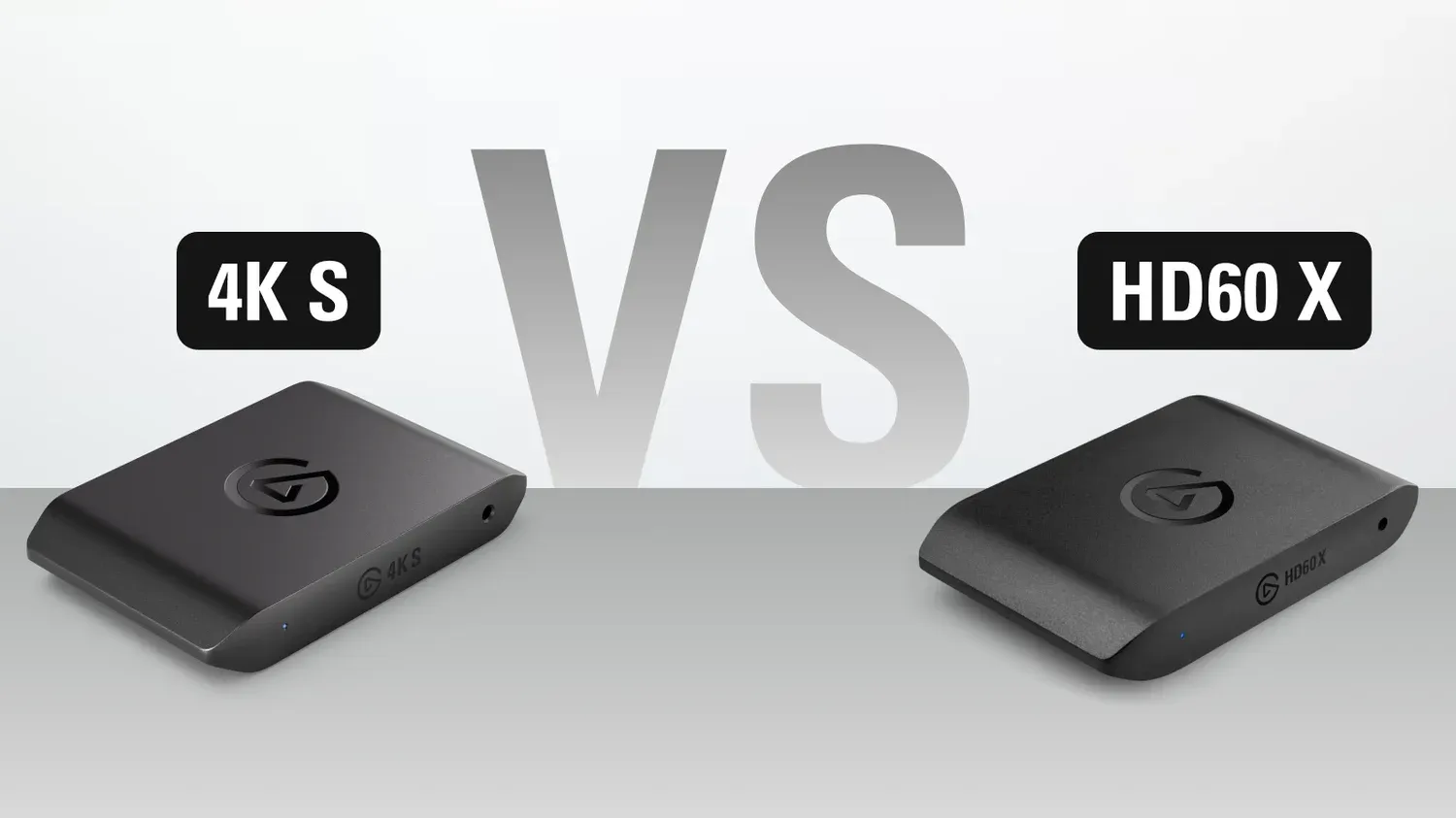
Looking to upgrade your capture card? Find out the differences between 4K S and HD60 X.
Also slightly cheaper
fading latch
whats the difference between Elgato Studio & 4K Game Capture? Only just seen it in the past few days and never tried it out before
there videos here explaining both in detail?
past basin
Studio is newer, better latency, high refresh rate recording - though it's new and still missing some of 4K Capture Utility's features
wheat oar
past basin
Add an additional mic. I'm assuming if you're getting any mic feed at all that ...
Will that mic still run through the Xbox? The main game I stream, apex legends, has an in game chat for communication among teammates. The game is crossplay with all platforms so Xbox party is not always an option.
past basin
wheat oar
Will that mic still run through the Xbox? The main game I stream, apex legends, ...
The idea is two mics. Headset still goes to console, then you mix the other mic in on PC
wheat oar
@past basin So then stream hears both mics like an echo?
humble glen
fading latch
like what?
Flashback Recording, Mic Input on recordings, ability to record longer than 3 hours in a single video, and stream link. All of these will make a return other than Stream Link
wheat oar
Ugh why does all this have to be so confusing, I understand why people don't stream off console.
fading latch
it's not that confusing
humble glen
Though with Elgato Studio being a newer application it does have some bugs like resetting your EDID randomly
It might be another 4k60 Pro mk.2 only issue though
fading latch
humble glen
Flashback Recording, Mic Input on recordings, ability to record longer than 3 ho...
interesting. the 4K with 4KGU is nice but after using HD Game Capture. think Elgato missed the mark with this.
humble glen
What features are missing for you?
Are you referring to the Game Capture HD app around 8 years ago?
humble glen
Eh, they stopped developing that app as the alternatives are pretty much better
fading latch
eh kinda
being able to edit videos (Or trim really) was nice to have without a video editor
humble glen
I mainly just use a mix of OBS Studio and LosslessCut for my clipping needs
fading latch
never used losslesscut
never heard of it either
bit of a hermit when comes to newer recording/editing software
humble glen
https://github.com/mifi/lossless-cut it's a video trimming software that doesn't require you to render the video again at all, basically exports instantly
fading latch


still works somehow
HD60 still works after all this time too which is great
but like to get the HD60S and the Neo Or 4KS as well. best of both worlds
past basin
wheat oar
<@269997944671830017> So then stream hears both mics like an echo?
No, lilke I said turn off the xbox mic monitoring, on the xbox volume control. It won't get loud enough to be useful so just disable it
wheat oar
past basin
No, lilke I said turn off the xbox mic monitoring, on the xbox volume control. I...
Where do you find that? I don't see it in audio optima
Options *
past basin
wheat oar
Where do you find that? I don't see it in audio optima
In the volume settings on the Xbox it should be the bottom slider
marble halo
past basin
In device manager under the properties for the card, under the details section, ...
this?
 past basin
marble halo
this?
past basin
marble halo
this?
Yeah, the hardware IDs there should have a VID and PID
marble halo
So do I change it? Sorry i am very confused about this
past basin
I wanted to know what it was so I could make sure we were getting the correct driver
I got bit once before spending hours troubleshooting a used card only to find out it was repaired and was a different model inside than what was on the shell. Knowing the VID and PID I can confirm the hardware
 raven sky
i'm not sure if this is the right place to ask but i have a 4k60 pro and i cant get the elgato studio to pick up the card
past basin
raven sky
i'm not sure if this is the right place to ask but i have a 4k60 pro and i cant ...
If it's the original 4K60 Pro, not the Mk2, it's not compatible with Studio.
raven sky
it says it is on the screen when i open it
past basin
Currently it only works with
4K X
4K Pro
Game Capture Neo
4K60 Pro MK.2
HD60 S+
HD60 X
4K S
past basin
raven sky
it says it is on the screen when i open it
Is it the Mk2 or the original?
raven sky
its the original it has a pic of it in the list
past basin
The actual support docks don't list it though https://help.elgato.com/hc/en-us/articles/36773396230801-Elgato-Studio-1-0-Release-Notes
Elgato
Release Date: 2 July 2025💻 Download LinksmacOSElgato Studio 1.0Windows
Elgato Studio 1.0 (x64)
Elgato Studio 1.0 (arm64)
Elgato Studio is our brand-new capture app for Windows and macOS, built fro...
Possible it may have been planned at one time or something
raven sky
 past basin
Possibly a bug or the docs are wrong. You'll want to check that with #official-tech-support since two official sources of info are in conflict
Could be it was originally going to support the original 4K60 Pro and the graphic was left in when support was cut, or it might be the docs are missing it - but if it's not working I'd assume the former.
Does the card still work fine with other apps like the 4K Capture Utility?
raven sky
yeah works fine with that
humble glen
You’re not missing out on too much with Elgato studio anyway. If you’re already using OBS, you have the low latency
keen crater
fresh cairn
yes, I believe that's correct. Gesync and VRR are also both on atm
so what you wil have to do if you have not fixed it already is set the elgato to your res but make sure vrr / gsync free sync is NOT enabled on the elgato at all. you can clone it to its own display yuo cannot see and then mirror obs to it and or clone the screen , You can leave VRR enabled but it will just disable it globally on the cloned display. Enabling Gsync freesync or vrr on the display then mirroring the display / display clone is what causes that issue.
if you really do wnat to keep vrr enabled at least on the montor you will be using you need a custom edid that will trick windows into keeping it enabled
its the one thing that @warped ledge told me before but I really didn't catch it the one time. its also the worst explained thing in the Elgato directions. It should read for dual pc setup , that you need to pick your resolution in the EDID manager eg 1080p 1440p so on so forth. That way it doesn't give you the option and enable gsync freesync vrr and cause a compatibility conflict.
twilit stone
twilit stone
I got an Elgato Video Capture (model number 2VC30990100) recently, in hopes that...
Update: it's not an OBS-specific issue apparently. Tried Movavi Video Suite instead. Exact same issue. The bad driver that I need to uninstall and reboot, "Analog Audio In (Elgato Video Capture)", isn't even an actual driver, it seems like.
I'm just... completely powerless here. I don't know what to do about it. I don't know how to prevent Windows from re-enabling the bad driver.
past basin
Have you already reached out to #official-tech-support ? A lot of us here only have passing familiarity with the Video Capture device and software. For any installation issues like that I would reach out to the official support channels if you haven't already as that may require some log analysis or the like.
keen crater
twilit stone
I got an Elgato Video Capture (model number 2VC30990100) recently, in hopes that...
if you go here \AppData\Roaming\Elgato\VideoCapture and find the settings.xml file. open with notepad++ or another posix compliant text editor. Search for forceyuy2 change the flag from false to true save and reboot. should fix the card.
is the driver that does support core isolaton as well
which is I thikn teh reason your getitng the crash with the driver install in windows 11 if using the other driver.
twilit stone
keen crater
if you go here \AppData\Roaming\Elgato\VideoCapture and find the settings.xml f...
I'll try that. Thank you.
twilit stone
...now the video feed won't work. Even on the official software (though at least the audio comes through there).
This is so confusing and frustrating...
twilit stone
...it's 3 AM right now and I'm getting too emotional. I'll try again tomorrow... er, today.
 tiny yoke
Hey anyone have issues with the latest firmware for hd60x... latest firmware seemed to have bricked mine
No signal on elgato studio, and elgato 4k capture utility says my Device's EDID is not valid and to reboot PC. I tried to do so already nothing changed.

 past basin
tiny yoke
Hey anyone have issues with the latest firmware for hd60x... latest firmware see...
past basin
tiny yoke
Hey anyone have issues with the latest firmware for hd60x... latest firmware see...
By latest firmware do you mean the one included with Studio or the latest one included with 4K Capture Utility Both are currently shipping with different versions.
Generally I'd suggest reaching out to support on this one, but if you mean the one with Studio and are in a rush, you can try flashing it back with 4KCU's older version. Hold down CTRL when you open settings to star tthe veresion check bypass. Then you can press CTRL again when you hit update to select a firmware and find the actual firmware files in 4K Capture Utility's installation directory.
HD60 X has a revision - if you have one that shows to the app as Elgato HD60 X it's rev 2. If it says Game Capture HD60 X, use the older one. (I've only ever seen this new firmware available for the Rev 2 cards yet so that's probably what you have).
I would still suggest making sure to report it to #official-tech-support so they can see what happened here though - for most people that firmware has worked fine, they'll want to see why it didnt' for you.
marble halo
past basin
I got bit once before spending hours troubleshooting a used card only to find ou...
ohh
hmm I kinda just want to upgrade to a newer model at this point
Expensive though 🫠
past basin
 celest drum
4k pro with obs studio
celest drum
4k pro with obs studio
Is there a display in the HDMI OUT of the card? If so does that support 1440p? The card will generally use the EDID that shows available display modes from the display first if one is present. It's uncommong these days to have a 4K panel that doesn't support 1440p but not unheard of depending on how it does scaling.
celest drum
past basin
Is there a display in the HDMI OUT of the card? If so does that support 1440p? ...
I'm not using passthrough at all so nope
Only in
past basin
marble halo
Expensive though 🫠
It can be yeah. Can always keep an eye on the #giveaways channel and look for #announcements where the streams with giveaways happen too. A lot of the gear goes on sale semi regularly too
marble halo
Yeah might wait for a sale
past basin
celest drum
Only in
That is unusual - try setting the Input EDID mode to Internal then restart the console or disconnect and reconnec the HDMI cable to force it to resync. If you're on 4K Capture Utility this is done in settungs, under the device tab. On Studio it's done by pulling out the settings pannel on the right
celest drum
past basin
That is unusual - try setting the Input EDID mode to Internal then restart the c...
Can I do it in OBS?
Or wait I can in Studio
but where?

its still greyed


Wait
I changed the EDID to 1440p and now it works
But also how come the text looks a bit blurry? Even though native res (my monitor is 3440x1440)
 past basin
Chroma Subsapling it looks like. Capture card defaults to 4:2:0 NV12 video format (which matches twtich) where the colour data that's overlaid on the black and white is halved both ways. It can result in seeing pixelaation and the like on sharp edges like text if constrast is high. You can try setting the video format in OBS to RGB which does 4:4:4 (if it's greyed out try settting the resolution to custom)
Note that most platforms like Twitch apply 4:2:0 sampling on their own as well so it may still wind up looking like that in a stream, but 4:4:4 should work for local recording just fine
celest drum
I probs wont stream on Twitch, only Discord
Set the capture output to default on OBS and now its not blurry but colors are veryyyy vibrant

even though hdr is disabled on switch hmm
celest drum
past basin
Chroma Subsapling it looks like. Capture card defaults to 4:2:0 NV12 video form...
By RGB is it XRGB or somewhere else?
 past basin
Sorry yes, XRGB
 past basin
You may have to set your OBS Canvas to an RGB format too
That'll be in the main settings for OBS under the video section
er wait maybe advancved. let me check that
celest drum
Tried looking for it in advanced output and video
past basin
Pick one of the 4:4:4 formats

I think 8 bit i444 is the closest match
(there's a reason the card defaulted to 4:2:0 essentially - that's pretty much the standard)
past basin
Colour space should be Rec. 709 generally for High Definition content, unless you're recording in HDR
If you're you're recording in HDR on OBS both the video format and the colour space have to change, as well as the tonemapping setting for the card in 4K Capture Utility / Eglato Studio
celest drum
Rip same thing

If I switch to P010 its not jagged but colors are weird cause HDR i guess?
past basin
Likely
You'll need to setup OBS for HDR, as well as go into 4K Capture Utility, hold down CTRL, open settings and then disable the option the turns on the HDR tonemapping on the card when you exit the app.
EposVox has a video on setting up OBS for HDR here: https://www.youtube.com/watch?v=2A7beDFV5H0&list=PLzo7l8HTJNK_HIUFhcIqOKSmlz0u0VJpB
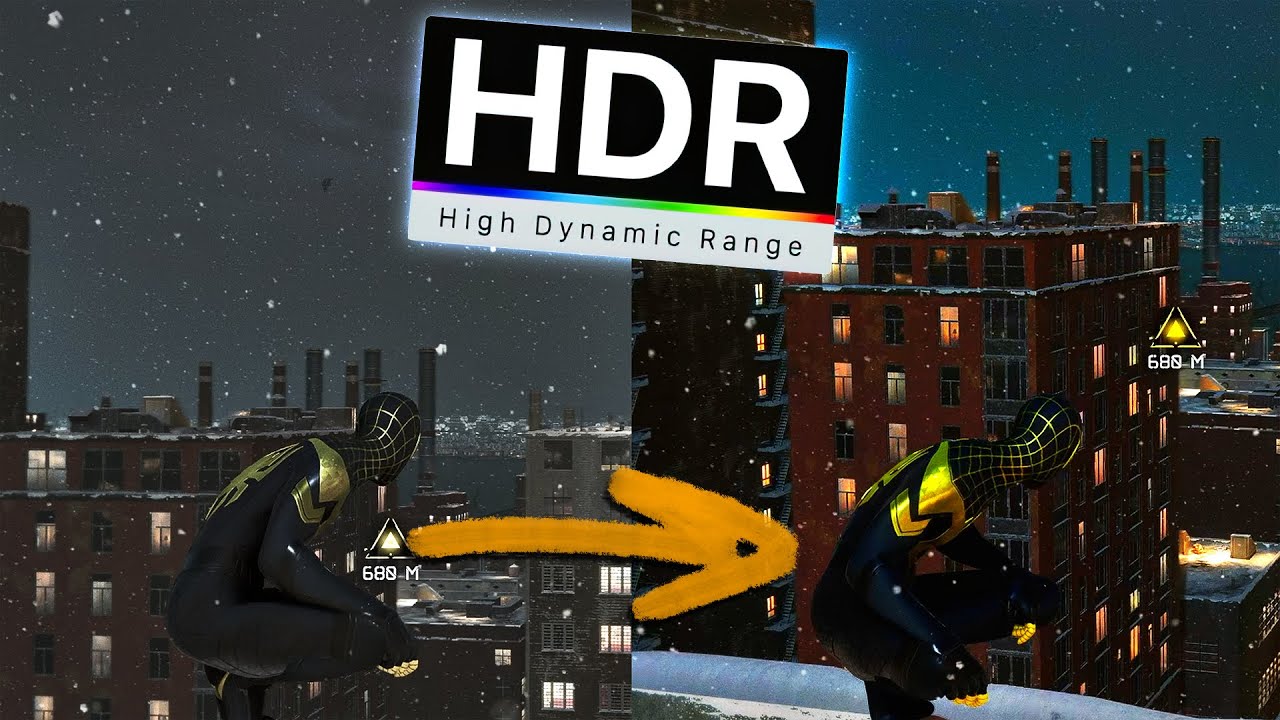
⭐ Watch this video ad-free on Nebula: https://nebula.app/videos/eposvox-how-to-stream-in-hdr-to-youtube-with-obs-studio-complete-workflow-guide
📹 Support my work AND get exclusive content with Nebula, bundled with Curiosity Stream for under $15/year at https://go.nebula.tv/eposvox 📼
Today we're looking at how you can stream in HDR to You...
celest drum
past basin
EposVox has a video on setting up OBS for HDR here: https://www.youtube.com/watc...
Thanks, I'll check this out in a bit
past basin
Keep in mind - if you're streaming to something like Twtich, you don't want HDR on. Of the major platforms only YouTube currently supports HDR Streaming
 past basin
celest drum
Does this look okay?
past basin
celest drum
Does this look okay?
If you're setting up to record in HDR, yes
If you'd left that option on the card automatically converts from HDR to SDR since many apps that can't do HDR. So you have to turn if off to get HDR into OBS
tiny yoke
past basin
By latest firmware do you mean the one included with Studio or the latest one in...
The one in studio. I'll try it thanks for the suggestion
 trim marsh
Quick question for anyone that might have an answer. Possible to flashback record in Elgato Studio?
humble glen
trim marsh
Quick question for anyone that might have an answer. Possible to flashback recor...
That’ll come in a later update
trim marsh
humble glen
That’ll come in a later update
Awesome, I appreciate that!
tiny yoke
@past basin was able to fix it with what you suggested, and then was able to retry the update. Everything works perfectly now. Thanks
twilit stone
past basin
Have you already reached out to <#842491937038925865> ? A lot of us here only h...
My concerns with that were 1. the Video Capture seems to be an older device, and 2. I was also trying to use it with capture software other than the official one (like OBS and Movavi). But... I suppose the worst they can say is "sorry, can't help you". So I'll try writing in a ticket.
past basin
Video Capture is an older product but it's not End of Life and still supported and produced - just not really changing much since VHS and the like are relatively low res compared to HD video sources. Given this looks like a driver issue, support is the best place to check to sort it out if the other fixes you've tried haven't helped
 raven wave
just set up my hd60x and got it connectred for a dual pc stream setup with my streaming pc being a laptop i have wave link in and on my obs i can see that its picking up audio due to the hdmi audio but would i still need to do like an aux cord???
past basin
No, HDMI works just fine for moving audio between setups
If you wanted to run audio back to the gaming PC (eg stream alerts or something), then you might need an aux cable though
raven wave
nah it can all just sit on the streaming pc
jaunty elm
raven wave
nah it can all just sit on the streaming pc
And then you can hook up a pair of speakers
 twilit vector
so the 4K S is a lesser-feature version of 4K X?
hope there is a day 4K 120 fps at XRGB is available since motherboard now can do Gen 4+ bandwidth
past basin
twilit vector
so the 4K S is a lesser-feature version of 4K X?
Kinda - more a HD60 X upgrade, but positioned below 4K X
 ornate knot
Both HD60 X & 4K X are being returned. Now I wait until I'm refunded.
 iron socket
Do any capture cards support the switch 2 at 4k and also 1440p? If so do they have any lag? I have a hd60s for the switch 1 and remember it having quite a bit of lag when playing on the output on the pc
past basin
ornate knot
Both HD60 X & 4K X are being returned. Now I wait until I'm refunded.
I take it you weren't able to sort what spec the USB port on the computer was after then?
past basin
iron socket
Do any capture cards support the switch 2 at 4k and also 1440p? If so do they ha...
Yes, almost all the current cards do this (though Neo will only capture at 1080p from the source at other resolutions).
There's always some lag in any capture card from the conversion but modern cards are generally lower latency than HD60 S, and HD60 S itself have latency that varied at least in part based on what app you used it with.
iron socket
past basin
Yes, almost all the current cards do this (though Neo will only capture at 1080p...
Okay, based, thank you
 wise steeple
hey so i got 2 problems with the 4k pro i bought
- The audio and video get a delay in obs
- the resolution was changed to 1440p but is still on 1080p59 ?
 wise steeple
would i theoreticly get undelayed audio if i used the chat link pro put the thing into the controller and the other into my rodecaster duo to get the pc audio and ps5 audio without delay
 ember sapphire
how do i stream thru obs to twitch in 1440p with mk2 pro?
everytime i try it just doesnt work and is stuck at 1080p
warped ledge
ember sapphire
how do i stream thru obs to twitch in 1440p with mk2 pro?
did you setup enchanced in OBS?
ember sapphire
warped ledge
did you setup enchanced in OBS?
ye
 ember sapphire
warped ledge
are you setting up your bitrate to 20000 Kbps
ember sapphire
warped ledge
are you setting up your bitrate to 20000 Kbps
no i can now, is it out for everyone or is it still private beta?
warped ledge
ember sapphire
no i can now, is it out for everyone or is it still private beta?
if you were invited by Twitch via Beta you are set, but if not no.
ember sapphire
warped ledge
if you were invited by Twitch via Beta you are set, but if not no.
sounds good
wise steeple
wise steeple
hey so i got 2 problems with the 4k pro i bought
1. The audio and video get a d...
?
humble glen
wise steeple
?
A capture card will always have at least a small bit of latency in the capture, make sure you disable buffering in the video capture device source settings
wise steeple
humble glen
A capture card will always have at least a small bit of latency in the capture, ...
yes but my 2 question was with the audio
if its possible
humble glen
the video and audio should match even if there's a delay, is that aforementioned property in the video capture source disabled
wise steeple
no no
i meant i wanted the source audio
so ne delay on my phones
headphones
if thats somehow possible
even without the capture card
humble glen
PCIE cards usually have the best amount of latency, what method are you using to listen to the audio?
wise steeple
obs monitoring
humble glen
Through the Advanced Audio Properties?
wise steeple
but i thought with the stream link i could do it that i get the undelayed audio from my ps4 and the outher goes into the rodecaster from where i get my pc audio
wise steeple
humble glen
Through the Advanced Audio Properties?
yes
humble glen
You shouldn't need 4K Capture Utility's Stream Link with a PCIE capture card since they don't utilize UVC
humble glen
screenshot your video capture device source properties
wise steeple
 wise steeple
yes but i think the delay will probably be there even for a split millisecond
humble glen
if you're using the capture card just for audio, you could test if the new Elgato Studio app gives you a better experience
humble glen
wise steeple
Click Configure video in this screen, and screenshot it's contents
wise steeple
so i just use the capture card for the stream but i would prefer to have the audio seperate from the ps5 to my headphones

 humble glen
could you show your advanced audio properties as well
I'm not noticing any normal discrepancies
wise steeple
 past basin
Are you talking Stream Link or Chat Link? You referred to Chat Link earlier then Stream Link later - Stream Link is a feature in 4K Capture Utility that outputs an NDI source for other apps to use. Chat Link is the audio splitter solution for splitting off console audio.
Audio through Chat Link's headset jack is not going through the PC so there should be no added latency to the headset plugged into the headset jack on the Chat Link Pro going into your console.
There may be latency still on the PC side of things, as all PC audio processing has some latency - but it'll no longer be in lockstep with the video delay on the capture card (since you'ore going through PC Line IN then not the capture card as that model doesn't have it's own Line IN), so latency will likely be lower and not noticeable through Line In via Chat Link into whatever you listen to it on (or Windows Listen To feature). As a result of this you may have to add latency back with something like the OBS Sync Offset feature to keep it matched up with your game's video if you see it no longer matching up (HDMI Audio feeds it through in sync with the video which is why there's always a touch more delay using it over HDMI)
Also you're getting 1080p because your source device is giving you 1080p. You tried to change the EDID mode on the card that tells connected devices 1440p is available, but that does not always cause a source device to switch and that feature only works when the Input EDID Mode is set to Internal. What are you capturing? Did you try manually changing the resolution on that device directly?
wise steeple
past basin
Are you talking Stream Link or Chat Link? You referred to Chat Link earlier the...
Sorry Chat link was the thing for Audio
I just found out that chat link will remove the Audio Output trough the capture Card
So that will be an Problem
I thought about an hdmi audio extractor
Maybe that would work
 steep harbor
Hey y’all. I have an Elgato HD60X.
I do dual PC streaming/recording with OBS projection method.
Recently, I have this issues where when my recording PC is turned on, I begin having screen flickering issues on my main PC, with the 2nd monitor flickering and the main one basically just staying off, sometimes flickering on for a second.
This ALWAYS happens if I turn the recording PC on after the gaming PC has been turned on. If the recording PC is on first, then the Gaming is turned on, sometimes I don’t have the issue, sometimes I do, sometimes it only starts after a few minutes.
Totally lost as to what my issue is. And yes I have tried a different HDMI cable going to the capture card.
Streaming PC is the laptop btw
past basin
wise steeple
Sorry Chat link was the thing for Audio
Yes, Chat Link requies switching the console to headset audio (which disables the HDMI audio generally)- that's why you need a Line In on the PC for the other end of Chat Link to capture the audio
HDMI audio extractor may work - some of those add their own latency, but it's usually not noticeable
past basin
steep harbor
Hey y’all. I have an Elgato HD60X.
I do dual PC streaming/recording with OBS pr...
If this only started recently I'd check with a previous GPU driver (or a newer one) if you haven't already. Once in a blue moon we hear tell of odd issues stemming from that.
There's also a change it could be from an EDID problem with the capture card on the streaming PC - but that usually only crops up if something is in the HDMI out of the card (eg a monitor that might not have been turned on when the gaming PC went looking for an EDID). If you're using projector mode I'm assuming the monitor is in another GPU port not the HDMI OUT though. Doesn't hurt to test with Input EDID Mode set to Internal though.
steep harbor
past basin
If this only started recently I'd check with a previous GPU driver (or a newer o...
Iv been on multiple different GPU drivers since this has started, including rollbacks to ones 6 months ago. I was doing those rollbacks for a different issue, but I would have noticed if it solved this.
Had the same issue each time.
I’m using HDMI from the gaming GPU to the HD60, then USB to streaming
past basin
is your HD60 X on an always on port on the recording PC, or is the card powered off when the recording PC is powered off?
steep harbor
past basin
is your HD60 X on an always on port on the recording PC, or is the card powered ...
Powered off when the recording PC is powered off
I don’t believe the laptop has an always on port. Heck I haven’t even thought of an always on port, although I’m not surprised it’s a thing
past basin
It is - usually has an extra indicator or is coloured red or orange or something to set it apart. Laptops sometimes have them - they're marketed partly as a feature you you can charge something like a phone without having to turn the device on. They're not very common though
I don't recall the last time I saw one on a laptop tbh
steep harbor
Doubt mine has it then.
past basin
Any VRR like Gsync enabled? Are the card and monitor running the same refresh rate?
steep harbor
Yes Gsync enabled. Not the same refresh rate.
However I have a 2 other monitors, excluding my main, running at different frame rates, both without Gsync on the gaming PC.
I’m also using extend to this display, not duplicate for the capture card
The whole point of the projection technique is to not limit your refresh rate and to allow Gsync still
past basin
What is the input EDID mode set to for the card? Internal? If so does setting a specific resolution in the Internal EDID option help? (this is found in 4K capture utility under the device settings)
past basin
steep harbor
The whole point of the projection technique is to not limit your refresh rate an...
I usually use it to preserve HDR through cloning, rather than GSync. VRR tends to be a headache with mutli monitor at times, and recording in specific. But that's fine