#capture-cards
1 messages · Page 55 of 1
 lone crypt
 past basin
HDMI in to gaming PC. HDMI Out is optional, but if used goes to a monitor or TV you want to watch on
lone crypt
 past basin
I see jn can type faster than me 😄
 old orbit
lone crypt
USB is recording pc, hdmi in is source of video. HDMI out is passthrough to moni...
old orbit
lone crypt
USB is recording pc, hdmi in is source of video. HDMI out is passthrough to moni...
Ok. Thank you.
 errant fog
Has anyone here been able to install their 4k60 Pro internal cap card with a 50series GPU if so what MB are you using?
I got my 9950x3d & 5090 finally yesterday but now I need to decide on a MB next & I am trying to determine if I will use my current Elgato 4k60 Pro MK2 Capture Card or if I move to an external X cap card...
 lethal zodiac
So I have tried using the USB HDMI capture dongle several times, however it does not like it when the display readjusts. Specifically during post (trying to capture other devices booting). Is there a way this could be fixed or am I doing something wrong?
 warped ledge
lethal zodiac
So I have tried using the USB HDMI capture dongle several times, however it does...
warped ledge
lethal zodiac
So I have tried using the USB HDMI capture dongle several times, however it does...
dual pc?
lethal zodiac
warped ledge
dual pc?
no just troubleshooting/documentation on BIOS setup and such. being able to capture video would be nice.
warped ledge
lethal zodiac
So I have tried using the USB HDMI capture dongle several times, however it does...
hm... I might have to play around on this, but I have my EDID set to Internal.
warped ledge
errant fog
Has anyone here been able to install their 4k60 Pro internal cap card with a 50s...
Card should work on the same setup and a newer GPU.
lethal zodiac
not sure what EDID is 😅
warped ledge
lethal zodiac
not sure what EDID is 😅
 lethal zodiac
I don't have any of that on the USB dongle
warped ledge
lethal zodiac
I don't have any of that on the USB dongle
is the capture card an Elgato one?
lethal zodiac
Yes
warped ledge
lethal zodiac
Yes
then it should have this option in the Settings
lethal zodiac
it's not a capture card, it's a USB dongle

Elgato
Cam Link 4K turns your DSLR or mirrorless camera into the ultimate webcam. Meet, stream, and record with stunning quality in any app—from OBS Studio to Zoom.
same same, but different
warped ledge
lethal zodiac
same same, but different
not sure on this one as I dont' own one.
maybe @past basin can help on this one.
past basin
The EDID on a Cam Link 4K is always internal because there's no HDMI Out port, so no way to pull a display EDID in
This might be an artifact of using a Cam Link over a gaming based capture card actually, since a Cam Link is going to expect the camera to stay at the resolution it's set for. You might be able to update the firmware on it using Camera Hub to see if that helps anything though
 brave radish
past basin
The EDID on a Cam Link 4K is always internal because there's no HDMI Out port, s...
brave radish
past basin
The EDID on a Cam Link 4K is always internal because there's no HDMI Out port, s...
Hey Arcsane where's the place about new products again ? 🙂
lone crypt
you might mean #feature-request
brave radish
well i was wondering about future products eventually to keep myself updated if one day a product from elgato team would support 5120x1440 ^^
lone crypt
They never comment about future products. At all.
Even when we ask is private channels and promise to not say anything. And we are very trustworthy.

brave radish
lone crypt
They never comment about future products. At all.
Even when we ask is private c...
okay no problems , do you have any idea on the other hand why i keep loosing signal to the capture card ? like i dunno today is particularly heavy
i get this like every 5 mins now maybe less starts to be very annoying
 lone crypt
Without any info about the setup, all I have is general troubleshooting. Cables could be failing, or the signal is going out of range. Variable refresh rate?
 warped ledge
brave radish
i get this like every 5 mins now maybe less starts to be very annoying
warped ledge
brave radish
i get this like every 5 mins now maybe less starts to be very annoying
Do you have anything else that might be using the power?
Via usb?
Or pcie?
warped ledge
lone crypt
They never comment about future products. At all.
Even when we ask is private c...
We need a new one with Jas throwing plushies at you…
 radiant dove
warped ledge
Shhhh the fuzz is coming
radiant dove
warped ledge
Shhhh the fuzz is coming
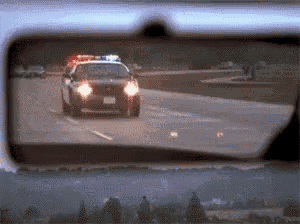 brave radish
warped ledge
Do you have anything else that might be using the power?
brave radish
warped ledge
Do you have anything else that might be using the power?
Pci-express i have an elgato 4k pro and the mobo supports pcie 4
warped ledge
brave radish
Pci-express i have an elgato 4k pro and the mobo supports pcie 4
is it sharing power with something else like an nvme drive?
brave radish
warped ledge
is it sharing power with something else like an nvme drive?
how do i know that ?
warped ledge
brave radish
how do i know that ?
the website mentions it.
lone crypt
PCIe shouldn't ever be starved for power, but it could be starved for bus width. it needs a x4 slot worth of bandwidth. You motherboard might be slowing some slots down depending on what else is on the PCIe bus, which can include NVME drives or even other slots. Consult your motherboard info
brave radish
warped ledge
is it sharing power with something else like an nvme drive?
i'll try something soon maybe the 5120x1440 is making the bandwith of the signal on and off ?
i've seen possibilities that overloading the signal makes the capture card signal on and off
warped ledge
brave radish
i've seen possibilities that overloading the signal makes the capture card sign...
maybe, I haven't tried your method, but perhaps #official-tech-support might be able to see if they can help on that one.
brave radish
warped ledge
maybe, I haven't tried your method, but perhaps <#842491937038925865> might be ...
gonna be too long to contact them i need this to be f ixed for tommorow so i'll try it out now
brave radish
lone crypt
PCIe shouldn't ever be starved for power, but it could be starved for bus width....
Went to check i'm on a Pcie 4 slot as i thought then i don't know what to check on the mother board manual to know if it's slowing down something
brave radish
I think pretty much that was is signal isn't blinking on and off , did set everything to default , 2560 x 1440 and it works great but when you go to 5120 it goeso scary movie 😄
warped ledge
brave radish
I think pretty much that was is signal isn't blinking on and off , did set every...
lol, yeah! I'm holding out on UW for now and just recoding directly from OBS on my Gaming rig.
brave radish
I guess if you want 5120x1440 you need one setup for now but then tou need a very heavy setup
warped ledge
brave radish
I guess if you want 5120x1440 you need one setup for now but then tou need a ver...
I forget how big these files get. lol
once sec.
maybe a little bit. lol
it's possible to stream with UW but you have to tweak setting in OBS, because streamig and gaming can be taxing.
hence I only do recording now.
warped ledge
brave radish
I guess if you want 5120x1440 you need one setup for now but then tou need a ver...
I'm not sure how your GPU will handle this, but even with me in the WSGF server which someone just helped with Jitter/Stutter and game plays flawless now, you could scale it down to a lower resolution so it might not be so taxing. This is just a rec. clip, cause .mkv was too big to share. https://www.youtube.com/watch?v=ZscmRLWqRkI

now if I want to scale it to a streaming format and game in UW that I need adjusting to do.
brave radish
warped ledge
I'm not sure how your GPU will handle this, but even with me in the WSGF server ...
i'm not too good with abreviation @warped ledge
UW is ultra wide ?
but what about WSGF ?
 crisp crown
warped ledge
I'm not sure how your GPU will handle this, but even with me in the WSGF server ...
crisp crown
warped ledge
I'm not sure how your GPU will handle this, but even with me in the WSGF server ...
love that you picked this for a test hehe
warped ledge
brave radish
i'm not too good with abreviation <@476160810457235466>
Wide screen gaming forum…

Might wanna change that one so that way the mods don’t come at you

I do know you were joking though

crisp crown
gotta admit i also didn't know what the abbreviation meant so I learned something new thanks Vic 
brave radish
warped ledge
Might wanna change that one so that way the mods don’t come at you
yeah deleted it but i'm bad wit h abreviations ^^
brave radish
warped ledge
I do know you were joking though
of course life is too short to take things serious enough to such things ^^
 vague maple
hey @warped ledge i was out of town. are you able to do a step by step write up on how to do this process? or is that too much
warped ledge
vague maple
hey <@476160810457235466> i was out of town. are you able to do a step by step w...
might take me a little time, but I can after work. ideal ETA after 6pm CST.
vague maple
yeah no rush at all
vague maple
warped ledge
might take me a little time, but I can after work. ideal ETA after 6pm CST.
i have everything setup on gaming pc/streaming for time being and i just wanted to break it all back down hooking capture card back up to laptop etc
warped ledge
vague maple
i have everything setup on gaming pc/streaming for time being and i just wanted ...
It should ideally be the same.
 hot wing
So I have everything set up
And I have Astro ax50
Everything works fine but it doesn’t pick up my audio
Like when I stream and talk it doesn’t go thru
But it can hear everyone else fine what do I do or am I force to buy a mic
lone crypt
hot wing
Everything works fine but it doesn’t pick up my audio
What is “it”? The capture card? The app you’re recording with?
What is your setup?
You don’t need any specific mic besides the one on your headset unless you want one, but you need to route the audio to the capture card. Game and mic need to be mixed together.
All the details will be needed for us to understand what you need and help.
hot wing
Elgato hd60x
The audio output is set on captured audio
And audio devices is the elgato
The ps5 mic is set to the Astro headset
past basin
The A50X isn't going to mix your voice into the HDMI Audio that the capture card gets (generally you don't want to hear your own voice back at you and consoles generally wont' play back your own audio either). If you're getting the rest of the audio you'll want to ad a mic to mix your own voice back in.
warped ledge
hot wing
So buy a mic huh
Yup
hot wing

 sharp stag
I'm using the Neo capture card to connect my Xbox Series S to my M4 Mac Mini and the picture is blurry. I thought it was because I was using a USB C hub so I bought a high quality usb c to usb c chord and its still blurry... any ideas? I have both the Xbox and Streamlabs set to 1080p.
 warped ledge
sharp stag
warped ledge
sharp stag
I mean that's a cool effect... but I totally understand you want a non-blurry
sharp stag
warped ledge
I mean that's a cool effect... but I totally understand you want a non-blurry
any idea how to fix this 😭
warped ledge
sharp stag
any idea how to fix this 😭
maybe, we can VC if you have time.
sharp stag
warped ledge
maybe, we can VC if you have time.
i have time!
warped ledge
sharp stag
i have time!
sent you a DM
warped ledge
sharp stag
i have time!
#official-tech-support you want to open a ticket here, and give details.
warped ledge
sharp stag
any idea how to fix this 😭
To answer, for Mac OS users, Macs see this as a camera and auto adds the blur filter. You can disable it in the main camera settings in the menu bar for this device. (I totally forgot about that)
 willow tendon
Does anyone know how Auto-Detect works for Buffering in OBS? Does buffering stay disabled but then immediately gets enabled as soon as it sees delay and then disables again?
brave radish
warped ledge
<#842491937038925865> you want to open a ticket here, and give details.
The elgato 4k pro has it's limit so far 1080p240 is too much 1080p144 is too much only 1080p60 works correctly withour flickering and i did put it back to 2560x1440 so far it's the best compromise
 mighty kelp
I just switched from the HD60 X capture card to the 4K X and this is how my image looks. Anyone now how to fix this?
 warped ledge
mighty kelp
I just switched from the HD60 X capture card to the 4K X and this is how my imag...
warped ledge
mighty kelp
I just switched from the HD60 X capture card to the 4K X and this is how my imag...
Did you add the filter effect to the capture card by accident?
mighty kelp
warped ledge
Did you add the filter effect to the capture card by accident?
Nope. Hooked up the capture card and that's how it looks on the software. On my monitor it looks normal.
 fallen elbow
Maybe it's some sort of incorrect HDR->SDR tonemapping occurring, especially if it shows up fine on the monitor?
warped ledge
mighty kelp
Nope. Hooked up the capture card and that's how it looks on the software. On my...
Odd
mighty kelp
fallen elbow
Maybe it's some sort of incorrect HDR->SDR tonemapping occurring, especially if ...
I think it must have been, I had to restart my computer after an update and now it looks normal through the software too. 🤷♂️ lol
fallen elbow
mighty kelp
I think it must have been, I had to restart my computer after an update and now ...
sometimes that's all it takes, heh. Glad the problem's been resolved!
 vernal obsidian
How much delay are on these capture cards? I tried playing some smash ultimate on my capture screen and although it was still mostly quick my muscle memory for the game felt some delay. Is this normal? I thought it was supposed to none?
past basin
vernal obsidian
How much delay are on these capture cards? I tried playing some smash ultimate o...
It's impossible to have none - time is needed to convert HDMI signals into a format you can use with the computer, and then render is on screen again. Most newer cards the delay is short enough that it's comparable to playing on a TV that's not in gaming mode, say 30-60 ms range, depending on the card - newer ones tend to be faster). At 60 fps that's about a 2-3 frame delay in most cases - you won't notice it in most games, but something like Smash you'd probably feel a bit off (rhythm games are the usual one I use as an example due to the high dependance on reaction time). This delay is affected by other factors at times though, such as what app you're capturing with - some folks see less latency with apps like OBS, some see less with the 4K Capture Utility.
lone crypt
vernal obsidian
How much delay are on these capture cards? I tried playing some smash ultimate o...
To add, Passthrough to a display (instead of the capture app’s preview screen) is lower, almost none.
That’s the intended use of the passthrough port.
Playing on the preview window isn’t really the idea.
vernal obsidian
lone crypt
To add, Passthrough to a display (instead of the capture app’s preview screen) i...
By passthrough you mean the output to my TV right?
lone crypt
Yeah a second hdmi from the card “output” to a display.
Skips that conversion and rendering latency. Usually less than a frame of delay in that. Depending on the capture card model.
 wise ember
is the hd60x capable of capturing 120fps @ 1440p?
wise ember
lone crypt
https://help.elgato.com/hc/en-us/articles/360041842611-Elgato-Capture-Devices-De...
passthrough, I see. i'm guessing i can just record the 1440 120 passthrough with obs or something?
past basin
wise ember
passthrough, I see. i'm guessing i can just record the 1440 120 passthrough with...
The card can record it at 1440p60, from 1440p120 source.
If you want to record 1440p120 at 120, you'd want to step up to 4K X which has a faster USB interface (10 Gbps) with more recording options.
wise ember
past basin
If you want to record 1440p120 at 120, you'd want to step up to 4K X which has a...
thanks for clarifying, not the end of the world i'll just stick with the 60fps
past basin
Here's the chart for HD60 X's resolutions https://e.lga.to/HD60X_Resolution
Tells you what can be captured from what source/passthrough
wise ember
thank you
 tawdry sleet
hello is anyone have stream cam pro around here ?
i have issue with it it look a lot pixel when i do 2k
past basin
Do you mean Facecam Pro? If so, that'd generally go in #camera-prompter . I'm also assuming you mean 1440p - 2K is a cinematic resolution, but a lot of gaming monitors incorrectly label 1440p as 2K when it should be 2.5 K.
That said assuming you do, 1440p is not an officially supported resolution for Facecam Pro. See https://help.elgato.com/hc/en-us/articles/10290429808653-Elgato-Facecam-Pro-Technical-Specifications
past basin
What app are you trying to use it with? HD60 won't work with the new 4K Capture Utility which wouldn't see it, for example, it would be used with Game Capture HD.
 tough bluff
Hey, can anyone help me or have a guide on how to set up the HD60x with two PCs on a 1440p gaming monitor?
 sinful spear
does a nvidia Rtx on a desktop with elgato internal 4kpro capture card, make better streams to capture webcam + video game.. fps and video quality,
some people told me internal card only benefits, hdmi plugged in consoles,
card not for pc native game, streaming
- . im a verified purchase . * 👍
 sullen falcon
hello is 4K CAPTURE UTILITY working with win 10 ? because it says requires win 11 can that be my problem ?
lone crypt
sinful spear
does a nvidia Rtx on a desktop with elgato internal 4kpro capture card, make bet...
The main benefit of internal capture cards used to be higher capture resolutions and frame rates, but now that usb 3.2 is here that isn’t so true anymore.
There are some resolutions and passthrough that some models and do while others can’t but it’s not really a usb vs pcie thing as much anymore.
The only remaining exclusive is multi-app simultaneous. Being able to add the capture card feed in more than one recording app at the same time without need of a virtual camera device to repeat it to the second app.
past basin
sullen falcon
hello is 4K CAPTURE UTILITY working with win 10 ? because it says requires win 1...
If they've updated that already then it's likely no longer fully supported on Win 10, but at this point is probably still working. That said you can still use Elgato cards with other apps like OBS Studio and even Windows Camera too - what actual issues are you running into?
past basin
sinful spear
does a nvidia Rtx on a desktop with elgato internal 4kpro capture card, make bet...
Are you asking if the NVidia card will help you stream there? Generally yes - when doing streaming or recording in most modern setups your GPU is used for the video encoding. That'll work for both internal and external capture cards. RTX cards also have some benefits like being able to use NVidia Broadcast software and APIs, so you can apply some filter effects in apps like OBS, but again that doesn't care what kind of capture card you're using.
It won't affect the fps though, just the encoding quality. And other GPUs do have bulit in encoders, NVidia is just currently in the lead for H.264 at low bitrate which is used on a lot of streaming platforms.
past basin
tough bluff
Hey, can anyone help me or have a guide on how to set up the HD60x with two PCs ...
Are you having any specific issues or questions about the setup? I'm a bit tied up at the moment for a walkthrough but can find some time for specific questions - myself and other volunteers are in and out through the day though as well.
tough bluff
past basin
Are you having any specific issues or questions about the setup? I'm a bit tied...
After setting up monitor cloning with Elgato, my gaming PC becomes noticeably slower, and there's audio delay on the streaming PC. I'm using 1080p resolution.
Specs:
Gaming PC:
2x monitor main have 2k resolution
Ryzen 7 5800X3D
RTX 4070 Ti Super
32 GB RAM
Streaming PC:
Ryzen 9 5900X
RTX 3070
32 GB RAM
The gaming PC has a fresh Windows installation with the latest drivers and BIOS updates.
I’ve also tried sending the signal directly to Elgato without cloning, which works better performance-wise, but puts a lot of load on the gaming PC.
Do you have any tips or recommended settings to optimize this setup?
past basin
sinful spear
i asked does 4kpro enhance a gpu desktop quality
Yeah the wording was a bit odd there so I wanted to be sure.
jn's answer applies if that's what you're asking. This gen the internal and external cards each have their own advantages. eg 4K X the external has higher refresh rate capture support since it can use MJPEG, but 4K Pro does HDR capture on on all resolutions it supports and has higher passthrough support up to 8K60.
sinful spear
👍
past basin
tough bluff
After setting up monitor cloning with Elgato, my gaming PC becomes noticeably sl...
What do you mean, sending the signal direct, without cloning? Do you mean passthorugh, going from the GPU to the capture card, to the monitor? That should have zero impact on the PC's performance
Or are you doing something like OBS projector mode?
tough bluff
past basin
What do you mean, sending the signal direct, without cloning? Do you mean passt...
no, by obs and game capture pricing
past basin
tough bluff
no, by obs and game capture pricing
So you're using the OBS Projector setup where you setup your scene on the gaming PC, and use full screen projector to send it to the capture card, which is in extended mode, instead of cloning mode, correct?
I'm assuming "pricing" is a typo there
sinful spear
so .. supposedly im playing gta online on desktop,
i sign in to twitch
my computer streams (less load) on gpu (higher fps)
in twitch, my fps and rez ++ improve
verified purchase 👍
past basin
sinful spear
so .. supposedly im playing gta online on desktop,
i sign in to twitch
my com...
If you're playing on the Desktop, then unless you have a dual PC setup with a gaming PC and a Streaming PC, you wouldn't use the capture card anyway. Capture cards only provide video input so you can get video into the PC, they don't improve performance when capturing, so for something like a PC where you can do software capture, there's no real benefit to using a capture card. They're best used to pull in external video like consoles and cameras.
Since there's no performance benefit it wouldn't matter which you're using in that setup
sinful spear
i understand thanks
tough bluff
past basin
So you're using the OBS Projector setup where you setup your scene on the gaming...
Yes it's true
past basin
That shouldn't have any notable impact on performance, since you're not recording or streaming on the same PC, just using it to clone the screen. Maybe you'd see the FPS go down a few, but as long as you're not actually encoding video on that machine, it should be very lightweight.
If you're having performance issues hooked up that way you may need to check with OBS Support.
You chould also try the passthrough connection - GPU to capture card to monitor making use of the capture card's HDMI output to split the signal instead. That may improve performance if you're not working with formats that require more than HDMI 2.0 HD60 X uses.
 thick trellis
hi, just got my 4k x and ive been trying to completely elimate screen tearing while cloning with no success.
i do not wanna use obs projector method since i dont want any fps loss what so ever.
my monitor is running at 480hz and the capture card is at 240hz
warped ledge
thick trellis
hi, just got my 4k x and ive been trying to completely elimate screen tearing wh...
Did you try Display on the EDID? Also the most you’ll get on the capture is 240
thick trellis
warped ledge
Did you try Display on the EDID? Also the most you’ll get on the capture is 240
yes im using display on edid and im capturing on 240 but even when i use 240hz on the monitor there is screen tearing (noticable only on recordings)
maybe im missing something
warped ledge
thick trellis
maybe im missing something
Try Internal, can you let me know if there is any difference?
thick trellis
warped ledge
Try Internal, can you let me know if there is any difference?
i get small screen tearings like this with unlocked fps (exceeding my refresh rate) and when i limit my fps i just get really obvious tears

i will try internal now
warped ledge
thick trellis
i will try internal now
Ok.
thick trellis
warped ledge
Ok.
okay i tried internal and i also tried passthrough at @240hz and i get this kind of tearing unless i turn on g sync+vsync
does that make sense?
warped ledge
thick trellis
does that make sense?
It makes sense. So the fix is internal with g-sync?
 ionic lily
thick trellis
okay i tried internal and i also tried passthrough at @240hz and i get this kind...
ionic lily
thick trellis
okay i tried internal and i also tried passthrough at @240hz and i get this kind...
I would say wait for next update. I am having issues with the X and trying to passthrough on UW @ 144hz.
warped ledge
ionic lily
I would say wait for next update. I am having issues with the X and trying to pa...
What’s your EDID set too?
thick trellis
ionic lily
I would say wait for next update. I am having issues with the X and trying to pa...
The tearing is very minimal. But i always thought pass-through eliminates tearing completely, is that the case or no?
ionic lily
warped ledge
What’s your EDID set too?
input EDID set to display and EDID (internal) to default
ionic lily
thick trellis
The tearing is very minimal. But i always thought pass-through eliminates tearin...
do you have freesync/g-sync enabled on both the monitor and in windows pc?
thick trellis
ionic lily
do you have freesync/g-sync enabled on both the monitor and in windows pc?
with g sync its gone, but i dont like having it on when i play competitive games
 dapper acorn
im using a cam link 4k, anyone know why the audio sounds so awful? idk if this is an issue with my card or the wii u, my switch is currently charging up so i can test it
ive tried a few different recording apps but it all sounds the same (this is obs)
got the switch charged up, still sounds the same
past basin
Sounds like there might be some noise suppression turned on, on the computer somewhere, given the way it peaks when there's vocals.
If it's windows you can usually disable that by turning off Windows Audio Enchancements on teh card
You can check if enchancements are on by going into Windows Settings and checking under System > Sound and find your capture card. Go into it, and check at the bottom for any mention of audio enhancements or spatial audio (usually towards the bottom) and turn them off.
If neither are there, check the old Windows Sound Settings where the levels are. Press Windows Key + R, type mmsys.cpl and press ok. Go to the recording tab and find the capture card, then go to properties. Check for any enhancement or spatial audio tabs and disable anything in there, and check the advanced tab to see if there's any enhancements or spatial audio options to turn off there as well.
Based on your audio hardware, software and Windows version and updates, enhancements could be in either of these locations, both or none. If they're not in any of them, you can assume enhancements are off, and should look for other audio software on the computer that could be interfering, or issues with the source (such as it not being set to Stereo)
 lyric mantle
hi all, im having issue which started recently. theres a static noise that comes through on the audio and is constant even when the game is paused and theres no other sound. it wasnt there like a week ago. it started recently and i dont know what it is... or how to get rid of it. i have a hd60s+ and my laptop is a macbook m2
thick trellis
i got an issue with my 4k x that sometimes when i alt tab the capture card just stays black
lone crypt
thick trellis
i got an issue with my 4k x that sometimes when i alt tab the capture card just ...
I bet you’re running games in exclusive full screen. Try borderless mode instead.
lone crypt
lyric mantle
hi all, im having issue which started recently. theres a static noise that comes...
This is probably a ground loop
lyric mantle
lone crypt
This is probably a ground loop
what does that mean?
im thinking you meant the second one...

so how my set up works is ps5 > elgato > belkin USB HUB > Macbook
and to avoid it should i try placing them in a differnt part of the table? or would putting something inbetween the laptop and usb hub help?
i ahve something like this so the laptops on top of it..
 lone crypt
Ground loops happen when there is more than one electrical connection between two bits of gear in an audio system, like computer systems.
You need a ground loop isolator in the signal somewhere to prevent them from making a buzz sound.
Assuming it’s a ground loop and my guess is right!
If it’s a console, it often happens with the audio feed from the controller to capture the voice chat. That’s why the chat link pro cable has an isolator built into it.
If it’s a buzz that happens when the system is all connected, and doesn’t change when you turn up or down your headphones. It s a good sign that it’s an electrical issues ground loop.
ionic lily
Just out of curiosity to those 4K PRO users here. Anyone paired it with an ultrawide monitor? And if so, what's the max fps you got?
I am debating on switching to 4K PRO and replace my streaming laptop (with 4k x) for a streaming/recording desktop build. My gaming pc is being paired to the UW 175hz. So far im hoping the 4k x gets an update for further fps bypass for 3440x1440p.
warped ledge
ionic lily
Just out of curiosity to those 4K PRO users here. Anyone paired it with an ultra...
Haven't Tested UW yet because I only have 1 of them, and the Xeneon Monitor is in another room. Maybe I can use a 1080p one, and see... I guess I'll try tomorrow.

what my office area will look like for the sake of testing it...
past basin
Yeah that sounds about right. My own system is a mess of testing setups too. So many cables
Made worse by the fact I hook some of it up on the win 10 machine
 ionic lily
warped ledge
Haven't Tested UW yet because I only have 1 of them, and the Xeneon Monitor is i...
ionic lily
warped ledge
Haven't Tested UW yet because I only have 1 of them, and the Xeneon Monitor is i...
No worries. Don’t feel pressed to test it. I am only looking into getting the PCIe card and build a 2nd pc to replace the laptop for dedicated rec and streaming (UW). I’m just doing a lot of research.
Cable management is fun
warped ledge
ionic lily
No worries. Don’t feel pressed to test it. I am only looking into getting the PC...
I don’t know how you would feel with an opinion on Ultra Wide streaming, but the only place that you would ideally be able to stream it without any stretching or even thumbnails being warped would be YouTube. If you’re doing it on twitch twitch will autolyze it for you however, your thumbnails will be warped.
Kick you have to enter a specific resolution for it to work on their platform
Recording you would only just need to configure some tweaks and OBS and you can actually just capture it without a capture card directly from your PC
lyric mantle
lone crypt
If it’s a console, it often happens with the audio feed from the controller to c...
i dont have anyhtign connected to the controller. ive connected my headphones to the usb hub as well..
lyric mantle
i tried removing the headphones fro the usb hub but the static noise is still there...
lone crypt
lyric mantle
i tried removing the headphones fro the usb hub but the static noise is still th...
Does the hub have external power?
Try taking the hub out of the system completely.
But ultimately I think you’ll probably need an isolator. These are just testing steps.
 cosmic knot
hey peeps im in need of some quick help. i purchased a elgato 4k60 pro mk.2 and im unable to get passthrough to a second moniter to work. are there any users that record xbox using this device on pc. if so what setting in the Elgato 4K Capture Utility do you use. ive tried so many and just cant get the passthrough to work ?
lone crypt
cosmic knot
hey peeps im in need of some quick help. i purchased a elgato 4k60 pro mk.2 and ...
Did you check this info? https://help.elgato.com/hc/en-us/articles/360060072892-4K-Capture-Utility-EDID-Configuration
cosmic knot
Yep. That's what the tech support sent me. Tried all just incase with no luck
lone crypt
Could be cables, or video format out of range for the display. Or out of range for the capture card’s passthrough.
Check cables first directly to the monitor to make sure the video format and the cables work individually.
cosmic knot
lone crypt
Could be cables, or video format out of range for the display. Or out of range f...
all cables work, ie checked on multiple moniters with multiple fps ranges
lone crypt
cosmic knot
all cables work, ie checked on multiple moniters with multiple fps ranges
But not with the card in the middle.
Does capture work?
Oh wait, is it hdcp?
cosmic knot
lone crypt
But not with the card in the middle.
Does capture work?
Oh wait, is it hdcp?
Yes capture works fine. Everything records and saves fine. And yes to the cables being tried without the card to check also worked fine. Hdcp setting have been tried on and off but with no pass through
lone crypt
cosmic knot
Yes capture works fine. Everything records and saves fine. And yes to the cables...
Ok all I can think is that the edid setting could be messing it up, or the video is out of range for the capture card’s passthrough, but that doesn’t really make sense if it can capture… should be able to passthrough (usually can passthrough even more than can capture)
Any lights on the capture card that could give a clue?
Just confusing that capture would work
cosmic knot
lone crypt
Any lights on the capture card that could give a clue?
Just confusing that captu...
Lights i havnt checked seeing it pcie and yh I'm thinking it could be a broken product
lone crypt
Oh yeah no lights on those
I guess could be the output is broken?
PCIe have drivers so make sure that’s up to date
cosmic knot
lone crypt
I guess could be the output is broken?
PCIe have drivers so make sure that’s up ...
Made shore i downloaded the latest and installed. Defo seeming more like a broken output
lyric mantle
lone crypt
Does the hub have external power?
Try taking the hub out of the system completel...
its connected to the laptop, thats how everythings comes through to obs.
whats weird is the static was never there beofore... is it possible for the ground loop to happen suddenly or would something trigger it? because it wasnt there before..
lone crypt
A ground loop is electrical, so it wouldn’t be there one minute and gone the next.
If it’s not a ground loop it wouldn’t be interference. Maybe a cable isn’t socketed all the way so the shield wire isn’t connected, or maybe a shield broke?
 gusty dagger
Hey all, came to this server to look for help as every youtube video that i have seen on the internet has told me to do the exact method that hasn't worked for me. I'm having some trouble with my HD60X as I keep having noticable audio delay wether through the 4k capture app or in obs which is what i use and it has been really bugging me. I have tried putting the audio on a separate track from the one coming from the video capture device. I've noticed that the audio track itself moves at the correct time, but for some strange reason I hear the audio later than what is should be and later than when the track moves. I'm clueless with what is going on. Can anyone perhaps help??
ionic lily
I’m only on YouTube anyways and that usually works best for me then twitch. But on twitch I see a few ultrawide streams there too.
gusty dagger
I have 2 monitors. One which always has desktop and the other has a hdmi thing where u press the button on it and it switches which video is being shown.
past basin
gusty dagger
Hey all, came to this server to look for help as every youtube video that i have...
How much later are you hearing it? There's a short latency that pairs the audio up with the captured video (as the captured video is delayed by the HDMI processing) meaning it should be synced for captured video, but if you're listening through capture but watching on passthrough (which doesn't that delay) it might feel a few frames off.
If you're getting significant delay thorugh mutliple apps though, try turning off Windows Audio Enchancements.
You can check if enhancements are on by going into Windows Settings and checking under System > Sound and find your audio output. Go into it, and check at the bottom for any mention of audio enhancements or spatial audio (usually towards the bottom) and turn them off.
If neither are there, check the old Windows Sound Settings where the levels are. Press Windows Key + R, type mmsys.cpl and press ok. Go to the playback tab, find the sound output then go to properties. Check for any enhancement or spatial audio tabs and disable anything in there, and check the advanced tab to see if there's any enhancements or spatial audio options to turn off there as well.
Based on your audio hardware, software and Windows version and updates, enhancements could be in either of these locations, both or none. If they're not in any of them, you can assume enhancements are off
gusty dagger
past basin
How much later are you hearing it? There's a short latency that pairs the audio...
It's not synced with what's being shown on obs if that's what you mean by the captured video
It sounds about half a second off of what is being shown
past basin
Did you already try muting it and adding the card again as an audio input capture?
gusty dagger
yep i've done that
past basin
Any warnings in the OBS log?
gusty dagger
where can i find that??
past basin
Help menu in OBS
Also check the Windows enchancement thing as well if you didn't already - it can cause delays depending on what's running
gusty dagger
yeah i did the enhancement thing, turned it off and it didnt help
alright im in a text document which is in the appdata roaming obs-studio logs folder
past basin
If the log doesn't give any insights, you might also want to try the Listen to feature in Windows to see if the delay is happening at the windows level or app level
gusty dagger
what should i be looking for?
i see audio settings reset section
max buffering 960ms
and the buffering type is dynamically increasing whatever that means
i also see 'adding 64 milliseconds of audio buffering, total audio buffering is now 85 milliseconds (source: HD60x)'
past basin
Couldn't really say for certain, that'd be more a question for the OBS Project discord. But anything that stands our really
past basin
gusty dagger
YESS THE LISTEN TO THING WORKED
Sorry, was away because a guest showed up. Listen to works for listening to it - but it won't work for recording. Check to make sure your recordings and/or streams are synced up too
That does at least rule out hardware issues though - if there's still issues there's a software problem somewhere
 tired grove
Hello 🙂
I'd like to start streaming on twitch, especially on Nintendo Switch, but I think I need an adapter to be able to stream my console?
I thought I saw that elgato was making one, do you have any advice?
Thank you!
past basin
Nintendo Switch outputs on HDMI, and should not need an adapter (aside from the capture card itself)
Switch should work with all current Elgato capture cards
fallen elbow
As for the capture card itself, a good starting point for the Switch would be Game Capture Neo
past basin
The one exception is if you use the cosole with a headset you might need a Chat Link cable to capture audio while using a headset
crisp crown
question arcsane : i technically wouldn't need the chat link if I connect my earphones to my wave 3 right? was always wondering
stopped using my headset lately because I plug my iphone earphones into the mic instead
tired grove
past basin
The one exception is if you use the cosole with a headset you might need a Chat ...
So in addition to the Neo I need the chatlink?
past basin
Chat Link is only needed if you're using a wired headset with the console
It's also not ideal with Neo as Neo doesn't have a jack for it. If your PC has a Line In jack that's fine, but if you need Chat Link and don't have a line in on the PC, go with HD60 X or 4K X instead as they have line in ports
tired grove
oh no, my headphones are on the PC
lyric mantle
lone crypt
A ground loop is electrical, so it wouldn’t be there one minute and gone the nex...
oh.. i dont know waht shield broke or shield wire is... i didnt understand that sentence at all ehee
tired grove
Do you have any videos of the Neo being tested on a switch?
warped ledge
crisp crown
question arcsane : i technically wouldn't need the chat link if I connect my ear...
are you using party chat?
crisp crown
warped ledge
are you using party chat?
party chat??
warped ledge
crisp crown
party chat??
are you playing a game that has in game chat, or party chat like on playstation?
crisp crown
warped ledge
are you playing a game that has in game chat, or party chat like on playstation?
no since we were talking about the switch it'd only be to stream games like Animal Crossing or The Legend of Zelda
I generally don't stream games with in game chat and such
tired grove
thank you for all the info also I would need a webcam. I have an iphone 14 pro so a good video quality only I was wondering if you know a cable ref to link to my pc and make a webcam without latency? Or another solution :p
warped ledge
crisp crown
I generally don't stream games with in game chat and such
in that case, you dont' need a chat link pro, if you want to hear from the mic using wave link. you can use the aux cable in the back of the mic to hear everything.
crisp crown
yeah that's what I've been doing so far but since I have never tried streaming from my Switch I didn't know if that changed anything, thanks !
warped ledge
crisp crown
yeah that's what I've been doing so far but since I have never tried streaming f...
you're welcome!!
crisp crown

 sour marten
stupid question but can i stream with the HD60 X? or do i need to run it through OBS?
past basin
It doesn't have an encoder, so it relies on your computer or iPad for streaming
This includes needing an app like obs
sour marten
so i cant use the Game Capture software to record?
past basin
The old Game Capture HD app was End of Life in Jan 2020 and doesn't recognize HD60 X. You can use 4K Capture Utility to record, but that app can't stream. Most third party apps will work with the card though
sour marten
this articale from Elgato says i can stream with the HD60 X through the 4K Capture utility: https://help.elgato.com/hc/en-us/articles/360028235691-Live-Streaming-and-Elgato-Game-Capture-HD
so i dont need OBS
past basin
That's Game Capture HD, not 4K Capture Utility. 4KCU does not have built in streaming capability. You'd need something like OBS Studio, Streamlabs, Meld, etc for streaming
sour marten
so basically when i stream im using OBS
sour marten
im just looking for something i can use to encode my streams and recordings that isnt my pc since its what im gaming on
past basin
Ah - yeah, generally capture cards aren't that useful for just a single PC, they only provide an input, not any kind of encoding. The standard capture cards that do have built in encoding only do it for the video they're capturing to send to the PC, the instant you add anything like a webcam you have to encode again with the PC.
There are some all in one devices out there that can do encoding and support things like RTMP to broadcast right to Twitch, but they generally run you quite a bit more than a regular capture card
This is why dual PC setups are pretty popular for PC streaming so you can just offload encoding to another machine
sour marten
like what? im trying to do recordings on how well the B570 Arc GPU does for gaming
past basin
Though you could also do it with something like an iPad now if you have a USB-C iPad that can do USB 3.0 or faster (Which is pretty much all the new models but the base one).
I don't usally keep up with the all in one units, too rich for my blood. I think ATEM Mini will do it? I vaguely recall someone mentioning some sort of Ninja unit
Most of the All In Ones are aimed at business rather than streamers.
sour marten
so basically capture cards dont do anything for streaming
past basin
Captuure cards let you capture video - they give you a HDMI input so you can capture things like consoles, cameras or a second PC to the comptuer. They don't generally do any encoding or stream the video over the network
fallen elbow
It's a different use case
past basin
You can use the card to get video into the PC from something else to stream, but the card won't stream on it's onw
sour marten
so then other then using my PCs power to stream and record, what are some other options?
past basin
Dual PC generally. You could also use an iPad and Camo Studio with a capture card instead of a full on PC (again only USB-C ipads with 5Gbps+ ports work for that, not the base model ones). There may be some android devices that can do it too, but that wouldn't be officially supported. You might be able to find a suitable all in one streaming device too, but it would depend on what you need it to do.
If you have an HDMI port free on the PC for an all in one to connect to you could connect it to the HDMI port, and setup things in OBS, and use Fullscreen Projector to feed the device, and the device would essentially just do the streaming and encoding. There's still be a small performance hit from the projector that way, but nothing like you'd see if you were encoding on the same PC. That'd let you work around some limited all in ones
The other thing to watch for All in Ones though - they're not generally aimed at gaming. Check support for resolutions and refresh rates to make sure it meets what you'd need (projector mode above does give some flexibility there since Windows and OBS can output different refresh rates to the external port, than you game at on the main display)
sour marten
So basically capture cards have no dedicated encoding software and its only a pass through
past basin
Passthrough is just passing the signal through the card from HDMI In to HDMI OUT, and works like a splitter. Not all capture cards have passthough (eg Cam Links). Capture cards just have capture.
They can convert video from HDMI to say NV12 or such that the computer can work with. Some may be able to encode in h.264 like streaming would use, but there are limits, and no network connectivity for streaming on them
sour marten
Well, should i try using the B570 or the 5900X to record
past basin
Eg, the old HD 60 has H264 encoding so it could send video over USB 2.0. This pre-encoded video could be used with the old app to send video to Stream diretly, but if you added in anything like a camera the whole thing had to be re-encoded.
Depends on what formats you're working with and performance
The B570 likely has higher quality for most
But I'm not familiar with how much the dedicated encoder on it affects other GPU performance. Generally built in encoders do take most of the load though
Sending it to the 5900X would laso send it over your motherboard and my have other impacts, instead of doing it all on the card
sour marten
I struggle to get obs to work right and their discord is useless
past basin
What's not working with it?
sour marten
Idk, the games are fine, but in the bottom right corner it normally says 60.00/60.00 fps, but it fluctuates a lot
past basin
Are you seeing any kind of encoder overload warnings or network problems in the logs? Depending on the settings you're using the encoder might be having trouble keeping up
sour marten
Sometimes but rarely, that 60fps in the bottom right corner fluctuates more the. Seeing the warning
past basin
Give me a minute to check something, I'm not sure if that's a encoding meter or a source tracking thing
sour marten
Ok
past basin
Yeah, looks like it tracks encoding when I'm testing it, though it doesn't update as quick as I'd like.
When you setup OBS did you run it thorugh the setup wizard in the tools menu to auto tune it?
sour marten
Yes
past basin
I've got to step out there a bit, but I'd do a test recording, make sure you see that happening, stop the recording and upload the log in the help menu. Then stick the log into their analysis tool at https://obsproject.com/tools/analyzer
OBS (Open Broadcaster Software) is free and open source software for video recording and live streaming. Stream to Twitch, YouTube and many other providers or record your own videos with high quality H264 / AAC encoding.
Should give you some idea what's going on at least
 silent ridge
hey sorry, I just got free time literally right now, do you think you can help me set up my samsung ultra S21 to stream on my ELGATO?
tired grove
thank you for all the info also I would need a webcam. I have an iphone 14 pro so a good video quality only I was wondering if you know a cable ref to link to my pc and make a webcam without latency? Or another solution :p
gusty dagger
I've ran into another problem that im surprised i didnt realise. The audio syncs with the video on the 4k capture utility because for some strange reason the video output on the 4k capture utility is delayed at the exact same amount of time as the audio is. The output shown on obs is perfect. It must be a problem with my capture card as a whole?
because i play splatoon it is really easy to notice the delay of when i transform into squid or kid form
lone crypt
gusty dagger
I've ran into another problem that im surprised i didnt realise. The audio syncs...
Offset is common. Typical, actually.
Adjust audio sync offset in OBS advanced audio settings. Right click the mixer panel or click the cogs in here
I use this one to measure https://m.youtube.com/watch?v=lEk1riUEdCQ&pp=ygUQI2F1ZGlvdmlzdWFsc3luYw%3D%3D

Reupload of the Twitch Sync Test sequence in all its 60 fps glory. Props to @coral for the original upload on YouTube.
Downloads links:
- H.264 : https://link.twitch.tv/synctest-h264
- ProRes 422 : https://link.twitch.tv/synctest-prores
Capture that through your setup and then zoom in frame by frame and measure the sync offset.
gusty dagger
right but how am i supposed to do that with hdcp
lone crypt
Umm, well… we aren’t allowed to discuss circumventing hdcp in this server, but I don’t really understand the question.
I’ve always just played it and pushed record on OBS. Just works
gusty dagger
yeah but when i open youtube on switch it kicks me out because of hdcp so i cant really test it
lone crypt
Oh this is a console. Right
lone crypt
It’s ok, I just can’t advise about turning it off
gusty dagger
yeah i understand
lone crypt
Anyway. If there is some other video app or browser that can play this or one of the many similar videos…
gusty dagger
ooh i think theres a dns trick that allows me to go into a browser
lone crypt
Or feel free to find a way to do it on your own 🙂
gusty dagger
let me try that
lone crypt
But that’s the way to measure offset and then you can set that
You could also connect the capture card to a computer just to measure it in the OBS scene
gusty dagger
no matter how much i change it it sounds so off
it doesnt sound like it changes
wait
probably because im listening to the device
putting it higher just sounds even later
what am i doing wrong
0 is as close as it gets
sullen falcon
Can someone help me to setup dual pc sound with voicemeeter banana ? I have an elgato hd60x
 prime otter
I need some advice on thunderbolt PCIE4.0 eGPU enclosures.
I currently use a HD60X external capture card because I was streaming from my gaming pc to a laptop. But now, that gaming pc is my streaming pc as I’ve just built a new gaming PC.
My issue is I want to upgrade to the 4Kpro MK2 but my now streaming pc is water cooled and the gpu is in a vertical position so I don’t have access to the 4.0 pcie slot.
I’ve seen you can get a eGPU enclosure and have it as an “external” capture card connected via thunderbolt.
- Has anyone done this ?
- What are the recommendations on enclosures for cost and performance
- any other recommendations?
gusty dagger
wait. For some reason my wii u sounds like it has less delay than my switch?
warped ledge
prime otter
I need some advice on thunderbolt PCIE4.0 eGPU enclosures.
I currently use a H...
Steggy did this in a video once, and I don't think it will be an issue. I'd say get the 4K Pro.. https://www.youtube.com/watch?v=1ChBo65TMz0
In this video, we show you how you can easily turn your 4K60 Pro MK.2 into an external Thunderbolt 3 capture device.
Note: This is not an officially supported 4K60 Pro setup, meaning you should proceed with caution - as in - if you run into compatibility questions or issues with this setup, our support team will be unable to assist.
This is ...
gusty dagger
Ive been trying this sync offset thing for an hour and i dont think its working lol
prime otter
warped ledge
Steggy did this in a video once, and I don't think it will be an issue. I'd say ...
Is there a difference between 4Kpro and 4Kpro MK2 ?
warped ledge
prime otter
Is there a difference between 4Kpro and 4Kpro MK2 ?
what is the max resolution you want to record? also keep in mind VRR.
gusty dagger
gusty dagger
Ive been trying this sync offset thing for an hour and i dont think its working ...
i got the hang of it an its fixed now
prime otter
warped ledge
what is the max resolution you want to record? also keep in mind VRR.
What you mean by VRR
warped ledge
prime otter
What you mean by VRR
Variable Refresh Rate, which is common on newer consoles like the PS5/Pro XBOX Series S/X
prime otter
warped ledge
Variable Refresh Rate, which is common on newer consoles like the PS5/Pro XBOX S...
I’m on dual pc.
warped ledge
prime otter
I’m on dual pc.
ok what are you wanting to capture or passthrough?
prime otter
warped ledge
ok what are you wanting to capture or passthrough?
Mainly gaming, but most of my games I can do 240fps+ but I have to cap them at 120fps or the HD60X will screen tear etc
Whereas with a pro I could game at 1440p 240 frames. Then send it to the streaming pc at 1080p240 and would be a lot better quality. I’d genuinely just pop a 4k card in. But my vertical watercooled GPU is in the way and probably easier to just buy an enclosure
warped ledge
prime otter
Whereas with a pro I could game at 1440p 240 frames. Then send it to the streami...
These are the resolutions for the 4K60 MK.2 https://help.elgato.com/hc/en-us/articles/360033795231-Elgato-Game-Capture-4K60-Pro-MK-2-Supported-Resolutions-and-Frame-Rates
lone crypt
gusty dagger
putting it higher just sounds even later
You might be misunderstanding what’s going on here.
Audio sync is not meant to fix what you’re hearing when you play, since that’s impossible.
Audio sync offset adjusts the timing of a source in order for it to be in sync on the stream/recording. this is only possible by adding delay to sources who are ahead until they are all in sync.
You should not be listening to the OBS audio monitor if you can help it, but use the passthrough to your display, which will have the lowest latency. (Or audio directly from your console if you can split that in analog and run the audio to the analog input on the capture card.
gusty dagger
oh okay that makes sense. is it a problem that i use a hdmi switcher to switch my dual monitor setup from 2 monitors showing windows to 1 showing windows and 1 showing console??
lone crypt
gusty dagger
oh okay that makes sense. is it a problem that i use a hdmi switcher to switch m...
Switchers sometimes cause issues we can’t predict. Sometimes they work fine. I imagine placing it after the capture card is making things easy, since the capture card isn’t impacted. It might be adding some minor additional latency; no way to know from where I sit.
But anyway, yeah sorry for not explaining that better at first. The sync offset is delaying things more until they are synced with whichever source is the latest. But you see how this doesn’t reduce any latency!
The OBS preview window is a worst case scenario to “play” on. But if you passthrough you should only be like 1 or 2 frames behind what it would look like direct to display. So as long as you’re getting audio at the same device or sooner it should be imperceptibly off at most.
gusty dagger
okay yeah i use passthrough with the switcher
how should i go about hearing my game audio??
lone crypt
If your display has speakers, listen to those.
If switch will play audio into the hdmi and its headphone port at the same time, you can use the headphone port.
If it mutes hdmi audio when headphones are connected you can use a chat link pro cable to split that audio and run it into the analog port of your capture card at the same time as your headphones.
And after that there are mixers for combining microphones and game audio. Elgato wave link which comes with any of their audio products is for this.
gusty dagger
could i in theory use a headphone port in my monitor if it has one?
lone crypt
gusty dagger
could i in theory use a headphone port in my monitor if it has one?
Yeah absolutely. One of my displays has one
gusty dagger
Yeah I did it but it seems really quiet through my headphones so I kept using my wireless ones that connect to my pc but have ambient sound so I can hear what's coming out of my monitor too.
lone crypt
gusty dagger
Yeah I did it but it seems really quiet through my headphones so I kept using my...
Yeah probably intended to connect to a speaker system.
You can see why hardware is designed for this purpose; stream/recording audio gear.
gusty dagger
I do have a proper speaker system it's just im not sure if it will go well with my mic
 warm shore
Can anybody help me? My Elgato 4kx is freezing randomly whenever I’m streaming idk why, i have a pretty high end rig so that can’t be it,
ionic lily
warm shore
Can anybody help me? My Elgato 4kx is freezing randomly whenever I’m streaming i...
Change ports and cables to see which may be the problem
warm shore
ionic lily
Change ports and cables to see which may be the problem
I was on a red port, changed it to regular port, still happening
Might try the cables ig next
Should i change all them? Or the cable that goes into my pc @ionic lily
silent ridge
Anyone know how to get around the Samsung dex from preventing me from streaming my phone to my Elgato 4k?
ionic lily
warm shore
Should i change all them? Or the cable that goes into my pc <@265508566016720896...
Try using a different 10gbps cable or use a proper c to a adapter on a usb a port
warm shore
ionic lily
Try using a different 10gbps cable or use a proper c to a adapter on a usb a por...
Copy,
lone crypt
gusty dagger
I do have a proper speaker system it's just im not sure if it will go well with ...
No if you have a mic you need to use headphones. But maybe the speakers have a headphone port?
gusty dagger
lone crypt
No if you have a mic you need to use headphones. But maybe the speakers have a h...
They do but it's one of those big headphones ports I'm pretty sure so idk
Let me check
Yeah it's one of the big ones
lone crypt
That’s just the same port in a different size. 1$ adaptor if your headphones didn’t come with an adapter already
warm shore
ionic lily
Try using a different 10gbps cable or use a proper c to a adapter on a usb a por...
This the one i have is it good?

@ionic lily
past basin
That's the HDMI cable, they're suggesting you use a different USB cable.
ionic lily
warm shore
This the one i have is it good?
use the HDMI 2.1 cable included with your capture card. Make sure the other cable is also hdmi 2.1. As for usb cable, as long its raided for 10gbps high speed, you should be set.
tough bluff
Helloo Can someone tell me how the Elgato application for HD60x should be set up with two computers? Because I'm going crazy, I'm constantly having problems, Elgato changes the HZ on my main monitor by itself, it's getting very tiresome
warped ledge
tough bluff
Helloo Can someone tell me how the Elgato application for HD60x should be set up...
What is the resolution and refresh rate that you’re trying to achieve?
tough bluff
warped ledge
What is the resolution and refresh rate that you’re trying to achieve?
what should i set here if i play on a 180hz 1440p monitor?
 warped ledge
tough bluff
what should i set here if i play on a 180hz 1440p monitor?
warped ledge
tough bluff
what should i set here if i play on a 180hz 1440p monitor?
Input EDID try Display.
tough bluff
after changing to monitor the card imposes its settings on me and I don't want that, look at the screenshot

why is this happening?>
lone crypt
tough bluff
why is this happening?>
The capture card is doing to insist on a format that matches what its ranges are.
Playing with different frame rates With two computers instead of a console you will have a better time just scaling the copy of the main display to match what your capture card wants.
What is your GPU? Nvidia can do this on its own in nvidia control panel. Set scaling on GPU and it will scale the display copy.
AMD can’t do that, so just set the capture card to extend desktop; use an instance of OBS,
display capture, set the canvas and frame rate to what you capture at, and full screen preview to the capture card.
past basin
tough bluff
after changing to monitor the card imposes its settings on me and I don't want t...
Are you using a cloned setup, where the card is plugged into a GPU port of it's own, and you clone the screen with Windows or a Projector app? Or are you using passthrough where you pass the signal from the gaming PC to the card, and from the card to the monitor?
If it's a cloned setup, odds are you mixed up the order when cloning and cloned the card to the monitor instead of the monitor to the card, which causes things to cap at the card's settings. You can change that in NVidia Control Panel, under "setup up multiple displays". In there right click the monitor in the bottom section and it'll let you tell it which one is the clone source - set that to your main display.
If it's a passthough setup, you will be limited to the limits of the card. So try a cloned setup
tough bluff
lone crypt
The capture card is doing to insist on a format that matches what its ranges are...
my setup is to clone a gaming monitor and send it to Elgato but when I set the clone the card sets 4k resolution and I can't change it only with the 4k elgato application which means that from time to time my main monitor changes HZ to something like kartanwiec 60 hz or 130 I don't know what to do with it
lone crypt
tough bluff
my setup is to clone a gaming monitor and send it to Elgato but when I set the c...
Right… I was describing the best methods for getting the clone to match what your capture card needs without changing the main monitor and without tearing.
See above
 twilit nymph
hello guys
I just bought elgato hd60 x and tried to stream with 2 pcs but my main pc sound and discord sound is not going to the stream the other things are working
anyone can help?
lone crypt
twilit nymph
hello guys
I just bought elgato hd60 x and tried to stream with 2 pcs but my ma...
Sure, you’ll need to combine those audio sources and send the whole thing to the capture card so that the stream pc gets it all on the other end.
Wave link is elgato’s sound mixer.
Or free software can get it done like voicemeter (which can be confusing) or OBS to build your audio mix scene and send that to the capture card.
twilit nymph
i tried different apps like voicemeeter banana but didnt owrk
lone crypt
It can work, but it’s a pretty unfriendly app, in my expert opinion.
Wave link is outstanding and my choice. But OBS is capable of doing this even if it’s a little bit not typical use. And mostly people have some familiarity with OBS already
twilit nymph
should i buy wave link
lone crypt
What you buy is some wave hardware. Wave link is the software that comes with it.
I’d say if you want the wave hardware, then yes! It’s the best. But if you don’t want that than make OBS work for you
twilit nymph
can anyone help me like on the call i can pay a little if necessery
i am very bad at pc things so i dont understand anything even if i watch some videos i cant do it
lone crypt
Soliciting for money isn’t allowed,
I’m not available for anything besides txt channel help but I’m not the only one here
I assume you’re using OBS on your stream computer?
lone crypt
No. Just making sure you’ve used it before. So this will be pretty easy, just put OBS on the game computer.
You only need add your audio sources you want to mix together.
So the game, your voice chat, and your mic, everything you want the stream to hear.
twilit nymph
so i need to do some setting on my main pc too?
lone crypt
Balance them how you want… then have it monitor the audio to the capture card.
The downside here is it’s not easy to listen to this mix to make sure it sounded right.
You mean game pc?
Everything I’m describing is on the game pc
lone crypt
Streaming pc you said was fine. You said it was working and had the capture card sound already, right?
So that computer doesn’t need any changes
twilit nymph
yes it was working but the thing is it was showing my all screen like i wanted to just stream my game but it doesnt just shows the game it shows the all pc desktop
and also am i gonna use the same obs account for both pc or different obs acc
and my gaming pc is windows 10 with tweaks in it and my streaming pc is windows 11 regular do you know maybe it effects
lone crypt
Yeah that’s how capture cards work… you duplicate the display.
But actually, since we are setting up obs on the game pc… you can just put a game capture on that and send the full screen preview to the capture card.
OBS doesn’t need an account
So don’t touch stream pc.
On game pc set up OBS, and add game capture source, and then other audio sources you want to include. Voice chat, your mic, etc.
get that looking right and all audio included.
You don’t have to touch the streaming or encoding settings because the game PC OBS is just doing preview. It’s not streaming or recording.
Once you have all the sources so you can see your game and all audio is included… right click the tray icon and send full screen preview to capture card.
Now you can minimize the OBS on game pc and as long as that is running, it’s sending the game and audio mix to your capture card.
Again, this isn’t the ideal way to do it, but unless/until you get an audio mixer this is the best way.
And… if you want the capture card to see just your game and not the full display… this is the only way to do that with a capture card.
lone crypt
What I prefer is wave link, which means check out the Elgato mics. Or a streamdeck+
twilit nymph
i dont want to do with audio mixer do you tyhink we can do it without it
lone crypt
But like I said, your capture card will have to see your entire monitor, unless you do it this way with OBS doing a full screen preview.
twilit nymph
if it works with obs without buying something i would choose that
why dont you have support on call it would be amazing
it wouldnt take 10 minutes
lone crypt
Yeah exactly.
And it solves your complaint about seeing your entire monitor, because OBS on game pc can use game capture source, instead of sending the whole monitor
We are not Elgato support.
This is a user help discord
I’m at work. Haha
I’m talking to you as I edit audio for my clients projects
twilit nymph
ohhhh gotchu ahaha
thanks a lot man
but i dont think i will be able to success ahaha
sullen falcon
lone crypt
Yeah exactly.
And it solves your complaint about seeing your entire monitor, be...
Hello @lone crypt
I tryed to help him we configurated everything but the only thing we were not able to do is to send the gaming pc system sound (discord, game sound) to the streaming pc
lone crypt
So you have the OBS full screen preview going to the capture card?
sullen falcon
So we tryed to use a virtual mixer (voicemeeter banana) his mic sound is going well to the streaming pc but the system sound not
sullen falcon
lone crypt
So you have the OBS full screen preview going to the capture card?
Yeah everything with the « image » is done
Our only problem is gaming system sound is not going to the streaming pc
lone crypt
Ok so in OBS the full screen preview is just video, I think.
So you go to OBS settings > audio, and set the monitor device to be the capture card.
Then right click in the audio mixer in OBS, and choose advanced audio
Set each source to monitor and output.
Now all audio in the mixer is being sent to the monitor device, which is the capture card.
sullen falcon
So voicemeeter is not needed at all ?
lone crypt
That’s right
Voicemeter could do it… but it’s a pretty confusing app unless you’re a real audio nerd (like me… but don’t be like me)
And you need OBS to preview the game capture anyway, so let’s just do the audio there as well
OBS also is convenient because it can capture audio from apps and stuff without changing how the gamer hears them.
sullen falcon
Crazy that not a single person on earth did a video about that 😅
twilit nymph
i mean the linked accs
lone crypt
No you don’t need to set any of that streaming or encoding things
The OBS on the game pc doesn’t stream or encode… at all
It’s just running that preview of the game video and all the audio sources
All that is previewed to the capture card, and stream pc picks up that one source and that’s the OBS that encodes it and streams it
twilit nymph
okay thanks a lot i will try with my friend and let you know
lone crypt
Like I say, the thing you’re missing out on here is there isn’t a super easy way to listen to the audio mix that OBS creates. So you’ll have to trial and error to get the mix levels right.
Try plugging headphones into the stream pc to check what’s getting through to there and balance the faders in OBS on the game pc until it’s right.
 ember sierra
quick question, i had some elgato capture card problems some months back when it would suddently start stuttering on recordings... could that be because one hdmi cable is 2.0 and the other 2.1 in the Elgato 4K60 Pro MK.2
lone crypt
ember sierra
quick question, i had some elgato capture card problems some months back when it...
I think 2.1 is needed for higher than 4k60. So if you were doing 120hz then maybe?
But 2.0 is capable of 4k60
ember sierra
it was more as in the input and output isnt the same if u know what i mena
lone crypt
Well I’m just talking about the differences between those hdmi specs.
If you were running 4k at more than 60fps… then you need 2.1 hdmi cables.
If you’re running 4k60 or lower, then 2.0 HDMI cables is fine.
And if you do need 2.1 cables, then they both must be 2.1 cables.
But a mix of cables should be fine if you’re not exceeding the spec of hdmi 2.0
(I don’t know the specifics of your issue and this might have nothing to do with it, just trying to help with that specific question. I wouldn’t be looking at the cables as being part of it unless you’re running video that’s over the 2.0 spec)
twilit nymph
so this is my main pc what should i add
 lone crypt
twilit nymph
so this is my main pc what should i add
lone crypt
twilit nymph
so this is my main pc what should i add
What do you want the capture card to hear, that isn’t there already? Looks like you set desktop audio, so that should be everything you’re hearing.
And your mic.
So… that’s everything, right?
twilit nymph
yes i need to set my main system audio for example discord my game
warm shore
tough bluff
Helloo Can someone tell me how the Elgato application for HD60x should be set up...
You need a custom edid probably
twilit nymph
i just want my main pc voice to the stream
lone crypt
twilit nymph
i just want my main pc voice to the stream
Yeah doing it this way, you can at least know exactly what most of the audio mix sounds like on stream.
You don’t monitor your own mic, but this should be not too hard to set that level correctly
 lone crypt
Just know that everything you hear from your computer, the stream will hear. There is nothing like system sounds and stuff that won’t get copied to the stream
lone crypt
twilit nymph
from here
You need to add a game capture source for your game to get the video

 lone crypt
There you go. … no, the defaults are fine.
Now make sure to mute the audio from this game capture source. Because the game audio is already included in your desktop audio; you don’t want game audio to be doubled.
twilit nymph
how can i do that?
 lone crypt
Hmm it’s not showing up so maybe they don’t include audio by default anymore
So you’re fine
I’m probably misremembering
twilit nymph
so i dont need to add something else just game capture?
lone crypt
Nope you just did that to get the video
Now right click the audio mixer and choose advanced audio
Set both sources to monitor
 twilit nymph
from my streaming pc or gaming?
lone crypt
Gaming. Everything is on game pc. You don’t need to touch your stream pc
 lone crypt
Down at the bottom. Change monitor device to be the capture card

 lone crypt
Correct.
While you’re in settings go to output tab and make sure your canvas and output resolution and frame rate match your capture card.


 lone crypt
Ok yeah. This should be the resolution you want to capture at. Whatever the capture card is set to in your display settings
twilit nymph
is it correct
lone crypt
1080p60. Ok good to go
twilit nymph
okay i am clicking apply
but why am i hearing myself twice every time when i talk i hear myself from my headset
lone crypt
Now one more question before we are done…
Before you came here you had your game audio working on the capture card. Did you do that using the “listen to this device” in windows sound settings?
lone crypt
Ok is Voicemeter still on?
twilit nymph
no i deleted
lone crypt
Ok. So what is your audio device you’re listening on. A wireless headset?
 lone crypt
You shouldn’t hear doubles of anything unless something else was already doing that.
It should be taking a copy of that sound in your headphones and adding it to the capture card with the OBS monitor
Monitor device is the capture card…
twilit nymph
twilit nymph
after i did monitor only thats when it started
okay okay now it is working
i am not hearing myself
lone crypt
But the monitor device is the capture card…. So…. Ah what changed?
twilit nymph
i applied from obs settiung and then it fixed
lone crypt
Ah ok you hadn’t finished
twilit nymph
twilit nymph
like this
i did this lastly am i gonna need another setting
lone crypt
Ok so… finally, start the full screen preview.
 lone crypt
Full screen projector. Select capture card
 lone crypt
Hd60x is your capture card
twilit nymph
it shows with my monitor and hd60x
lone crypt
Yeah those are the available displays that it can send projector to. Choose the capture card
Oh wait
I see what you mean
Hold on hahaha
I didn’t have to turn off display duplication yet
Go to display settings.
We are turning off the display duplication you set before.
Set the capture card to “extend desktop”
And set its resolution to 1080p60. It should already be this but it might chose something else.
Windows display settings. Right click on desktop
twilit nymph
 lone crypt
There we go. So both monitor 1 and 2 appear separately and they are both 1080p. Right?
lone crypt
Great.
Now back to OBS, you’ll be able to send the full screen projector to the capture card now
twilit nymph
okay i did it
lone crypt
You’re done. You can minimize OBS to tray now.
twilit nymph
you mean try?
lone crypt
Minimize to system tray. If you click the x
Or just get the OBS window out of the way. Doesn’t matter what you do with it I was just telling you it didn’t have to be on top of your game window to work. It can be minimized
twilit nymph
but it is not going to work without opening th obs on my game pc right
so my streaming pc and gaming pc it should be open on both pcs to work?
lone crypt
Yup, when you want to stream. Open OBS, it will remember all this setup, and just start the full screen projector and then you can minimize it
Yup and your stream pc works just as before. The source is the capture card which will now contain the projector from the game pc
twilit nymph
let me try
do you know good obs setting like bitrate and ext
all good now it works perfectly but i also need good obs setting for stream
to look good
to give quality stream
lone crypt
Depends on your gpu and what you’re streaming to.
For twitch 1080p60
6000 is a good bit rate. They don’t really let you go higher than that. Or not much.
For slower games you could do less, but unless your internet is slow you don’t need to lower it, in my opinion
 lone crypt
Your internet upload is the choke point.
But set encoder to nvenc HEVC
twilit nymph
i will stream fortnite
twilit nymph
lone crypt
Your internet upload is the choke point.
But set encoder to nvenc HEVC
how can i do that
lone crypt
Streaming pc OBS settings, video tab first, make sure canvas and output match what you want to stream at. 1080p60
Then output tab to set the encoding and bitrate
twilit nymph
do i need to do anything else for obs settings
for good quality
can i also open live stream on tiktok
lone crypt
You set what I said above in output tab?
twilit nymph
when i want to open live stream on different apps am i gonna need to do the setting from the other app too
twilit nymph
lone crypt
You set what I said above in output tab?
yes
lone crypt
Then you should be good
If you want to multi stream to TikTok you might find a video about that.
But should be just as easy… tell TikTok to get video and audio from the capture card. Same as OBS
lone crypt
But realize that your internet upload is measuring at 17mbps.
If twitch is streaming at 6mbps, and you have whatever remains for another stream, plus anything your other computer or other devices in the house are going to consume for themselves.
Your gpu can definitely encode more than two of these streams at the same time. But your internet upload will start to choke
lone crypt

And if you play a different game, you’ll have to switch the game pc OBS game capture to that game
twilit nymph
ok thanks
twilit nymph
@lone crypt hey bro my mouse and keyboard is feels very delayed after i opened the stream do you know why?
i am clicking but i feel like it is not functioning on time
sullen falcon
his game is delayed it feels like he was lagging
lone crypt
Did you send the projector to your main monitor instead of the capture card?
Or are you looking at the stream pc and not expecting the delay?
There is always delay though to the other pc
twilit nymph
i mean my main pc is delayed not the streaming pc
twilit nymph
lone crypt
Did you send the projector to your main monitor instead of the capture card?
Or ...
i dont think i did something like that
how can i do that
lone crypt
Show me your display settings.
lone crypt
Yes
twilit nymph
 lone crypt
Don’t crop it
twilit nymph
 lone crypt
Ok and click the monitor 2; that should be the capture card, right?
twilit nymph
 lone crypt
That resolution is wrong. Show the first screen for monitor 2. Not the advanced but the one you showed for monitor 1 above
 lone crypt
Ok. So that should be right.
Alright I think you have multiple OBS projectors running or something.
So let’s fully quit OBS.
lone crypt
You don’t have to end the stream, but it will go black until we relaunch OBS and start the projector again
But it’s ok to end stream
lone crypt
So on game pc im talking about. Fully quit OBS
So there are no OBS processes running
And verify your game looks right, isn’t delayed anymore
No OBS in the task bar or system tray icons
twilit nymph
now its not delayed its perfect
lone crypt
Ok yeah. So you had two projectors from when we accidentally sent one to the duplicated monitor before
You can relaunch OBS. It will remember its settings. And then start the projector to the capture card again
twilit nymph
okay let me try thanks
and on display setting my hd60x is on 60hz should i make it 240hz?
lone crypt
Make it whatever you’re capturing at. 60 is your stream so no need to capture more than that.
twilit nymph
okay thanks
lone crypt
Did you mean the main display? You can run that up to whatever frame rate you want.
Another beautiful thing about using OBS projector is you don’t have to match the game/display frame rate to your capture rate. Because the capture card is getting whatever OBS sends to it.
I would be surprised if you’re playing Fortnite at 1080p60 on a 3090ti… but you do you! Haha
twilit nymph
lone crypt
I would be surprised if you’re playing Fortnite at 1080p60 on a 3090ti… but you ...
how do you know did you come to my stream? ahaha
sullen falcon
lone crypt
I would be surprised if you’re playing Fortnite at 1080p60 on a 3090ti… but you ...
fn is a cpu based game
twilit nymph
lone crypt
I would be surprised if you’re playing Fortnite at 1080p60 on a 3090ti… but you ...
what do you prefer
lone crypt
Your display settings you showed me above said the GPU was 3090ti and your res was 1080p60
lone crypt
sullen falcon
fn is a cpu based game
Uh, well that’s not really how fps or bottlenecking works. Haha
sullen falcon
lone crypt
Uh, well that’s not really how fps or bottlenecking works. Haha
fps on fn works with cpu
his cpu is the current best one
lone crypt
So, not a discussion for this channel, but if you crank up resolution and ray tracing and stuff… eventually you can make anything be GPU bound.
Point is there’s no need to limit their game to 60fps since obviously the cpu can create more frames than that, and the 3090ti would have no issue drawing all those frames. No need to limit to 60 and there are responsiveness reasons to prefer higher fps in a competitive game
twilit nymph
so what should i do what do you prefer
lone crypt
Set your main monitor to whatever you want to game at.
Leave the capture card at your stream resolution of 1080p60, and leave OBS matching that on both computers
But the main display is independent of the stream capture now, so you can set the resolution to whatever your monitor is capable of and I’m are your game can run higher res at more frames
This is just about what you see in your gaming experience.
The stream will still see 1080p60 because that’s really all twitch (and your internet) is capable of.
 magic token
I just got a new pc to stream from. For some reason OBS is not picking up any sound from the 4K X
lone crypt
magic token
I just got a new pc to stream from. For some reason OBS is not picking up any so...
First make absolutely sure the capture card is receiving audio in the first place. If the source is a console using headphones for example, the console typically mutes the hdmi audio when the headphones connect.
If you’re sure then some setups just don’t work as one source for some reason, and a solution is adding the capture card as an audio source, separate from the video capture source.
magic token
lone crypt
First make absolutely sure the capture card is receiving audio in the first plac...
I know when I first got the capture card I had to switch the audio to Analog. Should I switch it back to hdmi in the preferences?
lone crypt
magic token
I know when I first got the capture card I had to switch the audio to Analog. S...
If it’s set to analog then it’s listening to the analog port, not the hdmi.
Switch it back to digital if you’re sending hdmi audio to it now.
magic token
Ok I’ll try that. Thank you
 analog rapids
I know this issue is asked about probably a gazillion times but I am having trouble with my 4k x freezing after a couple minutes of playtime. Ive made sure the dock, hdmi, and cords are all in check. the switch dock and capture card are getting enough power and I triple checked firmware and driver updates even going as far as uninstalling and reinstalling drivers and app. issue seems to be temporarily resolved by unplugging the usb c or usb from the usb 3.0 port but no matter which 3.0 port i put it in the same issue happens.
the usb c cord is the one that came with the capture card but the only thing i havent tried is swapping it out with a different one but I just want to go over all my options
 warped wind
how do i get rid of screen tearing when i use the fullscreen projector going to through my capture card and into my second pc
lone crypt
analog rapids
I know this issue is asked about probably a gazillion times but I am having trou...
You say this is not a power issue but these weird symptoms often turn out to be power. Especially if it comes back after replugging.
Check out usb tree viewer to see if all your devices are all attached to the same controller; see if you can spread them out so nothing is starving for current.
lone crypt
warped wind
how do i get rid of screen tearing when i use the fullscreen projector going to ...
You’re not giving us much detail here. Does your gameplay have tearing? What are the frame rates you’re working with?
 brazen jay
I can't seem to find answers for this. But i just brought 4k 240hz display, i connected it to my 4k Pro capture card, in detail window it shows 4k 240hz, but in Elgato 4k capture utility and obs it only allows 1920x1080 resolution... but i want 4k 60 to be captured.... can anyone help with this?

 past basin
brazen jay
I can't seem to find answers for this. But i just brought 4k 240hz display, i co...
past basin
brazen jay
I can't seem to find answers for this. But i just brought 4k 240hz display, i co...
It's a limit of the card - see https://e.lga.to/4K_Pro_Resolutions . Past 4K60 the card starts switching resolutions to be able to keep up, and drops to 1080p on capture (though passthrough is still 4K).
If you're on a PC you can use the cloning method as a workaround and set the gaming PC's output on the capture card to 60 Hz, and it'll capture in 4K.
brazen jay
Got it, thanks for info! I do have another issue, my capture recordings and stream occasionally looses that 60fps smoothness, becomes a bit jittery, although no frames drops in obs, so I’m pretty sure it’s related to card or bandwidth cause the pc meets the minimal requirements and the ram is dual channel mode as well…. Could this have to do something with pcie bandwidth or anything else? I have a matx motherboard one slot uses gtx 1070ti for encoding and the lower one is used by elgato, no other slots are occupied. Also in bios I have set above 4g bandwidth and rebar enabled
It’s dual pc setup btw
past basin
brazen jay
Got it, thanks for info! I do have another issue, my capture recordings and stre...
Generally it shouldn't be PCIe bandwidth, since the card only used PCIe 2.0 (unless you're using it in an slot that doesn't meet the x4 requirement for lanes, in which case you can get a lot of issues, including video breaking entirely past 1080p60.
Typically if you have an OBS session where that happens, stop recording, go to the help menu and upload the OBS log, and run it through the Analyzer, if you haven't already (https://obsproject.com/tools/analyzer). That'll catch the most common issues.
Also take note if the smoothness is just on preview or also recording and streaming - in the event of heavy resource load OBS will slow down the preview to keep the recording or stream smooth.
 edgy star
Whats a good capture card for PS5 that has 120fps passthrough but doesnt need me to disable HDCP? Because i tried to stream my game to my buddies. I was playing spiderman and COD but it wasnt working
 wheat fulcrum
I’m in major need of some help. Every time I launch a game my monitor goes black and says input doesn’t work.
I am using a 4k x
 dim sorrel
Hello I need some help, weird question but when I connect everything with my OBS , and I’m ready to play, what screen do I have to watch to play? The OBS screen ?
Help
past basin
dim sorrel
Hello I need some help, weird question but when I connect everything with my OBS...
That depends on your setup. Most gaming capture cards have a HDMI Passthroughfunction that allows you to connect another display right to the capture card to be able to play withouth the added latency that comes from the capture process (essentially like a built in splitter) - you can play on preview in OBS but it'll probably be a couple frames behind (not something you'll generally notice outside rhythm games, but it can vary a bit based on your PC spec).
past basin
edgy star
Whats a good capture card for PS5 that has 120fps passthrough but doesnt need me...
HDCP compliance is required to certify a HDMI device, you're not going to find any decent card that's going to bypass that for both legal and licensing reasons. The admins have asked us not to discuss HDCP bypass on this server (it's official brand server so they have to moderate for things that could get the brand in trouble)
That said it's **extremely **weird for a game to require HDCP, that usually only applies to things like Blu-ray video and Streaming services. More likely those two games are running in a display mode the capture card is having trouble with, that other games are not. For testing try disabling 120Hz mode, VRR, and HDR to see if you're able to capture with those features off. You may also need to use 4K Capture Utility to change EDID Input settings on the card, in the device settings under the devices tab in 4KCU's settings, try setting the card to Internal mode to see if that fixes the black screen issue. We see mode switching occasionally causing issues with specific games because not all games support features like VRR, HDR, and 120Hz to begin with so folks get caught off guard when they run into one that does - so if other games are working fine, odds are it's the display settings in those specific games tripping you up.
dim sorrel
past basin
That depends on your setup. Most gaming capture cards have a HDMI Passthroughfu...
It’s weird because on my monitor it says no signal but I can see it on my OBS
past basin
That's not HDCP then, thats the game using a display mode your monitor doesn't support, but the card does. Either the monitor itself doesn't support VRR, HDR or 120Hz mode, or the resolution you're using, or the EDID needs to be adjusted (if that's the case set the EDID I mentioned earlier to Display). You may need to restart the PS5 or run the 1440p mode test to detect some EDID changes (especially if you're using a 1440p screen)
warped ledge
past basin
That's not HDCP then, thats the game using a display mode your monitor doesn't s...
maybe they can try Internal...
agreed though Display will on match what your Monitor or TV settings allow.
past basin
If it's the monitor on the HDMI going black, I usually go with Display so it pulls that monitor's EDID only, then Internal, then Internal with specific resolutions set.
I didn't realize the monitor was the only thing going black, which is why I suggested Internal in the first bit
warped ledge
can confirm Spiderman Remaster on PS5/Pro works with the Elgato Capture Card HD60X and above without HDCP. I don't play COD, so I can't vouch on that one.
 wheat fulcrum
I’m in major need of some help. Every time I launch a game my monitor goes black...
wheat fulcrum
wheat fulcrum
I’m in major need of some help. Every time I launch a game my monitor goes black...
Any advice?
edgy star
warped ledge
can confirm Spiderman Remaster on PS5/Pro works with the Elgato Capture Card HD6...
Is this with you looking at the PS5 Screen? Or the PC screen
Also i cant even capture my ps5 without the setting being off
So idk what im doing wrong
warped ledge
edgy star
Is this with you looking at the PS5 Screen? Or the PC screen
I'm on my PC capturing the screen shot.
Make sure IN is connected to the Console, OUT is connected to the GamingTV/Gmaing Monitor, and the USB-C to the Capture card, and the other end of the USB-A to the Streaming PC's USB 3.0 port preferably back of the PC. Lastly make sure HDCP is off.
dim sorrel
Yeah the thing is as I said, everything look good but for some reason the image is not showing on my monitor, I connected the hdmi in my monitor which is a gaming monitor and there’s no signal
warped ledge
edgy star
Also i cant even capture my ps5 without the setting being off
Even Spiderman 2 and Miles Morales are fine.

 dim sorrel
On the left I can see the image through OBS but the right monitor is not connecting with hdmi
 warped ledge
dim sorrel
On the left I can see the image through OBS but the right monitor is not connect...
warped ledge
dim sorrel
On the left I can see the image through OBS but the right monitor is not connect...
the input is set to that HDMI Input?
warped ledge
edgy star
So idk what im doing wrong
Tested FF7 Rebirth too. so maybe you can go over your setup and let me know how you have it setup.
 past basin
wheat fulcrum
I’m in major need of some help. Every time I launch a game my monitor goes black...
past basin
wheat fulcrum
I’m in major need of some help. Every time I launch a game my monitor goes black...
What sort of setup is it? Are you capturing a console or a computer? Given it works before you launch a game odds are it's some sort of display issue so more info is needed
edgy star
warped ledge
Tested FF7 Rebirth too. so maybe you can go over your setup and let me know how ...
Will do. Eating with my family right now
warped ledge
past basin
What sort of setup is it? Are you capturing a console or a computer? Given it ...
agreed, I think DSC was one factor for someone else.
Sadly they couldn't use the montior on the max setting.
dim sorrel
warped ledge
the input is set to that HDMI Input?
Yes
past basin
Yeah, DSC is a nusiance mostly on 4K and sometimes older 1440p - with the exception of the two Alienware monitors that have it always on, instead of just when needed for higher bandwidth, for some god forsaken reason.
Though I've seen it pop up on some dual PC setups at ultra high refresh too
with lower res
warped ledge
past basin
Yeah, DSC is a nusiance mostly on 4K and sometimes older 1440p - with the except...
I wish there was a dedcicated list of those with it, and what settings it's applies too to save the consumers frustration.
past basin
Even if it was always at least mentioned in the monitor manual it'd be nice
warped ledge
past basin
Even if it was always at least mentioned in the monitor manual it'd be nice
agreed 100%. Sadly, even Apple isn't an exception to 3rd party monitor issues as of late... Imagine working on a render and then 5 secs the screen goes black, and comes back on. that is a thing now...
So engineering is now aware given there are more reports, but 3rd party monitors need to disclose this... I smell rain... that is all.
 edgy star
@warped ledge just got done. So i plugged in my elagto. HDMI IN is my PS5. Out is my monitor
Now what
warped ledge

edgy star
warped ledge
edgy star
Now what
Did you turn off HDCP?
dim sorrel
Yeah it doesn’t work for any monitor, I tried with another one and the image is not showing on the monitor, just OBS
 warped ledge
edgy star
warped ledge
edgy star
good, now on 4K Capture utility are you getting the video/audio feed on your PC?
edgy star
Lemme switch to my pc
warped ledge
dim sorrel
Yeah it doesn’t work for any monitor, I tried with another one and the image is ...
what list of monitors have you tried?
what settings?
which capture card are you using?
edgy star
 dim sorrel
Im using elgato 4K x
My monitors are these :
edgy star
warped ledge
awesome, now let's check your resolution settings on the console
What should i have it set at?
dim sorrel

 warped ledge
edgy star
What should i have it set at?
warped ledge
edgy star
What should i have it set at?
what is it currently?
edgy star
Its at 1080p. I switched it to that earlier
warped ledge
edgy star
Its at 1080p. I switched it to that earlier
is that the one you want it set too?
edgy star
My monitor is 1440p tho
edgy star
warped ledge
is that the one you want it set too?
Should i try 1440p?
warped ledge
edgy star
Should i try 1440p?
yeah i don't see the hurt on this.
warped ledge
dim sorrel
are you using a console or dual pc setup?
edgy star
Im on 1440p now
warped ledge
edgy star
Im on 1440p now
ok, and the refresh rate on your console is set too?
edgy star
 dim sorrel
warped ledge
are you using a console or dual pc setup?
dim sorrel
warped ledge
are you using a console or dual pc setup?
What do you mean? I’m using a ps5 pro and I want to capture it on my pc
warped ledge
dim sorrel
What do you mean? I’m using a ps5 pro and I want to capture it on my pc
one sec, I'm trying not to get you both confused.
edgy star
If youd like handle Wild first lol
warped ledge
edgy star
So i assume its on if the game supports it
not always
lets turn that off for now.
edgy star
I dont mind waiting
edgy star
warped ledge
lets turn that off for now.
Its off
warped ledge
edgy star
I dont mind waiting
actually switch it VRR should only work with VRR games, turn it off for unsupported.
leave 120hz on for those that are support
edgy star
Done
warped ledge
<@&581565551495741448>
warped ledge
edgy star
Done
ok let's test Spiderman remastered
dim sorrel
😩
warped ledge
dim sorrel
😩
ok, so on yours I see the numbers on the monitors, but can you provide the brand and model please
edgy star
warped ledge
ok let's test Spiderman remastered
Had a blackout when i was booting it up but thats about it
 warped ledge
edgy star
Had a blackout when i was booting it up but thats about it
warped ledge
edgy star
Had a blackout when i was booting it up but thats about it
the blakcout is normal. it's like the console is loading the game display before you can play, and mine does the same. so you get it working, let's try COD.
dim sorrel
Gigabyte g27fc is the one I want to use
warped ledge
dim sorrel
Gigabyte g27fc is the one I want to use
ok let me see if there is any data on this.
dim sorrel
Thanks , I even tried different hdmi cables and same thing
warped ledge
dim sorrel
Thanks , I even tried different hdmi cables and same thing
no worries, I'm researching.
this Gigabyte g27fc is the one your using for OUT via passthrough and gaming not the Streaming PC display right?
edgy star
Looks like its working
 warped ledge
edgy star
Looks like its working
warped ledge
edgy star
Looks like its working
glad it's working! Happy streaming/reacording and gaming!!!
edgy star
Now if i wanna play with HDCP on, do i have to re wire everything again? Or how would that work?
warped ledge

warped ledge
edgy star
Now if i wanna play with HDCP on, do i have to re wire everything again? Or how ...
no, HDCP should always be off.
if you want to watch movies etc... you'll need to disconnect the capture card
and directly connect to the gaming tv/ gaming monitor no extras
wheat fulcrum
past basin
What sort of setup is it? Are you capturing a console or a computer? Given it ...
Xbox series s to iPad. I’m using a gaming monitor too
edgy star
Sucks i cant listen to my Spotify while i game lol
warped ledge
edgy star
Sucks i cant listen to my Spotify while i game lol
there are some limits on certain things due to security/piracy protection. it's a tradeoff.
I mean you could use your pc for the music part, and be set that way.
edgy star
Perhaps
Depends. Alot of times my headphones are on my PS5 lol
But ma'am thank you so much. I appreciate your help
dim sorrel
warped ledge
this Gigabyte g27fc is the one your using for OUT via passthrough and gaming not...
Yes
warped ledge
edgy star
Depends. Alot of times my headphones are on my PS5 lol
something like that if you're not streaming or recoding and your not using party chat you'll be fine, but if you are, a chat link pro might be in your future.
warped ledge
dim sorrel
Yes
copy, I'm researching now.
edgy star
warped ledge
something like that if you're not streaming or recoding and your not using party...
Whats that do?
warped ledge
edgy star
Whats that do?
@past basin take the wheel please. I'm researching this monitor.
dim sorrel
warped ledge
copy, I'm researching now.
Thanks so much, I can’t seem to find anything about it, I have followed so many tutorials and did everything right
warped ledge
dim sorrel
Thanks so much, I can’t seem to find anything about it, I have followed so many ...
no worries, this might be that DSC thing I was mentioning earlier, but allow me a few mins.
edgy star
Sorry for the questions by the way. Just opened myself a whole knew gateway of things so im trying to learn 🙂
warped ledge
edgy star
Sorry for the questions by the way. Just opened myself a whole knew gateway of t...
no worries, but I'm gonna have @past basin "Hold my Beer"
edgy star
😆
edgy star
I dont at all. Cant either way lol
dim sorrel
warped ledge
no worries, but I'm gonna have <@269997944671830017> "Hold my Beer"
Yeah thank you, without the capture card I can connect the HDMI from my ps5 to my monitor and see the image without any issues
warped ledge
dim sorrel
Yeah thank you, without the capture card I can connect the HDMI from my ps5 to m...
yeah I had someone else have the same occurance, and sadly it was DSC.
dim sorrel
Oh okay if that’s the case please just tell me what I need to do lol I wanted to stream tonight and idk if I’ll be able to
warped ledge
dim sorrel
Oh okay if that’s the case please just tell me what I need to do lol I wanted to...
Let's start from this step.
 past basin
edgy star
Whats that do?
past basin
edgy star
Whats that do?
Chat link let's you split the 3.5mm headset output from your console so you can capture the audio still (when a headset is attached most consoles mute HDMI audio so you can't capture audio from HDMI while the headset is connected. Chat link lets you with around that (for 3.5mm wired headsets only and only for audio out, you'll need a mic on the computer to mix your voice back in)
edgy star
I use a USB headset so i dont think thatll work for me lol
past basin
warped ledge
no worries, but I'm gonna have <@269997944671830017> "Hold my Beer"
Sorry, will be delayed replies for a little bit, not at the apartment at the moment
dim sorrel
warped ledge
Let's start from this step.
How do I set the input EDID mode to display?
warped ledge
past basin
Sorry, will be delayed replies for a little bit, not at the apartment at the mom...

no worries, thank you!!!! You're my Hero!!!
warped ledge
dim sorrel
How do I set the input EDID mode to display?
this will be in 4K Capture Utility on your PC.
past basin
edgy star
I use a USB headset so i dont think thatll work for me lol
No, probably not. Wireless and USB headsets make game audio capture a nightmare usually, unless they provide 3.5 outputs or also can do 3.5mm mode
You can't really split a data connection like you can analog audio
 warped ledge
dim sorrel
Ohh the thing is that I was having this issue on this app
warped ledge
dim sorrel
Ohh the thing is that I was having this issue on this app
what is the app showing you?
dim sorrel
I did use a external usb 3 port and still had that issue so idk
warped ledge
dim sorrel
do you have a usb 3.2 port on your PC on the backside?
edgy star
past basin
No, probably not. Wireless and USB headsets make game audio capture a nightmare...
I have a 3.5mm slot on my mic. I just hate wires touching me
dim sorrel
No no , sadly I don’t , on the website I saw that I could use a adapter and I did that
 dim sorrel
could that be the issue
warped ledge
dim sorrel
could that be the issue
possibly. if it's not getting the correct data speed and power this will cause chaos.
warped ledge
dim sorrel
What could be the solution?
well let's see if you have a usb 3.2 port on the streaming pc
dim sorrel
I don’t have it I believe
edgy star
warped ledge
https://tenor.com/view/fsm-spaghetti-monster-gif-332960732349610778
Honestly
warped ledge
dim sorrel
I don’t have it I believe
 dim sorrel
:/
warped ledge
dim sorrel
I don’t have it I believe
@past basin he can still wing it with 3.0 via 5gb right?
dim sorrel
sucks that I can only see the image on OBS
I have an adapter for 3.0
And used it to connect it
warped ledge
dim sorrel
And used it to connect it
i stay away from adapters.
do you have a 3.0 port on the back of your pc?
dim sorrel
Not the back, on the front lol
warped ledge
dim sorrel
Not the back, on the front lol
try the front one.
I think my typos are a more on the "Hic' "cup" side than me. lol
dim sorrel
 dim sorrel
warped ledge
I think my typos are a more on the "Hic' "cup" side than me. lol
dim sorrel
warped ledge
I think my typos are a more on the "Hic' "cup" side than me. lol
Don’t worry
And I tried earlier and same issue
 warped ledge
dim sorrel
warped ledge
dim sorrel
my ocd...
dim sorrel
Let me check


 warped ledge
dim sorrel
warped ledge
dim sorrel
ok use this one for the capture card for now, and remove the one to the top right for now.
dim sorrel
Okay
warped ledge
dim sorrel
Okay
did you get any picture?
dim sorrel
Same issue

 dim sorrel
 warped ledge
dim sorrel
warped ledge
dim sorrel
remove the adapter thing
dim sorrel
It’s a usb c , I can’t connect it if I remove it
warped ledge
dim sorrel
It’s a usb c , I can’t connect it if I remove it
you don't have a port like that on your pc at all via USB-C?
edgy star
Having HDR off on PS5 looks so bad. Its all grey
dim sorrel
nope 😦
edgy star
Looks dead lol
warped ledge
dim sorrel
nope 😦
this might help https://www.elgato.com/us/en/p/usb-32-c-to-c-cable

Elgato
Elgato USB-C 3.2 Cable delivers fast 10 Gb/s data transfer, 60 W power delivery, and rugged durability—perfect for creators connecting modern USB-C devices.
past basin
warped ledge
<@269997944671830017> he can still wing it with 3.0 via 5gb right?
Yes 4K X can run on 5 Gbps, just lose some options and resolutions
warped ledge
edgy star
Having HDR off on PS5 looks so bad. Its all grey
HDR usually doesn't washout colors unless your Monitor/TV is HDR on always then turn on HDR on your Console.
dim sorrel
warped ledge
this might help https://www.elgato.com/us/en/p/usb-32-c-to-c-cable
Ohhh okay I’ll try to get it and get in touch soon
Thanks so much for your time
You are awesome
I have to finish some videos for YouTube before I hit the gym
Im stressed
warped ledge
keep me posted. I look forward to hearing back from you and hoping this resolves the issues.
warped ledge
dim sorrel
Im stressed
the gym is a great way to get rid of that.
warped ledge
dim sorrel
nice to meet you
nice to meet you too!
edgy star
warped ledge
HDR usually doesn't washout colors unless your Monitor/TV is HDR on always then ...
I have HDR on with the system but it only activated when i have a game open lol. And thats if the game supports it
warped ledge
past basin
Yes 4K X can run on 5 Gbps, just lose some options and resolutions
ty, i forgout about that part. lol
warped ledge
edgy star
I have HDR on with the system but it only activated when i have a game open lol....
does the monitor support HDR?
edgy star
Yes
warped ledge
edgy star
Yes
then if you prefer to game in HDR, and rescord stream in SDR turn HDR on always.
edgy star
 warped ledge
that way it looks good, of not, turn HDR off on the monitor and console.
it's late now. I need sleep.

night
past basin
wheat fulcrum
Xbox series s to iPad. I’m using a gaming monitor too
Sorry for delay, was out running errands. What iPad model are you usinig specifically? Base model 10 and 11 won't actually work becaus they're not fast enough. If it's not one of those, but has USB-C natively, next thing I'd try is turning down refresh rate on Xbox. 4K X has some modes that don't work in 5 Gbps mode that it might still show available - some iPads don't support the 10 Gbps mode (and you need a mac to enable the apple specific 10 Gbps mode anyway iirc).
willow tendon
Does anyone know how much latency gets added with Auto-Enable buffering for OBS on an Elgato 4K PRO?
dim sorrel
warped ledge
that way it looks good, of not, turn HDR off on the monitor and console.
Hey so I found a way, I changed the ps5 resolution to 1080 and now it works
warped ledge
dim sorrel
Hey so I found a way, I changed the ps5 resolution to 1080 and now it works
That might be due to DSC then, and the cap at 5gbps via your adapter. Glad it’s working at 1080p
wheat fulcrum
past basin
Sorry for delay, was out running errands. What iPad model are you usinig specif...
Latest iPad Pro with iPadOS 18.5
 junior stratus
Any idea why my capture card is capturing my screen like this in obs??
 lone crypt
willow tendon
Does anyone know how much latency gets added with Auto-Enable buffering for OBS ...
lone crypt
willow tendon
Does anyone know how much latency gets added with Auto-Enable buffering for OBS ...
Depends on many factors in your system. Just measure it if you need to know exactly.
willow tendon
lone crypt
Depends on many factors in your system. Just measure it if you need to know exac...
do you know good software to run latency tests in ms? Also does enabling hardware decoding wuith a GPU like a 4070 super make a big difference over the actual software decoding?
lone crypt
willow tendon
do you know good software to run latency tests in ms? Also does enabling hardwar...
I don’t. The only latency that actually matters to know exactly is the difference between your video and audio sources, so you can adjust to audio sync offset to match them up.
Which you can do by recording a timing check video, like this one https://m.youtube.com/watch?v=lEk1riUEdCQ&pp=ygUQI2F1ZGlvdmlzdWFsc3luYw%3D%3D
decoding? Your capture card doesn’t encode. I don’t understand the question. Your gpu will be encoding your video.
Decoding is built into every hardware component. Anything can decode without issue. That’s why video on the internet works.
Reupload of the Twitch Sync Test sequence in all its 60 fps glory. Props to @coral for the original upload on YouTube.
Downloads links:
- H.264 : https://link.twitch.tv/synctest-h264
- ProRes 422 : https://link.twitch.tv/synctest-prores
Makes me think I didn’t understand what you were asking
willow tendon
lone crypt
I don’t. The only latency that actually matters to know exactly is the differenc...
like this bottom checkbox
 willow tendon
lone crypt
I don’t. The only latency that actually matters to know exactly is the differenc...
willow tendon
lone crypt
I don’t. The only latency that actually matters to know exactly is the differenc...
my bad i shoulda clarified the latency I'm checking is input delay between obs preview and actual
I actually didnt know audio had delay
lone crypt
That won’t make any difference. As I said, decoding isn’t happening in this situation anyway. But don’t worry, the hardware decoders are always on and they are fine for what they do
willow tendon
From a certain youtuber's test he found that the 4KPro's obs input delay is 30ms
but i think that was with buffering disabled
willow tendon
lone crypt
That won’t make any difference. As I said, decoding isn’t happening in this situ...
Ahh gotcha
lone crypt
willow tendon
my bad i shoulda clarified the latency I'm checking is input delay between obs p...
I don’t know how to measure that, but it wouldn’t really matter anyway. Why is that info important?
There are lots of other factors in your setup that could add to the latency and… it’s never going to be real time, after all.
willow tendon
Mainly wanted to know the difference between Auto-Detect and Disabled because Buffering Disabled incurs a lot of stuttering
meanwhile Auto-Detect doesn't but it feels like there's a bit more delay but I don't know by how much
willow tendon
lone crypt
I don’t know how to measure that, but it wouldn’t really matter anyway. Why is t...
Yea it's mainly because I'm gonna be using it to stream on Parsec where preview is the only way clients can view it
lone crypt
Buffering should alleviate stuttering. Since it smooths out the frame timing.
If you’re getting stuttering, first make sure it’s not just the preview (since that doesn’t really matter and might not be real)
Make sure it’s in the actual recording.
But analyze your OBS logs to see if there’s a clue what’s going on.
willow tendon
Yea auto-enable buffering has alleviated the stuttering, I just can't figure out why Elgato is recommending it disabled when it seems so frequent
lone crypt
Hmm. Preview will get slowed down by priority if OBS has any reason to do so. In order to prioritize the recording/stream.
Surely you can set up multi-streaming instead.
I can multi stream easily with a 1660 super in my stream computer. I know your spent have an issue
Oh I don’t know either. I would always leave things as default. Stability is king
willow tendon
lone crypt
I can multi stream easily with a 1660 super in my stream computer. I know your s...
Its cause Parsec is extremely taxing on upload speed which I don't got too much of
or at least hosting it is
Discord streaming lobbies on Parsec have definitely stole from the bandwidth many times before
lone crypt
Can’t adjust the bitrate to parsec? I don’t know anything about that
Buffering shouldn’t impact that at all. Totally different part of the process. Unless I’m losing the plot here. Haha
willow tendon
lone crypt
Buffering shouldn’t impact that at all. Totally different part of the process. U...
o the buffering just adds more delay to clients since they're joining and able to play on my stream. low input delay is a luxury on parsec
I'm being pretty greedy in wanting the disabled buffering. Or like lowest delay and minimal stuttering
but yea like you said the stability is the most important
Parsec is kind of like AnyDesk but for gaming.
Remote desktop software where multiple clients can join a host at a time
willow tendon
lone crypt
Hmm. Preview will get slowed down by priority if OBS has any reason to do so. In...
Yea but it's preview that's all. Recording and streaming are left off
lone crypt
Oh I see what you’re getting at
Hmm
Well, if you really wanted the lowest latency you would stream from the game pc…
willow tendon
Also something I left out, it feels like it's only been with this card. HD60Pro and 4K60Pro MK.II had very little stuttering with buffering disabled
The 4KPro's stuttering with it disabled has a pretty big disparity
willow tendon
lone crypt
Well, if you really wanted the lowest latency you would stream from the game pc…
I dont fully understand lol
or like
I'm not using a dual PC setup
Just a single PC that handles all the games
lone crypt
Then why are you using a capture card?! That’s just adding a step of latency and hardware for no reason!
willow tendon
only using OBS as a way to put the Elgato on a window/browser
willow tendon
lone crypt
Then why are you using a capture card?! That’s just adding a step of latency and...
Parsec can only capture desktop, not HDMI
Trying to stream consoles
lone crypt
So… why can’t it capture your display?
willow tendon
Because Parsec can only directly capture the output of the graphics card
OBS or 4K Capture Utility are the only gateways to putting the elgato on the desktop which the graphics card can reach
lone crypt
Ah. Well that’s weird… is it a hardware device? Does parsec emulate a hardware display?
lone crypt
Ok… so what about OBS virtual camera? It doesn’t like that?
willow tendon
nope
lone crypt
Just seems like you’re needing an expensive piece of hardware (capture card) just to repeat your display…. But the destination is software…
willow tendon
Yeah
lone crypt
And it can’t just capture your main display to begin with
willow tendon
if you're wondering why the headache
lone crypt
So weird. Sorry
willow tendon
the Nintendo Switch 2 is coming out soon
there probably won't be an emulator until a long while after its release
lone crypt
Oh well yeah you need hardware capture card for a console
willow tendon
mhm
Parsec has probably one of the best peer to peer API
but they just dont support HDMI or camera streams
lone crypt
Ok well…. I sort of get it, then. Hahah!
Why you’re going through all this
willow tendon
ayy
lone crypt
For what it’s worth, I send OBS preview to my hd60S+ and get not stutter.
I’m using preview full screen projector so I can capture a lower res and frame rate than I game at.
But I get no stutter
On a 1660 super in the recording computer
Wonder if the OBS logs would give you a clue.
willow tendon
lone crypt
For what it’s worth, I send OBS preview to my hd60S+ and get not stutter.
I’m u...
yeah the buffer is coming in clutch there
they haven't really before
the 4KPro, 4KX, and HD60X cards are just kind of strange it looks like
since they incorporated that AI low latency feature or something
cause they seem to be struggling the most with disabled buffering compared to all the previous cards
lone crypt
So it makes you wonder, if it’s a lower latency thing to begin with… maybe it’s lower even with buffering on
I don’t know how capture card reviewers measure latency
I figured they had some equipment for that
willow tendon
yea same
willow tendon
lone crypt
So it makes you wonder, if it’s a lower latency thing to begin with… maybe it’s ...
idk elgato said everywhere to disable buffering for the lowest latency
but it just comes at the cost of brutal stutters
lone crypt
That’s a big shrug emoji from me.
30ms is pretty low. That’s like almost 2 frames at 60
willow tendon
mhm 30 ms is perfect
I want it
but yea the question I was asking earlier was to find out just how much buffering adds onto that 30 ms but as you said it's system related
i mean now thinking about it
if parsec clients wont complain too much i guess it'll be worth
lone crypt
Well, I shouldn’t say I know exactly what buffering adds. I was thinking about total stream latency; there are several factors and buffering is just one.
But I don’t actually know if buffering in OBS is standard; always the same
willow tendon
yea actually that reminds me im also curious on another thing
do you know what the difference is between auto-enable and enable buffering?
like the explanation is pretty vague in OBS
i cant tell if auto-enable buffering latency will always be the same 24/7, or they might add latency in the few moments where it needs it to reduce stutter and then brings it back to its original latency
lone crypt
I think it might be the latter. Based on system load.
But it might also detect based on the config, in which case it would either be on or off the whole time
willow tendon
lone crypt
I think it might be the latter. Based on system load.
But it might also detect b...
Ohh thank god if it is