#capture-cards
1 messages · Page 54 of 1
 past basin
 rose python
amazing, thanks :)
rose python
@past basin what about nvidias laptop workstation gpu's? Quadro i think its called
 silent ridge
Hello chat, I recently bought a 4K Elgato to capture my phone screen to my PC, BUT for some reason it doesn't want to capture it, even with a HDMI Splitter, can someone help me out? (Stuff I bought: 4K Elgato capture card, HDMI splitter, hdmi to usb c port)
past basin
rose python
<@269997944671830017> what about nvidias laptop workstation gpu's? Quadro i thin...
Those usually have NVENC encoders too - as long as they're recent make, should be fine.
past basin
silent ridge
Hello chat, I recently bought a 4K Elgato to capture my phone screen to my PC, B...
Does your phone work with it's HDMI adapter on a TV or monitor? Not all phones support DP Alt mode that allows the HDMI out over USB-C
silent ridge
past basin
Does your phone work with it's HDMI adapter on a TV or monitor? Not all phones ...
I don't know, How do you check that? I have a Samsung 21 Ultra
past basin
silent ridge
I don't know, How do you check that? I have a Samsung 21 Ultra
Plug the phone into a TV or Monitor via HDMI and see what happens
If it's a Samsung I think there may be some options you need to set in DeX to let it do screen mirroring though
silent ridge
I'll try it when I get home after work, I've been having this issue for like 2 months of buying this
rose python
past basin
Those usually have NVENC encoders too - as long as they're recent make, should b...
I was looking at a laptop with an mx550, maybe that would be better than the amd 780m for encoding then
past basin
That looks like it's got a 6th Gen NVENC, so should be fine - you can check what generation a specific card has with this chart - https://developer.nvidia.com/video-encode-and-decode-gpu-support-matrix-new
rose python
past basin
That looks like it's got a 6th Gen NVENC, so should be fine - you can check what...
oh nice chart!
rose python
past basin
That looks like it's got a 6th Gen NVENC, so should be fine - you can check what...
You think that would work better than the amd 780m?
past basin
If you were streaming H.264 I'd say yes, but for HEVC they're both pretty close
rose python
hmm thats a toughy then
past basin
If you're using some of the other Elgato apps, NVidia cards unlock extra features (like the effects in Camera hub), but that'll need an RTX2060 or better
I do tend to lean towards NVidia though, as there's usually more folks in the community using them
Means if you run into something weird you're more likely to find someone else who's had to fix the same issue
But really I'd probably go with the better deal here - or if the other laptop isn't a U series CPU, so you can fallback to software encoding if needed
rose python
mmmm okay true true
as long as its in budget ill see whats best
think ill land on the 780m still, much better pricing in the used market
past basin
Yes
All newer PCIe slots are backwards compatible - they'll slow down to match PCIe 2.0 as needed
 ember sierra
okok, just had that fps/lag problem some months back if u remember and i thought i found a potenital reason but yea
just a quick question tho, cause ive had some problems with my pc and me and some experts thought it may be a motherboard problem (Long story) could that also be a explaination to that problem?
ember sierra
might be good to point out the pc problems isnt cause of the capture card but just a genuine problem (and the experts were from a diffrent group)
are u just promoting a diffrent server or?
ember sierra
what
 fallen elbow
ember sierra
are u just promoting a diffrent server or?
fallen elbow
ember sierra
are u just promoting a diffrent server or?
spambot
reporting it to the admins now
past basin
Thanks, was doing the same, but I'll let you finish it up
 simple quartz
Got it, thank you!
past basin
ember sierra
just a quick question tho, cause ive had some problems with my pc and me and som...
If you have a motherboard problem, it could affect either the USB or the PCIe depending on what card you have. Lag issues are more likely with USB bandwidth problems though - PCIe issues tend to break the video feed. What card are you working with, and internal or external one?
That said problems with USB or PCIe would usually also show up on other hardware.
ember sierra
past basin
If you have a motherboard problem, it could affect either the USB or the PCIe de...
4k pro
it would take me 2 months to tell you what problems ive had with my pc since i got it last summer, but yea it kinda have showed up on other hardware as in i get stutter problems in many games + generel performance is much lower than it should, 1% lows are sh*t... and so many more
ram problem (Which can also be a motherboard problem) has also been there and showed up on the motherboard number thing
past basin
If you're getting stutter in games, does the video you record stutter if you watch it on something else like a phone? Or do you get stutter on any other video you watch?
But yeah, that sounds like a few issues that point back to a potential issue from the mainboard
Are there any BIOS or UEFI updates for it?
ember sierra
past basin
If you're getting stutter in games, does the video you record stutter if you wat...
capture card wise yes, pc wise yes. but pc wise, but im not 100% sure what u mean
ember sierra
past basin
Are there any BIOS or UEFI updates for it?
i updated bios a week ago, and some problems has been gone i think, but again... i get weird problems aaaaaall the times, and this is a elgato chat so i want rant about it all... only the things that can relate to what ive experienced with the capture card problems too
past basin
I'm mostly wondering if we've been treating the wrong issue - I can't recall if I've seen a video clip of your problem myself, but if you're getting stuttering on other things I was wondering if it was the actual video itself that was stuttering and not the recording process for it
ember sierra
search my name in the search thing in the top right corner and u can find it
ember sierra
past basin
I'm mostly wondering if we've been treating the wrong issue - I can't recall if ...
i mean when i play ps5 and record as an example theres no stutter but in the video it shows up
past basin
No stutter in the preview either? Just the recordings?
ember sierra
stutter in preview yes, in obs. not in 4k capture utility (most of the time) with that said it kinda kills my theory
but there much more delay in 4k capture utility which can be a benefit for it to get the time to render all frames than obs that will deliver as fast as possible (not that im an expert=
past basin
How are you doing video encoding? GPU or CPU? (I'm assuming something like NVENC)
If it's a motherboard issue it could be an issue with the feed to the encoder on the GPU
Though it's weird to see preview problems in OBS and not 4KCU
ember sierra
past basin
How are you doing video encoding? GPU or CPU? (I'm assuming something like NVE...
gpu im pretty sure (cant remember really) havent used the capture card for some time, just trying to figure my other pc problems out and remembered i had problems with the capture card too which i wanted to know could be caused by the pc problems
past basin
Yeah, there's a few ways it could cause issues then
ember sierra
past basin
Though it's weird to see preview problems in OBS and not 4KCU
would say tho, eventually i got it to work "fine" by set it to 59.94 fps and yada yada but yeah as i said before^^
past basin
It's pretty uncommon but it the motherboard itself is having problems, it can cascade down to a lot of things.
Same with certain CPU failures
ember sierra
past basin
It's pretty uncommon but it the motherboard itself is having problems, it can ca...
oh trust me theres a lot uncommon been going on with my pc
past basin
Saw a few weird things with the 13900k and 14900k failures a while back for example - performance issues, unexpected blue screens, etc
ember sierra
past basin
Same with certain CPU failures
this a cpu failure? being idle at that time of picture btw lol
 ember sierra
past basin
Saw a few weird things with the 13900k and 14900k failures a while back for exam...
ember sierra
past basin
Saw a few weird things with the 13900k and 14900k failures a while back for exam...
thats common i would say, intel had lots of problems with those generations
it was purely intels fault
but i dont got intel (luckily) 😂
past basin
Mostly their fault. A few of the motherboard vendor profiles didn't help. ut yeah.
past basin
ember sierra
this a cpu failure? being idle at that time of picture btw lol
That's kinda odd - something isn't at idle, but it seems like some sort of dual threaded process. Windows can also do weird reporting when CPU cores slow down at idle though
ember sierra
cpu went from 47 degrees to 70 for no reason and nothing showed up in task manager
might be a virus / some sort of crypto mining virus but yea idk
i have looked into making a reinstall of windows but it just takes time and yea
past basin
Yeah, I've got to plan one of those reinstalls myself
But was also hoping to build a new PC this year if I can actually find a GPU in stock
Poor laptop is struggling some days with all the streaming gear connected, where I basically have a small test lab running 🙂
ember sierra
past basin
But was also hoping to build a new PC this year if I can actually find a GPU in ...
ufff, getting a gpu to msrp this year gonna be hard. 40 series out of production and 50 series not produced enough is a very bad combo and amd cards getting sold fast too
past basin
Yeah, I'd have settled for a 9070 xt if I coudl find those too
But they're sold out everywhere in Canada it seems
ember sierra
yea, its too good for the price so everyone rips it of the shelf. bet u can go to a pc building company and get a good price instead of buying the parts individually
 crisp dagger
For my Dual PC Stream Setup IT Nerds:
I have my HD60x hooked up properly to my gaming pc, powered by my stream PC. I wasn't sure where to go from there to actually see what it was capturing, so I downloaded 4k utility, turns out, it's capturing my side monitor, not my main, gaming monitor. I tried going into my windows display settings on my gaming PC to "Duplicated 1 and 4 monitors (The Gaming monitor, and the capture card)" but everytime I did, it would just revert back to how it was before, without any error or anything.
After some frustration and restarting BOTH PC's, my Stream PC would only show my cursor on a black screen AFTER logging into windows. After running through command promopts for 30 minutes, i gave up and decided to fully reset my Stream PC, for the second time today. I am now waiting for it to reset, and I am at a loss. Any help is appreciated! Feel free to DM me if you'd rather get into the weeds of it there than here. Thank you
 warped ledge
crisp dagger
For my Dual PC Stream Setup IT Nerds:
I have my HD60x hooked up properly to my...
warped ledge
crisp dagger
For my Dual PC Stream Setup IT Nerds:
I have my HD60x hooked up properly to my...
Is Monitor 1 your main screen?
crisp dagger
warped ledge
Is Monitor 1 your main screen?
Yes monitor 1 is my gaming PC main monitor
warped ledge
crisp dagger
Yes monitor 1 is my gaming PC main monitor
and you have the hz set to what the HD60X can handle?
crisp dagger
Yes, the passthrough is 240hz and all i need for stream is 60
I reset windows on the stream PC
Now, the only problem i'm stuck at is Windows AND Nvidia control panel not allowing me to duplicate Displays 1 (gaming monitor) and 4 (Capture Card)
After googling the problem for hours, I am stunted on it, can't think of how to fix this issue.
 lone crypt
try setting that monitor to 60hz until you get the dupe set up. You need to be able to see the dialog asing "do you want to keep these settings"
 gilded zinc
would it run better and better quality if I have both in x16?
Because it works fine in x4 but
It works fine just the quality isn't there not sure what it could be I know it's not obs because my settings are fine I know every setting
but before I stream on it I look at the preview on obs and it looks very clear not like a 720p 60fps game it looks like a 2160x1440 quality but when I stream it looks like a 720p 60 fps and I researched everything and I think it's because of I need it in x16
or it doesn't matter if its in x4 or x16 still good quality will show either way?
I literally run it on obs 1080p 60fps biterate everything good like on preview everything good but I still see buffer spots when I play and not clear quality with no buffer which I should be seeing. wifi is good. ethernet in both pcs encoder h.264 nvida 3060 gpu cpu intel i5 10400F
not sure what it is
btw streaming pc specs ^
past basin
gilded zinc
would it run better and better quality if I have both in x16?
It can't use more than x4 because that's the physical size of the connector on the card.
2160x1440 is an odd format - how are you scaling it for your streaming platform? Most won't take non-standard wihout having OBS scale it - if you're losing quality specifically when streaming it may be a issue with the settings you're using to scale things down.
Even the standard 2560x1440 aka 1440p would require scaling for platforms like Twitch
Your OBS logs may also indicate signs of potential issues, if you're hitting something intermittent
gilded zinc
past basin
Your OBS logs may also indicate signs of potential issues, if you're hitting som...
What would you recommend
On using in obs settings
past basin
Use the auto config tool in the Tools menu and it'll usually give you solid results
past basin
Past that it's more abouit trying to fix any specific issues you hit
gilded zinc
past basin
Past that it's more abouit trying to fix any specific issues you hit
It’s just after I go live it doesn’t look 4k no more
On twitch
past basin
Twitch doesn't support 4K streaming, so it wouldn't
It'll probably get scaled to 1080p
 balmy matrix
the elgato 4k X capture is probably the worst capture I ever had. it constantly freezes, I have a dual pc setup so I often like to watch/game do everything on my gaming pc so i have obs on or the 4k compatibility app on just so i can hear everything on my gaming pc. But man, it constantly freezes on both programs so it's not obs it has to be the capture card, and I know I have complained about it on here and many tried to help. I think i might have to send it back and get a new one, i just wanna know why or whats causing this?
past basin
Are you running both of those apps at once? I'm assuming the latter there is 4K Capture Utility? The card is designed to only work with one app at a time - you should likely be running OBS with the audio monitoring turned on for the card in the advanced audio setting (generally set it to Montor and Output, as output is stream and recording audio).
Have you also checked in 4K Capture Utility under devices if it has the latest firmare updates? Note that 4KCU also needs to be updated to get firmware updates for the cards.
balmy matrix
past basin
Are you running both of those apps at once? I'm assuming the latter there is 4K...
no, i'm not running both at once why would I do that? i switch back and forth when one doesn't work i try the other one.
and yes everything is set up as it should, and the firmware is all updated.
past basin
balmy matrix
no, i'm not running both at once why would I do that? i switch back and forth wh...
People have used both at once with the PCIe cards for various reasons, especially if they're unfamiliar with OBS audio monitoring.
Card's on a 10 Gbps USB connection I assume? Or faster?
balmy matrix
past basin
People have used both at once with the PCIe cards for various reasons, especiall...
its on thunderbolt 3
past basin
direct connection? Some TB3 docks have quirks with USB 3.0 support
balmy matrix
past basin
direct connection? Some TB3 docks have quirks with USB 3.0 support
its plugged directly onto my laptop, my laptop has thunderbolt 3
my gaming laptop is my streaming pc
past basin
Have you already reached out to support to see if they can tell why the card is having issues? I can't say I've seen my own 4K X freeze yet, and it's not something I hear much tell of.
I'm assuming you already tried it in other USB slots - even testing it in a 5 Gbps USB slot to see the behaviour changes could be helpful in narrowing down the fault there.
To confirm it's on firmware 24.12.10?
 ionic quest
good, I have a dual setup with a 5080 in the gaming PC and a 240hz monitor and a 3080 with a 144hz full hd monitor, I have an elgato 4k pro but when I duplicate the screen the gaming PC freezes, can anyone help me?
past basin
The gaming PC is freezing, not the capture PC? Are the drivers for the GPU fully updated? Does rolling them back change anything?
The capture card shows up to the gaming PC as an additional monitor, so for it to freeze up when the screen gets duplicated generally indicates an issue with the GPU. If you have another montior you can test duplicating to, I would try that to help narrow down if the main source is the card or the gaming PC's setup itself.
If the gaming PC freezes duplicating to a standard monitor, start with GPU troubleshooting. If it doesn't, I'd try changing the EDID of your 4K Pro to Internal using 4K Capture Utlility in the device section of settings, and if that doesn't work and you have a monitor in the HDMI out, try inpu EDID on Display instead, just in case the graphics card is having issue determining compatible modes for the duplicating with the capture card.
 winter karma
Is anyone else getting stutter and lag in recording and streaming using 4k pro
ionic quest
past basin
The gaming PC is freezing, not the capture PC? Are the drivers for the GPU full...
yes I installed the latest GPU updates, before with the 7900xt this didn't happen, I'm sending you photos of how I set everything up, it's in Italian because I'm writing from Italy


@past basin
warped ledge
ionic quest
yes I installed the latest GPU updates, before with the 7900xt this didn't happe...
 past basin
ionic quest
yes I installed the latest GPU updates, before with the 7900xt this didn't happe...
past basin
ionic quest
yes I installed the latest GPU updates, before with the 7900xt this didn't happe...
Oh, this is 4K60 Pro Mk2, not 4K Pro. 4K Pro is the newer HDMI 2.1 card. 4K60 Pro Mk2 is a HDMI 2.0 card.
I'm not sure what's going on with your NVidia Control Panel though, that it's not listing resolution and refresh rate options for the capture card. Do the options show up in Windows Display Settings instead? You should be able to see the refresh rate after selecting the appropriate screen and checking the advanced settings.
I'd also suggest setting the bottom option there in 4K Capture Utility back to Default, not 1440p specifically. Generally you use manual EDID options only to fix potential issues, as they can also cause issues in some setups.
past basin
balmy matrix
its plugged directly onto my laptop, my laptop has thunderbolt 3
What are the other specs on the laptop? Have you already checked with #official-tech-support on the issue?
past basin
 rapid shard
Everytime I set my elgato up on OBS on my ps5 the gameplay freezes
rapid shard
Everytime I set my elgato up on OBS on my ps5 the gameplay freezes
At what point do things freeze? Is there a monitor in the HDMI out, and if so does the video continue on that?
Also what card did you wind up going with? Or are you still using your old HD60 S+?
rapid shard
past basin
Also what card did you wind up going with? Or are you still using your old HD60...
so I have the hd60 s+ but I also have an X
both do the same thing
rapid shard
past basin
At what point do things freeze? Is there a monitor in the HDMI out, and if so d...
it takes abt 5-10 mins to freeze
rapid shard
past basin
At what point do things freeze? Is there a monitor in the HDMI out, and if so d...
and yes
shnould I not have a monitor
past basin
What if you try them with 4K Capture Utility? Knowing if it hits both apps helps narrow down a number of potential options
It'll tell us if we have to look at the OBS config or the whole system config
OBS's logs which you can find under the Help menu may also tell you what's happening when it freezes up
rapid shard
past basin
What if you try them with 4K Capture Utility? Knowing if it hits both apps help...
ok so use both apps at one
open
past basin
Generally just one or the other
(Unless you're using Stream Link)
If you know it freezes in OBS we just want to know if it also feezes with other apps. Given that it's happening with two different cards my first assumption here is this is a config issue or USB problem, so knowing if 4KCU also freezes up helps narrow it down
rapid shard
past basin
If you know it freezes in OBS we just want to know if it also feezes with other ...
Ok I will try it rn
rapid shard
past basin
Generally just one or the other
the Capture U is just a black screen idk why it does that
sometimes it works sometimes it doenst
past basin
Make sure OBS isn't still open - only one app can use a USB capture card at a time
If it is, close it and restart 4KCU to poll the capture card again
rapid shard
past basin
If it is, close it and restart 4KCU to poll the capture card again
ok got it, so now just wait and see if it freezes on 4k capture too>
?
past basin
Pretty much
If it doesn't freeze in 4KCU we'll know that something is different with the OBS hookup and we can look into that
rapid shard
past basin
If it doesn't freeze in 4KCU we'll know that something is different with the OBS...
yeah its looking like its not freezing, it wouldve been frozen by now, ill give it 5 more mins
rapid shard
past basin
If it doesn't freeze in 4KCU we'll know that something is different with the OBS...
ya it isnt freezing
past basin
Okay - so odds are it's related to the OBS config. Does it only freeze in OBS whlie you're recording or streaming by any chance? Or does it also freeze if you're just watching the preview?
rapid shard
both.
past basin
Is OBS on the latest version?
Also what does your source properties for the card look like?
 rapid shard
 past basin
If you go to help > Log files > show log files, you'll see a folder with the most recent OBS logs. I'd check in there for one dated for a session where things froze up and check near the end for any warnings or errors that mention the video or capture card
rapid shard
past basin
If you go to help > Log files > show log files, you'll see a folder with the mos...
should I be using video capture devicxe
nvm I got it
I think everytime it switches to 120 fps modes it freezes
past basin
Unusual. HD60 X should handle 120 hz on 1080p and 1440p (though not 4K). Does is still do that if you switch back to 4KCU and run a 120 fps mode game?
rapid shard
past basin
Unusual. HD60 X should handle 120 hz on 1080p and 1440p (though not 4K). Does i...
no like it does that to all the siege streamers too
I honestly think its my cord
do you know how long it takes top deliever
past basin
USB or HDMI cord?
rapid shard
could it be HDmi?
past basin
It could be if you're using one that's not running at HDMI 2.0 speeds
Though that would usually also cause the monitor in the HDMI out to have issues
(unless it runs Display Stream Compression / DSC to achieve 120 Hz which could cause the capture to fail entirely - likely not the case here if 4KCU is still workign with it)
That said if you're asking about delivery time from Elgato, it depends on where you're too. Most of the US and Canada it's only a few days
but if you need to replace a USB cable you can also use third party ones. Any cable rated 5 Gbps / SuperSpeed / USB 3.0 or faster should work. Just avoid any listed as charging as they're usually only USB 2.0
If you suspect a USB issue, trying other ports is also a good idea. Especially if you have things like a webcam hooked up that may also be using a lot of data bandwidth
 timber mauve
Hello I have a sort of niche problem that you most likely have not heard about with the elgato 4kx and I have tried just about everything to fix it so I thought my best option was to come to the offical discord as I have no other solutions left. I use a application called gtuner and whenever I try to capture through " ms direct show" to get 120 fps it does not work but when I use "ms mediafoundation" it works. Any idea why my elgato 4kx would be blocking direct show
ive tried multiple usb 3.0 hubs on my pc and different usb-c cords in general other than the one provided by elgato themselves
ive also unplugged every other port from my pc to see if it would be interfering
past basin
4K X is a UVC card, not a Direct Show based one. It supports 120 FPS over UVC.
That siad it also requires USB 3.2 Gen 2 (10 Gbps) for full operation, not just USB 3.0, and for some fromats like 4K the app needs to support MJPEG to capture at 4K120. What video format are you trying to pull from it, and what resolution? Not all will work on the slower USB 3.0 connection
If you're running through a USB 3.0 hub, you're already limiting some modes - see the second chart here: https://e.lga.to/4K_X_Resolutions for what modes work in 5 Gbps mode vs 10.
timber mauve
my bad I am using a 3.2 gbps 10 and also what is weird to me is that is what working on what I was trying to get it to do at first
ill provide a picture


also seems to be working in obs to display 120 but not this aplication however
 orchid tide
I've been having an issue with audio not being passed through my hd 60x. This has never happened and it was working fine last night so I'm not sure whats up, anyone have any ideas?
lone crypt
orchid tide
I've been having an issue with audio not being passed through my hd 60x. This ha...
Start checking the source device to make sure it’s sending audio, and then down the line, next check card settings, then recording device settings.
Standard troubleshooting order of operations! That leads to your answer.
orchid tide
yea ended up figuring it out, tried just about everything I could think of but realized updating my drivers last night disabled the audio on my sound settings and elgato's sound capture software
appreciate the tips though!
ionic quest
Ok, I will try to set default in the Elgato application settings, however I think it is a configuration problem, because if I disconnect the HDMI cable that goes to the acquisition card everything works correctly
@past basin
 regal glen
yo i have a issue with my hd60 s i plugged my hdmi in the capture card and my usb in my laptop but i get black screen on my obs on obs when i select hd60 s
regal glen
like i have 3.2 usb ports on my laptop and it says i need to put it in a 3.0 port..
so idk what to do
past basin
regal glen
like i have 3.2 usb ports on my laptop and it says i need to put it in a 3.0 por...
Are you using a correctly specced cable. Most common issue for the app to complain about USB connection is using a charging or USB 2.0 cables with it, instead of one that's at least USB 3.0 / 5 Gbps
past basin
ionic quest
Ok, I will try to set default in the Elgato application settings, however I thin...
Try using 4K Capture Utility to change the EDID input mode for the capture card to Internal then, under the device section.
regal glen
past basin
Are you using a correctly specced cable. Most common issue for the app to compl...
i bought it not new but idk if it is the right one..
should i send a picture of it? or you cant see it on that
 azure hare
Not sure what’s wrong with my el gato capture card. For the few years I had it it’s ran great but for some reason I can’t get the audio to work when using stream labs. The video will show but can’t figure out where to find audio . I tried everything.
past basin
regal glen
should i send a picture of it? or you cant see it on that
Generally it should be labelled on the packaging, but not all of them are labelled on the cable itself.
regal glen
past basin
Generally it should be labelled on the packaging, but not all of them are labell...
dont see elgato on it
so i need to buy a 3.0 cable?
past basin
regal glen
dont see elgato on it
You're looking for the speed - it needs to be at least a 3.0 cable
USB 3.0 / SuperSpeed / 5 Gbps or faster
regal glen
alright
past basin
A lot of cables out there are USB 2.0, especially if they're "charging" ones.
regal glen
he send me a wrong cable i think
past basin
If you can't find one - https://www.elgato.com/spare-parts has them. If you need a Type C to Type C one, the one for Facecam Pro or 4K X will work
 past basin
azure hare
Not sure what’s wrong with my el gato capture card. For the few years I had it i...
past basin
azure hare
Not sure what’s wrong with my el gato capture card. For the few years I had it i...
What card are you using specifically? What sort of computer (mac or windows)? What are you capturing? And to confirm the audio works with other apps like 4K Capture Utility?
regal glen
past basin
If you can't find one - https://www.elgato.com/spare-parts has them. If you nee...
25 euro damn
is there nothing cheaper on amazon?
azure hare
past basin
What card are you using specifically? What sort of computer (mac or windows)? ...
Windows and it’s a HD60 s
past basin
What sort of device are you capturing with it, and does the audio work in other apps, and only has issues in Streamlabs?
azure hare
past basin
What sort of device are you capturing with it, and does the audio work in other ...
I just been using it on stream labs and never had an issue, I also tired on the el gato app and obs and running through the same issue .
regal glen
past basin
As long as it meets the speed requirement you should be fine
yeh i have contact with the guy maybe he will buy it for me haha
wait this is my specs of my laptop 3x USB 3.2 (Gen1, 5Gb/s), 1x USB 3.2 (Gen2, 10Gb/s) type-C
uhm maybe that is wrong?..
@past basin sorry for tagg but does that maybe bring the issue? ^^
past basin
That's fast enough on the ports
past basin
azure hare
I just been using it on stream labs and never had an issue, I also tired on the ...
What are you capturing? PS5? PC? Xbox? And whatever it is, did you by any chance connect a headset to it? On most consoles that'll mute the HDMI audio
regal glen
aahhh wait he says, he used with a 2.0 port on his old laptop, so now i need to buy a 3.0 cable
Btw arcsane thanks for the help!
past basin
regal glen
aahhh wait he says, he used with a 2.0 port on his old laptop, so now i need to ...
He may have that mixed up - HD60 S won't work on a USB 2.0 cable or port, only older cards like the original HD60 worked on USB 2
But with used cards the biggest hiccup is usually the original cable gets mixed up or lost. Does the USB-A side of the cable have a blue plastic insert?
regal glen
let me check
azure hare
past basin
What are you capturing? PS5? PC? Xbox? And whatever it is, did you by any cha...
I’m capturing my Xbox . And there were times I did have my head set to my controller. If that were the case what would I need to do t?
regal glen
past basin
But with used cards the biggest hiccup is usually the original cable gets mixed ...
nah its black
past basin
azure hare
I’m capturing my Xbox . And there were times I did have my head set to my contro...
Xbox has a partial workaround for the HDMI mute that can work for game play and party chat (but not most in game chats like lobby or prox). Check in the Xbox settings to make sure the option to mute speakers when headset is attached isn't on, and that party chat is set to headset and speakers
It can sometimes get reset, especially if the console os updated
past basin
regal glen
nah its black
Yeah, that's not the original cable then - with any luck you should be good once you've got a faster one
regal glen
but arcsane i have my phone one and its red
For red, it is generally classified as USB 3.2
but it inst working
past basin
Red cables can also indicate always on connections on slower cables
regal glen
oh so its not fast enough
past basin
That said you generally go by the USB-A side of the plug. C side doesn't generally have a colour code
Most likely
You can run an app like USB Tree Viewer to check - lemme dig up the link
past basin
Blue is standard for for USB 3.x, but it's technically optional. The original cable would have followed that convention. Only the USB-A (wide side) of the cable gets colour coded though, USB-C side is generally always black
azure hare
past basin
Xbox has a partial workaround for the HDMI mute that can work for game play and ...
I tried it but nothing
regal glen
past basin
Blue is standard for for USB 3.x, but it's technically optional. The original c...
iknow iknow
past basin
If you run that app I mentioned you can check card on the left, and the summary on the right. The three speeds I have highlighted there all need to be SuperSpeed or higher. If the first two mention superspeed or companion port doing superspeed and the bottom is High Speed or Full Speed, it's a safe bet it's the cable
 past basin
azure hare
I tried it but nothing
past basin
azure hare
I tried it but nothing
Next thing to check then is that Windows didn't mute it. Press Windows Key + r, type mmsys.cpl and press OK. Go to the recording tab, find the card and check the properties. On the Levels tab make sure it's turned up and not muted
azure hare
past basin
Next thing to check then is that Windows didn't mute it. Press Windows Key + r,...
It’s turned up all the way up
past basin
Another app might be intefering then. Go to the advanced tab, turn off the option that allows apps to take exclusive control of the card's audio. Then press OK and reboot the PC to force any apps that already have exclusive control to let go
regal glen
past basin
If you run that app I mentioned you can check card on the left, and the summary ...
alrigth it says high speed 2.1 usb version
on my phone charger cable and this one
past basin
regal glen
alrigth it says high speed 2.1 usb version
Yeah, that indicates a 3.0 device in a 2.0 port
Since there's no actual 2.1
or using a 2.0 cable
past basin
Yeah, pretty sure it's the cable then
regal glen
so he tricked me
past basin
Probably didn't know any different
A lot of people aren't even aware the cable's are speed rated
regal glen
yeh i cant blame him he was helping me with thinking
past basin
We see them getting mixed up when the sell the cards a lot
past basin
I've taken to actually sticking labels on mine, if the cable itself doesn't have the speed listed
you can use a C to C cable, or a C to A, as long as it's the right speed
Geneally try to avoid hubs if you can
regal glen
how c to c?
past basin
They can sometimes introduce new issues. If you can't avoid using one make sure it also uses the right speed
regal glen
ohh nvm nvm
Arcsane is it oke that i send a cable and you say if it is good for de capture
azure hare
past basin
Another app might be intefering then. Go to the advanced tab, turn off the opti...
Still nothing
past basin
regal glen
Arcsane is it oke that i send a cable and you say if it is good for de capture
Yeah, you can link it to me and I'll check the speed spec
past basin
azure hare
Still nothing
Did you ever use a Chat Link or anything with this, or only HDMI connection?
regal glen
past basin
Yeah, you can link it to me and I'll check the speed spec
dm or here?
past basin
regal glen
dm or here?
Either is fine, since you're looking for confirmation rather than linking something to sell - but dm if you want to be safe
azure hare
past basin
Did you ever use a Chat Link or anything with this, or only HDMI connection?
I have always used just the hdmi cables but at one point I did try using a chat link but couldn’t get it to work so I stopped using it.
past basin
azure hare
I have always used just the hdmi cables but at one point I did try using a chat ...
Did you change the option for the audio mode to Analog by any chance? The card can use the HDMI audio or the 3.5mm audio, but it doesn't switch automatically. If you use 4K Capture Utility I'd go into settings and check under the device section that it's still set to HDMI
If it's still on anlog mode from setting up the Chat Link it would explain the lack of audio
azure hare
past basin
Did you change the option for the audio mode to Analog by any chance? The card ...
Omg you a heaven sent angel my friend. Joining this discord was my last saving grace before thinking of chucking this capture card out the window. This issue had me plagued for over two months. Thank you so so very much for your patience and time .
past basin
azure hare
Omg you a heaven sent angel my friend. Joining this discord was my last saving g...
Nice! Glad to hear you've got it sorted out!
 twin stone
Hi. I am running into the same issue every time I stream. My gameplay video keeps freezing about 5-10 minutes in. My camera that I record myself with does not. I have the link to the log files. Can anyone help at all?
 cursive hawk
Hello everyone, I have a problem when trying to capture Fortnite with my internal 4k x. I've never had this problem before but for 4 days I've been unable to capture my game, it says no signal, while on other games I have no problem. I don't know what to do anymore.
 past basin
cursive hawk
Hello everyone, I have a problem when trying to capture Fortnite with my interna...
past basin
cursive hawk
Hello everyone, I have a problem when trying to capture Fortnite with my interna...
There is no internal 4K X - 4K X is a USB card. Do you mean 4K Pro? Or one of the older cards like 4K60 Pro Mk2?
What sort of system are you capturing from? PS5, Xbox, etv?
cursive hawk
Sorry 4xpro pc
past basin
twin stone
Hi. I am running into the same issue every time I stream. My gameplay video keep...
What app are you using? If it's OBS are there any errors or warnings in the log file? Does the video freeze happen when doing certain things like switching games or just at random? Does it happen if the app is open and just previewing, not recording or streaming?
past basin
cursive hawk
Sorry 4xpro pc
It's just be 4K Pro, no X. Assuming it's the newest one
Also I assume this is a dual PC setup??
If it's single PC there's no benefit to a capture card over software capture, and you could actually run afoul anti cheat software in some games. Eg Riot games all block Directshow based capture cards in single pc setups
twin stone
past basin
What app are you using? If it's OBS are there any errors or warnings in the log...
Yes it is OBS. It happens randomly. It occurs when streaming, never when recording. I have a log file link that I can upload.
past basin
Make sure the log file is from a session where the issue occured - OBS starts a new one every time you open it, but keeps the recent ones in a filder
The fact it happens when streaming but not recording, and doesn't affect the camera at the same time is rather unusual though. How is your PC connected to the network? You're not using a USB ethernet adapter or anything that might be competing for bandwidth with the capture card, are you?
twin stone
Here is the log file. https://obsproject.com/logs/HkdNXeWsNL2OgOj1
I am using a desktop switch and have an ethernet cable connected to my pc and ps5.
past basin
Built in network jack on the PC though right, not a USB one?
cursive hawk
as soon as the game starts my 4k pro gives me no signal.
past basin
cursive hawk
as soon as the game starts my 4k pro gives me no signal.
Is this a dual PC setup?
If so are you running the game in fullscreen? It might just be switching the resolution or refresh rate to something unsupported if so
past basin
twin stone
Correct.
I can't see anything I can immediately tell as a problem in those logs. Is OBS fully updated? Does removing the card and readding it change anything? Or running OBS in safe mode to make sure none of the plugins or anything are interfering with it?
twin stone
Yes OBS is fully updated. I have not tried running OBS in safe mode. I can try readding the card too.
cursive hawk
yes I think that's it with the change of resolution because before it worked well from one day to the next it doesn't work anymore I tried to change my resolution but nothing goes correctly sometimes I don't even have my elgato return even outside of games it's my misery.
twin stone
I have also fully updated my GPU
past basin
cursive hawk
yes I think that's it with the change of resolution because before it worked wel...
I'd try it with the game running in borderless if you havevn't already - that can sometimes resolve issues with display mode switching since it leaves Windows in control of most of the settings
That would at least help confirm if that's the root cause
cursive hawk
Yes, I've already tried nothing and done nothing. I really think I've done everything... I'm lost.
past basin
Have you reached out to #official-tech-support yet? They may be able to see something in the logs from the app that could explain it
You may also want to check in 4K Capture Utility if there's any firmware updates under the device tab in settings if you haven't tried that already
past basin
They'd be in the %appdata%\Elgato folder. On mobile at the moment so I can't check exactly where
cursive hawk
I'll look at this tomorrow morning in any case, thanks for your help, I hope that with all that I'll be able to resolve this mess. 🙂
past basin
Good luck with it
ionic quest
past basin
Try using 4K Capture Utility to change the EDID input mode for the capture card ...
Nothing bro
 solemn carbon
question for you guys i bought an elgato system and i had all the cords that i needed and i just have a single pc and i was connecting it to obs trying to capture mobile games and it worked on day 1 but after that it just kept giving me no signal even when setting it up the same way any ideas? here are some pictures. i recorded a video just to test one day 1

 idle rune
hello, can someone help me please. i just brought the Cam Link 4K and it is not showing my camera, it just says 'Elgato'
past basin
solemn carbon
question for you guys i bought an elgato system and i had all the cords that i n...
Does the phone still give signal if you hook it to a monitor or TV? It's important to narrow down where to start - is the phone not giving signal or is the capture card not handling the signal right. Knowing if the phone itself still works with other setups is a good starting point
past basin
ionic quest
Nothing bro
Honestly given the fact you didn't see this happening with your old AMD card, it might be worth running DDU and completely removing and reinstalling all the GPU driveres on that gaming machine. #official-tech-support might be worth reaching out to here as well, I'm starting to run out of ideas for why you're seeing that issue.
 green quail
Greetings, I’m using the 4K utility and I have a 4K X capture card. I have a 4k display and high quality HDMI cables. However, the 4k capture utility won’t let me capture in any resolution higher than 1080p60. Any ideas how to troubleshoot?
It recognizes the source as 2160p. I have a USB-C port that is gen1, so I understand I won’t be able to capture in 2160p60, but it’s not even giving me anything higher than 1080p60.
past basin
green quail
Greetings, I’m using the 4K utility and I have a 4K X capture card. I have a 4k ...
4K Capture Utility sets the recording mode on the settings, in the recording tab. It should be giving you multiple options there.
green quail
GPU is Nvidia 4070 and I have all the other system requirements needed. It might be worth noting I’m playing a retro console using a 4k upscaler.
past basin
If it's not working with the resolution you set as the recording setting, you may have to check that the card is correctly connected to a 10 Gbps USB port (3.2 Gen 2), as not all resolutions and refresh rates are available on 5 Gbps connections.
green quail
I selected 2160p under the recording tab. I recorded a sample video and uploaded it to YouTube, but the maximum resolution it uploads is 1080p. It even says at the top right of the 4K capture utility that capture is set to 1080p.
past basin
HDR recording being on can also lock down your resolution options
green quail
past basin
HDR recording being on can also lock down your resolution options
I’ve tried toggling that off, it had no impact. I understand the gen1 USB-C limits me to under 2160p60, but I can’t even get 1440p for example. It maxes out at 1080p60 for capture.
Based on the input/output matrix on the elgato website, I should at least be able to get 2160p30, but I can’t get anything higher than 1080p60
past basin
What is your Video Encoder set to on the recording settings, and what verision of 4K Capture Utility do you have (noted on the General tab of the settings)
And are your GPU drivers, which would drive your hardware video encoder if one is present, up to date?
green quail
Encoder is Nvidia GeForce rtx 4070 laptop gpu. Software version 1.7.15 (10349). The Nvidia driver is up to date.
When I toggle off HDR recording, it changes capture to 2160p60, but the screen is gray/static
past basin
The screen is grey? Like one solid shade of grey? Is that in recording or live view?
green quail
The live view of the utility is showing tiny colorful balls moving around. Like the static you would see on an old school TV with no cable input (if that makes sense)
past basin
Like, visual noise you mean? I would turn that off and fully reboot the computer and see if it still does that. When you switch that option on the app switches to using HEVC instead of H.264 encoding, maybe it's failing to swtich the encoder in which case a reboot may help
green quail
Ok let me try that, one sec….
past basin
If it still won't play nice, try a different version of the app - I usually suggest 1.7.13 from here https://help.elgato.com/hc/en-us/sections/5126053814029-Elgato-4K-Capture-Utility-Release-Notes as it was the last version before they changed the app to run on ffmpeg instead or the old engine.
green quail
Hmm. Still showing visual noise as the live display on the capture utility
I just updated the firmware to the latest version earlier today as well for the capture card
past basin
Yeah, I'd try it with the older version of the app. If it's still not working with HDR recording off, check it with another app like OBS Studio generally - that'll give us an idea if we're seeing hardware or software based issues
green quail
Ok I’ll try it with OBS and check back in later. Thanks
 gray pollen
Hello, i have a question, i see the neo elgato capture card for stream my ps5
And i have many question, does i get the 120hz on my screen
Can i run it with a bad laptop with a :
8go ram
Athlon silver 3050u
Amd radeon graphics (tm)
gray pollen
I check and he says that the neo elgato can run in 1080p120hz
Without vrr
So i can buy it for my valorant stream 1080p60fps and play in 120hz so
But my laptop can run it or no ?
lone crypt
gray pollen
But my laptop can run it or no ?
Game capture Neo, you see the specifications for capture resolution and passthrough resolution. You’ve got that.
But note that the Neo doesn’t have an analog audio port, so audio will only work over HDMI, which I think is a problem if uou want to use a headset with PS5, since PS5 will not send audio to two devices at the same time.
And the laptop appears to be only 2 cores which does not meet the minimum specifications for capture cards. (And is probably much too slow for stream encoding)
 grand burrow
Hey guys, I got the 4k X capture card and am using it in a dual PC setup where the main connection go through passthrough and then goes into my main monitor. I'm having an issue where my main monitor would turn off and on every few seconds when its in high action, sometimes it does it in low action but it gets really bad during high action. Anyone know whats happening??
lone crypt
grand burrow
Hey guys, I got the 4k X capture card and am using it in a dual PC setup where t...
Hmm, I wonder if variable refresh could be going out of range.
Is there a reason you’re not duplicating the main display to the capture card instead of using passthrough? I think generally there is better compatibility and stability that way since the capture card can have its own separate settings.
With passthrough, your gpu is seeing the capture card as the monitor (and whatever EDID it’s using) so might not get the right info in some cases about the compatible video format ranges.
grand burrow
im stucking using passthrough as whenever I try to duplicate the display, my PC turns off one of my other monitors. I have 3 total monitors, 1 4k, 1 1440p and 1 1080p. When I try to add the capture card as a 4th display, one of those monitors is turned off
lone crypt
grand burrow
im stucking using passthrough as whenever I try to duplicate the display, my PC ...
Oh you’re going past max displays/resolutions on your GPU I’d guess.
So I’m thinking variable refresh is place to look at.
Maybe turn it off to test, or restrict the min or max rate
And of course check that the correct EDID is enabled for passthrough to that disaplay
grand burrow
lone crypt
And of course check that the correct EDID is enabled for passthrough to that dis...
how do i check this??
grand burrow
lone crypt
So I’m thinking variable refresh is place to look at.
Maybe turn it off to test...
im assuming VRR is gsync, im trying to turn it off but its turning itself back on for some reason
lone crypt
grand burrow
im assuming VRR is gsync, im trying to turn it off but its turning itself back o...
Yeah g sync is a brand name by nvidia, but it’s VRR
And the EDID might be right already (since it’s mostly working) but check it out.
https://help.elgato.com/hc/en-us/articles/360060072892-4K-Capture-Utility-EDID-Configuration
Edid means what display type the capture card is pretending to be. So devices see what they expect when sending video over hdmi
grand burrow
lone crypt
Yeah g sync is a brand name by nvidia, but it’s VRR
yeah i just turned off vrr entirely since I only use it on my main monitor anyways
grand burrow
lone crypt
And the EDID might be right already (since it’s mostly working) but check it out...
testing it out in merged, hopefully it works
 hushed spire
The new 2.0 of Camera Hub is a mess. I have a CamLink 4k connected to my DLSR, it's had a memory leak in the software for seven months that never got resolved so when I saw 2.0 was released, I updated. Now, every few seconds the video from my camera is hitching and freezing. It's basically become unworkable.
past basin
hushed spire
The new 2.0 of Camera Hub is a mess. I have a CamLink 4k connected to my DLSR, ...
Cam Link questions go in #camera-prompter
That said, if you're getting software lockup on the new app, reach out to #official-tech-support to have them take a look. In a pinch they may be able to get you a copy of Beta 1.12 from before they switched to 2.0, which also fixes the memory leak that happens when Cam Link 4K is idle.
warped ledge
hushed spire
The new 2.0 of Camera Hub is a mess. I have a CamLink 4k connected to my DLSR, ...
what settings do you have on it?
 quick oar
i have had my elgto set up right for years and everyonce and a while when i do a pc update i will lose sound too my elgaoto HD60x thru my wave link it will not pull sound at all from my ps5
i have checked every possible audio sorce and make sure they are going to the right feed
i have picture to my stream sopwear but no audio at all
warped ledge
quick oar
i have picture to my stream sopwear but no audio at all
unplug it for 1 min.
quick oar
warped ledge
unplug it for 1 min.
the wavelink ?
or the capture card
why does this same issue keep accuring im trying the un plugg ing it now
yeah still didnt help
 crisp crown
quick oar
the wavelink ?
crisp crown
quick oar
the wavelink ?
capture card, wavelink can't really get unplugged since it's a software
quick oar
yeah i did the capture cardn but still nothing has changed
warped ledge
quick oar
or the capture card
capture card
warped ledge
quick oar
yeah still didnt help
Also, close out wave link from the system try, and restart it.
 gilded dock
trying to setup dual PC stream with elgato 4kX, struggling configuring all of this.
Anyone can help?
quick oar
yep ive tried all of this i even shut it down in task manager
quick oar
sooo no other option on this?
crisp crown
if nobody answers it can mean that people are busy (also timezones)
warped ledge
gilded dock
Anyone can help?
sure where are you in the steps so far?
warped ledge
quick oar
sooo no other option on this?
I can hop on a VC
warped ledge
crisp crown
if nobody answers it can mean that people are busy (also timezones)
sadly these are facts cause it's a community server
gilded dock
I am capturing gameplay/screen to my streampc cannot capture screen audio or microphone from main pc
warped ledge
gilded dock
I am capturing gameplay/screen to my streampc cannot capture screen audio or mic...
what audio interface are you using?
gilded dock
realtek or elgato sound capture? or do I need hardware?
warped ledge
no the capture card will relay it.
we just got to rout the audio to the card.
do you have any device that uses wave link?
gilded dock
No I dont, is that required?
quick oar
warped ledge
I can hop on a VC
where at ?
warped ledge
quick oar
where at ?
me directly. the server doesn't host it.
quick oar
warped ledge
me directly. the server doesn't host it.
okay i cant send a freind request
warped ledge
quick oar
okay i cant send a freind request
i called check you dm, you don't have to friend me for it.
 willow condor
hushed spire
The new 2.0 of Camera Hub is a mess. I have a CamLink 4k connected to my DLSR, ...
willow condor
hushed spire
The new 2.0 of Camera Hub is a mess. I have a CamLink 4k connected to my DLSR, ...
Same issue here with my CamLink 4K. This with no settings applied in the 2.0 software. Will have to downgrade to the last version.
 lament obsidian
I'm having an audio delay issue with my games while streaming.
I have a dual pc setup, my headset is linked to my streaming pc and I hear my audio through my streaming software's audio monitoring that is set to "Monitor and output". At first it's fine and no delay, then after a bit the audio is delayed a bit. How can I fix this? Is my best option an XLR?
lone crypt
lament obsidian
I'm having an audio delay issue with my games while streaming.
I have a dual pc...
The way you’re setup has inherent delay. I doubt you ever had none, but probably didn’t notice it at first for whatever reason. Sending over the capture card has delay, OBS monitor has more delay, etc.
The lantency free way to stream is for your headset to be connected to the game pc. Then any difference in timing with audio and video can be compensated for with OBS audio sync offset, and it doesn’t have to be low latency to work fine.
You don’t have to have any particular mic setup, though a mixer of some kind, like wave link for example, will help getting levels right and making setup easier. But the type of mic interface, usb or xlr doesn’t have any impact on that.
lament obsidian
lone crypt
The way you’re setup has inherent delay. I doubt you ever had none, but probably...
I'd prefer to have my headset connected to my gaming pc anyway, but this is the only way I could figure out to still hear audio while using a a 4k60 pro.
I'm not knowledgeable on this, so bare with me. Using a mixer of some kind will allow me to hear my game audio from my gaming pc like normal, but also be able to feed my audio to my streaming pc?
warped ledge
lament obsidian
I'd prefer to have my headset connected to my gaming pc anyway, but this is the ...
yes
lone crypt
lament obsidian
I'd prefer to have my headset connected to my gaming pc anyway, but this is the ...
Basically, set up your gaming pc just as you would to game.
All works as expected, right? Ok then we add the capture card and duplicate the main display to that card as if it’s a second monitor.
Then in mmsys.cpl you can set your audio device properties to “listen to this device on” to the capture card.
Now the audio is being mirrored to that capture card.
And you’ll need to measure and compensate for audio sync usually.
If you have a mic you want to include in stream then you can do the same listen to this device thing, and try to adjust the levels so they sound ok on the stream end. But the mixing is tough. Theres no real way to monitor that.
So that’s where a mixer comes in and makes it all super easy and adds other features like processing the channels of audio with plugins like compressor and noise reduction to make them sound better.
This is what wave link does.
(Oops edited the top of that, gaming pc is what we started with)
lament obsidian
Well then I guess it's time to look into a mixer. Thanks guys
lone crypt
It does help. A lot. But for right now you can just mirror the audio in that way, so you’re not on the end of the delay, but listening from the game pc where there is no delay
warped ledge
gilded dock
where too?
solved! 🙂
gilded dock
All the help is much appreciated, will pop in your stream sometime 🙂 @warped ledge
warped ledge
gilded dock
All the help is much appreciated, will pop in your stream sometime 🙂 <@47616081...
awe thanks, but you don't have too. I'm always happy to help, and learning a few things too. lol
 humble marsh
Does anyone know if the Hd60 S+ works on a MacOS Monterey
past basin
humble marsh
Does anyone know if the Hd60 S+ works on a MacOS Monterey
It should as long as you meet the system requirements. If it's an intel mac, it needs at least an i5-4xxx (4th gen) or faster and a dedicated GPU (so NVidia or AMD graphics), and a USB 3.0 port. If it's a Apple Silicon CPU (M1, M2, etc) it should be fine - they all meet the minimumm requirements for that card
Note that for Apple Silicon CPUs you need a different app for recording though, like Quicktime or OBS Studio - the Elgato capture software wasn't written for the new macs
humble marsh
how do i figure out my system graphics and what not
warped ledge
humble marsh
how do i figure out my system graphics and what not
system info
warped ledge
humble marsh
Does anyone know if the Hd60 S+ works on a MacOS Monterey
oh you're on a Mac
the apple, about mac/about system
lone crypt
I’ll just say, if it’s an M chip Mac then it’s totally fine. If it’s intel, check the specs and it may or may not be powerful enough.
fallen elbow
Checking the list of devices that can run Monterey, most of the computers capable of doing so date back to about 2015ish at the minimum. Given as 2015 is when Intel 6th gen came out, I feel it's a decently safe bet that if you've got an i5 or better in your machine you should be set
 cerulean ice
pluged my capture card into my xbox and its not shown up on the screen but shows up on obs also i made my 3rd monitor switch off any ideas why it could be doing this? also posted in obs)
past basin
cerulean ice
pluged my capture card into my xbox and its not shown up on the screen but shows...
Do you mean it's not showing up to a screen connected in the HDMI out port of the card?
What specific model of capture card are you using?
cerulean ice
past basin
Do you mean it's not showing up to a screen connected in the HDMI out port of th...
yeah iv got it all connected up properly it shows on obs jsut not my other monitor i use for games and its the hd60
past basin
Ah, was hoping it might have been a newer one - some of the newer cards have the ability to change EDID modes when you get display compatibility problems.
Since the video capture is working on HD60 I'm assuming you're using a 1080p60 or lower signal?
cerulean ice
1080p i think
i use a hdmi extender on my xbox so i dont damage the port and i know its not that as iv got my xbox on at moment
past basin
That could actually cause EDID mismatch. Also what do you mean so you don't damage the port? Generally extenders increase risk, not prevent it
I'd still bypass it for testing - everything you add that can affect the video can add complications, especially when dealing with different timing modes and the like
There's a reason Elgato recommends not using things like extenders, hubs, and even switches if you don't need to
cerulean ice
yeah iv plug the the capture card straigh into my xbox jsut make sure its not that but its only showing on obs and not the other screen
past basin
Ah, already bypassed. Good
Does it work straight to the monitor with the extender if the capture card isn't in the setup:?
cerulean ice
my xbox? yeah it works fine
past basin
Does the monitor have a compatibility mode (eg AV vs PC, or HDMI 2.1 vs 2.0)?
I'm assuming right now that the setup is getting the display mode from the capture card, and choosing a format that's not working for the monitor (eg it might use 59.94 for 60 and the monitor may not cover that).
If you haven't already you might try swapping the HDMI cables going to the in and out sides fo the card to rule out degraded cabling causing an issue too
 fading latch
Is it better to have 4KGC on a HDD Or SSD? one of my laptops has both and wonder which would be better to use for it as the ssd is under 300GB and slows down quite a bit so not sure if should move it to the HDD
cerulean ice
past basin
Does the monitor have a compatibility mode (eg AV vs PC, or HDMI 2.1 vs 2.0)?
I'...
yeah has all them? and you mean swap the hdmi leads round on the capture card?
past basin
It has all those compatibility options? Oof. It's rare enough to have to set one, that's going to be a lot of option testing
Generally set it for AV mode if that options is there, and HDMI 2.0 if it's listing both 2.1 and 2.0 options
Also I meat swap the cables beteeen the monitor and xbox sides entirely if you can
cerulean ice
past basin
Generally set it for AV mode if that options is there, and HDMI 2.0 if it's list...
i only have the option to swap hdmi1,hdmi2 or DP
past basin
Okay, so it doesn't have compatibility modes, everything is automatic?
cerulean ice
yeah think i miss read your messege
past basin
All good, it's a weird feature to see, so I should have been clearer
cerulean ice
am goign to try a diff port on my pc
strange seems to working now when pluged straight into my xbox
 sullen trench
hi my elgato 4k x keeps freezing the 4K Capture Utility its brand new just opened
 warm shore
When i plug my hdmi cable directly into my Xbox i get 1440p 120 HZ, but as soon as i plug all the correct cables into my elgato 4kx, i cant get 1440 120, only 1080p 120. And i had 1440p 120 before on my old monitor. So im confused asl.
I had this problem before and someone helped me before by giving me a custom edid or some bs i believe
 tranquil pawn
Hi, I don't know if it's the right channel but is there is somebody who already have some trouble with an elgato capture card that freeze on obs ?
sullen trench
ive just fixed my 4k x
tranquil pawn
twin stone
Hi. I am running into the same issue every time I stream. My gameplay video keep...
Hi, did u find a solution to your issue ?
warped ledge
warm shore
I had this problem before and someone helped me before by giving me a custom edi...
Accustom EDID would be provided directly from Elgato via #official-tech-support
warped ledge
tranquil pawn
Hi, I don't know if it's the right channel but is there is somebody who already ...
What kind of freezing are you experiencing? Can you give your PC specs? What capture card you’re using and what is the configuration that you have an OBS?
tranquil pawn
warped ledge
What kind of freezing are you experiencing? Can you give your PC specs? What cap...
When I play, Sometime, the screen freeze and I have to unplug et replug the Capture Card (sorry if my english is bad)
Caprue Card : Elgato HD60 S+
Streaming Pc : Ryzen 9 9950X / RTX 4080 SUPER / 64Gb Ram
Gaming Pc : Ryzen 7 3800X / 3060 Ti

Sorry myu obs is in french but I can translate of necesssary
warped ledge
tranquil pawn
Sorry myu obs is in french but I can translate of necesssary
you're using a 3.0 usb port correct?
 warped ledge
tranquil pawn
That's my motherboard
warped ledge
tranquil pawn
That's my motherboard
is the firmware on the capture card updated?

 warped ledge
tranquil pawn
This ?
warped ledge
tranquil pawn
This ?
this might have a firmware update, but you'd ctrl+click on the settings icon
quick oar
why in the hell do i have too do a windo capture of 4k capture utilty to bebale to get game sound and picture i even went and got this damn chat link pro and that did litterly nothing
i have never had this issue at all smh this is the weirdest work around ive ever had to do
past basin
quick oar
why in the hell do i have too do a windo capture of 4k capture utilty to bebale ...
You shouldn't need to do a Window Capture to get audio. What app are you trying to use it with? If it's OBS or Streamlabs don't forget to turn on audio monitoring so you can hear it, because they both add new sources with audio monitoring off (this is turned on in the advanced audio settings by hitting the gear on the audio panel, or using the edit menu - generally set the card to Monitor and Output mode on the output column).
quick oar
Trying to use meld but it’s the same way in obs
past basin
I haven't used meld myself but wouldn't be surprised if it's a similar issue.
There are cases where setups gets weird though and you have to add the card as an audio input capture too to get the audio - that's usually a mac and linux hiccup though, or if there's an audio quality problem
quick oar
Had a computer update and boom it’s all jacked up
past basin
It was working before and broke with a Windows update?
quick oar
Yeah most definitely
And I’ve never had too use a chat link cable before but somebody said I needed that so I got one and nothing changed
So the. The only work around to get my audio is thru the 4k utilitie and I have to window capture it
past basin
Bah, good chance the Windows audio settings got messed up.
If you press Windows Key + R, and type in mmsys.cpl and press OK, it'll take you to the old Windows Audio settings panel. Find the card on the Recording tab and check the properties. Make sure it's turned up on the levels tab. If there's an enchancements tab turn everything off there (that's not on all systems, don't owrry if it's missing), and on the Advanced tab turn off the option that allows apps to take exclusive control of the device.
You should also check in the Windows Privacy settings under microphones to make sure apps and desktop apps are both set to be allowed access, as that can block some apps from using the card's audio interface.
Both of the above can get tripped up during a Windows update in rare cases
quick oar
I’ll look that up thanks for advice
past basin
Hopefully that's all it is - the card has two ways to pull audio off it, using either DirectShow iirc, and the regular audio interface it exposes. So it can wind up in a situation where one method is blocked so it works in apps that use one way and not the other
You may need to restart after changing the exclusive control option too, if an app already had control before you turned that off
quick oar
Okay sounds good
tranquil pawn
warped ledge
this might have a firmware update, but you'd ctrl+click on the settings icon
thanks. i'll try that
tranquil pawn
I guess it work but now I update my Mother board and my ethernet connexion goes wrong 😭😭😭
Thanks a lot for your help !
green quail
So I finally got the 4K utility to capture in 2160p60, but it’s still not recording the game audio. Any suggestions?
warped ledge
green quail
So I finally got the 4K utility to capture in 2160p60, but it’s still not record...
Which capture card?
green quail
4K X
I have audio input set to HDMI audio
I can see the sound bars next to the microphone in the bottom right corner moving with the gameplay sound, but it’s not recording. I suppose it’s treating the gameplay sound as a microphone input…? The speaker icon next to the microphone icon isn’t moving at all. Only the bats beside the mic icon are moving with the gameplay sound
I’ve tried changing all the audio settings. I’m at a loss. Nothing I’m trying will record the audio… only the video.
warped ledge
green quail
I’ve tried changing all the audio settings. I’m at a loss. Nothing I’m trying wi...
Are you doing this in OBS or are you using 4K capture utility?
If you’re doing us an OBS, you wanna make sure that your audio mixer properties that you have it to monitor an output for that specific source
Also in OBS in your settings under audio and advanced, you wanna make sure you’re monitoring devices your headset
 lofty jungle
Any idea on how to fix my pass through on my hd 60 it takes the input but there’s no output to my monitor
warm shore
Can anyone explain how come my elgato keeps stuttering? Like the gameplay isn’t as crisp and it skips
 sudden siren
yo i think im having weird issues with my mk2, i restarted my pc and when i went live it keeps doing this weird popping sound... sort of sounds like interference that both pops up on OBS and in 4k capture utility
warped ledge
lofty jungle
Any idea on how to fix my pass through on my hd 60 it takes the input but there’...
Are the drivers up-to-date?
warped ledge
warm shore
Can anyone explain how come my elgato keeps stuttering? Like the gameplay isn’t ...
What are you using to capture your gameplay?
warped ledge
sudden siren
yo i think im having weird issues with my mk2, i restarted my pc and when i went...
Do you have any other audio program that might be causing interference?
warm shore
Elgato 4kx @warped ledge
sudden siren
I did more troubleshooting I think it's goxlr or cable related sorry for bothering
warped ledge
warm shore
Elgato 4kx <@476160810457235466>
Are you in a USB 3.2 port?
warped ledge
sudden siren
I did more troubleshooting I think it's goxlr or cable related sorry for botheri...
You’re not bothering this is good to come here to ask for help in case we can probably provide insight, but it’s always good to check those things just to make sure
warm shore
Uhhh i think
warped ledge
warm shore
Uhhh i think
They’re usually red ports
warm shore
On my pc? @warped ledge
warped ledge
warm shore
On my pc? <@476160810457235466>
That is correct
warped ledge
warm shore
Is that the issue?
Possibly if it’s not getting enough power
past basin
You might want to try turning off Variable Refresh Rate (VRR) on the Xbox too - in some cases that can result in jittery video capture, especially once you start messing around with custom EDIDs
warped ledge
past basin
You might want to try turning off Variable Refresh Rate (VRR) on the Xbox too - ...
I totally forgot about this. lol
lofty jungle
warped ledge
Are the drivers up-to-date?
Probably not I just plugged it in recently, is there a link to update the drivers for the Elgato
warped ledge
lofty jungle
Probably not I just plugged it in recently, is there a link to update the driver...
warm shore
Yeah I’ve got a custom edid rn @past basin
 young tendon
Est se que vous parler un peut le français ou pas du tous
past basin
See #rules #12. Server is English only for moderation reasons.
So you're unlikely to find assistance in French here. You can try a translation service though
young tendon
I'm having a problem with an Elgato and my Xbox. I can't hear people on my recs. I can hear party voices, but not the game chat. Is there a solution?
Sorry for the translation, I'm using Google Translate.
past basin
young tendon
I'm having a problem with an Elgato and my Xbox. I can't hear people on my recs....
This depends on what chat system you're using.
Normally consoles mute HDMI audio when you connect a headset, so you need a splitter solution. Xbox has a partial workaround though.
You can set the Xbox audio settings to not mute the speakers when a headset is attached, and set the Party Chat to Speakers & Headset, this allows you to capture the game audio and official party chat. It does not work for in game chats like proximity, lobby, or even the on console Discord though. For that you'd want something like a 3.5mm wired headset and a Chat Link to split all the audio that goes to the headset (this requires changing the capture card to analog audio, or using a line in jack on your PC).
*Note Chat Link does not split your own voice, because the console does not play that back. You would need an additional mic, or dual connection headset, so you can mix that back in on the PC
warm shore
young tendon
I'm having a problem with an Elgato and my Xbox. I can't hear people on my recs....
If you have an elgato you can use a aux cable and plug it into the elgato and plug the other end into your monitor it should have a port for it, and the way u hear game chat is you need to have the 4k capture utility running on ur pc while ur playing the game
young tendon
If I understand what you're saying, I don't have to connect the Chat Link Pro to the capture card. I can connect it to my computer and it will send me the voices of my friends on OBS. I suppose I'll have to add an audio source and select the Chat Link Pro so that it records the voices of my friends.
@past basin
past basin
young tendon
If I understand what you're saying, I don't have to connect the Chat Link Pro to...
If the computer has a Line In jack, yes. Trying to use it with a mic jack can cause distortion and drop the signal to mono instead of stereo, because mic and line voltages are different
But yes, if you have a Line In, just use that and add it to OBS and you should be good
young tendon
what a line jack looks like ?
past basin
It's a 3.5mm jack, usually blue or cyan coloured. It may also have an icon with sound waves and and arrow going in like this one

Most (but not all) Desktops will have one. They not common on laptops though
young tendon
on laptop can it have a line in
past basin
Most don't
You can add one with a USB sound card though
Just make sure it actually had the right line in jack
warm shore
Can anyone help me.. so when i do the custom edid so i can get 1440p 120hz on my Xbox, i have free sync turned off (I’ve heard it causes input issues which I’ve noticed) but when i turn it off, for some reason my resolution goes to 1440p 120.1 hz which i think is causing my screen to flicker. I’m almost certain this is the custom edid issue as if i just plug the hdmi into my Xbox everything is fine..
If anyone can please help, also the custom edid I’m using that I’ve found is for hd60x , (i use a elgato 4kx, idk if i should reach out and maybe grab a custom edid for my specific capture card?
warped ledge
warm shore
If anyone can please help, also the custom edid I’m using that I’ve found is for...
#official-tech-support is the one who's supplies the custom EDID.
warm shore
warped ledge
<#842491937038925865> is the one who's supplies the custom EDID.
I got it off a Reddit post
From a guy that was having similar issues
warped ledge
warm shore
I got it off a Reddit post
I understand, but they would still be the only ones to work on that.
warm shore
warped ledge
I understand, but they would still be the only ones to work on that.
Thank you in advance
lofty jungle
OK, so I’m going to try to get it to connect to another Elgato on a different computer and see what happens
 mystic cosmos
So i'm still having an issue even with the chat link and not getting any sound from game capture? Any ideas, it all works and is connected, idk what the issue is or how to fix it
 white relic
I’m having an issue I got the elgato hd60x and I’ve been recording retro games with it, and it’s been great but recently I’ve had this problem where the audio from the game is not being picked up by voicemeter banana
rapid shard
mystic cosmos
So i'm still having an issue even with the chat link and not getting any sound f...
U needa open 4k capture utility and go to settings and switch audio from HDMI to analog
mystic cosmos
rapid shard
U needa open 4k capture utility and go to settings and switch audio from HDMI to...
I only see the color one and stuff, not at my pc atm but I don't see that there in the capture software
past basin
mystic cosmos
I only see the color one and stuff, not at my pc atm but I don't see that there ...
You've got 4K60 Pro Mk2, right? It won't have Analog mode, that's external cards only. Chat Link would instead go plugged into Line In on the PC. You may have to add the Line In audio feed to whatever capture app you're using though.
I'm assuming you're hearing everything fine in the headset connected to Chat Link?
past basin
white relic
I’m having an issue I got the elgato hd60x and I’ve been recording retro games w...
Do you hear the audio if you us 4K Capture Utility? That'd help narrow down if your hiccup is coming from the card's setup or from the software.
white relic
past basin
Do you hear the audio if you us 4K Capture Utility? That'd help narrow down if ...
Nah not from the 4K capture
mystic cosmos
past basin
You've got 4K60 Pro Mk2, right? It won't have Analog mode, that's external card...
Yeah there's like a static noise when its connected, not sure how you do that though and yeah that's what I've got, the line in is the further on the motherboard right?
past basin
mystic cosmos
Yeah there's like a static noise when its connected, not sure how you do that th...
What are you connecting, and is it Chat Link Pro you're using? If it's Pro, make sure the Ground Loop Isolator is on, if your controller is connected to USB when in use
A common hiccup that'll give you a staticy buzz on the line is a ground loop
You can also get distortion if you plug it into a mic jack instead of a Line In
mystic cosmos
past basin
What are you connecting, and is it Chat Link Pro you're using? If it's Pro, mak...
Yeah it is the pro, done it as it is, not sure if that was the right port for the Jacks, can get on it and re-try, it's still the wireless headset also with like the USB adapter and USB line, I don't need to have that in any ports right?
past basin
mystic cosmos
Yeah it is the pro, done it as it is, not sure if that was the right port for th...
You cannnot use Chat Link with a Wireless or USB headset - the console is still only going to output to one headset
It'll only really work for 3.5mm connections
mystic cosmos
past basin
You cannnot use Chat Link with a Wireless or USB headset - the console is still ...
Its the arctis nova 7x if that helps, does have the jack, just not sure how to get it to work
past basin
mystic cosmos
Its the arctis nova 7x if that helps, does have the jack, just not sure how to g...
7x's 3.5mm jack is Headphone share, so that's an output. The Steelseries proprietary connector works with the adapter cable that should have been in the box with the headset though
That'll convert from the steelsesries plug to 3.5mm TRRS jack
mystic cosmos
past basin
7x's 3.5mm jack is Headphone share, so that's an output. The Steelseries propri...
Sadly didn't get anything else besides the chat link pro itself, shall I try putting it in the output then?
past basin
mystic cosmos
Sadly didn't get anything else besides the chat link pro itself, shall I try put...
I meant the cable should have been with the headset when you got it, not the Chat Link Pro.
You could try running the headphone share jack to your line in instead
mystic cosmos
past basin
I meant the cable should have been with the headset when you got it, not the Cha...
Oh those, yeah kinda mixed everything up with other cables and not sure which one it'll be so it's kinda lost, why i ordered one for it
past basin
It should look something like this
 mystic cosmos
past basin
It should look something like this
mystic cosmos
past basin
It should look something like this
there in a bag some where which i can't find so will have a look another time, hopefully that does work if i find it
past basin
Hopefully. Note that when the headset is connected in analog mode the built in electronics for wireless mode will turn off - it'll work like a standard wired headset only
lofty jungle
Now it says that I don’t have a device detective,

Does the older models have to be placed in a PCI six and lower slot? The smaller slot. Or can I place it in the other pci 8 card slots.
past basin
HD60 Pro needs a PICe 2.0 slot with x1 lanes. All the other PCIe cards currently need PCIe 2.0 with x4 lanes. Most will detect with a lower lane count but not work correctly. If you're not seeing it at all check the spec for the motherboard - there are a lot of situations where a slot may get turned off - eg bifurcation with m.2 slots, different PCIe configurations dependant on CPU uses, or in some cases if the CPU has internal graphics for example
warped ledge
past basin
HD60 Pro needs a PICe 2.0 slot with x1 lanes. All the other PCIe cards currentl...
don't forget the drivers
past basin
Should be installed with 4K Capture Utility
But it is worthwhile to check if installation failed
tranquil pawn
Hi ! Somebody know why I have screen tearing on obs on my streaming pc when I record my gaming pc ?
past basin
Usual culprit is the refresh rate on the gaming PC not being set to something that divides wholly into 60 (or whatever you're recording at). Can result in a frame capture happening during partway through a frame refresh.
Have seen a few other culprits though - eg on cloned setup, occasionally NVidia will release a driver update that causes issues with the sync. There can be other techincal issues though.
It would help to know more about the setup- what capture card you're suing, what resolution and refresh rate you're working with, the tech specs of both systems, if this worked without tearing before, etc etc.
tranquil pawn
I use HD60S+, my gaming pc's resolution is is 2560x1440 and I try 60hz, 120hz, and 144hz and always have the probleme. I Think the probleme have always be here whene I was recording pc but I thimk I don;t have it with my ps5
this is my obs setup for the elgato source, I can put it in english opr translate if needed
 past basin
HD60 S+ is always going to cap out at 60 Hz generally I'd stay away from 144 in that case on the gaming PC's main GPU.
120 should divide cleanly though
I assume you're using a cloned setup?
Or are you using passthrough, or OBS projector mode to software clone?
tranquil pawn
past basin
I assume you're using a cloned setup?
what is it ?
past basin
When you clone your display to the capture card
Eg, plug the monitor and card into different ports of your GPU and clone the screen to the card
tranquil pawn
how can I do it ? for the moment I use it like this:
 past basin
That's a cloned setup
You might also want to try turning on buffering on the capture card, in that OBS menu you linked above
tranquil pawn
past basin
That's a cloned setup
is it good ? I also try an another thing like put obs in fullscreen on the "capture card screen" but the result is the same
tranquil pawn
past basin
You might also want to try turning on buffering on the capture card, in that OBS...
I'll try thart
tranquil pawn
tranquil pawn
I'll try thart
result is the same
rapid shard
@past basin When i’m playing a game on 120 fps it freezes when it switches modes if yk what i mean, but it lets me deactivate and reactivate and it’s back with a new cord, is there a way to stop it from me having to deactivate and reactivate
warped ledge
rapid shard
<@269997944671830017> When i’m playing a game on 120 fps it freezes when it swit...
turn off 120hz
rapid shard
warped ledge
turn off 120hz
I need it
warped ledge
rapid shard
I need it
does the game allow 120hz?
rapid shard
warped ledge
does the game allow 120hz?
ya siege
everytime after a round or a game ends its usual for it to change resolutions for like 3 seconds
but mine freezes
warped ledge
rapid shard
but mine freezes
which capture card?
warped ledge
rapid shard
elgato hd60s+
that card doesn't support vrr, are you using a console or pc dual pc setup?
warped ledge
rapid shard
should I try X
i would
 winter barn
yo hello, i have a friend
he have elgato 4k60 pro mk.2 and when he press alt tab takes too much , why?
the scale is changed and all
past basin
winter barn
he have elgato 4k60 pro mk.2 and when he press alt tab takes too much , why?
If you play games in Fullscreen instead of Borderless Windowed, it resets the display connection and everything has to resync. The game then takes control and can set things like the resolution instead of letting Windows do it, so a lot of things can change at the same time
winter barn
yes, playing games in fullscreen and when he alt tab he's having issue and takes a lot.
warped ledge
winter barn
yes, playing games in fullscreen and when he alt tab he's having issue and takes...
go borderless
winter barn
other ideea?
warped ledge
winter barn
other ideea?
no as this is the solution for dual pc setups
winter barn
if i buy a hdmi splitter? can i fix it?
warped ledge
winter barn
if i buy a hdmi splitter? can i fix it?
probably not...
 devout stirrup
Is it normal that the image from my Elgato 4K X doesn’t look as smooth anymore when my game runs at only 90 FPS instead of 144 FPS? That’s what’s happening for me.
I’m using a dual PC setup and playing through passthrough on the Elgato 4K X.
Ideally, I want the image in OBS to always look the same. Could this be related to VRR?
warped ledge
devout stirrup
Is it normal that the image from my Elgato 4K X doesn’t look as smooth anymore w...
I don't think so. Not with a Dual PC setup
 scenic ridge
I just an Elgato for my PS5. I would like to know if there is a way I can use my PS5 for streaming to my friends on Discord while maintaining my ability to use it to watch Youtube, Twitch, Netflix and all that when I'm eating or doing my own thing. Having to change 2 cables every time I wanna do this which is usually multiple times a day then switching it back to play is getting quite infuriating and I'm concerned it's waring down my HDMI ports. I literally just wanna watch Youtube and be able to stream games to my friends from the same input without needing to switch cables every few hours. Can anyone help? I hear splitters might work but I have no idea how or if they dip quality or what not
lone crypt
scenic ridge
I just an Elgato for my PS5. I would like to know if there is a way I can use my...
Why are you moving the cables around?
I don’t understand the premise, here.
 placid mica
lone crypt
Why are you moving the cables around?
I don’t understand the premise, here.
placid mica
lone crypt
Why are you moving the cables around?
I don’t understand the premise, here.
Just speculation but I think they are swapping the output from their tv (to watch Netflix, YouTube, etc) to their pc to stream on discord.
lone crypt
placid mica
Just speculation but I think they are swapping the output from their tv (to watc...
But the passthrough would be going to the tv… nothing needs to change
I suspect a misunderstanding, but I’m not sure if it’s them not fully understanding capture cards, or us not understanding the issue.
placid mica
lone crypt
I suspect a misunderstanding, but I’m not sure if it’s them not fully understand...
Very true. Based on what I am assuming they are wanting to do, I suspect the easiest solution would just be a switch/splitter to change the output device.
Not sure if a Ps5 to switch to capture card to pc layout would work but in my head it makes sense in theory
lone crypt
Switches can introduce headaches and exacerbate compatibility issues.
Let’s wait to hear what the problem really is.
placid mica
For sure!
past basin
lone crypt
But the passthrough would be going to the tv… nothing needs to change
Based on what it sounds like, they're hitting HDCP issues. With HDCP off they can't watch things like Netflix or BluRay on the PS5 itself, until it's turned back on. And when it's on, the video is blocked even on passthrough until the capture card is removed from the equation.
I hit the same issue - personally I just added a Roku to the other port of my TV and switch the inputs on the TV (no cable moving needed), since that was the cheapest workaround for everything but the BluRays
There are other ways people may suggest to work around this, but the mods don't want us talking about HDCP bypass on the official servers, since it's not legal in a lot of places
lone crypt
(Yeah I thought that might be the reason)
past basin
Alas my poor BluRays. All 2 of them rarely get watched because my PS5 is my only player :p
scenic ridge
lone crypt
I suspect a misunderstanding, but I’m not sure if it’s them not fully understand...
I have my Elgato connected to my PS5 for streaming my game to discord for friends. But while my elgato is connected I can't watch YouTube or Netflix or anything in my later times without unplugging the HDMI from my Elgato and the one from my PS5. This process needs to be done every time I wanna game or anytime I wanna watch stuff because it won't let me use Netflix unless HDCP is on but the signal no longer works if it's on. It's extremely frustrating I just want everything to work on one signal.
scenic ridge
lone crypt
Switches can introduce headaches and exacerbate compatibility issues.
Let’s wa...
I'm not good at explaining things really but I hope you get it. I literally can't find help I feel confident will work anytime I ask any reddit it's taken down in minutes it's infuriating to the point I wanna go back to my ass $20 capture card at least it didn't do this bs
Someone was going somewhere with a solution in general I seen on my phone notifications but when I went to general it was gone. This is quite maddening I have no intention of stealing content I just don't wanna change cables and a PS5 setting multiple times a day
past basin
Doesn't matter what you plan to do with it, they don't want publicdiscussion of it, becaues they operate in places like the US where HDCP bypass can get them in trouble.
If your old card wasn't blocking HDCP content it's either uncertified for HDMI or glitched.
The easiest solution that's legal in all regions is just add another media player like a Roku or Chromecast to the TV, tbh. Then you can just flip the display inputs
crisp crown
Which capture card are you using? also I always disconnect the cables because I have no space to leave everything connected so can't say if it'll work but : let's say it's the HD60 X capture card. if you only unplug the usbc cable from the pc , shouldn't it let you watch youtube/netflix?
past basin
if you unplug the USB the passthrough circuit no longer gets power and nothing goes through
scenic ridge
crisp crown
Which capture card are you using? also I always disconnect the cables because I ...
That turns the capture card off and my signals
scenic ridge
past basin
Doesn't matter what you plan to do with it, they don't want publicdiscussion of ...
That causes more headaches than it solves for me unfortunately
crisp crown
fair enough but the thing that confuses me is : when I stream I have the capture utility app open. and once I am done I close it (and unplug) so i am not sure what the issue is
but as I said I haven't tried doing what you did so can't really help as much
scenic ridge
It's just I appreciate you hearing me out here
@past basin @lone crypt I sent a DM to you 2 if that's okay. If your not comfortable responding that's understandable 
@placid mica I tried to DM you as well but yours are off but if your up to DM me I'd super appreciate any help. But again I understand if you'd prefer not too.
crisp crown
scenic ridge
That turns the capture card off and my signals
but that shouldn't matter if you're not trying to also stream your youtube right?
because once you're done streaming you don't really need the signals from the capture card and ps5 anymore? or do you only use 1 hdmi cable on your monitor? guess that is the only reason why you would want to keep the signal from the card 🤔
I have 2 plugged into the monitor : the one that came with it when I bought the screen and which is plugged into the PC and then when I got the capture card I plugged the hdmi that came with it into the other hdmi port of the screen
scenic ridge
crisp crown
but that shouldn't matter if you're not trying to also stream your youtube right...
But I watch my content on my PS5 because it's connected to my big ass TV. And I can't watch anything on my PS5 anymore when I have my Elgato plugged in. And the only way to fix it is to unplug the HDMI from my Elgato unplug the one in my PS5 and switch them and then go to the PS5 settings and turn on HDCP all to just to watch things on my PS5 anymore.
I need to do that every single time I wanna game or watch things. I switch between them multiple times a day
crisp crown
ohh okay now I get it
scenic ridge
Even if I wanted to use my Laptop and connect it to my TV that doesn't work as great because the PS5 app is a million times more convenient and my mouse cord doesn't reach to my bed
So I would need to stand up and walk to my mouse between every video to skip every ad.
I just want it all to work on 1 signal is my goal
If the Elgato had a switch to turn off its recording and streaming but still just let the signal through I'd love that
I would just need to turn a little switch and that's that
crisp crown
well from what the others told you that is just not possible I guess
past basin
It's not - you could submit the suggestion to #feature-request though
crisp crown
^ just thought of this as I was making tea rn and came to say it xD Arcsane faster than me
 vagrant pollen
Hey guys, I bought an Elgato HD60 X capture card to stream from my PS5 to discord, I have perfect visuals via streaming it through discord, but sound doesn't come through at all
It comes through using OBS, but the person I'm streaming to doesn't hear it at all
past basin
vagrant pollen
It comes through using OBS, but the person I'm streaming to doesn't hear it at a...
If you're just streaming to a friend and only using the game video (eg no camera), use Discord's built in Capture Device streaming instead. That should get the audio.
Otherwise Discord and OBS may have issues playing nice. I find it usually works if you're using a projector window and screen capturing that but sometimes I'll have to restart the system to get it to cooperate
vagrant pollen
past basin
If you're just streaming to a friend and only using the game video (eg no camera...
this is what im doing

I try streaming that and no audio comes out
I change the audio device aswell, still nothing
past basin
OBS is listed there - do you have more than one app using the capture card at a time? That can result in one of them getting audio and locking it for exclusive control
vagrant pollen
i don't even have obs open
past basin
Nevermind, I see they've started leaving blurred images even for inactive capture devices in there now. Way to go Discord UI designer. .
vagrant pollen
yeah this is what the stream looks like, but yeah no audio at all

Been driving me nuts, lowkey might get a refund for this. 150$ and I can't even get audio through properly 😭
past basin
Just to confirm, that bottom section is showing the audio device as your mic, when you say you changed it earlier you set that to the actual capture card right?
Usually you get your mic in by joining the voice call
Also if it's working in OBS this is more likely a Discord hiccup than anything else.
past basin
The line in one is only for if you're using Chat Link with it generally. eg, if you plug a headset into the console you need a way to split it, so they have a line in jack you can use with a splitter. Generally that first one should have worked if hte card isn't in Analog audio mode
vagrant pollen
yea trying the first one, doesnt work
past basin
How did you add it to OBS? Just adding the video feed and audio was automatic, or did you add it as an audio input capture, or a global audio source?
vagrant pollen
past basin
How did you add it to OBS? Just adding the video feed and audio was automatic, o...
just added the video capture, didnt change much at all
and did the audio monitor thing
also works with this app

even though those apps work, I want to be able to use my headphones and play on my TV
I don't wanna hear the game twice
past basin
Okay, two things to check - first go into the old Windows Sound Settings (press windows key + R, and type mmsys.cpl and press OK), go to recording tab, and find the card. Go to properties for it - check it's not muted or turned down on levels (it shouldn't be here), then go to the advanced tab, turn off the option that allows apps to take exclusive control of the device and reboot the PC
To confirm - the headphones are plugged into the PC, not the console, right?
vagrant pollen
past basin
To confirm - the headphones are plugged into the PC, not the console, right?
yea
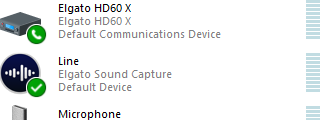
first one right?
past basin
yeah
 past basin
Figured that one would be fine, since it worked in OBS. Was mostly concerned about exclusive control
past basin
Checking something. I've never used this particular setup before, I'm trying to figure out how the audio actually works for it
vagrant pollen
ok.. its suddenly working after I switched it to the middle output
this one
wtf
past basin
You're better of than me then
I've now got my 4K X going to the stream, but I can't hear it, and it's distorted to all hell 😐
Why is discord like this
Yeah, I can't even fix my own now. Works fine in everything else but Discord
I'm assuming this is a Discord specific issue
I see a few people reporting similar issues, either no audio, or audio that sounds like it's been noise suppressed with no option to turn it off. What a cursed update the newest Discord has been
warped ledge
past basin
I see a few people reporting similar issues, either no audio, or audio that soun...
yeah there are some issues. Ithink it's in the audio settings that might help resolve it
warped ledge
I'm tempted to try stuff, but the Mac stuff is priority
 viscid estuary
this is problem i keep getting this problem
 crisp crown
didn't have that issue (and I use the hd60X) but did you look up the FAQ to see if your issue is mentioned there? (or elgato reddit)
https://help.elgato.com/hc/en-us/sections/360004237132-Elgato-Game-Capture-HD60
viscid estuary
tried installing the driver from webpage ,
i use the hd60
i have tried researching on it
 lone crypt
Usually the usb capture cards don’t need drivers…
Oh I’m wrong, I see there is a driver listed for download on the Elgato site
lone crypt
viscid estuary
i use the hd60
With the driver installed, have you restarted the computer? What capture app are you trying to use the card in?
Don’t have other usb devices connected to the same usb controller?
viscid estuary
ill restart my laptop see if that doesn't work and i have nothing connect on the usb bus ,
past basin
lone crypt
Usually the usb capture cards don’t need drivers…
Anything older than HD60 S+ does (so HD60, Game Capture HD, and original HD60 S). Anything HD60 S+ or newer is UVC instead of driver based though.
I'd try it in a different port if you've already reinstalled the standalone drivers from the site, if you haven't al,ready
Windows sees devices in a new port as new devices and will reinstall it fresh
lone crypt
Yeah seems like could just be a quirk of windows and ports, hopefully.
But it should show with its name, right? After the driver is installed?
past basin
If the driver installed cleanly, yes
 brave radish
Hello there i'm back , are you busy Arcsane ?
past basin
Based on the age of the card, might also be worth trying a different USB cable (HD60 only needs a USB 2.0 cable or better with a USB Mini - B plug)
past basin
brave radish
Hello there i'm back , are you busy Arcsane ?
I'm back and forth at the moment
past basin
You might be able to get it working on the PCIe cards, but I couldn't say for sure. It's not an officially supported resolution, but the PCIe cards are more flexible with unsupported resolutions than the USB ones generally.
Actually, @warped ledge when you're around, you've got a 5120x1440 screen right? Did you get that working with your 4K Pro after?
brave radish
I have an elgato 4k60 pro right there i believe let me see ~~
warped ledge
past basin
You might be able to get it working on the PCIe cards, but I couldn't say for su...
I have a 3840x1080 lol but to cpature the whole screen no, I can't do that, I use PBP and capture 1 side vs the whole. Unless I use OBS directly for my Ultrawide recordings.
brave radish
have two setups , and as far as i held from 9/11/2024 having 5120x1440 was impossible on my G9 so i remember Arcsane saying that firmwares in the future would maybe sort stuff but i'm just coming to get a clue if it was the case or not yet still ^^
warped ledge
brave radish
have two setups , and as far as i held from 9/11/2024 having 5120x1440 was impo...
the website lets you see the resolutions that can be captured in Ultrawide.
brave radish
Nevermind i have the Elgato 4k PRO one, driver date 2024/01/08
past basin
Pro is newer than the 4K60 Pro (they dropped th 60 since the passthrough doesn't cap at 4K60 on HDMI 2.1)
So that's probably the best one to try it with if you were going to
brave radish
warped ledge
the website lets you see the resolutions that can be captured in Ultrawide.
right now i'm able to reproduce 2560x1440 at 240 Hz
warped ledge
brave radish
right now i'm able to reproduce 2560x1440 at 240 Hz
nice!
brave radish
but 5120x1440 in november 2024 wasn"t possible yet
past basin
warped ledge
the website lets you see the resolutions that can be captured in Ultrawide.
It's actually not updated for 4K Pro yet - still lists Ultra Wide Support as being in verification.
 brave radish
ah thanks was seeking it
warped ledge
brave radish
ah thanks was seeking it
might want to see if this might be ideal https://help.elgato.com/hc/en-us/articles/23479175821069-Elgato-Game-Capture-4K-X-Supported-Resolutions-and-Frame-Rates
brave radish
gguess it's dead if i want 5120 x1440 240 hz yet :/
 warped ledge
via 4k x
 brave radish
yeah so not yet still
warped ledge
brave radish
yeah so not yet still
yeah is seems 21:9 is supported, but not 32:9 yet.
brave radish
okay so i'll hold a few more monthes 😄
past basin
Reach out to #feature-request to submit a request in the meantime I'd say. More requests for a feature might help get it considered or prioritized
warped ledge
past basin
Reach out to <#878510201173585971> to submit a request in the meantime I'd say. ...
agreed
viscid estuary
lone crypt
With the driver installed, have you restarted the computer? What capture app are...
Still same issue 🤔
viscid estuary
past basin
Windows sees devices in a new port as new devices and will reinstall it fresh
Tried aswell
viscid estuary
It works to display output but doesn't appear on laptop ?
 fallen elbow
display output would usually be handled by the device itself, not the computer, so that makes sense...
lone crypt
viscid estuary
It works to display output but doesn't appear on laptop ?
Hmm, is right. I think that means it has enough power but maybe the data connection isn’t working?
Is the cable you’re using power only? Or broken?
fallen elbow
if it was power only it wouldn't be detected in Windows device manager
I wonder what USB ID it's seeing
fallen elbow
if you go to the "Details" tab in Device Manager and change the "Property" dropdown to "Device instance path" it'll have the VID and PID in it
viscid estuary
 fallen elbow
interesting... we're not even getting as far as identifying the type of device
which would explain a lot
see if you can swap the cable out with a different one
if it's recurring across multiple computers, then it's possibly a problem with the cable or with the device itself
hopefully it's the cable
viscid estuary
Fingers crossed I'll jump to cex tomorrow or a pc shop to test it ,
fallen elbow
yeah
worst case scenario, if it recurs with a new cable, you'll wanna reach out to #official-tech-support
but, I have hope that you won't need to do that
lone crypt
I bet your cable isn’t passing data correctly. Those wires could be broken. Or it’s not the correct cable
Use usb tree viewer to see more detail.
But I would be finding a new/different usb cable at this point.
fallen elbow
would USB Tree Viewer be able to discern more data than what's available via Device Manager in this case? If Device Manager isn't showing the USB descriptors, then that implies Windows isn't seeing anything of note
lone crypt
I expect it would not say much, but that would confirm that the card isn’t connected with the data wires.
Maybe we already know that
Maybe it says there’s a usb 1.0 connection. Then we know it’s a wrong or broken cable
fallen elbow
that's fair, yeah
brave radish
By the way, anyone knows where iupdate the firmware of my elgato 4k pro ? bit clueless
past basin
brave radish
By the way, anyone knows where iupdate the firmware of my elgato 4k pro ? bit cl...
If there's a new firmware for it, it'll be in the device section of 4K Capture Utility - wait for the "One Moment Please" to clear before opening settings
brave radish
past basin
If there's a new firmware for it, it'll be in the device section of 4K Capture U...
so i juste download 4k capture utility?
past basin
Yes, the firmware updates are bundled in the 4KCU
brave radish
past basin
Yes, the firmware updates are bundled in the 4KCU
i guess it's up to date
 past basin
brave radish
i guess it's up to date
past basin
brave radish
i guess it's up to date
That's the 4KCU version - go to the device tab
That'll show the firmware version
brave radish
now another question can we edit the internal EDID to a custom resolution 5120x1440 240 hz ? or that doesn't exist?
brave radish
past basin
That's the 4KCU version - go to the device tab
this one ?
 past basin
That's the one - the update button is hidden so you're likely up to date
brave radish
past basin
That's the one - the update button is hidden so you're likely up to date
and abotu custom edids ? is there eventually one for 5120 x 1440 ?
past basin
brave radish
now another question can we edit the internal EDID to a custom resolution 5120x1...
For custom EDID's genereally put in a support request through #official-tech-support
I'm not sure if they'll have one compatible for that resolution or not, but they may ne able to make one for you
brave radish
this edid will allow me to put a resolution of 5120x1440 on my gaming screen to capture it on obs right ?
if they have one of course
past basin
If they have one, and the card can handle it, yes.
That card still isn't listed with support for that res so there's still no promises
quick oar
past basin
Bah, good chance the Windows audio settings got messed up.
If you press Windows ...
Brotha you are the goat for this man @past basin All I did once in here was put listen to device and change the playback thru the game capture and im back in business 🥹😭😎😎 thank you

 north sierra
Does anyone know the compatibility between Astro a50x, capture cards, and an elgato chat link ?
brave radish
past basin
If they have one, and the card can handle it, yes.
Hey are you still around ^^?
lone crypt
Chat link is compatible with headphones and capture cards that have analog audio input,
brave radish
Or maybe someone knows if that exists or not , can we keep for example a signal on my gaming computer of 5120x1440 and send it in 1920x1080 to the capture card to be used on OBS ?
lone crypt
brave radish
Or maybe someone knows if that exists or not , can we keep for example a signal ...
When duplicating a display to a capture card, you can scale the capture card output to a different resolution. If it changes the aspect ratio you’d have to correct for that in OBS.
brave radish
i'm not duplicating actually i'm not using passtrough but OBS with fullscreen projector
warped ledge
brave radish
i'm not duplicating actually i'm not using passtrough but OBS with fullscreen pr...
That can cause lag. 
warped ledge
brave radish
Or maybe someone knows if that exists or not , can we keep for example a signal ...
Not possible, you’d have to use pbp for that.
Currently that’s what I have to do.
The only way you would be able to capture full Ultra Wide right now is on your gaming PC to use OBS to record it or stream it and then you have to configure certain settings a specific way without taxing your GPU
 ionic lily
Has anyone else used the 4K X (not pro) and was able to get more than 120 FPS on ultrawide? I am seeing what i can do atm. So far was able to get a stable 120 fps. My monitor is capable of hitting 175hz (3440x1440p), but it causes constantly black screen. I just got my replacement and it was the same on normal 1440p 240. Some reason, high fps is causing the long flicker (screen goes black for 2 seconds, then back on for about 5 seconds, repeat). So i am thinking maybe its the new 4k capture update or firmware of the 4k x?
I am seeing if the 4k x support ultrawide 1440p higher than 120 fps.

 pure elm
"Today while I was live, three times (so that’s probably it), when I switched from one camera to another using the Cam Link Pro, the stream crashed and then resumed right after. Twitch gives me this message: 'A browser error occurred during video decoding. (Error #3000)'. It’s like when I switch cameras — which probably have different decoding formats — Streamlabs Desktop crashes the stream and interrupts the signal. Has this ever happened to anyone else?"
brave radish
warped ledge
Not possible, you’d have to use pbp for that.
i found a way with OBS team

i then cropepd black bar on left and right and everything is smooth i have 5120 x 1440 on my gaming pc and 1920x1080 on the streaming computer
warped ledge
brave radish
i then cropepd black bar on left and right and everything is smooth i have 5120 ...
That’s awesome!
warped ledge
brave radish
i then cropepd black bar on left and right and everything is smooth i have 5120 ...
Can I see the result from Ultrawide to scaled? i only ask because I want to try this as well.
brave radish
Didn't try it yet i need to test it right now but i'll try in a couple of minutes
but the scaling preview on OBS looks like a 1920x1080 preview it allows me no rescale also on the streaming pc quite helpful
brave radish
warped ledge
Can I see the result from Ultrawide to scaled? i only ask because I want to try ...
here comes the result
warped ledge
brave radish
I can’t view MKV’s currently as I’m mobile. Can you post like a youtube clip or something so I can see, also what are the configurations in OBS.
ionic lily
anyone else with elgato 4k x experience this issue too? Why it doesn't say elgato 4k x, instead it says usb video device
 past basin
ionic lily
anyone else with elgato 4k x experience this issue too? Why it doesn't say elgat...
past basin
ionic lily
anyone else with elgato 4k x experience this issue too? Why it doesn't say elgat...
Odd. Everything else looks right. PC probably installed it as USB Video Capture - try it in a different USB port to see if it changes

If it's in a port that's too slow, like USB 2.0, it may also show up with incorrect name, but also wouldn't get the video if that were the case
ionic lily
past basin
Odd. Everything else looks right. PC probably installed it as USB Video Captur...
Same result. Different ports, same issue. No adapter; just c to c cable it came with. I tried direct connection to laptop (10gbps) and then connected to the usb4 dock. Same result.
past basin
Does it show up with the same name in Device Manager?
ionic lily
Monitor - Samsung odyssey g8 ultra wide.
Laptop - Asus g14 (rtx 4070 2024 version)
I will check it out in Device manager

 past basin
Everything else works okay with the card? Does this issue persist through restarting the PC?
 charred harbor
Just a question. I’m thinking about buying a game capture neo. My use case however, I’m unsure if it’s possible to even do.
I’d just like to use it to use the discord streaming with friends on my Nintendo 2ds (old model) the only port on my 2ds is the charger port & the sd card. Along with an headphone audio port. Is there a way to use the game capture for that?
past basin
charred harbor
Just a question. I’m thinking about buying a game capture neo. My use case howev...
2DS doesn't have built in video out to capture, plus the dual screen setup adds extra issues. There might be hardware mods for this, and I think the devkits had video out? But not possible with a standard 2DS.
ionic lily
past basin
Everything else works okay with the card? Does this issue persist through resta...
It took me 20 mins to get it working, sort of. But yeah I finally got it working but capped at 120hz. Weird because it allows me to get 175hz (monitor max) but it flickers in a way. So maybe it’s not supportive yet for 3440x1440.
past basin
ionic lily
It took me 20 mins to get it working, sort of. But yeah I finally got it working...
officially 175Hz isn't listed on the supported mode chart - it caps at 144. https://e.lga.to/4K_X_Resolutions
ionic lily
144hz at 3440x1440? Hmmmm i will be ok with that. I just need to find a way to set it at 144hz
past basin
Honestly for most capture situations I'd use 120 to reduce the risk of tearing
since 120 divides wholy into 60 which is the usual capture rate for most streaming platforms, and usually what folks will record in to save drive space.
ionic lily
past basin
officially 175Hz isn't listed on the supported mode chart - it caps at 144. htt...
It doesn’t show hdmi output for ultrawide fps
 viscid rover
In system, sound, properties should volume of my capture card be at 50% ? Shouldn’t it be at 100% across the board being I manage all this thru wavelink ?
HD 60 X
lone crypt
viscid rover
In system, sound, properties should volume of my capture card be at 50% ? Should...
Generally, yes
 tranquil lynx
My HD60s has delayed audio. I'm trying everything I can to fix it but nothing is working
lone crypt
tranquil lynx
My HD60s has delayed audio. I'm trying everything I can to fix it but nothing is...
In passthrough the audio is delayed? Passthrough should be fine; the preview less so, but generally you’re not intended to play on the capture card audio.
Maybe you can be more specific about your setup and get a more complete answer.
tranquil lynx
lone crypt
In passthrough the audio is delayed? Passthrough should be fine; the preview les...
I'm using obs. I've resetted multiple times, unplugged it, it's still delayed
green quail
tranquil lynx
I'm using obs. I've resetted multiple times, unplugged it, it's still delayed
Try creating an audio input and setting the capture card as the device. I had a similar issue and this resolved it
tranquil lynx
green quail
Try creating an audio input and setting the capture card as the device. I had a ...
that would make it echo (im using obs for the audio as i only have 1 monitor)
green quail
tranquil lynx
that would make it echo (im using obs for the audio as i only have 1 monitor)
Mute it elsewhere so that it only comes through audio input
tranquil lynx
green quail
Mute it elsewhere so that it only comes through audio input
wdym
lone crypt
tranquil lynx
that would make it echo (im using obs for the audio as i only have 1 monitor)
Ah, so this is the source of your issue.
Audio is always delayed through the OBS preview. There is like 3 hops the audio is passing through to get there.
And some with the video, too.
You’ll never get rid of all the latency if you’re playing on the preview window.
But monitor the audio from the source instead of OBS (set OBS audio source to output only) and then you’ll be at or close to real time.
It might even be ahead of the video by then
But getting a separate display for direct output of the video source will be the only way to eliminate the latency altogether.
tranquil lynx
lone crypt
Ah, so this is the source of your issue.
Audio is always delayed through the OB...
That's gonna be confusing
green quail
On the capture card source, do capture audio only for audio output mode. Only audio input, for the speakers you’re using, set it to monitor off. Audio input capture, set it to monitor only. For capture card source, mute it completely (I dragged the bar all the way down). This is what worked for me
On the audio input*
tranquil lynx
How do I set the speakers I'm using to monitor off then
green quail
“Audio monitoring” drop down menu
lone crypt
tranquil lynx
That's gonna be confusing
Ok, well without a detailed description of your setup it’s hard to offer more than generalities.
But this is how it’s done.
green quail
I had the same issue with lag and echo, so once I got it figured out, I took a video of all my settings lol I just referenced it and typed out what my video shows
tranquil lynx
Where's audio monitoring
I've never had this much of a problem until now
this is with capture audio only (i can't hear the sound)
green quail
Double click the audio input capture source. It should list every audio input there. For each source listed within audio input capture, there’s a dropdown menu for audio monitoring
tranquil lynx
oh welp dangit that doesn't work
green quail
Don’t judge my monitor stand lol
tranquil lynx
well this is what I see bc i don't use streamlabs
 green quail
In OBS there should be a similar menu towards the bottom right corner of the screen where it shows the sound bars (the ones that light up green when sound is being played)
tranquil lynx
You mean this?
 green quail
Yeah click either those three dots, or the gear icon at the bottom (can’t remember which)
That should allow you to change the monitoring
tranquil lynx
On this then?
 green quail
Yeah. Now create a new audio input source (not a capture card source) but set that device to use the capture card. Basically that’s separating out the sound that comes from the capture card from the sound coming out of your computer speakers/desktop audio
tranquil lynx
the Z elgato is the input source
green quail
Are you able to create a generic audio input source, then set that device to use the capture card? Basically that’s isolating the sound coming from the capture card, and you don’t want to use the sound coming from the “capture card” source… create a generic audio input source and point it towards the capture card
green quail
Have you tried looking up videos on YouTube? That’s how I figured out how to fix mine. It could be some different issue depending on your specific setup. Just type in something like “OBS capture card echo” into YouTube and there should be tutorials on how to fix it. You might have to watch a few different videos until you pinpoint exactly what’s causing your issue
green quail
Does that make sense though? Using a generic audio input source instead of the “capture card” source? Basically giving the capture card its own dedicated audio input will prevent lag and/echo
green quail
tranquil lynx
I think I got it working
Is it working frfr?
tranquil lynx
yeah
green quail
Cool
Take a video of all your settings so in case something ever changes, you’ll know how to get back to the correct settings. I’ve had to reference my video a few times because I’ve updated a device or driver or something like that
past basin
If you're using OBS I usually suggest making a backup of your OBS profile too, so you can roll things back.
 vagrant furnace
hi friends here, has anyone experienced hdcp? if so, how do you disable it?
past basin
If it's a PS4 or PS5, you can turn it off in the video menus on the console.
Aside from that, the mods have asked that we don't discuss HDCP bypass on this server, since it's an official brand server and that could result in legal trouble since HDCP bypass is not legal in many global regions.
 cinder hornet
Hello, i have a Elgato 4K X and tried to update firmware in the capture utility program, however whn running it it just hangs up until i force close it.
It doesnt seem to do anything during that time since the capture card simply works like before when reconnecting it
past basin
If you've already aborted it once, try it in a different USB ports. In rare cases it may work better on a different port, especially a different port that has a different USB Controller hosting it
cinder hornet
Unfortunately i only have a single USB C port
Can i just use a USB C to USB A cable?
doesnt seem to work, just says i need to use a 3.0 port which i only have that single one
past basin
You can use USB-C to USB-A as long as it's at least USB 3.0 speed (5Gbps) or faster. If you have to use an adapter, or USB-C to A cable you also need to confirm the cable or adapter meets taht spec
most cables are USB 2.0, especially ones like chaging cables
cinder hornet
yeah got lots of different cables, but dont know which would work in that case
well guess im not updating that firmware yet, might have to look into this again once i got a cable that is suitable
past basin
If you have to get a new one, a 10 Gbps or faster one is preferred, but it should work on a 5 Gbps (4K X just loses some video modes on 5 Gbps)
ionic lily
past basin
If you have to get a new one, a 10 Gbps or faster one is preferred, but it shoul...
Just out of curiosity, how can we tell if the capture card is running at 10gbps?
past basin
ionic lily
Just out of curiosity, how can we tell if the capture card is running at 10gbps?
If you're on Windows you can use USB Tree Viewer and make sure the three speeds here in the summary of your card are at least SuperSpeed Plus
If some modes aren't available you can also check the list here: https://e.lga.to/4K_X_Resolutions The second chart shows what modes need 10 Gbps mode and what ones need 5.
For macOS users you'd check in the System Report
 young tendon
Hello, I am looking for a sound card for a maximum price of 120 euros. Can you give me some information?
placid mica
young tendon
Hello, I am looking for a sound card for a maximum price of 120 euros. Can you g...
this channel is primarily focused on capture cards which only capture game video and audio for sharing, it doesn't do audio processing like a sound card does
 zinc crown
hi guys do someone stream with double pc i just bought the hd60x and i need some help for configuration
warped ledge
zinc crown
hi guys do someone stream with double pc i just bought the hd60x and i need some...
Yeah, I do a dual PC between Mac and windows for gaming, but if you’re doing windows and windows, it’s identical for the most part
zinc crown
i need help for this can you help
like all is set i connected my hd60x in my streaming pc and the in part is in my gaming pc and the out on my screen
but on obs it dont want to show the screen of the capture device its just a black screen nothing more
im trying to get this configure for like 2 days
warped ledge
zinc crown
im trying to get this configure for like 2 days
In should be connected to your gaming GPU, out should be connected to your external monitor, or gaming TV, and the USB-C, connect to the capture card and the other end is going to connect to your streaming PC. On your gaming PC, you wanna duplicate your main display with the capture card. You can do this in Invidia control panel, or under display settings in windows. You also want to go to your sound settings, go to more settings, and you wanna click on recording and you wanna make sure that your card is set to listen to this device and then on your streaming PC things should show up and audio should write over.
vagrant furnace
past basin
If it's a PS4 or PS5, you can turn it off in the video menus on the console.
As...
i don't use ps4 or ps5, but i use it on iphone is there any solution?
 unreal trail
Hi, i just got Elgato 4kpro but im having troubles. In the Utility app the screen looks black and is not working
lone crypt
zinc crown
oh got it now the only probleme is the audio
You need to direct the audio from the game pc to the capture card.
Open mmsys.cpl and click the properties of the device your audio is playing on, then set it to “listen to this device on” and select your capture card.
lone crypt
unreal trail
Hi, i just got Elgato 4kpro but im having troubles. In the Utility app the scree...
Need more info.
What have you done so far in setting it up, and what’s your hardware?
past basin
vagrant furnace
i don't use ps4 or ps5, but i use it on iphone is there any solution?
iPhone doesn't usually have HDCP enabled unless you're watching something like Netflix that requires it.
vagrant furnace
past basin
iPhone doesn't usually have HDCP enabled unless you're watching something like N...
its okay thanks dude for the info
unreal trail
lone crypt
Need more info.
What have you done so far in setting it up, and what’s your har...
I already install the app, firmware, i connected the hdmi (in and out) but i have no signal. My hardware is 32 Ram, i9 14900K, RTX 5080
 icy goblet
Hey, guys. I used to have my capture card set up where I plugged my Switch or PS5 into it, and the game would show up on my middle monitor (I have 3). It would include sound as well that was shared on my Desktop. For the life of me I cannot figure out how to set that up since I moved. I'm really not sure what to do. Can anyone help? I just want to play my console games on my middle monitor and be able to also use my desktop on the others while being able to hear both my game and my desktop on a single output
lone crypt
unreal trail
I already install the app, firmware, i connected the hdmi (in and out) but i hav...
But what source video device. You’re not telling us about what your setup is. Are you using pass through? Dual pc? Etc.
General troubleshooting is to start at the source and work your way back. Connect it directly to the monitor and confirm it’s sending video. Make sure the video is in range for the capture card for resolution and frame rate, hdcp, all that stuff
lone crypt
icy goblet
Hey, guys. I used to have my capture card set up where I plugged my Switch or PS...
You can just passthrough the capture card to the monitor you want to use , but you won’t get the audio combined unless you have some kind of mixer.
Probably let the console give sound to the tv/monitor and have some speakers for the pc audio. Or… as I said, get a mixer to combine them.
zinc crown
lone crypt
You need to direct the audio from the game pc to the capture card.
Open mmsys.c...
Are you down to call so we can figure that out and screen share you
lone crypt
Not available for a call. Sorry.
But people are here in the channel as their availability allows.
zinc crown
Do I need some device for the sound or just using the capture card
And do I need to plug my microphone on my gaming pc or the streaming one
zinc crown
Can someone call me for fixing my Audio problème I Will screenshare I understand nothing
warped ledge
zinc crown
Can someone call me for fixing my Audio problème I Will screenshare I understand...
what kind of audio problem?
warped ledge
zinc crown
Can someone call me for fixing my Audio problème I Will screenshare I understand...
oh same person for dual pc from yesterday
zinc crown
yeah
im working on setting up for 3 days listening videos and things haha
cant figure out
warped ledge
You want to go here, to system, sounds, more sounds settings, click recording, select your main audio source, go to properties, and route it to your capture card.


 warped ledge
zinc crown
cant figure out
warped ledge
zinc crown
cant figure out
if you use wave link it's super easy, but if you don't same process for your main audio recording source.
zinc crown
only thing i see is sound capture not hd60x
warped ledge
zinc crown
only thing i see is sound capture not hd60x
ok use that one.
almost the same thing.
 warped ledge
zinc crown
warped ledge
zinc crown
you have to check mark listen
zinc crown
yes i did it
warped ledge
zinc crown
yes i did it
ok, are you getting sound?
zinc crown
but is it digital outpout that i select or wich one
warped ledge
the one matching the capture card
warped ledge
yeah but do you have one that shows the capture card?
warped ledge
Because your format isn't in English it throws me off, so it makes it a little of a barrier for me, but the gaming PC should route to your streaming PC, and you're routing it to the capture card. There should be a drop down that shows you the capture card on your gaming PC.
zinc crown
wait my streaming pc is english if you prefer
warped ledge
zinc crown
wait my streaming pc is english if you prefer
but the routing is done on the gaming pc.
zinc crown
yeah but i cant hear
warped ledge
so gaming PC should have Sound capture, and streaming PC should pick it up from the software.
there is also voicemeeter that can do this if you aren't using wave link.


 warped ledge
zinc crown
warped ledge
zinc crown
this needs to be on your gaming pc.
warped ledge
zinc crown
do i need aux cable ?
aux cable is a little different
zinc crown
warped ledge
this needs to be on your gaming pc.
yeah but its on my streaming pc i dont see the elgato hd60x when i go in it to check listen
warped ledge
zinc crown
yeah but its on my streaming pc i dont see the elgato hd60x when i go in it to c...
did you install sound capture on your gaming pc?
warped ledge
zinc crown
yeah but its on my streaming pc i dont see the elgato hd60x when i go in it to c...
this is the process, with any cpature card. https://help.elgato.com/hc/en-us/articles/360049800232-PC-Game-Recording-with-Elgato-Game-Capture-4K60-Pro-MK-2-Setup
brave radish
warped ledge
this is the process, with any cpature card. https://help.elgato.com/hc/en-us/art...
there it is how it looks like

some game doesn't support nattive 5120x1440 even if they say so but for example this one does @warped ledge
 vague maple
what’s up everyone!!!
Does anyone know what i need to do to setup game audio for my stream?
-I have gaming pc and streaming laptop.
-Chatlink- originally for my PS5
-HD60 X capture card.
I can pass video to OBS but I don’t know how to get game audio.
lone crypt
vague maple
what’s up everyone!!!
Does anyone know what i need to do to setup game audio for...
Chat link isn’t used for PC.
Assuming you don’t have wave link or some other mixer, open up mmsys.cpl > properties of your sound output device >
Set “listen to this device on” and select the capture card.
Now the sound is duplicated to the capture card and OBS on the stream computer can get it as part of the video capture device.
Be sure to measure your latency and compensate for it with OBS audio sync offset.
vague maple
Ok i’ll give that a try once I get home from work. I do not have any transferable equipment other than my capture card. no xlr or wavelinks.
Other than those steps. What’s the connection process? what other equipment is needed?
what i did before taking a break:
-Elgato HDMI IN > into gaming pc graphic card hdmi
-HDMI OUT to monitor
-my mic and bluetooth headset work fine in OBS and in game.
Is there any aux cords needed?
lone crypt
vague maple
Ok i’ll give that a try once I get home from work. I do not have any transferabl...
So that’s it for getting game audio to the capture card. What you’re doing is telling windows to repeat everything you hear on that audio device to the hdmi output, so the capture card receives it just as if you were feeding a console to it.
(Though, with your chat link you were using the analog audio so it can include the chat; not doing that here… everything you hear when you play is included, because that’s what you’re mirroring)
If you have any sound originating in OBS like alert sounds, that’s another thing. You would need an aux cable to bring that back to the game pc… but then you definitely need a mixer because you can’t just include those in your main audio device… or it would get repeated back to the stream and they would hear it echo.
So, to get “what you hear” to the capture card. That’s the method.
Pretty much if you want to add anything else to the stream, or hear anything back from the stream computer, you’ll need some kind of mixer. At least to get it right, sounding good, and not horribly confusing.
zinc crown
just bought the wave 3 maybe i will be good for it now
vague maple
okay so a little confused. i’m on my streaming pc. what do i change my capture card properties to?
and do i do the same thing on gaming pc?
warped ledge
zinc crown
after 4 days but theres one last thing
this you could ideally use wave link for routing your audio via dual pc too
warped ledge
vague maple
okay so a little confused. i’m on my streaming pc. what do i change my capture c...
gaming pc needs to be setup to listen, and route to your capture card via main audio source. I posted some images a day ago to help
vague maple
warped ledge
gaming pc needs to be setup to listen, and route to your capture card via main a...
i’d have to purchase additional equipment for it to work which i was trying to avoid. i appreciate the assistance from both of you. i’ll stream from gaming pc for time being
warped ledge
vague maple
i’d have to purchase additional equipment for it to work which i was trying to a...
you shouldn't have to buy extra, but what caused it if you don't mind me asking?
vague maple
i did the sound capture on gaming pc, checked box for listen. and did the same on my stream laptop but did HD60X > playback through sound capture. not sure if there's any thing else I need to do in another app or software but I tried multiple methods
warped ledge
vague maple
i did the sound capture on gaming pc, checked box for listen. and did the same o...
I can help tomorrow after I get out of work, maybe like 6pm CST.
If you need a mic I totally understand and that will be simple enough, but if not maybe you save some money.
vague maple
okay that works. ill be off tomorrow and give it a try
 limber sun
I found an old elgato capture card on Facebook marketplace, and I wanna use it to record gameplay but I dont have a laptop 😭
A new laptop that is
Could I possibly use my dads Windows XP laptop from 2006 to capture footage
 scenic river
I need help asap
past basin
scenic river
I need help asap
Volunteers are in and out through the day usually, your best bet is to drop the question or describe the problem you're having and if someone knows how to resolve it, they'll get back to you when they're in.
past basin
limber sun
Could I possibly use my dads Windows XP laptop from 2006 to capture footage
From 2006? Unlikely. Laptops that old aren't going to have a hardware video encoder and the CPU likely won't be fast enough. Trying to use XP is gonig to cause some issues too, these days - very few apps out there still maintain XP support, so you'd be digging back for an old version and hoping it still works
 devout obsidian
Anyone know why my elgato freezes after like a second of it being on, then just goes to no signal
But
My ps5 is having no problem on my screen
It’s just the app that isn’t recording or working
past basin
devout obsidian
Anyone know why my elgato freezes after like a second of it being on, then just ...
What specific model of capture card are you using? That initially sounds like the resolution or refresh rate on the console is compatible with the monitor but is slightly off with the capture card. Depending on what capture card you're using there are different ways to check that or work around it
devout obsidian
hd60 x
past basin
What app are you using it with? 4K Capture Utility?
Also what light is lit on the front of the card?
Things to try first are turning off VRR, HDR and 120 Hz mode on the PS5 to see if any of those are interfereing first. If that doesn't help, load up 4K Capture Utility, go to settings and under the device tab and try changing EDID Input Mode - since it's not work ig with the card first, try Internal mode first. If that doesn't work, Display. If neither of those work set it to Internal, then change the bottom option to the resolution of the monitor
 old orbit
I just moved my setup around and accidentally forgot which ones which, HDMI out is recording PC and HDMI in is Gaming PC for the HD60X? Or the other way around?