#capture-cards
1 messages · Page 40 of 1
 past basin
Psasthrough is the video going out from the HDMI out port (passes from the in to out port)
past basin
Something I should also mention is that capture will only ever run at 60 if you have HDR on.
I can't recall if we checked if your PC was running HDR on or not
 gentle ibex
That's what I mean @past basin It can passthrough at 1080p at 120hz but capture at 1080p 120fps or 60fps. 1440p is only 60fps but as the Passthrough for 1440p is 119.998hz when I set it up it has a slight interval stutter sending the 60fps to OBS. I've tried all I can. Hoping that the 4KX passes through at the solid 120hz like 1080p is showing because it can do higher up to 144hz. That will sort that interval stutter as it'll be 120hz not 119.998hz
HDR is off
GSYNC is also off
past basin
technically HD60 X should be able to do 144 to, though it might need a custome EDID
gentle ibex
But you get stutter in the OBS recording due to the mix of frames.. 60 doesnt go into 144 evenly.
That's the issue
past basin
what I'm saying is HD60 X can do 120 even
gentle ibex
But not at 1440p fully. It's 119.998hz
past basin
If the source is giving 119 though you may need to force the resolution mode. If there's a monitor connect to the HDMI out check the monitor's timings chart in the manual too
gentle ibex
Tried that. the card craps itself with a forced 120hz in Nvidia control panel
This is what I mean @past basin it can passthrough fine and it records fine. however, due to that 002hz difference every minute or so the OBS recording drops from 60fps to like 30fps for a few seconds and has slight hitching. it's really noticeable in 60fps games as it's 120hz capped at 60hz to stop input delay. This works fine at 1080p 120hz as it's actually 120hz not 119hz

 past basin
What is the EDID on the card running? Internal, merged or Display?
gentle ibex
Display
as it states on the Elgato website if you're passing through
Whenever I force 120hz in Nvidia control panel it shows back up on the passthrough but the capture shows lines everywhere.
I'm using HDMI 2.1 on everything
past basin
HD60 X is a HDMI 2.0 card but that's fine. Also Display means you're pulling the mode list from the monitor not the card, so the monitor is what's setting 119
gentle ibex
Hmm that's so weird.
I wonder why 1440p is 119hz but 1080p is 120hz..
It can go up to 165hz this monitor. that's so weird
Hold on
past basin
Some monitors just prefer specific timings - there should be a list in the manual that'll confirm if it should support 120 even at 1440p or not
gentle ibex
I think I just sorted it
past basin
There may also be a compatibility mode on the monitor in some cases - try setting it to PC mode if there is
(Sorry for delays, I'm typing between raid pulls in wow 🙂 )
gentle ibex
It's showing 120hz in the Screen now and the HD60x is displaying properly

@past basin It's no problem at all, i'm just thankful to chat about it. You get those raids man!
Going to do some tests to see if this glitches

 gentle ibex
past basin
Since you managed to get it set
gentle ibex
past basin
Since you managed to get it set
Hope your Wow session goes well. You've been really helpful
Sending a video. let me know what you think. i think we've sorted all my issues. No need to upgrade on my end.

Seems good to me
 rain obsidian
Hello. My elgato hd60s+ has a usb connection error. How do I fix this?
gentle ibex
rain obsidian
Hello. My elgato hd60s+ has a usb connection error. How do I fix this?
Switch USB ports, Unplug and leave for a minute and then replug back in. If it's in a USB hub plug it directly into the PC and make sure it's connected into a Blue USB 3.0 Port
past basin
Also check that you'ore using the original cable or another cable that's fast enough (and if any adapters are used they need to be fast enough too - a lot of USB A to C ones are only USB 2.0). Cable needs to be at least 5 Gbps (USB 3.0) or faster for HD60 S+
rain obsidian
gentle ibex
Switch USB ports, Unplug and leave for a minute and then replug back in. If it's...
I believe I’m using the one that came with my capture card. I used all the available ports but no luck.
Also tried another USB-C with no luck.
I guess it just happens when you don’t use your capture card for a while.
This is my second one btw
 stiff belfry
@past basin refund policy was 30 days, I’ve had to buy a new chat link at full price :/
past basin
stiff belfry
<@269997944671830017> refund policy was 30 days, I’ve had to buy a new chat link...
I was suggesting a warranty claim not a refund
past basin
And you went through support for that? I've never noticed Chat Link was excluded from the usual 2 years https://help.corsair.com/hc/en-us/articles/360033067832-Warranty-Corsair-Limited-Warranty
stiff belfry
Found a temporary solution

I know it’ll damage it more but my new one comes tomorrow anyways
stiff belfry
past basin
And you went through support for that? I've never noticed Chat Link was exclude...
I went and spoke to my guardian as he bought it for me, he tried to contact Amazon but no help
It’s fine now anyways asive found my own fix
as* I’ve*
 craggy relic
hello elgato 4k capture when i connect my elgato cam link it doesnt show up
i had my elgato for 2 years and thats the first problem i got

 amber raft
Hello, I have a problem with the capture card and OBS Studio. I would like to display the image of the capture card in OBS Studio.
I can see the image in the Elgato program, but the Elgato Card is not displayed as a source in OBS. OBS only shows my camera. I have also tested if this website shows the card as a source: https://webcamtests.com/ But I can't find the card there.
I have already contacted OBS support. They said I should contact Elgato.
I have the Elgato Game Capture HD 60
I have already tried a few things:
- Restarting all programs
- Changing the connections and cables
- Uninstalling and reinstalling the drivers
Test your webcam online to check if it is working properly and find out useful information about it
 warped ledge
craggy relic
hello elgato 4k capture when i connect my elgato cam link it doesnt show up
i ha...
warped ledge
craggy relic
hello elgato 4k capture when i connect my elgato cam link it doesnt show up
i ha...
do you have 4k capture utility installed, or just obs?
warped ledge
amber raft
Hello, I have a problem with the capture card and OBS Studio. I would like to di...
are both programs open or only 1 at a time?
amber raft
warped ledge
are both programs open or only 1 at a time?
I only have OBS open
 jagged mantle
I can't duplicate the Elgato card on OBS only ref but i need to cut it down for kill counter?
warped ledge
amber raft
I only have OBS open
What’s the configuration?
warped ledge
jagged mantle
I can't duplicate the Elgato card on OBS only ref but i need to cut it down for ...
Can you explain a little more, please?
amber raft
warped ledge
What’s the configuration?
what do you mean?
 odd aspen
Hey there using the Elgato Camink4K (usb dongle)
I am tired of the windows issue where you can't use the same camera input multiple times at the same time
Thus if i'm streaming and then I open something that needs my camera, it will freeze my streaming camera etc...
Therefore I thought of using Elgato Virtual Camera, however the issue is the same. If it's already used by OBS I can't use it in Discord, and vice versa
how can I fix this?
warped ledge
amber raft
what do you mean?
How is the properties set up on the device in OBS?
warped ledge
odd aspen
Hey there using the Elgato Camink4K (usb dongle)
I am tired of the windows issue...
So if I’m understanding this correctly, you’re using two different applications that’s taking over your camera and you’re toggling between them and your camera is freezing or is it just a Windows issue? That’s causing a freeze like your camera is in used by another program when it’s not?
odd aspen
I use my DSLR camera through a Camlink4K (the usb dongle)
I'm first using it in OBS, with input device being Elgato Virtual Camera (not camlink), i can see my face
then I open for example VDO ninja while obs is stull running, and if I select Elgato Virtual Camera, nothing appears
My OBS camera still works but can't use it simultaneously elsewhere
amber raft
warped ledge
How is the properties set up on the device in OBS?
I still don't know what you mean. I don't see the device in OBS
odd aspen
warped ledge
So if I’m understanding this correctly, you’re using two different applications ...
you don't have any idea on how to fix that?
warped ledge
amber raft
I still don't know what you mean. I don't see the device in OBS
Which capture card do you have?
warped ledge
odd aspen
you don't have any idea on how to fix that?
I’m actually asking and confirming if that’s what’s actually going on so that way, I can see if I can help
odd aspen
thx that's very nice ❤️
amber raft
warped ledge
Which capture card do you have?
Elgato Game Capture HD 60
jagged mantle
warped ledge
Can you explain a little more, please?
On OBS I add Elgato as a Video Cap Device. I can't duplicate it to edit the 2nd one, I can only dupe for reference.. I had to pop the VCD as a Window and use window capture on tiktok
warped ledge
amber raft
Elgato Game Capture HD 60
did you install the drivers?
gentle ibex
@odd aspen This is a limitation of Windows. You can't use a DirectShow device like a webcam in two programs at the same time. Capture cards and Camlinks act as Webcams technically so it's the same principle. You'd need to put the Camlink through something like Manycam and then use Manycam as the output on Discord and OBS so it doesn't lock up. It freezes because it's trying to activate in two places at once.
odd aspen
gentle ibex
<@130034521319014400> This is a limitation of Windows. You can't use a DirectSho...
I thought that Elgato Virtual Camera was the same purpose as Manycam
past basin
The other alternative aside from using a multicam app is using the internal cards like 4K60 Pro Mk2 or 4K pro - those both have added multi-app support. Other than that Royal is spot on, the interface the cameras use isn't really designed to be split.
odd aspen
isn't there a light and free software that does the same purpose as Manycam?
past basin
Virtual Camera lets you use the effects engine and use it with apps that can't call the hardware directly
warped ledge
past basin
The other alternative aside from using a multicam app is using the internal card...
agreed, that what I was trying to understand when asking if they were trying to split it.
odd aspen
past basin
Virtual Camera lets you use the effects engine and use it with apps that can't c...
ah okay since OBS virtual camera can be used multiple times I thought it would be the case of elgato's
odd aspen
past basin
The other alternative aside from using a multicam app is using the internal card...
I do have a 4k60 pro mk2 as well but for capturing console, and there's only one input possible 😦
warped ledge
odd aspen
I do have a 4k60 pro mk2 as well but for capturing console, and there's only one...
yeah they only have 1.
past basin
odd aspen
I do have a 4k60 pro mk2 as well but for capturing console, and there's only one...
Only one input yes, but it does to multi output
odd aspen
odd aspen
isn't there a light and free software that does the same purpose as Manycam?
do you know any software like that?
warped ledge
past basin
Only one input yes, but it does to multi output
true I do stream on tiktok and OBS but only console not camera. camera is 1 app at a time
odd aspen
everywhere i look they say use OBS virtual camera which is not possible since i'm streaming already on obs
past basin
You can multi instance OBS
odd aspen
a bit overkill no?
past basin
I mean you'd generaelly make a second ligher weight profile just for the camera
odd aspen
i just want to use my webcam in multiple output at same time
I was thinking of a software running in background like nvidia broadcast used to do before being broken by windows 11 update
found this
https://webcamoid.github.io/
Webcamoid is a camera capture app focused on providing all major features required by power users with a very simple and intuitive interface
don't know how reliable it is
past basin
odd aspen
I was thinking of a software running in background like nvidia broadcast used to...
They have a fix for that out - https://nvidia.custhelp.com/app/answers/detail/a_id/5553/~/nvidia-broadcast-fix-for-latest-windows-11-24h2-update
odd aspen
past basin
They have a fix for that out - https://nvidia.custhelp.com/app/answers/detail/a_...
yeah but it doesn't work for me curisouly
if chrome is opened or running in the background at any point, nvidia broadcast stops working
and multi output straight doesn't work anymore
gentle ibex
@odd aspen Splitcam is the best I know of
The best completely free live streaming studio software. Reach a wider audience by streaming to Twitch, Facebook, YouTube & Custom RTMP all at once.
Add the Camlink in there and then add Splitcam in OBS and Discord
should use the Camlink output in both softwares
odd aspen
thanks i'll check
 robust sonnet
is there a way to make the elgato hd60x just mirror your main monitor? I do not want the hd60x display to be duplicated or extended, i just want it to capture the only monitor thats essentially there - ive purchased a hdmi splitter that only mirrors but im still having my gaming pc see it as a another display, is there anyway to go about this?
gentle ibex
@robust sonnet Plug the HDMI from the PC into the Elgato and then run another HDMI through the HD60x into the Monitor. it will detect it as one single device. Set EDID to Display in 4K Utility.
You'll be limited to 144hz passthrough at 1440p and 60hz at 2160p. Only way to have higher refresh with that is to extend or duplicate.
robust sonnet
is there a way to do what youre saying without routing the output of the capture card to the monitor?
and still acheiving one display recognized
gentle ibex
robust sonnet
and still acheiving one display recognized
Not that I know of. closest you'll get is by cloning the main display to the capture card.
robust sonnet
and there is nothing else on the market that can acheive that?
past basin
robust sonnet
is there a way to make the elgato hd60x just mirror your main monitor? I do not ...
Mirroring is duplicating. What are you actually trying to avoid here with the standard setup?
gentle ibex
4K X does 4k at 144hz but it's the same situation output through the Capture card to the Monitor.
With one HDMI it'll detect your Monitor with one cable and the Elgato with the other. it's impossible to have one input unless you output through the elgato to the Monitor as a passthrough
past basin
Also if you only want the PC to see a single monitor, pass through the way Royal described is the way. It will only show up as the main monitor then
gentle ibex
Correct me if I'm wrong with anything @past basin
gentle ibex
past basin
Also if you only want the PC to see a single monitor, pass through the way Royal...
Honestly if you didn't tell me about the passthrough method I would of been ripping my hair out xD I've spent 2 years duplicating and dealing with screen tearing. I can't believe just passing it through fixed that. Thanks again
robust sonnet
the thing is, ive achieved what im asking to do here with a hdmi splitter/mirror 1x to 2, but the display on 4k utility shows everything correctly for 3 seconds then it just freezes completly showing basically a snapshot of the 3 seconds it was working, the timer at the bottom of the utility is still running as well
gentle ibex
HD60x doesnt work well with Splitters. Trust me I had a cheap HDMI splitter for my PS2 and it kept disconnecting and showing weird artifacts. it needs to be directly into the Device. same with any other capture card I've dealt with, even Avermedia
What is it exactly you're trying to do? I know you said make it so it's only showing one device. Surely doing Passthrough would fix that. Whats your Monitor Res and Refresh you're using?
robust sonnet
im not exactly sure how to explain it haha, im not the best with technology but the normal setup wasnt exactly working for me and ive eliminated all software issues, its a hardware issue with either my gpu or probably elgato since I purchased it second hand. But after reading what you said about the splitter not working well with capture cards, i directly put the hdmi from the gpu to the capture card and then from the capture card to the hdmi splitter/mirror and then the splitter to the monitor, everything works lovely but the monitor display shows hd60x but its locked to only 60hz, if i can atleast get that to 120hz+ then im completly fine and everything should be solved
could it for sure be because im not using hdmi 2.0 from the output of the elgato to splitter?
gentle ibex
What resolution are you using?
robust sonnet
1080p
gentle ibex
Can you try putting the HDMI from the output into the Monitor as a passthrough and see if the same cable gives you 120hz?
it should at 1080p give you 240hz as a max refresh. but 120hz can be selected.
If it still shows 60hz it might be a GPU situation that we need to fix. if it does show 120hz up to 240hz at 1080p we know it's the splitter limiting the Framerate.
robust sonnet
thank you so much, im testing what you said now
gentle ibex
No worries, happy to help. Just tag me if you need any further help to get my attention
robust sonnet
gentle ibex
Can you try putting the HDMI from the output into the Monitor as a passthrough a...
yeaa probably the cable then, still only letting me do 60hz on passthrough
so a hdmi 2.0 probably will solve all the issue then right?
gentle ibex
More than likely yes. I'd recommend grabbing a HDMI 2.1 Cable anyway just to future proof yourself
infact get two to eliminate the cable coming out of your PC being the culprit too
if you're in the UK or can find this on another site. I'd go with these. They've been excellent so far. https://www.amazon.co.uk/dp/B08TM8TW1R?ref=ppx_yo2ov_dt_b_fed_asin_title

UGREEN 8K@60Hz and 4K@240Hz HDMI 2.1 cable, and it combined with much latest technologies. The cable features Enhanced Audio Return Channel (eARC) which is an advancement over the previous Audio Return Channel (ARC). Now it’s easier than ever to experience movie theater quality sound in a living ...
robust sonnet
sounds good ill try and do that, thank you again for all the help
gentle ibex
@robust sonnet Not a problem. Glad to be of help. There is one last thing you can check, if you have a Nvidia card. Go into Nvidia control panel and see if this is set to GPU or Display. if it's GPU set it back to Display and Aspect ratio and see if 120hz comes back.
 robust sonnet
sadly on budget amd haha
gentle ibex
Ahh right. and it shows 120hz with just the PC directly into the Monitor?
gentle ibex
Yeah if it's allowing 180hz with the main cable and then the passthrough is only showing 60hz. its the cable. Hope the new ones fix that for you.
robust sonnet
thank you 😄
robust sonnet
gentle ibex
Yeah if it's allowing 180hz with the main cable and then the passthrough is only...
just tested it with the 2.1 hdmis still only 60hz
robust sonnet
sorry i mean its locked to maximum 120hz, and wont let me go to 180hz
past basin
robust sonnet
sorry i mean its locked to maximum 120hz, and wont let me go to 180hz
What's the full model number on that monitor? Some may only do their max refresh rates on displayport
robust sonnet
sorry I found the issue, it was the hdmi to display port adapter I was using, limited the capture card to 120hz
just purchased a different adapter that supports up to 144hz which is a little better
past basin
Ah, glad you tracked down the issue at least
amber raft
warped ledge
did you install the drivers?
I have installed a driver, but I don't know if it was the right one. Can you tell me which driver I need for the elgato Game card HD 60?
 carmine hemlock
hello ... i got hd 60x and did everything but it only record my audio and video from gaming pc and doesnt record my mic ,,,how can i fix this ? please help
past basin
amber raft
I have installed a driver, but I don't know if it was the right one. Can you tel...
https://help.elgato.com/hc/en-us/articles/360027961152-Elgato-Gaming-Hardware-Drivers it'll be on this site under Elgato Game Capture HD60.
past basin
carmine hemlock
hello ... i got hd 60x and did everything but it only record my audio and video ...
What are you recording with it? Console, dual PC? How is your mic connected, to the PC or to whatever you're recording?
carmine hemlock
dual pc ,,,my mic is connected via usb to my gaming pc
my mic working perfectly in gaming pc ,,,
past basin
How are your forwarding the mic input to the HDMI output? Do you have an app for it?
carmine hemlock
no idk how to do it actually? any solution
past basin
There's a couple -you can use the Windows "Listen to" option to set the mic to go to the HDMI out too, but that can be a bit hard to control because it can be a pain to balance the volume. Doesn't require any new apps though.
To try that, press Windows Key + R, then type mmsys.cpl and press ok. Go to the recording tab, find the mic, go to properties, and on the listen tab set it to listen to the device and set it to go to the HDMI you're using for the capture card.
There are apps like Wave Link or voicemeeter that offer software mixing that you can mix everything a bit easier with as well. Wave Link is the Elgato app- it needs a Wave USB mic, Wave XLR or Stream Deck+ on the gaming PC to setup the way you're looking to though, to activate the app. Voicemeeter is free/donationware - but it can be difficult to setup for new users since it's laid out like an old school mixer.
carmine hemlock
thanks a lot i will try the app to see how it goes <3
amber raft
past basin
https://help.elgato.com/hc/en-us/articles/360027961152-Elgato-Gaming-Hardware-Dr...
Thank you very much. This is the driver I have already installed. the game card is still not displayed as a video capture device in OBS.
past basin
amber raft
Thank you very much. This is the driver I have already installed. the game card ...
Does the card show up in Windows device manager under the cameras section? Does it light up and flash white twice when you plug in the USB for it?
 plush urchin
Elgato 4K Pro MK2.. and I'm getting this via any software that I'm using Capture Utility, Discord, OBS. The audio is stuttering as well. I'm on the latest firmware and capture utily.
 past basin
That sort of rolling screen issue is genrally a problem with HDMI timing. Most commonly VRR. Try disabling VRR on whatever you're capturing, if that doesn't help try setting whatever it is to 60Hz and if still no go I would try a different cable
amber raft
past basin
Does the card show up in Windows device manager under the cameras section? Does...
The card is in the windows device manager under camera section. When I plug in the usb the card flash white twice
past basin
amber raft
The card is in the windows device manager under camera section. When I plug in t...
Does the card work if you try it with the Game Capture HD app instead? https://help.elgato.com/hc/en-us/articles/360027964072-Elgato-Game-Capture-HD-Software-Release-Notes-Windows
amber raft
past basin
Does the card work if you try it with the Game Capture HD app instead? https://h...
Yes it works with the Programm
past basin
amber raft
Yes it works with the Programm
And you're trying to add it as a "Video Capture Device" in OBS correct?
amber raft
past basin
And you're trying to add it as a "Video Capture Device" in OBS correct?
Correct
past basin
And you closed any other apps like Game Capture HD before launching OBS?
What options DOES OBS give you?
amber raft
past basin
And you closed any other apps like Game Capture HD before launching OBS?
Yes correct. I have the option to chose my Logitech camera, the virtual OBS camera and logi capture (the Programm of my camera)
past basin
amber raft
Yes correct. I have the option to chose my Logitech camera, the virtual OBS came...
Checking back through some older stuff, HD60 is old enough seems you may have to have OBS Screen Capture the Game Capture HD app, it wasn't designed to work directly with other apps like the newer ones.
I'm trying to double check that because I believe Game Capture HD (the card, not the app, which is older than HD60) had OBS support, but I generally trust the source on that.
It's possible that one older gen card didn't have it
past basin
amber raft
Yes correct. I have the option to chose my Logitech camera, the virtual OBS came...
Actually what version of OBS are you running?
amber raft
past basin
Actually what version of OBS are you running?
The newest version. Version 30.2.3
past basin
amber raft
The newest version. Version 30.2.3
You might want to try it with an older version. I've seen a couple posts of it working with v28, and it broke in v29.1 with a supposed fix on the way. I'm not sure the currect status and don't have a HD60 here to test with my own setup.
I do believe they made changes in the last year that may have affected how OBS works with some of the older cards, I'm trying to find the notes on that
amber raft
past basin
You might want to try it with an older version. I've seen a couple posts of it ...
I had already written to OBS support yesterday. They wanted me to try out if the card is recognized as a video capture device by a webcam testing website. The elgato was not displayed there, can it still have something to do with the version of OBS?
amber raft
past basin
You might want to try it with an older version. I've seen a couple posts of it ...
I can find the elgato in version 28!! Thank you for your help!
gentle ibex
carmine hemlock
thanks a lot i will try the app to see how it goes <3
Best way i found was plugging the Mic into the Streaming PC directly and then plugging a 3.5mm to 3.5mm Jack from the Line out of the Streaming PC to the Line in of the Gaming PC. You may have to use a program to isolate just the Mic to the Line out so it doesnt send out the Desktop audio as well. I use a GOXLR mini to do mine as I can route my mic from it.
 maiden jay
Hi everyone, how's it going? I saw an firmwire update for my 4K X in 4K capture utility, and also for the utility as well so I updated both and now it shows the "No signal" error. I tried going back to older MCU which was 23.12.21 but still no luck, what could be wrong here?
Best.

Also, This is how it shows up on my gaming PC.


Oh well, as soon as I duplicated 1 on 3, it started showing up.

 stiff belfry
If I have my headset in my xbox but would like to hear soundalerts/donations from my desktop/PC audio, how would I do it at the same time as my xbox audio?
maiden jay
maiden jay
Oh well, as soon as I duplicated 1 on 3, it started showing up.
So now, I've only one issue left, which is audio is having a static noise to it on the streaming PC, what's the best way to fix that up?
Here's how the audio sounds like. There's this weird noise when nothing is playing and when I play something, that is too loud as shown here in this video: https://drive.google.com/file/d/14FAA06X8oLqQm5qvSisX5vJL2OKOMGcj/view?usp=sharing
Google Docs
gentle ibex
stiff belfry
If I have my headset in my xbox but would like to hear soundalerts/donations fro...
Windows sound devices, recording, Elgato capture device, properties, listen to device to your default listening device. Apply.
Will play your audio from your Xbox and chat into your PC so you can hear it along with your desktop audio
Only problem is your mic won't work thinking of that. You may need a splitter
stiff belfry
Oh okay
maiden jay
maiden jay
Here's how the audio sounds like. There's this weird noise when nothing is playi...
Fixed it by going for a system restore.
maiden jay
Also, I've noticed that what system restore did is bring the volume to 50% for Elgato 4K X, which is appearing in the streaming PC. If I crank that to 100, it starts doing that again, weird but okay.
 carmine patio
Is there any obs configuration settings i should set for the 4K X?
warped ledge
carmine patio
Is there any obs configuration settings i should set for the 4K X?
It really comes down to preference. I use the Nvidia guide. I actually have a video in #1291136160676188172 https://www.nvidia.com/en-us/geforce/guides/broadcasting-guide/

Configure OBS to get the most quality out of your stream.
craggy relic
Hello. I setup my capture card with my s23+, I installed a software that allows my phone to run at 120hz. However, it does not feel like 120hz and it is very sluggish. I used a refresh rate monitor from developer options to check if it actually is at 120hz, and it is. What can I do to fix it? I played around with EDID settings too.
past basin
What capture card? And what resolution are you recording app? Is the app you're using on the PC setup for 120Hz mode - not all of them support that.
craggy relic
past basin
What capture card? And what resolution are you recording app? Is the app you'r...
HD60 x, phone resolution is 1080x2340, EDID was set to 1080p120 for mobile.
 chilly oyster
Hey is there a way to use el gato capture card with wave link software with tiktok studio yet? also using a dual pc setup
past basin
craggy relic
HD60 x, phone resolution is 1080x2340, EDID was set to 1080p120 for mobile.
And does the adapter you're using to convert USB-C to HDMI do 120? Those can often trip things up too. But also double check whatever app you're using - not all of them will support 120 on the computer side either
warped ledge
chilly oyster
Hey is there a way to use el gato capture card with wave link software with tikt...
Nor sure about this with tiktok, but it may be the same as single pc and routing the game capture audio from the card.
As for wave link if you’re routing the card through wavelength, then it should work the same way as adding an audio channel
 obsidian void
Hello, I recently purchased and Elgato Capture Neo and have been using it, but recently I noticed in my footage that there are little micro stutters and the footage doesn't look to be a smooth 60fps.
I am recording with OBS but the frame counter in the bottom right of OBS doesn't seem to signify any dropped frames. I am very confused on this issue, the footage I am capturing will be okay sometimes but other times have many micro stutters that make it appear the footage is not a smooth recording.
I have used both the original cable it came with as well as a different USB 3.0 5gbps cable, and tried on PS5 and Switch. I have tried every USB port on two different PC's as well. As well as recording to multiple SSD's.
Anyone else experienced an issue like this and have any suggestions?
Computer SPECS.
Intel i7 6700
NVIDIA GTX 1080
16GB DDR4 RAM
warped ledge
obsidian void
Hello, I recently purchased and Elgato Capture Neo and have been using it, but r...
In the properties of your card on OBS via the source, did you disable buffering?
obsidian void
warped ledge
In the properties of your card on OBS via the source, did you disable buffering?
I have tried it with both enabled and disabled
The issue also persists on Elgato Capture Utility
it's like the footage is slightly jittery
warped ledge
obsidian void
it's like the footage is slightly jittery
Are there any firmware updates that are pending?
Do you have any windows updates that are pending or driver updates?
warped ledge
obsidian void
Windows, BIOS, and Capture Card
Let’s try a different USB port
obsidian void
I just tried every port on my 1st computer as well as my 2nd
still no dice
and this was with the OG cable, and a different USB cable
 bold frost
how do i listen to the capture card audio through my head set so there is no delay
obsidian void
bold frost
how do i listen to the capture card audio through my head set so there is no del...
my solution is a aux cabe from the headphone jack on your monitor to the audio in jack on your pc, and then you can listen to the device
bold frost
there is no headphone jack on the monitor, also i am literally live rightr now so buying anything is out of the question
obsidian void
not sure now sorry
warped ledge
obsidian void
and this was with the OG cable, and a different USB cable
And usb isn’t suspending is it?
obsidian void
warped ledge
And usb isn’t suspending is it?
what do you mean by that sorry
gentle ibex
obsidian void
I have tried it with both enabled and disabled
if the capture is 119hz or 59hz instead of 60hz or 120hz it'll have slight interval stutter every couple of seconds. in OBS you need to either change the capture framerate to 59hz or 119hz. I know PS5 has a 59hz issue which doing this method fixes.
Also I know @warped ledge said disable buffering but I found leaving Buffering enabled gives me better smoothness.
obsidian void
gentle ibex
if the capture is 119hz or 59hz instead of 60hz or 120hz it'll have slight inter...
I have tried it on 59.94 but still dont notice any difference 😦
and tried with and without buffering
so other people have experienced this issue?
gentle ibex
I had the issue with a HD60x but that was my own fault for missmatching framerates on a dual PC setup
Have you tried reinstalling OBS? I know mine bugged out when I updated and it caused some stuttering issues in the preview window.
obsidian void
I don't believe so, I will try uninstalling it, but it does it in elgato software too so unsure if itll help
gentle ibex
4K Capture Utility is always buggy for me. I have it dedicated to my GPU and it still stutters even though OBS doesnt.
Ever since the 4K X came out the Utility has been useless
obsidian void

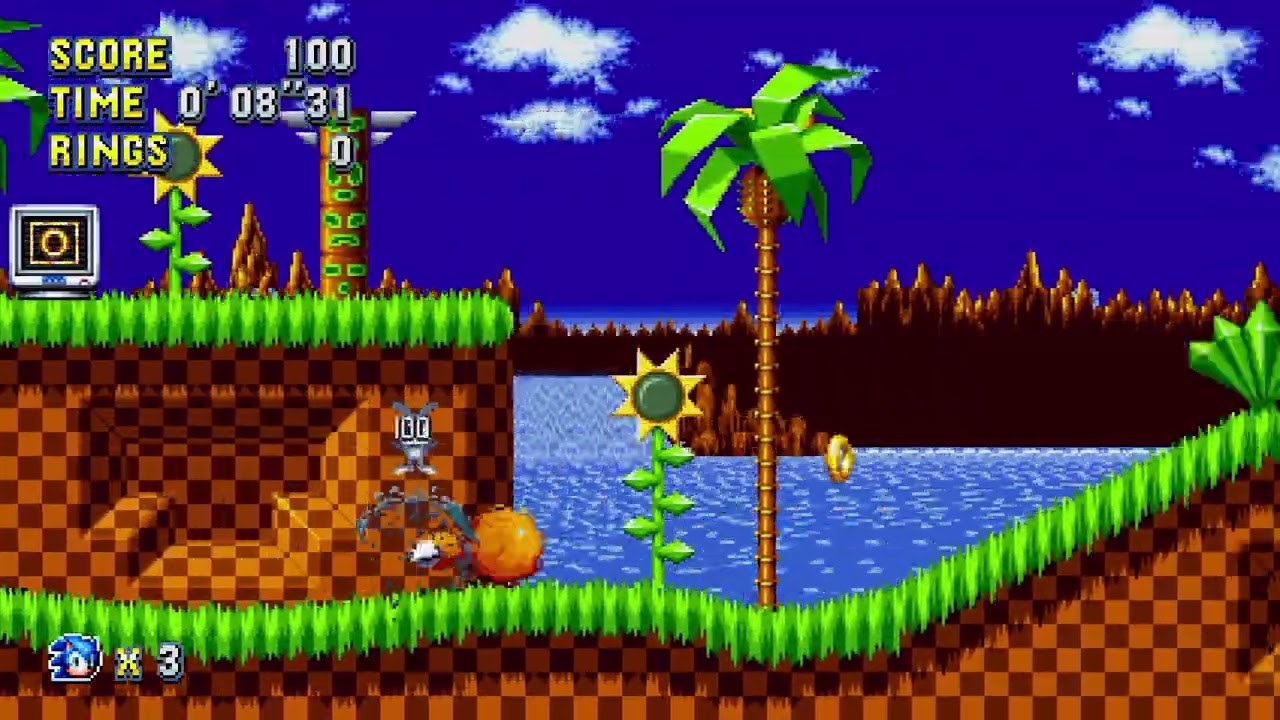
its very minimal, i think a bit more noticable in the test1 video during the credits
gentle ibex
Just to double check your setup are you playing from Console then? so PS5 or Switch in Neo and then Passthrough to the Monitor or TV?
or are you using a Dual PC Setup?
obsidian void
some people say they cant see it, but its ever so slight slutter that makes it look horrible, not smooth like when i play it
yeah from console
ps5 and switch into neo, passthrough to my tv
gentle ibex
obsidian void
https://www.youtube.com/watch?v=mLPb5Ivuse8
I can't see any slowdown on this one from my end. I have a 120hz monitor so 60fps is smooth for playback. if you're viewing on a 144hz or 165hz monitor it'll stutter due to the missed frames. First one I can see a slight bit of slowdown, it's not much but it does look like interval stutter due to the difference in 59hz and 60hz.
Are they both PS5 or Switch? Which one is wich?
Sonic Racing is PS5 I can see from the button prompts. is Sonic Mania on PS5 as well or is that playing on the Switch?
obsidian void
I'm actually not sure right now because I did a test for mania on both PS5 and Switch ill try to find out
gentle ibex
obsidian void
I'm actually not sure right now because I did a test for mania on both PS5 and S...
Let me know I believe the Switch outputs at 60hz so I don't see any stutters on my end. I can see it slightly in the end credits scene in the first video but it's only small but I understand when it happens during gameplay.
I'm going to look through some stuff and see if I can find a way to fix this for you.
I believe it's the PS5 Outputting at 59hz instead of 60hz.
Do you have VRR Enabled?
obsidian void
No not enabled my display doesnt support it
warped ledge
gentle ibex
Also I know <@476160810457235466> said disable buffering but I found leaving Buf...
That’s odd, what P# setting did you choose?
obsidian void
gentle ibex
I'm going to look through some stuff and see if I can find a way to fix this for...
thank you I appreciate your help
gentle ibex
warped ledge
That’s odd, what P# setting did you choose?
Not sure. I have 120hz Passthrough from HD60x and I have Defaults in OBS except for Hardware decoding and Buffering on. Not had any issues with stutter since.
Buffering disabled causes slight microstutters
warped ledge
gentle ibex
Not sure. I have 120hz Passthrough from HD60x and I have Defaults in OBS except ...
That’s good, odd about the stutters.
I might look into this, as I’ve not encountered stutters, but I’ll research.
gentle ibex
Think it's something to do with Buffering waits for the frame to be completed before sending it to OBS which in turn adds latency but not enough for stream or recording to notice. it just looks smoother. Disabled you get skipped frames because it doesnt wait.
60hz disabled it doesnt stutter it's because it wont have to translate from 120hz to 60fps
gentle ibex
obsidian void
thank you I appreciate your help
Just to double check have you tried 59hz in the capture options on OBS and 59hz as the common fps in OBS itself in the video tab?
Sometimes having OBS still outputting 60fps with 59hz on the capture still shows stutters as it's missing that one frame.
obsidian void
gentle ibex
Just to double check have you tried 59hz in the capture options on OBS and 59hz ...
Yes I have tried that with both 59hz in obs settings and capture source, while testing ps5
gentle ibex
Ahh bugger okay. I'll get back to you @obsidian void
@obsidian void Can you do me a favour? can you put your capture settings to default except Hardware decoding on and Buffering on. Leave your resolutiona and framerate at default setting. Go into Video settings on OBS and change the common fps to 59.94hz - Can you then record some gameplay footage of the PS5 and send it across? I want to see what it's doing with those settings on.
obsidian void
gentle ibex
<@161984830756618241> Can you do me a favour? can you put your capture settings ...
Okay, I will as soon as I can, not at setup yet but will soon
thanks!
gentle ibex
No problem! Happy to help. we'll get down to the bottom of this
obsidian void
gentle ibex
No problem! Happy to help. we'll get down to the bottom of this
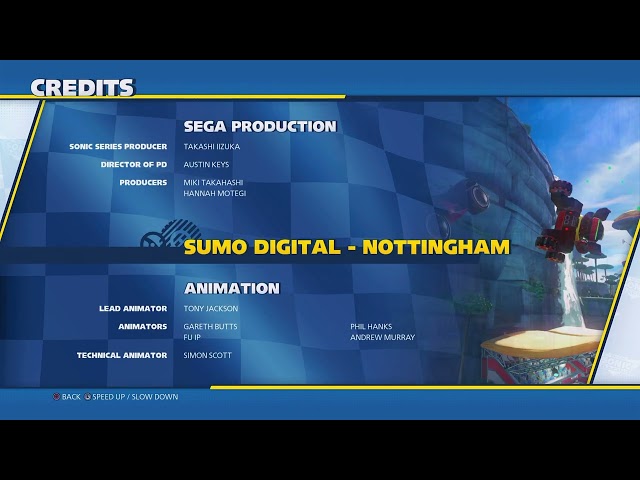

Okay I set everything back to default for the elgato source and the video output in obs is 59.94
im still noticing a stutter look, I feel like im going crazy though because its hard to even make anything out, like it looks like 60fps but it also doesnt to me, the file itself says its 60 when I check with VLC though
 sleek turret
Idk if someone would be able to help me here with my question:
So I'm trying to set up my Elgato HD60 X to grab Video/Audio from my PS5 console to the Elgato 4K Capture Utility but recently I have not been able to grab audio from the console. I currently have my Elgato connect to my PS5 and a HDMi splitter to then split it on to two seperate monitor one for the computer and one to the another splitter where it will out put he PS5 to the second monitor "reason why i have multiple splitter is because i work from home so I'm switching between monitors" while trying to set up the recording device I made sure that on the PS5 I have the following turned off:
PS5 > System > HDMI > Enable HDCP Off
I have tried to changed the PS5 audio from my current headset to HDMI Device (TV) which works but I'm unable to hear anything from my headset. I have tried to use a splitter for audio that I had laying around in my home but I'm unable to still grab the audio from the Elgato to the mic and then the computer. I'm lost at this point and would appreciate some help if this is where i could post it
 buoyant bane
My capture card barely supports my iPad Pro M1 and it’s the elgato neo
past basin
sleek turret
Idk if someone would be able to help me here with my question:
So I'm trying to...
Sounds like you have a headset connected. PS5 mutes the main audio when a headset is attached as they have a one audio stream per user model. If it's a wired headset, use a Chat Link Pro cable to split the audio out of the headset jack and set your capture card to Analog audio mode.
past basin
buoyant bane
My capture card barely supports my iPad Pro M1 and it’s the elgato neo
Are you using the iPad as the host for the capture card, or are you trying to record the capture card with something else? What do you mean by "Barely supports"?
buoyant bane
so im using a apple hub usb to hdmi to connect it to the capture card but sometimes it doesnt get a connection
past basin
So you're trying to capture the iPad screen, and not capture something else with the iPad then? When you say it doesn't get a connection does the capture software complain about no signal or any kind of other error? What light is on, on the capture card when this happens?
maiden jay
Hi, what should be the settings for the video source in OBS for 4K X?
Currently, for me, its at device default, is that recommended or custom is more preferable? If custom is preferable, what should be set in:
- Color range
- Buffering
etc.
past basin
Generally leave it at defaults unless you're noticing any issues. The OBS auto detection is generally pertty good.
 frozen nexus
Hey all, I recently got myself a 4k60 Pro Mk 2 and I am facing some serious lag/stuttering/issues with my footage when I play it back. The encoder is set to the gpu (RTX 4060), the capture card is on the latest firmware yet its still giving me issues. Check this link out to see what I am talking about - https://drive.google.com/drive/folders/1QvW-JyKlg0OEM0Z5btlGUgnLZvjHiW8q?usp=sharing. Can someone help please?
gentle ibex
obsidian void
https://www.youtube.com/watch?v=isGwHWasROg
Does it look stuttery in gameplay? on Sonic racing? I'm looking at that and it's smooth as butter on my end.
gentle ibex
obsidian void
https://www.youtube.com/watch?v=thit4VgFmd8
This looks great, no stutter or interval issues from what I can see
 sand timber
Hey guys
My friend is trying to setup a dual setup for streaming. He has Elgato HD60X and it is not being detected on the Capture utility app on the streaming PC
We did the duplicate in display settings and we did the cloning in Nvidia control panel.
Could someone help
Nvm the issue was from the USB port he connected it to (the type C)
sand timber
Ok, the HD60X is detected on the Capture utility software on streaming PC, but it is not there in Sound settings in the gaming PC? It is missing. Could someone help
He cannot find it in Playback or in Recording
It's missing in both
obsidian void
gentle ibex
This looks great, no stutter or interval issues from what I can see
Maybe i'm going a little crazy from looking at it all so much, it seems stuttery to me but I will try with these settings now and see, thank you for your help!
past basin
sand timber
Ok, the HD60X is detected on the Capture utility software on streaming PC, but i...
It should show up as a HDMI out option if you setup a duplicate display. If it didn't the usual cause is the GPU driver didin't install the HDMI audio drivers - reinstalling the GPU driver, with custom options and making sure that the HDMI audio option is selected can usually fix that.
sand timber
past basin
It should show up as a HDMI out option if you setup a duplicate display. If it ...
Ok we will try doing that. Does he need to use DDU to remove driver completely?
gentle ibex
obsidian void
Maybe i'm going a little crazy from looking at it all so much, it seems stuttery...
What screen are you watching the footage on? If it's anything other than 60/120hz you'll get stuttering from the playback but the footage is smooth
craggy relic
past basin
And does the adapter you're using to convert USB-C to HDMI do 120? Those can o...
I'm using a USB-C to HDMI cable and all it says is it supports up to 4k60. But from what I know, you don't need a 120hz cable in order to use the device at 120hz. I understand that it will only be able to output 60hz, but shouldn't I be able to use the device at 120? My knowledge is not that great so correct me if I'm wrong.
obsidian void
gentle ibex
What screen are you watching the footage on? If it's anything other than 60/120h...
i changed my monitor to 60hz and im still seeing it
maybe its something else wrong
because ill see it on certain partf of the mania video i uploaded
and then i rewind it and dont see it
sometimes it happnes sometimes it doesnt im confused, it isnt even consistent in the same spot
 humble crest
Hi, I have a problem where I can only hear my playstation & see through my stream labs display, but nothing through the main capture.. I tried much since yesterday but can't seem to find the answer 😦 Anyone an idea or where I can find what I'm looking for¿ Many thanks in advance!
gentle ibex
obsidian void
sometimes it happnes sometimes it doesnt im confused, it isnt even consistent in...
is that being viewed through VLC or through Youtube? Youtube has buffer lag every now and then. Can vary between devices.
obsidian void
gentle ibex
is that being viewed through VLC or through Youtube? Youtube has buffer lag ever...
i seem to see it on both
past basin
sand timber
Ok we will try doing that. Does he need to use DDU to remove driver completely?
If it's just missing the HDMI audio driver shouldn't need to uninstall, just run the installer again and make sure the audio component gets selected
past basin
humble crest
Hi, I have a problem where I can only hear my playstation & see through my strea...
What do you mean the main capture? the HDMI out going to another screen?
sand timber
past basin
If it's just missing the HDMI audio driver shouldn't need to uninstall, just run...
How do I find out if it is only missing HDMI audio driver?
past basin
If youo're trying to use it with two apps at once keep in mind that only the 4K60 Pro Mk2 and 4K Pro allow multiple apps to use them at once - all others can only be used by one app at a time
past basin
sand timber
How do I find out if it is only missing HDMI audio driver?
Just run the GPU installer and go through custom, and check it off to be safe. Generally the only other way to tell is none of your HDMI devices (capture card/monitor) show up in Windows sound settings (Press start, type mmsys.cpl and press OK, and check playback devices tab to see what's listed)
sand timber
past basin
Just run the GPU installer and go through custom, and check it off to be safe. ...
Alright thank you👍🏻
craggy relic
past basin
And does the adapter you're using to convert USB-C to HDMI do 120? Those can o...
I tried connecting my phone just to my monitor to see how it works. and it runs 120hz just fine, meaning the cable does run at 120hz. So i really only have the issue when I connect to elgato. Not sure what it could be.
 willow tendon
does anyone know if 4K X or 4k 60 pro mk. 2 has lower latency to OBS?
past basin
willow tendon
does anyone know if 4K X or 4k 60 pro mk. 2 has lower latency to OBS?
4K X clocks in around 30-35 ms at 1080p SDR in OBS iirc. 4K 60 Pro is around 60.
This can vary a bit based on system and whatever video settings you're passing
the 4K Pro slightly beats out the 4K X though at around 30 even
past basin
craggy relic
I tried connecting my phone just to my monitor to see how it works. and it runs ...
1080p120, on the monitor I hope? If it's a different res that might change the results. What type of computer are you recording with and what app are you using to record?
willow tendon
past basin
the 4K Pro slightly beats out the 4K X though at around 30 even
Do you know if 4K pro came before or after 4K60 Pro Mk2? I'm just kinda confused on how latency practically doubled on a revised model if it came out before
past basin
willow tendon
Do you know if 4K pro came before or after 4K60 Pro Mk2? I'm just kinda confused...
4K Pro is the newer HDMI 2.1 version. The name throws a few folks, but 4K60 was named beacuse that was the max capture rate at 4K (since it was HDMI 2.0). 4K Pro can passthrough above 4K60 so they dropped the 60.
past basin
So the order went > 4K60 Pro > 4K60 Pro Mk2. > 4K Pro
willow tendon
wait 4k pro is the worst?
past basin
Yesh, they discontinued the original Pro a while back
Thats order of how they went, not uses as a greater than sign sorry
willow tendon
oh the timeline
no mb
wow alright I'm gonna keep my eye out for the 4k pro then
thank you so much
the 4f delay is gettin kinda rough on the mk2
past basin
No problem, good luck with it
willow tendon
it'll be 2f at least with the 4kpro
past basin
If you're comparing the cards you might want to check the supported resolutions too:
https://e.lga.to/4K_Pro_Resolutions
https://e.lga.to/4K_X_Resolutions
4K X has MJPEG compressed mode so can get 4K capture at up to 144Hz, 4K Pro trades that for better HDR coverage and higher passthrough support
willow tendon
sheesh the 4kpro is all blue
past basin
Yeah, it does HDR across the board.
willow tendon
ohh i see
past basin
Capture that is - they can pass through HDR across the board on both of htem
willow tendon
i mean we're never gonna see 60+ console games 
past basin
Not at 4K for a while - at 1080p we already get above that though
willow tendon
60 itself is already a luxury with how many 30fps there are
past basin
But some folks also use it for PC capture
willow tendon
ohh gotcha
alright yeah I think I'm gonna go for 4kpro
i need latency more than anything
thanks again
past basin
No problem, good luck with it!
sand timber
past basin
Just run the GPU installer and go through custom, and check it off to be safe. ...
Hey, I wanted to ask, the re-installing should be in Nvidia right? Custom installation? Or in device manager?
past basin
Yeah, the drivers from the Nvidia site
Custom option, make sure the HDMI audio is checked
sand timber
past basin
Custom option, make sure the HDMI audio is checked
Ty
sand timber
past basin
Yeah, the drivers from the Nvidia site
HD Audio driver right? What you were talking about?
 past basin
Yes
sand timber
past basin
Yes
It is still not there in Playback
Is there something we missed
As i remember when I installed my 4K Pro, after connecting the HDMI cables in and out, it was just there, I didn’t have issues
Is there anything we need to do in the streaming PC?
past basin
There's nothing showing up there as NVidia High Definition audio under the monitor or capture card names?
 sand timber
In the streaming PC in the capture utility it is showing the gaming pc desktop
past basin
Right click any of them and make sure showing disabled devices is clicked
 sand timber
past basin
There's nothing showing up there as NVidia High Definition audio under the monit...
sand timber
past basin
There's nothing showing up there as NVidia High Definition audio under the monit...
It appeared in Recordinf
sand timber
past basin
Right click any of them and make sure showing disabled devices is clicked
Ok
past basin
NVidia High Defintion shouldn't appear in recording - it's an output device not an input. 😐
Also this is on the gaming PC you're checking this right?
sand timber
past basin
Also this is on the gaming PC you're checking this right?
It wasn’t there in recording before but now it is
past basin
What on earth.
This is the sort of window you're looking at right?

Not one of the other audio ones?
If it is, and the HDMI audio is only showning in recording, where it shouldn't generally be at all, you may actually want to run DDU afterall
sand timber
past basin
What on earth.
Sorry, he was in the sound settinga of his streaming PC even though I told him gaming PC
past basin
ahh
sand timber
past basin
ahh
It finally appeares after ticking show disabled devices, ty
Cant wait to find a new issue now
past basin
Such is life. Is it really streaming if there's not something that at least needs a tweak? 🙂
plush urchin
Using the Elgato 4K Pro. I can't enable ALLM or VRR through the PS5 dashboard - is there a reason for this or a way around it? I have an LG C2 so It does support both.
past basin
Try changing the EDID input mode of the card to Display, then disconnect and reconnect hte HDMI feed
If you're running 1440p make sure you run the PS5's 1440p mode detection
(EDID input mode is in the settings in 4K Capture Utility)
plush urchin
I'll give it a try, thank you. It was working fine on PS5 but hooking up the PS5 Pro.. It just won't let me do anything.
past basin
Ah, that's unexpected
I might run the 1440p detection even if not using 1440 to see if there's a hiccup with the PS5 pro detecting supported modes
plush urchin
I switched it to display and It's worked instantly
Thank you, both ALLM & VRR enabled.
past basin
Glad you've got it sorted!
plush urchin
Is there a reason the 4K Pro can't stream 4K to Discord?
craggy relic
past basin
1080p120, on the monitor I hope? If it's a different res that might change the ...
Desktop, 4k capture utility.
past basin
plush urchin
Is there a reason the 4K Pro can't stream 4K to Discord?
I'm not actually sure what requirements something needs to stream thorugh discord but I had thought the card should show up there. I know 4K X does. You're trying to use the Screen Share > Capture Device option right, from the streaming PC?
past basin
craggy relic
Desktop, 4k capture utility.
Does the slowness show in the preview or just the recording? 4K Capture Utility will only record at up to 60 Hz, to record in 120 you'd want to use something like OBS
plush urchin
past basin
I'm not actually sure what requirements something needs to stream thorugh discor...
I am, yeah so really unsure why It's not showing up there properly.
past basin
I couldn't say offhand as I don't know what Discord requries for things to show up - a workaround I used to use before Discord added that feature though was to run OBS Studio, then put hte video in a Fullscreen projector and capture that through Discord Screen Share. You would have to set OBS to monitor the audio so it could be heard as well in the stream - though if you don't want to listen to the OBS audio yourself I believe you can just output the monitoring to an audio device you're not actually using and it should still get picked up by Discord
craggy relic
past basin
Does the slowness show in the preview or just the recording? 4K Capture Utility...
On the phone itself. I don't care about the slowness on the preview, 4k utility software, or obs, since I can only stream 60fps on twitch. The phone displays 120hz, but it feels like 60hz. I tried using just OBS and it still feels like 60hz.
sand timber
@past basin I have a question. When you use the XLR dock to send all your sounds from gaming PC to the streaming PC, the headset MUST be connected into the audio jack at the back of the XLR Dock?
It does not support USB mic right?
Or wireless mic?
My friend has Astro A40 TR
He wasn’t able to hear anything at all with the headset
He connected it into the XLR dock audio jack
Sorry you answered that, I didn’t see
past basin
sand timber
<@269997944671830017> I have a question. When you use the XLR dock to send all y...
For dual PC setups I tend to suggest sending the audio over HDMI. The dock only supports headphones though, not a headset (headsets have a mic). It's meant for audio out since the XLR dock provides a dedicated XLR mic input.
So just to makes sure I'm getting this right - is the XLR dock attached to the gaming PC or the streaming PC? Are you sending audio over from the gaming PC to sthe stremaing PC with HDMI, and just trying to send streaming PC audio back to the gaming PC with the audio out jack, or the other way around?
Also does that A40 TR have the mixamp or just the basic headset?
sand timber
past basin
For dual PC setups I tend to suggest sending the audio over HDMI. The dock only...
XLR dock is connected to the gaming PC, sending audio from gaming pc to streaming PC. We still trying to do that, didn’t reach the part where we wanna send the audio of streaming PC to gaming PC
sand timber
past basin
Also does that A40 TR have the mixamp or just the basic headset?
Mixamp is that black thing?
I think he has it
past basin
Typcially if the dock is on the gaming PC I'd still have used HDMI to send it over, but either works. Since the Dock is on the gaming PC it can run the Wave Link software mixer - so I'd used that to setup the audio since it can split it for you. Set the stream mix to go to however you're trying to send the audio to the stream PC - either the HDMI audio setup from earlier, or a speaker output that you connect to a line in (not a mic jack as those won't support stereo) on the gaming PC, then monitor mix to whatever you want to listen to the stuff from on the gaming PC
past basin
sand timber
Mixamp is that black thing?
It'd be a box with a couple dials that the headset goes into - can bse used to split the audio here instead of using the Elgato gear too - just connect it via USB to the PC, then headset goes into the headset jack on the front and a line out / stream jack on the back goes to the PC via aux cable to the PC Line In jack
sand timber
past basin
It'd be a box with a couple dials that the headset goes into - can bse used to s...
So buying the Elgato dock was not necessary?
past basin
Is there an XLR mic involved in this setup?
sand timber
past basin
Is there an XLR mic involved in this setup?
He just bought it
past basin
If so, yes. If not, then there are other ways to setup. Stream Deck+ without the dock is enough to unlock the Wave Link software
But it's still useful if they want to upgrade to a different mic in the future
sand timber
Damn
Alright thank you, too late now since he bought the dock and Shure mic lol kill me
past basin
I mean if he has a Shure XLR mic, then yes, you'd need an XLR interface like the dock
sand timber
past basin
I mean if he has a Shure XLR mic, then yes, you'd need an XLR interface like the...
He bought the shure mic 5 mins ago lol
past basin
ah
lol
Well hopefully that works out
But yeah - having the setup on the gaming PC will make it a bit easier to use everything together (except for the fact you won't be able to use the StreamDeck+ to control most things on the streaming PC since it's not directly connected over there)
sand timber
We gna setup the mic now
past basin
(I'm assuming this was the Stream Deck+ XLR Dock and not the Wave XLR with just the one dial)
sand timber
Yup Stream dexk+ with xlr dock
Same as me but i have 4K pro capture card and he has hd60xp
x*
 verbal tinsel
Hello, I just got and Elgato 4K capture card and I followed the instructions but my ps5 isn't showing up on my Samsung Oled Monitor. Also since I have plugged it into my PC it started running extremely slow.
humble crest
past basin
What do you mean the main capture? the HDMI out going to another screen?
I can only view my gameplay through streamlabs, but the window from my capture utility itself remains frozen..
 drowsy hawk
evening people hope you all well i have a cam link pro and i having trouble with getting my softwear to work properly . I am opening it up it opens up on my main camera but if i click no.3 or no.4 where my go pros are it just frezzes and locks up on my slr can picture anyone else having same problem.
(i have check for updates all ok and i have even deleteed softwear deleted files and re installed a freash copy and still getting the same)
past basin
humble crest
I can only view my gameplay through streamlabs, but the window from my capture u...
What card are you using specifically? Also keep in mind most of them can only be used by one app at a time so if StreamLabs is open 4K Capture Utility won't be able to access the card. Is it the video that's freezing up or the app itself?
past basin
drowsy hawk
evening people hope you all well i have a cam link pro and i having trouble with...
Is this a Cam Link Pro question? Would be better to ask over in #camera-prompter - but first thing I'd do is make aure the slot on your motherboard is actually x4 (4 lanes) of PCIe. A lot of them will split off lanes for things like NVMe, or sometimes just have a bigger slot but only be wired for x1 depending on what's meant to be installed there. If the other cameras feeds aren't working past the first 1080p one I'd assume the hiccup is PCIe related first. Especially if the other cameras work when you swap them to the working HDMI in port on the card
past basin
verbal tinsel
Hello, I just got and Elgato 4K capture card and I followed the instructions but...
Which 4K Capture card did you get? 4K X, 4K60 Pro Mk2 or 4K pro?
Generally it shouldn't affect PC performance unless you're actively recording. That said does the picture show up in your capture software and not the external display? If so try using 4K Capture Utility to change the EDID input mode to Display under the settings in the device tab.
drowsy hawk
past basin
Is this a Cam Link Pro question? Would be better to ask over in <#1080643564616...
thank you i move my post over to the carmera-prompter
verbal tinsel
past basin
Which 4K Capture card did you get? 4K X, 4K60 Pro Mk2 or 4K pro?
Generally it s...
I figured that part out and fixed
past basin
verbal tinsel
I figured that part out and fixed
Glad to hear you got it sorted
humble crest
past basin
What card are you using specifically? Also keep in mind most of them can only b...
it's the app itself & I'm using a 4k60 pro mk.2.. It worked before, but I think ever since the update it started having issues before it stopped working all together.. Also thank you for taking the time wanting to help 🙂
past basin
drowsy hawk
thank you i move my post over to the carmera-prompter
Sounds good - don't forget to check the manual for your motherboard to make sure it has the full number of PCIe lanes. Also did this setup ever work before? I've seen Win 11 update 24H2 break a lot of weird things so far
past basin
humble crest
it's the app itself & I'm using a 4k60 pro mk.2.. It worked before, but I think ...
Ah 4K60 Pro Mk2 is one of the ones t hat actually SHOULD be able to work with more than one app at a time. If the app itself is freezing though I usually suggest reinstalling it first, and if that doesn't work try an older version from https://help.elgato.com/hc/en-us/sections/5126053814029-Elgato-4K-Capture-Utility-Release-Notes - maybe 1.7.10 for 4K60 Pro Mk2 to see if that freezes. If it only freezes with the new version and the old one works fine I'd reach out to #official-tech-support to look into it.
drowsy hawk
past basin
Sounds good - don't forget to check the manual for your motherboard to make sure...
i had it working the first time i plugged in and had no updates as far as i am awear it just stopped the other day will check once home in streaing room. thanks for the advie tho
past basin
drowsy hawk
i had it working the first time i plugged in and had no updates as far as i am a...
Good luck with it - sadly Cam Link Pro is one of the devices I don't have as much experience with as I'd like. If that doesn't help and there are no other community suggestions, don't forget you can reach out to #official-tech-support and put in a ticket too
humble crest
past basin
Ah 4K60 Pro Mk2 is one of the ones t hat actually SHOULD be able to work with mo...
OMG! it seems like it's working! Thank you so so much & I wish you access to your biggest dreams for the rest of your life!
past basin
No problem, good luck with it!
 stone badge
can someone help me my audio is really distoted an idk what to do
i reached out to tech support but i thought maybe someone could help me so i dont have to waste there time
carmine patio
Does anyone know a fix for screen tearing on recordings/streams? Im using the 4K X and only get it on streaming pc both on obs & 4k utility, both pc’s are on win11 and all cables are connected to the right ports, pc hardware shouldnt be the issue since both pcs are pretty beefy
past basin
stone badge
can someone help me my audio is really distoted an idk what to do
What card are you using and what sort of audio distortion are you getting?
past basin
carmine patio
Does anyone know a fix for screen tearing on recordings/streams? Im using the 4K...
What refresh rates are you working with here? That's the usual trip up. Want to keep them in factors of whole numbers so you don't wind up getting new frames partway through a refresh cycle since that's what causes a tearing effect.
carmine patio
past basin
What refresh rates are you working with here? That's the usual trip up. Want to...
1440p 240hz recording at 1080p 60fps
past basin
carmine patio
1440p 240hz recording at 1080p 60fps
Ah 4K X is going to cap at 144Hz capture. I assume this is a dual PC setup? If it's cloned go into display properties on the capture card on the gaming PC and set the capture card refresh rate to 120 hz instead
If it's passthrough you'd have to step the whole monitor setup down
rain obsidian
I have an Elgato HD60S+ and its having a USB connection error. I used every port that's available on my PC with no luck. This is my second Elgato capture card and I really don't want to spend another $100+ on a new one.
past basin
rain obsidian
I have an Elgato HD60S+ and its having a USB connection error. I used every port...
Are you using the original cable? Not all USB cables are equal - you need one that's rated 5 Gbps or faster
Passing through adapters or hubs can also slow things down
rain obsidian
past basin
Are you using the original cable? Not all USB cables are equal - you need one t...
Yes I'm using the cable that came with it.
I believe the same thing happened with my old one.
past basin
rain obsidian
I believe the same thing happened with my old one.
Try running USB Tree Viewer - https://www.uwe-sieber.de/usbtreeview_e.html . When you select the card there will be a summary on the right side that'll have three speeds, port, connection and device. All three of those need to be SuperSpeed (port may list companion port with SuperSpeed instead).

Knowing which one isn't up to speed can tell us what's going on here
rain obsidian
past basin
Try running USB Tree Viewer - https://www.uwe-sieber.de/usbtreeview_e.html . Wh...
 past basin
rain obsidian
past basin
rain obsidian
Okay, port and card are good. That looks like cable issue. Check for damge to it, or dirt in any of the ports. Make sure it's not going through any adapters and plugged straight into the computer. If that's all good, replace it. any 5 Gbps USB 3.0 cable will work - don't use a "charging" cable as most of those are only USB 2.0 speed.
If this happened before do you move the card around a lot or disconnect and reconnect it often by any chance? It's unusual to have a cable fail unless it's exceptionally old, dirty or gets moved a lot
 past basin
rain obsidian
I have compressed air can. Would that work?
past basin
rain obsidian
I have compressed air can. Would that work?
Depends on if the cause is actually dirt or somethign else is wrong with the cable
I usually use rubber coated dental picks
They're soft so they don't scratch and damage the pins and small enough to get in there, and the rubber can rub off residues
rain obsidian
past basin
Depends on if the cause is actually dirt or somethign else is wrong with the cab...
I looked and didn't find any dirt but I also was careful with the compressed air with the inside of the cord.
past basin
Then if it's the original cable, and it's still showing in the tree viewer as High Speed (USB 2.0) on the connection, the next step is replace the cable
Any 5 Gbps USB cable should work - if you want an original they sell them at https://www.elgato.com/spare-parts
I'd say 9 chances out of 10 here, if the ports are okay, on the PC side too, the cable is somehow bad
I've got to step out there a bit but if anything else changes just pop it in here - I'll either check when I get back or one of the other volunteers may ba able to help
 valid steppe
hey I'm hoping someone can help me figure this out. I installed software for a razer headset on my laptop and now I have a black border around the feed from it using the capture card. it goes back to full screen when I switch to extended display but it's at a low resolution with everything zoomed in and not fitting properly. It was also working fine on duplicated display before. I did a system restore to right before the razer software was installed and no dice. I'm up to date on everything for both my laptop and desktop and the 4k capture utility software. I power cycled the capture card (4K X), both computers multiple times, changed the resolution settings. The only thing that got it to be full screen again was changing the EDID internal to 1080 but the colors were super faded, plus I know it was working before at 2160. I shouldn't have to crop it because I didn't before. But I have no idea how to get it working how it was before
 rain obsidian
past basin
Any 5 Gbps USB cable should work - if you want an original they sell them at htt...
rain obsidian
past basin
Any 5 Gbps USB cable should work - if you want an original they sell them at htt...
I assume its the usb-c to a
past basin
rain obsidian
I assume its the usb-c to a
C to A or C to C, either works
rain obsidian
rain obsidian
I assume its the usb-c to a
Gotcha
rain obsidian
past basin
C to A or C to C, either works
Ok found a brand new USB-C to A cable and I still got the same error. Are you sure it's not the capture card?
past basin
rain obsidian
Ok found a brand new USB-C to A cable and I still got the same error. Are you su...
Double check the USB Tree Viewer summary. Don't forget to refresh it if the app is still open
And you checked that the cable is a 3.0 or higher, 5 Gbps or faster right?
rain obsidian
past basin
And you checked that the cable is a 3.0 or higher, 5 Gbps or faster right?
I honestly don't know how to check
past basin
It should be on the packaging
Might only be in the fine print on the back
If it's outright not labeled with a spec or speed, assume it's 2.0
rain obsidian
I don't have the packaging anymore.
past basin
Does the A side of the cable have blue plastic inside the plug?
past basin
If it's not labeled and has a white insert it's probably not a 3.0 cable
past basin
rain obsidian
I can't tell what is a charging cord or not
Just make sure whatever cable you buy lists 5 Gbps or faster speeds. Any 5 Gbps cable should list the speed.
 storm edge
hello guys good morning
i need a solution for my elgato hd60 x for some reason I can’t make it full screen on obs
it’s only showing like this

maybe someone could help me I’d really appreciate it
I’m running dual pc btw
warped ledge
storm edge
I’m running dual pc btw
Oh, so you’re capturing the application and not actually the capture card. I’m a little confused on your screenshot here.
storm edge
any idea how to fix this ?
storm edge
warped ledge
Oh, so you’re capturing the application and not actually the capture card. I’m a...
.
warped ledge
storm edge
.
Sorry, it’s midnight here. I was asking for confirmation that way I can try to help you, but I am going to sleep. I will regroup tomorrow. Good night.
storm edge
warped ledge
Sorry, it’s midnight here. I was asking for confirmation that way I can try to h...
Gn
warped ledge
storm edge
Gn
Usually, with a dual PC, you wouldn’t see capturing an app application, but the game or screen itself. And from what it looks like to me, it looks like you’re capturing your OBS session in general. That’s why I’m asking.
 umbral juniper
Hey i have a question... So im recording on the Game Capture and for some reason on my Ps3 after about 2 hours the audio goes out of sync
does anyone know why?
 wild hull
Since the MacOS update 13.1 (Sequoia) my ElGato 4KX isn't pushing the video signal through unless I either unplug and plug it back in, or a few times had to completely restart my Mac. Does anyone know a fix for this? Wasn't having this issue at all before the update.
warped ledge
wild hull
Since the MacOS update 13.1 (Sequoia) my ElGato 4KX isn't pushing the video sign...
Did you check the privacy settings to make sure that it’s allowed?
 crystal inlet
Hi, I have an Elgato HD60, I have two PCs and to connect them and use them for live streaming, I relied on Elgato, I managed to capture the screen and make it work even on OBS, I can't perform the audio setup, I don't I know exactly how to do it, could anyone help me?
wild hull
warped ledge
Did you check the privacy settings to make sure that it’s allowed?
It works fine if I "reboot" the capture card, but before the update I never had to do that. Apple probably messed with their video code and hopefully Elgato can figure out what's triggering that
 lament tundra
if i try to use my hd60x in obs it basically instantly freezes. So i startup obs, then the hd60x works for 1 sec and then freezes, how can i fix this?
could windows updates affect this?
warped ledge
wild hull
It works fine if I "reboot" the capture card, but before the update I never had ...
Please open. Ticket with #official-tech-support
warped ledge
lament tundra
could windows updates affect this?
Is it on every port that you try it on or is it just that poor it also is Windows spending your USB
lament tundra
warped ledge
Is it on every port that you try it on or is it just that poor it also is Window...
so it looks like it only happens when using the elgato virtual camera
and i use that to blur the background
because as soon as i switch it to the virtual camera it freezes
warped ledge
lament tundra
because as soon as i switch it to the virtual camera it freezes
Does your PC meet the requirement specs for using virtual camera and the AR options?
lament tundra
warped ledge
Does your PC meet the requirement specs for using virtual camera and the AR opti...
3800x, 3070, 32gb of ram. I think it meets the requirements, its also been working for 4 weeks
its just as soon as i switched to the virtual camera it stopped working
 stiff field
I'm using an iPhone 16 Pro Max, running EpocCam Pro, using a very high-speed data USB-C cable directly to my PC. Every minute or so I get a constant disconnected/reconnected cycle and makes the image blink in and out endlessly. Within the 24 HOURS I have of recording footage, it is a consistent non-stop problem.
I know it isn't the cable, I've used it for years on VR devices amongst other devices, and while I can't claim it isn't the phone, this identical issue was present on my iPhone 13 Pro when it still had a lightning port. I don't see it being a port issue on the PC either, this hasn't happened with anything else I've plugged into the port
I have my connection preferences on the app set to USB since Wi-Fi isn't really a way I can efficiently capture.
crystal inlet
crystal inlet
Hi, I have an Elgato HD60, I have two PCs and to connect them and use them for l...
pls help me
warped ledge
stiff field
I'm using an iPhone 16 Pro Max, running EpocCam Pro, using a very high-speed dat...
Might want to check in #camera-prompter
warped ledge
lament tundra
its just as soon as i switched to the virtual camera it stopped working
I’ll test out virtual. Give me a bit
warped ledge
crystal inlet
Hi, I have an Elgato HD60, I have two PCs and to connect them and use them for l...
Did you set the audio settings to listen?
crystal inlet
warped ledge
Did you set the audio settings to listen?
I connected Elgato to my gaming PC via the aux cable
warped ledge
crystal inlet
I connected Elgato to my gaming PC via the aux cable
In that case, I have a video in #1291136160676188172 showing aux for PC, it’s towards the end. 😉
crystal inlet
ok, tomorrow i test this, thanks
warped ledge
storm edge
Gn
please don't DM people unless they said it was ok too. I did reply in the server. I will not respond to the DM.
 edgy kiln
Here’s my setup:
Gaming PC (with a GO XLR and a Shure mic connected)
MacBook 2024 with an M3 Pro chip (handling the streaming through Streamlabs)
Elgato HD60+ capture card
Camera connected via a Cam Link
My goal:
I want to capture the audio from my PC (game sound and mic via the GO XLR) and send it to the MacBook to stream on Streamlabs. I’ve connected the GO XLR’s Line Out to the analog input on the Elgato HD60+. On the MacBook in Streamlabs, I’ve set up the Elgato as a Video Capture Device and added a separate audio source for the HD60+, but I’m not seeing any audio levels in Streamlabs.
Steps I’ve already tried:
Checked that the Elgato HD60+ is set to analog audio input in the Elgato Game Capture software.
Tested different cables and checked the audio output in the GO XLR.
Added an Audio Input Capture source in Streamlabs for the HD60+ with no luck.
Tried with OBS Studio, but still no audio signal.
Questions:
Has anyone experienced a similar issue with the HD60+ and GO XLR also have terrible low fps on streamlabs capture
Any tips on ensuring the HD60+ captures analog audio properly?
Any other recommendations for capturing audio from the gaming PC and sending it to the MacBook?
Thanks in advance for any help – every bit of advice is appreciated!
sleek turret
Hey guys any reason why i keep having a black screen on OBS but Elgato shows video???


 honest tulip
Not sure if anyone else is having this issue, but I am currently having an issue where when I capture my console to OBS it's blank. It works when I switch my refresh rate to 1080p60 on console but when i go to 1080p120 it goes black on OBS. I currently run the Elgato Capture Neo which should support 1080p120 passthrough and 1080p60 Capture.
past basin
edgy kiln
Here’s my setup:
Gaming PC (with a GO XLR and a Shure mic connected)
MacBook 202...
Did you already plug something like headphones into the line out on the GoXLR to ensure it's outputting audio the way you expect? Beyond that check mic privacy settings on the mac in the OS settings to make sure it's not blocked out.
Also I'm assuming this is actually a HD60 S+, since there's no HD60+. Make sure you'ore not trying to use it with a video signal over 1080p60 or you're going to have issues, including possible fps issues. Also try changing the buffering mode in Streamlabs source properties.
past basin
sleek turret
Hey guys any reason why i keep having a black screen on OBS but Elgato shows vid...
Make sure you don't have both apps open at the same time - only one at a time can get video from the card. Aside from that try removing it and adding it back to OBS again if you haven'ta lready. Especially if you changed anything like what port it's in
past basin
honest tulip
Not sure if anyone else is having this issue, but I am currently having an issue...
Does the screen in the passthrough port also go out?
honest tulip
The screen itself works perfectly and it even shows on the Elgato Capture utility as well, it just doesn't display anything on OBS when I run a video capture device
Ah found the issue, was because I had the capture utility up
past basin
Ah, that'd do it. Glad you've got it sorted
 balmy matrix
the other day when i was seeking help with my elgato 4k X capture issues, and trying to update the firmware, well, it turns out the capture doesn't show up not just on obs but on my gaming pc either. Can't find it. Its nowhere to be found. I think this card is officially cooked.
 brave radish
Heyas, do we have a clue if any capture cards got release for 5120x1440 ? 🙂
past basin
balmy matrix
the other day when i was seeking help with my elgato 4k X capture issues, and tr...
Does it power on at all? What colour is the light on it? Does it show up in device manager under cameras?
 crisp escarp
Which card should i get if i want to stream my ps5 on discord but still use my pc headphones?
 lone crypt
crisp escarp
Which card should i get if i want to stream my ps5 on discord but still use my p...
lone crypt
crisp escarp
Which card should i get if i want to stream my ps5 on discord but still use my p...
I think then the question is about what resolution you want to capture at, and finding the lowest latency capture card that’s capable of that
edgy kiln
past basin
Did you already plug something like headphones into the line out on the GoXLR to...
yes, I already plugged headphones into the line out on the GO XLR, and the audio output was working perfectly. I also tested the HD60 S+ on a Windows system, and the sound was coming through fine over HDMI and fps was smooth on same gaming pc to capture, although I couldn’t test the analog audio.
Let me know if there are other settings or adjustments you’d recommend on macOS that could be blocking or interfering with the analog audio input in Streamlabs. Thanks for the help!
warped ledge
edgy kiln
Here’s my setup:
Gaming PC (with a GO XLR and a Shure mic connected)
MacBook 202...
I have a video covering analog in #1291136160676188172 as it’s the same for any capture card setup from elgato.
warped ledge
balmy matrix
the other day when i was seeking help with my elgato 4k X capture issues, and tr...
Is the device in device manager? If so uninstall it, unplug, reboot, and restart. See if it picks it up.
warped ledge
brave radish
Heyas, do we have a clue if any capture cards got release for 5120x1440 ? 🙂
Elgato can’t comment on future products.
edgy kiln
warped ledge
I have a video covering analog in <#1291136160676188172> as it’s the same for an...
@warped ledge Not working at all for me i guess therie is an issue with mac os Sequoia last update
warped ledge
edgy kiln
<@476160810457235466> Not working at all for me i guess therie is an issue with...
I’d wait until Elgato says it’s safe to update. Can you rollback?
maiden jay
Hi, just wondering, is it recommended to keep this to "Default" or should I change it to custom and put in the settings? Thanks.
 balmy matrix
past basin
Does it power on at all? What colour is the light on it? Does it show up in de...
balmy matrix
past basin
Does it power on at all? What colour is the light on it? Does it show up in de...
as soon as i turned on my streaming pc the blue light came on but then turned off. and it does not show up on device manager.
balmy matrix
warped ledge
Is the device in device manager? If so uninstall it, unplug, reboot, and restart...
it doesn't show up sadly
balmy matrix
warped ledge
Is the device in device manager? If so uninstall it, unplug, reboot, and restart...
oh wait i found it. was looking at the wrong pc lol i have a dual pc setup so it was showing on my streaming pc
i'll try uninstalling it and see if that helps, would it reinstall when i plug it back it in?
warped ledge
maiden jay
Hi, just wondering, is it recommended to keep this to "Default" or should I chan...
Optional
Inise custom
warped ledge
balmy matrix
i'll try uninstalling it and see if that helps, would it reinstall when i plug i...
Yes
maiden jay
warped ledge
Inise custom
What should be the custom settings for 4K X? I'm capturing in 1440 144hz
balmy matrix
warped ledge
Yes
ok so it sort of..worked, i now see it on obs BUT on my gaming pc there used to be a elgato 4k X option because I can't hear any sound of the gaming to my obs, i went to nvidia because you have to have displayed as if it was a second monitor and clone it or something like that. anyways it doesn't show up at all on my gaming pc but somehow its being captured on my streaming via obs, ok i'm getting confused idk if i'm making sense 😄
warped ledge
maiden jay
What should be the custom settings for 4K X? I'm capturing in 1440 144hz
It depends on your preference but make sure you don’t get a black screen. If you do, it’s because it’s not matching the output of the capture card in 4K capture utility so make sure that you are capturing the exact same specs when you set it up custom if not, leave it default if it’s working, it should be fine either way.
warped ledge
balmy matrix
ok so it sort of..worked, i now see it on obs BUT on my gaming pc there used to ...
The capture card should always be connected to your streaming PC and your HDMI in should be connected to your gaming PC
balmy matrix
warped ledge
The capture card should always be connected to your streaming PC and your HDMI i...
It is. All of it is connected
that's the weird thing
what does it mean when it says to disconnect ALL hdmi? do they mean disconnect from the pc, and all the cables plugged onto the capture card? the only thing connected to the streaming pc is the usb type c port

nevermind.. update failed again. Ok, i'll see if i can contact elgato directly and see if they can send me a new one i have warranty on this still.
warped ledge
balmy matrix
nevermind.. update failed again. Ok, i'll see if i can contact elgato directly a...
Remove both hdmi cables and try again
maiden jay
warped ledge
It depends on your preference but make sure you don’t get a black screen. If you...
Got it, thanks Vic! 👍
craggy relic
Hi there, so I bought the Elgato 4K X, works fine, but the only problem is that I can’t capture high FPS.
I have a PS5, GTA V runs on 60 FPS, but when I record it with ElGato it’s like 30 fps. Is that a problem with my PC? Note, I don’t have a USB-C port on my PC, so I bought a USB-C to USB-A port. Maybe that decreases the FPS?
(I tried all the graphic settings in ElGato already)
If anyone can help I would greatly appreciate it
past basin
craggy relic
Hi there, so I bought the Elgato 4K X, works fine, but the only problem is that ...
If you're playing at 4K and your USB-C to A adapter isn't 10 Gbps, it can drop capture to 30 FPS. If you're using OBS or StreamLabs you can try using MJPEG compression mode to get around that (though it will slightly increase video latency)
craggy relic
past basin
If you're playing at 4K and your USB-C to A adapter isn't 10 Gbps, it can drop c...
The adapter said 10 Gbps, but I feel like they’re capping 😂 I didn’t use obs with it, but I will try that, thanks.
past basin
Check them port on your motherboard is 10 Gbps too if the adapter was. Might have to check the manual to know which ports are which if your board has a mixed set
craggy relic
Oh I will do that! Will let you know how it goes
 minor burrow
Hi all, is anyone free to help? Im at my wits end getting my 4k x to work
 warped elm
- HDMI 2.1 from Console to Elgato HDMI IN
- HDMI 2.1 Elgato HDMI OUT to TV/MONITOR Make sure it's an HDMI 2.1 port
- USB-C from Elgato to a USB 3.2 port on your PC. These ports are 10gbs or 20gbs
- Make sure youre following the Manual for console specific settings, on PS5 must disable HDCP
If you cant get video on the PC, something in steps 1-4 is done incorrectly
minor burrow
Hi Mega! So i was using my hd60+ perfectly fine with my ps5 to pc usb c. With the x, every other device can read it (nvidia broadcast even shows it as a camera working fine) but my 4k capture utility with x just sits on one moment please
minor burrow
one moment let me grab it for you
is there a easy way to tell which mobo i have
ASUS PRIME Z790-P
i believe
 minor burrow
yup
warped elm
So a USB-C to USB-C data cable
minor burrow
exact one
Im currently using the one supplied in the box. but I was also using my 10gb cable before with my hd 60 plus and same issue.
warped elm
Are you using confirmed HDMI 2.1 cables?
The 4k X comes with one
The other is supplied by you
minor burrow
I am yeah, using the one with the elgato box and tried my other two. They work perfectly under the hd60
im sorry if im vague lol, i just cant wrap my head around it
minor burrow
oh i was using the 4k 60 hdmi on the hd60 plus
which i think did need 2.1
my nvidia broadcast shows the input totally fine which is head scratcher to me
 warped elm
 minor burrow
what mine currently shows atm

Like im using the proper usb c connector, cables work fine. hopefully its a easy solution im overlooking
warped elm
Can you make sure HDCP is disabled
If you're on PS5 Pro, it's reenabled if you had it disabled on PS5
minor burrow
yup first thing I did
yeah i got one had to disable that haha
also ty for helping me
warped elm
On your TV or Monitor try disabling DSC or CEC
minor burrow
oh okay I have a lg oled, let me check into that
warped elm
So I have never heard of Nvidia Broadcast, so I'm installing it to see if it interferes with my Elgato
minor burrow
yeah at first I thought it could of been something like another program is using it
but oddly elagto 4k utility doesnt even show that. Just stuck on one moment please
warped elm
My problem is that even on the PS5 Pro they prevent audio splitting between HDMI and USB Wireless Headset. I have a 4k X and Chatlink Pro as well.
I use a Sony Inzone H9 and I love it for all the features. But I'd like to stream/record audio. Im in the Sony Inzone H9 return window at Best Buy and happy to order a new headset, but as an old Military guy with bad hearing I need ANC. I do not want to route audio from my Controller.
Anyone have any good recommendations for a good headset I can plug into the Elgato 4K X via chatlink that additionally has ANC?
Cost is not a major concern, my Sony Inzone H9 is 199.99. I just want ANC and competitive audio
But struggling with finding a 3.5mm capable audio headset with ANC
 pastel spade
So im new to using a capture card, and i have the neo, i was curious what would be the best settings for nintendo switch?
valid steppe
valid steppe
hey I'm hoping someone can help me figure this out. I installed software for a r...
still not able to figure this out, has anyone had issues with 2160p not going full screen with the 4k X?
warped elm
Sorry man mine was pretty plug n play
valid steppe
yeah it's weird cause it was working totally fine out of the box but once I installed razer headset software it stopped working properly
lament tundra
warped ledge
I’ll test out virtual. Give me a bit
Have you been able to test it out? Maybe you have the same problem?
warped ledge
lament tundra
Have you been able to test it out? Maybe you have the same problem?
To be honest, I have not had a chance I had to do some stuff that required majority of my attention today and then I just live streamed, but I will test it out tomorrow cause I’m actually working on some content as well
lament tundra
Do your thing, no rush.
past basin
pastel spade
So im new to using a capture card, and i have the neo, i was curious what would ...
There's not terribly much to setup - generally I suggest leaving things at default unless there's something specific you're having issues with or want to tune.
Aside from that you'd have to clarify if you're planning to stream (and if so what platform) or just want to make some recordings, as both of those have different limits.
past basin
valid steppe
hey I'm hoping someone can help me figure this out. I installed software for a r...
Most likely your GPU on the gaming PC has had it's scaling mode changed, or it's not actually outputting 2160p. You may also want to turn off the option for native resolution in 4K Capture Utility by right clicking the video and deselecting that option. Typically that letter boxing is because the app is set to native resolution and whatever you're streaming from is set lower than the monitor.
past basin
warped elm
My problem is that even on the PS5 Pro they prevent audio splitting between HDMI...
Personally I use the Arctis Nova Pro Wireless to get around this - their base station has a line out that you can set to streaming mode and feed into the 4K X as analog audio (generally also needs a ground loop isolator). They have ANC- but it's not great. Works for filtering out sounds here like minifridge and fan noise, but not great for other kinds of sudden noise.
If you didn't need to speak at the same time, or can add an additional mic, there are plenty headphones out there with better ANC that'd be an option too - I've got a set of Soundcore Q45's with decent ANC, but to work with a PS5 I'd have to wire them up and most don't support headset mode in wired mode.
past basin
minor burrow
Hi Mega! So i was using my hd60+ perfectly fine with my ps5 to pc usb c. With th...
If you're still running into this try resetting the 4K Capture Utility settings (Settings > reset defaults in the bottom left). Elgato's app can pull some settings from the card that other apps cannot so if those are corrupted or unexpected, it can mess with the app. Resetting it then rebooting the computer can often resolve it. Aside from that uninstall the current version of 4K Capture Utility you have and reinstall the latest one from https://www.elgato.com/downloads would be my next suggestion, and if it still doesn't work after that reach out to #official-tech-support so they can check what's going on with the software.
It may also be worth checking your Windows Privacy Settings for camera aren't blocking access for 4K Capture Utility, and that it's set to allow both applications, and further down, Desktop applications, access.
warped elm
past basin
Personally I use the Arctis Nova Pro Wireless to get around this - their base st...
Thank you for confirming. After my message I came to the Arctis Nova Pro Wireless as an option from reading about it
edgy kiln
Despite all my efforts, I’m still experiencing severe low FPS issues with the HD60 S+ on my MacBook Pro with the M3 chip, running macOS Sequoia 15.2, in both Streamlabs and OBS Studio. I’ve tried various settings and adjustments, but nothing seems to fix the problem. Additionally, there’s no analog audio output.
I tested the same setup on a Windows machine, and everything worked perfectly, so it seems like this might be an incompatibility issue with macOS.
 mellow sequoia
Hiii I got an Elgato Neo recently and I've set it up to stream my nintendo switch gameplay to Twitch using my MacBook. However, there is no game audio that comes through. What should I do such that the game audio would be available?
past basin
mellow sequoia
Hiii I got an Elgato Neo recently and I've set it up to stream my nintendo switc...
Are you using it with OBS? Don't forget to add the card again as an audio input capture, if so. It doesn't do both through just the video feed like it does on windows.
mellow sequoia
oh hmm! i’ll give it a shot tomorrow since it’s getting late now. thank you so much! 🙈
minor burrow
past basin
If you're still running into this try resetting the 4K Capture Utility settings ...
Hi there! So i found out that in streamlabs I have a video source just titled Elgato 4k X, which works perfectly fine. Its literally just 4k capture utility that doesnt show a signal. Ive tried uninstalling and hitting reset device. Any other suggestions? might my product be defective?
 naive bluff
I'm second guessing myself now but does the HD 60 X allow 4k 120hz Pass through without any limitations?
past basin
naive bluff
I'm second guessing myself now but does the HD 60 X allow 4k 120hz Pass through ...
No - 4K120 requirest HDMI 2.1. HD60 X is a HDMI 2.0 card. You'd need 4K X or 4K Pro for 4K120 passthrough
past basin
minor burrow
Hi there! So i found out that in streamlabs I have a video source just titled El...
Sounds like a software issue not a 4K X issue. Make sure no other apps are using the card when you launch 4K Capture Utility. You may also need to check that Windows Privacy settings are setup to allow both apps and desktop apps access to the cameras (under Windows settings, in privacy & security under the camera section). If none of that works, since it sounds like you already hit reset defaults in the app, try an older version from https://help.elgato.com/hc/en-us/sections/5126053814029-Elgato-4K-Capture-Utility-Release-Notes like 1.7.10. If still on go open a ticket following the stemss in #official-tech-support
naive bluff
Damn. I mean it does change to 120hz on the screen when I select the mode
past basin
naive bluff
Damn. I mean it does change to 120hz on the screen when I select the mode
It can do 1080p120 or 1440p120 but not 4K. It can tell the signal that's being sent it jusst can't handle that much data since HDMI 2.0 iss 18 Gbps and 2.1 is 48, so you'll jusst get a black screen
naive bluff
I suppose PS5 pro ain't pushing any games at 120 anyway do it probably always defaults to 1080 120. Are there any limitations in terms of always playing PS5 or 4k movies through PS5 using the HD 60 x compared to it just being plugged directly into the tv? Just a bit of a pain if I have to keep swapping out the HDMi 😬
past basin
naive bluff
I suppose PS5 pro ain't pushing any games at 120 anyway do it probably always de...
It'll use 120Hz mode for 40 fps mode too (since 120 divides into 40 it helps prevent tearing)
The other hiccup you'll find is no capture card will pass through HDCP content like BluRays and most streaming services
naive bluff
Maybe I'll just buy a living room PC with a built In 4K drive 😅
 solemn ledge
Hello. Is there someone who might be able to help me in regards of setting up my Elgato?
past basin
solemn ledge
Hello. Is there someone who might be able to help me in regards of setting up my...
volunteers are in and out through the day - you're best off dropping questions you have about setting it up, and including the specific model of capture card you're using, what sort of computer (windows/mac), what you're trying to capture (eg Switch, PS5, another PC), and what app you're using
solemn ledge
past basin
volunteers are in and out through the day - you're best off dropping questions y...
I understand, thank you
I managed to setup my hd60x with my windows pc and ps5 but I cannot capture my game audio reliable and without delay. It’s annoying because you cannot set the multiple audio outputs (hdmi + headset). I couldn’t figure it out so I‘m trying to get help here.
Elgato hd60x + Chatlink pro
Turtle beach stealth 700gen2 (usb, not 3,5)
Windows 10
PS5
past basin
solemn ledge
I managed to setup my hd60x with my windows pc and ps5 but I cannot capture my g...
What app are you using for capture? 4K Capture Utility or something like OBS or StreamLabs? If it's one of the later two, mute the card and add it again as an audio input capture. There's some known issues with OBS based apps on some setups pulling audio through the video feed.
solemn ledge
past basin
What app are you using for capture? 4K Capture Utility or something like OBS or...
Mainly for testing I used neither of them. Just purely the Elgato application.
past basin
How much delay are you seeing? A small amount is normal due to video processing delay - like 30ms or so depending on the setup
But it should be in sync with the video that way, only delayed compared to pass though, not compared to capture
Oh wait you have a USB headset so it's not in the Chat Link. . .
Hm
solemn ledge
past basin
Oh wait you have a USB headset so it's not in the Chat Link. . .
Yes that’s my main problem
past basin
You won't be able to completely remove it but you may be able to cut it down to be not noticeable. If your PC has a line in jack run your chat link to that instead of the capture card and it'll bypass the video delay
This will result in your audio being early on your recording though unless you use something like OBS Sync Offset to manually sync it up or adjust it with edits after
Beyond that the best option would be switch the headset tbh
solemn ledge
So it would be possible to pass trough the audio via hdmi to the Elgato and from the Elgato through the line jack to my pc?
solemn ledge
past basin
Beyond that the best option would be switch the headset tbh
I wasn’t planning on doing that, I like the headset because it’s multi usable with my pc and phone
past basin
solemn ledge
So it would be possible to pass trough the audio via hdmi to the Elgato and from...
I was suggesting more the 3.5mm from the chat link (I've assumed the headset was connected to the PC here - I'm realizing that may not be correct)
solemn ledge
past basin
I was suggesting more the 3.5mm from the chat link (I've assumed the headset was...
No, the audio comes from the ps5. I have everything set up except for the audio part.
past basin
You may be out of luck then - with the way PS5 audio works with a one audio feed per user setup, you're not going to be able to capture the audio going to the headset, unless it has built in sharing capabilities or a wired 3.5 mm option. You can't really capture USB or wireless audio.
If you have a second controller you can sign that in and use the Chat Link to get the audio from there - but since it's signed in as someone else this pretty much only works for basic game audio, and not most voice chats
solemn ledge
past basin
You may be out of luck then - with the way PS5 audio works with a one audio feed...
That’s annoying :/
thanks for the help tho, appreciate it!
past basin
Yeah, sorry I don't have better news there. Trying to capture wireless audio setups is a pain of they're not designed for it
i use the Arctis Nova Pro myself because the base station for it has a line out I can capture from. But that and the Astro A50 lineup are the only ones I can think of with stream functions offhand.
(aside from some older Arctis overs having a headphone sharing jack on the headset itself)
minor burrow
past basin
Sounds like a software issue not a 4K X issue. Make sure no other apps are usin...
Thank you I'll try this
 neon pivot
Hello, I’m looking for some help on getting my 60S+ to capture audio. Worked perfectly a few months ago but now when I open Game Capture while using the capture card it’s silent. Using Mac.
 uneven geyser
why am i getting an echo?
- i am not sure if the machine is suppose to output audio
pls help!
this is the sc

it seems turning down auido mixer helps
mic audio seems fine but there is no sound on the game device
plus i dont think i am using the 4k capture card correctly lol,
uneven geyser
mellow sequoia
Hiii I got an Elgato Neo recently and I've set it up to stream my nintendo switc...
ive getting the same prob. hope the pals here can help us. i might escalate the issue if i cant get proper help, i love the elgato devices
aye i got it fixed
@mellow sequoia follow this video to help you out https://www.youtube.com/watch?v=mgoO6i7eN5A

Hey guys! I´ve seen that this is a common problem among streamers, so here is the easy fix!
but it does seem the mic pics up to be w echo
balmy matrix
so since i have warranty of the elgato 4k X capture card would i be able to get a refund, I have thought about it and I think I'm gonna stick with my old elgato capture card for now, the 4k X for dual PC streaming has been nothing but problems and I don't wanna deal with them anymore
uneven geyser
⏬ so it seems that i got it fixed
but it does kind of feel kinda gainy
if you have headphones on, you can tell the mic captures sound so good. but why is it bad through the OBS software
 pure trout
Hi, bit of what I assume is a strange question here.
So I have an HD60 Pro capture card in my PC. Is there any way I can get my console to display on a second computer (laptop)’s Game Capture application with it? Hope that made sense.
lone crypt
pure trout
Hi, bit of what I assume is a strange question here.
So I have an HD60 Pro capt...
The capture happens on the computer doing the capturing.
lone crypt
uneven geyser
if you have headphones on, you can tell the mic captures sound so good. but why ...
Not understanding the question.
Unless you’re changing the sound with filters in OBS, there is no difference in the sound there.
Maybe you can be more specific about what you are hearing.
past basin
balmy matrix
so since i have warranty of the elgato 4k X capture card would i be able to get ...
If it's still not taking the firmware update I would put in an RMA request for replacement through #official-tech-support . Trying to update that card should never have been as difficult as it has been it may need replacement. Even if you're not going to use it for now, if it's having issues I'd put in a claim while it's under warranty just in case.
past basin
neon pivot
Hello, I’m looking for some help on getting my 60S+ to capture audio. Worked per...
Are you using an Intel Mac or a Apple Silicon Mac? The old Game Capture HD app has known issues on Apple Silicon as it's not support on there and runs under Rosetta2 emulation. You might want to try using the card with another app like Quicktime or OBS Studio (where you can add it as an audio input capture to capture audio), to see if that helps.
Other than that check that the macOS privacy settings didn't block it out (under the mic section) during an OS update - I've seen folks get tripped up on that in the past.
mellow sequoia
past basin
Are you using it with OBS? Don't forget to add the card again as an audio input...
I've just tried this and it doesn't work!
past basin
mellow sequoia
I've just tried this and it doesn't work!
You don't have a headset connected directly to the console do you?
Also does the audio bar in OBS move and just you don't hear anything, or no signs of life at all even after adding it as an audio input capture?
mellow sequoia
past basin
You don't have a headset connected directly to the console do you?
right now, no o:
I just followed this video and it works, thank you! @past basin @uneven geyser
I left my headset at work so i'm unable to try it out with the headset ... hahaha
past basin
If you do setup the headset after, you'll need something like Chat Link to split it
mellow sequoia
I also gotta send my macbook in for a repair due to some unrelated issues (battery) so i'll try it out with my headset once it's back
past basin
Since it wont' send audio to the headset and HDMI audio port at the same time
mellow sequoia
Hmm not sure I completely understand at the moment but I'll save your message for when I do get to it 🙈 thank you so much!
lament tundra
warped ledge
To be honest, I have not had a chance I had to do some stuff that required major...
Not trynna be annoying, but have you had the chance yet to try it out?
uneven geyser
mellow sequoia
I just followed this video and it works, thank you! <@269997944671830017> <@3021...
you’re welcome
warped ledge
lament tundra
Not trynna be annoying, but have you had the chance yet to try it out?
Currently at work, and yes. I didn’t encounter this.
lament tundra
Weird.
neon pivot
past basin
Are you using an Intel Mac or a Apple Silicon Mac? The old Game Capture HD app ...
I’m using the M1 so I believe it’s an Intel Mac but not sure. It was working fine a few weeks back. I run OBS on the Mac for streaming but the capture card goes to the monitor for my PC as well. Something weird I noticed is I used to be able to select Elgato 60S+ on my PC using the voicemeter app but now it shows some Digital Audio connection that wasn’t there before. Somethings a little wonky I just can’t figure it out.
past basin
neon pivot
I’m using the M1 so I believe it’s an Intel Mac but not sure. It was working fin...
M1 is Apple Silicon - means Apple made the CPU not intel basically.
Typically HD60 S+ shows up as "Digital Audio Interface" Game Capture HD60 S+ in Windows, so that might be what you're seeing and Voicemeeter might have changed what part they display.
 neon pivot
past basin
M1 is Apple Silicon - means Apple made the CPU not intel basically.
Typically HD...
neon pivot
past basin
M1 is Apple Silicon - means Apple made the CPU not intel basically.
Typically HD...
Ok great. Before when I opened Game Capture on the Mac it would show the audio coming through but now it doesn’t. Any idea on why this may be happening.
past basin
neon pivot
Ok great. Before when I opened Game Capture on the Mac it would show the audio c...
If you updated macOS recently, check the privacy settings. The audio interface gets handled as a mic iirc and os updates may sometimes lock it out from some apps
You might also need to go into the cards settings in the app and make sure it's set appropriately to hdmi or analog mode. Eg if using a chat link set it to analog
 pale nymph
I'm having an issue with Mirillis Action and the 4k Pro, I'm getting a black screen and nothing else.
It works fine with 4k Capture Utility and OBS, but this is the only program that's giving me issues, anyone have any suggestions?
(I've went through all settings and even reinstalled the Cards Drivers, nothing seems to work, could be the program itself isn't fully compatible with the card)
 balmy matrix
past basin
If it's still not taking the firmware update I would put in an RMA request for r...
balmy matrix
past basin
If it's still not taking the firmware update I would put in an RMA request for r...
Yea I tried everything. It just doesn't update. And it constantly freezes on obs. This card is absolutely cooked..I actually want a refund instead of a new card. Im just gonna stick with my elgato HD60 S capture card it's still rocking after 4 years it's amazing
 unique dew
Is there any way to use a 10' USB cable on an elgato neo without causing any quality loss? The only info I could find was for the elgato HD or HD60, but I have the neo capture card
 deep stone
Just got the 4k60 Pro MK.2 and I'm trying to get it setup for a dual pc setup so I have the HDMI cord going from my graphics card to the in on the capture card. My issue is, it's saying my video input on the Capture utility is 1080p60. I need to get this to be 1440p. I have the monitor I play on set to 1440p and it's duplicating that monitor to the capture card "monitor" should it not also be 1440p?
 warped ledge
lament tundra
Weird.
warped ledge
lament tundra
Weird.
Yeah cause your pc meets the specs.
 neat pond
hey y'all! Something is pretty wrong with my capture card. I've gotten things fixed with Vic once, but problems keep persisting.
Whenever I reopen OBS, the capture card doesn't display any video or audio. I'll unplug the power source, plug it back in, deactivate the source, and then when I activate it, it crashes my computer.
Now that the computer has restarted and I've reopened OBS, video capture is working just fine but audio isn't.
This happens fairly frequently 😞
 wicked egret
Bonjour
J'ai le même problème avec la box de capture Neo : J'ai tout bien branché, paramétré obs mais je n'ai pas d'image, cela affiche : no signal
J'ai essayé de changer les câbles mais toujours rien...
Quelqu'un aurait une solution ?
 frosty vortex
deep stone
Just got the 4k60 Pro MK.2 and I'm trying to get it setup for a dual pc setup so...
frosty vortex
deep stone
Just got the 4k60 Pro MK.2 and I'm trying to get it setup for a dual pc setup so...
check the EDID settings are correct, they weren't automatically right for me initially 🙂
frosty vortex
I'm having some trouble with my 4k60 Pro MK.2 - I run a dual PC setup, everything has been working perfectly for months up until this past weekend, when I was having some OBS issues and decided to make sure everything was updated. I think since updating the firmware on the capture card, the VRR is causing some issues with my footage and game, but I can't work out how/why for the life of me.
I'm getting screen tearing on my footage now that I've not had before, starting up a game will cause the input refresh rate to change even if everything's capped, and changing in-game settings related to the display (reducing refresh rate, changing from fullscreen exclusive to borderless etc) seems to restart the capture card causing then screen to black out, OBS to lag, the game to crash etc... Has anyone ever experienced anything like this? I'm stumped
warped ledge
frosty vortex
I'm having some trouble with my 4k60 Pro MK.2 - I run a dual PC setup, everythin...
Try turning off the vrr or the 120hz
See if it works better
frosty vortex
Where would I do this @warped ledge? That was my thought process too but I don't see anywhere in the 4K software to turn off either, and even when I cap everything to 60FPS and disable Gsync on the game PC, as soon as I go from game to desktop the signal will drop, monitor goes black, input changes to 1440p120 again. Thanks for the response 🙏
warped ledge
frosty vortex
Where would I do this <@476160810457235466>? That was my thought process too but...
Nvmd ypu’re on dual pc not console.
Try Display, for the EDID
lament tundra
warped ledge
Yeah cause your pc meets the specs.
Ait well, today ill just try reinstalling both the capture and webcam utilities. Same thing for the nvidia sdk effects. Maybe that helps.
warped ledge
lament tundra
Ait well, today ill just try reinstalling both the capture and webcam utilities....
Actually, just do the Nvidia SDK for now and then test it out. See if it works. If not, then repair those two other software’s.
lament tundra
Alright, ill start with that
 lapis quartz
Hi so I accidentally unplugged the USB for my hd60X and now I can longer get the audio to work in OBS (I was working before) I’m using a Mac m1 I really need help ASAP
sand timber
Hey guys
Something really weird was happening in my PC with the monitors n capture card. Let me put my brain cells together to be able to explain
So I have a dual setup. One PC+monitor for streaming and another PC+monitor for gaming
So when I turned on both of them and wanted to stream on Tiktok live studio, the capture card was capturing a monitor that was not there. As if it was capturing my SECOND gaming monitor even though my gaming PC has only 1 monitor connected to it
Anyway I disconnected everything restarted everything
It finally started capturing my gaming monitor
But then I launched a game
In graphics settings my gaming LG 4K monitor is not there
Only capture card
Wth
Why did this happen?
I think it’s because I cloned 2 to 1 and not 1 to 2? Does it matter?
past basin
sand timber
I think it’s because I cloned 2 to 1 and not 1 to 2? Does it matter?
That can throw it off, yes. when you're cloning like that the one that shows up as the one getting cloned to the other will be the one that shows up to apps like games
past basin
lapis quartz
Hi so I accidentally unplugged the USB for my hd60X and now I can longer get the...
Given this is a mac, try removing the Audio Input Catpure for the card and setting it up again in OBS. Sometimes when you disconnect something if it goes into a different port or something, OBS sees it as a wwhole new device.
sand timber
past basin
That can throw it off, yes. when you're cloning like that the one that shows up...
Yeah yeah I fixed it just now
I swear I was losing brain cells trying to figure what happened
past basin
Yeah that hiccup throws a lot of people the first time they hit it
lapis quartz
past basin
Given this is a mac, try removing the Audio Input Catpure for the card and setti...
It randomly started working… when I was trying to work my way around it
past basin
Ah, glad you got it up and running at least
 supple ridge
So im struggling really bad to get this to work, I have the 4kx and the inputs and outputs are correct. I have hdcp turned off and I don’t know what to do. My monitor works with the ps5. What do I do?
warped ledge
supple ridge
So im struggling really bad to get this to work, I have the 4kx and the inputs a...
Are you using OBS or 4K Capture Utility? Also try another USB 3.2 port.
supple ridge
warped ledge
Are you using OBS or 4K Capture Utility? Also try another USB 3.2 port.
I know this is gonna sound dumb but do I have to configure obs or streamlabs first before my monitor displays ?
cause I haven’t set up obs or stream labs yet 💀
warped ledge
supple ridge
cause I haven’t set up obs or stream labs yet 💀
Yes, but what about 4K Capture Utility? Does anything show up there? Nothing dumb about this. I’m happy to help.

supple ridge
warped ledge
Yes, but what about 4K Capture Utility? Does anything show up there? Nothing dum...
I’ll get back to you in 5 minutes
Lemme set it up real quick
frosty vortex
warped ledge
Try Display, for the EDID
no luck  tried a dozen different combinations today and two other HDMI cables, thinking it must be the hardware or firmware because when I disconnect it from the gaming PC, I don't have any crashes when changing the in-game display mode. Filed a ticket and going to try reinstalling the 4k capture utility & drivers in the mean time but I think it's chalked 🫠 thanks so much for trying to help
warped ledge
frosty vortex
no luck <:WaveMad:738813312778633226> tried a dozen different combinations toda...
I’ll reach out after work, but we’ll see what we can figure out.
supple ridge
warped ledge
I’ll reach out after work, but we’ll see what we can figure out.
hey thank u sm ur actually a live saver
warped ledge
supple ridge
hey thank u sm ur actually a live saver
You’re welcome! please DM with the issue, and what’s been done, so I don’t forget. Thanks!!!
 thin oasis
Does anyone knows where to find the Cam Link 4K new model (20GAM9903) online in the us? Bought on Amazon but got the 20GAM9902.
warped ledge
supple ridge
hey thank u sm ur actually a live saver
I’m avail
<@&581565551495741448>
warped ledge
thin oasis
Does anyone knows where to find the Cam Link 4K new model (20GAM9903) online in ...
not that I'm aware of, I think it's really what's available.
 woeful olive
Has anyone got the 4K X to work with 120hz 4K HDR10 passthrough? Personally I cannot get it to work, have the exact same issue as this guy https://www.youtube.com/watch?v=z7IsGsb4j_Q And I have not seen it working in any review. I can capture stuttery video in the 4K app or in OBS (duplicated frames every now and then, its terrible), but the passthrough has massive color banding. Like the guy in the video I linked to I can cut out the 4K X and connect directly to the TV with the same cables and the TV tells me its the exact same bandwidth and mode but the picture is perfect, no banding. And of course I have contacted support, they haven't got back to me. What really worries me is that I also have the Avermedia 2.1 card and that also has the identical issue... I am thinking these cards literally cannot do it.

Video demonstrating colour banding issue with Elgato 4K X.
PS5 to Elgato 4K X to LG C1. Showing visible banding.
No other intermediate devices.
PS5 to LG C1. Showing NO signs of banding.
warped ledge
woeful olive
Has anyone got the 4K X to work with 120hz 4K HDR10 passthrough? Personally I ca...
Are you on a Mac or Windows PC?
What is the GPU you're using?
I don't have color banding when using CQP
 woeful olive
warped ledge
Are you on a Mac or Windows PC?
woeful olive
warped ledge
Are you on a Mac or Windows PC?
Not sure how any of that effects passthrough but I have two pcs I have tested on, both 3080s, one win10 and one win11. Also tested on two TVs, one LG CX and one LG G1. And again I am not sure how encoding in the 4K app effects passthrough?
warped ledge
If you use Nvidia this may help https://www.nvidia.com/en-us/geforce/guides/broadcasting-guide/
Configure OBS to get the most quality out of your stream.
warped ledge
woeful olive
Not sure how any of that effects passthrough but I have two pcs I have tested on...
What are the settngs you have in OBS for the properties? and Also 4K Capture Utility?
How is your card setup in here?
 woeful olive
basically the same as your pic but I have qc at 16 on one PC and 14 on the other. In the 4K app I just turned HDR off.
warped ledge
Did you setup in OBS like this?
 woeful olive
Oh and I have preset faster as when I go 40 series I can use dual encoders, which will not work on slower settings.
warped ledge
 warped ledge
woeful olive
Oh and I have preset faster as when I go 40 series I can use dual encoders, whic...
warped ledge
woeful olive
Oh and I have preset faster as when I go 40 series I can use dual encoders, whic...
not to worries about the preset, vs the HDR part since you were using that.
woeful olive
warped ledge
Did you setup in OBS like this?
I have a different color space... Will that cause the passthrough to change also?
warped ledge
possibly, I make sure I setup for HDR recording with p010 and Phil actually covered this for me as PQ is more accurate that HLG
Give it a try and see if any improvements.
woeful olive
But I cannot work with HDR recordings... I need to record in SDR. Ill try it and see anyway
warped ledge
I also disable/uncheck here since I'm using OBS for my recording.
 warped ledge
woeful olive
But I cannot work with HDR recordings... I need to record in SDR. Ill try it a...
warped ledge
woeful olive
But I cannot work with HDR recordings... I need to record in SDR. Ill try it a...
if you're doing SDR just use 709
woeful olive
yeah that is what it is already. The recordings are fine. Again its the passthrough that is terrible

 woeful olive
My TV says crb... something. But its telling me its identical to the video running straight from the PS5. Ill check in obs though
warped ledge
woeful olive
My TV says crb... something. But its telling me its identical to the video runn...
Yeah I use 4K capture Utility for settings on the card, but everything else OBS.
woeful olive
warped ledge
Yeah I use 4K capture Utility for settings on the card, but everything else OBS.
Testing the settings they changed the picture on the PC but nothing effects the passthrough. Still getting banding on the tv no matter what.

 woeful olive
Testing the settings they changed the picture on the PC but nothing effects the ...
woeful olive
woeful olive
Testing the settings they changed the picture on the PC but nothing effects the ...
You can see on the door of that car in the pic all the lines. It's far more noticeable in the sky but the banding disappears when I hit pause in the sky so I cannot show it
supple ridge
So I use stream labs and my audio is capturing. I bought a chat link pro and I don’t know how to connect it to my stream labs.any tips ?
warped ledge
woeful olive
Testing the settings they changed the picture on the PC but nothing effects the ...
Have you tried different EDID modes?
warped ledge
supple ridge
So I use stream labs and my audio is capturing. I bought a chat link pro and I d...
I have a video in #1291136160676188172 that can help you with it
warped ledge
woeful olive
You can see on the door of that car in the pic all the lines. It's far more not...
I’m gonna call it a night but either I’ll revisit this tomorrow after work or @past basin might beat me to it
woeful olive
warped ledge
I’m gonna call it a night but either I’ll revisit this tomorrow after work or <@...
Thanks for all the help anyway, have a good night
supple ridge
warped ledge
I have a video in <#1291136160676188172> that can help you with it
Yea nah im just stupid
watched the video and did it im probably missing something small but stream labs is sorta layed out different then obs
woeful olive
warped ledge
Have you tried different EDID modes?
Just tried internal, display and merged edids and all the same. Merged did trigger a new display setup for the PS5 but went back to the same banding. Its super frustrating as even if I solve this there is still the issue of what looks like duplicated frames when using VRR. In the preview window as well as recordings it happens (in OBS and in 4K app), I can skip through frame by frame and every now and then there is a frame that is duplicated (and I tested so many different FPS options, all the same). And what's worse is that the avermedia card has identical issues (and across two different PCs with different OS). The same frame skip and the same color banding on passthrough. I am quite worried that these cards can't actually do what they say on the package. Is there any evidence out there of 120hz vrr hdr passthrough working fully? Because I cannot find any 😭
warped ledge
woeful olive
Just tried internal, display and merged edids and all the same. Merged did trigg...
I have not had this issue. Where can I replicate it but can you post your settings and I’ll see if I encounter any color banding as I have not had the same experience.
There’s probably a setting somewhere if both of these cards are behaving the same personally I use VRR and I’m able to hit 120 without any issues so I’m concerned and I’d like to see what your settings are. Also, have you opened a ticket yet with official? I think you might have.. #official-tech-support
Lastly, let’s wait till tomorrow. I’m actually in bed. And perhaps either myself, someone else or even staff might be able to give more insight or have you try different different things as a resolution..
warped ledge
supple ridge
watched the video and did it im probably missing something small but stream labs...
They’re very similar and they should have nearly identical settings. Let me know what part you’re stuck on. I can probably help tomorrow. I’m going to bed.
woeful olive
warped ledge
I have not had this issue. Where can I replicate it but can you post your settin...
What game do you test with? As far as I know few games will actually scale to 120hz (for me and the guy on YT the issue is GT7s 120hz mode). But you have a 4K X, 4K 120hz TV and a PS5? If so Ill copy down all my settings.
warped ledge
woeful olive
What game do you test with? As far as I know few games will actually scale to 12...
Yes, I do
Currently using a PS5 Pro actually
woeful olive
warped ledge
Yes, I do
The pro is sitting next to me, waiting to be able to actually record it properly 😭 But cool, I am meant to be working be when I finish ill copy all settings
warped ledge
I can use Spiderman, Hogwarts Legacy anything that supports it
warped ledge
woeful olive
The pro is sitting next to me, waiting to be able to actually record it properly...
Don’t stress sometimes you have to walk away from something for a little bit and then revisit it so we’ll revisit tomorrow it’s 1140 here and I work tomorrow so I won’t be free until maybe seven or 8 PM CST
Have a good night
Good morning, shift, enjoy your day
minor burrow
Anyone have any suggestions? im getting this now with my 4k x and tried merge/interal and restarting and fresh install
 minor burrow
Is anyone available to possibly help?
minor burrow
okay, so i unplugged my elgato cam link, and it still only has this. Ive tried different consoles, hdmi cables, downgrading versions. It just gets stuck here im at a complete loss
 warped ledge
minor burrow
Anyone have any suggestions? im getting this now with my 4k x and tried merge/in...
warped ledge
minor burrow
Anyone have any suggestions? im getting this now with my 4k x and tried merge/in...
reset to default and try again.
minor burrow
Hi Vic! I've tried this unfortunately no luck
warped ledge
woeful olive
The pro is sitting next to me, waiting to be able to actually record it properly...
Looks like Phil replied on Reddit.
 minor burrow
Do you have the orignal thread so I can keep myself updated on it? I wonder if there is a work around currently
warped ledge
minor burrow
Do you have the orignal thread so I can keep myself updated on it? I wonder if t...
for the Color Banding issue?
minor burrow
Oh no sorry, for the one moment please issue
You replied to a different issue my bad
warped ledge
minor burrow
Oh no sorry, for the one moment please issue
Oh no, there was no thread. This was for somone else. 😉
warped ledge
minor burrow
Hi Vic! I've tried this unfortunately no luck
hm... let's try a different usb port.
minor burrow
So I've tried both my usb c and usb type 3 ports. I made sure they are 20gb ports. What's odd is every other camera and capture tool recognizes it. It's literally just utility 4k
I've tried wiping app data since a couple others on reddit had this issue and no luck their either 😦
warped ledge
minor burrow
I've tried wiping app data since a couple others on reddit had this issue and no...
which capture card was it?
warped ledge
minor burrow
4k x
you're using the official elgato cable and are you mac or windows?
minor burrow
Yup! Windows
 minor burrow
Anyway to check? I'm a bit of a dummy on that. Although windows camera app and obs recognize it as a camera so idk if that's it. I'll double check though
warped ledge
desktop has this, not laptops
minor burrow
Okay lrt me check really quick ty
warped ledge
minor burrow
Anyway to check? I'm a bit of a dummy on that. Although windows camera app and o...
yes you'd follow this settings above
warped ledge
minor burrow
Okay lrt me check really quick ty
keep me posted! You'll have to reboot after.
minor burrow
On windows 11 so not setting that option, let me see where it's tucked away now
Restarting now*
Okay sadly still nothing
warped ledge
minor burrow
Okay sadly still nothing
bummer, ok we'll revisit tomorrow. I'm going to bed.
minor burrow
Sounds good ty
 white pine
hey how is everyone i have an issue i just got my elgato hd60x and i wired everything hdmi in to back my pc hdmi out to my nintindo switch and usbc into my pc and i have the software but the issue is i keep getting USB device not recognized and the elgato comes up as a audio device how can i fix that
 keen cloud
How can I stream with this app called rooter with my iPad https://www.rooter.gg/live?
Rooter - Live Streaming Platform For Games
Rooter Description
 warm grove
Hi do any one knows about 4k pro capture's latency comparing to 4k 60 pro mk2?
past basin
warm grove
Hi do any one knows about 4k pro capture's latency comparing to 4k 60 pro mk2?
They're pretty close. Normally aounrd 30 ms vs 60, if at 1080p60 SDR through OBS, in the tests I've seen. So like 2-3 frames of video instead of 2-4. The settings you record at, app you use to render it on screen, and even system spec can all affect it thoug
woeful olive
warped ledge
Looks like Phil replied on Reddit.
Thanks for that. I cannot actually do much on reddit right now because I was banned for 3 days for idk what, I asked to see what I was banned for and they ignored my question and extended the ban for an extra 3 days because I asked.. sigh. Anyway here are all the details I can think of as being relevant:
Also the cables have been tested directly from the PS5 to the TV, no banding. And the USB port details are here from tree view


Vendor ID : 0x0FD9 (El Gato Software LLC)
Product ID : 0x009B
Manufacturer String : Elgato
Product String : Elgato 4K X
Serial : A7SNB34811R8YY
USB Version : 3.2 Gen 2
Port maximum Speed : SuperSpeedPlus or higher
Device maximum Speed : SuperSpeedPlus or higher
Device Connection Speed : SuperSpeedPlus or higher
Self powered : yes
Demanded Current : 896 mA
Used Endpoints : 3
Video : UVC Version 1.00

That signal information on the tv is the same when there is no banding, and I have tested on the LG CX and G1, also with different input lables such as PC, game or normal.
 next palm
Can someone please help me I got no signal to my Tv but everything is connected 🙏
@warped ledge could you help me please I got no signal on my Tv but I can see my screen on the laptop capture software
woeful olive
next palm
<@476160810457235466> could you help me please I got no signal on my Tv but I ca...
Likey its the cable
next palm
woeful olive
Likey its the cable
But I put in the cables correct
woeful olive
but what if the cable is too slow?
next palm
Nvm I got it to work
Silly me didn’t change hdmi on the tv
But I can’t see it on TikTok studio like that capture card
mellow sequoia
Hi, I've got my macbook back and just tried starting up a stream but my elgato isn't showing anything on OBS 🥺
mellow sequoia
ait nvm i restarted my laptop and OBS a couple times and it works now 🤧
past basin
Glad you got it sorted
sand timber
Hey guys
I use 4K Pro for dual setup. My gaming PC is 4K 160Hz
In my streaming PC in the Tiktok live studio app, I had the 4K option in the settings of the capture card source. Now it’s only 1080

Does anyone know why the 4K option disappeared?
And also in Elgato Capture Utility, it says “Source 2160p 144” and “Capture 1080p60”

Shouldn’t capture be 4K too?
past basin
sand timber
If you're working with 4K video, then above 60Hz the card's ability to capture drops to 1080p resolution. See the resolutions chart at https://e.lga.to/4K_Pro_Resolutions
You can still pass through 4K160, but the card can't capture 4K signal at that refresh rate.
sand timber
past basin
You can still pass through 4K160, but the card can't capture 4K signal at that r...
It’s ok I don’t mind 60
But where is 4K
And why is it gone from Tiktok live studio
past basin
sand timber
But where is 4K
It'll likely be locked out as an option til you reduce the signal from the source. Try setting the PC back to 60Hz in the display settings, then restart TikTok and see if the available options change
sand timber
past basin
It'll likely be locked out as an option til you reduce the signal from the sourc...
Ok
sand timber
past basin
It'll likely be locked out as an option til you reduce the signal from the sourc...
In display settings or Nvidia display settings? Or both?
past basin
sand timber
In display settings or Nvidia display settings? Or both?
Either one should change that for both
sand timber
Oh you’re right
sand timber
past basin
Either one should change that for both
You’re right it appeared back in Tiktok live studio but the “Capture” in Elgato capture Utility is still same 1080 p. Is it supposed to be like that?

If I wanna record a video, it will be recorded in 1080?
past basin
sand timber
Check the recording settings tab in 4K Capture
It'll try to set capture to whatever the recording option is (though if it can't it'll favour refresh rate over resolution)
sand timber
 past basin
Oh wait the source is 1440p
Uh. Lemme check something - not sure 4K Capture actually has that as an option
past basin
Check the output from the source PC again - that means the PC is outputting 1440p
If it should still be 4k something might have gotten reset when you switched the refresh rate
sand timber
past basin
Check the output from the source PC again - that means the PC is outputting 1440...
How do I check? Where exactly
past basin
Display settings, or NVidia control panel
sand timber
It’s 4K
past basin
Bah. Disconnect the HDMI cable and reconnect it then to make the app redetect. Or restart the app
It's detecting the wrong mode if Tiktok is getting 4K too
Though it may help to shut off tiktok if it's still running
sand timber
past basin
Bah. Disconnect the HDMI cable and reconnect it then to make the app redetect. ...
Now it’s back to capturing an imaginary second gaming monitor and I cannot use my main gaming monitor cz the mouse is not there

past basin
That means it's gone to extended mode instead of duplicated/cloned
sand timber
Yh fixed it, so annoying
past basin
The video should be showing up on the capture card for that other monitor (capture card acts like it's own monitor when there's nothing in the HDMI out)
Good news is once it all gets setup and we stop poking at settings it should stay stable
sand timber
Ok fixed it
Thank you
I know why this happened
It’s cz I used the buttons on my gaming monitor and overclocked it from 144Hz to 160Hz
@past basin
minor burrow
Hm okay I ended up exchanging out my 4k x and same issue, so sadly that didn't fix it either
minor burrow
Also verified my port is superspeed plus, and windows reads it fully as a camera. Has anyone else had this issue with their 4k x?
next palm
I can’t see my capture card display on TikTok studio when I add the capture card source Helps please 🙏
deep stone
I had everything setup on my 2nd PC to stream I finally got it to show up in the Elgato Capture utility as 1440p and then load up the 2nd PC today and it's stuck in 1080 again. Someone help, I've about had it with this thing
uneven geyser
can i get help with OBS? haha game capture issues, thought they were resolved
warped ledge
uneven geyser
can i get help with OBS? haha game capture issues, thought they were resolved
what issues are you having?
warped ledge
deep stone
I had everything setup on my 2nd PC to stream I finally got it to show up in the...
are you duplicating your screen?
uneven geyser
i am trying to get audio feedback from the capture device from to my machine, i have a elegato 4k using the mac version of obs
 warped ledge
next palm
I can’t see my capture card display on TikTok studio when I add the capture card...
warped ledge
next palm
I can’t see my capture card display on TikTok studio when I add the capture card...
Make sure you're following these steps.

 warped ledge
uneven geyser
i am trying to get audio feedback from the capture device from to my machine, i ...
warped ledge
uneven geyser
i am trying to get audio feedback from the capture device from to my machine, i ...
Dual PC?
uneven geyser
yup yup but i sometimes i understand, that depending on the monitor the obs is under sometimes auido comes on and off
warped ledge
uneven geyser
yup yup but i sometimes i understand, that depending on the monitor the obs is u...
are you streaming on a Windows PC or a Mac?
uneven geyser
i am attempting to recording using a mac, i have a elgato 4k connected to my machine
all works fine, but audio!
this is the recoding i get!
warped ledge
uneven geyser
this is the recoding i get!
checking for Mac os.
warped ledge
uneven geyser
TY!!!
question why not route the switch directly to the capture card, vs dual pc?
warped ledge
uneven geyser
videos online are outdated
NDI seems to be ideal for Mac OS

NDI
Discover all the NDI tools and plugins you need to set up, test, and manage your NDI streams. For Windows and macOS.
uneven geyser
warped ledge
question why not route the switch directly to the capture card, vs dual pc?
could you clarify please? are you suggesting to install NDI to capture audio only>
warped ledge
uneven geyser
could you clarify please? are you suggesting to install NDI to capture audio onl...
yes from your gaming PC to your Mac you can route the audio that way, but if you're playing on a switch the audio is automatic over HDMI.
warped ledge
example Nintendo Switch connects to the IN, and OUT to your TV, and the capture Card to your mac, and use OBS, shoudl work easily. Now for a Dual PC, you want to have the audio go through HDMI, but for whatever reason it's not via your Mac? NDI can do this for you, but IDK why the capture card isn't relaying it.
This may help as well. https://www.youtube.com/watch?v=crheSZ_ksR8
Video Chapters (Time stamps)
0:00 Intro
0:48 Unboxing
2:41 Close-up Look
3:34 How to Set Up
5:29 ScreenFlow
6:30 OBS
9:49 Minor Issues
10:24 External Capture Card Explained
Capture Stunning 4K Gameplay on Mac with Elgato 4K X (ScreenFlow & OBS!)
Want to record your gameplay in crystal-clear 4K on your Mac? Look no further than the Elgato 4K X ...
uneven geyser
alright let me follow the vid for a moment, ty 🙂
btw there is no PC here only ,mac
that is one thing that stood out to me. i miss understood you when you said dual pc
i thought you meant dual monitor
🤦♂️
warped ledge
uneven geyser
i thought you meant dual monitor
oh, so you are using a console?
uneven geyser
warped ledge
oh, so you are using a console?
yes! :🥺
warped ledge
uneven geyser
yes! :🥺
what adapter and capture card are you using?
uneven geyser
the 4k x,
warped ledge
uneven geyser
the 4k x,
is it in 5GB or 10GB mode?
uneven geyser
warped ledge
is it in 5GB or 10GB mode?
? where would i find that??
capture device utility
warped ledge
uneven geyser
? where would i find that??
in Capture Utility. Select Mac and download. https://www.elgato.com/us/en/s/downloads


 warped ledge
uneven geyser
shared a screenshot
warped ledge
uneven geyser
shared a screenshot
did you update the firmware?
uneven geyser
warped ledge
did you update the firmware?
up to date
i think i have the capture card set up wromg
warped ledge
uneven geyser
up to date
in obs did you add an audio source, and a video source?
uneven geyser
uneven geyser
i am trying to get audio feedback from the capture device from to my machine, i ...
these are my current settings!
warped ledge
uneven geyser
these are my current settings!
what about in OBS?
uneven geyser
warped ledge
what about in OBS?
meaning? asking if OBS is up to date? my sources list?
warped ledge
uneven geyser
meaning? asking if OBS is up to date? my sources list?
I was hoping to see if you added both a video and audio source there.
uneven geyser
warped ledge
I was hoping to see if you added both a video and audio source there.
this is my window to show you what is present
 warped ledge
I just need the OBS Part, your screen shot is tiny for me, as I'm on Ultrawide.
uneven geyser
warped ledge
I just need the OBS Part, your screen shot is tiny for me, as I'm on Ultrawide.
here

let me know if i need to make adj to help you see
warped ledge
question are you using the official or spec required adapter?
are you also charging your Mac device, or is it a Mac Mini/Studio/Pro?
uneven geyser
warped ledge
question are you using the official or spec required adapter?
its a desktop studio & what do you refer if i am using offcial or spec req?
warped ledge
uneven geyser
its a desktop studio & what do you refer if i am using offcial or spec req?
I just wanted to make sure the card had the correct power bandwitdh
can we try another thunderbolt port on your Mac Studio?
uneven geyser
warped ledge
can we try another thunderbolt port on your Mac Studio?
sure, the computer is brand new so it should not be the machine,but heres the layout
mac m2 studio, switch, 4k cap card. two monitors
one monitor is using hdmi, other is counted to hdmi to usb-c, then there is a sep. mic and a sep camera
warped ledge
uneven geyser
sure, the computer is brand new so it should not be the machine,but heres the la...
I wonder if the thunderbolt ports are behaving the same as USB port trees do. @past basin he should have enough power for the card, do you by chance have any idea whay audio is coming through?
it ideally should
uneven geyser
i am in complete shock
it is so wild that yesterday it was working, but today it just does not work!
past basin
If it's a mac make sure you add the audio again as an audio iunput capture, it doesn't pull through the video feed like Windows. But the thunderbolt portss should run just fine in USB mode
uneven geyser
does the source list ORDER matter by chance???
 past basin
If you did any OS updates also make sure the privacy settinsg aren't blocking the "mic" that is your capture card audio in the macOS settings
It shouldn't no
warped ledge
uneven geyser
does the source list ORDER matter by chance???
no this shouldn't matter except having your camera on top of the switch
uneven geyser
warped ledge
no this shouldn't matter except having your camera on top of the switch
thank you both, refeing to the macOS settings, its not restricted from OBS
warped ledge
think of it as layers, but I was referring to the audio sources those shouldn't matter the order.
the videos do matter
past basin
If you hane't already try a cold reboot of the mac too. Actually power it off before restarting.
uneven geyser
past basin
If you hane't already try a cold reboot of the mac too. Actually power it off b...
the machine isnt even that old. i purchased it less than 2wks ago
warped ledge
uneven geyser
the machine isnt even that old. i purchased it less than 2wks ago
I'm a bit jelly, I wish I could have a Mac Studio!!!
past basin
uneven geyser
the machine isnt even that old. i purchased it less than 2wks ago
That shouldn't really matter if it jusst needs a cold restart. I'm not saying to reload it, just shut it down and then power it back on to make sure the audio sysstem on the mac resets
macOS 15 seems to have a few audio quirks at times, so never hurts to do a cold restart to make sure that's not all you need to fix it
warped ledge
past basin
macOS 15 seems to have a few audio quirks at times, so never hurts to do a cold ...
taking notes because this is new to me.
verbal tinsel
I am having issues with my elgato going black on obs. It is showing up in the 4k Capture Utility but won't show up here
 past basin
verbal tinsel
I am having issues with my elgato going black on obs. It is showing up in the 4k...
past basin
verbal tinsel
I am having issues with my elgato going black on obs. It is showing up in the 4k...
Make sure 4K Capture isn't open when you start OBS
Only one app at a time can usse most of the cards (exceptions are 4K Pro and 4K60 Pro Mk2)
warped ledge
I'm gonna edit, but I'll be here for a bit. thanks for helping. 🙂
past basin
warped ledge
I'm gonna edit, but I'll be here for a bit. thanks for helping. 🙂
I'm a bit in and out myself
verbal tinsel
past basin
Make sure 4K Capture isn't open when you start OBS
okay I am going to close both down and reopen only obs to see if this works
thank you that worked. I am not sure why but it wouldn't even show before when I just had obs up
warped ledge
verbal tinsel
thank you that worked. I am not sure why but it wouldn't even show before when I...
might have been running in the background.
uneven geyser
is there a way we can get the audio to appear machine and i can capture the sound from the machine
warped ledge
it happens sometimes
warped ledge
uneven geyser
is there a way we can get the audio to appear machine and i can capture the soun...
can you explain a bit more?
verbal tinsel
thank you for helping 🙂
uneven geyser
Is the audio can be played from my Mac studio because my Mac studio as he built in speaker so if the sound can play from my speaker of my Mac studio perhaps I can get the audio working from there