#capture-cards
1 messages · Page 35 of 1
 umbral juniper
 past basin
Oh right, PS3. That's a set of component and composite cables all in one. Ignore the yellow
Yellow would be for compositie hookup, component would be better
umbral juniper
 past basin
Yeah, those 5
umbral juniper
Still no signal
past basin
I'm not sure how to tell the two reds apart offhand
also is this hooked to the card right now or to a TV or monitor to make sure there's output?
umbral juniper
TV/Monitor
past basin
And is the PS3 set to component video?
Try powering it off, then holding power button while it comes on until the video on it resets (in which case it should start showing up)
umbral juniper
Display Settings - Video Output Settings correct ?
Which one?

I GOT IT
HOLY CRAP
i just randomly selected Component / D-Terminal and it worked
 warped ledge
Thanks, I personally use this brand for my Display Port cables.
past basin
umbral juniper
I GOT IT
Glad you got it working! Sorry for the delay there, still on working hours so I've been in and out.
 keen crater
warped ledge
Thanks, I personally use this brand for my Display Port cables.
keen crater
warped ledge
Thanks, I personally use this brand for my Display Port cables.
Your welcome , yeah i use them for all my pc cables internal and so forth
keen crater

 keen crater
warped ledge
it looks good!
keen crater
warped ledge
it looks good!
Ty it took a bit with gta on ps3 over hdmi because the colors on ps3 are so saturated (its the way the game is)
it crushes black hard
warped ledge
keen crater
it crushes black hard
yeah
keen crater
warped ledge
yeah
some games though with vrr i have to set to FS mode for it not to do the page flip thing. aka cut half the screen in half on the preview but eh
its workable
keen crater
warped ledge
yeah
but RDR on ps3 and other games i dont really have to fiddle with color
gta iv on ps3 was so umm
special
 drowsy ice
Im not sure where to post it but I believe this is the channel 😊
hello. I have a question regarding a pc that I'll get. I plan to buy elgato 4k pro new capture card and rtx 4060ti 16gb with an average cpu like i5 12xx 13xx and just record 4k60 sdr footage from ps5 and xbox series x on obs or elgato capture utility as I have no clue how these both works or if they should work at the same time etc. new card supports hdr to sdr conversion I believe so I also will use that. footage will be recorded in 4k60 8bit 50.000 bitrate in mp4/mov container with hevc and will use hardware encoding, I guess its called nvenc. will this gpu and cpu be enough to capture without stuttering or drop frames nor encoding overloaded issues in obs?
 worn sleet
Question I play on Xbox Series X & got Elgato HD 60 X what buffering should I set on
Auto-Detect
Enable
Disable
For
Elgato HD 60 X
&
Elgato Face Cam for OBS Setting ?
 thorn torrent
Hey good morning from germany. So,
is there a way to capture my live picture with elgato hd 60 x with OBS and another App (like TikTok Studio) at the same time?
Actual, when i try this i only can found the capture card on one APP, after adding it the other app dont see the capture card anymore. or is there no way?
past basin
thorn torrent
Hey good morning from germany. So,
is there a way to capture my live picture wit...
The Capture Card itself is only accessible by one app at a time - it only has enough USB bandwidth for one feed. To feed two apps at once you'd want to first feed it into a multicam app or other sort of sharing app that'll create two virtual copies of it for the other apps.
Other solutions include using third party services to send your stream to, that will break it up into two feeds for each streaming platform, or using your stream key direct in OBS and using addons with OBS to send out two copies at once (I think TikTok requires you to be so big before they'll allow that).
past basin
worn sleet
Question I play on Xbox Series X & got Elgato HD 60 X what buffering should I se...
Leave it at default unless you're having issues. If you are having issues then try each manual setting on your machine to see which works better for you - which one performs better can vary a lot by your setup.
past basin
drowsy ice
Im not sure where to post it but I believe this is the channel 😊
hello. I have...
See the official system requirements here: https://help.elgato.com/hc/en-us/articles/23707775234061-Elgato-Game-Capture-4K-Pro-System-Requirements
These requirements are for use with the 4K Capture Utility. You may be able to use third party apps like OBS Studio with other requirements (especially other encoders like intel), but the requirements for that are not officially documented. Best to stick to the official requirements for Elgato's own app.
Assuming those CPUs are something like i5-12xxx series (12th gen) not i5-12xx or i5-13xxx not 13xx then you're probably fine based on the spec you've listed.
thorn torrent
past basin
The Capture Card itself is only accessible by one app at a time - it only has en...
okay, i didnt know. and no tik tok isnt that hard anymore. i now do it with obs and virtual camera to have all in tiktok live , now i only have the problem that i have double audio output in stream, or maybe only for me, i am not sure. but thats another story
warped ledge
drowsy ice
Im not sure where to post it but I believe this is the channel 😊
hello. I have...
So you’re planing to use 4k capture utility not OBS?
drowsy ice
warped ledge
So you’re planing to use 4k capture utility not OBS?
I can use whichever, I mentioned capture utility because some people said on reddit and youtube that u need to keep the capture utility open even while recording on obs so I dunno, but I guess I need to use capture utility for updates etc idk how it works. but yeah I probably will use obs since it is so easy to pick which format I want to record. just need to know exactly if 4060ti 16gb can record 4k60 with hdr to sdr tonemapping.
warped ledge
drowsy ice
I can use whichever, I mentioned capture utility because some people said on red...
It can, but even myself on a 3080Ti with 4K I have to change quality settings to P5, or P4 for a decent render.
If not I get choppy video. This is just the recording part.
2K i can P6, and possibly P7.
drowsy ice
the higher the preset, the more quality ? 🤔
drowsy ice
warped ledge
It can, but even myself on a 3080Ti with 4K I have to change quality settings to...
I dunno what p5 p6 p7 stands for but probably quality, from my mac (since I dont have a windows yet) these will be the approx. settings for recording. Im not sure if theres different settings on windows machines (which I'll use).

 manic locust
Hi, yes the issue persists, through a full shutdown and restart of the pc and console.
I do get sound through OBS, but not the 4K Capture Utility software.
warped ledge
drowsy ice
I dunno what p5 p6 p7 stands for but probably quality, from my mac (since I dont...
Just a bit. I’ll see what I can find for Mac OS.
drowsy ice
warped ledge
Just a bit. I’ll see what I can find for Mac OS.
oh no no no, I wont be using mac obs for that. I'll buy pc for it. I was just wondering the settings because theres no p5 p6 p7 etc settings present in mac
warped ledge
drowsy ice
oh no no no, I wont be using mac obs for that. I'll buy pc for it. I was just wo...
It’s quality.
drowsy ice
jsut need to know if listed pc specs will work with that kind of footage
drowsy ice
warped ledge
It’s quality.
ah alright. when u use that, u have no control over bitrate of the video ?
warped ledge
Checking a few things in a bit, but if you want my honest suggestion a 4080 is probably ideal, or even a 4090.
drowsy ice
I dont wanna invest into high quality gpu's since 5090 is at the doorstep at the end of the year
I'll buy extra pc with 5090 when its out
warped ledge
drowsy ice
I dont wanna invest into high quality gpu's since 5090 is at the doorstep at the...
I plan to get a 5090 too
drowsy ice
definitely gonna be a monster
 keen cloud
Hello Elgato I’m Jameel Perkins asking can ELGATO CAMLINK WORK ON IPAD TO STREAM TO TROVO LIVE STREAMING IPAD +PS5?
past basin
You would need a USB-C iPad specifically (with a 5 Gbps or faster USB-C to USB-A adapter) as well as an iPad streaming app that can stream to that platform. But CamLink 4K can be used with iPad, yes. I'm not familiar with Trovo Live to be able to say if there are any iPad apps for that or not that take an external camera source though
keen cloud
Ok I have a an dell dock station with an usb c
past basin
Make sure the iPad has USB 3.0 or faster - a few don't (the old Air iirc, maybe a couple others)
keen cloud
IPAD 10 gen
 frosty breach
I ended up finding a temporary solution - If I only have HDMI In connected to the Wii U and nothing connected to the TV, no freezes.
(not sure where else to post) This is generally a content creator related question but on my Wii U, I had sorta a system where I would play Wii Fit U and have earbuds in my gamepad and I would still be able to hear sound without worrying about the playback from my Desktop appearing in my video. However, on my Laptop rather than my Desktop and this isn't working anymore. Sound just doesn't appear to the viewer's POV when playing Wii Fit U. Any ideas?
 true coyote
so is there any way to have HD60X work with my 1440p display with xbox series s? It forces it to 1080p and I cant find any way to increase it, even in xbox settings the option for 1440p is no longer there
 unique horizon
how do i fix it so the capture card captures the whole screen and so there aren't those missing ones

 past basin
unique horizon
how do i fix it so the capture card captures the whole screen and so there aren'...
past basin
unique horizon
how do i fix it so the capture card captures the whole screen and so there aren'...
Fix your OBS canvas under settings > Video. Your capture card is getting input that's a different aspect ratio than the canvas
past basin
true coyote
so is there any way to have HD60X work with my 1440p display with xbox series s?...
If it's not seeing 1440p mode, and you know the monitor supports it, use 4K Capture Utility and go into settings and under the device tab try changing the EDID Input mode to "Display". You may have to restart or disconnect/reconnect the Xbox to get it to pick up the change in some cases.
past basin
frosty breach
(not sure where else to post) This is generally a content creator related questi...
I honestly wouldn't have expected it to work with the desktop either - most consoles disable the HDMI audio feed going to the capture card when a headset or earbuds are connected (I know a Switch will, I've honestly not tried with a Wii U), which is why people use things lilke Chat Link Pro. Just to confirm, does it work fine without the earbuds in on the laptop? If the setups are the same (eg, No Chat Link), I would assume this would be a setting on the Wii U
past basin
keen cloud
IPAD 10 gen
Sorry for the late reply - that iPad won't work with Cam Link 4K as an input - it's USB 2.0 on the port, which isn't fast enough. It needs to be 5 Gbps or faster.
 unique horizon
past basin
Fix your OBS canvas under settings > Video. Your capture card is getting input ...
unique horizon
past basin
Fix your OBS canvas under settings > Video. Your capture card is getting input ...
So I change it to 3840x1600 and then still have output resolution at 1920x1080 and the canvas should fill?
past basin
unique horizon
So I change it to 3840x1600 and then still have output resolution at 1920x1080 a...
Those aspect ratios still aren't going to match up though - you'll wind up with squashed output (horizontally) if you're scaling the output to 16:9 from 12:5. If you're trying to wind up with 16:9 output switch whatever your source is so it's no longer Ultrawide
unique horizon
Ye, I’m going to do that by using my 2nd monitor for the capture card so it isn’t squashed out
unique horizon
And is it impossible for me to use my ultrawide screen without having a squashed out screen on obs?
Because I want to output in 1080p
past basin
If you're okay with letterboxing instead (black bars on the part of the screen not filled). If the aspect rations don't match you either have to pad the empty space with black bars (which you could cover with an overlay or something), or you need to squash the aspect ratio
If your source signal is 16:9 and OBS is set for 16:9 (eg, standard 1920x1080), then it should be fine
But Ultrawides are a different ration and won't match a standard 1080p aspect
 stoic vault
hey im trying to add a capture card to my OBS, the capture card will appear in OBS but when i press configure video it wont display there for some reason
past basin
What card is it? Is this a mac or PC? And the video is just blank? Often that can happen if privacy settings on the computer block it out, or if another app is already trying to use it (on most cards only one app at a time can use the capture card, the others get a blank screen).
stoic vault
ive gotten it to work now
 winter estuary
Hey Arcsane, I'm looking to pickup a 4k X today to use with my Macbook Pro M2 MAX as my Streaming PC and then play games on my Desktop PC. Is this possible, and if so how would i be able to connect my microphone / headphones to be used on both devices. Will the capture card be able to get the audio from my gaming pc such as discord and game audio?
stoic vault
past basin
What card is it? Is this a mac or PC? And the video is just blank? Often that ...
i cant get audio to capture though, any suggestions
past basin
stoic vault
i cant get audio to capture though, any suggestions
Is the volume meter moving and you can't hear it or is it completely not working? If you're using a console, do you have a headset attached to it?
stoic vault
i can hear it through the console, the volume meter wont move on obs
i have a headset connected tot the console
past basin
winter estuary
Hey Arcsane, I'm looking to pickup a 4k X today to use with my Macbook Pro M2 MA...
Connecting a headset or mic to be used on both devices gets a bit tricky tbh. Chat Link Pro can be used to easily split audio from a console that goes to a headset, but it doesn't work for also getting audio off the PC. Typically you need additional hardware like a dual input mixer, or something like Astro's MixArmP TR PRo that can take audio from two deivces and send it to one headset, and likewise app a mic feed to go to both.
There are some workaround but they can get a bit convoluted, and may require some additional adapters. Is the mic / headphones a single headset, or two different devices? How do they connect? 3.5mm, XLR or USB?
past basin
stoic vault
i have a headset connected tot the console
What console is it? Most consoles mute the HDMI audio as soon as you'd connect a headset so you may need something like a Chat Link Pro to split the audio out form the console
stoic vault
ps4
past basin
Yeah, that'd be one you'd need Chat Link for (assuming it's a wired headset). Just to check if you disconnect the headset, does the audio start capturing?
stoic vault
nope
winter estuary
They are two different devices, my microphone is a SHURE MV7 and i'm connecting it through usb-c right now, but it does have an xlr port, and for my headset it's just 3.5mm / mini-xlr
past basin
winter estuary
They are two different devices, my microphone is a SHURE MV7 and i'm connecting ...
MV7 gives you some options for the mic at least - that can be connected in XLR and USB mode at the same time to two different devices, and it also has a headphone jack you could in theory run to the console with some adapters (note the headphone jack only works in USB mode). Are you using any specific audio software on the mac? Other than that the quick and dirty way is get a XLR interface for the mic on the Mac, and run the USB line to the console (I'm not sure how nice it'll play for output then if you're not using the headphone jack on that though.
Headset is a bit trickier unless you have one of the few that connects to two different devices at the same time. It can get to be enough of a problem some folks just use airpods for the computer inside headphones for the console. But generally there's a few mixers that can do it
past basin
stoic vault
nope
Is it a wired headset or wireless? And USB or 3.5mm?
past basin
Okay, what model capture card are you using? If it's one of the externals there's a few things to check. Leave the headset disconnected from the console for now.
winter estuary
past basin
MV7 gives you some options for the mic at least - that can be connected in XLR a...
Is a Go XLR something I could get to run both my headset and mic to two devices at one time?
Ah nvm bit expensive, any cheaper options?
past basin
winter estuary
Is a Go XLR something I could get to run both my headset and mic to two devices ...
I believe so - I don't have one on hand but as far as I'm aware that should let you take both things in and setup full routing for multiple inputs and outputs
winter estuary
I see
past basin
Rodecaster Duo is something similar but around the same budget
There might be similar ones out there for cheaper, but mixers aren't my strong suit
winter estuary
Also do you know if an M2 MAX Macbook pro can get 4k60 recording?
past basin
I believe if it's using macOS 14.4 or 14.6 - there's some issues with 4K X in 10 Gbps mode in 14.5 right now and it only runs in 5 Gbps mode (supported modes for 5 Gbps are listed in the second chart here: https://e.lga.to/4K_X_Resolutions ).
While 4K60 (and even 4K144) are available in 5 Gbps mode using MJPEG I've had at least one mac user tell me OBS on macOS wasn't giving them access to MJPEG modes
stoic vault
past basin
Okay, what model capture card are you using? If it's one of the externals there...
game capture hd
winter estuary
Haha yeah I really gotta get learning some of this stuff, there's a lot to this.
So bascially to use my macbook pro as a "streaming pc" I would need some other hardware / accessories.
past basin
winter estuary
Haha yeah I really gotta get learning some of this stuff, there's a lot to this.
I should ask too - what headset are you using? Some like Astro A50 X or Steelseries Arctis Nova Pro will let you connect to two devices directly from the headset.
Steelseries GameDAC Gen 2 also looks like it should get you the split mic and headset stuff you're looking for - but you'd have to run the headphones and mic into a headset adapter first (so you'd want to route the mic to the headphone jack on it via softwareon the mac) and run an aux cord from that to the DAC
winter estuary
DT 900 PRO X Beyerdynamic
past basin
stoic vault
game capture hd
Okay, in that case, before we go too far poking at OBS, if you load up Game Capture HD (available https://help.elgato.com/hc/en-us/articles/360027964072-Elgato-Game-Capture-HD-Software-Release-Notes-Windows) do you get audio there?
past basin
winter estuary
DT 900 PRO X Beyerdynamic
What version? (aka how many ohms)
 past basin
Okay, 48 means it'll work with most mixers instead of only some higher end ones, without needing additional amps
Before we go too far into connecting both devices, do you need to be able to speak in voice chats on the console?
winter estuary
Well the "console" is my gaming pc
So i would need to speak on discord
On there
past basin
Oh, gaming PC? That gives more options then.
winter estuary
Yeah
past basin
You can use an app like Voicemeeter or Wave Link to mix the game audio and mic together and send them from the gaming PC to the mac
(over HDMI so the capture card gets it)
stoic vault
past basin
Okay, in that case, before we go too far poking at OBS, if you load up Game Capt...
it wont connect to this program for some reason
 winter estuary
So its bascially like a virtual mixer?
past basin
winter estuary
So its bascially like a virtual mixer?
Yeah, exactly. Voicemeeter Banana is exactly that, a virtual mixer
winter estuary
So i could have my mic and headset connected to my pc to which then can be transferred to the mac
past basin
So just run all the audio on the gaming PC and send it over HDMI to the mac. You can then also connect the mac's audio out via AUX cable to Line In on the PC if it has one so you can hear that too
yeah
past basin
stoic vault
it wont connect to this program for some reason
You don't still have it open in one of the other apps do you?
Only one app at a time can access the card
winter estuary
How do you send it over HDMI, is that sort of like selecting the inputs?
Like will the capture card come up as a designated input
Through HDMI, i don't know if im making sense but
past basin
stoic vault
nope
Did you restart the PC after installing the app? It may have also reinstalled the drivers. But if Game Capture HD was getting video in other apps, it should still be getting video in that one
past basin
winter estuary
Like will the capture card come up as a designated input
Assuming you're on the Gaming PC, the HDMI would come up as an output, not an input.
winter estuary
Ah yes, I see
Would I need voicemeter on my mac as well?
Or do I just select the HDMI on obs
past basin
Assuming you're using voicemeeter there'd be a section for three output selection (I think a1, a2, a3) in the top right, and a couple virtual ones (B1, B2). Set one of the Ax ones to your HDMI then when setting up the sliders you just turn on the approriate Ax optiion you set the HDMI to and whatever inputs you set the slider to will go to to the HDMI (and set your default or game soudn to the Voicemetter input)
You'd just have to have it on the gaming PC and on the mac just add in the HDMI
You'd be doing all the audio mixing on the gaming PC
(but audio mix is farily lightweight)
past basin
winter estuary
For lets say my stream
Sice you're passing it over HDMI , the delay would match the video decoding delay so stream wouldn't see any delay of sync issue
winter estuary
I also have a second monitor would that be any problem?
winter estuary
past basin
Sice you're passing it over HDMI , the delay would match the video decoding dela...
Okay nice.
At least I know this is possible
past basin
Uh, you'll only be able to send over one monitor at a time through the capture card, but audio wise that's fine
winter estuary
Yea I only want my main monitor to show over the capture card
But can i still use my other monitor
To have discord on it?
stoic vault
past basin
Did you restart the PC after installing the app? It may have also reinstalled t...
i restarted the program and its now displaying
past basin
stoic vault
i installed the app last night
I'm drawing a blank at the moment on why that's working in other apps and not Game Capture HD. What version of Game Capture HD do you have installed? (Should probably be noted int he Help > About section if there's one)
past basin
stoic vault
i restarted the program and its now displaying
oh that works too
Any audio through that app?
stoic vault
yes audio is displaying here now
past basin
okay so we know the hardware is good - you're still going ot have issues if you plug the headset into the PS4 again thorugh - it'll mute the HDMI . If you don't need voice chat, you can just listen through the headset on the PC (though there might be a touch of delay). Otherwise you'd probably want a 3.5mm mode headset and a Chat Link Pro cable so you can split the audio from the console while still using a headset with it
(Id' check if your headset also has 3.5mm connetions, some USB ones do)
winter estuary
@past basin Last question, my main monitor is 360hz what will the passthrough be 1080p240?
So 240 hz will be the max i can play games at
stoic vault
past basin
okay so we know the hardware is good - you're still going ot have issues if you ...
that should be fine
im not too bothered by that
past basin
winter estuary
So 240 hz will be the max i can play games at
You can cheese this if you don't need HDR
stoic vault
how would i get that to work in obs?
winter estuary
I don't use HDR on my PC
past basin
You can connect the capture card to a different port on the GPU and just clone the main display to the capture card
The GPU will sort the difference
past basin
stoic vault
how would i get that to work in obs?
First now that we know it's working, close out Game Capture HD and pop back into OBS
winter estuary
Sorry I don't really understand
stoic vault
past basin
First now that we know it's working, close out Game Capture HD and pop back into...
alright
past basin
winter estuary
Sorry I don't really understand
Ah, on the gaming PC instead of hooking up the capture card like you normally would using hte HDMI In and HDMI out, just hook a HDMI IN to the gaming PC GPU. Hook your monitor to a different port on the GPU. Then you can use Windows display cloning to copy the gaming PC screen to the capture card (press Windows Key + R, and type desk.cpl and press OK, and it'll bring you to display settings where you can set that up). So you can clone the main monitor you game on to the capture card's virtual display - then the main monitor can be 360Hz still and the GPU in the gaming PC will send a copy at 240 ( or whatever other format) to the capture card. That way you can still game at 360 while capturing at lower
past basin
stoic vault
alright
Checking something there now - if you go into properties for the capture card at the very bottom where the audio options are is it set to Capture Only?
stoic vault
past basin
Checking something there now - if you go into properties for the capture card at...
its on output desktop audio (waveout)
should i set it to capture only
winter estuary
So this might have solved another problem of mine, my main monitor gets its 360hz refresh rate on Display Port, but only 255hz on HDMI, so doing this I will be able to run my monitor at the 360hz and then the video format will be at whatever I want it to be at right?
Also since now there will technically be 3 monitors instead of my normal two, is there anyway the clone of my main monitor can only be on the capture card display, and then my second monitor will be an extension of the main monitor so i can still use it for other apps?
past basin
stoic vault
should i set it to capture only
yes
past basin
winter estuary
So this might have solved another problem of mine, my main monitor gets its 360h...
Yeah you can put the main monitor right back on the DisplayPort if you like, since you're cloning to get it to the HDMI
And yes you should be able to only clone one of them to the card
winter estuary
Okay wow
past basin
I don't think it'll let you do it any other way actually
winter estuary
Well perfect man, I really appreciate your help
past basin
No worries, good luck with it!
winter estuary
Thank you brother, for real :)
past basin
stoic vault
should i set it to capture only
If after setting it to capture only , it doesn't switch over, try adding the card again as an Audio input capture device in the sources list
stoic vault
that did nothing
past basin
Even adding it as an audio input capture didn't do anything?
stoic vault
past basin
Even adding it as an audio input capture didn't do anything?
Nope
past basin
And the volume bars still aren't moving? If they're not restart OBS - it's sometimes picky when we start changing audio options like that.
If that still doesn't fix it, go back into properties for the camera, go to the Configure Video option and some extra options should pop up. Since the headset is out of hte console, make sure it's set to HDMI audio
 storm hill
I was THIS close to having my ps audio playing through the pc without obs...I had it all set correctly (obv because it was playing through my headphones) and then I clicked something (no I don't remember what) and now it's not playing through the pc anymore. I've been struggling with this for 8 months...is anyone able to help?
past basin
storm hill
I was THIS close to having my ps audio playing through the pc without obs...I ha...
How were you setting up to use it without OBS? Windows "Listen to" options?
storm hill
past basin
How were you setting up to use it without OBS? Windows "Listen to" options?
yes
past basin
It still setup to play out to the right device? Sometimes if you're using USB audio devices just moving things to another port can reset that all
storm hill
past basin
It still setup to play out to the right device? Sometimes if you're using USB a...
ugh and now I don't know where to check that again
past basin
You can check by going into the sound settings (Press windows key + R type mmsys.cpl and press ok), go to the recording tab and find the carpture card and go to properties
Should be able to find the Listen tab then, like
 stoic vault
past basin
If that still doesn't fix it, go back into properties for the camera, go to the ...
stoic vault
past basin
If that still doesn't fix it, go back into properties for the camera, go to the ...
i dont see that option there
oh nvm i see it
audio is working tysm!!
past basin
Nice! Glad you got it sorted
storm hill
past basin
Should be able to find the Listen tab then, like
these are the only options I see
 past basin
storm hill
these are the only options I see
past basin
storm hill
these are the only options I see
Is any one of those where your headset (or whatever you're listening on) is connected?
Though. . . If you have Wave Link installed you can also just load that and add the capture card as an input
storm hill
past basin
Should be able to find the Listen tab then, like
yep the headphones (soundcore life q20)
storm hill
past basin
Though. . . If you have Wave Link installed you can also just load that and add ...
I've tried that and that doesn't work either 😦
I'm so pissed cuz I had it working and I went to adjust a volume for something and then boom it wasn't working
past basin
Back in the capture card in the sound settings, on the Levels tab is it turned up and un-muted?
Also is there a headset connected to your console?
storm hill
past basin
Back in the capture card in the sound settings, on the Levels tab is it turned u...
volume is up and not muted
storm hill
past basin
Also is there a headset connected to your console?
nope only the capture card and controller are connected
past basin
If you go back to th recording tab, when there's audio going through, is there any movement on the little volume bar next to the capture card?
Also I'm just realizing what you linked earlier was the Stereo Mix - that should have been checked and setup on the capture card itself
storm hill
past basin
If you go back to th recording tab, when there's audio going through, is there a...
nope 😦
storm hill
past basin
Also I'm just realizing what you linked earlier was the Stereo Mix - that should...
I'm sorry but I don't know what that means - and now I'm dizzy with all these settings lol
past basin
storm hill
these are the only options I see
In this image, the top bar says Stereo Mix. You want to check the "Listen to" for your capture card which should be listed as something like Elgato Game Gapture or HD60 X, you shouldn't be in the Stereo Mix settings - that only affects audio already going through the same capture card.


 past basin
All good - I'm working on something so I'm tabbing back in and out anyway. So that Digitual Audio Interface for HD60S+ doesn't move when there's audio coming through?
Can you load up 4K Capture Utility, go into settings and check what the audio mode is set to - then try switching it to whatever the other is (if there's no headsets hooked to the console, it should be HDMI )
storm hill
holy fballs it's working again - do I have to keep the 4k utility open? and how do I control the volume in wave link?
past basin
storm hill
holy fballs it's working again - do I have to keep the 4k utility open? and how ...
You can close 4K CApture - that setting gets saved on the card itself when you change it
To control the volume in Wave Link just use the sliders. Left one with headphones is the monitor volume (what you hear), the boardcast tower one is what goes to the stream mix
(you can also assign it to stream deck actions if you have one, using the Wave Link Plugin and either the output action to change the whole monitor mix, or the input action to adjust just the capture card)
storm hill
past basin
To control the volume in Wave Link just use the sliders. Left one with headphon...
that part I get but the sliders have zero effect 😦
past basin
storm hill
that part I get but the sliders have zero effect 😦
You might have it doubled up since you had it setup with "Listen to" in the windows settings earlier
The listen to verison isn't volume adjustable outside the levels tab
So I'd try turning that off
storm hill
I disabled the stereo mix thing
past basin
You'd have to do it on the capture card too
storm hill
ok cross your fingers!
past basin
🤞
storm hill
nope if I close the 4k utility I get no sound
past basin
Ah, okay. We can work from there
We at least know the hardware is good now
I'd remove the input for the capture card in Wave Link and add it back to start with
things have moved around enough that might be setup incorrect
storm hill
yes I went back into the sound settings and set the cap card to aux 1 and the sliders work
storm hill
past basin
So it's working again there now?
as long as I have the 4k utility open, yes
these are my options for the 4k
 past basin
No, that's fine close out 4K capture Utility again there now. Lets see about getting this working without that
storm hill
ok it's closed and now there's no audio
you're already my hero - you know that right?
past basin
Thanks, all good though. Audio is a headache - everyone thinks it's going to be video, but audio's been around on PC so long there's a tone of ways to get things tangled up 🙂
So in Wave Link now, do you see the volume indicators at top of the capture card input moving?
storm hill
past basin
So in Wave Link now, do you see the volume indicators at top of the capture card...
nope
past basin
Since we've made a few changes here I'd suggest restarting the PC before we go too much futher, just to make sure all the audio stuff is restarted
past basin
All good, I'd start by firing up Wave Link now to see if the audio indicators move or not
storm hill
they do not
past basin
All good - I'd remove the whole input, then add it back again.
we've changed enough stuff it might be tripping up Wave Link on that input
storm hill
nope 😦
past basin
Next thing to try then - go back to the settings (mmsys.cpl) and go to the properties for the HD60 S+ Digital Interface. Go to the advanced tab, and if the option to allow applications to take exclusive control of the device is turned on, turn of off and press OK
storm hill
ok turned that off
past basin
Might have to reboot again for it to take effect in some cases - but if one app was hogging the audio fro the capture card that should clear it up. And change to the volume meters in Wave Link?
storm hill
I don't see it wave link yet but I will reboot 🙂
past basin
Okay, I'm checking my onw HD60 S+ for Wave Link there now too
storm hill
rebooted and nothing
past basin
Interesting - it should be fine just like that. Okay new plan - can you load up 4K Capture Utility again make sure the audio is still working there. Then go to settings and check on the device tab what firmware version your HD60 S+ has

 past basin
Interesting your firmware is behind mine

Close out the settings, hold down CTRL and open the settings again. Do you get an update firmware button on the device tab?
storm hill
 past basin
Yeah - we know it's not working as expected though. It'll do a version check first though
past basin
That arcticle is also a little out of date (though don't do it for the original HD60 S generally)
storm hill
 past basin
That's fine, mine did that on a previous update too
Give it a minute before you restart the card though
storm hill
too late lol
past basin
eh, should be fine
When it comes back up you can restart 4K Capture and check the version again - if it didn't update you can try it again
storm hill
 past basin
\o/
storm hill
is that good?
past basin
Okay so you've got the same card I have, and the same Wave Link, and now the same firmware
So let's close 4K CApture Utility there now and we'll try adding this thing to Wave Link again
past basin
Okay, go back into 4K Capture Utility and check what hte audio options are set to
That might have reset with the firmware update
Sometimes you might have to switch it to Analog and back to HDMI if it's not playing nice
storm hill
omg omg omg omg omg 4k is closed and I have audio and the sliders work
storm hill
and now wave link wants to do an update and I'm terrified rofl
past basin
lol. you can probably ignore that if everything is working
Does it say what version it wants to update to?
storm hill
it's completely freaking out - hang on
ok it's all good - I cancelled out of it - I'll run the update later 🙂
omg I can't believe I can run my ps without obs or 4k
I'm trying to eliminate all sound channels from obs so I can mute the music channel from my vods - the playstation was the last piece
past basin
Ah fair enough
Glad you've got it sorted out!
Thoguh you've adding Stream Mix or something back in to get the game audio into OBS right?
storm hill
thank you so so SO much for all the help! I never would have figured that out myself
past basin
No worries, glad we got it up and running at least
storm hill
past basin
Thoguh you've adding Stream Mix or something back in to get the game audio into ...
yes 🙂 that part stays the same
oh the wave link update popped up again
 past basin
Honestly if it's working you can just click "Skip this Version" and leave it be for now.
There are a few updates in 1.11.1 that are useful if you have a Steam Deck+ or are adding the Stream Deck XLR Dock to one, but if it's working for now I'd just tell it to skip for now. You can always update later
storm hill
that's the other thing I need to tackle - I have a stream deck xl that has like 3 buttons I've added to it lol
past basin
You'll find a use eventually. Some tools like BarRadier's wintools will give you ideas. I've got 6 at this point just for switching audio outputs from headphones to audio interface, to speakers, etc. (though I also have more audio interfaces than most folks)
storm hill
past basin
You'll find a use eventually. Some tools like BarRadier's wintools will give yo...
yeah I'm going to need to replace all of my sound alerts via mixitup - and then people wonder why I only stream a couple of times a month rofl
past basin
lol. I don't think I've streamed more than once since I started doing support. Too many ongoing tweaks to my setup while I test stuff
 karmic raptor
Can we not watch movies through xbox -> elgato capture card -> discord anymore?
past basin
If the movies are HDCP protected, no. That's pretty standard - HDCP is outright designed not to work with devices like capture cards (though not all streaming apps used to have it enabled, many did and almost all do now - likewise BluRays are likewise protected)
winter estuary
@past basin Haha sorry brother I am back, just picked the 4k X up.
Would I plug the usb-c into my desktop gaming pc or the macbook streaming pc
winter estuary
Ok so then in order to the get clone to combat the 240hz passthrough
I would have two hdmis going to my pc?
Desktop PC*
winter estuary
@past basin
Im also only getting 1080p60 is that because i'm on 14.5 mac version should i update?
I remember you mentioning something about that earlier.
past basin
14.5 limits you from using 10Gbps mode with 4K X only, the other modes should still work fine (and the device you're capturing shouldn't care)
But I'm told that 14.6 does fix the 10 Gbps mode thing so you can try upgrading, the use capture device utility from https://www.elgato.com/downloads to switch the card to 10 Gbps mode (You'll need to readd it to OBS after doing that)
past basin
winter estuary
I would have two hdmis going to my pc?
But yes two HDMIs to the Desktop are fine. Or even one Display port for the monitor and one HDMI for the capture card
winter estuary
past basin
But I'm told that 14.6 does fix the 10 Gbps mode thing so you can try upgrading,...
Yea im updating the firmware now :)
So I have my usb-c going to my macbook as well as both hdmi's going to my computer with one acting as a clone as my display. Do you think when you have some free time you could explain how I could do the audio through voicemeeter one more time I don't really know how to select the HDMI as an option.
But thank you once again
past basin
I'll see if I can in a bit - I'll have to spin up my old box so I can have a version of Voicemeeter up to walk thorugh myself. Been a while since I used it
 atomic copper
does anyone know how to cure this , game sound will be fine then this happens randomly (sorry for background noise)
past basin
At first glance this sounds like there's noise cancelaltion applied on the audio in. Happens a lot on some newer computers - easiest check for most of it is to disable Windows Audio enhancements if they're on.
3 places to check -
First go to Windows Settings, then system > Sound and find the capture card. Click on it to go to the properties. Check towards the bottom to see if there's any mention of windows audio enchancements or spatial audio - if there is turn them off.
If it's not there the other two spots are the old audio settings. Press Windows Key + R, type mmsys.cpl and press OK. In the window that comes up, go to the recording tab, find the capture card and go to properties. First, if it has any enchancemetn or spatial audio tabs, go in there and turn everything off. If it doesn't check the advanced tab and make sure any mention of enchancements or spatial audio there are unchecked, then press OK And close out. Sometimes you may have to restart everything to get this to take effect right
You may also want to check that there's no 5.1 or spatial audio on from whatever you're recording either
atomic copper
past basin
At first glance this sounds like there's noise cancelaltion applied on the audio...
cant see ant effects anywhere you mentioned
past basin
atomic copper
cant see ant effects anywhere you mentioned
What app are you using for recording? Do you get the same audio issues if you use a different one?
atomic copper
past basin
What app are you using for recording? Do you get the same audio issues if you u...
using obs
past basin
Also make sure you're not setup for Dolby encoding on the source - the capture card won't like that
 atomic copper
past basin
atomic copper
past basin
yeah its set like that
past basin
What does the testing and details show?
Also does it have this audio issue if you try it with 4K Capture Utility?
 atomic copper
past basin
What does the testing and details show?
Also does it have this audio issue if y...
atomic copper
past basin
What does the testing and details show?
Also does it have this audio issue if y...
illl grab a screen shot soon
 past basin
Yeah, check another app first then. We need to see if the audio issue is coming from OBS or somewhere else as as starting point
atomic copper
past basin
Yeah, check another app first then. We need to see if the audio issue is coming...
i still get it in the 4k capture utility but the audio from that is very delayed
past basin
delayed? huh. If you go into the settings, and check under the device tab, what firmwre version do you have there on that card?
atomic copper
 past basin
Huh, I've never seen that Beta EDID for VRR before. Did that get issued by support to fix something? EDID's can affect audio as well, but it's pretty uncommon.
atomic copper
past basin
Huh, I've never seen that Beta EDID for VRR before. Did that get issued by supp...
something i got off reddit lol dont know the correct settings i need lol
past basin
If you cahnce the EDID mode to merged, does anything change with the audio?
atomic copper
past basin
If you cahnce the EDID mode to merged, does anything change with the audio?
doesnt allow me to have 1440p 120hz if i do that
past basin
Fair enough. okay. I suspect the audio issue is coming from the PC side of things, did this every work on this before or is this a new setup?
I'm trying to think of what else could be tripping that up
atomic copper
ive changed to EDID (internal) to default and ill see what thats like for a few day to see if i get the same problem
the reason i had the BETA EDID is because i was struggling to get 1440p 120 hz but it seems to be working now
past basin
Yeah you've got the EDID mode in display right now anyway to that option with the Beta EDID is getting ignored entirely anyway
Display passes on the video modes supported by the monitor without caring if the card supports them or not,w hich can fix some issues
Interal uses the card's instead without caring what the monitor supports. In theory Merged is best, but it doesn't always work
atomic copper
past basin
Interal uses the card's instead without caring what the monitor supports. In the...
thankyou for your help
past basin
atomic copper
thankyou for your help
I sadly still can't think of anything else that would distort this other than interference from other audio apps on the PC. YOu might want to logdge a ticket with #official-tech-support . I'll let you know if I can think of anything after though
winter estuary
past basin
I sadly still can't think of anything else that would distort this other than in...
Would I need wavelink to do the hdmi audio link because I don't know how to get the "hdmi" as an output source
Some people saying wavelink might do the trick but thats just more money I would need to spend
past basin
You shouldn't need it but it can be useful. If HDMI isn't showing as an audio output you may need to reinstall your GPU driver with "custom" and make sure the HDMI Audio driver is installed too. Occasionally folks find the HDMI audio driver isn't installed on their windows machines at first
winter estuary
Okay so then how would I get it to be sent to my macbook?

None of these would be HDMI correct?
past basin
Quickest way is just set your windows default audio device to the HDMI out.
If you actually want to hear it on the gaming setup directly instead of listening though the stream, it'd be with voicemeeter - set one of the hardware outputs on the top right to HDMI out (which may also show with the name of the capture card or of any monitor connected to the card depending on how things are setup). Once that's done setup the rest of the mix and make sure to turn that hardware output on, on any slider you want to send to the Mac.
On the Mac side you can just add it to OBS
One of the first two may be your HDMI - are either of those monitors plugged into the capture card?
winter estuary
Oh my
I see
Lmao my bad bro
Maybe me reading the High Definition Audio wouldve been a good start
past basin
All good that trips up a lot of folks
winter estuary
The rest of the mix would include what? Just my mic and headphones?
past basin
Yeah, headphones as another output of the right side, mic as an input on the left
winter estuary
I see
And what do you mean turn hardware output on, on any slider I want to send to the mac

Is that anything to do with the A1 things and stuff
past basin
Yes, those are the hardware outputs. You're looking at the slider for an input there. There's a matching option in the top right that should let you set A1 (or one of the others) to your HDMI for example. Then any slider where you turn on A1, the audio goes to the HDMI
Likewise if you set A2 to your headphones any slider right l with the A2 button on goes there - so you can mix and match what goes where
past basin
No mic goes assigned to one of the sliders. The A options are you outputs, like speakers and HDMI. The sliders are your inputs like mic
 past basin
Yeah. Right now that left one looks to be your mix, and you've got it set to play out to target l whatever you set up as A1 in the top right of the app
winter estuary
So a1 is the monitor connected to the capture card
past basin
Sounds good
winter estuary
So that will go through the hdmi to the macbook
past basin
Yes
past basin
There's virtual slides in the middle for the voicemeeter virtual input too. Setup your games or all of Windows to use the virtual cable and set those to go to A1 too.
Add the capture card as an audio input capture in OBS
winter estuary
Okay
past basin
And it should pick it all up
winter estuary
So my default device should be voicemeeter input
On my desktop pc
What about output

 past basin
Then to hear things also on that PC setup A2 to your headphones and turn that on for the virtual sliders
winter estuary
This is how my voicemeete looks like
oh i see
just checked a1 now on the virtucal cable
because i switched them around
a1 and a2
past basin
Ah, that'd do it. Can you hear it now?
past basin
Really the virtual slider should be on for both a1 and a2 - so you can hear it and so can the Mac
winter estuary
it works but the audio is together both the system and the mic
is there any way i can have them separate
to change levels
past basin
Easiest way is to adjust the sliders on the gaming PC. To send them apart you'd need a second audio line between the mac and PC, like an aux cord from speaker to a line in jack
winter estuary
Oh yeah i can just use voicemeeter
To up my mic volume i guess
then the system audio is just my normal computer volume right
past basin
Yes
winter estuary
Well it's definitely picking up the audio which is what i wanted so all i can say is thank you so much
Cause every other vid and things were pretty hard to follow
past basin
Yeah, there a dozen ways to do it and some of them will drive you mad
Especially if you're not familiar with using physical mixers like voicemeeter looks like
winter estuary
Yeah they definitely dont look to user friendly at first but
I'm here to learn so its alright
past basin
Honestly Wave Link is more straightforward - but requires you to have a Wave XLR, Wave USB mic or Stream Deck+ to run it
(and it would need to be on the gaming PC here for this kind of setup)
past basin
If you do it for Wave Link, only the plus model with the dials unlocks it. They're useful though
But yeah, for now voicemeeter is no added cost, though they do take donations - but the tradeoff is no vst plugin support built in like Wave Link and it's notably more complex to setup at first
winter estuary
That can also be used as like an audio dock right
With an adapter
Would that be easy to link my mic and headset to both devices?
past basin
If you get the XLR dock attachment with it, yes
Uh linking things to both at once directly usually needs specific hardware
winter estuary
like a mixer?
past basin
Yeah
winter estuary
so mixers link both together
while that just acts like a dock
to plug them into
past basin
Yes, Wave XLR and the XLR dock are designed for single PC use primarily
winter estuary
I see
winter estuary
I see
past basin
Getting a true connection to more than one computer at a time (overall instead of just sending all the audio to one) usually needs hardware that can connect to both at once
winter estuary
yeah this stuff is all so interesting to me
past basin
Something like a Rodecaster or GoXLR on the higher end
winter estuary
def gonna learn a lot more
past basin
Yeah, streaming hardware can keep you busy for months to learn
past basin
Yeah, everyone expects video to be the thing to trip folks up - but audio on PC has been around so long there's so many ways to tie it in knots trying to do something
In any case, 2AM here. I've got to crash for the night. Good luck with the setup - if you hit any more issues drop a message and myself or one of the other volunteers should be able to assist.
winter estuary
past basin
In any case, 2AM here. I've got to crash for the night. Good luck with the set...
Yeah bro appreciate you so much man have a good one!
I'll let you know how it goes
past basin
No worries, good luck with it!
 livid roost
Hi again - I read on the elgato site you can use the 4k Pro to stream a ROG Ally, but as seems to be the usual thing currently….my 4K Pro does not get any image. I’m really wondering what the point of the 4k Pro is if it has less functionality than the older HD60s, which can stream the ROG Ally regardless of fps, whether it’s docked or directly connected.
For something that is supposed to be superior it really is lacking in the fundamentals of just streaming an input.
Same deal with the retrotink I have, the 4kPro won’t take the audio from that, but the HD60s has zero issues.
4kPro is more expensive and less useful.
 gusty steppe
past basin
gusty steppe
past basin
Instant Gameview is kinda relative. You're still usually one or two frames of video delayed. (HD60 S+ being a bit older it's about 3-4 actually, or around 60 ms iirc). This is compared to older capture cards where delays could hit a full half a second or even higher, so it's pretty much instant, but not truly so. Most people won't notice any delay since it's about the same delay you get on a TV not in game mode (or less even).
That said some other things can increase delay - having a monitor not in gaming mode, choice of software, etc. If you're seeing increased video latency (which makes controls feel sluggish) in 4K Capture Utility for example, try it with OBS Studio to see if that performs any better (OBS has a full screen projector mode if you're just trying to play through it).
past basin
livid roost
Hi again - I read on the elgato site you can use the 4k Pro to stream a ROG Ally...
If you check in 4K Capture Utility in the settings for the Device tab, what's your EDID mode set it? And is there a monitor connected in the HDMI out of the card?
livid roost
past basin
If you check in 4K Capture Utility in the settings for the Device tab, what's yo...
tried all EDID options and no monitor connected out
past basin
the video out on the Ally work if you connect directly to a monitor or TV? Do you know what resolution it outputs at? 4K Pro should accept just about anything that looks remotely standard if it's on Internal EDID mode (though sometimes after applying that you may have to disconnect and reconnect the HDMI cable to force a resync)
It should definitely be playing nicer than HD60 S in any case
I'm not familiar with the Ally's hookup at the moment though - if I get a chance in between work I'll see what I can dig up
livid roost
It’s usb-c out to hdmi. It works fine directly on monitors.
The 4k Pro certainly does not work as well as the HD60s. I wasted my money getting it when I get better reliability from the HD60s.
past basin
Ah, need to turn on audio monitoring. Go to the advanced audio settings (edit menu, or use the gear icon on the audio mixer panel) and set the capture card to "Monitor & Output" on the monitor section. By default OBS adds new audio with monitoring off
 weak trail
Hi,
Quick question: Is it just me or does the video quality get worse when using the Elgato Camera Hub?
past basin
It shouldn't - but that's a question for #camera-prompter
You should also specify what camera you're using and what sort of settings
weak trail
ok thanks
winter estuary
@past basin Hey brother, i'm back haha. How would I get my canvas to record at 4k the only options im seeing is 1080p and 720p on my mac. My main monitor for the gaming pc is 1080 but I was told I could get 4k recording through the capture card.
Does me just typing in the 4k resolution work the same as there being a drop down for it?
past basin
winter estuary
<@269997944671830017> Hey brother, i'm back haha. How would I get my canvas to r...
You'd have to remove the gaming monitor from the equation. If it's connected both pass through and clone modes will match it to that
You can get 4K by using only the virtual monitor when the card is hooked up by itself, but you'd have to play though the captured video preview instead of a dedicated monitor
winter estuary
past basin
You can get 4K by using only the virtual monitor when the card is hooked up by i...
But how though there are many call of duty youtubers for example that play on 1080p for the best possible frame rates but still upload their videos in 4k, no way they are playing through the capture utility with the delay.
past basin
winter estuary
But how though there are many call of duty youtubers for example that play on 10...
That doesn't make sense, the source still needs to be rendered at 4K to get a 4K signal, so they'd still take the performance hit on that. They could be trying to run their recordings to an upscaler after the fact but quality wouldn't be as good as true 4K
winter estuary
I see I believe I am wrong I just checked some channels I watch and its 1440p for the most part which makes more sense 1440p cod is not to bad, but would that also be the same with 1440p is there anyway I could do that?
Or would I need a 1440p monitor as well
Is upscaling hard / easy to do?
past basin
There's a few monitors that can take a higher resolution than they actually display and downscale it, so you can have a source 1440p signal but only see 1080p on the screen, but it's not a common thing. If your monitor has that you could try it, but otherwise you'd need a 1440p screen to render a 1440p source signal to capture
I've not actually played with recording upscaling enough to be able to tell you how easy it is. Probably not too back, likely just a plugin in your video editor.
winter estuary
I see
So me just typing in 3840x2160 into obs and changing the elgato resolution didn't do anything i'm guessing?
past basin
In OBS? You'd likely get a warning from the card that it can't support upscaling
winter estuary
I mean I didn't and when I went to the info of the video I had recorded it did say it was 3840x2160
past basin
OBS can record in 2160p and do upscaling to an extent if you chance the canvas. But it's a quick and drity scaling unless you're using a plugin (and the plugin would be a performance hit for live recording)
winter estuary
Yeah I understand
 chilly oyster
Question is the external capture card the best for a dual pc build? Trying to decide between pcei or hd60x
livid roost
past basin
I'm not familiar with the Ally's hookup at the moment though - if I get a chance...
Hey - did you get a chance to dig up anything on that?
past basin
livid roost
Hey - did you get a chance to dig up anything on that?
I hadn't been able to find anything specific to the ROG Ally yet, no, sorry. But I've only had a little time to dedicate to it. If you haven't already you could open a ticket through #official-tech-support though - the team there might have something on it.
past basin
chilly oyster
Question is the external capture card the best for a dual pc build? Trying to de...
Depends on what sort of streaming system you're using and what resolutions you need to work with.
For example the newest external 4K X, requires 10 Gbps USB (USB 3.2 Gen 2) for all modes, but offers 4K capture at up to 144Hz using MJPEG compression. It is however limited on HDR capture to certain refresh rates, and can't pass through an 8K signal.
4K Pro, the newest external can do HDR in any res it can capture, but caps it's 4K capture at 4K60 with the tradeoff of offering passthrough for 8K60. It also needs a free PCIe x4 lane on your motherboard, which is a dealbreaker for for some folks (always check your manual to make sure the lots you have are actually 4 lanes / x4, and that they don't split that when other things are added).
You can compare the supported modes with these links-
https://e.lga.to/4K_Pro_Resolutions
https://e.lga.to/4K_X_Resolutions
Latency wise they're both about the same.
 hexed kindle
Hey! I have a weird problem.
So I have a HD60X capture card plugged to my ps5. Video and Audio output from HDMI to my OBS - all good there. But the audio is behaving very weirdly.
In some games, like Rocket League or The Witcher 3, there is a portion of audio missing completely. In case of The Witcher 3, any sound coming from dialogues is completely missing when listening to the game through OBS, meanwhile my TV outputs full audio and the dialoges are heard with no problems whatsoever. In Rocket League case however, the audio coming from the car's engine is also missing... again, same setup as in Witcher's case and the audio is fully working on TV but not when listening through the OBS. Anyone had a simillar problem and is able to help in any way? Thanks
I can quickly make necessary attachments for that if needed
 azure hemlock
sounds like you're trying to capture surroundsound
hexed kindle
Yeah the weird thing is that I'm not able to manually select stereo or surround


And changing the Audio Format makes the sound go crazy
azure hemlock
odd, guess you'll have to wait for someone with ps5 experience 
hexed kindle
hexed kindle
Hey! I have a weird problem.
So I have a HD60X capture card plugged to my ps5. V...
Bumping the message just in case 😉
huh
I had to pick AV Amplifier and change the channel to 2 for it to work
But it's so weird why it happened to work with AV Amplifier option
past basin
Yeah the AV settings for some reason are the only one that let you manually set how many channels to use if the PS5 detects the options wrong. It's kinda weird, but that's the correct way to resolve it. Glad you got it sorted!
 rapid shard
so i try using the elgato on my samsung monitor 60 hz monitor and ps5 and it works completely fine, i try using it on my acer 180 hz monitor and just stays black screen
any help
 hybrid lion
Hi 👋🏽 Having issues with chat link pro audio. I am using an Elgato HD60 X with a
PlayStation 5 to my monitor using OBS everything is plugged as videos explained.
I can hear the game audio, game chat and they can hear me. But none of the sound is going to obs… but when I unplug the chat link pro and transfer the sound from controller to tv. The sound is being processed to obs.
Is there any way to fix it. So the chat link pro works so I can hear with my headphones plugged into the chat link pro to the elgato capture card and transfers sound to obs ?
It used to work. And the next day suddenly doesn’t work after updating drivers
Could this be due to updating the drivers ? Or has something changed within my PlayStation settings, obs or pcs settings. I have everything on output and monitor.
Or has the chat link pro or the capture card pooped itself and doesn’t work anymore
 tough wolf
Sorry, dumb question. So I know that I can sync the audio with the video in OBS to fix lag, but will that still be necessary if I use an external mic on my dslr and all that is going through the capture card?
past basin
rapid shard
so i try using the elgato on my samsung monitor 60 hz monitor and ps5 and it wor...
Does it stay black on both screen and capture or only on one? Does anything change if you disable 120Hz mode on the PS5?
past basin
hybrid lion
Hi 👋🏽 Having issues with **chat link pro** audio. I am using an **Elgato HD60 ...
This sounds like your Capture Card is not yet in Analog mode. If you're using the line in jack on the capture card it needs to be manually set to use the Analog jack instead of the HDMI - the fact it's working when you unplug the Chat Link (switching back to HDMI audio) without doing anything tells us that's the most likely issue. Go into 4K Capture Utility and in settings, on the device tab set the audio mode to Analog. It's possible if you updated firmware on the card or something it got reset. (note this setting gets saved on the card once you do it so you can go back to using it in OBS)
past basin
tough wolf
Sorry, dumb question. So I know that I can sync the audio with the video in OBS ...
It'll depend on the setup and the camera - but typically no. If you're capturing audio through a capture card (or Cam Link) it should sync the audio from the same source with the video on the same card, adding the delay automatically in the card for sync offset. So passing a DSLR though a capture card should keep the audio and video in sync there.
hybrid lion
past basin
This sounds like your Capture Card is not yet in Analog mode. If you're using t...
Thank you, yeah I started having issues after updating the firmware on the capture card.
This has been resolved. Appreciate the help
past basin
Glad to hear you got it resolved!
 sinful perch
so idk if its my capture card or my chat link cable but in my VOD's i hear a buzz sound and game play is either low or when fireing weapo it sounds like a pen clicking
past basin
Check that the console isn't set to use surround sound or something, as one of the distortions you'll see with that is loss of center channel, which would probably include your gunfire.
The other likely cause is a lot of PCs now ship with noise cancellation turned on which can get applied to the capture card and lead to distortions and weird game audio. Most of those can be disabled by turning off Windows Audio Enhancements (or mac's voice isolation mic mode on macOS)
To turn off audio enhancments for windows there's 2 main places to check
- Windows settings, go to system, sound and find the capture card. Go into it and check at the bottom for any mention of Audio Enhnacement or Spatial audio and turn them off.
- The old sound settings - press Windows Key + R and type mmsys.cpl in the popup and press OK. Go to the recording tab, find your capture card, go to properties. Check for any tabs that mention enhancments or spatial audio and turn anything in there off. Check the Advanced tab for the same, any mention of enchancements or spatial audio, and turn it off.
With any luck that'll clear it up
 static echo
Hi I have a question regarding the HD60X passthrough. From what i read, it supports 1920x1080 240hz for passthrough HDMI 2.0. When I try to choose the refresh rate in windows, it only displays up to 120hz when connected via passthrough. Could it be that my HDMI cable is not 2.0? (One is the official HD60x HDMI cable but i don't know about the second one) Or could it be something else?
past basin
static echo
Hi I have a question regarding the HD60X passthrough. From what i read, it suppo...
Select the refresh rate in Windows? Is this a dual PC setup?
past basin
The cord it shipped with should be HDMI 2.0. Are you using a HDMI 2.0 port on the GPU itself? Running a Displayport through an adapter for HDMI can reduce that to HDMI 1.4 on some setups, for example, so you ideally want to use the actual HDMI port on the GPU
Having a monitor connected in the HDMI OUT of the card can affect the avaiable modes too, as the card will try to merge it's supported modes with the monitor's
static echo
past basin
The cord it shipped with should be HDMI 2.0. Are you using a HDMI 2.0 port on t...
Yes my Gaming PC GPU only has one HDMI 2.1 slot. It is connected to the Elgato HDMI Cable ->IN: HD60x OUT: -> (some random hdmi cable) -> Zowie 240hz Monitor. But as i said, on my Gaming PC Windows only lets me select 120hz 1920x1080
past basin
Could be either a timing issue with the 240 monitor, or an issue with the random cable. If you go into 4K Capture Utility and in the settings under the Device tab, change the EDID input mode to Display, does anything change?
tough wolf
past basin
It'll depend on the setup and the camera - but typically no. If you're capturin...
Thanks!
static echo
past basin
Could be either a timing issue with the 240 monitor, or an issue with the random...
Yes it worked, thank you! I didn't know there was a software for it 😄
past basin
All good, glad you got it sorted!
rapid shard
past basin
Does it stay black on both screen and capture or only on one? Does anything cha...
only one
and no i try disabling 120 and it still stays black screen
past basin
Which one blacks out - the screen or the capture feed? I'm assuming the screen then and the capture is fine?
If so go into 4K Capture Utility and in the settings under device, set the EDID input mode to Display
past basin
Wait - so the screen is still getting signal?
If so try EDID in internal instead.
If it's only the capture that's not getting signal and the monitor is, then odds are it's running in a mode the monitor supports but not the card. Internal should fix that
rapid shard
idek what’s not, it’s just weird that when i switch to my 60hz monitor it works, and then when i switch my hdmi back to my 180 hz it just doesn’t work
past basin
Alternatively to clairfy in that earlier question - "Does it stay black on both screen and capture or only on one" I was asking if it was no signal on both the screen and the capture software, not both screens.
rapid shard
Oh yeah and the capture software
past basin
But yeah, try the EDID's later, Display first and Internal if that doesn't work, to see what changes.
You might also want to make sure the monitor isn't running in DSC (display stream compression) in the mode you're running things in
rapid shard
Ok thank you i’ll let you know
 whole sequoia
Hey I have an odd question. I have the 4k60 Pro connected to my stream pc and gaming pc through the wire. Display works fine. Is there a way that anyone knows about that I can actually put my game audio from my gaming PC to my streaming PC so they can hear the game?
past basin
Yes, but it can get complex quick. Do you need JUST the audio like you hear it on the gaming PC, not mics or anything?
The easiest way to do this unless you have a hardware mixer that can connect to both PCs t once, is going to be a software solution on the gaming PC.
If you don't need to mix in any mics (eg if all your mics are on the streaming PC), the easiest way is Elgato Sound Capture, which is bundled with the old Game Capture HD app - install that on the Gaming PC, load Sound Capture, and set it to PC Gaming mode. (availablje here https://help.elgato.com/hc/en-us/articles/360027964072-Elgato-Game-Capture-HD-Software-Release-Notes-Windows ) Then set the two devices you want to play audio to - one is the HDMI output for your capture card (if a monitor is connected to the capture card it may show as that), the other is what you actually want to listen to on the gaming PC (eg your headphones).
Beyond that, if you need to mix in mics or stuff you'd want a full software mixer. If you have a Wave XLR, Wave USB mic, or Stream Deck+ on the Gaming PC, I'd suggest Wave Link, otherwise probably something third party like Voicemeeter Banana
sinful perch
past basin
Check that the console isn't set to use surround sound or something, as one of t...
may i send you a clip from stream so you can hear what i mean
past basin
If it's a clip you can just drop it in here too - one of the other volunteers may have some ideas too
 last marsh
Hey guys
I need help with my utility
When I connect my capture card my right monitor turns off aka my console monitor
And then the utility doesn’t respond l
I’ve tried uninstalling and reinstalling the utility
I’ve tried updating my drivers
I’ve tried everything
I don’t know what to do
And you can’t maximize the window
Or anything like that
And the capture card itself works
It’s just the utility

 sinful perch
@past basin is a clip from the other day https://kickbot.com/clip/llxccc9q4nut
 past basin
sinful perch
<@269997944671830017> is a clip from the other day https://kickbot.com/clip/ll...
past basin
sinful perch
<@269997944671830017> is a clip from the other day https://kickbot.com/clip/ll...
Yeah, that's most likely something on the system incorrectly applying noise suppression to the card. Check for the Windows Audio Enchancements I mentioned earlier - turning that off any place it shows up on the capture card audio settings will keep most noise suppression from getting applied to your capture card's audio.
sinful perch
past basin
Yeah, that's most likely something on the system incorrectly applying noise supp...
Okay I checked the spots you said and I couldn’t find anything
past basin
This one wasn't there either for the capture card? (ignore that says wave link, I just needed an example).
If it's not there, did your PC come with any additional audio software, things like Sonar, Nahimic, Razer's THX, etc?
You might also want to go into the sound settings for the card and make sure the volume levels are actually turned up.

 craggy relic
past basin
This one wasn't there either for the capture card? (ignore that says wave link, ...
craggy relic
past basin
This one wasn't there either for the capture card? (ignore that says wave link, ...
Hello friend how to fix preview being blurry ?
Elgato 4KPRO 4K240hz rez
past basin
craggy relic
Elgato 4KPRO 4K240hz rez
If your source signal is 4K240, the captured video feed is only going to be in 1080p or 720p - is it just blurry becuse you're trying to preview on a 4K screen?
craggy relic
past basin
If your source signal is 4K240, the captured video feed is only going to be in 1...
Yes
craggy relic
so no fix for me ?
past basin
There's nothing you can do about it then. Your passthrough should still be in 4K if you have a monitor connected to the HDMI out jack - but preview is captured video. It'll be capped at 1080p or 720p unless you reduce the refresh rate
past basin
If you drop to 4K60 you can preview in 4K.
the other card, 4K X supports MJPEG compression which allows the captured video to be up to 4K144.
craggy relic
alright trying
past basin
craggy relic
maybe it wont be blurry
If it's blurry because you're gaming on a 4K monitor and getting the 1080p I can't promise changing the source to 1080p will help, but it's worth a shot.
 past basin
You need to change it on your gaming PC. (since you're working in 4K240 I assume this is a dual PC setup)
craggy relic
yes
past basin
EDID's just change what modes the cards can list as available - you've got it set to Display so that list of internal modes is ignored there anyway.
Go into the display settings on the gaming PC and change the refresh rate there instead
past basin
4K60 should be playable at least, but if it's too slow a refresh rate drop down to say 1440p and play at 144hz, or 1080p and play at 240 hz
craggy relic
yeah i guess
sad that's it's that blurry
i tought 4KPRO was made for 4K240 since it says 4K240 on it
sinful perch
past basin
This one wasn't there either for the capture card? (ignore that says wave link, ...
 past basin
craggy relic
i tought 4KPRO was made for 4K240 since it says 4K240 on it
past basin
craggy relic
i tought 4KPRO was made for 4K240 since it says 4K240 on it
It can passthrough 4K at 240Hz, but it can't capture it at that. Passthorugh is HDMI passthrough, meaning that's the signal it'll accept, and the signal it'll pass through the HDMI OUT port on the card to a dedicated gaming monitor - but not all cards can capture at all formats they can pass through. There isnt one on the market right now that can handle 4K240 video capture, as far as I'm aware.
craggy relic
past basin
It can passthrough 4K at 240Hz, but it can't capture it at that. Passthorugh is...
in how you think it will be possible ?
past basin
craggy relic
in how you think it will be possible ?
Near future? Probably not - we only just got cards that have enough power to handle HDMI 2.1 and passthrough 4K240.
The 4K X can do 4K144 capture which is close though - so probably in a few years.
past basin
sinful perch
And was there any other audio software setup on that machine? What are you recording from there anyway?
craggy relic
should i return mine ?
sinful perch
past basin
And was there any other audio software setup on that machine? What are you reco...
I use the HD60 S+ and I use OBS
past basin
craggy relic
so i should had bough this one
Maybe - but 4K X can't do 4K 240 pass through. If you have a second monitor in the passthrough you're using to watch the game on you'd get capped at 4K144 for that too
past basin
sinful perch
I use the HD60 S+ and I use OBS
No like what system - Playstation? Xbox? And for software I meant did you check the other apps that came with your PC yet to see if there were any audio ones that might install sound software
past basin
craggy relic
what if i use anti aliasing and stuff like on on nvidia control panel
What do you mean? Anti-aliasing is jsut a feature for blurring rough edges
sinful perch
past basin
No like what system - Playstation? Xbox? And for software I meant did you chec...
Xbox and it was working just fine up till about 3 weeks ago so idk what is going on
craggy relic
past basin
What do you mean? Anti-aliasing is jsut a feature for blurring rough edges
yeah if i enable all graphic settings on my gaming pc
maybe the blur will be less
past basin
Your best bet is plug in a second monitor and play on that. If you plug a monitor into the HDMI out you'll get 4K240 on that. They you can use a 1080p montor on the streaming PC instead
past basin
sinful perch
Xbox and it was working just fine up till about 3 weeks ago so idk what is going...
Direct connection or is there a Chat Link there?
past basin
oh wait you mentioned it earlier
past basin
craggy relic
i bought the 4K240 to play on it
Most people don't buy a capture card to play on it directly as captured video also has a slight latency compared to passthrough
sinful perch
past basin
Direct connection or is there a Chat Link there?
I use the chat link cable
craggy relic
past basin
Most people don't buy a capture card to play on it directly as captured video al...
on obs it's 0,03 latency
very fine
hmm
past basin
sinful perch
I use the chat link cable
happen to have a spare aux cable you can run from the controller to the input for a moment to test instead, to rule out cable issues?
craggy relic
can i increase videos settings on obs to make the quality better ? for preview
sinful perch
past basin
happen to have a spare aux cable you can run from the controller to the input fo...
I don’t
past basin
craggy relic
can i increase videos settings on obs to make the quality better ? for preview
Probably, but only a little bit. Check that your OBS canvase is in 4K for one thing (3840x2160p) or it could mess with your preview
past basin
sinful perch
I don’t
Okay the other check to help narrow it down is use 4K Capture Utility, set the card back the HDMI audio and unplug the Chat Link. That'll at least tell us if that cable may be the issue
past basin
craggy relic
which settings do i change to make the quality better please
No idea, you might need a plugin for upscaling, but even then you're going to get limited returns on this. I don't generally recommend trying to upscale live video. Maybe from 720 to 1080, but from 1080 to 4K would be rough
Do check that your capture card is actually set to record in 1080p though (1920x1080), or ith might default to 720 on that signal which would be even worse
craggy relic

I need to upscale ?
That’s obs settings
With nvidia settings on max
it's better
past basin
That good to hear - but for tuning quality for OBS beyond that you'd probably want to go through OBS Projects help.
craggy relic
past basin
That good to hear - but for tuning quality for OBS beyond that you'd probably wa...
do you have a link please ?
past basin
craggy relic
past basin
www.obsproject.com/help
thank you i will take a look, if have to take a look too let me know
 severe crystal
could someone hop with me into a vc so i can get my audio to go through obs?
 weary quartz
Anyone know a fix to the game crashes on Warzone if I alt tab?? Only happens when I have my Elgato on
 jaunty phoenix
hi, can anyone help me? I have an HD60X capture card and I want to use it to screenshare a game from my switch to my friends on discord, but for some reason my capture card crashes as soon as I start the screenshare, I've had no problems recording with my capture card on both the capture utility and OBS, it's screensharing that break it for some reason
keen cloud
Hello Elgato discord I’m Jameel Perkins asking can Elgato hd60x work with iPad 10
Generation by using type c charger and playing my ps5?
past basin
keen cloud
Hello Elgato discord I’m Jameel Perkins asking can Elgato hd60x work with iPad 1...
iPad 10th Gen, has a USB 2.0 port, not USB 3. It will not work with any of the Elgato's capture cards to capture other devices, as the connection it too slow. The capture cards need at least a 5 Gbps USB 3.0 connection or faster
past basin
jaunty phoenix
hi, can anyone help me? I have an HD60X capture card and I want to use it to scr...
Are you trying to screenshare the 4K Capture Utility or are you using Discord's capture card sharing instead? The way Discord's screen sharing hooks into 4K Capture Utility, the app doesn't seem to like it, but if you use Discord's screen sharing and select the card itself thorugh the capture devices that should usually work (though you'll need to be watching on a second screen connected to the card). Alternatively, use OBS, and right click the capture card to turn on a Projector (fullscreen) and capture that with Discord.
past basin
weary quartz
Anyone know a fix to the game crashes on Warzone if I alt tab?? Only happens whe...
Try running the game in Borderless Windowed, if you're not already. That can fix a number of issues with alt-tabbing in and out of games, especially if you're cloning displays.
keen cloud
I will when I get it by Friday
past basin
keen cloud
I will when I get it by Friday
Get what Friday? The HD60 X won't work with iPad 10. That iPad's USB is too slow.
(Or was there another question you had?)
keen cloud
Ok I understand yes the hd60x I will get tomorrow
craggy relic
past basin
Get what Friday? The HD60 X won't work with iPad 10. That iPad's USB is too sl...
hi i found one plugging online but dont know if it will fix my issue
it's 13€ plugin
can you check the features and tell me if it's good for my blur problem
keen cloud
My iPad 10 support usb thunderbolt 4.0
past basin
keen cloud
My iPad 10 support usb thunderbolt 4.0
If you have the 10th GENERATION iPad it does not. It's using USB 2.0 . https://www.apple.com/ca/ipad-10.9/specs/
If you have a 10 INCH iPad, we need to know what model, to confirm if it'll connect or not.
 past basin
craggy relic
can you check the features and tell me if it's good for my blur problem
past basin
craggy relic
can you check the features and tell me if it's good for my blur problem
If the issue is getting 1080p on the 4K screen, nothing is every going to make it perfect while you're using 4K240. Did you confirm after if the issue goes away when using 4K60? It's important to confirm that the resolution IS the issue before you start spending money on other solutions.
All those plugins are going to add extra latency to the video as well
craggy relic
past basin
If the issue is getting 1080p on the 4K screen, nothing is every going to make i...
Trying right now
keen cloud
Ok I understand
craggy relic
craggy relic
Trying right now
on elgato software 4K60hz native it's not blurry
craggy relic
I will return the capture card
craggy relic
Im retuning it and buying the 144 one or 2k240 one
past basin
There is not 2K240 one for capture, only passthrough, so I'd go with 4K X at 4K144 for both capture and passthrough
Good luck

 craggy relic
past basin
There is not 2K240 one for capture, only passthrough, so I'd go with 4K X at 4K1...
craggy relic
past basin
There is not 2K240 one for capture, only passthrough, so I'd go with 4K X at 4K1...
another brand
dont know if i'm allowed to say other brands in chat
past basin
craggy relic
another brand
Check that it's actually capable of capturing at that then and not just passthrough - as far as I know there's no card on the market right now that does 4K240 capture
past basin
Ah
craggy relic
avermedia GC553G2 Live Gamer Ultra 2.1
if i read it well
it should do 2K240
but capture card not pcie works the same with 1 monitor ?
like the pcie card that i got
past basin
Most gaming capture cards have the same setup, a HDMI IN from the console or gaming PC, a HDMI out for a passthrough to another monitor (which is optional), and USB or PCIe to the computer. They mostly work the same
That said you should check the chart on that card again, it won't capture 1440p240. I'll pass it through but capture it at 1440p144 at most, same as 4K X when working with 1440p
craggy relic
oh ok
i dont see the point of passtrough when you can only reccord with lower refresh rate
thats useless
past basin
Because most streaming platforms only that 1080p anyway, outside Youtube, due to bandwidth limits.
So you can pass through to your gaming monitor at full resolutions and refresh rate to play locally and stream at 1080p or whatever else
past basin
It also lets you pass through at settings that cards woudln't otherwise be able to handle yet (with affordable gear) due to the power and bandwdith that would be required to handle capture and live conversion from the source signal
craggy relic
if i use the 4K X and let refresh rate at 240 it will be just a bit blurry ?
but i will be able to see 240 in 4K ?
past basin
Do you mean in 1440p or 4K? 4K X won't take 4K240, only up to 4K144.
Same as that Aver card you linked, caps at 4K144 for passthrough
craggy relic
past basin
Do you mean in 1440p or 4K? 4K X won't take 4K240, only up to 4K144.
i mean like now when i set upt to 4K240hz but it was 1080p and blurry even it showed 4K240hz
past basin
Yes but now you have the 4K Pro which CAN pasthrough 4K240, but requires stepping down the resolution to do it.
If you use 4K X and play at 4K144 you'll be able to see it in full 4K - but you won't hit 240 Hz with it
That said 4K240 is overkill for pretty much anything anyway - there are very few modern games that will hit a matching 240fps to get the full benefit of a 240 Hz refresh when played at 4K resolution
craggy relic
i just like quality
past basin
240 Hz is just how many times the screen gets redrawn in a second. If your FPS doesn't match it, you're just redrawning the same frame for zero benefit
craggy relic
they match
past basin
(with some exceptions like consoles that use 120Hz mode to get 40fps at 4K because 120 divides into 40 evenly to prevent tearing)
past basin
craggy relic
they match
What on earth are you playing to get 240FPS at 4K? Retro games like original Counterstrike? Because then, yes, you may see some benefits
past basin
I'm surprised Apex can do that at 4K, but not a game I play, so I'm guessing it's possbile if you turn for performance over quality
past basin
Makes sense
craggy relic
only model texture to high
past basin
over 120 hz you're going to get heavily dimisned returns anywya, so 144 would probably work. I'd suggest connecting your screen right to the gaming PC and trying it at 144 to see how it feels
That way you'd know before changing the card
craggy relic
oh yeah true
good idea
but anyway i dont have choice
i could use 4K144 or 2K240 with chineese hardware that i found
but very sad to play in 2K when i have 4K
my screen cant do 144
only 120 and 240
past basin
Usual it doesn't to it in between - but 4K120 is pretty solid too. I'd consider testing that on the gaming PC with your monitor too, to see how it feels.
craggy relic
past basin
Usual it doesn't to it in between - but 4K120 is pretty solid too. I'd consider...
With the capture card the 4k144 option will show up ?
past basin
If there's no monitor in the HDMI Output, it should, yes. As it's a mode the card supports
past basin
Keep in mind if the monitor you're on only does 120 though you'll be able to record up to 4K144 using apps like OBS, but the monitor can still only show 120
craggy relic
past basin
Keep in mind if the monitor you're on only does 120 though you'll be able to rec...
it can do 60 120 and 240
craggy relic
past basin
Keep in mind if the monitor you're on only does 120 though you'll be able to rec...
if i setup the monitor at 4K240 and use obs it will show at 4K144 right ?
 thorn lion
4k X i getting really bad sound delay on obs :c
past basin
thorn lion
4k X i getting really bad sound delay on obs :c
like half a second or more? OBS can sometimes have issues pulling the sound through the video feed. Try muting the card and add it again as an Audio Input Capture, which usually fixes that
craggy relic
craggy relic
if i setup the monitor at 4K240 and use obs it will show at 4K144 right ?
Can you tell me about this one please
past basin
Which one?
Is the monitor going to be connected to the caputre card or the computer here? If it's on the computer, and nothing else is in the capture card, then yes, you can set it to 4K144 while the main monitor is at 4K240 - I would suggest 4K120 though instead as there's less risk of tearing, since 240 isn't evenly divisible to 144.
craggy relic
past basin
Is the monitor going to be connected to the caputre card or the computer here? ...
Monitor to computer
I use one monitor only
I play on streaming pc
With preview of gaming pc
 stoic matrix
Is the audio crackling popping unfixed in 2024? Got this issue on 3 different systems with the 4k pro / 4k60 pro mk2 / 4k x
Cant fix this issue for years
past basin
Depends on the cause. There's probably over a dozen possible causes for audio crackle. Most of them are related to sample rates, or things like Windows Audio Enchancements not playing nice.
Though I believe 4K X also has an issue ongoing with B450 chipsets specifically when using the 10 Gbps USB port.
(that one shouldn't affect the PCIe cards though)
It would help overall to know more about the systems - are they all Win 11, Win 10, or a mix? what sort of systems are you running? Any addidional audio apps like Voicemeeter or Wave Link? Does the crackle persist if you disable Windows Audio Enhancements for the capture card if they're listed?
keen cloud
Ok
 buoyant karma
Need help setting up my game capture neo to obs studio so i can stream my console gaming
keen cloud
I don’t have it I have hd60x coming soon sorry
past basin
buoyant karma
Need help setting up my game capture neo to obs studio so i can stream my consol...
What specifically are you running into? The setup is mostly the same as HD60 X which has a video here: https://www.youtube.com/watch?v=27fYbUln-Vg

In this video we show you how to set up your Game Capture HD60 X with OBS Studio on Windows and macOS.
▼ Click "Show More" for details and features.
▼ HD60 X Highlights:
► 4K60 HDR10, 1440p120, 1080p120, 1080p240, VRR passthrough.
► High resolution 4K30 or 1080p60 HDR10 capture.
► No watermarks, no time limits, no subscriptions.
► Play in HD...
buoyant karma
past basin
What specifically are you running into? The setup is mostly the same as HD60 X ...
it says no signal whenever i try to use it
past basin
buoyant karma
it says no signal whenever i try to use it
What are you connecting it to in terms of a console? If you're getting no signal the Neo is connected, but it's not getting a signal it thinks is compatible
buoyant karma
past basin
What are you connecting it to in terms of a console? If you're getting no signa...
ps5
past basin
Is there a monitor in the HDMI Out jack that IS getting signal? Or just the Neo here, with no signal?
What resolution is the PS5 set to? Automatic or a specific one?
buoyant karma
past basin
Is there a monitor in the HDMI Out jack that IS getting signal? Or just the Neo...
i dont know what the resolution of the ps5 is set to
past basin
Is there a monitor on the HDMI Out jack of the neo, or just the neo setup here?
buoyant karma
past basin
Is there a monitor on the HDMI Out jack of the neo, or just the neo setup here?
yeah i have one in the hdmi in and out
past basin
Does the image come up on the monitor, or is there no signal there either?
buoyant karma
past basin
Does the image come up on the monitor, or is there no signal there either?
the images come up
past basin
The images come up on the monitor? So can see on the monitor but not capture it? Can you go into the PS5 Screen and Video Options, and go to the Current Output Signal and share what you see there?
Also make sure you turned off HDCP on the PS5.

 buoyant karma
past basin
The images come up on the monitor? So can see on the monitor but not capture it...
buoyant karma
past basin
The images come up on the monitor? So can see on the monitor but not capture it...
i have hdcp turned off but the game capture wont show me my console
past basin
You said you can see the image on the other monitor though right?
I want to know what it's currently set to so we can try to figure out why Neo can't process the signal
buoyant karma
past basin
I want to know what it's currently set to so we can try to figure out why Neo ca...
my resolution is automated on the ps5
past basin
buoyant karma
my resolution is automated on the ps5
Okay, but if you go into the current video output signal, what is it currently showing there?
buoyant karma
 buoyant karma
past basin
Okay, but if you go into the current video output signal, what is it currently s...
buoyant karma
past basin
Okay, but if you go into the current video output signal, what is it currently s...
its showing that^
past basin
This - what does this section say in your PS5

You're going to have to read it on the screen you can see the PS5 on
buoyant karma
past basin
This - what does this section say in your PS5
 past basin
Perfect, thanks.
Okay next up go up one page on the PS5, try turning off HDR to see if anything changes. If not try setting it to 1080p. We have to try a few things to see what specific setting the Neo isn't liking
buoyant karma
past basin
Perfect, thanks.
Okay next up go up one page on the PS5, try turning off HDR to ...
okay i turned it off
still showing no signal
past basin
Can you disconnect the monitor in the HDMI out for a moment - I want to see if conflicting settings from that might be causing issues. Disconnect the monitor, then restart the PS5
buoyant karma
past basin
Can you disconnect the monitor in the HDMI out for a moment - I want to see if c...
i just did
buoyant karma
past basin
Can you disconnect the monitor in the HDMI out for a moment - I want to see if c...
still the same thing
past basin
Okay, next thing to check is if there's a firmware update for your Neo. If you're on a Windows computer, load up 4K Capture Utility, then go into the settings in the top right and go to the device tab. If you're on a Mac you want to use the Capture Device Utility instead
buoyant karma
past basin
Okay, next thing to check is if there's a firmware update for your Neo. If you'...
okay now what
past basin
Was there any update? If there is you should see the udpate button there. If you updated, disconnect and reconnect Neo
buoyant karma
past basin
Was there any update? If there is you should see the udpate button there. If y...
it says i have newest verison available
past basin
Okay in the settings do you see an option called EDID input mode? Set that to display, press OK, then disconnect the HDMI cable from the PS5 and reconnect it
buoyant karma
past basin
Okay in the settings do you see an option called EDID input mode? Set that to d...
i dont see it
past basin
There's no EDID input section?
 buoyant karma
 past basin
If you close out settings, then hold down CTRL when you open it again do you see more options?
buoyant karma
past basin
If you close out settings, then hold down CTRL when you open it again do you see...
no
past basin
Okay, disconnect the monitor in the HDMI out jack, reboot the PS5 in safe mode (see https://www.playstation.com/en-ca/support/hardware/safe-mode-playstation/ )
If it still doesn't work after that reach out to #official-tech-support and put in a ticket because something isn't working as expected there.
buoyant karma
past basin
Okay, disconnect the monitor in the HDMI out jack, reboot the PS5 in safe mode (...
 buoyant karma
past basin
Okay, disconnect the monitor in the HDMI out jack, reboot the PS5 in safe mode (...
buoyant karma
past basin
Okay, disconnect the monitor in the HDMI out jack, reboot the PS5 in safe mode (...
i have it connected to a 3.0 port
past basin
I suggest using a tool called USB Tree Viewer (https://www.uwe-sieber.de/usbtreeview_e.html) to check the summary of the connection and see what's going on here. It'll give you a page like this (https://imgur.com/a/ShugsvJ) with three speeds you want to check - Device, Port and Connection.
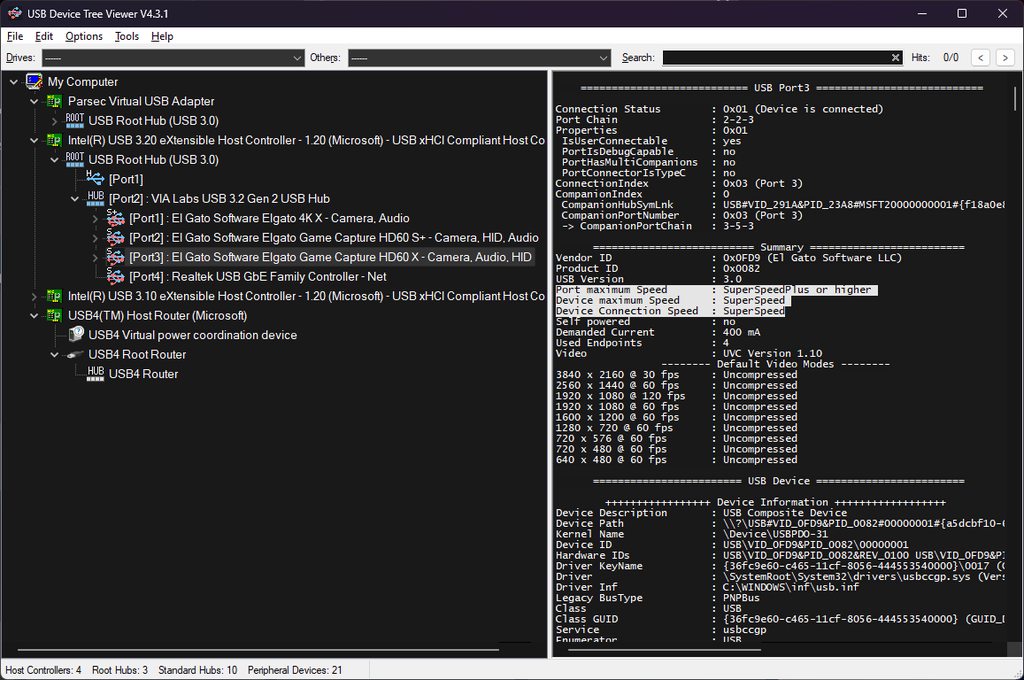
That should give us an idea what's going on there
 ocean badge
Well I believe i'm at my wits end.
Long story short, 4k Pro will passthrough 4k240hz without issue, however the 4k Capture utility defaults to 1080p capture, giving my 4k recording in OBS a super downscaled look.
I'm thinking it may be a software issue, given that I even had 4k60 recording enabled, yet display shows 1080p60

For extra contet.
 past basin
It's not a software issues, it's a limit of the card - at 4K240 it can only capture at 1080p240 or down (and for High Refresh Rates you'd want an app like OBS Studio, 4K Capture will cap you at 60 fps).
ocean badge
Oh no 60fps is fine, the defaulting to 1080 is the issue
past basin
Yeah, still a limit of the card though because the source is 240Hz which the card can't keep up with at 4K
ocean badge
Well I use OBS to do all my recording/streaming. Though the preview will still default to 1080, and black out at custom
past basin
The chart I linked there will show you all source resolutions you can pass through to the HDMI out port (or use a source) along the time, with what you can capture them at below
ocean badge
Ahh I'll take a looksee
past basin
That card can only record 4K resolution at 4K60 source or 8K60/30 source. (though I think is supports 4K30 too, though that's not listed)

If you need 4K capture above that, go with 4K X (though it can only pass thorugh 4K144 at the highest)
ocean badge
Thats where I moved from. I had hoped to utilize my Alienware's 240hz with the capture card while maintaining my 4k60 recording for OBS via my capture PC.
I guess I was mistaken
past basin
Yeah, sadly the card has some limits at 240Hz
They put the foucs on passthrough over capture for that one. 4K X got higher capture but less passthrough options (and has to use MJPEG for High Refresh Rate 4K which 4K Pro can't use)
Though 4K Pro also has HDR support in more resolution/refresh rate combos
ocean badge
Quite the compromise. Oh well, guess i'll swap back to the X and return to 144.
HDR and OBS is an absolute mess, and the brightness is hard to handle with current OLED tech, given the lack of overall brightness
past basin
Yeah, requires a lot of setup, and if you drop back to SDR for home screens or something it looks a mess 😦
You also have to turn off tonemapping on the card to even get it to work
(because it's a mess it defaults to converting everythning to SDR)
ocean badge
Exactly lol. But I guess this saved me a lot of headache, though I spent the last 3 hours running multiple settings.
I appreciate your help! Off to set the 4k X back up!
past basin
No worries, good luck with it!
ocean badge
Oh one more thing, I wonder why no one has moved to DP rather than HDMI. Maybe you have some input on that front?
past basin
ocean badge
Oh one more thing, I wonder why no one has moved to DP rather than HDMI. Maybe y...
I suspect it's because DP doesn't work with consoles so there's less demand. The only DP capture cards I've ever seen were DP 1.2 and were extremely expensive
jaunty phoenix
past basin
Are you trying to screenshare the 4K Capture Utility or are you using Discord's ...
I've tried using OBS but that crashes too, it works perfectly fine with recording but as soon as I start screensharing it crashes
it's really weird because my entire capture card crashes and I have to replug it in to restart it
past basin
jaunty phoenix
I've tried using OBS but that crashes too, it works perfectly fine with recordin...
And you're window sharing the capture card app, or are you using the Discord capture device screenshare mode?
huh
jaunty phoenix
past basin
And you're window sharing the capture card app, or are you using the Discord cap...
I'm screensharing the app, I have no idea what capture device mode is
past basin
I've never heard tell of it crashing the actual card
past basin
Ah, k. Was get getting screen shots on how to try that mode, but you beat me to finding it
ocean badge
past basin
I suspect it's because DP doesn't work with consoles so there's less demand. Th...
I had thought the same, but maybe there was a different reason for it. Oh well, gotta wait for the future! I'd even pay a premium to have full passthrough with high recording, just don't know where to look for good ones
jaunty phoenix
ok, for some reason capture device mode crashes my discord
past basin
what even
past basin
ocean badge
I had thought the same, but maybe there was a different reason for it. Oh well, ...
Yeah, I'd say probably another couple years for the next generation and we'll see cards with faster processing allowing higher capture. Probably not before then though
past basin
jaunty phoenix
ok, for some reason capture device mode crashes my discord
Can you hop into 4K Capture Utility, go to the settings, check the device tab and see what firmware you're on and if there are any updates?
jaunty phoenix
past basin
Can you hop into 4K Capture Utility, go to the settings, check the device tab an...
firmware version 22.04.26, idk how to check for updates
past basin
That's the current one for most of the HD60 X anyway
I am drawing a blank on why Discord would crash it
past basin
Actually my discord has a pending update, let me install that and see what happens
jaunty phoenix
I found a reddit post where someone seems to be having the same problem
past basin
huh still no change
jaunty phoenix
it was made over a year ago
past basin
What happens if you try it in a different USB port?
past basin
What settings are you using when you setup the share? What resoltions and fps?
jaunty phoenix
1080p 60fps
I found this reddit post where someone was having the exact same problem as me but they were able to fix it by updating their bios
https://www.reddit.com/r/elgato/comments/14x89kr/elgato_hd60x_crashes_when_streaming_to_discord/
 past basin
It's not on a USB hub with a mic or anything that could compete with it for power when Discord kicks in, is it?
 jaunty phoenix
it's in it's own usb slot on my pc
I find it really weird btw that using capture device crashes my discord
past basin
Oh hey, that thread looks familiar!
Looks like that one turned out to be USB issues fixed by a BIOS update though. If BIOS updates don't help, try checking for updated chipset drivers for the motherboard.
past basin
I got nothing. Maybe moving ports did help in the end?
jaunty phoenix
OBS and the 4k capture app still crash when I screenshare
but I guess screensharing directly with the capture device is working now
past basin
Unusual to see it with OBS, but I'm used to Discord not playing nice with 4K Capture Utility for some reason
Honestly it might be worth trying to turn off Discord's hardware accelration, or even reinstall the whole thing
whole sequoia
Doesn't seem that my 4k60 isn't obtaining the audio from my PC? Does it not automatically pick it up when you plug it in and is functional?
 umbral kayak
do i come here for help on my elgato 4k x help?
past basin
whole sequoia
Doesn't seem that my 4k60 isn't obtaining the audio from my PC? Does it not auto...
Dual PC setup? Did you set the source/gaming PC to actually output the audio to the HDMI port that goes to the capture PC?
past basin
umbral kayak
do i come here for help on my elgato 4k x help?
Yes, just drop your question with it in here, and if any volunteers know the answer they'll get back to you when they see it
whole sequoia
past basin
Dual PC setup? Did you set the source/gaming PC to actually output the audio to...
I know how to, but i was hoping someone knew how to do it with VoiceMeeter since I can kinda seperate it
past basin
In that case run Voicemeeter on the gaming PC. Set your hardware outputs in the top right (a1, a2, a3) to your HDMI out and whatever you're listening on at the gaming PC (so you probably only need the two).
Set the games (or default Windows audio) to go to the virtual cable for Voicemeeter. Find the slider for the virtual cable you used in it. Press A1 and A2 on the side fo the slider to match up with the HDMI and headset/speakers you set earlier so it'll go to both places at once. This should send a copy over the HDMI port to the capture PC for auto pickup
umbral kayak
i have a dual pc set up:
gaming pc, single monitor
cpu: ryzen 9 7950x3d
gpu: 4090
monitor: 1440p 240 hz
elgato 4k x: 1440 120 hz/144 hz
streaming pc:
cpu: ryzen 9 7900x
gpu: 4080
monitor: 1440p 180 hz
i’ve tried every which way to get this to run smoothly, but when i make recordings or stream, im still screen tearing.
does anyone have any insight?
past basin
umbral kayak
i have a dual pc set up:
gaming pc, single monitor
cpu: ryzen 9 7950x3d
gpu: 4...
What refresh rate are you capturing at? And are you connect via Passthrough (using the HDMI out of the card to a monitor) or using a cloned display setup?
If your games are at 240Hz, I suggest capturing at 120 or 60 to reduce frame tearing during refreshes, and set your streaming PC to 120 instead of 180 for the same reason
umbral kayak
past basin
What refresh rate are you capturing at? And are you connect via Passthrough (us...
using a cloned display set up- i don’t use the pass through. , and i’m capturing at 120hz or 144hz at any given time.im trying to find the best option going back and forth
past basin
Because they're divisble by whole integers you shouldn't get as much risk of tearing like that.
umbral kayak
past basin
If your games are at 240Hz, I suggest capturing at 120 or 60 to reduce frame tea...
Oohhhhh i guess i haven’t tried dropping the refresh on the actual streaming PCs monitor, just the refresh rate of the elgato capture
past basin
Adding to the above - you're using a 4K X - it'll pass through 1440p240 but can only capture 1440p up to 144, which is why if your source is 240 you'll want to use 120 in the OBS capture card's source settings instead.
But yeah, like you're thinking don't forget to deal with it on the streaming PC too - don't want to have it all sorted in your recording or stream only to see it there because of the refresh on that monitor 🙂
umbral kayak
past basin
But yeah, like you're thinking don't forget to deal with it on the streaming PC ...
i’ll give that a go, thank you so much!
past basin
If it still keeps tripping up, try the passthrough setup instead.
Sometimes that'll clear up tearing caused by the cloning itself
umbral kayak
past basin
Sometimes that'll clear up tearing caused by the cloning itself
awesome thank you!!
past basin
No problem, good luck with it! I'm taking off there for the night but I'll check back in tomorrow in case you hit any other issues
stoic matrix
past basin
It would help overall to know more about the systems - are they all Win 11, Win ...
Happen on 3 different systems over the time
Sample rates 24bit 48khz
The popping crackling happen randomly
Even on fresh win install
It happens since win7 and even on win 10 and 11
No other audio software or hardware is installed
The problem exist for years
Specs 14900k, ddr5 6000mhz 32gb, rtx 4090, z790 aorus master x
past basin
So this isn't a constant issue but something that pops up occasionally or somethign that started happening over time and won't stop?
Most of the capture cards use 16-bit instead iirc - try matching bit depths as well as the sample rates for your stream/recording setup and see if that helps. It's uncommon for the bitdepth to be the reason for a sync problem, compared to the sample rate, but not unheard of
stoic matrix
The mysterious thing is with my avermedia capture card it didtn happen on same settings
Never got that issue
Only with elgato cards for years
It happens totally randomly in unexpectet times
past basin
Interesting. I know the 4K X currently has some issues wish ASMedia USB controllers and some B450 boards, but as before that wouldn't affect the PCIe ones at all. Only time I had popping on my own was a HD60 X when it was running through a hub, and 4K X when I had some volume/clipping issues with a firmware update that were since fixed. I haven't actually had my hands ont he PCIe ones to test though. Other than software conflicts I'm at a loss for what would cause that kind of issue across 3 cards, which use 2 entirely different interfaces. Especially tested across 3 PCs
Hopefully one of the other volunteers has an idea - if I think of anything else, I'll give you a ping, but I've got nothing at the moment
(This excludes ongoing issues with my Focusrite 2i2 interface losing sync any time the PC is under heavy load for a while - but I know what's causeing that audio issue)
When the audio issues crop up do you get them in the both recordings and preview?
craggy relic
craggy relic
avermedia GC553G2 Live Gamer Ultra 2.1
@past basin do you know the latency of this one ? And the latency of the Elgato 4k x please ?
stoic matrix
past basin
When the audio issues crop up do you get them in the both recordings and preview...
The issue is on preview and recording
Let me think about it a moment… its since the release of the 4k60 pro with the 4k capture utility…
The old game capture software got no audio issues with my old hd60 pro…
The only things that up on the systems are fresh windows installs, obs studio, elgato stream deck, elgato camera hub and elgato 4k capture utility
All drivers up to date
drowsy ice
Guys I need help. I connected 4k pro to pcie and 4k capture utility and obs sees the device. I updated firmwares. Disabled hdcp on ps5. I see no signal. I restarted pc and ps5 as well. Now I opened the 4k capture utility and it says device's edid is not valid. Reboot your pc.
I see no video signal it says no signal on settings in the capture utility app
Now it says no signal again
drowsy ice
How do i fix this
 warped ridge
Trying to capture off my stream through OBS for Stream and every few seconds it freezes for a few frames. I'm capturing my Switch, with the same game I've been streaming for weeks. Never had any issues to this extent before.
I restarted my computer, reconfigured the Elgato capture, unplugged the wire and plugged it back in, none of that helped.
warped ridge
Actually there is one difference in that there is less free space on my hard drive now.
past basin
warped ridge
Trying to capture off my stream through OBS for Stream and every few seconds it ...
What model capture card do you have?
Also if you have any hubs or adapters hooked, up bypass them and try the card right on the computer
past basin
Just to confirm, you're feeding it right into OBS as a Video Capture Device and not trying to screencap another capture app right?
warped ridge
Right
past basin
Stutter in both the preview and the recording? Or only one of the two
warped ridge
Both
I've got facecam on as well and no stutter on that
So it's just the capture footage
past basin
If you load up the source properties for the Capture Card, what is buffering set to? And if you change it to either option manually does anything change? Sometimes the automatic detection will fail to detect the best mode so trying both on and off manually can help
If Face Cam and HD60 S are on the same USB controller there could be bandwidth issues too, since they'll share the same 5 Gbps that the controller has to both devices (https://help.elgato.com/hc/en-us/articles/360042824631-Two-Elgato-USB-3-0-Devices-on-one-Computer-Two-USB-3-0-Root-Hubs-Needed). Might be worth checking USB Tree Viewer (https://www.uwe-sieber.de/usbtreeview_e.html) to see if they're both on the same controller - if they are and you have more than one try moving things to different ports until they aren't. Alternativelt set Face Cam down to 720p if it's just down in the corner to reduce the badnwdith it uses
warped ridge
No I'm saying facecam footage is also on the OBS recording
And both in preview and recording there's only stutter on the game capture and not the facecam
But different USB ports
I just mentioned as reference for the rest of the screen, like if it was also showing a display capture that probably wouldn't have stuttered either
past basin
warped ridge
No I'm saying facecam footage is also on the OBS recording
Yeah, I got that, but I was concerned it might be using enough bandwidth between that and the other devices on the same controller that the HD60 S might be occasionally getting starved out.
Since both Facecame and HD60 S use uncompressed video they can use a LOT of USB bandwidth.
warped ridge
What do you mean by controller
warped ledge
warped ridge
What do you mean by controller
Like the usb controller possibly
past basin
Yes, the USB controller. It'll show up as a green card in USB Tree Viewer
Each controller controls a number of ports, but all those ports share bandwidth
So ideally if things are on multiple controllers it goes smoother
warped ridge
past basin
Yes, the USB controller. It'll show up as a green card in USB Tree Viewer
I don't think I have a usb tree viewer, it sounds like it's something I'd have to download
past basin
That's why I put the link there, https://www.uwe-sieber.de/usbtreeview_e.html
warped ridge
OH I see
I can't download anything like that right now though
I'm waiting for a new hard drive to arrive in the mail
past basin
I'd check the buffering options in OBS then. Maybe see if you get the stutter in other apps like 4K Capture Utility, or even Windows Camera if you've nothing else already installed to test with
That said if your hard drive is that full you could be running into issues with space for the virtual memory / pagefile.
Might also explain some stutter
 gleaming garnet
We really need a better internal 4k card
The 4k x is leagues above the pro
4k pro can't even pass 1440p 240 and record it at 1440p 60
warped ledge
gleaming garnet
4k pro can't even pass 1440p 240 and record it at 1440p 60
Never know what the future brings!
gleaming garnet
Well I should know it's already achievable with the lower end version of the same card
Only cus 4k x was built ground up while 4k pro just used og one and made it 2.1
If it was remade I'm sure it could do all 4k x can do n more
Like 4k60 hdr capture with 4k240 pass
warped ledge
gleaming garnet
Like 4k60 hdr capture with 4k240 pass
I get where you’re coming from but right now we can only help with what’s currently out. Let’s just focus on that, and whatever trickles out in the future from Elgato, we’ll cross that bridge when get to it. 
gleaming garnet
I'm just suggesting lol
warped ledge
gleaming garnet
I'm just suggesting lol
A #feature-request would be ideal to voice your suggestions moving forward. Thanks! 
 solar flower
not sure where to ask this here or in capture cards, but does anyone have issues with audio delay while streaming on 2 pc setup? I have a 4k60 pro and i use wavelink software for audio but i have a slight delay in my audio when im live.
keen crater
solar flower
not sure where to ask this here or in capture cards, but does anyone have issues...
That can happen software audio processing adds another layer into the chain, Since you are using wave link. An easy fix is to do a test record and time it , if this is a game use something as simple as shotting a tree or building and time the shot to bullet effect offset in MS typically it will be about 125,250 , or 500ms is the most common. You would add that offset into the advanced audio in obs .
solar flower
keen crater
That can happen software audio processing adds another layer into the chain, S...
how do i add that offset in obs?
where is that setting
keen crater
 solar flower
ah ok
 solar flower
got it thank you. any suggestions for sharing twitch alerts so i hear it and so stream hears it?
wait just to be clear, when im live i have a audio delay in i see a gun shot then about half a second later i hear it @keen crater
so if i add the delay like you said wouldnt that make the delay worse?
keen crater
solar flower
so if i add the delay like you said wouldnt that make the delay worse?
you can do audio offset in - as well
so instead of say 250ms
example
it would be -250
solar flower
ahh ok so thats what i would need to do then
 solar flower
ok
keen crater
solar flower
wait just to be clear, when im live i have a audio delay in i see a gun shot the...
I had a buster capture card before I had to set -460 ms offset for the audio and video to sync properly
keen crater
It will you just gotta get the timing down, hence the bullet shot to actual impact works great
cause its easy to replicate
solar flower
ya
keen crater
The only time you would use postive offsets is typically when you are vtubing where the video has a larger post process delay then the audio
solar flower
ahhh ok
keen cloud
Hello elgato I’m JameelPerkins asking is it possibly to screen share with Elgato hd60X with an app named trovo.live and my Xbox One X but how would I screen share?
warped ledge
keen cloud
Hello elgato I’m JameelPerkins asking is it possibly to screen share with Elgato...
Trovo is a streaming platform, so you should be able to use something like obs, and setup for trovo’s requirements and get a stream key and url etc…
keen cloud
I have an iPad
keen crater
keen cloud
I have an iPad
You want to use an HD60x on an ipad to stream your xbox to Trovo?
keen crater
if you want to use your ipad as the (PC) you will need https://apps.apple.com/us/app/elgato-capture/id6456798479 and any ios streaming software like. Larix Broadcaster, nanoStream, Wirecast Go, Airmix, Broadcast Me, or any derivative.

App Store
Your Elgato capture card or camera now works with iPad!
Meeting up? Throw your iPad and capture card into your bag. Traveling? Leave your laptop at home. Now you have an ultra-compact yet powerful capture setup that can go anywhere whether you're an aspiring streamer, a content creator, or just wa…
There is a streamlabs app as well in the ios store, but if its anything like the android version it kinda sucks.
keen cloud
Ok
 ember musk
Does anybody have any solutions as to how I can get my elgato hd60x to show some better quality the colors are grayish not getting good quality videos or livestreams
past basin
ember musk
Does anybody have any solutions as to how I can get my elgato hd60x to show some...
Do you have HDR enabled on the source? Normally the captuer card will try to convert that back to SDR for capture, and it can result in a colour cast or saturation change. Turn off HDR in that case and they should match
ember musk
past basin
Do you have HDR enabled on the source? Normally the captuer card will try to co...
When you say turn it off in the case, how do I do that? Are you talking about on PlayStation because I use it on my PlayStation and I capture it on my PC where I use it on OBS
past basin
In the PS5 settings, under screen and video, set HDR to always off and see what happens