#capture-cards
1 messages · Page 31 of 1
 short surge
but i tried 2 different cords including the one they put in the box and i tried different ports
all of the ports work but im missin som
 past basin
That usually indicates the cable you're using (or the USB port) are USB 2.0 speed
(or passing through a USB adapter or some kind that's 2.0 speed)
Did the cable in the box originally work to get you power?
Or is that hte one you were originally using that got nothing?
short surge
no it just now started working
the wire they gave me got me power
i jsut switched it for another one and the same message came up
past basin
Okay - progress at least. Next thing to check is USB Speeds. Try running https://www.uwe-sieber.de/usbtreeview_e.html . USB Tree Vewier will have a summary section when you slect the card with tree speeds. All of these need to be Superspeed or faster to work right
 short surge
how do i change it to superspeed
device co0nnection speed and port max spped are the only ones that need chnaged
past basin
Port max speed is your issue then, most likely. What does it say? Hi Speed?
Does it mention a companion port?
short surge
im not seein a companion port but the max speed is highspeed
past basin
If port speed is high speed, and there's no mention of a companion port, you're plugged into a USB 2.0 port on the PC
Look for a different one - sometimes 3.x ports will have a blue plastic insert to tell them apart
If that doesn't help, do you know what motherboard you have?
(or what model laptop if it's a laptop)
short surge
mine only have red/orange ports adn what would the motherboard look like
past basin
Is it a custom built system or a pre-built? Do you know the model number?
short surge
pre built
past basin
Press start, type msinfo32 and open that. Look for BaseBoard Product. That should tell us what motherboard or model of PC it is
past basin
Yep, give me a minute to pull the manual
short surge
alright
past basin
Okay, so there's some front panel connectors on that board for more USB ports that may or may not be hooked up, but if you're going by the USB ports on the back, you'll need to use the red ones next to the network jack. Those 2 are actually USB 3.2 Gen 2
(And if you ever need it, here's the manual for your motherboard https://download.msi.com/archive/mnu_exe/mb/PROB760-PWIFI.pdf )
short surge
so i have it plugged in next to my Ethernet cord, i only have the card plugged into the red port and i only have one red port in use
the card is blinking a red light and it still say theres an issue on the software
past basin
Huh, only one red port, it doesn't look like this on the back?

If you reload USB Tree Viewer, what does it say now?
Full speed. THat's 1.0 😐
You're in a 3.x port though - the fact it says companion port does superspeed confirms that
Diconnect it and reconnect it and try again
If it's still showing that and you don't have a second USB port, check if you have any ports on the front of the PC that'll show up as SuperSpeed when you're connected. There could be an issue with that specific port
short surge
so ihave a port on the front that has blue on it but it still blinking red
itll show up as blue for a second and then turn red
device max speed is at super but the others are at highspeed
past basin
That sounds like the blue jack was wired to a 2.0 header on the mainboard. Any chance you have a USB-C to USB-C cable so we can use the USB-C cable on the back (or the front if there is one?)
short surge
i tried the usb c and same issue
i only have one c sport on the back of the pc
and it still blinks red
past basin
I suspect given what's going on here that there's something wrong with either the cable you're using, or the card itself. Check the ports for any kind of dirt or damage too
You might want to reach out to #official-tech-support though.
short surge
alright ima switch out the card at best buy tomorrow and see if i run into the same issues with a new one
thanks for the help though i wouldn't of thought of half the stuff you had me try
past basin
Yeah, wish I had a clear answer on what's going on there, something isn't right. If it keeps up with a different card to go the MSI site and look for drivers and BIOS updates for the motherboard (PRO B760-P WIFI)
short surge
alright ill see what i can do tomorrow
 craggy relic
Got a question. I bought the Elgato HD60 X and my monitors are all 1080p only. Is it better to set up the PS5 to 1080p in the PS5 settings or does that not matter if i let it higher?
 shadow tide
HD60 X question also:
Using a two system streaming setup w/ a PC and Mac mini. I get an image but no audio. What am I doing wrong?
 hallow wedge
HD60 X problem:
I recently bought a pc laptop with 32gb ram and the GeForce rtx 4060 and when I connect my capture card to my laptop I experience some video lag but it only happens with the capture card not when I am recording my screen on my laptop. What can I do to fix this????
past basin
shadow tide
HD60 X question also:
Using a two system streaming setup w/ a PC and Mac mini. I...
If you're using OBS, add the a caputere card again as an Audio Input Capture source. (If you need to listen at the gaming PC you'll also need an app like Sound Capture, Voicemetter, or Wave Link to split the audio on the gaming PC to go to your listening device and your HDMI for the streaming PC).
past basin
craggy relic
Got a question. I bought the Elgato HD60 X and my monitors are all 1080p only. I...
If your monitor is also connected in passthrough (using the HDMI Out), leave it at 1080p to match the monitor or you'll lose the signal on the monitor.
past basin
hallow wedge
HD60 X problem:
I recently bought a pc laptop with 32gb ram and the GeForce rtx...
What source are you trying to capture? PS, Xbox? Dual PC? What app are you recording as well?
Also what do you mean by video lag, short delay or stuttery performance?
shadow tide
past basin
If your monitor is also connected in passthrough (using the HDMI Out), leave it ...
Monitor is 1440
past basin
shadow tide
Monitor is 1440
Is it connected to the console though the HDMI out on the card? If so then you should be fine to set it to 1440p (though if you're streaming to something like twitch you'd need to set the stream output to scale it down to 1080)
shadow tide
I am fine leaving it at 1080 if it does not affect anything on my end
past basin
If the 1440p monitor is connected to the PS5 you'd be able to see the video in 1440p if you changed it up. If it's not, and only connected to the PC (or connected to a 1080p monitor), I'd leave it as is
craggy relic
past basin
If your monitor is also connected in passthrough (using the HDMI Out), leave it ...
thank you 🙂
hallow wedge
past basin
What source are you trying to capture? PS, Xbox? Dual PC? What app are you re...
I am on obs studio and capturing a video capture device and what I mean by video lag I mean it stutters. What can I do?
shadow tide
past basin
If the 1440p monitor is connected to the PS5 you'd be able to see the video in 1...
Ty
 frosty badge
How can I record 8K with an Elgato capture card? It shows up to maximum 4K support. I set the screen resolution to 8K. I can't show this in my own software?
 hallow wedge
I am on obs studio and capturing a video capture device and what I mean by video...
hallow wedge
hallow wedge
I am on obs studio and capturing a video capture device and what I mean by video...
??
hallow wedge
??
hallow wedge
hallow wedge
I am on obs studio and capturing a video capture device and what I mean by video...
I’m capturing on Ps5 as well
past basin
frosty badge
How can I record 8K with an Elgato capture card? It shows up to maximum 4K suppo...
You cannot - it supports passthrough up to 8K60, but from an 8K60 signal it can only capture up to 4K60. See https://e.lga.to/4K_Pro_Resolutions
past basin
hallow wedge
I am on obs studio and capturing a video capture device and what I mean by video...
Check what your buffering is set to in the OBS Soruces list, when you go to prorteries on the card. Disable automatic and try it both on and off and see which works better.
hallow wedge
i tried it and its still the same
im playing nba 2k24 and the stuttering will stop but all of a sudden it starts stuttering a few seconds than it stops its annoying
but it only happens with the capture card when i record reactions and stuff like that it never stutters
past basin
Try turning off Variable Refresh Rate on the PS5 - that can sometimes cause recording stutter
In particular if the VRR of the console, display and cards aren't quite the same spec or range
Other things to try are updates to laptop BIOS and motherboard drivers. Not unheard of to get USB issues on cutting edge stuff that gets patched out with updates
hallow wedge
How do you update laptop bios and motherboard drivers???
 warped ledge
hallow wedge
How do you update laptop bios and motherboard drivers???
warped ledge
hallow wedge
How do you update laptop bios and motherboard drivers???
The manufacturer should have that on their website.
short surge
so i got a new elgato and it shows my ps5 on obs but nothing will come up on the monitor can anyone help
everything seems to be working expect i cant see anything on the monitor the ps5 is on, i know its not the hdmi cord because when i unplug the elgato and plug the hdmi cord from my 5 straight to the monitor it shows up
past basin
short surge
so i got a new elgato and it shows my ps5 on obs but nothing will come up on the...
Go into 4K Capture Utility and in the settings, under the device tab, try changing your input EDID to Display. If the displayt is 1440p you may also have to run the test 1440p mode support on the PS5
(If you're on a mac this is in Capture Device Utility instead)
short surge
past basin
Go into 4K Capture Utility and in the settings, under the device tab, try changi...
i dont see that all i see is capture device and video input
past basin
short surge
i dont see that all i see is capture device and video input
What capture card is this specifically? And is it Mac or Windows?
Also you may have to wait on the "one Moment Please" message on the main screen to clear before you load into settings
Then it should look something like this:
 short surge
past basin
What capture card is this specifically? And is it Mac or Windows?
short surge
past basin
What capture card is this specifically? And is it Mac or Windows?
4k x on mac
 teal cove
good evening everyone, i am interested in streaming some classic games from my Playstation 1, 2, and 3 but eventually would like to also stream from my Playstation 5, what would be the best Capture Card to purchase?
 storm jungle
Hi everyone, I've been investigating an issue with my 4K X for some weeks. I've also contacted support, but so far I was not able to get a clear response whether the issue I'm seeing could be reproduced by anyone else. I'd thus like to ask if any 4K X owner could try the reproducer on their systems and let me know if it might only be my particular card or setup, although I've been testing many different combinations already. It's pretty simple: When displaying a gradient image on the source machine and capturing it with the 4K X, the result always shows visible "stepping" artifacts, no matter if the source and/or capture card are set to limited range, full range, RGB, YUV, ... - of course the results differ slightly depending on the settings, but the general effect is always there. Could anyone try to reproduce this and let me know if it's just me? The images show screenshots from the source PC and the target PC on which the 4K Capture Utility running. I've seen the same effect using OBS as well though.

 past basin
short surge
4k x on mac
past basin
short surge
4k x on mac
If you hodl down the Option key do you get the additional options in Capture Device Utility?
past basin
storm jungle
Hi everyone, I've been investigating an issue with my 4K X for some weeks. I've ...
Banding is the term you're looking for, not stepping.
Does the banding occur if you don't orverride the colour settings in NVidia control center and let it use the original colours?
Does it happen if you're using RGB 4:4:4 in OBS with a canvas that was specifically setup for 4:4:4 instad of the default 4:2:0 / NV12?
(Keep in mind changing the option on the card does nothing if you didn't also set the canvas the preview is on to match
warped ledge
teal cove
good evening everyone, i am interested in streaming some classic games from my P...
Hd60x or 4K X is ideal for a PS5, but older games need adapters and not al adapters are equal.
storm jungle
@past basin Thanks for the response. The results are the same for me though when letting NVIDIA control center decide the color settings on the source machine, and when setting OBS to BGRA/sRGB on the target machine.
hallow wedge
warped ledge
The manufacturer should have that on their website.
I found the bios version but idk where to go to update it
warped ledge
hallow wedge
I found the bios version but idk where to go to update it
Usually it’s a usb thumb drive you put it on. Follow the instructions on the site.
storm jungle
@past basin The thing is, I've tried many suggestions in that direction already, but to no avail. If anyone could simply try to capture that simple 8-bit grey gradient using a 4K X and possibly show me a screenshot where the source image is reproduced faithfully in whatever capture software, I will just assume that it's my particular device or setup. That would also be a valid result for me.
 frosty slate
my slobs isnt picking up my elgato audio anymore was working fine the last few months happened out of no where yesterday
past basin
storm jungle
<@269997944671830017> The thing is, I've tried many suggestions in that directio...
I'll see if I can check this against my own in a bit - right now my secondary system is offline for work. But I've never seen banding like that in console setups.
Is your streaming PC setup to render the display in the same bit depth as the gaming PC? THat's one thing that could throw things too
past basin
frosty slate
my slobs isnt picking up my elgato audio anymore was working fine the last few m...
Which capture card? Are you pulling in the audio thorugh Video Capture, or as an Audio Capture?
frosty slate
frosty slate
my slobs isnt picking up my elgato audio anymore was working fine the last few m...
hd60x
frosty slate
past basin
Which capture card? Are you pulling in the audio thorugh Video Capture, or as a...
audio capture
past basin
If you check it in Windows Audio Settings (Windows Key + R, type mmsys.cpl and press OK), do you see volume on the volume indicator next to the card ont he recording tab?
frosty slate
also im using voice meter and everything was going well for months til this randomly happened idk if it was a windwos update or smth
frosty slate
past basin
If you check it in Windows Audio Settings (Windows Key + R, type mmsys.cpl and p...
ill look into it, afer 4 hours of trying to fix it im doing a restore point
past basin
If the volume meter isn't moving, check in the properties for the card that the levels aren't muted or turned down
 hallow wedge
warped ledge
Usually it’s a usb thumb drive you put it on. Follow the instructions on the sit...
hallow wedge
warped ledge
Usually it’s a usb thumb drive you put it on. Follow the instructions on the sit...
What else can I do to fix this problem?
warped ledge
hallow wedge
What else can I do to fix this problem?
Not entirely sure which card you have.
 queen canopy
Guysssss I have HDCP enabled on my ps5 as well as the newest drivers on my pc. Any help on making my Elgato HDCP not show a black screen on stream labs ? I’ve tried so much
 gentle rapids
can someone please tell me where I can find the 4K Capture Utility version 1.7.13? the Elgato download site only shows 1.7.12 and this link says to get the newer version: https://help.elgato.com/hc/en-us/articles/27657314348301-Elgato-4K-X-How-to-use-Ultrawide-formats-in-OBS-Studio
past basin
queen canopy
Guysssss I have HDCP enabled on my ps5 as well as the newest drivers on my pc. A...
Why do you have HDCP on? That's copy protection and is outright designed to keep your card from working with the signal while it's enabled.
past basin
gentle rapids
can someone please tell me where I can find the 4K Capture Utility version 1.7.1...
Beta downloads at the top of the downloads page
gentle rapids
past basin
Beta downloads at the top of the downloads page
duh. thanks
queen canopy
past basin
Why do you have HDCP on? That's copy protection and is outright designed to kee...
Sorry I meant I have it off
past basin
queen canopy
Sorry I meant I have it off
Ah, okay, that makes more sense.
Do you have a monitor on the capture card's HDMI output port and does taht get a signal? Also what specific card are you working with?
queen canopy
past basin
Ah, okay, that makes more sense.
Do you have a monitor on the capture card's HDM...
It’s an elgato hd60s, it’s connected to a monitor and the other end a ps5. My pc recognizes the elgato as a device but in stream labs when I add source it is a black screen. And the capture software app doesn’t recognize it at all. I’m literally willing to pay someone that can help me fix the issue at this point. I’ve downloaded newest usb drivers, tried different elgato cord, different hdmi cords, made sure my computer has 3.0 usb ports which it does
past basin
Which capture software app are you using? 4K Capture Utility or the older Game Capture HD? Also because this is HD60 S, make sure 120Hz mode is off on the PS5, as it can't handle a 120Hz signal.
Also make sure you don't have multiple apps that could use the card open while you're testing things - only one at a time can get a video feed
hallow wedge
warped ledge
Not entirely sure which card you have.
I have the hd60 x and I am using the laptop that I showed you for it
warped ledge
hallow wedge
I have the hd60 x and I am using the laptop that I showed you for it
What’s exactly laggy? This card shouldn’t have lag.
queen canopy
past basin
Which capture software app are you using? 4K Capture Utility or the older Game ...
4k capture and yeah I tried it with 120hz off and it’s the same issue

Used 2 different usb cords
warped ledge
Some games aren’t more than 60fps so you’d have to turn off a few things he. Th last of us is a prime example of turning off vrr & 120hz.
past basin
queen canopy
Run this - https://www.uwe-sieber.de/usbtreeview_e.html USB Treeviewerer and check the three speeds int he summary of the card (Port, Device, and connection)
queen canopy
Okay
past basin
You should get a summary part that looks something like this when you select the card, which is what you're looking for

Ideally all three will be SuperSpeed
(or faster)
queen canopy

This is what mine looks like
My usb even has the SS logo next to it
The usb version says 2.1 in that pic that’s not what it should be right
past basin
2.1 means a 3.0 port running in 2.0 mode. As does the companion port bit there
Your port and device are reporting USB 3.0 mode (SuperSpeed) but the connection is reporting 2.0 mode high speed
Either your cable isn't rated for 5 Gbps+, there's dirt in the connections or you've got some sort of hub or adapter in there
queen canopy
Must be the cable
past basin
That's usually what gets people. Most cables you find in stores are 2.0 "charging" cables these days, if you're not careful when you buy them. Same for the cables coming with most hardware - few things need full USB 3.0 speeds
storm jungle
past basin
I'll see if I can check this against my own in a bit - right now my secondary sy...
Thank you in advance, that would be great if you could try that whenever you have the opportunity. As far as I can tell, everything is set to 8-bit everywhere, and I try to use full color range whenever possible, although I also tried limited range and even YUV output. In fact, I tried various combinations of source and target PCs with different GPUs, OSs, capture software... I don't know. If it turns out that it is actually not reproducible, maybe I'll just have my unit replaced and try again.
queen canopy
past basin
That's usually what gets people. Most cables you find in stores are 2.0 "chargi...
Even though the one I bought today says superspeed compliance it doesn’t necessarily mean it’s good enough ?
 past basin
queen canopy
Even though the one I bought today says superspeed compliance it doesn’t necessa...
past basin
queen canopy
Even though the one I bought today says superspeed compliance it doesn’t necessa...
I wouldn't trust it for superspeed unless it actually lists the speed or specific USB spec somewhere. That could just be superspeed power rated (since USB 3.0 supports higher power draw than 2.0)
queen canopy
past basin
I wouldn't trust it for superspeed unless it actually lists the speed or specifi...
Do you mind sending me a link to once you recommend ?
past basin
If you're not in a rush you can get the official Elgato ones from the spare parts store (if available in your region) - https://www.elgato.com/spare-parts
The brand I used to recommend aside from the official one isn't USB-IF certified anymore (though they used to be) - which is Anker.

Generally though look for a speed rating on the cable that lists 5 Gbps or faster, and you'll usually be good
USB 3.0, 3.1, 3.2, 3.1/3.2 Gen 2, and USB 4 cables should all fit the bill. They'll tend to be slightly more expensive than ones running at 2.0 speed
queen canopy
past basin
Generally though look for a speed rating on the cable that lists 5 Gbps or faste...
Okay thanks a lot man, so this 10gbs+ should be good then?
 past basin
I'd expect it to work, yes
queen canopy
Don’t wanna get something too powerful and it not work either lmao
Im gonna give it a go, thanks a lot for your help!!
past basin
No worries, Good luck with it!
queen canopy
past basin
No worries, Good luck with it!
I’ll update you tomorrow !
 olive light
Hello, can anyone help me. I cannot get my Elgato game capture HD (orginal) to work on my pc though it works on my laptop, which seemingly isnt powerful enough to stream my xbox.
My capture card is showing up under other devices instead of sound video and game controllers in device manager as they previously were before i unistalled it from there and the drivers are not working after reinstalling many times and rebooting.
It previously showed under sound/vid/controllers untill i uninstalled it and the drivers from device manage because it was not showing in obs, now not recognized at all.
frosty slate
past basin
If the volume meter isn't moving, check in the properties for the card that the ...
its not moving and the card isnt muted or turned down
past basin
frosty slate
its not moving and the card isnt muted or turned down
If it's not moving and not turned down then either the card is in the wrong mode (HDMI vs Analog, depending on if you're hooked up with a chat link or soemthing) or there's an issue with the sound source. What are you capturing with the capture card?
frosty slate
past basin
If it's not moving and not turned down then either the card is in the wrong mode...
im dual pc set up with using voice meter potato
capturing my gaming pc
past basin
The gaming PC's default audio out still set to Voicemeeter's virtual input?
frosty slate
past basin
The gaming PC's default audio out still set to Voicemeeter's virtual input?
i currently have it set on virtual cable
past basin
I haven't toyed with Voicemeeter in a while tbh, but if the meters in that are moving I'd double check your hardware outputs are set correctly on it. In some cases GPU driver updates may not install updates for the HDMI audio driver either, so if that doesn't help I'd try reinstalling the GPU driver
frosty slate
past basin
I haven't toyed with Voicemeeter in a while tbh, but if the meters in that are m...
yeah i see everything moving in both vm potato, i just dont see the sound on slobs in the streaming pc
it happened out of no where bc i had no issues with my card or voice meterr
6 months
past basin
Worst case maybe reinstall voicemeeter and set it up again.
If you've got some other sort of HDMI device I'd plug it into the capture card to see if that gets audio - that'd confirm if the issue is the gaming PC or not.
past basin
olive light
It previously showed under sound/vid/controllers untill i uninstalled it and the...
Make sure it's uninstalled from both the sound section and the camera section before trying to reinstall the drivers. I've seen some people get stuck when half the driver was still installed. Failing that see it plugging it into a different port triggers the driver to reinstall.
When you say you reinstalled many times, did you reinstall the app, or the standalone drivers from https://help.elgato.com/hc/en-us/articles/360027961152-Elgato-Gaming-Hardware-Drivers ?
frosty slate
past basin
Worst case maybe reinstall voicemeeter and set it up again.
If you've got some o...
okay i went from dual pc to stream pc and ps5 and i evrythign works
so its my gaming pc ?
but why
at least this means my elgato card isnt busted right? @past basin
hallow wedge
warped ledge
What’s exactly laggy? This card shouldn’t have lag.
When I hook it up it jsut looks choppy maybe it’s the usb 3.0 port
warped ledge
hallow wedge
When I hook it up it jsut looks choppy maybe it’s the usb 3.0 port
You’re using the official Elgato cables?
past basin
frosty slate
at least this means my elgato card isnt busted right? <@269997944671830017>
Yeah, sounds like card is fine. I'd go over your voicemeeter setup - or even test by sending all audio from the PC to the HDMI port direct for a bit to test it.
olive light
past basin
Make sure it's uninstalled from both the sound section and the camera section be...
The problem is after i deleted it from sound video and controllers section, it put it under other devices only saying it has no driver. So there are no options under sound or camera. I re installed both the elgato software and the drivers and deleted them both (driver program data, and appdata and source location for the app all deleted)
olive light
Showing under other devices like its not recognized with an !
past basin
What happens if you try it in a different port though? Sometimes that's enough for Windows to recognize it as a new device and reinstall it
olive light
past basin
What happens if you try it in a different port though? Sometimes that's enough ...
Tried all usb ports
Im wondering if there is a manual way of uninstalling the driver files fully
hallow wedge
warped ledge
You’re using the official Elgato cables?
Yea and yesterday I went on the 4k capture utility and it was lagging as well
warped ledge
hallow wedge
Yea and yesterday I went on the 4k capture utility and it was lagging as well
Can you record the lag please?
hallow wedge
warped ledge
Can you record the lag please?
here is the recording
warped ledge
hallow wedge
here is the recording
What is your ps5 settings?
What is your capture card settings?
 icy sable
Device: 4K60 S+
Software & Version: OBS 30.1.2
Windows/Mac Version: Windows
Console/Dual PC: Nintendo Switch
PC/Mac Specs:
System Model: MS-7B98
System Type: x64-based pc
Processor: Intel(R) Core(TM) i7-8700 CPU @ 3.20 GHz, 3192 Mhz, 6 Core(s), 12 Logical Processor(s)
Baseboard Product: Z390-A PRO (MS-7B98)
Installed Physical Memory: 32.0 GB
GPU: Nvidia GeForce GTX 1660 Super
Samsung - 970 Evo Plus 1TB Internal PCI Express 3.0 x4 (NVMe) Solid State Drive with V-NAND Technology
Monitor/TV Model: Q60T/Samsung
Are you using the cable included in the box? (Yes/No): Yes
Question/Issue:As of recent, my 4K60 S+ keeps disconnecting and connecting when I hook it up to my desktop via USB. Would anyone know a fix?


 gaunt wyvern
hallow wedge
gaunt wyvern
hallow wedge
Since you said this is a new pc, make sure all your drivers are up to date, you can use the nvidia geforce experience that should be on your pc or you can do it here https://www.nvidia.com/en-us/geforce/drivers/

NVIDIA
Download the latest official GeForce drivers to enhance your PC gaming experience and run apps faster.
past basin
icy sable
**Device**: 4K60 S+
**Software & Version**: OBS 30.1.2
**Windows/Mac Version**:...
Have you already tried replacng the USB cable that came with it? If it's been getting disconnected and reconnected every so often, it's possible the cable has started to fail. Try any other 5 Gbps or faster rated cable (USB 3.0, 3.1, 3.2, etc) and see if you stilll have the issue.
 slender yacht
came here to ask for help but it has become blatantly obvious that I just need to get a refund because this capture card is trash
piece of crap doesn't even pass through 4k60 without going totally berserk and black screening every 5 seconds, then stops capturing entirely after 5 minutes.
hallow wedge
gaunt wyvern
Since you said this is a new pc, make sure all your drivers are up to date, you ...
Which one do I download @past basin
 past basin
slender yacht
came here to ask for help but it has become blatantly obvious that I just need t...
past basin
slender yacht
came here to ask for help but it has become blatantly obvious that I just need t...
That's not a lot of detail to help with if you actually wanted help - what card? What's the source device? What does berserk mean, like graphical glitching before it fails out, or is the berserk just hte black screening. Have you tried turning off VRR on the source in case the display, source and card have an incompatible VRR range?
But yeah, if you want a refund, #official-tech-support or the retailer you went through would be the channels for that. Good luck.
past basin
hallow wedge
Which one do I download <@269997944671830017>
Download for what?
If you're just looking to update your GPU driver, you need to go to the site on your pc not the phone
Download the latest official NVIDIA drivers
hallow wedge
past basin
Download for what?
I know but lots of downloads come up which do I download
past basin
Fill out this section with the info about your card and it'll give you the right one
 icy sable
past basin
Have you already tried replacng the USB cable that came with it? If it's been g...
icy sable
past basin
Have you already tried replacng the USB cable that came with it? If it's been g...
I’ll give this a try, thank you! 🔥
olive light
olive light
Tried all usb ports
I called elgato left a message lol
 fluid mauve
OK, What's going on with the cap card, The 4K Cap program is working to show the game, but it's not working with OBS, what's going on here?
Also, my cap card is the 4K internal pro
hallow wedge
past basin
Fill out this section with the info about your card and it'll give you the right...
WHATS THE DIFFERENCE BETWEEN THE 40 SERIES NOTEBOOKS AND THE 40 SERIES???
hallow wedge
past basin
Fill out this section with the info about your card and it'll give you the right...
here is the downloads that came up about my card. Which do i download???

 past basin
hallow wedge
WHATS THE DIFFERENCE BETWEEN THE 40 SERIES NOTEBOOKS AND THE 40 SERIES???
past basin
hallow wedge
WHATS THE DIFFERENCE BETWEEN THE 40 SERIES NOTEBOOKS AND THE 40 SERIES???
If you have a laptop, get the notebook one
Get the newest game ready one
So the one right at the top
hallow wedge
The studio driver as well??
past basin
No you don't need that
hallow wedge
So jsut wait until it is fully installed
past basin
fluid mauve
OK, What's going on with the cap card, The 4K Cap program is working to show the...
Make sure you don't still have 4K Capture Utility open when you launch OBS. Only one app can use the card at a time and OBS will only try to grab it at startup or when you setup the card in sources.
hallow wedge
Right now I started it and it says installing graphics driver
past basin
Try installing the standalone drivers for that card from https://help.elgato.com/hc/en-us/articles/360027961152-Elgato-Gaming-Hardware-Drivers
Pretty much, that'll update your GPU drivers including the NVENC encoder.
 hallow wedge
past basin
Pretty much, that'll update your GPU drivers including the NVENC encoder.
hallow wedge
past basin
Pretty much, that'll update your GPU drivers including the NVENC encoder.
And that shoukd help my capture card to stop lagging right?
past basin
hallow wedge
And that shoukd help my capture card to stop lagging right?
Maybe - I wasn't following when the suggestion came up. If it keeps up past that upload an OBS log to the log analzyer. (https://obsproject.com/tools/analyzer) - I think you were using OBS right?
OBS (Open Broadcaster Software) is free and open source software for video recording and live streaming. Stream to Twitch, YouTube and many other providers or record your own videos with high quality H264 / AAC encoding.
(logs are in the help menu - don't upload the current log until you've run a test recording as it starts a new one every time you open OBS)
fluid mauve
past basin
Make sure you don't still have 4K Capture Utility open when you launch OBS. Onl...
No, that is NEVER on. when I have the OBS on
past basin
fluid mauve
No, that is NEVER on. when I have the OBS on
Try installing the standalone drivers for it from https://help.elgato.com/hc/en-us/articles/360027961152-Elgato-Gaming-Hardware-Drivers and add it to OBS again as a Video Input Capture and see if anything changes
fluid mauve
past basin
Try installing the standalone drivers for it from https://help.elgato.com/hc/en...
No need, turned out that the update today renamed the card in the OBS to something else. Once I selected what the correct one was, everything started working correctly again.
hallow wedge
here is the log files: https://obsproject.com/logs/5lUfJ6TOfbhUt0S7
past basin
fluid mauve
No need, turned out that the update today renamed the card in the OBS to somethi...
Ah, glad you've got it sorted at least!
past basin
hallow wedge
here is the log files: https://obsproject.com/logs/5lUfJ6TOfbhUt0S7
There a reason your canvas is set to 3200x2000? Rescaling that down to 1920x1080 may not be helping here.
Log also indicates you've got Windows Hardware Accelerated GPU Scheduling on, but are not running OBS as admin. I'd fix the canvas settings first in your OBS settings, under the video section, and if that doesn't improve it, try running OBS as administrator to see if that fixed the potential conflict with HAGS
hallow wedge
past basin
There a reason your canvas is set to 3200x2000? Rescaling that down to 1920x108...
I have that because that the canvas resolution of my laptop
past basin
hallow wedge
I have that because that the canvas resolution of my laptop
Are you also capturing gameplay on the laptop? Is that smooth and just the capture card stutters, or are all recordings stuttering?
hallow wedge
past basin
Are you also capturing gameplay on the laptop? Is that smooth and just the capt...
Just the capture card
past basin
hallow wedge
Just the capture card
Is it also stuttery in the preview screen? And in 4K Capture Utility? or just when recording?
hallow wedge
past basin
Is it also stuttery in the preview screen? And in 4K Capture Utility? or just ...
I have preview screen turned off in obs but in the 4k capture utility is does lag
past basin
Can you turn the preview on in OBS again just to ccheck - doesn't need a recording
hallow wedge
past basin
Can you turn the preview on in OBS again just to ccheck - doesn't need a recordi...
Ok I turned on preview
past basin
hallow wedge
Ok I turned on preview
Still stuttery there?
hallow wedge
past basin
Still stuttery there?
I haven’t tried it ima do another log but open obs as an admin
thats the log file after turning on preview and running obs as admin
??
 proper rapids
Im trying to do 1080p 240hz on G Sync on my HD60X, i followed the guide on the elgato website but once it goes into EDID Mode: Display the Gsync section on the Nvidia control panel disappears. Only when i set it back to internal does it come back. Any help to get this sorted guys? thanks!
past basin
proper rapids
Im trying to do 1080p 240hz on G Sync on my HD60X, i followed the guide on the e...
Does your monitor actually support GSync? Display EDID mode should be passing on all modes the monitor supports. Internal passes on all modes the capture cards supports without caring if the monitor does. So if your montor doesn't support GSync that would explain it. (Also HD60 X only supports variable refresh rate from 48-120Hz).
proper rapids
it says G sync on the corner of the monitor lol
so yea id say it does support it. Maybe the cable isnt up to spec?
past basin
hallow wedge
??
Sorry it's past 2 am here, I broke my OBS trying to test somethign for you and need to reinstall it.
It sounds like you've got a USB data flow problem for some reason though, or need to enable buffering in OBS
proper rapids
i think its a hdmi 2.0 but how do i check?
past basin
proper rapids
so yea id say it does support it. Maybe the cable isnt up to spec?
Manual is safest bet. That'd also confirm if you have Gsync on HDMI or only Displayport
proper rapids
past basin
Does your monitor actually support GSync? Display EDID mode should be passing o...
oh, it cant do g sync 240hz?
past basin
https://help.elgato.com/hc/en-us/articles/5293052747533-Elgato-Game-Capture-HD60-X-Variable-Refresh-Rate-Passthrough - It cannot. "When G-SYNC is used HD60 X supports between 20 - 120 Hz." It's 48-120 for standard VRR
hallow wedge
past basin
Sorry it's past 2 am here, I broke my OBS trying to test somethign for you and n...
What do I have to do if it’s a usb data flow then?
hallow wedge
The lag in obs you can’t really notice it just when you really pay attention to it so I think I’ll be good but I still want to know how to fix it please
olive light
Still no answer, Card works on laptop but not other pc.
past basin
hallow wedge
What do I have to do if it’s a usb data flow then?
Check the BIOS, check the motherboard drivers, try a different cable, make sure there's no hubs or adapters in place, set the OBS Buffering in the Source Properties, try a different USB port. If it's a driver issue with the laptop where it's so new you could have to wait for a update, if the card is a 4K X, make sure you're using it in a 10 Gbps USB 3.2 Gen 2 port for best results. Beyond that you can reach out to #official-tech-support to see if they have any input on it.
hallow wedge
past basin
Check the BIOS, check the motherboard drivers, try a different cable, make sure ...
How do you update your bios I tried finding it on my laptops website but I can’t find it
past basin
Depends on the laptop - check with their support team if the download didn't include a readme with instructions. Some isntall right from Windows, some require you to copy files to a USB stick and update through the BIOS by loading the files in
teal cove
what is the best upscaler to pair with an HD60 X?
 flint gate
Quick question. I have an HD60S and it streams 1080p 60fps. My series X can handle 120 fps but when I connect the elgato, I can only use 60 fps on the xbox. Is there a way where I can see 120 fps and the stream only sees 60 (since thats the fps cap) ?
and if not, is there a way I can quickly switch off the elgato when Im not streaming without having to unplug the hdmi?
past basin
flint gate
Quick question. I have an HD60S and it streams 1080p 60fps. My series X can hand...
Not with HD60 S. The card is capped at 60fps, and the Xbox only has one HDMI output so even a splitter is only going to get one refresh rate.
You could try a bidirectional HDMI switch, if your display has 2 HDMI inputs. Run switch to Xbox, card on one side, which goes to HDMI 1 on monitor, and side two just goes to HDMI 2. Then when you switch the HDMI over just switch the monitor too
flint gate
Thanks, which device can stream 120 fps if any?
past basin
HD60 X, 4K X, if you want exeternals. Game Capture Neo can also pass through 1080p120, though it'll only capture at 1080p60
You can see the modes each of those supports here:
https://e.lga.to/4K_X_Resolutions
https://e.lga.to/HD60X_Resolution
https://help.elgato.com/hc/en-us/articles/26438781217933-Elgato-Game-Capture-Neo-Supported-passthrough-and-capture-resolution
 hearty terrace
Long shot here, but anybody here help with a complex capture card audio issue that also pertains to wave link
warped ledge
hearty terrace
Long shot here, but anybody here help with a complex capture card audio issue th...
can you post the issue please.
hearty terrace
warped ledge
can you post the issue please.
Sorry, finally resolved it. Miserable experience, thanks for asking though!
warped ledge
hearty terrace
Sorry, finally resolved it. Miserable experience, thanks for asking though!
glad it was sorted out
 rotund gorge
Its been a while and the bug still there. Anyone know how to fix this issue? Or just waiting apple to fix it?
past basin
Sounds like iOS 17 on your iphone might have issues with HDMI video output. The capture card should work just fine if it gets a standard HDMI signal. Have you already checked with Apple support? Does your phone output good signal to other devices like a TV over the HDMI jack?
 wanton lodge
So0o with the newest update for elgato HD60X , I no longer get audio in the 4k Capture Utility. Has anyone else have this experience recently? if so, are there any fixes to this issues?
warped ledge
wanton lodge
So0o with the newest update for elgato HD60X , I no longer get audio in the 4k C...
What do you mean? Have you tried a different 3.0 port?
wanton lodge
warped ledge
What do you mean? Have you tried a different 3.0 port?
Ha, NVM fixed it... at first I was having problem with the update, today it finally downloaded properly. Switch some setting and everything is in order. Thank you for the suggestion. 😅
warped ledge
wanton lodge
Ha, NVM fixed it... at first I was having problem with the update, today it fina...
Awesome!
 jagged lake
Hi. Dual set up. My laptop is my streaming PC, but when i talk in my mic on my game PC I can hear myself out the speakers of my stream PC.. is this a normal thing, or am i missing a setting?
warped ledge
jagged lake
Hi. Dual set up. My laptop is my streaming PC, but when i talk in my mic on my...
yes, because the card is pulling all audio on the gaming pc.
jagged lake
warped ledge
yes, because the card is pulling all audio on the gaming pc.
interesting! i guess that makes sense. So maybe I should just mute it huh?
warped ledge
jagged lake
interesting! i guess that makes sense. So maybe I should just mute it huh?
maybe... is it in game party chat or is it discord?
jagged lake
warped ledge
maybe... is it in game party chat or is it discord?
discord. I have that set for FX.. but i just want to make sure its not the cause of my werid audio issues with streaming
warped ledge
jagged lake
discord. I have that set for FX.. but i just want to make sure its not the cause...
you could always have discord on your streaming pc, and that fixes the issue.
jagged lake
warped ledge
you could always have discord on your streaming pc, and that fixes the issue.
thanks. but its not just discord.. just like regular streaming without discord
warped ledge
jagged lake
thanks. but its not just discord.. just like regular streaming without discord
do you leave your mic on when you record?
jagged lake
warped ledge
do you leave your mic on when you record?
yes.. so i can talk to my chat
warped ledge
jagged lake
yes.. so i can talk to my chat
i'd suggest doing the audion on your streaming pc, and only use the gaming with the card routing gaming audio.
jagged lake
thanks!
warped ledge
maybe try sound capture from elagto on your gaming pc. https://help.elgato.com/hc/en-us/articles/360027964072-Elgato-Game-Capture-HD-Software-Release-Notes-Windows
jagged lake
thanks
jagged lake
one more question!! is it possible (in obs) to split the HD60x audio into seperate tracks.. so my game PC has wavelink and everything is separated there, but is it possible to separated it like that on oBS with the HD60x
 urban charm
Hey everyone. Do I need to use the 4k capture utility to have capture card work for dual pc streaming?
rotund gorge
past basin
Sounds like iOS 17 on your iphone might have issues with HDMI video output. The...
its happen to all my streamer friend too,
uhh yaeah, maybe i should ask apple support
past basin
urban charm
Hey everyone. Do I need to use the 4k capture utility to have capture card work ...
No. Most of Elgato's cards will work just fine with other capture apps
past basin
jagged lake
one more question!! is it possible (in obs) to split the HD60x audio into sepera...
HD60 X will only output a single audio track. If you need multi track audio you'll nee a secondary feed from your source device.
Similarly Wave Link only outputs Stream Mix, Monitor Mix and Microphone FX feeds - you can get clunky 2 tracks out of it if you give up the monitor mix, but I don't recommend it normally.
urban charm
past basin
No. Most of Elgato's cards will work just fine with other capture apps
The problem I’m running into is it keeps trying to say the input resolution is 4K and it’s not. It’s 1440P. Just frustrating to have to mess with it.
past basin
urban charm
The problem I’m running into is it keeps trying to say the input resolution is 4...
What app are you trying to use with it?
If it's OBS or StreamLabs make sure it's not set to 3840x2160 manually.
urban charm
It’s OBS. Canvas in OBS is set to 1080P but the incoming resolution is 1440P. Where am I looking for it to be set manually?
past basin
urban charm
It’s OBS. Canvas in OBS is set to 1080P but the incoming resolution is 1440P. Wh...
In your sources list, check the properties for your capture card.
You'll see here mine is set to 4K manually.
 urban charm
It’s funny you mention that because when I did custom and checked the only options were 1280x720 and 3840x2160?
past basin
You should also be able to manually type one in
urban charm
Okay. I’ll give that a shot. So when you said capture app you were referring to what could be OBS?
past basin
urban charm
Okay. I’ll give that a shot. So when you said capture app you were referring to ...
Yes, OBS in this case
urban charm
I greatly appreciate all your help. I’m somewhat older and do my best to research before coming here. I’ll give that a try. Thank you.
past basin
All good, help is what the volunteers are here for. Good luck! Hopefully that'll clear it up
urban charm
Is there a point in capturing in anything above 60FPS? I see yours set at 120.
I picked up the 4K X Pro
past basin
urban charm
Is there a point in capturing in anything above 60FPS? I see yours set at 120.
Ah, I was testing something for someone. Most streaming platforms dont' got above 60 yet - though if you're recording to editing later, 120 can be useful, especially if you want to make a slow motion shot
Generally 60 is fine
urban charm
But if I’m recording in OBS, which I do, I could change the value there where you have it?
jagged lake
past basin
HD60 X will only output a single audio track. If you need multi track audio you...
Thanks mate! that is what i was thinking. im just going to stop overthinking all this.. have a good one
past basin
urban charm
But if I’m recording in OBS, which I do, I could change the value there where yo...
If your source device is outputting 120Hz, yes
past basin
What's the console or PC you're capturing actually putting out at though? (Consoles currently cap at 120)
If the console is outputting at 120 or higher you should be able to capture 120 (ideally make sure it's divisible, so 240 captures into 120 well, 144 into 120 may result in some tearing).
You mentioned 4K X, the modes it can capture at compared to the source signals it can pass through are available here. https://e.lga.to/4K_X_Resolutions
If you do change the capture fps don't forget to change your main OBS Video settings too though - otherwise OBS will just squash it down to 60 again in the recording
urban charm
It’s from a PC. Using a 4090 I can get above 240FPS but the monitor is capped at 240.
Looks like I could 144?
urban charm
past basin
If the console is outputting at 120 or higher you should be able to capture 120 ...
How do I change the FPS? Same way I changed the resolution. Also, changing that to 2560x1440 worked. Thanks again.
past basin
urban charm
How do I change the FPS? Same way I changed the resolution. Also, changing that ...
To change the FPS it would either be windows display settings (set the refresh rate), or it would be in the game you're playing
urban charm
It’s on the secondary PC. Using dual pc setup
past basin
Yeah, you'd change the FPS in the game or the Windows refresh rate to change the source. Then you cn change it in OBS o nthe streaming PC
Same place you set the resolution
It might already be sending across a fast enough signal to get 120 off of, but yoiu'd have to know what the souce it. (4K Capture Utility will tell you when it's running)
 echo nest
When I capture video with the Capture Card it says that the HDMI Color Range is set to Expanded which should be Full RGB correct? But then when I open the clip attributes in DaVinci Resolve it's showing Auto. Shouldn't that say Full as well if it is truly being captured in Full RGB?

 urban charm
past basin
Yeah, you'd change the FPS in the game or the Windows refresh rate to change the...
urban charm
past basin
Yeah, you'd change the FPS in the game or the Windows refresh rate to change the...
I think I found the issue. I’m using the 4K Pro. Here are a list of the input and output resolutions for it. Looks like I may actually need the 4KX. According to the chart an incoming signal of 1440P @ 240HZ can only be captured in 720P?
Elgato
This is a list of supported passthrough and capture resolutions. For each input resolution, the supported capture resolution is supported by 4K Pro.
These resolutions and frame rates do not consi...
warped ledge
urban charm
I think I found the issue. I’m using the 4K Pro. Here are a list of the input an...
This is correct
urban charm
warped ledge
This is correct
Thank you. Anyone need a 4K Pro? 🤣
warped ledge
urban charm
Thank you. Anyone need a 4K Pro? 🤣
Get the 4K X! I have both! They are both great! I use the 4K Pro for pass through. If I’m doing 4K 120hz recordings I use my 4K X.
warped ledge
urban charm
Thank you. Anyone need a 4K Pro? 🤣
Keep it for a Dual setup for live streams! It’s great for it. You can do 4K 60, but not 1440p 240, pass through yes, but not recording.
urban charm
warped ledge
Keep it for a Dual setup for live streams! It’s great for it. You can do 4K 60, ...
So how would I setup the pro for streaming the n a dual PC setup when I’m gaming at 1440P 240HZ? I am also recording gameplay at the same time on the streaming pc to use for content.
warped ledge
urban charm
So how would I setup the pro for streaming the n a dual PC setup when I’m gaming...
Oh, that I was unaware of. Streaming yes, do able because most are 1080p, unless it’s YouTube. As for the card, then make see if you can return and get the 4K x. 4K X can do 4K 144, but not 240hz. Make sure you check the High Refresh Rates.
 fading latch
curious to know about the Neo and if i can take screenshots higher than 1080p?
know that video ca only go up to 1080p but what about taking screenshots? can that go to 1440p/4K?
warped ledge
fading latch
know that video ca only go up to 1080p but what about taking screenshots? can th...
The card it’s self is 1080p so it would be in 1080p.
 nimble torrent
hi my friend has this problem when he uses his capture card it caps him at 60fps but when he doesn't use it he can play his games at 120 fps on his ps5
warped ledge
nimble torrent
hi my friend has this problem when he uses his capture card it caps him at 60fps...
What’s the capture card?
nimble torrent
warped ledge
What’s the capture card?
i believe its the hd60 s
 amber mesa
I'm having a very specific issue with my 4K 60 Pro Mark II that has me scratching my head. I noticed that I was displaying 4K but I want to display 1440 P instead because that's what my monitor is. I also noticed that when it's set at 4K the screen is a tad blurry, but not when it's set at 1440p like it should be. The issue I'm running into is that there are times where it won't let me select 1440p. The closest I've gotten was setting the input EDID mode as display, but I noticed that in obs the screen is darker unless I also have 4K cap utility open at the same time. Pretty much every other instance that I have will either not have 1440p supported, or the display itself has too much exposure

 amber mesa
So it appears i got it working. Just had to change the imput to display and it cooperated. Super weird
amber mesa
I lied. Now there's a robotic-like sound that plays in 4K Capture. but fro some reason doesn't play in OBS
warped ledge
nimble torrent
i believe its the hd60 s
The card is limited to 1080p 60.
warped ledge
amber mesa
I’d advise reinstalling the drivers. Try internal vs display.
amber mesa
warped ledge
I’d advise reinstalling the drivers. Try internal vs display.
This was internal. it has that overexposed look i mentioned
just reinstalled the drivers. still does it but now it's back to the obs screen having more contrast unless i open 4k capture
@warped ledge you can see at the end when i open and close 4k because the screen will change slightly
so the colors are fine in 4k capture but not the sound, and in OBS the sound is fine but not the color lol
hmm so i switched color range to full in OBS and it seemed to go back to normal. still doesn't solve the audio issue in 4k capture though
warped ledge
amber mesa
hmm so i switched color range to full in OBS and it seemed to go back to normal....
You’re not using HDR are you?
I’ve only seen this with HDR.
amber mesa
warped ledge
You’re not using HDR are you?
no i don't use HDR
my monitor only goes to 1440p with no HDR, but the issue i was running to was my capture card "thought" I could do 4k with HDR, so it would give me that option but not 1440P
oop apparently the HDR was on
and it appears to have fixed the issue. thank you!
warped ledge
amber mesa
and it appears to have fixed the issue. thank you!
You’re welcome!
 worn narwhal
So, I dunno how to ask this but here it goes: Has anyone used one of the PCIE cards (like 4KPro) with a mATX motherboard? I'm choosing parts for a new PC but I'm hesitant between ATX or mATX. I'd like to go for mATX due to space but I'm worried that with the humongous GPUs of current and last gen wouldn't allow me to install a card under them in a mATX board.
warped ledge
worn narwhal
So, I dunno how to ask this but here it goes: Has anyone used one of the PCIE ca...
so what to look for is the pcie requirements. https://help.elgato.com/hc/en-us/articles/23707775234061-Elgato-Game-Capture-4K-Pro-System-Requirements and https://help.elgato.com/hc/en-us/articles/360059182072-All-about-PCIe-PCI-Express
I hope this helps!
 worn narwhal
warped ledge
so what to look for is the pcie requirements. https://help.elgato.com/hc/en-us/a...
worn narwhal
warped ledge
so what to look for is the pcie requirements. https://help.elgato.com/hc/en-us/a...
Thank you, Vic. But I was talking more about physical constraints with your motherboard and GPU rather than tech specs. That's what I thought it was hard to ask about it. 😅
warped ledge
worn narwhal
Thank you, Vic. But I was talking more about physical constraints with your moth...
Oh usually the guy is at the top, and the card is at the bottom. I usually go with a full tower build, but it is possibly for one to use the other. I haven’t tried a riser cable, but maybe that’s an option.
nimble torrent
warped ledge
The card is limited to 1080p 60.
ok
storm jungle
Hello @past basin, a little update regarding my banding issue: Firstly, I tried the latest version of the 4K Capture Utility and firmware after the beta, but this didn't change anything for me. Secondly, I made an observation that was very unexpected for me. There is one particular setting for the 4K X capture source in OBS with which the color and luminance are exactly right (except for some chroma subsampling), and that is P010, BT.709, limited range, even though everything else in my chain is RGB, SDR, full range. The advanced settings regarding HDR/tonemapping in 4K Capture Utility also don't seem to make any difference, and the image in the Capture Utility itself always appears incorrect. I'm still very interested to hear if you can reproduce this effect on your side, for instance with my gradient test image from before.
past basin
I've almost got the second PC back in operation to capture, but got issues with it that had to be fixed first so haven't had a chance to test yet
So there's no banding in limited mode even though it should be outputting in full?
(it's nearly 5am here - i might face to reread that when I'm more awake sorry)
storm jungle
Alright, good luck getting the machine working again 🙂 - Well, yes, I would expect it to provide full-range RGB to OBS when the input is in that format, but I actually need to select limited range, and P010, i.e. a 10-bit color format. Really weird.
past basin
Does anything change if you select RGB 4:4:4 instead? In theory for SDR I'd have expected the best results with that
storm jungle
Yeah, then I get the banding. In fact, then it looks similarly incorrect as what the 4K Capture Utility preview shows for me.
past basin
I wouldn't trust 4K for it - pretty sure that always previews in nv12, even if it's recording in HDR - though I'll have to double check that when I'm more awake
Are you updating the OBS canvas format when you're changing the source too?
storm jungle
Also tried choosing different canvas formats, yes. I think it only looked correct for me with the weird combination of an SDR canvas format (e.g. RGB), and P010 in the capture source. But hey, take your time and give it a shot when your machine is running again, we don't need to solve it right now. 🙂 I should go into some work-related meetings now first anyway (9:25 AM here ^^)
past basin
Sounds good. The old Win 10 box is back up, I just have to get space and power outlets near the capture card now, so hopefully I'll get it checked in the next digits couple days
storm jungle
👍
 marble cosmos
I have an elgato HD60 (paired with my retrotink 4k, if it matters) - I use OBS to record. If I leave it idle for so long, it freezes in OBS and I have to fiddle with things to get it running again. Is there a way to set it up so it doesn't do this?
Not a huge deal since it does it during breaks of recording but it's just annoying
 compact cove
🆘 I REALLY NEED HELP FAST! 🆘
I'm having issues with Audio Pitch Distortion in OBS & 4k Capture Utility (with Elgato HD60S+).
I've already figured out, that this is only an issue, while OBS or/and 4k Capture Utility are open. Whenever I close them, everything sounds perfectly fine.
When I open OBS or 4kCU tho, my Gamesound on my Nintendo Switch gets distorted and the pitch randomly goes up and down (kind of sounds like the sound sounds when you get hit by a lightning in Mario Kart 8 Deluxe, but a lot less, but still very noticeable).
What is the issue here?
On my old PC, it all worked perfectly fine. My old PC was Windows 10, my new one is Windows 11... Might that be an issue?
What can I do to stop it from distorting?
I have my OBS sample rate set to 48kHz, my capture card is set to "2 Channel, 16 bit, 48000 Hz (DVD-Quality", and I also can't change that. My normal headphones are set to the same sample rate.
I really need help, because I just can't record videos and stream games with audio issues like that, it sounds terrible.
Here's a log: https://obsproject.com/logs/AdJOJ8R9ye5n26Jd
 faint ore
Does anyone know how to fix the quality? This is an Elgato HD60S.
 compact cove
🆘 **I REALLY NEED HELP FAST!** 🆘
I'm having issues with Audio Pitch Distorti...
compact cove
compact cove
🆘 **I REALLY NEED HELP FAST!** 🆘
I'm having issues with Audio Pitch Distorti...
Can anyone help? Please, i've tried everything, so many people tried to help, I contacted Elgato Support (no answer), made a ticket, and and and. I did everything, but it's still distorted... I'm frustrated...
 weary fjord
i updated the 4k capture software today and noticed there is a new firmware version for the 4k x .... is this worth getting ?
warped ledge
weary fjord
i updated the 4k capture software today and noticed there is a new firmware vers...
if elgato advised to updat the firmware then do so, but if not don't fix what ain't broke.
past basin
The main benefit to that firmware is updated Ultrawide support. If you don't need that, any everything else is working, there's no reason to upgrade
past basin
faint ore
Does anyone know how to fix the quality? This is an Elgato HD60S.
that looks like your Switch is outputting 640x480 if I'm reading the screen right. If you have any switches or splitters setup there, remove them as they may interfere with supported display mode detection. Another thing to try is swapping the HDMI cable, and making sure the ports are all clean of debris or corrosion. Failing that see what happens if you set the Switch's display resolution manually.
faint ore
Thank you! 👍
 barren light
Elgato Capture cards and steelseries sonar work so well together
what a combo
you don't even need a mixer or any additional audio cables to get all your audio routed and used on both setups, just the capture card and sonar software
What a time to be alive
 lament bane
hello chat, i just bought a capture card off marketplace and wanted to know the best way to clean without damaging it
 warped ledge
lament bane
warped ledge
lament bane
Looks fine, is it dusty?
warped ledge
barren light
What a time to be alive
That’s awesome, however some users also use wave link, and there could be conflicts with Sonar. I believe there is a work around though,
lament bane
a bit yea
warped ledge
lament bane
a bit yea
Do you have an air duster, and don’t put pressure on it, but just enough it blows the dust off. You don’t want to damage it.
barren light
warped ledge
That’s awesome, however some users also use wave link, and there could be confli...
I personally don't use wave link so Idk how that goes but in my case with what I use it is so perfect.
warped ledge
barren light
I personally don't use wave link so Idk how that goes but in my case with what I...
That’s awesome!
weary fjord
past basin
The main benefit to that firmware is updated Ultrawide support. If you don't ne...
yea i dont use an ultrawide monitor / tv and its going fine as is. thanks and you @warped ledge
warped ledge
weary fjord
yea i dont use an ultrawide monitor / tv and its going fine as is. thanks and yo...
You’re welcome!
 lilac jacinth
i need help with my elgato capture HD connecting it from switch to pc
lament bane
got mine all set up and am wondering if there is a way to lower input delay
is there a way to make it so im not playing through the main recording window
 brisk badger
My sound from MacBook Pro to Elgato HD60x to Xbox is very choppy, I’ve checked all my hdmi cords, Xbox cord, and everything.. nothing is loose or damaged.. I’m using OBS, any idea why it might be choppy?
past basin
lament bane
is there a way to make it so im not playing through the main recording window
Use the latency free passthrough circuit - the HDMI Out on your capture card basically works like a splitter so you can play latency free on another monitor or TV
Beyond that it depends on the card and software you're using.
 past basin
Hopefully 🙂 Captured video will always have some slight delay - on a new card like HD60 X it's something like 2-4 frames delayed because of the time it takes to convert the HDMI signal to something the PC an use and render it on screen through software. Some delay can come from the software - if you're seeing that try another app like OBS.
past basin
brisk badger
My sound from MacBook Pro to Elgato HD60x to Xbox is very choppy, I’ve checked a...
Is it choppy on preview or just recordings/stream? Is this an intel or apple CPU MacBook Pro?
lament bane
didnt realize that the stream display was coming from the motherboard
though that should be obvious
past basin
lament bane
didnt realize that the stream display was coming from the motherboard
Yeah that trips up a lot of people when they're new to it or haven't had to setup passthrough before
brisk badger
It’s just choppy on Stream, and I’m using a MacBook Pro. Game plays fine while I play offline and is fine when tv is turned up..
past basin
lilac jacinth
i need help with my elgato capture HD connecting it from switch to pc
What specific issues are you hitting? Basic idea is Switch dock goes to HDMI in on your capture card, and HDMI OUT on the card goes to your TV. Then USB goes from the card to your computer and you run the appropriate capture app.
past basin
brisk badger
It’s just choppy on Stream, and I’m using a MacBook Pro. Game plays fine while ...
Is it a Intel or Apple CPU MacBook Pro though? There's 18 years of Macbook Pros spanning 3 entirely different CPU architectures. Assuming it's at all recent it'd be intel or apple - but each have different quirks when setting up for streaming
Eg, M1 would be a Apple CPU. i5 would be an Intel one.
In either case if you hear it fine in monitoring and it's only choppy on stream it sounds like an encoding issue - check what your audio encoder is set to in OBS.
brisk badger
Can I DM you? I’m still new to all this lingo?
past basin
I'm still on working hours at the moment so it may take me a bit to reply - I'm checking in and out when I've got a few minutes
If you put it here, the other volunteers can help as well
past basin
In your settings, it would be under the Output section. There will be Video Encoders and Audio Encoder settings. For most macs it should be set to AAC
You should also check under the Audio Settings to see what the sample rate is. Default should be 48 kHz
brisk badger
I’m going in to look now, thank you so far!
past basin
There's also a Log file in OBS, under the help menu. If you do a test recording (since it starts a new log every time you open OBS you need a test recording to see the problems), you can upload a log and put it in https://obsproject.com/tools/analyzer and it can often find common issues
OBS (Open Broadcaster Software) is free and open source software for video recording and live streaming. Stream to Twitch, YouTube and many other providers or record your own videos with high quality H264 / AAC encoding.
brisk badger
past basin
You should also check under the Audio Settings to see what the sample rate is. ...
All of those settings are set correct
past basin
I'd check the obs logs then - that may tell us where to start
 normal knoll
Hey so I got the HD60 X Capture card and whenever I try to stream with it has delay and was wondering how can I get rid of it?
past basin
normal knoll
Hey so I got the HD60 X Capture card and whenever I try to stream with it has de...
What kind of delay are you seeing? It's normal for it to be a couple frames of video behind if you're watching on the captured video (preview window) instead of using the HDMI OUT (Passthrough).
normal knoll
ohh that makes sense
is it possible to switch hdmi ports to where I can leave the preview window in the background and having the HDMI Out up?
 keen crater
When using VRR mode it seems that swapping to any menus in games that do a page flip on the gpu buffer cause the 4k60 mk.2 to screen split. Any way to fix this?
 past basin
normal knoll
is it possible to switch hdmi ports to where I can leave the preview window in t...
past basin
normal knoll
is it possible to switch hdmi ports to where I can leave the preview window in t...
Do you have a second display? Typically here you'd have one monitor hooked to the HDMI out for gaming, the other showing your capture software.
If you have only a single monitor you'd have to be switching inputs all the time (assuming it even has more than one), which can get REALLY frustrating.
normal knoll
past basin
Do you have a second display? Typically here you'd have one monitor hooked to t...
I got a second display
past basin
normal knoll
I got a second display
Then the HDMI from the HDMI OUT port of the card should be up on that - you can still have it up on your PC screen to see the captured video as well.
If they're both on the PC, then you'd want to choose one to plug the HDMI Out of the card into and swtich the inputs with the monitor options when you're gaming, so it goes to your console instead, and leave your streaming app on the other monitor.
normal knoll
ok got it thank you!
past basin
keen crater
When using VRR mode it seems that swapping to any menus in games that do a page ...
This usually happens when VRR specs don't match up between the source device and the capture card. For example 4K60 Pro Mk2 supports HDMI VRR, and Freesync, as per https://help.elgato.com/hc/en-us/articles/10452736818573-Elgato-4K60-Pro-MK-2-Variable-Refresh-Rate-VRR-Passthrough
Likewise it only supports a range of 48-120Hz, so if your VRR source is trying to go outside that you can hit issues. If that's happening try to set your EDID Input mode with 4K Capture Utility settings (under device tab) to Internal so it only passes along modes supported by the card.
Elgato
This guide will go over variable refresh rate support for Elgato 4K60 Pro MK.2
Variable Refresh Rate (VRR) is a technology that enables a display such as a TV or Monitor and a source such as a co...
keen crater
past basin
This usually happens when VRR specs don't match up between the source device and...
This is how it is setup, sorry if the images are out of order.


i know the mk.2 is 119.94 and the monitor is 120 but that should in theory not matter as 119.94 is just standard for 120
i put images of how its setup in case i am 100% doing this wrong
brisk badger
I deleted everything and started over @past basin , now it’s working again..
past basin
brisk badger
I deleted everything and started over <@269997944671830017> , now it’s working a...
If it's working now, I'd go into your OBS Profile and make a backup of your current profile where everything is working so you don't have to set it all up again if it ever breaks again
(in the Profile menu up top)
brisk badger
I don’t see that option
past basin
keen crater
This is how it is setup, sorry if the images are out of order.
I'm actually not sure how well the 4K60 Pro Mk2 handles G-Sync with an NVidia card. I know they started working with Freesync after, for that series GPU. Is your monitor G-Sync, FreeSync or HDMI VRR? That'll affect what sort of VRR yoru card is sending out
keen crater
past basin
I'm actually not sure how well the 4K60 Pro Mk2 handles G-Sync with an NVidia ca...
So all my screens are FreeSync Premium or Premium +
I have no actual output attached to the MK.2
im just running cloned mode so DP + HDMI cloned into capture card.
past basin
Oh. This is a cloned setup. Yeah . . VRR gets kinda flaky when you're cloning in my experience
keen crater
past basin
Oh. This is a cloned setup. Yeah . . VRR gets kinda flaky when you're cloning...
yeah hence the pictures
if thats the case no worries
I just wanted to make sure i didnt have some bum card
past basin
Any chance you can test it in passthrough with a HDMI from the GPU to the card, then from the HDMI out on the card to the monitor?
keen crater
or doing someting wrong.
keen crater
past basin
Any chance you can test it in passthrough with a HDMI from the GPU to the card, ...
i got more cables then i know what to do with. so yes lol
past basin
Yeah - I'd likely blame the cloned setup here. That can throw off a few things like VRR, and it disabled HDR, even if you're just using actual monitors, not a capture card.
I'd give it a shot in passthrough though, just to see if that fixes it
keen crater
past basin
Yeah - I'd likely blame the cloned setup here. That can throw off a few things ...
I have one monitor that is HDR, and I use it's HDR support loosely.
normal knoll
past basin
Then the HDMI from the HDMI OUT port of the card should be up on that - you can ...
im having problems where now it just shows a black screen even after I disabled HDCP
past basin
normal knoll
im having problems where now it just shows a black screen even after I disabled ...
On the PC, the monitor or both?
past basin
Is the monitor set to the right HDMI input? And the card is connected in the right order - HDMI IN to the console, HDMI OUT to the monitor, right?
If so try going into settings and change Input EDID mode to Display (this is in the settings under the devices tab). You may need to disconnect and reconnec the HDMI cable to get this to pick up on the PS5. And if you're running in 1440p you may still have to run the PS5 through the 1440p test in the video menus
normal knoll
it is set to the right input
I had to unplug both of HDMI IN and HDMI OUT
weird part is it worked fine without the HDMI IN and when I plugged in the HDMI OUT back in it stopped working.
past basin
Lieky EDID conflict then - try setting that to Display. If it doesn't take then set it to Internal
normal knoll
I switched HDMI's and when I got to the second one that was designed for HDMI out it stopped working reset it self and the only thing that is working right now is the preview window
past basin
Okay, but have you already switched EDIDs?
normal knoll
yes
past basin
What is it on right now? Display or Internal? Display passes along all modes supported by the monitor so is the best case for getting it to work with your display if that's still blacked out for signal problems
normal knoll
internal
past basin
If you're using Internal, try setting the bottom option on the settings to a resolution you know the monitor supports.
normal knoll
past basin
If you're using Internal, try setting the bottom option on the settings to a res...
it goes all the way up to 3440x1440
keen crater
past basin
I'm actually not sure how well the 4K60 Pro Mk2 handles G-Sync with an NVidia ca...
going to test now
had to fish an hdmi cable half way across a room
past basin
normal knoll
alr so i set it to 1440p do i try to switch hdmi's?
Doesn't matter which you test first
past basin
What did you just change though - the HDMI cables?
If so, move on to changing the EDID settings next.
If it's coming up in the capture utility but not on the monitor then it's most likely the PS5 is choosing a display mode the card supports but not the monitor
normal knoll
past basin
What did you just change though - the HDMI cables?
the inputs I changed to see if anything would happen if i switched to HDMI 1 and it just blacked out and the elgato lost signal
past basin
oh, you mean the monitor inputs. When you said changed the HDMIs I assumed you were swapping the cables
Set the HDMI input on the monitor back to whatever port you actually plugged the card into on the back of the display
normal knoll
ok
past basin
Then change the EDID to Display, and disconnect/reconnect the HDMI cable from the console to make it redetect
normal knoll
still does the same thing
past basin
And that monitor is 3440x1440 resolution right?
What's the PS5 set to for resolution? Automatic or a specific one?
normal knoll
automatic
normal knoll
past basin
And that monitor is 3440x1440 resolution right?
What's the PS5 set to for resolu...
yeah but its 75hz tho
past basin
That's fine it should drop back to 60 for the PS5 unless it's a really weird monitor
normal knoll
got it
past basin
Because of the monitor's resolution though you may need to run the test 1440p mode in the PS5 menus to get it to cooperate. 1440p is a weird resolution in that it has no official broadcast standard
So you may have to tell the PS5 to test for it specificially
past basin
You should leave it in while the EDID is set to display mode
normal knoll
wait it was on 2k for the resolution
normal knoll
i meant 4k my bad 😆
past basin
ah, that'd do it
normal knoll
still does the same thing\
keen crater
past basin
I'm actually not sure how well the 4K60 Pro Mk2 handles G-Sync with an NVidia ca...
im going to say this is prob a BUG on my end and a rabbit hole i don't want to go down lol. so in VRR mode using passthough the minotr doesnt display but the 4k capture utility can see the game. If I windows key and bring up the task bar etc i can seee stuff on the monitor. Using 1440p and 144hz works just fine though pass through. It also worked in cloned mode as well. Since my monitors are Freesync premium and premium + on Nvidia. Chances are it's a me issue not a card issue .
normal knoll
I switched it to merge and it worked
now time to test the input
well
when i switched it
it closed out of the 4k capture utility
well i had to close out of 4k and re open it when i had the ps5 input on
nvm
past basin
normal knoll
well i had to close out of 4k and re open it when i had the ps5 input on
That mostly tracks - is it working as expected there now?
normal knoll
nope not any more
past basin
keen crater
im going to say this is prob a BUG on my end and a rabbit hole i don't want to g...
You could try setting the EDID to Display to see if that changes anything as well - if I recall right you had your card set to Internal earlier which might mess with the passthrough.
So under settings in 4K Capture Utility chance EDID Input mode to Display and see if that brings it up.
keen crater
past basin
You could try setting the EDID to Display to see if that changes anything as wel...
if I do that it sets it to 60hz, and wont go any higher.
past basin
keen crater
if I do that it sets it to 60hz, and wont go any higher.
huh - it should pass along all modes the monitor supports regardless of what the card supports. That's unexpected.
normal knoll
past basin
That mostly tracks - is it working as expected there now?
it only works if I close out of 4k capture card first and then switch to my ps5 input then once I do that I can't get to the 4k capture card because it's on my main monitor
keen crater
past basin
huh - it should pass along all modes the monitor supports regardless of what the...
it doesnt, it just locks me to 60hz
my monitor tops out at 165hz dp and 144hz hdmi
past basin
normal knoll
it only works if I close out of 4k capture card first and then switch to my ps5 ...
Open 4K Capture Utility on your task bar, press Windows Key + arrow left or right to get it to move the app to the other monitor.
past basin
keen crater
it doesnt, it just locks me to 60hz
Bah, that usually implies the monitor has an unusual EDID format. What happens if you set it to merged? same 60 Hz cap?
keen crater
past basin
Bah, that usually implies the monitor has an unusual EDID format. What happens ...
yep
past basin
keen crater
yep
What if you set it to Internal then set the lower option to the resolution of the monitor instead of leaving it at default?
keen crater
past basin
What if you set it to Internal then set the lower option to the resolution of th...
ok i take that back, with EDID internal 1440p , setting it to display will let me go up to 120 capture 144 passthough
past basin
Ah, that makes a bit more sense. So it's synced up in passthrough there now?
keen crater
yeah but blocks VRR in 1440p mode for edid internal
but if i use 144hz
i get the cable you dont have that channel effect
But EDID 1440p edid model internal allows 144hz passthough
normal knoll
past basin
Open 4K Capture Utility on your task bar, press Windows Key + arrow left or righ...
it worked btw
also some frames drop on the capture is there a way to fix it?
past basin
keen crater
But EDID 1440p edid model internal allows 144hz passthough
Ah, so it's making you choose between VRR and 144Hz then? Yeah that particular setup might have some EDID compatibiliy issues - you might have to settle for one or the other, if that's the case.
past basin
normal knoll
also some frames drop on the capture is there a way to fix it?
That's usually encoder overload - what are the specs of the computer you're using?
And what is the video encoder set ti in settings under the recording tab?
normal knoll
for my video encoder i am using the NVIDA GeForce GTX 1650 with Max Design and the format is 1080p 60fps and the Mbps is 60.0
past basin
Okay if you're recording at 1440p 60 Mbps may be overkill and overload your encoder. Try around 18, see if that helps. If you need more try stepping up to 20, 25 or 30 as you need to to get the quality and file size traded off how you need it
normal knoll
18 mbps correct?
past basin
That's probably where I'd start for 1440p yeah
really you can probbably drop lower than that - everything you see on twich is 8 or under, for example
normal knoll
ok
im gonna see how it goes gonna do a test run
the frames are dropping badly on obs
keen crater
past basin
Ah, so it's making you choose between VRR and 144Hz then? Yeah that particular ...
prob just have to use non vrr mode, vrr in cloned causes the screen split effect, vrr mode as passthough i cant use the actual display outside of windows lol
past basin
normal knoll
the frames are dropping badly on obs
If you're using OBS look at the logs in the help file after making a test recording (log resets every time you open OBS - thogh the old ones are stored in a folder). That should tell you what trouble it's having
past basin
keen crater
prob just have to use non vrr mode, vrr in cloned causes the screen split effect...
Yeah may have to - #official-tech-support may have some other ideas on it though
I don't work with VRR that much to be honest
normal knoll
past basin
If you're using OBS look at the logs in the help file after making a test record...
I am not very good with looking at to see what the problem is in the files
keen crater
past basin
Yeah may have to - <#842491937038925865> may have some other ideas on it though
NGL, the VRR was a bonus if it worked, but since its Nvidia gpu with AMD stuff on the screens, chances are as you said its prob some wonky signals. TBH is a really meh rabbit hole lol. I can just set it to 1440p and deal with 144hz just fine, not going to lie this could be a rabbit hole from hell.
past basin
normal knoll
I am not very good with looking at to see what the problem is in the files
Upload your log to https://obsproject.com/tools/analyzer and it should give you an idea
OBS (Open Broadcaster Software) is free and open source software for video recording and live streaming. Stream to Twitch, YouTube and many other providers or record your own videos with high quality H264 / AAC encoding.
normal knoll
ok
past basin
keen crater
NGL, the VRR was a bonus if it worked, but since its Nvidia gpu with AMD stuff ...
Good luck with it! If I think of anything else for setting up VRR I'll let you know, but I think that's about all I can think of at the moment
keen crater
past basin
Good luck with it! If I think of anything else for setting up VRR I'll let you ...
thanks for helping
normal knoll
past basin
Upload your log to https://obsproject.com/tools/analyzer and it should give you ...
i've done that but I have big delay in obs
this is what I keep getting when I upload my new file
 past basin
What is your encoder set to in OBS, buecase that sounds like you're on software encoding.
It also looks like you may have multiple game captures set in the same scene which can impact things
I'd also change from MP4 to MKV for your recording so you don't lose everything if you crash out
normal knoll
past basin
What is your encoder set to in OBS, buecase that sounds like you're on software ...
I use the Hardware (NVENC,H.264)
past basin
There's something non standard in there too trigger that. If you scroll down it may tell you want to adjust there
normal knoll
I put it to simple settings
past basin
Before or after that warning?
normal knoll
after
past basin
Ah, any improvement if you do a new test now?
normal knoll
I have not tried it yet let me go do it
brisk badger
@past basin , scratch that, after reviewing my vod, my game sound still isn’t right.. I’ll attach a small clip to show you what I mean..
You’ll see how it’s very faint and weird..
normal knoll
past basin
Ah, any improvement if you do a new test now?
I've tried it and it still shows the same thing even when I made those changes
keen crater
past basin
Good luck with it! If I think of anything else for setting up VRR I'll let you ...
i may try my 2x4 splitter muxer cause i can manually set EDID and read what's being received
past basin
normal knoll
I've tried it and it still shows the same thing even when I made those changes
Does it work fine in 4K Capture Utility? (Sorry crashed ou earlier because it was like 1:30 AM here)
past basin
brisk badger
<@269997944671830017> , scratch that, after reviewing my vod, my game sound stil...
Check that you don't have any spatial our surround sound enabled on the device there - the capture card can only capture stereo and it'll sound very weird if you're missing other directions from a surround sound source.
brisk badger
So maybe Discord is running somewhere? Or maybe the Macs mic is set as something else?
past basin
I meant to check that the iphone is outputting stereo sound and there's no spatial or surround sound enabled
brisk badger
You mean the Mac?
normal knoll
past basin
Does it work fine in 4K Capture Utility? (Sorry crashed ou earlier because it w...
Yeah it works great in 4k capture utility with a few frames of delay
past basin
brisk badger
You mean the Mac?
No I mean on your source device you're recording, which I'm assuming is an iPhone based on the end there. I don't know what that game is supposed to sound like but there's almost no audio in that recording, which makes me think the phone might be outputting 5.1 sound but the capture card can only get 2.0/Stereo
past basin
normal knoll
Yeah it works great in 4k capture utility with a few frames of delay
You might get better luck finding out why OBS isn't cooperating then in the OBS discord. https://obsproject.com/help has a link to there.
It'll be a while before I'm free to actually look at that OBS log to see if there are any other signs of issues.
But if 4K Capture is working okay we can rule out hardware. And if preview in OBS is fine, then it's almost guaranteed to be an issue with encoding or canvas setup.
OBS (Open Broadcaster Software) is free and open source software for video recording and live streaming. Stream to Twitch, YouTube and many other providers or record your own videos with high quality H264 / AAC encoding.
brisk badger
past basin
No I mean on your source device you're recording, which I'm assuming is an iPhon...
this is my stream from last night.. and how the audio was “squishy” and distorted..
past basin
And you've confirmed the phone isn't outputting surround sound or 5.1 audio?
If so the next thing to check is that your mac's mic more isn't set to voice isolation. Otherwise the noise cancellation can produce a similar effect where most sound doesn't get through - it's easier to tell for that if there are voices in the game though as vocals still generally get through https://support.apple.com/en-ca/guide/mac-help/mchle82b42f0/mac
 timber viper
 past basin
looks like a fault with the discord overlay given the positioning. I'd just turn off the overlay first and see if it goes away with it
normal knoll
past basin
You might get better luck finding out why OBS isn't cooperating then in the OBS ...
Got it thanks
brisk badger
past basin
And you've confirmed the phone isn't outputting surround sound or 5.1 audio?
If ...
I think this is something I clicked…. It could solve the issue! I’ll keep you posted, thank you sooo much!
past basin
Hopefully - it gets applied to your cpature card when it's on too, which throws a lot of people
 icy solar
Hey i have the Elgato Game capture HD60S + and i was just wondering what to do when it says "USB-Communication error" and it then wants me to connect to a USB 3.0 Port, but i KNOW that i plugged it into a USB 3.0 Port, but it still doesn't work? I lost my original cable
normal knoll
Hey so im currently doing a test run for the 4k capture utility and there is massive input delay and the frames are dropping
icy solar
icy solar
Hey i have the Elgato Game capture HD60S + and i was just wondering what to do w...
pretty sure i am using a USB C cable that should be the same as the original one
normal knoll
Right so I sorta fixed the problem the problem was i was in full screen and that was messing with my frames dropping in that sort of way. Is there a way to where I can have it in full screen so the viewers don't have to see the 4k capture software?
icy solar
It's so frustruating
I also tried a USC-C --> USB 3.0 Adapter --> USB 3.0 port
and it didn't work aswell

also i can hear audio come through. Granted, it's crackling for some wierd reason but it's comming through
past basin
normal knoll
Right so I sorta fixed the problem the problem was i was in full screen and that...
Add the card to OBS Directly - don't feed it through 4K Capture Utility first. See: https://help.elgato.com/hc/en-us/articles/5617210293645-Elgato-Game-Capture-HD60-X-Set-Up-in-OBS-Studio-on-macOS
If you need to view it in a bigger preview then you can use the OBS Projector mode by right clicking the soruce and selecting a projector mode.
past basin
icy solar
pretty sure i am using a USB C cable that should be the same as the original one
Are you sure your cable runs at USB 3.0 speeds fo 5 Gbps? Most USB-C to USB-A cables out there are "charging" cables that run at USB 2.0 speeds (but may offer higher wattages). Likewise if you're using a USB-C to A adapter you need to make sure that is also 5 Gbps or faster because most of those are also only USB 2.0 speed. Not many things actually require USB 3.0 speed outside video or hard drives, so it can be hard to get correct cables and adapters if you're not paying attention to the fine print on the packaging.
Likewise make sure it's a USB 3.0 port you're using, and ideally don't run it through any external hubs or docks if you can avoid it - if you have to make sure they're the right speed as well.
If you can't find a correctly specced cable, https://www.elgato.com/spare-parts has them in most regions.
icy solar
past basin
Are you sure your cable runs at USB 3.0 speeds fo 5 Gbps? Most USB-C to USB-A c...
But i'm using an adapter
past basin
I know - is your adapter rated for 5 Gbps though?
All it takes is one part of the connection not running at the right speed and everything drops
normal knoll
past basin
Add the card to OBS Directly - don't feed it through 4K Capture Utility first. ...
is there one for windows?
because when I try to add the HD60 X it won't let me do that
normal knoll
No worries :)
icy solar
past basin
I know - is your adapter rated for 5 Gbps though?
How do I find out
past basin
normal knoll
No worries :)

In this video we show you how to set up your Game Capture HD60 X with OBS Studio on Windows and macOS.
▼ Click "Show More" for details and features.
▼ HD60 X Highlights:
► 4K60 HDR10, 1440p120, 1080p120, 1080p240, VRR passthrough.
► High resolution 4K30 or 1080p60 HDR10 capture.
► No watermarks, no time limits, no subscriptions.
► Play in HD...
icy solar
icy solar
How do I find out
It says SS and it's blue
past basin
The adapter itself is? Does the cable you have also say SS or have a blue insert?
icy solar
past basin
The adapter itself is? Does the cable you have also say SS or have a blue inser...
Blue insert
normal knoll
past basin
https://youtu.be/27fYbUln-Vg
it still won't let me use it which is very weird
icy solar
I can provide pictures if you want
past basin
normal knoll
it still won't let me use it which is very weird
What does it actually do or say when you try? Keep in mind only one app can use the card at a time, so make sure 4K Capture Utility is closed first
normal knoll
ohh
past basin
icy solar
I can provide pictures if you want
Try this tool - https://www.uwe-sieber.de/usbtreeview_e.html
There will be a summary for the card and the 3 speeds, device, port and connection. Are they all listed as SuperSpeed?
normal knoll
past basin
What does it actually do or say when you try? Keep in mind only one app can use...
that's what ive been doing wrong
past basin
past basin
Try this tool - https://www.uwe-sieber.de/usbtreeview_e.html
There will be a sum...
Eg. This is what my HD60 S+ looks like in it
 icy solar
I Will check soon
normal knoll
past basin
What does it actually do or say when you try? Keep in mind only one app can use...
also if i wanted to change the resolution to 4k would I just go to 4k capture utility and change it there?
past basin
normal knoll
also if i wanted to change the resolution to 4k would I just go to 4k capture ut...
Change it on whatever device you've got connected, and if OBS is left at defaults it should take it in. If you're using the HDMI OUT on the card you'll need to have it connected to a 4K monitor though.
You'd have to also have your OBS Canvas set to 4K to record in 4K
normal knoll
ahh ok
 past basin
icy solar
ah i see
past basin
icy solar
ah i see
You're plugged into a USB 2.0 port
past basin
The fact it says Port Maximum Speed indicates that - either that or you're using a hub that's 2.0
 icy solar
past basin
The fact it says Port Maximum Speed indicates that - either that or you're using...
icy solar
past basin
The fact it says Port Maximum Speed indicates that - either that or you're using...
I've tried all my ports and it says 2.1 on all of them
past basin
Go back to the one that said companion port is doing superspeed
That means it's a superspeed 3.0 port in 2.0 mode - most likely because of a cable issue
past basin
Most likely
icy solar
this one?
 past basin
Check the one you have for any signs of damage or dirt, heck the ports ont he PC and card are both clear
past basin
If everything looks good and you see a Companion Port doing SuperSpeed while the connection is High Speed it's almost always the cable
(or an adapter on the cable)
icy solar
okay but
okay
let me try something then because this looks like a 3.0 right?
im sending a pic

damn it says the same


past basin
icy solar
im sending a pic
You can't trust a pic like that- cables can degrade over time if they're moved or bent, or even stored with a really sharp bed. They can also have an out of box defect. That looks like a USB-C to A adapter though - is the USB-C to USB-C cable itself rated for 3.0 speeds? Those are also often USB 2.0
(Normally HD60 S+ would have had a USB-C to USB-A cable so you could skip the adapter entirely)

 past basin
If that's the cable you're using, I'd assume it's degraded or has a defect if it's only getting your high speed.
Unless you're asking if that's the original cable
icy solar
thats what im asking
past basin
it could be - it looks to be the right spec
icy solar
YESSSS
 past basin
\o/
With any luck that should be it. YOu should have full speed, and the card is also fetting full power now
 icy solar
past basin
With any luck that should be it. YOu should have full speed, and the card is al...
icy solar
past basin
With any luck that should be it. YOu should have full speed, and the card is al...
Why is it black
keen crater
past basin
Yeah may have to - <#842491937038925865> may have some other ideas on it though
just an update, i fixed the problem lol. seems that 2x 1440p 120hz and 1 1080 165 hz was just to much. I dropped the second screen down to 144hz funny thing is everything worked fine. Except some weird audio phasing issues. I re installed the driver and just moved the other screen to my second pc, as my normal pc screen is large enough .
Anyways TLDR so far so good after a Driver re install and moving the monitor to the second pc , I can clone 120 hz 1440p vrr and it works fine.
Everything working fine for now.
icy solar
now i got a picture
but it's lagging ALOT

i fixed that it's lagging
now i don't hear any audio tho
 ornate sage
Alright I just need confirmation on this rq: HD60 S capture card: Does it need to be plugged into a TV in order to actually display anything on OBS? My new monitor only has 1 HDMI port, so I need to know if I need to try getting a monitor with more than one port, or if I just need a new capture card entirely.
warped ledge
ornate sage
Alright I just need confirmation on this rq: HD60 S capture card: Does it need t...
No, but without an output you may experience latency.
ornate sage
Alright so it's just. Not outputting anything at all then. Even with a USB 3.0 cord and port.
warped ledge
ornate sage
Alright so it's just. Not outputting anything at all then. Even with a USB 3.0 c...
Right, you can still use it without an output but 1-2.5 sec delay may be a thing. Just keep that in mind.
ornate sage
Understood, but the problem is that it's not showing anything on OBS right now. Switch is on, capture card is plugged into the computer, everything, but no signal is going through to OBS
 frosty breach
Hello, I was seeing if it was possible to have my audio come from both my TV and my PC? Would something like the Chat Link Pro achieve this?
(please feel free to ping me if you are responding to me so I see your response. Thanks!)
past basin
icy solar
now i don't hear any audio tho
Sorry for late reply, had to step out for work.
PS5 audio looks right, check in the 4K Capture Utility, under settings for the device tab and make sure you're audio is set to HDMI and not Analog.
If it already is, check Windows to make sure the card isn't muted - press Windows Key + R on the keyboard, type mmsys.cpl and press OK. Go to the recording tab, find the capture card, go to properties for it and check on the levels tab that it's turned up and not muted.
past basin
keen crater
just an update, i fixed the problem lol. seems that 2x 1440p 120hz and 1 1080 1...
Glad to hear you got it sorted out!
past basin
frosty breach
Hello, I was seeing if it was possible to have my audio come from both my TV and...
Yes - it should be the default really. Your capture card will still pass audio thoguh the passthrough circuit to the HDMI OUT on the card, while taking a copy for the PC.
If you're using OBS or Stream Labs don't forget to set the card to enable audio monitoring (Monitor & Output), under the advanced audio settings (under the edit menu)
frosty breach
past basin
Yes - it should be the default really. Your capture card will still pass audio ...
Good to know!
 carmine mason
Howdy
So I have the elgato h60x. Is that jack on the front of it for like audio a input or output?
Like can I plug my headset into it so I can listen to the game audio orrr is that so I can like plug it in and speak
warped ledge
carmine mason
Like can I plug my headset into it so I can listen to the game audio orrr is tha...
that is for chatlink/pro so you can put the card in analog audio and hear party chat, but it doesn't use your headset mic, your stream will need a 2nd mic for your viewers to hear you.
carmine mason
warped ledge
that is for chatlink/pro so you can put the card in analog audio and hear party ...
Ok
past basin
To clarify it a bit more, it's a stereo Line In, so input only.
But you can in thory use it with other things - I run my Arctis Nova Pro's streaming line out into it
craggy relic
can someone help me fully setup my elgato capture card on pc for streaming ill pay thanks
carmine mason
past basin
To clarify it a bit more, it's a stereo Line In, so input only.
Sad that for over 150 dollars it doesn't have a headset jack
My laptop audio sucks and my xbox controller doesn't have one
keen crater
craggy relic
can someone help me fully setup my elgato capture card on pc for streaming ill p...
like the actual capture card settings? Or you want actual obs settings.
craggy relic
keen crater
like the actual capture card settings? Or you want actual obs settings.
setup everything
idk how to do it i installed it in my pc but idk how anything works
just wanna make it streaming ready lol
keen crater
craggy relic
idk how to do it i installed it in my pc but idk how anything works
you did install the drivers though right
for the capture card
craggy relic
yes but it wont show up
keen crater
craggy relic
yes but it wont show up
it doesnt show up in obs or it doesnt show anything on screen
craggy relic
this is all it shows
 keen crater
craggy relic
this is all it shows
keen crater
craggy relic
this is all it shows
what capture card do you have , if you are using screen link you need to use the app. If you are trying to use the actual capture card. click the up down arrow on the right hand side and pick your capture card
craggy relic
keen crater
what capture card do you have , if you are using screen link you need to use th...
hd60
craggy relic
keen crater
what capture card do you have , if you are using screen link you need to use th...
wym im trying to stream off the capture card and not off my pc hardware

 craggy relic
keen crater
or do you have an internal one
craggy relic
keen crater
or do you have an internal one
It plugged into my pcie slot
keen crater
craggy relic
It plugged into my pcie slot
np , so make sure its actually being detected by windows, right click on the windows button and then select device manager


 keen crater

this is prob the capture card
right click and hit properties it should tell ou the error

 keen crater
craggy relic
Says there’s no drivers this is the drivers I installed
keen crater
craggy relic
Says there’s no drivers this is the drivers I installed
did you download that from elgato because the driver package is not named that
the 4k cpature utilty yes but the video capture driver isntaller 1 . exe sounds like some virus
Game_Capture_HD60_2.1.1.5a.exe is what elgato names it when you try and download it
This looks like some scam driver.
 craggy relic
😭
keen crater
where did you download that from
anyways
get the driver from the link i provided
install and you should be good
delete that other thing
craggy relic
keen crater
where did you download that from
elgato website
keen crater
craggy relic
elgato website
ok maybe you downloaded the wrong one
anyways i linked ya the hd 60 one
craggy relic
do i gotta remove pcie and plug it back in?
keen crater
no
if you ever need to remove a pci e card, you need to fully power down your pc to do so
they are NOT hotswappable like usb
craggy relic
i just installed driver told me to unplug it lol
craggy relic
keen crater
if you ever need to remove a pci e card, you need to fully power down your pc to...
yeah
keen crater
just reboot
craggy relic
Still not showing up 🤔
keen crater
craggy relic
Still not showing up 🤔
i sent ya a dm
anyways my bad you have the hd60 pro
so i sent you the corrected link
just uninstall the other crap and re install that, my bad.
past basin
carmine mason
Sad that for over 150 dollars it doesn't have a headset jack
In fairness, it's a capture card, not a sound card - why would it have an audio output? Even the other brands of capture card that have a "headset jack" only use it for capturing audio by passing through a headset that's connected to something else, similar to having a built in Chat Link - I'm not aware of any that has a built in output.
It's unusual to have a seriously bad laptop output these days (aside from maybe bad built in software you need to turn off), but there's hundreds of USB audio interfaces out there if you needed a headset output. Alternatively if you're Xbox doesn't have a headset jack, there are adapters for that, or you can just swap in one of the newer controllers - the Series X|S ones will work just fine with Xbox One from what I recall (and 360 controllers had headset jacks - only Xbox One had a gen of controllers without, that I can recall).
That said if you start using headsets on your console, add in a Chat Link
past basin
craggy relic
Says there’s no drivers this is the drivers I installed
This is the driver for the Elgato Video Capture - a device for Analog video capture.
Jamie sounds to have already linked you the right one but for reference - https://help.elgato.com/hc/en-us/articles/360027961152-Elgato-Gaming-Hardware-Drivers has all the drivers. Make sure you get the correct one for your device.
The card should also work with 4K Capture Utility from https://www.elgato.com/downloads
Based on your post in general make sure you have the latest driver from that link, and if it's still crashing when the card is installed we need to know what error the PC throws. You may have to reach out to #official-tech-support at that point though.
 craggy relic
past basin
This is the driver for the Elgato Video Capture - a device for Analog video capt...
craggy relic
past basin
This is the driver for the Elgato Video Capture - a device for Analog video capt...
Yeah I used this driver but it was crashing me and my bros pc after I installed the drivers I will make a ticket
 tall nest
does the card work still if its plugged into a thunderbolt 4 hub that is plugged into a laptop that is being used as the streaming pc
craggy relic
HD60 Pro pcie drivers caused my pc go lag and crash anyone know why? I tested the elgato on my brothers pc it worked up till I installed the drivers and then crashed also
tall nest
the set up is gaming pc to capture card then capture card to a thunderbolt 4 port on the thunderbolt 4 docking station to a thunderbolt 4 port on my laptop will this work I dont see why not but when i try on my current dock the viewing software says the card is being used by another device
past basin
tall nest
does the card work still if its plugged into a thunderbolt 4 hub that is plugged...
Probably, but can't be certain which is why they'll recommend against it.
I currently have one running through a USB4 hub that's been working okay, but mileage will vary depending on the hubs, host and cables.
That said if it wasn't going to work you'd likely see USB errors. Errors about it being in use by another device are usually related to something else on the PC using it, or it being blocked by Windows Privacy settingss for camera. If it's windows 11, go into Windows Settings, under Privacy find the Camera one. Make sure it's set to allow apps to use the camera, and further down to allow DESKTOP apps to use the camera. THen check the recent activity pulldown to see all apps that made calls to a camera/capture card recently and check if any of them are defaulting to your capture card. Only one app can use the card at a time, but it only takes one defaulting to the wrong device to throw it off.
 fringe wasp
Heya guys, I wanted to ask if this will work with my Bluetooth Headset + chat link with the capture card


I bought these too and connected my usb lightspeed wireless into it but didn't seem to work
 fringe wasp
fringe wasp
fringe wasp
So I would connect my Bluetooth headset to this little device and it would transmit the audio into the aux -> chatlink -> capture card?
past basin
Note that Chat Link only splits audio coming out of your console.
Also that deivce only seems to work in transmitter or receiver mode. Based on the few things you've linked I'm not sure it can handle mic from the headset at the same time? Does it support Handsfree Profile? (as a note handfree for bluetooth also tends to be lower quality audio because it splits bandwidth between the headphones and mic).
Also 3.5mm to USB-A is not usually a thing, unlike with USB-C - what adapter is that? Sometimes those are USB serial interfaces to 3.5mm for certain devices.
fringe wasp
past basin
Note that Chat Link only splits audio coming out of your console.
Also that deiv...
Oh for mic, I have a separate fifine mic that I'm thinking to connect it to the mic jack
I bought a usb c to aux
For the mic
past basin
That likely won't work - USB-C to Aux adapters require a host device like a pc or phone, not a client device like a mic.
PC USB mics are also going to output data instead of audio over the USB line. Check if it has a monitoring/headphone jack you can use instead
keen crater
past basin
This is the driver for the Elgato Video Capture - a device for Analog video capt...
i spent a few hours with him last night troubleshooting this thing, I eventually just had him make a support ticket. soon as he installs the drivers for the hd 60 pro it causes system issues. on 2 diffrent computers which makes me think its a faulty card.
past basin
Yeah, that's my thought too, since it's hitting 2 PCs. Either that or something is shorting out over the HDMI cable, if they were testing the the HDMI plugged in
keen crater
past basin
Yeah, that's my thought too, since it's hitting 2 PCs. Either that or something...
i had him test with no cables and it still caused the system to just crash and become non responsive over time. soon as the driver is uninstalled and windows doesn't see the capture devices the system works fine, or if removed. Since it does it on two separate machines. At this point I don't think its a user issue I just thought it was hardware.
 worthy trout
why isnt my discord audio being picked up
past basin
What Discord audio? Is this Dual PC or Console? How is your audio connected?
If this is Discord on a Xbox, note that it can't be split in the software like the game audio or party chat - if you need to split audio from XBox console discord you'll need something like Chat Link
Same for PS5 - though on that you woudn't get any audio without something like Chat Link if a headset were connected
worthy trout
past basin
What Discord audio? Is this Dual PC or Console? How is your audio connected?
console, audio connected through pc im using streamlabs obs
and my stream cant hear discord or any pc audio for some reason
im in a discord call on my pc while streaming from my pc using my elgato, but for some reason my stream can only hear my game audio and me, they cant hear any of my pc audio if that makes sense
fringe wasp
past basin
PC USB mics are also going to output data instead of audio over the USB line. C...
My mic doesn't, it has a usb c slot x.x and I got it connected usb c to usb c to my ps5 and it works without any issues
past basin
PS5 would be considered a host device. USB is a Client/Host Protocol, meaning one deivce drives the connection, the other just uses it - in this case the mic is the client. But that also means the mic can't generally convert from USB-C to 3.5mm
past basin
worthy trout
im in a discord call on my pc while streaming from my pc using my elgato, but fo...
Did you add Discord to your sources with an Application Audio Capture or similar method?
fringe wasp
*?
past basin
PS5 won't output the mic unfortunately - it assumes that's something you don't need to hear
craggy relic
Whenever I record offline the quality looks beautiful but when I stream it looks really pixelated
Why is this happening?
past basin
What software are you using to record, and are your encoding settings the same? Do you get any network speed warnings or anything?
Recording is done locally and usually has much less of a bitrate limit than streaming
craggy relic
past basin
What software are you using to record, and are your encoding settings the same? ...
Obs studio
past basin
craggy relic
Obs studio
If you check your settings in output, are record and streaming using the same encoder settings and options?
Does OBS ever complain about network bandwidth?
craggy relic
past basin
Does OBS ever complain about network bandwidth?
YouTube studio says something about a bitrate being incorrect
past basin
craggy relic
YouTube studio says something about a bitrate being incorrect
Check that you're following their guidelines for bitrate - https://support.google.com/youtube/answer/2853702?hl=en
Choose a quality that will result in a reliable stream based on your internet connection. Read this article to learn how.
ornate sage
Anyone know why my capture card would make me unable to move my mouse while OBS is up?
 normal reef
while using the cam link 4k i want to use my cameras audio in obs but for some reason i dont see CamLink4k (audio) anywhere on the devices. the video works just fine. any idea on how to fix?
past basin
ornate sage
Anyone know why my capture card would make me unable to move my mouse while OBS ...
It really shouldn't. What card is it? And things work fine if OBS is up without the capture card there?
past basin
normal reef
while using the cam link 4k i want to use my cameras audio in obs but for some r...
Cam Link questions generally go over in #camera-prompter . But assuming this is Windows, check for it under the old sound settings - Press Windows Key + R, type mmsys.cpl and press OK. Then go to the recording tab and see if the Cam Link 4K is listed there anywhere.
 fickle crown
Does anyone know why my Elgato capture card HD60 won't show up in the software? I only got elgato sound capture in device manager to? ;-;
past basin
Is this the USB HD60 or the PCIe HD60 Pro?
And what application are you trying to use it with?
ornate sage
past basin
It really shouldn't. What card is it? And things work fine if OBS is up withou...
HD60 S, and yeah when it’s not on the capture card it’s fine
fickle crown
past basin
Is this the USB HD60 or the PCIe HD60 Pro?
USB H60, I'm trying to use it to stream from my xbox and have it on my PC so I can do 60FPS streams and I use OBS
past basin
ornate sage
HD60 S, and yeah when it’s not on the capture card it’s fine
Can't say I've heard of that - check that your drivers for it are up to date - https://help.elgato.com/hc/en-us/articles/360027961152-Elgato-Gaming-Hardware-Drivers
past basin
fickle crown
USB H60, I'm trying to use it to stream from my xbox and have it on my PC so I c...
Did you install the drivers for it? https://help.elgato.com/hc/en-us/articles/360027961152-Elgato-Gaming-Hardware-Drivers HD60 required specific drivers
They would also have installed in most cases if you installed the Game Capture HD app it used to use
fickle crown
past basin
Did you install the drivers for it? https://help.elgato.com/hc/en-us/articles/36...
I did install the driver just incase, i un installed it after it still wasn't working, should i re install it again?
past basin
It won't work if there's no driver installed - make sure you're getting the HD60 one and not the HD60 Pro or S one though
fickle crown
past basin
It won't work if there's no driver installed - make sure you're getting the HD60...
I've re-installed the driver, do I need to restart? It said unplug and re plug it back in which i've done
past basin
If it's still not showing up make sure the light on the card is coming on when you plug it in (may not stay one but should come on while powering up). If not swap the cable for another, and/or check for dirt, debris or corrosion in the jack
past basin
fickle crown
I've re-installed the driver, do I need to restart? It said unplug and re plug i...
Might be worth trying to be safe
fickle crown
past basin
Might be worth trying to be safe
Ok, back in a sec ha ha, then I just re open game capture software and see if it pops up?
past basin
You might want to try Game Capture HD to see if it shows up there as well https://help.elgato.com/hc/en-us/articles/360027964072-Elgato-Game-Capture-HD-Software-Release-Notes-Windows
Elgato
Below is a comprehensive list of Elgato Game Capture HD software releases.Still using Windows 7? Download Game Capture 3.2 here.Please Note: Elgato Game Capture HD60 S and Elgato Game Capture 4K60 ...
(It won't work with 4K Capture Utility - but should work with Game Capture HD, and should also work as a Video Captrue Device in OBS once the drivers are installed)
fickle crown
Elgato Game Capture HD60 - That's the driver i just installed, do i do: Elgato Game Capture HD this driver as well?
past basin
Game Capture HD is the capture software that originally worked with that card
IF the card still won't show in OBS, try it in that instead
Will let us know if it's a problem with OBS seeing the card or with nothing seeing the card
ornate sage
past basin
Can't say I've heard of that - check that your drivers for it are up to date - h...
Just checked. Problem still persists
past basin
ornate sage
Just checked. Problem still persists
Does it happen when other apps like 4K Capture Utility are using it?
Also does your mouse actally turn off when using the card - it's possible there's a USB problem, and when the card is in use there's not enough power for the mouse or something.
eg, if you have things on an unpowered hub then when the card is in use it takes more power and could starve the mouse of power
ornate sage
Not on a hub, it's in a slot on the computer.
And the mouse at best goes so slow that it takes 30 years to actually move it. Sometimes it'll move, but usually it won't.
As for other apps, I've tried both OBS and Streamlabs and they both have this problem
past basin
OBS and StreamLabs use the same base code though, the latter being mostly a reskinned OBS with only SL's plugins for easier use - check with 4K Capture Utility.
ornate sage
I'm currently having to use the keyboard cursor controls when OBS is open
I don't know where 4K Capture Utility is or if I have it
past basin
fickle crown
past basin
Game Capture HD is the capture software that originally worked with that card
I've done both drivers, restarted still nothing on the elgato game capture software
past basin
fickle crown
I've done both drivers, restarted still nothing on the elgato game capture softw...
both drivers? There was only one driver there
And to confirm you mean nothing in the Game Capture HD app right?
Does the card show up in the top right section of that at all?
 past basin
fickle crown
past basin
fickle crown
And what lights light up on the card when you plug it in?
fickle crown
past basin
And what lights light up on the card when you plug it in?
wdym? everything lights up then goes again when i plug it back in
past basin
fickle crown
wdym? everything lights up then goes again when i plug it back in
That's what I needed to check - it lights up white then goes off again right?
fickle crown
Yep
past basin
I mostly wanted to be sure the card was actually powering on
fickle crown
First time ever having elgato so this is all new to me ha ha
past basin
Check with this app https://www.uwe-sieber.de/usbtreeview_e.html see if the card shows up in the USB devices
past basin
Sounds like most likely a bad USB cable
fickle crown
but it powers on through that USB cable?
ornate sage
past basin
https://www.elgato.com/downloads
Same problem on 4K Capture Utility
past basin
fickle crown
but it powers on through that USB cable?
They can degrade over time, espeically if they're moved a lot or stored with really sharp bends. Can have no issues with the power wires, but a single data wire inside getting bad is all it takes
fickle crown
past basin
They can degrade over time, espeically if they're moved a lot or stored with rea...
Is there a replacement one I can buy anywhere?
past basin
fickle crown
Is there a replacement one I can buy anywhere?
IIRC the original HD60 used a standard USB 2.0 Mini-B to USB-A cable. Might be able to get one at Best Buy or something, can definitely find one on Amazon
past basin
ornate sage
Same problem on 4K Capture Utility
What are you trying to capture - console or a Dual PC setup?
Basically want to double check you're not trying to capture the same PC you're using the card on
fickle crown
past basin
IIRC the original HD60 used a standard USB 2.0 Mini-B to USB-A cable. Might be ...
It says game capture hd60 , so that cable u mentioned would defientely fit it?
past basin
fickle crown
It says game capture hd60 , so that cable u mentioned would defientely fit it?
Yes. Before you order a new cable though check that there's no dirt in the port on it or any corrosion as well.
fickle crown
past basin
Yes. Before you order a new cable though check that there's no dirt in the port...
My xbox shows on my monitor fine when i plug it in, weird ha ha
past basin
fickle crown
My xbox shows on my monitor fine when i plug it in, weird ha ha
Yeah - passthrough circuit in it only needs power, no data
fickle crown
ah gocha ha ha
past basin
ornate sage
My Switch
Yeah I got nothing - all that comes to mind is USB interference. Maybe check things in different ports or something
I've never heard of it interfering with a mouse before short of a power issue
Maybe #official-tech-support had something
But I'd check other ports for the card and mouse first
fickle crown
I can't see no issues, posibly some dust inside the bit connecting to the elgato not the usb bit
past basin
fickle crown
I can't see no issues, posibly some dust inside the bit connecting to the elgato...
Could still cause a problem. If you can dust it out, maybe clean it with a rubber dental pick or very very gently with a toothpick (only if it's on the pins, dust in the back of it should be fine)
past basin
Yeah - interfernce then. Might be too much on the one USB 3.0 controller and when the card sends video the USB bus is congested
MOving it probably put the mouse on a different controller
fickle crown
past basin
Could still cause a problem. If you can dust it out, maybe clean it with a rubb...
I've just tried my best to clean it, still nothing, so i guess my best option is a new cable?
past basin
That's where I'd start, yeah
fickle crown
USB 2.0 Mini-B to USB-A cable and this is the cable that fit into the elgato game capture hd60?
cheap on amazon ha ha
Bought it, should be here tomorrow and ill try again 😄
past basin
Excellent, with any luck that's all it is, is an old cable that's got an issue
fickle crown
I hope so 🙂 Thanks for your help Arcsane, do i leave the drivers I installed on there for now? I did both just incase it was either, I don't think that matters tho
 timber cloak
Neither Game Capture HD or OBS can read my caputre card
past basin
timber cloak
Neither Game Capture HD or OBS can read my caputre card
What card do you have?
timber cloak
past basin
What card do you have?
HD60 S
past basin
Does the card power on (lights flash twice) when you connect it?
And are there any error lights on it at any point?
timber cloak
r error lights red?
past basin
Generally yes
timber cloak
That might explain it they were red
past basin
https://help.elgato.com/hc/en-us/articles/360058716852-Elgato-Game-Capture-HD60-S-Status-Lights-LEDs this explains some of them. But it can also happen if there's a communication issue between the card and PC. Are you using the original cable, and in a usb 3.0 port? Do you have any other cables to try?
past basin
If you're not getting any light when connected the problem usually winds up being the cable.
They can fail with enough time, if they're moved a lot, if they're stored with very sharp bends, or just with sheer age
That said check the ports and cable for signs of damage, dirt or corrosion. If you can get it to power on again run it through USB Tree Viewer, and look at the summary of the card and find the 3 speeds - Port, Device and Connection. https://www.uwe-sieber.de/usbtreeview_e.html
All three need to be SuperSpeed - if one or more isn't at least SuperSpeed it tells us where to start
 sweet comet
can anybody help me i have a brand new hd60 x trying to connect it to my playstation im getting this message
its connected to a 3.0 port.. brand new cords
 sweet comet
icy solar
YESSSS
sweet comet
icy solar
YESSSS
@icy solar @past basin lol im having that same problem all my ports say 3.0 but reading as 2.1
fickle crown
@past basin It was the cable, everything is now working as it should, your a legend for that, thank you!
 spark ice
When using a dual PC stream setup with the 4K60 Pro MK2 and my gaming PC set to 1440p, what base canvas and output resolution should I use on the streaming pc?
 ripe temple
The base canvas is the canvas from your gaming pc
And then the output is your streaming output, which can be 360p-1080p
@spark ice
spark ice
appreciate it thanks 🙂
sweet comet
past basin
All three should be superspeed
 past basin
sweet comet
past basin
sweet comet
That's not a 3.0 port, or you're using some sort of USB hub that doesn't support 3.0 between the port and capture card. If it were a 3.0 port Port Maximum Speed would list either SuperSpeed, or Companion port doing SuperSpeed
sweet comet
past basin
That's not a 3.0 port, or you're using some sort of USB hub that doesn't support...
on my PC it says 3.0 port
im using the usb that came with the elgato
past basin
sweet comet
on my PC it says 3.0 port
Then the PC is lying or your system board is defective. Do you know what motherboard you have? Or what model PC?
Doesn't matter about the cable - have to fix the port first
sweet comet
 past basin
Keep in mind that even if it's under a 3.0 controller it can be wired for 2.0 speed. Most PCs have at least a few 2.0 ports for better backwards compatibility. If it's a recent PC odds are it has 3.x ports somewhere
Yeah, 8 of your ports are 2.0 (if they're all wired up) - but you do have some 3.2 ones
 sweet comet
so keep unpluggging until i find it
past basin
Look for ones with a blue plastic insert ot teal plastic insert. The two next to your network jack, and the 1 next to your USB-C port should work
sweet comet
until it says 3.0
 sweet comet
its pluggged into a blue one
past basin
You should triple check that then - the system thinks you're using a 2.0 port. Which blue one are you using?
That's why we use USB Tree Viewer though - a good one looks like https://imgur.com/a/facecam-mk2-QUzWPi4 .
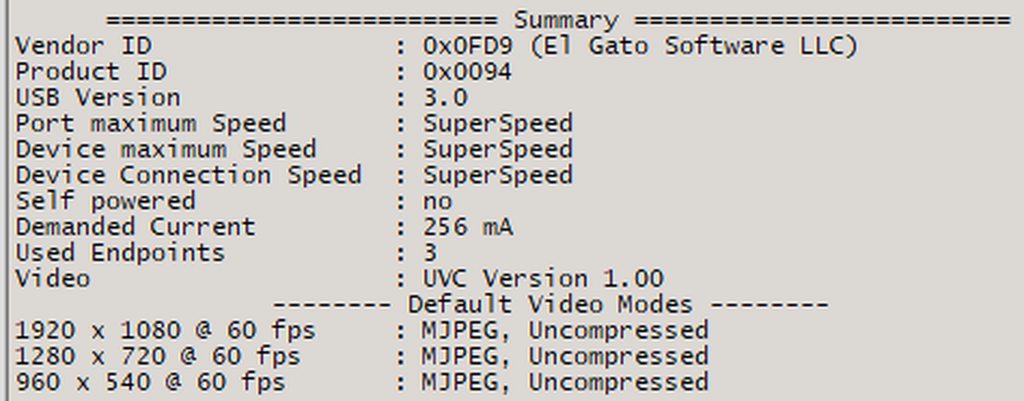
If it were a cable issue it'd look like this https://imgur.com/a/facecam-mk2-on-usb-2-0-cable-99F2vdA
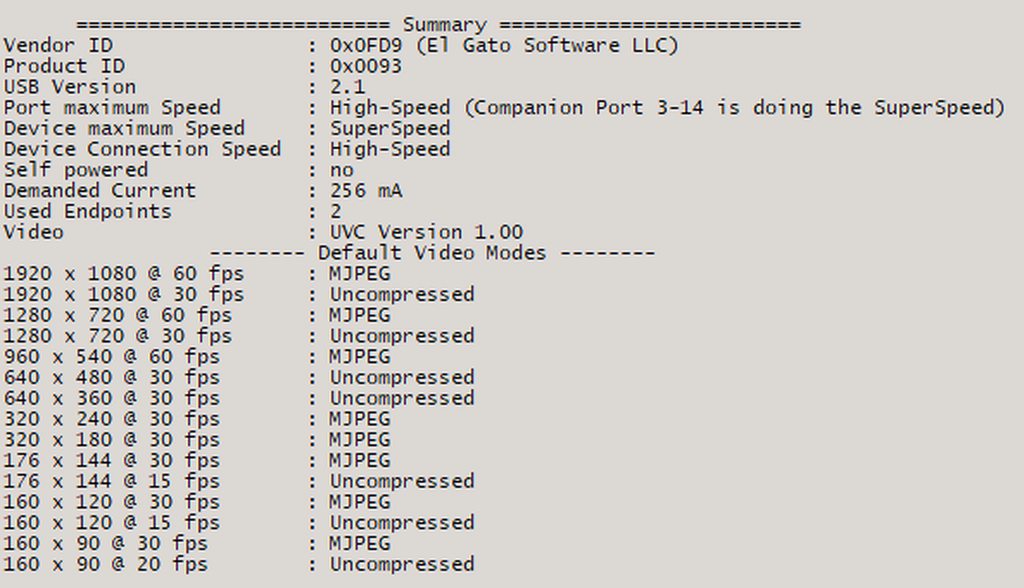
(don't mind that's facecam, it all works the same)
The fact your Port maximum Speed just says High Speed by itself tells us the computer thinks that's a 2.0 port. If you've triple checked you're in the right port, contact ASrock support as you could have a driver or BIOS problem that's misclassifying the port and making it run slower
sweet comet
hohw i update the bios
past basin
Depends on the board and whatever process they use - check the support site for it, or contact their support. Some can be done right from Windows, some may require creating a USB stick, and rebooting in to the BIOS settings to load the update
sweet comet
yeah all of tghem say 2.1 i tried all portsx
past basin
That 2.1 just means you have a 3.x device in a 2.0 port.
Do any of them mention the companion port at all, if they don't show superspeed?
sweet comet
 past basin
I do not like whatever is going on there with the device above your capture card - it's possible you have a malfunctioning device connected that's screwing with your USB there
past basin
Port listing in software may not match up even remotely with the actual ports
past basin
Weird - that should have a driver.
I'd suggest restarting with it removed, then use the USB port next to the USB C port, right under the DisplayPort
sweet comet
icy solar
he was having the same problem but got a Blue piece to plug into a blue piece into the pc
icy solar
nah my cable was an actual 3.0 cable
it was the original one that came with the elgato
past basin
They were using a bad/slow cable, and found the original one. Slightly different error, and they were seeing the Companion Port thing
icy solar
past basin
They were using a bad/slow cable, and found the original one. Slightly differen...
come on now the goat of support
past basin
If your computer keeps telling you the Port Maximum Speed is High Speed, even after removing the other devices, and you're in one of the blue ports, check with ASRock support for the motherboard. The PC is telling us that's a 2.0 port - if you're absolutely sure it's in one of the blue ports, then something is wrong with the board, either software, firmware (BIOS) or outright defect.
The system does list that there should be 3.2 front ports you could try as well.
 past basin
Blue piece is optional
Not all OEMs use it. (Though Most Elgato 3.0 cables do). If it was a cable issue thoguh you'd see the note about companion port handling SuperSpeed
past basin
Then try the USB-C port with a 5Gbps or faster USB-C to USB-C cable
(USB 3.0, 3.1 or 3.2 specifcally, do not get a charging cable as those are rated USB 2.0)
I can't do anything about your PC thinking those other ports are USB 2.0, that's something ASRock would have to help you with, if you needed help with the drivers or BIOS Updates, so try another port. If none of the blue insert ones are working, then try the USB-C
And if you really wanted to try another USB-C to A cable, just make sure the one you get is rated for 5 Gbps speed or higher
past basin
If ASRock support can't tell you what's up with those USB ports, quickest fix is try the other ports, the USB-C one.
Did you already try all the ports on the front of the machine as well?
https://www.asrock.com/MB/AMD/A620M Pro RS WiFi/index.asp#Download - Here is where you'd go to get driver updates for it, in particular you'd want the Chipset drivers if you have USB issues.
And here's the BIOS downloads with the link to the instructions on how to install it. https://www.asrock.com/MB/AMD/A620M Pro RS WiFi/index.asp#BIOS
Supports AMD Socket AM5 Ryzen™ 8000 and 7000 Series Processors; 6+2+1 Power Phase, Dr.MOS; 4 x DDR5 DIMMs, Supports Dual Channel, up to 7200+ (OC); 1 PCIe 4.0 x16; Graphics Output Options: HDMI, DisplayPort; Realtek ALC897 7.1 CH HD Audio Codec,, Nahimic Audio; 4 SATA3, 2 Hyper M.2 (PCIe Gen4x4),, 1 M.2 (PCIe Gen3x2); 2 USB 3.2 Gen1 Type-C (1 Re...
sweet comet
past basin
https://www.asrock.com/MB/AMD/A620M%20Pro%20RS%20WiFi/index.asp#Download - Here ...
which one should i download, the latest one
 past basin
No, the Chipset one

 zealous mesa
I am having issues. I got one game to stream through my HDX60 but when I switched to a different game, the TV said no signal. Thoughts?
past basin
sweet comet
This - this is what we wanted to see. Companion Port
That's good
What does the rest of it look like?
past basin
zealous mesa
I am having issues. I got one game to stream through my HDX60 but when I switche...
Did it still show on the PC when the TV dropped off?
zealous mesa
past basin
Did it still show on the PC when the TV dropped off?
Yessir
past basin
zealous mesa
Yessir
Try going into 4K Capture Utility and under settings, in the device tab, try setting the EDID input mode to "Display". Odds are it selected a display mode the capture card supports but your TV didn't. That should help prevent that from happening again (though you may have to disconnect and reconnect the HDMI cable after setting that to get the console to update)
zealous mesa
past basin
Try going into 4K Capture Utility and under settings, in the device tab, try set...
Well it failed to send my reply because I used “richarded around” you can infer what I actually said 😂😂
zealous mesa
past basin
Try going into 4K Capture Utility and under settings, in the device tab, try set...
Fixed it… I will try that once I go back downstairs. That would make sense. I tested it with NASCAR Heat 5 because it's an easy game to load up and mess around in while fixing settings. Then I switched over to MLB The Show which is HDR/4K and it lost connection to the TV. I was navigating back to the PlayStation menus through my computer
past basin
Ah, if it keeps up past that try turning off 120Hz mode in the PS5 menus too. Only some games support that, so it's a common issue to cause a TV to lose sync. With any luck the EDID change will fix it, but if not that's the next thing I'd try
sweet comet
past basin
This - this is what we wanted to see. Companion Port
someone said my cord isnt a 3.0 cord thats why]
past basin
sweet comet
someone said my cord isnt a 3.0 cord thats why]
Most likely - now that you're getting the Companion Port. You weren't getting that in the first image you shared
Companion port indicates you're now in a 3.x port, but the connection has an issue - either a slow cable, damaged cable, or dirt in the porst
sweet comet
bet. if it works. ur the realest N word out there🫡✊🏾
sweet comet
past basin
Most likely - now that you're getting the Companion Port. You weren't getting t...

this is it?
think this will work
or i should try to find q 3.0 cord
past basin
Nah, that's a dock. You want a cable that's USB-A on one end, USB-C on the other (or USB-C to C). Avoid docks if you can, they can introduce new headaches in the setup
sweet comet
i cant find a 3.0 at walmart smh
past basin
Any 3.1 or 3.2? Thunderbolt 3 or 4 cable will work too, though those would be overkill
 past basin
sweet comet
<@269997944671830017>
past basin
sweet comet
<@269997944671830017>
It's listed for 3.2 Gen 2 speed - does it mention 10 Gbps anywhere on the back? Looks like a match though
sweet comet
