#❓ask-a-question
1 messages · Page 70 of 1
 solar kayak
 still verge
Yes, but it's going to be extremely difficult
still verge
Yes, but it's going to be extremely difficult
Could you please help me with that? I have a ton of similar pictures to change
still verge
You'd start by masking out the 'new' jacket pattern and then using Transform, distort etc, move it into place
iT's not really something you want to do on a lot of photos
it's going to be really hard to make it look real
You'd be best off getting the pattern itself as a flat image
and then following the techniques here: https://www.youtube.com/watch?v=UG0-V95qmPg

►CHECK OUT ENVATO ELEMENTS: https://pix.live/envato
► SUPPORT THE CHANNEL & GAIN PREMIUM ACCESS: https://www.patreon.com/piximperfect
► RECOMMENDED SOFTWARE & GEAR:
✅ My Graphic Tablet: https://pix.live/wacom
✅ Recommended Budget Tablet: https://pix.live/wacomlite
✅ Try Photoshop for Free: https://pix.live/photoshop
✅ Artificial Intelligence Pho...
solar kayak
still verge
You'd start by masking out the 'new' jacket pattern and then using Transform, di...
Thank you!
 fluid craneBOT
Gave +1 Creative Carma to @still verge (current: #189 - 8)
still verge
the really difficult part is the shadows on the existing jacket will be hard to replicate
good luck, it's not a job I would want. 😄
 scarlet fulcrum
Like this:
 scarlet fulcrum
Yeah haha like the actual filter effect
still verge
have you tried the Photo Filter layer styles?

sorry, not layer style, adjustment layers
scarlet fulcrum
You're joking
still verge

 still verge
That was the intent.
still verge
You can achieve similar results with Camera Raw but this has it all built in there for you
no worries
scarlet fulcrum
Was right in front of me too because it's just a few down from solid color
still verge
😄
scarlet fulcrum
still verge
thank you
fluid craneBOT
Gave +1 Creative Carma to @still verge (current: #174 - 9)
scarlet fulcrum
Ping for the bot thing
still verge

 mystic oxide
o/ I'm trying to make an image look "clearer" it's not as high res as I would like - is there a way to do this in photoshop?
still verge
what's the resolution of the image now (pixel/pixel)
mystic oxide
well, the actual image itself... ~15k by 15k BUT it doesn't import to that size... I'm making a custom snowboard, so I scaled what the image opened as to my template, and it isn't awfully "blurry" I'm just trying to get it clearer
mystic oxide
template size is 4655 x 23450 (not using the entire template, but rather only the bottom half. I can upload a picture of it if it'd help any?
 still verge
screen shot is fine
mystic oxide
just trying to boost this part and make it look higher quality, just not sure how to do it
 still verge
can you zoom in 100% and screen shot the issue?
mystic oxide
not one specific issue, just that the bottom half to me seems relatively "blurry" almost and was just trying to boost the overall quality if it was possible
still verge
Right, but if I could see what "blurry" means to you 😉
mystic oxide
Just seems very pixelated to me I guess would be a better choice of words

 spark current
still verge
Window > Swatches
spark current
still verge
Window > Swatches
thanks
fluid craneBOT
Gave +1 Creative Carma to @still verge (current: #161 - 10)
still verge
Ok, so there's a few different ways to go about it.
You could use Topaz AI Photo/Gigapixel to upscale that portion and then mask it back in. That will simulate a higher resolution and also sharpen it.
There's other web-based upscalers/sharpeners you could use.
You might just try selecting the offending section, copy/pasting it to a new layer and then doing a Filter > Other >High Pass of about 3 - 5. then set that copied layer to Overlay.
One more step might be to (on the same overlay layer) add some noise, 1~2%
mystic oxide
If I use one of those upscalers, how would I then get that photo to import into PS in that resolution? This original image was stretched yes - but, it was upscaled to 15k x 15k, but didn't import into that size... just a small square, is there something that I'm missing?
still verge
well, shrinking it down condenses details
you have to fool the eye somehow, hence the noise/sharpening
mystic oxide
Well, surprisngly, it wasn't shrunken down, but rather expanded lol
still verge
so if your original file was smaller than your current, yah, it's going to be gooey...
so, take your original file, and upscale it, then mask/composite it in
mystic oxide
Mind if I DM you as to not clog the question chat up?
 last rock
Hello can anyone tell me why my photoshop is stuck at reading preferences?
 vagrant quail
Any fix for this?
left: in PS
right: on a Hex to HSV site


 ripe quest
last rock
Hello can anyone tell me why my photoshop is stuck at reading preferences?
ripe quest
last rock
Hello can anyone tell me why my photoshop is stuck at reading preferences?
Do you have both the Beta and the General Release of Photoshop on your system?
ripe quest
vagrant quail
Any fix for this?
left: in PS
right: on a Hex to HSV site
What Color Mode is the document you're working on? Did you accidentally choose CMYK instead of RGB?
vagrant quail
ripe quest
What Color Mode is the document you're working on? Did you accidentally choose C...
it's RGB
 ripe quest
vagrant quail
it's RGB
ripe quest
vagrant quail
it's RGB
Then you'll have to share more about what is on this layer. Start by showing the entire Photoshop GUI with the the Layers Panel open. Select that layer. Is there a Blend Mode applied to that layer?
 ripe quest
vagrant quail
ripe quest
vagrant quail
It appears there are Hue/Saturation Adjustments applied to some of these.
vagrant quail
ripe quest
It appears there are Hue/Saturation Adjustments applied to some of these.
Yeah that's the recolor
recolor thing also did this
ripe quest
vagrant quail
Yeah that's the recolor
Recolor? What recolor thing? In Adobe Illustrator?
 sly hawk
mystic oxide
Just seems very pixelated to me I guess would be a better choice of words
sly hawk
mystic oxide
Just seems very pixelated to me I guess would be a better choice of words
Just be aware that a screen has a much, much better resolution than a large format vinyl printer. - so go don't get too stressed about a perfect resolution. When the data spools to the printer, it will be downsampled anyway
ripe quest
vagrant quail
to change the color of the triangles
What about doing this a different way? Like using a Color Overlay Layer Style... ?
vagrant quail
There we go - thanks
sly hawk
Thanks @ripe quest (This way he gets some magic internet points) 🙂 - that do nothing 🙂
fluid craneBOT
Gave +1 Creative Carma to @ripe quest (current: #3 - 2239)
scarlet fulcrum
still verge
show me your layer stack
Like at the end?
ripe quest
sly hawk
Thanks <@712015771596750931> (This way he gets some magic internet points) 🙂 - ...
Nothing? That's building up my "street cred".... bruh. :)
(Had to throw the Bruh in there because I know how much you love that.)
sly hawk
oh god. you said bruh...
scarlet fulcrum
Cause I'm just applying the filters in Photoshop, after that I'm taking the images to GIMP, indexing them on a colour map and then recomposing the colour channels based on the filtered images
 livid otter
How do I keep the dimension of an gif but reduce its file size?
sly hawk
livid otter
How do I keep the dimension of an gif but reduce its file size?
Lower the colours?
Also, is it animated? if so, lower the number of frames
sly hawk
livid otter
How do I keep the dimension of an gif but reduce its file size?
Try some of these tools too:
https://shortpixel.com/blog/compress-gif-images/
still verge
scarlet fulcrum
Like at the end?
just need to see what's happening and what the issue is can't understand it from small screen shot
scarlet fulcrum
I've tried to mess around with different densities too but not working
 scarlet fulcrum
still verge
SO these look like very low resolution gif files
scarlet fulcrum
still verge
SO these look like very low resolution gif files
Yes it's 256x224
I'm trying to replicate GameBoy photos but coloured
still verge
😄
scarlet fulcrum
I'm essentially compiling the processes from these two together:
https://gameboymaniac.com/how-to-make-real-color-photos-with-your-game-boy-camera/
https://gameboymaniac.com/how-to-make-a-fake-game-boy-camera-photo/
Which is why I'm bringing it to GIMP and colour mapping it to recompose from the channels
still verge
Gotcha.
So, when you change bit depth and colors, everything changes
I'm not sure how to help you. 😄
spark current
Is there a more efficient method for selecting text boxes directly, rather than having to click the text box in the layer tab and then selecting the text box? This process is quite time-consuming and inconvenient 
@still verge
still verge
You can click in the layer itself
sorry
misread
If you have the text tool selected you can click right on top of the text and start typing
spark current
still verge
If you have the text tool selected you can click right on top of the text and st...
Wait No, cause like what i mean is like theres 2 text boxes layer right?
when i click the first text box and like put a text on it and while pressing the second text box its like it wont let me press it
but when i press it and like drag the 1st text box, like it drag along w/ the cursor
like inorder to like click the 2nd text box i have to go to layer tab and clic the 2nd text layer
 real portal
Does anyone know why my screen is flickering like this when I'm moving my cursor or doing anything in Photoshop and Lightroom Classic? It only appears in those Adobe apps and no others.
Nvm I solved it by turning off G-Sync
still verge
spark current
Wait No, cause like what i mean is like theres 2 text boxes layer right?
when i...
if the other text box is on top of it, it will cause problems.
 compact vigil
Hey
I'm working on this shirt
I wanted to ask how i can turn the left sleeve blue
 compact vigil
I wanted to ask how i can turn the left sleeve blue
compact vigil
compact vigil
I wanted to ask how i can turn the left sleeve blue
and the right one stays black
 wintry turtle
I am trying to figure out what I am doing wrong
I want this

but when I send it to a friend he gets this

ripe quest
wintry turtle
I am trying to figure out what I am doing wrong
Not sure this is a Photoshop question. If you're saving out a PNG with transparency, and use that to make the emoji, isn't that on the Discord side of things?
ripe quest
compact vigil
This is the Photoshop server. You're working in Photopea. You should probably ask in the Photopea server.
ripe quest
compact vigil
You have some sort of fill layer here called "Sleeves" - Probably make a copy of that, change the color to blue and then paint on the mask to clear the right side. I don't use Photopea so I don't know what they call these things in that app.
compact vigil
ripe quest
You have some sort of fill layer here called "Sleeves" - Probably make a copy of...
thanks a lot
fluid craneBOT
Gave +1 Creative Carma to @ripe quest (current: #3 - 2240)
wintry turtle
ripe quest
Not sure this is a Photoshop question. If you're saving out a PNG with transpare...
I don’t want the whole thing transparent and that’s the problem. I want dude white
I have photoshop
ripe quest
wintry turtle
I don’t want the whole thing transparent and that’s the problem. I want dude whi...
How are you removing the background? Can you show me the image before you did anything to it?
ripe quest
wintry turtle
<@712015771596750931>
I can't get at the image. Its an emoji. (From a server I'm not a member of)
Paste the bitmap here.
Also, I asked you a question. How are you removing the background?
wintry turtle
 wintry turtle
ripe quest
Also, I asked you a question. How are you removing the background?
wintry turtle
ripe quest
Also, I asked you a question. How are you removing the background?
The second image I am not removing anything bc I found it in another server
so I just stole with the app
I think this has to do with the selection tool?
ripe quest
One min
wintry turtle
no worries
 ancient wyvern
can someonee help me
pls
all i ask for is someone to add an outline around the RJ and the leaf
 ripe quest
wintry turtle
no worries
ripe quest
wintry turtle
no worries
How about that...
 ripe quest
I masked out the background. Saved it as a PNG with transparency.
ancient wyvern
help m,ee;-;
ripe quest
ancient wyvern
how do you add an outline to a text that's already in the photo?
Layer Style > Stroke...
 ancient wyvern
oh shi
ripe quest
ancient wyvern
help m,ee;-;
Calm down
ancient wyvern
bros a life saver
ripe quest
ancient wyvern
bros a life saver
Do you know how to do this with Photoshop or nah?
ancient wyvern
not really im on phone rn
could you make it a black outline and make the outline just a lil bit smaller for me please?
ripe quest
ancient wyvern
could you make it a black outline and make the outline just a lil bit smaller fo...
 ripe quest
wintry turtle
Are you able to tell me how you did mine <@712015771596750931>
ripe quest
wintry turtle
Are you able to tell me how you did mine <@712015771596750931>
I kinda already said above. If I have to demo it, its going to take me a bit.
ripe quest
One moment...
ancient wyvern
@ripe quest sorry for the ping but is it fine if you do one more little thing sorry for disturbing u
ripe quest
wintry turtle
oh shoot, sorry I missed that
Maybe you can follow along with this...
ripe quest
ancient wyvern
<@712015771596750931> sorry for the ping but is it fine if you do one more littl...
What seems to be the problem, FEEPS?
wintry turtle
ripe quest
Maybe you can follow along with this...
Thank you so much
fluid craneBOT
Gave +1 Creative Carma to @ripe quest (current: #3 - 2241)
ancient wyvern
you did a phenomal job but can you clean up the white text like so it doesnt look like that

can you send me a white and black text color of the BHANGRA ACADEMY
like one is black and one is white so 2
ripe quest
ancient wyvern
you did a phenomal job but can you clean up the white text like so it doesnt loo...
 ripe quest
ancient wyvern
can you send me a white and black text color of the BHANGRA ACADEMY
ripe quest
ancient wyvern
can you send me a white and black text color of the BHANGRA ACADEMY
Dude. This isn't Humann Design Studio. heh
ancient wyvern
sorrry if i am asking u too many times
but like i appreciate it so much and thank u for being kind

 broken summit
Hi I had a question I was wanting to know if someone would be able to help me

I have something I am trying to edit but don’t have the original psd how would I change the green in the color to red
ripe quest
broken summit
I have something I am trying to edit but don’t have the original psd how would I...
Can you show me the image without the red scribbling
broken summit
 ripe quest
broken summit
ripe quest
broken summit
The whole image...
broken summit
i cant it has confidental information
ripe quest
broken summit
i cant it has confidental information
You can try using a Hue/Saturation Adjustment Layer but those stars are probably going to cause some problems.
 ripe quest
broken summit
can you join community voice chat and show me how u did that
ripe quest
broken summit
can you join community voice chat and show me how u did that
Can't join chat right now. Sorry.
broken summit
ty
 hard reef
does anyone know why when i switch the stroke to a center or inside the black stroke shows small dots inside?


 long maple
hi i got a question, my move tool usually selects the layer when i click on screen, but now it selects the group.
how do i change it back ?
 ripe quest
long maple
hi i got a question, my move tool usually selects the layer when i click on scre...
ripe quest
long maple
hi i got a question, my move tool usually selects the layer when i click on scre...
You probably have Auto-Select turned on... Select the Move Tool and look at the Options in the top bar.
 long maple
ripe quest
You probably have Auto-Select turned on... Select the Move Tool and look at the...
long maple
ripe quest
You probably have Auto-Select turned on... Select the Move Tool and look at the...
ohh right, thanks a lot !
 unreal agate
would anyone happen to know why in photoshop the same colour will come out different across two documents with the same settings from what i can tell


both rgb colour mode and 8 bit, but their rgb/8 at the end is different

some more proof

 ripe quest
unreal agate
would anyone happen to know why in photoshop the same colour will come out diffe...
ripe quest
unreal agate
would anyone happen to know why in photoshop the same colour will come out diffe...
A specific Color Profile being assigned to a document... Main menu: Edit > Color Settings... Then to assign a profile: Edit > Assign Profile...
 ripe quest
unreal agate
both rgb colour mode and 8 bit, but their rgb/8 at the end is different
ripe quest
unreal agate
both rgb colour mode and 8 bit, but their rgb/8 at the end is different
There are different types of RGB. Adobe RGB has a much wider gamut than regular sRGB. RGB has a wider gamut than CMYK, etc etc.
 unreal agate
ripe quest
There are different types of RGB. Adobe RGB has a much wider gamut than regular ...
unreal agate
ripe quest
There are different types of RGB. Adobe RGB has a much wider gamut than regular ...
thank you so much for your help !!
fluid craneBOT
Gave +1 Creative Carma to @ripe quest (current: #3 - 2243)
unreal agate
do you think there would be a way i could get the second colour, on a colour managed document ?
ripe quest
unreal agate
do you think there would be a way i could get the second colour, on a colour man...
If that color isn't available you could only get "close" to it.
Adobe RGB is capable of more colors. You can read about gamut online. Its a lot to talk about right now. :)
 swift dust
Is there any actions that are able to remove background from any transparent objects like this glass?

 cunning bobcat
any way to change this to percentage instead of numbers?
 still verge
swift dust
Is there any actions that are able to remove background from any transparent obj...
still verge
swift dust
Is there any actions that are able to remove background from any transparent obj...

Welcome to our comprehensive tutorial on working with transparent objects in Photoshop! In this step-by-step guide, learn how to change the background of transparent objects seamlessly.
🔍 Key Topics Covered:
Selecting Glass in Photoshop
How to Mask Glass for Perfect Edges
Layer Mask Techniques for Transparent Objects
Extracting Glass Elements ...
 vapid flume
What methods are you using to remove the background and how big is the image? (Automatic methods don't work very well on very small images, because anti aliasing)
 torn condor
How to make these shapes and distanced the same way from the text?
 vapid flume
With the move tool selected, and with all the layers concerned selected as well, you can use the align and ditribute functions

in your case you might want to use "distribute horizontally" first with the 3 elements selected (text layer + 2 shapes)
And then run a "distribute vertically" after. (Order doesn't matter)
torn condor
Are you answering to me?
vapid flume
torn condor
Are you answering to me?
yes 🙂
torn condor
How to make them?
I can combine shapes and guess which corners to bend and which not
I will try that align
vapid flume
With the pen tool, making sure you have a rounded corner. Alternatively, make a vector rectangle, select one corner with the irect selectiuon tool (white arrow), hit delete to remove the corner and you'll end up with that shape

here for the rounded corners

or you can use the caps and corners options (see at the top) after having deleted that corner with the direct selection tool
 torn condor
direct selection tool method does not work.
You can not put round corners afterwards, and if you put them before shape is incorrect once you cut 2 anchor points on bended place.
 vapid flume
torn condor
vapid flume
torn condor
Use the second method then. You need to select 2 points instead of one since the rounded corners add some extra points
torn condor
vapid flume
or you can use the caps and corners options (see at the top) after having delete...
this works
ty
vapid flume
You're welcome!
 lofty wind
I'm planning on painting a portrait of the girl of my dreams off of her photo. I wanna run it through ai to make it cartooni in turn making it much easier to paint with my tools. But there is a tiny bit of hair in front of her face which kinda ruins everything... I don't wanna use a paintbrush tool doing a sloppy job lol. It should be very easy to remove it for anyone with a little bit of expertise... I can send you the photo to see whether you're interested. It would mean alot to me! Thanks in advance to anyone who's willing to lend a hand.
 serene coral
lofty wind
I'm planning on painting a portrait of the girl of my dreams off of her photo. I...
serene coral
lofty wind
I'm planning on painting a portrait of the girl of my dreams off of her photo. I...
if it's a single strand then it should be fairly easy to remove it with the remove tool or spot healing brush tool
lofty wind
serene coral
if it's a single strand then it should be fairly easy to remove it with the remo...
It is a bit more than that unfortunately... Nothing crazy but I just do video editing not masking and such. 😦
serene coral
lofty wind
It is a bit more than that unfortunately... Nothing crazy but I just do video e...
can you share a sample?
lofty wind
Absolutely
It's very simple I just personally only know the paintbrush/erase method XD
It's a 10 second edit for others but a YouTube tutorial rabbit hole I really can't afford to go through atm.
sly hawk
lofty wind
Absolutely
Did you send it to wertos directly? - If not, feel free to post here, or DM it over and we'll see if we can quickly move the hair out of the way
Why not just re-type out the text again?
 serene coral
sly hawk
Did you send it to wertos directly? - If not, feel free to post here, or DM it o...
serene coral
sly hawk
Did you send it to wertos directly? - If not, feel free to post here, or DM it o...
yep, we got it figured out 😉
serene coral
James's method if you know/are able to find the font, otherwise:
https://youtu.be/Q6ZyGZcyoQk

In this tutorial, we’ll check out a nice little timesaver for converting black and white to black and transparent, white and transparent, or a solid color and transparent. In just 4 steps, this approach will even preserve the parts of your image that might be off the edges of the canvas. Works great for creating keyable logos, textures for knock...
 fresh moth
i've got 2 normal maps for a character model. They are identical except for a scale pattern on one map.
I want to extract the scales from the image.
setting the map with scales to difference does show the scales perfectly. But i can't use them as part of a normal map.
Patterns are also too complex for object selection, so i'd get missing parts or unwanted edges. selecting the scales could work, but that would be a lot of manual work.
any other options?
sly hawk
fresh moth
i've got 2 normal maps for a character model. They are identical except for a sc...
Can you show some visuals of what you mean?
fresh moth
sly hawk
Can you show some visuals of what you mean?
I should give some better context. A game recently updated and added a blue channel to the normal map to read the scales. My custom made normal map doesn't have this blue channel so i want to add it (scales only). Best way to me seemed to extract them, add blue 148 to it and add back to the normal map.
When using difference i get a good cutout of the scales, but its not a normal map (image 1)
I tried selecting the scales and cutting them out, but that adds a lot of unwanted noise (image 2)
I also tried a python script to extract the scales, but that gives large edges around the scales (image 3)
Now i'm trying to figure out if i can
A) convert the difference into a normal map and remove the black pixels
or B) find a method to clean the edges


 sly hawk
fresh moth
I should give some better context. A game recently updated and added a blue chan...
sly hawk
fresh moth
I should give some better context. A game recently updated and added a blue chan...
Are you aware that you can use a clipping mask to use the 'mask' from a 'good image' and then overlay it over the other one with the messy edges?
 unkempt chasm
Hello everyone, I hope you're doing well. I have a question: is it possible to replace the pattern of a dress with another one? I have tried several methods, but the old pattern of the dress is still visible when I use multiply. Do you think it is possible to achieve a natural result? thank you !

 sly hawk
unkempt chasm
Hello everyone, I hope you're doing well. I have a question: is it possible to r...
sly hawk
unkempt chasm
Hello everyone, I hope you're doing well. I have a question: is it possible to r...
Start by removing the blue FIRST
 fresh moth
sly hawk
Are you aware that you can use a clipping mask to use the 'mask' from a 'good im...
fresh moth
sly hawk
Are you aware that you can use a clipping mask to use the 'mask' from a 'good im...
i'm not aware of that.
How would i go about it?
layer 1: extracted scales
layer 2: original normal map
then set layer 2 to clipping mask?
unkempt chasm
sly hawk
Start by removing the blue FIRST
thank you so much! I'll try it 🙂
fluid craneBOT
Gave +1 Creative Carma to @sly hawk (current: #5 - 961)
sly hawk
unkempt chasm
thank you so much! I'll try it 🙂

yeah, you can do a half decent job once you get rid of the blue 🙂
 sly hawk
unkempt chasm
after removing the blue did you adjust anything else to get that effect ?
sly hawk
unkempt chasm
after removing the blue did you adjust anything else to get that effect ?
Here's your basic workflow...
sly hawk
 inner quartz
does anyone know how to make it ?
inner quartz
does anyone know how to make it ?
halftone effect
inner quartz
sly hawk
halftone effect
thanks !'
fluid craneBOT
Gave +1 Creative Carma to @sly hawk (current: #5 - 962)
inner quartz
sly hawk
halftone effect
how do you make it from the side? instead of the whole image
sly hawk
unkempt chasm
after removing the blue did you adjust anything else to get that effect ?
Realistically, you would want to place the layer over the top in CHUNKs, so the pattern doesn't continue from the arm/wrist to the waist - otherwise it looks super fake,,,
sly hawk
fresh moth
i'm not aware of that.
How would i go about it?
layer 1: extracted scales
laye...
Soz @fresh moth - got distracted
fresh moth
@sly hawk i've made a crude example
I got these two images
I want to add blue values to the pixels of the plusses only.
The problem i've encountered, i can extract the shape, but it get a lot of noise with it. Large edges or very noisy edges.
I'm curious if there is a way to extract the shape "cleanly"
I've got no problem with adding the blue values once i got the shape, but i can't get the shape (without the final textures looking wacky)

 sly hawk
Can you both save them so they're EXACTLY the same pixel dimensions and crop?
There's a 3-5 pix difference
when overlayed, they don't match up
fresh moth
ah, gimme a sec
This is just an example i made, the normal maps in questions are 100% identical except for the scales in question

 unkempt chasm
sly hawk
Here's your basic workflow...
unkempt chasm
sly hawk
Here's your basic workflow...
thanks a lot !
fluid craneBOT
Gave +1 Creative Carma to @sly hawk (current: #5 - 963)
sly hawk
fresh moth
This is just an example i made, the normal maps in questions are 100% identical ...
 fresh moth
Oh boy
So what do i do?
sly hawk
fresh moth
Oh boy
So what do i do?
Follow along with however much here is relevant...
(or keep asking, there may be someone else who knows a much less convoluted way)
serene coral
fresh moth
This is just an example i made, the normal maps in questions are 100% identical ...
no matter what I do, the pattern is not 100% same for me on both images you sent. is this expected?
 fresh moth
probably, because its a quick and dirty example i made.
The actual files i can't send here due them being body textures, and thus slightly nsfw. Which is likely not allowed here
fresh moth
sly hawk
Follow along with however much here is relevant...
gonna see how those turn out
serene coral
fresh moth
probably, because its a quick and dirty example i made.
The actual files i can't...
not sure how precise of an outline you'd like to get but given the actual file you're working on matches perfectly you could get it right just by messing around with blending modes

 hushed niche
unreal agate
both rgb colour mode and 8 bit, but their rgb/8 at the end is different
hushed niche
unreal agate
both rgb colour mode and 8 bit, but their rgb/8 at the end is different
Hi, they are not the same RGB: the # and * lets you know that the first one has no assigned profile , the second tells you that the profile is different than your working space.
You can setup the status bar, at the bottom left of the UI to show the color profile.
 wide kiln
How would I go about placing the UK Flag inside the pony, I tried creating a clipping mask but the flag just dissapears, I think because both are just jpegs from google?
 vapid flume
wide kiln
vapid flume
wide kiln
The pony would need to have a solid colour for the clipping mask to be effective. The clipping mask will only work with solid colour, not transparency
wide kiln
Yes I just solved it
But another question
How would I go about adding a stroke to the horse? after adding the flag
vapid flume
So it depends if the pony is a png, with transparency all over except for the black outline (It's difficult to know here since you have a white background)
wide kiln
vapid flume
So it depends if the pony is a png, with transparency all over except for the b...
yes managed to figure that out, thank you tho
fluid craneBOT
Gave +1 Creative Carma to @vapid flume (current: #8 - 693)
vapid flume
wide kiln
How would I go about adding a stroke to the horse? after adding the flag
you can double click on the horse layer and it opens the "layer styles" menu
You can find the "stroke" option there, which you can tweak to fit your needs

 coral lodge
Do you guys know the best way to replicate the style of this paint streak effect? Or any good tutorials?
 ripe quest
coral lodge
Do you guys know the best way to replicate the style of this paint streak effect...
ripe quest
coral lodge
Do you guys know the best way to replicate the style of this paint streak effect...
Probably some sort of custom brush.
 wide kiln
How would I go about removing the horse it self now, I filled it with a solid color since it was transparent. Can I now keep the color I filled and remove the horse layer?
 ripe quest
wide kiln
How would I go about removing the horse it self now, I filled it with a solid co...
ripe quest
wide kiln
How would I go about removing the horse it self now, I filled it with a solid co...
Which horse? The yellow one? Also, what do you mean remove?
You can either delete the layer or just turn it off by clicking the EYE icon and it will no longer be visible.
vapid flume
Also, not to be picky, but this is not an "England" flag 🙂
You can replace your black pony by the yellow one, and clip the flag to the yellow horse instead?
Not sure what you want to do here
coral lodge
ripe quest
Probably some sort of custom brush.
Where can I find a brush like that?
ripe quest
coral lodge
Where can I find a brush like that?
https://www.adobe.com/products/photoshop/brushes.html - Check out Dry Media and Gouache packs.
fresh moth
sly hawk
Follow along with however much here is relevant...
thank you so much for your help. sadly this still resulted in bad normals.
However, i found the stupidest method to fix it (which you couldn't have known)
i have 2 types of diffuse maps with scales. One white scales, the other black scales.
Dividing them resulted in a perfect cutout of the scales
Dividing that result with the normal and inverting it gave me perfect cutouts of the scales from a normal map.
All thats left is to remove the white pixels
 fluid craneBOT
Gave +1 Creative Carma to @sly hawk (current: #5 - 964)
sly hawk
fresh moth
thank you so much for your help. sadly this still resulted in bad normals.
Howev...
Cool. You can do this with a simple 'select colour range'
 wary crypt
need help
so i have 10 patterns/images which i wanna scatter randomly scatter in a selection
how do i do it?
spark current
How do i crop a image perfectly? like it can auto like crop that part ykyk
@sly hawk
sly hawk
Image > Trim
spark current
sly hawk
Image > Trim
did but is there some way?
like it can auto
or if cant how do we like zoom ?
sly hawk
How "auto" do you want? what's your goal/workflow?
wary crypt
spark current
or if cant how do we like zoom ?
hold alt and left click on the layer thumbnail
sly hawk
maybe.....
 spark current
sly hawk
How "auto" do you want? what's your goal/workflow?
spark current
sly hawk
How "auto" do you want? what's your goal/workflow?
like instead of like dragging my cursor to create liek a circle i want something like i can ( i mean still drag ) but like box?
isntead of circles like box
idk if that make sesne 😭
spark current
wary crypt
hold alt and left click on the layer thumbnail
thank you
fluid craneBOT
Gave +1 Creative Carma to @wary crypt (current: #918 - 1)
sly hawk
I'm still not clear, but if @wary crypt answered it... great!
wary crypt
@spark current there's another way to trim
hold ctrl and click on the layer thumbnail, it will create a selection
click "C"
double click enter
 wary crypt
like a input window where you put in the width and height and ps makes a selection...?
spark current

im slow sorry im confused
its like where u drag ur cursor itll make likea box?
but not circle?
wary crypt
ooooooo
hold left click on the selection tool
or shift+M to cycle through them

and while dragging to make selection, hold shift to make a perfect circle
wide kiln
Anyone got tips on how I can make my photoshop lag less. I have a project with like 15 art bords and all got alot of objects on them.
 rapid slate
My eraser tool is stupid, it won't normally erase anymore its being special. Now I can't even do that, its trying to Erase to History. I can't unclick it, its grayed out but selected. I need to erase .
That. I need that thing to be unselected but its grayed out
 spark current
wary crypt
<@953112646088024126> there's another way to trim
hold ctrl and click on the lay...
spark current
wary crypt
<@953112646088024126> there's another way to trim
hold ctrl and click on the lay...
thank you
fluid craneBOT
Gave +1 Creative Carma to @wary crypt (current: #589 - 2)
spark current
ah there we go
wary crypt
mention not o7
 wicked relic
how can fix ? i have all new update

 sly hawk
wide kiln
Anyone got tips on how I can make my photoshop lag less. I have a project with l...
sly hawk
wide kiln
Anyone got tips on how I can make my photoshop lag less. I have a project with l...
Photoshop treats 15 artboards as all part of the same Canvas.
so 15 artboards, each maybe 2,000 x 2,000 is going to be AT LEAST 30,000 pixel canvas.
I do question, if your task requires 15 artboards, is photoshop the correct tool for the job? - What are you trying to do?
still verge
wicked relic
how can fix ? i have all new update
Make sure you have Creative Cloud Installed
still verge
wicked relic
how can fix ? i have all new update
Uninstall this version of Photoshop, install Creative Cloud, Install Photoshop from the Creative Cloud interface. Do not install the Beta version
wide kiln
sly hawk
I do question, if your task requires 15 artboards, is photoshop the correct tool...
Just making a bunch of dumps for clothes.
Just thought I would keep them all ine one document but ive split them all up now
wicked relic
still verge
Uninstall this version of Photoshop, install Creative Cloud, Install Photoshop f...
I must open with what
 still verge
wicked relic
I must open with what
still verge
wicked relic
I must open with what
That's the Mac version
Go back and get the Windows version.
 still verge
Go here
download this
Access Adobe Creative Cloud apps, services, file management, and more. Sign in to start creating.
do not use the Windows tore
store
wicked relic
again
 wide kiln
Is there a way I can embed all fonts and images in a file after i've already placed everything in it normally
ripe quest
wicked relic
again
Download using a different browser. If you're using Opera, the site cannot properly detect your Operating System.
wicked relic
ripe quest
Download using a different browser. If you're using Opera, the site cannot prope...
i going try it
still verge
wide kiln
Is there a way I can embed all fonts and images in a file after i've already pla...
in Photoshop? What are you saving your file as?
wide kiln
still verge
in Photoshop? What are you saving your file as?
Just PSD
wicked relic
ripe quest
Download using a different browser. If you're using Opera, the site cannot prope...
it works thank you and @still verge
fluid craneBOT
Gave +1 Creative Carma to @ripe quest (current: #3 - 2245)
still verge
So you can't embed the fonts in Photoshop, but you can rasterize the text so it stays as it is, it can't be edited though.
wide kiln
oh okay, what about images?
still verge
Are you sending it to print, or to someone else to edit?
are the images in the document linked or embedded
wide kiln
I will be sending at the moment but while I work on it while im away I use my laptop and not sure if it will work to just send all PSD files to my laptop. Too lazy to find out atm
still verge
if the images are rasterized or smart objects, they're stored in the PSD file
but if you're using linked images, you'll need to include them when you move/copy the file
wide kiln
Okay
wide kiln
still verge
if the images are rasterized or smart objects, they're stored in the PSD file
Thanks
fluid craneBOT
Gave +1 Creative Carma to @still verge (current: #139 - 11)
wide kiln
Anyone know what this glitch is?https://gyazo.com/69e3f16bf47e60a8b4dadc7c542dd580

Itäs beeng happoening alot lately just white boxes appear
 charred elm
Hello, how could I fix the problem related with photoshop changing colours of an image when its opened in it?
Here you can see me using colour picking tool that shows the images colour opened in photoshop and the actual colour of the image

 still verge
wide kiln
Anyone know what this glitch is?https://gyazo.com/69e3f16bf47e60a8b4dadc7c542dd5...
still verge
wide kiln
Anyone know what this glitch is?https://gyazo.com/69e3f16bf47e60a8b4dadc7c542dd5...
Looks like video card issue.
wide kiln
still verge
Looks like video card issue.
I got a brand new 4070 TI I shouldnt be anything wrong with it
still verge
wide kiln
I got a brand new 4070 TI I shouldnt be anything wrong with it
Install newer, or older drivers...
Sometimes Photoshop doesnt work well with certain driver versions.
Check in the PS Preferences that you're using the GPU
 charred elm
Hello, how could I fix the problem related with photoshop changing colours of an...
charred elm
charred elm
Hello, how could I fix the problem related with photoshop changing colours of an...
Found the solution, had to set RGB to monitor RGB
 astral dove
does anyone got an idea on how to make this but with the letters z and c? or z and g
 fluid craneBOT
Gave +1 Creative Carma to @sly hawk (current: #5 - 965)
hard reef
I have the design shape of this logo but i was wondering how i would go about making the 3d/chrome effect? since currently it’s just flat, I was thinking of adding a bevel? Any suggestions are appreciated

 distant adder
hard reef
I have the design shape of this logo but i was wondering how i would go about ma...
distant adder
hard reef
I have the design shape of this logo but i was wondering how i would go about ma...
I have chrome effect but it's paid one
hard reef
distant adder
I have chrome effect but it's paid one
how would i go about making the 3d effect?
hard reef
distant adder
I have chrome effect but it's paid one
or did they just add a bevel effect?
im not asking for the chrome effect im simply asking how did they make the 3d effect
distant adder
hard reef
im not asking for the chrome effect im simply asking how did they make the 3d ef...
Search on YouTube bro
astral dove
astral dove
does anyone got an idea on how to make this but with the letters z and c? or z a...
anyone?
 random sky
hey! i want to edit parts of an image using an eyedropper like the one in Pages...does anyone know a way to do that in photoshop
sly hawk
hard reef
I have the design shape of this logo but i was wondering how i would go about ma...
Google "photoshop Chrome effect" and you can download some free effect/layer styles than. - super quick and easy.
 river otter
does the generative fill work properly with black and white manga images?
ripe quest
river otter
does the generative fill work properly with black and white manga images?
I don't know how much manga would be in the training data for Firefly. I'd assume, not a lot so results may be underwhelming.
river otter
oh ok
i was asking because the generative fill doesn't work... but i can't discover why
Even for irl images, it says that the parameters are invalid
 still verge
river otter
Even for irl images, it says that the parameters are invalid
still verge
river otter
Even for irl images, it says that the parameters are invalid
You must 1) be connected to the internet and 2) have a legitimate copy of Photoshop installed.
ripe quest
river otter
Even for irl images, it says that the parameters are invalid
3.) be signed in to an Adobe Account
river otter
yes, i'm connected to a good internet wi-fi and yes, i have the real photoshop (payed by school)
and i'm using school's adobe account
ripe quest
river otter
and i'm using school's adobe account
Main menu: Help... down toward the bottom of the menu should show that you are signed into an Adobe Account
It will say "Sign out... username@email.tld"
ripe quest
river otter
it says "sign out (my school's account)
You might need to check with your Plan Admin to ask about what options are available to you.
Generally each person should have an account and you sign in to your Adobe Account (https://adobe.com) and check that yourself.
But with Enterprise and Teams accounts, the rules/options will vary based on what sort of plan you have.
ripe quest
river otter
i have "Adobe for Enterprise"
OK but it doesn't sound like you have your own username and password. Or do you?
You should have a individual credentials allowing you to sign in to an Adobe Account.
river otter
the account connected to adobe is my school account which has been assigned to me so the username isn't my own but my password is
ripe quest
On my work account, I have my own username and password and that account is associated with a company. I don't know how it works for Educational accounts.
river otter
every student has its own photoshop. the whole class isn't working on a single account
still verge
It's also possible that the school didn't agree to TOS for Generative Fill...

https://community.adobe.com
Hi Guys, I am having an issue with Generative Fill. It used to work without issues before but it stopped working completely. Every time I try to use the tool it shows the error: The Parameters for command "Generative Fill" are not currently valid See attached screenshot. I am on the most recen...
ripe quest
river otter
every student has its own photoshop. the whole class isn't working on a single a...
Check with the plan admin or get on chat with Adobe Customer Care and they can probably check what features are available to you.
We can't do that here. We don't have access to anyone's accounts and such.
river otter
ripe quest
Check with the plan admin or get on chat with Adobe Customer Care and they can p...
I'll ask my teacher for now. Thank you all @ripe quest and @still verge
fluid craneBOT
Gave +1 Creative Carma to @ripe quest (current: #3 - 2246)
ripe quest
river otter
I'll ask my teacher for now. Thank you all <@712015771596750931> and <@448268661...
Good luck with it!
still verge
@ripe quest sent you pm
ripe quest
Let's not post GIFs. Just ask your question. If someone knows the answer, they will probably reply.
random sky
ripe quest
Let's not post GIFs. Just ask your question. If someone knows the answer, they w...
I posted my question 😭
still verge
random sky
hey! i want to edit parts of an image using an eyedropper like the one in Pages....
Not sure what this means. How does Pages work?
ripe quest
Yeah. I don't use Pages. iPad app, I assume?
random sky
so this is the feature pages has...the little eyedrop thingy changes any part u wanna color into whatever color u want
 random sky
ripe quest
Yeah. I don't use Pages. iPad app, I assume?
random sky
ripe quest
Yeah. I don't use Pages. iPad app, I assume?
It's an application lol for documents and stuff kinda like Word
ripe quest
random sky
It's an application lol for documents and stuff kinda like Word
I'm not a Mac guy. Sorry.
still verge
So what are you trying to change the color of?
random sky
ripe quest
I'm not a Mac guy. Sorry.
its ok mac sucks anyways
 bold galleon
I frequently have a small item isolated and masked. And if I want to transform it the boxes are mildly inconveniently far away because it was part of a larger picture. Is there something that can be done to make the boxes/selection area closer to the smaller area?
still verge
If it's Text (and not rasterized) you can select the text and then use the eyedropper to change it. If the object is rastrized, you'll have to either paint it, or use a color layer mode on it.
random sky
still verge
So what are you trying to change the color of?
so i have this image that's got like patterns and stuff and if i do change the color it would change the whole image color and not the specific areas I want
like this

i dont want the image itself to color just the little dots
bold galleon

If you press the hand and point and click and move you can dial in specific things that I think will work for this scenario
still verge
Where is that at, Turtle
bold galleon
Hue and Saturation adjustment
still verge
Right, so a hue/sat adjustment layer

 stable lance
Is it possible to hoist an element in a .psdt file? I have a template for my business in which I keep my dimensions, alongside some watermarks which, I'd like to hoist at the top so they're always visible, even when adding new layers.
bold galleon
Yeah just realized that it probably wouldn't work because what you click will change everything that's that color. But the adjustment brush will make a quick mask that will change the color of what you brush
still verge
Yep
random sky
ah alright thanks guys! i'll try it 
stable lance
stable lance
Is it possible to hoist an element in a `.psdt` file? I have a template for my b...
if this is not possible; can I somehow make the watermarks always visible without regard to their hiearchy?
still verge
stable lance
if this is not possible; can I somehow make the watermarks always visible withou...
Best way to do this is to put your watermark at the top, and use Groups/folders to do the rest of the work
stable lance
might opt for that instead, cheers!
still verge
stable lance
might opt for that instead, cheers!
 swift dust
Im trying to use adaptive wide angle yet it wont let me curve under please help

for those who want the full menu:
 still verge
Have you considered using the Warp feature instead?
swift dust
still verge
Have you considered using the Warp feature instead?
ive tried the warp feature but doesnt really work
still verge
How so?
swift dust
well i want it to be automatically straight but its difficult to do so
still verge
so there's a couple issues. the lip of your cup isn't following the a realistic line, if you compare with the bottom. Unless the cup has a lip on it, the bottom should also be curved
thus the whole logo would be shifted
 swift dust
no
I want to extract the text
so esectally, I want to keep the text and un-warp it if that makes sense
thats why Im using adaptive wide angle
still verge
you want to unwarp the the logo and text
swift dust
i mean just the logo if that possible
still verge
ok just a min
swift dust
Im just asking like how to do it so Iknow how exactly to do it for future clients
 swift dust
in a way yes
still verge
So, I used the Polygon Lasso Tool to select the edges of the logo
then copyied it to a new layer
Then used Warp, but MANUALLY MOVED THE PINS
 still verge

 tepid ginkgo
Does anyone use Adobe Lightroom or edit photos? I did some edits and would like a feedback from someone more professional and experienced than me
still verge
tepid ginkgo
Does anyone use Adobe Lightroom or edit photos? I did some edits and would like ...
I use Lightroom and photoshop
tepid ginkgo
still verge
I use Lightroom and photoshop
May I dm? But just to be clear im a total newbie (0 knowledge in actual photography, just wanted to learn photo editing for fun), and they are just holidays photos of me, so probably mediocre at best.
still verge
yep
swift dust
by snorting it lmao
 frigid cape
swift dust
by snorting it lmao
frigid cape
swift dust
by snorting it lmao
Bruh
swift dust
uhh find a free background remover and it will help u
frigid cape
K ty
coral lodge
ripe quest
https://www.adobe.com/products/photoshop/brushes.html - Check out Dry Media and...
ok thanks
fluid craneBOT
Gave +1 Creative Carma to @ripe quest (current: #3 - 2247)
coral lodge
which pack do you think its part of? @ripe quest
ripe quest
Look at the message. "Check out Dry Media and Gouache packs" I don't know. One of those might have something that could work.
 polar cove
hi! I wanna keep it short, i like how the letters fade in, but theyre also fading in as different colours. how do you make something fade in, but also... change colour while doing it?
 coral lodge
Alright
ripe quest
polar cove
hi! I wanna keep it short, i like how the letters fade in, but theyre also fadin...
Its really more of a bleed effect or watercolor. Similar to what is shown in this video... https://youtu.be/qVKsVhGvV_o?si=gnGIhN2M1IBy1F_v

Learn to create an ultra-realistic bleeding ink or watercolor effect in Adobe Photoshop. In this tutorial, we’ll harness the power of Photoshop Actions to build a one-button effect that can be applied to photos, text, artwork and more.
Save yourself a few minutes and pick up the Ink Bleed and Color Bleed actions from this video here!
https://te...
 orchid canopy
is anyone @here able to please help assist with this issue I am still having? 🙂
polar cove
ripe quest
Its really more of a bleed effect or watercolor. Similar to what is shown in thi...
you sure? i definitely feel its more a field blur theyre doing, and they've just got some blend mode thats doing it
ripe quest
orchid canopy
is anyone @here able to please help assist with this issue I am still having? 🙂
You can't ping roles like "everyone" and "here". That doesn't work.
ripe quest
polar cove
you sure? i definitely feel its more a field blur theyre doing, and they've just...
Then try that.
orchid canopy
ripe quest
You can't ping roles like "everyone" and "here". That doesn't work.
Understood
ripe quest
orchid canopy
Understood
Weird problem. You can try resetting the Photoshop preferences.
It's probably an image overlay.
What? Which part are you referring to?
orchid canopy
ripe quest
Weird problem. You can try resetting the Photoshop preferences.
I unfortunately don't know how to do that. I assume Edit > Preferences > Camera Raw.. but there is no option to reset in there from what I can see across the tabs on the top left
ripe quest
orchid canopy
I unfortunately don't know how to do that. I assume Edit > Preferences > Camera ...
Edit > Preferences > General... Reset Preferences on Quit. Then restart Photoshop.
polar cove
funny that the gradient map seems to differ over the picture but eh idc
orchid canopy
ripe quest
Edit > Preferences > General... Reset Preferences on Quit. Then restart Photosho...
Thank you, hoping for the best
fluid craneBOT
Gave +1 Creative Carma to @ripe quest (current: #3 - 2248)
ripe quest
As I said, they probably put an image overlay (a layer with an image on it) and set a blending mode and turned down the Opacity of the layer.
ripe quest
You can do interesting things with Blend Modes and Advanced Blending...
I made it. Generative imaging.
Yes. "A.I." Well, Photoshop generates images. There are literally dozens of others online that do the same, Midjourney, Leonardo, etc.
Clarity. The whole thing is blurry.
OK. What's the thing in the foreground? The most forward object?
 still cradle
ripe quest
You can do interesting things with Blend Modes and Advanced Blending...
still cradle
ripe quest
You can do interesting things with Blend Modes and Advanced Blending...
you really can make graphics with this workspace?
🤯
ripe quest
still cradle
you really can make graphics with this workspace?
Which workspace? Photoshop generates images. There is literally a "Generate Image" feature.
 still cradle
ripe quest
Which workspace? Photoshop generates images. There is literally a "Generate Imag...
still cradle
ripe quest
Which workspace? Photoshop generates images. There is literally a "Generate Imag...
I mean right part of an video
ripe quest
I still don't understand what the thing in the front is? Did you blur or something because its not NSFW?
still cradle
where you have layers etc
ripe quest
still cradle
where you have layers etc
Sorry, pal. I still don't understand what you mean.
Oh. I'm not sure that's clear to me but perhaps I don't understand the project as a whole. That's ok.
still cradle
ripe quest
Sorry, pal. I still don't understand what you mean.
is it not disturbing?

for you?
a lot of panels opened
ripe quest
still cradle
is it not disturbing?
Oh. That's just the way I have this Workspace set up. I have several.
ripe quest
still cradle
is it not disturbing?
I have a 4k Wacom Pro... so, no. Its fine for me.
ripe quest
still cradle
is it not disturbing?
Not disturbing because I can tab the Tab key to toggle the entire GUI on/off. :)
still cradle
ripe quest
Not disturbing because I can tab the Tab key to toggle the entire GUI on/off. :)
of course but i was amazed because i only use layers and properties so this is a lot
ripe quest
still cradle
of course but i was amazed because i only use layers and properties so this is a...
Its a 32" Wacom Pro at 4k. Its actually enormous. When I work with smaller displays, I have less Panels up.
I'm not sure doing that sort of shine effect on this is going to offer the same sort of... enhanncement as shown in the example.
Either. That shine effect is like there to highlight something. Your image is blurred. So I'm not sure the purpose of it.
still cradle
ripe quest
Its a 32" Wacom Pro at 4k. Its actually enormous. When I work with smaller displ...
oh it make sense
 deft bay
My photoshop app says I should come to this place. Unfortunately I am a newby so I dont know if this is the right planetoid to be on? Any ideas?
ripe quest
deft bay
My photoshop app says I should come to this place. Unfortunately I am a newby so...
Welcome aboard, Starship Photoshop.
deft bay
ripe quest
Welcome aboard, Starship Photoshop.
Thank you D. Humann. Am I to understand that beginner photoshoppers can come into this room and learn some things?
fluid craneBOT
Gave +1 Creative Carma to @ripe quest (current: #3 - 2249)
ripe quest
deft bay
Thank you D. Humann. Am I to understand that beginner photoshoppers can come int...
Correct. If you have questions about Photoshop, you can ask here. If someone is around and knows the answer, they will probably reply.
 atomic gull
Hello, I’m trying to download Photoshop but it is saying my computer doesn’t meet requirements? I checked and it checks every single one. What is happening?
deft bay
atomic gull
Hello, I’m trying to download Photoshop but it is saying my computer doesn’t mee...
When I downloaded it, I had to adjust how much of my memory went to photoshop. Try Chatgpt out. You can ask it questions about what you should do and where you find what you should do. Might help
atomic gull
deft bay
When I downloaded it, I had to adjust how much of my memory went to photoshop. T...
But like I can’t even press download. A thing keeps popping up saying I don’t meet requirements
deft bay
What browser are you using?
atomic gull
deft bay
What browser are you using?
OperaGX
deft bay
Try Chrome
atomic gull
deft bay
Try Chrome
Alright, one moment
deft bay
just a thought
ripe quest
atomic gull
OperaGX
Opera won't work. The site can't determine your Operating System and will probably try to give you the MacOS DMG package (which won't work on Windows).
deft bay
👍
atomic gull
ripe quest
Opera won't work. The site can't determine your Operating System and will probab...
Thank you, we are trying chrome now
fluid craneBOT
Gave +1 Creative Carma to @ripe quest (current: #3 - 2250)
orchid canopy
ripe quest
Edit > Preferences > General... Reset Preferences on Quit. Then restart Photosho...
sadness. it did not work. and i am running the latest version of photoshop
i'll try uninstalling and reinstalling
ripe quest
orchid canopy
sadness. it did not work. and i am running the latest version of photoshop
Wait.
ripe quest
orchid canopy
sadness. it did not work. and i am running the latest version of photoshop
Try this first: hold Ctrl (Cmd on Mac)... As you're holding the key down, go to: Edit > Preferences > Camera Raw... Delete Camera Raw Preferences? Choose: Yes.
Probably restart Photoshop. Try it again.
You can also try... Window > Workspace > Reset [Workspace Name] and then try to launch Camera Raw.
There was an update for Camera Raw not too long ago. Open the CC app and check for updates. See if Camera Raw is on the list. If so, do the update.
atomic gull
ripe quest
Wait.
IT worked! Thank you!
fluid craneBOT
Gave +1 Creative Carma to @ripe quest (current: #3 - 2251)
orchid canopy
ripe quest
Try this first: hold Ctrl (Cmd on Mac)... As you're holding the key down, go to:...
You're the best. Thank you soooo very much
fluid craneBOT
Gave +1 Creative Carma to @ripe quest (current: #3 - 2252)
orchid canopy
atomic gull
IT worked! Thank you!
Wait. Were you experiencing the same issue I was? Because this was meant for me haha
atomic gull
orchid canopy
Wait. Were you experiencing the same issue I was? Because this was meant for me ...
Nah, haha
ripe quest
orchid canopy
Wait. Were you experiencing the same issue I was? Because this was meant for me ...
They were having an issue downloading the CC installer.
I'm glad everyone got their issues resolved!
atomic gull
ripe quest
I'm glad everyone got their issues resolved!
Hey, When I click and hold the l;asso tool there is no polygonal lasso tool. How do I fix this or add it?
ripe quest
atomic gull
Hey, When I click and hold the l;asso tool there is no polygonal lasso tool. How...
 atomic gull
ripe quest
atomic gull
ripe quest
Thanks
fluid craneBOT
Gave +1 Creative Carma to @ripe quest (current: #3 - 2253)
 dull rampart
i want to make this crescent and star look like its a tattoo on his head. any idea how to do it?
 hushed niche
still cradle
where you have layers etc
hushed niche
still cradle
where you have layers etc
Hi, if you mean the interface , you should try with the basics: https://www.photoshopessentials.com/basics/ there is also Ctrl+F and getting started tutorials.
Photoshop Essentials
New to Adobe Photoshop? These Photoshop Basics tutorials for beginners from Photoshop Essentials will get you started with Photoshop quickly and easily.
hushed niche
atomic gull
Hey, When I click and hold the l;asso tool there is no polygonal lasso tool. How...
Hi, FYI, hold alt as you use the lasso to draw polygonal shapes, and you get the best of both worlds!
hushed niche
atomic gull
Hey, When I click and hold the l;asso tool there is no polygonal lasso tool. How...
Is it the release or the beta version? Try to reset Photoshop’s preferences manually by dragging the preferences folder to the desktop. This way you can copy them back if it does not work: https://helpx.adobe.com/photoshop/using/preferences.html#Manually
torn condor
Days I am trying to discover what in new Photoshops is making me nervous when I working on it.
I discovered, how to remove this Illustrator wannabe BS around selected layer?

I also do not want same stupid rectangle when nothing is selected and I am hovering over.
serene coral
torn condor
Days I am trying to discover what in new Photoshops is making me nervous when I ...
(with move tool  selected)
 torn condor
serene coral
(with move tool <:ToolMove:961195911382442014> selected)
torn condor
serene coral
(with move tool <:ToolMove:961195911382442014> selected)
omG, thanks man, I was searching it so long, I would never say it's under that settings.
fluid craneBOT
Gave +1 Creative Carma to @serene coral (current: #6 - 888)
vapid flume
dull rampart
i want to make this crescent and star look like its a tattoo on his head. any id...
I would first remove those tiny highlights that makes it 3D, because they don't exist in a 2D tattoo. I would also use the warp tool to curve it so it follows the shape of the skull and apply a bit of perspective (far side should be smaller the the near side)
After that, it's difficult to go further without some artistic licence. You genrally don't tattoo bones, so if you want some realism, you'll need to look at references about how ink would penetrate bones, if ever possible (does it expand? does it become blurry? I don't know), you may also simply want to make it look in line with the style of drawing it's on, with hatch lines etc.
 hallow orchid
hello i need help changing the case color its not going so well for me
 sly hawk
The colour of the little gun?
@hallow orchid
"gun casing"
or do you mean the box?
either way, it should be quite easy.
What have you tried so far? What's your end goal?
 lost knot
Hello Guys, How can i get free Adobe Photoshop on Mac book pro
sly hawk
You can get a free (legal) trial for a week or so, but I'm assuming this isn't what you meant.
sly hawk
Just as an FYI (No accusations!) - This is the Official Adobe Photoshop discord server which means that piracy isn't able to be discussed here for obvious reasons.
river otter
clipping mask works fine

but when i change the rectangle to gradient

clipping mask doesnt work well
doesnt work at all


 river otter
 shut ruin
Hello, uhm...
shut ruin
Hello, uhm...
what you want to do
shut ruin
river otter
what you want to do
Rasterize layers
river otter
shut ruin
Rasterize layers
if you right click you cant find 'rasterize layer' opt?
shut ruin
yeah
river otter
oh yeah i am dumb
shut ruin
I tried using the help feature to find rasterize, and it turns out it's completely unavailable.
shut ruin
river otter
in my 2 years, i havent faced this problem
Same, I just installed photoshop on my new pc.
shut ruin
river otter
any filters applied to layer ?
None, this issue is evident even on a white sheet defail document.
why does it highlight blue??

when it's not blue at all
 sly hawk
shut ruin
Incomplete options, any ideas on what to do?
sly hawk
shut ruin
Incomplete options, any ideas on what to do?
Sorry, to confirm are you trying to rasterise a gradient layer?
river otter
may be > convert ti smart object > then right click > and see if you can find it
shut ruin
sly hawk
Sorry, to confirm are you trying to rasterise a gradient layer?
Nope, a simple image.
river otter
river otter
may be > convert ti smart object > then right click > and see if you can find it
try this
sly hawk
is it ALREADY rasterised?
shut ruin
river otter
may be > convert ti smart object > then right click > and see if you can find it
I can however it messes up my document,
river otter
shut ruin
I can however it messes up my document,
at this poin imma kms
shut ruin
river otter
at this poin imma kms
Im working with single color format layers
it does this if I smart object it
 shut ruin
sly hawk
is it ALREADY rasterised?
shut ruin
sly hawk
is it ALREADY rasterised?
Any ideas on how I can make sure it's rasterized already?
sly hawk
So if you right click the layer, is it showing? - greyed out?
 shut ruin
sly hawk
So if you right click the layer, is it showing? - greyed out?
shut ruin
sly hawk
So if you right click the layer, is it showing? - greyed out?
nope completely gone.
 sly hawk
it's already rasterised I think.
shut ruin
Well, any way to like uhh, turn off the auto-rasterize?
sly hawk
How did you get the image 'into' the canvas?
river otter
river otter
clipping mask works fine
you know about this @sly hawk
sly hawk
did you right click and 'open in photoshop'?
sly hawk
river otter
you know about this <@342046864692084738>
one moment please @river otter
river otter
sly hawk
one moment please <@456226577798135808>
take your time
shut ruin
sly hawk
How did you get the image 'into' the canvas?
Windows clipboard.
sly hawk
ok, so you copied and pasted it in. - which means there isn't a 'source' for the file, which means I doubt it would import as a smart object anyway.
shut ruin
sly hawk
ok, so you copied and pasted it in. - which means there isn't a 'source' for the...
Yes, I did.
sly hawk
ok... if you **don't **want rasterised images, don't copy and paste them in. - instead drag and drop from where they're saved on your computer.
shut ruin
sly hawk
ok... if you **don't **want rasterised images, don't copy and paste them in. - i...
Alright, gotcha.
sly hawk
but this kinda feels obsolete, since you now want it rasterised anyway?
(which it is already)
what do you want to do with the image next?
(i.e. - why's it important that it's rasterised?)
shut ruin
sly hawk
what do you want to do with the image next?
I am doing a chromatic blur thing.
I worked around this just now.
By merging all 3 layers, then smart object.
was doing this
 sly hawk
(Year i was born 🙂 )
shut ruin
Nice.
sly hawk
river otter
clipping mask works fine
you're trying to place a gradient layer inside a clipping mask?
Seems like it would make more sense to keep the clipping mask shape and the gradient as two invidual layers?
?
river otter
sly hawk
you're trying to place a gradient layer inside a clipping mask?
i am using gradient overlay, forget about gradients , in first image you can see the plug right
that plug isnt clipping
haa whatever this aint that big probelm
 drifting gyro
Someone PLEASE help Photoshop just won't open anymore. I tried unisntalling and reinstalling, updating my computer software. I need to deliver a project today and this is making it impossible. I'm on a MAC and it was working just fine a few days ago.
river otter
sly hawk
?
this video was helpful thanks
fluid craneBOT
Gave +1 Creative Carma to @sly hawk (current: #5 - 966)
vapid flume
drifting gyro
Someone PLEASE help Photoshop just won't open anymore. I tried unisntalling and ...
Do you have any recent Beta installed? Betas from Photoshop, Illustrator or InDesign?
drifting gyro
vapid flume
Do you have any recent Beta installed? Betas from Photoshop, Illustrator or InDe...
i've always had beta in my computer. i hadn't updated it or anything, it just stopped working. and then i noticed that so did photoshop. i deleted both and reinstalled but nothing.
sly hawk
drifting gyro
i've always had beta in my computer. i hadn't updated it or anything, it just st...
I've seen a few issues around this recently. - Is it opening the landing/splash page?
e.g. this kinda thing?
 drifting gyro
sly hawk
e.g. this kinda thing?
drifting gyro
sly hawk
e.g. this kinda thing?
it freezes here:
 sly hawk
Is it important that you use Beta? Same exact issue on 'normal' version?
drifting gyro
same issue on both, i was using beta because of the firefly image model
sly hawk
https://community.adobe.com
I have googled every possible variation of this problem and tried every fix for this problem, none of them worked. I have tried reinstalling photoshop, deleting everything even remotely related to photohop in the appdata, deleting custom fonts, restarting the computer, updating graphics and computer...


 drifting gyro
sly hawk
https://community.adobe.com/t5/photoshop-ecosystem-bugs/p-photoshop-can-t-open-f...
drifting gyro
sly hawk
https://community.adobe.com/t5/photoshop-ecosystem-bugs/p-photoshop-can-t-open-f...
ok let me give this a go
sly hawk
(TLDR:

The fact you're a "Content creator and YouTuber" - suggests that you probably have some of the beta video/animation software installed?
vapid flume
drifting gyro
i've always had beta in my computer. i hadn't updated it or anything, it just st...
The common resolution is to remove ALL recent Beta, and it should work. Wait a bit until they annouce a new, more stable Beta
drifting gyro
vapid flume
The common resolution is to remove ALL recent Beta, and it should work. Wait a b...
IT WORKED. That's INSANE.
vapid flume
Only for these 3 programs though
sly hawk
drifting gyro
What is happening.
Keep up the good work - I hope your travelling around Europe went well!
hallow orchid
sly hawk
What have you tried so far? What's your end goal?
i found out how just took a bit sorry i didnt respond was doin sum
 astral dove
anyone got an idea on how to make something similar to this but with the letters "z and c" or "z and g"
 serene coral
river otter
serene coral
river otter
target layer's layer styles are more important than clipped layers. you could apply the layer style as a new layer or make gradient a separate layer and clip it befire clipping your vector object
sly hawk
hallow orchid
i found out how just took a bit sorry i didnt respond was doin sum
presumably you found the gradient map, or hue/saturation slides with 'colourise' ticked. - nice one.
 fervent girder
Can someone tell me this
what do you guys use in mac for whiteboarding stuff, like in window
sly hawk
astral dove
anyone got an idea on how to make something similar to this but with the letters...

 sly hawk
yes. - these were suggested shapes for you to copy. - as simple lines.
river otter
serene coral
target layer's layer styles are more important than clipped layers. you could ap...
yeah, thats what i exatly did
hallow orchid
sly hawk
presumably you found the gradient map, or hue/saturation slides with 'colourise'...
yee found the hue
 formal field
whats better for trying to make digital drawings that look like oil paintings... photoshop or illustrator??? i know that illustrator deals with vector graphics... and photoshop deals with raster but i can sort of imagine oil painting patterns being used with both formats.... maybe im being a bit silly here but im honestly confused with which one to use
wait theres also adobe fresco... but im just so unfamiliar with that
arghhhh why is this so difficult
sly hawk
adobe fresco sounds like the best choice for hand creating oil painting styles.
sly hawk
formal field
whats better for trying to make digital drawings that look like oil paintings......
atomic gull
sly hawk
https://discord.com/channels/547473772727238676/548246314383835146/1270736847664...
Hello, I used the polygran lasso to a select an area and when the area is selected and I press the delete button on my keyboard it doesn't delete
sly hawk
atomic gull
Hello, I used the polygran lasso to a select an area and when the area is select...
Is it the only layer?
atomic gull
 atomic gull
sly hawk
Is it the only layer?
atomic gull
sly hawk
Is it the only layer?
I'm trying to cut out the other side of the divider that the skin is on
 formal field
sly hawk
https://discord.com/channels/547473772727238676/548246314383835146/1270736847664...
formal field
sly hawk
https://discord.com/channels/547473772727238676/548246314383835146/1270736847664...
oh im so sorry, i should have scrolled up... thank you so much for your help
fluid craneBOT
Gave +1 Creative Carma to @sly hawk (current: #5 - 967)
sly hawk
atomic gull
I'm trying to cut out the other side of the divider that the skin is on
Instead of DELETING the background add a simple mask to it.
(about 1.40 onwards on my video above)
hallow orchid
how do i stop the 2 from changing colors at the same time

 cedar kestrel
why is my photoshop in English and the brushes' names in Spanish?
sly hawk
hallow orchid
how do i stop the 2 from changing colors at the same time
Apply a clipping mask. - super easy
@hallow orchid
ripe quest
cedar kestrel
why is my photoshop in English and the brushes' names in Spanish?
Perhaps Brush Packs that you downloaded were created by a native Spanish speaker... (?)
cedar kestrel
ripe quest
Perhaps Brush Packs that you downloaded were created by a native Spanish speaker...
i just reinstalled photoshop
so the brushes are the original ones
 stark wharf
Did the preferences delete as they may not when you uninstalled, try deleting them and restart then try the apps
 unreal cobalt
how can I make these tilted shine effect? and also in a text to make em look shiny

like this

 vestal idol
Hello . I want help to create action file ( .atn ) for making 2d and 3d box for games like this example ( action file resize the the cover picture and put it in the template as showing in this picture )
sly hawk
vestal idol
Hello . I want help to create action file ( .atn ) for making 2d and 3d box for ...
There's probably smarter ways than using 'actions' for that.
How many products do you plan to use it with?
(I use something that does them in bulks of 100's at once)
vestal idol
I dont want to use for too many but it help me more than do it in manual ways
sly hawk
Do you have your PSD setup already?
vestal idol
yes but can I make it for any template with same steps in action file ??
sly hawk
This is the way I do it....
vestal idol
you are too faster and expert person . I am Very beginner . so that why I want action file and know how to make by step .
😅
ripe quest
unreal cobalt
like this
Here's one way...
 void glen
hi if i want to change skin color to like black, but like pitch black not a skin tone. How would I do that? When I change the hue on lightness to black it just darkens it but it doesnt make my skin pitch black
when i try to google the question the only thing that pops up are like how to change skin tones but im not interested in that. i need like cartoon black
sly hawk
It looks like a photoshop bug/crash?
sly hawk
void glen
hi if i want to change skin color to like black, but like pitch black not a skin...
Sounds like a gradient map is what you're after
void glen
sly hawk
Sounds like a **gradient map** is what you're after
any tips on how i should go about that?
 cobalt veldt
Is "Convert for Smart Filters" under Filter and right-click > "Convert to Smart Object" the same thing?
sly hawk
cobalt veldt
Is "Convert for Smart Filters" under _Filter_ and right-click > "Convert to Smar...
 cobalt veldt
OK, odd that they use different identifiers
void glen
sly hawk
thanks so much, trying to figure out how to only select the skin tho cause my subject has hair, which is why i thought itd be easier to do it with changing the hue? cause the automatic object selection tool isnt that exact with hair
fluid craneBOT
Gave +1 Creative Carma to @sly hawk (current: #5 - 968)
sly hawk
It depends, is there much contrast between original skintone and hair?
void glen
yeah cause the hair is black
wait i can send a pic

so if the skin is like 100% black i wanted to use it on a white background
as like a shadow or smth
void glen
sly hawk
It depends, is there much contrast between original skintone and hair?

Discover two of the most useful buttons to help you perfectly cut out hair, fur, or any kind of complex edges easily in Photoshop! In this tutorial, we will explore the advanced selection and masking features introduced in the later versions of Photoshop, along with techniques to change the background without creating halos around the edges of t...
maybe combinging this with the gradient map?
atomic gull
Hello, if I want to remove the chest items on the right side of the divider in my screenshot below how would I do this? When I try the polygrane lasso it pops up saying I can't
vestal idol
Hello . I want help to create action file ( .atn ) for making 2d and 3d box for games like this example ( action file resize the the cover picture and put it in the template as showing in this picture )

 ocean dune

 brittle mural
Hi I wanna Make This Fog effect İn My image At Photoshop CS6. How Can I Make it ?


 winter ermine
at the bottom of this trophy here, it's all red from the surroundings, what are the best ways to 'fix' that lighting and make it look natural

 coarse crater
These are seperate images is there a way to make the flower petals similar colour?

 vocal shale
coarse crater
These are seperate images is there a way to make the flower petals similar colou...
vocal shale
coarse crater
These are seperate images is there a way to make the flower petals similar colou...
You can try to add hue&saturation adjustment layer and change it's values to reach the same result or something similar.
vocal shale
winter ermine
at the bottom of this trophy here, it's all red from the surroundings, what are ...
I don't know if you can use generative fill in this , but if it didn't give a good result, you can actually do it manually by painting over it with another part of the trophy using masks and soft brushes to make it blend in there
ripe quest
coarse crater
These are seperate images is there a way to make the flower petals similar colou...
Hue/Saturation Adjustment.... I had to do it the hard way though.
 nimble iron
Guys how do i give black hint colour of background in boxes

 fast plank
hello does anyone know how or if its possible to merge layers without losing the blending mode effect
together 3 layers all with different blending modes make the first image but when I merge them the effects go away and it turns into this


since they have different blend modes I cant merge then re apply it doesnt have the same effect
I can just redraw it but I feel like Ill need to know it for the future
vapid flume
fast plank
hello does anyone know how or if its possible to merge layers without losing the...
Sometimes you just can't. One of the methods I use (and it may not work, particularly if you have "blend ifs" is to create a copy of all the layers in one layer (the shortcut is called "the claw" : SHIFT+CTRL+ALT+E, SHIFT+OPT+CMD+E on a Mac)
And only select the part you need. the copy conserves the blending modes, as opposite to merging that doesn't
Now you can also ask yourself why you need to merge in the first place!
if you need a flat PSD of your file, you can use the "claw", and export only that layer (or duplicate it to a new file)
One thing to note with blending modes is that, their effect depends on the layers below. Remove those layers (by merging) and the effect will disapear. It's normal. It's the drawback of using blending modes.
vapid flume
nimble iron
***Guys how do i give black hint colour of background in boxes***
How are your boxes built? Are they vector shapes? If not, they should 🙂
Joke appart, yes they should!
Changing the colours on vector shapes is easy, just select one - or multiple vector layers using SHIFT -
and change the fill colour in the top menu

here you can see my shape is purple (fill) and orange (stroke)
Here is a black box with rounded corners

If they're not vector, the way to change the colour will depend on how you've made them...
 nocturne maple
how to make the background character visible with this text on it like i mean only stroke should be there

done
vapid flume
nocturne maple
how to make the background character visible with this text on it like i mean on...
Do you want to have the photo inside the text, and only there, or do you just want a stroke on the text?
 nocturne maple
vapid flume
Do you want to have the photo inside the text, and only there, or do you just w...
nocturne maple
vapid flume
Do you want to have the photo inside the text, and only there, or do you just w...
no i meant outline
its done
vapid flume
OK, no worries
nimble iron
vapid flume
How are your boxes built? Are they vector shapes? If not, they should 🙂
Joke a...
Ty for help pal
fluid craneBOT
Gave +1 Creative Carma to @vapid flume (current: #8 - 696)
 sullen totem
hello .. how do i can remove the shady places in the text.. im struggling so long with it there must be another way but i cant found her :0 is there a chance that someone who have time can help me please ? Have a great day
 vapid flume
sullen totem
hello .. how do i can remove the shady places in the text.. im struggling so lon...
vapid flume
sullen totem
hello .. how do i can remove the shady places in the text.. im struggling so lon...
I would honestly remove it all and retype it with a proper font
It will never look as good as when typed properly with a text tool
sullen totem
vapid flume
It will never look as good as when typed properly with a text tool
yeah u right honestly
vapid flume
The font seems to be "Mithellasemi bold"
From Latinotyep (an excellent foundry by the way)
In case you need the exact same font

Mithella Font: Mithella is a sans serif family with a pleasant touch.
Some letters, especially linear ones, look normative like other rounded sans serifs, bu...
Check this one, that you can have included in your CC via Adobe fonts
https://fonts.adobe.com/fonts/omnes
A sans serif typeface with 72 styles, available from Adobe Fonts for sync and web use. Adobe Fonts is the easiest way to bring great type into your workflow, wherever you are.
it won't cost you a penny
It's very similar
 red pollen
Hi all, looking for some help - illustrator tells me the total memory is 1024? What does this mean?
 ripe quest
red pollen
ripe quest
red pollen
There should be more than 1024 on the 4090. Is it defaulted to use the integrated graphics instead of the GPU?
red pollen
I think so, let me check in the settings.
I'm used to macos so a little bit of a noob when it comes to windows
ripe quest
I see a scroll bar there so I think its showing 1024 for the integrated graphics chip. But you have a discreet GPU as well.
ripe quest
Its already turned on "GPU Perfornance" Is checked. Scroll up and look at the top of the menu.
red pollen
Ah yeah I see
ripe quest
Then scroll down and look at the stats for the 4090. It will probably say something like "More than 3GB"
I don't have any integrated graphics chip. Just a 3090Ti...
 red pollen
Ah yes I see, more than 3gb
ripe quest
GPU Performance is checked so you should be good to go.
red pollen
Is there any way to decrease the processing time of image trace?
red pollen
ripe quest
GPU Performance is checked so you should be good to go.
Awesome, thanks
fluid craneBOT
Gave +1 Creative Carma to @ripe quest (current: #3 - 2257)
ripe quest
red pollen
Is there any way to decrease the processing time of image trace?
That's going to depend on the image and the settings you've chosen in the Trace Bitmap window.
nocturne maple
does anyone know how to get the ones i lost on the leftside
 red pollen
Ahh
red pollen
nocturne maple
does anyone know how to get the ones i lost on the leftside
Try tab
red pollen
Also the top then Window > Tools
red pollen
Awesome, happy to help ya out :)
nocturne maple
do u know how to add afont pack into the photoshop
red pollen
You can through the font menu
nocturne maple
?
red pollen
There used to be a link to the adobe fonts website but I'm not sure now
ripe quest
If you've downloaded custom fonts from a third party, they're probably in a zip file. You'd unzip them. And install them into Windows.
nocturne maple
i want to add this
red pollen
You click on the file then install
nocturne maple
i did
ripe quest
nocturne maple
i want to add this
Right-click on it and choose 'Install'
Then restart Photoshop
nocturne maple
they said it need to be added to photoshop
red pollen
Also Humann, on the switchboard on the adobe contact number it mentioned an option for OTP apps, does that actually exist?
ripe quest
nocturne maple
they said it need to be added to photoshop
If you're on Windows, you install the font using Windows methods. If you're using an Adobe Font, you install it via the Adobe Fonts service. Sometimes you need to restart Windows after adding fonts.
ripe quest
red pollen
Also Humann, on the switchboard on the adobe contact number it mentioned an opti...
I don't know what you're talking about. Sorry. Does what actually exist?
red pollen
Lifetime option for adobe products?
nocturne maple
ripe quest
If you're on Windows, you install the font using Windows methods. If you're usin...
didnt understand
ripe quest
red pollen
Lifetime option for adobe products?
Lifetime? heh. As far as I know its a subscription. Montly or yearly. I've never heard of a "lifetime" deal. You'd have to contact Adobe Customer Care for that.
red pollen
Exactly what I thought, I've been using subscription since 2015 2016 ish and this was the first time I'd heard of such a thing
ripe quest
nocturne maple
didnt understand
Dude. You install the font into Windows. Then restart Photoshop.
nocturne maple
ripe quest
Dude. You install the font into Windows. Then restart Photoshop.
ye i did
red pollen
nocturne maple
ye i did
Or restart your pc
nocturne maple
ok
ripe quest
nocturne maple
ye i did
You may need to restart Windows. Then again, it might be some font that isn't supported properly. Its difficult to know. Are you sure its actually a font?
nocturne maple
ripe quest
You may need to restart Windows. Then again, it might be some font that isn't su...
i installed i
and restarted
i got it
thx
ripe quest
Nice!
nocturne maple
@ripe quest i unziped how do i install it
ripe quest
nocturne maple
<@712015771596750931> i unziped how do i install it
I thought you just said above that you did it?
nocturne maple
ripe quest
I thought you just said above that you did it?
i dowanloaded
more
anyways found it
ripe quest
Open the folder. Find the TTF or OTF file. Right-click on it and choose "Install"
random sky
hey guys its not working 😭
ripe quest
random sky
hey guys its not working 😭
Very concise description of the issue. heh
How about explaining what exactly "isn't working."
random sky
Ok so im trying to change the color of these dots with a specific hex color but its an image so when i change the color it fills the whole thing with that color...like this


i tried using Canva to change or convert it to a vector but it looks messed up
ripe quest
random sky
Ok so im trying to change the color of these dots with a specific hex color but ...
Use a Hue/Saturation Adjustment Layer with the "Colorize" option.

I don't have my iPad handy but it should work the same way in that app.
random sky
ripe quest
Use a Hue/Saturation Adjustment Layer with the "Colorize" option.
yea figured that out but i need to use a hex color didnt find a place to do that
 hushed tinsel
Hi everyone, I'm very new to Adobe Photoshop and I wanted to use it to paint. I had been using illustrator to create some art but in photoshop it's kinda idk different. I wanted to know how layers work and the right brush to start using for a noob like me.
ripe quest
random sky
yea figured that out but i need to use a hex color didnt find a place to do tha...
So first off, they are all different shades of a color. They're not the same. Thus just changing to one hex color might not work as you are expecting.
hushed tinsel
hushed tinsel
Hi everyone, I'm very new to Adobe Photoshop and I wanted to use it to paint. I ...
And yes I'm using a mouse to paint 😂
ripe quest
hushed tinsel
Hi everyone, I'm very new to Adobe Photoshop and I wanted to use it to paint. I ...
Illustrator creates vector graphics or objects made with anchor points that create shapes filled with colors, gradients, etc. Photoshop primarily creates raster graphics or objects made by coloring pixels in a grid.
random sky
ripe quest
So first off, they are all different shades of a color. They're not the same. Th...
So i cant like change them individually?
ripe quest
random sky
So i cant like change them individually?
Not unless you recreate these objects yourself so that you have direct control over each shape. These are currently all flattened to one layer.
hushed tinsel
ripe quest
Illustrator creates vector graphics or objects made with anchor points that crea...
Awesome! I'm dying to know how to use this program to improve
random sky
ripe quest
Not unless you recreate these objects yourself so that you have direct control o...
Ok thanks anways....so there isnt any othe rprogram wher u can just use like a color eyeropper to change it?
fluid craneBOT
Gave +1 Creative Carma to @ripe quest (current: #3 - 2260)
ripe quest
hushed tinsel
Awesome! I'm dying to know how to use this program to improve
As far as the "right brushes" to use... there are literally thousands and thousands of brushes and almost anything could be made into a brush. It really depends on what you're trying to do. Also, painting with a mouse is going to be difficult. Just gonna throw that out there right off the bat.
hushed tinsel
I wanted to know how masking works, how to blend colors and which starter brush to use
 ripe quest
random sky
Ok thanks anways....so there isnt any othe rprogram wher u can just use like a c...
ripe quest
random sky
Ok thanks anways....so there isnt any othe rprogram wher u can just use like a c...
You can use an eyedropper to change colors when you have direct access to an object. These are all pixels on a grid. They're all one thing; one flattened layer.
hushed tinsel
hushed tinsel
I wanted to know how masking works, how to blend colors and which starter brush ...
Like I want to paint this
But idk how to bring it to photoshop to use it like a reference. In illustrator I'd just adjust the opacity then pile layers on top of each other for the outlines/color/highlights and shadows
ripe quest
random sky
Ok thanks anways....so there isnt any othe rprogram wher u can just use like a c...
I think you should learn about how raster/pixel graphics and vector graphics work so that you have a better grasp on these concepts. It will help you understand how to work effectively.
 remote owl
how do I connect and disconnect 2 points?
random sky
ripe quest
I think you should learn about how raster/pixel graphics and vector graphics wor...
Ok thank u
fluid craneBOT
Gave +1 Creative Carma to @ripe quest (current: #3 - 2261)
ripe quest
hushed tinsel
But idk how to bring it to photoshop to use it like a reference. In illustrator ...
You can try techniques as shown here: https://youtu.be/zmxZkpW4zUU?si=e1EOfkIajNRw-TGS

How to paint your traditional sketches and line art with digital colours in Photoshop. In this example I created a ballpoint pen / ink illustration in my A5 sketchbook, took a photo on my phone, and edited it in Photoshop as you see in the video. In short, creating a new layer above your photograph / line art, set to the layer mode of 'multiply'...
hushed tinsel
ripe quest
You can try techniques as shown here: https://youtu.be/zmxZkpW4zUU?si=e1EOfkIajN...
God bless you Human
remote owl
remote owl
how do I connect and disconnect 2 points?
help :0
ripe quest
hushed tinsel
God bless you Human

How To Easily Color Your Sketches | Fast Digital Coloring Technique | Photoshop Art Tutorial
Also, THANK YOU So Much for the 47,000 Subs! It means a lot and the only thing that keeps me going.
For all the love and Support, I'm launching this new photoshop tutorial series for beginners where I'll be sharing some cool tips and tricks of photoshop...
hushed tinsel
ripe quest
https://youtu.be/zwdebvNYrzE?si=gIUfFJWMkgBqzcsy
Thank you 👊🏿
fluid craneBOT
Gave +1 Creative Carma to @ripe quest (current: #3 - 2262)
ripe quest
remote owl
help :0
You didn't really explain what you're doing so its pretty difficult to help you. I can only assume that you're referring to vector points...
remote owl
ripe quest
You didn't really explain what you're doing so its pretty difficult to help you....
yeah so the problem is inside my shape, I have 2 points in the middle of the shape and opposite to eachother
and I wonder how can I connect them
and second question is how do I make sure my vector points aligned perfectly and paralel to eachother
ripe quest
If you want complete control over vector shapes then I'd suggest using Adobe Illustrator. Photoshop has some vector tools but they are nowhere near as robust as those offered by Illustrator.
remote owl
ripe quest
If you want complete control over vector shapes then I'd suggest using Adobe Ill...
oh nah, I can't make GUI in Illustrator
ripe quest
remote owl
oh nah, I can't make GUI in Illustrator
Well, attempting to do seriously complex vector operations in Photoshop will be problematic. Certain things may not even be possible.
remote owl
ripe quest
Well, attempting to do seriously complex vector operations in Photoshop will be ...
well it isn't complicated at all, I just don't know if it is straight or not
 ripe quest
Photoshop is a bitmap editing app that happens to have some vector tools in it. Illustrator is the tool for creating and editing vector graphics. But you do you. :)
ripe quest
remote owl
well it isn't complicated at all, I just don't know if it is straight or not
You can try turning on the Grid and/or creating a custom grid and then using "Snap To" Grid.
remote owl
ripe quest
You can try turning on the Grid and/or creating a custom grid and then using "Sn...
oh my god.... I just remember that exist TYSM
remote owl
ripe quest
You can try turning on the Grid and/or creating a custom grid and then using "Sn...
thanks
fluid craneBOT
Gave +1 Creative Carma to @ripe quest (current: #3 - 2263)
 bold mesa
hello do any know how i can make from a Game charcter make the Eye Pupils from low quality to Realitic? like this ?
 ripe quest
bold mesa
hello do any know how i can make from a Game charcter make the Eye Pupils from l...
ripe quest
bold mesa
hello do any know how i can make from a Game charcter make the Eye Pupils from l...
Digital painting? Generate them with an AI model? Bit 'o both?
bold mesa
ripe quest
Digital painting? Generate them with an AI model? Bit 'o both?
the PS Ai or a ohter AI?
bold mesa
alright i will try ty
ripe quest
bold mesa
alright i will try ty
Adobe AI is pretty good at generating continuous tone, photographic imagery.
 bold mesa
alright i need try it out

 bold galleon
river otter
how do i clip these pictures?
bold galleon
river otter
how do i clip these pictures?
Right click the text and select "create clipping mask"
river otter
bold galleon
Right click the text and select "create clipping mask"
Why does the layer mask not go black it just stays white even if the color is black
 ripe quest
river otter
Why does the layer mask not go black it just stays white even if the color is bl...
ripe quest
river otter
Why does the layer mask not go black it just stays white even if the color is bl...
By default, Layer Masks are empty, i.e. everything on the layer is visible. If you want the opposite (everything hidden) then you can hold down the ALT key and click the "Add Layer Mask" button...
 river otter
ripe quest
By default, Layer Masks are empty, i.e. everything on the layer is visible. If y...
river otter
ripe quest
By default, Layer Masks are empty, i.e. everything on the layer is visible. If y...
Thank you bro
fluid craneBOT
Gave +1 Creative Carma to @ripe quest (current: #3 - 2264)
river otter
Crazy a thing can be that easy and still no one in the tutorials talk about it
bold galleon
ripe quest
By default, Layer Masks are empty, i.e. everything on the layer is visible. If y...
Ohhh snap, that's going to be something I use daily now
And to think I thought I had it made when I would make the mask, then press ctrl+i
river otter
ripe quest
By default, Layer Masks are empty, i.e. everything on the layer is visible. If y...
How do i now turn this white layer to black, when its already as white
 ripe quest
bold galleon
And to think I thought I had it made when I would make the mask, then press ctrl...
ripe quest
bold galleon
And to think I thought I had it made when I would make the mask, then press ctrl...
You can do that too. Its really just finding a workflow that works for you.
river otter
Nvm
ripe quest
river otter
How do i now turn this white layer to black, when its already as white
Select > All.... Then, Edit > Fill... Black. You could also make the Foreground Color Black. Then hold ALT and press Delete.
vestal idol
Hello anyone help me . yesterday I ask about this but I need this way : #❓ask-a-question message
ripe quest
vestal idol
Hello anyone help me . yesterday I ask about this but I need this way : https://...
Learn how to use the Smart Object. You basically set up one Cover. Then all you have to do is make an Action that replaces the Smart Object.
vestal idol
ripe quest
Learn how to use the Smart Object. You basically set up one Cover. Then all you ...
I am new in photoshop and I tried to make action steps but I dont get it
I dont know what is Smart Object
ripe quest
vestal idol
I dont know what is Smart Object

How to use smart objects, in a 2 Minutes Photoshop tutorial. Smart objects are realy helpful especially if you want to work non-destructively in a document. A layer can retain its original resolution by converting it into a smart object. Smart effects and filters can also be applied which let you change any values later in the edit.
⭕ Photoshop...
vestal idol
ripe quest
https://youtu.be/T2Ln2DbPQx8?si=y-iUD9iTi70MZ4ms
Ok Thank you . I will try to learn how it work ^_^
fluid craneBOT
Gave +1 Creative Carma to @ripe quest (current: #3 - 2265)
hushed niche
vestal idol
I dont know what is Smart Object
Other good videos on the topic: https://www.youtube.com/watch?v=OStS8e9uav0 and https://m.youtube.com/watch?v=s4r8uNV5jz8

In this video you’ll learn the difference between duplicating a Smart Object and copying a Smart Object in Photoshop.
Additional tips, tricks, and tutorials from Julieanne Kost can be found on her blog: https://jkost.com/blog
Facebook: https://facebook.com/julieannekost
Twitter: https://twitter.com/julieannekost
Instagram: https://instagram.com...
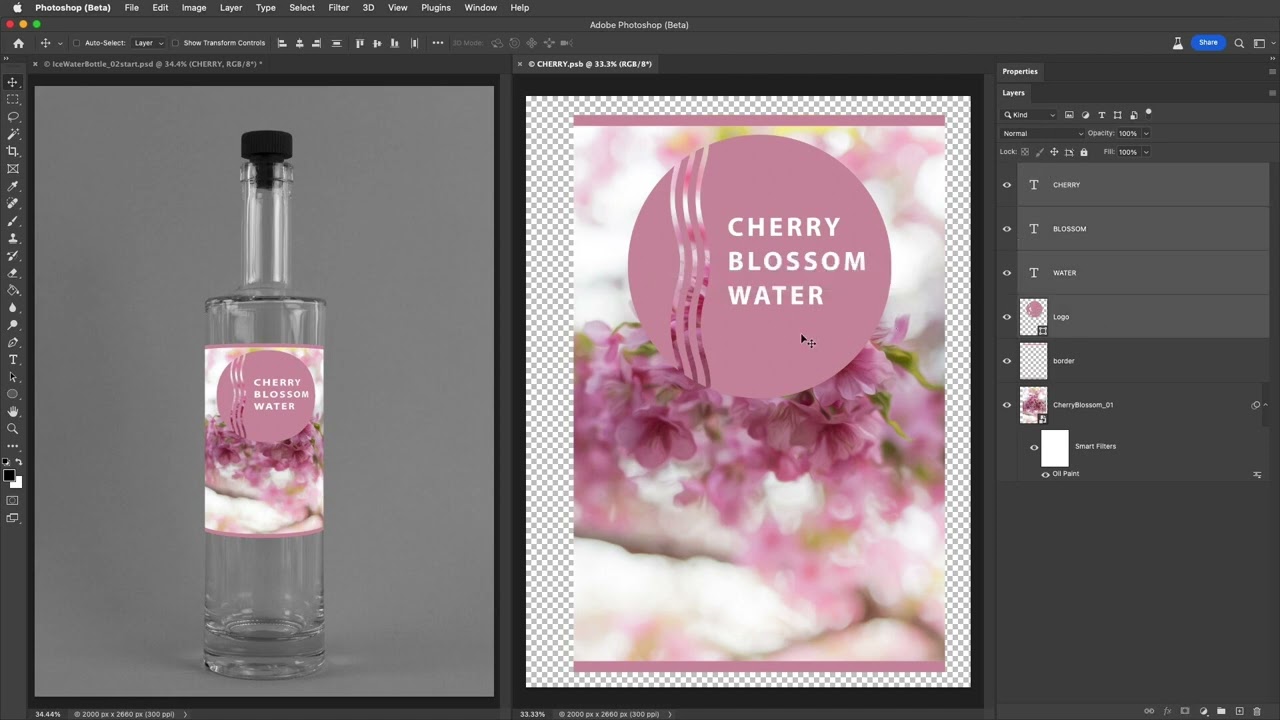
In this video Julieanne will walk through six benefits of working with Smart Objects in Photoshop including; transforming and distorting Smart Objects, editing and replacing the contents of Smart Objects, creating duplicated instances, and more!
Additional tips, tricks, and tutorials from Julieanne Kost can be found on her blog: https://jkost.c...
vestal idol
hushed niche
Other good videos on the topic: https://www.youtube.com/watch?v=OStS8e9uav0 and ...
Thank you for that . but in fact I need to create simple Action file for simple thing .
fluid craneBOT
Gave +1 Creative Carma to @hushed niche (current: #18 - 114)
 shut dagger
Could someone assist me with this? I believe it looks off, but it's difficult to articulate exactly how.
 ripe quest
shut dagger
Could someone assist me with this? I believe it looks off, but it's difficult to...
ripe quest
shut dagger
Could someone assist me with this? I believe it looks off, but it's difficult to...
The light and shadows are somewhat bizarre. If the only light is coming in through the window then the scene would be different.
shut dagger
ripe quest
The light and shadows are somewhat bizarre. If the only light is coming in throu...
You imply that the shadows should go a bit more straight?
ripe quest
shut dagger
You imply that the shadows should go a bit more straight?
Where do you imagine the light is coming from? Based on this it seems like the light is shining through the back wall or something.
shut dagger
ripe quest
Where do you imagine the light is coming from? Based on this it seems like the l...
The light is originating from the window.
ripe quest
shut dagger
The light is originating from the window.
This is just quick but I might be inclined to do something like this...

Unless you imagine some other light sources inside from behind the current vantage point. Maybe it could be brighter if there were other lights or windows behind where we can't currently see.
Also, the proporiton of the items is throwing me off a bit. Is that supposed to be a bed there near the window? If so, that is rather small in comparison to the door.
shut dagger
ripe quest
Also, the proporiton of the items is throwing me off a bit. Is that supposed to ...
Thank you for your insights! I will incorporate your valuable suggestions into my future projects.
fluid craneBOT
Gave +1 Creative Carma to @ripe quest (current: #3 - 2266)
ripe quest
spark current
<@712015771596750931>
Open the Layers Panel (Window > Layers). Every Layer has an Opacity control. Lower the value.
 spark current
Thank you !
spark current
ripe quest
Open the Layers Panel (Window > Layers). Every Layer has an Opacity control. Low...
and hppw do i turn off crop tool?
i turned it on w the shortcut C
and im done cropping it but
theres still like a white border
ripe quest
Change tools. Click the Move Tool or hit V on the keyboard.
spark current
ripe quest
Change tools. Click the Move Tool or hit V on the keyboard.
thank you !
fluid craneBOT
Gave +1 Creative Carma to @ripe quest (current: #3 - 2268)
spark current
ripe quest
Change tools. Click the Move Tool or hit V on the keyboard.
how about
in a specific image?
its been cropped but i wanna make it shorter still?
i tried doing it but it still look like the og. ver.
@ripe quest
coarse crater
ripe quest
Hue/Saturation Adjustment.... I had to do it the hard way though.
thanks boss
fluid craneBOT
Gave +1 Creative Carma to @ripe quest (current: #3 - 2269)
 robust fox
hello I cant use camera raw filter, why.?
nocturne maple
how to get a neon glow for the text
 nocturne cairn
Can you be more specific about who is who?