
#❓ask-a-question
1 messages · Page 23 of 1
 sly hawk
 sudden fox
ton of layers

Freepik
Download this Free PSD File about Fathers day text effect, and discover more than 144 Million Professional Graphic Resources on Freepik. #freepik #psd #texteffectmockup #texteffect #text
this one
sudden fox
sly hawk
Also.... I fixed your message for you....
thank you
 fluid craneBOT
Gave +1 Creative Carma to @sly hawk (current: #7 - 705)
sly hawk
sudden fox
https://www.freepik.com/free-psd/fathers-day-text-effect_47759575.htm#query=3d%2...
 sly hawk
sudden fox
https://www.freepik.com/free-psd/fathers-day-text-effect_47759575.htm#query=3d%2...
sly hawk
sudden fox
https://www.freepik.com/free-psd/fathers-day-text-effect_47759575.htm#query=3d%2...

Just keep hiding/showing the different layers to see what each layer is...
sudden fox
sly hawk
Just keep hiding/showing the different layers to see what each layer is...
Sweeet thank you 🙏
fluid craneBOT
Gave +1 Creative Carma to @sly hawk (current: #7 - 706)
sly hawk
sudden fox
Sweeet thank you 🙏
Alternatively, if you don't have the patience to edit like that, you could just do this....
but you'll get far less control!
 mental path
Hello! I'm having trouble with the Auto Blend function. I've been following a tutorial but whenever I finally click "auto blend", I get this box saying, "the parameters for trim are not currently valid". Does anyone know how to fix ths?
I've had a ton of trouble with this and would appreciate the help!
 odd hemlock
Can ui scale to a higher count to fit 4k?
 formal gust
Is there anyone that could photoshop 3 pictures for me n merge them together?
 river otter
formal gust
Is there anyone that could photoshop 3 pictures for me n merge them together?
river otter
formal gust
Is there anyone that could photoshop 3 pictures for me n merge them together?
What should be done?
formal gust
river otter
What should be done?
Is it alright if I dm you details about it
river otter
mental path
Hello! I'm having trouble with the Auto Blend function. I've been following a tu...
Maybe you are trying with more than 2 layers.
Only 2 layers should be visible.
Hide others.
river otter
formal gust
Is it alright if I dm you details about it
You can DM.
 warped crane
canceling my adobe CC subscription since I'm getting a free one through Uni. Do I need to worry about access of any files/psds? I can't remember of Adobe CC started saving stuff to the cloud
 vernal ocean
How do I easily color this picture?
 river otter
vernal ocean
How do I easily color this picture?
river otter
vernal ocean
How do I easily color this picture?
magic wand
vernal ocean
river otter
magic wand
How do I get to that?
river otter
wait
vernal ocean
Okay thank you!
river otter
vernal ocean
Okay thank you!
 vernal ocean
Am I able to do it on android devices? Or do I have to move to my laptop?
river otter
laptop
vernal ocean
Ohhh okay okay. That was my problem. Thank you!
 sharp vortex
Sorry , can you please tell me what I'm doining wrong...I'v changed the text to 49, selected it with ctrl+click, deleted the mask and created a new one, inverted it and that's the result...


 rich cloak
can anymore help me make the font look better

it looks funky in my opinion
the words not the font
 stuck glacier
rich cloak
can anymore help me make the font look better
stuck glacier
rich cloak
can anymore help me make the font look better
i think the strength of the chrome effect that you have applied needs to be decreased a bit
stuck glacier
rich cloak
okay thank you
Not a probelm bro👍
 night willow
im trying to change the color of an object. the object is originally white but when i change the hue/saturation of the object it is not giving me the color that i want because im assuming that its changing the hue/saturation of the orginal color. how do i change the color so that i can set it to a specific color that i want
 vapid flume
night willow
im trying to change the color of an object. the object is originally white but w...
vapid flume
night willow
im trying to change the color of an object. the object is originally white but w...
That's the right asumption! The Hue Saturation doesn't colour things (it just changes them) unless you tick the "colorize" option.
This tutorial will tell you more!
https://www.youtube.com/watch?v=syUYNIgram0

How to instantly change the color of anything in Photoshop, no selections required. Even change color to black or to white. Colin Smith shows you in this Photoshop tutorial.
► Free Photoshop add ons: https://photoshopcafe.com/vault
► THE GEAR I USE: https://www.amazon.com/shop/photoshopcafe
► THE MUSIC I USE: http://share.epidemicsound.com/p...
 vapid flume
sharp vortex
Sorry , can you please tell me what I'm doining wrong...I'v changed the text to ...
vapid flume
sharp vortex
Sorry , can you please tell me what I'm doining wrong...I'v changed the text to ...
I can see you only got the contour of the 48 that is masked. It looks like you inverted twice or somtehing (I do that all the time). It's either you need your text all black to hide it, or the outside all black. For now you seem to have just a slight stroke hidden in your mask

I would relected, invert if need be and fill the seelction with black
That said, you need to select the word 48 (not 49) for it to work as it's probably intended
 vapid flume
 arctic lance
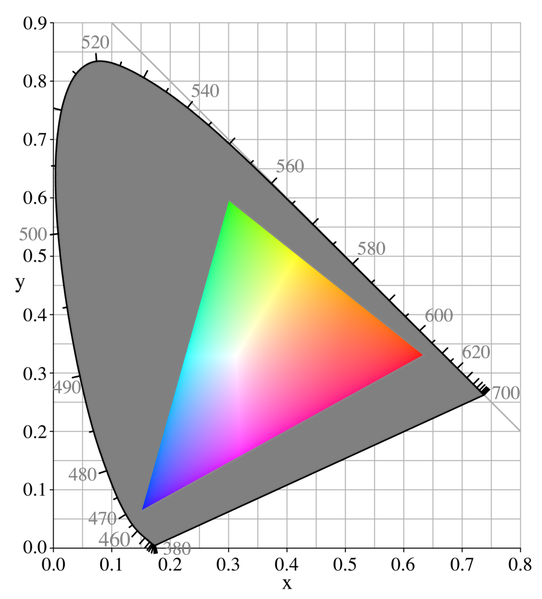
That means this colour is off-gamut

that means it's off the colour range of the colour mode you've chosen (RGB, CMYK etc)
arctic lance
I'll have to learn more about that thanks
vapid flume
See in the colour picker?
The top one is off-gamut, the bottom one are web-safe colour. Ignore the bottom one, it's outdated
arctic lance
 vapid flume
arctic lance
I'll have to learn more about that thanks
vapid flume
arctic lance
I'll have to learn more about that thanks
It's a tough subject. I wouldn't worry about it too much if you're doing work for screens only. It gets critical if you work in print though
In color reproduction, including computer graphics and photography, the gamut, or color gamut , is a certain complete subset of colors. The most common usage refers to the subset of colors that can be accurately represented in a given circumstance, such as within a given color space or by a certain output device.
Another sense, less frequently u...
Every screen is different, and unless you work for games that are to be played on the exact same screen (Thinking handheld consoles) then whatever you do, the colours will always be slightly different.
arctic lance
vapid flume
Every screen is different, and unless you work for games that are to be played o...
I see thanks
fluid craneBOT
Gave +1 Creative Carma to @vapid flume (current: #8 - 489)
 burnt timber
how do they get the no stylist text colour to change from black to white and what filter are they using?
 vapid flume
burnt timber
how do they get the no stylist text colour to change from black to white and wha...
vapid flume
burnt timber
how do they get the no stylist text colour to change from black to white and wha...
it's probably not a filter, but the text layer blending mode is likely set to one of these

difference/exclusion/substract etc
Test which one works better
of course the text layers needs to be on top
burnt timber
okay tysm
sly hawk
Thanks @vapid flume 🙂
fluid craneBOT
Gave +1 Creative Carma to @vapid flume (current: #8 - 490)
sharp vortex
vapid flume
here's a short video, thx for the help:)
fluid craneBOT
Gave +1 Creative Carma to @vapid flume (current: #8 - 491)
vapid flume
It seems to work now!
sharp vortex
nope
vapid flume
sharp vortex
nope
So maybe I didn't understand what you are trying to do. Did you try to just apply the levels to the number 49?
in that case just invert the mask (CTRL+I)
if that's not that, I probably didn't understand
sharp vortex
49 should looks like that
 vapid flume
The mask is not updating with the smart object if that's what you are trying to do
If what you wanted is the mask to upadte from 49 to 48, that's not possible
sharp vortex
oh i see
vapid flume
You need to select the new number and create a new mask for each number
sharp vortex
i just want to make the text editable...and keep the same effects
vapid flume
You'll need to find another solution than a mask. Would a clipping mask help?
clip the group to the number
sharp vortex
thank you, I'll try later
vapid flume
if you change the number, the effects will only apply to the number, whatever it is
Sorry, my bad, I don't think you can clip a group!
Just remove the layers from the group and clip them to the text layer (see the layer stack in my screenshot)
 sharp vortex
my goal is to keep the curved gradient effect
 limpid vessel
Dude. You saved me 🙏 Thank you so-so-so-so much 🍻
fluid craneBOT
Gave +1 Creative Carma to @ripe quest (current: #4 - 1602)
sharp vortex
that's how i did it...with two text layers

 vivid shell
hey guys, i was wondering if someone could help me, im trying to remove the logo and the text from this image, but i cant, i wanted to use that AI stuff

i wanted just the background image
sharp vortex
vapid flume
if you change the number, the effects will only apply to the number, whatever it...
thx for the help, appreciate it:)
fluid craneBOT
Gave +1 Creative Carma to @vapid flume (current: #8 - 492)

 mental path
river otter
Maybe you are trying with more than 2 layers.
Only 2 layers should be visible.
H...
mental path
river otter
Maybe you are trying with more than 2 layers.
Only 2 layers should be visible.
H...
I did that and then it somehow filled the entire image outside of the selected area
odd hemlock
My photoshop ui is just bugging out and sometimes not working
I think the default resolution is clipping if that makes any sense
It seems to break when I'm using my huion tablet and the degree it stops functioning varies
 ripe quest
odd hemlock
It seems to break when I'm using my huion tablet and the degree it stops functio...
ripe quest
odd hemlock
It seems to break when I'm using my huion tablet and the degree it stops functio...
What version of Photoshop is this? Help > About Photoshop...
odd hemlock
biggest issue though is on my huion tablet the ui is too small, Ive tried to scale it in edit>preferences
its
ripe quest
odd hemlock
biggest issue though is on my huion tablet the ui is too small, Ive tried to sca...
The display issue has nothing to do with Photoshop. That is a display issue with your resolution and tablet display size.
odd hemlock
Oh okay, so probably my tablet driver?
ripe quest
And you would have to Scale that in Windows Display Settings.
odd hemlock
ah okay, never done that before
ripe quest
odd hemlock
ah okay, never done that before
Right-click on the Desktop and choose "Display settings" from the context menu. Scroll down to "Scale and layout" and "Change the size of text, apps and other items.."
odd hemlock
there is no layout option for me
only scale
oh nvm I see
How can I change this for only my tablet?
My main monitors are 1080
but my tablet is 4k
Nevermind I think I understand
Thank you
ripe quest
odd hemlock
Nevermind I think I understand
You should be able to choose the display (toward the top of Display Settings) and then change its settings.
 ripe quest
odd hemlock
I didnt expect the setting to be in windows
ripe quest
odd hemlock
I didnt expect the setting to be in windows
Yes. These things are handled by the Operating System. Or your Tablet Display settings, (if they exist). But generally you do this in Windows.
 drowsy totem
Need some help with Levels/Curves. I want to use the sample in image to set black point on the blue channel of an RBG image but the point I select only turns to darker grey (R13 G13 B13) and not Black (R0 G0 B0).
 hollow trout
is it possible to edit photos in photoshop like lightroom
vapid flume
hollow trout
is it possible to edit photos in photoshop like lightroom
Yes, you have a specific filter called "adobe Camera Raw" which is exactly the same module than Lightroom. it's in "filter> Camera Raw filter"
Best used with a smart layer IMHO
vapid flume
drowsy totem
Need some help with Levels/Curves. I want to use the `sample in image to set bla...
It's been a while since I've used it on a single channel so I tested it and it acts as intended, can you show a screenshot, just in case?
The only thing that could happen if it it shows RXX/GXX/B0, XX being whatever but not 0 (because you only set the black point to one layer)
drowsy totem
vapid flume
It's been a while since I've used it on a single channel so I tested it and it a...
Thanks for the reply, this is the blue channel of the image. The image is a computer game PBR files (R and G are normal map channels, the Blue is metallic and the alpha is Roughness. The game engine prefers metallic to be an all or nothing value so trying to turn the dark grey items in the bottom right part of the image to pure black.
 fluid craneBOT
Gave +1 Creative Carma to @vapid flume (current: #8 - 493)
vapid flume
Did you triy it by selecting the layer and set the balck point here
or running a curves or levels directly in the chanel?

Note that I chose the blue channel in the curves properties
I didn't run the adjustment on the channel
drowsy totem
vapid flume
Did you triy it by selecting the layer and set the balck point here
or running ...
running the curves or levels directly in the channel, the other channels need to remain unchanged
vapid flume
You could also use the calculation option


Only working on the blue channel
OK< I ran a test on another image and mine got stopped as 50/50/50 although I was able to get it manually by moving the sliders
I will try to search if we can tweak the black point to take everything into account
drowsy totem
vapid flume
OK< I ran a test on another image and mine got stopped as 50/50/50 although I wa...
I think I will just do it manually. as all the PBRs I need to amend pretty much have the same issue so the same level setting will fix them. Thanks for the help. I was hoping it would be something like a setting or preference change.
fluid craneBOT
Gave +1 Creative Carma to @vapid flume (current: #8 - 494)
vapid flume
drowsy totem
I think I will just do it manually. as all the PBRs I need to amend pretty much ...
Once you done it manually you can use the settings as a preset

when you want to apply it, just select the preset in the list where "custom" is.
You can also try and double click on the back and white eyedropper to set the white and white point respectively. It launches the colour picking tool. Mine were set at respectively 000 and 255/255/255 so this was not the issue anyway.
Also we may both have a black point compensation in the colour profile that mess things up?
Let's see if someone has a better idea. Honestly it's not the kind of thing I use, so I probably never noticed it
If it bugs you you can ask the question on the Adobe Community Forum and see if another set of brains has a solution
https://community.adobe.com/t5/photoshop-ecosystem/ct-p/ct-photoshop?page=1&sort=latest_replies&lang=all&tabid=all
https://community.adobe.com
Master Photoshop with the help of our global community.
drowsy totem
vapid flume
when you want to apply it, just select the preset in the list where "custom" is....
i copied the channel and pasted it into a layer and it works as normal, the sample in image to set black point turns the grey to black. So looks like something that happens when working on just individual channels.
vapid flume
drowsy totem
i copied the channel and pasted it into a layer and it works as normal, the samp...
Good to know there is a Plan B at least!
 buoyant yacht
Hi! I was wondering if there is a simple method to achieve a partial outline like portrayed in this image? I want to have a line like in the tree perfectly bend around the edges of another shape

I also have to keep it as a shape, so it can't be rasterized
 verbal mesa
Good evening, Looking for some help with PS.
I am having several issue which I shall list. I should state that I have reinstalled photoshop and my Wacom drivers. I have also spent the morning with Adobe customer server adjusting things with remote desktop without any luck. These issues are random, restating PS helps temporarily but then they return. My keyboard mouse and tablet only have issue in PS. Any help with these issues would be appreciated as Photoshop is becoming unusable. Thanks.
When selecting transformation (ctrl T) it is freezing and I am unable scale, move an anchor or the reference point. I went to preferences, switched to legacy mode but the problem still persists.
Select brush tool, left click with the mouse or tab the pen to use the brush and it paints crazy zigzag lines all over the canvas.
Keyboard and mouse keep dropping out, keyboard short cuts randomly stop working. My pen also stops working but when I left click the mouse it works again.
This one happens less but rapidly zooming all the way in and out.
ripe quest
verbal mesa
Good evening, Looking for some help with PS.
I am having several issue which I ...
Which tablet is this? I've not experienced anything like this with my Cintiq. Have you checked that the firmware for your Wacom is up-to-date? Not the drivers but the firmware.
verbal mesa
Wacom Intuos Pro Small
ripe quest
verbal mesa
Wacom Intuos Pro Small
Have you looked through the Forum/FAQs at Wacom to see if anyone else has experienced this?
verbal mesa
I'm looking through Forum at the moment, Photoshop Guru and Adobe. I'll check there, thanks.
 sly hawk
buoyant yacht
Hi! I was wondering if there is a simple method to achieve a partial outline lik...
sly hawk
buoyant yacht
Hi! I was wondering if there is a simple method to achieve a partial outline lik...
Hows this?
If you want the stroke INSIDE the shape, just select this option:

 lilac ruin
Hi guys I’m very new to photoshop and I want to add some red smoke to the bottom of this image but I’ve been trying for 2h and have been having a very hard time can someone give me a hand?

 swift zodiac
lilac ruin
Hi guys I’m very new to photoshop and I want to add some red smoke to the bottom...
swift zodiac
lilac ruin
Hi guys I’m very new to photoshop and I want to add some red smoke to the bottom...
Have you try to use a downloaded "smoke effect" brush with a red color ?
 rose sierra
Hi all, anyone know what's the name of this font? please?


 full spindle
anyone know how i can achieve the blackness effect or what I can search up on google to find out how? I am trying to simulate a glaucoma effect

 summer rain
hi everyone, im having trouble with this, any insights why photoshop (cs6) wont allow me to divide 15/15? At first it would change the number for me, now its just stuck like this

(the Horizontal slice seems to be the problematic one)
 crystal flower
Hi everyone, my problem is that when I attempt to fill the image in, it turns the whole layer black
any help?
ripe quest
crystal flower
Hi everyone, my problem is that when I attempt to fill the image in, it turns th...
You'll have to provide more information than this.
crystal flower
I try to fill this exact icon in and chose the black option so that I can give it a glow effect, instead of just making the image black it makes the entire layer black. Does that help more?
 ripe quest
crystal flower
I try to fill this exact icon in and chose the black option so that I can give i...
ripe quest
crystal flower
I try to fill this exact icon in and chose the black option so that I can give i...
I still don't understand what it is that you're trying to do. Can you share a screenshot of the Photoshop UI with the Layers Panel open?
ripe quest
crystal flower
I try to fill this exact icon in and chose the black option so that I can give i...
What is supposed to be filled with black?
crystal flower
crystal flower
ripe quest
What is supposed to be filled with black?
just the icon
ripe quest
crystal flower
just the icon
You have to make a selection first. Hold Ctrl and keep it pressed. Then click on the Layer Thumbnail for the "Champion Rank seige" layer. Then use the Fill option.
ripe quest
crystal flower
just the icon
Do you understand?

 unique carbon
hello? is this photo edited?
 ripe quest
unique carbon
hello? is this photo edited?
ripe quest
unique carbon
hello? is this photo edited?
It would be difficult to know for certain.
unique carbon
ripe quest
It would be difficult to know for certain.
i suspect this could be the real source

was editing like this possible in the 1940s?
oh no the channel is specifically about photoshop questions
uhhhhhhhhh
ripe quest
unique carbon
was editing like this possible in the 1940s?
They physically airbrushed prints in those days. Painted right over thing
unique carbon
have... mercy?
unique carbon
ripe quest
They physically airbrushed prints in those days. Painted right over thing
i see.
crystal flower
back then they didnt need software when they could just cover it up in real life
unique carbon
considering the camera angle would it be safe to say it's edited?
ripe quest
crystal flower
back then they didnt need software when they could just cover it up in real life
If someone wanted to fake an image, they would paint over it, mount the painted image on an artboard, shoot another photo of it and then develop the photo. Otherwise, someone would obviously see the paint.
unique carbon
judging by the shadow of the propeller on the engine cowling, even the time of the day would've been the same

 ripe quest
Why would you assume this was faked in the 1940s?
ripe quest
unique carbon
the painted plane is supposedly rocket powered
Rocket powered? It has a propeller. heh
unique carbon
well, such plane definitely existed
it's just that this image could've been edited for some reason
unique carbon
ripe quest
Rocket powered? It has a propeller. heh
screenshot from an engine test
 ripe quest
unique carbon
it's just that this image could've been edited for some reason
ripe quest
unique carbon
it's just that this image could've been edited for some reason
It could have been but it would be difficult to know.
ripe quest
unique carbon
screenshot from an engine test
The tail is not the same.
unique carbon
yeah i noticed that too but don't know what to make about it
crystal flower
unique carbon
screenshot from an engine test
bro was there
unique carbon
unique carbon
so the tail fuselage was cut because there's a rocket engine there now, the rear wheel was moved forward, markings were added, and also a cockpit canopy...?
i wanted some way to say with certainty it was edited 😔
 thick blaze
any way to zoom in and out while selecting something?
ripe quest
thick blaze
any way to zoom in and out while selecting something?
You can hold Space, then click and hold the Ctrl key, then click and drag left/right to zoom in/out
river otter
sharp vortex
Sorry , can you please tell me what I'm doining wrong...I'v changed the text to ...
Sorry, I was away, had to reinstall computer.
You need to disable fill and color overlay effect and then make selection for a mask, so only wanted stroke or strokes get selected.
crystal flower
Genuine question
not done yet and I look goofy af but thats not the problem hahah
crystal flower
the title actually matches the thumbnail
so its not clickbait
question is mainly if it looks alright or not
thick blaze
ripe quest
You can hold Space, then click and hold the Ctrl key, then click and drag left/r...
i tried but i cant use the rectangular marquee tool w that
river otter
You should not copy "wow" thumbnails. But, that is up to you.
crystal flower
river otter
You should not copy "wow" thumbnails. But, that is up to you.
wow thumbnails?
thick blaze
its really hard to properly communicate what someone has trouble with on photoshop idk how to explain it clearly lmao
ripe quest
thick blaze
i tried but i cant use the rectangular marquee tool w that
You can zoom independently while the selection is still active but you cannot zoom and add to a selection at the same time.
river otter
crystal flower
wow thumbnails?
Medium
Analyzing the Potential Shift in Thumbnail Trends and Their Influence on Click-Through Rates
Everyone consider such content as bad.
crystal flower
I have put the time into making it so I will keep it but next time I will change them up a bit. Thanks for the advice
river otter
Instead, you could make like wink thumbnail with thumbs up, way more professional.
Or just normal thumbnail of yourself.
crystal flower
river otter
Instead, you could make like wink thumbnail with thumbs up, way more professiona...
yeah I will try and do something like that
im only just starting off so I need to learn things like this anyways
ripe quest
crystal flower
I have put the time into making it so I will keep it but next time I will change...
The "shocked face" image has just been done to death. Its just comical now. I would do something different. :)
crystal flower
alrighty will do thank you
river otter
You need patent for everything.
There are thousands wannabe Mr.Beast, who started it first and that is why he is famous.
Brand yourself.
 plucky folio
hi

how can i get the red chrome effect on a text like the picture “hi”
any tutorials?
 empty mural
what is the best way to add neon lights and bright lights here?
 plucky folio
is that neon genesis evangelion
empty mural
ye
vapid flume
plucky folio
See if it helps. It may not be exactly what you need, but once you get the gist, you can adapt to theexact effect you need.
https://www.youtube.com/watch?v=_LroDHm7sWM

Just came back with another chrome typo effect tutorial done in photoshop. The fundamentals are mostly the same but the settings are different that leads you to new results!
👉Subscribe: https://www.youtube.com/channel/UCS1gMhu2KgHqW4OunIAaKrA?sub_confirmation=1
Check out these insane Photoshop online courses with photo manipulations, photo...
 vapid flume
empty mural
what is the best way to add neon lights and bright lights here?
vapid flume
empty mural
what is the best way to add neon lights and bright lights here?
Ahahh I was obsessed with Evangelion (more the serails than the movie to be honest) When I had access to it many years ago! Fantastic sttuff 🙂
I think you might want to have a look at the layer styles
https://helpx.adobe.com/uk/photoshop/using/layer-effects-styles.html
you can add a glow layer style to one of the shapes you already done, or if it doesn't fit your needs, create new shapes, add some glow, and then put the "fill" section to 0 (and leave the opacity to 100) so that the shape is invisible but the glow is still visible
vapid flume
 warm hill
Dee doo, Dee doo!
warm hill
Dee doo, Dee doo!
One possibility is that it may have been badly built
That happens, not everyone is a professional!
warm hill
vapid flume
One possibility is that it may have been badly built
its not it works perfectly fine in photopea or any other platform
might be up something with my settings but dk what
vapid flume
warm hill
might be up something with my settings but dk what
I am not aware of any kind of settings for western style typography that could affect that in PS, but maybe I just never stumble upon it (If you ever type in Japanese characters, there are some settings that can affect how the characters of a typeface look, and I supposte for arabic, chinese and all the other non-roman languages)
Do you have one of the letter with a sort of underscript when you select the whole word?
Let me try to show what I mean
warm hill
yea
warm hill
vapid flume
Do you have one of the letter with a sort of underscript when you select the who...
yep
vapid flume
this undersipt may be the trigger for alternative glyphs


 warm hill
nope i dont know that
vapid flume
the little rectangle beneath the I, gives you alternative gliphs for the I
What do you have when you change the font?
warm hill
vapid flume
What do you have when you change the font?
its the same with other fonts
yep just noticed
vapid flume
I would say, reset your preferences, becase it's not normal. Last question. Did you copy and paste the text, or did you typed it in full?
What happens when you type another text?
warm hill
vapid flume
I would say, reset your preferences, becase it's not normal. Last question. Did ...
copy and paste
warm hill
vapid flume
I would say, reset your preferences, becase it's not normal. Last question. Did ...
same with all the texts
but i copy and paste
vapid flume
Type it in full, your copied text may have non-visible character that only PS recognises
maybe the ! is just a way to warn you of such a character
vapid flume
warm hill
but i copy and paste
Just to see if it's a copied text error.
warm hill
vapid flume
Type it in full, your copied text may have non-visible character that only PS re...
i typed but its still not working

that text line shows like that
vapid flume
In that case, I would go to the preferences (edit>prefrences) an in general, click on the "reset preferences on quit"
 warm hill
vapid flume
Let's see if someone else has another idea!
warm hill
vapid flume
Let's see if someone else has another idea!
so i think it might be because of my extension
how do i delete my extensions
vapid flume
in manage plug ins?

if they're in the old extension menu (legacy) I think you need to remove them from the CC app "stock and marketplace" panel. If it was an unofficial extension then you'll have to remove manually
https://community.adobe.com/t5/photoshop-ecosystem-discussions/remove-extensions-cc2019/m-p/10343528
https://community.adobe.com
Extensions Manager (latest version d/l from CC app) isn't displaying my version of PS. I have a bunch of old extensions that I want to remove but can't locate them on my HD (OSX) - how can I delete these extensions please? Thanks.
warm hill
yes its working after i deleted and reinstalled it
vapid flume
OK, good to know. Mind if you tell us the name of the extension? Maybe it will help someone else...
warm hill
vapid flume
OK, good to know. Mind if you tell us the name of the extension? Maybe it will h...
its typertools
and nvm it actually didnt work it was the file which was bugged
just needed to redownload the file and retry
vapid flume
OK, I was susggesting that you put a bug request on their forum as well, just to help other users of that extension, but it doesn't matter now...
warm hill
vapid flume
OK, I was susggesting that you put a bug request on their forum as well, just to...
alr ty
fluid craneBOT
Gave +1 Creative Carma to @vapid flume (current: #8 - 495)
vapid flume
 left trellis
Good evening, hi i was looking to do an effect like this to a photo
left trellis
Good evening, hi i was looking to do an effect like this to a photo
You don't need to resort to skulls if nobody answers your question. It may just be bad timing etc.
The style of your image is sort of hybrid, and I doubt nobody will tell exactly how it is done. It will be a combination of threshold adjustment, colourisation (by hand), multiple filters like halftones and a good bunch of the effects available in the filter>filter gallery.
You can try finding specific tutorials (which aren't likely to cover everything you need, but could be a good start for you to experiment) if you search for "Punk posters", "distressed poster", etc..
https://www.youtube.com/watch?app=desktop&v=JX-9aDKb9y0

Caroline Dietl, Graphic Designer and poster artist is my guest today on The Jesse Nyberg podcast.
If you want to hear more about Caroline, go check out Patreon for a bonus Q&A segment: https://www.patreon.com/Jessenyberg
New episode with Caroline: https://youtu.be/ZSFC2xTDONo
Caroline is a talented young designer from Germany. She has gained s...
see Caroline Dietl here (and check her Behance page) to see if fits somehow with what you want to do
You can also put your image into Pinterest, and it will suggest you similar images based on the design, and you can search for tutorials accordingly. At least you can get a "name" for that style and it helps with further research.
 static moth
tes
 forest crescent
How do I add a font that I have downloaded from a website?
vapid flume
forest crescent
How do I add a font that I have downloaded from a website?
You need to install it. Locate the .otf, .ttf or whatever file format the font is in, right click and choose install.
It should show up in PS immediately
 ornate yoke
Hi, I’m a student in the uk, and am interested in buying adobe crearive cloud for students, I have looked to see if I am eligible for this. When mentioning secondary schools, which I am in, adobe mentions those approved by US organisations, as I am on the uk, would I still be able to get the discount?
vapid flume
ornate yoke
Hi, I’m a student in the uk, and am interested in buying adobe crearive cloud fo...
Yes you can. The wording is US based (I will flag that by the way) but you need a school email (.edu or something of the kind)
The best bet here, to know the full extend of the proof you have to provide would be to contact customer service there
https://helpx.adobe.com/contact.html?rghtup=autoOpen
the eligibility is that it needs to be an accredited school (public or private)
ornate yoke
Ye I have a school email, thanks
ornate yoke
vapid flume
the eligibility is that it needs to be an accredited school (public or private)
It should be I don’t see why it wouldn’t be
vapid flume
If it's a state school, then no worries. It's just sometimes people are either honmschooled or atending schools that don't follow the curriculum (I don't know how they're called) and in that case it's likely not to work
left trellis
vapid flume
You don't need to resort to skulls if nobody answers your question. It may just ...
Oh ok thank, you, but I think there’s a misunderstanding I didn’t mean skulls, it was more of an expression like laughing emoji
fluid craneBOT
Gave +1 Creative Carma to @vapid flume (current: #8 - 496)
vapid flume
left trellis
Oh ok thank, you, but I think there’s a misunderstanding I didn’t mean skulls, i...
That's OK! I know some people use this as a sign of anger or frustration. That's why it felt weird.
No offence taken 😉
left trellis
vapid flume
That's OK! I know some people use this as a sign of anger or frustration. That's...
🙌🏻
 charred slate
how would i ake these lines smooth instead of choppy?

 warm grove
charred slate
how would i ake these lines smooth instead of choppy?
warm grove
charred slate
how would i ake these lines smooth instead of choppy?
make ur artboard bigger, like 2000 x 2000 pixel & 150 resolution , or use illustrator better than photoshop
 warm grove
charred slate
whats the best way to trace this?
warm grove
charred slate
whats the best way to trace this?
Redraw, or se image trace
Redraw better, to practice more
charred slate
what tool should i use to redraw, im very new
warm grove
pentool
charred slate
ok
 languid scaffold
anyone know how to remove backround and leave sibject with white back round
warm grove
languid scaffold
anyone know how to remove backround and leave sibject with white back round
Select object tool
charred slate
how would i make it to where someone could go into a setting and change the color of one point of my hat template

 steep token
For some reason generative expand doesnt work for me, its basically greyed out and i cant select it no matter what. Does anyone else have this issue?
 old scroll
is there a way to justify text such that the spacing is distributed over the letters instead of the words?
like if i want there to not be that much space between 'programming' and 'camp'
 warm hill
anyone got a similar background like that purple smoke?
 languid scaffold
Hi
 steep oyster

 void crater
 crystal citrus
hello ,can anyone tell me how te remove the white outline from the christmas tree
 river otter
crystal citrus
hello ,can anyone tell me how te remove the white outline from the christmas tre...
river otter
crystal citrus
hello ,can anyone tell me how te remove the white outline from the christmas tre...
This is done by evergreen trees brush on mask.
But, you can do it by going on Modify - Contract.
river otter
charred slate
sly hawk
languid scaffold
anyone know how to remove backround and leave sibject with white back round
Hey, happy to help but it depends on the image. Can you post it?
languid scaffold
Ok give me a minute I’m not at my computer
sly hawk
crystal citrus
hello ,can anyone tell me how te remove the white outline from the christmas tre...
Depending on how/if it's masked, you can maybe just 'shift the edge'
sly hawk
charred slate
You'd likely make it using SHAPES.
river otter
Hi
sly hawk
charred slate
 river otter
anyone know why i have this ?
 sly hawk
languid scaffold
sly hawk
languid scaffold
Hey I'm confused. I thought that that particular statue from the Vatican had more missing fingers and a broken arm.
sly hawk
languid scaffold
I'd do this 🙂
sly hawk
river otter
anyone know why i have this ?
It seems to think you're using a pirated copy of photoshop 🙂
🏴☠️
...are you?
rich cloak
how can i get the select subject and remove background menu back
I clicked a button and it disappeared
 ivory rampart
@rich cloak
 river otter
I just wanna see how it work for this I got a pirated copy 💀
river otter
river otter
I just wanna see how it work for this I got a pirated copy 💀
Sure. 🤣
You had trial version.
river otter
hello, can someone help me with an image i really don’t understand what im doing but I’ve done almost of whats needed but i csbt figure out rhe last little bit
ripe quest
river otter
hello, can someone help me with an image i really don’t understand what im doing...
If you'd like help, you'll have to describe what the issue is.
rich cloak
thanks
 exotic helm
i guys, i would like to move the selected image around the grey area but when it goes out of the black line, i want it to not been seen, how can i do that?

to make it something like the red icon in the background of this ilustrarion
 exotic helm
did i explain my self correctly?
 restive iris
Help, any action that I undo in Photoshop is shown to me with a negative effect, how can I remove this/off that function?
 gilded fractal
Shortcut key input timeout is too short

Even if I briefly press the 'z' key, the 'zoom' tool stays on for only a moment and returns to the original tool.
I try to press the z key very, very briefly to switch to the zoom tool, but many times it fails.
How do I solve this problem?
 tribal bloom
wild
gilded fractal
?
ripe quest
gilded fractal
Even if I briefly press the 'z' key, the 'zoom' tool stays on for only a moment ...
Seems like a glitch. Save your work. Restart Photoshop.
gilded fractal
ripe quest
Seems like a glitch. Save your work. Restart Photoshop.
I am continuing to work on this computer
Even if I turn Photoshop on and off or the computer on and off, it doesn't work.
ripe quest
gilded fractal
I am continuing to work on this computer
Even if I turn Photoshop on and off or ...
What version is installed? Main menu: Help > About Photoshop...
gilded fractal
ripe quest
What version is installed? Main menu: Help > About Photoshop...

Photoshop originally has a function that allows you to use a tool only while pressing a button if you hold it down for a long time. There is no problem with the function itself.
But my problem is that the 'long press time' is too short. I have a problem because even if I press only briefly, it is recognized as a 'long press'.
 ripe quest
gilded fractal
Photoshop originally has a function that allows you to use a tool only while pre...
ripe quest
gilded fractal
Photoshop originally has a function that allows you to use a tool only while pre...
I'm running 25.3.1 and I'm not experiencing that. Still testing it.
gilded fractal
I don't know exactly what the problem is
It may not be a Photoshop problem, but a 'Wacom Screen Tablet' problem, or a keyboard problem...
ripe quest
gilded fractal
I don't know exactly what the problem is
It may not be a Photoshop problem, but ...
I'm using a Wacom Cintiq Pro.
gilded fractal
ripe quest
I'm using a Wacom Cintiq Pro.
hmm.. me too..
 river otter
hi there! Can someone help me edit letting into a picture? I’ve tried myself and it just looks meh, kinda really bad lol so im hoping one of you can lend a helpful hand 🙏🏽 dm open
stuck glacier
gilded fractal
Even if I briefly press the 'z' key, the 'zoom' tool stays on for only a moment ...
Instead of just pressing the 'z' key try the 'press and hold' method.
As long as you hold the key that particular tool will be active and when you release it, it will revert back to the tool you were using before.
Works with all the tools (I've used so far).
(I use this method all the time for rotating the canvas)
ripe quest
stuck glacier
Instead of just pressing the 'z' key try the 'press and hold' method.
As long as...
Pressing (and holding) R (Rotate Canvas) and Spacebar (Pan) + click/drag is how these tools work. You don't press and hold "Z" for Zoom. Pressing "Z" switches to the Zoom Tool.
If you want to initiate Zoom from the keyboard, the user can hold the Spacebar (which initiates Pan) then also press and hold the Ctrl key. This switches to the Zoom operation. Click and drag to interactively zoom. However, you must have the "Scrubby Zoom" option enabled.
stuck glacier
ripe quest
Pressing (and holding) R (Rotate Canvas) and Spacebar (Pan) + click/drag is how ...
Oh, okay
Sorry
I didn't know😅
Alt + scroll on mouse can work too, right?
ripe quest
stuck glacier
Alt + scroll on mouse can work too, right?
I just use the mouse wheel with Scrubby Zoom enabled to interactively zoom.
stuck glacier
oh okay👍
ripe quest
I was just mentioning these other ways you could pan and zoom. :)
stuck glacier
It is helpful knowing different ways of doing a thing. 🙂
Thank you😁
sly hawk
exotic helm
i guys, i would like to move the selected image around the grey area but when it...
Yes you did. This is done using either a clipping mask, or layer mask.
Here is the solution, using a CLIPPING Mask.
exotic helm
sly hawk
Here is the solution, using a CLIPPING Mask.
Thank you SO much 😁😁😁
fluid craneBOT
Gave +1 Creative Carma to @sly hawk (current: #7 - 708)
 ember maple
whats the differences between tool presets and brush presets? is there one better than the other? i see you can convert from tool to brush but not the opposite?
 dreamy oracle
How do I make the background gradient like the original


I tried Gradient tool but it doesn't work becuase I can't use it on this layer
Another question I have is how do I get the details like the and stuff
ember maple
you can change your gradient layer to a different blending mode like Darken or smth might do the trick
dreamy oracle
ember maple
you can change your gradient layer to a different blending mode like Darken or s...
I am changing it but the color is not becoming gradient
 ember maple
choose a different type of gradient

yours currently looks like it's the "transparency to white" gradient
 steady kite
I'm not sure if this is the right channel, but my pc is down atm. Is anyone willing to add two pics together that I have?
dreamy oracle
ember maple
I have, nothing is happening
ember maple
show me your whole screen
ember maple
steady kite
I'm not sure if this is the right channel, but my pc is down atm. Is anyone will...
add?
dreamy oracle
 steady kite
ember maple
add?
steady kite
ember maple
add?
I'll DM ya
sly hawk
dreamy oracle
How do I make the background gradient like the original
Also, if you want that over-exposed look, try this:
dreamy oracle
sly hawk
Also, if you want that over-exposed look, try this:
I was gonna use Camera Raw Filter but I'll use that
dreamy oracle
sly hawk
The issue that I found is that the color of the top & buttom is not the same in the original picture
The top is darker then the buttom
sly hawk
dreamy oracle
I was gonna use Camera Raw Filter but I'll use that
Yeah, camera raw will allow it, I didn't know if you had the original raw files.
dreamy oracle
So is camera raw better or should I try your teqnuiqe
sly hawk
dreamy oracle
The issue that I found is that the color of the top & buttom is not the same in ...
I think my technique/route is fine.
dreamy oracle
I could do both and see what is better
sly hawk
You can add as many colour points to a gradient as you want, also, note a gradient doesn't have to be linear...
dreamy oracle
dreamy oracle
The issue that I found is that the color of the top & buttom is not the same in ...
How about this?
sly hawk
dreamy oracle
Also where can I find the propeties?
 dreamy oracle
sly hawk
Also, if you want that over-exposed look, try this:
dreamy oracle
sly hawk
Also, if you want that over-exposed look, try this:
No this, your in propeties
 primal torrent
anybody knows why this happens and how could I fix?
https://gyazo.com/1a52f73c1c5ed6c98ef33ef29b08d050
 sly hawk
primal torrent
anybody knows why this happens and how could I fix?
https://gyazo.com/1a52f73c1c...
sly hawk
primal torrent
anybody knows why this happens and how could I fix?
https://gyazo.com/1a52f73c1c...
what bit?
the black lines around the box?
that's just looks like a massively thick stroke with the dash settings enabled and tweaked

Also... it helps if you can share your whole screen and PS interface
sly hawk
dreamy oracle
You need to apply the gradient to a fresh layer, not an existing adjustment layer
Looks like you've already got it here:
 dreamy oracle
sly hawk
Looks like you've already got it here:
dreamy oracle
sly hawk
Looks like you've already got it here:
I tried using the Gradient tool but it is not working
dreamy oracle
sly hawk
Looks like you've already got it here:
I found that I can edit the curve background but I dont have the Line showing like you do
sly hawk
Curve and gradient are two different things.
On the video above, you just need to wiggle this line around here:

to change the background GRADIENT, click the gradient tool on the left and then the GRADIENT layer:

@dreamy oracle
dreamy oracle
sly hawk
to change the background GRADIENT, click the gradient tool on the left and then ...
I can't change it to gradient
river otter
dreamy oracle
What I am trying to get is here.
Fill color adjustment and draw with gradient tool on maks.
I didn't read all conversation, but that's the answer.
Considering you have white background, you would add greyish color fill.
In case you don't have background, then add gradient fill.
dreamy oracle
river otter
In case you don't have background, then add gradient fill.
Where can I find Gradient fill?
river otter
Layer adjustments.
dreamy oracle
All I have is this as background
 river otter
dreamy oracle
All I have is this as background
river otter
dreamy oracle
All I have is this as background
Why you have a man as mask?
Put that gradient layer bellow man.
And add inverted man mask on man layer itself.
dreamy oracle
Because otherwise it's like this, I can't make it myself bigger because it ruins it
 river otter
Hold alt and drag that mask on man layer, press CTRL+I.
After that,move gradient layer bellow man, delete existing mask, add new mask, grab gradient tool, and draw.
dreamy oracle
So what I need to do
- Put a gradient layer below my mask?
river otter
The last thing i write one by one.
dreamy oracle
river otter
Hold alt and drag that mask on man layer, press CTRL+I.
So I go on Layer 1, and press Ctrl i
river otter
On its mask, that you just put by holding alt.
dreamy oracle
river otter
On its mask, that you just put by holding alt.
Okey, I just inverted the Mask
 river otter
Youre not following whats told you to do.
dreamy oracle
Can you put it all in one message as steps?
river otter
- Go on that mask, hold alt, drag mask to layer 1 (man).
- Click on mask of a man, press Crtl plus I.
- Grab gradient layer by mouse and drag it bellow man.
- Click on gradient layer mask and press Del.
- Click on gradient layer and add mask.
- Grab gradient tool and draw.
Or you can just drag without alt to move it instead copying.
But im trying to teach you more.
dreamy oracle
river otter
1. Go on that mask, hold alt, drag mask to layer 1 (man).
2. Click on mask of a ...
Okay, step one finished. I held alt and copied to under Layer 1 (Original Picture, Man)
Step two finsihed, I inverted the mask underneth (layer 1) that I just copied.
Step 3, what gradient layer. I have 2 now?
 river otter
I dont think you know whats layer, whats mask.
You 'll have to start from beginner tutorials.
Also, James show you in video how to do it without mask.
dreamy oracle
Nvm, I got it. Didn't know I could seperate them

Step 5, where is my gradient layer, did I just not delete it by pressing del?
river otter
You did haha
Just add new
Below
You can draw gradient fill on its layer, and on its mask. Depends what you are going for.
crystal flower
guys how do I blend the edges of an image ??
I have parts of my image that werent cut out properly and I want to blend it into the background
dreamy oracle
river otter
You can draw gradient fill on its layer, and on its mask. Depends what you are g...
Okay, so I make a new layer and gradient filter?
river otter
dreamy oracle
Okay, so I make a new layer and gradient filter?
No.
Gradient fill adjustment.
And on its layer you can draw with gradient tool with colors per wish.
And you can draw with gradient over mask as well.
On mask, black hides, white shows.
 autumn dome
what is this error
 dreamy oracle
river otter
No.
Gradient fill adjustment.
And on its layer you can draw with gradient tool w...
autumn dome
autumn dome
what is this error
dreamy oracle
river otter
No.
Gradient fill adjustment.
And on its layer you can draw with gradient tool w...
autumn dome
autumn dome
what is this error
anyone knows?
river otter
dreamy oracle
Thats man layer not gradient fill adjustment.
dreamy oracle
river otter
Thats man layer not gradient fill adjustment.
So wheere do I go to make a gradient fill adjustment
river otter
autumn dome
what is this error
Its not error, some tools work only on raster image.
autumn dome
river otter
Its not error, some tools work only on raster image.
how can i color these easier?
river otter
dreamy oracle
So wheere do I go to make a gradient fill adjustment

Quickly add color and preserve the texture of a paper using a custom Gradient Adjustment Layer with a Linear Burn Blend Mode. DOWNLOAD the manual and card file: http://bit.ly/dst-color-gradient
river otter
autumn dome
how can i color these easier?
Are you trying to use magic wand?
autumn dome
river otter
Are you trying to use magic wand?
im trying to use the paint bucket
after i used the magnet thingie
sly hawk
crystal flower
guys how do I blend the edges of an image ??
What's the image? - It sort of depends on what you're doing.
autumn dome
river otter
And thats normal to be rasterized.
i need to raster my thing?
river otter
autumn dome
i need to raster my thing?
Or you can make selection without magic wand.
river otter
autumn dome
what is this error
@sly hawk
autumn dome
sly hawk
What's the layout panel look like?
 sly hawk
No, I get that 🙂 - I was just thinking it's better to avoid rasterising if you can help it.
 autumn dome
any other way to color them?
autumn dome
sly hawk
No, I get that 🙂 - I was just thinking it's better to avoid rasterising if you ...
thenn?
sly hawk
You've filled it with picture frame boxes?
autumn dome
 crystal flower
sly hawk
What's the image? - It sort of depends on what you're doing.
crystal flower
sly hawk
What's the image? - It sort of depends on what you're doing.
im actually just wondering how to cut out more of an image once it has already been cut out because it doesnt work
sly hawk
autumn dome
Can you please just send over the PSD. Using pictureframe boxes looks like the mistake was made an hour ago when you made them all.
sly hawk
crystal flower
im actually just wondering how to cut out more of an image once it has already b...
Cut out as in MASKED?
dreamy oracle
river otter
<@342046864692084738>
My issue is that the top is darker than the buttom in the original picture
 crystal flower
sly hawk
Cut out as in MASKED?
crystal flower
sly hawk
Cut out as in MASKED?
Masked?#
I mean I have used the magnetic lasso tool to cut it out
river otter
dreamy oracle
My issue is that the top is darker than the buttom in the original picture
Then choose darker color in gradient, or by eyedropper tool from original image
river otter
autumn dome
Why his frames look like this?
dreamy oracle
river otter
Then choose darker color in gradient, or by eyedropper tool from original image
The middle is lighter than both buttom and top
How can I get 3 colors in a gradient
sly hawk
crystal flower
Masked?#
Can you share your pic please. - I'm sure there is a much better way than using the magnetic lasso tool.
crystal flower
well unless there is a better way to cut it out other than the magnetic lasso tool. select and mask does not seem to work properly when I do it hense why I used the magnetic lasso tool in the first place
sly hawk
dreamy oracle
How can I get 3 colors in a gradient
I've shown you this
Got the original pic? before you tried clipping out?
crystal flower
Yeah I have the original pic
sly hawk
Mind PMing/sharing please? - I'll send a video of how it can better be done.
crystal flower
alright will do
river otter
@sly hawk tell me if object selection does it please, after you get the image.
dreamy oracle
What's the best way to recreate all the lines and background details like the Plus
Also where can I find good fonts for free
 sly hawk
dreamy oracle
What's the best way to recreate all the lines and background details like the Pl...
sly hawk
dreamy oracle
What's the best way to recreate all the lines and background details like the Pl...

Dafont is a good start
sly hawk
dreamy oracle
What's the best way to recreate all the lines and background details like the Pl...
The 'best' way is to find the matching font and literally re-type out every line of text

 ripe quest
 limber jolt
does anyone know how do i give him a mask like the one in the other photo
limber jolt
does anyone know how do i give him a mask like the one in the other photo
How? Painting and/or pixel manipulation. Either paint it by hand or find a similar image asset to composite into the existing image.
 woven lark
does anyone know how i could edit my images to get this shadowy boarder effect thing
 limber jolt
ripe quest
How? Painting and/or pixel manipulation. Either paint it by hand or find a simil...
limber jolt
ripe quest
How? Painting and/or pixel manipulation. Either paint it by hand or find a simil...
cant ai do it?
by giving a similar mask at least
ripe quest
limber jolt
cant ai do it?
by giving a similar mask at least
You can try. I don't know that it will give you the mask that is shown in the other image. Maybe you can get it close and then paint and manipulate to completion.
woven lark
woven lark
does anyone know how i could edit my images to get this shadowy boarder effect t...
this isnt my image btw i saw it and i am wondering how he did it
sly hawk
woven lark
does anyone know how i could edit my images to get this shadowy boarder effect t...
It's just a rectangle with either a blur effect or a dark outer glow.
ripe quest
woven lark
does anyone know how i could edit my images to get this shadowy boarder effect t...
woven lark
ty both 😅
 deep radish
I am not getting daily creative challenges channel updates why?
ripe quest
deep radish
I am not getting daily creative challenges channel updates why?
I'm not sure that there have been any updates in a while.
ripe quest
deep radish
I am not getting daily creative challenges channel updates why?
Do you have the notifications turned off for the #📣creative-challenges channel?
deep radish
 ripe quest
deep radish
ripe quest
deep radish
 ripe quest
deep radish
since December 1, 2023 , no new creative challenge is posted right?
ripe quest
deep radish
since December 1, 2023 , no new creative challenge is posted right?
It seems so. When new challenge events are scheduled, they are announced in that channel.
deep radish
 dusky cargo
how can i remove the white parts of this image and make it blend in with my background
 ripe quest
dusky cargo
how can i remove the white parts of this image and make it blend in with my back...
ripe quest
dusky cargo
how can i remove the white parts of this image and make it blend in with my back...
Please describe what "make it blend with my background" means to you. If you just want to drop the white pixels, you can set the Blend Mode for that Layer to "Multiply."
 dusky cargo
with this tshirt
 dusky cargo
ripe quest
Please describe what "make it blend with my background" means to you. If you jus...
dusky cargo
ripe quest
Please describe what "make it blend with my background" means to you. If you jus...
oh wait i just figured it out, thank you so much 🙏
fluid craneBOT
Gave +1 Creative Carma to @ripe quest (current: #4 - 1606)
ripe quest
dusky cargo
oh wait i just figured it out, thank you so much 🙏
Depending on the desired effect, you may want to choose "Soft Light" for the Blend Mode and use a subtle Advanced Blending effect on it...
crystal citrus
sly hawk
Depending on how/if it's masked, you can maybe just 'shift the edge'
thank u bro ur the best
fluid craneBOT
Gave +1 Creative Carma to @sly hawk (current: #7 - 709)
limber jolt
is there a way to make the right eye look like the left one (in the shape not the color)

 valid hornet
hello , can somebody help me , the color is not the same when i want to export
 ivory rampart
select the eye you want to duplicate and mirror it @limber jolt
limber jolt
ivory rampart
select the eye you want to duplicate and mirror it <@718838019691380746>
uhhhh
idk how?
valid hornet
most of the time , it is black and white
 ivory rampart
limber jolt
uhhhh
idk how?
ivory rampart
limber jolt
uhhhh
idk how?
select eye and ctrl+t and click first option option on left
 limber jolt
uhh how do i even duplicate first
ivory rampart
yes
limber jolt
ivory rampart
yes
uhh how do i duplicate....
ivory rampart
ctrl+j
limber jolt
ivory rampart
ctrl+j
okkkk..
THANK YOU
fluid craneBOT
Gave +1 Creative Carma to @ivory rampart (current: #222 - 6)
ivory rampart
also ctrl+t allows you to transform, so you can fit in new position
limber jolt
ivory rampart
also ctrl+t allows you to transform, so you can fit in new position
I noticed..
new knowledge gained
 wispy nexus
 hushed oyster
Anyone know how in photoshop i can resize a image to a certain size with quality
it doesn't matter if the dimensions arent righ
t
dreamy oracle
hushed oyster
Anyone know how in photoshop i can resize a image to a certain size with quality
Free Transform? Cntrl T
Try that, I am not an expert tho
hushed oyster
That worked fine
Anyone know how I can best emulate this text? I have the font & color

wi want the letters to like overlap over each other like this
sly hawk
decrease the letter spacing I guess?
In your font, do the O's have stars in then @hushed oyster ?
oops, not quite right 🙂
 sly hawk
hushed oyster
yes
sly hawk
hushed oyster
yes
 random shard
Hello, I have a problem with nicht recovery. I watched some tutorials where the object was marked and then put into „screen“ mode, after that they were brighter but still looked good. When i copied these steps my stuff got brighter but looked very bad, I don’t know what I did wrong

The masked engine was put into screen mode
restive iris
restive iris
Help, any action that I undo in Photoshop is shown to me with a negative effect,...
So, if anyone else encounters this problem ( glitching ), I have found a solution. The problem was that the video drivers were outdated, I updated them to the latest version and it was fixed 
languid scaffold
how do itake out a black back round invert it ?
languid scaffold
hi any one help me out ?
i have a black back round that i want to invert to white .any suggeestions?
ivory rampart
ctrl+I
 grave lotus
ripe quest
Please describe what "make it blend with my background" means to you. If you jus...
grave lotus
ripe quest
Please describe what "make it blend with my background" means to you. If you jus...
I have a question in this tutorial you provided you changed the blending mode, but blending mode color stays only when the t shirt layer is behind it correct? How would I keep the same color effect and just have the image of the guy on the transparent backround
sly hawk
You only want the dark and no yellow don't you? That's Easy enought but it's 1.30am for me. If you don't get an answer in the next 8 hours or so, I'll drop you a guide/recording in the morning. - it would be extra handy if you could supply the highest res image/drawing you have to work from. - ta
grave lotus
sly hawk
You only want the dark and no yellow don't you? That's Easy enought but it's 1.3...
Yes I'd just like to keep the look that is achieved once linear burn is applied but have everything else transparent, here is how it looks on normal without linear burn.
ripe quest
grave lotus
I have a question in this tutorial you provided you changed the blending mode, b...
Yes. Blending Modes only work when there is a layer behind/underneath to blend with.
grave lotus
What would be the best way to keep the color or achieve a similar look without anything underneath?
ripe quest
grave lotus
What would be the best way to keep the color or achieve a similar look without a...
You can try the Advanced Blending > Blend If... but this really depends on the effect you're trying to get.
Like James said above, if you can provide the original without the shirt one of us could probably demonstrate various methods.
grave lotus
Gotcha
ripe quest
grave lotus
Gotcha
If you watch in the demo video I made, you can see the Blend If section. Instead of the Underlying Layer, use the Current Layer sliders. Hold ALT and split the white handle.
grave lotus
Should I upload it if I send it in discord res prob gets lower right?
grave lotus
ripe quest
If you watch in the demo video I made, you can see the Blend If section. Instead...
So if I hold ALT and split the white handle it will stay even if I remove the backround?
ripe quest
grave lotus
So if I hold ALT and split the white handle it will stay even if I remove the ba...
Set the Blending Mode back to Normal if you changed it.
grave lotus
ripe quest
Set the Blending Mode back to Normal if you changed it.
I did that and used the ALT shift key while chaging the current layer slider and it helped with removing the white parts on the image I needed to get rid of, now I used color overlay to change the color around a bit would that work?
ripe quest
grave lotus
So if I hold ALT and split the white handle it will stay even if I remove the ba...
It would be something like this...
This is just a quick attempt but it might be similar.
grave lotus
Thanks for your help gonna try it
ripe quest
grave lotus
I did that and used the ALT shift key while chaging the current layer slider and...
And, yes. You could potentially use an Adjustment Layer > Hue/Saturation + Colorize to do a color shift...
 grave lotus
ripe quest
And, yes. You could potentially use an Adjustment Layer > Hue/Saturation + Color...
grave lotus
ripe quest
And, yes. You could potentially use an Adjustment Layer > Hue/Saturation + Color...
your a beast thanks
fluid craneBOT
Gave +1 Creative Carma to @ripe quest (current: #4 - 1607)
grave lotus
achieved pretty much same color effect
ripe quest
grave lotus
achieved pretty much same color effect
Did you get done what you wanted?
grave lotus
Yeah it looks a bit different when exporting it
Not sure if cause of my settings or it just how the preview looks
u think its fine?
ripe quest
grave lotus
u think its fine?
I'm a little bit confused by this workflow. Was the original image created as vector art? SVG? Or what is going on here?
ripe quest
grave lotus
Was created as an SVG
All those lines in the drawing were vector shapes?
grave lotus
It was created by a hand drawing artist I paid
and I used a ai converter
to convert it to svg
should I just edit the png instead?
following the same steps
I thought maybe the vector shapes would be better cause ima print it on the t shirt
ripe quest
Hmm. So was it a bitmap "embedded" in SVG or were all of those lines in the original artwork all vector shapes?
grave lotus
No the original artwork was a scanned pencil sketch
i could send it to u
to show what I mean
ripe quest
Oh. So it wasn't vector shapes. OK.
grave lotus
Yes after that I used this software called vectorizer.ai to convert it into vector shapes
is that bad?
ripe quest
No. Its not bad. But if you have that as vector shapes, I'm not sure why you'd want to convert it to pixels.
grave lotus
Hmm youre prob righjt
Thats what my manufacturer is asking for
How do I export as SVG though I dont see an option
Im gonna ask him if he can use a SVG
ripe quest
grave lotus
How do I export as SVG though I dont see an option
You already have the SVG file. There shouldn't be any need to convert this to SVG. You have the original SVG, yeah?
grave lotus
Yes so would I just click save on photoshop?
Or save as
With my edited corrected color version of the svg file
I just dragged it into photoshop
ripe quest
Hang on one sec. I'm gonna look at your SVG file.
grave lotus
ok
 grave lotus
Trace pixels to vectors in full color. Fully automatically. Using AI.Free while in Beta.
I used this tool on the png
ripe quest
So, I suppose you're not familiar with working with vector files and thus, you brought it into Photoshop? Is that why?
grave lotus
I was trying to make sure it comes out nice on the t shirt so I was having trouble erasing all the necessary white parts like inbetween the necklace and earrings
Haha im not a graphic designer or vector artist at all
ripe quest
I see. I get it now.
ripe quest
grave lotus
What program is that you have it open in?
Adobe Illustrator
grave lotus
Thats prob better for this type of job?
ripe quest
Well... Illustrator is for creating/editing vector graphics. Photoshop is [primarily] for creating/edit raster graphics (i.e. pixels). Though, Photoshop has some rudimentary vector editing tools.
It just depends on the job and the final output which one you'd choose for a particular project.
grave lotus
So I should prob edit in photoshop first then once complete vectorize it
Yeah I was reading and it says vector graphics are the best for t shirt printing so just learning all this stuff step by step
Welcome back to Instagram. Sign in to check out what your friends, family & interests have been capturing & sharing around the world.
ripe quest
grave lotus
So I should prob edit in photoshop first then once complete vectorize it
Well... I'm not sure you want to convert this back to vector art again after you've edited it in Photoshop. You might lose some detail along the way.
grave lotus
I been growing my instagram for like 3 months now and getting ready for my first clothing collection
so just tryna make sure the graphics are good
grave lotus
ripe quest
Well... I'm not sure you want to convert this back to vector art again after you...
I think it might be fine because my manufacturer is doing direct to garment and from my knowledge it prints the ink directly onto the t shirt with the image so PNG and not a vector file is fine aslong as its high quality
ripe quest
Ideally, you'd do all of your editing, and layout design in Illustrator and export PDF or whatever file format the printer is requesting.
The PNG is probably fine. As long as the file is large enough/high quality.
grave lotus
Yeah this is what he tells me so prob png is just better
So instead of exporting this svg to png you think I should just edit the original png version?
ripe quest
That's fine. I'd follow their directions.
grave lotus
He actually sent it to me in .tif
whatever format that is
but I think just changing it to png is fine
ripe quest
I was mentioning what I would do if it were my project. But since the printer is requesting the PNG, then just follow their directions.
They know what will work best for their workflow. :)
grave lotus
Yep, thanks.
So this current image I have that I edited you think if I export it to png it will lose quality?
this one
ripe quest
grave lotus
So this current image I have that I edited you think if I export it to png it wi...
The Export As screen, you're viewing a "Preview" at 10% of the total size. Did you export the file out and look at it?
It should be fine.
grave lotus
yep looks good hopefully it doesnt come out wonky looking on the shirt
and it blends well
ripe quest
grave lotus
yep looks good hopefully it doesnt come out wonky looking on the shirt
Check with the printer and see what they think. Maybe they can look at it and know if it will work with their process. Or they can do a test run on some fabric before running a lot of them.
If not, you can go back and adjust the Photoshop file.
grave lotus
ripe quest
Check with the printer and see what they think. Maybe they can look at it and kn...
thanks for your help really appreciate it
fluid craneBOT
Gave +1 Creative Carma to @ripe quest (current: #4 - 1608)
ripe quest
grave lotus
thanks for your help really appreciate it
No prob. Good luck with the project!
 turbid charm
hi guys i made my design with 60x30 how do i change it 30x80 without streching the thing
 sly hawk
Image > Canvas size
turbid charm
ya i tried that but i need to stretch the image to fit in the canvas
 serene coral
turbid charm
ya i tried that but i need to stretch the image to fit in the canvas
serene coral
turbid charm
ya i tried that but i need to stretch the image to fit in the canvas
then you have to modify your layer to cover the canvas
 fervent girder
JUS wanted to confirm, cloud syncd files are now going to be discountinued? This means?
can you please elaborate this

 wheat timber
yes i need to make it higher quality edges

i dont know how to do it or what to do.
vapid flume
fervent girder
JUS wanted to confirm, cloud syncd files are now going to be discountinued? This...
The only thing that the announcement means is that the synced folder present in your computer, will no longer sync with what you feed it with

only that, and nothing else
wheat timber
i just need it cleaned up and back in DDS or png format.
fervent girder
SVG are mainly vector charactor file.
wheat timber
i dont care how it gets done.
vapid flume
All the files that are synced at the moment will be deleted from your Staroga espace, but not from your computer
wheat timber
i am open to ideas.
fervent girder
vapid flume
All the files that are synced at the moment will be deleted from your Staroga es...
got it. This means, cloud files is no longer to accessible.
what bout the work project which are going on cloud ?
as a team.
so this will hamper the team coperation?
vapid flume
fervent girder
got it. This means, cloud files is no longer to accessible.
No, all your cloud files will still be available, just not synced with your computer in that special folder I shown in my screenshot. They will exist indedemdent;y, not synced anymore. But YOU WILL NOT LOOSE ANYTHING.
fervent girder
wheat timber
i just need it cleaned up and back in DDS or png format.
you jus meant, you don't want the edge like that?
lined which is showing up in the image?
vapid flume
If you need to work as a team, upload your files using the CC app, instead of using that folder in your computer
fervent girder
if the cloud isn't going to store file then how can we work and colloborate on the same file online?
vapid flume
fervent girder
if the cloud isn't going to store file then how can we work and colloborate on t...
Who said the cloud isn't going to store files? Re-read what I said...
fervent girder
vapid flume
The only thing that the announcement means is that the synced folder present in ...
means, the file will stage in the cloud, all online?
right
vapid flume
The folder on your COMPUTER will stop syncing with your Cloud. The Cloud will stay the same
vapid flume
I think the main issue with this, is that nobody uses the synced folder, and so it makes sense then why they are dropping it
fervent girder
hmm.
wheat timber
fervent girder
you jus meant, you don't want the edge like that?
exactly
vapid flume
Unfortunately it was a very useful feature to me (I used it everyday to transfer stuff between my phone and my computer)
fervent girder
wheat timber
exactly
you can do some brush work on the edges.
wheat timber
no. thats not the answer. @ripe quest has helped me with this before but i cant damn well remeber what they did.
vapid flume
wheat timber
no. thats not the answer. <@712015771596750931> has helped me with this before b...
the search box is the answer 🙂
 wheat timber
will look
vapid flume
if you remember particulars like date, links attached etc, you can filter accurately

 flint turtle
hi
dreamy oracle
How can I make this better
The + and stuff. I don't know how I can do the rocket drawing at the top tho
I should have taken a better picture from the start

 sly hawk
The bottom heading in the original magazine uses a drop shadow. yours looks wierd with an outer stroke. - I assume you did this because your arms make it hard to read the text
 vapid flume
 timber canyon
vanishing point in filter is unavailable
timber canyon
vanishing point in filter is unavailable
That's because your color mode is grayscale (not RGB) some filters work in RGB and nothing else
image>mode>RGB 8 bits
ripe quest
wheat timber
no. thats not the answer. <@712015771596750931> has helped me with this before b...
I'm not sure what you're referring to, pal. :)
Can you show me the image and describe the goal?
wheat timber
ripe quest
I'm not sure what you're referring to, pal. :)
Can you show me the image and de...
right here: #❓ask-a-question message thx for looking.
fluid craneBOT
Gave +1 Creative Carma to @ripe quest (current: #4 - 1610)
ripe quest
wheat timber
right here: https://discord.com/channels/547473772727238676/548246314383835146/1...
Yeah. I see it. But what is the goal here? If you just draw straight lines, its safe to assume that it will look "jagged." :)
ripe quest
wheat timber
how do i convert png to svg and clean up my lines?
You mentioned that you're trying to convert a pixel-based image to SVG. I'm assuming that you mean that you're trying to convert the pixels to shapes with color fills. Or are you wanting to embed the raster graphic into the SVG format?
If you're trying to convert pixels to shapes/fills, you're going to need Adobe Illustrator to effectively trace the bitmap. That is the only way that you're going to be able to do that with any sort of fine control over the results.
wheat timber
thx for letting me know. is the methdo you describe same as how youve done it in the past for me?i dont know if you recall but you have helped with this before. i went and looked up those convos but didnt make much sense then as it doesnt now either.
ripe quest
wheat timber
thx for letting me know. is the methdo you describe same as how youve done it in...
I help hundreds of people. My apologies. I can't recall every instance. But I've asked you a few specific questions about the goal. Can you answer them?
warm hill
does anyone know a font like this?
 wheat timber
yes i just need the jagged edges refined and smooth without changing the overall shape.
 rare widget
How can I export the image that defines a pattern?
ripe quest
wheat timber
yes i just need the jagged edges refined and smooth without changing the overall...
This still doesn't really tell me what you need or how the SVG will be used. Regardless, it sounds like you want to edit the anchor points, converting the corners to Bezier curves. Then, depending on what version of Photoshop you have (and which Preferences are set), you might need to enable "Legacy Export As" for the SVG export options to show up in the Export As dialog...
ripe quest
rare widget
How can I export the image that defines a pattern?
Sorry. I don't understand your question. You've defined a pattern and now you want to use it to fill an area and then export it out to a specific file format?
Or the image you used to define the pattern, you just want that to be exported to a specific format?
@rare widget - If its the latter, you'll have to figure out the size of the pattern. You can do this by opening up the Pattern Window. Then hovering over the Pattern you're interested in. You can see the dimensions in the tooltip. Then you can create a document at that size. fill it with the pattern. Then export it out to whatever file format you need.
wheat timber
ripe quest
This still doesn't really tell me what you need or how the SVG will be used. Reg...
i have 24. i dont know how to explain it better. my shape needs a higher resolution definition i thought converting to SVG would help?
ripe quest
wheat timber
i have 24. i dont know how to explain it better. my shape needs a higher resolut...
Do you understand the difference between raster and vector graphics?
ripe quest
wheat timber
nope
As I said, if you're trying to convert a pixel-based image to vector shapes (with color fills), you'll need to a tool like Adobe Illustrator, and the Trace Bitmap function that it has.
If you're just trying to draw a basic vector shape in Photoshop and export it out to SVG, see the video I posted above.
Beyond that, I'm not sure what to suggest to you.
wheat timber
i have a shape already, its perfect except its jagedness. i dont know what else to do and no i dont think bexier curves would help. thank you for all your help as always 😁
ripe quest
wheat timber
i have a shape already, its perfect except its jagedness. i dont know what else ...
The only way to NOT make it sharp corners or "jagged" is to convert the corners to curves.
I suppose you could rasterize the vector layer and blur the edges but that defeats the purpose of using vector objects.
Which is why I asked what it is that you intend to do with this...
wheat timber
i intend to use it in another tool. but mainly i intend it to keep its shape. that is the most important thing. destination, not journey.
ripe quest
wheat timber
i intend to use it in another tool. but mainly i intend it to keep its shape. th...
I wish you the best of luck with it.
wheat timber
many thanks 🙂
deep radish
how to choose background color ? maybe gradient?
ripe quest
deep radish
how to choose background color ? maybe gradient?
There are many different ways to get the same result...
 minor vortex
Guys why cant I change the smoothness of my pencil?

 brazen elbow
i use the threshold option and now i cant use colors on this layer but black grey and white, how can I get to use all colors?

 patent gyro
brazen elbow
i use the threshold option and now i cant use colors on this layer but black gre...
patent gyro
brazen elbow
i use the threshold option and now i cant use colors on this layer but black gre...
I think your file is set to Grayscale, but you can change it to RGB or CMYK depending on your needs by going File > Document Color Mode
Sorry, thought this was the Illustrator server. It's Image > Mode in Photoshop
deep radish
I have a problem when distribute spacing after I create clipping mask a photo to a shape , distributing spaces with the selected shapes is OK but photes inside shape displaced any fix?

 marble needle
hi guys i have a problem cuz i need to make a loterry card of some kind for my school and i wonder how do i auto insert following numbers into those cells like 1, 2 ,3 etc? pls help

till like 250
ripe quest
marble needle
hi guys i have a problem cuz i need to make a loterry card of some kind for my s...
This would probably require scripting. And I would probably do this with Adobe Illustrator.
marble needle
i started doing it manually but ty tho lol
ripe quest
marble needle
i started doing it manually but ty tho lol
Ouch. This solution looks decent: https://youtu.be/02SLTH26sMQ?si=Und8bA70jdyZQ-UR
Hi everyone. This tutorial shows you how to quickly add automatic numbering to any text in Adobe Illustrator using my free script MakeNumbersSuequence.
Download scripts with installation instructions:
https://github.com/creold/illustrator-scripts/
https://ais.sergosokin.ru/text/make-numbers-sequence/
***************** DONATE *****************
...
marble needle
aww I already finished it but ty so much i check out the video!
 sly hawk
marble needle
hi guys i have a problem cuz i need to make a loterry card of some kind for my s...
sly hawk
marble needle
hi guys i have a problem cuz i need to make a loterry card of some kind for my s...
I feel like I'd have just fudged something using Microsoft Excel or used Adobe Indesign since it allows you to use TABLES!
 rugged elk
what rank you going for?
 proper ledge
so, i want to smudge this edge, or rather blend it in general BUT the orange and the grey are both on diffrent layers

so its not blending em with the smudge tool!
what can i do
i tried google. maybe i googled wrong but i tried
sly hawk
rugged elk
what rank you going for?
Rank?
sly hawk
proper ledge
so, i want to smudge this edge, or rather blend it in general BUT the orange and...
Maybe just blur the top layer? or add an outer glow?
proper ledge
sly hawk
Maybe just blur the top layer? or add an outer glow?
that is essentially exactly waht i was looking for
ripe quest
sly hawk
Rank?
What rank is there above "God"? lol
sly hawk
lol
sly hawk
ripe quest
What rank is there above "God"? lol
"God's Wife"
ripe quest
sly hawk
"God's Wife"
Can't argue with that logic.
sly hawk
proper ledge
that is essentially exactly waht i was looking for
Glad I could help 🙂
proper ledge

what am i doin wrong :p
its a gradient layer i might add, (it was a gradient before as i am experimenting on how best to do it)
also doesnt work on this normal fill layer, where it did ask me if i wanted to convert in a smart object

ahhh the second thing worked
 dim gust
um its been doing this in an infinte loop how do I fix it?

 willow gale
I would restart your computer and then try signing in through the CC Desktop App.
dim gust
willow gale
I would restart your computer and then try signing in through the CC Desktop App...
that is what i have been doing
should i try the browser?
 ripe quest
dim gust
that is what i have been doing
ripe quest
dim gust
that is what i have been doing
Did you restart the PC?
dim gust
I am reinstalling creative cloud rn
nvm

fixed the login issue now this
its my wifi
thats the problem
ima try to fix it ig
ripe quest
dim gust
There could be some file corruption somewhere. You might have to uninstall AE and delete the directories from "AppData." I would [first] back up any custom files, scripts or similar resources that might be in there. Restart Windows. Then reinstall the app.
 bitter arrow
How can I have my "Gradient map 2"-layer above my "ARVA"-layer, but not affect the layers below the "ARVA"-layer without moving the "ARVA"-layer below them.
 ripe quest
bitter arrow
How can I have my "Gradient map 2"-layer above my "ARVA"-layer, but not affect t...
ripe quest
bitter arrow
How can I have my "Gradient map 2"-layer above my "ARVA"-layer, but not affect t...
Right-click on the Gradient Map layer and choose "Create Clipping Mask" from the context menu.
bitter arrow
That helped kinda, now the text lost some color (I used the smudge tool on this text)

 ripe quest
bitter arrow
That helped kinda, now the text lost some color (I used the smudge tool on this ...
ripe quest
bitter arrow
That helped kinda, now the text lost some color (I used the smudge tool on this ...
Are you sure that its a "Gradient Map" that you want to use? Gradient Map will map colors of the gradient to the luminance values of the image.
bitter arrow
This is my first day using photoshop so I don't know what I'm doing :D, any tips on how I could get the same distorted colorful look on the text withouth using gradient map then?
ripe quest
bitter arrow
This is my first day using photoshop so I don't know what I'm doing :D, any tips...
Instead of the clipping mask, you could try a Layer Mask.
Not sure if that will produce the desired effect, though.
bitter arrow
I'm currently trying to figure out how that works, hasn't worked still though.
ripe quest
bitter arrow
I'm currently trying to figure out how that works, hasn't worked still though.
Remove the Clipping Mask. Either Undo that last operation or right-click on the layer and choose "Release Clipping Mask" from the context menu. Then Ctrl-click on the ARVA layer to make a selection of those pixels. Then add a Layer Mask to the Gradient Layer.
This may be a bit complicated since you're just getting started. :)
bitter arrow
ripe quest
This may be a bit complicated since you're just getting started. :)
I'm catching on, and you don't get how much I value your help ❤️
I've been smacking at this for hours already and this is a huge help already
bitter arrow
ripe quest
Remove the Clipping Mask. Either Undo that last operation or right-click on the ...
feels like nothing is happening when I do this
Do I highlight both layers and create an layer mask
or just highlight the arva layer and right click the gradient map 2 and create a layer mask
ripe quest
bitter arrow
Do I highlight both layers and create an layer mask
Its going to be a bit difficult to describe since I don't know if you're familiar with how Layer Masks work.
bitter arrow
I'm watching a youtube video 😄
you can try of course

these are my current layers
ripe quest
One moment...
bitter arrow
The relevant text layer is named "text"
and the gradient that I want on the text is "gradient map 2"
And I didn't want the gradient to effect anything below the "text"-layer
ripe quest
This is the difference between the Clipping Mask and the Layer Mask. Hopefully, it makes sense.
bitter arrow
You could basically recreate my problem
Add a more colours to your gradient
then use the "smudge tool" on the letters
and get them disrtorted
ripe quest
The result will be the same. I was trying to demonstrate how both types of masks work.
bitter arrow
I figured out kinda how I could do this, but It would require a lot of manual work:
 ripe quest
bitter arrow
I figured out kinda how I could do this, but It would require a lot of manual wo...
ripe quest
bitter arrow
I figured out kinda how I could do this, but It would require a lot of manual wo...
It might be better to choose a different strategy to create the effect.
bitter arrow
I got an idea
Didn't work
I tried to create a text box
before I smudged It I created a clipping mask with the gradient map
then smudged it
but it was just solid yellow
ripe quest
One moment...
You could Smudge the text or also try Warping the text with Transform > Warp. Then you can play with Layer Styles to add various color effects. Perhaps you can work it a different way. Perhaps using Layer Styles, it will be easier for you to modify the colors, etc.
bitter arrow
Yeah, I could try that
ripe quest
bitter arrow
Yeah, I could try that
OK. I have to step out. Good luck.
bitter arrow
ripe quest
OK. I have to step out. Good luck.
Thank you D. Humann!! You really helped alot and I learned a lot from this! I really respect the time you gave me
fluid craneBOT
Gave +1 Creative Carma to @ripe quest (current: #3 - 1615)
ripe quest
bitter arrow
Thank you D. Humann!! You really helped alot and I learned a lot from this! I re...
You're welcome. Good luck on your creative journey! Hopefully, you'll have a lot of fun!
 keen edge
What is the red spot on the image ? I am using Lightroom.

 rugged iron
keen edge
What is the red spot on the image ? I am using Lightroom.
rugged iron
keen edge
What is the red spot on the image ? I am using Lightroom.
that indicates your whites are blown out - if you look at the histogram, you'll see the far right line - amount of white - and a triangle. Clicking on the triangle will show/hide the warning.
@keen edge see example attached - I intentionally increased my exposure, causing the whites on right to over-expose "blow out" (loss of data), which relates to the line far right (amount of photo that is over-exposed) and triangle also circled

 plain zephyr
I am using adobe photoshop cs3 and i want to change the multiple undo shortcut in liquify from ctrl+alt+z to ctrl+z,
TIA.
vapid flume
plain zephyr
I am using adobe photoshop cs3 and i want to change the multiple undo shortcut i...
In the modern day Photoshop it would be in EDit>keyboard shortcuts. But honestly, since CS3 is not maintained anymore (and by a long shot) I don't know if changing the keyboard shortcuts was a thing right then...
You should still have a PDF of the help files
If you lost it (It should have been on a separate CD when you bought CS3 first time, even if it was an upgrade)
plain zephyr
well I'm working on my work pc so i don't have the cd and I don't think its possible i've searched it on edit>keyboard shorcuts didn't find it there,Thanks for the help anyway🙂
vapid flume
plain zephyr
well I'm working on my work pc so i don't have the cd and I don't think its poss...
Double check in the PDF I pointed you to (and save it then!)
 dreamy oracle
How do I bend a line in photoshop
vapid flume
dreamy oracle
How do I bend a line in photoshop
Is your line a vector line or a raster line?
dreamy oracle
vapid flume
Is your line a vector line or a raster line?
I got no cluee, but I got another issue now.
I can't even make a line
vapid flume
I think it's time to reset the preferences
edit>preferences>general>reset on quit
It is indeed bizarre
Fort the first one. If it's a raster line (pixel instead of shape or path, what I suppose is "bana" and form" in your inteface), then you can use CTRL+T (edit>transform>warp)
or go to "warp directly by right-clicking on the shape if you've done CTRL+T

when there, you get the choice between custom (you bend the line using the grid that shows)
or presets
 dreamy oracle
vapid flume
`edit>preferences>general>reset on quit`
dreamy oracle
vapid flume
`edit>preferences>general>reset on quit`
Where? I'm on Mac.
And my PS is on Swedish, can't find any results on google
vapid flume
It should be the same path for Mac
I don't know any Swedish sorry, English is not even my first language
dreamy oracle
nvm solved it
vapid flume
But you got the help files in Swedish with you go to help (the last entry in the menu)

the help files are linked to the language of you interface
Good you solved it!
dreamy oracle
vapid flume
or go to "warp directly by right-clicking on the shape if you've done CTRL+T
The thing about wrapping, it doesn't bend good

I am trying to recreate the transparent line
vapid flume
You cannot do that with a bending since it's got an angle. You need to do that with a vector path (bana?) and not with "pixlar"
You need to draw it with the angle
That said, I wouldn't use a line (since lines mean "straight lines" in Photoshop. I would use the pen tool, with a shape, with no fill and only a stroke of the colour you need. You can then control the thickness of the stroke in the top panel.
Again, refer to the help files to see it in Swedish
That's the pen tool

Failing that, you could simply take a brush with the colour of your choice, tweak the thickness and opacity, and simply draw it by hand.
As a photo retoucher, I routinely draw hair by hand (assuming it's hair you're trying to reproduce)
With a good graphic tablet and the right brush, that is easily done.
That's the brush tool

The first tool will be a vector path, the second tool will give you a raster/pixel stroke
dreamy oracle
vapid flume
That said, I wouldn't use a line (since lines mean "straight lines" in Photoshop...
Whatever I do I can't get it right
I am trying to reproduce the lines, hte transparent ones.
Do you know how I can do it?
sly hawk
Yeah, you just need to watch some simple beginner videos on how to use the pen tool
@dreamy oracle
Learn what the HANDLES do, etc:

 proud fjord
is there a way of converting a psd file to pdf without having photoshop?
sly hawk
proud fjord
is there a way of converting a psd file to pdf without having photoshop?
there are lots of online converters. Have you tried googling it?
 serene coral
proud fjord
is there a way of converting a psd file to pdf without having photoshop?
serene coral
proud fjord
is there a way of converting a psd file to pdf without having photoshop?
Best way to convert your PSD to PDF file in seconds. 100% free, secure and easy to use! Convertio — advanced online tool that solving any problems with any files.
keen edge
rugged iron
<@1195267284697104514> see example attached - I intentionally increased my expos...
Really thanks. I was in doubt from a long time.
fluid craneBOT
Gave +1 Creative Carma to @rugged iron (current: #837 - 1)
proud fjord
sly hawk
there are lots of online converters. Have you tried googling it?
Somehow I didn't get any of these results 
But thank youu
fluid craneBOT
Gave +1 Creative Carma to @sly hawk (current: #7 - 715)
river otter
Anybody good at identifying fonts?
 autumn musk
How should i phrase or could anyone send me tutorials on how to achieve this type of look 


 royal cedar
How can i create the same effect as here where the laughing emojis are behind the colour?

Any help would be appreciated
 lunar belfry
that is the opacity slider

just set it to somewhere around 33-50 percent
you'll get the same effect
royal cedar
thank you
 agile wind
how to fix shadows on lantern its very dark

 agile wind
ty
 small scaffold
can someone tell me what is this? i am a beginner

how can i crop this single image?
 lunar belfry
small scaffold
how can i crop this single image?
lunar belfry
small scaffold
how can i crop this single image?
what would you like to crop out exactly?
small scaffold
lunar belfry
what would you like to crop out exactly?
like the side part
i want to cut some yellow part on the left
i select that part and press delete and this pops up
 lunar belfry

for me its grayed out
but
click on your gun layer
then go to Layer > resterize > layer
and then try to do what you're doing again
small scaffold
lunar belfry
then go to Layer > resterize > layer
Thank you man it worked
fluid craneBOT
Gave +1 Creative Carma to @lunar belfry (current: #78 - 21)
small scaffold
how can i change this background's colour?
 small scaffold
ripe quest
See: https://discord.com/channels/547473772727238676/548246314383835146/11994284...
small scaffold
ripe quest
See: https://discord.com/channels/547473772727238676/548246314383835146/11994284...
thank you
fluid craneBOT
Gave +1 Creative Carma to @ripe quest (current: #3 - 1616)
 gleaming burrow
Hey guys, can someone help me quickly with a pattern? Does anyone know about it?
river otter
Does anyone know a marble statue effect?? Like something I can just downloaded and put it on any image??
If yes, please ping me
ivory rampart
you probably will need a bit of work to achieve marble effect
it won't be a single click
ripe quest
gleaming burrow
Hey guys, can someone help me quickly with a pattern? Does anyone know about it?
If you have a specific question, feel free to ask. Post any relevant screen shots that will help to demonstrate the problem/issue.
ripe quest
river otter
Does anyone know a marble statue effect?? Like something I can just downloaded a...
I don't know of any Action or plugin that will do this automatically. You would likely have to create the effect using various operations. And each image you try to use will probably require a slightly different approach.
deep radish
deep radish
any fix? pls
river otter
ripe quest
I don't know of any Action or plugin that will do this automatically. You would ...
If possible, can you recommend a video?
ivory rampart

Watch the full tutorial on Skillshare: https://skl.sh/3em0CQC
If you want to become a Photoshop master, join The Dojo Masterclass.
Enroll now and get a 2 month FREE trial of Skillshare: https://bit.ly/thedojofree
For more artworks, process videos and mini tutorials, follow @thedojotutorials on INSTAGRAM: https://www.instagram.com/thedojotutori...
ripe quest
river otter
If possible, can you recommend a video?
Did you try going to YouTube and typing "Photoshop marble statue effect"?
 gleaming burrow
ripe quest
If you have a specific question, feel free to ask. Post any relevant screen shot...
gleaming burrow
ripe quest
If you have a specific question, feel free to ask. Post any relevant screen shot...
i send you my question in privat chat
ripe quest
deep radish
any fix? pls
Fix? I'm not sure there is a fix since its not broken. You could try converting the layers to a Smart Object and then align it.
ripe quest
gleaming burrow
i send you my question in privat chat
No. Please ask questions here in the channel.
deep radish
ripe quest
Fix? I'm not sure there is a fix since its not broken. You could try converting ...
All good! thanks
fluid craneBOT
Gave +1 Creative Carma to @ripe quest (current: #3 - 1618)
gleaming burrow
https://youtu.be/TpNBBZ4cHHo?si=pZYOZllE5NU7qJ81 This is my template

and i want to get it into this projekt

how can i create a layer where i can insert my pattern @ripe quest
ripe quest
gleaming burrow
how can i create a layer where i can insert my pattern <@712015771596750931>
You could do something like this with a Clipping Mask...
ripe quest
gleaming burrow
how can i create a layer where i can insert my pattern <@712015771596750931>
But the tutorial uses a Layer Mask on the Adjustment Layer.
 slate grove
I hit append and now my shapes menu is duplicated for the defaults.
Also 2nd question, I went to adobe stock and added some shapes to my library, how do I import them? Is it just find the download location and import?
 gleaming burrow
how can i convert a jpg/png to a pattern (.pat)
ripe quest
gleaming burrow
how can i convert a jpg/png to a pattern (.pat)
Make a Selection (or Select > All if you want the entire canvas). Then Edit > Define Pattern. Give it a name.
ripe quest
slate grove
I hit append and now my shapes menu is duplicated for the defaults.
Also 2nd que...
You can delete the duplicates.