#❓ask-a-question
1 messages · Page 8 of 1
 quasi aurora
well if you embed the video the users never download the whole thing at once anyway, they stream it in chunks so the video size never really matters for them
it's images that users have to download all of before they can see everything
 mystic trail
quasi aurora
well if you embed the video the users never download the whole thing at once any...
mystic trail
quasi aurora
well if you embed the video the users never download the whole thing at once any...
I'm talking about a website background here, not a video playing on a site
or maybe you knew that
want the entire web page to be filled with this video
looping
quasi aurora
I'm not entirely sure but I think you can use videos for that purpose, just hiding the controls and looping it automatically but I've never done something like that before
pop up on a programming discord and you'll have a hundred nerds answering every question you could ever have at the speed of light
I feel annoying asking about this again, but the only problem I have with this solution is that it hides any other windows I have open, which I'd like to avoid, is there a way for it to both be "fullscreen" but also keep the other floating windows visible?
I guess it seems antithetical to fullscreen, but I figured I'd ask anyway
 serene coral
quasi aurora
I feel annoying asking about this again, but the only problem I have with this s...
serene coral
quasi aurora
I feel annoying asking about this again, but the only problem I have with this s...
Can you screenshot your current layout?
quasi aurora

as you can imagine pressing f will hide my reference image, but maintains the position of the document when I open/close dockers
mystic trail
quasi aurora
pop up on a programming discord and you'll have a hundred nerds answering every ...
I've tried that, don't seem to be very many good servers on that surprisingly 😅 especially if you're impatient
quasi aurora
mystic trail
I've tried that, don't seem to be very many good servers on that surprisingly 😅...
try the C# discord, I've had a lot of luck there myself
serene coral
quasi aurora
as you can imagine pressing f will hide my reference image, but maintains the po...
I see. One of the solutions I can think of would probably be undocking your main document panel
serene coral
quasi aurora
Your brushes are together with your layers panel. Can you screenshot it when it's wrong?
quasi aurora
serene coral
I see. One of the solutions I can think of would probably be undocking your main...
wow, what an interesting solution, this might be perfect actually
quasi aurora
serene coral
Your brushes are together with your layers panel. Can you screenshot it when it'...
not sure what you mean but it just moves the document to the center of the resized window when I open a docker, so the before and after looks something like this (I haven't moved the document at all, only opened the layer docker)

 serene coral
quasi aurora
not sure what you mean but it just moves the document to the center of the resiz...
serene coral
quasi aurora
not sure what you mean but it just moves the document to the center of the resiz...
Haha I see now, it gets centered... In this case, a not-docked-view workflow might be for you. That's how things were back in the old days haha
 sharp lantern
y0 can someone explain to me how i can add a image to a waved line like i this picture https://i.imgur.com/UKjTqBn.png
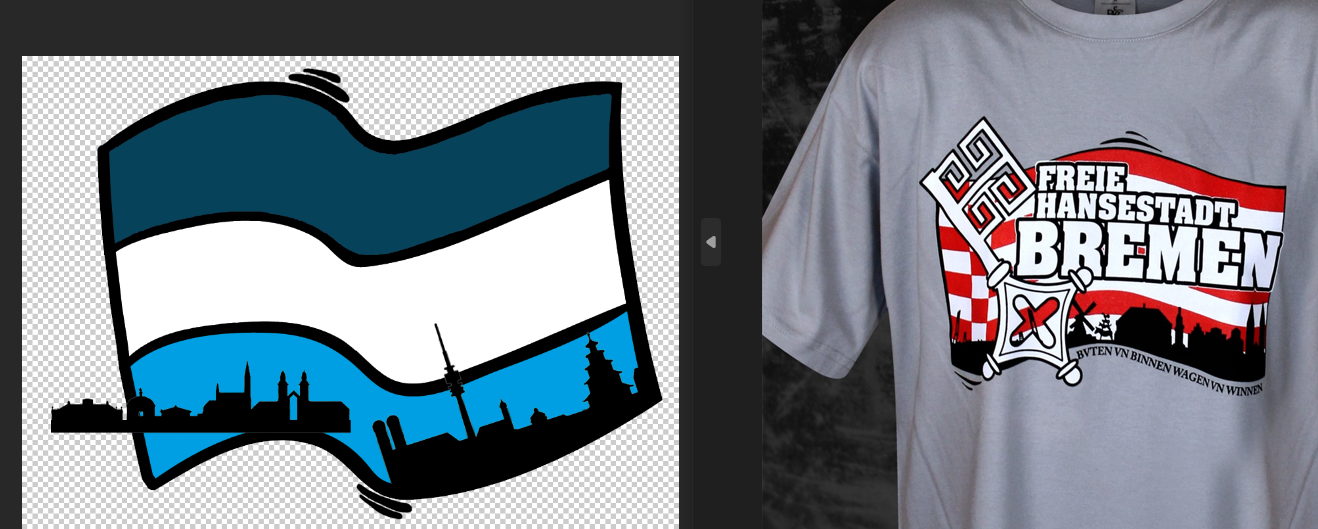
i guess with the path tool right?
 wide goblet
A friend of mine sent me this and wants to cut out the emote to include it in their discord server, what would be the workflow for that? I think 128x128 pixel is the resolution discord takes emotes, but if I put the photoshop project through the image to it the source image gets scaled down into that as well, even after I cut out the emote already with the quick selection tool.
How to prevent the downscaling and how to get this Emote in max quality in proper resolution?
 sharp lantern
wide goblet
A friend of mine sent me this and wants to cut out the emote to include it in th...
sharp lantern
wide goblet
A friend of mine sent me this and wants to cut out the emote to include it in th...
there are "addons" to discord that let you copy emotes from servers to your server
quasi aurora
wide goblet
A friend of mine sent me this and wants to cut out the emote to include it in th...
since you're screenshotting, the image is rasterized and therefore downscaling is completely unavoidable
that's just how graphics fundamentally work. Your only solution is to hire an artist or find the original image in its native resolution
serene coral
sharp lantern
y0 can someone explain to me how i can add a image to a waved line like i this p...
In this case the image you're adding isn't going to be wavy itself. It's just a matter of good positioning and using layer masks to hide unwanted parts or using the brush tool to add them
wide goblet
quasi aurora
since you're screenshotting, the image is rasterized and therefore downscaling i...
This is what I could do, this is the maximum I can get, right ? 128x128 pixel

 wide goblet
Thank you very much!
sharp lantern
np
wide goblet
sharp lantern
How did you do this ?

 random kiln
Is it possible to edit videos in photoshop
serene coral
random kiln
Is it possible to edit videos in photoshop
While it is possible, I would recommend using a video editing software to do this
random kiln
serene coral
While it is possible, I would recommend using a video editing software to do thi...
do you know of any good video editing softwares for free?
serene coral
random kiln
do you know of any good video editing softwares for free?
DaVinci Resolve
random kiln
thank you!
 sly hawk
wide goblet
How did you do this ?
sly hawk
wide goblet
How did you do this ?
Search the world's information, including webpages, images, videos and more. Google has many special features to help you find exactly what you're looking for.
Bigger one here if you want/need it

 golden sky
sly hawk
Most likely a reverse image lookup.... (or magic)
https://www.google.com/search?...
golden sky
sly hawk
Most likely a reverse image lookup.... (or magic)
https://www.google.com/search?...
James can you help me in dm? kinda personal and don't want to post here.
golden sky
@sly hawk
sly hawk
Yeah. - but not right now. gimmie 30 mins
golden sky
sly hawk
Yeah. - but not right now. gimmie 30 mins
thanks
 fluid craneBOT
Gave +1 Creative Carma to @sly hawk
 blissful wedge
Hi I wanted to ask a question here , I dont know if the last one is resolved
 surreal lantern
Hi everybody! After denoising my picture my brick wall appears too smooth and lacks the realistic, weathered, and aged look I want. Is there a recommended overlay texture/brush that i could use to add details like cracks, weathering, and an overall older appearance to make it more authentic?
 blissful wedge
Hi I wanted to ask a question here , I dont know if the last one is resolved
blissful wedge
blissful wedge
Hi I wanted to ask a question here , I dont know if the last one is resolved
Does Anyone know how to Distort and Image
I have this masked out sign of a Cinemark Sign and I wanted to distort it so that it presented to be on top of this building seamlessly
Here is a image of my screen, layer, and Where I want each thing to go
I can also supply a PSD if needed

I want the perspective and left sign to be on top of this building on the right
 river otter
what option bar?
 dry swallow
what is the best way to identify a font?
 undone peak
Why does it keep saying cannot make new layer because selected area is empty? I made a selection using pen tool then used the rect tool to make a layer via copy but it keep showing that message
dry swallow
dry swallow
what is the best way to identify a font?
can anyone help me?
 ripe quest
dry swallow
what is the best way to identify a font?
ripe quest
dry swallow
what is the best way to identify a font?
Right inside Photoshop... Main menu: Type > Match Font and Ps will try to suggest fonts that are similar. There is also the Adobe Fonts website: https://fonts.adobe.com/ (and also, third-party sites like What The Font)
Adobe Fonts
Adobe Fonts partners with the world’s leading type foundries to bring thousands of beautiful fonts to designers every day. No need to worry about licensing, and you can use fonts from Adobe Fonts on the web or in desktop applications.
ripe quest
undone peak
Why does it keep saying cannot make new layer because selected area is empty? I ...
I don't understand what this means. Sorry. You drew paths/shapes with the Pen Tool? Are you saying that you made a selection from the path?
dry swallow
ripe quest
Right inside Photoshop... Main menu: Type > Match Font and Ps will try to sugges...
didn't work can you help me this?
 ripe quest
dry swallow
didn't work can you help me this?
ripe quest
dry swallow
didn't work can you help me this?
Sorry. I don't know what font that is. Maybe try What the Font: https://www.myfonts.com/pages/whatthefont

Identify any font with our font finder tool. Upload an image, and we’ll search our collection of over 133,000 fonts for the best match.
dry swallow
ripe quest
Sorry. I don't know what font that is. Maybe try What the Font: https://www.myfo...
got it! thank you! have another question how dose 3d work on photo shop. also how do you get bubble text on photoshop?
fluid craneBOT
Gave +1 Creative Carma to @ripe quest
ripe quest
dry swallow
got it! thank you! have another question how dose 3d work on photo shop. also ho...
Unfortunately, I can't explain all of 3D features. You should consult the documentation for that: https://helpx.adobe.com/photoshop/using/essential-3d-concepts-tools-photoshop.html
ripe quest
dry swallow
got it! thank you! have another question how dose 3d work on photo shop. also ho...
I don't know what "bubble text" means. Sorry.
dry swallow
ripe quest
Unfortunately, I can't explain all of 3D features. You should consult the docume...
is there any videos on it?
dry swallow
ripe quest
I don't know what "bubble text" means. Sorry.
HOW DO YOU GET THIS TYPE OF BUBBLE TEXT?
 ripe quest
dry swallow
is there any videos on it?
ripe quest
dry swallow
is there any videos on it?
Probably. Try searching YouTube for "Photoshop 3D"
ripe quest
dry swallow
HOW DO YOU GET THIS TYPE OF BUBBLE TEXT?
I don't know.
dry swallow
got it! thank you for your help.
 grand stump
dry swallow
HOW DO YOU GET THIS TYPE OF BUBBLE TEXT?
grand stump
dry swallow
HOW DO YOU GET THIS TYPE OF BUBBLE TEXT?
That would probably work in Adobe Firefly or searching for a Font.
dry swallow
grand stump
That would probably work in Adobe Firefly or searching for a Font.
what is adobe firefly.
grand stump
dry swallow
what is adobe firefly.
Have a look at firefly.adobe.com
 robust flare
my brush is coming out in solo circles instead of a smooth line
how do i fix it

nvm i got it
blissful wedge
blissful wedge
Does Anyone know how to Distort and Image
I have this masked out sign of a Cinem...
Just putting this back up here to see if anyone got anything
undone peak
ripe quest
I don't understand what this means. Sorry. You drew paths/shapes with the Pen To...
This right here. It is frustrating. It always happen after I make like 3 layers
 ripe quest
undone peak
This right here. It is frustrating. It always happen after I make like 3 layers
ripe quest
undone peak
This right here. It is frustrating. It always happen after I make like 3 layers
Sorry but this doesn't tell me much about what caused it. Please show the Photoshop GUI with the Layers Panel open.
undone peak
ripe quest
Sorry but this doesn't tell me much about what caused it. Please show the Photos...
 ripe quest
undone peak
ripe quest
undone peak
So you're trying to copy that portion of the hair to a new layer?
undone peak
Yes? Im following a tutorial about how to animate hair
i need to create multiple selections and create layers via copy but I always come across this
ripe quest
undone peak
Yes? Im following a tutorial about how to animate hair
So click on the Background layer in the Layers Panel to activate it (the layer with the image of the woman) and then do Ctrl J to copy and duplicate those pixels to a new layer.
Ctrl J will jump a copy of the selected area to a new layer.
undone peak
ahh right that works. Thanks For some reasons that isn't an issue when clicking on certain layers. Im assuming it's beecause the selection was outside of the domain of whatever layer I was on
ripe quest
undone peak
ahh right that works. Thanks For some reasons that isn't an issue when clicking ...
You were trying to copy a portion of a layer that was completely empty. There was nothing to copy and thus you were getting that error.
Make sure you are working on the correct layer when you're trying to copy something. Its an easy mistake to make.
dry swallow
do anyone know how to use the 3d feature on photoshop?
can not move my text in 3d.

will not let me move my text up side down side ways. won't let me change anything. do anyone know how to resolve this?
 rotund sphinx
How do I crop this transformation box to match the exact dimensions of the entire image? The two images shown are separate, but I have them both selected.
 serene coral
rotund sphinx
How do I crop this transformation box to match the exact dimensions of the entir...
serene coral
rotund sphinx
How do I crop this transformation box to match the exact dimensions of the entir...
With both layers selected you're transforming all of them together. What is your goal?
serene coral
dry swallow
do anyone know how to use the 3d feature on photoshop?
3d features are currently being removed from Ps
rotund sphinx
serene coral
With both layers selected you're transforming all of them together. What is your...
Trying to add a vignette to the entire screen but since uneven portions of the images are outside of the boundaries, the vignette is also outside of the boundaries
serene coral
rotund sphinx
Trying to add a vignette to the entire screen but since uneven portions of the i...
Make a new layer, fill it with white and make it a smart object. Apply vignette from camera raw to the layer and set the blending mode to multiply
Or just use a gradient fill layer
rotund sphinx
serene coral
Make a new layer, fill it with white and make it a smart object. Apply vignette ...
Thank you! Still figuring out the basics, so sorry if it was an easy question
fluid craneBOT
Gave +1 Creative Carma to @serene coral
 main forge
Hey guys,
the lower image is my ps preview and the other the export window
As you can see, the gradient just doesnt show up
why? and how do i fix it?

well i still dont know why
but i saved a copy as png and it worked
if you have a fix for the export please tell anyways
serene coral
main forge
Hey guys,
the lower image is my ps preview and the other the export window
As ...
would be great to see the whole ui and layers. can you send the psd here?
main forge
serene coral
would be great to see the whole ui and layers. can you send the psd here?
@serene coral
serene coral
main forge
can i send you per dm?
sure
 plucky crow
hi i was wondering how to make the copy css available? i`ve tried creating new text/ shapes and it still doesn:t work
 serene coral
plucky crow
hi i was wondering how to make the copy css available? i`ve tried creating new t...
serene coral
plucky crow
hi i was wondering how to make the copy css available? i`ve tried creating new t...
https://helpx.adobe.com/photoshop/using/copy-css-shape-or-text.html
It will work with text, shape and regular layers but it is generally unused feature
plucky crow
serene coral
https://helpx.adobe.com/photoshop/using/copy-css-shape-or-text.html
It will work...
yeah i was trying to use it on shapes, text but does not worked
serene coral
plucky crow
yeah i was trying to use it on shapes, text but does not worked
if you're trying to select more that one layer, group them and right click the group
plucky crow
no i was trying to select only one layer, what i meant i tried on so many different things and it still does not work
i thought maybe there is some sort of settings i turned off?
serene coral
plucky crow
i thought maybe there is some sort of settings i turned off?
can you screenshot more than just the menu?
plucky crow
serene coral
can you screenshot more than just the menu?
this?

 left trellis
Hi, Good morning ive was wondering trying how to get this aesthetic on the first three images on the tree background but i dont have an idea on how to do it, does anyone have an idea


 vapid flume
left trellis
Hi, Good morning ive was wondering trying how to get this aesthetic on the first...
vapid flume
left trellis
Hi, Good morning ive was wondering trying how to get this aesthetic on the first...
What do you mean exactly by aesthetic? Because for me they feel vastly different.
sly hawk
left trellis
Hi, Good morning ive was wondering trying how to get this aesthetic on the first...
You want the last image (brown grass) to look bright and vibrant?
vapid flume
sly hawk
You want the last image (brown grass) to look bright and vibrant?
except for the grass 🙂
left trellis
vapid flume
What do you mean exactly by aesthetic? Because for me they feel vastly different...
i mean mostly the third one i want to feel warm and have the same time of colours
left trellis
sly hawk
You want the last image (brown grass) to look bright and vibrant?
yeah the last image too look vintage and indie like the third one
sly hawk
third, being "Terrenoire"?
left trellis
sly hawk
third, being "Terrenoire"?
yes
vapid flume
left trellis
i mean mostly the third one i want to feel warm and have the same time of colou...
The 3rd one is slightly lower in contrast with a yellow/magenta tint
left trellis
vapid flume
The 3rd one is slightly lower in contrast with a yellow/magenta tint
oh ok, let me try that
vapid flume
do you can try that for a start
sly hawk
lol. SHOUTING! @vapid flume
vapid flume
CAPS LOCK!
left trellis
vapid flume
do you can try that for a start
yeah let me me try that
vapid flume
I would do either with a curve adjustment layer, or you can do with level, or exposure, and a hue/sat adjustment layer for the tint
sly hawk
I tried a gen-fill, "lucious green grass" and it kind of went a little overboard and changed the entire landscape!
 vapid flume
There is a neural filter to change the "season" of landscape photos as well
If that's what you wanted to do, but I gather you were more concerned about the colour and lighting of the whole scene?
left trellis
sly hawk
I tried a gen-fill, "lucious green grass" and it kind of went a little overboard...
yeah a little bit like this
vapid flume
So landscape mixer in the neural filters can change the exact landscape from "winter" to "summer" and then you can do your grading after the filter results are in

 lucid crane
sly hawk
I tried a gen-fill, "lucious green grass" and it kind of went a little overboard...
lucid crane
sly hawk
I tried a gen-fill, "lucious green grass" and it kind of went a little overboard...
I think you’ve all gone a bit Laa Laa 😉
sly hawk
Yeah. Probably.
 onyx moth
Question for LR but i'm guessing PS has the same feature
a couple weeks ago i accidentally figured out how to compare the original + edit side by side. I can't remember what the bind was tho.. There were a few different 'modes' if i remember correctly
i've tried everything on my keyboard, i'm 99% sure it was a keybind
LR 2024 btw


 stark idol
omg i feel so dumb lool tysm
serene coral
onyx moth
i've tried everything on my keyboard, i'm 99% sure it was a keybind
I'm pretty sure it's Y by default
onyx moth
serene coral
I'm pretty sure it's `Y` by default
nope that brought up activity for me
i haven't changed any binds, don't even know how to
serene coral
onyx moth
nope that brought up activity for me
are you in the develop view?
onyx moth
i dunno how to get to that haha
mate of mine said it's in development but i thought he meant the feature is a work in progress
🤦🏻♂️
serene coral
onyx moth
i dunno how to get to that haha
press D or select it in the top right corner
onyx moth
D didn't do anything for me
serene coral
onyx moth
D didn't do anything for me
are we talking LR or LRC?
onyx moth
onyx moth
LR 2024 btw
i couldn't stand classic haha
 limpid sedge
How can i do this effect in ps?

 pine berry
bluring the text a bit
pine berry
limpid sedge
How can i do this effect in ps?
Put the text tight togetether and then add some outer glow like this


Not perfect, bu in that direction
possibly normal blur will help too
limpid sedge
pine berry
Put the text tight togetether and then add some outer glow like this
Ohh okayy, thanks a lot!
fluid craneBOT
Gave +1 Creative Carma to @pine berry
 forest gull
is there a way to add colored shapes to images on photoshop?
pine berry
forest gull
is there a way to add colored shapes to images on photoshop?
With the custom shape tool sure
Key U
limpid sedge
pine berry
Maybe somehow i can round the edges?
pine berry
The rectangle tool can round edges
forest gull
pine berry
With the custom shape tool sure
where is that
pine berry
forest gull
where is that
Press the U key
forest gull
oh mb thankyou
pine berry
 pine berry
limpid sedge
Maybe somehow i can round the edges?
pine berry
limpid sedge
Maybe somehow i can round the edges?
Use a font with round edges
serene coral
limpid sedge
How can i do this effect in ps?
gaussian blur + threshold
limpid sedge
Thanks a lot!! Ill try it as soon as im home, yall are really helpful♥️
quasi aurora
since when did delete on a selection activate content fill? can't find how to fix that anywhere in the shortcuts menu
they really gotta add a search bar for shortcuts. Biggest thing I miss from krita and no excuse why it shouldn't exist in photoshop
serene coral
quasi aurora
since when did delete on a selection activate content fill? can't find how to fi...
yeah, I can remember it being like this years ago... are you on mac or pc?
 quasi aurora
serene coral
yeah, I can remember it being like this years ago... are you on mac or pc?
quasi aurora
serene coral
yeah, I can remember it being like this years ago... are you on mac or pc?
pc. I ended up just setting the content fill to "white", and after a couple minutes it just...stopped activating content fill with delete and went back to normal?
I don't understand photoshop lmao
 dusty rock
Hi again
been a while
question: How do I selete the images at the top left

the logo
lucid crane
dusty rock
Hi again
You could do this with a crop then color range selection and then levels but unless you have a higher resolution starting image it will be a bit rough
 ripe quest
dusty rock
question: How do I selete the images at the top left
ripe quest
dusty rock
question: How do I selete the images at the top left
"Selete"? Is that some combination of "select and delete"? :)
 shy pilot
Someone help me, the blending modes in my photoshop are not all available and I don't know what to do to fix this 😭
 ripe quest
shy pilot
Someone help me, the blending modes in my photoshop are not all available and I ...
ripe quest
shy pilot
Someone help me, the blending modes in my photoshop are not all available and I ...
Those are Blend Modes for the Brush Tool. Is your document in Indexed Color? You'd need to work in RGB. Image > Mode > RGB...
@shy pilot - I'm glad you got it figured out. :)
 ivory lance
I need help and am very frustrated. I am making a simple christmas card for mass print. Saving it as a pdf and one part of an M will not come out in color. I have googled it and tried everything. I have even painted over it in another layer and it is still not showing in acrobat.


I had to draw on the pdf in acrobat to make it work
ripe quest
ivory lance
I need help and am very frustrated. I am making a simple christmas card for mass...
That's a strange issue. If that is a font, perhaps make a copy of that Text Layer and rasterize it. Then export. See if that works.
 lavish scroll
How do I make like a text warped like this
 ripe quest
lavish scroll
How do I make like a text warped like this
ripe quest
lavish scroll
How do I make like a text warped like this
You can try selecting the Layer, converting to Smart Object and then using Edit > Transform > Warp...
 dire geode
Why does photoshop mix red and blue into black shades of them?
How do I make it stop?
 ripe quest
dire geode
Why does photoshop mix red and blue into black shades of them?
How do I make it ...
ripe quest
dire geode
Why does photoshop mix red and blue into black shades of them?
How do I make it ...
There is a slight feathering on the Brush tool and those pixels at the edge are semi-transparent. If you don't want that, you could try using the Pencil Tool...
 dire geode
brush has mode: normal, layer has mode:normal
it's also consistent between documents
 dire geode
ripe quest
There is a slight feathering on the Brush tool and those pixels at the edge are ...
dire geode
ripe quest
There is a slight feathering on the Brush tool and those pixels at the edge are ...
but I do want that, it just shouldn't turn so dark
ripe quest
dire geode
but I do want that, it just shouldn't turn so dark
Well, it will be a the combination of the two colors...
Where the transparent edge shows through to the color below. The result is a mixture of those two colors.
dire geode
I thought combinations are not changing how dark it is
my bad
Thanks for explaining
I thought I had some weird blending mode on
ripe quest
dire geode
I thought combinations are not changing how dark it is
my bad
It will also appear to be more pronounced when you're zoomed way in on it. Viewing at 100% zoom, it is only slightly noticeable.
 dire geode
is there a way to change blending mode but only for how transparency is treated?
main forge
Hey guys can someone whos like really really really experienced help me for a sec?
main forge
main forge
Hey guys,
the lower image is my ps preview and the other the export window
As ...
its the same thing i had discussed with wertos this morning but i really need a fix for that.
as this is now not only a export problem but also occurs when importing the file into ae
help me pls 
 vagrant stump
Hi! Can someone help me with a color palette for a layout. I'm trying to replace the purple(s) with a tan/brown to match the header image I want to use. I have attached the current theme & its colors hex codes and the header I want to use. (the main background will match the header)


 main forge
as this is now not only a export problem but also occurs when importing the file...
main forge
main forge
as this is now not only a export problem but also occurs when importing the file...
guys im literally going crazy right now
main forge
 hollow trout
how can i make this artboard horzintal ***
hollow trout
how can i make this artboard horzintal ***
isnt it horizontal already?
hollow trout
i think u mean diagonal


 hollow trout
oh well thats embarrsing i ment vertical
main forge
np xD
hollow trout
so how do i do that

 hollow trout
main forge
or switch width and height on alt + ctrl + c
hollow trout
main forge
or switch width and height on alt + ctrl + c
thanks
fluid craneBOT
Gave +1 Creative Carma to @main forge
main forge
np
 arctic spear
Hi! Is that kind of style possible to make in photoshop ? I want to make similar things.
 main forge
possible? yes
how? idk
arctic spear
So probably is made in photoshop ? Am I right ? If someone know how this type of art s called you can tell me 🥲
main forge
this looks like an acrylic painting but i dont know what this kind of style is called
was not made in ps
lucid crane
arctic spear
Hi! Is that kind of style possible to make in photoshop ? I want to make similar...
Its oil paint on canvas. You can certainly use PS brushes to give the paint effect and you can use textures to get the canvas look. Its less easy to get the paint build up effect.
See https://www.photoshopessentials.com/photo-effects/oil-paint-filter/

Learn how to easily turn photos to painted works of art with the amazing Oil Paint filter in Photoshop. Check it out in our complete tutorial at Photoshop Essentials.
main forge
lucid crane
Its oil paint on canvas. You can certainly use PS brushes to give the paint effe...
why would it only be oil? Could also be acrylic
vapid flume
main forge
why would it only be oil? Could also be acrylic
The filter in Photoshop is called Oil Filter, the effect could be called acrylic as well, they just decided to call it oil 🙂
The thick paint effect (in the green) is called "inpasto" ...it's not a style, it's a painting technique. It's difficult to identify a style from a close up, the whole image would be better.
The canvas is very visible, so unless the artist really went for maximum realism in Photoshop, I would still err on the side of a canvas painting. That bristle dual colour in the aqua colour, while being possible in PS, suggest it as well...
main forge
@vapid flume would you mind to have a look at my problem?
main forge
main forge
its the same thing i had discussed with wertos this morning but i really need a ...
.
vapid flume
If I know the answer. Can you point me to the original message?
main forge
main forge
Hey guys,
the lower image is my ps preview and the other the export window
As ...
@vapid flume
vapid flume
Yes sorry, I saw it. I tried to look, and I don't know the answer...
Otherwise I would have answered!
stark idol
hey guys, do someone has a envato elements account, wanna get help for finding images
vapid flume
It honestly looks like a bug to me, at first sight
main forge
the gradient gets changed in export or import in after effects whenever it is masked
main forge
vapid flume
It honestly looks like a bug to me, at first sight
i think so too but it also occurs on new files with diffrent dpi
vapid flume
stark idol
hey guys, do someone has a envato elements account, wanna get help for finding i...
Not me... I can give you the link to the free section of Adobe stock if you want
stark idol
no, i mean for having help to find images, like keywords
but i appreciate that
you're the most helpful person with dhumann on this server you got deserve a medal fr
vapid flume
main forge
i think so too but it also occurs on new files with diffrent dpi
In that case, and if you're more or less sure it's a bug, then that's ground for a bug report so the devs can have a look at it. I means they are the ones who can correct it
Does it happen also if you tried to revert back one version?
stark idol
stark idol
no, i mean for having help to find images, like keywords
(i'm looking for pictures from a special angle, perspective) and i struggle to find what i search
when i see people doing photo manipulation i'm jealous of them finding so much images fitting perfectly with their editing
main forge
vapid flume
It honestly looks like a bug to me, at first sight
could you maybe start a new file in your photoshop and give it to me to import into ae? i wanna know if its system based
just a gradient masked by a box like this
 main forge
vapid flume
In that case, and if you're more or less sure it's a bug, then that's ground for...
main forge
vapid flume
In that case, and if you're more or less sure it's a bug, then that's ground for...
yea i was gonna go and report it but forgot xD
also happens in beta
vapid flume
stark idol
(i'm looking for pictures from a special angle, perspective) and i struggle to f...
OK, it's a pet peeve of mine too 🙂 (People who submit assets to stocks website, bloody put the angle of view in the KEYWORDS!)
But I digress 🙂
Can you show the kind of angle you need and I'll try to come up with keywords. Also, on most stock websites you can upload a photo to match, sometimes that helps for the angle
main forge
didnt try with a lower ver
vapid flume
main forge
didnt try with a lower ver
As I said, I honestly don't know
You can report the bug either in the app (the help section) or directly on the community forum
That's where the devs, sometimes, hang out
https://community.adobe.com/t5/photoshop-ecosystem/ct-p/ct-photoshop?page=1&sort=latest_replies&lang=all&tabid=all
https://community.adobe.com
Master Photoshop with the help of our global community.
main forge
vapid flume
As I said, I honestly don't know
You can report the bug either in the app (the ...
Will do
vapid flume
Don't forget the tag with "bugs" and be prepared to share your photoshop version and computer specs (they will ask for it)
main forge
vapid flume
Don't forget the tag with "bugs" and be prepared to share your photoshop version...

stark idol
vapid flume
OK, it's a pet peeve of mine too 🙂 (People who submit assets to stocks website,...
i kinda want like a top pov
i know the words in my native language but suck at english for finding them
vapid flume
things to know is "styles"
For example objects on a table where the camera looks top down@ Lay Flat
Same with landscape (think drone image): Birds-eye
view from the floor: worm view
etc
What is your native language?
vapid flume
OK, what is your word in French?
vapid flume
like underwater?
stark idol
but the literal translate is "dive view"
vapid flume
try top down then

 vapid flume
 stark idol
left side gonna be the first plan with someone standing up
vapid flume
So top down view for me
stark idol
but you see on this picture it's too much top down
vapid flume
Yes but you will not find the exact thing!
stark idol
and with a desert theme too
 vapid flume
plongee litterally means that the camera is higher than the subject
stark idol
i think in my case you talk with degres lol
vapid flume
Yes, but I doubt anybody puts degrees in their keywords
 kindred plaza
hi guys
stark idol
vapid flume
Yes, but I doubt anybody puts degrees in their keywords
ahah fr
 vapid flume
I need to go anyway. I came to answer to a DM and I got caught up in the answers 🙂
stark idol
lesgo
vapid flume
stark idol
lesgo
Excellent!
vapid flume
https://www.openhousepictures.co.uk/8-types-of-camera-angles-and-how-to-use-them-in-your-photography

Discover the importance of camera angles, the different types of camera angles, and how to use them in your photography to tell a story. Find out more today.
in case that helps in the future
stark idol
sandrine drop a masterclass before leaving
stark idol
byee have a good evening ty for the link
 crude scarab
Hey, how do I make a quick selection I have into a new layer?
ripe quest
crude scarab
Hey, how do I make a quick selection I have into a new layer?
Cmd J / Ctrl J will copy the selected pixels to a new layer
crude scarab
ripe quest
Cmd J / Ctrl J will copy the selected pixels to a new layer
alright, I've messed this up. Is there any way I can do it for everything that is NOT selected?
ripe quest
crude scarab
alright, I've messed this up. Is there any way I can do it for everything that i...
You could invert the selection and then do Ctrl J
Select > Inverse (Shift Ctrl i)
crude scarab
ripe quest
You could invert the selection and then do Ctrl J
How do I invert the selection?
Ill give it a shot, thanks
 hollow fable
How important is a dedicated gpu for photoshop? I'm building a system for a hobbyist and I was under the impression it was more cpu/ram heavy, but someone earlier told me it does infact include a dedicated gpu in the minimum requirements.
I was hopeful the i5-13500 (14 cores) and 32gb of ddr5 6000mhz CL30 would have done the job, but I guess I may need to rearrange the build to incorporate a gpu afterall :/?
stark idol
i did that lol ty @vapid flume
 fluid craneBOT
Gave +1 Creative Carma to @vapid flume
ripe quest
hollow fable
How important is a dedicated gpu for photoshop? I'm building a system for a hobb...
More and more, software apps are offloading tasks to the GPU. Not just Photoshop but many titles will utilize those resources. It would be advisable to have a dedicated GPU in the PC going forward. I think you'll be glad later that you have it.
hollow fable
Well... it'll mean I have to get a way worse monitor or cpu
So... its kinda hard to balance all this in a $1000 budget
I wanted the asus proart monitor but I guess I have to sacrifice and get some random gaming monitor with decent color coverage :x
river otter
I mean, integrated gpus are good nowdays too.
Many people with laptops use igpu that shares ram, and have no problems with it.
I don't think it is a big deal for image works, for videos it is another story.
I have ideapad flex 5 and it is igpu. Works almost same as my desktop with nvidia card.
I really did not noticed difference, and I know to do heavy projects too.
But if you want a good GPU for that prize, I would half a ram. 16GB RAM.
Older i7.
For that money you can built monster PC.
river otter
I wanted to buy Deco Mini7, is it any good and do I really need it for simple designs?
I barelly create art, I am in doubt to buy it for my art hobby, I think it won't benefit me much with flat designs, bit art and drawings.
 red gulch
im trying to transfer the color from one image to another, and this gives great results by using an Indexed color table from the colored image onto another image, but its there any way to do this with more than 256 colors?


Match Color gives severly muted results.
(reason being is that the first parchment is not made to be tileable, while the others are.)
 mortal girder
Can someone remove the 2 watermarks off
mortal girder

 foggy ore
I was wonder how can i make my photo light skinned tone
 bleak trail
Hi, can anyone guide me on how to add Bokeh on Photoshop 2024?
grand stump
bleak trail
Hi, can anyone guide me on how to add Bokeh on Photoshop 2024?

How Good or Bad is the New "Lens Blur" Feature in Photoshop and Lightroom? In this video, we dive deep into the biggest limitations of this feature and also learn techniques to overcome them. We will test Camera Raw's Lens Blur with several examples, including simple and busy backgrounds, and learn more about the additional features like Bokeh, ...
 unique granite
I wants to add hue at a specific layer... How to do that??
 strange hull
unique granite
I wants to add hue at a specific layer... How to do that??
strange hull
unique granite
I wants to add hue at a specific layer... How to do that??
Add it as an adjustment layer and link it to that specific layer
unique granite
strange hull
Add it as an adjustment layer and link it to that specific layer
How to link?
 strange hull
like this
strange hull
strange hull
like this

 unique granite
strange hull
unique granite
strange hull
Thanks bro
fluid craneBOT
Gave +1 Creative Carma to @strange hull
mortal girder
@strange hull ur insane thx
fluid craneBOT
Gave +1 Creative Carma to @strange hull
bleak trail
grand stump
Try this one https://www.youtube.com/watch?v=0aVdqZGWmsc&ab_channel=PiXimperfect
Many thanks, well have a look so do!
fluid craneBOT
Gave +1 Creative Carma to @grand stump
unique granite
How to crop an image in photoshop? ( When I crop it, It crops the whole canvas)
forest gull
How do I save a photoshop project as an image when ive finished it?
unique granite
forest gull
How do I save a photoshop project as an image when ive finished it?
Click file and export
forest gull
unique granite
Click file and export
oh ok thankyou
unique granite
How to remove filter from any image? like Gaussian blur from the image...
vapid flume
unique granite
How to remove filter from any image? like Gaussian blur from the image...
You can't unless,
1- you can go back in the hitory to revert to an earlier state of the file (that means not having saved and closed the file between those two states)
2- If you applied the filter on a smart layer, you can remove it as it appears at the bottom of the layer. Just select the filter and hit delete
If you show us your file opened in Photoshop with all the panels visible, then it will be easier to say what is your case
unique granite
vapid flume
You can't unless,
1- you can go back in the hitory to revert to an earlier stat...
I added blur on an image and copy pasted it... now I wanna remove the blur from the 2nd image
 vapid flume
Well , all you need to do is remove it from the first and copy paste again. If you copy paste instead of properly place a .psd file, then you don't have access to what's inside this file anymore
unique granite
see two cross
unique granite
vapid flume
Well , all you need to do is remove it from the first and copy paste again. If y...
I wanna remove blur from one cross
 unique granite
damnn
vapid flume
Well, you gotta use smart layers! 🙂
unique granite
Making them smart layers are a good p[ractice?
unique granite
vapid flume
Well, you gotta use smart layers! 🙂
I installed today idk
vapid flume
choose file>place, instead of copy and paste when you want to add a new image as a layer
Well, let's be honest, it's quite a project to start on your first day 🙂
vapid flume
Thumbnail or big poster, the system is the same. You need a basic understanding of how the app works, otherwise it will be very frustrating!
vapid flume
Well, it's quite a complex software, unless you want to do simpler stuff, so expect a bit of a learning curve! (That's why there are Discord servers, otherwise we wouldn't need them! 🙂 )
unique granite
frfr
unique granite
vapid flume
Well, it's quite a complex software, unless you want to do simpler stuff, so exp...
Thanks bro
fluid craneBOT
Gave +1 Creative Carma to @vapid flume
vapid flume

How to use smart objects, in a 2 Minutes Photoshop tutorial. Smart objects are realy helpful especially if you want to work non-destructively in a document. A layer can retain its original resolution by converting it into a smart object. Smart effects and filters can also be applied which let you change any values later in the edit.
📢 Unlimited...
 abstract needle
how can i make two overlapping layers invert colours when they overlap with eachother?
vapid flume
abstract needle
how can i make two overlapping layers invert colours when they overlap with each...
You can use the blending mode "difference" (or try the ones below as well)

use it on the top layer, not both 🙂
 worldly juniper
What is the easiest and quickest way to remove reflections in glasses in photoshop
lucid crane
worldly juniper
What is the easiest and quickest way to remove reflections in glasses in photosh...
This is one way from Unmesh https://www.youtube.com/watch?v=plOsuoh0eFg&t=625s
Or if you have gen fill : https://www.youtube.com/shorts/r5UUiHuIoFw

3 Simple Steps to Remove Complex Glare from Glasses in Photoshop! Discover the best way to avoid and fix glare or reflections. Using advanced dodging and burning, in this tutorial, we will learn how to even out the brightness to make the glass completely transparent. Then, with the help of blending modes, we will remove any color cast and correc...
 worldly juniper
Amazing thank you!
river otter
HI, is there a way to add multiple text lines from a sheet as a text layer each one at once? Is there a function, a plugin or an extension for that?
lucid crane
river otter
HI, is there a way to add multiple text lines from a sheet as a text layer each ...
Perhaps this can help?
https://youtu.be/6W9C61U5jgU?si=TfrPWYSio6Ejxu4e

Welcome to this complete tutorial on how to import and save variable data in Adobe Photoshop CC 2020. We start of with a blank document and a spreadsheet and end up with 20 different data sets which can be saved as .psd .jpeg and .pdf! Make sure to subscribe if it helped you!
(00:00) Start
(00:16) Set up Photoshop document
(01:25) Define the va...
river otter
Thanks, but it's not that. I don't wanna replace the text of one single layer, but add many of them at the same time.
sly hawk
Hey, could anyone please help me with this?
someone (not me) has tried brightening image 2608 and has gone a bit overboard.

I think the colour of the brown is ok, but the shadows have lost their depth/shade.
I tried image > adjusments > shadows but it ended up changing too much of the 'non-shadows' too

(I'm just heading out - back later!)
 muted burrow
Hey everyone. It's not directly Photoshop, but Lightroom Classic related... I did retouch a wedding as usual, but when I export now, the files are 5 times bigger than they used to be even though the export settings are all the same?! Did I miss a change? @ me
lucid crane
sly hawk
Hey, could anyone please help me with this?
someone (not me) has tried brighteni...
Does this work for you using curves? Too close to 2607? Use the opacity slider to blend it as you wish?
 hollow fable
river otter
But if you want a good GPU for that prize, I would half a ram. 16GB RAM.
Older i...
hollow fable
river otter
But if you want a good GPU for that prize, I would half a ram. 16GB RAM.
Older i...
The proart display takes up 40% of the budget xD
But I want a very impressive monitor, seems important 😮
<2 delta, 95% dci-p 1440p 27" 144hz 90w PD/display, insane stand, it is a beaut
Microcenter has a 12900k + z790 and 32gb of 6000mhz ddr5 for $400 but the mobo kinda sucks
But i5 13500 is $264 :x
 crisp lichen
gentlemen got a question.
id like to actually have content within this font, but it is just outline. How can i change this?
 lucid crane
crisp lichen
gentlemen got a question.
lucid crane
crisp lichen
gentlemen got a question.
Why not use the filled in version of the font 🙂
https://www.dafont.com/mckloud.font
McKloud Font | dafont.com
crisp lichen
lucid crane
Why not use the filled in version of the font 🙂
https://www.dafont.com/mckloud....
which one is the filled one? i have them all and they just turn out like this
NVM LOLOLOL
lucid crane
 wispy current
hi guys
wispy current
hi guys
Thats a very broad brief !
You'll need to give some more details of who its for, what its about etc.
You might want to take a look here for inspiration 🙂
http://www.logobook.com/
A gallery and showcase of the best logo design inspiration in the world, featuring over 5000 logo's searchable by designer, shape, object, and style
wispy current
lucid crane
Thats a very broad brief !
You'll need to give some more details of who its for,...
well man
im creating a logo for a future brand rn
more like a side hobby
ripe quest
wispy current
could someone help me make a logo im quite new to this
Designing a timeless logo is challenging, but we’re here to help. Discover logo design best practices, helpful tools, and a guide to creating the perfect logo.
First, learn what a logo is and the best practices for creating one.
You could brainstorm with Photoshop but [ideally] you'd want to build the logo in vector format. Adobe Illustrator is a more suitable tool for these sorts of tasks.
wispy current
ripe quest
https://blog.hubspot.com/marketing/how-to-design-logo
thank you D.human
fluid craneBOT
Gave +1 Creative Carma to @ripe quest
ripe quest
wispy current
thank you D.human
There is also this tutorial: https://youtu.be/UyoXKGQrmtY?si=F4OTjnHYiSXYqFDG

-- https://bit.ly/3GdrdrK 👈 Learn UI/UX Today. Use "LAUNCH" for 15% Off!
Course resource files:
https://s3.amazonaws.com/coursetro/vizid-resources.zip
This is a 3 hour course that I previously charged $$ for. I'm making it 100% free today. You will learn how to tackle both logo design and full visual identity design projects from scratch in th...
wispy current
ripe quest
There is also this tutorial: https://youtu.be/UyoXKGQrmtY?si=F4OTjnHYiSXYqFDG
d.human by any chance do you watch one piece
ripe quest
wispy current
d.human by any chance do you watch one piece
Nope. I haven't seen it.
grand stump
wispy current
could someone help me make a logo im quite new to this
besides what D.Humann said you also can check ot the Adobe Express Logo Maker for a quick start https://www.adobe.com/express/create/logo
wispy current
grand stump
besides what D.Humann said you also can check ot the Adobe Express Logo Maker fo...
im getting illustrator instead
grand stump
wispy current
im getting illustrator instead
That would be the best idea if you want to get serious Logo for sure.
wispy current
grand stump
That would be the best idea if you want to get serious Logo for sure.
someone gift me nitro fr
im gonna get so good at logos that ill sell logos for nitro 💀
grand stump
wispy current
someone gift me nitro fr
Well, as long as you get the propper paid plan in Adobe you can build as much Logos as you wish and sell them. Good luck.
 manic isle
yo
How do I create cool text in photoshop
saw this on tiktok, but it doesn't seem like a font
 ripe quest
manic isle
yo
How do I create cool text in photoshop
saw this on tiktok, but it doesn't see...
ripe quest
manic isle
yo
How do I create cool text in photoshop
saw this on tiktok, but it doesn't see...
You could do this fairly easily using Layer Styles on a Text Object...
manic isle
ripe quest
You could do this fairly easily using Layer Styles on a Text Object...
this my third time using photoshop, ain't really know stuff around it, thanks for the tutorial, it'll probably take me prob 10 minutes just to follow it
fluid craneBOT
Gave +1 Creative Carma to @ripe quest
ripe quest
manic isle
this my third time using photoshop, ain't really know stuff around it, thanks fo...
Practice, practice, practice. :)
grand stump
manic isle
this my third time using photoshop, ain't really know stuff around it, thanks fo...
What D.Human said! AND always search for Tutorials on youtube. There are tons of good ones there to learn from and get inspiration!
 little abyss
anyone know how to create something like these?

 sly hawk
lucid crane
Does this work for you using curves? Too close to 2607? Use the opacity slider t...
sly hawk
lucid crane
Does this work for you using curves? Too close to 2607? Use the opacity slider t...
Sorry, just got back
sly hawk
little abyss
anyone know how to create something like these?
Yeah, just look at a normal image, then squint your eyes a bit....
 ripe quest
manic isle
yo, how do I get a faded background like this
ripe quest
manic isle
yo, how do I get a faded background like this
Perhaps reduce the Opacity for that Layer in the Layers Panel.
(or put Color Fill layer over it and turn down the Opacity on that layer.)
manic isle
ripe quest
Perhaps reduce the Opacity for that Layer in the Layers Panel.
when i do that, the whole image goes darker and darker, not just the corners
lemme try the second option
didn't work either
ripe quest
manic isle
when i do that, the whole image goes darker and darker, not just the corners
Oh. I misunderstood your question.
One moment...
ripe quest
manic isle
when i do that, the whole image goes darker and darker, not just the corners
I would make a Layer Mask with a feathered edge on it...
quasi aurora
anyone know why applying a layer mask seems to reduce the opacity of the masked layer? is there a way to prevent that?
ripe quest
quasi aurora
anyone know why applying a layer mask seems to reduce the opacity of the masked ...
That's what a Layer Mask does. It reduces opacity when used with various shades of grey. Black is completely hidden. White is completely visible.
quasi aurora
I see, I just assumed if you selected the entire layer and applied a mask, the mask would be 100% white but that doesn't seem to be the case. Probably because the pixels themselves are slightly transparent
does it take the value of each pixel to create the mask? or just the opacity?
ripe quest
quasi aurora
I see, I just assumed if you selected the entire layer and applied a mask, the m...
It's going to depend on the values of the color in the Foreground Color chip in the Toolbar.
ripe quest
quasi aurora
does it take the value of each pixel to create the mask? or just the opacity?
I don't understand the question. When you paint on a Layer Mask with black, those pixels will be completely hidden. Paint with white and they are revealed. Paint with shades of grey, you get varying levels of opacity. The darker the shade of grey, the more transparent it will be.
quasi aurora
right, I just didn't know that the generated mask itself wasn't 100% white. If I want the layermask to be 100% white, how do I edit the mask without "adding" to it, if that makes sense?
without expanding the boundry of the layermask
ripe quest
quasi aurora
right, I just didn't know that the generated mask itself wasn't 100% white. If I...
You can adjust it with perhaps, a "Levels" command.
quasi aurora
ripe quest
You can adjust it with perhaps, a "Levels" command.
man you're a genius. All very eye opening, thanks
fluid craneBOT
Gave +1 Creative Carma to @ripe quest
ripe quest
quasi aurora
man you're a genius. All very eye opening, thanks
If you ALT click on the Layer Mask in the Layers Panel, it will show you the mask by itself. Then you can do Image > Adjustments > Levels...
(Alt Click it again to return to normal viewing mode)
quasi aurora
oh woah, I've just been left clicking on the mask to select it and then adjusting it, that's kind of interesting
ripe quest
quasi aurora
oh woah, I've just been left clicking on the mask to select it and then adjustin...
There are some cool ways to adjust it. I don't think a lot of people realize this...
quasi aurora
ripe quest
There are some cool ways to adjust it. I don't think a lot of people realize thi...
oh man that's insane
since I have you for a second, I wonder if you've seen this before? I've been wondering what this was for months:

these little colored squares next to the clipping masks. I asked here before, but no one seemed to know what they were
ripe quest
quasi aurora
these little colored squares next to the clipping masks. I asked here before, bu...
I think they're just Color Fill layers. They appear to have been rasterized. However, regardless, I'm not sure of their purpose since they are completely masked out. Their Layer Masks are completely black.
Unless the areas are just small and I can't see any details that might be on the masks.
Someone must have a good reason for doing that. I suppose it could be to just paint on the mask to reveal those colors in certain areas of the image.
quasi aurora
ripe quest
I think they're just Color Fill layers. They appear to have been rasterized. How...
it looks like you might be right, never even heard of these before so I have some reading to do
thanks man seriously this was a lot of help, I really appreciate it @ripe quest
fluid craneBOT
Gave +1 Creative Carma to @ripe quest
ripe quest
quasi aurora
it looks like you might be right, never even heard of these before so I have som...
 ripe quest
quasi aurora
thanks man seriously this was a lot of help, I really appreciate it <@7120157715...
ripe quest
quasi aurora
thanks man seriously this was a lot of help, I really appreciate it <@7120157715...
No prob!
river otter
There is anyone who can help me with a question about the Adobe Bridge?
 potent jetty
Best way to remove the background?
 ripe quest
potent jetty
Best way to remove the background?
ripe quest
potent jetty
Best way to remove the background?
The Remove Background Action...
 static gazelle
how should i remove these water spots

 dapper yarrow
how do i turn down the opacity of an image where the opacity stays when downloading the image because if i just turn down the opacity on the slider over the layers
 fierce lodge
Greetings 
I am blending in a characters leg into a bush and ive usually done this by hand masking away some leaves and stuff using the normal soft edge circular brush. Is it possible to make any brush act 'soft'? For example im here showing how ive used some water spray brush to make it more randomized than a circular soft edge (The edes are sudden and rough) (Yes im yet blur the environment around the foot, dw ill do it hehe)

i see that i think every other brush has its hardness grayed out
 median forge
I’m trying to do a photoshoot where one of the props is a copper colored visor kinda thing that would be worn like a VR headset, but I’m finding trouble getting a material that would be cheap and easy to work with to make it. How hard do y’all think it would be to just make it out of poster paper or something and then edit it to be a reflective copper color? I can send a sketch of what I want it to look like but it’s kinda simple I feel like
I’d also want to have a few different angles of it, so that’s why I feel like it’ll be hard to edit- just because consistency might be hard
And if anyone has any ideas about if there’d be a material easier to edit into this copper reflective visor thing, I’m all ears!
 quaint python
Hey, I would like to change the color of the black stitching on the shoe, but without changing other black elements, how to do it?
 median forge
I’m trying to do a photoshoot where one of the props is a copper colored visor k...
median forge
median forge
I’m trying to do a photoshoot where one of the props is a copper colored visor k...
I ended up buying like a reflective chrome cardstock thing, hopeful that it won’t be too hard to make it copper colored
river otter
Dms
strange hull
median forge
I ended up buying like a reflective chrome cardstock thing, hopeful that it won’...
Spray paint
 river otter
foggy ore
Hello how can i make make this image fit on the body tone?
river otter
foggy ore
Hello how can i make make this image fit on the body tone?
Hue and saturation.
median forge
strange hull
Spray paint
I could if I have to but would it be that hard to just edit the color?
strange hull
median forge
I could if I have to but would it be that hard to just edit the color?
Unelsss you know exactly what your doing, I’d go with spray praint tbh
river otter
@foggy ore also raise levels on head.
Btw that hand looks like baby hand.
Unrealistic.
ripe quest
foggy ore
Hello how can i make make this image fit on the body tone?
You could try: Neural Filters > Harmonization... However, the quality of these images are... not great.
 river otter
ripe quest
You could try: Neural Filters > Harmonization... However, the quality of these...
river otter
ripe quest
You could try: Neural Filters > Harmonization... However, the quality of these...
You already did the best it could look.
ripe quest
river otter
You already did the best it could look.
Not really. That's like 5 secs and I'm working from a screenshot.
Hopefully, they have better quality images to use. :)
strange hull
ripe quest
Hopefully, they have better quality images to use. :)
Wasn’t his image lol
But yea that’s best best ur gunna get with screenshot quality
 strange hull
What?
sly hawk
 raven sage
You HAVE added a gradient layer mask! 🙂
I can see the blur bit at the top of the yellow.
raven sage
it doesn
strange hull
But it does
raven sage
original image has transparency
not because of layer mask
as you see there's no black at layer mask preview side
strange hull
Well add some then
raven sage
cannot add gradient to layer mask.
strange hull
Add grey to mask
raven sage
cannot add gradient to layer mask
i remember i used that feature
last time
maybe before 24,0 update?
strange hull
In Photoshop, you can't directly apply a gradient directly to a layer mask like you would apply it to a regular layer. Instead, you can create a gradient on a separate layer and then use that as a mask for the layer you want to affect. Here's how to do it:
Create a new layer above the layer you want to apply the gradient mask to.
Select the new layer.
Use the Gradient tool to create the gradient on this new layer. You can select the type of gradient and draw it as needed.
Once you have your gradient on the new layer, you can then apply it as a mask to the layer below. To do this, hold the Alt (Option on Mac) key and click between the two layers in the Layers panel. This will use the contents of the top layer as a mask for the layer below it.
Now, the gradient you created on the new layer will act as a mask for the layer you wanted to apply it to. Adjust the opacity and blending mode of the top layer to fine-tune the effect.
-ai
sly hawk
raven sage
last time
In 10 mins I'll check my own photoshop and try it out, and send a recording
 sly hawk
quaint python
Hey, I would like to change the color of the black stitching on the shoe, but wi...
sly hawk
quaint python
Hey, I would like to change the color of the black stitching on the shoe, but wi...
The other person said "just make a mask", but that's a LOT harder said than actually done. There is a quick video here of me trying things, none of them worked particularly well.
vapid flume
median forge
I’m trying to do a photoshoot where one of the props is a copper colored visor k...
See that. I know it's nopt copper, but it will be easy to adjust the colour in Photoshop. That's the only "real" mirror like material in that price range I know of
https://culturehustle.com/collections/magic/products/mirror

Culture Hustle
We are delighted to be able to offer this super substance again within the EU, UK and USA. With it's unique nature, your MIRROR needs to be sent out by a special shipping service, this may cause a small delay on your order. Here it is - your very own liquid mirror in a bottle! Ultra high grade mirror chrome hybrid solv
vapid flume
raven sage
maybe before 24,0 update?
Maybe it's because you're using the wrong gradient (sorry, I didn't read the whole excahnge as the messages - one line at a time - are too long to read, it's tedious... Please stop 😁)
I am not saying it's that or not, but since there are new gradients since a couple of versions back, I am tentatively trying to find a solution.

Also it would be cool if you could to share your screen as there is no point trying to solve a problem, when something, maybe completely obvious, prevents you to create a gradient on a mask, while the rest of us can.
It's obviously something on your end, and if you don't show us your screen, we'll never know why
lucid crane
sly hawk
Sorry, just got back
Any good ? 🙂
sly hawk
lucid crane
Any good ? 🙂
Yes, that was absolutely much better. - I played around with the curve, sent my version back - only for the agency account director to say "oh, sorry, I forgot to tell you - the samples are still with the photographer and he's just re-shot them"
vapid flume
sly hawk
Yes, that was absolutely much better. - I played around with the curve, sent my ...
Welcome to the club 🙂
sly hawk
lol. It's all good. - That was like... 6 jobs ago now 🙂
Next I have a client asking if I can edit his DWG files
I'm pretty sure the last time illustrator could handle DWG was about 2010.
vapid flume
Last week I had samples of wallper to to grade, retouch and turn into repeat pattern. They said "well just like the other job"
Turns out the photo studio "forgot" to shoot them flat on the wall. So they aren't evenly lit and all curved!
For this job, I am paid hourly, so more work = more money.
But in the case it would have been a project charge, I'd have renegociated the fees...
There is a reason why I wanted this job to be hourly, and every day confirms my decision 🙂
sly hawk
vapid flume
Last week I had samples of wallper to to grade, retouch and turn into repeat pat...
JEEESUS. - That's awful.
vapid flume
sly hawk
Next I have a client asking if I can edit his DWG files
You're obviously biased 🙂
 sly hawk
Repeat pattern and they aren't evenly lit and all curved! - I'm surprised you're even trying.
vapid flume
sly hawk
Repeat pattern and they aren't evenly lit and all curved! - I'm surprised you're...
Not the first time neither!
sly hawk
ahh. - ok. Maybe the youtube video was out of date. I'll boot up AI and try it!
vapid flume
Don't tell the client, but generally I tend to recreate the design, but cutting all the elements and distribute them on a background (does it make sense?) I am not distorting the images unless it's super straightforward. Luckily some are very abstract shapes on a slightly textured background so easy enough to do
sly hawk
Bugger me, it worked.
 vapid flume
sly hawk
Bugger me, it worked.
vapid flume
sly hawk
Bugger me, it worked.
BOOM! 💥
sly hawk
vapid flume
Don't tell the client, but generally I tend to recreate the design, but cutting ...
Yeah. Makes sense. - I've made a pattern repeat on a basic wallpaper/carpet by just using like a 3cm square.
since it was just some checkerboard looking thing anyway
vapid flume
So basically I retouch the close up trying to match as well as possible so the shapes aren't distorted visually, but when it comes to the repeat patterns, I try to reproduce them "digitally", so I would create the background using a sample from a well-lit area, making a repeat from the background then cut out all the shapes, making them straight and everything and composite the shapes onto the background.
The repeats end up on a mock up I create from photos, so they aren't meant to be scrutinised in a close up
The only important thing is that the texture feels real and the design and colours are matching
vapid flume
sly hawk
Yeah. Makes sense. - I've made a pattern repeat on a basic wallpaper/carpet by j...
We gotta do what we gotta do!
foggy ore
Do y'all know what font is this
 vapid flume
Could be impact, could be something else!
Have a look at this post to find ways to identify fonts
https://www.instagram.com/p/CqughxJstif/?utm_source=ig_web_copy_link

What do you do when you find a font you like, but then have no idea what it is: You use a font identifier!
Whether it's in an app like Photoshop or Adobe Capture, or using online resources online: I got you covered!
See the links below:
https://fonts.adobe.com/
https://www.whatfontis.com/
http://www.identifont.com/
https://new.myfonts.com/WhatT...

 Instagram
 open mica
Hello, I have this only image that I want to retouch, the quality is very poor

Should I use Lightroom, Photoshop and which tool (perhaps AI tool) to improve quality, remove noise, colorize and upscale ?
lucid crane
open mica
Hello, I have this only image that I want to retouch, the quality is very poor
Well you could certainly try Photoshop > Filters > Neural filters > Colorize and photo restoration and see if it works for you
open mica
 open mica
lucid crane
Well you could certainly try Photoshop > Filters > Neural filters > Colorize and...
open mica
lucid crane
Well you could certainly try Photoshop > Filters > Neural filters > Colorize and...
I tried it's very bad 
The super zoom doesn't seem to work
And the AI denoise of Lightroom "does not work on this picture" ^^
 woeful raven
Hello People 🙂 I struggle to find capture one since they updated, does any one has it for mac?
open mica
update the super zoom finished loading

Now, it looks like a "gueule cassée" from WWI haha !
vapid flume
open mica
The super zoom doesn't seem to work
It depends on the magnification X you've put in. I would stay within the 2x 3x range max
open mica
I put 3x or 4x
Is there a Topaz upscaler similar feature within Adobe suit ?
What should I do to remove the noise?
vapid flume
The issue with those automatic system is that it works well when it's obvious what the shapes are. When there is no recognition possible, then the things tries to "invent" the missing bit. That's where you'll have to do it by hand.
There is a nice noise removal feature in Lightroom, but I think it's only available for Raw files
I wouldn't know for Topaz, I don't really use that kind of plugins
The scan doesn't look tip-top 🙂
Is that your scan (a member of your family perharps?) or is it an image you found online for practice purposes?
That highlight on the top left looks like it's a photo with a ray of light and not a scan, although it's so small I can't really see
 ashen carbon
hey. Recently I get the message OpenCL is not available. I have an Nvidia 3060, which is also recognized. This has also been updated and is up to date. Photoshop is also loaded with the 3060 by default. How do I fix the problem?
vapid flume
ashen carbon
hey. Recently I get the message OpenCL is not available. I have an Nvidia 3060, ...
Have you checked the compatibility with the dedicated option
and checked if you have the GC optimised in the preferences?

 ashen carbon
vapid flume
Have you checked the compatibility with the dedicated option
and checked if you ...
ashen carbon
vapid flume
Have you checked the compatibility with the dedicated option
and checked if you ...
I got this window, like everytime I startet Photoshop
 vapid flume
that's when you click on advanced settings in my previous screenshot
you can tick "use Open CL"
 vapid flume
That seems to mean that your GPU is not compatible on that front

see if that helps
ashen carbon
Even when I activate I get the same Windows
Well - for 3 days it worked oO its a 3060

 ashen carbon
I think it should be 3.0
vapid flume
I stumbled upon that
https://www.daz3d.com/forums/discussion/532106/dforce-not-using-gpu-no-opencl-on-rtx-3060
not sure it helps, it's like Wolof to me 🙂
Daz 3D Forums
Maybe someone with more knowledge can chime in?
ashen carbon
it just said, so make a clean reinstall. i can try but I think its not that valid because it 2 years ago, and photoshop worked liked 3 days ago without this error
vapid flume
ashen carbon
it just said, so make a clean reinstall. i can try but I think its not that vali...
Have you tried an older driver from Nvidia? Just in case
I find maintaining up to date drivers from them pretty tedious
ashen carbon
I will try it later :/
open mica
vapid flume
The scan doesn't look tip-top 🙂
Is that your scan (a member of your family perh...
Yes the AI Denoise tool is only available for RAW files (https://community.adobe.com/t5/lightroom-classic-discussions/how-to-use-the-denoise-filter-in-lightroom-classic-quick-tip/td-p/13900452)
open mica
vapid flume
The scan doesn't look tip-top 🙂
Is that your scan (a member of your family perh...
It's for practice purpose, the scan is from the cover of a book.


I don't find the back cover or a mention of the photography source
vapid flume
How did you scan it. Which settings? unless you're showing just a screenshot,. I'm sure youcan do better
I know it's not the same one
https://en.wikipedia.org/wiki/Pierre_Taittinger#/media/File:Pierre_Taittinger.jpg
(the one in the book is probably a family photo)
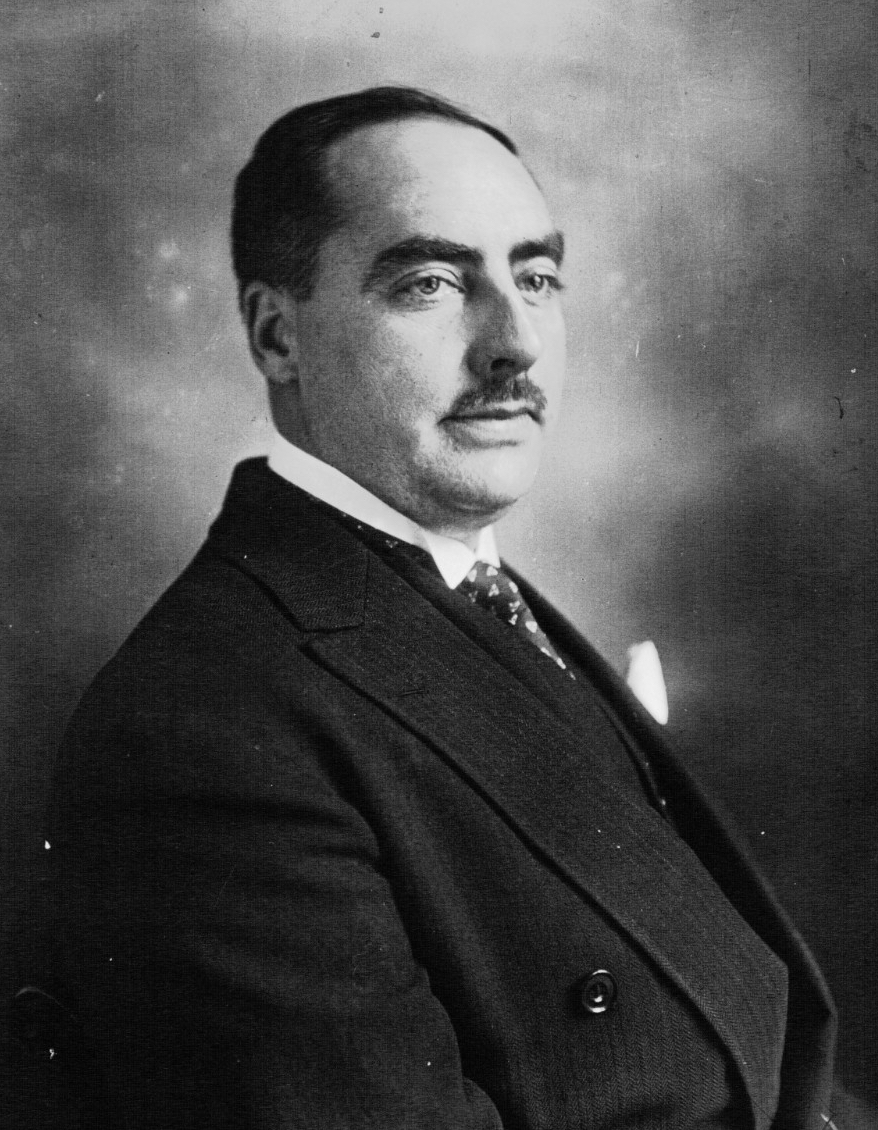
Pierre-Charles Taittinger (4 October 1887 – 22 January 1965) was the founder of the Taittinger champagne house and chairman of the municipal council of Paris in 1943–1944 during the German occupation of France, in which position he played a role during the Liberation of Paris.
There are plenty of places where you can find hi-res old photos to retouch. The library of congress is such a place, where you can find high qulaity images and is completely copyright-free
I used it quite often to work on samples to put on my portfolio when I was still doing that sort of things, because I couldn't show proper commercial work (since they were personal images from clients)
But there's lots of websites specialised in cultural artifacts
https://www.europeana.eu/en

Search, save and share art, books, films and music from thousands of cultural institutions
sly hawk
I had a look online too with a reverse image lookup and didn't find much
vapid flume
sly hawk
I had a look online too with a reverse image lookup and didn't find much
I did the same, but nothing came up...
 open mica
vapid flume
How did you scan it. Which settings? unless you're showing just a screenshot,. I...
open mica
vapid flume
How did you scan it. Which settings? unless you're showing just a screenshot,. I...
How did you scan it. Which settings?
It's a screenshot
open mica
sly hawk
I think my attempt probably looks better <@970460338845798431>
You applied PS colorization too?
vapid flume
I remember when I had to colorised by hand, and how easy is it now (when it works 🙂 )
sly hawk

Having a wierd blue suit loolked a bit strange
so I removed the blue and painted his tie
sly hawk
open mica
You applied PS colorization too?
Yeah. I first upscaled it used Upscayl and then let photoshop do its colourise thing.
vapid flume
don't you dare panting ze tie of a french man! (said in a Hallo Hallo accent, of course!)
sly hawk
then I removed the blue from the suit...
then according to @vapid flume, I ruined it all by painting his tie 🙂 👔
ripe quest
ashen carbon
it just said, so make a clean reinstall. i can try but I think its not that vali...
What's the error in the GPU Compatibility? Perhaps just update your Nvidia drivers.
ashen carbon
ripe quest
What's the error in the GPU Compatibility? Perhaps just update your Nvidia drive...
Made the Update twice :/ not working
open mica
sly hawk
Yeah. I first upscaled it used **Upscayl** and then let photoshop do its colouri...
Thanks for the time invested
fluid craneBOT
Gave +1 Creative Carma to @sly hawk
 vapid flume
That's where I really don't understand why didn't you scan at a higher resolution (I understood you got the book at hand, maybe it's not the case)
open mica
It's a screenshot from the web, not a scan
The picture looks like old (early 1900s) I don't think the original is any better.
vapid flume
open mica
It's a screenshot from the web, not a scan
The picture looks like old (early 190...
I had some good results from old images scanned and when I mean old, they were from the 19th century
Not my scan obviously, but I did scan family photos the size of a Carte de visite (The Disderi style) and they ended up something around 6000 px wide, without any of that nasty noise/jpeg compression
it helps a lot because upscaling is always worse than having the real pixel count
Also a proper scanner with some good optics does wonder
 nimble leaf


Hi, I want to create the second look but when I directly use the screen it makes the cat pinker. But I don't want any color changes. How can I cut the parts outside of the brush stroke behind like the one in the second picture?
vapid flume
select your top layer and right click in the layer panel to choose "create clipping mask"

Your top layer will appear like that, with that arrow

that will mean your top layer pixel content will get constrained to the pixel content of the bottom one
nimble leaf
Thank you very much

 spiral yarrow
Hello guys, i have question that i can´t solve, even google doesnt give a good response. I want to copy something i drew from a layer and paste it into a blank video layer but it always creates a normal new layer. Anyone got a solution?
median forge
vapid flume
See that. I know it's nopt copper, but it will be easy to adjust the colour in P...
Thanks for the recommendation!
fluid craneBOT
Gave +1 Creative Carma to @vapid flume
dapper yarrow
How to i change the opacity of an image but also keep the opacity level when exporting
sly hawk
dapper yarrow
How to i change the opacity of an image but also keep the opacity level when exp...
Are you trying to export as a JPG or something?
If so... Pick PNG and try again 🙂
dapper yarrow
Png but if i just change the opacity slider over the layers it dosent stay when exporting
open mica
vapid flume
I had some good results from old images scanned and when I mean old, they were f...
With Topaz PS plugin:

 wide wadi
hi can you make a gif in photoshop
lucid crane
wide wadi
hi can you make a gif in photoshop
Yes, File>export>export as > choose gif 🙂
wide wadi
lucid crane
Yes, File>export>export as > choose gif 🙂
thanks, is there a way to make this in photoshop but instead of a circle in middle it’s a square?
fluid craneBOT
Gave +1 Creative Carma to @lucid crane
wide wadi
 lucid crane
wide wadi
lucid crane
wide wadi
I misunderstood when you said make a gif and read it as export a gif!
However, yes you could if you use the Photoshop > window > timeline and then make the two parts:
one static like shown but then make the middle square and animate it over the correct number of frames, then export.
It will take some work to do! Masks, layers, animating!
river otter
Hey is there anyway i can get something free cause i need to do something quick and im broke
strange hull
river otter
Hey is there anyway i can get something free cause i need to do something quick ...
sir this is photoshop
 ionic perch
what would be on your wishlist for a new photoshop feature?
strange hull
ionic perch
what would be on your wishlist for a new photoshop feature?
Ai assistant
And it’s probably happening
Can’t tell ya anything more tho lol
 tardy marsh
@ionic perch A simple & fast document de-warping and de-skew, perspective warp works for skewing , but it slow for multiple document and Acobat's inplmentation in great. I would like something similar to what Adobe Adobe Scan provides. Or maybe a AI de-skew / de-warp. I have to do this weekly and would save tons of time.
tardy marsh
@ionic perch More tools for Panoramas and stitching such as linear stitching where the camera moves vertically or horizontally as apposed to rotating around a singular axis. Useful for photos subject like murals where lens correct starts to fail or scans of large maps, paintings and prints for document archiving. PTGUI and Hugin work but the UI and workflow is a pain and linear stitching is a pain to setup.
 shell cave
What's up with you?
Updates are simply loaded, synchronizations simply start, even though automatic updates and syncs are turned off in the "great" CC?
PS beta works 0, PS v24 only program errors?
Unfortunately, the opinions are piling up and after almost 20 years I'm really starting to think about looking for other tools.
Unfortunately, your functionality has fallen into disarray.
Was ist bei euch los?
Updates werden einfach geladen, synchronisationen starten einfach, obwohl in der "tollen" CC automatische Updates und Syncs aus sind?
PS beta funktioniert 0, PS v24 nur Programmfehler?
Leider häufen sich die Meinungen und langsam nach fast 20 Jahren überlege ich wirklich mir andere Tools zu suchen.
Leider sind eure Funktionalitäten ins bodenlose gefallen.
Schade. Ich installier mir jetzt Gimp.....
Cheers
 past moss
for generative fill... what would be the best language for a backwards baseball cap.
backwards cap is the closest ive gotten, one out of the three will display it correctly but id like to make it red but if i add red to any spot of the prompt, it puts it back wearing it forward.
thoughts?
Also my selection is pretty solid given how it does it right sometimes, i think i just need to work on the prompt.
 high latch
how do i use the feature where ai creates things
like you just select an area
type a prompt
and ai makes it
wide wadi
lucid crane
I misunderstood when you said make a gif and read it as export a gif!
However, y...
how many
 static osprey
Hello this is somewhat related to PS but on my Lightroom it shows I have 2TB available but on my other programs it is showing I only have 100gb. So I used up 200gb out of 2TB in Lightroom but in PS or other program it is showing that my cloud storage is full at 200gb out of 100gb. Does anyone if I'm syncing wrong or something? Thanks in advance
dapper yarrow
help
 sweet field
high latch
how do i use the feature where ai creates things
sweet field
high latch
how do i use the feature where ai creates things
Hi! In the newest version of PS, you can select an area and the context bar should show up on the bottom of your screen. You can type your prompt in there.
dapper yarrow
can someone help me
 inland creek
how can i apply camera raw filter to this and not make it 30mb xD

cuz this is low quality
7mb
 hot yarrow
does anyone know how I can fill the center of this masked object without going through pain?
 inland creek
hot yarrow
does anyone know how I can fill the center of this masked object without going t...
inland creek
hot yarrow
does anyone know how I can fill the center of this masked object without going t...
select object - paint bucket tool
or select the inside and color fill
hot yarrow
Its a masked object so I literally cannot fill the inside
inland creek
yeah than you need to make a selection of the inside and while the selection is actibve ad a color fill adjusment layer
hot yarrow
And if I try coloring in another layer, the outline dissapears
inland creek
inland creek
yeah than you need to make a selection of the inside and while the selection is ...
.
hot yarrow
and magic wand is just not doing it

 hot yarrow
Yeah, but thats from a snip and clip. I am dealing with a masked and a outlined thing
inland creek
check dms
sly hawk
@inland creek - to be fair, this does feel wierd.
You mask something, even then smart object and rasterise it, and it STILL seems to remember the previous pixels when you try and use a simple paint bucket.
inland creek
sly hawk
<@519388391817609219> - to be fair, this does feel wierd.
he sent me the psd and after i duplicated the layer and rasterized it, it worked. idk why it doesn't fore some people
dapper yarrow
help
strange hull
dapper yarrow
help
with
dapper yarrow
i already got help
strange hull
bruh
 spark wing
How would i make the second image look a little like the first, not exactly js the blur and the colour and the qualloity


 steady girder
Sorry what do you mean by “look like the first”
 eternal quest
Hi, I have some text above a backgound image, as in the first image. But if I applied some Gaussian Blur to the text, the ball in the background image would look like it is infront of the text, as in image 2 and 3. In there a method that I can apply some Blur to the text but the inner of the text doesn't go transparent, so the ball in the backgound would not appear in front? Thank you!


 final fractal
why does this red bar keep appearing behind my layer?

its on all my layers how do i fix this
strange hull
final fractal
why does this red bar keep appearing behind my layer?
The red bar appearing behind your Photoshop layer indicates that you have entered Quick Mask Mode. To exit this mode, you can simply press the Q key on your keyboard, which is the shortcut to toggle Quick Mask Mode on and off. Alternatively, you can click the Quick Mask icon at the bottom of your toolbar. Quick Mask Mode is used for viewing and adjusting active selections, and it represents unselected areas with a semi-opaque red highlight
@final fractal
final fractal
thank you so much
 spice galleon
I have a question and please delete if not allowed bit will someone please help me with a small project?
 sly hawk
spice galleon
I have a question and please delete if not allowed bit will someone please help ...
sly hawk
spice galleon
I have a question and please delete if not allowed bit will someone please help ...
Tell us what the question/request is then.
sly hawk
 smoky thorn
Hello, i have question. How to change the text by the background color?
smoky thorn
Hello, i have question. How to change the text by the background color?
You want to make the text the same colour ad the background?
sly hawk
eternal quest
Hi, I have some text above a backgound image, as in the first image. But if I ap...
You want the inside edge of the text to stay sharp, but the outside part to be blurry/faded?
spice galleon
sly hawk
You want the inside edge of the text to stay sharp, but the outside part to be b...
@sly hawk I have private messages you as I feel that would be easier to explain send things etc
strange hull
spice galleon
<@342046864692084738> I have private messages you as I feel that would be easier...
whats the question
i wanna see
eternal quest
sly hawk
You want the inside edge of the text to stay sharp, but the outside part to be b...
yes. The Gaussian Blur makes the text Blur and transparent, I hope the inside of text stay solid.
smoky thorn
sly hawk
You want to make the text the same colour ad the background?
Actually, I want to remove the text and replace it with the background color in order don’t have text
sly hawk
smoky thorn
Actually, I want to remove the text and replace it with the background color in ...
That translates to me as "simply paint over the text in the same red paint colour as the background"
smoky thorn
yeah
The problem is that the text is on a PNG image and I cannot cover the text with color
sly hawk
sly hawk
smoky thorn
The problem is that the text is on a PNG image and I cannot cover the text with ...
oh, why not?
Maybe share more of the image/context because I have no idea what the problem is at the moment.
spice galleon
strange hull
whats the question
I have dmd you
smoky thorn
sly hawk
Maybe share more of the image/context because I have no idea what the problem is...
I want to replace the "William" with the color in the background, only the "William"
 sly hawk
eternal quest
Hi, I have some text above a backgound image, as in the first image. But if I ap...
sly hawk
eternal quest
Hi, I have some text above a backgound image, as in the first image. But if I ap...
I'd maybe do it like this then....
So you simply want to REMOVE the word 'william'?
sly hawk
spark wing
How would i make the second image look a little like the first, not exactly js t...
Probably something like this....
maybe a bit more of this too...
 solid prism

why the heck is it making a star instead of a polygon shape?
i wanted to make an octagon but it made a star instead
 solid prism


 solid prism
sly hawk
Glad you're sorted <@1095756853356535950> !
solid prism
sly hawk
Glad you're sorted <@1095756853356535950> !
🙌
sly hawk
Hey, as a favour in return @solid prism - what do you think the top 3 letters say here?

first glance. - etc
I want to know if it's clear/obvious enough
 sly hawk
foggy ore
sly hawk
foggy ore
Can you share that pic without the big white circles, and I'll show you
(and preferably without the headshots in)
vapid flume
foggy ore
I would honestly create a pattern from a piece of the lines and remove the old one to repace by a repeating pattern layer.
@sly hawk I'm reading WMZ
sly hawk
Thanks 🙂
vapid flume
I'm sure it can help both the OP and you @sly hawk
There 's this website
https://architextures.org/

There's some examples of corrugated repeating patterns ready to us there, although it seems very simple to create from scratch with a couple of straight lines
sly hawk
vapid flume
I'm sure it can help both the OP and you <@342046864692084738>
There 's this we...
Cheers. - I've been suckered in to helping a mate come up with a logo and build them a website, I know very little about their company except what he wants to call it.
vapid flume
If you crate two rectangles with the right colour and one with a gradient overlay to simulate the shadow
Something around that

And then turn that into a repeat pattern (edit> define pattern)
this is what it makes

took me two minutes!
the thing is that you need to flatten the layers before going to "define pattern" (because the option wiill only take into account the selected layer)
or do like I did, create a stamped layer on top, so as not to loose all the work done in case something isn't quite right

and actually it could be only one pixel in height, since it's just need to repeat the shapes horizontally. Mine here is too big for no reason
 brazen elbow
Hello, ive got a simple question. Im designing this zip up on ps and in order to make it black idk why I inverted the colors. But as you might asume, im having problems adding new ones. Is there any way to eliminate the inversion effects from now on while mantaining the parts that has edited?

thanks in advance
vapid flume
The "invertir" adjustment layer is what makes it black I suppose?
Anything on top will not be affected
Maybe invert is not the best way to go about this?
Can you show how is the layer stack without that adjustment layer?
I would just fill the interior of the white lines with black if I had to do it (maybe with a masked solid colour adjustment layer so I could change the black to another colour if I needed)
brazen elbow
vapid flume
The "invertir" adjustment layer is what makes it black I suppose?
Anything on to...
yes it is
brazen elbow
vapid flume
Can you show how is the layer stack without that adjustment layer?
what is the stack layer?
brazen elbow
vapid flume
The "invertir" adjustment layer is what makes it black I suppose?
Anything on to...
theorically, but when I use feather tool it is still black using red although it wont happen with the brush tool for example
vapid flume
The layer stack is all the layers in your layers panel. It has an order and the top layer affect what's underneath it according to its blending mode
If you place your invert layer in the middle of your layer stack, then it will affect only what's below, not what's on top
What made you choose to invert the colour instead of creating a black shape with white cut out lines?
what I assume are these 3 layers there

And more importantly how did you create those lines? (that I assume are black, inverted as black
Because you could just invert those lines (applying an invert adjustment just on that layer, preferably as a smart layer) so your invert layer wouldn't affect all the other layers
I know it's a joke, but it's not funny

Some people might report you 🙂
With good reason
vapid flume
brazen elbow
theorically, but when I use feather tool it is still black using red although it...
With this sentence, I am even more confused of what you want to do... Why would you use the feather tool? There is nothing that warrants a blurred result here. You need sharp shapes
brazen elbow
vapid flume
What made you choose to invert the colour instead of creating a black shape with...
i just had made it black and white background so i chose to invert
brazen elbow
vapid flume
What made you choose to invert the colour instead of creating a black shape with...
those are both pockets and pieza 7 be the entire piece
brazen elbow
vapid flume
Because you could just invert those lines (applying an invert adjustment just on...
okay, how can i do this?
brazen elbow
vapid flume
With this sentence, I am even more confused of what you want to do... Why would ...
i dont know lol, im a beginer so i guess im making many silly mistakes hahaha
vapid flume
Are those 3 layers just black lines initially? where did you found them if you haven't created them? Because there might be a simpler way to get what you want.
vapid flume
brazen elbow
i dont know lol, im a beginer so i guess im making many silly mistakes hahaha
No problem, you got to start somewhere 🙂
brazen elbow
vapid flume
Are those 3 layers just black lines initially? where did you found them if you h...
i mean i drew them, and they were black yes, so i inverted
vapid flume
If I give you a step by stel, then you can follow it and I can explain the why after... Is that OK?
vapid flume
brazen elbow
i mean i drew them, and they were black yes, so i inverted
So it's not the work of a beginner 🙂
That's a good job
brazen elbow
vapid flume
If I give you a step by stel, then you can follow it and I can explain the why a...
yes sure!
brazen elbow
vapid flume
So it's not the work of a beginner 🙂
thanks! watched some tutorials
fluid craneBOT
Gave +1 Creative Carma to @vapid flume
vapid flume
First, hide all your layers. You want to keep them just in case, but they are not needed for the moment.
To hide them, just click on the little eye icon nest to the layer
When you're done, tell me, so I can go to step number 2
vapid flume
OK, now. Take one of your black line for the hoodie, and right click on the layer and choose "convert to smart object". You need to unhide it first, sorry
 vapid flume
brazen elbow
i guess im not hiding the bg
vapid flume
brazen elbow
i guess im not hiding the bg
Hide it too
then go to image>adjustment>invert
it will invert the layer only, and by converting it to a smart object, you'll be able to change the adjustment or even delete it.
 rustic monolith
hello! got a question. How do i extract the hand shadows in pic 1 then place it on the table of pic 2?

 brazen elbow
vapid flume
it will invert the layer **only**, and by converting it to a smart object, you'l...
brazen elbow
vapid flume
it will invert the layer **only**, and by converting it to a smart object, you'l...
okay thanks, imma try
fluid craneBOT
Gave +1 Creative Carma to @vapid flume
vapid flume
rustic monolith
hello! got a question. How do i extract the hand shadows in pic 1 then place it ...
You can, but it will be tricky because you'll have to retouch the bit where the shadow cross the gap between the tiles, Which is not the same tone as the ground
But, personnally I would so with blend if, in order to remove all the white from the photo and just keeping the shadow
https://www.youtube.com/watch?v=yAMXBYx0r5g


In this Photoshop tutorial, you will learn how to use "Blend If" like a pro.
This Photoshop tutorial will demystify this scary command to help you create fast and easy blends.
With the techniques that you will learn in this tutorial, you will be able to make fast and easy sky replacements, apply textures to text, create cool special effects, ...
then you'll have to remove the black bits at the top and fill in the gaps left by the tiles
brazen elbow
vapid flume
OK, now. Take one of your black line for the hoodie, and right click on the laye...
it worked, thanks!
fluid craneBOT
Gave +1 Creative Carma to @vapid flume
vapid flume
brazen elbow
it worked, thanks!
Do it for the other two layers now
Do you need the interior of the hoodie black?
Also a question, how did you draw the hoodie lines, is it vector?
rustic monolith
vapid flume
then you'll have to remove the black bits at the top and fill in the gaps left b...
wait, where are the black bits?
these?
 vapid flume
at the top! delete them with the eraser tool or mask them using a mask and a black brush
 rustic monolith
alright, thank you
rustic monolith
vapid flume
But, personnally I would so with blend if, in order to remove all the white from...
i will try this now
vapid flume
rustic monolith
i will try this now
When you're done, change the blending mode to "multiply", change the opacity to suit according to how it show in the bowl layer

but as I said, you need to retouch those lines with the clone tool before adding blend if
Unless you manage to line them up perfectly, but it seems that the perspective is a bit different
Next time, prepare your photo by putting a white piece of paper (or a bed sheet) on top of the table 🙂
vapid flume
fluid crane
Gave +1 Creative Carma to **<@705735115434622987>**
I need to go now, so if you still need more help, someone else will fill in (if someone does, it's best to refer to the conversation we have with a link as a way of not explaining everything again)
rustic monolith
vapid flume
Next time, prepare your photo by putting a white piece of paper (or a bed sheet)...
i'll make sure to do so next time, thank you for the help!
fluid craneBOT
Gave +1 Creative Carma to @vapid flume
eternal quest
sly hawk
I'd maybe do it like this then....
Thank you so much! I got your idea, I applied an inside glow effect to the duplicate text layer below the blur text layer, and it look good.
fluid craneBOT
Gave +1 Creative Carma to @sly hawk
 viral python
Guys any tips how I can add fur skin to shark body?
 river otter
viral python
Guys any tips how I can add fur skin to shark body?
river otter
viral python
Guys any tips how I can add fur skin to shark body?
Legacy brushes -> Grass
You can also put original cat body over shark by clipping it, and change blending mode.
After that fix with grass or hair brush.
viral python
I unfortunately don't have full cat body bcs it was only a head
but I will try my best, thanks for the brush idea
river otter
Download cat image. 😐
 hollow jasper
can any one help im trying to use the ps Ai but it just not doing what i want
dry swallow
can anyone help me with stroke with these jeans
.

how do you get it like the image above?
 crimson gazelle
Does anyone know if there's a way I can figure out if there's a gif of this image on the internet anywhere?

Not asking to look for me, just wanna see if anyonhe knows any tools I can use other than reverse search since that hasn't helped me
 dapper moss
crimson gazelle
Does anyone know if there's a way I can figure out if there's a gif of this imag...
dapper moss
crimson gazelle
Does anyone know if there's a way I can figure out if there's a gif of this imag...
did you try google lens
crimson gazelle
no
dapper moss
maybe it will be there
crimson gazelle
alr ill check it out
dapper moss
theres this weird grid thingy thats ruining my drawing. how can i get rid of it

(its adobe fresco)
nvm i finally got rid of it
dapper moss
crimson gazelle
alr ill check it out
and?
crimson gazelle
is google lens only on mobile?
dapper moss
nope also on pc
river otter
Hey all. Having an issue with PS. Im trying it out because Windows photo viewer doesnt seem to allow the use of printer profiles (sublimation)
But windows photo viewer seems to be smart enough to print the photo at the correct size whereas photoshop zooms in to the photo and tells me it wont print correctly
I cant seem to fix it nor do I know why Photoshop wants to zoom the photo when an extremely basic prog can print it correctly
 terse rivet
How could I / or would it be even possible without too much struggle to get rid of the white mark on lens

 scenic schooner
How can i get rid of the sun lines and make the photo look better? I took while driving so its a bit messed up

 magic swallow
a bit of a newbie question, but how do i fill the blank region here

 supple moat
scenic schooner
How can i get rid of the sun lines and make the photo look better? I took while ...
supple moat
scenic schooner
How can i get rid of the sun lines and make the photo look better? I took while ...
maybe try using clone stamp? or spot healing brush tool
sly hawk
magic swallow
a bit of a newbie question, but how do i fill the blank region here
Can you share more of the image?
Looks like you can just clone it in from the content nearby
magic swallow
 magic swallow
sly hawk
Looks like you can just clone it in from the content nearby
magic swallow
sly hawk
Looks like you can just clone it in from the content nearby
how?
magic swallow
sly hawk
<@670481111000023040>
thank you so much
fluid craneBOT
Gave +1 Creative Carma to @sly hawk
sly hawk
scenic schooner
How can i get rid of the sun lines and make the photo look better? I took while ...
Maybe something like this?
sly hawk
terse rivet
How could I / or would it be even possible without too much struggle to get rid ...
There's probably smarter ways, but here is one method/try...
sly hawk
crimson gazelle
Does anyone know if there's a way I can figure out if there's a gif of this imag...
Do you mean an animated gif?
if so... no, doesn't look like it
 low granite
wich effects do u think i should use to transform this
 sly hawk
Into what?
 terse rivet
sly hawk
There's probably smarter ways, but here is one method/try...
terse rivet
sly hawk
There's probably smarter ways, but here is one method/try...
thanks so much <3
fluid craneBOT
Gave +1 Creative Carma to @sly hawk
sly hawk
low granite
into this
I'm not entirely sure what you mean but does any of this help?
 mossy lantern
How can I do this in photoshop? I want to create a circle and rotate it around the center of the canvas
 native geode
I@ new to the server ! Hi ! Does anyone here help with ps stuff? I need help photoshopping something. More specifically, adding text or handwritten text on the body
 rare idol
i was drawing in photoshop and i was undoing a bunch of actions and then all my work dissapeared like 80% of my layers, so im back to where i started 5 hours ago 😦 does anyone know how i can go back or something cuz this is so weird

 mortal girder
@rare idol
Can u try making the red toned down by a lot , it’s too bright too see
Then it’ll look good

U can try with this too @rare idol
@everyone
 mortal girder
Can u just do the “ stop “
strange hull
…
mortal girder
Just the word “stop” in red
strange hull
Why don’t you just do it if it’s your photoshop project
It’s way easier if you have the text layer on its own lol
mortal girder
I did it
I’m good now
Idk how to fix the red that’s not filled in fully tho

Can sm1 help with dat
strange hull
Why are you in photoshop server then… lol
mortal girder
Idk just cause
My quality is messed up when I do the red @rare idol could u just send it with just the “stop” being in red instead of all of it?
That’s all
And I’ll never come back
ripe quest
mortal girder
My quality is messed up when I do the red <@990738870192730163> could u just se...
Please take these conversations to DM. This channel is for learning Photoshop. Not for fulfilling your special requests.
 wise cosmos
how can i turn a path into a stroke?
rare idol
rare idol
i was drawing in photoshop and i was undoing a bunch of actions and then all my ...
can anyone answer dis!
cuz very sad
ripe quest
rare idol
can anyone answer dis!
You can only go back a certain number of steps in History (defined in Preferences).
rare idol
i did but it didnt work
and couldnt go back further
i just lost all my work and idek how i did it
wise cosmos
sadly thats the only solution i can think of at least. any chance you saved it on cloud and your computer?
rare idol
i didnt do any saves, i just did it in one day with no breaks ndd stuff :((
ripe quest
rare idol
i didnt do any saves, i just did it in one day with no breaks ndd stuff :((
Did you open the History Panel and look at the steps there?
rare idol
where do i do that
ripe quest
Window > History...
rare idol
😦
 ripe quest
rare idol
😦
ripe quest
rare idol
😦
History is only stored during the session. If you've closed the document and re-opened, it will be empty.
 strange pollen
My exports are coming out really low quality

Does anyone know why this is and how I can fix it?
ripe quest
strange pollen
My exports are coming out really low quality
Export to PNG
strange pollen
ripe quest
Export to PNG
That is a png it also looks low quality in photos when I zoom in a tiny bit or resize the logo
Is it my settings ?
ripe quest
strange pollen
That is a png it also looks low quality in photos when I zoom in a tiny bit or r...
You can't arbitrarily increase the size of a bitmap and expect the image to remain the same quality. Especially if you're scaling it up a lot.
 strong abyss
I see a barely noticeable difference on my TN monitor, the avatar gives off a little green tint
ripe quest
strange pollen
Is it my settings ?
It's impossible for me to know this. I have no idea what you're doing, the size of the document, how you're exporting it, etc.
ripe quest
strange pollen
My exports are coming out really low quality
I'm not sure what its "supposed" to look like but this doesn't look bad to me.
 keen mantle
Does anybody know how to remedy this issue I'm facing? Working on a video game render and I'm changing the color of the eyes via layer mask with color fill and the blending mode set to color. When the color is changed, the color pixelates. Any tips for me?


 bold scarab
hey could somebody help me please I've got a problem with my Open CL. Whenever I open photoshop an error message pops and says that my Open CL is unavailable
these are the messages that show up. I cannot enable the Open CL in the settings because it is grayed out

 ripe quest
bold scarab
these are the messages that show up. I cannot enable the Open CL in the settings...
ripe quest
bold scarab
these are the messages that show up. I cannot enable the Open CL in the settings...
Are the Nvidia drivers up-to-date? Its easy to check and update with the Geforce Experience app
bold scarab
yes nvidia and intel are up to date
photoshop too
i noticed that this problem occurred shortly after updating photoshop


 bold scarab
but i have updated them already i don't know why it is saying that
ripe quest
keen mantle
Does anybody know how to remedy this issue I'm facing? Working on a video game r...
Try a different method. Perhaps use an Adjustment Layer > Hue/Saturation + Colorize instead of using a Color Fill and a Blend Mode.
tardy marsh
keen mantle
Does anybody know how to remedy this issue I'm facing? Working on a video game r...
Looks to me like the orginal might have been an 8bit, index color PNG. You might need to convert it to RGB first and use the blend tool or create a mask and slightly blur the green gradient a little.
keen mantle
ripe quest
Try a different method. Perhaps use an Adjustment Layer > Hue/Saturation + Color...
Good idea, but it didn't work :(
keen mantle
tardy marsh
Looks to me like the orginal might have been an 8bit, index color PNG. You migh...

I got Photoshop 3 days ago
It is pretty different from Photopea, so I'm a little lost hearing that
ripe quest
It's already RGB, correct?
keen mantle
Are you speaking of the channels
ripe quest
In the tab, it will say: RGB/8. Its currently covered in your screenshot.
Oh. Never mind. Its a layered document.
ripe quest
keen mantle
Yes it's RGB/8
Did you import this graphic in from some other source? Was it originally Indexed color?
keen mantle
I am not entirely sure what indexed color is. The origin file type is a .BNTX, which is basically Nintendo's version of a .DDS. I had issues converting it to a .DDS so I had to export it as a .PNG.
here's a better view of the pixelation
 ripe quest
I don't know anything about BNTX files. Indexed color are a limited color palette, only a max of 256 colors available.
keen mantle
That's not what this is
tardy marsh
keen mantle
I can load the original document one second
I just notice you have a brighness and contrast layer between the eye layer and your color layer. Try reducing the contast, that would likly case the issue.