#Homebrew wont read flash drive
83 messages · Page 1 of 1 (latest)
 hazy isle
 potent coral
hazy isle
My homebrew detects my flash drive, but when i try to switch to it, it immediate...
potent coral
hazy isle
My homebrew detects my flash drive, but when i try to switch to it, it immediate...
Use a hdd because using flash drives on the wii never goes well
hazy isle
potent coral
Use a hdd because using flash drives on the wii never goes well
all i have man
 hallow gyro
just use your sd
 gentle cloud
hazy isle
all i have man
gentle cloud
hazy isle
all i have man
take one out
dont use 2 at the same time ive had that experience
hallow gyro
dude tf are you on about
gentle cloud
hallow gyro
dude tf are you on about
if it keeps switching back just take the sd card out
hallow gyro
that's totally not a thing
gentle cloud
thats all im saying
 celest meadow
Wtf
gentle cloud
are you slow
celest meadow
You should always keep your SD card in your Wii unless you're adding apps to it
hallow gyro
gentle cloud
are you slow
i assume you're an alt of someone
gentle cloud
hes using a flash drive
celest meadow
I'm aware
hazy isle
hallow gyro
just use your sd
i dont have anything to read/write the sd with
celest meadow
Get an adapter
hallow gyro
hazy isle
i dont have anything to read/write the sd with
do you have a way of downloading homebrew apps to it? you can download ftpii and remotely manage it from another device
gentle cloud
i use a flash drive it works fine
celest meadow
It might work for now but down the line it'll fail
gentle cloud
hallow gyro
do you have a way of downloading homebrew apps to it? you can download ftpii and...
ftpii wont work for some reason
hallow gyro
i'm not talking to you
hazy isle
hallow gyro
do you have a way of downloading homebrew apps to it? you can download ftpii and...
no i dont
hallow gyro
it works fine for me
gentle cloud
weird
hazy isle
rn im full formatting the flash drive to see if it does anything
hallow gyro
hazy isle
no i dont
no homebrew browser or anything?
celest meadow
Remember Fat32
hallow gyro
hazy isle
rn im full formatting the flash drive to see if it does anything
follow these instructions
hazy isle
celest meadow
Remember Fat32
it is
hallow gyro
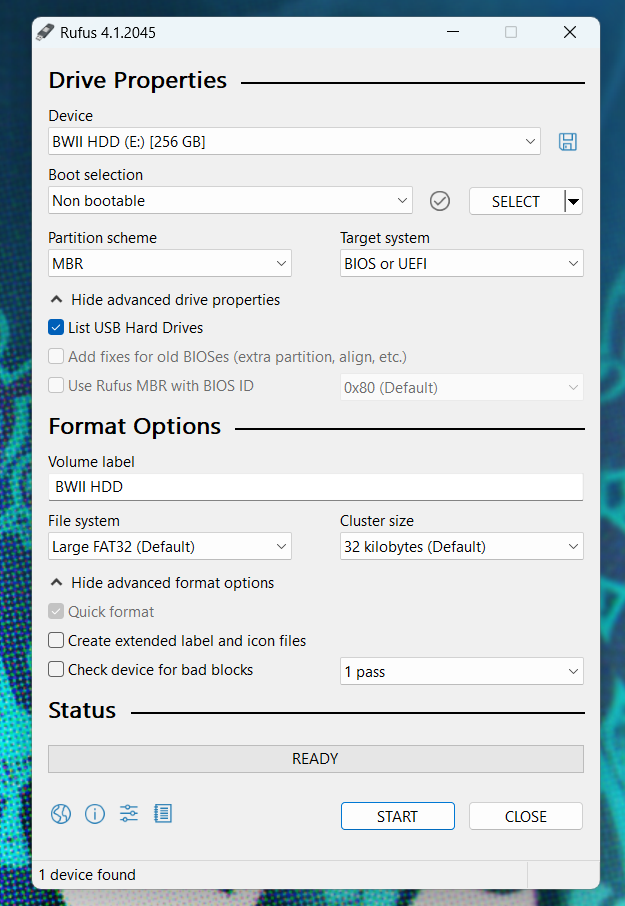
You can use Rufus on a Windows machine to easily format an external hard drive or SD card for use with your Wii.
⚠️ Formatting a drive will delete all data on the drive. Backup any essential data on a drive before proceeding with the formatting process.
- Download and install Rufus to your machine: https://rufus.ie/
- Most people will want the Standard Windows x64 version.
- Launch Rufus.
- Click
Show advanced drive properties. - Check the box next to
List USB Hard Drives. - In the
Devicedropdown, select the SD or USB drive you'd like to use with the Wii. - In the
Boot selectiondropdown, selectNon bootable. - In the
Partition schemedropdown, selectMBR. - In the
Volume labeltext field, enter a name for your drive. Be creative. - In the
File systemdropdown, selectFAT32orLarge FAT32 - In the
Cluster sizedropdown, select32 kilobytes. - Click
Show advanced format options - Make sure
Quick formatis checked. - Uncheck
Create extended label and icon files - Click Start to begin the format process.
Here is a screenshot of what your settings should look like:
https://i.imgur.com/YvYy0k2.png
 gentle cloud
hallow gyro
You can use Rufus on a Windows machine to easily format an external hard drive ...
gentle cloud
hallow gyro
You can use Rufus on a Windows machine to easily format an external hard drive ...
thats for isos
hallow gyro
gentle cloud
thats for isos
no it's not
celest meadow
Wtf
hazy isle
hallow gyro
You can use Rufus on a Windows machine to easily format an external hard drive ...
i already formatted it
gentle cloud
hallow gyro
no it's not
yes it is
celest meadow
No it's not
hallow gyro
please stop talking
hazy isle
if it doesnt work ill try rufus
celest meadow
How big is the storage device?
gentle cloud
istg if its 512mb
celest meadow
I'm talking about the usb drive
hazy isle
celest meadow
How big is the storage device?
like 16gb. im waiting on my first debit so i can actually get something good
gentle cloud
slower but reliable
hazy isle
celest meadow
Well you should get a USB Hard drive
already planning on that
celest meadow
gentle cloud
slower but reliable
Wtf. Get outta here
gentle cloud
celest meadow
Wtf. Get outta here

 celest meadow
This isn't the PS2's USB
hallow gyro
gentle cloud
slower but reliable
they aren't slower, the wii can't take advantage of flash drive speeds
gentle cloud
huh
gentle cloud
celest meadow
This isn't the PS2's USB
im not talking about its 1.1
neither am i talking about a ps2
celest meadow
Holy shitballs
hallow gyro
please just stop talking, you don't know what you're on about so stop trying to help people
hazy isle
i mean harry literally has the "helper" role
celest meadow
Anyways. If you can get the flash drive to work you can use it until you get a proper hard drive
celest meadow
https://discord.com/channels/206934458954153984/1123059917574651997 here's information about why you shouldn't use a flash drive
hallow gyro
hazy isle
yeah i mean its lasted me very well despite being a sandisk
that's a miracle it worked at all
sandisk flash drives are notoriously terrible with the wii
hazy isle
hallow gyro
that's a miracle it worked at all
its a miracle it loaded rhythm heaven, warioware, and wii party with no issues
celest meadow
hazy isle
its a miracle it loaded rhythm heaven, warioware, and wii party with no issues
That's impressive
hallow gyro
celest meadow
SanDisk SD cards are a pretty good combo with the Wii though.
most sandisk products are good
it's their flash drives in particular that suck
celest meadow
Yeah. Hate to shill but SanDisk is what I usually get in bulk.
celest meadow
Good luck!
hazy isle
oh god the flash is warm lol
hazy isle
celest meadow
Good luck!
its doing the same thing
hallow gyro
try using the rufus instructions
hazy isle
i will
hallow gyro
You can use Rufus on a Windows machine to easily format an external hard drive or SD card for use with your Wii.
⚠️ Formatting a drive will delete all data on the drive. Backup any essential data on a drive before proceeding with the formatting process.
- Download and install Rufus to your machine: https://rufus.ie/
- Most people will want the Standard Windows x64 version.
- Launch Rufus.
- Click
Show advanced drive properties. - Check the box next to
List USB Hard Drives. - In the
Devicedropdown, select the SD or USB drive you'd like to use with the Wii. - In the
Boot selectiondropdown, selectNon bootable. - In the
Partition schemedropdown, selectMBR. - In the
Volume labeltext field, enter a name for your drive. Be creative. - In the
File systemdropdown, selectFAT32orLarge FAT32 - In the
Cluster sizedropdown, select32 kilobytes. - Click
Show advanced format options - Make sure
Quick formatis checked. - Uncheck
Create extended label and icon files - Click Start to begin the format process.
Here is a screenshot of what your settings should look like:
https://i.imgur.com/YvYy0k2.png
hazy isle
luckily i already have rufus
hazy isle
hallow gyro
You can use Rufus on a Windows machine to easily format an external hard drive ...
this worked, tysm!