#I can't open apps from my usb stick through Homebrew Channel
46 messages · Page 1 of 1 (latest)

 zenith pivot
what USB loader are you using
 dawn quest
 open escarp
<@390647433735962624>
open escarp
<@390647433735962624>
⚠️ Don't use USB flash drives, thumb drives or sticks ⚠️
The list is long but the main reasons why we don't recommend USB Flash Drives, thumb drives, or sticks are:
- USB flash drive can die or get corrupted suddenly.
- Loaders have problems with flash drives.
- They're not really meant to load games.
- The Wii doesn't really like flash drives.
The ideal setup would be to get an SD card and a USB HDD.
For SD cards:
- It's recommended that the SD card be used for homebrew apps, mods, and that BootMii requires one in order for you to install it and to create a NAND backup.
- You can just use an SD card to load games, but some games and mods do not work with Large SD cards. (For example Kirby Return to Dreamland does not run properly from an SD cards and Brawl mods do not work with SDXC [SD larger than 32gb]).
- It's recommended to get a 32gb SD card, but pretty much any size should be fine.
- The limit is 2tb and preferably get a name brand SD card (e.g. SanDisk).
- Ensure that the SD card is formatted to the FAT32 file system with an MBR partition scheme and a cluster size of 32KB.
For USB HDD's:
- It's recommended that the USB HDD be used just for Wii and GameCube games.
- A 250gb USB HDD is fine, but you can go for a larger capacity if you want more games, the limit is 2TB.
- Ensure that the USB HDD is formatted to the FAT32 file system with an MBR partition scheme and a cluster size of 32KB.
Recommended SD cards and USB HDD's
-
Here are some reasonably-priced SD cards options that operate optimally with the Wii console, we would recommend exploring the links below:
https://a.co/d/ebpjmEl
https://a.co/d/iEyPXwy
https://a.co/d/hO9YvI6 -
Here are some reasonably-priced HDD options that operate optimally with the Wii console, we would recommend exploring the links below:
https://a.co/d/5Gka1hD
https://a.co/d/4KqWznm
https://amzn.to/3pnqZcl
open escarp
zenith pivot
what USB loader are you using
GX
zenith pivot
just try restarting
open escarp
zenith pivot
just try restarting
but i said Homebrew Channel, not USB Loader GX
zenith pivot
dawn quest
# ⚠️ **Don't use USB flash drives, thumb drives or sticks** ⚠️
## The list is l...
also this
please consider getting an HDD
zenith pivot
open escarp
but i said Homebrew Channel, not USB Loader GX
try restarting usb loader gx
open escarp
zenith pivot
try restarting usb loader gx
Oh ok
open escarp
zenith pivot
also this
please consider getting an HDD
i cant do that right now, cuz i am kinda broke
dawn quest
zenith pivot
try restarting usb loader gx
That's not gonna work, usb loader gx doesn't support usb flash drives and for good reason
zenith pivot
dawn quest
That's not gonna work, usb loader gx doesn't support usb flash drives and for go...
...it will, I use USB Loader GX with a flash drive and it works
dawn quest
zenith pivot
...it will, I use USB Loader GX with a flash drive and it works
Then you got lucky
open escarp
open escarp
i cant do that right now, cuz i am kinda broke
plus i live in Brazil, one HDD cost 295BRL, and i just bought this flash drive
open escarp
zenith pivot
...it will, I use USB Loader GX with a flash drive and it works
yeah, it kinda works
dawn quest
open escarp
yeah, it kinda works
Do you have an sd card
open escarp
zenith pivot
Wait I misread the title of the post
No problem
zenith pivot
use an SD card to boot Homebrew
dawn quest
HBC apps are best when on an SD card
zenith pivot
if that is not an option, just try again
open escarp
dawn quest
Do you have an sd card
Nope, but i am considering buying one, cuz its more cheap than USB flash drives(at least in Brazil)
dawn quest
dawn quest
# ⚠️ **Don't use USB flash drives, thumb drives or sticks** ⚠️
## The list is l...
@open escarp this explains everything, and what's best for what
zenith pivot
mine is 32gb
zenith pivot
32gb is recommended
quoting Zebra's post,
You can just use an SD card to load games, but some games and mods do not work with Large SD cards. (For example Kirby Return to Dreamland does not run properly from an SD cards and Brawl mods do not work with SDXC [SD larger than 32gb]).
open escarp
Oki dokie
zenith pivot
so just get a 32gb one if you want the best size to compatability ratio
dawn quest
open escarp
Oki dokie
Yes, 32gb is recommended, however if you don't care about some mods or KRTDL then you can go bigger. I would try to get a SanDisk sd card (if you can, if not then get whatever brand is good where you live)
open escarp
dawn quest
Yes, 32gb is recommended, however if you don't care about some mods or KRTDL the...
Ok i just bought one, which one i choose to format? FAT32, NTFS or Exfat?
zenith pivot
FAT32
open escarp
zenith pivot
FAT32
Okay
zenith pivot
provides the best compatability
dawn quest
open escarp
Ok i just bought one, which one i choose to format? FAT32, NTFS or Exfat?
FAT32 with the partition style MBR and a 32kb cluster size
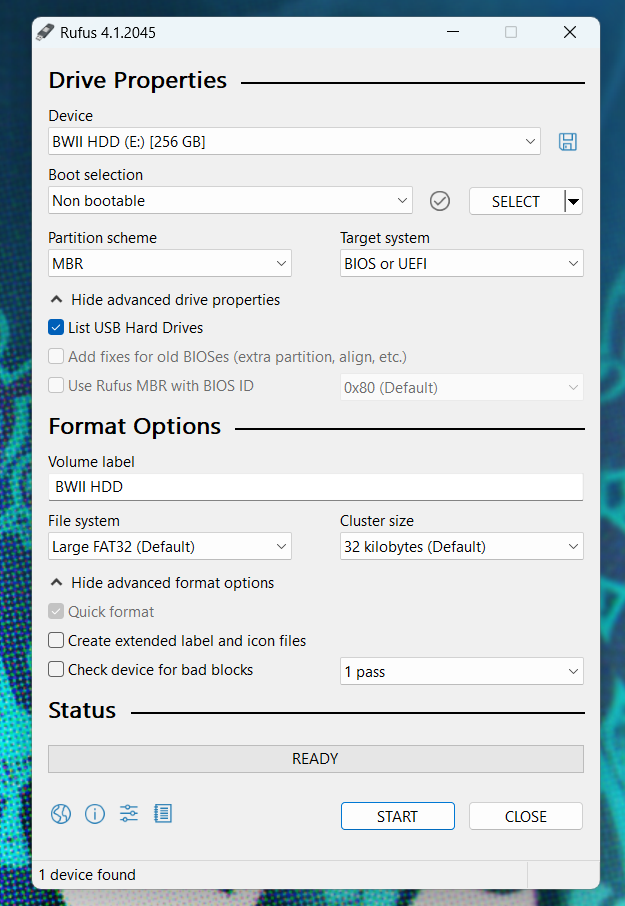
You can use Rufus on a Windows machine to easily format an external hard drive or SD card for use with your Wii.
⚠️ Formatting a drive will delete all data on the drive. Backup any essential data on a drive before proceeding with the formatting process.
- Download and install Rufus to your machine: https://rufus.ie
- Most people will want the Standard Windows x64 version.
- Launch Rufus.
- Click
Show advanced drive properties. - Check the box next to
List USB Hard Drives. - In the
Devicedropdown, select the SD or USB drive you'd like to use with the Wii. - In the
Boot selectiondropdown, selectNon bootable. - In the
Partition schemedropdown, selectMBR. - In the
Volume labeltext field, enter a name for your drive. Be creative. - In the
File systemdropdown, selectFAT32orLarge FAT32 - In the
Cluster sizedropdown, select32 kilobytes. - Click
Show advanced format options - Make sure
Quick formatis checked. - Uncheck
Create extended label and icon files - Click Start to begin the format process.
Here is a screenshot of what your settings should look like:
https://i.imgur.com/YvYy0k2.png
 zenith pivot
rufus may not be necessary
dawn quest
zenith pivot
rufus may not be necessary
It depends if their sd card is smaller than 32gb
zenith pivot
oh