
#Rufus instructions
7 messages · Page 1 of 1 (latest)
 jaunty shore
 patent fern
jaunty shore
You can use Rufus on a Windows machine to easily format an external hard drive ...
patent fern
jaunty shore
You can use Rufus on a Windows machine to easily format an external hard drive ...
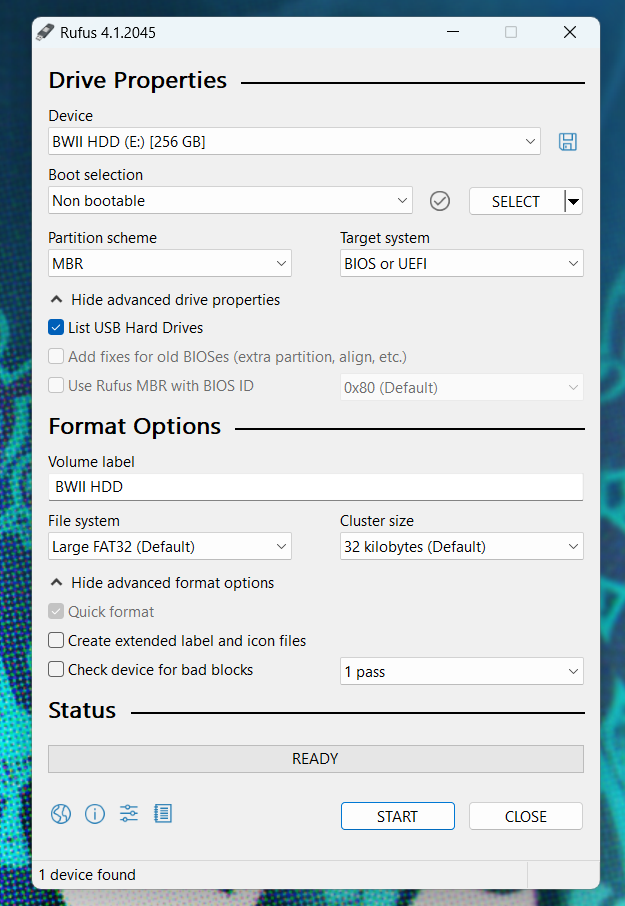
This is what mine looks like
You can use Rufus on a Windows machine to easily format an external hard drive or SD card for use with your Wii.
- It is highly recommended to create backups of all essential data before proceeding with the formatting process for any device.
+ There's a screenshot on what options to select at the bottom:**
1. Download and install Rufus to your machine: https://rufus.ie
**Most people will want the Standard Windows x64 version.**
2. Launch Rufus.
3. Click Show advanced drive properties.
4. Check the box next to List USB Hard Drives.
5. In the Device dropdown, select the SD or USB drive you'd like to use with the Wii.
6. In the Boot selection dropdown, select Non bootable.
7. In the Partition scheme dropdown, select MBR.
8. In the Volume label text field, enter a name for your drive. Be creative.
9. In the File system dropdown, select FAT32 or Large FAT32
10. In the Cluster size dropdown, select 32 kilobytes.
11. Click Show advanced format options
i. Make sure Quick format is checked.
ii. Uncheck Create extended label and icon files
Here is a screenshot of what your settings should look like:
https://i.imgur.com/YvYy0k2.png
jaunty shore
patent fern
This is what mine looks like
## You can use Rufus on a Windows machine to easi...
I liked the note about the backup reminder but I wasn't a fan of some of the formatting or the video
patent fern
jaunty shore
I liked the note about the backup reminder but I wasn't a fan of some of the for...
Same i think I'll keep the SS
jaunty shore
Also totally forgot to include instructions to click start in my original draft lol
patent fern
jaunty shore
Also totally forgot to include instructions to click start in my original draft ...
Lmao
jaunty shore
I don't remember how Rufus behaves after a successful format but maybe it needs instructions after that idk