Hey, I just got this Wii with homebrew channel and neogamma on it and I want to update everything mod-related so it has all the new stuff (apparently nobody uses neogamma anymore). I want to set up my SD, my USB drives, and install RiiConnect24, but I'm afraid to do something wrong since the wii is already modded. Help and guiding in this process would be highly appreciated :)
#Just got an used Wii with homebrew channel and neogamma. I want to 'update' all the modding made.
87 messages · Page 1 of 1 (latest)
 gentle zealot
gentle zealot
gentle zealot
@fallen nexus not sure if I'm using this thread thing right, hope I am
 fallen nexus
gentle zealot
<@390647433735962624> not sure if I'm using this thread thing right, hope I am
fallen nexus
gentle zealot
<@390647433735962624> not sure if I'm using this thread thing right, hope I am
To help troubleshoot your issue please run Syscheck and test all IOS on your Wii by following this guide:
https://wii.guide/syscheck
When it's done it will generate and display a syscheck.csv file.
Power down the Wii and insert the SD or USB into a PC. Drag and drop the syscheck.csv file from the root of your SD or USB into chat.
You can also upload the report and link the URL to chat or take photos of the entire report if you don’t have a USB or a SD reader on your PC
gentle zealot
thanks!
gentle zealot
here it is
fallen nexus
gentle zealot
here it is
+ PART 1
**1. ** Get the Hackmii installer here, then follow the guide on the page to install and update Bootmii (SD CARD REQUIRED) and update the homebrew channel to version 1.1.2:
https://wii.guide/hackmii
2. (IF YOU HAVE AN SD CARD) After installing Bootmii, follow this guide to use Bootmii to create a NAND backup:
https://wii.guide/bootmii
3. Please also install Priiloader. Follow the guide on the page to get and install priiloader:
https://wii.guide/priiloader
4. You also have a number of wasted cIOS. Please delete these specific IOS to avoid confusing a loader and save storage on your Wii's NAND.
Download and install Wii Mod Lite then launch it via Homebrew Channel:
https://wii.guide/wiimodlite
Select IOSs from the Main Menu in Wii Mod Lite.
Navigate to each of these IOS and delete them:
IOS 202, 222, 223, 224 and 236
5. Make a new syscheck and post it here
gentle zealot
Thanks, will do
I am with the hackmii installer v1.2 open right now
Do i need to uninstall the HB channel first or I can just click "install HB channel"?
fallen nexus
gentle zealot
Do i need to uninstall the HB channel first or I can just click "install HB chan...
install HBC
gentle zealot
also for bootmii just click "install bootmii as IOS"?
fallen nexus
gentle zealot
also for bootmii just click "install bootmii as IOS"?
yes
gentle zealot
ok, HBC and bootmi done, received "SUCCESS" messages for both
fallen nexus
gentle zealot
ok, HBC and bootmi done, received "SUCCESS" messages for both
nice
gentle zealot
NAND backup in progress... it is stuck in the same block for quite a while. Is that normal?
fallen nexus
gentle zealot
NAND backup in progress... it is stuck in the same block for quite a while. Is t...
no, make sure the write lock is not on. It should be in the up position.
https://images-ext-2.discordapp.net/external/hsbk57gJbBOS8efIuwlO8AGKo9a8M6CZnkm4J7T0amY/https/i.imgur.com/RvKjWcz.png
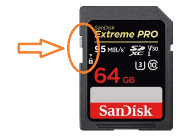 gentle zealot
I can remove and check (is it safe to remove at this screen? Should I turn the console off first?) but the weird thing it is that it was going well until halfway through. Will send a pic
 fallen nexus
gentle zealot
I can remove and check (is it safe to remove at this screen? Should I turn the c...
fallen nexus
gentle zealot
I can remove and check (is it safe to remove at this screen? Should I turn the c...
press and hold the power button
gentle zealot
ok
fallen nexus
fallen nexus
no, make sure the write lock is not on. It should be in the up position.
https:/...
^
fallen nexus
gentle zealot
Should I just try again?
what's the cluster size
Connect the drive to your PC, then search in windows for cmd and press enter.
in the command prompt, type chkdsk x: but replace x with the letter for your drive.
then screenshot the output.
Looking to verify that no issues are found and that you have
32kb (32768 bytes) or 64kb (65536 bytes) in each allocation unit.
If you have a different allocation unit size backup your data and reformat to FAT32 with the correct allocation unit size.
gentle zealot
 fallen nexus
gentle zealot
fallen nexus
gentle zealot
try reformatting the sd card
There's also a quick video tutorial on how to use Rufus and what options to select at the bottom:
You can use Rufus (https://rufus.ie) on a Windows machine to easily format an external hard drive or SD card for use with your Wii.
You need these settings:
- Turn on
List USB Hard Drivesunder Advanced drive properties, and select the correct device at the top
- Boot selection:
Non bootable - Partition scheme:
MBR - File System:
FAT32/Large FAT32
You may also want to turn offCreate extended label and icon files, found under Advanced formatting options, as to avoid your hard drive getting plagued by the Rufus icon (it's harmless)
make a folder on your desktop called "temp" or whatever and backup the files from the HDD, then reformat using rufus. Then obviously move the stuff back over
 gentle zealot
here are the settings, sharing for sanity checking
 fallen nexus
looks good
gentle zealot
just waiting for the backup to my machine to finish so I can format
fallen nexus
gentle zealot
just waiting for the backup to my machine to finish so I can format
nice
gentle zealot
fallen nexus
```diff
+ PART 1
```
**1. ** Get the Hackmii installer here, then follow the gui...
The reformatting did the trick! Then I followed the next steps you listed here.
this is the latest syscheck
fallen nexus
gentle zealot
The reformatting did the trick! Then I followed the next steps you listed here.
+ PART 2
1. You need to install IOS58, use this to install it:
https://oscwii.org/library/app/ios58-installer
**2. ** Go back to the hackmii installer that you got in part 1 and install the HBC again after you do step 1:
https://wii.guide/hackmii
3. I recommend you use the Windows program, ModMii. It has many Wii modding tools or "activities" built in.
Check your SD/USB for a WAD folder. If you have it, please delete it before continuing.
Download and install ModMii to your windows PC
https://modmii.github.io/
Launch Modmii Classic (not ModMii Skin)
Type I Agree and press enter
Type SU and press enter to select the Syscheck Updater Activity.
Provide it the syscheck.csv file you just made by dragging the syscheck.csv file from the root of your SD/USB and dropping it into the ModMii window.
It might ask you if you want to remove\overwrite RiiConnect24 in IOS 31. You can say no.
It'll list many wad files that it will download, select Y = Yes. Type O to Open File Location "COPY_TO_SD"
Copy the contents of the "COPY_TO_SD" folder to the root of your SD.
Follow the generated guide that opened in your web browser closely.
Put WAD files in a folder called WAD on the root of your SD or USB.
Then install the WADs using a wad manager like yawmME:
https://oscwii.org/library/app/yawmme
After you install the WAD files using a WAD manager, you can delete it from your WAD folder. They're installed to the Wii's system memory so there's no reason to keep it on your SD/USB.
+Don't forget to install the stub files in root:/wad/stubs/ after you install the other wad files.
4. (IF YOU HAVE AN SD CARD) Make a new NAND backup using Bootmii, follow this guide to use Bootmii to create a NAND backup:
https://wii.guide/bootmii
5. Make a new syscheck and post it here
gentle zealot
Sorry for the delay, I was so tired and ended up sleeping. I'm starting part 2 soon :)
fallen nexus
gentle zealot
Sorry for the delay, I was so tired and ended up sleeping. I'm starting part 2 s...
All good

 fallen nexus
Ok good
gentle zealot
ok so the IOS58 installer needs internet, but my wii is not finding my router access point :/
maybe I need to configure something on my network so the wii detects it?
fallen nexus
gentle zealot
ok so the IOS58 installer needs internet, but my wii is not finding my router ac...
Do you have a hotspot
gentle zealot
managed to do it with manual setup, typing the SSID name manually :)
I refused the wii system update, it's now downloading the IOS
gentle zealot
fallen nexus
```diff
+ PART 2
```
**1.** You need to install IOS58, use this to install it:
...
Done, all WADs installed :)
Here's the new syscheck
Thanks for all the help so far, btw <3
fallen nexus
gentle zealot
Thanks for all the help so far, btw <3
Great job yo. Alright everything is now updated, however if you have any homebrew apps (besides the ones you got from here lol) you're gonna want to replace them, as they may be outdated.
There's 2 ways you can get them, the 1st way is through (https://wii.guide/hbb) the homebrew browser app (requires the wii to have internet) or you can use (https://oscwii.org/library) the open shop channel website (requires a pc lol), they're both the same
gentle zealot
Cool, thanks. I don't have any since the wii came without an SD card so everything I have now was from the steps I followed
fallen nexus
gentle zealot
Cool, thanks. I don't have any since the wii came without an SD card so everythi...
Oh actually one more thing i would recommend making another NAND backup that way you have an update NAND backup
gentle zealot
There are two channels however that I would like to remove, which are the "Channel uLoader 5" and the "Neogamma Channel"
gentle zealot
fallen nexus
Oh actually one more thing i would recommend making another NAND backup that way...
Ok, will do
fallen nexus
gentle zealot
Ok, will do
Oh wait that was step 5 in part 2
fallen nexus
gentle zealot
There are two channels however that I would like to remove, which are the "Chann...
Are they on the wii menu?
gentle zealot
fallen nexus
Are they on the wii menu?
yup
gentle zealot
fallen nexus
Oh wait that was step 5 in part 2
yes but I forgot to do it after sending you the new syscheck, I'm doing it right now
fallen nexus
gentle zealot
yup
Get Wii Mod LIte here (unless you already have it) (https://oscwii.org/library/app/WiiModLite)
you can use it to remove channel forwarders. just put it on your device like you would any other homebrew app, then load it via homebrew. Once WML loads go down to Any Title Manager, then press A then select Any Title Manager again then go to Installed Channel Titles, then find and delete the wad you want
gentle zealot
oh awesome, will do!
I would also like to know what to do now, should USB loaders and other HBC apps that I download work out of the box? How should I format the drive to put games on it? I had a wii a long long time ago whereI had to use the WBFS manager to add games to my usb drive. Is that still used nowadays?
fallen nexus
gentle zealot
I would also like to know what to do now, should USB loaders and other HBC apps ...
I would also like to know what to do now, should USB loaders and other HBC apps that I download work out of the box?
There's a certain way the HBC apps have to be setup, but it's very easy. When installing homebrew applications on your SD Card or USB drive, your folder structure should look like this:
💾 sd or usb:
┣ 📂 apps
┃ ┣ 📂 AppName1
┃ ┃ ┣ 📄 boot.dol / boot.elf
┃ ┃ ┣ 📄 icon.png
┃ ┃ ┗ 📄 meta.xml
┃ ┗ 📂AppName2
┃ ┃ ┣ 📄 boot.dol / boot.elf
┃ ┃ ┣ 📄 icon.png
┃ ┃ ┗ 📄 meta.xml
AppName1 and AppName2 are placeholder names.
Do not nest multiple apps folders inside the apps folder itself.
How should I format the drive to put games on it?
The drive should already be formatted to FAT32 with the partition style MBR and a 32kb cluster size from when you used rufus (#1118699275954688050 message)
I had a wii a long long time ago whereI had to use the WBFS manager to add games to my usb drive. Is that still used nowadays?
Yes for Wii games that's the easiest way to do it. Here is what the folder structure should look like for game loading:
💾SD/USB:
┣ 📂 wbfs
┃ ┣ 📂 GameName [gameID]
┃ ┃ ┗ 📄 gameid.wbfs
┃ ┗ 📂 GameName [gameID] -- NOTE: This example is for split wbfs files, if your game is smaller than 4gb, ignore it
┃ ┣ 📄gameid.wbfs
┃ ┗ 📄gameid.wbf1
┗ 📂 games
┣ 📂 GameName [gameID]
┃ ┗ 📄game.iso -- NOTE: This is LITERALLY game.iso, not the name of the game, or the game id, just game
┗ 📂 GameName [gameID] -- This example is for multi disc games
┣ 📄 game.iso
┗ 📄 disc2.iso
+Note: the WBFS folder is for WII GAMES ONLY and the Games folder is for GAMECUBE GAMES ONLY
-
You can get the game IDs here https://www.gametdb.com/
-
For Wii games you can just use any of the programs found on this page as an easier alternative to manually creating the folder structure https://wii.guide/wiibackupmanager
-
For GameCube games you can just use this program found on this page as an easier alternative to manually creating the folder structure https://wii.guide/gcbackupmanager
gentle zealot
Oh so I can format my USB drive as FAT32 and just drop the .wbfs files in it? (following the structure you just explained, of course)
I'm asking that because from what I remember I hat to format my USB drive as wbfs, it was "unbrowsable" in the computer
unless using wbfs manager
fallen nexus
gentle zealot
Oh so I can format my USB drive as FAT32 and just drop the .wbfs files in it? (f...
Oh so I can format my USB drive as FAT32 and just drop the .wbfs files in it?
yes the usb drive should be formatted to FAT32 with the partition style MBR and a 32kb cluster size, you can use rufus (#1118699275954688050 message) like you did for the SD card and following the structure I just explained, of course lol.
I'm asking that because from what I remember I hat to format my USB drive as wbfs, it was "unbrowsable" in the computer
unless using wbfs manager
FAT32 is the most ideal option as it supports both Wii and GameCube games unlike NTFS, exFAT, extFS, or WBFS.
gentle zealot
awesome
So now I can follow this guide to install riiconnect24? https://wii.guide/riiconnect24
fallen nexus
yes
gentle zealot
Everything is working perfectly, I've just set up riiconnect24. Played some GC and Wii games as well :)
Thanks again for all the help, Zebra 😃
Oh, one last thing: is it possible to save GC games without having a physical memory card?e
fallen nexus
gentle zealot
Oh, one last thing: is it possible to save GC games without having a physical me...
Yes, it's called emulation memory card. Are you using usb loader gx or wiiflow?
For Nintendont:
-
In Nintendont, there's an
emulate memory cardsetting. Set memory card emulation toindividual, It'll create an emulated memory card file for each game. Nintendont will also create saves on your SD for you when you have theemulated memory cardsetting enabled. -
Each game save will be a
.rawfile, to find the.rawmemory card file for the games. It should be inUSB/SD:saves/XXXX.rawif not check on the root of you device for the.rawfile, the XXXX can be replaced with the first for characters of the game's GameID. -
You can get the game IDs here:
https://www.gametdb.com/
- Also generally it's recommended to AVOID using multisave emulates memory cards. It's safer to have individual emulated memory card files. Having one big multi means that any corrupt save will corrupt all your other saves.
+ Also you should load GameCube games via USB Loader GX or WiiFlow. It'll use Nintendont as a base. These loaders let you save settings easier and have an overall better interface.
USB Losder GX:
https://wii.guide/wiiflow
WiiFlow:
https://wii.guide/usbloadergx
gentle zealot
Awesome, thanks! I was fiddling around yesterday and found this emulated memory card setting at Nintendont. However when I started the "Mario Kart Double Dash!!" title it crashed after creating the save file... Will try again with the settings you mentioned and using usb loader GX
Also, how can I create a channel for my HBC apps, such as USB Loader GX? Is that recommended, or is it better to launch them through HBC?
fallen nexus
gentle zealot
Awesome, thanks! I was fiddling around yesterday and found this emulated memory ...
That's weird....
fallen nexus
gentle zealot
Also, how can I create a channel for my HBC apps, such as USB Loader GX? Is that...
USB Loader GX has official Forwader Channels. You can install them to the Wii System Menu using a wad manager like Wii Mod Lite:
- Only install forwarders meant for your system.
Put WAD files in a folder called WAD on the root of your SD or USB.
Then install it using a wad manager like Wii Mod Lite:
https://wii.guide/wiimodlite
After you install a WAD file using a WAD manager, you can delete it from your WAD folder. They're installed to the Wii's system memory so there's no reason to keep it on your SD/USB.
.
if you are looking to find Wii homebrew app shortcuts, here are a few websites
WADs by Gabubu: https://wads.gabubu.gq/
RunningSnakes Forwarders: https://www.mediafire.com/folder/kup4smqh4aw45/RunningSnakes_Forwarders
ForwarderFactory: https://www.youtube.com/@ForwarderFactory
You can also Make your own Homebrew channel forwarders with Customize Mii https://www.gamebrew.org/wiki/CustomizeMii_Wii
If the homebrew app doesn’t have a boot.dol such as priiloader, you can also use ModMii to create a boot.dol file https://modmii.github.io/
gentle zealot
Awesome, I'm going to install the usb loader gx forwarder WAD :)
Oh, also: I have a wbfs file that is 7gb+. Could you please tell me how can I split it so I can put on my wbfs/game [ID] folder as you mentioned?
fallen nexus
gentle zealot
Oh, also: I have a wbfs file that is 7gb+. Could you please tell me how can I sp...
Here is what the folder structure should look like for game loading:
💾SD/USB:
┣ 📂 wbfs
┃ ┣ 📂 GameName [gameID]
┃ ┃ ┗ 📄 gameid.wbfs
┃ ┗ 📂 GameName [gameID] -- NOTE: This example is for split wbfs files, if you are on ntfs or your game is smaller than 4gb, ignore it
┃ ┣ 📄gameid.wbfs
┃ ┗ 📄gameid.wbf1
┗ 📂 games
┣ 📂 GameName [gameID]
┃ ┗ 📄game.iso -- NOTE: This is LITERALLY game.iso, not the name of the game, or the game id, just game
┗ 📂 GameName [gameID] -- This example is for multi disc games
┣ 📄 game.iso
┗ 📄 disc2.iso
+Note: the WBFS folder is for WII GAMES ONLY and the Games folder is for GAMECUBE GAMES ONLY
-
You can get the game IDs here https://www.gametdb.com/
-
For Wii games you can just use any of the programs found on this page as an easier alternative to manually creating the folder structure https://wii.guide/wiibackupmanager
-
For GameCube games you can just use this program found on this page as an easier alternative to manually creating the folder structure https://wii.guide/gcbackupmanager