#NVIDIA App - Overlay does not work

1 messages · Page 1 of 1 (latest)

astral compass
#

Hey there, I'm having an issue with NVIDIA App's Overlay. I have it enabled but when I press ALT+Z to open it, nothing happens. I read somewhere that you should try to rebind the key combination to open the overlay and it might fix the issue, but I cannot find where to change the keybind in the NVIDIA App.

The overlay worked about a week ago.

  • I'm running the latest version of the NVIDIA App.
  • I have the overlay enabled in the Settings > Featuers > Overlay.
  • I tried to reinstall the App, I tried to DDU the whole drivers and reinstall everything from the scratch.
  • All NVIDIA services are enabled and running.
  • I disabled overlay in Steam and Discord (and shut down both apps) which are the only 2 apps with the Overlay I have installed on my PC.
    Nothing is helping.

Does anybody else have the same issue? Anybody knows how to fix this? Thanks for ideas!

shrewd oceanBOT
#

Please ensure all other third-party overlays that isn't the Xbox Game Bar (Such as Discord/Steam/Razer) have been disabled. Please check the settings app for each individual app to disable the third-party overlays.

If you are using a Non-US Keyboard Layout, the keybinds may differ and the default Alt-Z may not work. Please open the overlay manually by pressing the overlay button (next to the login & send feedback icon and go to Setting Icon > Shortcuts to reassign keybinds.

Please ensure all NVIDIA services are enabled from the Services.msc/Services program. Make sure that all NVIDIA services and frameworks (Such as NVIDIA Display Container LS/FrameView/LocalSystem Container) are enabled and running. You can right click on the service to manually start the service.

If your PC has Microsoft Windows 10 N or Windows 11 N, you will need to install the Microsoft Windows Media Feature Pack. Following the installation of Windows N Media Pack, reboot your PC and reinstall NVIDIA App.

If all else fails, please perform a reinstallation of the drivers and NVIDIA App using DDU.

#

Please note that other programs have their own overlays and may interfere with the NVIDIA overlays and game filters. These programs include but not limited to:

  • "Activate Windows" watermark
  • Xbox Game Bar
  • AMD Software: Adrenalin Edition
  • Intel Arc Graphics
  • MSI Afterburner/Rivatuner Statistics Server
  • Razer Cortex
  • OMEN Command Center
  • Steam
  • EA App
  • GOG Galaxy
  • Ubisoft
  • Discord
  • Any app that draws itself on top of the desktop/game window

Please check the settings app for each individual app to disable the third-party overlays if you have any issues with NVIDIA overlays.

Activate Windows watermark:
Purchase and activate Windows. This watermark is considered an overlay and can interfere with presentation.

Xbox Game Bar (Default Shortcut: Windows logo key + G) :
Some other software depends on the Game Bar to maximize hardware performance and/or functionality. (e.g. AMD X3D CPUs) Disable only if you know what you're doing.

Game Bar is not easily disabled on Windows 11, and shouldn't be.

On Windows 10, Open Settings > Gaming > Turn off the toggle that starts with Enable Xbox Game Bar.

**AMD Software: Adrenalin Edition (Default Shortcut: Alt + R): ** [Note that this default keybind is shared with NVIDIA's default]
Navigate to Preferences (cogwheel icon) > General > Toggle off "Show Overlay"

**Discord (Default Shortcut: Shift + ` (backtick)): **
Open User Settings (Cogwheel at bottom left next to profile name) > Game Overlay and toggle off the "Enable Overlay" & “Enable Legacy Overlay” option.

**RTSS/MSI Afterburner (Check RTSS/MSI Afterburner for Keybinds/Shortcut as this is set by user): **
RTSS automatically starts if any monitoring overlay is enabled in MSI Afterburner. If that is enabled, or RTSS is currently running as its own overlay provider, either disable the overlays completely, close RTSS, and close and restart Afterburner, or just simply close RTSS (if Afterburner is not in use)

**Steam (Default Shortcut: Shift + Tab): **
Go to Steam > Settings > In game > Disable “Enable The Steam Overlay While In-Game”. You can also do this on an per-app basis by right clicking your game > select Properties > Disable “Enable The Steam Overlay While In-Game”

**Intel Arc Control (Default Shortcut: Alt + O): **
Go to Settings > App Preferences > Window Mode is set to “Disable Overlays”

**Razer Cortex (Default Shortcut: Shift + ' (apostrophe)): **
Uninstall Razer Cortex. This app is redundant with other apps that perform the same functionality.

astral compass
# shrewd ocean

Thanks, but as stated in my issue description I have done all those troubleshooting steps and still nothing helped.

#

Sadly nothing is working. Overlay does not want to show up. I have Discord and Steam disabled. I have activated Windows. I don’t have any other application running that uses any form of overlay. All services are also running so that’s not the issue. Last week the overlay was still working but something changed recently and it just broke down and I don’t know why.

steel flicker
#

What game btw?

astral compass
#

All games. Does not work at all. I’m pretty sure the overlay worked also just plainly in Windows, but it just doesn’t show up at all. I tried when in WoW, BG3 and BF6.

astral compass
#

I want to try and change the key bind for the overlay, but I cannot find the settings for it. I know you can change it in the overlay itself, but since I cannot open the overlay, I cannot change the key bind either. Any workaround? Like some config file I can change?

steel flicker
#

if you're unsure, just DDU - this resets the keybind

shrewd oceanBOT
#

If you have any issues with your graphics card after updating the Nvidia drivers, please perform the following:

  • Remove the existing Nvidia driver by running Display Driver Uninstaller (DDU) here: (AutoDDU can be told to use a custom driver link, or you can use the manual version located here.). For a utility to automate DDU as much as possible follow this guide.
  • You can download drivers from the official site below. (You will need to specify your GPU and operating system.) On a laptop, both iGPU and dGPU drivers should be installed for full functionality and performance.

NVIDIA
AMD
Intel

  • Ensure that your WiFi/Ethernet/Internet is turned off or disconnected before installation of the driver (Running the .exe file) to prevent Windows Update from overriding the driver installation.
  • Disconnect all other monitors (except one main monitor) and all unnecessary USB devices before driver installation to prevent device conflicts or black screens.
  • During driver installation, please select the Custom option when prompted and ensure that Peform a clean installation is checked/ticked before proceeding with the installation.
  • Please restart your computer after the driver installation is completed.
astral compass
steel flicker
astral compass
steel flicker
#

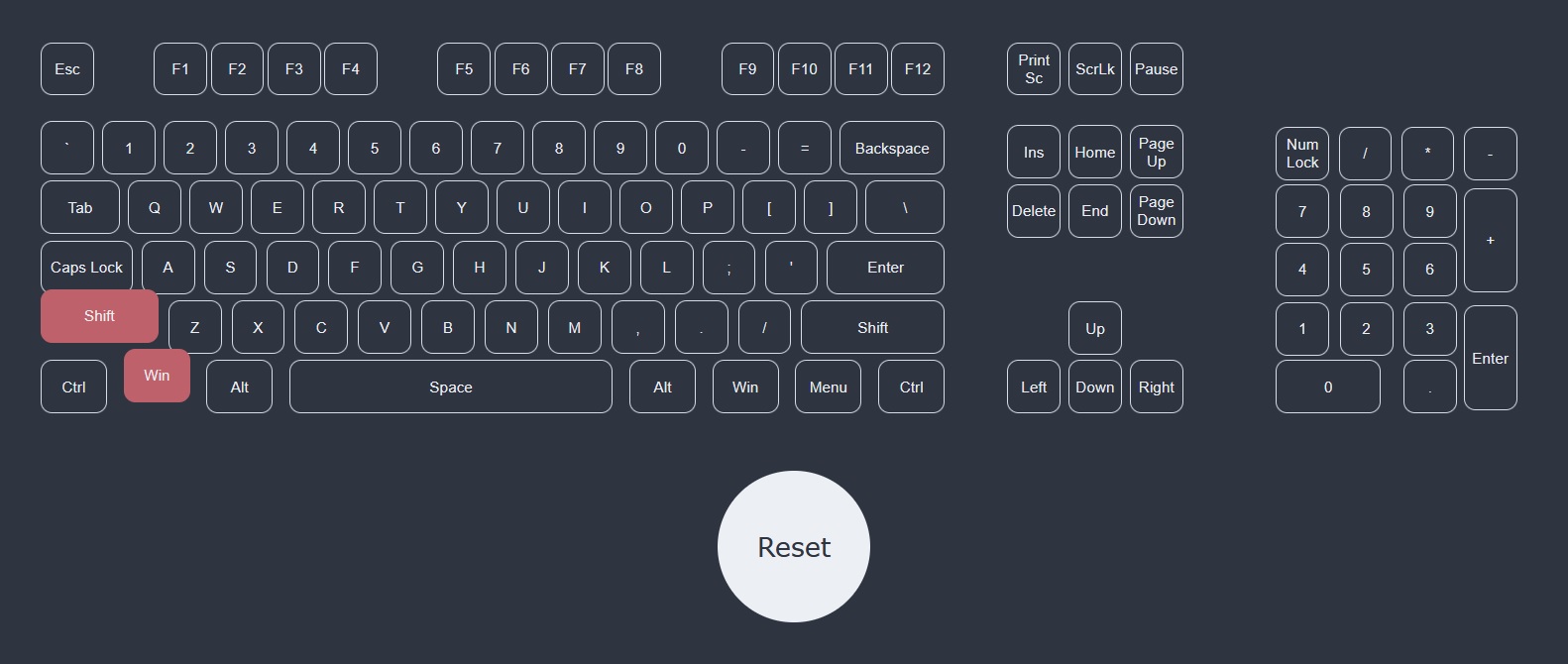
Try pressing the Alt key, and then the Z key, separately (no held keys). What do you see?

astral compass
steel flicker
#

Something very spicy is going on with your keyboard

#

It somehow reads as both Y and Z

astral compass
#

Honestly, don't think it is the keyboard

steel flicker
#

Hmm

astral compass
#

It just the virtual keyboard has the US layout

#

I can switch to US layout

steel flicker
#

I think you might get close to it once you see what is happening

#

Either way also file a bug report to NVIDIA from their customer support pages

astral compass
#

switching to US layout here

astral compass
steel flicker
#

Scroll down to "Ask us a question"