#serrated in screen
1 messages · Page 1 of 1 (latest)
 hardy urchin
 somber perch
Please provide screenshots or screen photos as it's not very clear on what's going on.
hardy urchin
Every time I open a game, there are some jagged edges, and it seems like the quality is bad.
For example, on a tree, I can see small jagged edges when I change position. Sorry for my bad English, I'm Brazilian. I'm not sure if it's jagged edges or something blurry, it's just in small details.
I'm not sure if it's clear, but on the roof of a house, for example, it looks like the quality gets bad and jagged edges appear as I move in the game.

I set the Anisotropic Filtering to 16x, but the issue persists.
somber perch
hardy urchin
Your screenshot indicates that the game is anti-aliased correctly, at least in static scenes.
If aliasing appears only when the game is in motion, next is to investigate whether the cause is the game's TAA being sub-par, or if the monitor is having inverse ghosting issues.
Record a video of the game using your own computer's recording functionalities (Xbox Game Bar, NVIDIA GeForce Experience/NVIDIA App, OBS, etc.). Play the video once you have recorded it. When the aliasing appears, pause the video and see if the aliasing is highly visible or disappears.
If the aliasing becomes obvious:
- check if the game offers the option to use an alternate anti-aliasing solution, such as DLAA, DLSS, or basically anything else
- failing that, check if the game offers the option to use a higher render scale or super-sampling (warning: will reduce FPS)
- failing that, enable DLDSR factors in NVIDIA Control Panel > Manage 3D Settings, restart the computer, and launch the game, set the screen resolution to a DLDSR resolution (warning: will reduce FPS)
If the aliasing is not visible in the video:
- adjust anti-ghosting/overdrive/motion clarity settings in the monitor OSD to a point where this stops
hardy urchin
Exactly, it's looking more like ghosting. Is there any way to resolve this using the video card? I'm thinking about calling in the warranty, it seems like it doesn't perform as well as it should.
 somber perch
hardy urchin
What do you think, is it normal for you?
somber perch
hardy urchin
What do you think, is it normal for you?
Looks normal on my screen.
Monitor response overshoot resulting in inverse ghosting
Provide the monitor model name.
You do not need to replace your video card, as the screen errors are caused by your monitor.
hardy urchin
somber perch
Looks normal on my screen.
> Monitor response overshoot resulting in inverse gh...
Monitor Gamer Pichau Cepheus V29 UltraWide, 29 Pol, IPS, WFHD, sRGB 100, 100Hz, FreeSync, HDMI/DP, PG-CFV29UW-BL01
hardy urchin
somber perch
Looks normal on my screen.
> Monitor response overshoot resulting in inverse gh...
look the bars
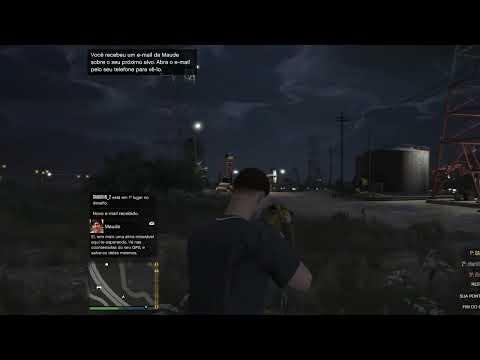
there where I pointed the gun, when I walk, they become serrated, at 0:11 seconds.
somber perch
hardy urchin
there where I pointed the gun, when I walk, they become serrated, at 0:11 second...
Oh, you mean that?
Unfortunately, this is an older game, most advanced AA technologies are not available.
Show the game settings in its entirety. (Screenshot multiple times.)
hardy urchin
 somber perch
MSAA is not recommended for modern games as it has a high tendency to fail to AA modern game elements
Turn off MSAA fully, then enable TXAA instead at x4. As this game is really old, this is basically your only temporal option.
See if the game looks smoother.
hardy urchin
Okayy!!
Thank you so much!!
Ah, just one question
How i can know if my video card is good? I mean, undamaged
somber perch
hardy urchin
How i can know if my video card is good? I mean, undamaged
A broken video card tends to become extremely obviously broken (crashes, blue screens, or highly visible intermittent errors)
hardy urchin
somber perch
A broken video card tends to become extremely obviously broken (crashes, blue sc...
ah, i really dont know what i do, because my performance is so bad...
somber perch
hardy urchin
ah, i really dont know what i do, because my performance is so bad...
Define" bad"
Low frame rate
High latency (delay)
Stutters
Freeze
Loud noises
somber perch
You can only polish a PS3 game up so much
And GTAV eventually runs out of CPU headroom
What CPU do you have?
hardy urchin
Yess, i know, but about Red Dead Redemption 2 and before my game wasn't so bad
hardy urchin
somber perch
What CPU do you have?
Ryzen 5 5600
I mean, it wasn't that bad before, I did some settings in the Nvidia panel and out of nowhere everything went bad
I think can be in Nvidia Panel, what do you think?
Can you help me with this?
somber perch
hardy urchin
I mean, it wasn't that bad before, I did some settings in the Nvidia panel and o...
Show the contents of Manage 3D Settings in both global settings and inside the game's profile
Changing settings in that page is the cause of a ton of issues
hardy urchin


 hardy urchin
somber perch
Changing settings in that page is the cause of a ton of issues
hardy urchin
somber perch
Changing settings in that page is the cause of a ton of issues
yes, i can see hahahahah
somber perch
There doesn't seem to be any problems, but just to be sure, click "Restore Defaults" at the top right corner
Also, for RDR2:
This game's preset slider's actual values will vary depending on both the video card power level and the current screen resolution
Your "medium" is definitely not going to be someone else's "medium"
Check the individual settings to be sure
If unsure:
- Restore defaults in-game
- Enable the advanced graphics settings
- Restore defaults in-game again
- Disable the advanced graphics settings
- Restore defaults in-game for one last time
- Individually adjust the non-advanced graphics settings to High
- Do Not Enable MSAA
Your CPU is fine, so it's unlikely to be a problem
So I'm thinking game setting errors
hardy urchin
hmm okay, i will try now
ah
@somber perch
Thanks for everthing, really
Im testing in the game now, but i need to say to you, your help was / is good for me
okay, the game is better now
but i can see the problem, my monitor is not good
have some ghosting
somber perch
hardy urchin
have some ghosting
the implementation of TAA in RDR2 isn't the beste. Are you playing single-player or online?
hardy urchin
somber perch
the implementation of TAA in RDR2 isn't the beste. Are you playing single-player...
single...
hardy urchin
somber perch
the implementation of TAA in RDR2 isn't the beste. Are you playing single-player...
but i didnt activate the TAA
or is automaticaly?
somber perch
hardy urchin
but i didnt activate the TAA
Screenshot the settings


 somber perch
It's on
somber perch

GitHub
Wrapper DLL that can force DLAA onto DLSS-supported titles, along with tweaking scaling ratios & DLSS 3.1 presets.
Most titles that support DLSS2+ should hopefully work fine with this, but if y...
Exit the game.
hardy urchin
okay
somber perch
Put DLSSTweaks inside RDR2's executable folder.
Put the version 3.7.0 of DLSS DLL inside RDR2's executable folder (overwrite if prompted)
Run DLSSTweaks and set it so that the Presets are using "E" instead of Auto.
Save.
Run the game.
Open the graphics settings.
Enable DLSS. (TAA will turn off automatically. this is normal.)
Set the DLSS quality level setting to Quality.
Check if the game looks sharper and less ghosty
hardy urchin
okay!!
somber perch
If you want to play the online component, I'd suggest removing DLSSTweaks entirely
And just drop in the DLL
and perhaps remove it when playing online (verify the game files so it puts the original version)
for single player though leave the dll in
hardy urchin
okay, sure
Well, I don't know how to say it, but when I look at the trees, it seems like I can see the pixels moving in Red Dead Redemption 2, I don't know what it could be. Could it be a driver?
hereeee, look, i can take a video
5 seconds, you can see
and, i changed my monitor. I have two.
somber perch
I am assuming that you already have DLSS Quality level set to Quality and not any lower setting already
If that's the case, in DLSSTweaks, set the resolution to 1.0 for the Quality level
Set "Enable" to True and then the Quality to "1.0"

- Your FPS may drop, as you will no longer be rendering at a lowered resolution
somber perch
hardy urchin
hereeee, look, i can take a video
Also, since it's not a monitor issue, but a game rendering issue, record using your computer's own functions
hardy urchin
ohh sure, well, its ok, its TAA is disable
But i fixed that
I have some crashes in the game, i mean, It takes a while to brake, but it brakes very hard and then returns to normal, is this normal?
hardy urchin
noooooo i know what is the problem
i have a lot screen taring on my monitor
can i resolve this?
somber perch
hardy urchin
i have a lot screen taring on my monitor
turn on vsync
if you don't want to turn on vsync because of lag, also turn on nvidia reflex to minimize that impact