#auto home not working
1 messages · Page 1 of 1 (latest)
 placid stag
 analog loomBOT
placid stag
after i installed my cr touch today my auto home doesnt work infact no axis move...
AI Help
It sounds like there may be an issue with your CR touch installation or configuration. Here are a few troubleshooting steps you can try:
- Double-check the wiring connections for the CR touch to ensure they are secure and connected properly.
- Verify that the CR touch is configured correctly in your printer's firmware settings.
- Make sure the probe is being triggered properly when homing. You can use a piece of metal to manually trigger the CR touch and see if it responds.
- Check the endstop settings in your firmware to ensure they are correctly set up for the CR touch.
If these steps do not resolve the issue, I recommend reaching out to your printer's manufacturer for further assistance.
Please let me know if you need any more help with this issue or have any other questions related to 3D printing.
WARNING: This response is AI generated and may contain errors.
analog loomBOT
This post has been closed due to inactivity.
This post has been inactive for over 1 hour and so has been closed. To reopen this post simply send another message.
placid stag
help
analog loomBOT
This post has been closed due to inactivity.
This post has been inactive for over 1 hour and so has been closed. To reopen this post simply send another message.
placid stag
still need help
 serene sluice
placid stag
still need help
M119
analog loomBOT
Marlin Firmware
Use this command to get the current state of all endstops, useful for setup and troubleshooting. Endstops are reported as either “open” or “TRIGGERED”.
serene sluice
Connect to your printer via usb, send M119 via pronterface and tell me what it spits out
Got a link to the firmware used and have you triple checked the wiring of the cr touch?
placid stag
if possible can u send me the link to pronterface
also im pretty sure wiring is right i unplug z axis and plug in cr touch yea?
and keep z unplugged?
placid stag
serene sluice
Got a link to the firmware used and have you triple checked the wiring of the cr...

creality
You can download Ender-3 's product manual & firmware and slicing software on here.
and the name is Ender-3 Marlin2.0.6 CR-touch or BLtouch firmware
serene sluice
https://www.reddit.com/r/Creality/comments/pl4fyv/creality_cr_touch_wiring_diagrampinout/ look at the picture
 serene sluice
placid stag
if possible can u send me the link to pronterface

GitHub
Pronterface, Pronsole, and Printcore - Pure Python 3d printing host software - kliment/Printrun
placid stag
serene sluice
https://github.com/kliment/Printrun/releases
i connected my printer via micro usb and just says printer offline
when i send cmfd

@serene sluice
serene sluice
Have you checked its the right COM port?
serene sluice
Try different baud rates
serene sluice
placid stag
which should be usb on top of my pc right?
Shouldn't matter
Weird though
placid stag
diff error now
 serene sluice
https://www.youtube.com/watch?v=13XDMQ6UWy4 been a while for me can you check with this?

A quick guide for beginners for using Pronterface or Octoprint to connect directly to your 3D printer via terminal. Ideal for calibration and/or troubleshooting procedures like those on my free website.
0:00 Introduction
0:36 Our aim
Octoprint installation guide: https://youtu.be/h--RLbvQKYc
0:55 Pronterface
Pronterface (aka printrun) website...
placid stag
none of the baud rates worked
placid stag
serene sluice
https://www.youtube.com/watch?v=13XDMQ6UWy4 been a while for me can you check wi...
ok heres what i got
 serene sluice
placid stag
what happens if you type g28 z
 serene sluice
M401
analog loomBOT
Marlin Firmware
Deploy and activate the bed probe. The Z axis may be raised to make room for the probe to deploy. Finally, the probe will be tared if configured (PROBE_TARE).
serene sluice
Huh...
placid stag
nothing happened
serene sluice
Recheck your probe wiring, that is probably faulty somewhere
 serene sluice
 placid stag
is it not?
serene sluice
Not sure, different colours apparently
placid stag
it is like thart
is it just a bad cr touch? firmware? i mean all worked before cr touch
placid stag
@serene sluice
serene sluice
placid stag
<@406971626836721664>
dumb question: CR Touch or BL Touch?
Ah forgot something
What chip does the board have ? GD32 or STM32?
Its written on the chip itself
the big one on the board
if GD32 you probably need GD-Ender-3HW4.2.2SW2.0.8.2CRTouchFilamentEuropeMulti
you may also need to update the screen firmware if it doesn't work properly after the update
placid stag
serene sluice
dumb question: CR Touch or BL Touch?
CR
placid stag
serene sluice
if GD32 you probably need ```GD-Ender-3HW4.2.2SW2.0.8.2CRTouchFilamentEuropeMult...
this makes it chinese
literally
lol
sooo
what do i do
serene sluice
placid stag
this makes it chinese
You can likely choose the language from the menue
placid stag
how?
serene sluice
placid stag
how?
your phone likely has a translation tool on it.....also let me find the menu tree
mh or not
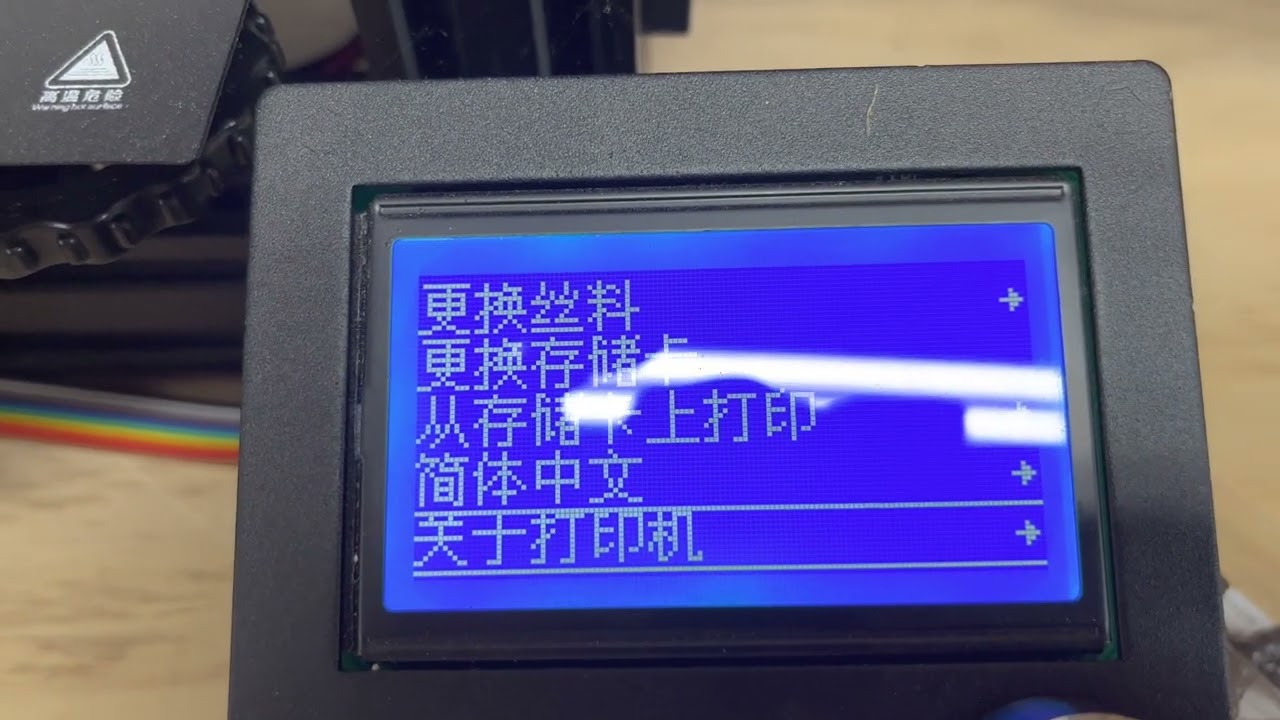
Quick video to show you how to switch the Ender 3 Pro back to you're preferred language when you can't read the menu options.
placid stag
serene sluice
Nice
z offset should always be - right?
placid stag
@serene sluice when i try moving my z i cant go negative
nvm i should be using prob z offset right?
not just moving z acis
i think mines -0.720
how do i set it to the z offset tho
analog loomBOT
Z-offset
Where your printer thinks the nozzle is
The z-offset is the distance from the tip of the nozzle to the trigger point of a bed sensor.
Setting your z-offset correctly ensures a good first layer squish and proper adhesion to the build plate (assuming its clean, see
?bedcleaning for more information). See
?leveling for a good representation of how the first layer should look like.
If in doubt: Refer to you your specific machines documentation.
For the Qidi X series printers: Adjusting the z offset from the Fluidd webinterface breaks it. Always set the z offset from the printers screen.
https://www.wevolver.com/article/z-offset-what-it-is-and-how-to-adjust-it
?z-offset requested by: m.von.d#0
serene sluice
there should be a guided wizard in the menu
placid stag
is it in advanced settings?
i dont see a menu for z offset
i see smth that says set home offsets but when i try that it says error to far
or is probe z offset all i have to set
@serene sluice ^
serene sluice
placid stag
or is probe z offset all i have to set
you need to set probe z offset, safe and reload it