@hidden lodge How to separate media request (MR) audio in OBS:
(Please follow one of the steps for your set up)
MUTE MR FOR YOURSELF, STREAM CAN HEAR
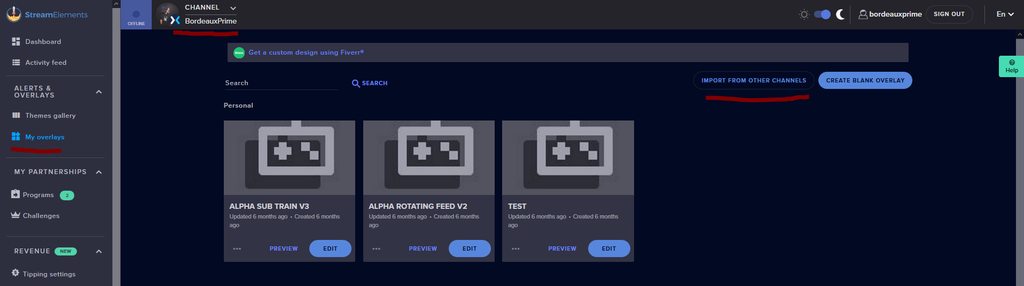
• Make a new overlay in the editor, ONLY add the media request widget,
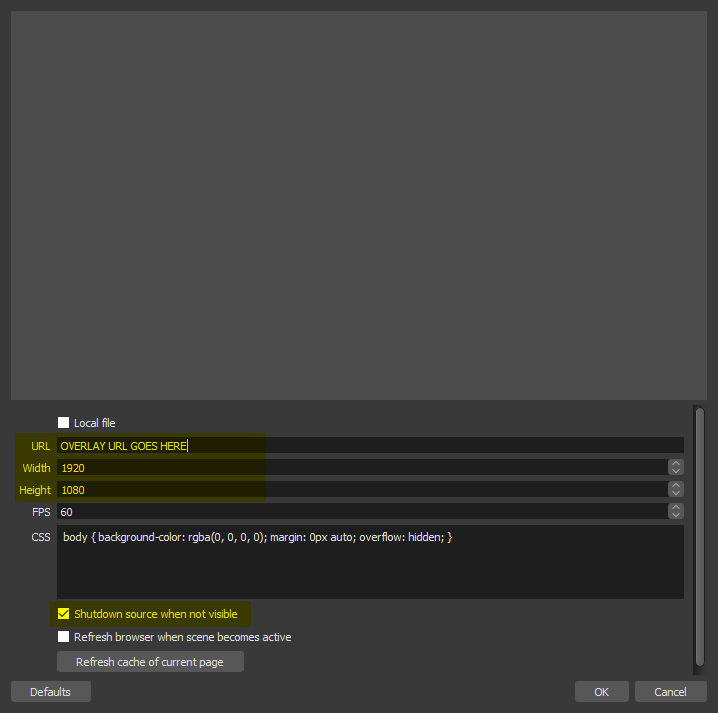
• Add a new browser source in OBS, add the URL and set the dimensions correctly,
• Tick the box for "Control audio via OBS"
https://cdn.discordapp.com/attachments/712428275049431120/716618713998033047/unknown.png
• Go to Edit > Advanced Audio , set your MR overlay to "Monitor Off"
NOTE: This will play through the Desktop Audio, if you mute your desktop audio, it will mute the MR.
CONTROL AUDIO SEPARATELY FROM YOU AND STREAM
• For this you will need a VAC (use command !vac),
• Run your MR either in Chrome or in Ground Control (use command !gc),
DO NOT CLICK "SHOW ON STREAM"
• Set Chrome or GC in the VAC as an audio input and output,
• Add the audio output from VAC as an audio input in OBS,
NOTE: this will not be able to show the video in OBS
It is currently not possible to separate audio for yourself and stream if you ALSO want to show the video in OBS.
The only way to do this would be to follow the last set of instructions above and then use Window Capture on GC or Chrome.
Thank you 
 round bramble
 tough flint
 strong kernel
 broken juniper
 lament blade
 peak storm
 hardy wigeon
 versed ridge
 zenith widget
 autumn chasm
 lime harbor

 river tartan

 hoary pilot
 flat osprey
 jovial lion

 frozen holly
 crisp adder
 charred quartz

 lusty dragon

 earnest comet
 sweet socket
 errant lance
 long rover
 fallen dove

 lone turret
 neat widget

 scarlet prairie
 ionic kelp
 cold eagle
 cunning cedar
 inner epoch
 foggy ridge
 obtuse prairie
 glass swallow


 cursive otter
 untold crest
 cursive scroll
 vague compass
 crude tinsel
 jade remnant
 desert kite
 versed dagger
 graceful slate
 lucid patio
 white cradle
 kind jacinth
 prisma relic
 wild turtle
 acoustic fog
 thorn delta
 dry hare
 night oasis
 autumn thunder
 solemn dust

 cunning maple
 devout gyro
 smoky scarab
 cold sonnet
 safe jetty
 sharp topaz
 weak delta
 cloud hazel
 woven cairn


 sudo!
sudo! tribal thorn
 severe frigate
 long frost
 distant kiln
 dire hinge
 shell mulch
 spare basin
 vast bane
 vocal kestrel
 broken parrot

 chrome folio
 violet delta
 opal kernel
 errant nacelle
 orchid panther
 icy remnant
 fathom phoenix
 hidden lodge
 slow lark
 devout pecan
 distant idol
 karmic roost
 regal karma
 shut swift
 wary halo
 abstract hemlock
 elfin flame
 woeful juniper

 honest kayak

 willow kite
 marble galleon
 outer wind
 stone willow
 solar lily
 lunar hearth

 azure kite


 marsh glade
 lyric wagon
 radiant tinsel
 pearl hornet
 formal pilot
 broken obsidian
 golden night
 weak grove
 patent fulcrum
 fickle notch
 opaque flax
 vast oriole
 odd spire
 proud ravine
 covert mortar
 smoky vault
 bleak olive
 clever kernel
 versed raft
 teal fox
 visual cairn
 patent knot
 mental ether
 ebon fossil
 inner forum
 silk lintel
 thorny lintel
 celest ermine
 smoky bolt
 wise dagger
 sinful parrot
 thorny crater
 clever oxide
 smoky turtle
 analog crescent
 digital fiber
 sharp oracle
 whole ocean

 worn sentinel
 cosmic sail
 raw horizon
 Sooo, I have been raising money for charity via Tiltify and I have everything set up correctly. My viewerbase has donated 1000+ USD to the charity but I never once saw an alert popping off on stream despite having the alert box enabled in my overlays.
 floral beacon
 hardy ore

 nocturne nebula
 hybrid slate
 astral cobalt
 tame rune


