#Thief: Deadly Shadows

84 messages · Page 1 of 1 (latest)

plucky plaza
#

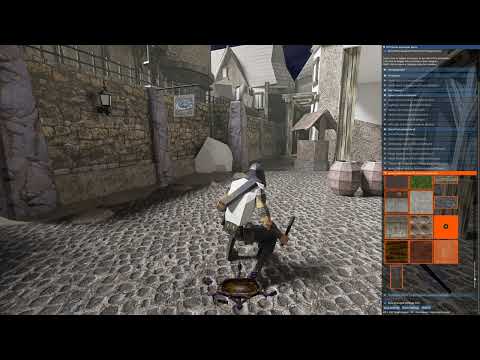
Another not-so-straight-forward-game to get remix to load. But got some results now.
Seems to be a little tricky, and messing around with remix menu options will sometimes fix a ton of problems, but bring others. So far, best I got was untextured version with path tracing working somewhat decently
What was required for it to work like in the screenshot:

RTX Remix should load considerably easy with above setup.
Loading will most likely get you to a black/gray/white screen, but bringing menu via Alt+X shortcut and enabling some textures as UI should get you at least skybox + building windows working

open sandal
#

before the newer version of dxvk it was way worst

plucky plaza
#

main challenge now is stuff like this:

#

it feels like putting any texture under Ignore tab won't do anything special

hollow trail
plucky plaza
#

yea
putting them all into ignore wont fix it
but assigning some random textures as UI sometimes get rid of this, but then path tracing gets mixed with raster somehow (at least it looks like a blending between them)
i'll try to reproduce that
still, when I'm moving camera around, I can see the original raster version showing for a fraction of a sec sometimes
not sure what is going on.. Didn't know it would render both versions at same time

wary ginkgo
#

Do you know what these do?
Rendering > Alpha Test/Blending > Render Alpha Blended = OFF Game Setup > Parameter Tuning > Shader-Based Vertex Capture = ON

plucky plaza
#

First one is for enabling/disabling Alpha Blending (like how you see terrain textures blend from dirt to grass in games etc)
Second one I think the label is self explanatory.. It just enables vertexes that are shader-based to be captured by remix (without it, remix will not render some geometry in some cases/games)

wary ginkgo
#

thanks

#

trying to see if it fixes up issues in my game but no luck 😦

plucky plaza
#

yea, I try it from time to time, but never got a decent result. Usually it gets confused and switches between path traced and rasterized depending on camera angle and player pos.. it seems random
recent builds made it a lot more stable, but still not enough

compact jewel
plucky plaza
slow skiff
#

Thief 3 is.using programable pipeline, all materials are created as shaders

#

so its dx8 but more modern than a lot of dx9 games. And its not good for RTX Remix...

plucky plaza
pearl forge
#

I managed to get something working by disabling alpha on all of the standard textures manually, and ignoring all of the "normals" textures.
I Didn't test in a methodical way, so not entirely sure if that was what helped.

I'll upload screenshot and .conf files.

#

I am also using the SneakyTweaker.

deft sandal
#

Is it stable?

pearl forge
#

flickers, needs work

deft sandal
#

I wonder how it fairs in .6

pearl forge
#

with such a lighting based game it would be awesome to get it polished up in remix

deft sandal
#

Yep. I've been waiting for the tools to work properly with this game because I think it would be the best showcase of path tracing maybe more than any other game

pearl forge
#

ive been mucking around, try this: do a capture even though it looks messed up. open in remix toolkit, and change the alpha blend mode from legacy to just blend, and inverted

#

seems to be doing something

pearl forge
#

and set to ignore all of the normal maps textures in game with the remix runtime

deft sandal
#

for some reason when i capture it doesnt actually capture any of the materials on the mesh in the toolkit. is this happening for you?

pearl forge
#

I set normal maps to ignored in game but for capturing do not set ignore alpha anywhere in runtime or u have no mats in toolkit. Un-set ignore alpha on all the texture in game, and check your alpha settings in runtime to make sure they're enabled. It will look messed up in game, but capture anyway

#

Then in toolkit load capture, things should look transparent-ish, but should have the diffuse texture available on the material. Then u can disable legacy alpha in the toolkit, enable blen and enable inverted

#

I'll send screenshots

pearl forge
#

in other words if starting from a new rtx.conf:
in runtime:
enable Z up maybe
ignore all "normal maps"
you might need to set some weird UI or small / sky textures to be able to see anything at all
try 3rd person mode in game maybe (press V)
maybe set fused world-view mode to in-world transform, not sure
leave everything else in runtime at default
do a capture
in toolkit, things should look "transparent" kinda
change alpha blending settings in toolkit as per screenshot. some other setup might work better, not sure

#

should be able to start replacing stuff. likely need to to multiple captures to get all of the diffuse textures, as usually each capture has some meshes randomly white

#

technically all we really "need" to get out is some meshes cos we can just replace t hem with new meshes with real materials. there seems to be some inverted mesh normals or something on the meshes we are getting from the captures so it might be good to do it that way anyway. more work though

pearl forge
#

Heres a comparison of two (meant to be opaque) meshes, on the left captured from Painkiller, on the right captured from ThiefDS.
Not sure if valid data or useful but maybe someone who knows what these things mean can shed some light.

pearl forge
deft sandal
#

Thank you for the info!

pearl forge
deft sandal
#

Yours is so much less flickery than mine

pearl forge
#

i deleted heaps and heaps of those untextured and normal meshes in rtx toolkit, so they dont z/fight through and cause flicker

plucky plaza
#

isnt there, perhaps, a config line in the engine files that we can entirely disable normalmaps? back when I tried this I recall that normalmaps were exactly the main reason why flickering was happening

deft sandal
#

interesting. I'll try that when I'm home. Now all we need is for the lights to get detected

pearl forge
#

Theres something wacky going on with the meshes for sure

#

the lighting is incorrect on them

#

if we fix that it might resolve a bunch of the other issues. I'm using USD Composer and it seems you can more easily delete meshes with certain materials on them using that, but im quite new to it

#

perhaps the mesh normals are inverted or screwed up

pearl forge
#

yep resetting the normals in USD composer fixed the lighting, i had to reapply the material though

pearl forge
#

If you want to delete all of the junk meshes, you can use this script to select all meshes without material in USD composer:


# Get the USD stage and selection context
stage = omni.usd.get_context().get_stage()
selection = omni.usd.get_context().get_selection()

# List to store paths of meshes with no materials
paths_to_select = []

for prim in stage.Traverse():
    if prim.GetTypeName() == "Mesh":
        # Get MaterialBindingAPI
        material_binding_api = UsdShade.MaterialBindingAPI(prim)
        
        # Check Direct Binding
        direct_binding = material_binding_api.GetDirectBinding()
        direct_material_path = direct_binding.GetMaterialPath() if direct_binding else None
        
        # Check Inherited Material
        inherited_material = material_binding_api.ComputeBoundMaterial(UsdShade.Tokens.full)
        inherited_material_path = inherited_material[0] if inherited_material else None

        # Only select meshes with no direct or inherited materials
        if not direct_material_path and not inherited_material_path:
            paths_to_select.append(str(prim.GetPath()))
            print(f"Selected: {prim.GetPath()} (No materials assigned)")

# Update selection in USD Composer
selection.set_selected_prim_paths(paths_to_select, False)

# Print the final list for verification
print(f"Meshes with no materials: {paths_to_select}")
pearl forge
#

And here is a script that will reset the normals on all the meshes. You do not need to re-apply the materials, just reload the scene:


# Get the USD stage
stage = omni.usd.get_context().get_stage()

# Iterate over all meshes and clear normals
for prim in stage.Traverse():
    if prim.GetTypeName() == "Mesh":
        mesh = UsdGeom.Mesh(prim)
        
        # Check if normals are authored (blue button exists)
        if mesh.GetNormalsAttr().HasAuthoredValue():
            # Replace authored normals with an empty array
            mesh.GetNormalsAttr().Set(Vt.Vec3fArray())
            print(f"Set empty normals for: {prim.GetPath()}")
pearl forge
#

Scene scale needs to be at 0.01 in remix runtime before capture and Z-Up needs to be enabled

pearl forge
#

Just train of thought here but a workflow im testing now:
Capture as above to get the textures
Capture again as above also with Render Alpha Blended disabled to get the scene without all the junk meshes, but with untextured good meshes
Run fix normals script in USD Composer
Create 2 remix toolkits projects, one with textures and junk meshes and one without textures but good meshes
Copy contents of texture bindings usd files from first project to second one

pearl forge
#

damn they dont have the same mesh hash

deft sandal
#

It would probably be easier just to flip the normals instead of making several hundred captures per level for textures and then for uncorrupted meshes

pearl forge
#

yeah the meshes that are visible when disabling alpha in game are untextured and im not sure if its possible in remix to get the runtime to bind textures to them anyway

#

problem i ran into was when deleting meshes in usd composer it modifies the mod.usda in a different way than deleting meshes in remix toolkit.

#

and i cant get the USD composer python api thingo to do what i want there so might have to build pixars usd python binding

#

wait on i might just be able to do a simple text file find and replace
I'm not sure if RTX Remix runtime can use a mod.usda override to flip the normals, might make more sense to just "replace" the untextured meshes with (what remix thinks are) meshes that are textured and with fixed normals

#

RTX Remix Toolkit deletes meshes like this:

{
    over "meshes"
    {
        over "mesh_0069C407768E25F6"
        {
        }

        over "mesh_5BA31949E1E776EF" (
            references = None
        )
        {
        }
#

with the references = None

#

USD Composer does this:

            active = false
        )
        {
        }
    }```
#

with the active = false

#

simple enough find and replace 😄

#

basically we want a script that does one of these two things:
A) gets those untextured meshes that are visible, binds the texture from the textured version to it / "replaces" the mesh with the same mesh with fixed normals
Then we can just turn off alpha in game and not worry about the additional meshes
B) sets all additional meshes to "references = None" to hide them in game, and flips the normals on the textured meshes, or if that's not possible in remix, to "replace" the meshes with the flipped normal version

#

one problem I have is that it's not as easy to delete the meshes with the normal maps on them, it is possible to select a mesh with a normal map in USD Composer, go to the material, right click the material and choose "Select Bound Objects" to delete all of the meshes with that normal texture on it, speeds it up a bit but still tedious

#

so I'm leaning more to hiding all the junk meshes ingame with disabling alpha and replacing the untextured meshes with fixed textured ones

#

but then the alpha stuff like fire and smoke from the torches might be messed up...

deft sandal
#

It's very easy to delete stuff in blender based on material but I have no idea how reliable the blender to remix pipeline is

pearl forge
#

you can set the alpha properties on all the materials at once like this:

pearl forge
#

Here is a script which, when you select one (or multiple) mesh (with material on it) selects all of the other meshes with the same material(s).
This makes it easier to delete the meshes with those normalmap textures on them:

import omni.usd

def select_meshes_with_any_material():
    # Get the current stage
    stage = omni.usd.get_context().get_stage()
    
    # Get the current selection
    selection = omni.usd.get_context().get_selection().get_selected_prim_paths()
    
    if not selection:
        print("No meshes selected!")
        return

    # Find all materials bound to the selected meshes
    bound_materials = set()
    for selected_prim_path in selection:
        selected_prim = stage.GetPrimAtPath(selected_prim_path)
        material_binding_api = UsdShade.MaterialBindingAPI(selected_prim)
        bound_material = material_binding_api.ComputeBoundMaterial()[0]
        if bound_material:
            bound_materials.add(bound_material.GetPath())

    if not bound_materials:
        print("No materials found on the selected meshes!")
        return

    print(f"Materials bound to selected meshes: {list(bound_materials)}")

    # Find all meshes that share any of the materials
    all_prims = stage.Traverse()
    matching_mesh_paths = []
    
    for prim in all_prims:
        if prim.IsA(UsdGeom.Mesh):
            material_api = UsdShade.MaterialBindingAPI(prim)
            material = material_api.ComputeBoundMaterial()[0]
            if material and material.GetPath() in bound_materials:
                matching_mesh_paths.append(str(prim.GetPath()))

    # Select all matching meshes
    omni.usd.get_context().get_selection().set_selected_prim_paths(matching_mesh_paths, True)
    print(f"Selected meshes with any of the materials: {matching_mesh_paths}")

# Run the function
select_meshes_with_any_material()

#

you can also take stacks of captures and add them all to USD Composer at once to work on them all at once, works great so far:
Just drag and drop the usds into the layers window

pearl forge
#

this is with the delete all the meshes method.

#

it seems that no matter what I do so far the normals are still messed up in game even if they look OK in remix toolkit

pearl forge
#

maybe the game "fixes" the normals somewhat so fixing them outside the game might actually break them or something?
Cos this one looks fine
#1102380372643299361 message

pearl forge
#

aight thanks for the heads up, is that somewhere on this discord

white lava
deft sandal
#

It seems to me that he's only looked at thief 1 and 2, not 3.

white lava
#

ah yeh sorry for some reason thought this was 1

#

lol