1 messages · Page 1 of 1 (latest)
 sage flameBOT
If you have your DMs open, you’ve probably met him before. He will message all new server members with a quick welcome and some helpful tips!
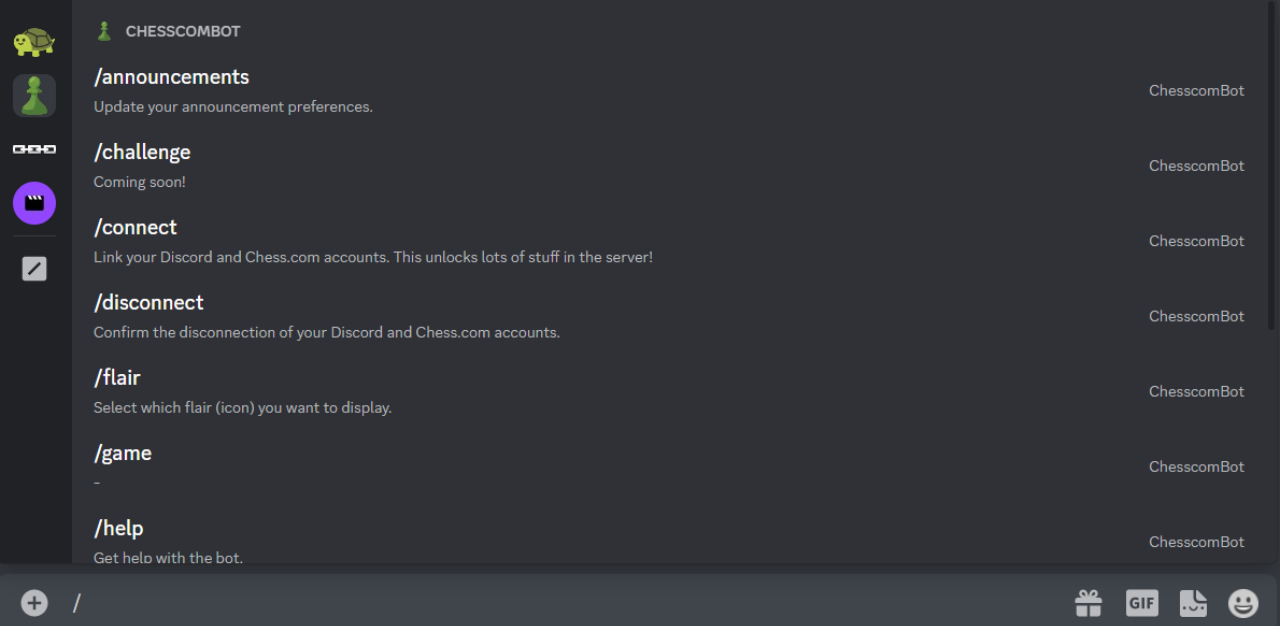
Albert uses Slash Commands, which means you can find out about all the features he has to offer just by typing /. This works anywhere in the server, as long as you have your chat box available. No need to send any messages to the channel you’re at! A menu will pop up automatically before you even press send.
We've compiled some helpful information about how to use each of Albert's commands!
The </connect:1023636298738700310> command will link you to the Chess.com Connected Accounts page. After following that command, if prompted, log into the Chess.com account you wish to connect to your Discord. The Connected Accounts page should look like this:

1. Click on the "Connect to Discord" button
2. If prompted, log into your Discord account
3. Allow the Chess.com Account Linking application to access your account (make sure you’re logged into the right Discord account when doing so!)
Done! You can now use the bot's features and see your Chess.com stats on your Discord profile.

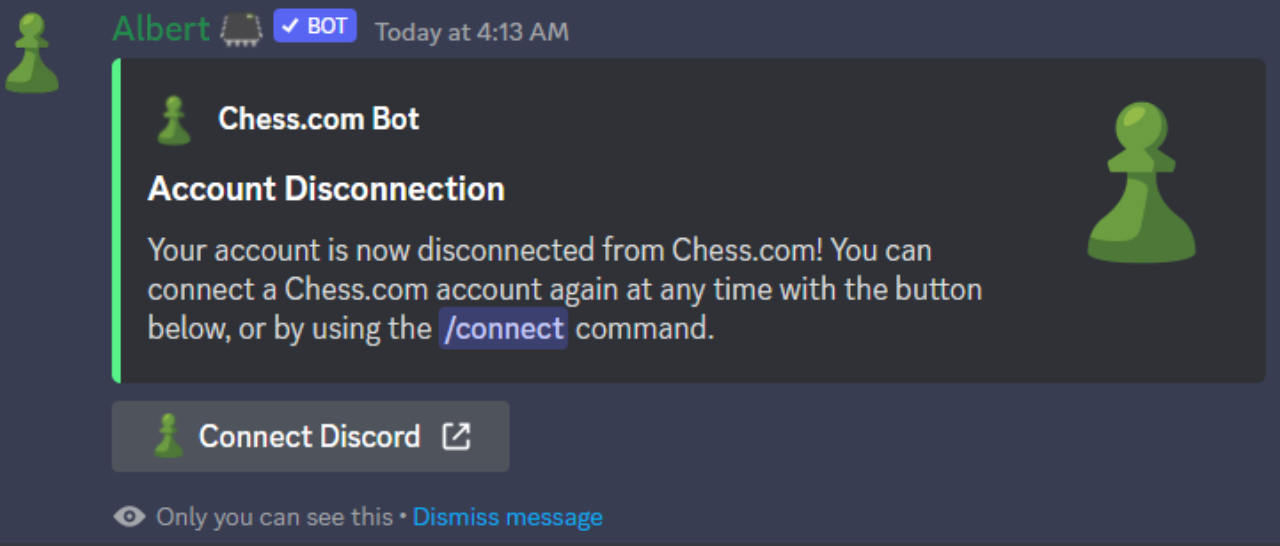
To disconnect your account, first you need to go back to the Connected Accounts page on Chess.com settings (you can be linked there directly by using /connect).

Click disconnect on the Discord option, then go to the server and use the </disconnect:1035887377043947533> command to confirm your choice.
Flairs are icons next to your display name! The list will consist of flairs that you have earned previously.
If you have a flair, the </flair:1044265223353274442> command will popup a menu from which you can choose which flair you want visible next to your name!

Choose which of the automatically added account roles (e.g. rating) will show up on your profile by using the </privacy:1023364178980900864> command.
⚠️ Just remember: every time you open the menu, you need to select all the roles you want, not just the remaining ones you “still don’t have”.
The /leaderboards command displays all of the leaderboards found on Chess.com! Use the dropdown menu at the bottom of the command to pick which leaderboard you want to see.
The Previous and Next buttons allow you to navigate through the pages of the leaderboard (ranks 1-50).
The </game:1023364178980900873> [url] command allows you to view Chess games through a fancy Discord view like this:
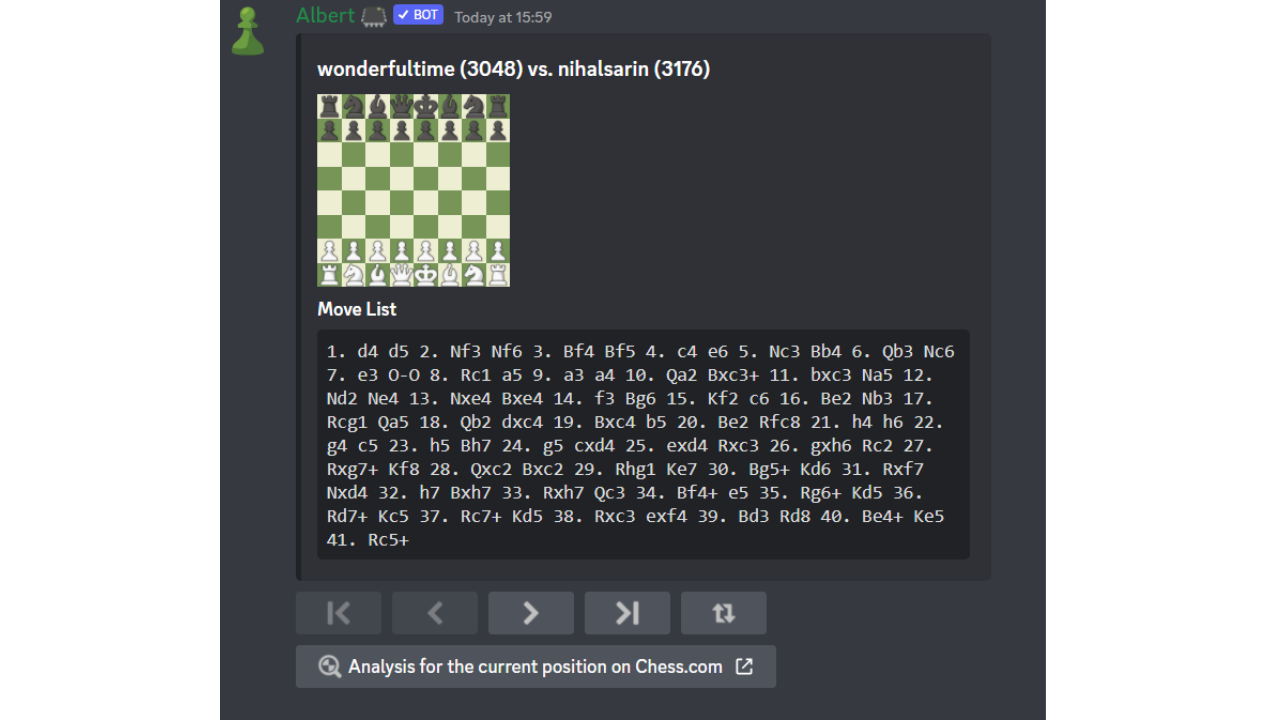
Use the buttons to navigate through each move or use the "flip" button to change the perspective of the board.
The command currently only supports a handful of Chess websites, but we intend to be able to read games from any website! Please let an administrator know if you have a website that does not work with this command.
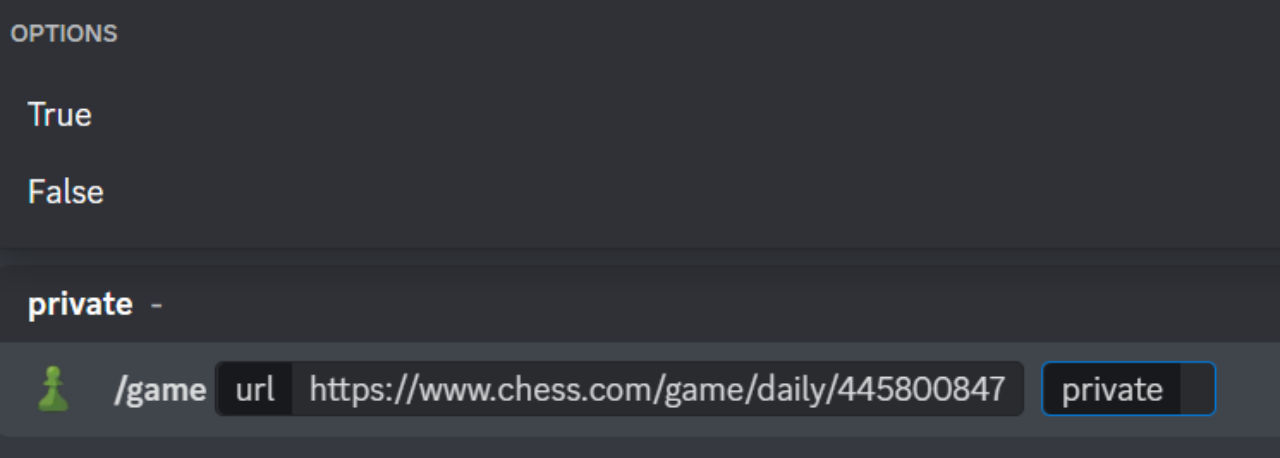
To share a game, simply type </game:1023364178980900873> followed by the game url and press send!
If you’d like, you can also make it a “private” game by choosing the option “true” in the options given to you after you paste your link. A private game is a game only the sender of the message can interact with!
No premium? No problem! Albert has infinite puzzles for you to solve using </puzzle:1023364179119329341>!
Use the dropdown menu at the bottom of the command to pick which move you want to play. If you get stuck, you can use the "hint" button to get a hint. This will tell you which piece to move, and updates the moves in the menu accordingly. (The answer to this one is 1. Nf5+ gxf5 2. Qh6+ Kh8 3. Qf6+ Rg7 4. Rxh7+)
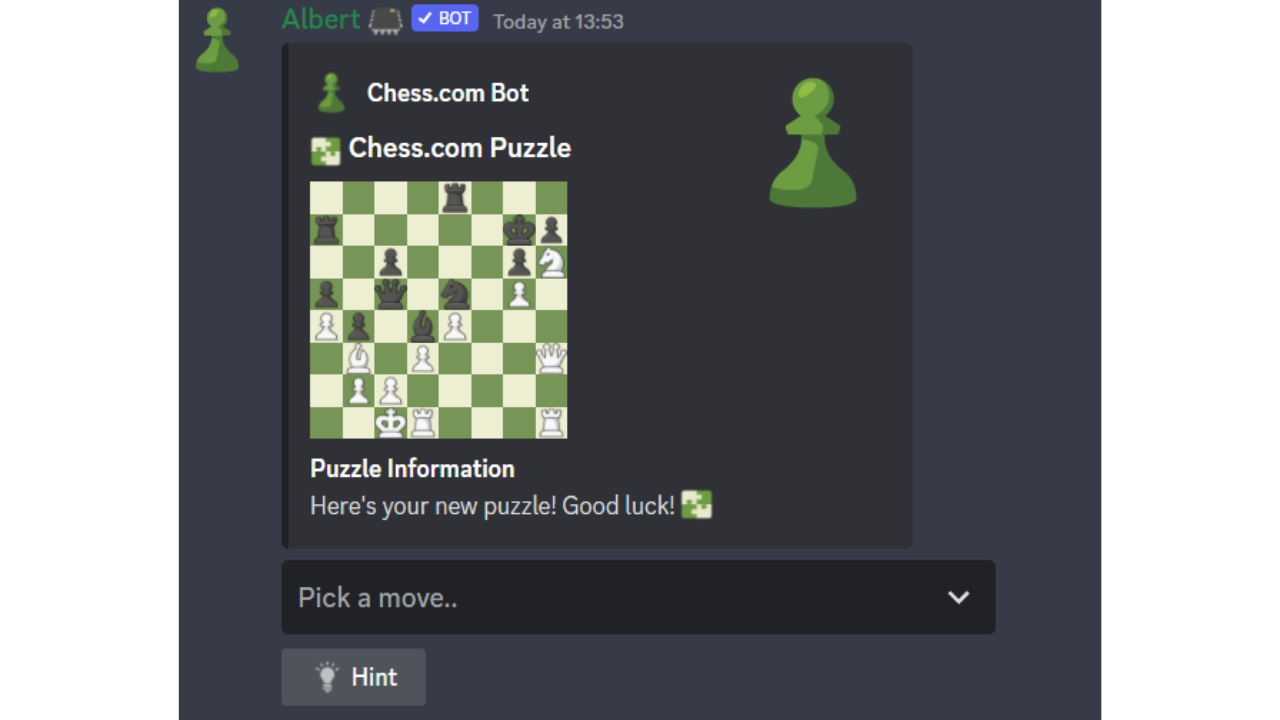
This command is only visible to yourself in all channels except ones that are marked as "puzzle channels" by an administrator. This is to prevent spam.
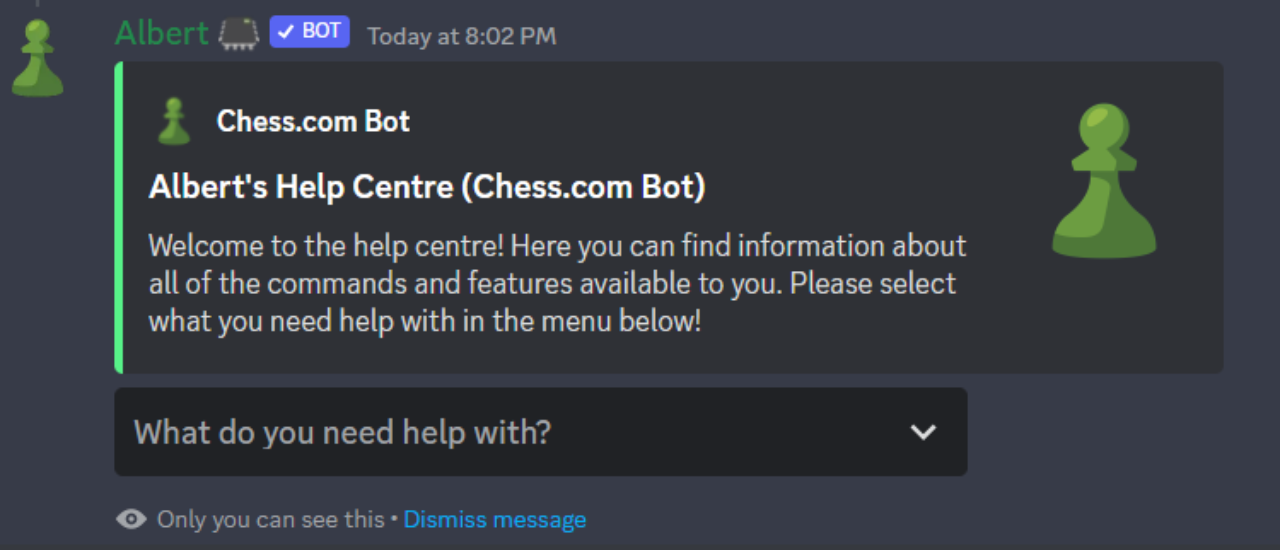
If you still want some help with the bot features, just use </help:1035887377043947532> and a help center will show up just for you!