 Python help channel opened
#🔒 CustomTkinter Regex Parse Tool
30 messages · Page 1 of 1 (latest)
 ionic matrixBOT
Python help channel opened
ionic matrixBOT
Python help channel opened
 sudden dirge
import tkinter
import customtkinter
import re
import os

ct = customtkinter

DIRPATH = os.path.dirname(os.path.abspath(__file__))
themepath = os.path.join(DIRPATH, "CTkTheme_test.json")

class App(ct.CTk):
    def __init__(self):
        super().__init__()

########## Configure the Window ##########

        # configure window
        self.title("Parse Master")
        self.geometry(f"{1000}x{580}")
        self.bind("<Escape>", self.CloseWindow)
        # self.bind("<1>", lambda event: event.widget.focus_set())

        # configure grid layout (4x4)
        self.grid_columnconfigure(1, weight=1)
        self.grid_columnconfigure((2, 3), weight=0)
        self.grid_rowconfigure((0, 1, 2), weight=1)

########## create side frame with widgets ##########

        # create side frame with widgets
        self.side_frame = ct.CTkFrame(self, width=150, corner_radius=0)
        self.side_frame.grid(row=0, column=0, rowspan=4, sticky="nsew")
        self.side_frame.grid_rowconfigure(10, weight=1)
        # TODO Side Buttons
        #! RULE 1
        self.r1_label = ct.CTkLabel(self.side_frame, text="Rule 1", font=ct.CTkFont(size=14))
        self.r1_label.grid(row=1, column=0, padx=20, pady=5)
        self.r1_input = ct.CTkEntry(self.side_frame, placeholder_text="Rule 1")
        self.r1_input.grid(row=2, column=0, padx=20, pady=10)
        self.r1_options = ct.CTkOptionMenu(self.side_frame, values=["Remove", "Inside", "Outside"])
        self.r1_options.grid(row=3, column=0, padx=20, pady=10)
        self.r1_button = ct.CTkButton(self.side_frame, text="Button 1", command=lambda: print("Log: Parse"))
        self.r1_button.grid(row=4, column=0, padx=20, pady=10)

        #! RULE 2
        self.r2_label = ct.CTkLabel(self.side_frame, text="Rule 2", font=ct.CTkFont(size=14))
        self.r2_label.grid(row=5, column=0, padx=20, pady=5)
        self.r2_input = ct.CTkEntry(self.side_frame, placeholder_text="Rule 2")
        self.r2_input.grid(row=6, column=0, padx=20, pady=10)
        self.r2_options = ct.CTkOptionMenu(self.side_frame, values=["Remove", "Inside", "Outside"])
        self.r2_options.grid(row=7, column=0, padx=20, pady=10)
        self.r2_button = ct.CTkButton(self.side_frame, text="Button 2",  command=lambda: print("Log: Split"))
        self.r2_button.grid(row=8, column=0, padx=20, pady=10)

        #! TOP TEXTBOX
        self.expression = ct.CTkTextbox(self, width=250, padx=10, pady=10)
        self.expression.grid(row=0, column=1, padx=(20, 0), pady=(20, 0), sticky="nsew")

        #! BOTTOM TEXTBOX
        self.output = ct.CTkTextbox(self, width=250, padx=10, pady=10)
        self.output.grid(row=1, column=1, padx=(20, 0), pady=(20, 0), sticky="nsew")


        #! TOP
        self.information_frame1 = ct.CTkFrame(self)
        self.information_frame1.grid(row=0, column=3, padx=20, pady=(20, 0), sticky="nsew")

        #! BOTTOM
        self.information_frame2 = ct.CTkFrame(self)
        self.information_frame2.grid(row=1, column=3, padx=20, pady=(20, 0), sticky="nsew")

        #! INPUT
        self.entry = ct.CTkEntry(self, placeholder_text="Result")
        self.entry.grid(row=3, column=1, columnspan=2, padx=(20, 0), pady=(0, 20), sticky="nsew")
        #! SUBMIT
        self.main_button_1 = ct.CTkButton(master=self, fg_color="transparent", border_width=2, text="Submit", command=self.Logger)
        self.main_button_1.grid(row=3, column=3, padx=20, pady=(0, 20), sticky="nsew")```
# set default values
self.r1_options.set("Remove")
self.r2_options.set("Remove")
self.expression.insert("0.0", "body('Get_items')?['value'][rand(1,length(body(""Get_items"")?['value']))]body('Get_items')?['value'][rand(2,length(body(""Get_items"")?['value']))]body('Get_items')?['value'][rand(3,length(body(""Get_items"")?['value']))]")
self.output.insert("0.0", "Results...")
def change_option1(self, new_option1: str):
new_option1_float = float(new_option1)
print(f"Log: {self.r1_options}")
def CloseWindow(self, event):
self.destroy()
def SubmitLogger(self):
print(f"Log: {self.r1_options.get()}")
def Logger(self):
pattern = self.r1_input.get()
text = self.expression.get("1.0", "end-1c") # get text from the 'expression' textbox
matches = re.findall(pattern, text) # find all matches of the pattern in the text
self.output.delete("1.0", "end") # clear the 'output' textbox
self.output.insert("1.0", "\n".join(matches)) # insert the matches into the 'output' textbox
print(f"Log: {self.r1_options.get()}")
if __name__ == "__main__":
app = App()
app.mainloop()

I have this little Regex GUI I made to help process little expressions for Power Automate or Tableau. I'd like it to highlight based on the Regex I enter into the rules, like most regex helpers do, if it can't be done automatically without a ton more work, then having it do so when you press the button associated with the rule. I am not sure if I need to use something outside of customtkinter widgets to do this.
 frozen notch
do you mean something like this?

How to highlight text in a tkinter Text widget - Tkinter Text widget is used to create text fields that accept multiline user inputs. Let us suppose that in a text widget, we want to highlight some text. In order to highlight a specific text written in the text widget, tkinter provides the tag_add(tag, i,j) method. It adds tags to the specific te
frozen notch
perfect
i think you have to get the regex start/finish points of the match
and find a way to forward that into the highlight
sudden dirge
Okay cool, I think I can give that a shot. I have never tried the tkinter widget stuff in customTkinter but I am sure it will work. I seen a few posts about how people ported some tkinter features over.
sudden dirge
Yeah, I think so too now that you say that. This seems like the simpliest approach if it works. Thank you!

Nice, just have to find a way to get the start and stops now from the regex like you said, but I got it working to just highlight.
sudden dirge
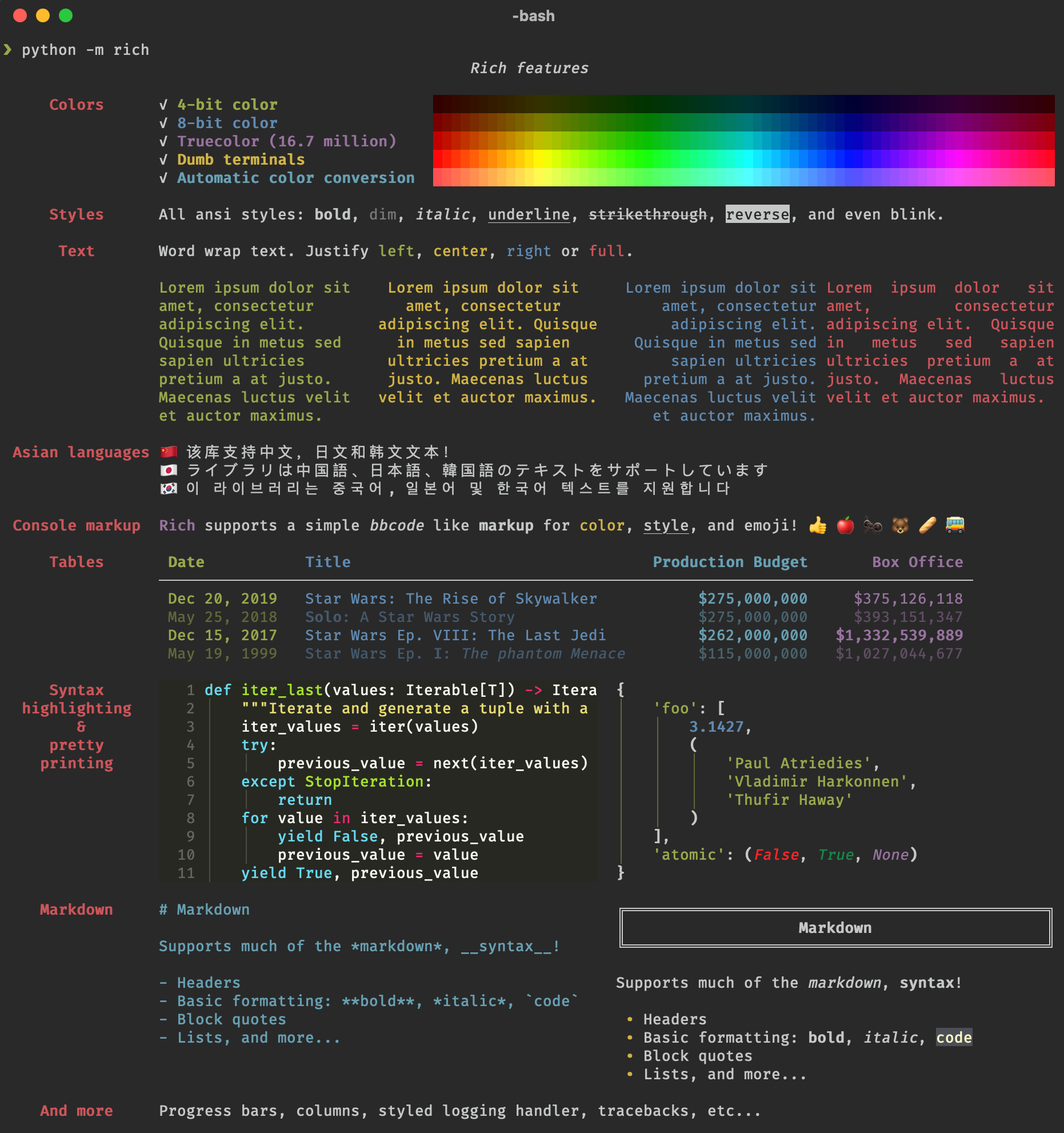
Ummm, like the rich text tool?
Basically no, I don't know that lol
GitHub
Rich is a Python library for rich text and beautiful formatting in the terminal. - Textualize/rich
@frozen notch when I was researching I found Colorama too but I thought it was only for command line outputs. There must be a way I can use these for this instead?
frozen notch
no its for something different i want to show you
do you mind if i message you directly to share my screen?
sudden dirge
Please do!
ionic matrixBOT
 Python help channel closed
This help channel has been closed and it's no longer possible to send messages here. If your question wasn't answered, feel free to create a new post in #1035199133436354600. To maximize your chances of getting a response, check out this guide on asking good questions.