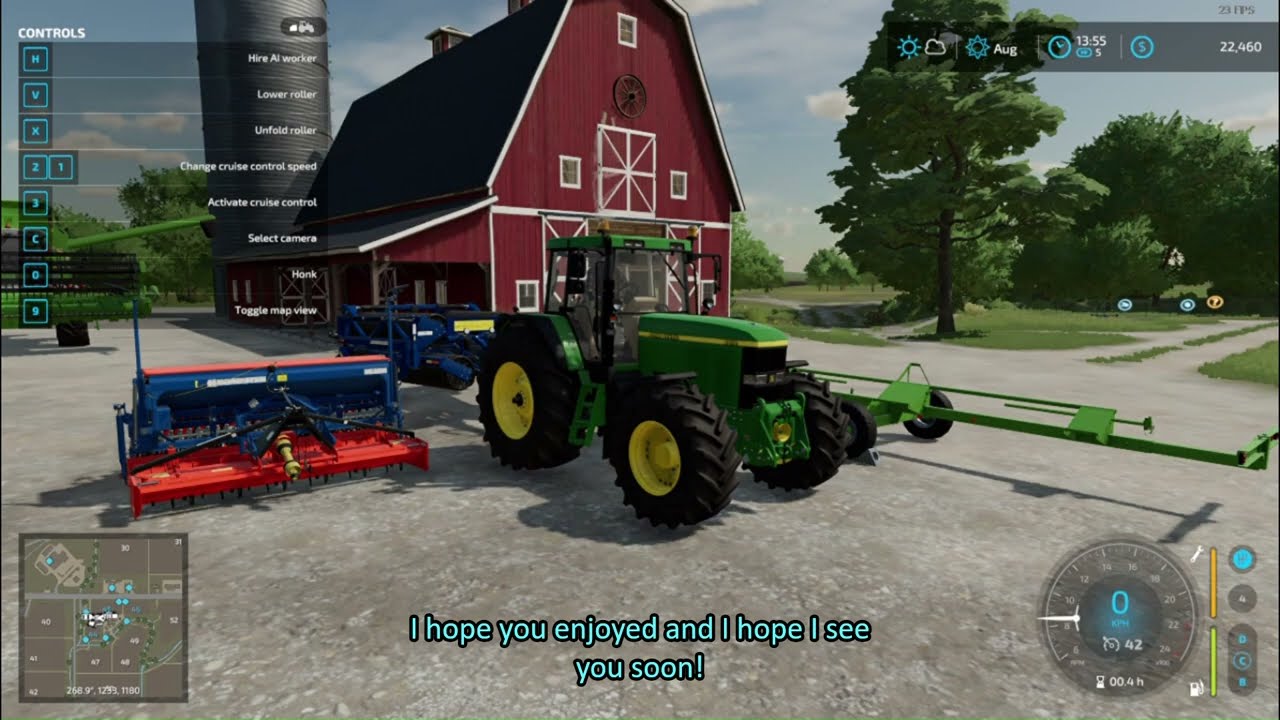
#OBS failing to capture correctly
12 messages · Page 1 of 1 (latest)
 blazing grotto
 blazing grotto
Is that what I was supposed to send?
Btw, Both my laptop and this PC have had this problem with OBS
 fiery vortex
Audio buffering hit the maximum value. This is an indicator of very high system load, will affect stream latency, and may even cause individual audio sources to stop working. Keep an eye on CPU usage especially, and close background programs if needed.
Occasionally, this can be caused by incorrect device timestamps. Restart OBS to reset buffering.
Source affected (potential cause): Desktop Audio
Encoder overload may be related to your CPU or GPU being overloaded, depending on the encoder in question. If you are using a software encoder (x264) please see the CPU Overload Guide. If you are using a hardware encoder (AMF, QSV/Quicksync, NVENC) please see the GPU Overload Guide.
https://obsproject.com/kb/encoding-performance-troubleshooting
At least one of your audio devices has a sample rate that doesn't match the rest. This can result in audio drift over time or sound distortion. Check your audio devices in Windows settings (both Playback and Recording) and ensure the Default Format (under Advanced) is consistent. 48000 Hz is recommended.
OBS Sample Rate: 48000 Hz
Stereo Mix (Realtek(R) Audio): 48000 Hz
Speakers (Realtek(R) Audio): 192000 Hz
To ensure that OBS Studio has the hardware resources it needs for realtime streaming and recording, we recommend disabling the "Game DVR Background Recording" feature via these instructions.
https://obsproject.com/wiki/How-to-disable-Windows-10-Gaming-Features#game-dvrcaptures
You should also run OBS as admin
You may need to play at lower settings