
#Looter UI Guide
1 messages · Page 1 of 1 (latest)
 tawny aspen
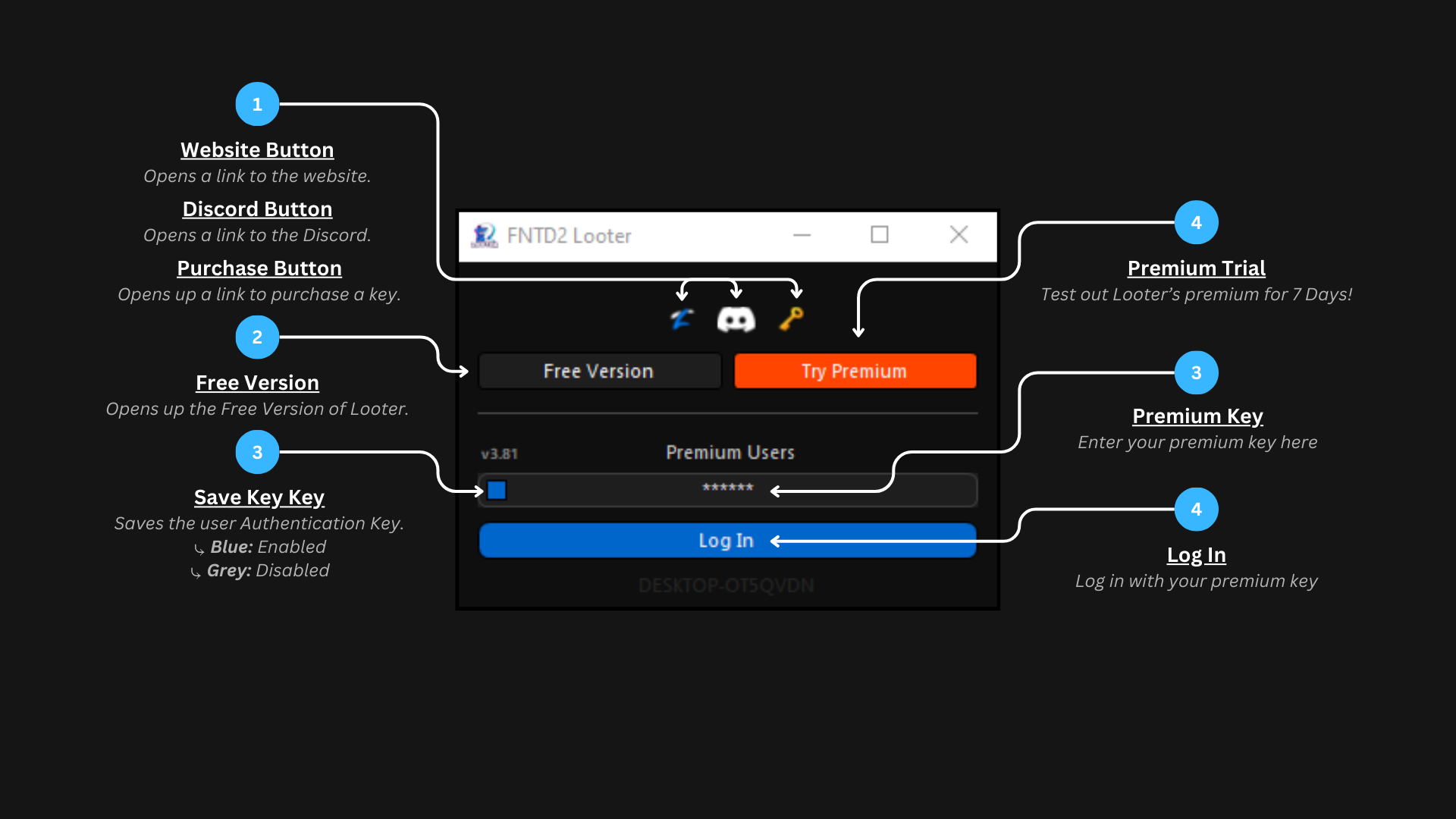
Log In Page

Main Menu

1️⃣ Status Log
Shows the current Macro Status.
2️⃣ ➤ Queue System
Opens up the Queue System Menu.
More info @ (Under Construction)
2️⃣ ➤ Start Button
Starts the Selected Macro from #1456442647202758833 message
Load up the map you wanna play on. Then press 'Start' on either while the map is loading or during in-game.
2️⃣ ➤ Stop Button
Force stops the current Macro.
2️⃣ ➤ Menu Expander
Expands and collapses the menu.
Expanding will show more features such as Discord Webhook, FPS Unlocker, and more!
[Go back to Top](#1456442647202758833 message) / [Go back to Main Menu](#1456442647202758833 message)
3️⃣ ➤ Discord Webhook
⤷ Textbox: To enable access to the textbox, press the orange box on the left side to enable edit mode and enter your Discord webhook. Learn more about webhooks here.
⤷ Test: Sends a test message to check whether the provided webhook URL is valid. This can take up to 5 seconds.
⤷ Save: Saves the current Discord webhook and enables it.
⤷ Send Loot: Sends a picture of all account loot for each run.
3️⃣ ➤ FPS Unlocker
Before using, close all Roblox instances or it will not work.
⤷ Numeric Box: To enable access to the box, press the orange box on the left side to enable edit mode and set your desired FPS. To return to the default, enter 0.
⤷ Set: Saves the value in the Roblox settings.
⤷ Enable: Confirms and applies the changes.
[Go back to Top](#1456442647202758833 message) / [Go back to Main Menu](#1456442647202758833 message)
4️⃣ ➤ Macro List
Shows all the current macros inside 'Custom' folder. To update the list, press the ↪️ button @ #1456442647202758833 message
5️⃣ ➤ Macro Information
Shows information about the selected macro, such as unit slots, author, discussion page, and author notes.
5️⃣ ➤ Reload Macro List
Reloads the macro list to display the latest updates.
Used after creating a macro or adding a new macro manually.
5️⃣ ➤ Community Macro
Opens the Community Macro menu.
A place where you can download community made macros without needing to go to Discord.More information is available in the Community Macro section.
5️⃣ ➤ Editor
Opens the Editor menu.
A place where you can modify an existing macro or create your own.More information is available in the [Editor section.](#1456442647202758833 message)
[Go back to Top](#1456442647202758833 message) / [Go back to Main Menu](#1456442647202758833 message)
6️⃣ ➤ Super Features
All Super Looter exclusive features are located here. More features are coming soon.
6️⃣ ➤ Report / Request
Directs the user to https://discord.com/channels/1286211974908215306/1451370742900986036
6️⃣ ➤ Debugging Menu
Opens the Debugging Menu.
A place where users can check whether Looter is working correctly and adjust settings so it can run smoothly.
tawny aspen
7️⃣ ➤ Statistics
Shows your statistic.
Current | Overall
[Go back to Top](#1456442647202758833 message) / [Go back to Main Menu](#1456442647202758833 message)
tawny aspen
Editor

1️⃣ ➤ Macro Name
Name of the macro
1️⃣ ➤ Save Button
Saves all settings and information of the macro
2️⃣ ➤ Macro ListBox
Shows all saved macros.
2️⃣ ➤ Save Button
Saves all settings and information of the macro
3️⃣ ➤ Top Most
Keeps the editor on top of all windows so it is always visible.
3️⃣ ➤ Share Info
Opens a menu where you can enter all macro information, such as unit slots, notes, author, and more. For people sharing their Macros.
3️⃣ ➤ Reload List
Reloads and updates the macro list.
[Go back to Top](#1456442647202758833 message) / [Go back to Editor](#1456442647202758833 message)
4️⃣ ➤ Gamemode
Select the gamemode for the macro. Choosing Endless will enable Anti-AFK.
For Boss Raid Maps, [click here.](#ミ🌟・updates message)
4️⃣ ➤ Settings
⤷ Difficulty: Select the difficulty for the macro.
⤷ Autoskip: Enable or Disable autoskip. Keep it Enabled if using multiple accounts.
4️⃣ ➤ Game / Night
⤷ Game: Select what Game/Map its for.
⤷ Night: Select what Night/Level its for.
[Go back to Top](#1456442647202758833 message) / [Go back to Editor](#1456442647202758833 message)
5️⃣ ➤ Rituals
⤷ Zoom: Instructs the macro to zoom out before starting.
(Press]in-game to replicate while editing)
⤷ Look: Instructs the macro to rotate/look before starting.
(Press[in-game to replicate while editing). To replicate zoom-in make sure to set the values inside Advanced Rituals first.
⤷ Adv: Advanced rituals. (HIGHLY RECOMMENDED to ensure rituals are performed correctly)
5️⃣ ➤ Roblox's
Number of Roblox windows to replicate the rituals on.
5️⃣ ➤ Speed
Select the game speed.
[Go back to Top](#1456442647202758833 message) / [Go back to Editor](#1456442647202758833 message)
6️⃣ ➤ Unit Selection
⤷ Slot 1-6: Represents your hotbar. Tells the macro which unit to place.
⤷ Target: Sets the unit's target type.
6️⃣ ➤ Select Window
Selects which window/Roblox account to place the unit on. Leave at 1 if using a single account. (See Multi Account Set-Up for more info)
Auto selects & moves the window when using 'Set Windows' found [here.](#1456442647202758833 message) - ( 8️⃣ 🇰 )
6️⃣ ➤ Upgrade
⤷ Yes/No: Do you wanna upgrade after placement?
⤷ Upgrade All: Upgrades all units after placement.
⤷ Add: Enables auto-upgrade and adds it to the [Placement ListBox](#1456442647202758833 message) so it auto-upgrade without having to wait for all units to be placed. DO NOT USE WITH "Upgrade All".
[Go back to Top](#1456442647202758833 message) / [Go back to Editor](#1456442647202758833 message)
7️⃣ ➤ Movement / Rotation
⤷ Combobox: Select the type of action to perform.
⤷ Reverse: Set the action in reverse.
⤷ Replicate: Used when creating a macro. Replicates the action in-game.
⤷ Add: Adds the action to the [Placement ListBox.](#1456442647202758833 message)
7️⃣ ➤ Remove All
Instructs the macro to remove all units after X seconds, starting only after all units are placed. Best used for Endless.
[Go back to Top](#1456442647202758833 message) / [Go back to Editor](#1456442647202758833 message)
8️⃣ ➤ Placement
⤷ ListBox: Shows the list of instructions for the macro in order from top to bottom.
Format:[UPGRADE/ACTION], [WINDOW], [X-COORD], [Y-COORD], [UNIT/KEY]
⤷ Click Mode: Instructs the macro to click anywhere on screen. Useful for activating speed at certain points.
[Go back to Top](#1456442647202758833 message) / [Go back to Editor](#1456442647202758833 message)
8️⃣ ➤ Other Controls
⤷ 8️⃣ 🇦 Checkbox Turn on to add a unit to the list automatically by pressing C. Make sure Unit Slot, Window, and Upgrade are set correctly.
⤷ 8️⃣ 🇧 Coordinate: Shows the coordinates of your current mouse position after pressing 'C'.
⤷ 8️⃣ 🇨 Up Arrow Moves the selected item up.
⤷ 8️⃣ 🇩 Down Arrow: Moves the selected item down.
⤷ 8️⃣ 🇪 Update: Updates the selected item in the list with your new settings (Coordinates, Unit Slot, Window, Upgrade).
⤷ 8️⃣ 🇫 X-Coord: Same as 8B, but editable. Use this to change the X-COORD of 8B.
⤷ 8️⃣ 🇬 Y-Coord: Same as 8B, but editable. Use this to change the Y-COORD of 8B.
⤷ 8️⃣ 🇭 Get Grabs the coordinate, unit, and window of the selected item. (Upgrade type must be selected manually)
⤷ 8️⃣ 🇮 Add Adds the current settings and coordinates to the listbox.
⤷ 8️⃣ 🇯 Remove Removes the selected item from the list.
⤷ 8️⃣ 🇰 Set Window Aligns all windows to the correct position and size. PressShift+<to rotate between windows when using multiple accounts.
[Go back to Top](#1456442647202758833 message) / [Go back to Editor](#1456442647202758833 message)